CIA Brief 240203

image

Microsoft Create: How to use ChatGPT to plan a vacation –

https://www.youtube.com/watch?v=hT3IkaftZME

Monthly Microsoft Security news – February 2024 –

https://techcommunity.microsoft.com/t5/microsoft-defender-xdr-blog/monthly-news-february-2024/ba-p/4046948

Easily control audio and video settings in Teams meetings –

https://insider.microsoft365.com/en-us/blog/easily-control-audio-and-video-settings-in-teams-meetings

Microsoft Intune Tunnel for Mobile Application Management –

https://www.youtube.com/watch?v=-s_tBW_XQu0

Microsoft Endpoint Privilege Management –

https://www.youtube.com/watch?v=N3X2JGdXqDE

Microsoft Cloud PKI –

https://www.youtube.com/watch?v=wJfL55viYjg

Microsoft Intune Suite – beyond endpoint management in 2024 –

https://www.youtube.com/watch?v=FLcX9-uXlKY

How Microsoft 365 Delivers Trustworthy AI –

https://techcommunity.microsoft.com/t5/copilot-for-microsoft-365/how-microsoft-365-delivers-trustworthy-ai/ba-p/4045596

3 new ways the Microsoft Intune Suite offers security, simplification, and savings –

https://www.microsoft.com/en-us/security/blog/2024/02/01/3-new-ways-the-microsoft-intune-suite-offers-security-simplification-and-savings/

Midnight Blizzard: Guidance for responders on nation-state attack –

https://www.microsoft.com/en-us/security/blog/2024/01/25/midnight-blizzard-guidance-for-responders-on-nation-state-attack/

Unlock the Power of Video at Work and School: 6 Features to Use in Microsoft Stream –

https://techcommunity.microsoft.com/t5/microsoft-stream-blog/unlock-the-power-of-video-at-work-and-school-6-features-to-use/ba-p/4043899

Power Platform January 2024 Newsletter –

https://www.linkedin.com/pulse/january-2024-newsletter-microsoft-power-platform-community-uy5rc/

Easily Manage Privileged Role Assignments in Microsoft Entra ID Using Audit Logs –

https://techcommunity.microsoft.com/t5/microsoft-entra-blog/easily-manage-privileged-role-assignments-in-microsoft-entra-id/ba-p/4013854

Microsoft Teams available on Apple Vision Pro on February 2 –

https://techcommunity.microsoft.com/t5/microsoft-teams-blog/microsoft-teams-available-on-apple-vision-pro-on-february-2/ba-p/4042499

Microsoft earnings beat across the board as cloud, AI drive momentum –

https://www.msn.com/en-us/money/technology/microsoft-earnings-beat-across-the-board-as-cloud-ai-drive-momentum/ar-BB1hvri9?ocid=entnewsntp&pc=U531&cvid=e176344ba388468f9bc7ad3509af872d&ei=13

Make meetings more fun and personal with Decorate your background –

https://www.youtube.com/watch?v=PhbowtYOkyw

Introducing More Granular Certificate-Based Authentication Configuration in Conditional Access –

https://techcommunity.microsoft.com/t5/microsoft-entra-blog/introducing-more-granular-certificate-based-authentication/ba-p/2365668

Create an org wide team –

https://www.youtube.com/watch?v=MrbmYhQxvok

Microsoft Incident Response Retainer Overview –

https://www.youtube.com/watch?v=9q-j0gq33Fg

After hours

Vision Pro Review: 24 Hours With Apple’s Mixed-Reality Headset –

https://www.youtube.com/watch?v=8xI10SFgzQ8

Editorial

If you found this valuable, the I’d appreciate a ‘like’ or perhaps a donation at https://ko-fi.com/ciaops. This helps me know that people enjoy what I have created and provides resources to allow me to create more content. If you have any feedback or suggestions around this, I’m all ears. You can also find me via email director@ciaops.com and on X (Twitter) at https://www.twitter.com/directorcia.

If you want to be part of a dedicated Microsoft Cloud community with information and interactions daily, then consider becoming a CIAOPS Patron – www.ciaopspatron.com.

Watch out for the next CIA Brief next week.

CIAOPS Need to Know Microsoft 365 Webinar – February

laptop-eyes-technology-computer_thumb

Join me for the free monthly CIAOPS Need to Know webinar. Along with all the Microsoft Cloud news we’ll be taking a look at Copilot for Microsoft 365 now that it is available generally..

Shortly after registering you should receive an automated email from Microsoft Teams confirming your registration, including all the event details as well as a calendar invite.

You can register for the regular monthly webinar here:

February Webinar Registrations

(If you are having issues with the above link copy and paste – https://bit.ly/n2k2402

The details are:

CIAOPS Need to Know Webinar – Febraury 2024
Tuesday 20th of February 2024
11.00am – 12.00am Sydney Time

All sessions are recorded and posted to the CIAOPS Academy.

The CIAOPS Need to Know Webinars are free to attend but if you want to receive the recording of the session you need to sign up as a CIAOPS patron which you can do here:

http://www.ciaopspatron.com

or purchase them individually at:

http://www.ciaopsacademy.com/

Also feel free at any stage to email me directly via director@ciaops.com with your webinar topic suggestions.

I’d also appreciate you sharing information about this webinar with anyone you feel may benefit from the session and I look forward to seeing you there.

Microsoft 365 Backup restore process

image

In a previous article:

Setting Microsoft 365 Backup policies

I determined that I liked the simplicity of setting up backups with Microsoft 365 Backup but the negative was a lack of reporting or alerting on the execution of these jobs.

I’m sorry to say that I also find the restoration process for Microsoft 365 lacking for a number of reasons.

1. The main reason is, at the moment, there is not really a granular restore option.

2. The restore option is typically all over the top of what is there already, effectively replacing it or restoring everything to a different location and then you have to manually copy the data across.

3. Selecting which actual backup to restore from I also found cumbersome.

4. I found the restoration of Exchange online mailboxes the most tricky to restore a select amount of data. You have to filter what you looking for via a few options. You kind of have to know what you want prior, you can’t just browse.

5. When the restore process actually runs you get no real indication of what it is actually doing, you simply have to wait for it to finish. My 1.28TB test SharePoint site took around 45 minutes to copy to a new location.

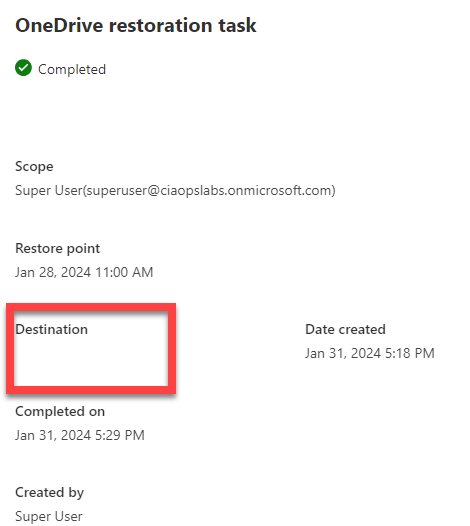
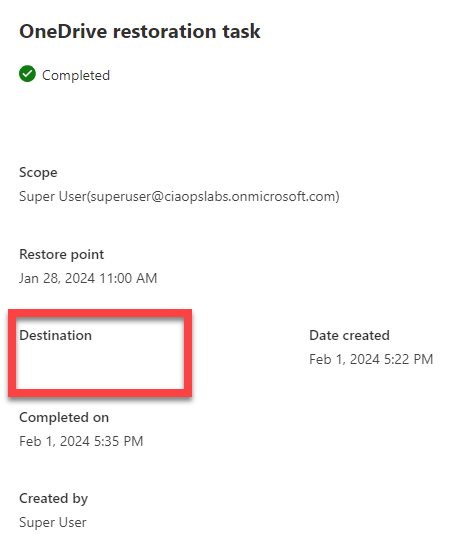
This may be me but when I did a restore of a OneDrive for Business to another location, the destination into which it copied the data is blank!

image

I did this more than once and got the same result. I couldn’t find any new SharePoint sites in my environment or sub folders. As such I am still trying to find out where the data actually restored to, as it does say it is completed!

image

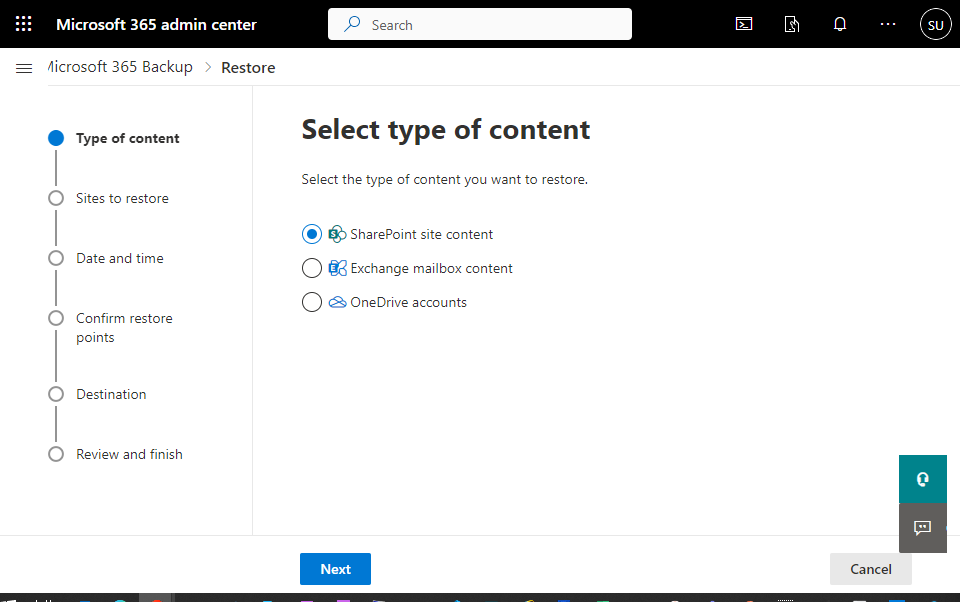
The good thing is the restore process is pretty straight forward. A wizard takes you through the process as shown above.

image

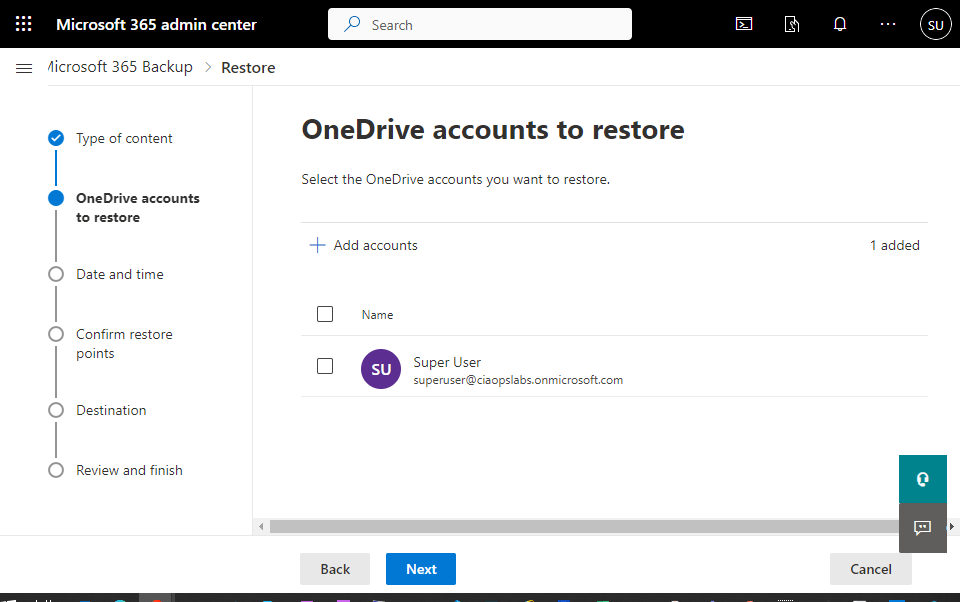
For example, if you want to restore a OneDrive for Business you select the item from a list.

image

You then need to select a time and date to restore from. This is somewhat cumbersome and would be much better if you could simply browse through the available backups. For now you need to select the date and time you want.

image

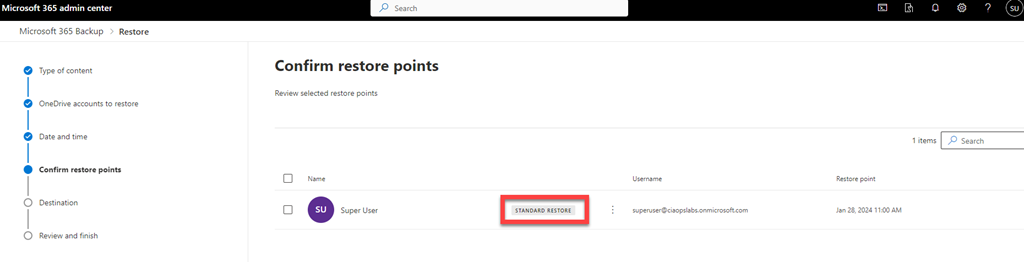
I’m not sure what “standard restore” means when you confirm the restore point as shown above.

image

When you select the destination you’ll see that it typically everything over the top or everything to another location and then you need to manually copy what you need and delete the rest.

image

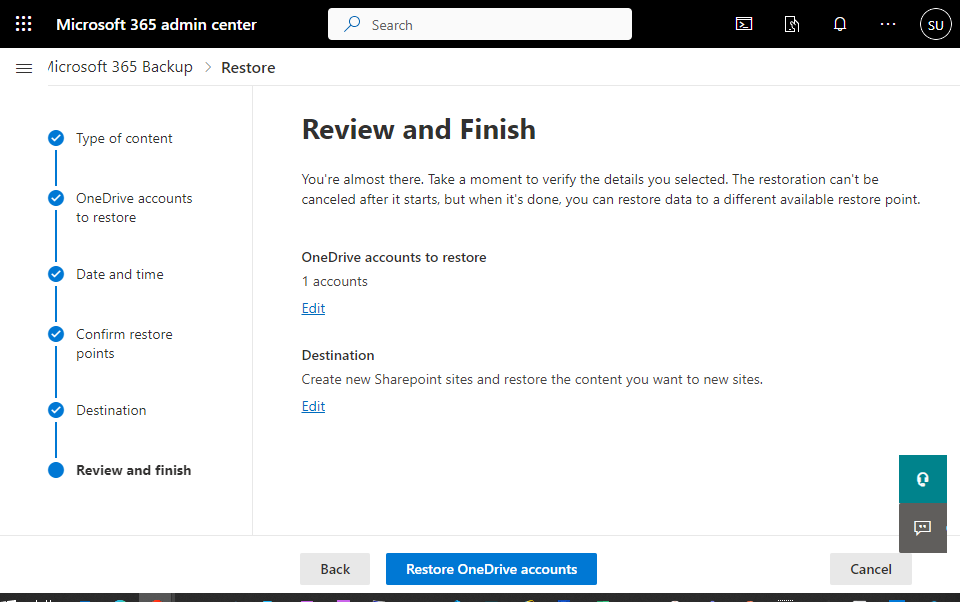
You confirm the restore.

image

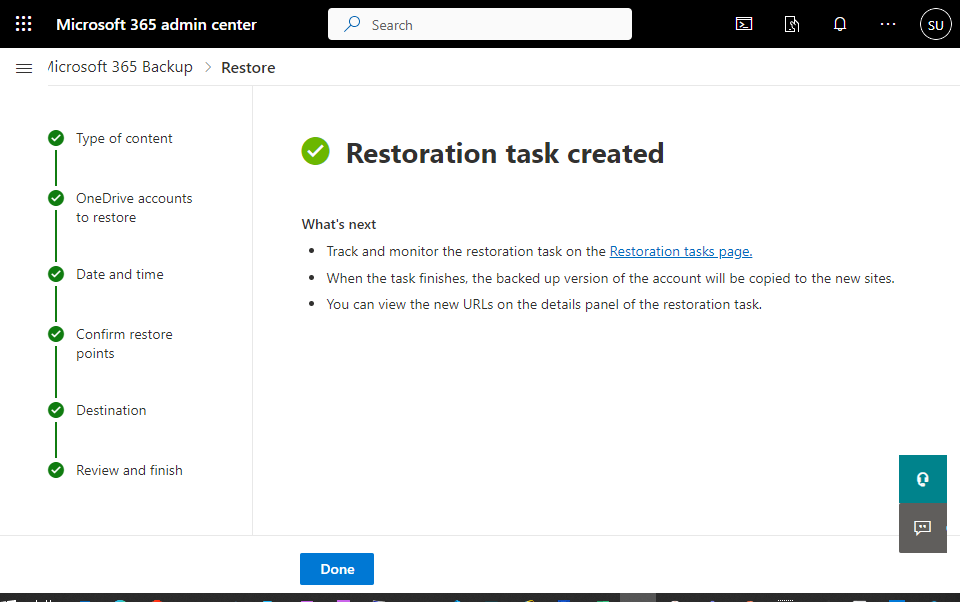
and you select Done.

image

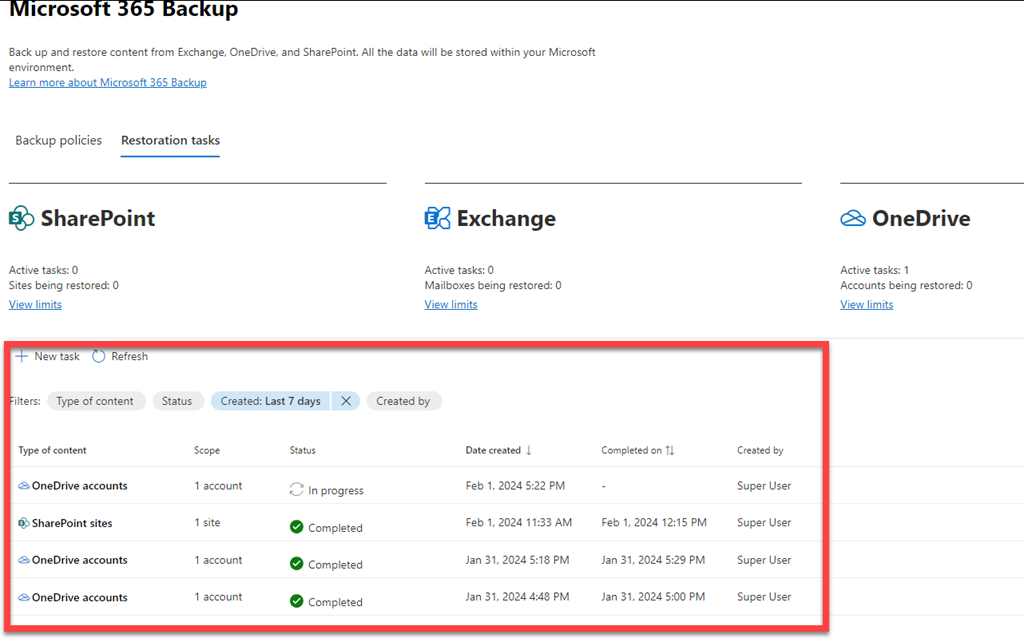
Then at the bottom of the page are the restore tasks as shown above.

image

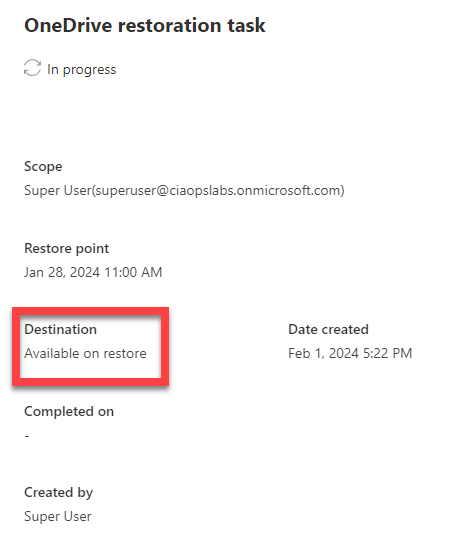
Even with the restore in progress, you’ll see you don’t any information of progress or completion time. You’ll also note that the Destination will be available on restore,

image

but it wasn’t again unfortunately.

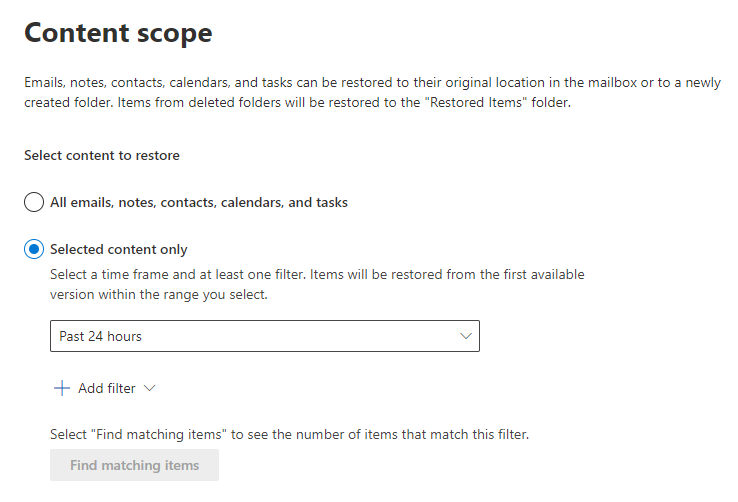
I found the mailbox restore process quite cumbersome.

image

If you want to do selected content as shown above you need to select a time frame

image

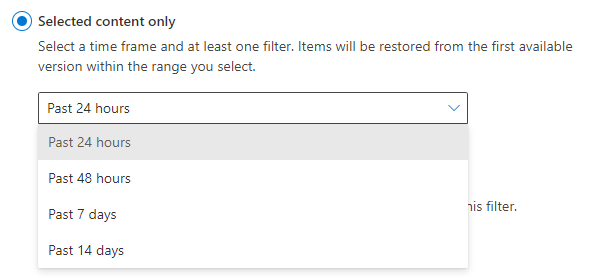
and that time frame is 14 days maximum.

image

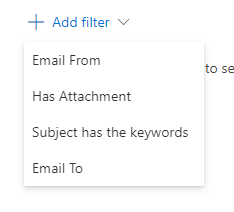
Then you need to add filters from the four options shown above.

image

Then you have to find any matches and more me, most of the time I didn’t find any in my test environment, which was frustrating.

Remember, Microsoft 365 Backup is still in preview and will continue to improve and develop. However, as it stands now I don’t feel this is a viable alternative for people who do wish to restore their Microsoft 365 environment in a granular manner. I think as a disaster recovery tool, that is, back up everything and restore everything, over the top if needed, it would be fine.

Thus, in summary, for now, I think Microsoft 365 Backup could work as a disaster recovery service but for granular, item level restore – no so much. However, it is still very early days for this product, so keep your eye on what develops. I know I will.

Setting Microsoft 365 Backup policies

I recently talked about

Microsoft 365 Backup pricing

It’s now time to look at how to actually backup data with the service.

You’ll need to have rights to the Microsoft 365 administration portal.

image

In here, select Settings and then Microsoft 365 Backup as shown above. On the right you will see the settings for what can be backed up. At this stage it is Exchange, SharePoint and OneDrive for Business.

image

Select the button Set up policy for any of these three items to create a backup routine. In this case, I’ve selected OneDrive for Business.

You’ll be presented with a wizard as shown above. You’ll notice here that there are few things that you can vary. You’ll get one year of backup retention with backups within the first 14 days every 15 minutes and weekly after that.

image

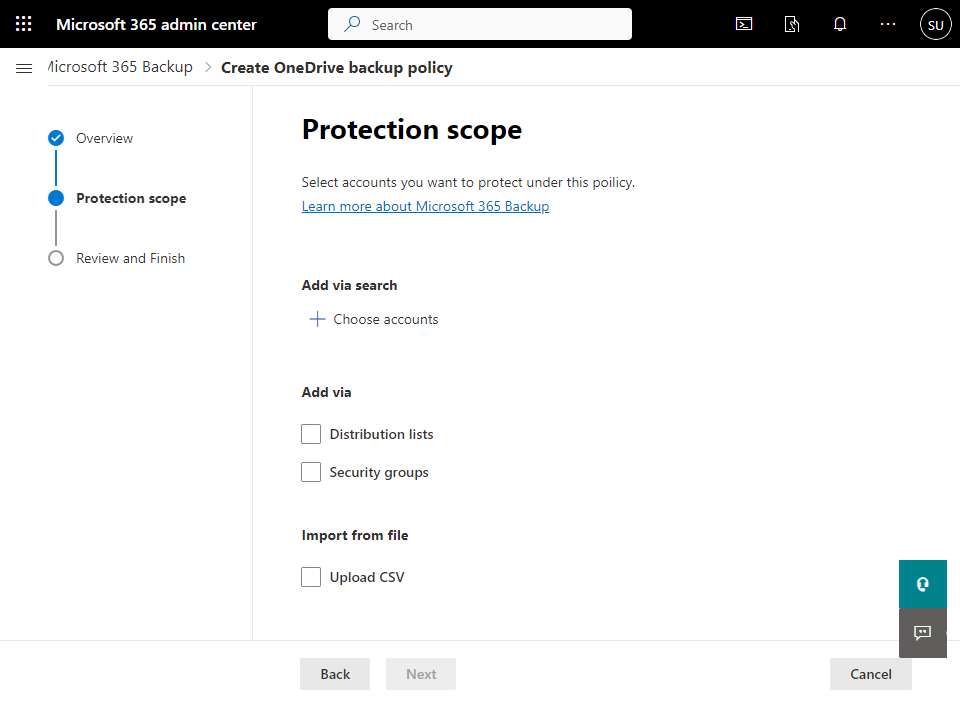
The new dialog allows you to select the items you wish to backup as shown above. Select what you wish to backup and then move onto the next dialog.

image

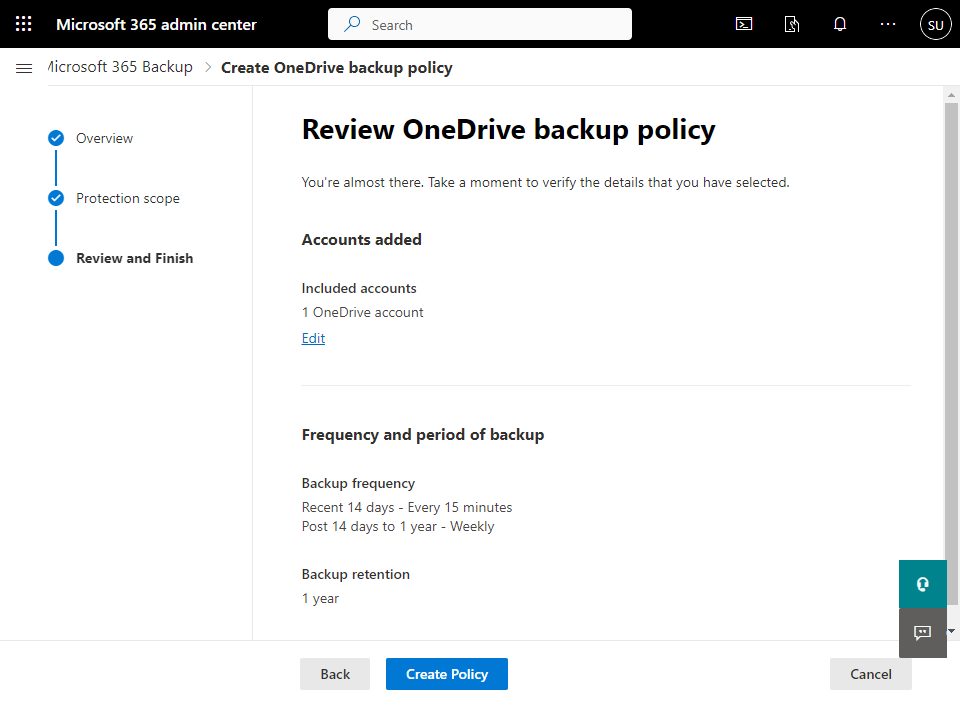
The final screen in the wizard is simply a summary of the policy as shown above. Select the Create Policy button at the bottom of the screen to complete the process.

image

Once that is done you’ll see the confirmation screen shown above indicating the policy has bene created.

image

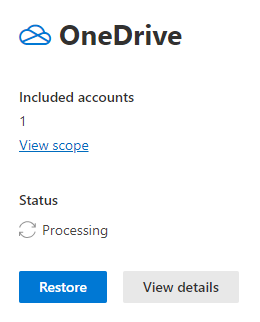
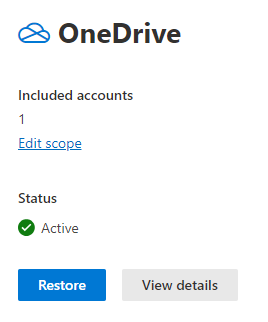
If you look at that item in the console summary you will see that its status if Processing as shown above. The time this takes will depend on the amount of data you have elected to backup.

image

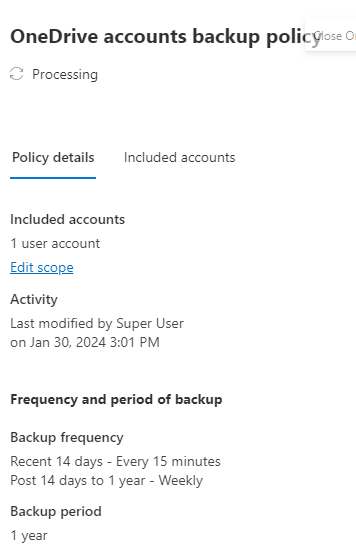
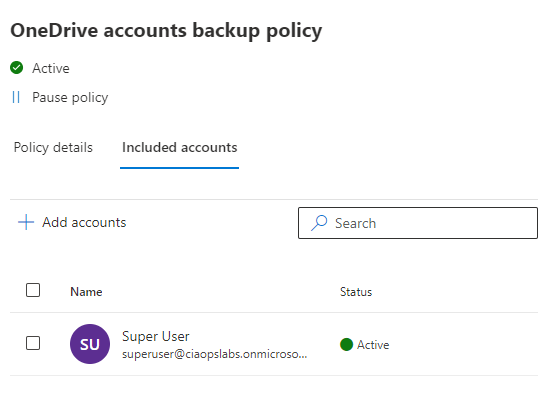
If you select the View details button you’ll see a summary of included accounts and activity as shown above.

image

When processing is complete the item will show as Active as seen above. You’ll also notice that the Restore button is active. You can again select View details but you see basically the same information as before.

image

If you select the Edit the scope hyperlink you can add more items to what is being backed up as shown above.

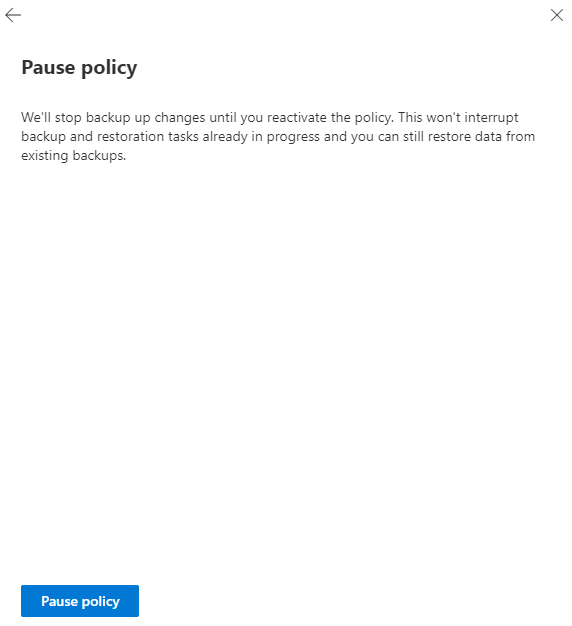
You’ll also notice at the top of this dialog you can Pause the policy.

image

This will show the dialog shown above.

That’s all there is really is to backing up items. Very straight forward with few options for now. Remember, this product is still in preview.

Probably the biggest missing item for me is reporting. I would love to see how much data is being backed up, when it was run, what was included, etc. At the moment, you have to trust it is in fact backing up, unless you do a restore (which you should regularly anyway). However, some reporting on what the backup is doing would be great. Even better, if that could be sent via email or integrated to something like Power Automate would be magic.

It would be good to know the size of the items being backup as you create the policy i.e. this OneDrive you selected is 500GB in size and is estimated to cost $X as a bonus.

I think it is good that the service is basic. That is really all you generally need for backup. Turn it on. Select what you want to backup, and away it goes. For now, I think all that is missing is some basic reporting around completions and data backed up.

I also like the ability to quickly pause the backup. This might allow me to set it up initially and run for a short period, pause and re-enable down the track. Not sure how much that really makes a difference versus just leaving it on, given this service is billed by storage, but I like that flexibility.

Clearly, Microsoft 365 backup is not as full featured as existing third party backup services, however my question is what value do they they really provide? Do all those bells and whistles third parties provide really necessary of utilised in any meaningful way? I kind of doubt it. The main thing is to set the backup up and then leave it do its thing. Aside from some basic reporting, do you really need more? Importantly, does more actually add to the value of the service or is it way to bloat the service to justify costs? 

I’ll take a look at restoring data in an upcoming article, so stay tuned. Microsoft 365 Backup is still new and will develop overtime but I hope that it stays simple and adds some minor missing components, like basic reporting rather than trying to be everything to everyone.

CIA Brief 240127

image

Sulava improves productivity and reaches more customers with Teams Premium –

https://www.youtube.com/watch?v=vYsKMnt9U8U

What’s new in Microsoft Intune January 2024 –

https://techcommunity.microsoft.com/t5/microsoft-intune-blog/what-s-new-in-microsoft-intune-january-2024/ba-p/4036593

How to join immersive spaces –

https://www.youtube.com/watch?v=FN83rjhd-3g

Bring virtual connections to life with Microsoft Mesh, now generally available in Microsoft Teams –

https://www.microsoft.com/en-us/microsoft-365/blog/2024/01/24/bring-virtual-connections-to-life-with-microsoft-mesh-now-generally-available-in-microsoft-teams/

Meet your AI assistant for education: Microsoft Copilot –

https://www.youtube.com/watch?v=K5z6t9gSO4E

What’s new in the Microsoft 365 app on the web and for Windows –

https://insider.microsoft365.com/en-us/blog/whats-new-in-the-microsoft-365-app-december-2023

How to explore immersive spaces –

https://www.youtube.com/watch?v=esBzumV_59Q

Easily control audio and video settings in Teams meetings –

https://insider.microsoft365.com/en-us/blog/easily-control-audio-and-video-settings-in-teams-meetings

Feature Deep Dive: Open in App –

https://techcommunity.microsoft.com/t5/microsoft-onedrive-blog/feature-deep-dive-open-in-app/ba-p/4034738

Microsoft Entra user and admin access controls to prepare for Copilot –

https://techcommunity.microsoft.com/t5/microsoft-mechanics-blog/microsoft-entra-user-and-admin-access-controls-to-prepare-for/ba-p/4034067

Vulnerable Components Inventory now in public preview –

https://techcommunity.microsoft.com/t5/microsoft-defender-vulnerability/vulnerable-components-inventory-now-in-public-preview/ba-p/4035357

After hours

Why work doesn’t happen at work –

https://www.youtube.com/watch?v=5XD2kNopsUs

Editorial

If you found this valuable, the I’d appreciate a ‘like’ or perhaps a donation at https://ko-fi.com/ciaops. This helps me know that people enjoy what I have created and provides resources to allow me to create more content. If you have any feedback or suggestions around this, I’m all ears. You can also find me via email director@ciaops.com and on X (Twitter) at https://www.twitter.com/directorcia.

If you want to be part of a dedicated Microsoft Cloud community with information and interactions daily, then consider becoming a CIAOPS Patron – www.ciaopspatron.com.

Watch out for the next CIA Brief next week.

Microsoft 365 Backup pricing

image

I recently detailed how to

Set up Microsoft 365 backup

I thought it was about time to take a look at the cost of Microsoft 365 Backup to see how it compares to other offerings.

The interesting thing is that billing is a little different from other third party solution. Microsoft 365 Backup is based on storage not on users. This makes direct comparison hard, so let me just focus on Microsoft 365 Backup is billed for now.

If you take a look at the Microsoft 365 Backup site you’ll see that at this point in time the service is billed at US$0.15 per GB per month. That is no matter what the data is whether, SharePoint, Exchange, OneDrive for Business. Data is data and the backup cost is per GB per month.

You’ll find this from Microsoft:

Pricing model for Microsoft 365 Backup (Preview)

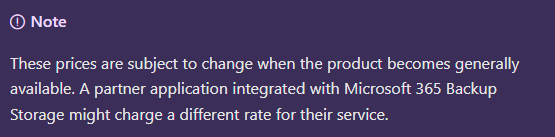
in which you need to note:

image

there is also a Microsoft 365 Backup pricing spreadsheet here:

https://aka.ms/M365BackupCalculator

but bottom line is to add up all your data storage and multiple by US$0.15, right? Not so quick. Per the documentation:

The size of protected content is equal to the cumulative size of the mailboxes being protected plus the size of the SharePoint sites and OneDrive accounts being protected (that is, the size of the live OneDrive accounts and SharePoint sites as display in the live sites’ usage reports) plus the size of any deleted/versioned content held for restore during the protection period.

Let’s say that I have 1,024GB (1TB) of total data I wanted backed up across SharePoint, Exchange and ODFB. That is relatively easy to determine via the usage reporting tools in Microsoft 365. Where it becomes more challenging is determining the deleted data capacity.What exactly is that?

After some digging, in essence, deleted data is data that has been purged from the service. For example, deleted data is data that was backed up in the SharePoint Online recycle bin that has now expired the standard retention period of 93 days and is no longer in SharePoint Online. Thus, deleted data, is largely, data that no longer resides in the service but has been backed up inside the service at some stage. Ok, but how will I know what that is? That’s a challenge. I can’t find an easy way of determining that. Maybe we’ll see that soon in Microsoft 365 Backup as I think we need to have it, otherwise knowing the costs becomes challenging.

For now, let’s say that the deleted data is exactly the same as my source data inside the services currently being backed up. Thus, if I have 1TB of live data to be backed up, let’s assume the total amount being sent to Microsoft 365 Backup is 2TB. Thus, the cost of this would be:

2,048 GB x US$0.15 = US$307.20 per month

If I assume say 30 users in that tenant of that size then I get roughly US$10 per month per user. I’m taking this as the high end benchmark for SMB in terms of tenant size. I’m just trying to get an average benchmark price with these numbers. That figure is around US$10 per user per month for Microsoft 365 Backup (with plenty of assumptions I admit, but you got to start somewhere)

I appreciate this is all very subjective but upon first glimpse, but looking at a few example tenants around the place and doing the same sort of calculations, I found that, at the very least, Microsoft 365 Backup seems to be comparable to the pricing of third party products on a purely economic basis, which I found interesting.

Of course, price isn’t the only measure of product value and the more live and deleted data you have as well as the longer you retain that data the more expensive it becomes with Microsoft 365 Backup. However, interestingly, Microsoft 365 Backup is pretty cost effective for smaller environments, that is, typically those in SMB. The challenge is that most competitive products are a flat fee per month per user (like a Microsoft 365 Business Premium license is), whereas Microsoft 365 Backup is a consumption based (Azure) fee (i.e. you pay for what you use). That leads to variable costs which many people don’t favour. But, remember with Microsoft 365 Backup your overall backup cost could be much lower as well. It all depends on what you use.

It is still early days for Microsoft 365 Backup and I remind you that it is still in preview at the moment. I’ll take a look a feature comparisons to third party services in an upcoming article but I found it interesting that Microsoft 365 Backup has taken a different approach to pricing that could work well in SMB, but I’ll take a closer look at the feature set in an upcoming article and hopefully present a better picture of how you should be considering Microsoft 365 Backup.

For me, that fact that it generally seems to be price competitive in SMB environments is a plus (aka in the ballpark). Not definitive, I grant you to replace what might be in place with other solutions from third parties, but still it is a good start in the comparison journey.

I’ll have more to share soon on what I’ve found and how I believe Microsoft 365 Backup can work in SMB.

Techwerks 23

bw-car-vehicle

CIAOPS Techwerks returns to Melbourne CBD on Friday the 15th of March 2024.

The course is limited to 20 people and you can sign up and reserve your place now! You reserve a place by completing this form:

http://bit.ly/ciaopsroi

or by sending me an email (director@ciaops.com) expressing your interest.

The content of these all day face to face workshops is driven by the attendees. That means we cover exactly what people want to see and focus on doing hands on, real world scenarios. Attendees can vote on topics they’d like to see covered prior to the day and we continue to target exactly what the small group of attendees wants to see. Thus, this is an excellent way to get really deep into the technology and have all the questions you’ve been dying to know answered. Typically, the event produces a number of best practice take aways for each attendee. So far, the greatest votes are for deeper dives into the Microsoft Cloud including Microsoft 365, Azure, Intune, Defender for Endpoint, security such as Azure Sentinel and PowerShell configuration and scripts, with a focus on enabling the technology in SMB businesses.

Recent testimonial – “I just wanted to say a big thank you to Robert for the Brisbane Techworks day. It is such a good format with each attendee asking what matters them and the whole interactive nature of the day. So much better than death by PowerPoint.” – Mike H.

The cost to attend is:

Gold Enterprise Patron = $50 ex GST

Gold Patron = $90 ex GST

Silver Patron = $180 ex GST

Bronze Patron = $360 ex GST

Non Patron = $720 ex GST

I hope to see you there.