
One of the biggest mistakes I see with AI adoption is treating Copilot like a fancy search engine.
You jump in, ask a question, get an answer… then disappear for a week and repeat the process.
That’s not transformation. That’s dabbling.
If you want real value from Microsoft 365 Copilot, you need to stop reacting and start automating your intent. One of the easiest ways to do that is by creating a scheduled prompt.
In plain English: instead of remembering to ask Copilot the same question every week, you tell Copilot once to do it for you — on a schedule — and deliver the result where you already work.
Let’s walk through exactly how to do that, using a simple but powerful example:
a regular update on what’s new in Microsoft 365.
What Is a Scheduled Prompt in Copilot?
A scheduled prompt allows you to:
- Define what you want Copilot to do
- Specify how often it should run
- Choose where the results are delivered
Think of it as turning Copilot from a chatbot into a digital analyst that checks things for you while you’re busy doing real work.
For MSPs and IT pros, this is gold. Updates, changes, alerts, summaries — all on autopilot.
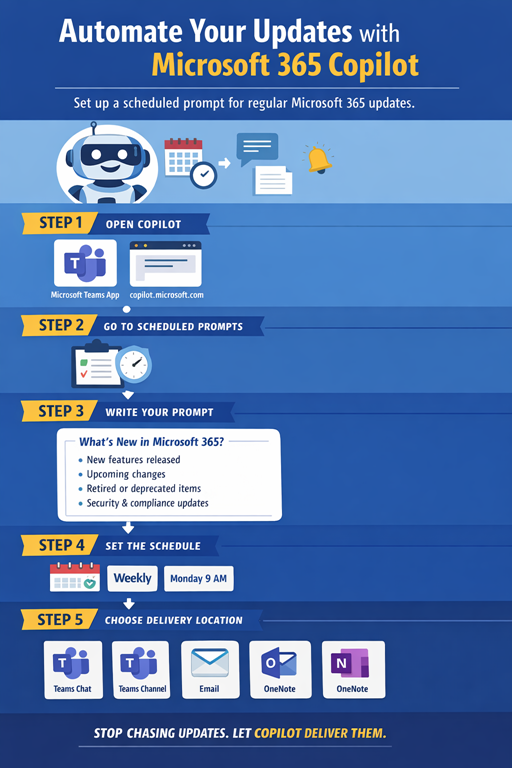
Step-by-Step: Creating a Scheduled Prompt in Microsoft 365 Copilot
Step 1: Open Microsoft 365 Copilot
Start in either:
- Microsoft Teams (Copilot app), or
- copilot.microsoft.com while signed in with your Microsoft 365 account
You want the full Microsoft 365 Copilot, not consumer Copilot.
Step 2: Go to Prompt Management / Scheduled Prompts
Inside Copilot:
- Select Prompts or Create a prompt
- Choose Scheduled prompt (or “Run on a schedule”, depending on your tenant wording)
This is where you switch from ask once to ask repeatedly.
Step 3: Write Your Prompt (This Matters More Than You Think)
Here’s an example prompt you can copy and adapt:
Each week, provide a clear summary of what is new or changed in Microsoft 365.

Include:
- New features released
- Upcoming changes that are rolling out
- Any features that are being retired or deprecated
- Items that may impact security, compliance, or end users

Summarise the information in plain English.
Highlight what matters most for SMBs and IT administrators.
Include links to official Microsoft documentation where available.
Notice what’s missing?
No hype. No vague “tell me about”.
You’re setting expectations, scope, and audience.
That’s how you get useful output.
Step 4: Set the Schedule
Now tell Copilot when to run it:
- Frequency: Weekly
- Day: Pick something predictable (Monday or Friday work well)
- Time: During business hours so it’s there when you are
Copilot doesn’t get tired. Use that.
Step 5: Choose the Delivery Location
This is where Copilot shines compared to standalone AI tools.
You can send the output to:
- A Teams chat with yourself
- A Teams channel (great for internal IT updates)
- Your email
- A OneNote page for long-term knowledge capture
My recommendation?
A private Teams chat or a dedicated “Microsoft 365 Updates” channel.
Meet people where they already are.
Why This Actually Changes Behaviour
Here’s the real win.
Once Copilot delivers the information without you asking, you:
- Stop missing updates
- Stop reacting late to changes
- Start scanning trends instead of chasing announcements
That’s how Copilot moves from interesting tool to operational advantage.
And once people see this working, the conversation shifts from:
“What can Copilot do?”
to:
“What should we automate next?”
That’s when adoption sticks.
If you’re rolling Copilot out to an SMB or MSP client and you haven’t shown them scheduled prompts, you’re leaving value (and credibility) on the table.
Copilot isn’t there to answer questions.
It’s there to remove them completely.

