Stop Checking. Start Scheduling. How to Use Scheduled Prompts in Microsoft 365 Copilot

image

One of the biggest mistakes I see with AI adoption is treating Copilot like a fancy search engine.

You jump in, ask a question, get an answer… then disappear for a week and repeat the process.

That’s not transformation. That’s dabbling.

If you want real value from Microsoft 365 Copilot, you need to stop reacting and start automating your intent. One of the easiest ways to do that is by creating a scheduled prompt.

In plain English: instead of remembering to ask Copilot the same question every week, you tell Copilot once to do it for you — on a schedule — and deliver the result where you already work.

Let’s walk through exactly how to do that, using a simple but powerful example:
a regular update on what’s new in Microsoft 365.


What Is a Scheduled Prompt in Copilot?

A scheduled prompt allows you to:

  • Define what you want Copilot to do

  • Specify how often it should run

  • Choose where the results are delivered

Think of it as turning Copilot from a chatbot into a digital analyst that checks things for you while you’re busy doing real work.

For MSPs and IT pros, this is gold. Updates, changes, alerts, summaries — all on autopilot.


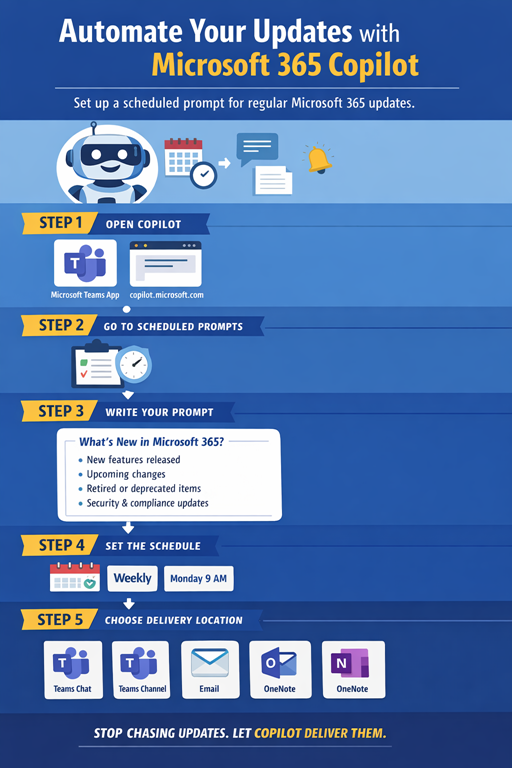
Step-by-Step: Creating a Scheduled Prompt in Microsoft 365 Copilot

Step 1: Open Microsoft 365 Copilot

Start in either:

  • Microsoft Teams (Copilot app), or

  • copilot.microsoft.com while signed in with your Microsoft 365 account

You want the full Microsoft 365 Copilot, not consumer Copilot.


Step 2: Go to Prompt Management / Scheduled Prompts

Inside Copilot:

  1. Select Prompts or Create a prompt
  2. Choose Scheduled prompt (or “Run on a schedule”, depending on your tenant wording)

This is where you switch from ask once to ask repeatedly.


Step 3: Write Your Prompt (This Matters More Than You Think)

Here’s an example prompt you can copy and adapt:

Each week, provide a clear summary of what is new or changed in Microsoft 365.

Include:
- New features released
- Upcoming changes that are rolling out
- Any features that are being retired or deprecated
- Items that may impact security, compliance, or end users

Summarise the information in plain English.
Highlight what matters most for SMBs and IT administrators.
Include links to official Microsoft documentation where available.

Notice what’s missing?

No hype. No vague “tell me about”.
You’re setting expectations, scope, and audience.

That’s how you get useful output.


Step 4: Set the Schedule

Now tell Copilot when to run it:

  • Frequency: Weekly

  • Day: Pick something predictable (Monday or Friday work well)

  • Time: During business hours so it’s there when you are

Copilot doesn’t get tired. Use that.


Step 5: Choose the Delivery Location

This is where Copilot shines compared to standalone AI tools.

You can send the output to:

  • A Teams chat with yourself

  • A Teams channel (great for internal IT updates)

  • Your email
  • A OneNote page for long-term knowledge capture

My recommendation?
A private Teams chat or a dedicated “Microsoft 365 Updates” channel.

Meet people where they already are.


Why This Actually Changes Behaviour

Here’s the real win.

Once Copilot delivers the information without you asking, you:

  • Stop missing updates

  • Stop reacting late to changes

  • Start scanning trends instead of chasing announcements

That’s how Copilot moves from interesting tool to operational advantage.

And once people see this working, the conversation shifts from:

“What can Copilot do?”

to:

“What should we automate next?”

That’s when adoption sticks.


If you’re rolling Copilot out to an SMB or MSP client and you haven’t shown them scheduled prompts, you’re leaving value (and credibility) on the table.

Copilot isn’t there to answer questions.

It’s there to remove them completely.

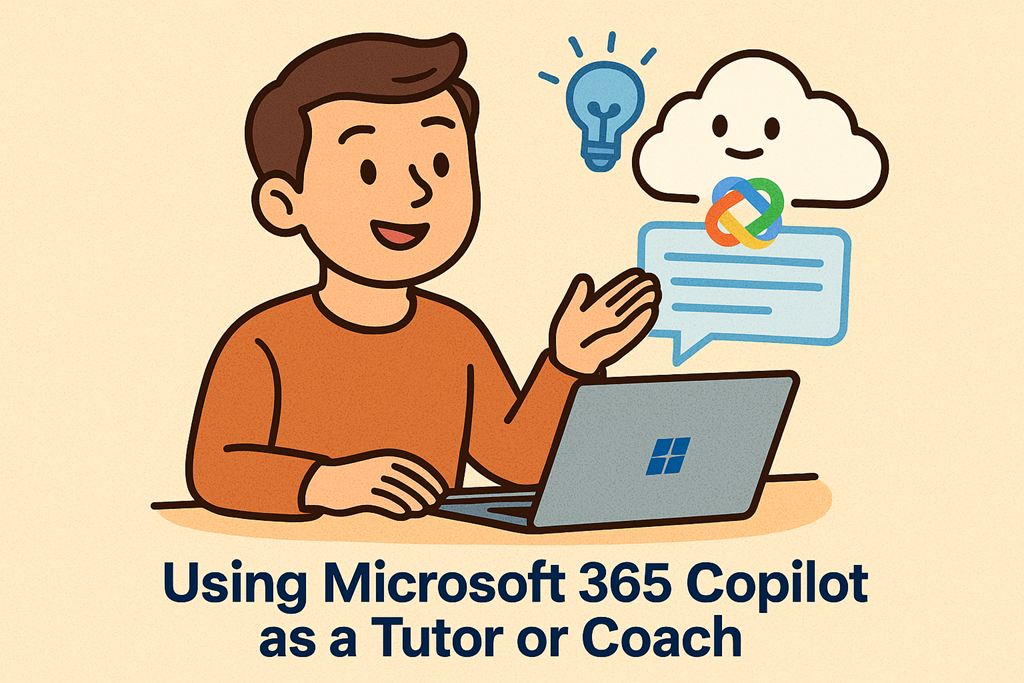
Microsoft 365 Copilot: Your Most Underrated Tutor and Coach

image

Most people are still using Microsoft 365 Copilot like a fancy autocomplete tool.

Draft an email.
Summarise a meeting.
Create a document “about this thing”.

Useful? Sure.
Transformational? Not even close.

The real power of Copilot isn’t that it does work for you.
It’s that it can teach you how to work better.

Used properly, Microsoft 365 Copilot becomes a tutor, a coach, and a thinking partner embedded directly inside the tools you already live in. And that’s where the leverage really starts to show.

Stop Asking for Answers. Start Asking to Learn.

Here’s the mindset shift that matters:

Instead of saying “do this for me”, start saying
“show me how you would do this”.

Copilot is exceptionally good at:

  • Explaining why something works

  • Walking you through a thought process

  • Adapting explanations to your level of understanding

  • Coaching you towards a better outcome, not just a faster one

That’s the difference between automation and capability building.

Method 1: Use Copilot as a Skills Tutor

This is where Copilot shines for upskilling—especially for people who don’t want to sit through formal training.

You can ask Copilot to:

  • Teach you concepts step‑by‑step

  • Explain things as you go, in context

  • Adjust depth based on your experience

Example prompts:

  • “Explain this Excel formula to me as if I’m a beginner. Then show me a more advanced version.”
  • “I’m new to conditional access in Entra ID. Walk me through the logic, not just the settings.”
  • “Review this PowerPoint slide and explain what makes it effective or ineffective.”

The key is explicitly asking Copilot to teach, not just deliver an output.

Method 2: Use Copilot as a Writing Coach

Most people use Copilot to write for them.
Smarter people use it to improve how they write.

Instead of accepting the first draft, turn Copilot into an editor and mentor.

Example prompts:

  • “Review this email and explain how it could be clearer and more persuasive.”
  • “Rewrite this blog post, then explain the changes you made and why.”
  • “Help me develop a stronger opening paragraph and tell me what makes it stronger.”

This is incredibly powerful for MSPs doing:

  • Sales emails

  • Client communications

  • Policies and documentation

  • Blog and marketing content

Over time, you start absorbing the patterns Copilot is teaching you.

Method 3: Use Copilot as a Thinking Coach

This is where Copilot starts replacing unproductive scrolling and reactive behaviour.

Copilot is excellent at structured thinking:

  • Breaking down problems

  • Challenging assumptions

  • Offering alternative viewpoints

  • Helping you think before you act

Example prompts:

  • “I’m trying to decide between these two approaches. Ask me questions to help me think it through.”
  • “Act as a sceptical peer and challenge this proposal.”
  • “Help me structure my thinking before I respond to this client.”

You’re not outsourcing decisions.
You’re sharpening your judgement.

Method 4: Use Copilot as a Personal Coach for Productivity

Copilot can also act like a lightweight productivity coach—especially when paired with Outlook, Teams, and OneNote.

Example prompts:

  • “Based on my emails today, what should I prioritise?”
  • “Help me plan tomorrow with a focus on deep work, not meetings.”
  • “Summarise what I actually spent my time on this week and what I should change.”

This is where Copilot starts competing directly with bad habits like inbox‑checking and context switching.

Method 5: Use Copilot to Build Repeatable Playbooks

One of the most powerful uses of Copilot as a tutor is asking it to codify what good looks like.

Example prompts:

  • “Create a checklist I can reuse for onboarding new clients securely.”
  • “Turn this process into a step‑by‑step playbook I can train staff on.”
  • “Create a reusable prompt template for this task and explain how to adapt it.”

Now Copilot isn’t just helping you.
It’s helping you scale what you know.

The Bigger Picture

If you check your email more often than you prompt Copilot to help you think, learn, or improve—you’re leaving value on the table.

Microsoft 365 Copilot isn’t just about speed.
It’s about raising your baseline capability.

Treat it like a tutor.
Use it like a coach.
And over time, you’ll notice something interesting.

You don’t just get more done.

You get better at the work itself.

From Push to Pull–A more effective approach to prompting

Video URL = https://www.youtube.com/watch?v=xYCVKQwEFgY

In this video, I reveal the game-changing secret to getting incredible results from AI tools like Copilot. If you’ve ever spent ages crafting detailed prompts only to get disappointing answers, you’re not alone! I show you how to flip the script with a simple mindset shift—turning your AI from a passive tool into an active collaborator. Discover the difference between push prompting and pull prompting, and learn a proven formula that boosts accuracy and makes your AI do the heavy lifting. Watch as I demonstrate this method in real-world scenarios, including Microsoft Excel, and see how a conversational approach can transform your workflow. Get ready to unlock smarter, faster, and more useful AI results—starting today! You can find my full publication at – https://directorcia.gumroad.com/l/aaiprompt

New Publication – Advanced AI Prompting Guide for Microsoft Copilot

blog

https://directorcia.gumroad.com/l/aaiprompt

Advanced AI Prompting Guide for Microsoft Copilot

Unlock the true power of Microsoft 365 Copilot with the definitive guide to advanced AI prompting. Written for experienced Copilot users, this publication transforms your approach from basic instructions to strategic, collaborative conversations that deliver more accurate, efficient, and tailored results across Word, Excel, Outlook, Teams, and PowerPoint.

Why Buy This Guide?
  • Go Beyond Basics: Move past simple prompts and discover the game-changing concept of pull prompting. Learn how to shift Copilot from a passive tool to an active collaborator, improving accuracy by up to 20% for complex tasks and reducing trial-and-error cycles.

  • Practical, Real-World Examples: Step-by-step methods and worked examples for business, education, and software development. Application-specific techniques help you get the most out of Copilot in every Microsoft 365 app.

  • Prompt Templates & Checklists: Access a comprehensive library of prompt templates, quick-reference checklists, and decision matrices to streamline your workflow and boost productivity.

  • Build Custom Copilot Agents: For administrators and developers, learn how to design and deploy custom Copilot agents using structured system instructions in Copilot Studio—perfect for recurring, organisation-wide workflows.

  • Grounded in Microsoft Guidance: All techniques are based on Microsoft’s official recommendations and real-world practice, ensuring you’re always aligned with best practices.

Who Should Buy?
  • Microsoft 365 Copilot users ready to advance beyond basic prompting

  • Business professionals, educators, and developers seeking more consistent and powerful AI interactions

  • IT administrators and Copilot Studio builders wanting to create custom agents for their organisation

Key Features
  • Clear explanations of push vs. pull prompting, with actionable strategies for each

  • Application-specific guidance for Word, Excel, Outlook, Teams, and PowerPoint

  • Best practices, common pitfalls, and troubleshooting tips

  • Licensing and usage terms for personal and organisational use (see publication for details)


Elevate your AI skills and productivity—purchase the Advanced AI Prompting Guide and become a leader in intelligent collaboration with Microsoft 365 Copilot.

See all the titles available at – https://directorcia.gumroad.com/

Comparing AI services–an objective analysis?

bp1

If you have been following my articles about comparing AI services, you’d know that, through some ‘rule of thumb’ reasoning I was able to determine the following ranking of Ai services:

1. Deepseek

2. M365 Copilot

3. Copilot Researcher

4. Gemini

5. Copilot Studio

6. ChatGPT deep research

7. ChatGPT

The problem is that I used the same AI services to potentially evaluate the results that they in fact generated. Could that result in bias? Unsure, but I’d suggest probably, if you look at the results.

What I therefore decided to do was have the original articles evaluated by two AI services that were not on my original list, Claude and Grok. Here’s the result of jus these two:

AI Service Claude Grok Total
M365 Copilot 7 4 11
Gemini 3 7 10
Copilot Studio 5 5 10
Deepseek 6 2 8
Copilot Researcher 2 6 8
ChatGPT Deep Research 4 3 7
ChatGPT 1 1 2

If I now incorporate these results in the overall results I get the following:

AI Service Researcher Gemini ChatGPT Claude Grok Total
M365 Copilot 7 3 4 7 4 25
Deepseek 5 4 7 6 2 24
Gemini 4 7 2 3 7 23
Copilot Studio 2 5 5 5 5 22
Copilot Researcher 6 6 1 2 6 21
ChatGPT Deep Research 3 2 3 4 3 15
ChatGPT 1 1 6 1 1 10

That changes the ranking slightly to:

1. M365 Copilot

2. Deepseek

3. Gemini

4. Copilot Studio

5. Copilot Researcher

6. ChatGPT deep research

7. ChatGPT

with the average score being 20, which most services exceed. ChatGPT still lags, even after this! Interesting, huh?

I think my original conclusion remains valid – most AI services, except for ChatGPT, seem to produce very similar quality on average when prompted in the same way.

Comparing AI Services–the final analysis

bp1

I started out to provide an indication of the differences between different AI services here:

Testing the differences between AI services

I did a quick comparison here:

An analysis of how AI services vary

I then did a deep analysis of all the generated articles using:

Copilot Researcher

Gemini Deep Thinking

ChatGPT Deep Thinking

If you now take those three results and assign a score of 7 = highest and 1 = lowest recommendations of each and total them up, you end up with this ranking table:

AI Service Researcher Gemini ChatGPT Total Score
Deepseek 5 4 7 16
M365 Copilot 7 3 4 14
Copilot Researcher 6 6 1 13
Gemini 4 7 2 13
Copilot Studio 2 5 5 12
ChatGPT Deep Research 3 2 3 8
ChatGPT 1 1 6 8


The winner then appears to be, on average, Deepseek. However, you will note that most AI services tested, except ChatGPT have similar scores, with the ‘average’ score being 12, which most services, except again ChatGPT, scored at or above.

This analysis is far from perfect or ideal or for that matter without bias. There are so many variables that possibly come into play that it very difficult, if not impossible, to get a true ‘apples vs apples’ comparison of AI services. However, I think this result still does provide value if you are looking to answer the question of the ‘best’ AI service. That answer seems to largely be that most AI services, apart from ChatGPT, are pretty much the on par when it comes to prompting, so choosing from amongst these simply based on their response to prompts, doesn’t seem to matter all that much.

Of course, there are plenty of other factors, aside from prompt results, that should be considered. The quality of the generated results also is greatly affected by the actual prompts used and I am sure that also varies across the AI services as well.

What I’ll now be interested to see is what the ‘click’ rate is on each article after a period of time. Will the Google AI service generate more article ‘hits’ than the other articles? Time will tell and I’ll report back once enough time has elapsed. These results also make a good benchmark to potentially test again down the track to see if things have changed at all and the progress these AI agents have made.

Interesting time ahead.

Comparing AI services – a third analysis

bp1

Recently, I have been analysing the results produced from the same prompt in carious AI services. After having the various AI services generate answers I compared their value using Copilot Researcher and Gemini. To provide a final alternate analysis of the articles I used ChatGPT Deep Research and received the following analysis, summarised here:

————————–

Rankings (Value to SMB Owner): Based on clarity, practicality, and depth of recommendations, we rank the articles as follows (1 = most valuable):

  1. Deepseek (Aug 31) – Provides a step-by-step guide on replacing firewall functions with M365 features, with concrete examples (Safe Links, web filtering, Conditional Access) and even a cost comparison. Its clear bullet format and action-oriented advice make it highly accessibleblog.ciaops.comblog.ciaops.com.

  2. ChatGPT (Sep 2) – Gives an ultra-concise Q&A answer summarizing the essentials. The “Answer in short” explicitly states that for most SMBs a basic firewall suffices and expensive NGFWs add little compared to built-in M365 protectionsblog.ciaops.com. Its brevity makes it very easy to digest (2‑minute read), though it is simple.

  3. Copilot Studio (Aug 30) – A bullet-point summary that quickly lists the key protections in M365 (endpoint EDR, email filtering, conditional access, DLP, etc.)blog.ciaops.comblog.ciaops.com. Its Q&A style (“Short answer”) is user-friendly and covers the main points succinctly.

  4. M365 Copilot (Sep 3) – Offers a short answer plus a configuration blueprint (steps to enforce MFA, Intune baselines, Defender settings, etc.) focused on identity/device security. This balances brevity with practical steps. It clearly states that for remote-first SMBs, a basic router is enough and effort should go into Intune/M365 policiesblog.ciaops.comblog.ciaops.com.

  5. ChatGPT (Aug 28) – A traditional blog-style article with multiple sections on built-in security, Zero Trust, host firewalls, etc. It thoroughly covers many features of Business Premiumblog.ciaops.comblog.ciaops.com. While detailed, its long paragraphs (7‑min read) and technical tone may be harder for a busy non-expert to quickly follow.

  6. Gemini (Sep 1) – A formal, research-style analysis (13‑min) with executive summary, threat modeling, TCO, and compliance discussionblog.ciaops.comblog.ciaops.com. It is extremely comprehensive (notably covering things like PCI DSS) but in heavy academic tone. This depth is impressive but likely more than a typical SMB owner needs.

  7. Copilot Researcher (Aug 29) – An exhaustively detailed report (20‑min) with an executive summary, configuration guide, feature comparisons, and cost analysisblog.ciaops.comblog.ciaops.com. While it contains valuable info, its length and technicality make it the hardest to consume. It also concludes (like the others) that M365 BP can often replace expensive firewallsblog.ciaops.com, but the sheer volume can overwhelm small teams.

In summary, the shorter Q&A and bullet-list articles (Deepseek, ChatGPT Sep2, Copilot Studio, M365 Copilot) score highest for SMB owners because they deliver clear guidance quickly. The longer, more technical write-ups (Gemini, Copilot Researcher) score lower despite depth.

Overall Best: Deepseek’s article stands out as the most practical: it clearly explains why and how to use M365 features instead of buying pricey firewalls, with concrete steps and examplesblog.ciaops.comblog.ciaops.com. This level of clarity makes it particularly valuable for a small-business owner deciding on cost-effective security.

An alternate analysis of AI services

bp1

Recently, I have been analysing the results produced from the same prompt in carious AI services. After having the various AI services generate answers I compared their value using Copilot Researcher. To provide an alternate analysis of the articles I used Gemini Deep Research and received the following analysis, summarised here:

————————–

The seven articles provided by the user all arrive at a similar, well-reasoned conclusion regarding the strategic superiority of M365 Business Premium for the typical SMB. However, they vary in their clarity, depth, and how well they frame the discussion for a business-focused audience. The ranking below is based on an assessment of these qualitative factors, determining which AI tool provided the most valuable and actionable report for an SMB owner.

Ranking Criteria
  • Clarity & Structure: How easy is the argument to follow? Is the report well-structured and free of jargon?
  • Comprehensiveness: Does the report cover all key aspects of both solutions and the modern security landscape?
  • Depth of Insight: Does the report go beyond a simple feature list to discuss total cost of ownership, strategic alignment, and the new security model?
  • Actionability: Does the report provide a clear, practical recommendation for the SMB owner?

AI Tool Rankings – M365 vs Hardware Firewalls

AI Tool Rank Justification Key Strength
Gemini (Deep Research) 1 The article is a near-perfect strategic analysis, framing the decision from a business perspective. It provides the crucial total cost of ownership (TCO) discussion and, uniquely, identifies the critical PCI DSS exception, which demonstrates a high degree of nuance and awareness of a real-world business constraint. Exceptional strategic framing and business-centric analysis.
Copilot Researcher 2 The article provides a highly structured and detailed summary. Its strength lies in its comprehensive breakdown of the limitations of traditional firewalls, using clear, bulleted points that are easily digestible for a busy executive. The logical flow of the argument is excellent, making it very easy to understand why the old model no longer works. A comprehensive and highly structured breakdown of the problem.
Copilot Studio (with GPT-5 reasoning) 3 This output provides a very strong, detailed breakdown of the specific M365 Business Premium components. It excels at explaining how each component directly replaces a traditional perimeter security function. The argument is well-reasoned and authoritative, linking the new tools to the Zero Trust model. Outstanding detail on the M365 BP components and their function.
Deepseek (Deep Research) 4 This article is notable for its use of the powerful “firewall in the cloud” metaphor, which effectively communicates the strategic shift to a non-technical audience. It clearly outlines how M365 BP provides specific feature replacements, such as web content filtering and intrusion prevention, making the report very practical. Effective use of a powerful metaphor to simplify a complex topic.
M365 Copilot (GPT) 5 This article introduces the “thin-edge, strong-endpoint” security model, a key strategic concept that refines the discussion beyond a simple comparison. It provides a solid summary of how cloud and endpoint controls outperform older, perimeter-based setups in terms of TCO and risk reduction. Introduction of a key strategic model for modern security.
ChatGPT (Deep Research) 6 This article is a solid, albeit slightly more generic, summary of the core arguments. It is comprehensive and includes the key components of M365 BP that are relevant to the comparison, but it lacks the more granular, strategic framing seen in the higher-ranked outputs. It’s a good starting point but not as definitive as the others. A solid, comprehensive overview of the core points.
ChatGPT 7 This output is the most list-based and least narrative of the group. While it accurately lists the advanced security controls in M365 BP, it is more of a feature catalog than a strategic report. It does not provide the same level of business context or direct analysis of the TCO and strategic alignment as the others, making it less valuable for an executive decision-maker. Good at categorizing and listing the specific security controls.