that will compare your existing Conditional Access configuration to what the ASD recommends and tell you what you should consider changing to bring your policies more in alignment with those from the ASD.
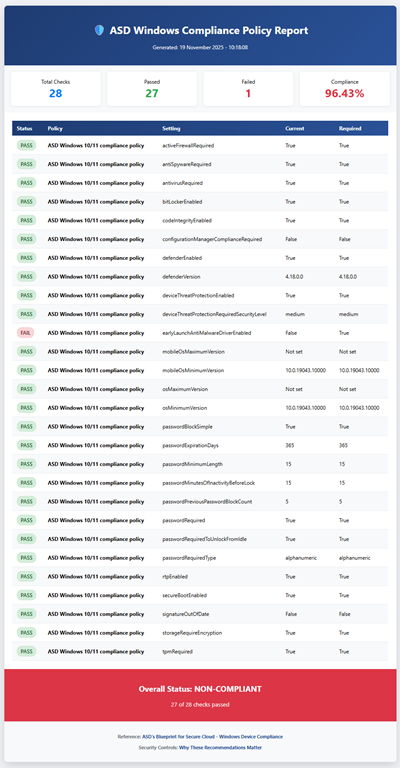
Above, you’ll see one policy evaluation and recommendation outputted to a HTML file for easy reading.
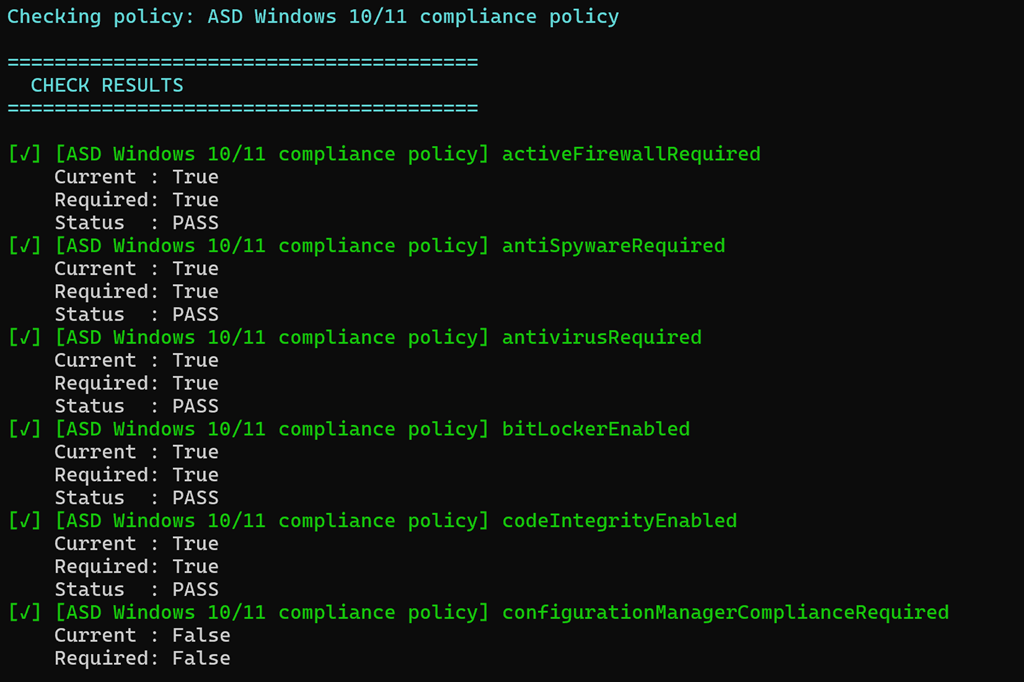
that reads the online JSON file (or uses a local version if you want to use that) and compares the recommended ASD settings to those in your own Intune environment. Note, the script makes NO CHANGES to your environment, it simply reads the current settings.
It then produces the console output you see above and a HTML report like this:
Preparing for what’s next: Windows security and resiliency innovations help organizations mitigate risks, recover faster and prepare for the era of AI –
If you found this valuable, the I’d appreciate a ‘like’ or perhaps a donation at https://ko-fi.com/ciaops. This helps me know that people enjoy what I have created and provides resources to allow me to create more content. If you have any feedback or suggestions around this, I’m all ears. You can also find me via email director@ciaops.com and on X (Twitter) at https://www.twitter.com/directorcia.
If you want to be part of a dedicated Microsoft Cloud community with information and interactions daily, then consider becoming a CIAOPS Patron – www.ciaopspatron.com.
that reads the online JSON file (or uses a local version if you want to use that) and compares the recommended ASD settings to those in your own Intune environment. Note, the script makes NO CHANGES to your environment, it simply reads the current settings.
It then produces the console output you see above and a HTML report like this:
In this episode of the Need to Know Podcast, we explore the evolving landscape of learning in the Microsoft Cloud ecosystem, with a spotlight on the SMB market. From the latest in Microsoft 365 Copilot innovations to critical cybersecurity updates and the end of CIAOPS Academy, this episode delivers essential insights for IT professionals and business leaders navigating the modern digital workplace.
If you found this valuable, the I’d appreciate a ‘like’ or perhaps a donation at https://ko-fi.com/ciaops. This helps me know that people enjoy what I have created and provides resources to allow me to create more content. If you have any feedback or suggestions around this, I’m all ears. You can also find me via email director@ciaops.com and on X (Twitter) at https://www.twitter.com/directorcia.
If you want to be part of a dedicated Microsoft Cloud community with information and interactions daily, then consider becoming a CIAOPS Patron – www.ciaopspatron.com.
Join us for an immersive 5-day virtual training designed exclusively for IT Professionals and Managed Service Providers from the 12 – 16 January 2026. This isn’t just another webinar—it’s a hands-on, deep dive into how Microsoft Copilot can transform the way you manage, automate, and secure your IT environment.
What you’ll gain:
* Master Copilot’s capabilities for IT operations, security, and automation.
* Learn practical workflows that save time and boost efficiency.
* Explore advanced scenarios for troubleshooting and compliance.
* Future-proof your skills with insights into emerging Copilot integrations.
Why attend?
* Live, interactive sessions with real-world demos.
* Expert-led guidance tailored for IT Pros and MSPs.
* Actionable takeaways you can implement immediately.
Format:
* 5 consecutive days
* 2 hours per day
* Delivered remotely via Microsoft Teams. Recording available after session.
Your Copilot journey starts here—are you ready to take off If so, register your interest here – http://bit.ly/ciaopsroi. Early bird discounts until 12 December 2025.
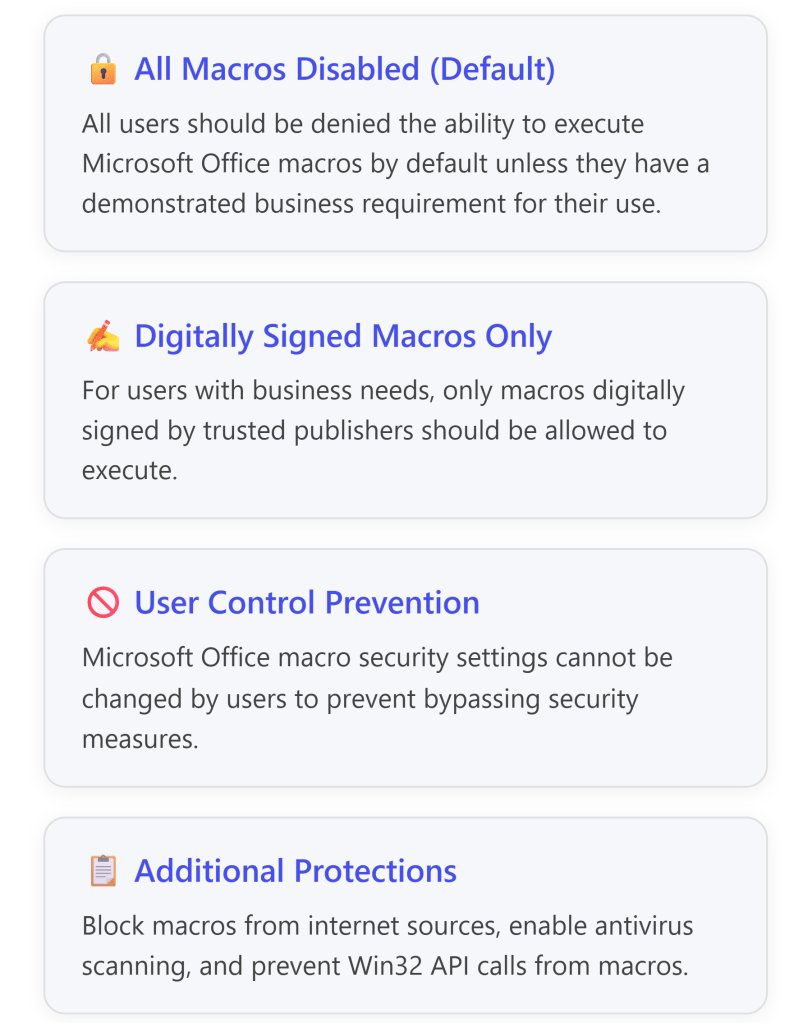
The Essential Eight Mitigation Strategy #3 – Configure Microsoft Office Macro Settings requires organizations to disable Office macros by default for users without a demonstrated business need.1In cloud-only environments using Microsoft 365 Business Premium and Microsoft Intune, this can be achieved through multiple complementary approaches:
Configuration Profiles (Settings Catalog or Imported Administrative Templates)
Attack Surface Reduction (ASR) Rules
Microsoft Defender for Endpoint capabilities (included in Business Premium)
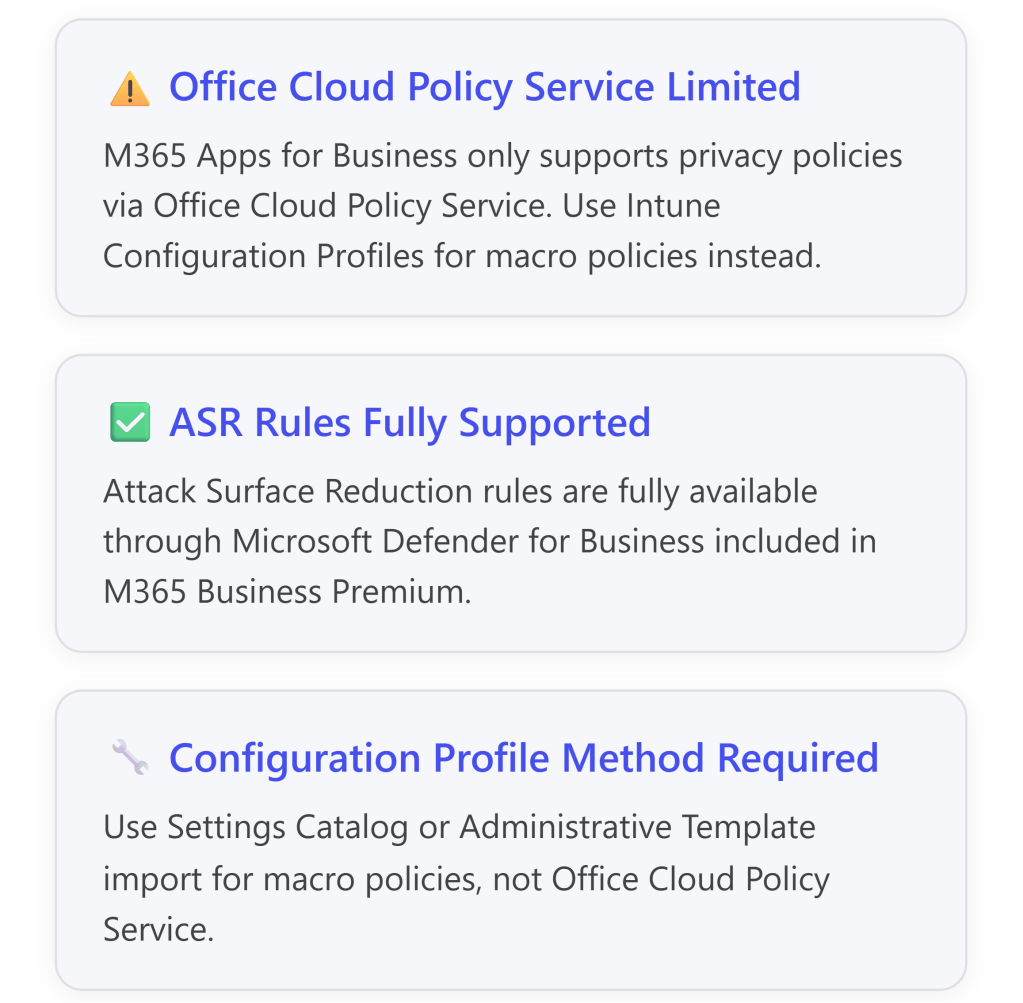
However, there is an important limitation: Microsoft 365 Business Premium includes Microsoft 365 Apps for Business, which has limited support for the Office Cloud Policy Service—only privacy-related policies are supported.2For full macro control policies, you must use Configuration Profiles in Intune instead.3
Microsoft provides pre-built configuration profiles aligned with ACSC guidance. This is the fastest and most reliable method for Essential Eight compliance.
Step-by-Step: Import ACSC Office Hardening Policy
Detailed Steps:9
Create Target User Group
Create an Azure AD security group for “All Office Users”
This group will receive Office apps and hardening policies
Method 2: Manual Configuration Using Settings Catalog
If you prefer granular control, you can manually configure macro policies using Intune’s Settings Catalog.
Step-by-Step: Create Custom Macro Blocking Policy
Create New Settings Catalog Policy
Navigate to: Microsoft Intune admin center (intune.microsoft.com)
Go to: Devices > Configuration policies > Create > New Policy
Platform: Windows 10 and later
Profile type: Settings catalog
Name: “Office Macro Security – Disable All Macros”
Configure Settings for Each Office Application
The following settings must be configured for each Office application (Word, Excel, PowerPoint, Access, Outlook):1415
Microsoft Office 2016 (Global Settings)
Setting Path
Configuration
Microsoft Office 2016 > Security Settings
Automation Security
Enabled
– Set Automation Security level
Disable macros by default
Disable VBA for Office applications
Enabled
Security Settings > Trust Center
Allow mix of policy and user locations
Disabled
Microsoft Excel 2016
Setting Path
Configuration
Excel Options > Security > Trust Center
VBA Macro Notification Settings
Enabled
– VBA Macro Notification
Disable all without notification
Block macros from running in Office files from the Internet
Enabled
Trust access to Visual Basic Project
Disabled
Turn off trusted documents
Enabled
Turn off Trusted Documents on the network
Enabled
Excel Options > Security > Trust Center > Trusted Locations
Allow Trusted Locations on the network
Disabled
Disable all trusted locations
Enabled
Microsoft Word 2016
Setting Path
Configuration
Word Options > Security > Trust Center
VBA Macro Notification Settings
Enabled
– VBA Macro Notification
Disable all without notification
Block macros from running in Office files from the Internet
Enabled
Trust access to Visual Basic Project
Disabled
Turn off trusted documents
Enabled
Turn off Trusted Documents on the network
Enabled
Word Options > Security > Trust Center > Trusted Locations
Allow Trusted Locations on the network
Disabled
Disable all trusted locations
Enabled
Microsoft PowerPoint 2016
Setting Path
Configuration
PowerPoint Options > Security > Trust Center
VBA Macro Notification Settings
Enabled
– VBA Macro Notification
Disable all without notification
Block macros from running in Office files from the Internet
Enabled
Trust access to Visual Basic Project
Disabled
Turn off trusted documents
Enabled
Turn off Trusted Documents on the network
Enabled
PowerPoint Options > Security > Trust Center > Trusted Locations
Allow Trusted Locations on the network
Disabled
Disable all trusted locations
Enabled
Microsoft Access 2016
Setting Path
Configuration
Application Settings > Security > Trust Center
VBA Macro Notification Settings
Enabled
– VBA Macro Notification
Disable all without notification
Block macros from running in Office files from the Internet
Enabled
Turn off trusted documents
Enabled
Turn off Trusted Documents on the network
Enabled
Application Settings > Security > Trust Center > Trusted Locations
Allow Trusted Locations on the network
Disabled
Disable all trusted locations
Enabled
Microsoft Outlook 2016
Setting Path
Configuration
Security > Trust Center
Apply macro security settings to macros, add-ins and additional actions
Enabled
Security settings for macros
Enabled
– Security Level
Never warn, disable all
Assign the Policy
Assignments: Select your target user or device groups
Review + Create
Attack Surface Reduction (ASR) Rules for Essential Eight Compliance
Can ASR Rules Meet Essential Eight Requirements?
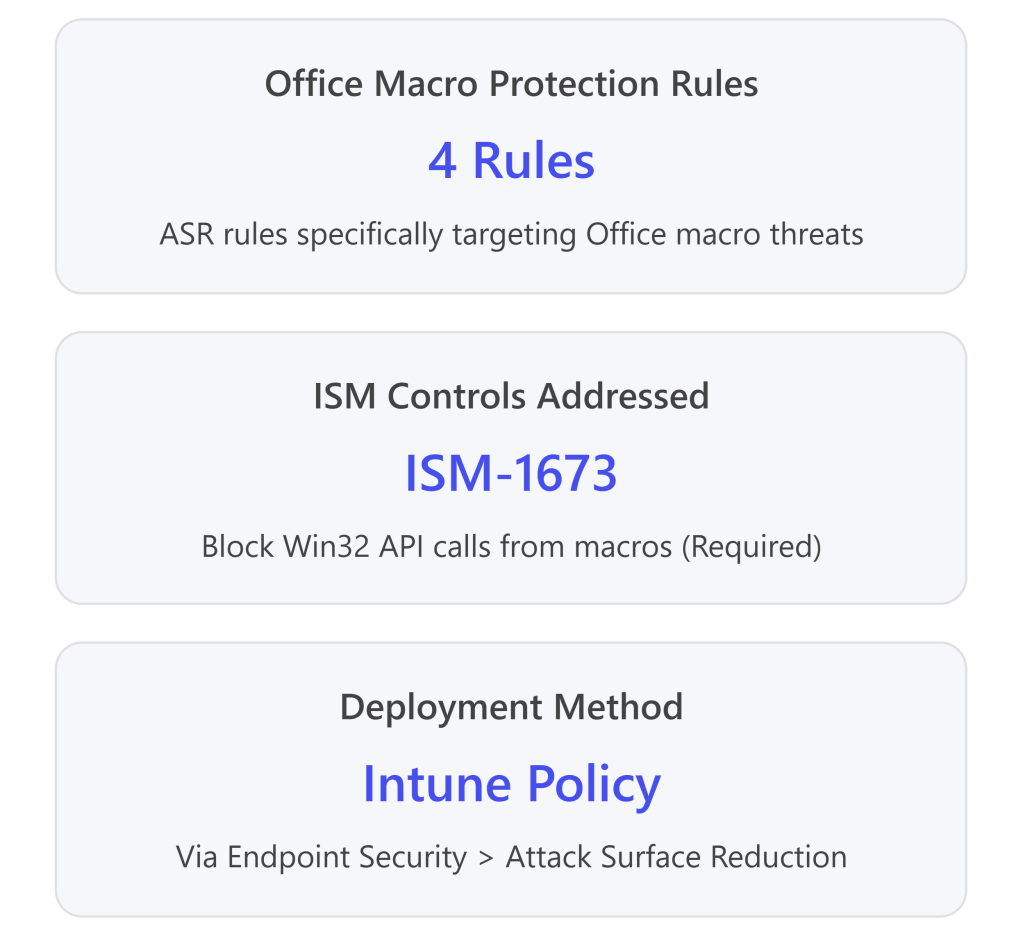
Yes, partially. Windows Attack Surface Reduction rules provide critical additional protections that complement macro blocking policies and help meet Essential Eight requirements.1617
ASR rules are included with Microsoft 365 Business Premium via Microsoft Defender for Business and can be deployed through Intune.18
Essential Eight-Relevant ASR Rules
The following ASR rules directly support Essential Eight mitigation strategies:1920
ASR Rules for Office Macro Security
ASR Rule Name
GUID
Essential Eight Alignment
ISM Control
Block Win32 API calls from Office macros
92e97fa1-2edf-4476-bdd6-9dd0b4dddc7b
✅ Required – Prevents macros from making dangerous system calls
ISM-1673
Block Office applications from creating child processes
Review alerts in the Microsoft 365 Defender portal (security.microsoft.com)
Validate ASR Rule Effectiveness
Navigate to: Microsoft 365 Defender portal > Reports > Attack surface reduction rules
Review triggered events for each ASR rule
Identify false positives and create exclusions if needed
Exception Management: Allowing Trusted Macros
Some users may have legitimate business requirements for macros. The Essential Eight framework accommodates this through Trusted Publishers or Trusted Locations.30
Option 1: Trusted Publishers (Recommended)
Trusted Publishers use digital signatures to verify macro authenticity. This is the preferred method for Essential Eight compliance.31
Step-by-Step: Enable Trusted Publishers
Create Exception Group
Create Azure AD group: “Office Macro Users – Trusted Publishers”
Create Azure AD security groups (“All Office Users”, “Macro Exception Users”)
Document current macro usage across organization
Establish exception approval process
Communicate changes to end users
Phase 2: Baseline Policy Deployment
Download ACSC Office Hardening policy from GitHub
Import policy to Intune Configuration Profiles
Download and import OLE prevention PowerShell script
Assign policies to pilot group
Test policy application on pilot devices
Phase 3: ASR Rule Deployment
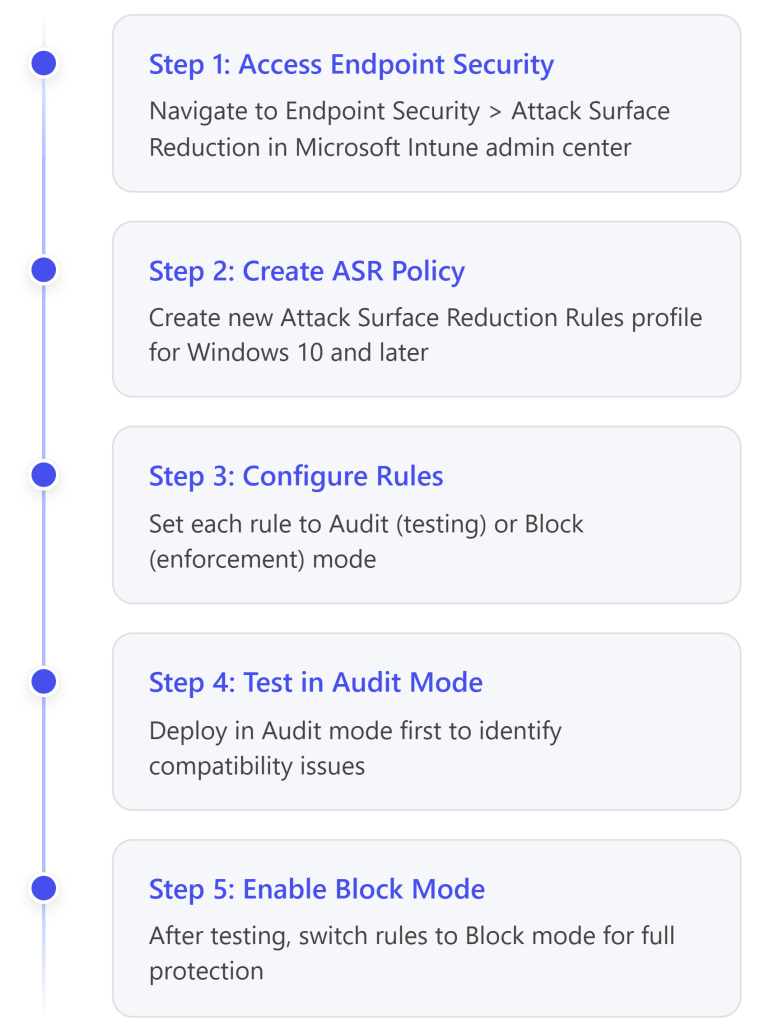
Create ASR policy in Endpoint Security
Configure 5 Office-related ASR rules in Audit mode
Assign to pilot group
Monitor events in Microsoft 365 Defender for 2-4 weeks
Phase 4: Production Rollout
Review audit logs for false positives
Create ASR exclusions if needed
Switch ASR rules to Block mode
Expand deployment to all users
Configure Trusted Publisher policies for exception users
Phase 5: Ongoing Management
Monitor Defender for Endpoint alerts
Review exception requests quarterly
Validate Trusted Publisher certificates annually
Update policies as new ISM controls are released
Conclusion
Meeting the Essential Eight requirements for disabling Office macros in a cloud-only environment with Microsoft 365 Business Premium is achievable through:
Intune Configuration Profiles: Disable macros at the Office application level using Settings Catalog or imported administrative templates
Attack Surface Reduction Rules: Deploy complementary ASR rules to block macro-related attack behaviors
Exception Management: Use Trusted Publishers for users with legitimate macro needs
Continuous Monitoring: Leverage Microsoft Defender for Endpoint for visibility and alerting
While Office Cloud Policy Service has limitations with Business Premium, Intune Configuration Profiles provide full macro control capabilities needed for Essential Eight compliance. ASR rules successfully accommodate Essential Eight requirements by providing the necessary technical controls, particularly ISM-1673 (blocking Win32 API calls from macros).
The combination of these approaches provides defense-in-depth aligned with ACSC guidance and enables organizations to achieve Essential Eight Maturity Level 3 for macro security.
References
Microsoft Official Documentation
Microsoft Learn – Essential Eight Guidance
Essential Eight configure Microsoft Office macro settings





 CIAOPS