Staged Defender updates with Intune

The direct URL is:https://www.youtube.com/watch?v=K6zMtbbHCjM

In this video I cover how to create an Endpoint Security Antivirus policy that controls updates for Defender Engine, Platform and Security Intelligence components. This is not the only way to create a staged roll out of Defender updates and I would recommend the following document from Microsoft for more information:

Manage the gradual rollout process for Microsoft Defender updates – Microsoft Defender for Endpoint | Microsoft Learn

Reading from the CIAOPS Best Practices repo

I’ve recently upload a new JSON configuration file to my Best Practices repo on Github that you can deploy to Intune using PowerShell. You can find it here:

https://github.com/directorcia/bp/blob/main/Intune/Policies/ConfigurationProfiles/SettingsCatalog/odfb.json

The first thing to realise if you want to read this directly in from the repo is that you’ll need to use the raw version of that file which you can find here:

https://raw.githubusercontent.com/directorcia/bp/main/Intune/Policies/ConfigurationProfiles/SettingsCatalog/odfb.json

You will then need to use the command:

$query = invoke-webrequest -method GET -ContentType “application/json” -uri $url -UseBasicParsing

which will store the result in a variable called $query. Of course, you will need to assign the raw URL to the variable $url also.

Once executed if you look at $query.content you should then find a copy of JSON file you can then use to create a policy with PowerShell in Intune.

You can read all of the JSON files in my Best Practices repo in this way and use them to easily deploy to your environment.

ODFB summary script

I’ve have just uploaded a new script to my public Office 365 repo. Here is the direct link:

https://github.com/directorcia/Office365/blob/master/graph-odfb-get.ps1

The script will use the Microsoft Graph to create a summary report of users ODFB, which can also be output to a CSV file.

image

You will need to have the Graph PowerShell module installed. When you run the script you will typically need to consent to the above permissions. These can be found in the Users area of the Graph documentation.

image

The first thing the script will do is connect to the Microsoft Graph and you will generally be prompted to login with a user who has suitable permissions. Once that is complete a list of users will be displayed as shown above.

image

The script will then look at each user found and determine whether they have a ODFB assigned and enabled as shown above. Not all users in your tenant may have a ODFB.

image

For users that do have a ODFB the stats on these will display including total size, used and deleted as shown above.

image

If you use the –csv switch on the command line when you run the script a summary CSV file will also be generated in the parent directory.

Hopefully this helps get a quick summary of all your users ODFB usage.


New CIAOPS Copilot for M365 course

mountains

I just completed a new “Getting Started with Copilot for Microsoft 365” online course that you can find here:

https://www.ciaopsacademy.com/p/getting-started-with-copilot-for-micrsoft-365

The course is designed for the end user who wants to better understand how Copilot for Microsoft 365 can help improve their productivity across the suite of applications that Microsoft 365 provides access to, including Word, Excel, Outlook, Teams and more. This course is not aimed at administrators but those using Microsoft 365 in their business.

This new course is also available to CIAOPS Patrons as part of their benefits, so they too can get up to speed with Copilot in Microsoft 365.

Look out for more courses coming soon from CIAOPS.

CIAOPS Brief 20240713

image

Copilot Learning Hub: Your Gateway to Mastering Microsoft Copilot –

https://techcommunity.microsoft.com/t5/microsoft-developer-community/copilot-learning-hub-your-gateway-to-mastering-microsoft-copilot/ba-p/4189618

Simplified Zero Trust security with the Microsoft Entra Suite and unified security operations platform, now generally available –

https://www.microsoft.com/en-us/security/blog/2024/07/11/simplified-zero-trust-security-with-the-microsoft-entra-suite-and-unified-security-operations-platform-now-generally-available/

How to secure access for your workforce with Microsoft Entra Suite –

https://www.youtube.com/watch?v=GHXZQkQVHqI

Dynamic watermarking hits the mark in protecting highly sensitive data –

https://techcommunity.microsoft.com/t5/security-compliance-and-identity/dynamic-watermarking-hits-the-mark-in-protecting-highly/ba-p/4182793

Dynamic watermarking hits the mark in protecting highly sensitive data –

https://techcommunity.microsoft.com/t5/security-compliance-and-identity/dynamic-watermarking-hits-the-mark-in-protecting-highly/ba-p/4182793

Microsoft Entra Internet Access Overview –

https://www.youtube.com/watch?v=aNYi-g-RUTE

Introducing dynamic watermarking for Word, Excel, and PowerPoint –

https://insider.microsoft365.com/en-us/blog/introducing-dynamic-watermarking-for-word-excel-and-powerpoint

SharePoint roadmap pitstop: June 2024 –

https://techcommunity.microsoft.com/t5/microsoft-sharepoint-blog/sharepoint-roadmap-pitstop-june-2024/ba-p/4185079

Dynamic watermarking hits the mark in protecting highly sensitive data –

https://techcommunity.microsoft.com/t5/security-compliance-and-identity/dynamic-watermarking-hits-the-mark-in-protecting-highly/ba-p/4182793

Microsoft Security Service Edge now generally available –

https://techcommunity.microsoft.com/t5/microsoft-entra-blog/microsoft-security-service-edge-now-generally-available/ba-p/3847828

What’s New in Microsoft Teams | June 2024 –

https://techcommunity.microsoft.com/t5/microsoft-teams-blog/what-s-new-in-microsoft-teams-june-2024/ba-p/4176606

Unified Security Operations Platform – Technical FAQ! –

https://techcommunity.microsoft.com/t5/microsoft-sentinel-blog/unified-security-operations-platform-technical-faq/ba-p/4189136

SharePoint roadmap pitstop: June 2024 –

https://techcommunity.microsoft.com/t5/microsoft-sharepoint-blog/sharepoint-roadmap-pitstop-june-2024/ba-p/4185079

What’s New in Microsoft Teams | June 2024 –

https://techcommunity.microsoft.com/t5/microsoft-teams-blog/what-s-new-in-microsoft-teams-june-2024/ba-p/4176606

What’s New in Microsoft Teams | June 2024 –

https://techcommunity.microsoft.com/t5/microsoft-teams-blog/what-s-new-in-microsoft-teams-june-2024/ba-p/4176606

Dealing with Unsatisfactory Responses –

https://www.youtube.com/watch?v=hlc6Nig7nzQ

Promptbooks –

https://www.youtube.com/watch?v=NXVutoSMFB4

Custom in-app notifications for updates to Loop tables –

https://insider.microsoft365.com/en-us/blog/custom-in-app-notifications-for-updates-to-loop-tables

Turn PDFs into editable documents in Word for iOS –

https://insider.microsoft365.com/en-us/blog/turn-pdfs-into-editable-documents-in-word-for-ios

National Australia Bank invests in an efficient future with Windows 11 Enterprise –

https://www.youtube.com/watch?v=A9BCCJfzfQ8

New Outlook for Windows | How to use Coaching by Copilot –

https://www.youtube.com/watch?v=4t3F9NTxmh8

File menu improvements in Word, Excel, and PowerPoint for the web –

https://insider.microsoft365.com/en-us/blog/file-menu-improvements-in-word-excel-and-powerpoint-for-the-web

After hours

Why Nvidia, Tesla, Amazon And More Are Betting Big On AI-Powered Humanoid Robots – https://www.youtube.com/watch?v=v0uKLCZocjs

Editorial

If you found this valuable, the I’d appreciate a ‘like’ or perhaps a donation at https://ko-fi.com/ciaops. This helps me know that people enjoy what I have created and provides resources to allow me to create more content. If you have any feedback or suggestions around this, I’m all ears. You can also find me via email director@ciaops.com and on X (Twitter) at https://www.twitter.com/directorcia.

If you want to be part of a dedicated Microsoft Cloud community with information and interactions daily, then consider becoming a CIAOPS Patron – www.ciaopspatron.com.

Watch out for the next CIA Brief next week

Yet another reason to love OneNote

I’m a HUGE fan of OneNote. Personally, I feel it is the one tool that makes me the most productive. As an engineer I’ve always been documenting stuff simply because I can’t remember it all. I learnt many, many years ago that writing it down and getting it out of my memory is in fact the best way to retain and use that information.

Before OneNote, like many people, I used paper to capture everything but the more I captured the more challenges that brought. Such challenges included, how do I back up these paper notes? How do I find things with paper notes? How do I store these paper notes? and so on. Enter OneNote to solve all these issues.

Thus, I have OneNote notebooks on just about everything these days. It’s a huge source of knowledge that I can access anywhere on any device. Love it. If I need to find something I just use the inbuilt search functionality and it would pop right out. Magic!

Given that I also now have Copilot for Microsoft 365, I have started to explore how these two product combined can make me more productive and I’d like to share a use case with you that has made me sit up and pay attention to what the combination of these two services can now provide.

When you become a CIAOPS Patron you get access to two extensive notebooks on Microsoft 365 and Azure. These notebooks contain my cumulative knowledge of the Microsoft Cloud and I use them pretty much every day in my work.
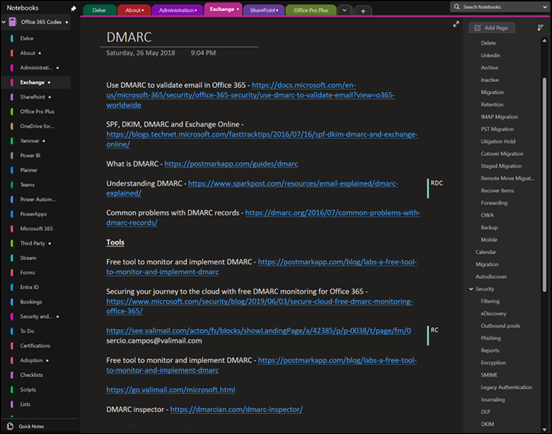
image

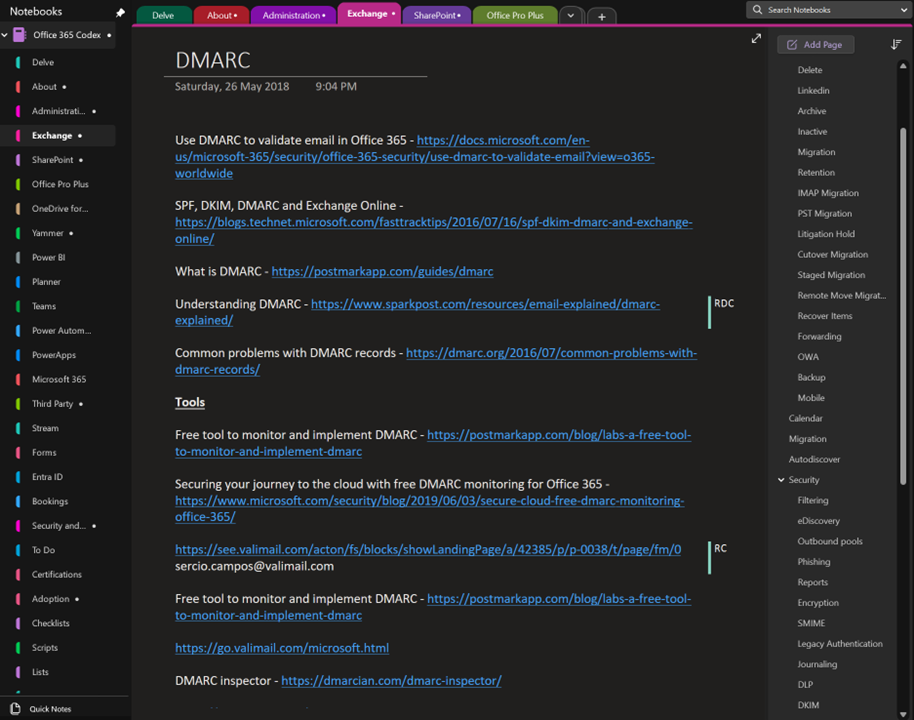
The above shows you an example page on DMARC from my Office 365 codex. The page typically contains knowledge plus links. You see on the right I have a section for every Microsoft 365 service and on the right many pages relating to that service. Here DMARC is a dedicated page in the Exchange section along with other pages such as Retention, Migration etc.
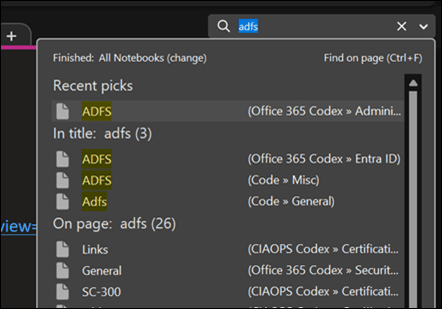
image

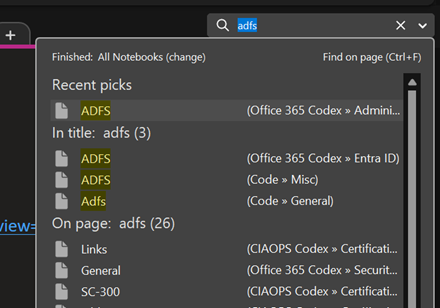
Typically, to find any information on Microsoft 365 I’d go to the top right and just use search as shown above.
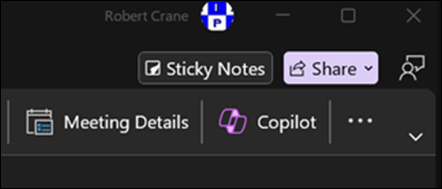
image

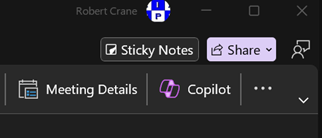
But now my desktop version of OneNote has a Copilot button as shown above. This capability doesn’t appear to be available in the web version of OneNote yet. I hope it will be soon.
image

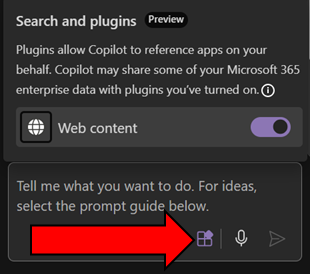
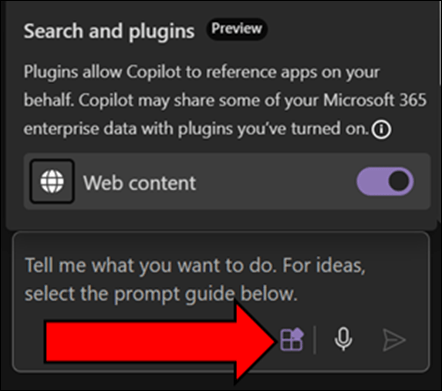
Before you go too much further make sure you select the Plugins button inside the Copilot window that appear and enable Web content as shown above. This will give you the best of both worlds with AI. It will work across you data (the notebook typically, andl in your tenant) as well as information from the web.
image

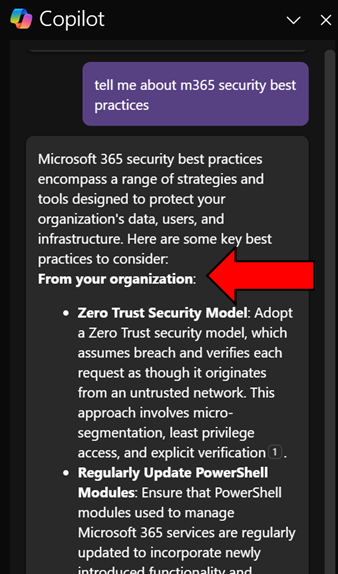
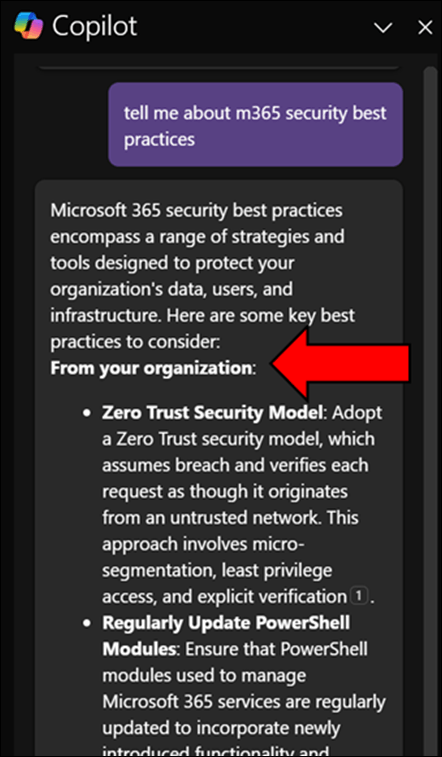
When I ask Copilot a question here you’ll see that it return information from my organization (shown above)

image

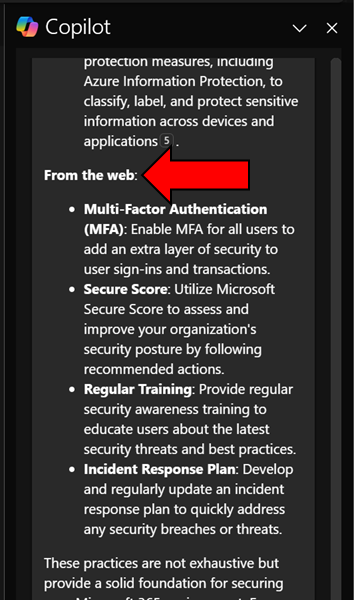
and from the web.

image

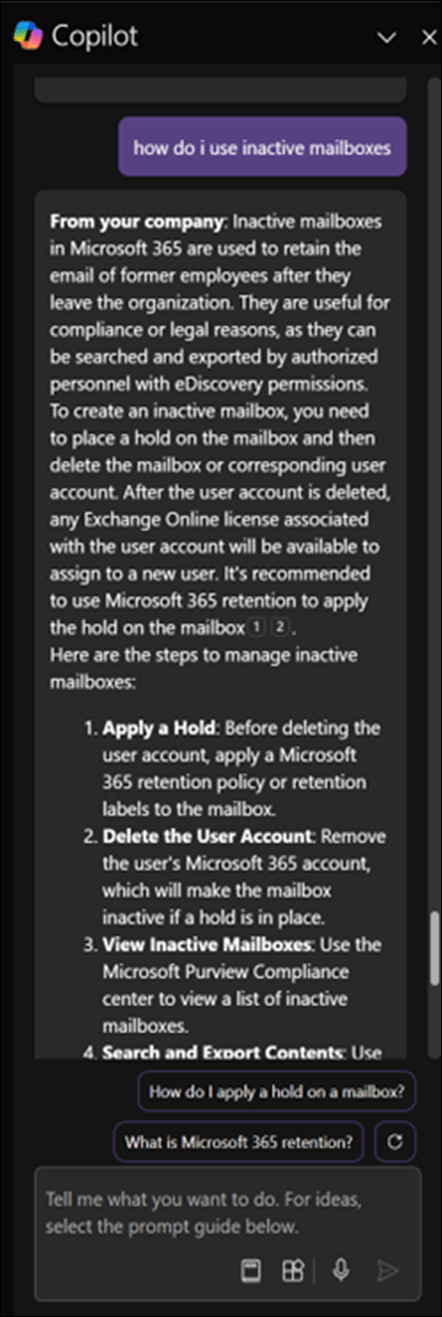
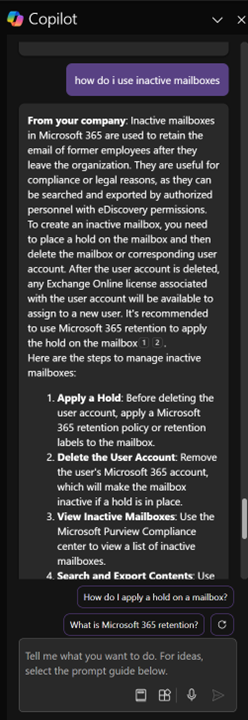
Another example is asking Copilot how to work with Exchange Online inactive mailboxes, as shown above. Again, it works with my own information and information on the web and presents in easy to digest format as well as providing me additional relevant prompts.

I have to say that this now my go to for unlocking all the knowledge I have accumulated in all my OneNote notebooks. Of course, I can probably extract something similar from other Copilot interfaces in Microsoft 365 but giving me this capability inside an application that I use more than email is a huge productivity boostt for me. Hopefully now that I have shown you what it can do for me too can go and see what Copilot for Microsoft 365 and OneNote can do for you. Let me know in the comments your use case, I’m all ears!

KQL Query to report failed login by country

If you are interested to see how many failed logins your Microsoft 365 environment has had in the past 30 days you can run the following KQL query in Sentinel:

SigninLogs
| where ResultType == 50126
| where TimeGenerated >= ago(30d)
| extend Country = tostring(LocationDetails[“countryOrRegion”])
| summarize FailedLoginsCount = count() by Country
| order by FailedLoginsCount desc

you can then make a slight change and get all the successful logins

SigninLogs
| where ResultType == 0
| where TimeGenerated >= ago(30d)
| extend Country = tostring(LocationDetails[“countryOrRegion”])
| summarize LoginsCount = count() by Country
| order by LoginsCount desc

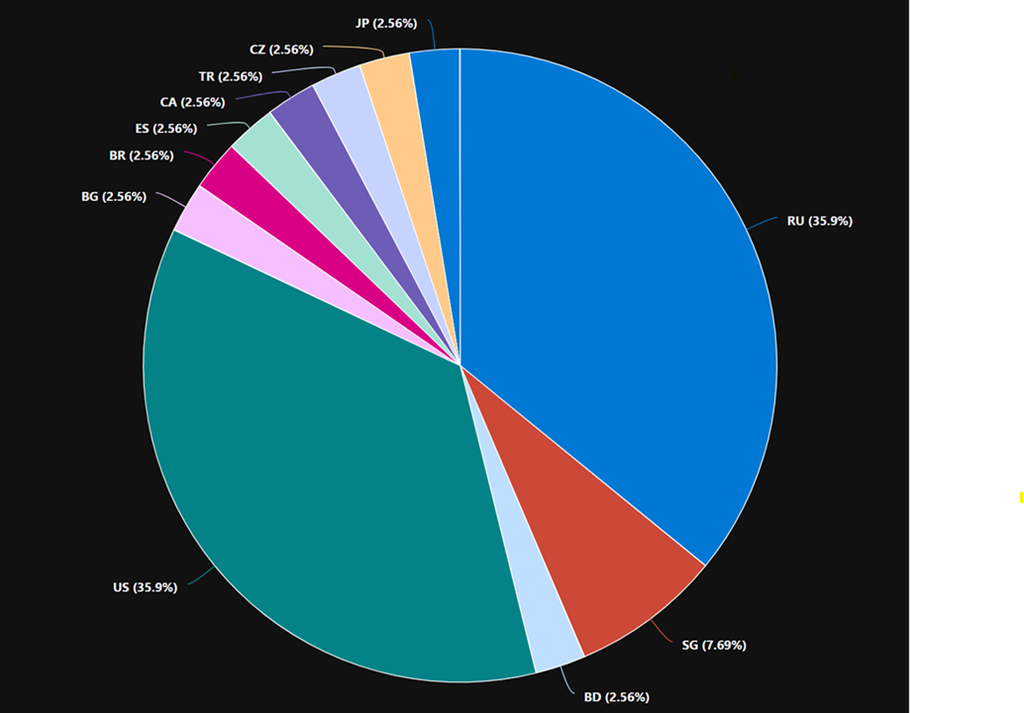
In my case, I found that only around 1% of my total logins were failed logins and all of these came from countries outside Australia.

Here is also a visualisation of the location of failed logins by country

image

Note: if you copy and paste directly from here you will probably have the change the “ around countryorregion when you paste into your own environment as teh wrong “ gets taken across!

Connecting Defender EASM logs to Sentinel workspace

A very important security task is to ensure you are collecting all the logging data for your services and sending them to a central location for storage and analysis.

Here’s how you can send the logs from Defender EASM into Sentinel.

You’ll need to have already established both Sentinel and Defender EASM instances. Underneath Sentinel is a Log Analytics Workspace that is where all the logging data for Sentinel is accumulated. It is into this workspace that the Defender EASM logs will be sent.

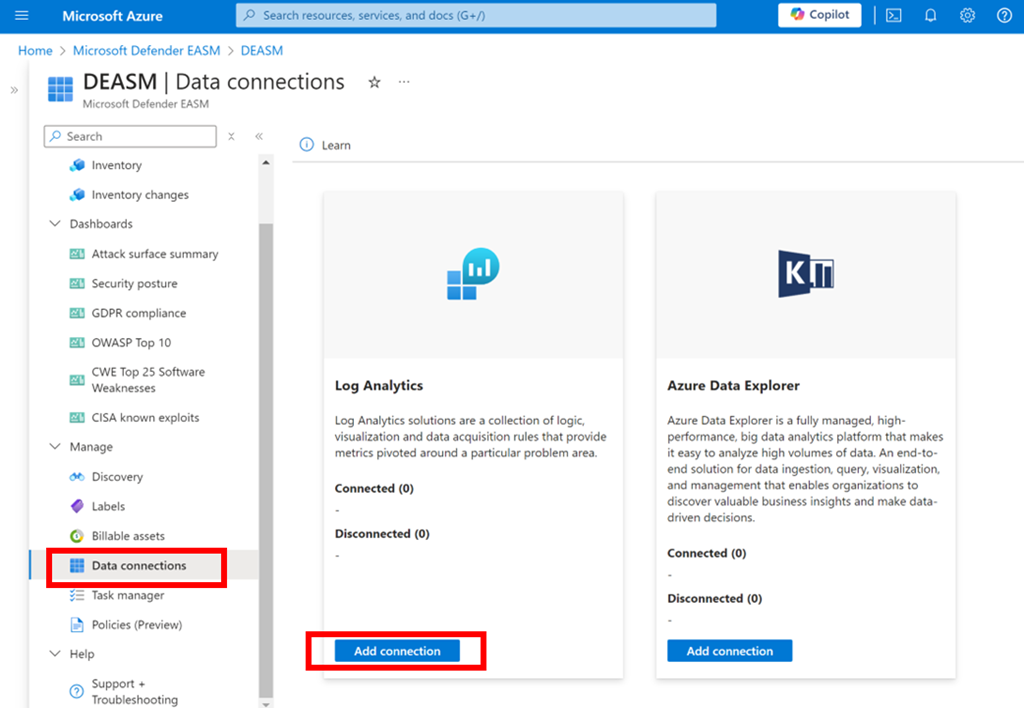
image

Log in to the Azure portal and navigate to Defender EASM as shown above. Select the Data connections option from the menu on the left. From the window that appears on the right select Add connection under Log Analytics as shown.

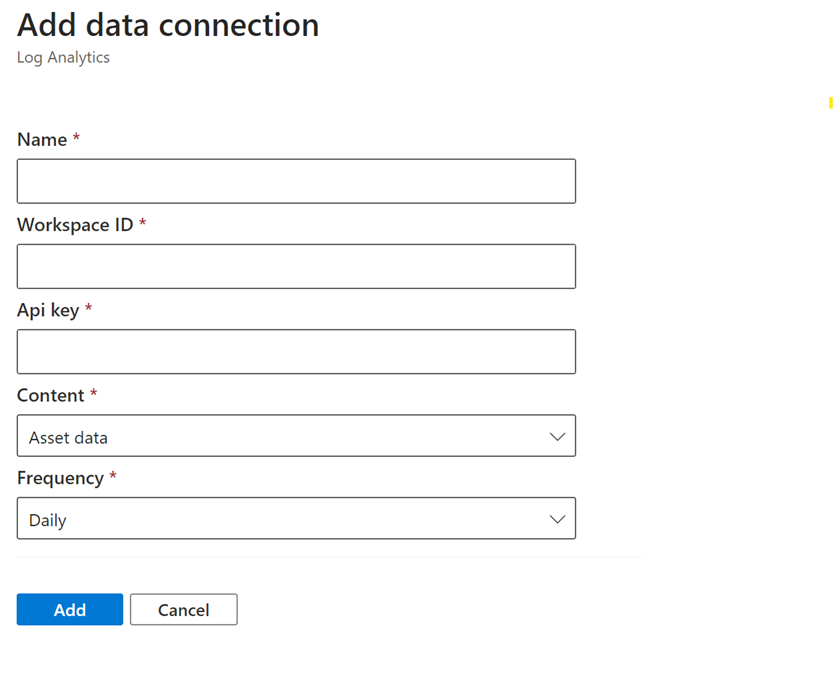
image

A dialog will appear from the right hand side prompting you for further information as shown above.

Open a new browser tab and navigate to Sentinel.

image

Select the Settings option at the bottom of the menu on the left hand side as shown above. From the windows that appears on the right select Workspace settings as shown.

image

In the Log analytics workspace for Sentinel select the Agents option under Settings from the menu on the left as shown.

In the window that appears on the right you will find both the Workspace ID and an API key as shown. Both of these will be required back in the Defender EASM connectors page.

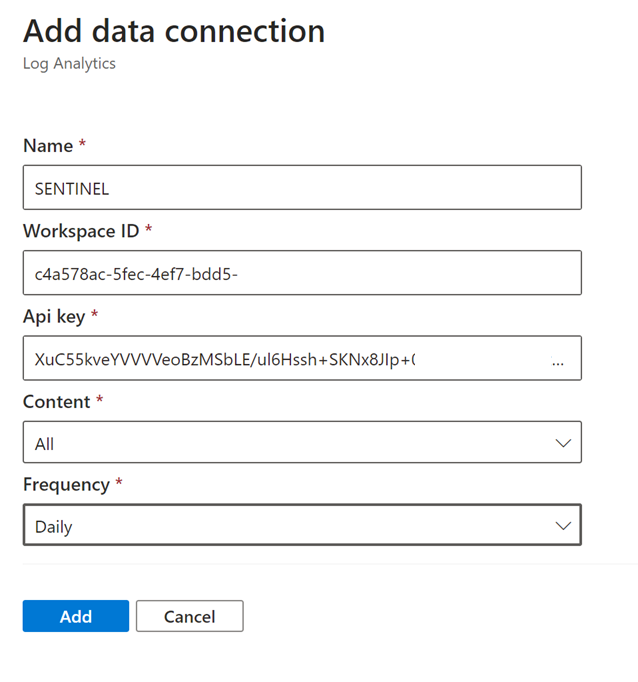
image

Return to the Defender EASM connectors page configuration and give this connection an appropriate Name. Enter the Workspace ID and Api key from the Sentinel Log Analytics page. Select All content and Daily for frequency.

Save these settings.

image

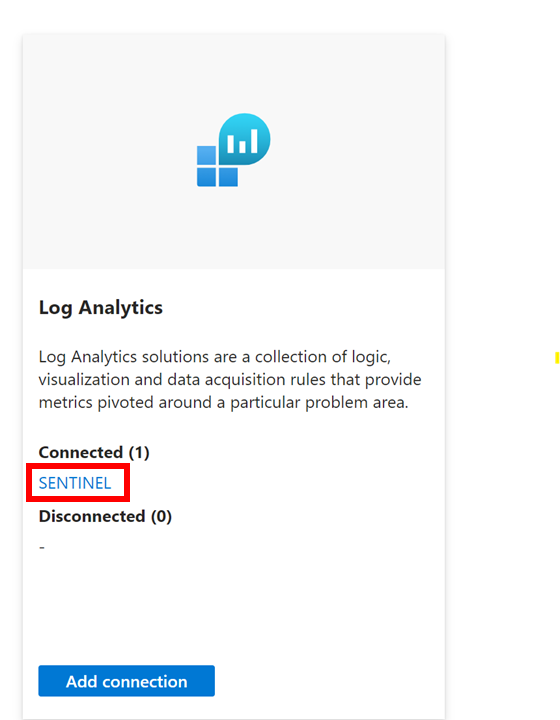
If everything is correct you should now see that the Log Analytics connexion now displays you settings under Connected as shown above.

The logs from Defender EASM will now start becoming available for you in Sentinel to use in things like KQL queries.