Issues with Microsoft Defender on iOS

I’m having issues with Microsoft Defender for iOS that I’m sharing here in case this may benefit others.

I think the root cause of the issue is that I have an EntraID account (production) and a Microsoft account (consumer) that are identical. One suggested solution is simply to rename the consumer account but I’d prefer not to do that if it can be avoided.

Here’s what typically happens:

image

My iOS device has Intune Company Portal App installed and I install Microsoft Defender manually from the iOS store. When I run Microsoft Defender I’m greeted by the screen above, which in this case only shows my consumer account.

image

The only option available is to sign up for a trial. This indicates that it doesn’t accept my production account which includes a license of Defender for Endpoint.

In other cases, I’ve see both my production and consumer account listed but it never seems to accept my production account when my consumer account is also present.

Interestingly, I get different results depending on whether I use an iPad or a iPhone.

On my iPad, I noted that I had both my production and consumer credentials in the Microsoft Authenticator app. I removed all the credentials so there was none. I reboot device, added ONLY my production credentials to the Microsoft Authenticator and then I was able to login to Microsoft Defender with my production account. Interestingly, this worked for a few days and then I had to repeat the process to get Microsoft Defender on my iPad logged back into my production credentials again.

The story is a little different on my iPhone. I didn’t want to remove my Microsoft Authenticator app but I did remove my consumer credentials from the Authenticator app, leaving just my production credential there. Even after a few reboots, I still wasn’t able to login to Microsoft Defender with my production account. Instead I logged into Microsoft Defender using a demo M365 E5 account I had. That allowed access and Defender was working.

A few days later, on my iPhone, Defender was asking for a login. I was now able to login with my production account and enable Defender correctly. However, I do notice that when I run Defender on the iPhone I see it switch out to Microsoft Authenticator and then switch back, as though it is checking my account. Since I have just managed to get Defender logged in on my iPhone with my production account I’ll need to see whether it ‘sticks’ or whether it prompts me to login again in the future.

In summary, as I said initially, the root of these issue come down to the fact that I have the same consumer and production identity and it seems Defender on iOS can’t differentiate. It also seems that Defender on iOS also interacts with Microsoft Authenticator in some way, also in different ways on an iPhone and iPad.

I’ll post more when I have done further testing.

My Business Books – 2024

image

Check out my recommendations from last year:

My Business Books – 2023

Honourable mentions that I read last year:

–  Be Useful – Arnold Schwarenegger

– Die with Zero – Bill Perkins

You can follow all the books I read and want to read over at Goodreads where I have an account. You can also view my activity via:

https://www.goodreads.com/review/list/708903-robert?shelf=read

Here’s my current top business books in order:

1. The Art of War – Sun Tzu

The all time classic on strategy. As relevant today as it ever was. A very short read but very deep.

2. The Millionaire Fastlane – M.J. DeMarco

I love the brutal honesty of this book. It doesn’t mince words about what it takes to shift from a pay check to actually living the life you want.

3. The Tipping Point – Malcolm Gladwell

The world is all about not what you know but who you know. This book explains exactly how this works and how to use it to your advantage. A lot of Gladwell’s writing have been called into question of late. Even so, putting aside the example he uses, I think the concept surfaced have great merit.

4. The Four Hour Work Week – Tim Ferriss

Many people believe this book is about shirking responsibility. It is in fact a blueprint for how to free up your time to do things you want and enjoy. It will challenge the way you look at your career. This book has become some what dated so ensure you get the latest revised edition. Again, I would suggest you read this and consider the 30,000 foot view of challenging many people pre-conceived concepts about career. The ability to do anything, anywhere these days has never been truer.

5. Secrets of the Millionaire Mind: Mastering the Inner Game of Wealth – T. Harv Eker

The successful are defined by a different mindset. This mindset can be learned. It can be trained. This is a great book to show you how to do just that.

6. Talent is over rated: What Really Separates World-Class Performers from Everyone Else – Geoff Colvin

Demonstrates that the best comes from implementing a system. Having a system allows you to focus on the right thing and do that work that is required. If you want to take yourself to an elite level, beyond just good, then read this book.

7. Book Yourself Solid: The Fastest, Easiest, and Most Reliable System for Getting More Clients Than You Can Handle Even If You Hate Marketing and Selling – Michael Port, Tim Sanders

You can’t survive in business without a steady flow of customers. Selling to people is the wrong approach, you instead need to attract them to your business. This book helps you achieve exactly that.

8. Profit First: A Simple System To Transform Any Business From A Cash-Eating Monster To A Money-Making Machine – Mike Michalowicz

Business is about making a profit. This then gives you the freedom to do what you want with that profit. This book helps you focus on profit and setting up systems to make the most of the profit you generate.

9. Barking Up the Wrong Tree – Eric Barker

Conventional wisdom does not always apply and in some case can actually be detrimental. Challenging what is taken for granted should be in the play book of everyone who wants to achieve at the highest level. Important lessons can be learned in the strangest places and form the strangest people. Have an open mind and you might be surprised at what you have believed to be bad in fact turns out to get just what you need.

10. Unbeatable Mind: Forge Resiliency and Mental Toughness to Succeed at an Elite Level – Mark Divine

Another mindset book. Business is not always going to be easy or take the intended route. This is when you need to have the determination to see your plans through to success. This book shows you how to develop the mental toughness to make this happen.

11. Mastery – Robert Green

Excellent read with lots of great strategies to take away. Excellence is not a talent it is a skill. That means that it takes hard work to achieve, but hard work is available to everyone, yet few choose the path. There is no secret to Excellence, it is something only time and effort will reward you with and iof you choose that path you’ll be one of the few.

12. Tools of Titans – Tim Ferriss

There are few books that take the learnings for so many exceptional people and puts them at your fingertips. This is one such book that packs a lot of business and life learnings between the covers.

13. Predictably Irrational: The Hidden Forces that Shape our Decisions – Dan Ariley

Although we like to think logic and rationality rule our world emotion is by far the more powerful influence. Understand this in the context of business and you are well on your way to understanding why people make the decisions they do and how to best profit from them.

14. Extreme Ownership – Jocko Willink and Lief Babin

Moving beyond blame is tough. This book illustrates the ownership of the problem and the environment is a key to success in the military or in business. It is a path few will elect to take voluntarily, however more may do so after reading this.

15. Peak Performance: Elevate your game, avoid burnout and thrive with the science of success – Brad Stulberg

Success is largely about developing a winning system. This book show you how to approach that pragmatically. If you want to see results use this book to help you build the system.

16. Blink: The Power of Thinking Without Thinking – Malcolm Gladwell

The older you get the more experience you get. This experience is aggregated in your ‘gut feel’. Trusting your ‘gut’ may not appear rational but this book will help you understand why it is in fact your best option in many cases. Again, take Gladwell’s examples with a grain of salt but the message is still relevant.

17. The Now Habit: A Strategic Program for Overcoming Procrastination and Enjoying Guilt-Free Play – Neil A. Fiore

Plenty of great productivity learnings in here that help you take action. It shows you how to focus on the right stuff in the right priority. Even if you are not a major procrastinator there is plenty in this book that you can take away.

18. The One Thing – Gary Keller

Multi-tasking is a myth. Focus is the key to success to bringing all your resources to bear in unison makes a hell of a lot of difference. Most people can’t do it, so those that can stand a much greater chance of success.

19. Deep Work – Cal Newport

Distractions are wasted energy and time that you’ll never get back. You’d be amazed at how distracting the modern world is. If you can minimise these distractions you can focus more and be far more productive.

20. The E-Myth – Michael Gerber

The classic on ‘procedurising’ your business and creating a structure that doesn’t need you to survive. The simple secrets inside this book can transform any business from hardship to joy.

Let me know what you think. Do these work for you? What’s your top business reads? I’d love to hear.

Some other business books that I read that may be worth considering:

– The Ideal Team Player – Patrick Lencioni

– Blue Ocean Strategy – W. Chan Kim

– Non-violent communication – Marshall B. Rosenberg

– Elon Musk – Walter Isaacson

CIA Brief 240106

image

Rerun queries in query history

Microsoft Datacenter Tour: Virtual Experience

SharePoint Roadmap Pitstop: December 2023

Enabling Microsoft Syntex PAYG

Experience AI-enhanced meetings in every Teams Room

Introducing a new Copilot key to kick off the year of AI-powered Windows PCs

What’s New in Microsoft Teams | December 2023

Get organized at work with Microsoft Loop

Copilot app for iOS

Copilot app for Android

Financially motivated threat actors misusing App Installer

Overview of multi factor authentication

After hours

GoPro: Best of 2023 –

https://www.youtube.com/watch?v=Yb2cX8qwCho

Editorial

If you found this valuable, the I’d appreciate a ‘like’. This helps me know that people enjoy what I have created. If you have any feedback or suggestions around this, I’m all ears. You can also find me via email director@ciaops.com and on X (Twitter) at https://www.twitter.com/directorcia.

If you want to be part of a dedicated Microsoft Cloud community with information and interactions daily, then consider becoming a CIAOPS Patron – www.ciaopspatron.com.

Watch out for the next CIA Brief next week.

Need to Know podcast–Episode 312

Welcome to 2024! A few pieces of interesting news and updates from Microsoft especially around the PAYG offering with Syntex. I’m hanging out for the remaining items in the Intune suite to drop, especially third party patching so stay tuned for more information when that becomes available. Until then here’ s the latest in the Microsoft Cloud.

You can listen directly to this episode at:

https://ciaops.podbean.com/e/episode-312-hny/

Subscribe via iTunes at:

https://itunes.apple.com/au/podcast/ciaops-need-to-know-podcasts/id406891445?mt=2

Don’t forget to give the show a rating as well as send me any feedback or suggestions you may have for the show.

Brought to you by www.ciaopspatron.com

Resources

@directorcia

Join my shared channel

CIAOPS merch store

Become a CIAOPS Patron

CIAOPS Blog

CIAOPS Brief

Rerun queries in query history

Microsoft Datacenter Tour: Virtual Experience

SharePoint Roadmap Pitstop: December 2023

Enabling Microsoft Syntex PAYG

Experience AI-enhanced meetings in every Teams Room

Introducing a new Copilot key to kick off the year of AI-powered Windows PCs

What’s New in Microsoft Teams | December 2023

Get organized at work with Microsoft Loop

Copilot app for iOS

Copilot app for Android

Financially motivated threat actors misusing App Installer

Overview of multi factor authentication

Enabling Microsoft Syntex PAYG

There are lots of great new features coming to Microsoft Syntex (or SharePoint Premium) and many of these can be used in a PAYG manner tied to an Azure subscription. This is much like the Power Platform PAYG configuration I have detailed previously.

Before you configure anything in Microsoft 365, you’ll need an Azure subscription to bill against that is in the same tenant as Microsoft 365. I would also suggest you create a new unique Resource Group which you can target for Syntex PAYG services. This will make it much easier to determine the costs of the Syntex services that you consume. I’m not going to cover how to add a resource group to Azure here, but make sure you have the subscription in place before proceeding.

image

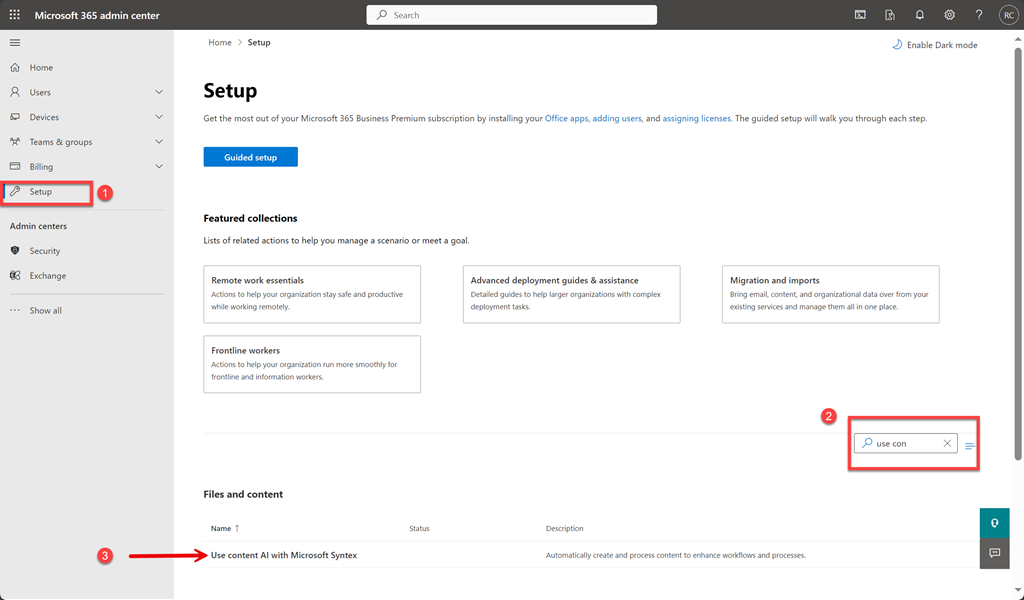
To enable Syntex PAYG you need to login to the Microsoft 365 portal as an administrator and navigate to the Admin center as shown above. Select Setup from the menu on the left. On the right enter “use con” into the search box as shown in step two above. This will filter out all the other options except the one you want which is:

Use content AI with Microsoft Syntex

as shown in step 3 above. Select this.

image

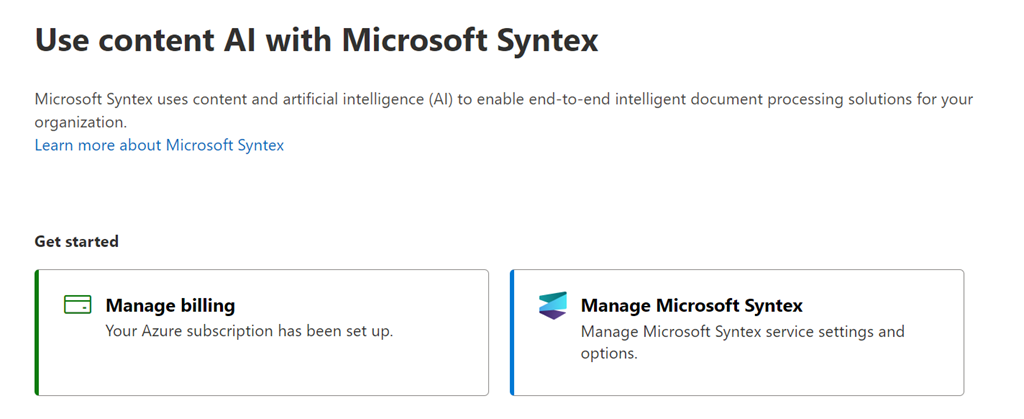
You should see the screen shown above. If you have not yet configured the PAYG billing for Syntex the only option available will be the Set up billing option on the left, as shown, which you should select.

image

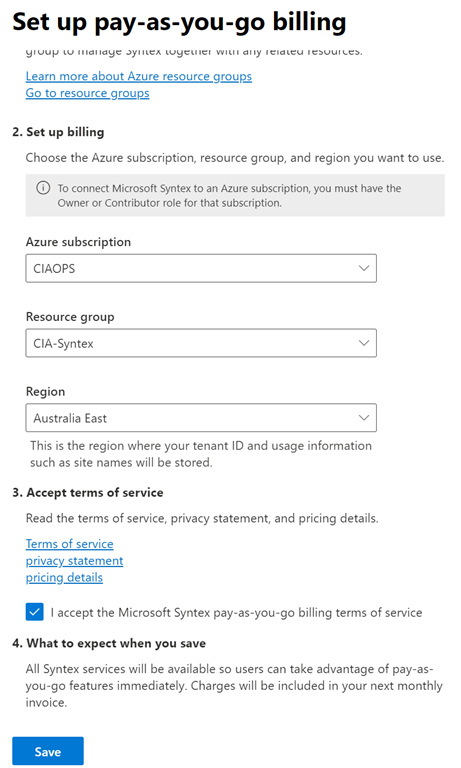
A dialog will appear from the right hand side with a number of options as shown above. Here you’ll need to select your Azure information from the drop down menus presented.

image

When you have completed all the fields (including the Resource Group which I suggest you create just for this purpose), select the I accept Microsoft pay-as-you-go billing terms of service. Finally, select the Save button at the bottom of the dialog.

image

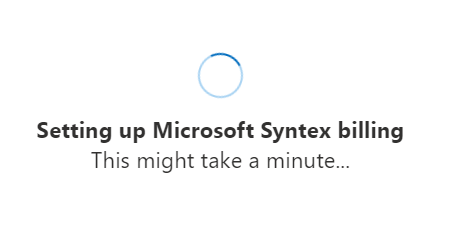
The system will then display the above screen for a few minutes (be patient, it takes a little while to fully configure).

image

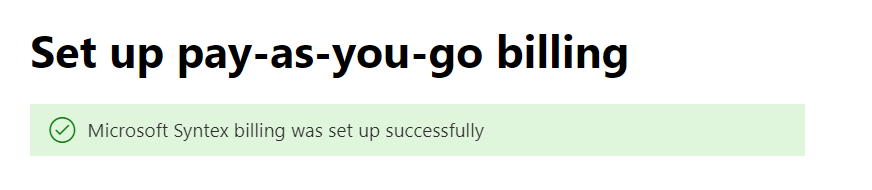
All going well, you should receive a confirmation of success at the top of the page as shown above. You can now close this dialog.

image

With the billing complete you should now be able to select the Manage Microsoft Syntex option on the right as shown above.

image

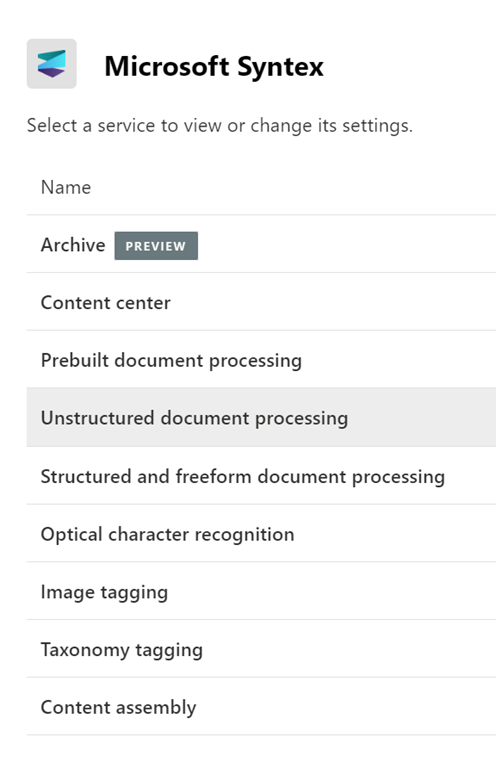
You should now see the current list of services that can be utilised with Syntex PAYG. More will be added over time, so don’t forget to check back regularly. To configure any of these simply select that service.

image

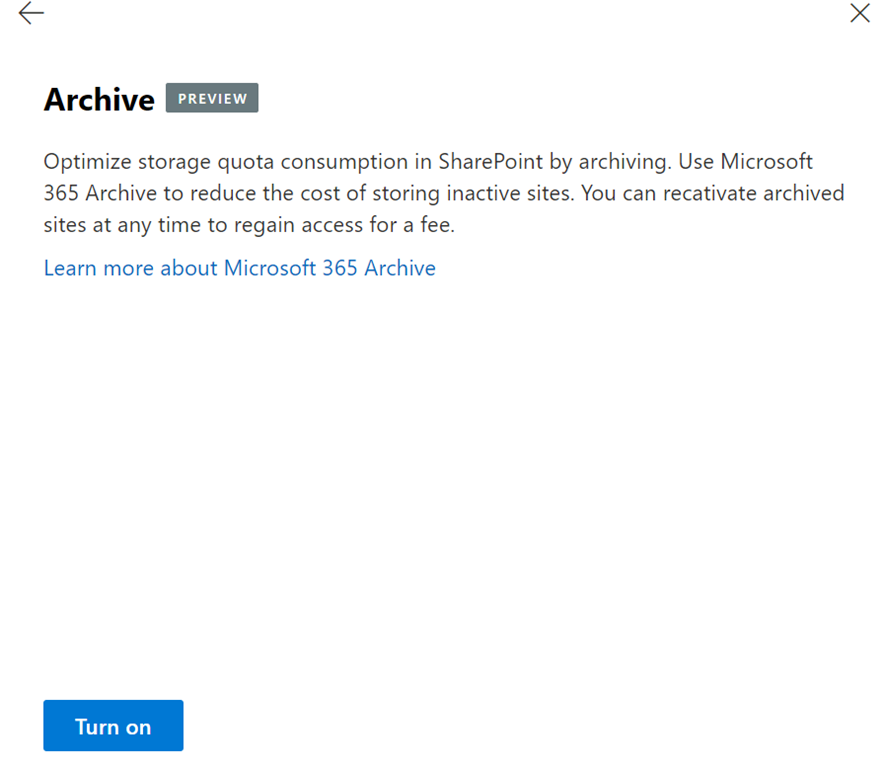
In this case, the Archive option was selected and you can see the Turn on button on the bottom of the dialog you would need to select to enable SharePoint Site archiving in your Microsoft 365 tenant. There are more configuration steps required to enable the service and all this really does is bill the service in a PAYG manner to your Azure subscription.

You can now close out of all these windows and leave everything turned off for now, ready for when you do want to start using those capabilities. There will be no costs until you actually start using these services (i.e. PAYG. Don’t use, don’t pay!)

It is really good that these advanced options are being made available in a PAYG manner, allowing greater access to such capabilities, without necessarily having to pay high monthly fees with a lock in contract. A very SMB friendly option in my opinion!

I look forward to seeing more services appear here for Syntex which I can star using, including eSignatures which is coming real soon. Stay tuned.

My Apps 2024

pexels-mohi-syed-50614

I remain a low volume mobile app user. I very selectively install apps on my device. Less is definitely more for me.

To see what I was using at the beginning of last year check out the article:

My Apps – 2023

My daily driver when it comes to a phone is an iPhone 12 Pro Max currently but I also have a Surface Duo 2 as a backup. The other device that I use apps on is my iPad mini.

My most used apps on mobile devices over the last year were:

Castro on iOS to listen to all my podcasts on iOS.

Lastpass password manager and authenticator for general password management.

Microsoft Authenticator – I use this for a number of select web sites as well as Microsoft 365.

I have Microsoft Defender protecting all my devices including those running iOS and Android.

Car Play – Connects to my daily drive to provide the ability to listen to podcasts as well as use Waze for navigation.

OneNote – is a must on every device I own. Syncs all my notes to every device. Allows me to not only truly have my information everywhere I am but also capture information quickly and easily.

OneDrive – This mobile app now not only allows me to manage my Microsoft 365 files but it also incorporates the more advanced Office Lens technology that scans and uploads, documents, whiteboards, etc.

Tripview – One of the few apps that I have happily paid for. I use this to let me know the Sydney train schedule to help me get around when I need to negotiate the ‘real world’. Although not much travel is happening at the moment, this app is super handy for negotiating local public transport.

Audible – If I can’t read my Kindle then I can normally always listen. This app allows me to listen to my audio books where ever I am. This and Castro on iOS are probably the most used applications on my devices.

Amazon Kindle – If I don’t have access to my Kindle then I can still read my books. In my case that will most likely be on my iPad. I also use the Kindle app on the iPad when the ebook has a lot of images that sometime don’t display well or are too small for the Kindle device.

The following as currently only iOS:

Rode Reporter – which I use for recording many of my presentations when I am out on the road, which ain’t so much these days but still a handy app to have.

Of course I have all the social media apps, such as X, and Linkedin on my devices.

I also have all the Microsoft/Office 365 apps. The ones I use the most are probably To-Do, Outlook, SharePoint, OneDrive, Teams and Yammer, although Word and Excel also get used regularly. Just about every Microsoft Office 365 service has an app that you should have on your mobile device. On my Duo 2 I am also using Edge as the primary browser along with the new Edge Insider. I also have the Brave browser on my devices as I no longer use Chrome at all.

I’ve also added the Intune app to all my devices so they can be better managed.

I use the Signal messaging app for private conversations and groups that I am part of.

Some occasional ones I use include:

Get Pocket

Duolingo

– Uber

– Amazon music

I use the normal personal apps for things like Internet banking and so on.

One my iPad, which also serves as a personal entertainment device, I have the streaming services Netflix and Amazon Prime Video.

I will generally also update the apps on my mobile devices manually, so if there issues for some reason I know what has happened recently.

The above are my used apps across my various mobile devices. My aim to try and keep the apps standard across all the devices and as few as possible. I try and standardise on the Microsoft apps on all platforms and use these as much as possible. I certainly use a wide variety of apps on my devices by prefer the desktop versions if available.

My software and services 2024

startup-photos

Here’s last year’s post for comparison:

My software and services – 2023

My PC’s are either running the latest version of Windows 10 (22H2) or Windows 11 (22H2) without any issues. Some machines cannot be upgraded to Windows 11 and some I have left at Windows 10 for the time being to verify their operation. I no longer run any Windows 10 Insider builds as I had trouble backing out of these when I needed to. I still have Office Insider builds happening in my environment.

All Windows machines are directly joined to Entra ID and managed via Intune and Microsoft Endpoint Manager, except for one that remains stand alone for use with my IoT projects.  The Azure AD connected configurations are based on the Windows MDM security baseline settings. All machines only use  Windows Defender for local security monitoring and management. Thanks to Microsoft E5 on my production tenant, I am also using Microsoft Defender For Endpoint at the back end for monitoring and investigation of endpoint threats.

My two main tenants are Microsoft 365 E5 demo and Microsoft 365 E5 production environments. A mix of Windows 10 Pro and Enterprise machines are all Entra ID joined to the Microsoft 365 production domain. The production Microsoft 365 tenant has Microsoft 365 Business for all users except myself. I have a Microsoft 365 E5 license on which I have configured all the services including integrated PSTN calling via Switch Connect.

I use Microsoft Sentinel to monitor threats across my environments via a single pane of glass. I have also now added Defender EASM.

I use the following major browsers:

Edge – my primary browser across all my devices including iOS and Android. I have it locked down with baseline policies via Microsoft Endpoint Manager.

Brave – I have become increasingly concerned about the surreptitious tracking that many sites perform, especially when it comes to social media sites. I therefore now do all my ‘random browsing’, searching and viewing of social media sites. I also like that Brave allow me easy access to Tor browsing for anonymous security work.

– Firefox – I now only use this on my Surface Pro X because Brave doesn’t offer an ARM version.

I have now cranked Edge up to the maximum security level but wanted to isolate the most likely tracking culprits into another browser that was security focused. After some evaluation, I have chosen Brave to be this browser. This is now where I do all the stuff that is more likely to be tracked and now hopefully blocked or at least minimised. I have also set this browser up to use Brave Search as the default search engine (which used to be Duck Duck Go, otherwise I use Bing for my production Edge browser. I have completely eliminated Google Chrome off all my machines without any issues and recommend those who are becoming more concerned about their privacy, like me, do the same.

Services like SharePoint Online and OneDrive I use regularly both in the demo and production tenant. I have the OneDrive sync client installed, running and connected to various locations on my production and demo tenants. I can now sync across all my different tenants as well as my consumer OneDrive storage. I have common places pinned to my Windows Explorer Quick access, which I find to be a real time saver.

I regularly use Microsoft Teams which is now my main messaging application and I’m using the new Teams client. All the CIAOPS Patron resources like the intranet, team, etc all reside in the Microsoft 365 E5 demo tenant but I connect to it on my desktop normally via an Azure B2B guest account from my production tenant. Thus, I can admin the Patron resources in a browser if need be but I get the same experience on my desktop as any Patron would. Handy to know what works and doesn’t work with Microsoft Teams guest access. Thanks to Microsoft E5 and Switch Connect, I also have Teams connected as a phone.

I use Lastpass to keep my passwords and private information secure. It allows me to do things like generate and store unique passwords for each website that I sign up for. It is also available across all browsers on my machine (including Microsoft Edge). I also now also use Lastpass to store secure notes. I accept recent security breaches with Lastpass generate concerns but after some investigations I believe the risk for myself is minimal and as yet don’t feela  need to switch. If I am going to change at any point I think I’d be going with Bitwarden.

The extensions I run in all my browsers are:

LastPass

GetPocket

Duck Duck Go Privacy Essentials

I use Microsoft Power Automate for automation as well as Azure Functions.

For my email newsletters I use Mailchimp.

My preferred public social networks for business, in order are:

1. X

2. Linkedin

Mastodon has failed to garner enough usage to make it a viable alternative to X. So for now, that where I’m putting my energies for broadcasting information.

I consume a lot of content from YouTube both for business and personal interest. I also also use YouTube extensively for my publicly available training video training.

Microsoft Office desktop software is still part of my everyday workday via applications such as Outlook, Word, Excel, PowerPoint, etc. I use the desktop version of Outlook on my Surface Pro 7 which lives on my desk but I only use Outlook Web App on my travelling Surface Pro 9 device. I could happily not use Outlook on the desktop any more I believe but I still use so I understand the experience for most users. However, I do see the day when Outlook on the desktop begins to lose its appeal.

The key application from the suite for me is OneNote. OneNote is my go to Swiss Army knife for just about everything digital. I use it to capture all sort of data. I even use it as a diary as I have detailed previous here:

One of the ways I use OneNote

The reason OneNote is key is because:

1. Just about everything I put in there us searchable

2. It is freely available across all platforms.

3. All my information is synced and accessible on all devices.

4. It is available on the web or offline if needed.

I am a big user of OneNote on my mobile devices. This combination has allowed me to totally eliminate my paper notebooks for things such as journaling.

I am now a big Microsoft To-Do user. I use it to keep many tasks and items that I need to follow up. I love how it is available on all my devices and syncs across them all as well.

I use Windows terminal now for things like PowerShell execution and Microsoft Whiteboard for demonstrations and training.

Another key service I use everyday along with Microsoft 365 and OneNote is Azure. Typically, I use it for running up virtual machines that I test various things with but I also use it with my IoT projects.

I use Microsoft Sentinel to monitor all my services and machines in one single console and tell me about any incidents now along with Defender EASM to search out vulnerabilities.

There is just so much that can be done with Azure and I pretty much use it everyday.

All of my data now lives in Microsoft 365 protected with things like Windows Information Protection and other Microsoft information protection options. All my Windows machines run with full disk encryption thanks to Bitlocker.

I have implemented Windows Defender Application Control (WDAC) to provide application control to improve security in my environment.

To capture my desktop for my online training academy or my YouTube channel I use Camtasia. I use SnagIt to capture screen shots and add highlights and emphasis to these. Snagit allows me to capture complete screens or specific areas quickly and easily. There have been challenges with both of these utilities when it comes to Windows Defender Application Control (WDAC) that I’m yet to fully debug.

I use Microsoft Teams to record my podcasts, which I then produce with Camtasia. These are uploaded to Podbean where they syndicated across various network.

To compose and publish blog articles I use Open Live Writer. My blog lives on WordPress.com.

My web site and Battlefields site live on Squarespace.

The majority of images I get, like the one at the top of this article, I get from Pexels. Pickit is also another great option. I have also been using Microsoft Designer a lot lately.

For improved meeting management productivity I use Microsoft FindTime.

My Surface Duo 2 device is connected to my Surface Pro 7 using the Microsoft Your Phone app making it super easy to interact with the phone while on the desktop. I also use this now with my iPhone as it is super handy to deal with messages, especially SMS. I still haven’t fully worked out how to use the audio on my desktop instead of the phone at time, but I’ll work it out when I have some spare time.

I use Visual Studio Code in which I do most of my PowerShell editing and publishing. I also use it now for my IoT projects. The end result typically is my GitHub repository where you will find a range of scripts and other resources that I maintain regularly. With Visual Studio Code I can edit publish and sync all my machines and my GitHub repository no matter where I am. Very handy.

Here are also a few of the other items I use regularly that are not for business:

Amazon Prime Video – only place to the latest The Grand Tour action. I also liked the Jack Ryan series and well as the Gymkana Files but most of this viewing is now on my iPad mini.

NetFlix – Seen a lot of great stuff this give all the time in lock down but most of this viewing is now on my iPad mini.

XBox Live Gold – access to all the online Xbox goodness.

Duolingo – language, maths and music learning, Japanese and Italian at the moment but most of this access is now on my iPad mini.

Kindle app – for typically reading books on my iPad

I try and keep my production machines as ‘clean’ and free of unused software as possible. I ensure that they are updated regularly. Any software testing that I need to do is typically done on a virtual machine in Azure.

So there you have it, the major software and services that I use regularly. I continue to search out additional software that will improve my productivity. If you use something that you’ve found really handy, please let me know and I always keen to explore what works for others.

Using PowerShell to get Secure Score history

image

I’ve created a new PowerShell script that is available in my Github repo:

https://github.com/directorcia/Office365/blob/master/mggraph-sscore-get.ps1

that when run, will use the Microsoft Graph (via the mggraph SDK) to return the history of the tenant you login to.

If you do not already have the Microsoft Graph permissions to allow this access you’ll need to allow these once. The scope is securityevents.readwrite.all. You’ll also need to have the Microsoft Graph PowerShell module installed, which can be found here:

https://www.powershellgallery.com/packages/Microsoft.Graph/

Given that connection to the Microsoft Graph can be persistent at times, I’ve also created this simple Graph disconnect script:

https://github.com/directorcia/Office365/blob/master/mggraph-disconnect.ps1

that will also close down any Graph sessions that exist. This is handy when you want to use the Microsoft Graph with other tenants.

I have a few more script ideas for the information you get using this method. More about those soon.