Setting an Edge Security Baseline with Intune

This series of posts is an approach to implementing Intune inside a business. So far, I have covered off:

1. Create compliance policies and update devices to be compliant

2. Implement LAPS to control the local device admin account that cannot be deleted

3. Remove all other accounts from local administrator group on devices

4. Setting the default search engine in Edge with Intune

5. Managing browser extensions in Edge with Intune

The next step in the process is to assign a security baseline to the Microsoft Edge environment. Security baseline policies differ from all other policies in Intune because they already have best practice settings enabled. This compares to other Intune policies where you need to go into each policy item and set them to the desired setting. Another benefit of using Security baselines is that they are easily upgradable when updated policies become available. These two factors save a lot of time and effort securing your environment.
image

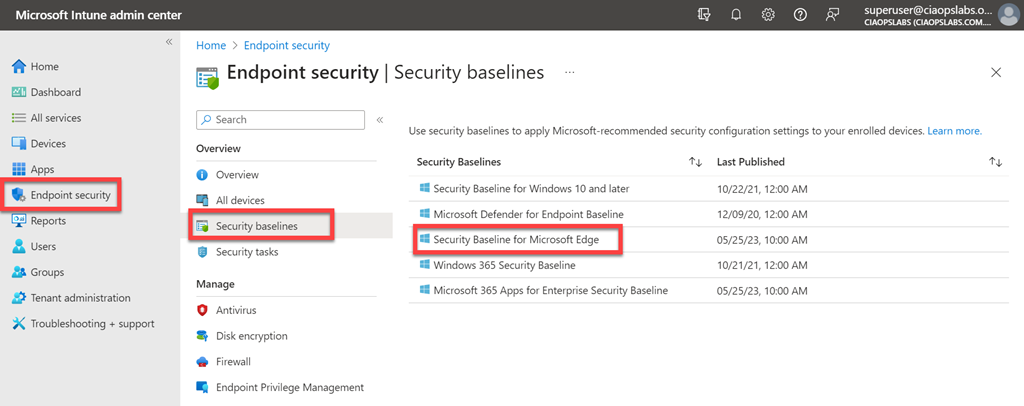
In the Intune console, navigate to Endpoint security | Security baselines and select Security Baseline for Microsoft Edge as shown.

image

Select the option to Create profile and then give the profile a meaningful name.

image

You’ll then see a list of the individual settings with values already selected.

You can adjust any of the individual settings if you need to customise the policy. Generally, I find there is no need to make any changes here as I have found no conflicts.

image

Here we also find an example of one of the challenging things with implementing any policy, duplicate settings. If you remember back to the previous article on

Managing browser extensions in Edge with Intune

you’ll note that extension restrictions was configured there, but now it is also in this Security baseline policy. A best practice recommendation is to only have one place in your policies where a setting is made. This will avoid conflicts and aid troubleshooting. If you do choose to retain the same settings in multiple policies, ensure they are set identically or otherwise you will get conflicts. In this case I’ll leave the setting in place for both policies as they are the same and it is bit challenging to disable just this option in the original ‘Edge configuration’ policy created in the previous post.

With any changes made, continue with the Security baseline policy configuration and assign it to your environment.
image

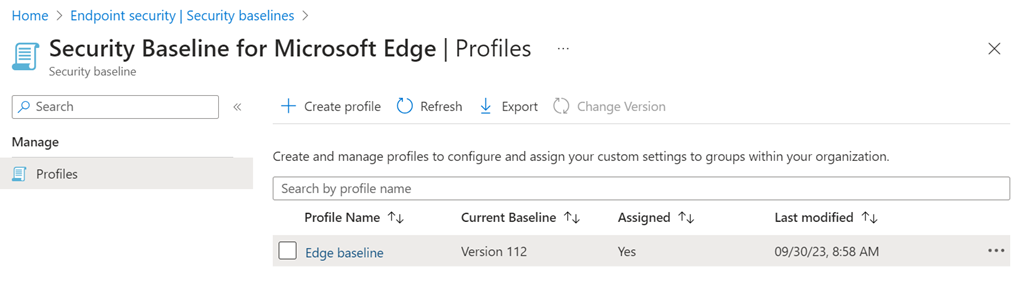
When complete you should see the policy you just created, as shown above. Remember, you can create as many policies as you need to accommodate your environment targeted to different audiences, however the aim should be to get to a single Security baseline policy for Edge to keep things simple.
image

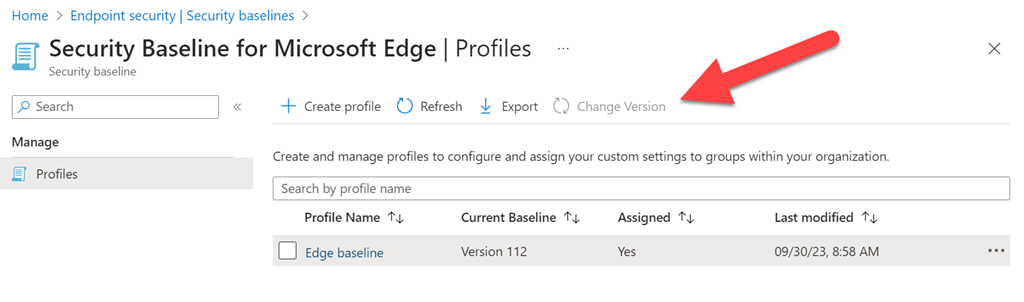
You’ll see that the policy created has a version number. You’ll also note a Change version button on the menu at the top (currently greyed out) as shown above. This is the beauty of a Security baseline policy, when an update is available you’ll be able to use this option to update the policy. You can read more about this here:

Update a profile to the latest version

We are now at a point in our roll out where we have policies to provide a secure Microsoft Edge configuration in our environment. Those already using Microsoft Edge will benefit immediately, users on other browsers still need to ‘encouraged’ to make the shift as soon as possible, but are still not being forced to use Microsoft Edge just yet (they will be eventually, so keep encouraging them to make the shift with your communications because they day when they have no other option but to switch is coming!).

for more information about the:

Microsoft Edge security baseline settings reference for Microsoft Intune

visit the above link and remember the benefit of Security baselines is that they have best practice settings already enabled, so typically all that is needed to apply the policy with these default settings .

It is now time to look at securing the Windows devices against ransomware. Stay tuned.

Managing browser extensions in Edge with Intune

This series of posts is an approach to implementing Intune inside a business. So far, I have covered off:

1. Create compliance policies and update devices to be compliant

2. Implement LAPS to control the local device admin account that cannot be deleted

3. Remove all other accounts from local administrator group on devices

4. Setting the default search engine in Edge with Intune

The goal we are trying to achieve is to move all users from third party browsers to using Microsoft Edge. The next step in this process will be deploying and managing a constrained set of extensions in Microsoft Edge.

image

The first step is to visit the Microsoft Edge store for extensions and grab the unique ID for the extensions you want to use. You find this in the URL for the extension as shown above. Here are three common extensions I will use for this example:

Lastpass – bbcinlkgjjkejfdpemiealijmmooekmp

DuckDuckGo Privacy – caoacbimdbbljakfhgikoodekdnlcgpk

Save to Pocket – jicacccodjjgmghnmekophahpmddeemd

Once we have these we need to login to the Intune management portal.

image

In the last article I created a generic device configuration profile called ‘Edge configuration’ policy that I’ll be extending here. Select the policy name to view its settings.

image

Scroll down the policy until you locate the heading Configuration settings as shown above, and then select the Edit hyperlink to the right of this.

image

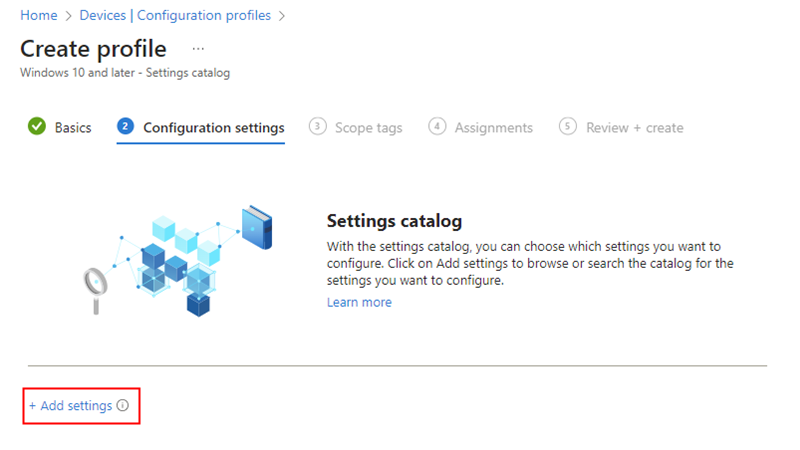
Select the + Add Settings link as shown above.

image

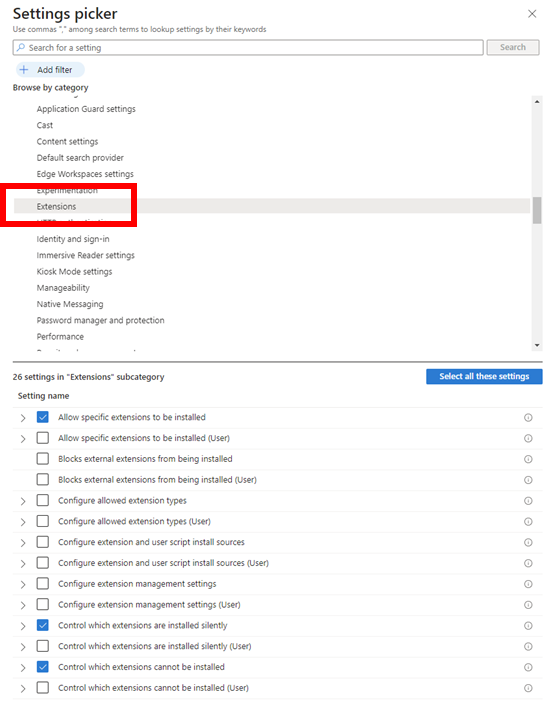
Expand the Microsoft Edge option in the top part of the blade that appears and then select Extensions as shown above. In the options that appear in the lower part of the screen select:

Allow specific extensions to be installed

Control which extensions are installed silently

Control which extensions cannot be installed

Close the blade.

image

You should now see the ability to customise these options in the policy as shown above.

Add the ID’s of the extensions you want silently installed and ensure that each is ticked as shown.

Add ‘*’ (i.e. all) as the option for IDs to be prevented from being installed and ensure it is ticked as shown. Basically all other extensions will not be permitted to be installed.

Add the ID’s of the extensions you want to allow in the exempt from block area and ensure each is ticked as shown.

Save the policy changes and allow it to be propagated to all groups included in the policy.

Capture

Once the policy has rolled out, you should find the extensions you entered in the policy have been added to Microsoft Edge as shown above.

Capture (1)

You should also find that users cannot add additional extensions to their Microsoft Edge browser as shown above.

The aim of this exercise was to automatically configure a number of ‘standard’ extensions for Microsoft Edge and block everything else. We have been able to achieve this by extending the original ‘Edge configuration’ policy that was created earlier.

The next step in the process will be to lock down the Microsoft Edge browser using a baseline policy. Stay tuned.

Setting the default search engine in Edge with Intune

This series of posts is an approach to implementing Intune inside a business. So far, I have covered off:

1. Create compliance policies and update devices to be compliant

2. Implement LAPS to control the local device admin account that cannot be deleted

3. Remove all other accounts from local administrator group on devices

One of the longer term best practice goals is to move all users to exclusive use of Microsoft Edge as a browser. Doing so will improve overall security, provide greater management of the browsing experience and provide a consistent environment.

In most existing environments today, users in a business are using a variety of browsers. It is my experience that, generally, users are not wedded to the type of browser they use but many are wedded to the search experience they have become familiar with. Changing this experience abruptly is going to reduce user productivity and create resistance to change. In order then to ease the transition from other browsers to using Microsoft Edge a recommended approach is to use Intune to change the default search experience in Microsoft Edge to the one users are familiar with. It is important to remember that Edge will be pretty much 100% compatible with the browser they use today, along with any extensions. Also, the idea with this step is not to force users to use a new browser but start preparing for that change.

The first step in the browser migration project will be to set the search experience in Edge to be what a user is familiar with. To do this you will need to create a new Intune configuration profile.

image

In the Intune console select Devices then Configuration profiles. Then select Create profile on the right. Select Windows 10 and later for the profile and Settings catalog for the profile type. Select Next to continue.

image

This policy is something that will be added to overtime so it is suggested you call the policy something like ”Edge configuration” as shown above. Select Next to continue.

image

Select the +Add settings link

image

Locate the Microsoft Edge\Default search provider in the top of the blade that appears on the right as shown above. Select this and a list will appear in the lower half. FRom the list in the lower portion, select the following four settings:

Configure the new tab page search box experience

Default search provider name

Default search provider url

Enable the default search provider

Close the settings picker by selecting the cross (x) in the top right hand corner.

image

Enable the four new settings, as shown above,  and given that Google is the most common search engine, here are the appropriate settings for setting the default search engine in Microsoft Edge to be Google:

New tab page search box experience = Address bar

Default Search provider search URL = https://www.google.com/search?q={searchTerms}

Default search provider name = Google

You can of course use any search provider you wish. My preference would be for DuckDuckGo but remember, the idea here is to provide the lowest amount of friction to migrate users away from the third party browsers they are probably using. However, if you wish to force a new search experience, now is probably the best time to do that.

Complete the policy and assign it to your users. You then need to allow the policy to roll out.

Capture2

Now when users type a search term into the URL box, while using Microsoft Edge, it will use the search engine you just configured via the Intune policy as shown above.

Remember, at this stage all that has been done is to set a new default search engine for Microsoft Edge. If the users are not yet using Edge then they will be unaffected by this change. The idea is to make the Edge environment as familiar as possible before forcing users to use Edge instead of the browsers they current use.

Of course, if some users are using Edge this change will affect them and you should prepare for that but communicating the reasons for the change and how everyone will be shifting to Edge and this is the first step in the process to provide a more secure and consistent environment for everyone. You could also just target this new policy to users not currently using Edge as their default policy. The choice is yours, but the endgame is to get everyone using a secured version of Edge with consistent settings.

We’ll come back and make more changes to this Edge configuration policy over time but for now we have all versions of Edge using the same search engine.

Controlling local user group membership with Intune

I recently outlined how to

Control local admin on a device with LAPS and Intune

Once you have LAPS in place I suggested that you want to eliminate any local device administrators as a best practice. You can achieve this via a policy in Intune.

The first step in the process is going to be to determine any local administrator accounts and what they are doing in your environment. A good starting point is this KQL query to look for local admin activity in your device fleet:

DeviceLogonEvents
| where TimeGenerated >= ago(7d)
| where IsLocalAdmin == true
| summarize count() by DeviceName, AccountName,LogonType
| sort by AccountName

That will, of course, only show you logon activity by an account that is a local administrator. For dormant local admin accounts you are going to need to do more work to flush them out. However, the query will at least show you active local admin accounts that maybe impacted by any changes made using something like LAPS.

image

To set a policy to control local groups on Windows devices, login to the Intune management portal and select Endpoint security and Account protection, as shown above. Create a new policy for Windows 10 and later and select Local user group membership as the Profile.

image

Give your policy a meaningful name and continue.

Select the local group (here Administrators), select the action (here Remove) and Manual for the User selection type.

image

When you select the Add users hyperlink in the Selected users/groups field you will see the above blade appear. In here, you’ll find a number of different methods of identifying users. If you have a list of local device admins then you can add them here.

Once you have entered all the users you wish to remove from the local device administrators group, complete the policy and assign it to the audience you wish.

The policy will then roll out to your environment and the changes will be made to the local group membership. In this case, it will remove local users from the local device administrator group so they can no longer administrate the device.

Remember, there are lots of options here. You could different policies for different users and/or devices. You could create policies to not only remove but also add. An example maybe where you wish an Entra ID user to be a local administrator of box. In that case, simply select the option to Add the user from Entra ID to the local administrators group. There is a lot of flexibility here with this policy.

Typically, once your policy has completed and there are no more local administrators you can remove the policy, as hopefully no more local accounts will be created with devices being joined directly to Entra ID. However, you may wish to retain it for if new devices are joined to your environment, especially if you don’t use Autopilot.

In summary then, the process so far, is:

1. Create compliance policies and update devices to be compliant

2. Implement LAPS to control the local device admin account that cannot be deleted

3. Remove all other accounts from local administrator group on devices

Typically, these steps will have no impact on users working with their devices and it commences the process of implementing a consistent environment and making it more secure.

You can read more about this particular policy here:

Manage local groups on Windows devices


Controlling local admin with LAPS and Intune

I recently suggested that Compliance policies were the place to start with Intune device management.

Start with Intune policies

From there, I would suggest that configuring the Local Administrator Password (LAPS) policy is a good follow on option. This will automatically rotate the password for the Windows local device administrator accounts.

image

In the Intune console select Endpoint Security and then Account protection. Create a new policy for Windows 10 and later and select Local admin password solution (Windows LAPS) as shown above.

Give the policy a meaning name and description.

image

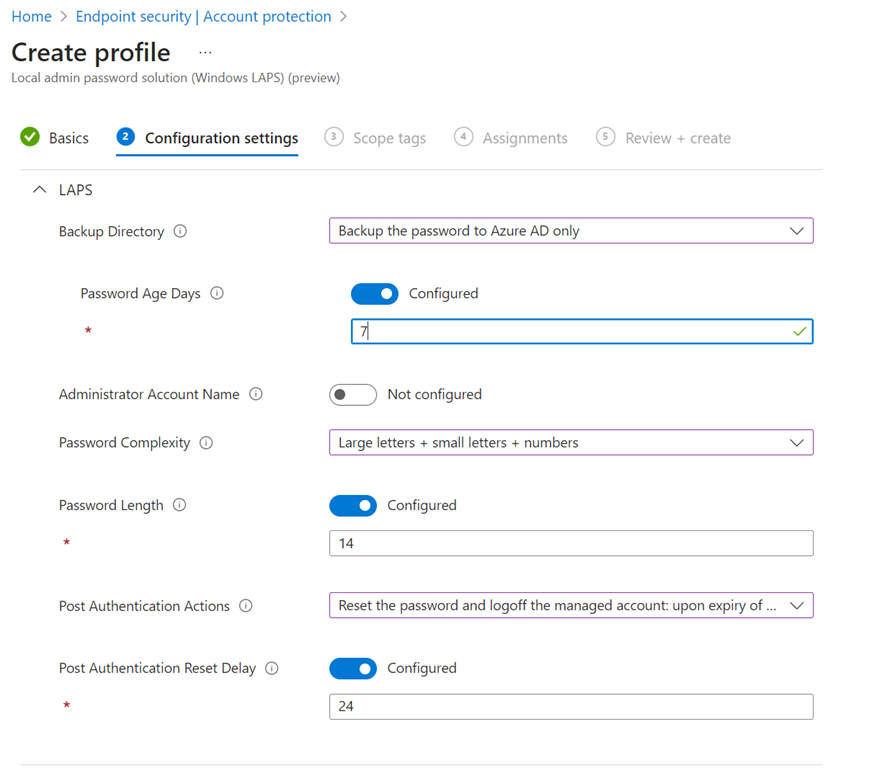
Make the appropriate settings as shown above. You want to ensure that the Backup directory is set to Backup the password to Azure AD only.

Assign the policy and save it.

image

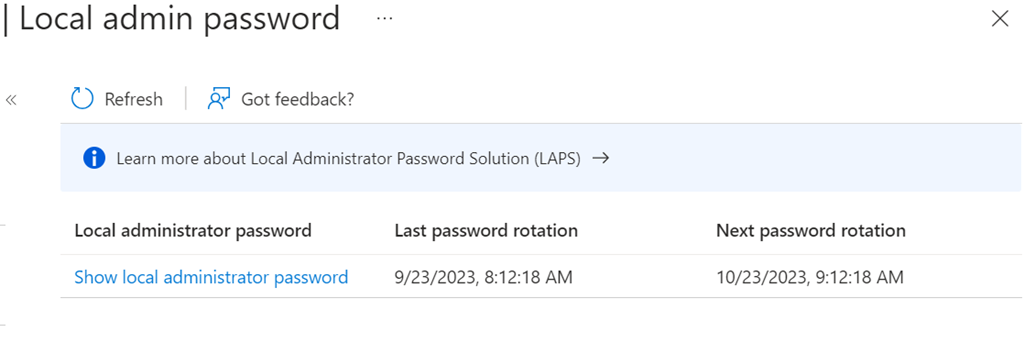
Once the policy has been assigned to the device a random password, to specifications set in the policy will be applied and a copy will be saved into the device details in the location shown above within Intune

In general it is best practice to have no other local admin accounts on devices except the default one provided by Windows that cannot be removed. Per the FAQs, LAPS supports only one account on a device. You can specify that account but it is best practice to not specify a name on the policy configuration and allow Intune to manage the default built-in administrator account.

image

Once the LAPS policy has been applied you will see the following for the Windows devices as shown above.

image

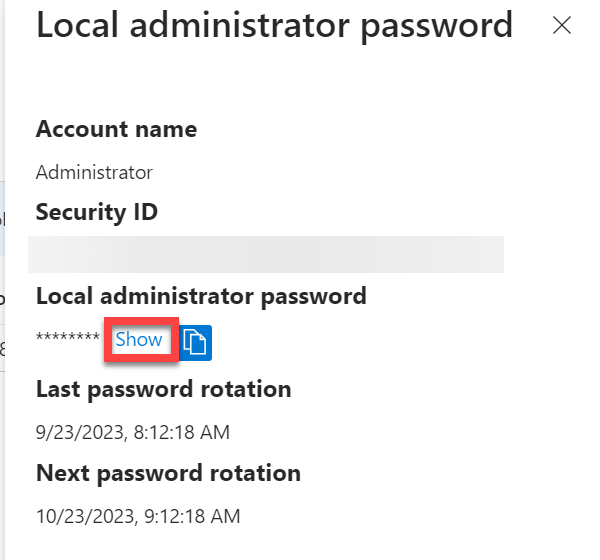
Selecting the Show local administrator password hyperlink will display a blade with the above information. Selecting the Show button here will display the current password and allow you to take a copy.

Best practice is to take control of the default local admin account using the LAPS policy deployed via Intune as shown. The next step would then to be to eliminate any other local admin account from the devices so the only ne left is the default which has its password rotated regularly thanks to LAPS.

Further information on LAPS with Intune can be found here:

Microsoft Intune support for Windows LAPS


Don’t over look a good naming convention

pexels-george-becker-243337

If there is one piece of advice I can given when it comes to setting up policies in Microsoft 365, it is to have a good and consistent naming convention.

Microsoft 365 is full of policies, from Conditional Access, to Exchange Online to Intune and more. Having a naming convention worked about before you start creating policies is going to save you a lot of time down the track when you need to modify or troubleshoot your policies.

If you using something like Microsoft 365 Lighthouse to manage multiple tenants, then some additional thought will also need to be invested because if every tenant you manage has identically named policies then when these are rolled up into Microsoft 365 Lighthouse it is going to get confusing.

Although there is no agreed upon standard for naming conventions I’d give you these tips as general guidance:

– Short is better. i.e. ‘HR’ is far better than ‘Human Resources’

– Have the business name as a 3 letter acronym (i.e. ‘ABC’) at the beginning of the policy name if you are using Microsoft 365 Lighthouse

– Avoid special characters like @#$%, etc as well as spaces if you can. Use a ‘-‘ instead of a space and avoid using underscores (‘_’)

– Avoid upper case as well. My experience using the Microsoft Graph is that it can be very case sensitive at times. Having everything in lower case makes it much easier when you come to automating policies and the like with code such as PowerShell.

– Don’t state the obvious like starting every Microsoft Team with the full name of the business or words like ‘Project’. The shorter the name the easier it is to read and display.

– Be mindful of the names used on things like mobile devices

– Remove unnecessary policies to avoid confusion

– Avoid using names like ‘Test’, ‘Temp’, etc. if you do, remove these items when the test is complete to again avoid confusion.

– Try and make it easy for yourself and others in the future to understand and work with the names you have chosen.

The secret is to come up with a naming convention, document it and then use it everywhere. Consistency matters, because in the end it is going to be your time that gets chewed up by trying to work out what randomly named policies actually do. Take some time up front to have a convention and you’ll be rewarded with less pain later on.

Start with Intune Compliance policies

I see many people struggle to get started with Intune and Device Management in Microsoft 365. My recommendation is always to start with configuring Compliance policies. Doing so will give you:

1. A device inventory

2. A list of devices that fail to meet the minimum standards set for connection to corporate data

However, the major benefit is that, by default, Intune Compliance Policies make no change to any of the device or impact users productivity. In effect, Compliance Policies simply READ the status of a device and make NO changes.

Screenshot 2023-09-14 102330

You’ll find Compliance Policies under Devices in the Intune portal as shown above.

Typically, you’ll create at least one Compliance Policy for each different operating systems you have in your environment (i.e. for Windows, iOS, Android, etc). You can, of course, have as many different Compliance Policies as you desire, potentially targeted at different users and or devices. However, the policies you have, the more maintenance and troubleshooting will be required. It is therefore recommended to stick with a single Compliance Policy for each operating system.

Screenshot 2023-09-14 102823

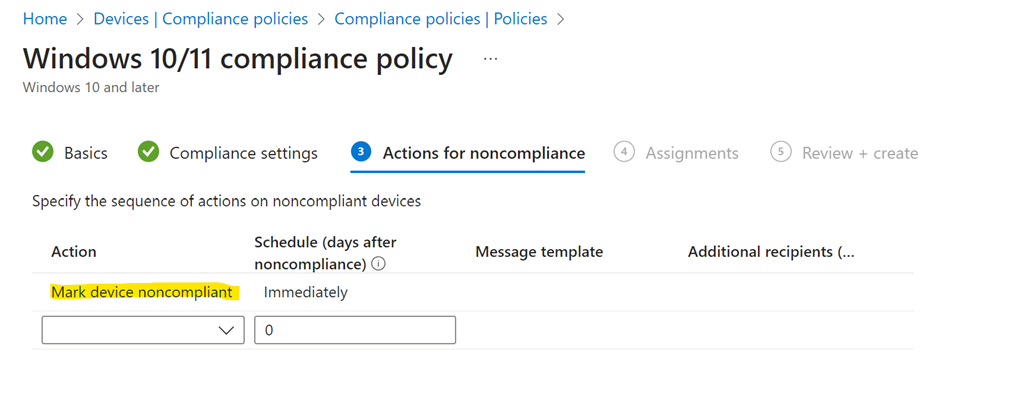
During the policy creation you’ll see a screen as shown above in which you can set actions for devices that fail compliance. You will not that, by default, the only taken is simply to mark the devices as non compliant. That is the only action take. You can add more actions if you want, but importantly, by default, the only action taken is simply to mark devices as non compliant.

Once you have created and assigned the Compliance Policy the machines covered that policy will be evaluated and results reported back to Intune.

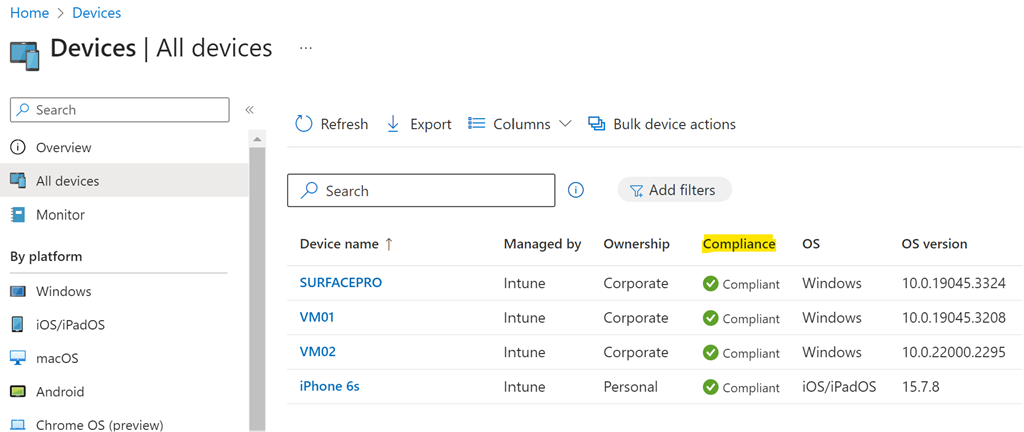
Screenshot 2023-09-14 103209

If devices are found that are not compliant, then you can take action to make them compliant before allowing them to access corporate data.

Above all, using compliance policies is a great way to get an inventory of all the devices in your environment and report their configuration. Of course, these Compliance Policies will continue to be evaluated regularly in case anything changes on the device.

The recommendation then is to start with Compliance Policies to take an inventory of your device fleet before proceeding further with Device management. If you want to read more about Modern Device Management then read my series of blog posts starting here:

https://blog.ciaops.com/2020/09/26/modern-device-management-with-microsoft-365-business-premium-part-1/