Need to Know podcast–Episode 225

FAQ podcasts are shorter and more focused on a particular topic. In this episode I’ll talk about the recommended process for file migrations to Microsoft 365 collaboration.

Take a listen and let us know what you think – feedback@needtoknow.cloud

You can listen directly to this episode at:

https://ciaops.podbean.com/e/episode-225-process-for-file-migrations/

Subscribe via iTunes at:

https://itunes.apple.com/au/podcast/ciaops-need-to-know-podcasts/id406891445?mt=2

The podcast is also available on Stitcher at:

http://www.stitcher.com/podcast/ciaops/need-to-know-podcast?refid=stpr

Don’t forget to give the show a rating as well as send us any feedback or suggestions you may have for the show.

Resources

Process for file migrations to Microsoft 365

My Business Books – 2020

Not a lot has changed on this since last year which you can check out at:

My Business Books – 2019

I spent more time last year reading biographies of people like Douglas MacArthur and Winston Churchill that I did with business books. Worthwhile business books are become harder and harder to find these days in my opinion. All have something to offer but few have more than one concept or some really novel ground breaking idea in my opinion. I still have lots of business books to get through but I can say that I’m busting to read any on that list at this stage.

You can follow all the books I read and want to read over at Goodreads where I have an account. You can also view my activity via:

https://www.goodreads.com/director_cia

or just follow me on Facebook:

www.facebook.com/ciaops

Here’s my current top business books in order:

1. The Art of War – Sun Tzu

The all time classic on strategy. As relevant today as it ever was. A very short read but very deep.

2. The Millionaire Fastlane – M.J. DeMarco

I love the brutal honesty of this book. It doesn’t mince words about what it takes to shift from a pay check to actually living the life you want.

3. The Tipping Point – Malcolm Gladwell

The world is all about not what you know but who you know. This book explains exactly how this works and how to use it to your advantage.

4. The Four Hour Work Week – Tim Ferriss

Many people believe this book is about shirking responsibility. It is in fact a blueprint for how to free up your time to do things you want and enjoy. It will challenge the way you look at your career.

5. Secrets of the Millionaire Mind: Mastering the Inner Game of Wealth – T. Harv Eker

The successful are defined by a different mindset. This mindset can be learned. It can be trained. This is a great book to show you how to do just that.

6. Talent is over rated: What Really Separates World-Class Performers from Everyone Else – Geoff Colvin

Demonstrates that the best comes from implementing a system. Having a system allows you to focus on the right thing and do that work that is required. If you want to take yourself to an elite level, beyond just good, then read this book.

7. Book Yourself Solid: The Fastest, Easiest, and Most Reliable System for Getting More Clients Than You Can Handle Even If You Hate Marketing and Selling – Michael Port, Tim Sanders

You can’t survive in business without a steady flow of customers. Selling to people is the wrong approach, you instead need to attract them to your business. This book helps you achieve exactly that.

8. Profit First: A Simple System To Transform Any Business From A Cash-Eating Monster To A Money-Making Machine – Mike Michalowicz

Business is about making a profit. This then gives you the freedom to do what you want with that profit. This book helps you focus on profit and setting up systems to make the most of the profit you generate.

9. Barking Up the Wrong Tree – Eric Barker

Conventional wisdom does not always apply and in some case can actually be detrimental. Challenging what is taken for granted should be in the play book of everyone who wants to achieve at the highest level. Important lessons can be learned in the strangest places and form the strangest people. Have an open mind and you might be surprised at what you have believed to be bad in fact turns out to get just what you need.

10. Unbeatable Mind: Forge Resiliency and Mental Toughness to Succeed at an Elite Level – Mark Divine

Another mindset book. Business is not always going to be easy or take the intended route. This is when you need to have the determination to see your plans through to success. This book shows you how to develop the mental toughness to make this happen.

11. The E-Myth – Michael Gerber

The classic on ‘procedurising’ your business and creating a structure that doesn’t need you to survive. The simple secrets inside this book can transform any business from hardship to joy.

12. Tools of Titans – Tim Ferriss

There are few books that take the learnings for so many exceptional people and puts them at your fingertips. This is one such book that packs a lot of business and life learnings between the covers.

13. Predictably irrational: The Hidden Forces that Shape our Decisions – Dan Ariley

Although we like to think logic and rationality rule our world emotion is by far the more powerful influence. Understand this in the context of business and you are well on your way to understanding why people make the decisions they do and how to best profit from them.

14. Extreme Ownership – Jocko Willink and Lief Babin

Moving beyond blame is tough. This book illustrates the ownership of the problem and the environment is a key to success in the military or in business. It is a path few will elect to take voluntarily, however more may do so after reading this.

15. Peak Performance: Elevate your game, avoid burnout and thrive with the science of success – Brad Stulberg

Success is largely about developing a winning system. This book show you how to approach that pragmatically. If you want to see results use this book to help you build the system.

16. Blink: The Power of Thinking Without Thinking – Malcolm Gladwell

The older you get the more experience you get. This experience is aggregated in your ‘gut feel’. Trusting your ‘gut’ may not appear rational but this book will help you understand why it is in fact your best option in many cases.

17. The Now Habit: A Strategic Program for Overcoming Procrastination and Enjoying Guilt-Free Play – Neil A. Fiore

Plenty of great productivity learnings in here that help you take action. It shows you how to focus on the right stuff in the right priority. Even if you are not a major procrastinator there is plenty in this book that you can take away.

18. The One Thing – Gary Keller

Multi-tasking is a myth. Focus is the key to success to bringing all your resources to bear in unison makes a hell of a lot of difference. Most people can’t do it, so those that can stand a much greater chance of success.

19 Deep Work – Cal Newport

Distractions are wasted energy and time that you’ll never get back. You’d be amazed at how distracting the modern world is. If you can minimise these distractions you can focus more and be far more productive.

I’ve decided to spend more time with Audible books this year to help me get through more content. I can listen at increased speeds to get through more content and I can also listen in more locations with Audible books. I still enjoy reading ‘old style’ on my Kindle but there seem to be so many things that get in the way. Even if I am tired and worn down, listening to Audible is easy to do and generally more relaxing. I am hoping to churn through a lot more books this year in that way.

Let me know what you think. Do these work for you? What’s your top business reads? I’d love to hear.

CIAOPS Need to Know Microsoft 365 Webinar–January

laptop-eyes-technology-computer

We are back for a new decade! Yes, it is 2020 and Microsoft 365 webinars continue. This month I’m going to take a look of the some less common services of Microsoft 365 including Forms, To-Do, Whiteboard, Kaizala and more. I’ll have the  the latest Microsoft Cloud updates plus open Q and A as well. Start your year and decade off with a BANG!

You can register for the regular monthly webinar here:

January Webinar Registrations

The details are:

CIAOPS Need to Know Webinar – January 2020
Thursday 30th of January 2020
10.30am – 11.30am Sydney Time

All sessions are recorded and posted to the CIAOPS Academy.

The CIAOPS Need to Know Webinars are free to attend but if you want to receive the recording of the session you need to sign up as a CIAOPS patron which you can do here:

http://www.ciaopspatron.com

or purchase them individually at:

http://www.ciaopsacademy.com/

Also feel free at any stage to email me directly via director@ciaops.com with your webinar topic suggestions.

I’d also appreciate you sharing information about this webinar with anyone you feel may benefit from the session and I look forward to seeing you there.

Moving to the Cloud–Part 2

This is part of a multi part examination of the options of moving to the Microsoft cloud. If you missed the first episode, you’ll find it here:

Moving to the Cloud  – Part 1

which covered off setting up a site to site VPN to Azure.

The next piece of the puzzle that we’ll add here is storage.

Storage in the Microsoft cloud comes in many forms, SharePoint, Teams, OneDrive for Business and Azure. We’ll get to stuff in Microsoft 365 like SharePoint, Teams and OneDrive later, but to start off with we want to take advantage of the site to site VPN that was set up in Part 1.

In Azure there are three different access tiers of storage; hot, cool and archive. They all vary by access speed and cost. The slower the access, the cheaper it is. Hot is the fastest access, followed by cool, then archive. You can read more about this here:

Azure Blob storage: hot, cool, and archive access tiers

The other variable here with Azure storage is the performance tier; standard or premium. You can read more here:

Introduction to Azure storage

Basically, standard performance tier uses HDD while Premium uses SSD. Apart from performance, the major difference is how the storage cost is actually calculated. With the standard tier, you are only billed for the space you consume BUT you are also billed for access (read, write, delete) operations. With premium, you are billed for the total capacity of the storage you allocate immediately BUT, you are not billed for any access operations.

So the key metrics you need to keep in mind when you are designing a storage solution in Azure is firstly the access tier (hot, cool or archive) the performance tier (standard or premium) and the capacity you desire for each. You may find some combinations are unavailable, so check out the document linked above for more details on what is available with all these options.

The easiest approach to Azure storage is to create an Azure SMB Share and map these directly on a workstation which I have previously detailed here:

Creating an Azure SMB Share

as well as an overview on pricing:

Clarification on Azure SMB file share transactions

Azure SMB files currently only supports hot and cool tiers. You can use archive storage but only via blob access, not SMB files. So what good are all of these you may ask? Well, if you read my article:

Data discovery done right

You’ll find that I recommend dividing up your data into items to be deleted, archived and to be migrated.

So we need to ask ourselves the question, what data makes sense where?

Let’s start with Azure archive storage. What makes sense in here, given that Azure archive storage is aimed at replacement of traditional long term storage (think tape drives)? Into this, you want to put data that you aren’t going to access very often, and that doesn’t make sense going into Teams, SharePoint and OneDrive. What sort of data doesn’t make sense going into SharePoint? Data that can’t be indexed such as large image files without text, Outlook PST backups, custom file types SharePoint indexing doesn’t support (think some types of CAD files and other third party file types). In my case, Azure archive storage is a great repository for those PST backups I’ve accumulated over the years.

Here is the guidance from Microsoft:

  • Hot – Optimized for storing data that is accessed frequently.

  • Cool – Optimized for storing data that is infrequently accessed and stored for at least 30 days.

  • Archive – Optimized for storing data that is rarely accessed and stored for at least 180 days with flexible latency requirements (on the order of hours).

We now repeat this again but with the cool tier storage, remember that this tier now directly supports Azure SMB files. So, what makes sense here? There is obviously no hard and fast rule but again, what doesn’t make sense going into SharePoint? Stuff that can’t be indexed, is typically large, is not accessed that often but more often than archive storage AND you also want to be accessible via a mapped drive letter. In my case, that data that springs to mind are my desktop utility apps (like robocopy), ISO images (of old versions of SharePoint server I keep in case I need to do a migration) and copies of my podcast recordings in MP3 format.

We repeat this again for the hot tier which is fastest and most expensive storage option. Initially here I’m going to place the user profile data when I get around to configuring Windows Virtual Desktop (WVD) in this environment. That needs to be quick, however most other current data files I have will go into Microsoft 365. Being the most expensive tier of storage, I want to keep this as small as possible and only REALLY put data on here that makes sense.

You don’t have to use all three tiers as I do. You can always add more storage later if you need to, but I’d recommend you work out what capacity you want for each tier and then implement it. For me, I’m going for 100GB Archive, 100GB cool and 50GB hot as a starting point. Your capacities will obviously vary depending on how much data you plan to put in each location. That why you need to have some idea idea where all your data is going to go BEFORE you set all this stuff up. Some will go to Azure, some will go to Microsoft 365, some will deleted and so on.

As for performance tiers, I’m going to stick with standard across all storage accounts for now to keep costs down and only pay for the capacity I actually use.

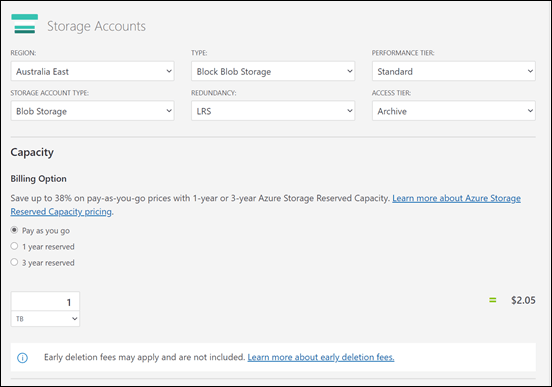
Let’s now look at some costs by using the Azure pricing calculator:
image

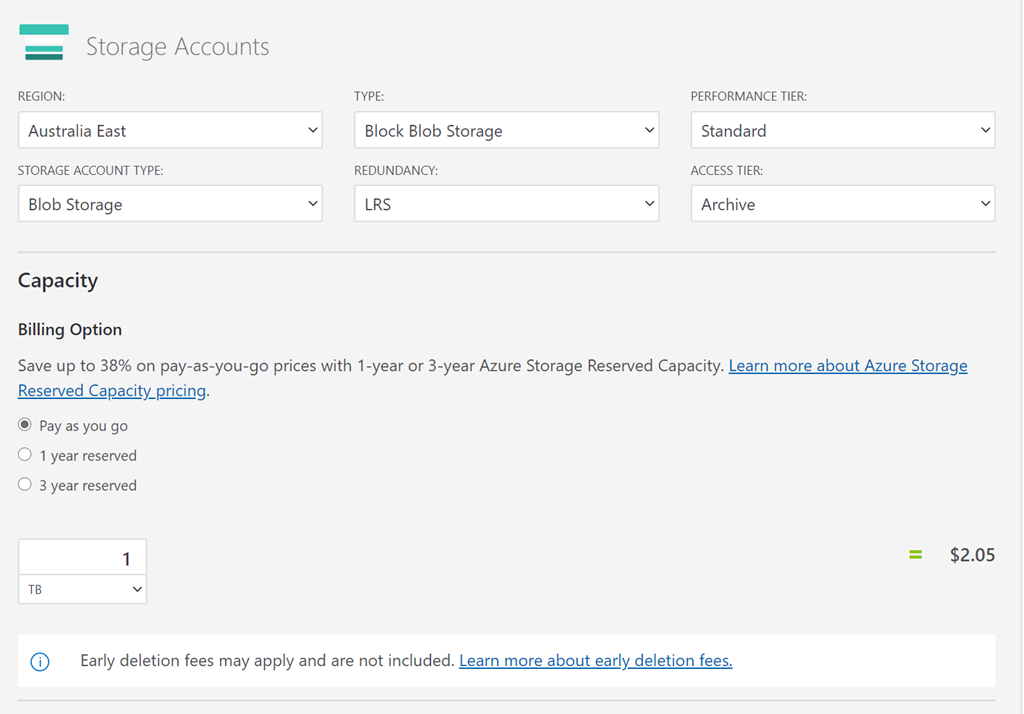
I’ll firstly work out the price for each based on 1TB total storage for comparisons between the tiers and to SharePoint and OneDrive for Business.

All the storage calculations are in AU$, out of the Australian East data center, on the standard performance tier and locally redundant unless otherwise stated.

You can see that 1TB or archive storage is only AU$2.05, but it ain’t that simple.
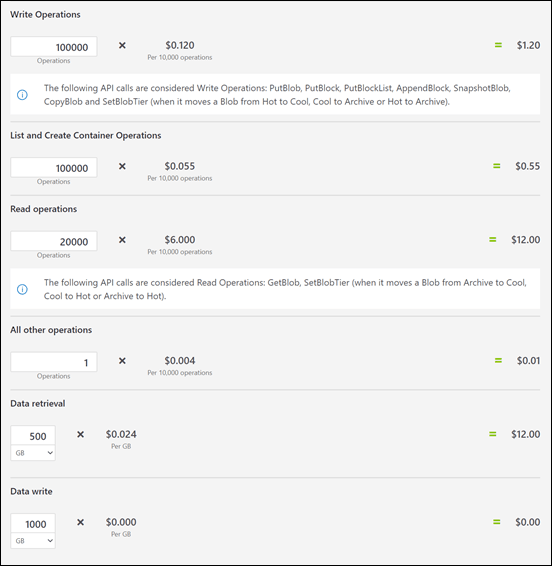
image

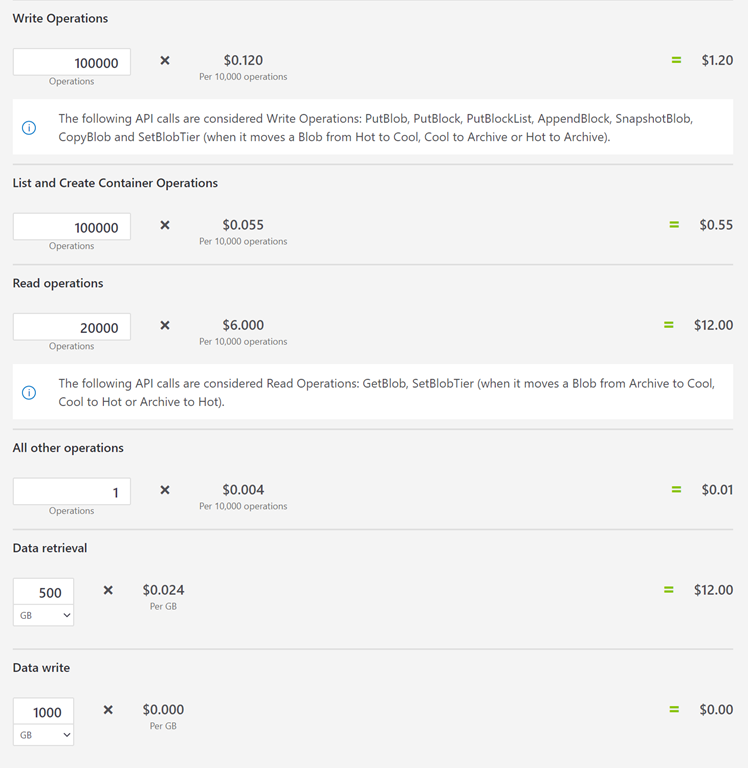
There are other operations, as you can see above that need to be taken into account. I have adjusted these to what I believe makes sense for this example but as you can see, variations here can significantly alter the price (especially the read operations).

The estimated total for 1TB of archive storage on the standard performance tier = AU$27.05 per month.

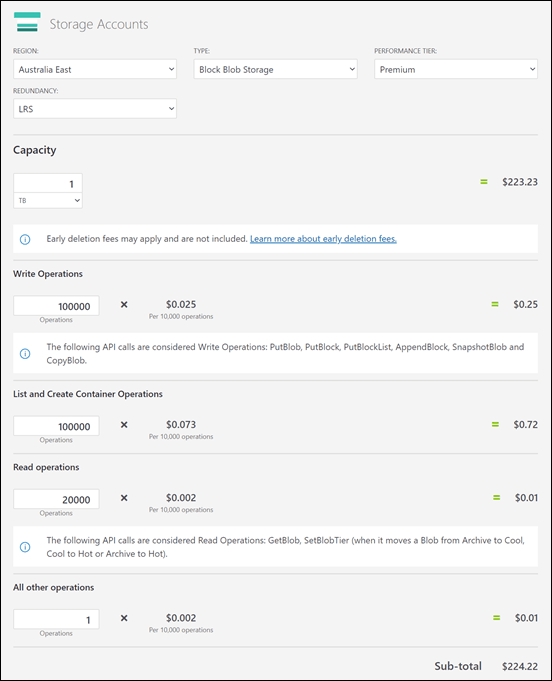
Now, as a comparison, if I change the performance tier to Premium I get:
image

The price of the storage goes way up, while the price of operations goes way down. So, if you want to minimise costs and you have lots of operations on your storage, standard tier is your best option.

The estimated total for 1TB of archive storage on the premium performance tier = AU$224.22 per month.

Basically 10 x the cost above the standard tier.

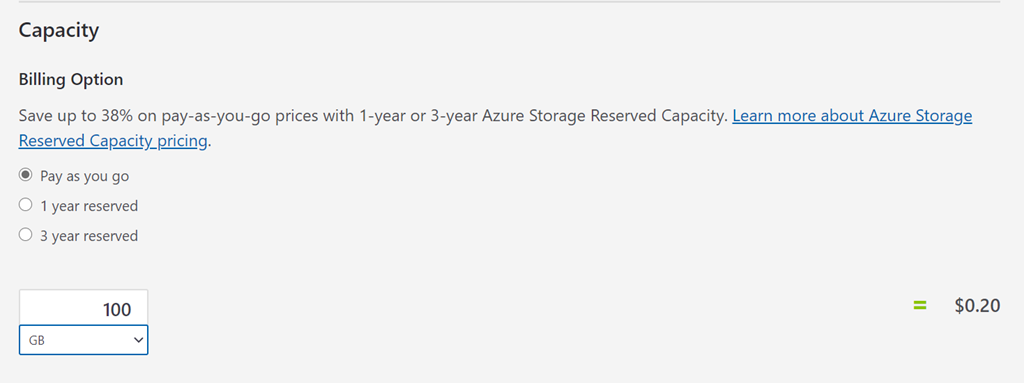
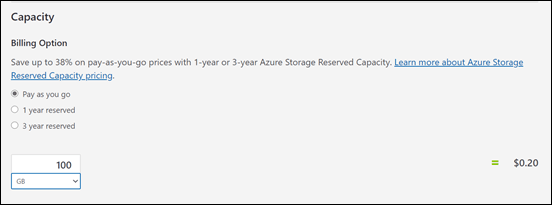
In my case, I don’t need 1TB of storage, I only want 100GB of storage.
image

When I now do the estimation of 100GB of archive storage, the cost of just the storage falls by 10x (as expected) to AU$0.20, Don’t forget however about the storage operations which remain the same. So, my storage cost went down but my operation costs remained the same. Thus,

The estimated total for my 100GB of archive storage on the standard performance tier = AU$25.95 per month.

While premium is:
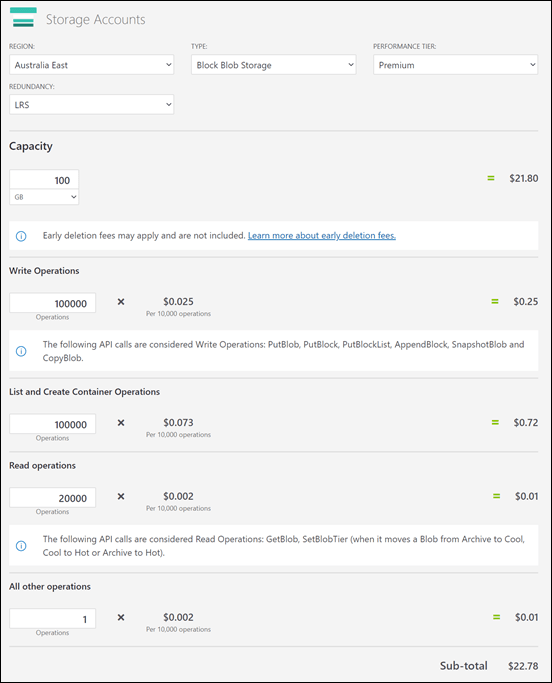
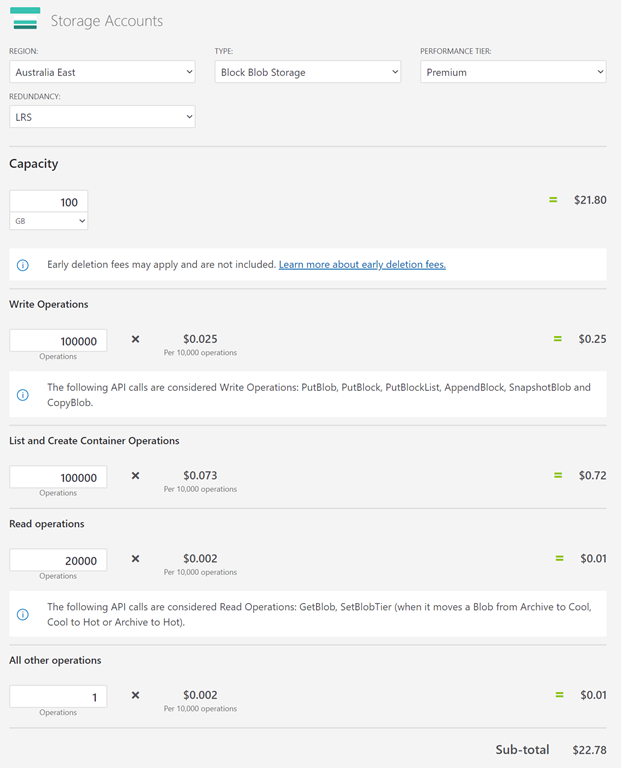
image

The estimated total for my 100GB of archive storage on the premium performance tier = AU$22.78 per month.

As outlined before, as a general rule of thumb with archive storage, premium performance tier is better value for low storage capacity and also low data operations. Once the capacity increases with premium performance, the price ramps ups.

So why would I recommend staying with the standard performance tier? Although, I ‘estimate’ that my archive will be small, I want the flexibility to grow the capacity if I need it. Remember, that we don’t set a storage capacity quota for block storage, it can just grow as needed and the bigger the storage capacity the more it will cost me if I go premium. Given that storage capacity here is more important than working with the data, I want the cheapest storage costs I can get as the data capacity increases. Thus, I’ll stick with the standard access tier. Also, remember that I’m estimating when my storage reaches 100GB here I’ll be billed AU$25.95 per month but until I reach that capacity and the less operations I do on files there, the cheaper this storage will be. I therefore expect my ‘real world’ costs to in fact be much less than this AU$25.95 figure over time.

Let’s now look at the next two storage locations, which will be Azure SMB file shares.

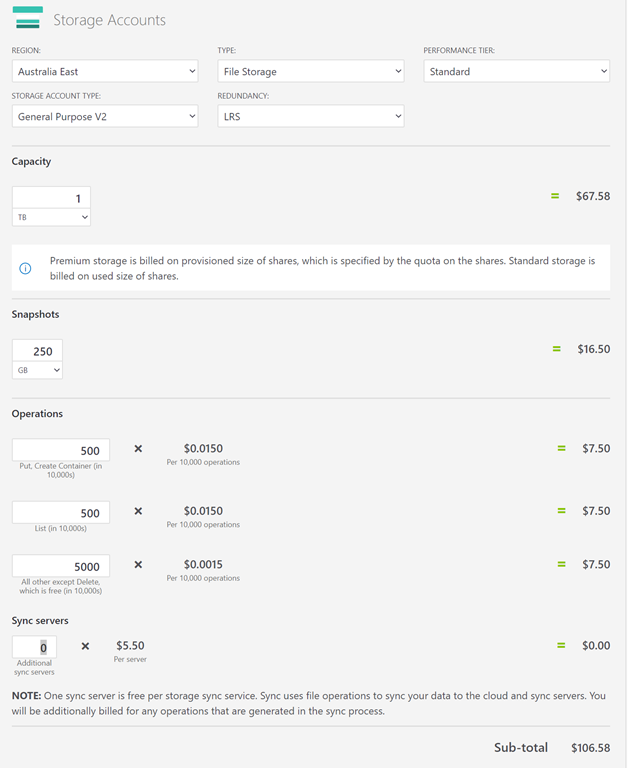
Unfortunately, the pricing calculator doesn’t allow us to easily calculate the price for an SMB Share on a cool access tier (Azure SMB files doesn’t currently support being on the archive tier). However, the pricing is only an estimate, so I know if I place it on a cool access tier it will be cheaper anyway, so I’m going to keep it simple.
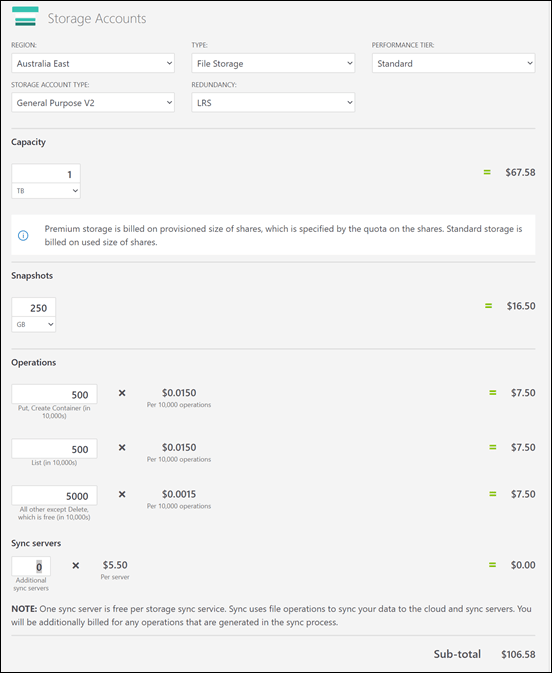
image

Thus, for reference:

The estimated total for 1TB of SMB file storage on the standard performance tier = AU$106.58 per month.

remembering that for the standard tier we need to take into account the cost of operations as shown.

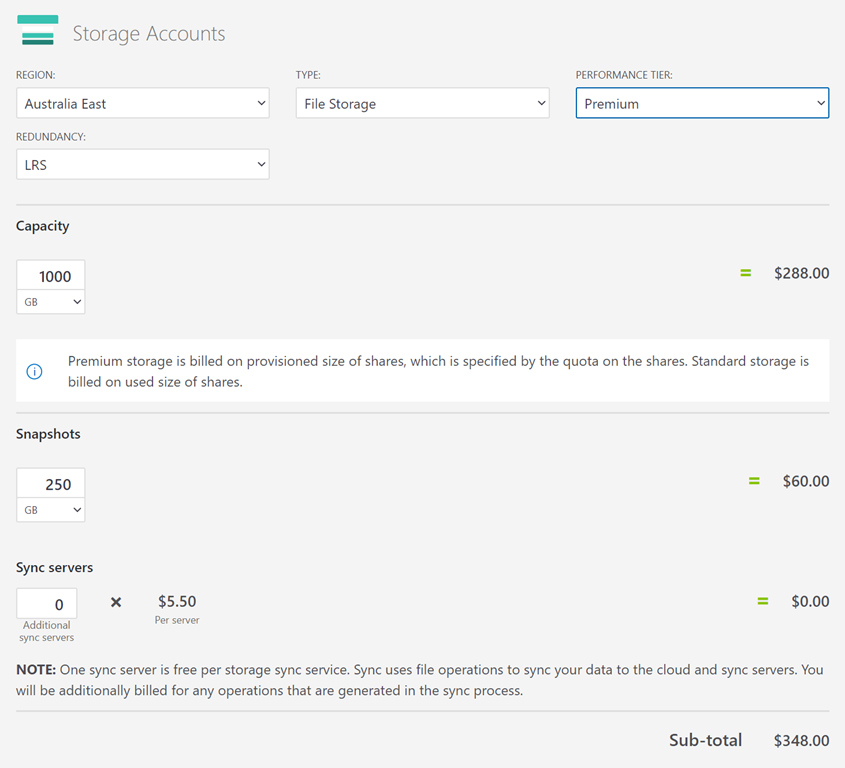
and for Premium:

image

The estimated total for 1TB of SMB file storage on the premium performance tier = AU$348.00 per month.

With premium storage, you don’t need to worry about operations, however don’t forget, if you go premium you’ll be paying for the total allocated capacity no matter how much you are actually using. Thus, I’ll again be sticking with standard storage.

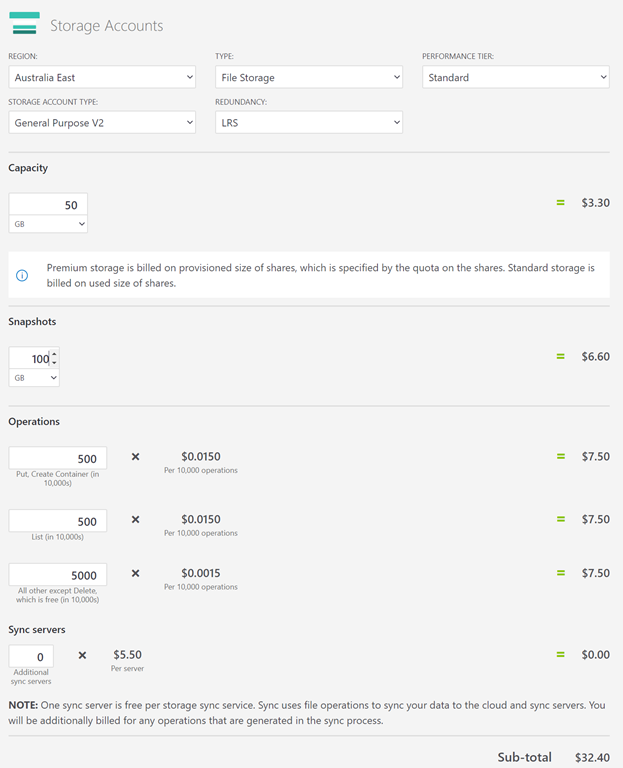
So, for my 50GB Azure SMB files hot tier I calculate the following:
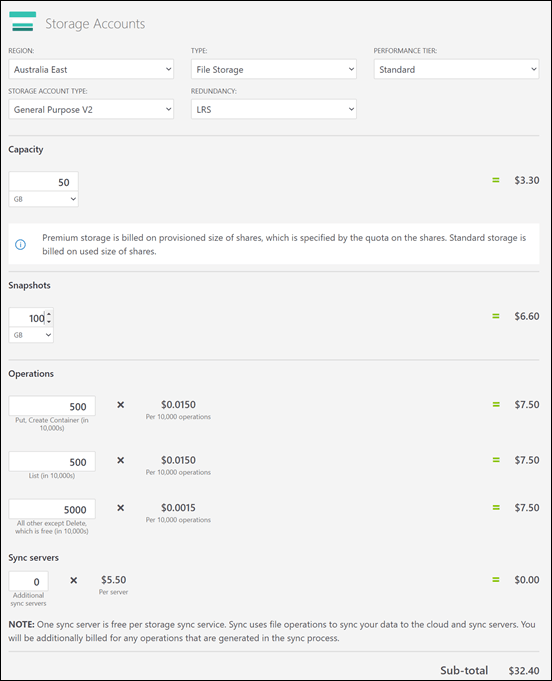
image

The estimated total for my 50GB of hot SMB file storage on the standard performance tier = AU$32.40 per month.

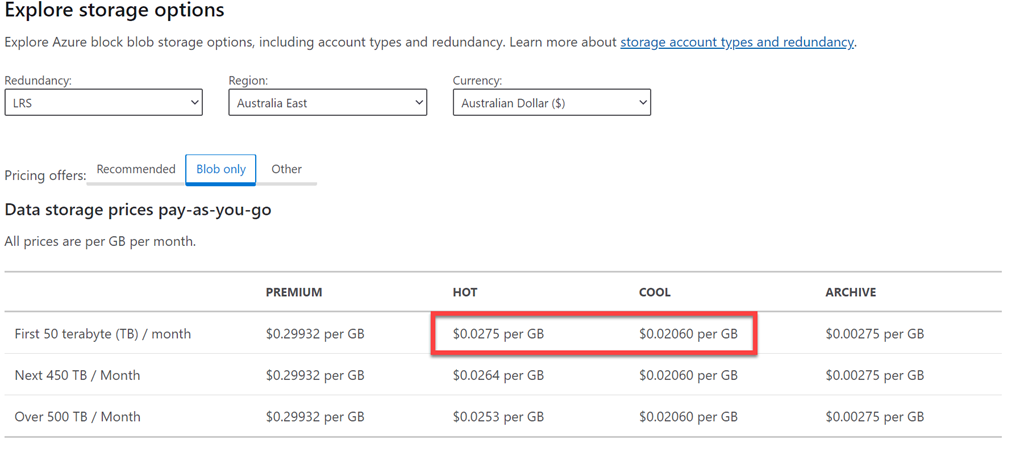
Now how can I get an idea of what the cool SMB file price will be? Although it is not this simple, I’m going to use a ratio from:

Azure Block blob pricing
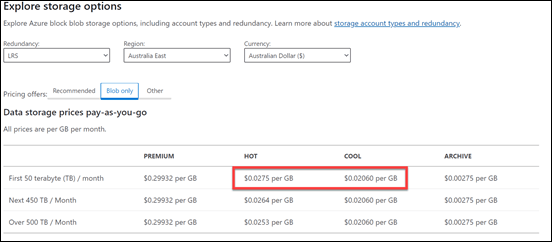
image

So, by my super rough rule of thumb maths I get:

cool/hot = 0.02060/0.0275 = 0.75

Thus, cool storage is 75% the cost of hot storage say.

The estimated total for my 100GB of cool SMB file storage on the standard performance tier = AU$32.40 per month x 2 x 0.75 = AU$48.60 per month

The 2 x is because the hot price I have is only for 50GB and I want 100GB of cool storage.

In summary then, I will create 3 x storage repositories for my data:

– 100GB blob archive storage = AU$25.95 per month

– 100GB SMB file cool storage = AU$48.60 per month

– 50GB SMB file hot storage = AU$32.40 per month

250GB total storage estimated cost = AU$106.95 per month

Again remember, this is my estimated MAXIMUM cost, I expect it to be much lower until the data capacities actually reach these levels.

Now that I have the costs, how do I actually go about using these storage locations?

Because archive storage is blob storage I’ll need to access it via something like Azure Storage Explorer as I can’t easily use Windows Explorer. I’m not expecting all users to work with this data so Azure Storage Explorer will work fine to upload and manipulate data if needed by a select few.

As for the SMB file cool and hot storage I’m going to map these to two drives across my VPN as I have detailed previously:

Azure file storage private endpoints

This means they’ll just appear as drive letter on workstations and I can copy data up there from anything local, like a file server. The great thing is that these Azure SMB file shares are only available across the VPN and not directly from elsewhere as the article shows. That can be changed if desired, but for now that’s they way I’ll leave it. I can also potentially get to these locations via Azure Storage Explorer if I need to. The flexibility of the cloud.

So far we now have:

– Site to Site VPN to Azure (<5GB egress from/unlimited ingress to Azure)= $36.08 per month

– 100GB blob archive storage = AU$25.95 per month

– 100GB SMB file cool storage (mapped to Y: Drive) = AU$48.60 per month

– 50GB SMB file hot storage (mapped to Z: Drive) = AU$32.40 per month

Total maximum infrastructure cost to date = AU$143.03 per month

So we now have in place the ability to start shifting data that doesn’t make sense going into Microsoft 365 SharePoint, Teams and OneDrive for Business. Each of the three new storage locations has their advantages and disadvantages. That is why I created them all, to give me the maximum flexibility at the minimum cost

We continue to build from here in upcoming articles. Stay tuned.

My Apps – 2020

I am still not a big app user. I am very careful and selective about what I install on my device. Less is definitely more for me.

To see what I was using at the beginning of last year check out the article:

My Apps – 2019

Since this time last year, the biggest change has been moving to an iPhone as my primary phone early in 2019. I am sticking with the Apple ecosystem for at least 12 months to see what it is like. My experience so far is that it is functional but overall not as good as the experience on Android. The interesting thing towards the end of 2020 will be the new Android based Neo and Duo Surface devices that Microsoft have promised. The Duo device will also allow calls, so I’m thinking that I’ll maintain the iPhone as the primary device until the Duo becomes available. That may prove to be 2021 here in Australia, but I thinking that will probably be my next primary device change We’ll see.

My most used apps on mobile devices over the last year were:

Apple podcasts – Was my main podcast app until a reader recommended Castro on iOS. We’ll see how it goes, but it’s gotta be better than Apple podcast! I really miss Podcast Addict, which unfortunately is only available on Android

Lastpass password manager and authenticator. Google authenticator has gotten the flick as part of my limiting what Google apps I use.

Microsoft Authenticator – I use this for a number of select web sites as well as Microsoft 365.

Car Play – Connects to my daily drive to provide the ability to listen to podcasts as well as use Waze for navigation. Gotta say that it isn’t nearly as good as Android auto in my experience. However, since I’m spending an extended time in the Appel ecosystem I’ll be stick with this.

OneNote – is a must on every device I own. Syncs all my notes to every device. Allows me to not only truly have my information everywhere I am but also capture information quickly and easily.

OneDrive – This mobile app now not only allows me to manage my Microsoft 365 files but it also incorporates the more advanced Office Lens technology that scans and uploads, documents, whiteboards, etc.

Tripview – One of the few apps that I have happily paid for. I use this to let me know the Sydney train schedule to help me get around when I need to negotiate the ‘real world’.

Audible – If I can’t read my Kindle then I can normally always listen. This app allows me to listen to my audio books where ever I am.

Amazon Kindle – If I don’t have access to my Kindle then I can still read my books. In my case that will most likely be on my iPad. I also use the Kindle app on the iPad when the ebook has a lot of images that sometime don’t display well or are too small for the Kindle device.

The following as currently only iOS:

Oak – For mindfulness, breathing and meditation

Rode Reporter – which I use for recording many of my presentations when I am out on the road.

Of course I have all the social media apps, such as Twitter, Linkedin and Facebook on my devices.

I also have all the Microsoft/Office 365 apps. The ones I use the most are probably To-Do, Outlook, SharePoint, OneDrive, Teams and Yammer, although Word and Excel also get used regularly. Just about every Microsoft Office 365 service has an app that you should have on your mobile device. On my Android I am also using Edge as the primary browser along with the new Edge Insider.

I’ve also added the Intune app to all my devices so they can be better managed.

I use the Microsoft Next Lock Screen on my Android device.

Some occasional ones I use include:

Get Pocket

Duolingo

I use the normal personal apps for things like Internet banking and so on. I also use Blockfolio for monitoring cryptocurrency. For casual entertainment and general interest I also have Minecraft Earth installed.

One my iPad, which also serves as a personal entertainment device, I have the streaming services Netflix and Amazon Prime Video.

The above are my used apps across my various mobile devices. My aim to try and keep the app standard across all the devices and as few as possible. I try and standardise as much as possible to use the Microsoft apps on all platforms. I certainly use a wide variety of apps on my devices by prefer the desktop versions if available simply because my finger are too fat and my patience too short to be productive for long stints on mobile devices. My kingdom, my kingdom for a full keyboard and screen I cry.

Optimising Azure OMS data ingestion

image

Every month when I receive my Azure bill I take a careful look at it to see if there is anything I can optimise. This month I saw that the top cost was from my Log analytics workspace as you can see above. This however was no surprise because it basically represents that amount of data that had been ingested from my remote workstations into Azure Sentinel for analysis.

image

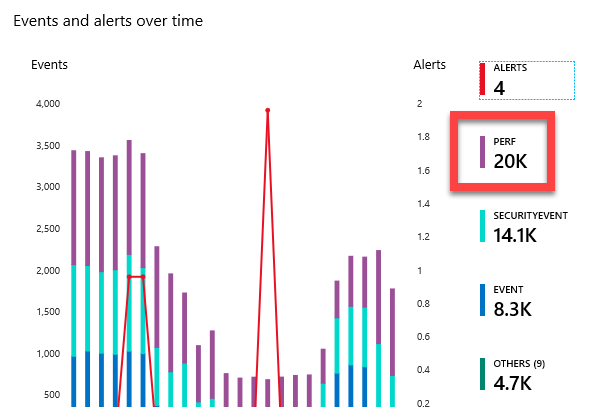
When I looked at Azure Sentinel I can see that I am bringing in more performance logs than security events per day. Now the question is, am I really getting value from having that much ingestion of performance logging? Probably not, so I want to go and turn it down a notch and not ingest quite so much and hopefully, save me a few dollars.

image

To do this, I’ll need to log into the Azure Portal and then go to Log Analytics workspaces.

image

I’ll then need to select Advanced settings from the menu on the left.

image

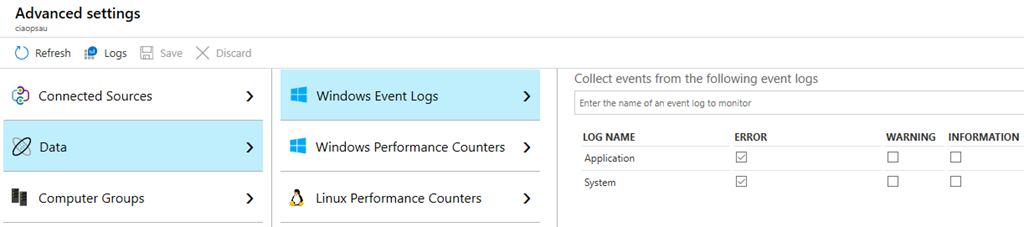
First thing I checked was in Data, Windows Event Logs is that I’m only capturing the errors in the Application and System logs for the devices, which I was.

image

Next I went to Windows Performance Counters and adjusted the sample time limit. I have increased it to every 10 minutes for now to see what difference that makes. I could also remove or add certain performance counters here if I wanted but I wanted to work with the current baseline.

With all that done, I’ll wait and see what the cost differences are in next month’s invoice and adjust again if necessary.

My software and services 2020

startup-photos

Here’s last year’s post for comparison:

My software and services – 2019

All my PC’s are running the latest version of Windows 10 (1909) without any issues and none during the upgrade process either. I do have Windows 10 and Office Insider builds happening on an original Surface PC as a testbed. All Windows 10 Pro machines are directly joined to Azure AD and managed via Intune. All machines run no third party AV as Windows Defender is a far better option in my experience. Thanks to Microsoft E5 on my production tenant, I am also using Microsoft Defender ATP at the back end for monitoring and investigation of endpoint threats.

The WD Sentinel DX4000 runs Windows Storage Server 2008 and replacement has been delayed due to the “pending” arrival of the NBN which hopefully will provide better bandwidth. In the mean time I have established a site to site VPN to Azure and have begun moving data into Azure storage. In the end this device will merely function as a backup device but for the time being I need to wait for better bandwidth. Hopefully this year I’m being told.

My two main tenants are an Office 365 E5 demo and Microsoft 365 production environments. The Windows 10 Pro machines are Azure AD joined to the Microsoft 365 production domain. The production Microsoft 365 tenant has Microsoft 365 Business for all users except myself. I have a Microsoft 365 E5 license on which I have configured all the services including integrated PSTN calling via Switch Connect.

I use most major browsers:

– Edge – mainly for logging into my production tenant

– Edge Insider – will soon become my major production browser and is used for production and business websites, like reading Microsoft docs.

– Chrome – I am minimising/eliminating my use of this on existing machines and not installing on any new machines. I want to move away from Chrome totally as soon as possible and get it off all my machines.

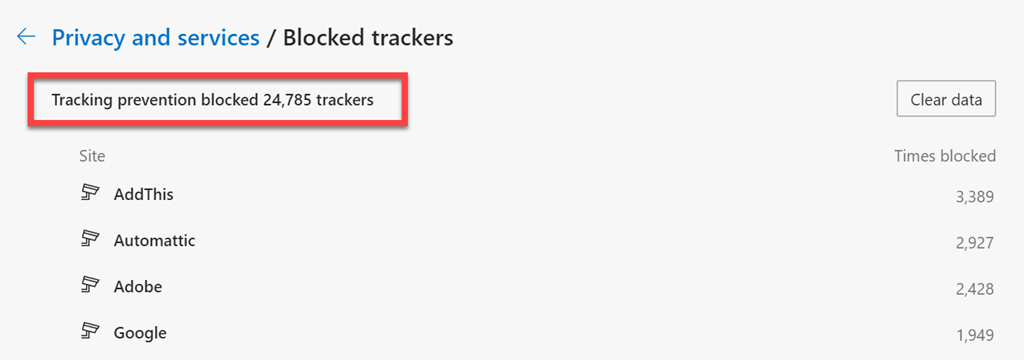
Brave – I have become increasingly concerned about the surreptitious tracking that many sites perform, especially when it comes to social media sites. I therefore now do all my ‘random browsing’, searching and viewing of social media sites. I became aware of the extent of tracking when I was adjusting the security settings in Edge Insider and found the following:

image

Made me realise that I probably need to take this ‘do not track’ stuff more seriously!

– Firefox – I occasionally use this for testing or isolation but less so now thanks to profiles in Edge Insider.

I have now cranked Edge Insider up to the maximum security level but wanted to isolate the most likely tracking culprits into another browser that was security focused. After some evaluation, I have chosen Brave to be this browser. This is now where I do all the stuff that is more likely to be tracked and now hopefully blocked or at least minimised. I have also set this browser up to use Duck Duck Go as the default search engine, otherwise I use Bing for my production browsers.

Services like SharePoint Online and OneDrive I use regularly both in the demo and production tenant. I have the OneDrive sync client installed, running and connected to various locations on my production and demo tenants. I can now sync across all my different tenants as well as my consumer OneDrive storage. We have come a long way with the sync client!

I used to have  Microsoft Teams which is now my main messaging application. All the CIAOPS Patron resources like the intranet, team, etc all reside in the Office 365 E5 demo tenant but I connect to it on my desktop normally via an Azure B2B guest account from my production tenant. Thus, I can admin the Patron resources in a browser if need be but I get the same experience on my desktop as any Patron would. Handy to know what works and doesn’t work with Microsoft Teams guest access. Thanks to Microsoft E5 and Switchconnect, I also have Teams connected as a phone.

I use Lastpass to keep my passwords and private information secure. It allows me to do things like generate and store unique passwords for each website that I sign up for. It is also available across all browsers on my machine (including Microsoft Edge). I also now also use Lastpass to store secure notes.

The extensions I run in all my browsers are:

LastPass

GetPocket

I use the automation sites If This Then That and Zapier to automate many different tasks. A good example of one of these is automatically publishing to various social media sites. I am now using Microsoft Power Automate more and more for automation and I am still looking to dive deeper using things like Azure Functions in 2020. I have now replaced Socialoomph to post precisely scheduled social media posts with my own solution in  Power Automate.

For my Office 365 and Azure email newsletters I use Mailchimp.

My preferred public social networks for business, in order are:

1. Twitter

2. Linkedin

3. Facebook

The Apowersoft software allows me to display both iOS and Android devices on my Windows desktop which is really handy for demonstrations and presentations.

I also use Yammer extensively but for more specialised roles and thus don’t consider it really a ‘public’ social network, more a private one.

I consume a lot of content from YouTube both for business and personal interest. I also also use YouTube extensively for my publicly available training video training.

Microsoft Office desktop software is still part of my everyday workday via applications such as Outlook, Word, Excel, PowerPoint, etc. I use the desktop version of Outlook on my Surface Pro 6 which lives on my desk but I only use Outlook Web App on my travelling Surface Pro 4 device. I could happily not use Outlook on the desktop any more I believe but I still use so I understand the experience for most users. However, I do see the day when Outlook on the desktop begins to lose its appeal.

One of the things I have added to my desktop version of Outlook is a digital certificate that signs every email that I now send. This helps the receiver confirm that the message they have received is in fact from me and that it hasn’t been altered in any way. There are some issues when people attempt to reply to these emails from a mobile device but I believe a fix from Microsoft is not far away.

The key application from the suite for me is OneNote. OneNote is my go to Swiss Army knife for just about everything digital. I use it to capture all sort of data. I even use it as a diary as I have detailed previous here:

One of the ways I use OneNote

The reason OneNote is key is because:

1. Just about everything I put in there us searchable

2. It is freely available across all platforms.

3. All my information is synced and accessible on all devices.

4. It is available on the web or offline if needed.

There are now two version of OneNote, the Windows store OneNote and OneNote 2016. Microsoft have changed their stance on future upgrades to OneNote 2016 desktop which is great to hear and kudos to Microsoft for taking feedback on that score. I am a big user of OneNote on my iPad with the Apple pencil. This combination has allowed me to totally eliminate my paper notebooks for things such as journaling.

I use Pure Text to easily paste information, especially to and from OneNote as only text.

I am now a big Microsoft To-Do user. I use it to keep many tasks and items that I need to follow up. I love how it is available on all my devices and syncs across them all as well. I was becoming a bit worried when it had sat there with no updates for a long while, but that has changed now with heaps of updates being released. I’m keen to see where To-Do goes in 2020.

I use Windows terminal now for things like PowerShell execution and Microsoft Whiteboard for demonstrations and training.

Another key service I use everyday along with Office 365 and OneNote is Azure. Typically, I use it for running up virtual machines that I test various things with but I also use it to backup my local data as well as that of other members of my family using Azure Backup.

Azure desktop backup

I have also now implemented an Azure site to site VPN as well as Azure SMB File storage to start moving my data into. I use Azure Sentinel to monitor all my services and machines in one single console and tell me about any incidents. My plans for 2020 is to keep building out my Azure infrastructure to include Azure AD Domain Services, Windows Virtual Desktop and more. Stay tuned for updates on this throughout 2020.

There is just so much that can be done with Azure and I pretty much use it everyday.

For a subset of my local data that I wish to remain secure I use Truecrypt to create encrypted volumes. All my Windows 10 machines run with full disk encryption thanks to Bitlocker, but stuff like financial and customer data I keep inside Truecrypt volumes for that extra layer of security. I understand that Truecrypt is no longer maintained and may have some very minor security flaws, but for how and why I use it, it is more than adequate.

Production data is also protected using Windows Information Protection which provides yet a further level of protection and extends that to all devices including mobile devices like phones and tablets,

To capture my desktop for my online training academy or my YouTube channel I use Camtasia. I use SnagIt to capture screen shots and add highlights and emphasis to these. Snagit allows me to capture complete screens or specific areas quickly and easily.

I use Microsoft Teams to record my podcasts, which I then produce with Camtasia. These are uploaded to Podbean where they syndicated across various network.

To compose and publish blog articles I use Open Live Writer.

The majority of images I get, like the one at the top of this article, I get from Pexels. Pickit is also another great option.

For improved meeting management productivity I use Microsoft FindTime.

I use Visual Studio Code in which I do most of my PowerShell editing and publishing. The end result typically is my GitHub repository where you will find a range of scripts and other resources that I maintain regular. With Visual Studio Code I can edit publish and sync all my machines and my GitHub repository no matter where I am. Very handy.

Here are also a few of the other items I use regularly that are not for business:

Amazon Prime Video – only place to the latest The Grand Tour action. I also liked the Jack Ryan series and well as the Gymkana Files.

NetFlix – Just added this recently and have found many great documentaries.

XBox Live Gold – access to all the online Xbox goodness.

Duolingo – language learning, Japanese and Italian at the moment

Tinycards – language and facts learning via flashcards. Also handy for certification exams.

So there you have it, the major software and services that I use regularly. I continue to search out additional software that will improve my productivity. If you use something that you’ve found really handy, please let me know and I always keen to explore what works for others.

Moving to the Cloud–Part 1

This year I thought I’d try and embrace as much of the Microsoft Cloud technology that is available. However, I’d try and approach it through the lens of a SMB business moving to the cloud but also lay it out in a staged manner for easier comprehension. This post therefore represents the first in a series of posts that covers the methods and configuration you can take in moving your infrastructure to the cloud.

That said, there is no one single approach or method that will work for all. However, by running through the various options and also explaining what value these may have, hopefully people will get a better idea of all the options that are available. As I said, there isn’t necessarily any right or wrong here, just my thoughts on the approach that I take given typical scenarios I see.

The first thing you’ll need to go and do is get a Microsoft 365 tenant. I’ll cover off what I recommend specifically and why in later posts, but for now, you’ll need to have a tenant.

Next, you’ll need to add a paid Azure subscription to this same tenant. I have detailed about this approach here:

Deploy Office 365 and Azure together

In short, doing so will give you more options and capabilities, especially when it comes to infrastructure. The good news is that you’ll only pay for what you use, so as you build your solution out you can keep costs down.

With you Microsoft 365 and Azure subscriptions in place, I would suggest that the starting point should be a site to site VPN to Azure. This basically extends your on premises network to Azure.

In my situation, I have Ubiquiti equipment so I followed articles like:

Connecting Ubiquiti Unifi USG to Azure via VPN

The Azure Site to Site VPN documentation is here:

Create a Site-to- Site connection in the Azure portal

This article is also handy:

Step by step: Configuring a site to site VPN gateway between Azure and on premises

Given that there are already a lot of detailed documents out there on doing this I’m not going to cover this off here. However, you’ll basically need to:

1. Create a virtual network in Azure.

2. Create a virtual network gateway in Azure and connect to the virtual network you created above.

3. Create a connection from the virtual network gateway in Azure back to your on premises environment.

4. Configure the on premises equipment to connect to Azure.

image

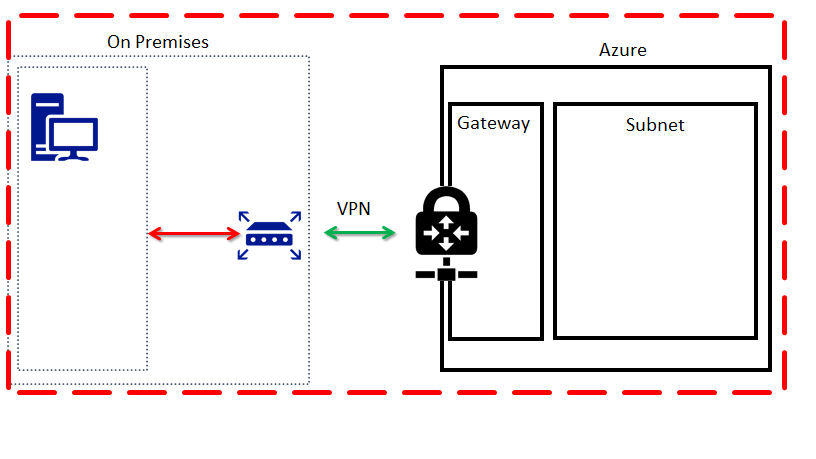
When complete, you should have something that looks like the above. There isn’t a lot that you can do with this configuration just yet, but it is going to be the basis for what is used going forward. What it gives us in effect is a single network that spans both on premises and Azure.

Now, let’s consider the costs.

An Azure virtual network is free.

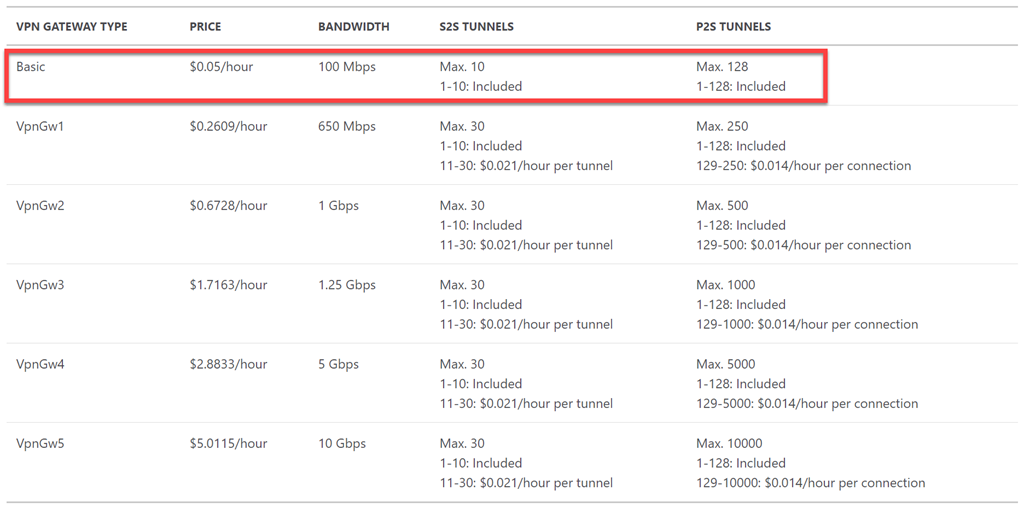
There are a number of different VPN options in Azure per:

VPN gateway pricing

image

In this case I’m going to select the Basic VPN, simply because it has enough bandwidth and tunnels, etc for my needs. However, the Basic VPN is typically only recommended for dev/test environments, but to keep costs down here I’ll use that going forward.

image

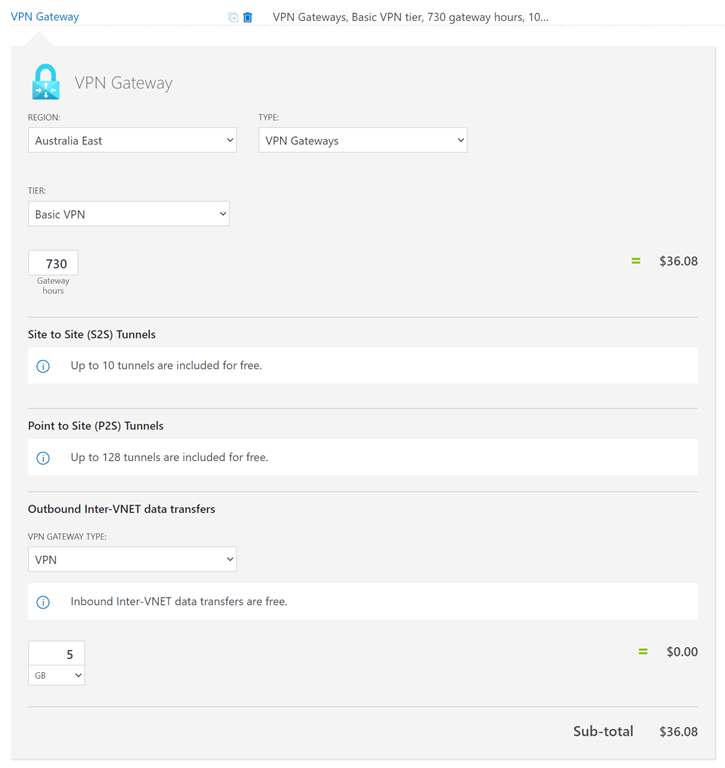
So, if I now use the Azure Pricing Calculator to get an estimate of the costs I get the above (in Australian dollars out of an Australian datacenter). Cost will vary depending on currency and location. You should also note that basically:

1. Data transfers into Azure are free.

2. You get the first 5 GB of data transfers out of Azure for free also.

So my expected initial VPN cost will be:

AU$36.08 per month

for up to 5GB of outbound (unlimited inbound) traffic.

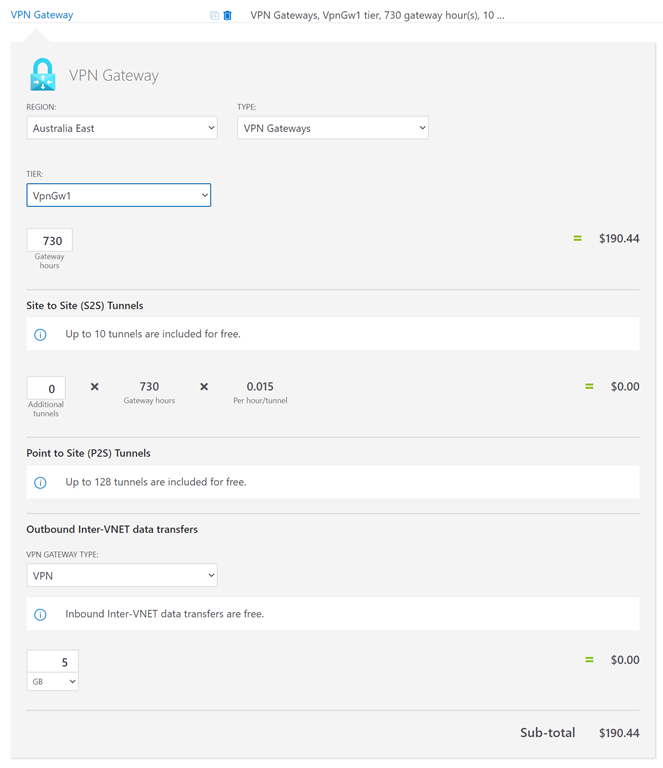
What’s the comparison cost if we step up to the next level of VPN?

image

You see that the cost jumps to AU$190.44 per month.

How easy is it to change VPN gateways in azure if you wanted to? Deleting and re-creating is easy, the downside is simply the time taken. This is because the time required to spin up a VPN Gateway in Azure is between 30 – 45 minutes generally. When you do so, you may also get a different external IP address for the gateway, which would mean a change to the configuration of the on premises environment. However, all of this isn’t difficult to do if needed. So for now, I’m going to stay with the Basic gateway because it is all I need and I want to keep costs down.

image

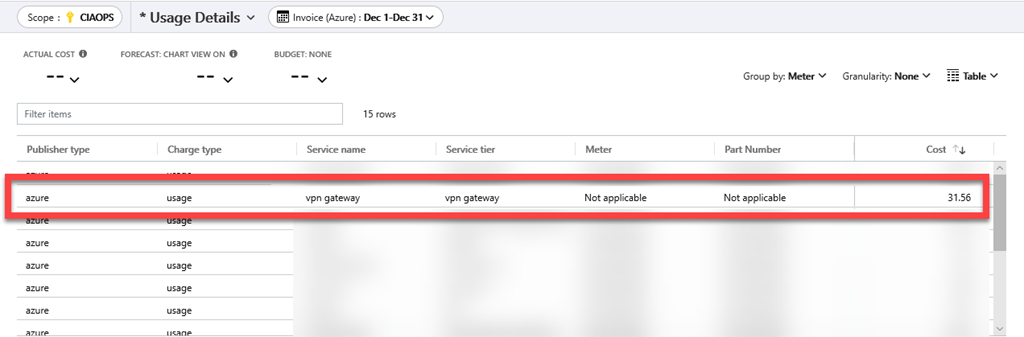
When I look at my bill for the month, as it turns out, the cost of the Basic VPN Gateway for the month, shown above, is pretty much what the calculator determined. The variance is probably just a small amount of outbound data that I used. So, you can be pretty confident that the cost of the VPN with less than 5GB of outbound traffic will be a fixed cost per month. We’ll cover how to budget for outbound traffic in upcoming articles, so stay tuned. However, for now, I know I am going to have a fixed cost of AU$36.08 for just my Basic VPN gateway every month. Add that to the budget.

In summary, one of the first steps in migrating an on premises environment to the cloud is to establish a site to site VPN. You can do this easily with Azure and the expected costs for the most configuration is around AU$36 per month. The benefit of this is that you have now extended you on premises network to Azure and can start taking advantage of the services there.

Watch out for upcoming articles on the next stages of this process.