Setting text language in Office Online

Some people don’t wish to use the default English (U.S.) as their preferred language for Office Online when they create new documents there. Interestingly, you can change the option but it doesn’t seem to work for all languages. Here’s how to change the setting, but it has limitations.
image

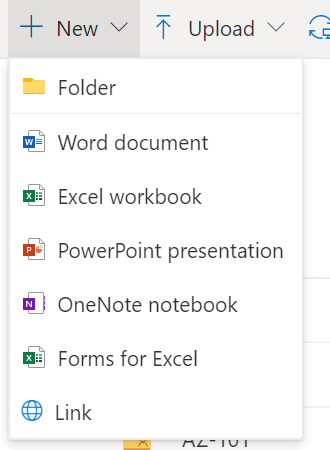
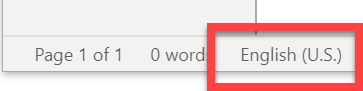
In my case, my production tenant is set up in Australia. The language I use everywhere is English (Australia). You would think that this applies to any new document created using Office Online. Not so, it seems. If I create a new Word document using the web interface as shown above, I get:

image

but if you look in the lower left you see:
image

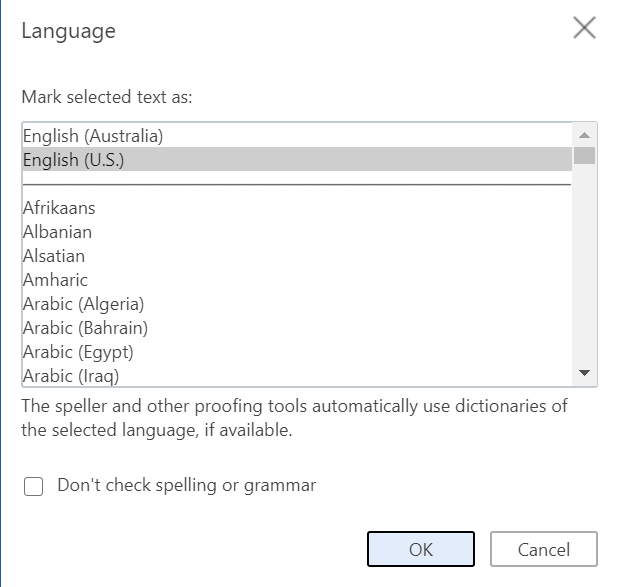
If you click on the language text you get:
image

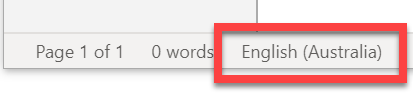
Here I can select English (Australia) as my language. Now my document reports:
image

All good right? Sure, until you create a new document using Office Online. You are then back to original language. In my case  English (U.S.) not English (Australia)! I don’t want to be changing the language manually for every new document I create with Office Online. How do I therefore make my preferred language ‘stick’ with Office Online?

As far I can tell, to make a different language ‘stick’ for a user when they use Office Online they will need to do the following:

1. Login to the Microsoft 365 portal (https://portal.office.com) with their own credentials.

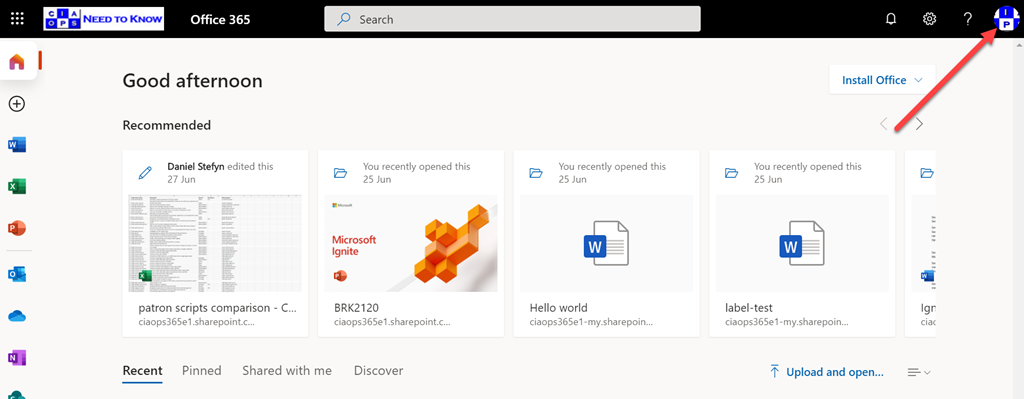
2.  Select their Account Manager icon in the top right of the portal window like so:
image

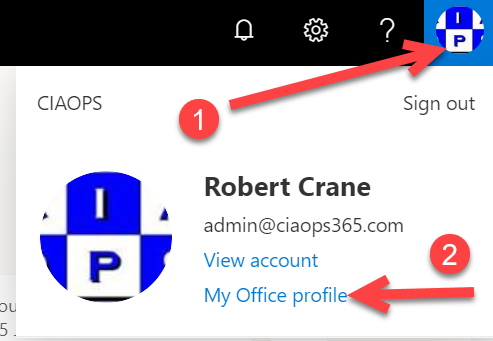
3. From the menu that appears select My Office profile like so:
image

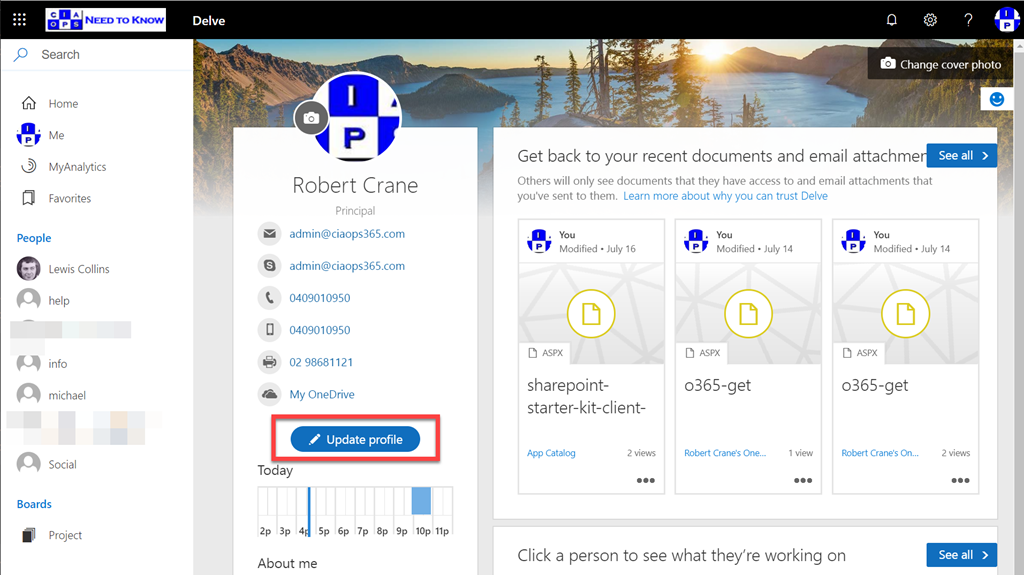
4. Select the Update profile button the Delve page like so:
image

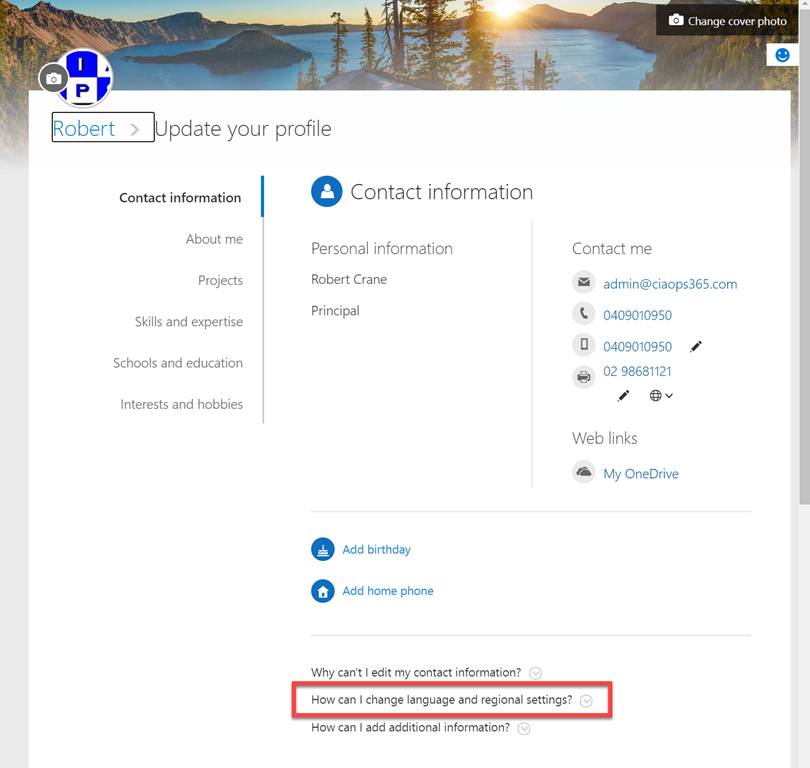
5. On the Update your profile page, locate and select How can I change language and region settings? as shown:
image

6. This reveal a new line that includes a hyperlink on the word “here” as shown below, which you need to select. Note the additional instructions it also gives you – click the ellipse (…) and then choose Language and Region.
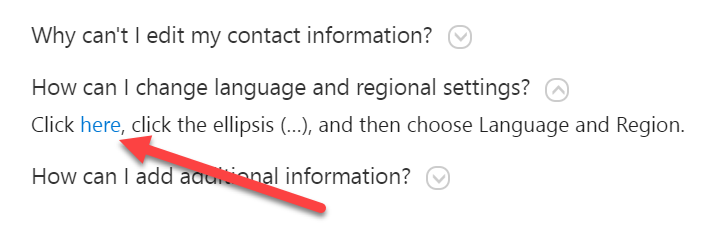
image

7. As the previous instructions detailed, on the Edit Details page select the ellipse (…) like so:
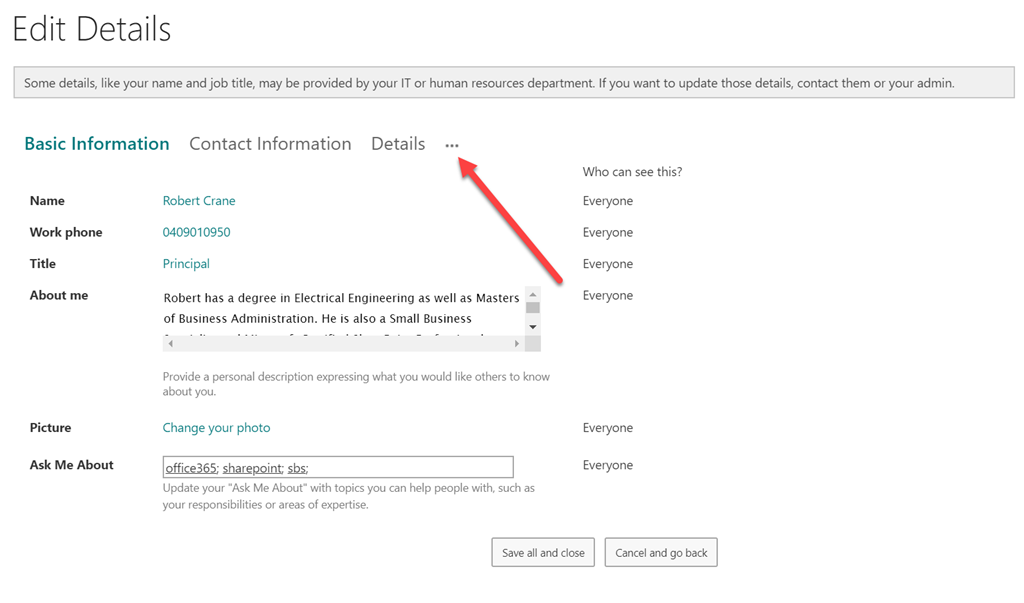
image

8. From the items that are displayed, select Language and Region as previously directed:
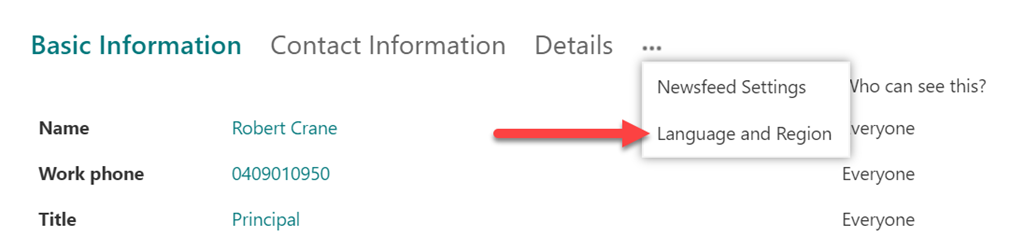
image

9. Select the option to Show Advanced Language Settings as shown:
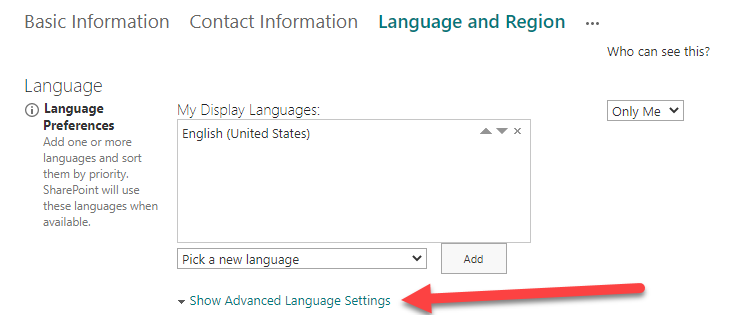
image

10. Select the Pick a new language for both of the selection boxes displayed like so:
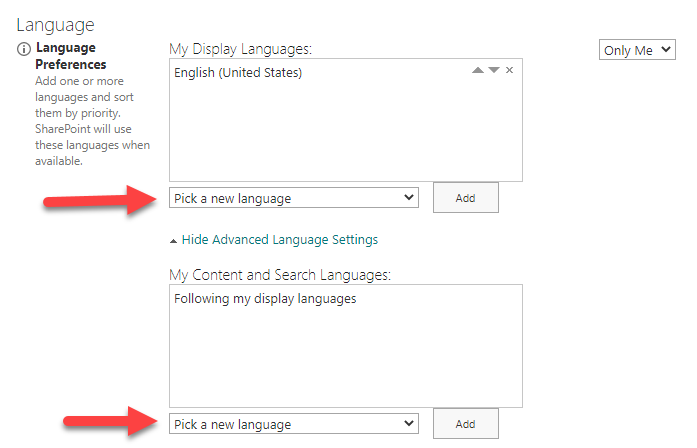
image

11. It is at this point that not all options are accepted it turns out. In my case if I select English (Australia), the Office Online documents continue to open with English (U.S.). As it turns out, the best I can do in my case is set the language to English (United Kingdom) and then select the Add button like so:
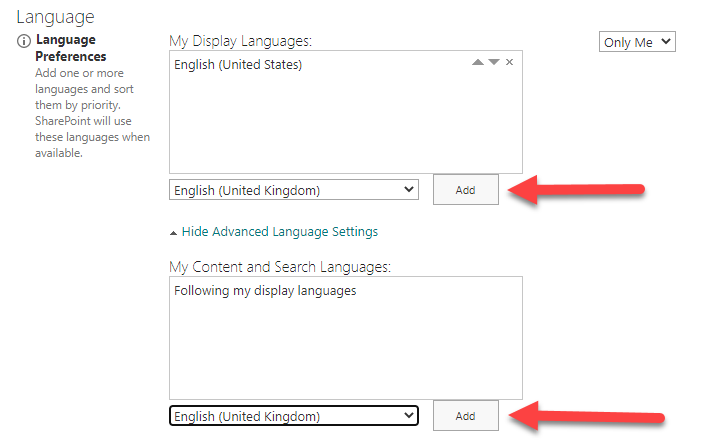
image

If you want another language, you’ll probably have to try a few to see whether they ‘stick’.

12.  My end result looks like:
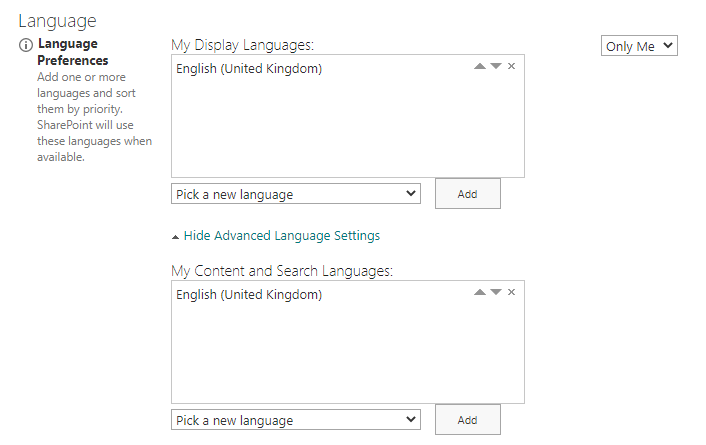
image

You’ll also need to either remove the existing language (as I have done, so English (U.S.) no longer appears) or change the priority of the language added, via the up/down arrows on the right of the language, and place it at the top of list to make it the default.

13. Scroll to the bottom of the page and make sure you select Save all and close to update your preferences:
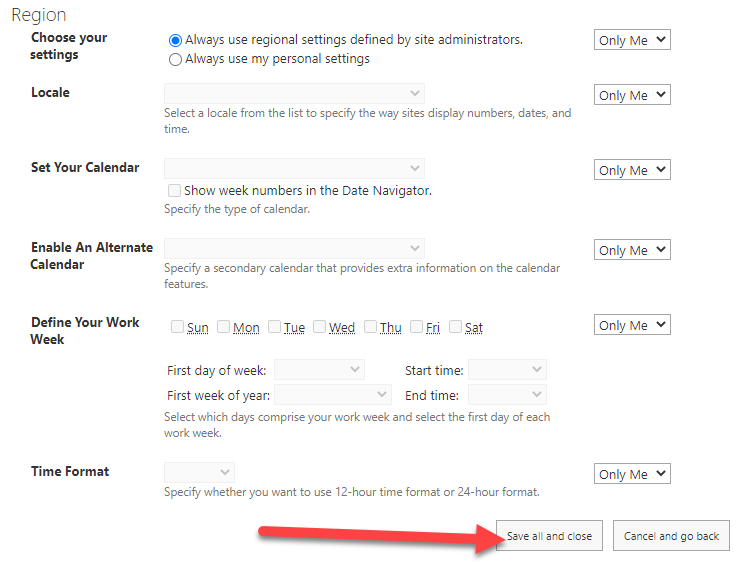
image

14. Lastly, you’ll need to wait about 15 minutes or so it seems for this to take effect.

If you now open a new Office Online document, you should now see the selected language as default like so:

image

Phew, that’s a lot of work isn’t it? It may not be English (Australia) but it is now much closer to that than what it used to be. Remember, that each individual who wants their language changed for Office Online will need to complete these steps.

Next challenge, how to script it with PowerShell for bulk deployment? Not sure I want to go down that rabbit hole. We’ll see. Let me know if you’d find value in a script to make these changes across your tenant.
Case sensitivity is important with the Microsoft Graph

I recently wrote an article about implementing Attack Service Reduction (ASR) which you can read here:

Attack Surface Reduction for Windows 10

The next step was now to automate ASR policies with Microsoft EndPoint Manager via PowerShell. Luckily I found a great blog article by Ben Leader which you’ll find here:

Creating EndPoint Security policies with PowerShell

Ben’s article focused on BitLocker, while mine focused an ASR. It took a little time to reverse engineer things with ASR and I had my script working without error.

image

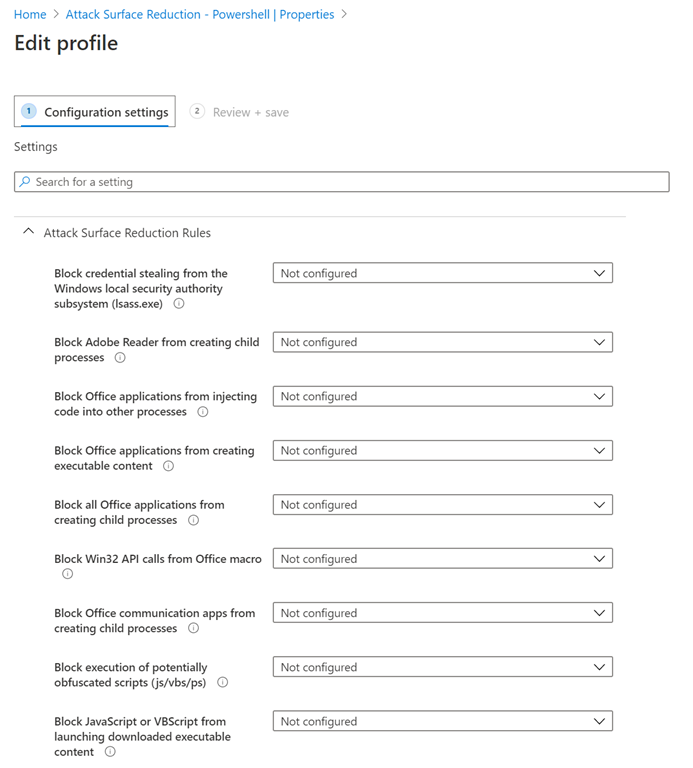
However, the problem was that the changes that the script made didn’t show up in the web interface as shown above? There were no errors reported. Strange? Maybe, it was a timing thing? Nope. what could it be?

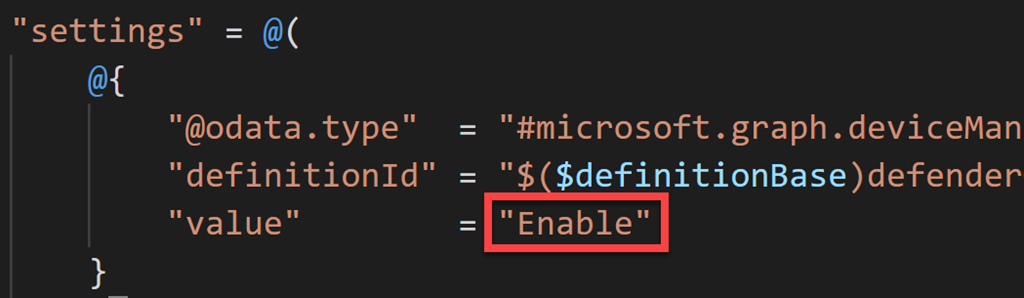
Puzzled, I contacted Ben again and it turns out that the syntax with the Microsoft Graph is case sensitive!. A simple solution once you know but super frustrating until your do.

image

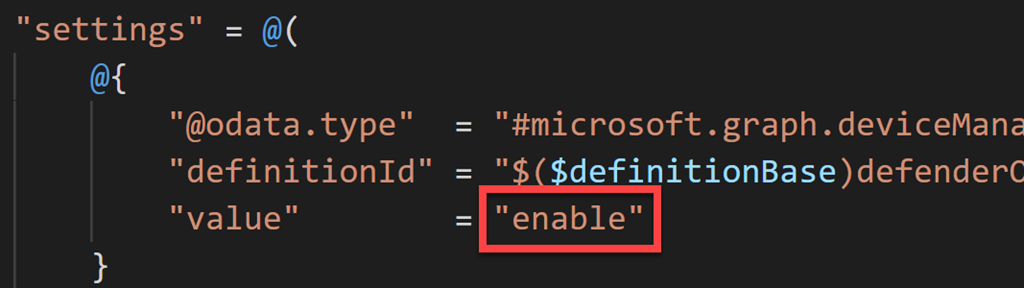
So the original code I have set the “value” to Enable as shown above. That is with a capital ‘E’, which is invalid.

image

As it turns out (thanks to Ben), I learned it should be a lower case ‘e’ as shown above.

image

As shown above, this works as expected in the web interface. Phew.

The moral or the story is that you need to be careful when it comes to setting values with the Graph. That hopefully, hopefully should accelerate my development of automating ASR across environments!

Attack surface reduction for Windows 10

You may not be aware, but Microsoft has a number of ways that you can implement Attack Surface Reduction (ASR) settings in your Windows 10 environment. You read about these here:

Reduce attack surfaces with attack surface reduction rules

In essence, these rules reduce the items that maybe exploited by attacks on Windows 10 desktops. In reality, they are a good thing to enable if you want to be more secure.

Microsoft has a number of ways you can implement these.

SNAGHTML5612e1b

The preferred option is to use Microsoft EndPoint Manager as shown above. To do this navigate to:

https://endpoint.microsoft.com/

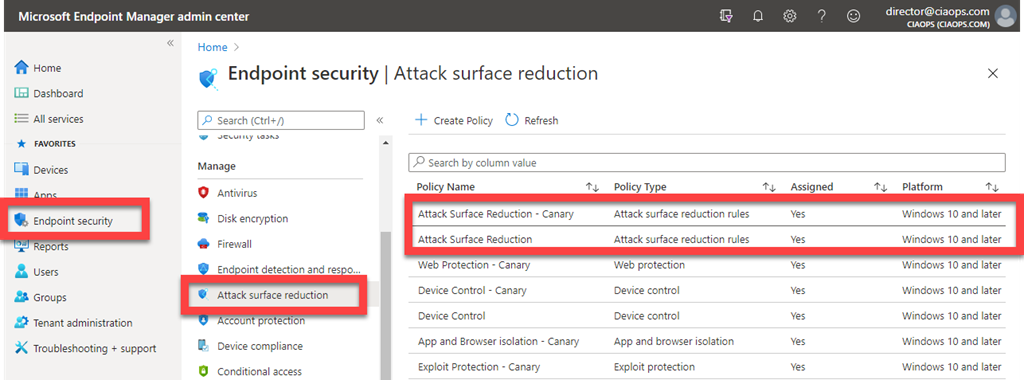
Select Endpoint security on the left, then Attack surface reduction and create a new policy on the right.

image

You can then enable all the settings you wish such as:

Block executable content from email client and webmail

Once you save the policy, it can be deployed to the devices configured in Microsoft EndPoint Manager. This will typically mean those devices have a license for Intune and use that or Configuration manager to deploy such policies. However, it will also support others forms of basic MDM that you may have (like the basic Device management that comes with most Microsoft 365 plans)

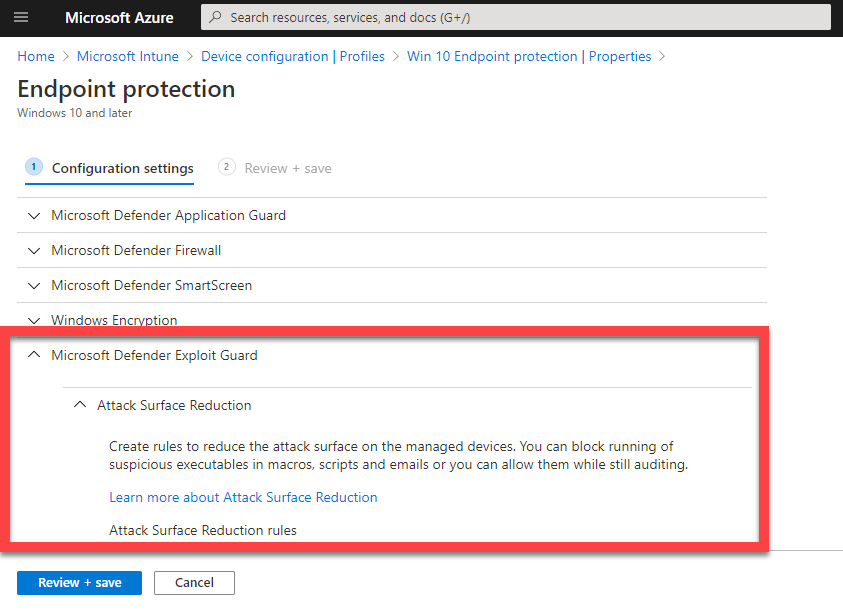
image

You can also deploy these using the EndPoint protection configuration policies for Intune as shown above. You’ll find the ASR items under the Microsoft Defender Exploit Guard area in the policy.

Group policy setting showing a blank attack surface reduction rule ID and value of 1

You can also use Group policy as seen above.

And of course you can also do it via PowerShell. if you do elect to use PowerShell, which is great for a stand alone machine, there is a handy tool you can use here:

https://github.com/hemaurer/MDATP_PoSh_Scripts/tree/master/ASR%20GUI

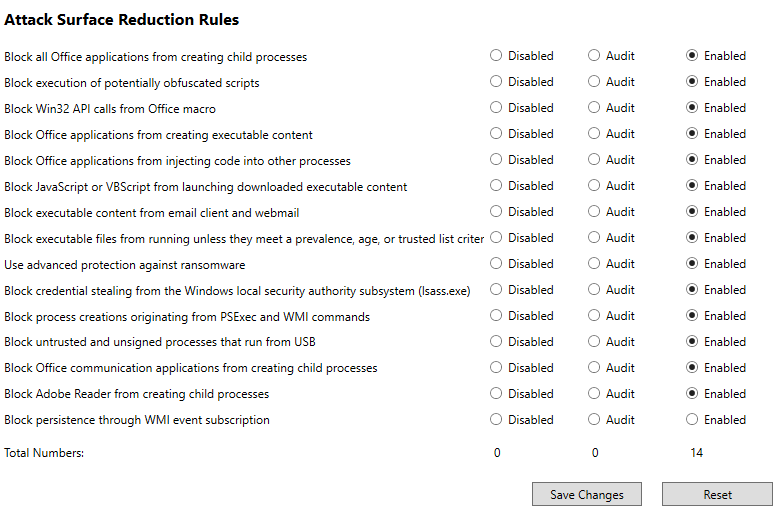
which, when run, looks like:

image

All you then need to do is select your options and save them to update the policies on the local machine.

The options above, plus more are detailed here:

Enable attack surface reduction rules

and I encourage you to visit the page and implement the option that works for you and your environment. For me, using Microsoft EndPoint Manager is the quickest and easiest method to deploy it across my devices. However, you can use PowerShell to quickly and easily implement it for a single device. Using ASR will make your Windows 10 devices more secure, and we all want that, so what are you waiting for?

Need to Know podcast–Episode 246

Due to circumstances outside my control I have no interview for you in this episode. So it it is just me and the latest news from the Microsoft Cloud. Don’t forget that Microsoft Inspire is not far away either, so there’ll be plenty more news soon.

This episode was recorded using Microsoft Teams and produced with Camtasia 2020

Take a listen and let us know what you think – feedback@needtoknow.cloud

You can listen directly to this episode at:

https://ciaops.podbean.com/e/episode-246-just-the-news/

Subscribe via iTunes at:

https://itunes.apple.com/au/podcast/ciaops-need-to-know-podcasts/id406891445?mt=2

The podcast is also available on Stitcher at:

http://www.stitcher.com/podcast/ciaops/need-to-know-podcast?refid=stpr

Don’t forget to give the show a rating as well as send us any feedback or suggestions you may have for the show.

Resources

Microsoft unveils sweeping job training initiative to teach digital skills to 25M impacted by pandemic

An update on Web Content Filtering

Reimagining virtual collaboration for the future of work and learning

Together mode

The future of work—the good, the challenging & the unknown

On-demand training sessions for SharePoint, OneDrive, Teams, Yammer, and Stream

Migration to SharePoint, OneDrive, and Microsoft Teams in Microsoft 365, free and easy

The Standards at Work Behind the Microsoft Enterprise SSO plug-in for Apple devices

Determining legacy authentication usage

I’ve spoken previously about the need to eliminate basic authentication from your environment:

Disable basic auth to improve Office 365 security

The unfortunate reality is that some legacy applications could be using and can ONLY use legacy auth! So, you don’t want to necessarily disable it across your tenant without first understand who or what maybe using legacy auth.

image

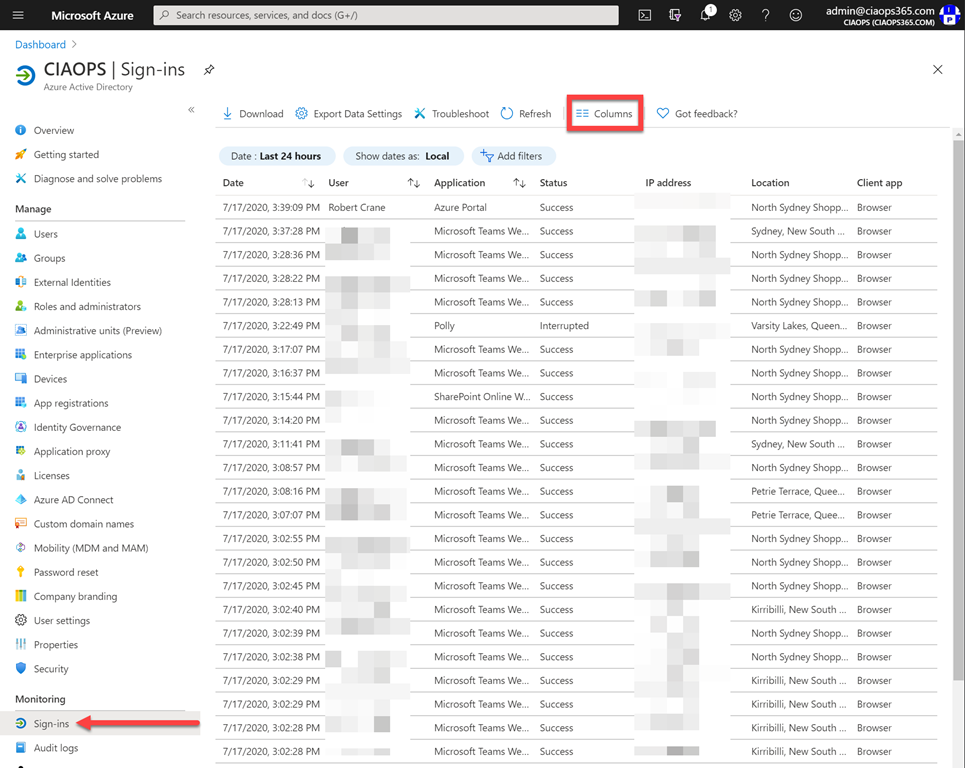
One way you can see this is by navigating to your Azure Active Directory in the Azure portal for your tenant. You then need to select the Sign-ins options on the left under the Monitoring heading towards the bottom as shown above. You should then see a list of events display on the right. At the top of this pane select the Columns menu item.
image

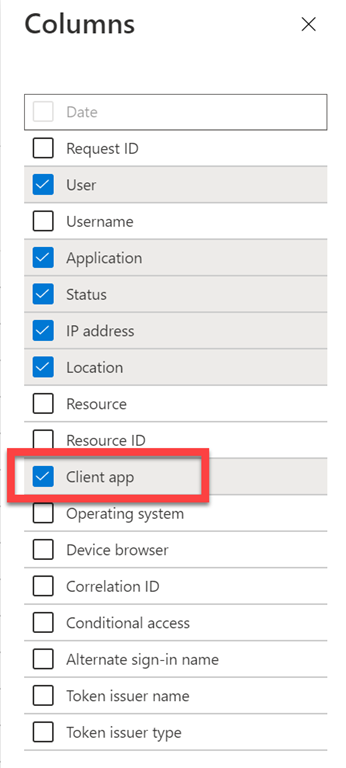
From the pane that appears from the right ensure you have the option Client app selected, as shown above.

image

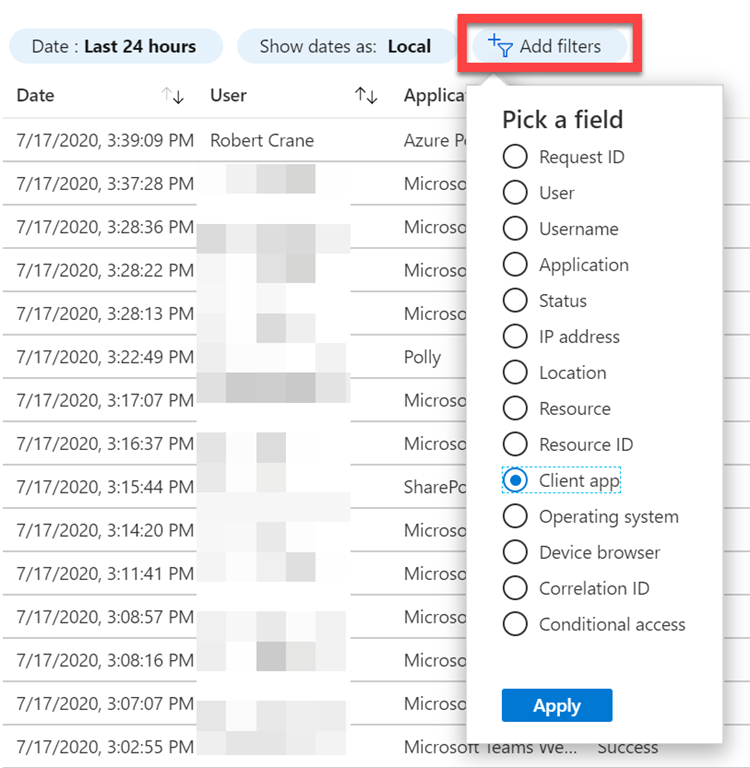
Next, select the Add filters button at the top of the list of events as shown above. From the list that appears select Client app and then the Apply button at the bottom.

image

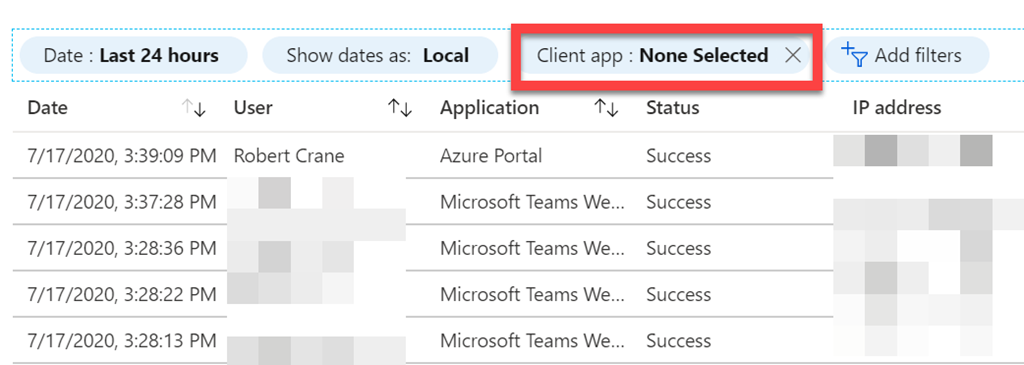
A Client app option should now appear at the top of the list as shown. It will typically show None Selected.

image

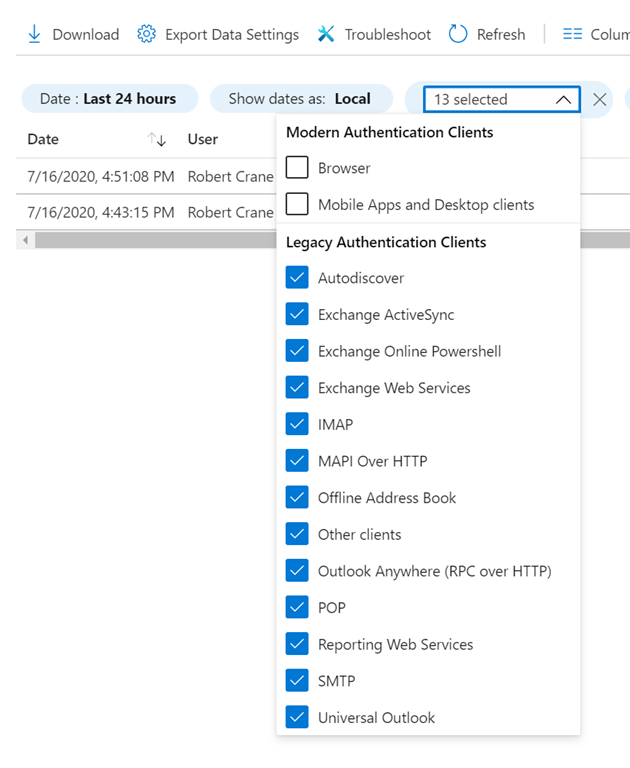
Select the new Client app button and a list of items will be displayed as shown above. From this list, select all the items under the Legacy Authentication Clients heading.

image

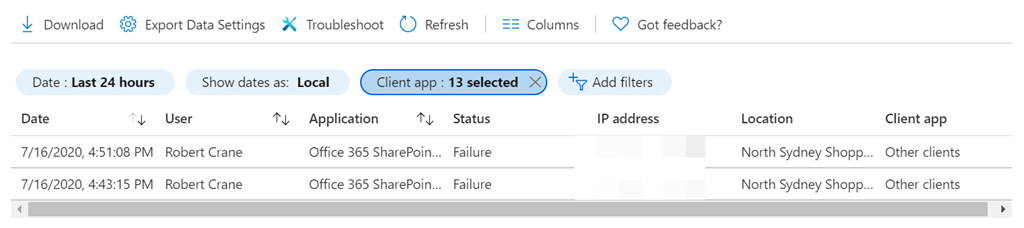
When you now click away, the list of events should be filtered to only those events that match the use of Legacy Authentication. You can select any of these to get more information about the event including who or what generated this.

Armed with this knowledge you can now start working whether upgrades or additional configuration is required in your environment to minimise the attack surface area of Legacy Authentication in your environment.

Windows 10 mobile hot spotting

Annoyingly, I currently have an issues with my ADSL on my phone line. I am getting about a 25% packet loss, which effectively makes the connection unusable. I’ve done everything at my end to troubleshoot the issue and now it is up to the ISP to hopefully resolve the issue.

The problem is that I need internet to work! Luckily, I have a 4G mobile plan that includes unlimited (yes, I said unlimited data). I can easily turn my phone into a hot spot and connect my devices. Problem, is I then I can’t access my local resources and easily share between machines.

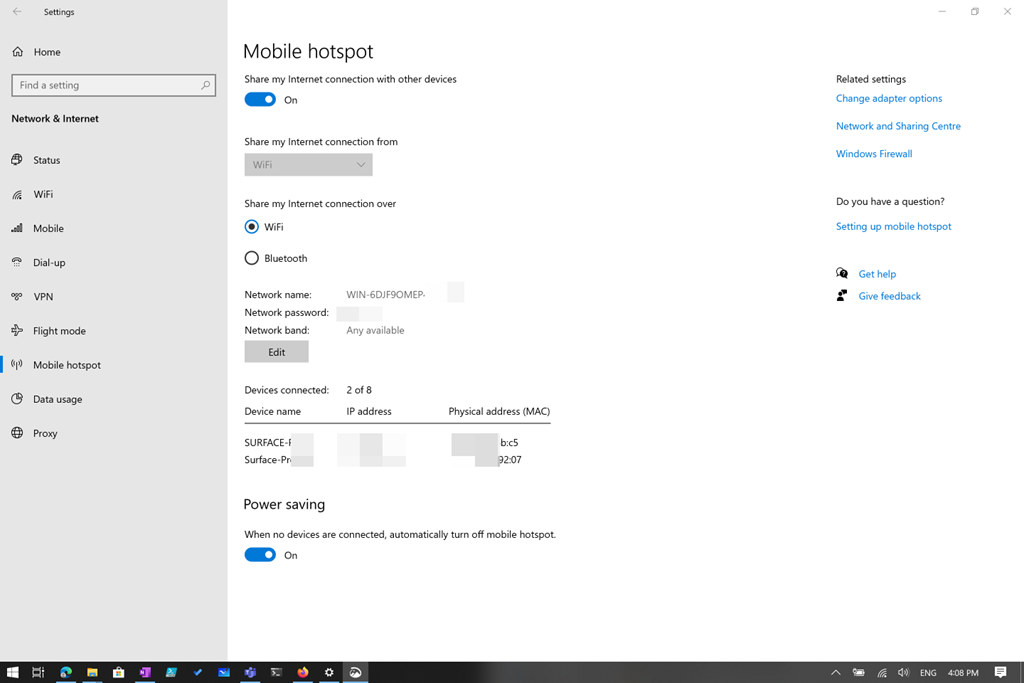
image

The solution I found is to turn my phone into a hot spot as normal and connect one of my devices that is on my internal network to it. I then share that device connection out using the hot spotting capabilities built into Windows as shown above.

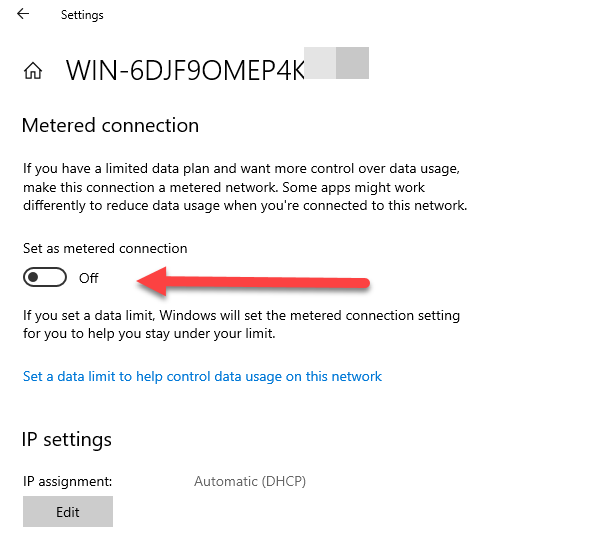
image

On the other machines, I connect to the Windows 10 hotspot to gain Internet connectivity but I also go into these connections and change the option Set as metered connection to Off as shown above. This means the other Windows devices will see this Windows 10 hotspot like a LAN connection, thus giving it a higher priority for data than a ‘metered connection’.

Just to be 100% sure I have turned off the modem to my problem ADSL connection to ensure that traffic doesn’t try and head that way.

Now all my machines can work together as normal on the LAN but also be connected to the Internet via their own WiFi to the Windows hot spotted machine that is ‘sharing’ my 4G mobile connection.

In many ways, it is better that what I had with ADSL!

Get-Formatdata issues when connecting to Exchange Online with PowerShell

*** Update 10 July 2020. This is a back end service issue that Microsoft is working on to resolve. See the following for more details – https://techcommunity.microsoft.com/t5/exchange/error-when-connecting-to-exchange-online-vis-powershell/m-p/1512141#M5466

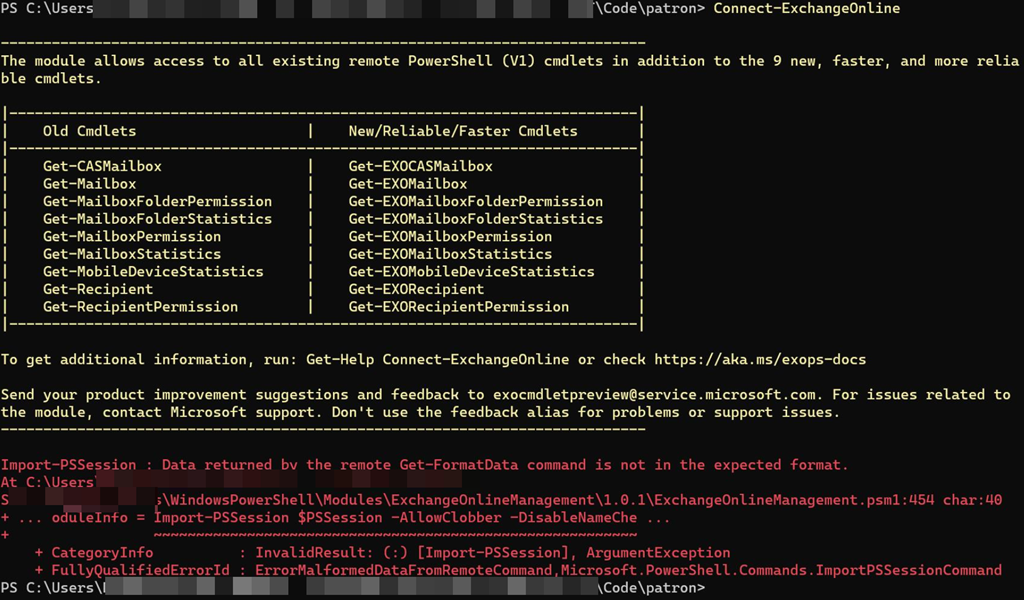
image

To connect to Exchange Online with PowerShell you simply type a command like:

connect-exchangeonline

as shown above. This “should” work with Exchange Online PowerShell V2. However, as you can also see from the above screen shot this generates the following error on a number of tenants:

Import-PSSession : Data returned by the remote Get-FormatData command is not in the expected format

This therefore, prevents you from connecting to Exchange Online via PowerShell.

Interestingly, you get the same issue if you use the older method of connecting to Exchange Online via PowerShell (aka V1) to those same specific tenants. It is also independent of the device you use to connect, updates, etc. It seems to be tied to only a limited number of tenants for some reason.

image

The fix for now is to specify the –delegatedorganization parameter with the full .onmicrosoft.com user identity. When you do that, to exactly the same tenant, you can gain access as shown above without an error.

So, if you need access use:

connect-exchangeonline –delegatedorganization <tenantname>.onmicrosoft.com

and you should be able to gain access. The problem is that this is ok for interactive sessions but if you already have bulk automated scripted in place that don’t use this then it is painful to start changing these just to accommodate a ‘limited’ number of affected tenants.

I am chasing down some leads to try to determine a reason for this and hopefully find a resolution soon.

Protecting your Microsoft 365 environment using Azure AD Privileged Identity Management (PIM)

If you are managing a Microsoft 365 environment my recommendation is to do so using a Microsoft 365 E5 SKU, no matter what else in in that tenant. The reason for having at least one Microsoft 365 E5 SKU in your environment is that it provides a wealth of additional features that directly benefit administrators. One of these is Azure AD Privileged Identity Management (PIM).

image

In a nutshell, PIM allows you to do just-in-time (JIT) role escalation. This means that users can be given the permissions they need to do things, only when the need them. It means that you don’t need to have users with standing global administrator access, they can be escalated only when they actually need those privileges. Standing elevated privileges is something that you should be looking to minimise or eliminate in your environment so that if an account does get compromised it won’t have access to the ‘family jewels’. PIM is also a way to potentially minimise the threat of a ‘rogue administrator’ given that it can have an approval process tied to it as well. Most important, all PIM actions are audited in detail which is always handy to have.

PIM is a feature of Azure AD P2 and as mentioned, included in Microsoft 365 E5. Best practice is to ensure you have an ‘emergency break-glass’ administration account tucked away as a backup before you start restricting existing administrators with PIM. Once you have both the license and a ‘get out of jail’ account you are ready to use PIM.

A good example to help you understand the benefits of PIM is to illustrate how I use it myself in my own production environment. The account that I use for my day to day work used to be a global administrator but best practices dictates that it really shouldn’t be. However, given the number of browser sessions I have open already I didn’t want to add yet another one to be checking administrative tenant level ‘stuff’. PIM to rescue! With PIM, my account can stay as a member account by default and I can escalate it to be a global administrator as needed.

image

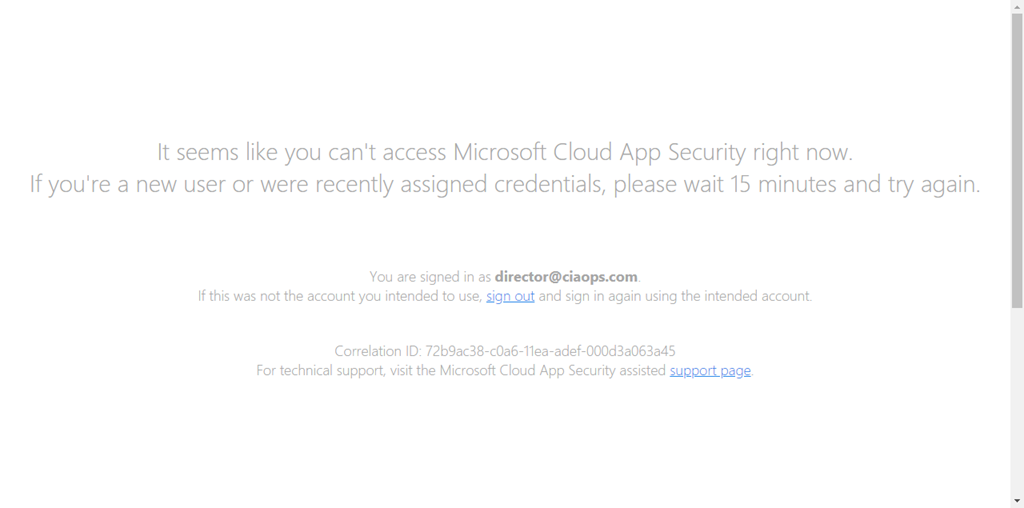
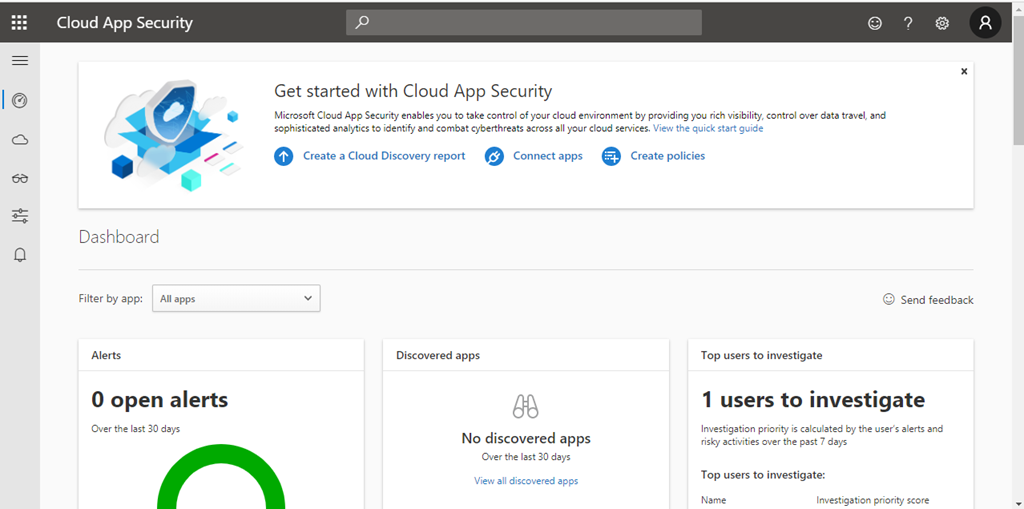
One of the things I like to check is Microsoft Cloud App Security for my tenant. As you can see above, by default, I now have no privileges.

To elevate my privileges I follow this process:

Activate my Azure resource roles in Privileged Identity Management

 image

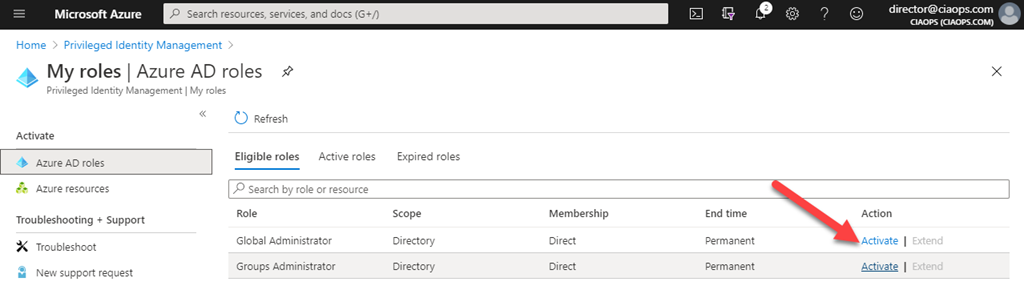
This means that I login to the Azure Portal and then navigate to Azure AD roles in PIM as shown above. Here I can see that I can activate the Global administrator role by selecting the Activate link as shown.

image

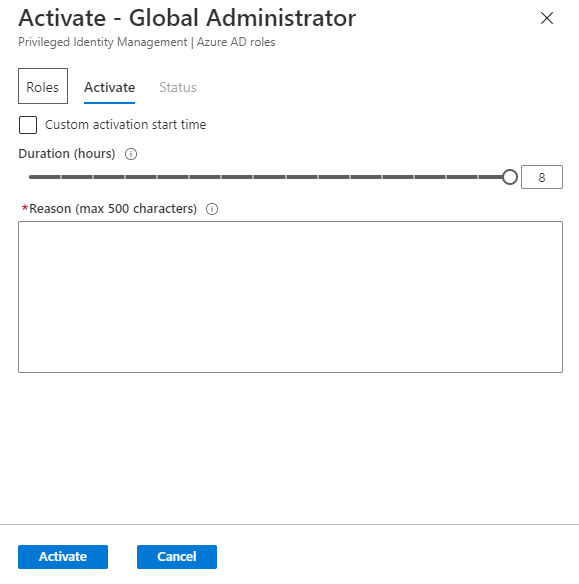
When I do this a dialog box appears and my credentials are verified. You can enable the requirement to again prompt for MFA during this validation process if you wish. That means, even if I am already logged in successfully, I need to complete an MFA challenge again to proceed.

I can now select the time required to complete my work up to a pre-defined Duration limit. Here I’m going to select the full 8 hours for a full work day at my desk. I also need to provide a Reason for elevation. This information will be recorded and held with the auditing information. This means I can track when and why I elevated.

When complete, I press the Activate button at the bottom of the page to continue.

image

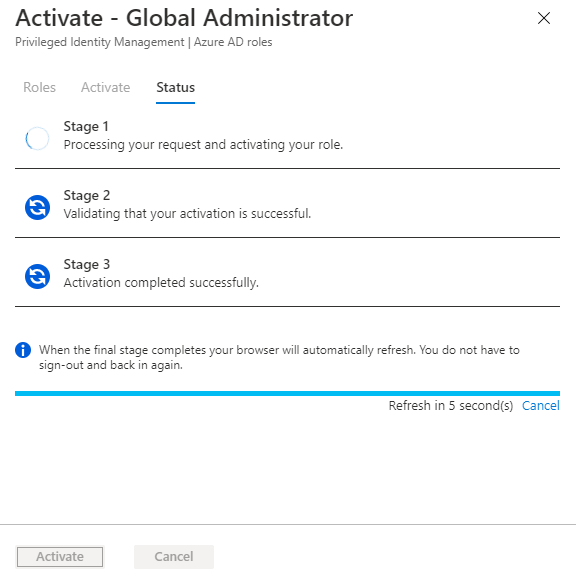
The activation request is then processed according to pre-define rules. In my case, I have elected to have automatic approvals but you can refer approvals to a third party if you wish for greater protection.

image

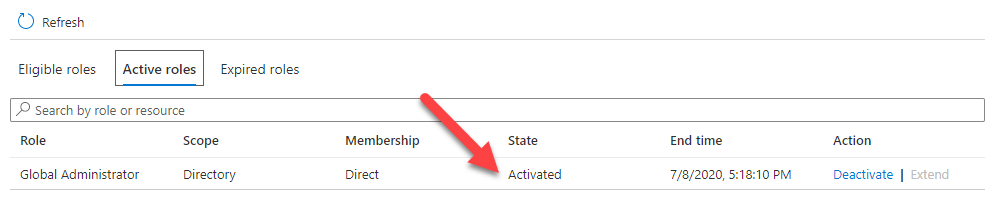
In about 30 seconds my activation is complete and if I now look in the Active roles area of the console I see that I am indeed a global administrator.

image

If I now refresh my Microsoft Cloud App Security page, you see that I can get access as a normal administrator. This is also the same with all the other administrator areas in the tenant thanks to undergoing the elevation to a Global Administrator thanks to PIM.

The good thing is now I can work using my normal account, check and monitor what I need to without using a different account. I can also rest easy that after the 8 hour time limit my account will again be de-activated back to being a member user. Thus, at the end of the day, I simply shut down and the account will automatically be de-activated for me without me needing to remember to do it. I can of course, manually de-activate the account at any time if I wish, say if I needed to go out somewhere. It is also easy enough for me to re-activate again if I need to do any additional work.

image

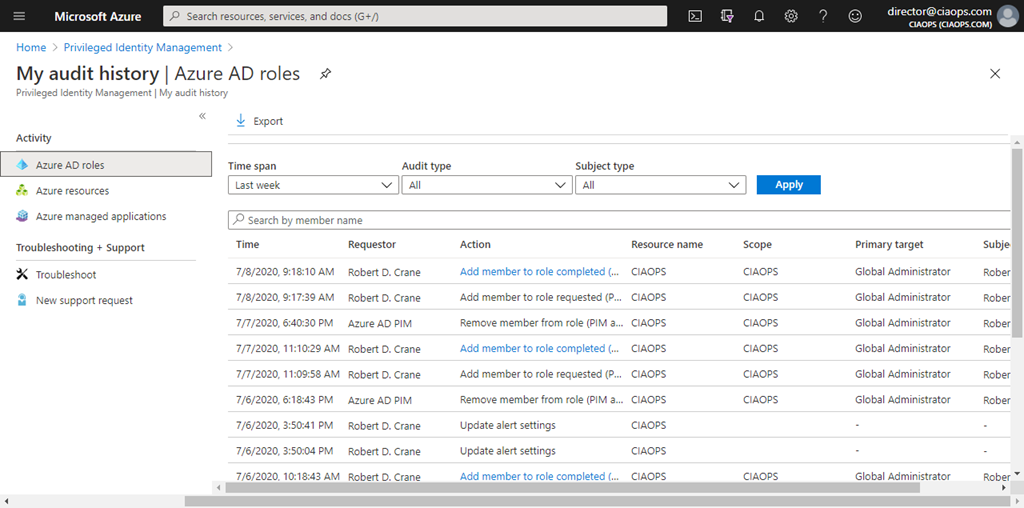
What I also like is the audit logging as shown above. Having it all in one place in the PIM console makes it easy for me to verify what has been happening with the process over time.

So in summary, I am using PIM to elevate my normal work account to an escalated level as needed during the day. This means that I don’t have to maintain standing administrator access for the account but I still have the convenience of using it to perform administrator roles as needed.

To set this up for yourself, you’ll need M365 E5 or Azure AD P2 as well as a ‘break-glass’ account. Then you’ll need to configure the roles you wish to escalate to via:

Configure Azure resource role settings in PIM

You can get quite granular here if you wish, but my advice is that you keep it simple to start with and go from there. For me, I just wanted the simple process of becoming a ‘normal’ global administrator.

You can have multiple roles, with different access for different users if you wish. In my case, I’m just focusing on the role of the tenant administrator. As I said, you can also have approvals sent to a third party or parties if you want for an extra level of protection if desired. There lots of settings you can customise with PIM.

Using PIM now gives me extra level of protection when it comes to administration rights. It means my production user isn’t a global administrator by default. I can however, use that same account as a global administrator, by going through a simple automated escalation process that requires MFA for greater security. Additional benefits include that I get great auditing and tracking, I can manually de-activate those rights at any point and those rights will also be automatically de-activated for me after a specified time limit and I also get alerting.

If you want to make your Microsoft 365 environment, especially you administrator logins, more secure then I suggest you take a look at PIM. Even for a small environment like mine, it is great value.