New Safe Links option

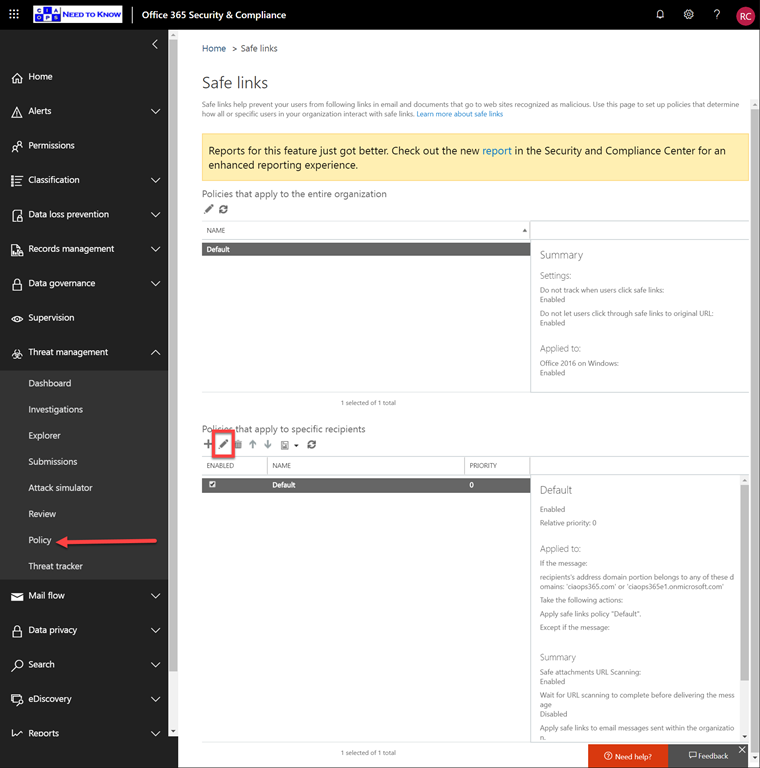
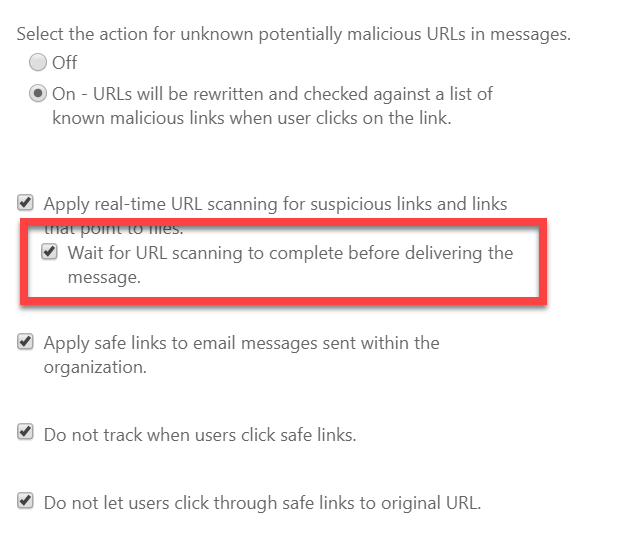
An eagled eye CIAOPS Patron spotted this new option in Office 365 ATP Safe Links:

image

Wait for URL scanning to complete before delivering the message

image

You get to this via the Security and Compliance Centre, Threat Management, Policy, Safe Links. You then select the lower policy option as shown above.

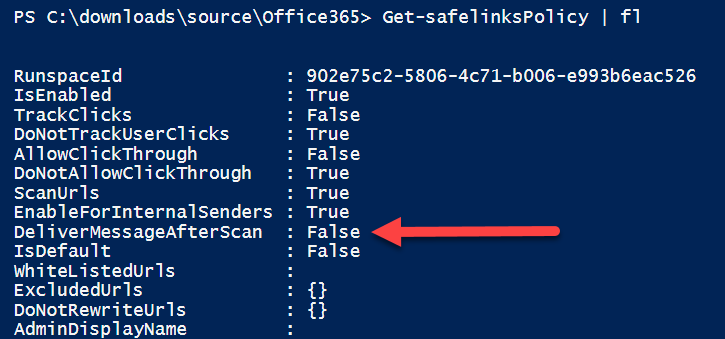
I had a look at the PowerShell for this policy:

image

Indeed, there is now an option:

delivermessageafterscan

as shown above.

Interestingly, there is no mention of this option yet in the:

Set-SafeLinksPolicy

documentation. So I thought I’d try adding it to the existing policy anyway.

image

No error, which is a good sign.

image

Checking back in the GUI, you can now see that option is set.

So, there is now a nice new shiny option that you can set Office 365 ATP Safe Links to prevent a message being delivered to an end user until the links have been fully checked. This now matches the policy option for safe attachments. You can also set this option via PowerShell.

Need to Know podcast–Episode 214

I chat with MVP Microsoft Mark O’Shea about the Microsoft 365 technical information from the recent Microsoft Inspire in Las Vegas. The focus is not on the partner information but the technical announcements from the conference, and yes there were plenty. Brenton and I are also back together to bring you up to date with everything that is happening in the Microsoft Cloud. Enjoy the episode.

This episode was recorded using Microsoft Teams and produced with Camtasia 2019

Take a listen and let us know what you think – feedback@needtoknow.cloud

You can listen directly to this episode at:

https://ciaops.podbean.com/e/episode-214-mark-oshea/

Subscribe via iTunes at:

https://itunes.apple.com/au/podcast/ciaops-need-to-know-podcasts/id406891445?mt=2

The podcast is also available on Stitcher at:

http://www.stitcher.com/podcast/ciaops/need-to-know-podcast?refid=stpr

Don’t forget to give the show a rating as well as send us any feedback or suggestions you may have for the show.

Resources

@intunedin

@contactbrenton

@directorcia

Intunedin

Microsoft 365 Dark Mode

What’s new in Microsoft 365 [VIDEO]

New to Microsoft 365 in August

Outlook Flow connector changes

Higher tech for higher ed

Soft Delete for Azure Backup Virtual Machines

Microsoft Azure available from new cloud region in Switzerland

Requested features for list groups

Enhanced QuickEdit for SharePoint Online

Meet the new Outlook on the web

Azure Sentintel

Windows 7 end of support

Office 2010 end of support

Microsoft 365 Security and Compliance

Conditional Access

Windows Virtual Desktop

Edge Insider Enterprise preview

Microsoft 365 Training Day: Security and Compliance day

MyAnalytics

CIAOPS Techwerks 8 – Adelaide October 2019

CIAOPS Techwerks 9 – Melbourne November 2019

Not all characters are created the same

image

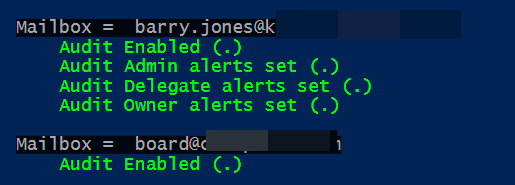
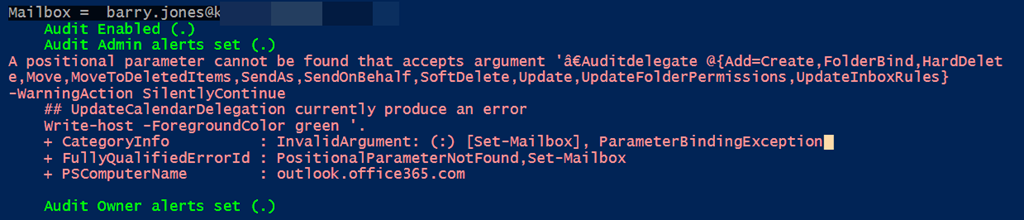
I was up late doing some PowerShell coding to set alerts on mailboxes in Microsoft 365 and I had everything working nicely as you can see above. At this stage I was just using the standard PowerShell ISE to execute the code.

I had also been updating the code with Visual Studio Code so I could then push it up to my GitHub repositories. Just before call it quits I now ran the scripts directly from the command prompt which is where the Visual Studio Code version had been saved. In essence, at the command prompt, I ran:

.\o365-mx-alert-set.ps1

When I did this I now received the following error:

image

How is that possible? The code on the disk via Visual Studio Code is exactly the same as the code I had been working with directly in the PowerShell ISE. I don’t understand why I am getting this error.

I spent quite a long time trying to resolve the issue but to no avail. Out of desperation, the following morning,  I contacted PowerShell guru Elliot Munro from GITS for help.

Long story short, Elliot pointed out that from the error it appeared to be:

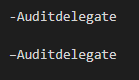
an issue with the em dash character, the one in front of AuditDelegate is a different dash compared to the other parameters ( – instead of – ). I guess running it from the command line doesn’t automatically convert it to the standard dash like ISE does.

BINGO we have a winner. Changing the dash to the “right” one fixed that problem immediately! Elliot, you are a legend and life saver.

image

As you can see from the above, there is very slight difference in the dash at front of the parameter. The top one is the one that works, the bottom one is the one that causes the error. No much in it eh? However, that was all it took to waste a few hours of my time late at night looking for an answer.

Hopefully, this article get found by others who may have the same issue and error in PowerShell and I can ‘pay forward’ Elliot’s assistance.

A hidden gem

image

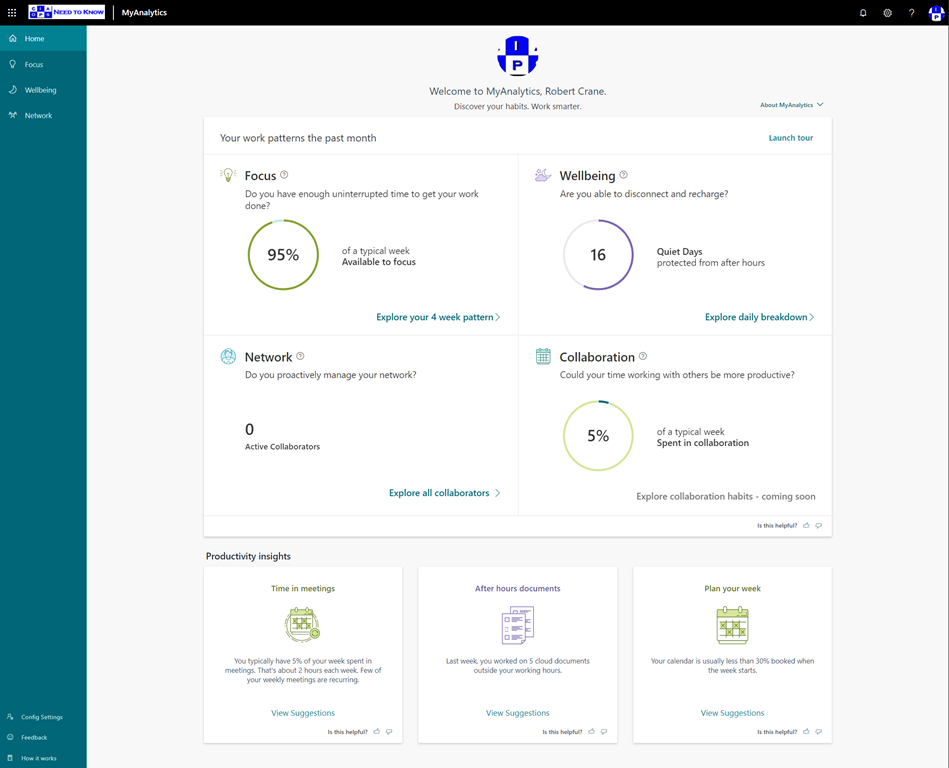
Microsoft has a hidden gem squirrelled away at:

https://myanalytics.microsoft.com/

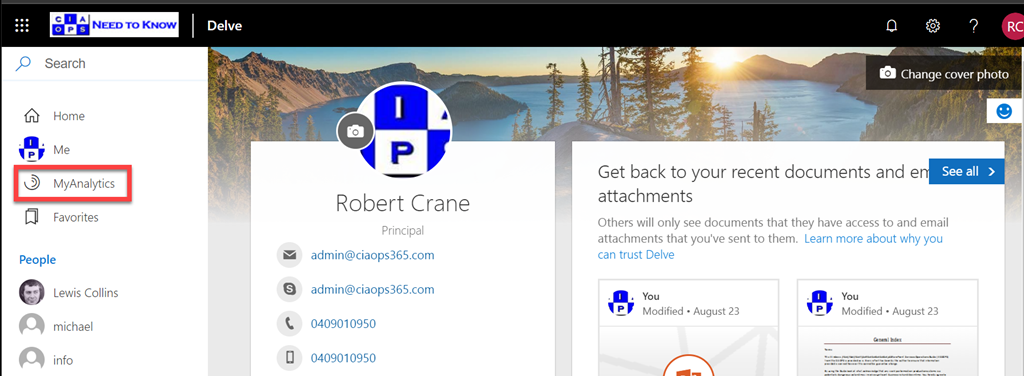
You also get access to it via Delve:

image

In short, it a “wellness” dashboard to report on your interactions using Microsoft 365. It’s available in most tenants right now, so you can go and have a look at your own version.

image

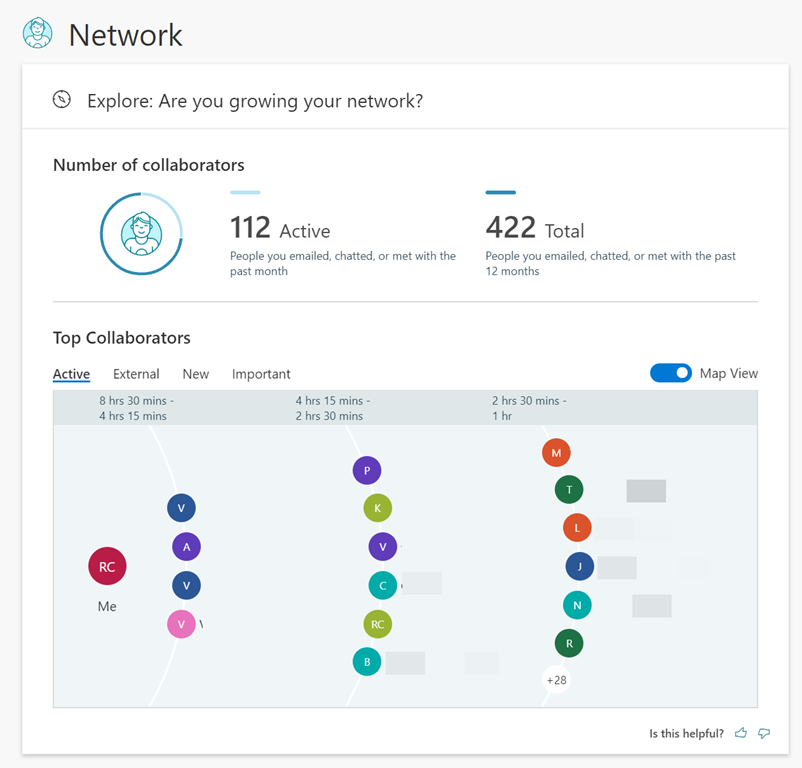
I especially like the Network option that shows you who you communicate with.

image

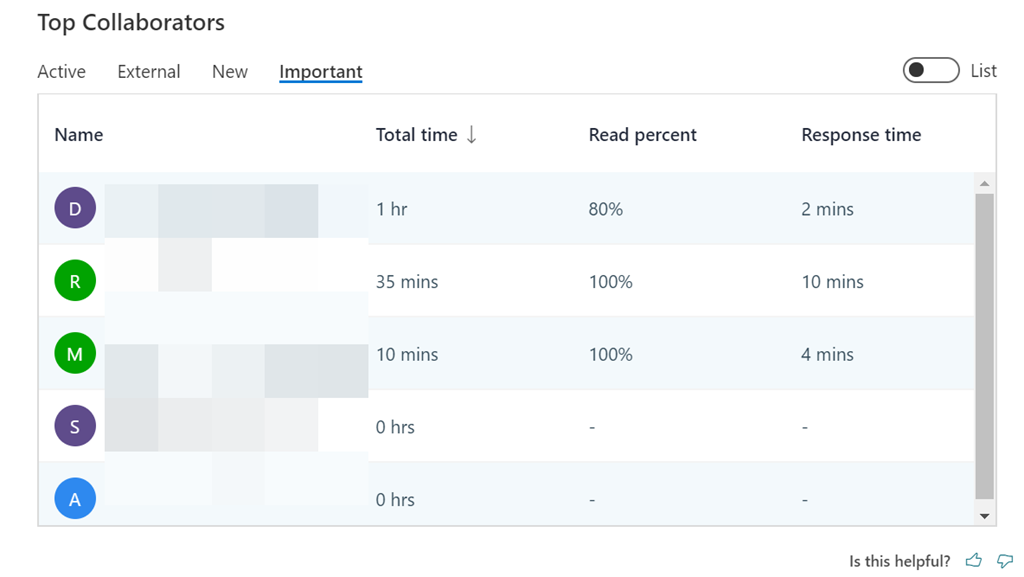
You can also display that as a list and interesting read and response times for each contact as well as select from Active, External, New and Important.

image

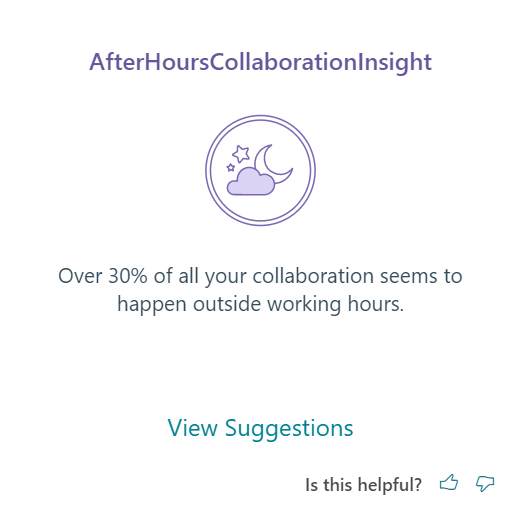
You get After-hours breakdowns as you see above,

image image

As well as suggestion cards for improved productivity and wellness as shown above.

If you want to know how it all works visit:

https://docs.microsoft.com/en-us/Workplace-Analytics/myanalytics/use/dashboard-2

Now all of this is great, but my concern it is not really front and centre. Most people who have Microsoft 365 don’t even know Delve exists is my sad experience. Many are also unlikely to visit the URL directly. Thus, I’m a little concerned about the fate of this handy tool. Non-mainstream items in Microsoft 365 tend to end up being discontinued. I hope this won’t be the case for MyAnalytics. I’ve provided feedback that maybe the option for a weekly email with a summary report is a worthwhile addition. I think it also need more depth in the information it provides to be a compelling place for most users. at the moment, it is a ‘nice to see’ not a ‘must see’ and to survive it needs that I believe.

Hopefully, this is just the beginning of the features that will be brought to the service. Go and have a look for yourself and make some suggestions as to what you’d like to see.

Waiting to upgrade to a Communications Site?

Microsoft have placed on their roadmap that you can run the following PowerShell command:

enable-spocommsite

to upgrade a classic site collection to a modern site collection.

However, the documentation at:

https://docs.microsoft.com/en-us/powershell/module/sharepoint-online/Enable-SPOCommSite?view=sharepoint-ps

reads:

Enables the modern communication site experience on an existing site. At this time, based on early adopter feedback, we have decided to postpone rolling out this feature. We apologize for any inconvenience and will communicate a new schedule via Message Center, once it is available. We expect to have an update in the Q3 time frame

and when you actually try it you get:

image

So it looks like we’ll have to wait a little longer. Hopefully not too much longer.

Need to Know podcast–Episode 213

A quick news update followed by an engaging interview with Amy Babinchak around some of the cloud topics she will be presenting at some upcoming events. Amy is owner of Harbor Computer, Third Tier Consulting and an Office 365 MVP to boot, so plenty of great learnings to he had listening in.

This episode was recorded using Microsoft Teams and produced with Camtasia 2019

Take a listen and let us know what you think – feedback@needtoknow.cloud

You can listen directly to this episode at:

https://ciaops.podbean.com/e/episode-213-amy-babinchak/

Subscribe via iTunes at:

https://itunes.apple.com/au/podcast/ciaops-need-to-know-podcasts/id406891445?mt=2

The podcast is also available on Stitcher at:

http://www.stitcher.com/podcast/ciaops/need-to-know-podcast?refid=stpr

Don’t forget to give the show a rating as well as send us any feedback or suggestions you may have for the show.

Resources

@ababinchak

@contactbrenton

@directorcia

Samsung and Microsoft Alliance

Updates to SharePoint authoring

Top 5 advantages of OneDrive for Business

MFA and end user impacts

Set up conditional access with Microsoft Search in Bing

New Azure files authentication

Lower pricing for Azure storage

Chromium version of Edge now has a beta channel

Impact of a password spray attack

Basically, when someone launches a password spray attack on one of your accounts, they are basically using automated processes to guess your password and brute force their way into the account. These attacks typically happen via legacy protocols that should be disabled in your Microsoft 365 tenant as i have mentioned before:

Disable basic auth to improve Office 365 security

This can be tricker than you think because many legacy applications require basic authentication to operate. Therein lies the challenge.

I have purposely left legacy authentication enabled on some accounts to track what happens during brute force attempts. Experience is the best teacher as they say. Thanks to Cloud App Security:

A great security add on for Microsoft 365

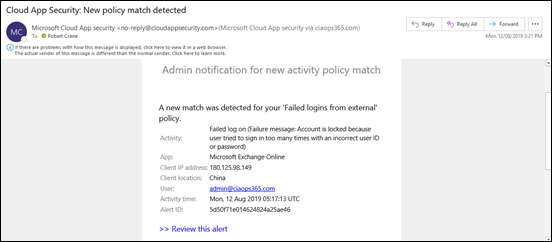
I have configured it to alert me when there is failed login from outside my corporate locations:

Tracking failed logins using Cloud App Security
image

I would occasionally get the odd failed alert but nothing sustained. That was until today!
image

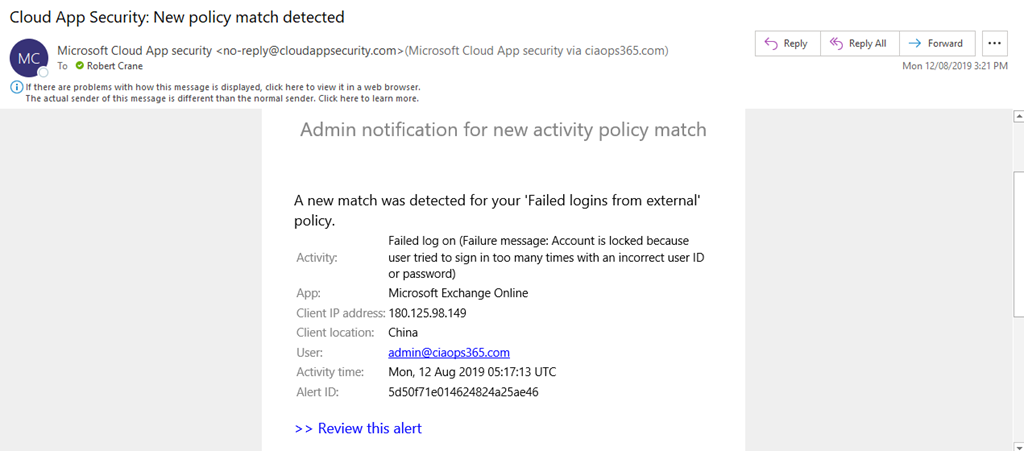
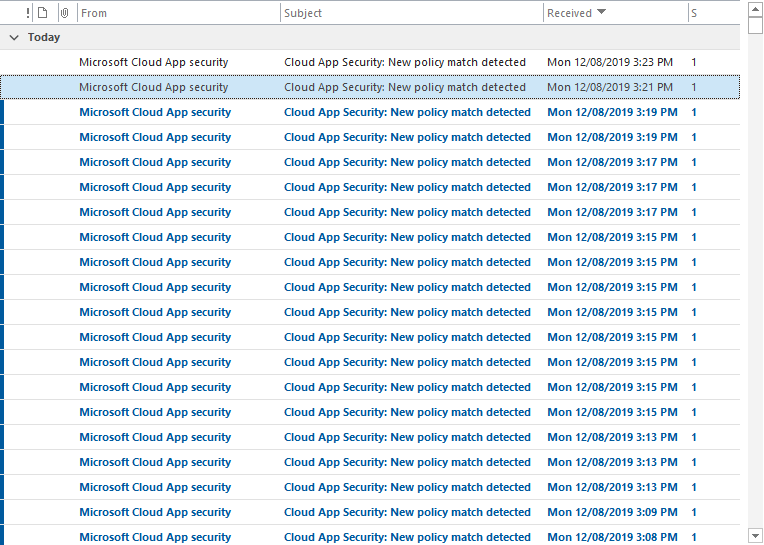
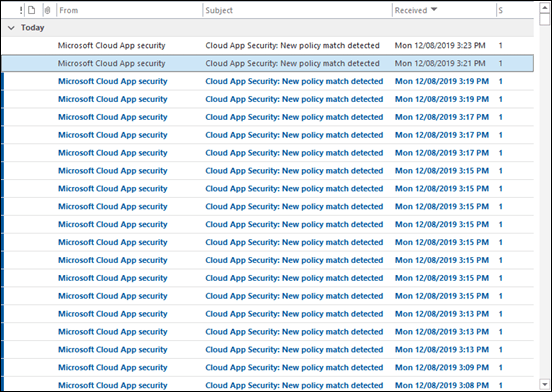
As you can see from my inbox, all of sudden I started to get massive volumes of alerts from Cloud App Security. The spray was on!
image

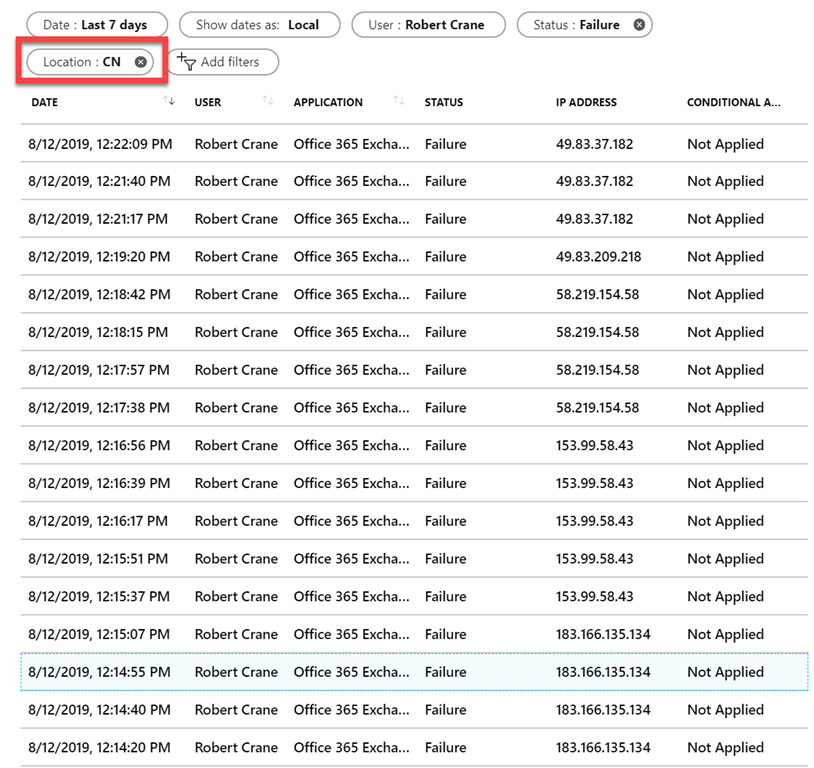
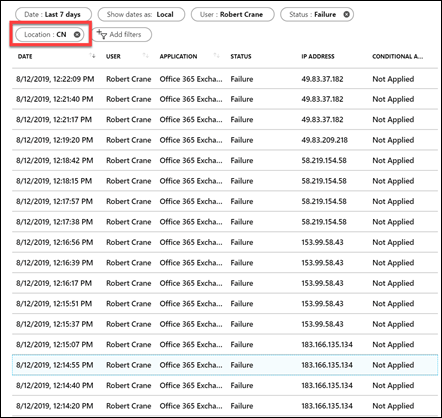
I jumped across to Azure AD sign-ins for the account and filtered the location down to be largely from China (i.e. CN is the location filter in the above results).
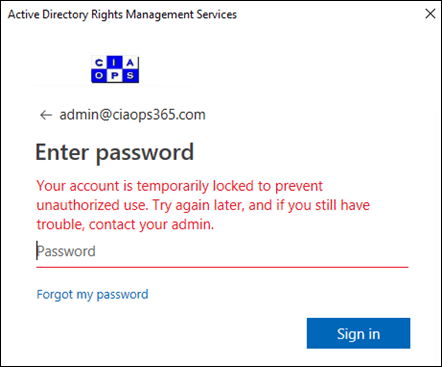
image

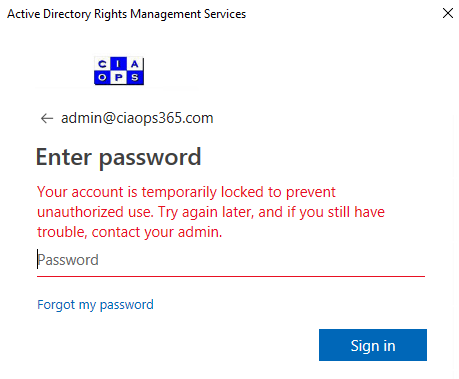
Due to the intensity of attack I started to get login failures and reported locks outs as shown above. So how does Azure AD handle lockouts? You’ll find that information here:

Azure Active Directory smart lockout

which says:

By default, smart lockout locks the account from sign-in attempts for one minute after 10 failed attempts. The account locks again after each subsequent failed sign-in attempt, for one minute at first and longer in subsequent attempts.

Smart lockout tracks the last three bad password hashes to avoid incrementing the lockout counter for the same password. If someone enters the same bad password multiple times, this behavior will not cause the account to lockout.

Smart lockout is always on for all Azure AD customers with these default settings that offer the right mix of security and usability. Customization of the smart lockout settings, with values specific to your organization, requires paid Azure AD licenses for your users.

In this case, the tenant didn’t have a premium version of Azure AD so the standard defaults were in effect.
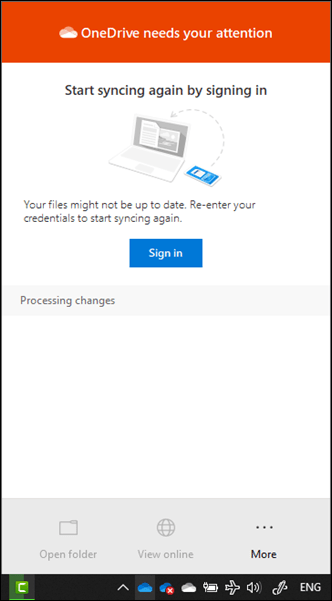
image

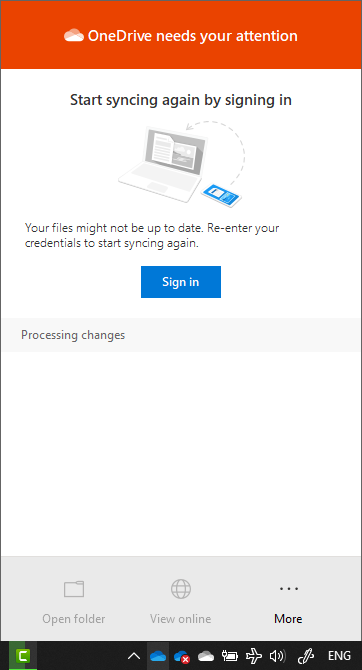
The next application to feel the strain was the OneDrive for Business sync client which started requiring re-authentication.
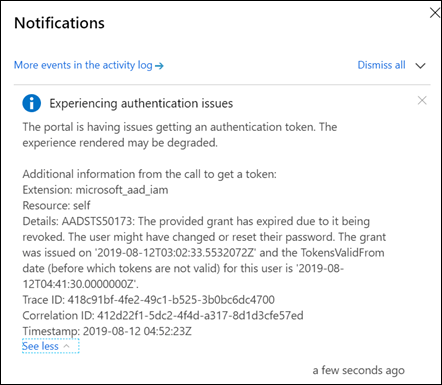
image

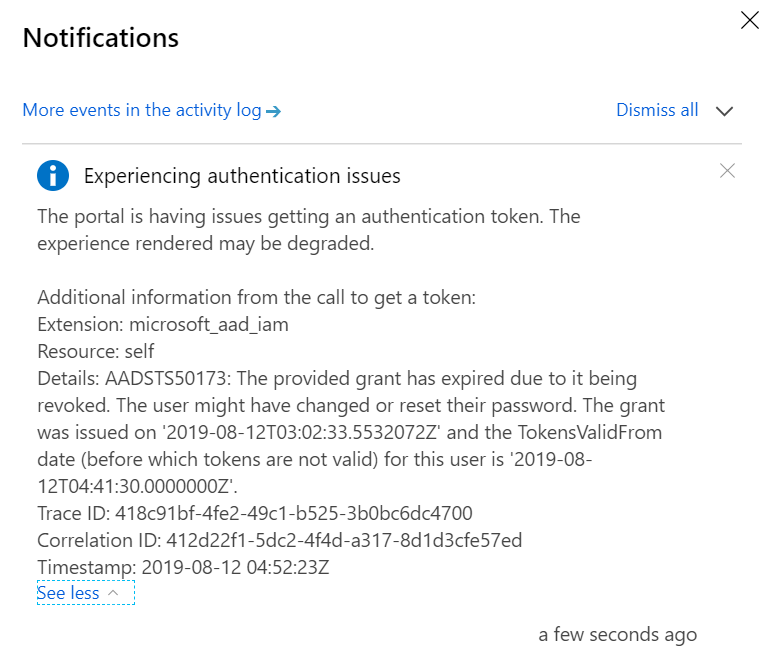
Then the Azure portal began to struggle under the weight of so many failed login attempts.
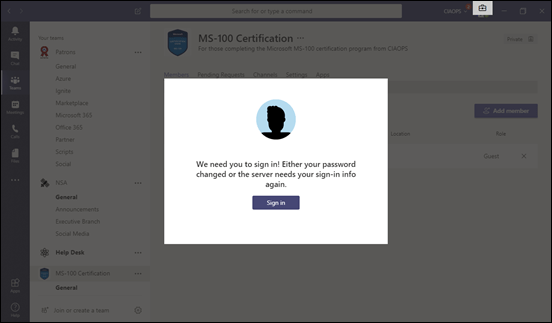
image

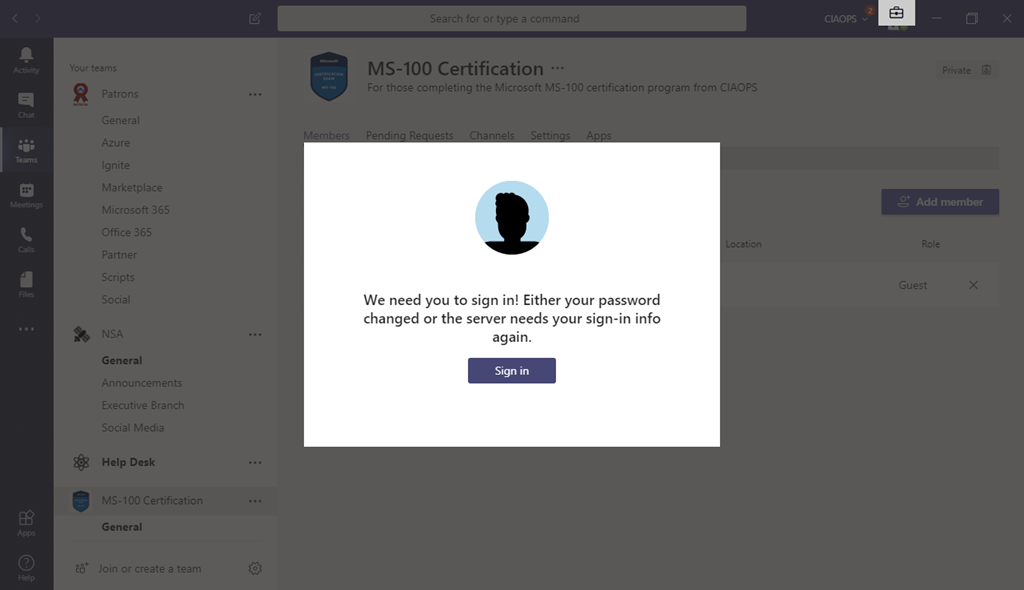
Then the Microsoft Teams desktop application also started to have authentication issues.
image

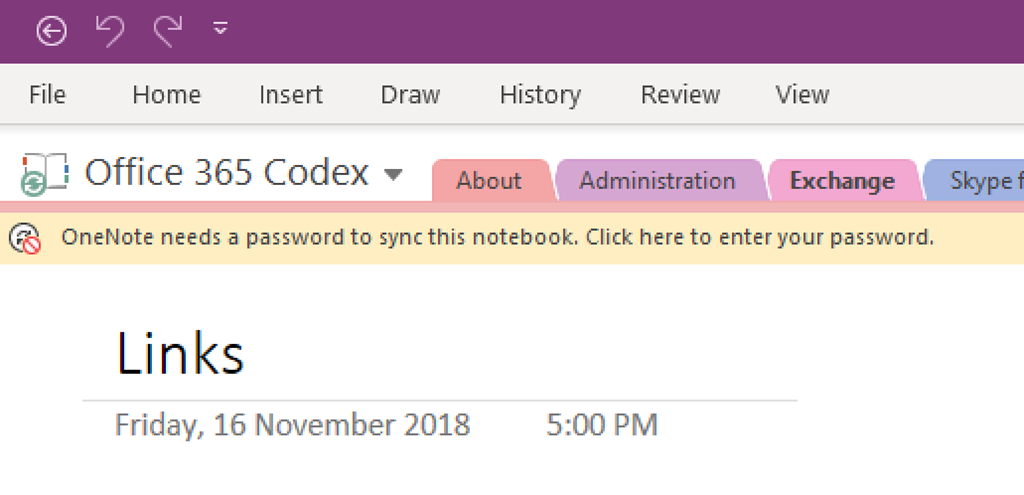
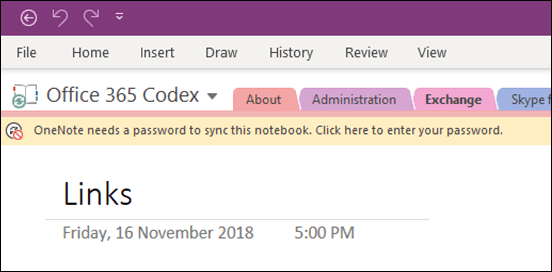
Next, it was OneNote’s turn to start requiring re-authentication.

The attacks came in waves, typically separated by a few minutes (as happens with spray attacks) and then it was back again.
image

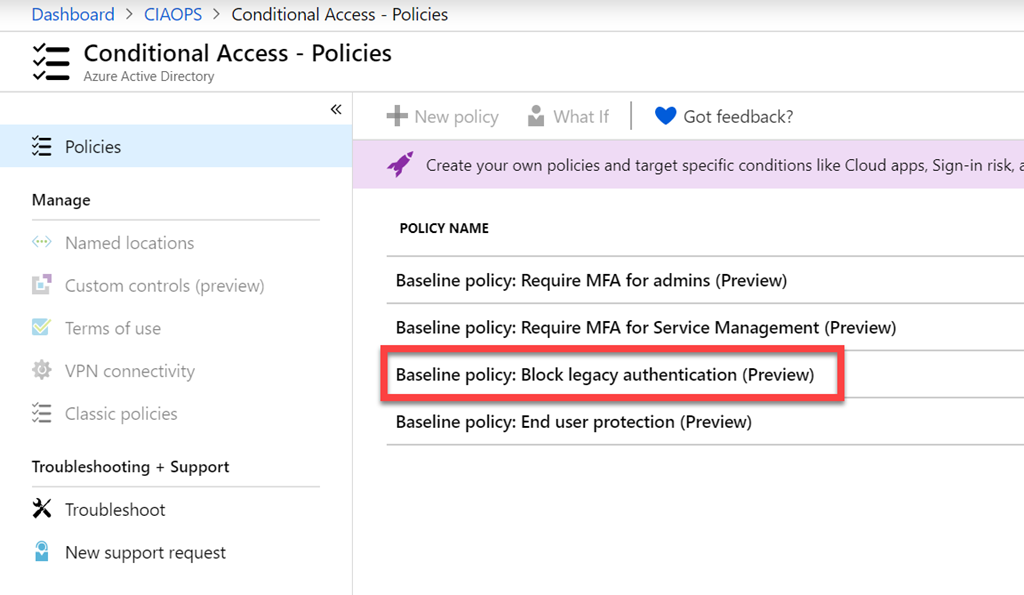
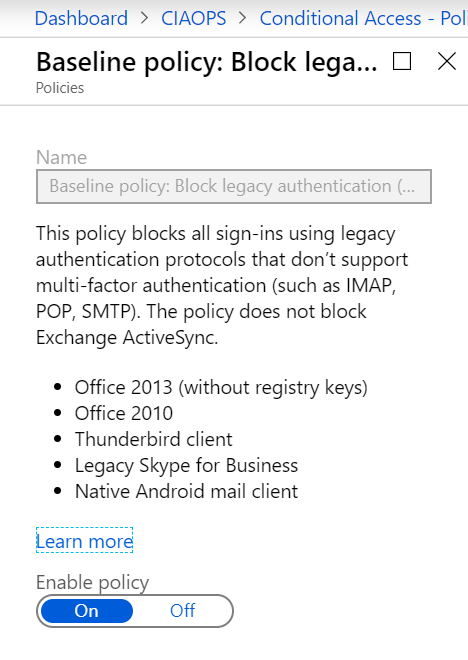
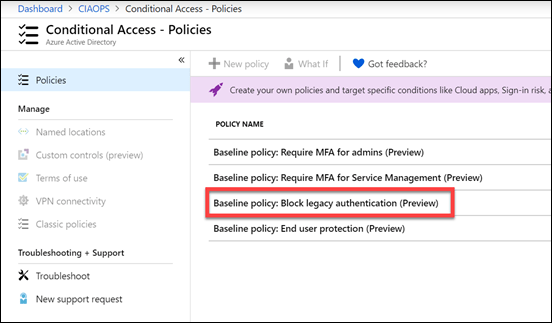
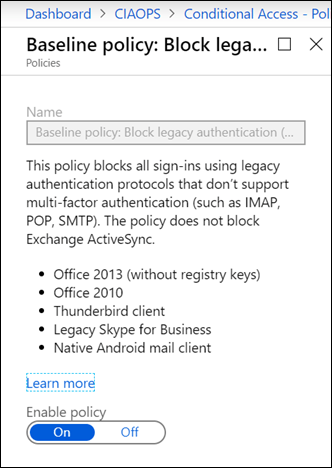
So what can you do if an account is subject to a spray attack and you are effectively getting denial of service thanks to that? Microsoft has provided every tenant with a number of free Baseline Conditional Access policies. The most appropriate one in this case is Block legacy authentication.
image

Enabling this policy will basically prevent legacy protocols like IMAP, POP and SMTP BUT it will do this across the WHOLE tenant! That is, for ALL users. That may be an issue if you have other accounts that depend on these older protocols for operation. However, this is certainly the quickest and easiest way to block spray attacks if you need to.
image

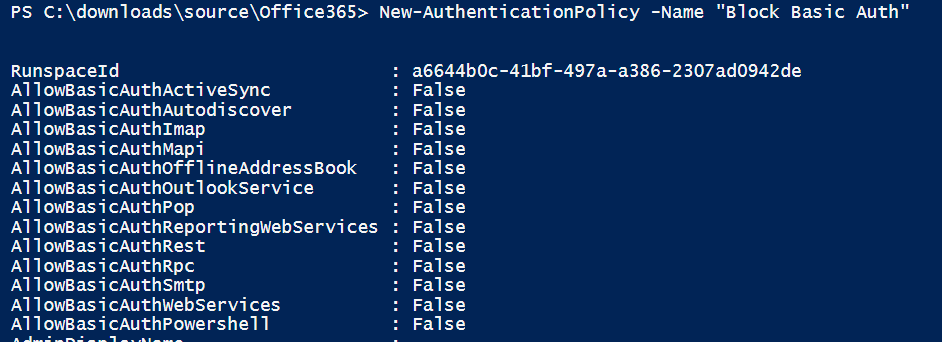
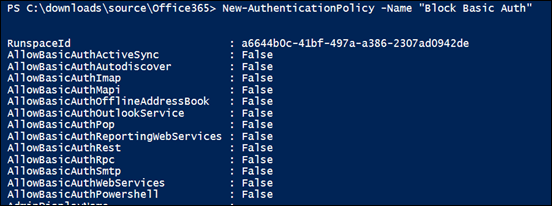
A more refined approach is to use PowerShell and create a new authentication policy as shown above. This creates a policy that disables the legacy protocols.


image

image

With the policy in place you can now apply it to just the user in question. Most authentication policies can take up to twenty four hors to take effect, however you can force an immediate refresh using the –STSRefreshTokenValidFrom option as shown above.


image

image

After doing all this, it is advisable to check to ensure the user has this authentication policy enabled as shown above.
image

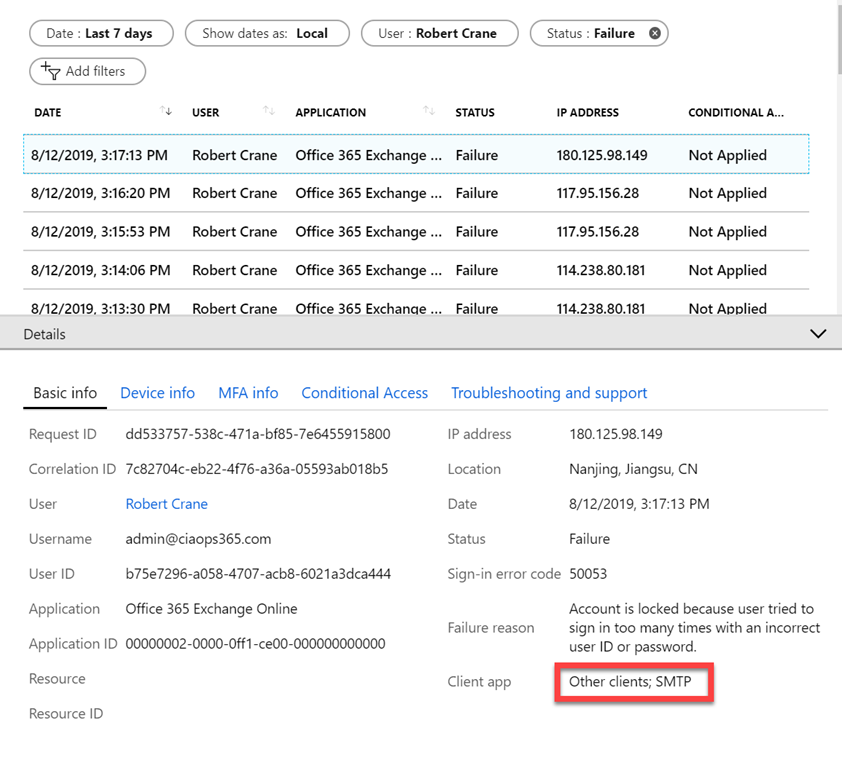
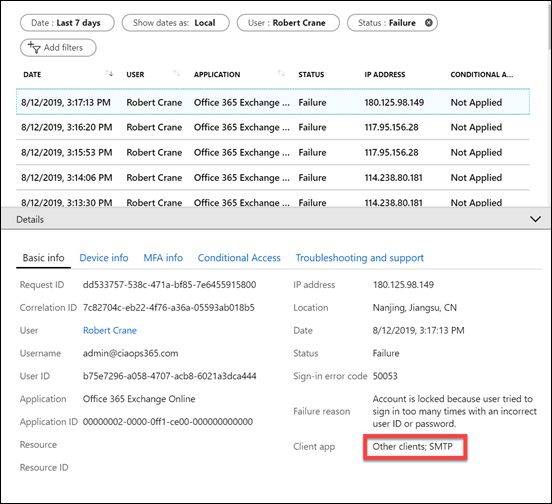
When you dive into the Azure AD logs you’ll see that the brute force attempts have happened via SMTP, confirming a spray attack against the account.
image

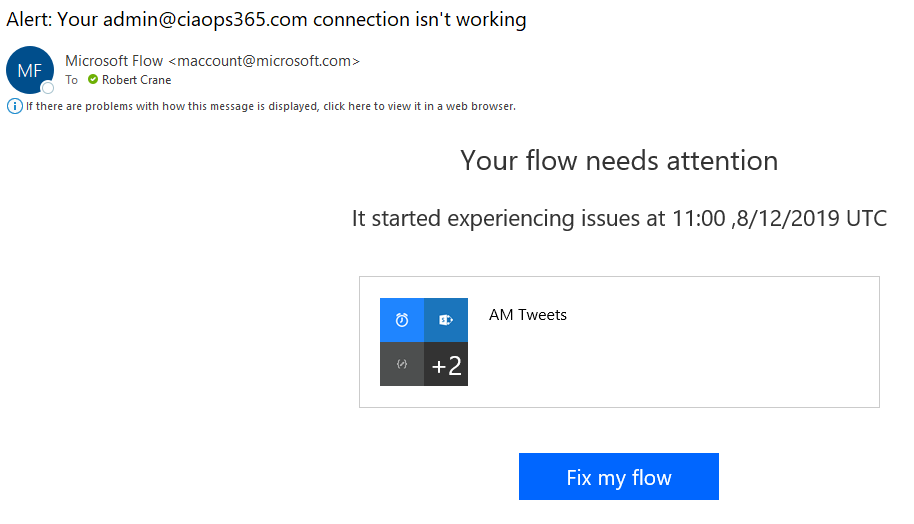
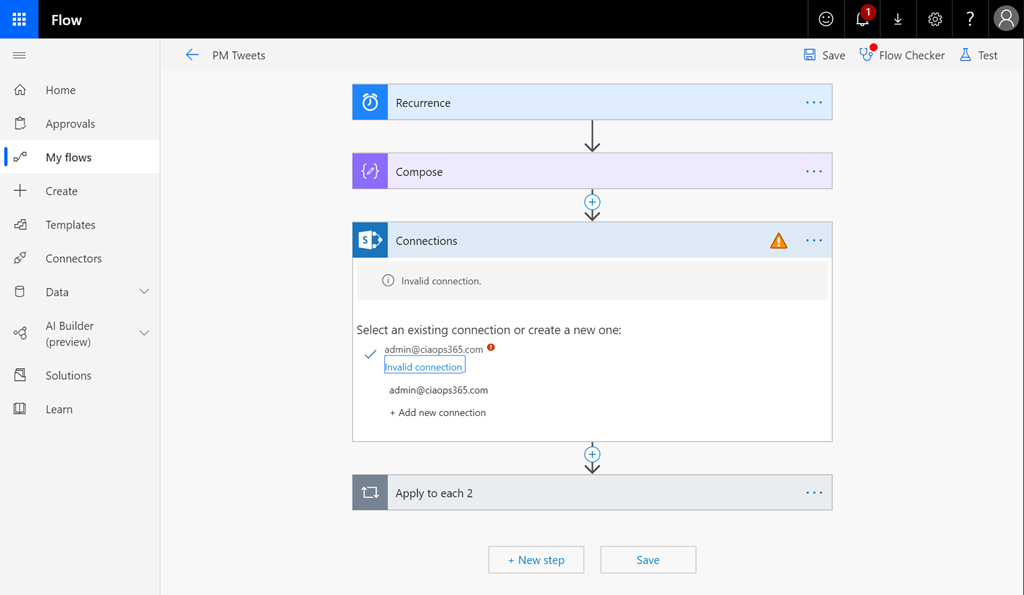
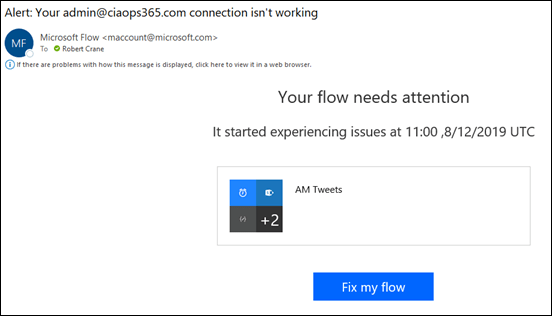
Another service that may be affected by these attacks is Flow as seen above.
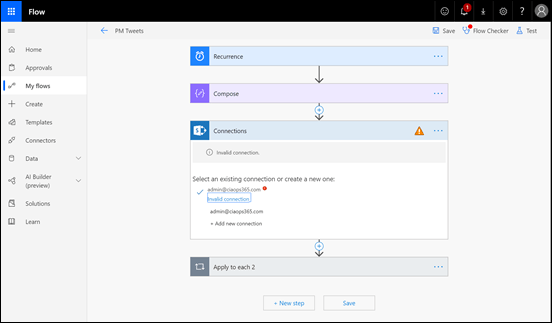
image

You may need to go into the Flow and re-authenticate as with the other affected apps. The issue may not be come evident until the next time your Flow actually runs.

So what my ten take aways?

1. Spray attacks are easy to automate and initiate. That means they will continue because they have a great ROI for attackers.

2. Implementing MFA on accounts is going to protect against an account breech from these spray attacks.

3. Spray attacks are facilitated via basic authentication which is enabled on all tenants by default for legacy support and has to be manually disabled! Enabling MFA DOES NOT automatically disable basic authentication since it allows support for static app passwords for applications that don’t support MFA out of the box. Disabling legacy authentication can cause issues with older applications that don’t support modern authentication. Disabling legacy authentication across the whole tenant needs to be done with caution. A user by user approach may be a better approach initially.

4. If your applications are complaining about failed authentication, check to see whether your account is not in fact the subject of a spray attack. Azure AD is trying to protect the account by locking itself out for a time period which affects good and bad attempts.

5. Use Cloud App Security and you’ll get a heads up on this sort of thing early on. Knowing what is happening makes it much easier to deal with and there really isn’t a better way than using Cloud App Security.

6. Use conditional access to restrict who can attempt to login to your tenant. Every one gets some free basic baseline policies from Microsoft but it is worth paying for Azure AD P1 to get the ability to be more granular. Don’t forget that Microsoft 365 Business comes with this granular Conditional Access ability out of the box now!

7. Consider having a ‘break glass’ emergency administrator account that you can call on to make admin changes if your only other existing administration account comes under attack and access becomes denied. This account doesn’t need a licence, it just needs permissions. It is hard to make changes to a tenant as an administrator if that account is subject to denial of service by a spray attack!

8. Even if you have MFA enabled, if you leave legacy authentication enabled, then even though attackers can’t correctly guess the password, their continued attempts could effectively result in a denial of service. This is very hard to mitigate, so look to eliminate all your legacy apps and protocols to prevent becoming collateral damage.

9. Review:

Azure AD and ADFS best practices: Defending against password spray attacks

as a good refence for the steps to protect your tenant against spray attacks. Remember, security is a journey and requires eternal vigilance and education.

10. Documentation before, during and after any incident is critical to knowing, understand and mitigating attacks. This all starts with preparation and knowing your situation and what can and needs to be done in a logical manner using tools like checklists. Your information is too important and valuable to leave to chance. Have a plan, your attacker does.

The more hardened your environment, the more likely attackers will simply move on to easier targets. Leaving legacy settings enabled is going to ensure they keep coming back to test your defences and potentially impacting your productivity as a side effect. In this case, once legacy authentication was disabled for the account the attacks ceased.