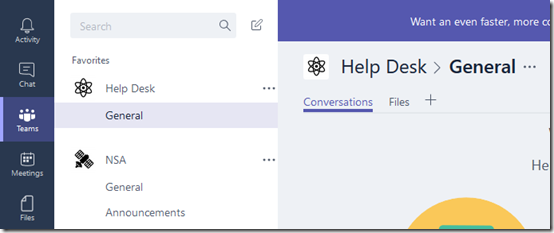
Changing a Group/Teams icon in Office 365

image

If you go out and create a new Microsoft Team you don’t get the opportunity to add a custom icon for that Team. Thus, you get a Team as shown above with just some letters and coloured background which is rather boring.

image

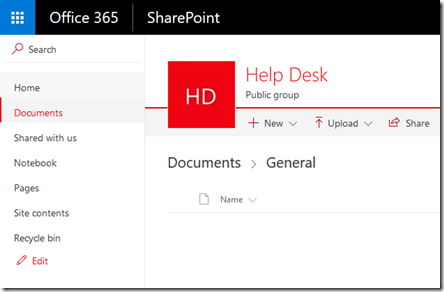
However, when you create a Microsoft Team, you also get a SharePoint Team Site. Unfortunately, this also just has the same ‘standard’ icon by default.

image

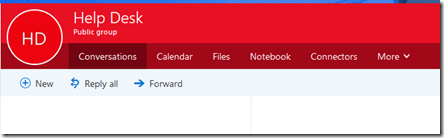
A Microsoft Team also creates an Office 365 Group which again has the same old ‘standard’ icon.

So how do you change the icon?

image

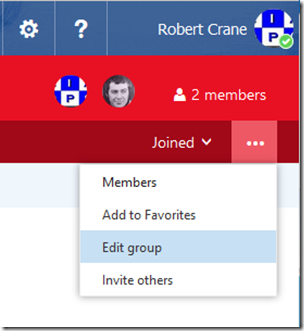
Go to the very right of the Group menu and select the three dots (also called an ellipse). From the menu that appears select Edit Group.

image

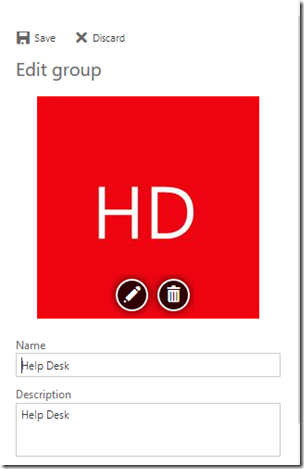
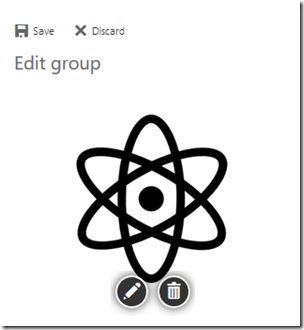
A panel will slide out from the right. Select the pencil icon on the image and upload you new icon.

image

When the new images appears in the pane, select the Save option at the top of the panel, just above the image.

image

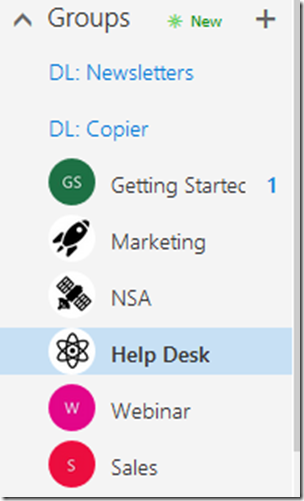
You should see your Group icon update as shown above.

image

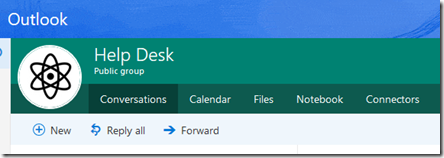
You should also see the icon update in Outlook on the web (OWA) as shown above.

image

The SharePoint Team Site icon should also update automatically

image

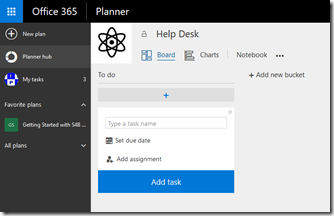
and the Planner plan connected to the Group and Team.

image

and finally into the Microsoft Teams app itself.

One icon to rule them all!

Understanding collaboration in Office 365 course

people-woman-coffee-meeting2

I’m happy to announce a new course is available from the CIAOPS Academy. This course will focus on the collaboration tools available in Office 365. This means SharePoint, Teams, Yammer, OneDrive and more. You’ll not only learn how these products work but you’ll also learn how to use them effectively to increase the productivity of your business.

The course will divided into 5 live sessions held every Friday in June. Thus:

Friday June 2nd 2017 – SharePoint & OneDrive
Friday June 9th 2017 – Groups, Teams and Staffhub
Friday June 16th 2017 – Yammer & Skype for Business
Friday June 23rd 2017 – Delve & Planner
Friday June 30th 2017 – Migration and Driving adoption

The sessions will run for 1 hour and be recorded. Session time are:

8am – 9am – Sydney, Australia
3pm – 4pm – PDT, USA
6pm – 7pm – EDT, USA
11pm – 12am – BST, UK

The recordings of each session will be available shortly after each session is completed. Although each session will run for 60 minutes, there will be an open Q and A at the end that will continue as long as people have questions not answered in the session.

All the material, including recordings, course notes and additional offers will be available for download after the fact.

The material presented during this course is a great way to fast track you understanding and adoption of Office 365 adoption tools in your business. Not only will you see the technology in use but the sessions will include hands on material for all students to participate in, so you’ll be directly interacting with the technology during the time. This way you’ll get to see and experience exactly what is possible with Office 365 collaboration technologies.

If you are keen to jump on board then I have a special early bird discount as a reward. Normally the cost of the course is US$299 but if you sign up before the 12th of May 2017 at 9:00am you’ll receive $60 off the cost using the coupon code EARLYBIRD1 or this direct link:

Understanding collaboration in Office 365 – $60 early bird discount

Remember, you need to use the link or the coupon code to get the discount.

An additional offer is that if you are not already a CIAOPS Academy affiliate you should sign up so you can offer this course to others and receive a commission. That’s right, just refer this (or any CIAOPS Academy course) to others and you’ll receive a percentage of the course direct to you. To become an affiliate simply sign up for free at the CIAOPS Academy and then contact me (director@ciaops.com) to let me know you want to be an affiliate and I’ll send you all the details and get you signed up asap.

In summary. Sign up for the upcoming CIAOPS Academy Office 365 collaboration course here (and get an early bird discount):

Understanding collaboration in Office 365 – $60 early bird discount

and contact me (director@ciaops.com) if you want to become an academy affiliate and receive commissions for courses you sell.

I hope to see you in attendance at the course in June.

April webinar resources

https://docs.com/d/embed/D25190964-2382-8197-9450-000528713933%7eMd4186d87-61d5-259a-4d26-00a8bd86cfff

April’s webinar is done and dusted. You can download the slides from:

April 2017 Need to Know Webinar

If you are not a CIAOPS patron you want to view or download a full copy of the video from the session you can do so here:

http://www.ciaopsacademy.com/p/april-2017-need-to-know-webinar/

We had a great session around Microsoft Staffhub with some fantastic questions from attendees. Thanks everyone for attending

you can also now get access to all webinars via:

http://ciaops-academy.teachable.com/courses/need-to-know-webinars

for a nominal fee.

See you next month.

External access for Microsoft Teams slated for June

Microsoft Teams is significantly changing the way businesses think about collaboration as I have detailed previously:

The modern way of collaboration using Microsoft Teams

but we still need to keep in mind that it is all still relatively new.

image

One of the most requested enhancements, as you can see from the above post on Uservoice is to allow external access to Microsoft Teams.

image

Good news is the reply posted by Microsoft shown above. They have committed to a date for this feature addition and that date should be in June! Pretty quick eh?

It will be amazing to think of all the collaboration opportunities that will open up once Microsoft Teams is available to third parties. This is going to make the product bigger and more successful than it already is.

My advice? If you haven’t started looking at Teams you really should be.

Compliance challenges of Microsoft Teams

Microsoft Teams is a fantastic service and users absolutely love it, as I mentioned in a previous article:

The modern way of collaboration using Microsoft Teams

Microsoft Teams requires a different approach to not only using the service but also managing it. In this article I’ll cover off some challenges Microsoft Teams currently brings to IT administrators.
image

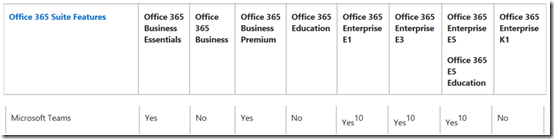
So let’s start with who can actually use Microsoft Teams at the moment. As you can see from the above table found in the Office 365 Service descriptions, Microsoft Teams is currently unavailable to Office 365 Business, Education and Kiosk licenses. So it is available to most but not all.

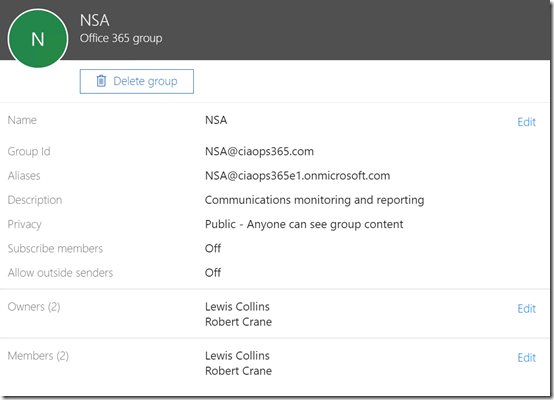
When you create a Microsoft Team it also creates an Office 365 Security group for you:
image

Permissions to different services are provided via this security group. It is also important to note that this group and the Microsoft Team by association also gets a public email address assigned to it. This means people outside the business can potentially email directly into the tenant without the IT Admin’s knowledge.

This could be a problem if a malicious user created a private Microsoft Team for themselves called ‘accounts’ say. That would potentially given them an email address accounts@domain.com. They could then start using that email account for nefarious things without the IT admin or the business being any the wiser.
image

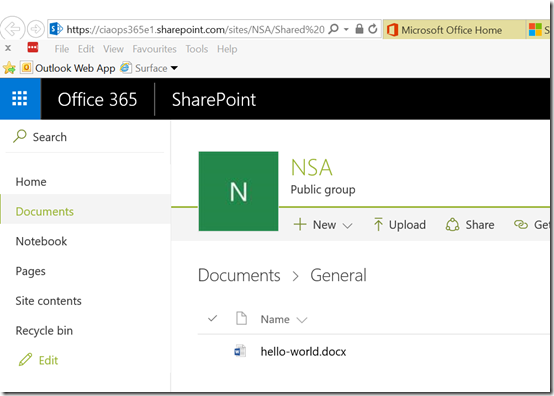
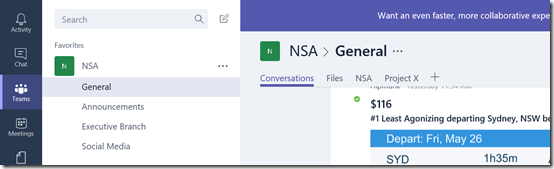
If I have a Microsoft Team (here NSA) I also get a new SharePoint Site Collection for that Team.
image

That looks like:

image

The important thing to pay attention to here is the URL for the Microsoft Team Site Collection which in this case is:

https://ciaops365e1.sharepoint.com/sites/NSA

Let’s now pop into the SharePoint Admin center to do some administration on this new Site Collection.
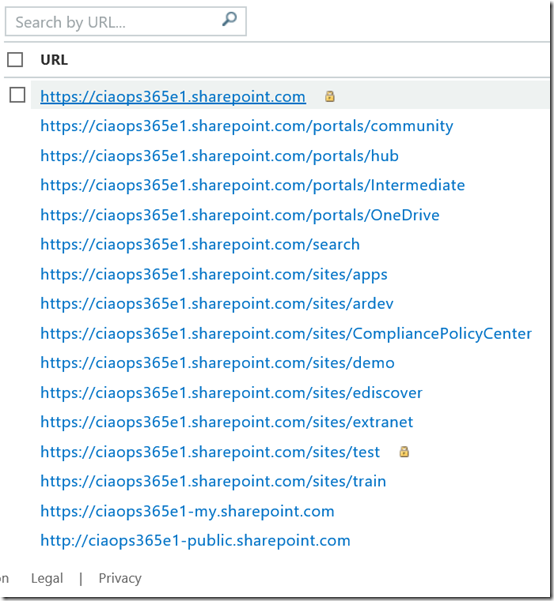
image

So what Site Collection is missing from my list above? Yup, that’s right, the one that was created by the Microsoft Team (here NSA). So, Site Collections created by Microsoft Teams don’t appear in the standard SharePoint Admin area.

But what about using PowerShell to work with the Site Collection created by Microsoft Teams?
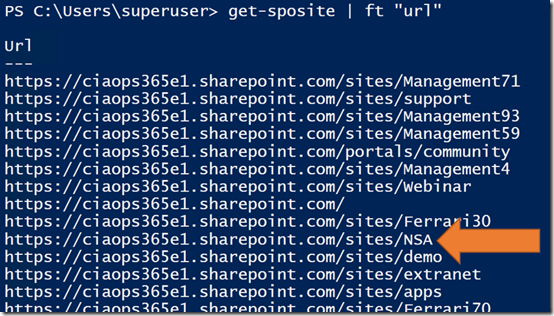
image

As the above screen shot shows, I can see the Site Collection URL via PowerShell.

(You might also observe here that I have a lot of sites with random two digit numbers at the end. These are test sites that were created when I was testing Microsoft Teams functionality. These are no longer linked to a Microsoft Team but they still exist! More on this in upcoming articles.)

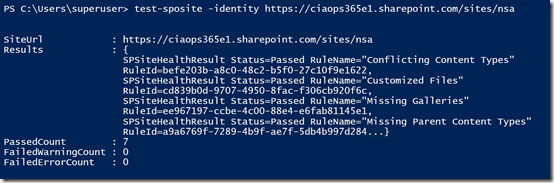
image

image

I can also manage the Site Collection created by Microsoft Teams using PowerShell as shown above.

Luckily, as you can see we can at least get to this new Site Collection created by Microsoft Teams using PowerShell. Hooray for PowerShell!

So now what happens if you delete a Team? Remember, that firstly the user that creates a Team is considered the Admin and thus has the power to delete the Team maliciously or by accident.

This is very important question so I checked with Microsoft directly and this is what I received after logging a support ticket in my tenant.

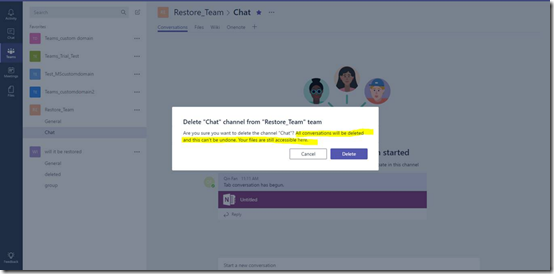
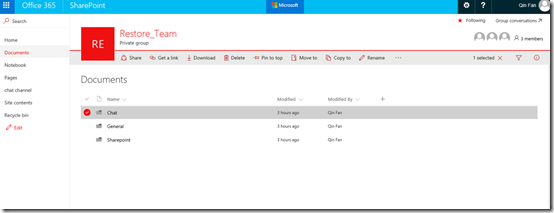
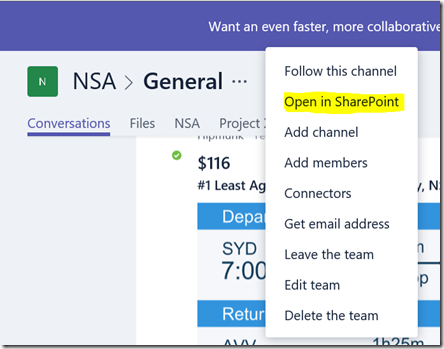
Per an offline research and the testing, it is learnt that if a Team is accidentally deleted, all channels, chats, files and the associated Office 365 group for this Team will be deleted and cannot be recovered at the moment. For a channel, if it is accidentally deleted, all conversations for this channel will be deleted and this cannot be undone, however, files for this channel are still accessed from ‘Open in SharePoint’ for this Team.

We sincerely apologize that the feature of recovering a Team or a channel is not available at the moment. As the Microsoft Teams is still in the preview and many features still need development, could you please submit a feedback to our Office 365 product team by this link (https://office365.uservoice.com/) to help them improve this function? You opinion will be much appreciated.

Delete a Team:
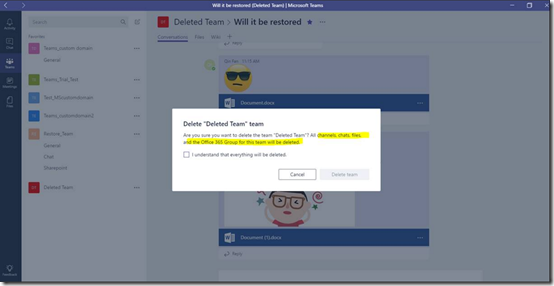
image

Delete a channel:

image

Access files of the deleted channel by clicking this Team and click ‘Open in SharePoint’ :
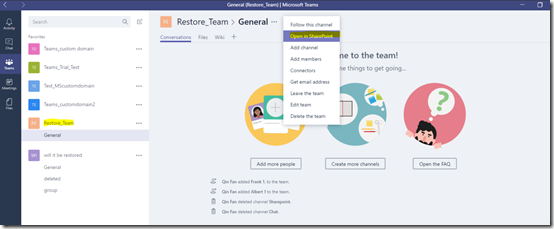
image

image

Ok, if you are an IT admin responsible for managing the things Microsoft Teams creates then you are going to need to backup the Site Collection information and the Team mailbox using conventional tools that are readily available if required. However, it seems there really isn’t a current way to back up things like Planner plans, chats, channels, etc. Hopefully, we will see this option soon for Microsoft Teams.

The recovery of an Office 365 Group (which is the product Teams is built on) is on the roadmap:

https://products.office.com/en-us/business/office-365-roadmap?filters=&featureid=31837

and if you want to vote up this as a priority visit:

https://office365.uservoice.com/forums/286611-office-365-groups/suggestions/9349221-recover-restore-deleted-office-365-group

Another thing to consider is that when it comes to Teams, out of the box, there are only two levels of permissions, Admins and Members.
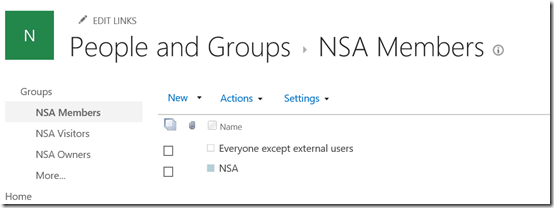
image

However, when you take a look at the Team Site Collection that the Microsoft Team created you’ll find everyone as a Member of the Microsoft Team Site Collection as shown above (they are part of the team name security group created when the Microsoft Team was created). However, you’ll also see that Everyone except external users is also a member. This occurs when you create a ‘public’ Microsoft Team. So this means, that even if people aren’t members of the Microsoft Team they still get access to the Site Collection created by a ‘public’ Microsoft Team.
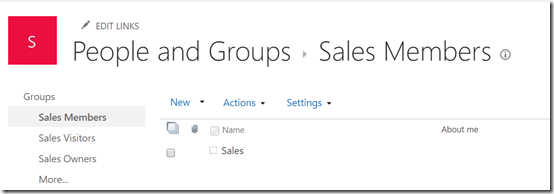
image

For Microsoft Teams created as ‘private’ you see that only people in that Microsoft Team are made members of the new Microsoft Team Site Collection.

Using a ‘public’ Microsoft Team could be problem if you wanted to create an area that was designed to be restricted to say just the Executive level to discuss something confidential. A non-Team member who can work out the URL of the Site Collection could navigate there and have access (again, provided the Microsoft Team was created as ‘public’).

image

Remember, Members get Edit permissions by default. Edit permissions include the ability to DELETE!

Now of course you can go in and adjust the permissions for the Team created Site Collection but to really make it secure and give different people different levels of access someone is going to have to go in and do that manually. If you simply accept and don’t change the default for a ‘public’ Microsoft Team then all tenant users have access and the ability to read and change information in any Microsoft Team created as ‘public’!
image

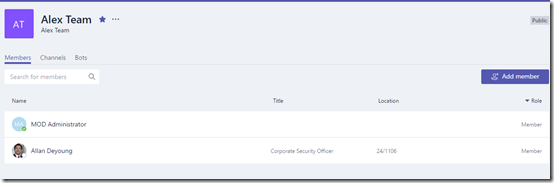
What about this scenario? A user creates a new Microsoft Team and invites others in as members. There however only remains a single admin of the Microsoft Team, being the initial user. Now let’s say that some time elapses and that original user leaves the organisation. Their login is removed as part of the standard process. So now we have a Microsoft Team with no admin? How can we manage that Microsoft Team when everyone is only a member as you can see above?

Considered what happens if you create two Microsoft Teams in the same tenant with the same name?
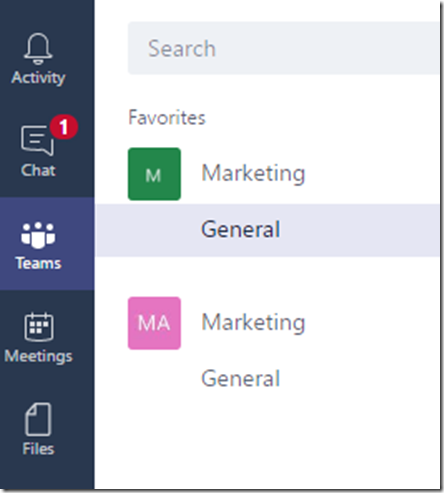
image

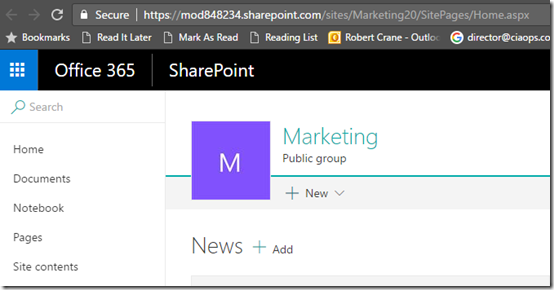
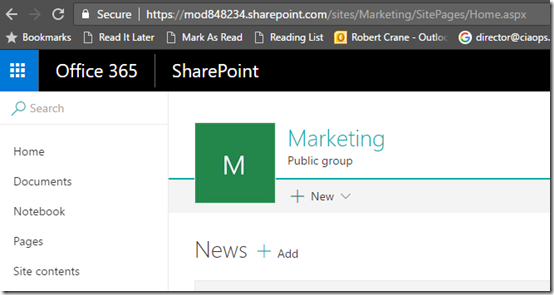
It allows you and then creates two separate Site Collections:
image

image

One has the URL /sites/marketing the second has a URL /sites/marketing20/ i.e. it appends a random two digit number of the end of the URL.

Not unexpected behaviour but certainly means an IT Admin has to be diligent to what happens when two Microsoft Teams are created with the same name (which is easily done). Some places they look the same,others they don’t.

Another thing to watch is the fact that Microsoft Teams can take a little while to provision all its components. Give it time to complete all the tasks it needs to around creating Site Collections, Planner, etc.

The bottom line here for IT Admin is that you need to understand what Microsoft Team actually does, what and how it provisions services. Chances are that IT Admins will need to go in immediately after the creation of a Microsoft Team and ensure it is configured the appropriate way for the organisation. IT Admin is needed now more than ever!

Given this is still early days for Microsoft Teams it is expected that the challenges here will be addressed in very near future as the product continues to evolve. The message here is that even though the power of provisioning is now in the hands of users, IT Admins are required more than ever to ensure such systems remain compliant. However, this means IT Admin have to invest the time to learn about new products like Microsoft Teams so they are ready with the answers and solutions no doubt users will bring them.


The modern way of collaboration using Microsoft Teams

Helping users understand how Microsoft Teams fit into the current collaboration environment and when it should be used over things like Yammer and SharePoint is important. The following is my framework to help people understand how they should be thinking about collaborating.

image

I believe there are three ‘universes’ when it comes to collaboration today – Old, Modern and New.

image

The ‘Old’ universe is a place where files are locked away in file server shares accessed via mapped drives or on local C: drives or even saved on external USB devices. It is however also still a place full of paper. People still find the quickest and easiest way to capture information is to write it down because little else is available.

In the ‘Old’ universe, collaboration is typically done via email. Find the file you want to share, attach to an email and blast it out to others. When that attachment returns, it may or may not end up in the original location. Typically it doesn’t, which means you end up with multiple copies of the same file strewn across many locations. Apart from emails the major way people stay in touch is using the phone. Of course a majority of the time you have no idea whether the person at the other end is busy, unavailable or away so you leave a voice mail. Then, of course, when the call is returned you are away so the game of phone tag commences.

In the ‘Old’ universe applications live in silos and require users to switch between them. If you want to share information between such applications you have to do this manually. Typically, your calendar is separate from your emails and contacts.

Finally, in the ‘Old’ universe you are expected to work from your cubicle at the office using a machine that is tethered via a blue patch lead to a jack on the wall. The only way that you can actually work is being in the office at your desk, there is no remote access and no ability to access data outside the four walls of the office.

image

Unsurprisingly, users found working in the ‘Old’ universe very constraining. They then went to the traditional gatekeeper (IT) and asked for tools that allowed them to get their work done better, faster and in a manner that was more convenient to them. The response to this from IT was always ‘NO’. IT said that it was always too difficult, too insecure and too much trouble to actually provide these sort of abilities.

When presented with such roadblocks users simply moved around them and implemented what they needed using freely available tools on the Internet which they could easily download and install. This gave rise to ‘ShadowIT’ where users simple implemented what they needed independent of their IT overseers.

ShadowIT’ of course raises all sorts of issues around compliance and access to data. This however was of no concern to users who found the tools available from the Internet exactly what they needed, so they simply kept using them and then adding more and more.

This means that soon much of the corporate data and intelligence was on consumer grade system like Dropbox and Slack over which the business had no control, insight or management.  

image

Smart organisations then started shifting their IT resources to the ‘New’ universe of cloud based services like Office 365 because they could provide the tools users wanted to do their jobs but also give IT admins back the control they needed.

image

The great things that Office 365 also did was it provisioned many services together. Thus, when you enabled email you got a connected calendar that you could easily share with others. You also got a public (Team Sites) and a private (OneDrive for Business) area in which you could save and share your files. Also importantly, you could access all of this on your mobile device or anywhere you had Internet access.

image

Office 365 also provided tools like Yammer for social, Skype for Business for communications and great new tools like Power BI and Planner.

However, the challenge remained that many of these services were still a challenge to provision and integrate seamlessly together. Yes, you can share files from Team Sites in Yammer but users remained puzzled as to how to do this easily because IT was still not providing them with the training and enablement they required. IT was still trying to retain control of this ‘New’ universe while struggling themselves to understand how it should all be managed.

image

Users became frustrated again because the tools they needed were now available but still not easily provisioned. They also still had to go to IT to get things configured and that was just slowing everything now in their eyes.

Enter Microsoft Teams, which heralded the ‘Modern’ universe. Here users simply had to give their team a name and everything they required was automatically provisioned.

image

When users created a Microsoft Team they got things like an email distribution list, a shared calendar, a dedicated place to store files (Team Site), a place to chat, a place for tasks (Planner) and so on. They also got the ability to access all of this inside a dedicated app on every platform overcoming the need to keep swapping between applications. Now everything they needed was presented in a single common consistent interface.

And of course they flocked to this ‘Modern’ universe leaving the others behind.

image

So, when you take a step back and look at the transition that has occurred between these universes you can see how the balance of control has shifted from the IT Admin to the user. Now users can provision everything they need themselves. They get all the resources they need immediately. No longer do they have to wait for IT to provision things.

The users are now in control of technology.

image

The move to a ‘Modern’ universe has also meant the move away from structured data in files and folders. It has moved away from the structure of common Team Sites, Document Libraries, Subsites and the like. Microsoft Teams provisions things like Teams Sites but only surfaces a simplified interface for users. Users don’t care whether things like files are in this Team Site or that Team Site. As long as they can see their files they have no interest in understanding the structure it lives in. Also, if they can’t find what they are looking for they don’t trawl through the structure, they search. That’s the modern way, you search for for what you want.

Data is no longer structured as it once was. Search provides the ability to find stuff making the structure it lives in largely irrelevant.

image

Finally, the ‘Modern’ world moves us from a linear world of working through our inboxes top to bottom and through mapped drives, folders and sub folders to a world of being part of multiple teams, multiple chats, multiple channels, multiple document locations all at once. This universe requires being across a lot more information and switching between it faster. This is what today’s tools provide and this is the way users want to operate.

After presenting this to customers I ask them which universe they want to live. Nearly every one wants to live in the ‘Modern’ universe. Why? Because this the way their staff are ALREADY working. They also appreciate that this is the universe we are heading towards, so why not jump on board now rather than continue to live in the ‘Old’ universe and fight what users want?

Once customers have made the choice to live in the ‘Modern’ universe there is a need to develop a plan to actually get them there. There are also still reasons to have some of your stuff in the ‘New’ universe (typically global information). However, most of the specific information moves into Microsoft Teams.

Apart from the challenge of migration to and adoption of the ‘Modern’ universe there is also the challenge of compliance. How is stuff backed up? What happens if it is deleted either maliciously or on accident? How are permissions handled? All very important things that need to be addressed and I’ll do that in upcoming articles. Moving to a ‘Modern’ universe doesn’t make many of the fundamentals of IT disappear it just changes them. That change means that both users and administrators of the systems need to also change if they want to stay current.

As they say in IT, the only thing certain about the industry is change and if you don’t embrace change you’ll be left behind. Microsoft Teams is a further change that users are embracing wholeheartedly, because it is the way they want to work. However, traditional IT Pros are falling behind, trying to resist the inevitable. It’s time for them to embrace these changes, learn the ‘Modern’ way and provide the same service they have always provided their users not try and hold them back.

Microsoft Teams means a universal shift for everyone. It’s already here so get on board!

March Webinar Resources

https://docs.com/d/embed/D25191267-3656-2437-5760-000871704152%7eMd4186d87-61d5-259a-4d26-00a8bd86cfff

This month’s webinar has wrapped up. You can download the slides from:

March 2017 Need to Know Webinar

If you are not a CIAOPS patron you want to view or download a full copy of the video from the session you can do so here:

http://www.ciaopsacademy.com/p/march-2017-need-to-know-webinar/

you can also now get access to all webinars via:

http://ciaops-academy.teachable.com/courses/need-to-know-webinars

for a nominal fee.

image

I think the key slide to help explain the new world Microsoft Teams brings us is shown above. Basically, Microsoft Teams brings a significant shift in the way collaboration is conducted inside an organisation as well as who is in control of that environment. Users are demanding the tools that Microsoft Teams provides and have working with them using Shadow IT. Microsoft Teams provides the latest collaboration features easily provisioned without the need for an IT Administrator.

These changes are great for users but bring challenges for IT Admins. If you want to hear more details about these and what Microsoft Teams can provide your business have a listen to to the webinar recording.

Thanks to all who attended and asked all those great questions. See you next month.

Needs to Know Podcast–Episode 144

Marc and I shoot the breeze with Andrey Korenkov Cloud Specialist from Rhipe Solutions, about the Microsoft CSP program. Andrey answers many common questions we hear from resellers as well as come curly ones that we also come up with in regards to CSP for both Office 365 and Azure. There is also plenty of news from Marc and I, especially about the recent release of Microsoft Teams into the wild. Listen in, stay up to date and be informed on the latest for the Microsoft Cloud.

Don’t forget to send us your feedback at feedback@needtoknow.cloud

You can listen to this episode directly at:

https://ciaops.podbean.com/e/episode-144-andrey-korenkov/

or on Soundcloud here:

Subscribe via iTunes at:

https://itunes.apple.com/au/podcast/ciaops-need-to-know-podcasts/id406891445?mt=2

The podcast is also available on Stitcher at:

http://www.stitcher.com/podcast/ciaops/need-to-know-podcast?refid=stpr

Don’t forget to give the show a rating as well as send us any feedback or suggestions you may have for the show.

Resources

@akoncloud

@marckean

@directorcia

Azure news from Marc

New Office 365 profile experience

Microsoft Teams becomes generally available

New features of Office 365 Advanced Threat Protection

Dire warning for those who drive cars for a living

Azure bootcamps

This episode is brought to you by:

https://cpem.io/tJ01Hzu2k.js