SharePoint Foundation 2010 on SBS 2008

After manually installing all the prerequisites for SharePoint Foundation 2010 on SBS 2008 I attempted to install SharePoint Foundation 2010 on SBS 2008. If you really want to try this yourself and are baffled where the prerequisite Microsoft Filter Pack 2.0 is then you should contact me as you won’t find it on the Microsoft download site (that’s version 1.0 and 2.0 Beta, neither of which works) from what I see.


Because SharePoint Foundation 2010 detects an existing SharePoint v3 installation the only option that is available is an upgrade. Fair enough you say, but when you proceed you get:


image_2_0B701405


which is basically game over. Interestingly when you go to the web link provided (http://support.microsoft.com/?kbid=975805) it doesn’t exist which kinda indicates that maybe the KB article is still being written on this one. Nothing also comes up when you do a Google search.


So that’s it game over eh? One would have said that also about running Search Server Express 2008 on SBS 2008 wouldn’t you? Especially if you have been reading this blog (especially here). Well I’m here to tell you that I have worked out how to successfully install Search Server Express on SBS 2008. It ain’t pretty but it can be done and it’s only taken me almost 2 years to work out. Maybe getting SharePoint Foundation 2010 running on SBS 2008 is my next challenge from the gods of code? Hopefully, this won’t take me another 2 years!


Oh, you want more details on how to install Search Server Express 2008 on SBS 2008? You’ll just have to stay tuned or subscribe to the Windows SharePoint Operations Guide as it will be published there real soon.

SharePoint how-to document

I recently posted up a SharePoint how to video covering creating and managing email notifications. As promised, I have now created a companion document covering the material that you can access via my SlideShare (along with plenty of other documents I have created). The direct link to the document is:


http://www.slideshare.net/directorcia/getting-started-with-sharepoint-alerts-3796685


and you can view it online as well as download it.


As always let me know what you think.

SharePoint command line backups

For many IT Professionals who deal with SharePoint as part of other systems (especially Small Business Server) I would have to recommend strongly that you always configure a command line stsadm backup. You’ll find the details here:


http://technet.microsoft.com/en-us/library/cc288541.aspx


The stsadm –o backup command creates a single data file of your site that can easily be restored. Without this you are going to have to try and recover databases and web applications and it all gets very messy, especially with versions prior to version 3. An stsadm –o backup allows you to blow away a defective SharePoint site, install a new clean site and then use stsadm –o restore to get the data back.


This can be really handy if you also have to do a restore to different hardware or different network topology. To get the backup functioning in a different location typically takes some additional steps around security but that process is much easier than trying to recover SQL databases (especially MSDE) on a different server.


I’d also recommend that you also do an stsadm –o export (Windows SharePoint v3 or better only) since it allows you to more easily extract pieces of your backup as well as merge the data with existing sites. The stsadm –o backup command is a complete backup, all or nothing, and will overwrite any existing site if it is restored. The export command is how Microsoft recommends you part of the migration of companyweb in SBS 2003 to SBS 2008. More information about the export command can be found at:


http://technet.microsoft.com/en-us/library/cc288940.aspx


The easiest way to automate these command line backup sis to create a batch file with the command and use the Windows Scheduler to trigger it at the appropriate time. Personally, I do it in the middle of the night and send the data files up to storage on the Internet.


Without an stsadm command line backup you may struggle to restore a SharePoint site in teh case of a disaster. Be proactive and implement an stsadm backup and then use the data file to test a full disaster recovery, just to be sure you know how to do it. Better now than in a crisis!

New SharePoint how-to video

I’ve just posted up a new ‘how-to’ SharePoint video. This one covers how to enable notifications via emails from a SharePoint site when changes occur.


This feature can be very handy to keep track of what is happening in just about any part of SharePoint.


I have also just about completed a complimentary document to go with this new video so you can also that to learn how to enable on of the most handy features of SharePoint (it will go up on my Slideshare site where my other documents are soon). Don’t forget that I’ve also got a range of other ‘how-to’ videos on my YouTube channel that covers SharePoint and other topics.


As always send me your feedback and comments, all welcome.

SharePoint v2 Set Configuration Database server

image_2_61649410


Been doing some recovery work on a SharePoint v2 site on SBS 2003 ( i.e. on Companyweb ). SharePoint v2 had lost the configuration database information so when you try and run the SharePoint Central Administration you are greeted with a window asking you for a database server and SQL server database.


I did know what these were but wasn’t sure of the format. Being unable to find these on Google I worked it out from my own test SBS 2003 system. Thus:


Database server = \

typically = server\sharepoint


SQL Server database name = STS_Config


remember this is what the settings are for the default install of SharePoint v2 on SBS 2003.


Hopefully this entry will get crawled so others can find the information quicker than I did.

Uploading to SharePoint document

When people start using SharePoint for the very first time the most frequently asked question is ‘How do I upload documents?’. Having already created a YouTube covering that topic:

Office Web Apps installation

I went to a demo yesterday at Microsoft where I actually got to see Microsoft Office Web Apps live for the first time. Wow! Even better than I’d imagined.


After the demo was over I was real disappointed because I thought that I’d have to wait until Office 2010 get released on May 12 to get a hold of Microsoft Office Web Apps. WRONG.


If you visit this site:


http://www.microsoft.com/downloads/details.aspx?FamilyID=27d81b1c-18ae-4983-8e1c-224bb747eb99&displaylang=en


and follow this document:


http://technet.microsoft.com/en-au/library/ff431687(office.14).aspx


you can download a beta copy, which is exactly what I’ve done. Here is a brief installation overview.


You need to have SharePoint 2010 installed and operating on a server. Once you have downloaded the file package double click it to run.


image_2_37683850


It will be expanded.


image_4_37683850


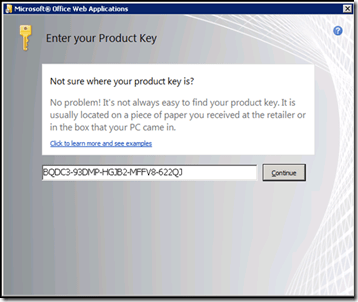
You will then be asked for the license key (which is found in the documentation link above).
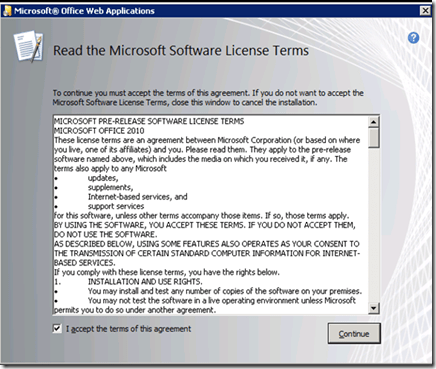
 

image_6_37683850


Accept the license agreement.


image_8_37683850


Choose an installation location.


image_10_65558B08


Wait for package to copy files.


image_12_65558B08


Run the SharePoint config wizard.


image_14_65558B08


Commence the set up.


image_16_65558B08


A few services get restarted.


image_18_65558B08


Office Web Apps gets configured.


image_20_65558B08


All done with install, now for configuration.


image_22_1342DDC1


Go to System Settings in SharePoint Central Admin and select Manage services on server.


image_28_1342DDC1


Ensure Excel, PowerPoint and Word Services are running.


image_30_1342DDC1


Got Application Management then Manage service applications.


image_34_1342DDC1


Make sure Office Web Apps services are running.


image_36_1342DDC1


Now go to the Site Settings for your SharePoint site.
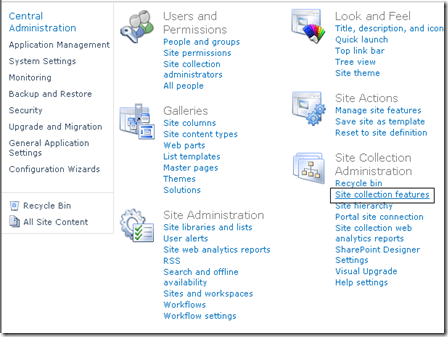
 

image_38_7E515B4D


Locate Site Collection features under Site Collection Administration.


 image_40_7E515B4D

Activate Office Web Apps.


image_42_7E515B4D


Find Word doc on your site and click it to open.


 image_44_7E515B4D

Bamm – Word document in a web browser courtesy of Office Web Apps.


I am impressed. More testing to come soon.