OneDrive for Business admin console rolling out

image

Microsoft has commenced the roll out of a dedicated OneDrive for Business administration console as you can see above. You can read more details about this here:

New OneDrive Admin Center Preview

image

To access the new console you’ll need to have set your Office 365 tenant to first release and then visit:

http://admin.onedrive.com

As you can see from the screen shots here the console is currently divided into a number of menu options.

The Sharing option allows you control who outside your tenant can receive shared files.

image

I like the option here that allows an administrator to set options such as how long anonymous links remain.

image

The Sync option controls the sync client.

image

The Storage allows you to manage the default storage allocated to each user along with the retention time of deleted user’s OneDrive information.

image

The Device Access tab allows you to control access based on network location as well as controlling OneDrive policies on the mobile devices.

image

At the bottom you’ll also find the option to control how long data is retained when a device is offline.

image

The final tab allows you to control the Compliance of OneDrive for Business.

This new admin center for OneDrive for Business is still in preview but we expect to see more and more options become available with the eventual integration into the existing Office 365 admin center.

If you have Office 365 first release enabled, go and take a look!

December Webinar Resources

https://docs.com/d/embed/D25192052-8876-6203-9880-001902666907%7eMd4186d87-61d5-259a-4d26-00a8bd86cfff

We’re all done now for 2016. Another great turn out for the webinar, the slides from which you can view above or download via:

December 2016 Need to Know Webinar

If you are not a CIAOPS patron you want to view or download a full copy of the video from the session you can do so here:

http://ciaops-academy.teachable.com/p/december-2016-need-to-know-webinar

you can also now get access to all webinars via:

http://ciaops-academy.teachable.com/courses/need-to-know-webinars

for a nominal fee.

Thanks to all attendees in 2016. I’m looking to continue these free monthly webinars in 2017 so stay tuned for the sign up to the next event in January.

November Webinar Resources


https://docs.com/d/embed/D25192295-5506-5426-8700-001814412624%7eMd4186d87-61d5-259a-4d26-00a8bd86cfff

Only on more webinar before we greet 2017! A big turn out this month and some good questions around the Power BI Office 365 content pack and Teams Sites was had and recorded. I also did a quick overview of the new Microsoft Teams and how to enable it in your Office 365 tenant.

The slides are now available for free download at:

November 2016 Need to Know Webinar

If you are not a CIAOPS patron you want to view or download a full copy of the video from the session you can do so here:

http://ciaops-academy.teachable.com/p/november-2016-need-to-know-webinar1

you can also now get access to all webinars via:

http://ciaops-academy.teachable.com/courses/need-to-know-webinars

for a nominal fee.

I’ll be posting information about the December which at this stage looks like being around the 15th of December. As yet I haven’t settled on a topic, so if you have a suggestion of what you’d like to see a deep dive on when it comes to Office 365 please don’t hesitate to contact me (director@ciaops.com).

CIAOPS Need to Know Webinar–November 2016

The November Need to Know webinar is now open for registrations. This is a free event that I put on once a month where you can come and hear about the latest Office 365 news as well as ask any question you want about Office 365. I’ll also be doing a focus session around building a basic intranet using SharePoint Online.

You can register now via:

November Webinar Registration

The details are:

CIAOPS Need to Know Webinar – November 2016
Thursday 17th of November 2016
11am – 12pm Sydney Time

I will of course record the session and make it available via the CIAOPS Academy.

As for content, well, there is still plenty of news and updates flowing from from the recent Microsoft Ignite Conference. For the focus session I’m going to give you a head start and some best practices around creating an intranet using SharePoint Online. You’ll learn how to structure, build and create something that you can use for your business today to be more productive. Best of all, it will be exactly what your business needs since you created it!

There of course will also be open Q and A so make sure you bring your questions for me.

The CIAOPS Need to Know Webinars are free to attend but if you want to receive the recording of the session you need to sign up as a CIAOPS patron (for only USD$10 per month) which you can do here:

https://www.patreon.com/ciaops

or purchase them individually at:

http://www.ciaopsacademy.com/

Also feel free at any stage to email me directly at director@ciaops.com with your webinar topic suggestions.

I’d also appreciate you sharing information about this webinar with anyone you feel may benefit from the session.

My Office 365 Groups are now SharePoint sites

There are a lot of changes rolling out to SharePoint Online and one of the major ones is around Office 365 Groups.

Office 365 Groups used to be simply a shared mailbox and a shared OneDrive For Business (basically a single Document Library). Groups have now become more about identity management in Office 365 than a separate service.
image

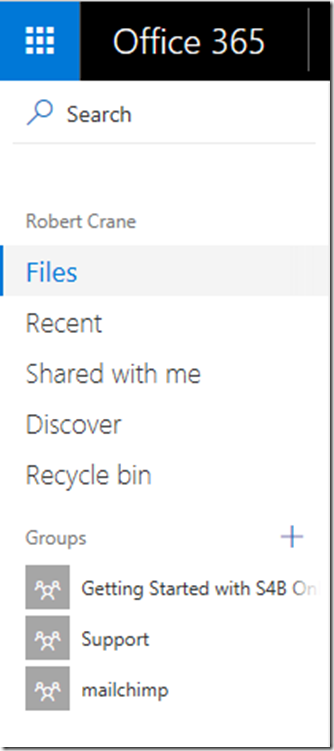
If I now navigate to my OneDrive for Business I see a list of Office 365 Groups at the bottom of the menu on the left.
image

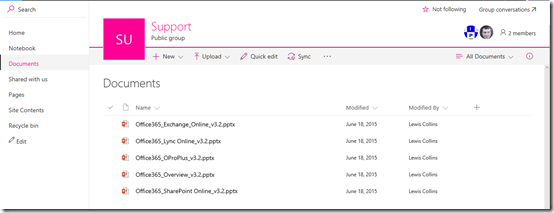
if I navigate to one of these you’ll see I end up in a Document Library as shown above. However, if you now look more closely, you’ll see that is in fact now a complete SharePoint site.
image

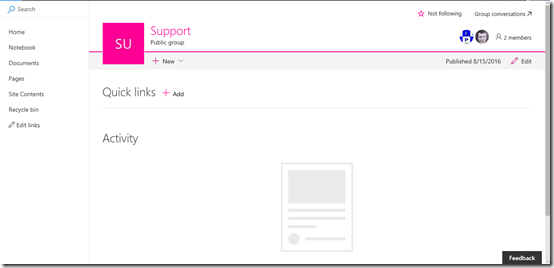
If I now navigate to the Home page you’ll see that I get the modern SharePoint interface with Quicklinks and Activity on the front page.
image

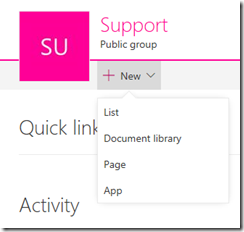
Here I can create more apps (like Document Libraries) for the site.
image

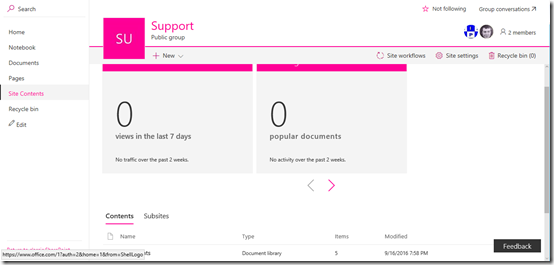
If I go to Site Contents, I see the familiar SharePoint overview of all the items that existing with a SharePoint Team Site.
image

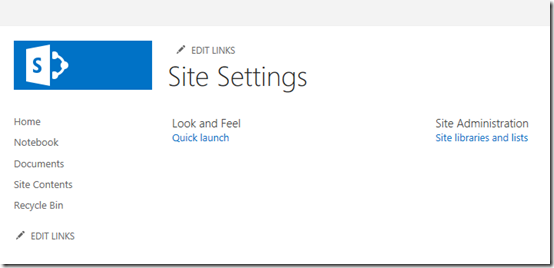
Interestingly, when I go to Site Settings for the Team Site I basically only see two items as shown above.

image

You’ll also notice that the URL of this new location is:

http://.sharepoint.com/sites/

This indicates that the Group is now a stand alone Site Collection. However, when I look inside my SharePoint Admin Center I don’t see this Site Collection listed.

A few observations here.
image

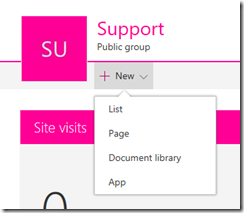
I can create new apps within the new Group Team Site but I can’t appear to create any subsites.
image

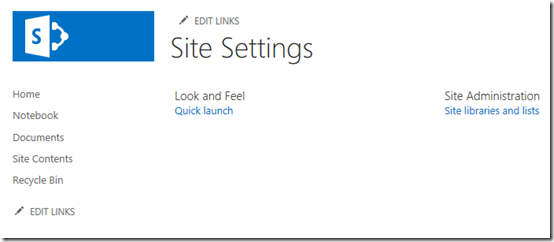
When I go to the Site Settings for the new Group Team Site you’ll see that the theme changes and I lose the Pages option from my menu on the left.
image

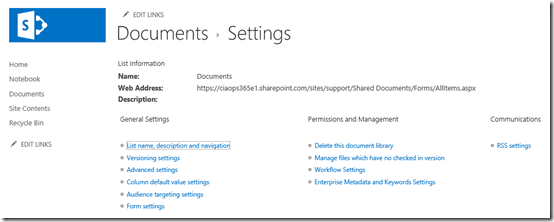
The Settings for a Document Library appears identical to what is available in a standard Team Site although there are less options.
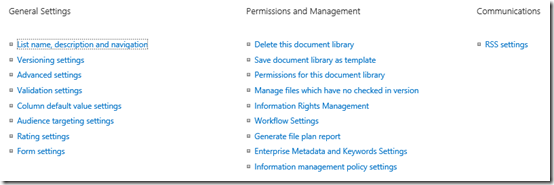
image

The above shows all the options available from a standard Team Site Document Library as a comparison.

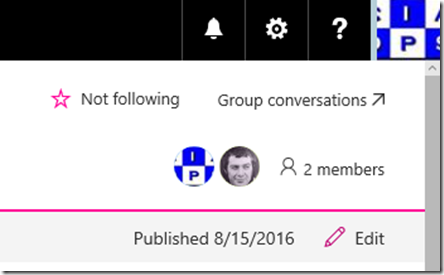
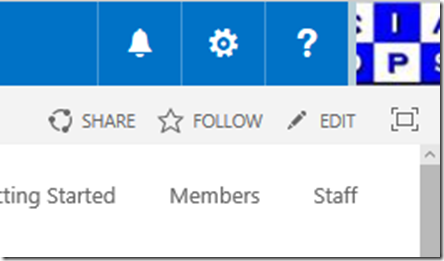
You can still share individual files like you can in standard Team Site but there isn’t anywhere to share or set permissions in the new Group site.
image

image

You’ll notice there is no full site “share” (upper) as there is in a standard Team Site (lower).

So in summary, Office 365 Groups have now had their data storage locations upgraded to a ‘basic’ SharePoint Team Site. This new Group site is it’s own Site Collection were permissions are managed by the Group rather than in the SharePoint site. This Group site also doesn’t have the full functionality of a standard Team Site.

The main question I have at this point is where the new Groups sites storage comes from? It seems that it doesn’t come from the standard SharePoint Team Site pool, as the site isn’t even listed there. Does that mean the storage is independent of that available for standard Team Sites? If so I wonder what the limit of storage is? I wonder if it is like OneDrive for Business and effectively unlimited for Enterprise plans? My guess? I’d say each Group site has a limit of 25TB. Is it possible that each Group could have 25TB of space available to it? Not sure.

From what I understand, Office 365 Groups have now become more a container of users that will be utilised across all the Office 365 services, from Yammer to Exchange and so on. Each Office 365 Group will get a cut down version of a full SharePoint Team Site, in an independent Site Collection. I also believe an Office 365 Group will get its own Yammer location.

So the change here is that you need to start thinking about an Office 365 Group as a location that holds a collection of users. These users have access to a number of Office 365 services (such as the basic Team Site) as part of being members of this Office 365 Group. This new Office 365 Group can also be given access to other Office 365 services, much like any security group.

It is clear from all the information I’ve been watching from Microsoft Ignite, that Office 365 Groups are still an intermediate step when it comes to collaboration, between an individual’s OneDrive for Business and a fully blown ‘standard’ SharePoint Team Site. That makes sense, as it keep things simple for users who just want to start collaborating. If you are a member of an Office 365 Group you get a basic independent location to share files, folders and information as well as share information.

Where the complexity arises is where is the best place for people to store stuff? Their OneDrive for Business? A Group site? A Team Site? Yammer? etc? They are spoilt for choice but does require somewhat of an understanding of what each location can and can’t do. Maybe that’s why some yearn for the good ol’ of simple an F: drive to store stuff in?

I need to go away and continue to work through the content from Microsoft Ignite, especially the deep dive sessions so I can determine exactly how all this fits together and what Microsoft’s plans are going forward. Now that I actually have these abilities in my tenant it will be easier and I’ll report back what I find. Until then, enjoy the new functionality office 365 Groups provides. Also remember, that many changes are still rolling out, and will continue to do so for some time yet!

Automatically download all the Microsoft Ignite 2016 content

image

I’m still working my way through all the content from the recent Microsoft Ignite 2016, however what I really wanted was all the PowerPoints from each presentation in one place as files and searchable. I also heard from many who wanted that as well as all the videos from the sessions downloaded locally.

Luckily, Michel de Rooij has created a PowerShell script to do this automatically for you. You’ll find it here:

Ignite 2016 Slidedeck and Video downloader

Simply download and run the script to get the videos and presentations from each session downloaded directly to your local machine. If you are like me and only want the PowerPoint’s then run the following command:

.\ignite2016downloader.ps1 –novideos

That will automatically create a local directory called \ignite2016 and commence downloading the specified content there. You see exactly this taking place from the screen shot above.

Now, downloading the content is one thing but making effective use of so much material is another, but I have a solution for that as well. What I did after getting all the content was to then to upload it into a SharePoint Online Document Library so that it is quickly searchable and I can easily see a preview of each file. Not only that, I can also use my own custom metadata to tag information by technology allowing me to group similar sessions together, keep track of what I’ve already reviewed and so on. Watch out for an upcoming post on how I’ve done this.

Remember, data on its own is useless. With SharePoint Online, I’ve transformed data into information and in the process made myself more effective. Achievement unlocked!

SharePoint details pane

image

If you visit somewhere in SharePoint Online and select an item (here a document in a Document Library), as shown above, you can press the little ‘i’ in the top right hand side of the screen, as shown, to reveal the details pane.

image

What you might not appreciate is that you can also simply press the letter ‘i’ on your keyboard to achieve the same result.

Once the details pane has been exposed you’ll typically see a preview of that file along with all the information about that item as shown above.

image

If you scroll down a little in the details pane you’ll also find a list of recent activity of this specific item as shown.

image

If you have no items in the library selected, you will see an aggregate of all the activity in that area (i.e. for every item in that Document Library), as shown above for the Document Library ‘Documents’.

image

What you also might not appreciate is that you can re-size the details pane by dragging the left hand side border.

image

The great thing is that when you visit another location in SharePoint and again view the details pane, it will display with the same dimensions as you just set.

image

And when you return to the original location and view the details pane it will have these new dimensions. Thus, your setting remains ‘sticky’ throughout SharePoint.

These features are available with the modern SharePoint interface but you can always switch back to the ‘classic’ interface at any point in time, for a list or library or whole Team Site if you want. However, I’d encourage you to explore the added functionality the modern SharePoint interface provides. I think that once you start using it, you’ll really like it!

Resizing SharePoint column widths

image

One of the new features the modern SharePoint interface now provides is the ability to adjust the width of columns. As you would in a spreadsheet, locate the boundary of a column, click, drag and re-size to the desire width.

image

You can from the above, that I have re-sized the initial column width of the above Document Library.

image

Unfortunately, from what I can see, that changed column width doesn’t remain if you navigate away from the page. Thus, if you go somewhere else in your Team Site and then return to the original location the column widths are back to the way they were initially.

Hopefully Microsoft will soon add the ability for ‘re-sized’ columns widths to ‘stick’ after any change. However, having the ability to easily adjust column width in SharePoint is great additional functionality that has been missing for a long while.