
It has been over three years since I wrote an article about file conflicts in Office 365 –
Resolving OneDrive for Business file conflicts
and as you can appreciate a lot has changed since then. Probably the biggest change is that we now have File on Demand and the ability to sync SharePoint Document Libraries. However, there will always remain challenges around shared files going offline when multiple people continue to work on them.
I will preface all this by saying that it is best practice to ‘Check Out’ any files you wish to use prior to you going offline. Doing so will ensure you have exclusive write access to that file while you are offline and until you check that file back in.
Of course, not everyone is going to follow best practice and we are going to end up with the following scenario.
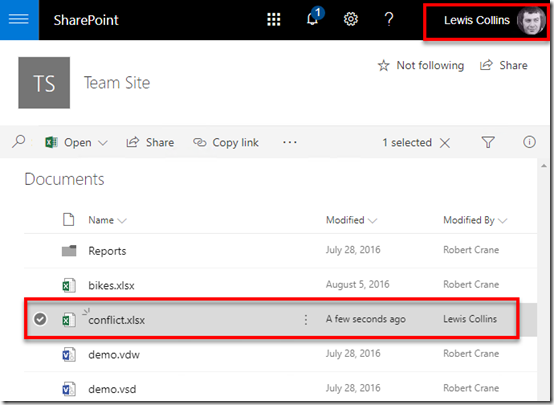
Let’s say that Lewis Collins (user 1) creates a new Excel spreadsheet called conflicts.xlsx in a SharePoint Document Library as shown above.
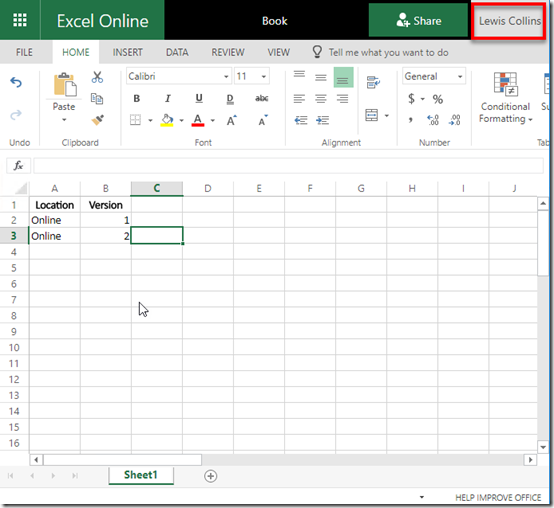
If Lewis opens that file using Excel Online and makes a change by adding the entry ‘Online 2’, as shown above, it is automatically saved back to the SharePoint Online Document Library.
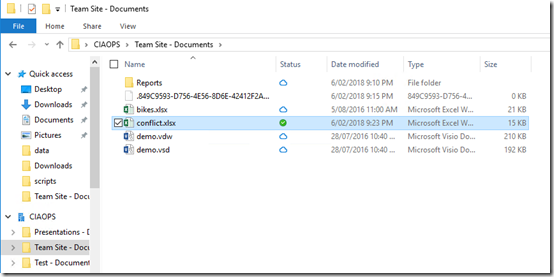
A second user (Robert Crane – user 2) used OneDrive Files on Demand to sync a copy of that same file to their desktop as shown above.
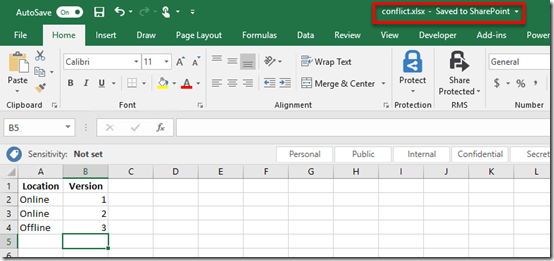
This second user (user 2) now opens the file using Excel on desktop and makes changes to the file by adding the entry ‘Offline 3’ as shown.
You can see that because the user is still connected to the Internet any changes are automatically synced back to the SharePoint Online Document Library.
So, while everyone is online all changes are updated into the one location.
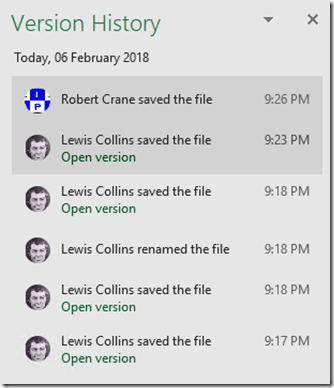
We can also look at the version history of the file and see all previous versions thanks to automatic version history in SharePoint Document Libraries. We can roll back or view any of these if we wish.
At this point, user 2 (Robert Crane), goes offline and is no longer connected to the Internet.
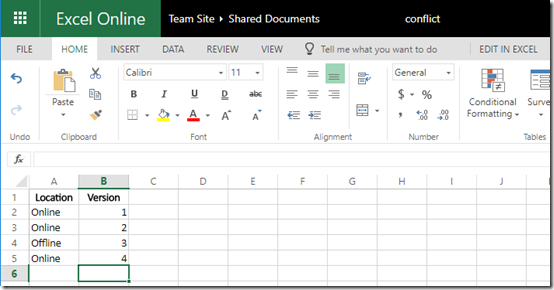
Now because user 2 didn’t check the file out prior to going offline, user 1 can continue to edit the file. They do so adding the entry ‘Online 4’ to the file, which is then immediately saved back to the SharePoint Document Library.
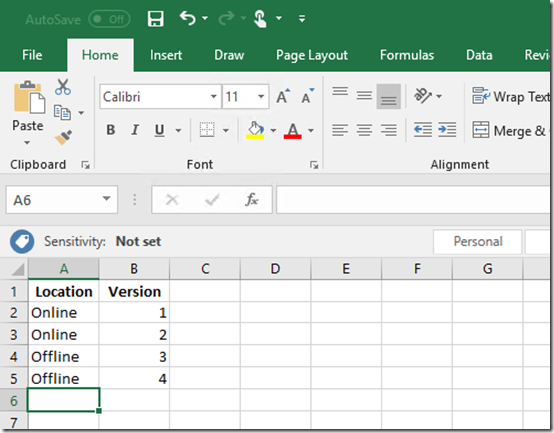
While offline, user 2 adds a new entry to their offline version of the same file. Here they create an entry ‘Offline 4’ as shown above.
Thus, we now have a situation where the file in SharePoint Online is different from the file on the users desktop. This will clearly create a conflict when user 2 return online.
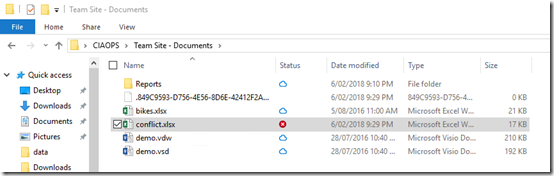
User 2 comes back online and at the next sync is informed of a conflict as noted in their file manager as shown above.
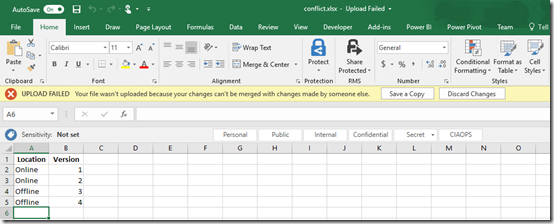
When user 2 attempts to open the file in conflict they are presented with the warning banner at the top as shown. They are given the option to either Save a Copy or Discard Changes.
If they select Discard Changes, any updates they have made to the file while they have been offline will be overwritten with what is currently in SharePoint Online. Once they select this, any updates they have made to the file while they are offline will be lost and the copy they have on their desktop will be the same as what is currently in SharePoint Online. In short, their local copy is overwritten with that from SharePoint Online. They can’t recover their original file after this happen because the file they changed was only saved to their desktop.
If they select Save a Copy, the file they have changed will be uploaded to SharePoint Online replacing the current version in SharePoint Online.
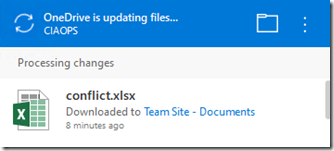
The OneDrive sync client will then kick in and copy the file from user 2’s desktop to SharePoint Online Document Library replacing the version that others have been working on and potentially removing changes they have made.
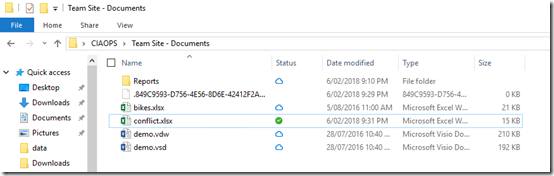
When the sync is complete, user 2 should see the same situation on their desktop, as shown above, prior to going offline.
Now, the file that was changed by user 2 while they were offline has become the primary file in SharePoint Online and on desktops. However, any changes that user 1 made while user 2 was offline are no longer in the most current version of the file.
Before we tackle that situation let’s look another experience for user 2 as they come back online with a different version of the file.

When user 2 comes back online with a different version of a file they will also see the system tray icon for their sync client display a warning as shown above.
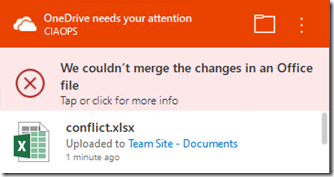
If they select this the sync client will open and display a conflict message as shown above.
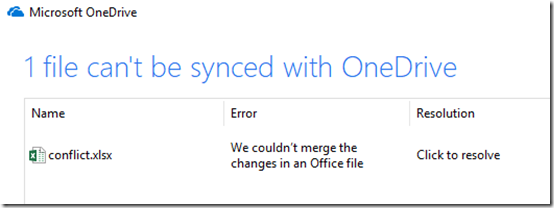
Clicking that message will show them greater detail on the conflict as shown above.
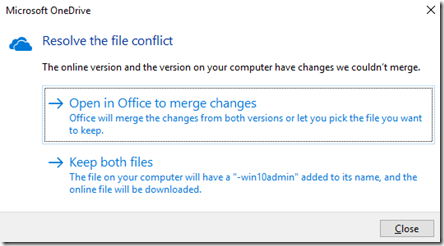
If they click to resolve the issue they will be presented with the above dialog providing two options.
The option Open in Office to merge changes will simply open Excel and take the user through the experience detailed above, i.e. save a copy or discard changes.
The second option Keep both files will rename the changed version on the desktop to conflicts-.xlsx. Thus, the original file they were working on offline will be renamed and the newer version that is in SharePoint Online will be downloaded to the original name on their desktop. The idea is basically to create a second copy of the file, rather than overwriting the original. Users would then need to open both files and manually merge any changes back to a single file. The end result here is two files with different names, each holding the unique changes made by each user.
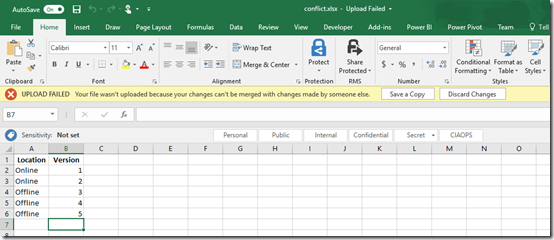
Let’s return to the situation where user 2, who was offline, comes back online, opens the file in conflict and selects to save their copy back into SharePoint Online by using the Save a Copy button.
This means that any changes user 1 made to the file while user was offline are ‘lost’ because user 2 has overwritten the file with their version.
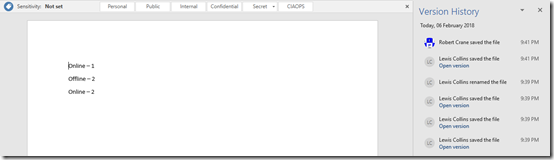
However, don’t forget that SharePoint Online Document Libraries include automatic versioning. This means that when user 2 uploaded their file, the file user 1 had been working on isn’t deleted, it is simply saved as a previous version. So, both files are still in SharePoint Online in full fidelity. One is current and one is the previous version.
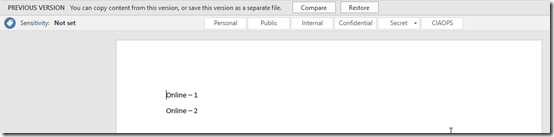
You have the ability to compare previous versions or restore previous versions if you wish.
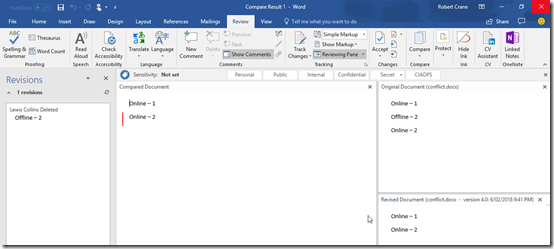
My experience is that Excel is a fairly complex program and in most cases you’ll have to manually merge any changes between the two documents. However, as you can see above, with Word the application can generally merge changes automatically for you using the revisions ability built into the program.
As I said at the beginning of this article, best practice is to check document out prior to going offline to avoid conflicts. If that doesn’t transpire, then you probably need to manually merge changes using versions in SharePoint Online. However, as you can hopefully see SharePoint Online will retain both versions of the file if you do go offline. I would suggest however, you have a play with exactly how this works in your environment prior to requiring it. SharePoint is magic but it doesn’t read minds, yet!

 CIAOPS