Azure VM host machines are being updated

All those VMs that you use in Azure have to run on a host. At the moment, the majority of these hosts are running Windows Server 2012 R2. With Server 2016 now being available that include a range of additional features and functionality Microsoft is going to up updating the host machines in its datacenters to Server 2016 over the coming months.

This video will give you some good guidance on what to expect during the process for you VMs currently hosted in Azure. Chances are it will mean a reboot of your VMs but you’ll get plenty of notice beforehand and it is something that you should undertake manually anyway to complete the migration process.

The video has lots of great info, so if you have VMs running in Azure, consider this a heads up for upcoming host maintenance for your machines.

Office 365 supervision policies

image

One of the really great things about Office 365 is it’s compliance features. Here’s one you may not know about.

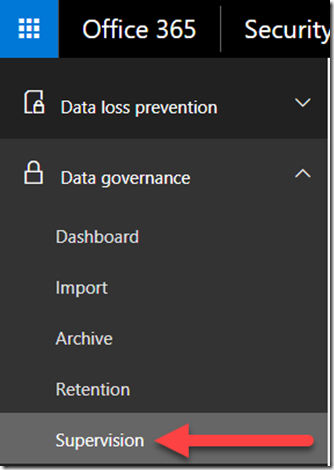
Navigate to the Security and Compliance center after logging into your tenant as an administrator with appropriate rights. From the menu on the left select Data Governance.

Then from the menu that appear select Supervision.
image

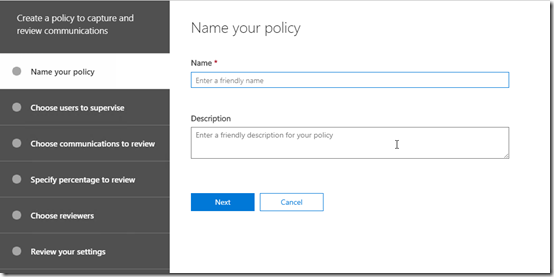
You’ll need to create a new policy which you’ll start by giving a Name and a Description.
image

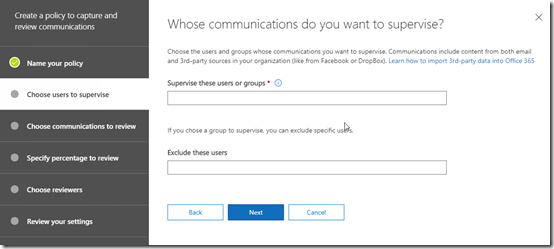
Next, select which users in your tenant you want to supervise. That is, which users communications do you wish to monitor.
image

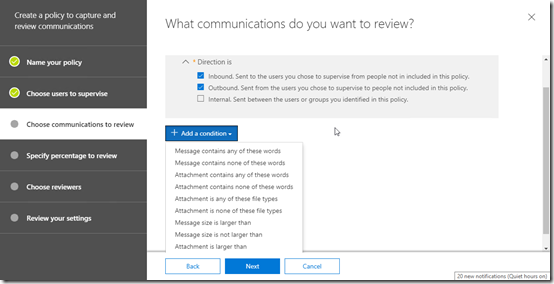
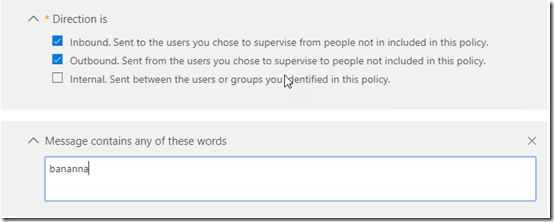
Next, select the monitoring direction, here I selected Inbound and Outbound. I also elected to Add a condition but you’ll also see there are lot of monitoring choices here form the pull down menu.
image

I decided that I want to monitor my users for the use of the word ‘bananna’ because I really want to know what the monkey’s are doing with my banannas. Yes, I spelt it in a special ‘unique’ way so I can trigger this condition deliberately for demos.
image

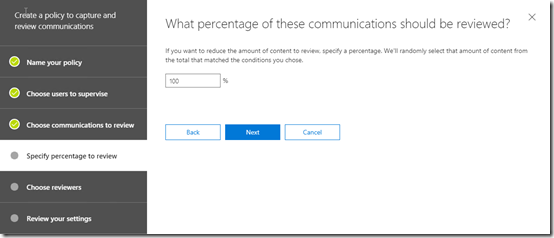
Next, I decided what level of communications I want to review. The default here is 10% and you’ll need to be careful about overloading yourself with too much to monitor. I set this to 100% in this case so I will always get a result (again for demo reasons).
image

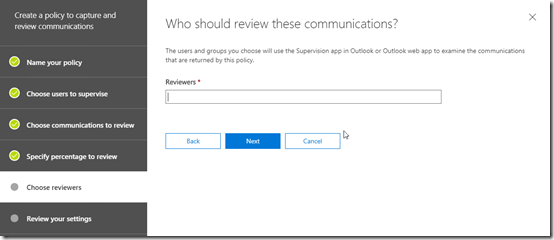
Next, I enter the users who will review the material. Basically, these people will get access to the material to review which I’ll come to soon.
image

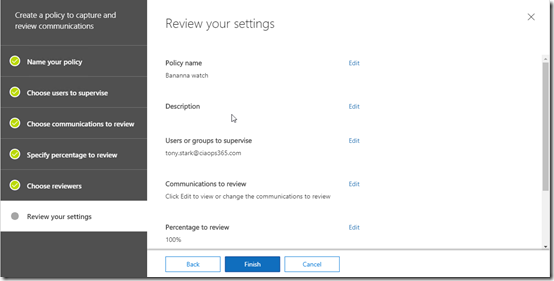
You review your settings and Finish to save and enforce the policy.
image

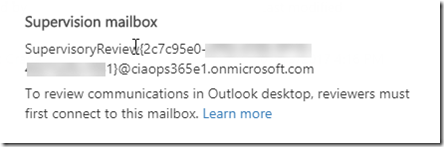
What Office 365 now does is effectively create a private shared mailbox that the reviewers can attach to and into which the material to review will be sent. They simply attach to this mailbox as they would any other shared mailbox. The details of this mailbox will be provided once the policy has been enabled.
image

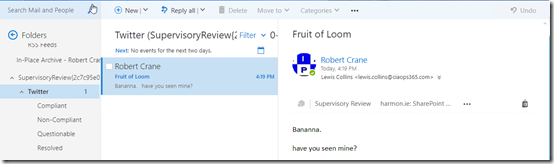
As you can see, my reviewer can now attach to the supervisory shared mailbox and view any contents there. As you can see there is already a need to review an email that mentions the search term ‘bananna’. Those damm monkeys!

As I mentioned, Office 365 really has some great tool to monitor communication in your business. Take a look inside the Security and Compliance center to see options are available to you.


June webinar resources

We’ve now crossed the Rubicon of 12 months of CIAOPS Need to Know webinars with the June episode. You can now download the slides from:

https://www.slideshare.net/directorcia/ciaops-need-to-know-webinar-june-2017

If you are not a CIAOPS patron you want to view or download a full copy of the video from the session you can do so here:

http://www.ciaopsacademy.com/p/june-2017-need-to-know-webinar/

I covered as much as I could on Rights Management and had some issues with buttons on the screen when sending emails but I hope that didn’t detract too much from the information presented. But, as always, there is so much more I could have done, so if you have questions let me know. Thanks everyone for attending

you can also now get access to all webinars via:

http://ciaops-academy.teachable.com/courses/need-to-know-webinars

for a nominal fee.

See you next month.

CIAOPS Need to Know Webinar–June 2017

laptop-eyes-technology-computer

We are half way through 2017 already! Wow, where did the time go? Good news is that the CIAOPS Need to Know webinar is back again with a focus on some little known functionality in Office 365. For June, aside from the usual news and update we are doing to do a deep dive into information rights management (IRM) in Office 365. IRM provides you the ability to protect your document no matter where they are shared on the Internet. It allows you to effectively embed permissions inside your documents. This is a great way to protect your intellectual property and you’ll see how to do this if you attend the webinar.

You can register for free at:

June Webinar Registrations

The details are:

CIAOPS Need to Know Webinar – June 2017
Thursday 22nd of June 2017
11am – 12am Sydney Time

All sessions are recorded and posted to the CIAOPS Academy.

There of course will also be open Q and A so make sure you bring your questions for me and I’ll do my best to answer them.

The CIAOPS Need to Know Webinars are free to attend but if you want to receive the recording of the session you need to sign up as a CIAOPS patron (for only USD$10 per month) which you can do here:

https://www.patreon.com/ciaops

or purchase them individually at:

http://www.ciaopsacademy.com/

Also feel free at any stage to email me directly via director@ciaops.com with your webinar topic suggestions.

I’d also appreciate you sharing information about this webinar with anyone you feel may benefit from the session.

Overview of Office 365 Security

I’ve just completed a roadshow focusing on the security options in Office 365. I certainly cover what is in all plans but I do focus on what is available, and should be implemented, in the advanced plans such as E3 and E5. I also cover how the security in Office 365 can be enhanced using things such as Azure AD Premium, Intune, Azure Rights Management, Enterprise Mobility Suite and more.

The presentation was given to SMB resellers so it also contains some insights from me on how IT resellers can generate revenue for their business while providing greater levels of security for their customers.

Here are the slides:

https://docs.com/d/embed/D25190796-8769-7753-8680-001215495959%7eMd4186d87-61d5-259a-4d26-00a8bd86cfff

or via:

https://doc.co/juEHXA

I’ve also added the session to my free:

Cloud Lecture Series

at the CIAOPS Academy

Accessing user mailboxes in Office 365

Following least privilege access, by default, even global administrators don’t have access to user mailboxes. This may prevent you from doing bulk administrative operations for your environment. To gain access to perform bulk administration tasks, such as using PowerShell scripts, you’ll need to assign the appropriate rights. This can be done in two places in the web interface.

image

If it is just mailbox access you require then the best place to assign these rights is in the Exchange admin center which you access from the Office 365 Admin center.

image

Select permissions on the left and then Discovery Management on the right. You then select the pen icon above the list of permissions to make changes.

image

At the bottom of the dialog that appears you can add new members to this role as well as view the included roles as shown above, one of which is Mailbox Search.

The description for the Discovery Management permission is:

Discovery Management

Members of this management role group can perform searches of mailboxes in the Exchange organization for data that meets specific criteria.

Note that it only provides permissions to mailboxes.

image

There is another way to provide rights to mailboxes BUT you’ll also be providing rights to files in SharePoint and OneDrive for Business. If you are following least privileged access best practices, which you should, you shouldn’t use this process if all you need is access to mailboxes.

Here you’ll need to navigate to the Security & Compliance center from the Admin center. You’ll then need to select Permissions on the left and the eDiscovery Manager on the right. You again select the pen icon to add the appropriate users to this role.

The description for this role is: 

eDiscovery Manager

Perform searches and place holds on mailboxes, SharePoint Online sites, and OneDrive for Business locations.

Note how this role provides permissions to mailboxes AND files as mentioned.

Once you have given a user permissions to mailboxes you may need to wait a little while (15 minutes typically) for them to fully flow through to all elements. Then you can start making the bulk changes you need.

Need to Know Podcast–Episode 135

More interviews with speakers at the upcoming Microoft Ignite Australia. This time we feature Gino Barletta and speak about his two sessions:

What you need to know about Windows Server 2016 Security

Windows Server 2016 introduces more security features than any previously released Microsoft server operating system. Making your organization more secure is one of the big benefits of Windows Server. In this demo heavy session you’ll learn about new features included Credential Guard, Device Guard, Privileged Access Management (Just in Time Administration), Just Enough Administration, DNS policies, Guarded Fabrics, Shielded VMs as well as the security benefits of Nano Server, Windows Server and Hyper-V Containers. You’ll also learn how you can integrate Advanced Threat Analytics into your on-premises Windows Server deployment.

and

Azure Financial Management, Reporting and Subscription Hygiene through Power BI

This session, helps you understand your current Azure subscription, resources, billing and spend. Controlling spend through analytics and leveraging Microsoft Power BI to visually see your spend / consumption via powerful GUI dashboards.

Don’t forget to send us your feedback at feedback@needtoknow.cloud

You can listen to this episode directly at:

https://ciaops.podbean.com/e/episode-135-gino-barletta/

or on Soundcloud here: 

Subscribe via iTunes at:

https://itunes.apple.com/au/podcast/ciaops-need-to-know-podcasts/id406891445?mt=2

The podcast is also available on Stitcher at:

http://www.stitcher.com/podcast/ciaops/need-to-know-podcast?refid=stpr

Don’t forget to give the show a rating as well as send us any feedback or suggestions you may have for the show. Resources

@ginobarletta

@marckean

@directorcia

gino.barletta@andeim.com.au

https://cpem.io/tJ01Hzu2k.js?w=640&h=360

Need to Know Podcast–Episode 132

Jeff Alexander from Microsoft joins Marc and I after our usual cloud updates to talk about his two sessions at the upcoming Microsoft Ignite Australia conference. These are:

Get ahead of Cyber attacks with Enterprise Mobility + Security

We are in the middle of as mobility and cloud transition which has made employee interactions with other users, devices, apps and data more and more complex. This has created blind spots for IT. At the same time attack vectors continue to get more sophisticated. Microsoft Enterprise Mobility + Security takes a holistic approach that is identity driven with a collection of innovative technologies to address these sophisticated challenges in the new attack landscape. In this session we will show you how our technologies help to protect at the “front door”, protect your data from user mistakes and detect attacks before they cause damage.

and

Discover & Control SaaS Application Usage with Microsoft Cloud App Security

In this increasingly cloud and mobile world, users are using more and more SaaS applications to remain productive at work. This has created a gap for IT in not having visibility and control over the use of these 3rd party applications. In this session we will cover how Microsoft Cloud App Security can give IT departments visibility and control of these applications while empowering their users to remain productive. We will cover an overview of what Cloud App Security is, the architecture, deployment recommendations and common blockers.

Don’t forget to send us your feedback at feedback@needtoknow.cloud

You can listen to this episode directly at:

https://ciaops.podbean.com/e/episode-132-jeff-alexander/ 

or on Soundcloud here:

Subscribe via iTunes at:

https://itunes.apple.com/au/podcast/ciaops-need-to-know-podcasts/id406891445?mt=2

The podcast is also available on Stitcher at:

http://www.stitcher.com/podcast/ciaops/need-to-know-podcast?refid=stpr

Don’t forget to give the show a rating as well as send us any feedback or suggestions you may have for the show.

Resources

@jeff36

@marckean

@directorcia

About Jeff Alexander

New SharePoint management shell

New Azure B2B options

Recent Office 365 updates

4K monitors and Surface PC’s

Microsoft Identity management