Thwarting the Office 365 Ransomware cloud

The above video is an interesting presentation around a ‘new variant of ransomware’ (to quote the video). In essence, what it does is trick the user to installing a malicious plug-in in for their Office 365 environment. That malicious plug can then effectively run riot across everything the user has access to, including shared files. The video shows how this control can be used to encrypt the users emails even though they are ‘in the cloud’. This is simply because the user has been tricked to giving the malicious application full access to their environment.

Is there a way to prevent or mitigate this risk? First the bad news. Generally, every Office 365 out of the box allows all users to add these types of add-ins to their environment. Typically, the ability is designed to allow legitimate Outlook plugins like Boomerang or Harmon.ie to be added to help the user be more productive. However, that also means malicious add-ins can also be easily added just as the video demonstrates. So, it is definitely a security issue to pay attention to.

You can verify whether this option is enabled in your Office 365 tenant by firstly connecting to Exchange Online PowerShell and then running the following command:

get-MsolCompanyInformation | fl DisplayName,UsersPermissionToUserConsentToAppEnabled

If the result comes back as True then you are potentially vulnerable to this style of attack.

However, if you run this command:

set-MsolCompanysettings -UsersPermissionToUserConsentToAppEnabled $false

You can disable the ability for users to authorise plug-ins. They can still add plug-ins to their environment but they cannot authorise applications that ask for permissions to their environment.

Thus, add ins like the Exchange Message Header Analyzer are fine as they simply report on email headers but something like Harmon.ie, which requests access to resources will be blocked.
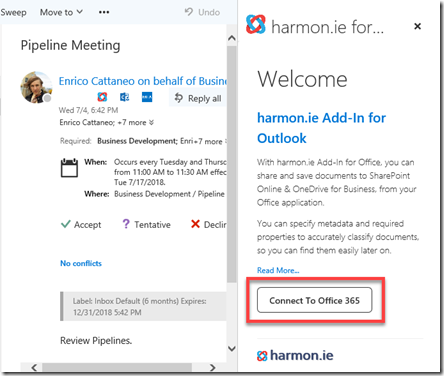
image

So above you can see the user has added the Harmon.ie add in to their environment. To use it, they need to select the Connect to Office 365 button highlighted.
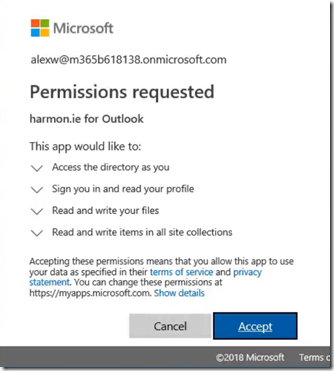
image

Normally the user would see the above Permission Request dialog, click Accept and the add-in would have access.

However, after disabling the ability for users to consent for apps this will appear as:
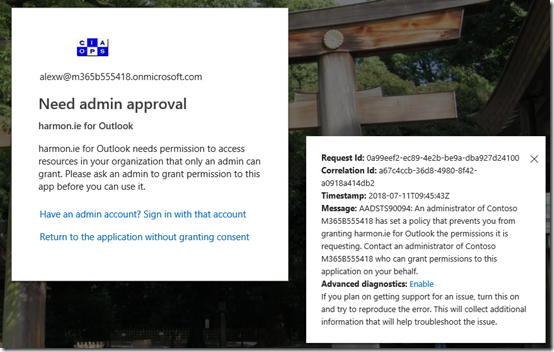
image

As you can see the user isn’t permitted to provide permissions, it can only be done by an administrator. This is going to prevent the user randomly installing add-ins as well as protecting them from potentially malicious apps.

Of course, the downside for administrators is the fact that they will have to consent to user added apps manually but that is small price to pay for better security I would suggest. As I like to say ‘Got access denied when you doing something silly? GOOD! That means the security is doing it’s job!”

My own experience is that users rarely add legitimate applications and if there is a need for them to be added they can be pushed out from the Office 365 Admin Center by an administrator and then authorised as needed on a per user basis. Alternatively, the required apps can be pushed out and authorised by users and then the tenant can be locked down.

However, in my opinion, out of the box, most Office 365 tenants should have this default ability blocked as shown to thwart the ‘new Ransomware cloud’ threat.

Preventing Malware downloads from Office 365

image

If you are unfortunate enough to somehow get malware in your Office 365 tenant you may not appreciate that by default you can still download this, even though it gets detected as shown above.

image

Best practice would be to use the PowerShell command:

Set-SPOTenant –DisallowInfectedFileDownload $true

to prevent users from having the option to download the infected file. Basically, it removes the Download button as shown above. Doing this will apply the setting across all SharePoint Sites, including OneDrive for Business, Teams and stand alone site collections.

From the Microsoft documentation:

If the Set-SPOTenant cmdlet has the DisallowInfectedFileDownload parameter set to:

true (recommended), this happens:

  • All actions, except Delete, are blocked for detected files.

  • People cannot open, move, copy, or share detected files.

  • People see a visual cue that indicates that a file has been identified as malicious. No one can download the file.

false, this happens:

  • All actions, except Delete and Download, are blocked for detected files.

  • People cannot open, move, copy, or share detected files.

  • People see a visual cue that indicates a file has been identified as malicious, but they can choose to accept the risk and download the file anyway.

Allow up to 30 minutes for your changes to spread to all Office 365 datacenters.

The recommended best practice is then to turn this on for all tenants as it is not on by default.

Early access to my new online Microsoft 365 Security course

security-protection-anti-virus-software-60504 (1)

I’m working hard to complete an online course focused on Microsoft 365 Security. What I have decided to do is provide early discounted access to the course while I am still building it. If you sign up at the discounted rate you continue to get full access to all the course the modules without any additional payment.

The course will eventually sell for US$399 but while I’m still building it you can sign up for only US$99. This means that you’ll continue to get full access to everything I add to the course going forward as I build it out.

There are however already a number of modules in there you can take advantage of and I’m working hard to add more every day. Already in there are modules around enabling audit logging as well as Office 365 ATP and Data Loss Prevention.

To take advantage of this limited offer use the coupon code EARLYBIRD at check out for the course or this direct URL with the discount already applied:

https://www.ciaopsacademy.com/p/o365-security/?product_id=715774&coupon_code=EARLYBIRD

Remember this offer can’t last so sign up now.

Azure AD and SharePoint Online user differences

I’ve been developing scripts to work with OneDrive for Business when I fell into a bit of a rabbit hole that lead me to an interesting revelation.

Part of the challenge with working with OneDrive for Business in Office 365 is that not all users have one, even though they are licenses for it. The reason for this is simply that a user’s OneDrive for Business isn’t generally provisioned for them until they start using it. Thus, in my demo tenant there are probably users who haven’t as yet been through the process of having a OneDrive provisioned. No issues.

Secondly, when you share information with external users in SharePoint and Teams you may also find an AD account but that user hasn’t as yet access SharePoint resources for some reason. Maybe, they haven’t accepted the sharing request and so on. Again, no big deal.

image

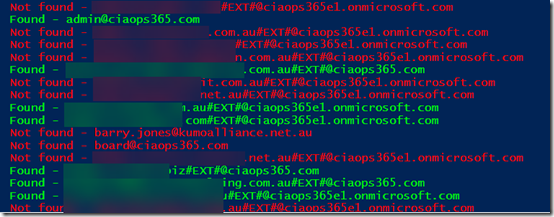
So I created a script that goes through each active Azure AD user in the Office 365 tenant and check to see whether there is a corresponding SharePoint Online user. To do this I used the following commands:

get-spouser

and

get-azureaduser

So I trained these commands on the OneDrive for Business URL which is typically:

https://tenantname-my.sharepoint.com

As you can see from the above report, the green lines indicates matches to accounts in my Azure AD and in my OneDrive for Business. The green tenant users, with a custom domain typically have their own OneDrive for Business. The green External users, distinguished by an account that includes #EXT# are typically accounts outside the tenant that have been shared information with and accepted that sharing request.

Now the red tenant users, typically haven’t had their OneDrive for Business provisioned yet and the red external users typically haven’t accepted the sharing request that has been sent them as yet. All understood.

image

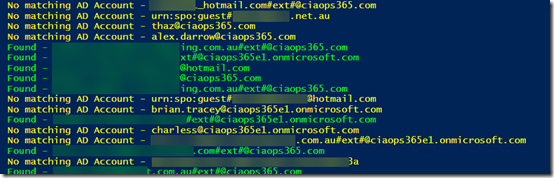
Here’s where the rabbit hole opened up. Ok, I thought, now what happens if I do the reverse? That is, check my SharePoint users against my Azure AD users? So off I went to create a script.

The script came back with the results you see above. All the the yellow accounts are SharePoint users that don’t have a match Azure AD account. Quite a few eh? When I first saw this I panicked a bit, because many of the accounts I didn’t recognize. What was going on here I wondered? Had I been compromised?

In a perfect world, there would be a one to one mapping between Azure AD accounts and SharePoint account. However, things aren’t that perfect, so in my demo tenant, I had created lots and lots of accounts over the years and many had become ‘orphaned’ leaving behind information in SharePoint. Many were just so old I forgotten that I created them and then later deleted the Azure AD account.

Is this a problem? Not really I don’t think, because without an Azure AD account to login to, these ‘orphaned’ resources aren’t much use. Still, if they aren’t needed then they really should be deleted to my mind.

Interestingly, some of these ‘orphaned’ SharePoint users actually still had their own OneDrive for Business that clearly wasn’t being displayed anywhere else. Once I took control of these ‘orphaned’ sites by making myself a Site Collection Administrator I could see what they actually contained. When I was happy it wasn’t needed or in use I deleted these, again using PowerShell.

So what did my trip down the rabbit hole teach me? Firstly, I learned that Azure AD and SharePoint user accounts don’t always line up. Next, I learned that you can end up with ‘orphaned’ SharePoint users and resources that you may want to clean up using PowerShell. I don’t believe these represent any security issues but if they aren’t necessary then they probably should be deleted. However, be careful of system accounts which shouldn’t be removed. Just get rid of those you recognise as no longer being required.

The biggest thing that my exploration taught me is the value of PowerShell to get behind the standard interface of Office 365 and see what is really going on. It gives you much better control and for me it helps me understand much better how everything works.

If you want the scripts that I used to do these comparisons then I suggest you sign up to my Patron community – www.ciaopspatron.com where you’ll find these and whole lot more Office 365, Microsoft 365 and Azure resources.

Checking SharePoint External Users PowerShell Script

image

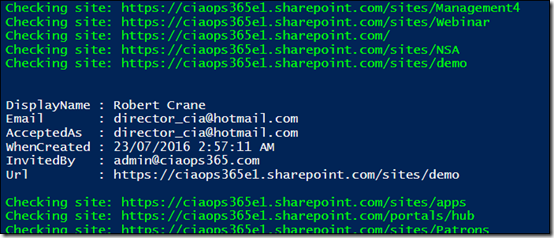
Another things that you should keep your eye on in your Office 365 environment are the external users who have been give access to any of your SharePoint sites. You’ll probably find that many of these should no longer have access, so I’ve done a simple script which you can get here:

https://github.com/directorcia/Office365/blob/master/o365-spo-extusr.ps1

that will basically loop through all your SharePoint sites (including OneDrive and those created by Teams and Groups) and list out all the external users on the screen.

As you can see from the above screen shot, it will tell you the external users name, email, when they were invited and by whom. Importantly, it also shows you which email actually accepted the invitation as this may vary in some cases (another point of investigation potentially).

I’ll continue to work on this script and the others I have in my GitHub repository. So please send me your feedback and suggestions on how to improve what I have developed as well as any ideas for scripts you’d like to see.

PowerShell script to check Outlook mail rules

image

After I finished the recent PowerShell script to check for Exchange style mailbox forwards I received some motivate from Robert Pearman to develop a script to also go and check what the Outlook rules are doing for Office 365 mailboxes.

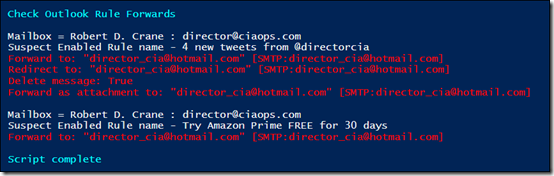
Taking what Robert provided I decided to extend my initial script to report on what I consider suspect Outlook mail rules. Here’s my thinking:

– Firstly there are going to potentially be lots and lots of Outlook rules when you look across all mailboxes in Office 365, so I decided to focus on actions that one could deem to more suspicious than others. I settled on the following rule actions as ones to check: forward to, redirect to, copy to folder, delete message, forward as attachment to and send text message notification to.

–  Turns out you can create an Outlook rule that forwards, redirects and fowards as an attachment messages to alternate email addresses. A bad party could set this up to send themselves emails from a compromised mailbox.

– If a rule copies rather than moves a message then that to me is also suspicious. Why would you want two copies of the same email message in different locations in your inbox unless you aren’t in full full control of the inbox and someone is squirrelling away messages to a location the owner never created?

– If a rule deletes a message then there is a chance that a bad actor is trying to prevent the mailbox owner from seeing something.

– If a rule notifies someone via SMS that may be the fingerprint of a bad actor trying to keep tabs on a mailbox.

I will also admit, that there are plenty of situations where the above situations are the results of legitimately configured inbox rules. However, for the reasons I have indicated, I believe the actions to warrant the most inspection.

As you can see from the above image, the script will do what it did before and check the mailbox rules to see if there are any forwardings as before but now the script will also dig through each mailbox and throw up warnings when a suspect rule is enabled or disabled for a user.

Once you have located any suspect rules, you can then start digging further to see whether there is a business justification for such. If not, then you may have a compromised mailbox on your hands.

You’ll find the updated script at:

https://github.com/directorcia/Office365/blob/master/o365-exo-fwd-chk.ps1

and remember to keep coming back as I’ll continue to update and extend it over time. if you have any feedback on this script of suggestion for things you’d like to see please let me know so I can look at developing them. Thanks again to Robert Pearman for this input on this.

Turn an Office 365 user ‘off’ with PowerShell

image

A common situation in the field is when a user or a business discovers a user account has been compromised or they no longer wish that user to have access to Office 365.

Of course they can go into the Office 365 Admin Center and block the user’s sign-in but the user may still have access via mobile devices and active browser sessions. So, fully suspending a user’s account as soon as possible requires more than just disabling the login.

Anything that requires a sequence of steps is better completed using a script and this is what you’ll find I have created at:

https://github.com/directorcia/Office365/blob/master/o365-user-off.ps1

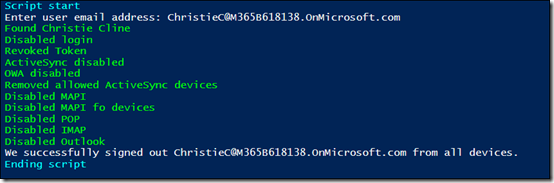
The script requires you to already be connected to Azure AD, Exchange Online and SharePoint Online. It then goes through the following:

– block user login to Office 365

– invalidates refresh tokens for applications

– disables Exchange features like OWA, POP, IMAP, etc

Importantly, it doesn’t change the users password because this script is designed to be reversible. That is, suspicious activity has been detected on the account and you want to suspend access to do some checking. Hopefully, everything is good and you can simply re-enable when checking is complete. If not, further action can be taken.

Importantly, access to all Office 365 information is not immediately revoked even using this script. By default, mobile applications use a token for authentication that generally lasts one hour before it is renewed. So the worst case is that the token is renewed just before you suspend the account using the script. It will take a further one hour until the token renewal is required and the lock out is enforced. That means the account could still be active on a mobile device for up to one hour after suspension.

Now you can change this one hour time period but that requires using a preview version of the Azure AD PowerShell modules and I’ll leave that to you if you want to go down that route. You can find out more here:

Configurable token lifetimes in Azure AD (Public preview)

There are some other device management commands I have come across that may also be handy here but for now the script should do the job.

Remember to continue to check on my GitHub repo to see when I update and improve this script. of course, any feedback is welcome on how the script can be improved or if you find any errors.

Need to Know podcast–Episode 184

This week Brenton flies solo again and speaks with Corch about cyber security. Corch bring a wealth of enterprise knowledge around cyber security to the mid market and SMB space with a focus on ensuring that customers understand how important good IT security is in this day and age.

Of course we also give you an update on everything that’s happening in the Microsoft Cloud, with new and updates around Office 365 and Azure. Don’t forget to send us your feedback and questions.

Take a listen and let us know what you think –feedback@needtoknow.cloud

You can listen directly to this episode at:

https://ciaops.podbean.com/e/episode-184-corch/

Subscribe via iTunes at:

https://itunes.apple.com/au/podcast/ciaops-need-to-know-podcasts/id406891445?mt=2

The podcast is also available on Stitcher at:

http://www.stitcher.com/podcast/ciaops/need-to-know-podcast?refid=stpr

Don’t forget to give the show a rating as well as send us any feedback or suggestions you may have for the show.

Resources

Corch

Shogun Security

@contactbrenton

@directorcia

Office 365 Roadmap

Microsoft Fasttrack

Microsoft Fasttrack Branding kit

Office 365 updates

Migrate your files to OneDrive easily with known folder move

New updates to Planner comment and notification settings

What’s new with Teams

OneDrive updates

Modernize your SharePoint Team Sites by connecting them to new Office 365 Groups

Centralized deployment for Outlook add ins

Microsoft to deliver intelligent cloud from Norway datacenters

Baseline policy for Azure AD admin accounts in public preview

How we rebuilt Intune