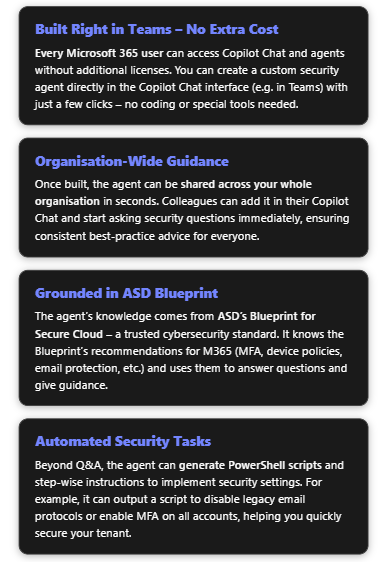
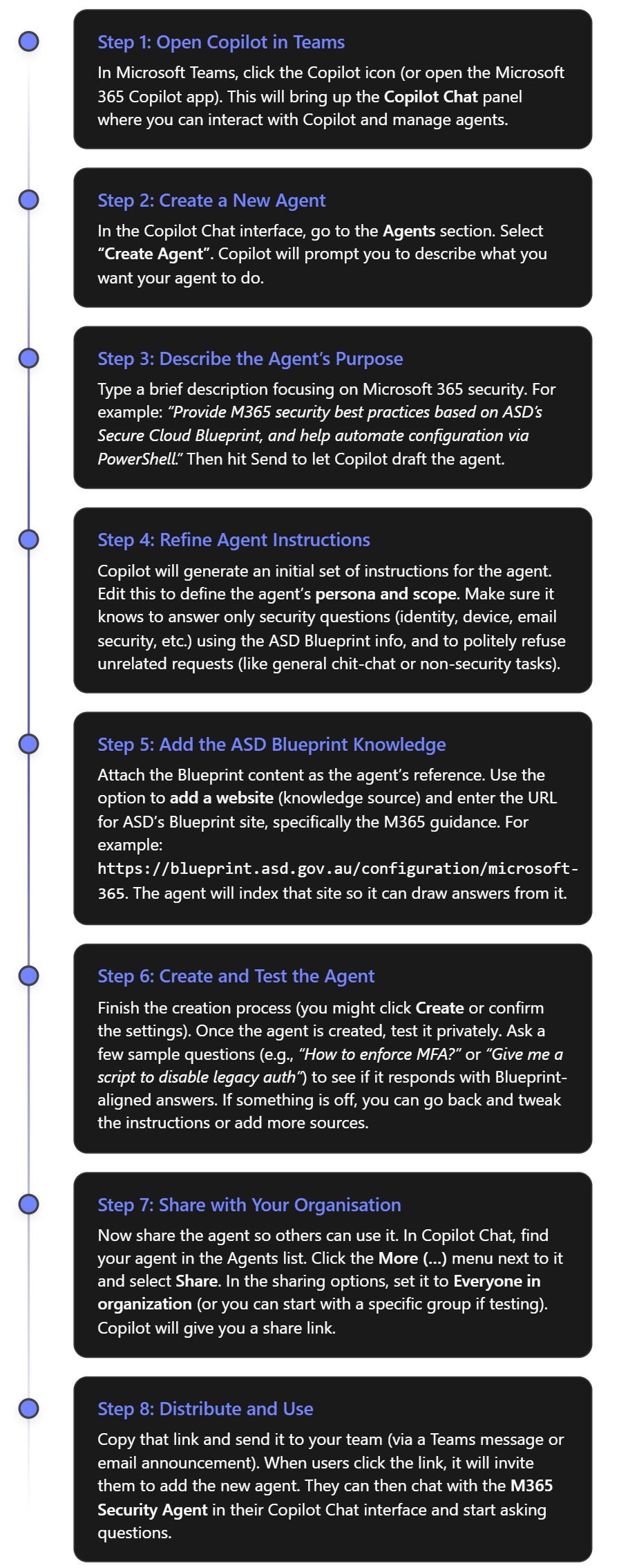
In this episode of the CIAOPS “Need to Know” podcast, we dive into the latest updates across Microsoft 365, GitHub Copilot, and SMB-focused strategies for scaling IT services. From new Teams features to deep dives into DLP alerts and co-partnering models for MSPs, this episode is packed with insights for IT professionals and small business tech leaders looking to stay ahead of the curve. I also take a look at building an agent to help you work with frameworks like the ASD Blueprint for Secure Cloud.
Microsoft’s Windows Autopilot is a cloud-based suite of technologies designed to streamline the deployment and configuration of new Windows devices for organizations[1]. This guide provides a detailed look at the latest updates to Windows Autopilot – specifically the new Autopilot v2 (officially called Windows Autopilot Device Preparation) – and offers step-by-step instructions for implementing it in a Microsoft 365 Business environment. We will cover the core concepts, new features in Autopilot v2, benefits for businesses, the implementation process (from prerequisites to deployment), troubleshooting tips, and best practices for managing devices with Autopilot v2.
1. Overview of Microsoft Autopilot and Its Purpose
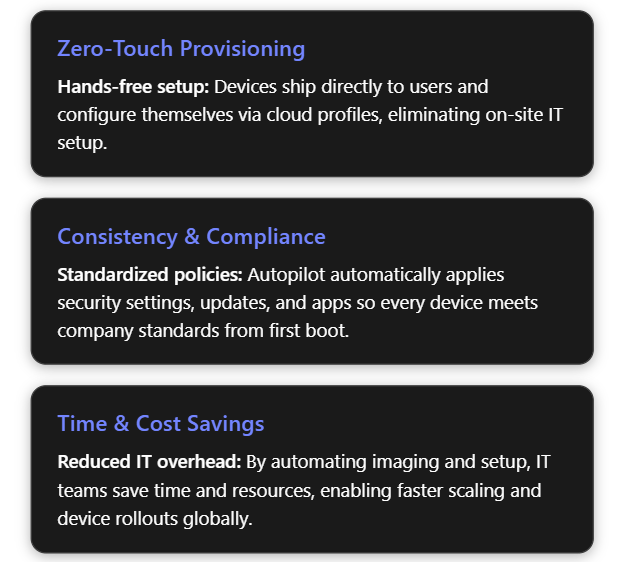
Windows Autopilot simplifies the Windows device lifecycle from initial deployment through end-of-life. It leverages cloud services (like Microsoft Intune and Microsoft Entra ID) to pre-configure devices out-of-box without traditional imaging. When a user unboxes a new Windows 10/11 device and connects to the internet, Autopilot can automatically join it to Azure/Microsoft Entra ID, enroll it in Intune (MDM), apply corporate policies, install required apps, and tailor the out-of-box experience (OOBE) to the organization[1][1]. This zero-touch deployment means IT personnel no longer need to manually image or set up each PC, drastically reducing deployment time and IT overhead[2]. In short, Autopilot’s purpose is to get new devices “business-ready” with minimal effort, offering benefits such as:
Reduced IT Effort – No need to maintain custom images for every model; devices use the OEM’s factory image and are configured via cloud policies[1][1].
Faster Deployment – Users only perform a few quick steps (like network connection and sign-in), and everything else is automated, so employees can start working sooner[1].
Consistency & Compliance – Ensures each device receives standard configurations, security policies, and applications, so they immediately meet organizational standards upon first use[2].
Lifecycle Management – Autopilot can also streamline device resets, repurposing for new users, or recovery scenarios (for example, using Autopilot Reset to wipe and redeploy a device)[1].
2. Latest Updates: Introduction of Autopilot v2 (Device Preparation)
Microsoft has recently introduced a next-generation Autopilot deployment experience called Windows Autopilot Device Preparation (commonly referred to as Autopilot v2). This new version is essentially a re-architected Autopilot aimed at simplifying and improving deployments based on customer feedback[3]. Autopilot v2 offers new capabilities and architectural changes that enhance consistency, speed, and reliability of device provisioning. Below is an overview of what’s new in Autopilot v2:
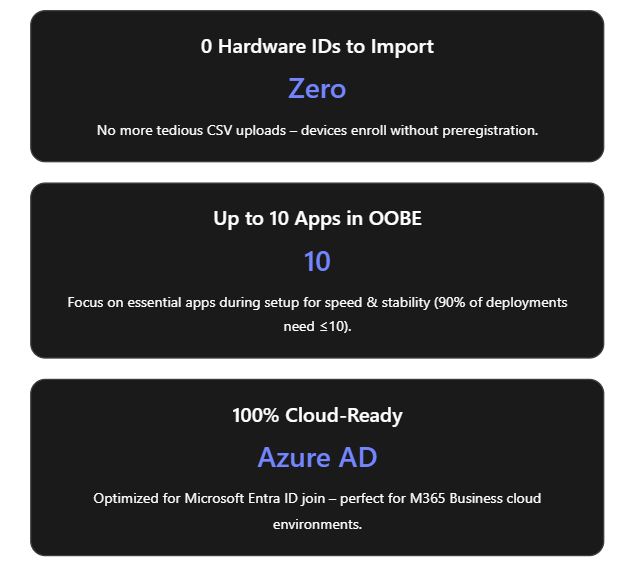
No Hardware Hash Import Required: Unlike the classic Autopilot (v1) which required IT admins or OEMs to register devices in Autopilot (upload device IDs/hardware hashes) beforehand, Autopilot v2 eliminates this step[4]. Devices do not need to be pre-registered in Intune; instead, enrollment can be triggered simply by the user logging in with their work account. This streamlines onboarding by removing the tedious hardware hash import process[3]. (If a device is already registered in the old Autopilot, the classic profile will take precedence – so using v2 means not importing the device beforehand[5].)
Cloud-Only (Entra ID) Join: Autopilot v2 currently supports Microsoft Entra ID (Azure AD) join only – it’s designed for cloud-based identity scenarios. Hybrid Azure AD Join (on-prem AD) is not supported in v2 at this time[3]. This focus on cloud join aligns with modern, cloud-first management in Microsoft 365 Business environments.
Single Unified Deployment Profile: The new Autopilot Device Preparation uses a single profile to define all deployment settings and OOBE customization, rather than separate “Deployment” and “ESP” profiles as in legacy Autopilot[3]. This unified profile encapsulates join type, user account type, and OOBE preferences, plus it lets you directly select which apps and scripts should install during the setup phase.
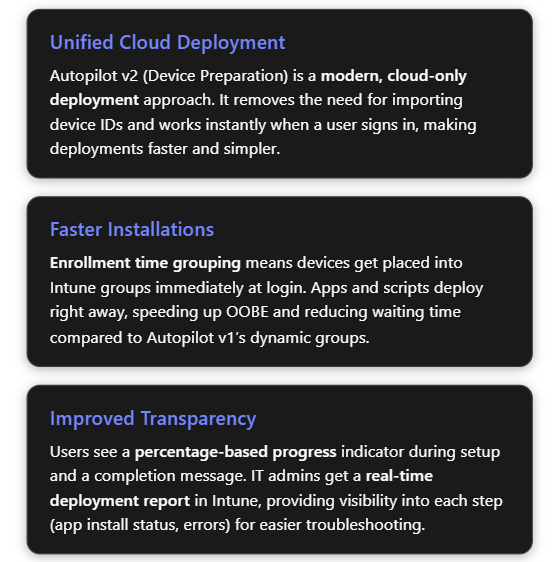
Enrollment Time Grouping: Autopilot v2 introduces an “Enrollment Time Grouping” mechanism. When a user signs in during OOBE, the device is automatically added to a specified Azure AD group on the fly, and any applications or configurations assigned to that group are immediately applied[5][5]. This replaces the old dependence on dynamic device groups (which could introduce delays while membership queries run). Result: faster and more predictable delivery of apps/policies during provisioning[5].
Selective App Installation (OOBE): With Autopilot v1, all targeted device apps would try to install during the initial device setup, possibly slowing things down. In Autopilot v2, the admin can pick up to 10 essential apps (Win32, MSI, Store apps, etc.) to install during OOBE; any apps not selected will be deferred until after the user reaches the desktop[3][6]. By limiting to 10 critical apps, Microsoft aimed to increase success rates and speed (as their telemetry showed ~90% of deployments use 10 or fewer apps initially)[6].
PowerShell Scripts Support in ESP: Autopilot v2 can also execute PowerShell scripts during the Enrollment Status Page (ESP) phase of setup[3]. This means custom configuration scripts can run as part of provisioning before the device is handed to the user – a capability that simplifies advanced setup tasks (like configuring registry settings, installing agent software, etc., via script).
Improved Progress & UX: The OOBE experience is updated – Autopilot v2 provides a simplified progress display (percentage complete) during provisioning[6]. Users can clearly see that the device is installing apps/configurations. Once the critical steps are done, it informs the user that setup is complete and they can start using the device[6][6]. (Because the device isn’t identified as Autopilot-managed until after the user sign-in, some initial Windows setup screens like EULA or privacy settings may appear in Autopilot v2 that were hidden in v1[3]. These are automatically suppressed only after the Autopilot policy arrives during login.)
Near Real-Time Deployment Reporting: Autopilot v2 greatly enhances monitoring. Intune now offers an Autopilot deployment report that shows status per device in near real time[6]. Administrators can see which devices have completed Autopilot, which stage they’re in, and detailed results for each selected app and script (success/failure), as well as overall deployment duration[5][5]. This granular reporting makes troubleshooting easier, as you can immediately identify if (for example) a particular app failed to install during OOBE[5][5].
Availability in Government Clouds: The new Device Preparation approach is available in GCC High and DoD government cloud environments[6][5], which was not possible with Autopilot previously. This broadens Autopilot use to more regulated customers and is one reason Microsoft undertook this redesign (Autopilot v2 originated as a project to meet government cloud requirements and then expanded to all customers)[7].
The table below summarizes key differences between Autopilot v1 (classic) and Autopilot v2:
Feature/Capability
Autopilot v1 (Classic)
Autopilot v2 (Device Preparation)
Device preregistration (Hardware hash upload)
Required (devices must be registered in Autopilot device list before use)[4]
Not required (user can enroll device directly; device should not be pre-added, or v2 profile won’t apply)[5]
Supported join types
Azure AD Join; Hybrid Azure AD Join (with Intune Connector)[3]
Azure/Microsoft Entra ID Join only (no on-prem AD support yet)[3]
Not supported in initial release[3] (future support is planned for these scenarios)
Deployment profiles
Separate Deployment Profile + ESP Profile (configuration split)
Single Device Preparation Policy (one profile for all settings: join, account type, OOBE, app selection)[3]
App installation during OOBE
Installs all required apps targeted to device (could be many; admin chooses which are “blocking”)
Installs selected apps only (up to 10) during OOBE; non-selected apps wait until after OOBE[3][6]
PowerShell scripts in OOBE
Not natively supported in ESP (workarounds needed)
Supported – can run PowerShell scripts during provisioning (via device prep profile)[3]
Policy application in OOBE
Some device policies (Wi-Fi, certs, etc.) could block in ESP; user-targeted configs had limited support
Device policies synced at OOBE (not blocking)[3]; user-targeted policies/apps install after user reaches desktop[3]
Out-of-Box experience (UI)
Branding and many Windows setup screens are skipped (when profile is applied from the start of OOBE)
Some Windows setup screens appear by default (since no profile until sign-in)[3]; afterwards, shows new progress bar and completion summary[6]
Reporting & Monitoring
Basic tracking via Enrollment Status Page; limited real-time info
Detailed deployment report in Intune with near real-time status of apps, scripts, and device info[5]
Why these updates? The changes in Autopilot v2 address common pain points from Autopilot v1. By removing the dependency on upfront registration and dynamic groups, Microsoft has made provisioning more robust and “hands-off”. The new architecture “locks in” the admin’s intended config at enrollment time and provides better error handling and reporting[6][6]. In summary, Autopilot v2 is simpler, faster, more observable, and more reliable – the guiding principles of its design[5] – making device onboarding easier for both IT admins and end-users.
3. Benefits of Using Autopilot v2 in a Microsoft 365 Business Environment
Implementing Autopilot v2 brings significant advantages, especially for organizations using Microsoft 365 Business or Business Premium (which include Intune for device management). Here are the key benefits:
Ease of Deployment – Less IT Effort: Autopilot v2’s no-registration model is ideal for businesses that procure devices ad-hoc or in small batches. IT admins no longer need to collect hardware hashes or coordinate with OEMs to register devices. A user can unbox a new Windows 11 device, connect to the internet, and sign in with their work account to trigger enrollment. This self-service enrollment reduces the workload on IT staff, which is especially valuable for small IT teams.
Faster Device Setup: By limiting installation to essential apps during OOBE and using enrollment time grouping, Autopilot v2 gets devices ready more quickly. End-users see a shorter setup time before reaching the desktop. They can start working sooner with all critical tools in place (e.g. Office apps, security software, etc. installed during setup)[7][7]. Non-critical apps or large software can install in the background later, avoiding long waits up-front.
Improved Reliability and Fewer Errors: The new deployment process is designed to “fail fast” with better error details[6]. If something is going to go wrong (for example, an app that fails to install), Autopilot v2 surfaces that information quickly in the Intune report and does not leave the user guessing. The enrollment time grouping also avoids timing issues that could occur with dynamic Azure AD groups. Overall, this means higher success rates for device provisioning and less troubleshooting compared to the old Autopilot. In addition, by standardizing on cloud join only, many potential complexities (like on-prem domain connectivity during OOBE) are removed.
Enhanced User Experience: Autopilot v2 provides a more transparent and reassuring experience to employees receiving new devices. The OOBE progress bar with a percentage complete indicator lets users know that the device is configuring (rather than appearing to be stuck). Once the critical setup is done, Autopilot informs the user that the device is ready to go[6]. This clarity can reduce helpdesk calls from users unsure if they should wait or reboot during setup. Also, because devices are delivered pre-configured with corporate settings and apps, users can be productive on Day 1 without needing IT to personally assist.
Better Monitoring for IT: In Microsoft 365 Business environments, often a single admin oversees device management. The Autopilot deployment report in Intune gives that admin a real-time dashboard to monitor deployments. They can see if a new laptop issued to an employee enrolled successfully, which apps/scripts ran, and if any step failed[5][5]. For any errors, the admin can drill down immediately and troubleshoot (for instance, if an app didn’t install, they know to check that installer or assign it differently). This reduces guesswork and allows proactive support, contributing to a smoother deployment process across the organization.
Security and Control: Autopilot v2 includes support for corporate device identification. By uploading known device identifiers (e.g., serial numbers) into Intune and enabling enrollment restrictions, a business can ensure only company-owned devices enroll via Autopilot[4][4]. This prevents personal or unauthorized devices from accidentally being enrolled. Although this requires a bit of setup (covered below), it gives small organizations an easy way to enforce that Autopilot v2 is used only for approved hardware, adding an extra layer of security and compliance. Furthermore, Autopilot v2 automatically makes the Azure AD account a standard user by default (not local admin), which improves security on the endpoint[5].
In summary, Autopilot v2 is well-suited for Microsoft 365 Business scenarios: it’s cloud-first and user-driven, aligning with the needs of modern SMBs that may not have complex on-prem infrastructure. It lowers the barrier to deploying new devices (no imaging or device ID admin work) while improving the speed, consistency, and security of device provisioning.
4. Implementing Autopilot v2: Step-by-Step Guide
In this section, we’ll walk through how to implement Windows Autopilot Device Preparation (Autopilot v2) in your Microsoft 365 Business/Intune environment. The process involves: verifying prerequisites, configuring Intune with the new profile and required settings, and then enrolling devices. Each step is detailed below.
4.1 Prerequisites and Initial Setup
Before enabling Autopilot v2, ensure the following prerequisites are met:
Windows Version Requirements: Autopilot v2 requires Windows 11. Supported versions are Windows 11 22H2 or 23H2 with the latest updates (specifically, installing KB5035942 or later)[3][5], or any later version (Windows 11 24H2+). New devices should be shipped with a compatible Windows 11 build (or be updated to one) to use Autopilot v2. Windows 10 devices cannot use Autopilot v2; they would fall back to the classic Autopilot method.
Microsoft Intune: You need an Intune subscription (Microsoft Endpoint Manager) as part of your M365 Business. Intune will serve as the Mobile Device Management (MDM) service to manage Autopilot profiles and device enrollment.
Azure AD/Microsoft Entra ID: Devices will be Azure AD joined. Ensure your users have Microsoft Entra ID accounts with appropriate Intune licenses (e.g., Microsoft 365 Business Premium includes Intune licensing) and that automatic MDM enrollment is enabled for Azure AD join. In Azure AD, under Mobility (MDM/MAM), Microsoft Intune should be set to Automatically enroll corporate devices for your users.
No Pre-Registration of Devices: Do not import the device hardware IDs into the Intune Autopilot devices list for devices you plan to enroll with v2. If you previously obtained a hardware hash (.CSV) from your device or your hardware vendor registered the device to your tenant, you should deregister those devices to allow Autopilot v2 to take over[5]. (Autopilot v2 will not apply if an Autopilot deployment profile from v1 is already assigned to the device.)
Intune Connector (If Hybrid not needed): Since Autopilot v2 doesn’t support Hybrid AD join, you do not need the Intune Connector for Active Directory for these devices. (If you have the connector running for other hybrid-join Autopilot scenarios, that’s fine; it simply won’t be used for v2 deployments.)
Network and Access: New devices must have internet connectivity during OOBE (Ethernet or Wi-Fi accessible from the initial setup). Ensure that the network allows connection to Azure AD and Intune endpoints. If using Wi-Fi, users will need to join a Wi-Fi network in the first OOBE steps. (Consider using a provisioning SSID or instructing users to connect to an available network.)
Plan for Device Identification (Optional but Recommended): Decide if you will restrict Autopilot enrollment to corporate-owned devices only. For better control (and to prevent personal device enrollment), it’s best practice to use Intune’s enrollment restrictions to block personal Windows enrollments and use Corporate device identifiers to flag your devices. We will cover how to set this up in the steps below. If you plan to use this, gather a list of device serial numbers (and manufacturers/models) for the PCs you intend to enroll.
4.2 Configuring the Autopilot v2 (Device Preparation) Profile in Intune
Once prerequisites are in place, the core setup work is done in Microsoft Intune. This involves creating Azure AD groups and then creating a Device Preparation profile (Autopilot v2 profile) and configuring it. Follow these steps:
1. Create Azure AD Groups for Autopilot: We need two security groups to manage Autopilot v2 deployment:
User Group – contains the users who will be enrolling devices via Autopilot v2.
Device Group – will dynamically receive devices at enrollment time and be used to assign apps/policies.
In the Azure AD or Intune portal, navigate to “Groups” and create a new group for users. For example, “Autopilot Device Preparation – Users”. Add all relevant user accounts (e.g., all employees or the subset who will use Autopilot) to this group[4]. Use Assigned membership for explicit control.
Next, create another security group for devices, e.g., “Autopilot Device Preparation – Devices”. Set this as a Dynamic Device group if possible, or Assigned (we will be adding devices automatically via the profile). An interesting detail: Intune’s Autopilot v2 mechanism uses an application identity called “Intune Provisioning Client” to add devices to this group during enrollment[4]. You can assign that as the owner of the group (though Intune may handle this automatically when the profile is used).
2. Create the Device Preparation (Autopilot v2) Profile: In the Intune admin center, go to Devices > Windows > Windows Enrollment (or Endpoint Management > Enrollment). There should be a section for “Windows Autopilot Device Preparation (Preview)” or “Device Preparation Policies”. Choose to Create a new profile/policy[4].
Name and Group Assignment: Give the profile a clear name (e.g., “Autopilot Device Prep Policy – Cloud PCs”). For the target group, select the Device group created in step 1 as the group to assign devices to at enrollment[4]. (In some interfaces, you might first choose the device group in the profile so the system knows where to add devices.)
Deployment Mode: Choose User-Driven (since user-driven Azure AD join is the scenario for M365 Business). Autopilot v2 also has an “Automatic” mode intended for Windows 365 Cloud PCs or scenarios without user interaction, but for physical devices in a business, user-driven is typical.
Join Type: Select Azure AD (Microsoft Entra ID) join. (This is the only option in v2 currently – Hybrid AD join is not available).
User Account Type: Choose whether the end user should be a standard user or local admin on the device. Best practice is to select Standard (non-admin) to enforce least privilege[5]. (In classic Autopilot, this was an option in the deployment profile as well. Autopilot v2 defaults to standard user by design, but confirm the setting if presented.)
Out-of-box Experience (OOBE) Settings: Configure the OOBE customization settings as desired:
You can typically configure Language/Region (or set to default to device’s settings), Privacy settings, End-User License Agreement (EULA) acceptance, and whether users see the option to configure for personal use vs. organization. Note: In Autopilot v2, some of these screens may not be fully suppressible as they are in v1, but set your preferences here. For instance, you might hide the privacy settings screen and accept EULA automatically to streamline user experience.
If the profile interface allows it, enable “Skip user enrollment if device is known corporate” or similar, to avoid the personal/work question (this ties in with using corporate identifiers).
Optionally, set a device naming template if available. However, Autopilot v2 may not support custom naming at this stage (and users can be given the ability to name the device during setup)[3]. Check Intune’s settings; if not present, plan to rename devices via Intune policy later if needed.
Applications & Scripts (Device Preparation): Select the apps and PowerShell scripts that you want to be installed during the device provisioning (OOBE) phase[4]. Intune will present a list of existing apps and scripts you’ve added to Intune. Here, pick only your critical or required applications – remember the limit is 10 apps max for the OOBE phase. Common choices are:
Company Portal (for user self-service and additional app access)[4].
Endpoint protection software (antivirus/EDR agent, if not already part of Windows).
Any other crucial line-of-business app that the user needs immediately. Also select any PowerShell onboarding scripts you want to run (for example, a script to set a custom registry or install a specific agent that’s not packaged as an app). These selected items will be tracked in the deployment. (Make sure any app you select is assigned in Intune to the device group we created, or available for all devices – more on app assignment in the next step.)
Assign the Profile: Finally, assign the Device Preparation profile to the User group created in step 1[4]. This targeting means any user in that group who signs into a Windows 11 device during OOBE will trigger this Autopilot profile. (The device will get added to the specified device group, and the selected apps will install.)
Save/create the profile. At this point, Intune has the Autopilot v2 policy in place, waiting to apply at next enrollment for your user group.
3. Assign Required Applications to Device Group: Creating the profile in step 2 defines which apps should install, but Intune still needs those apps to be deployed as “Required” to the device group for them to actually push down. In Intune:
Go to Apps > Windows (or Apps section in MEM portal).
For each critical app you included in the profile (Company Portal, Office, etc.), check its Properties > Assignments. Make sure to assign the app to the Autopilot Devices group (as Required installation)[4]. For example, set Company Portal – Required for [Autopilot Device Preparation – Devices][4].
Repeat for Microsoft 365 Apps and any other selected application[4]. If you created a PowerShell script configuration in Intune, ensure that script is assigned to the device group as well.
Essentially, this step ensures Intune knows to push those apps to any device that appears in the devices group. Autopilot v2 will add the new device to the group during enrollment, and Intune will then immediately start installing those required apps. (Without this step, the profile alone wouldn’t install apps, since the profile itself only “flags” which apps to wait for but the apps still need to be assigned to devices.)
4. Configure Enrollment Restrictions (Optional – Corporate-only): If you want to block personal devices from enrolling (so that only corporately owned devices can use Autopilot), set up an enrollment restriction in Intune:
In Intune portal, navigate to Devices > Enrollment restrictions.
Create a new Device Type or Platform restriction policy (or edit the existing default one) for Windows. Under Personal device enrollment, set Personally owned Windows enrollment to Blocked[4].
Assign this restriction to All Users (or at least all users in the Autopilot user group)[4].
This means if a user tries to Azure AD join a device that Intune doesn’t recognize as corporate, the enrollment will be refused. This is a good security measure, but it requires the next step (uploading corporate identifiers) to work smoothly with Autopilot v2.
5. Upload Corporate Device Identifiers: With personal devices blocked, you must tell Intune which devices are corporate. Since we are not pre-registering the full Autopilot hardware hash, Intune can rely on manufacturer, model, and serial number to recognize a device as corporate-owned during Autopilot v2 enrollment. To upload these identifiers:
Gather device info: For each new device, obtain the serial number, plus the manufacturer and model strings. You can get this from order information or by running a command on the device (e.g., on an example device, run wmic csproduct get vendor,name,identifyingnumber to output vendor (manufacturer), name (model), and identifying number (serial)[4]). Many OEMs provide this info in packing lists or you can scan a barcode from the box.
Prepare CSV: Create a CSV file with columns for Manufacturer, Model, Serial Number. List each device’s information on a separate line[4]. For example:\ Dell Inc.,Latitude 7440,ABCDEFG1234\ Microsoft Corporation,Surface Pro 9,1234567890\ (Use the exact strings as reported by the device/OEM to avoid mismatches.)
Upload in Intune: In the Intune admin center, go to Devices > Enrollment > Corporate device identifiers. Choose Add then Upload CSV. Select the format “Manufacturer, model, and serial number (Windows only)”[4] and upload your CSV file. Once processed, Intune will list those identifiers as corporate.
With this in place, when a user signs in on a device, Intune checks the device’s hardware info. If it matches one of these entries, it’s flagged as corporate-owned and allowed to enroll despite the personal device block[4][4]. If it’s not in the list, the enrollment will be blocked (the user will get a message that enrolling personal devices is not allowed). Important: Until you have corporate identifiers set up, do not enable the personal device block, or Autopilot device preparation will fail for new devices[6][6]. Always upload the identifiers first or simultaneously.
At this stage, you have completed the Intune configuration for Autopilot v2. You have:
A user group allowed to use Autopilot.
A device preparation profile linking that user group to a device group, with chosen settings and apps.
Required apps assigned to deploy.
Optional restrictions in place to ensure only known devices will enroll.
4.3 Enrollment and Device Setup Process (Using Autopilot v2)
With the above configuration done, the actual device enrollment process is straightforward for the end-user. Here’s what to expect when adding a new device to your Microsoft 365 environment via Autopilot v2:
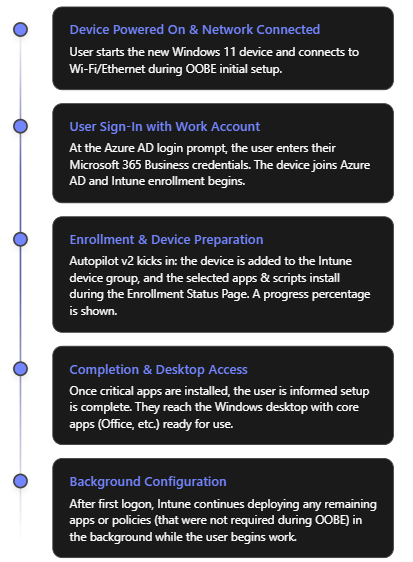
Out-of-Box Experience (Initial Screens): When the device is turned on for the first time (or after a factory reset), the Windows OOBE begins. The user will select their region and keyboard (unless the profile pre-configured these). The device will prompt for a network connection. The user should connect to the internet (Ethernet or Wi-Fi). Once connected, the device might check for updates briefly, then reach the “Sign in” screen.
User Sign-In (Azure AD): The user enters their work or school (Microsoft Entra ID/Azure AD) credentials – i.e., their Microsoft 365 Business account email and password. This is the trigger for Autopilot Device Preparation. Upon signing in, the device joins your organization’s Azure AD. Because the user is in the “Autopilot Users” group and an Autopilot Device Preparation profile is active, Intune will now kick off the device preparation process in the background.
Device Preparation Phase (ESP): After credentials are verified, the user sees the Enrollment Status Page (ESP) which now reflects “Device preparation” steps. In Autopilot v2, the ESP will show the progress of the configuration. A key difference in v2 is the presence of a percentage progress indicator that gives a clearer idea of progress[6]. Behind the scenes, several things happen:
The device is automatically added to the specified Device group (“Autopilot Device Preparation – Devices”) in Azure AD[5]. The “Intune Provisioning Agent” does this within seconds of the user signing in.
Intune immediately starts deploying the selected applications and PowerShell scripts to the device (those that were marked for installation during OOBE). The ESP screen will typically list the device setup steps, which may include device configuration, app installation, etc. The apps you marked as required (Company Portal, Office, etc.) will download and install one by one. Their status can often be viewed on the screen (e.g., “Installing Office 365… 50%”).
Any device configuration policies assigned to the device group (e.g., configuration profiles or compliance policies you set to target that group) will also begin to apply. Note: Autopilot v2 does not pause for all policies to complete; it mainly ensures the selected apps and scripts complete. Policies will apply in parallel or afterwards without blocking the ESP[3].
If you enabled BitLocker or other encryption policies, those might kick off during this phase as well (depending on your Intune configuration for encryption on Azure AD join).
The user remains at the ESP screen until the critical steps finish. With the 10-app limit and no dynamic group delay, this phase should complete relatively quickly (typically a few minutes to perhaps an hour for large Office downloads on slower connections). The progress bar will reach 100%.
Completion and First Desktop Launch: Once the selected apps and scripts have finished deploying, Autopilot signals that device setup is complete. The ESP will indicate it’s done, and the user will be allowed to proceed to log on to Windows (or it may automatically log them in if credentials were cached from step 2). In Autopilot v2, a final screen can notify the user that critical setup is finished and they can start using the device[6]. The user then arrives at the Windows desktop.
Post-Enrolment (Background tasks): Now the device is fully Azure AD joined and enrolled in Intune as a managed device. Any remaining apps or policies that were not part of the initial device preparation will continue to install in the background. For example, if you targeted some less critical user-specific apps (say, OneDrive client or Webex) via user groups, those will download via Intune management without interrupting the user. The user can begin working, and they’ll likely see additional apps appearing or software finishing installations within the first hour of use.
Verification: The IT admin can verify the device in the Intune portal. It should appear under Devices with the user assigned, and compliance/policies applying. The Autopilot deployment report in Intune will show this device’s status as successful if all selected apps/scripts succeeded, or flagged if any failures occurred[5]. The user should see applications like Office, Teams, Outlook, and the Company Portal already installed on the Start Menu[4]. If all looks good, the device is effectively ready and managed.
4.4 Troubleshooting Common Issues in Autopilot v2
While Autopilot v2 is designed to be simpler and more reliable, you may encounter some issues during setup. Here are common issues and how to address them:
Device is blocked as “personal” during enrollment: If you enabled the enrollment restriction to block personal devices, a new device might fail to enroll at user sign-in with a message that personal devices are not allowed. This typically means Intune did not recognize the device as corporate. Ensure you have uploaded the correct device serial, model, and manufacturer under corporate identifiers before the user attempts enrollment[4]. Typos or mismatches (e.g., “HP Inc.” vs “Hewlett-Packard”) can cause the check to fail. If an expected corporate device was blocked, double-check its identifier in Intune and re-upload if needed, then have the user try again (after a reset). If you cannot get the identifiers loaded in time, you may temporarily toggle the restriction to allow personal Windows enrollments to let the device through, then re-enable once fixed.
Autopilot profile not applying (device does standard Azure AD join without ESP): This can happen if the user is not in the group assigned to the Autopilot Device Prep profile, or if the device was already registered with a classic Autopilot profile. To troubleshoot:
Verify that the user who is signing in is indeed a member of the Autopilot Users group that you targeted. If not, add them and try again.
Check Intune’s Autopilot devices list. If the device’s hardware hash was previously imported and has an old deployment profile assigned, the device might be using Autopilot v1 behavior (which could skip the ESP or conflict). Solution: Remove the device from the Autopilot devices list (deregister it) so that v2 can proceed[5].
Also ensure the device meets OS requirements. If someone somehow tried with an out-of-date Windows 10, the new profile wouldn’t apply.
One of the apps failed to install during OOBE: If an app (or script) that was selected in the profile fails, the Autopilot ESP might show an error or might eventually time out. Autopilot v2 doesn’t explicitly block on policies, but it does expect the chosen apps to install. If an app installation fails (perhaps due to an MSI error or content download issue), the user may eventually be allowed to log in, but Intune’s deployment report will mark the deployment as failed for that device[5]. Use the Autopilot deployment report in Intune to see which app or step failed[5]. Then:
Check the Intune app assignment for that app. For instance, was the app installer file reachable and valid? Did it have correct detection rules? Remedy any packaging error.
If the issue was network (e.g., large app timed out), consider not deploying that app during OOBE (remove it from the profile’s selected apps so it installs later instead).
The user can still proceed to work after skipping the failed step (in many cases), but you’ll want to push the necessary app afterward or instruct the user to install via Company Portal if possible.
User sees unexpected OOBE screens (e.g., personal vs organization choice): As noted, Autopilot v2 can show some default Windows setup prompts that classic Autopilot hid. For example, early in OOBE the user might be asked “Is this a personal or work device?” If they see this, they should select Work/School (which leads to the Azure AD sign-in). Similarly, the user might have to accept the Windows 11 license agreement. To avoid confusion, prepare users with guidance that they may see a couple of extra screens and how to proceed. Once the user signs in, the rest will be automated. In future, after the device prep profile applies, those screens might not appear on subsequent resets, but on first run they can. This is expected behavior, not a failure.
Autopilot deployment hangs or takes too long: If the process seems stuck on the ESP for an inordinate time:
Check if it’s downloading a large update or app. Sometimes Windows might be applying a critical update in the background. If internet is slow, Office download (which can be ~2GB) might simply be taking time. If possible, ensure a faster connection or use Ethernet for initial setup.
If it’s truly hung (no progress increase for a long period), you may need to power cycle. The good news is Autopilot v2 is resilient – it has more retry logic for applying the profile[8]. On reboot, it often picks up where it left off, or attempts the step again. Frequent hanging might indicate a problematic step (again, refer to Intune’s report).
Ensure the device’s time and region were set correctly; incorrect time can cause Azure AD token issues. Autopilot v2 does try to sync time more reliably during ESP[8].
Post-enrollment policy issues: Because Autopilot v2 doesn’t wait for all policies, you might notice things like BitLocker taking place only after login, or certain configurations applying slightly later. This is normal. However, if certain device configurations never apply, verify that those policies are targeted correctly (likely to the device group). If they were user-targeted, they should apply after the user logs in. If something isn’t applying at all, treat it as a standard Intune troubleshooting case (e.g., check for scope tags, licensing, or conflicts).
Overall, many issues can be avoided by testing Autopilot v2 on a pilot device before mass rollout. Run through the deployment yourself with a test user and device to catch any application installation failures or unexpected prompts, and adjust your profile or process accordingly.
5. Best Practices for Maintaining and Managing Autopilot v2 Devices
After deploying devices with Windows Autopilot Device Preparation, your work isn’t done – you’ll want to manage and maintain those devices for the long term. Here are some best practices to ensure ongoing success:
Establish Clear Autopilot Processes: Because Autopilot v2 and v1 may coexist (for different use cases), document your process. For example, decide: will all new devices use Autopilot v2 going forward, or only certain ones? Communicate to your procurement and IT teams that new devices should not be registered via the old process. If you buy through an OEM with Autopilot registration service, pause that for devices you’ll enroll via v2 to avoid conflicts.
Keep Windows and Intune Updated: Autopilot v2 capabilities may expand with new Windows releases and Intune updates. Ensure devices get Windows quality updates regularly (this keeps the Autopilot agent up-to-date and compatible). Watch Microsoft Intune release notes for any Autopilot-related improvements or changes. For instance, if/when Microsoft enables features like self-deploying or hybrid join in Autopilot v2, it will likely come via an update[6] – staying current allows you to take advantage.
Limit and Optimize Apps in the Profile: Be strategic about the apps you include during the autopilot phase. The 10-app limit forces some discipline – include only truly essential software that users need immediately or that is required for security/compliance. Everything else can install later via normal Intune assignment or be made available in Company Portal. This ensures the provisioning is quick and has fewer chances to fail. Also prefer Win32 packaged apps for reliability and to avoid Windows Store dependencies during OOBE[2]. In general, simpler is better for the OOBE phase.
Use Device Categories/Tags if Needed: Intune supports tagging devices during enrollment (in classic Autopilot, there was “Convert all targeted devices to Autopilot” and grouping by order ID). In Autopilot v2, since devices aren’t pre-registered, you might use dynamic groups or naming conventions post-enrollment to organize devices (e.g., by department or location). Consider leveraging Azure AD group rules or Intune filters if you need to deploy different apps to different sets of devices after enrollment.
Monitor Deployment Reports and Logs: Take advantage of the new Autopilot deployment report in Intune for each rollout[5]. After onboarding a batch of new devices, review the report to see if any had issues (e.g., maybe one device’s Office install failed due to a network glitch). Address any failures proactively (rerun a script, push a missed app, etc.). Additionally, know that users or IT can export Autopilot logs easily from the device if needed[5] (there’s a troubleshooting option during the OOBE or via pressing certain key combos). Collecting logs can help Microsoft support or your IT team diagnose deeper issues.
Maintain Corporate Identifier Lists: If you’re using the corporate device identifiers method, keep your Azure AD device inventory synchronized with Intune’s list. For every new device coming in, add its identifiers. For devices being retired or sold, you might remove their identifiers. Also, coordinate this with the enrollment restriction – e.g., if a top executive wants to enroll their personal device and you have blocking enabled, you’d need to explicitly allow or bypass that (possibly by not applying the restriction to that user or by adding the device as corporate through some means). Regularly update the CSV as you purchase hardware to avoid last-minute scrambling when a user is setting up a new PC.
Plan for Feature Gaps: Recognize the current limitations of Autopilot v2 and plan accordingly:
If you require Hybrid AD Join (joining on-prem AD) for certain devices, those devices should continue using the classic Autopilot (with hardware hash and Intune Connector) for now, since v2 can’t do it[3].
If you utilize Autopilot Pre-Provisioning (White Glove) via IT staff or partner to pre-setup devices before handing to users (common for larger orgs or complex setups), note that Autopilot v2 doesn’t support that yet[3]. You might use Autopilot v1 for those scenarios until Microsoft adds it to v2.
Self-Deploying Mode (for kiosks or shared devices that enroll without user credentials) is also not in v2 presently[3]. Continue using classic Autopilot with TPM attestation for kiosk devices as needed. It’s perfectly fine to run both Autopilot methods side-by-side; just carefully target which devices or user groups use which method. Microsoft is likely to close these gaps in future updates, so keep an eye on announcements.
End-User Training and Communication: Even though Autopilot is automated, let your end-users know what to expect. Provide a one-page instruction with their new laptop: e.g., “1) Connect to Wi-Fi, 2) Log in with your work account, 3) Wait while we set up your device (about 15-30 minutes), 4) You’ll see a screen telling you when it’s ready.” Setting expectations helps reduce support tickets. Also inform them that the device will be managed by the company (which is standard, but transparency helps trust).
Device Management Post-Deployment: After Autopilot enrollment, manage the devices like any Intune-managed endpoints. Set up compliance policies (for OS version, AV status, etc.), Windows Update rings or feature update policies to keep them up-to-date, and use Intune’s Endpoint analytics or Windows Update for Business reports to track device health. Autopilot has done the job of onboarding; from then on, treat the devices as part of your standard device management lifecycle. For instance, if a device is reassigned to a new user, you can invoke Autopilot Reset via Intune to wipe user data and redo the OOBE for the new user—Autopilot v2 will once again apply (just ensure the new user is in the correct group).
Continuous Improvement: Gather feedback from users about the Autopilot process. If many report that a certain app wasn’t ready or some setting was missing on first login, adjust your Autopilot profile or Intune assignments. Autopilot v2’s flexibility allows you to tweak which apps/scripts are in the initial provision vs. post-login. Aim to find the right balance where devices are secure and usable as soon as possible, without overloading the provisioning. Also consider pilot testing Windows 11 feature updates early, since Autopilot behavior can change or improve with new releases (for example, a future Windows 11 update might reduce the appearance of some initial screens in Autopilot v2, etc.).
By following these best practices, you’ll ensure that your organization continues to benefit from Autopilot v2’s efficiencies long after the initial setup. The result is a modern device deployment strategy with minimal hassle, aligned to the cloud-first, zero-touch ethos of Microsoft 365.
Conclusion: Microsoft Autopilot v2 (Windows Autopilot Device Preparation) represents a significant step forward in simplifying device onboarding. By leveraging it in your Microsoft 365 Business environment, you can add new Windows 11 devices with ease – end-users take them out of the box, log in, and within minutes have a fully configured, policy-compliant workstation. The latest updates bring more reliability, insight, and speed to this process, making life easier for IT admins and employees alike. By understanding the new features, following the implementation steps, and adhering to best practices outlined in this guide, you can successfully deploy Autopilot v2 and streamline your device deployment workflow[4][5]. Happy deploying!
Microsoft Defender for Business is a security solution designed for small and medium businesses to protect against cyber threats. When issues arise, a systematic troubleshooting approach helps identify root causes and resolve problems efficiently. This guide provides a step-by-step process to troubleshoot common Defender for Business issues, highlights where to find relevant logs and alerts, and suggests advanced techniques for complex situations. All steps are factual and based on Microsoft’s latest guidance as of 2025.
These are some typical problems administrators encounter with Defender for Business:
Setup and Onboarding Failures: The initial setup or device onboarding process fails. An error like “Something went wrong, and we couldn’t complete your setup” may appear, indicating a configuration channel or integration issue (often with Intune)[1]. Devices that should be onboarded don’t show up in the portal.
Devices Showing As Unprotected: In the Microsoft Defender portal, you might see notifications that certain devices are not protected even though they were onboarded[1]. This often happens when real-time protection is turned off (for instance, if a non-Microsoft antivirus is running, it may disable Microsoft Defender’s real-time protection).
Mobile Device Onboarding Issues: Users cannot onboard their iOS or Android devices using the Microsoft Defender app. A symptom is that mobile enrollment doesn’t complete, possibly due to provisioning not finished on the backend[1]. For example, if the portal shows a message “Hang on! We’re preparing new spaces for your data…”, it means the Defender for Business service is still provisioning mobile support (which can take up to 24 hours) and devices cannot be added until provisioning is complete[1].
Defender App Errors on Mobile: The Microsoft Defender app on mobile devices may crash or show errors. Users report issues like app not updating threats or not connecting. (Microsoft provides separate troubleshooting guides for the mobile Defender for Endpoint app on Android/iOS in such cases[1].)
Policy Conflicts: If you have multiple security management tools, you might see conflicting policies. For instance, an admin who was managing devices via Intune and then enabled Defender for Business’s simplified configuration could encounter conflicts where settings in Intune and Defender for Business overlap or contradict[1]. This can result in devices flipping between policy states or compliance errors.
Intune Integration Errors: During the setup process, an error indicating an integration issue between Defender for Business and Microsoft Intune might occur[1]. This often requires enabling certain settings (detailed in Step 5 below) to establish a proper configuration channel.
Onboarding or Reporting Delays: A device appears to onboard successfully but doesn’t show up in the portal or is missing from the device list even after some time. This could indicate a communication issue where the device is not reporting in. It might be caused by connectivity problems or by an issue with the Microsoft Defender for Endpoint service (sensor) on the device.
Performance or Scan Issues: (Less common with Defender for Business, but possible) – Devices might experience high CPU or scans get stuck, which could indicate an issue with Defender Antivirus on the endpoint that needs further diagnosis (this overlaps with Defender for Endpoint troubleshooting).
Understanding which of these scenarios matches your situation will guide where to look first. Next, we’ll cover where to find the logs and alerts that contain clues for diagnosis.
Key Locations for Logs and Alerts
Effective troubleshooting relies on checking both cloud portal alerts and on-device logs. Microsoft Defender for Business provides information in multiple places:
Microsoft 365 Defender Portal (security.microsoft.com): This is the cloud portal where Defender for Business is managed. The Incidents & alerts section is especially important. Here you can monitor all security incidents and alerts in one place[2]. For each alert, you can click to see details in a flyout pane – including the alert title, severity, affected assets (devices or users), and timestamps[2]. The portal often provides recommended actions or one-click remediation for certain alerts[2]. It’s the first place to check if you suspect Defender is detecting threats or if something triggered an alert that correlates with the issue.
Device Logs via Windows Event Viewer: On each Windows device protected by Defender for Business, Windows keeps local event logs for Defender components. Access these by opening Event Viewer (Start > eventvwr.msc). Key logs include:
Microsoft-Windows-SENSE/Operational – This log records events from the Defender for Endpoint sensor (“SENSE” is the internal code name for the sensor)[3]. If a device isn’t showing up in the portal or has onboarding issues, this log is crucial. It contains events for service start/stop, onboarding success/failure, and connectivity to the cloud. For example, Event ID 6 means the service isn’t onboarded (no onboarding info found), which indicates the device failed to onboard and needs the onboarding script rerun[3]. Event ID 3 means the service failed to start entirely[3], and Event ID 5 means it couldn’t connect to the cloud (network issue)[3]. We will discuss how to interpret and act on these later.
Windows Defender/Operational – This is the standard Windows Defender Antivirus log under Applications and Services Logs > Microsoft > Windows > Windows Defender > Operational. It logs malware detections and actions taken on the device[4]. For troubleshooting, this log is helpful if you suspect Defender’s real-time protection or scans are causing an issue or to confirm if a threat was detected on a device. You might see events like “Malware detected” (Event ID 1116) or “Malware action taken” (Event ID 1117) which correspond to threats found and actions (like quarantine) taken[4]. This can explain, for instance, if a file was blocked and that’s impacting a user’s work.
Other system logs: Standard Windows logs (System, Application) might also record errors (for example, if a service fails or crashes, or if there are network connectivity issues that could affect Defender).
Alerts in Microsoft 365 Defender: Defender for Business surfaces alerts in the portal for various issues, not only malware. For example, if real-time protection is turned off on a device, the portal will flag that device as not fully protected[1]. If a device hasn’t reported in for a long time, it might show in the device inventory with a stale last-seen timestamp. Additionally, if an advanced attack is detected, multiple alerts will be correlated as an incident; an incident might be tagged with “Attack disruption” if Defender automatically contained devices to stop the spread[2] – such context can validate if an ongoing security issue is causing what you’re observing.
Intune or Endpoint Manager (if applicable): Since Defender for Business can integrate with Intune (Endpoint Manager) for device management and policy deployment, some issues (especially around onboarding and policy conflicts) may require checking Intune logs:
In Intune admin center, review the device’s Enrollment status and Device configuration profiles (for instance, if a security profile failed to apply, it could cause Defender settings to not take effect).
Intune’s Troubleshooting + support blade for a device can show error codes if a policy (like onboarding profile) failed.
If there’s a known integration issue (like the one mentioned earlier), ensure the Intune connection and settings are enabled as described in the next sections.
Advanced Hunting and Audit (for advanced users): If you have access to Microsoft 365 Defender’s advanced hunting (which might require an upgraded license beyond Defender for Business’s standard features), you could query logs (e.g., DeviceEvents, AlertEvents) for deeper investigation. Also, the Audit Logs in the Defender portal record configuration changes (useful to see if someone changed a policy right before issues started).
Now, with an understanding of where to get information, let’s proceed with a systematic troubleshooting process.
Step-by-Step Troubleshooting Process
The following steps outline a logical process to troubleshoot issues in Microsoft Defender for Business. Adjust the steps as needed based on the specific symptoms you are encountering.
Step 1: Identify the Issue and Gather Information
Before jumping into configuration changes, clearly define the problem. Understanding the nature of the issue will focus your investigation:
What are the symptoms? For example, “Device X is not appearing in the Defender portal”, “Users are getting no protection on their phones”, or “We see an alert that one device isn’t protected”, etc.
When did it start? Did it coincide with any changes (onboarding new devices, changing policies, installing another antivirus, etc.)?
Who or what is affected? A single device, multiple devices, all mobile devices, a specific user?
Any error messages? Note any message in the portal or on the device. For instance, an error code during setup, or the portal banner saying “some devices aren’t protected”[1]. These messages often hint at the cause.
Gathering this context will guide you on where to look first. For example, an issue with one device might mean checking that device’s status and logs, whereas a widespread issue might suggest a configuration problem affecting many devices.
Step 2: Check the Microsoft 365 Defender Portal for Alerts
Log in to the Microsoft 365 Defender portal (https://security.microsoft.com) with appropriate admin credentials. This centralized portal often surfaces the problem:
Go to Incidents & alerts: In the left navigation pane, click “Incidents & alerts”, then select “Alerts” (or “Incidents” for grouped alerts)[2]. Look for any recent alerts that correspond to your issue. For example, if a device isn’t protected or hasn’t reported, there may be an alert about that device.
Review alert details: If you see relevant alerts, click on one to open the details flyout. Check the alert title and description – these describe what triggered it (e.g. “Real-time protection disabled on Device123” or “Malware detected and quarantined”). Note the severity (Informational, Low, Medium, High) and the affected device or user[2]. The portal will list the device name and perhaps the user associated with it.
Take recommended actions: The alert flyout often includes recommended actions or a direct link to “Open incident page” or “Take action”. For instance, for a malware alert, it may suggest running a scan or isolating the device. For a configuration alert (like real-time protection off), it might recommend turning it back on. Make note of these suggestions as they directly address the issue described[2].
Check the device inventory: Still in the Defender portal, navigate to Devices (under Assets). Find the device in question. The device page can show its onboarding status, last seen time, OS, and any outstanding issues. If the device is missing entirely, that confirms an onboarding problem – skip to Step 4 to troubleshoot that.
**Inspect *Incidents***: If multiple alerts have been triggered around the same time or on the same device, the portal might have grouped them into an *Incident* (visible under the Incidents tab). Open the incident to see a timeline of what happened. This can give a broader context especially if a security threat is involved (e.g. an incident might show that a malware was detected and then real-time protection was turned off – indicating the malware might have attempted to disable Defender).
Example: Suppose the portal shows an alert “Real-time protection was turned off on DeviceXYZ”. This is a clear indicator – the device is onboarded but not actively protecting in real-time[1]. The recommended action would likely be to turn real-time protection back on. Alternatively, if an alert says “New malware found on DeviceXYZ”, you’d know the issue is a threat detection, and the portal might guide you to remediate or confirm that malware was handled. In both cases, you’ve gathered an essential clue before even touching the device.
If you do not see any alert or indicator in the portal related to your problem, the issue might not be something Defender is reporting on (for example, if the problem is an onboarding failure, there may not be an alert – the device just isn’t present at all). In such cases, proceed to the next steps.
Step 3: Verify Device Status and Protection Settings
Next, ensure that the devices in question are configured correctly and not in a state that would cause issues:
Confirm onboarding completion: If a device doesn’t appear in the portal’s device list, ensure that the onboarding process was done on that device. Re-run the onboarding script or package on the device if needed. (Defender for Business devices are typically onboarded via the local script, Intune, Group Policy, etc. If this step wasn’t done or failed, the device won’t show up in the portal.)
Check provisioning status for mobile: If the issue is with mobile devices (Android/iOS) not onboarding, verify that Defender for Business provisioning is complete. As mentioned, the portal (under Devices) might show a message “preparing new spaces for your data” if the service setup is still ongoing[1]. Provisioning can take up to 24 hours for a new tenant. If you see that message, the best course is to wait until it disappears (i.e., until provisioning finishes) before troubleshooting further. Once provisioning is done, the portal will prompt to onboard devices, and then users should be able to add their mobile devices normally[1].
Verify real-time protection setting: On any Windows device showing “not protected” in the portal, log onto that device and open Windows Security > Virus & threat protection. Check if Real-time protection is on. If it’s off and cannot be turned on, check if another antivirus is installed. By design, onboarding a device running a third-party AV can cause Defender’s real-time protection to be automatically disabled to avoid conflict[1]. In Defender for Business, Microsoft expects Defender Antivirus to be active alongside the service for best protection (“better together” scenario)[1]. If a third-party AV is present, decide if you will remove it or live with Defender in passive mode (which reduces protection and triggers those alerts). Ideally, ensure Microsoft Defender Antivirus is enabled.
Policy configuration review: If you suspect a policy conflict or misconfiguration, review the policies applied:
In the Microsoft 365 Defender portal, go to Endpoints > Settings > Rules & policies (or in Intune’s Endpoint security if that’s used). Ensure that you haven’t defined contradictory policies in multiple places. For example, if Intune had a policy disabling something but Defender for Business’s simplified setup has another setting, prefer one system. In a known scenario, an admin had Intune policies and then used the simplified Defender for Business policies concurrently, leading to conflicts[1]. The resolution was to delete or turn off the redundant policies in Intune and let Defender for Business policies take precedence (or vice versa) to eliminate conflicts[1].
Also verify tamper protection status – by default, tamper protection is on (preventing unauthorized changes to Defender settings). If someone turned it off for troubleshooting and forgot to re-enable, settings could be changed without notice.
Intune onboarding profile (if applicable): If devices were onboarded via Intune (which should be the case if you connected Defender for Business with Intune), check the Endpoint security > Microsoft Defender for Endpoint section in Intune. Ensure there’s an onboarding profile and that those devices show as onboarded. If a device is stuck in a pending state, you may need to re-enroll or manually onboard.
By verifying these settings, you either fix simple oversights (like turning real-time protection back on) or gather evidence of a deeper issue (for example, confirming a device is properly onboarded, yet still not visible, implying a reporting issue, or confirming there’s a policy conflict that needs resolution in the next step).
Step 4: Examine Device Logs (Event Viewer)
If the issue is not yet resolved by the above steps, or if you need more insight into why something is wrong, dive into the device’s event logs for Microsoft Defender. Perform these checks on an affected device (or a sample of affected devices if multiple):
Open Event Viewer (Local logs): On the Windows device, press Win + R, type eventvwr.msc and hit Enter. Navigate to Applications and Services Logs > Microsoft > Windows and scroll through the sub-folders.
Check “SENSE” Operational log: Locate Microsoft > Windows > SENSE > Operational and click it to open the Microsoft Defender for Endpoint service log[3]. Look for recent Error or Warning events in the list:
Event ID 3: “Microsoft Defender for Endpoint service failed to start.” This means the sensor service didn’t fully start on boot[3]. Check if the Sense service is running (in Services.msc). If not, an OS issue or missing prerequisites might be at fault.
Event ID 5: “Failed to connect to the server at \.” This indicates the endpoint could not reach the Defender cloud service URLs[3]. This can be a network or proxy issue – ensure the device has internet access and that security.microsoft.com and related endpoints are not blocked by firewall or proxy.
Event ID 6: “Service isn’t onboarded and no onboarding parameters were found.” This tells us the device never got the onboarding info – effectively it’s not onboarded in the service[3]. Possibly the onboarding script never ran successfully. Solution: rerun onboarding and ensure it completes (the event will change to ID 11 on success).
Event ID 7: “Service failed to read onboarding parameters”[3] – similar to ID 6, means something went wrong reading the config. Redeploy the onboarding package.
Other SENSE events might point to registry permission issues or feature missing (e.g., Event ID 15 could mean the SENSE service couldn’t start due to ELAM driver off or missing components – those cases are rare on modern systems, but the event description will usually suggest enabling a feature or a Windows update[5][5]).
Each event has a description. Compare the event’s description against Microsoft’s documentation for Defender for Endpoint event IDs to get specific guidance[3][3]. Many event descriptions (like examples above) already hint at the resolution (e.g., check connectivity, redeploy scripts, etc.).
Check “Windows Defender” Operational log: Next, open Microsoft > Windows > Windows Defender > Operational. Look for recent entries, especially around the time the issue occurred:
If the issue is related to threat detection or a failed update, you might see events in the 1000-2000 range (these correspond to malware detection events and update events).
For example, Event ID 1116 (MALWAREPROTECTION_STATE_MALWARE_DETECTED) means malware was detected, and ID 1117 means an action was taken on malware[4]. These confirm whether Defender actually caught something malicious, which might have triggered further issues.
You might also see events indicating if the user or admin turned settings off. Event ID 5001-5004 range often relates to settings changes (like if real-time protection was disabled, it might log an event).
The Windows Defender log is more about security events than errors; if your problem is purely a configuration or onboarding issue, this log might not show anything unusual. But it’s useful to confirm if, say, Defender is working up to the point of detecting threats or if it’s completely silent (which could mean it’s not running at all on that device).
Additional log locations: If troubleshooting a device connectivity or performance issue, also check the System log in Event Viewer for any relevant entries (e.g., Service Control Manager errors if the Defender service failed repeatedly). Also, the Security log might show Audit failures if, for example, Defender attempted an action.
Analyze patterns: If multiple devices have issues, compare logs. Are they all failing to contact the service (Event ID 5)? That could point to a common network issue. Are they all showing not onboarded (ID 6/7)? Maybe the onboarding instruction wasn’t applied to that group of devices or a script was misconfigured.
By scrutinizing Event Viewer, you gather concrete evidence of what’s happening at the device level. For instance, you might confirm “Device A isn’t in the portal because it has been failing to reach the Defender service due to proxy errors – as Event ID 5 shows.” Or “Device B had an event indicating onboarding never completed (Event 6), explaining why it’s missing from portal – need to re-onboard.” This will directly inform the fix.
Step 5: Resolve Configuration or Policy Issues
Armed with the information from the portal (Step 2), settings review (Step 3), and device logs (Step 4), you can now take targeted actions to fix the issue.
Depending on what you found, apply the relevant resolution below:
If Real-Time Protection Was Off: Re-enable it. In the Defender portal, ensure that your Next-generation protection policy has Real-time protection set to On. If a third-party antivirus is present and you want Defender active, consider uninstalling the third-party AV or check if it’s possible to run them side by side. Microsoft recommends using Defender AV alongside Defender for Business for optimal protection[1]. Once real-time protection is on, the portal should update and the “not protected” alert will clear.
If Devices Weren’t Onboarded Successfully: Re-initiate the onboarding:
For devices managed by Intune, you can trigger a re-enrollment or use the onboarding package again via a script/live response.
If using local scripts, run the onboarding script as Administrator on the PC. After running, check Event Viewer again for Event ID 11 (“Onboarding completed”)[3].
For any devices still not appearing, consider running the Microsoft Defender for Endpoint Client Analyzer on those machines – it’s a diagnostic tool that can identify issues (discussed in Advanced section).
If Event Logs Show Connectivity Errors (ID 5, 15): Ensure the device has internet access to Defender endpoints. Make sure no firewall is blocking:
URLs like *.security.microsoft.com, *windows.com related to Defender cloud. Proxy settings might need to allow the Defender service through. See Microsoft’s documentation on Defender for Endpoint network connections for required URLs.
After adjusting network settings, force the device to check in (you can reboot the device or restart the Sense service and watch Event Viewer to see if it connects successfully).
If Policy Conflicts are Detected: Decide on one policy source:
Option 1: Use Defender for Business’s simplified configuration exclusively. This means removing or disabling parallel Intune endpoint security policies that configure AV or Firewall or Device Security, to avoid overlap[1].
Option 2: Use Intune (Endpoint Manager) for all device security policies and avoid using the simplified settings in Defender for Business. In this case, go to the Defender portal settings and turn off the features you are managing elsewhere.
In practice, if you saw conflicts, a quick remedy is to delete duplicate policies. For example, if Intune had an Antivirus policy and Defender for Business also has one, pick one to keep. Microsoft’s guidance for a situation where an admin uses both was to delete existing Intune policies to resolve conflicts[1].
After aligning policies, give it some time for devices to update their policy and then check if the conflict alerts disappear.
If Integration with Intune Failed (Setup Error): Follow Microsoft’s recommended fix which involves three steps[1][1]:
In the Defender for Business portal, go to Settings > Endpoints > Advanced Features and ensure Microsoft Intune connection is toggled On[1].
Still under Settings > Endpoints, find Configuration management > Enforcement scope. Make sure Windows devices are selected to be managed by Defender for Endpoint (Defender for Business)[1]. This allows Defender to actually enforce policies on Windows clients.
In the Intune (Microsoft Endpoint Manager) portal, navigate to Endpoint security > Microsoft Defender for Endpoint. Enable the setting “Allow Microsoft Defender for Endpoint to enforce Endpoint Security Configurations” (set to On)[1]. This allows Intune to hand off certain security configuration enforcement to Defender for Business’s authority. These steps establish the necessary channels so that Defender for Business and Intune work in harmony. After doing this, retry the setup or onboarding that failed. The previous error message about the configuration channel should not recur.
If Onboarding Still Fails or Device Shows Errors: If after trying to onboard, the device still logs errors like Event 7 or 15 indicating issues, consider these:
Run the onboarding with local admin rights (ensure no permission issues).
Update the device’s Windows to latest patches (sometimes older Windows builds have known issues resolved in updates).
As a last resort, you can try an alternate onboarding method (e.g., if script fails, try via Group Policy or vice versa).
Microsoft also suggests if Security Management (the feature that allows Defender for Business to manage devices without full Intune enrollment) is causing trouble, you can temporarily manually onboard the device to the full Defender for Endpoint service using a local script as a workaround[1]. Then offboard and try again once conditions are corrected.
If a Threat Was Detected (Malware Incident): Ensure it’s fully remediated:
In the portal, check the Action Center (there is an Action center in Defender portal under “Actions & submissions”) to see if there are pending remediation actions (like undo quarantine, etc.).
Run a full scan on the device through the portal or locally.
Once threats are removed, verify if any residual impact remains (e.g., sometimes malware can turn off services – ensure the Windows Security app shows all green).
Perform the relevant fixes and monitor the outcome. Many changes (policy changes, enabling features) may take effect within minutes, but some might take an hour or more to propagate to all devices. You can speed up policy application by instructing devices to sync with Intune (if managed) or simply rebooting them.
Step 6: Verify Issue Resolution
After applying fixes, confirm that the issue is resolved:
Check the portal again: Go back to the Microsoft 365 Defender portal’s Incidents & alerts and Devices pages.
If there was an alert (e.g., device not protected), it should now clear or show as Resolved. Many alerts auto-resolve once the condition is fixed (for instance, turning real-time protection on will clear that alert after the next device check-in).
If you removed conflicts or fixed onboarding, any incident or alert about those should disappear. The device should now appear in the Devices list if it was missing, and its status should be healthy (no warnings).
If a malware incident was being shown, ensure it’s marked Remediated or Mitigated. You might need to mark it as resolved if it doesn’t automatically.
Confirm on the device: For device-specific issues, physically check the device:
Open Windows Security and verify no warning icons are present.
In Event Viewer, see if new events are positive. For example, Event ID 11 in SENSE log (“Onboarding completed”) confirms success[3]. Or Event ID 1122 in Windows Defender log might show a threat was removed.
If you restarted services or the system, ensure they stay running (the Sense service should be running and set to automatic).
Test functionality: Perform a quick test relevant to the issue:
If mobile devices couldn’t onboard, try onboarding one now that provisioning is fixed.
If real-time protection was off, intentionally place a test EICAR anti-malware file on the machine to see if Defender catches it (it should, if real-time protection is truly working).
If devices were not reporting, force a machine to check in (by running MpCmdRun -SignatureUpdate to also check connectivity).
These tests confirm that not only is the specific symptom gone, but the underlying protection is functioning as expected.
If everything looks good, congratulations – the immediate issue is resolved. Make sure to document what the cause was and how it was fixed, for future reference.
Step 7: Escalate to Advanced Troubleshooting if Needed
If the problem persists despite the above steps, or if logs are pointing to something unclear, it may require advanced troubleshooting:
Multiple attempts failed? For example, if a device still won’t onboard after trying everything, or an alert keeps returning with no obvious cause, then it’s time to dig deeper.
Use the Microsoft Defender Client Analyzer: Microsoft provides a Client Analyzer tool for Defender for Endpoint that collects extensive logs and configurations. In a Defender for Business context, you can run this tool via a Live Response session. Live Response is a feature that lets you run commands on a remote device from the Defender portal (available if the device is onboarded). You can upload the Client Analyzer scripts and execute them to gather a diagnostic package[6][6]. This package can highlight misconfigurations or environmental issues. For Windows, the script MDELiveAnalyzer.ps1 (and related modules like MDELiveAnalyzerAV.ps1 for AV-specific logs) will produce a zip file with results[6][6]. Review its findings for any errors (or provide it to Microsoft support).
Enable Troubleshooting Mode (if performance issue): If the issue is performance-related (e.g., you suspect Defender’s antivirus is causing an application to crash or high CPU), Microsoft Defender for Endpoint has a Troubleshooting mode that can temporarily relax certain protections for testing. This is more applicable to Defender for Endpoint P2, but if accessible, enabling troubleshooting mode on a device allows you to see if the problem still occurs without certain protections, thereby identifying if Defender was the culprit. Remember to turn it off afterwards.
Consult Microsoft Documentation: Sometimes a specific error or event ID might be documented in Microsoft’s knowledge base. For instance, Microsoft has a page listing Defender Antivirus event IDs and common error codes – check those if you have a particular code.
Community and Support Forums: It can be useful to see if others have hit the same issue. The Microsoft Tech Community forums or sites like Reddit (e.g., r/DefenderATP) might have threads. (For example, missing incidents/alerts were discussed on forums and might simply be a UI issue or permission issue in some cases.)
Open a Support Case: When all else fails, engage Microsoft Support. Defender for Business is a paid service; you can open a ticket through your Microsoft 365 admin portal. Provide them with:
A description of the issue and steps you’ve taken.
Logs (Event Viewer exports, the Client Analyzer output).
Tenant ID and device details, if requested. Microsoft’s support can analyze backend data and guide further. They may identify if it’s a known bug or something environment-specific.
Escalating ensures that more complex or rare issues (like a service bug, or a weird compatibility issue) are handled by those with deeper insight or patching ability.
Advanced Troubleshooting Techniques
For administrators comfortable with deeper analysis, here are a few advanced techniques and tools to troubleshoot Defender for Business issues:
Advanced Hunting: This is a query-based hunting tool available in Microsoft 365 Defender. If your tenant has it, you can run Kusto-style queries to search for events. For example, to find all devices that had real-time protection off, you could query the DeviceHealthStatus table for that signal. Or search DeviceTimeline for specific event IDs across machines. It’s powerful for finding hidden patterns (like if a certain update caused multiple devices to onboard late or if a specific error code appears on many machines).
Audit Logs: Especially useful if the issue might be due to an admin change. The audit log will show events like policy changes, onboarding package generated, settings toggled, who did it and when. It helps answer “did anything change right before this issue?” For instance, if an admin offboarded devices by mistake, the audit log would show that.
Integrations and Log Forwarding: Many enterprises use a SIEM for unified logging. While Defender for Business is a more streamlined product, its data can be integrated into solutions like Sentinel (with some licensing caveats)[7]. Even without Sentinel, you could use Windows Event Forwarding to send important Defender events to a central server. That way, you can spot if all devices are throwing error X in their logs. This is beyond immediate troubleshooting, but helps in ongoing monitoring and advanced analysis.
Deep Configuration Checks: Sometimes group policies or registry values can interfere. Ensure no Group Policy is disabling Windows Defender (check Turn off Windows Defender Antivirus policy). Verify that the device’s time and region settings are correct (an odd one, but significant time skew can cause cloud communication issues).
Use Troubleshooting Mode: Microsoft introduced a troubleshooting mode for Defender which, when enabled on a device, disables certain protections for a short window so you can, for example, install software that was being blocked or see if performance improves. After testing, it auto-resets. This is advanced and should be used carefully, but it’s another tool in the toolbox.
Using these advanced techniques can provide deeper insights or confirm whether the issue lies within Defender for Business or outside of it (for example, a network device blocking traffic). Always ensure that after advanced troubleshooting, you return the system to a fully secured state (re-enable anything you turned off, etc.).
Best Practices to Prevent Future Issues
Prevention and proper management can reduce the likelihood of Defender for Business issues:
Keep Defender Components Updated: Microsoft Defender AV updates its engine and intelligence regularly (multiple times a day for threat definitions). Ensure your devices are getting these updates automatically (they usually do via Windows Update or Microsoft Update service). Also, keep the OS patched so that the Defender for Endpoint agent (built into Windows 10/11) is up-to-date. New updates often fix known bugs or improve stability.
Use a Single Source for Policy: Avoid mixing multiple security management platforms for the same settings. If you’re using Defender for Business’s built-in policies, try not to also set those via Intune or Group Policy. Conversely, if you require the advanced control of Intune, consider using Microsoft Defender for Endpoint Plan 1 or 2 with Intune instead of Defender for Business’s simplified model. Consistency prevents conflicts.
Monitor the Portal Regularly: Make it a routine to check the Defender portal’s dashboard or set up email notifications for high-severity alerts. Early detection of an issue (like devices being marked unhealthy or a series of failed updates) can let you address it before it becomes a larger problem.
Educate Users on Defender Apps: If your users install the Defender app on mobile, ensure they know how to keep it updated and what it should do. Sometimes user confusion (like ignoring the onboarding prompt or not granting the app permissions) can look like a “technical issue”. Provide a simple guide for them if needed.
Test Changes in a Pilot: If you plan to change configurations (e.g., enable a new attack surface reduction rule, or integrate with a new management tool), test with a small set of devices/users first. Make sure those pilot devices don’t report new issues before rolling out more broadly.
Use “Better Together” Features: Microsoft often touts “better together” benefits – for example, using Defender Antivirus with Defender for Business for coordinated protection[1]. Embrace these recommendations. Features like Automatic Attack Disruption will contain devices during a detected attack[2], but only if all parts of the stack are active. Understand what features are available in your SKU and use them; missing out on a feature could mean missing a warning sign that something’s wrong.
Maintain Proper Licensing: Defender for Business is targeted for up to 300 users. If your org grows or needs more advanced features, consider upgrading to Microsoft Defender for Endpoint plans. This ensures you’re not hitting any platform limits and you get features like advanced hunting, threat analytics, etc., which can actually make troubleshooting easier by providing more data.
Document and Share Knowledge: Keep an internal wiki or document for your IT team about past issues and fixes. For example, note down “In Aug 2025, devices had conflict because both Intune and Defender portal policies were applied – resolved by turning off Intune policy X.” This way, if something similar recurs or a new team member encounters it, the solution is readily available.
By following best practices, you reduce misconfigurations and are quicker to catch problems, making the overall experience with Microsoft Defender for Business smoother and more reliable.
Additional Resources and Support
For further information and help on Microsoft Defender for Business:
Official Microsoft Learn Documentation: Microsoft’s docs are very useful. The page “Microsoft Defender for Business troubleshooting” on Microsoft Learn covers many of the issues we discussed (setup failures, device protection, mobile onboarding, policy conflicts) with step-by-step guidance[1][1]. The “View and manage incidents in Defender for Business” page explains how to use the portal to handle alerts and incidents[2]. These should be your first reference for any new or unclear issues.
Microsoft Tech Community & Forums: The Defender for Business community forum is a great place to see if others have similar questions. Microsoft MVPs and engineers often post walkthroughs and answer questions. For example, blogs like Jeffrey Appel’s have detailed guides on Defender for Endpoint/Business features and troubleshooting (common deployment mistakes, troubleshooting modes, etc.)[8].
Support Tickets: As mentioned, don’t hesitate to use your support contract. Through the Microsoft 365 admin center, you can start a service request. Provide detailed info and severity (e.g., if a security feature is non-functional, treat it with high importance).
Training and Workshops: Microsoft occasionally offers workshops or webinars on their security products. These can provide deeper insight into using the product effectively (e.g., a session on “Managing alerts and incidents” or “Endpoint protection best practices”). Keep an eye on the Microsoft Security community for such opportunities.
Up-to-date Security Blog: Microsoft’s Security blog and announcements (for example, on the TechCommunity) can have news of new features or known issues. A recent blog might announce a new logging improvement or a known issue being fixed in the next update – which could be directly relevant to troubleshooting.
In summary, Microsoft Defender for Business is a powerful solution, and with the step-by-step approach above, you can systematically troubleshoot issues that come up. Starting from the portal’s alerts, verifying configurations, checking device logs, and then applying fixes will resolve most common problems. And for more complex cases, Microsoft’s support and documentation ecosystem is there to assist. By understanding where to find information (both in the product and in documentation), you’ll be well-equipped to keep your business devices secure and healthy.
In today’s security landscape, it’s not uncommon for organizations to run Microsoft Defender for Business (the business-oriented version of Microsoft Defender Antivirus, part of Microsoft 365 Business Premium) alongside other third-party antivirus (AV) solutions. Below, we provide a detailed report on how Defender for Business operates when another AV is present, how to avoid conflicts between them, and why it’s important to keep Defender for Business installed on devices even if you use a second AV product.
How Defender for Business Interacts with Other Antivirus Solutions
Microsoft Defender for Business is designed to coexist with other antivirus products through an automatic role adjustment mechanism. When a non-Microsoft AV is present, Defender can detect it via the Windows Security Center and adjust its operation mode to avoid conflicts[1]. Here’s how this interaction works:
Active vs. Passive vs. Disabled Mode: On Windows 10 and 11 clients, Defender is enabled by default as the active antivirus unless another AV is installed[1]. If a third-party AV is installed and properly registered with Windows Security Center, Defender will automatically switch to disabled or passive mode[1][1]. In Passive Mode, Defender’s real-time protection and scheduled scans are turned off, allowing the third-party AV to be the primary active scanner[2][1]. (Defender’s services continue running in the background, and it still receives updates[2], but it won’t actively block threats in real-time so long as another AV is active.) If no other AV is present, Defender stays in Active Mode and fully protects the system by default.
🔎 Note: In Windows 11, the presence of certain features like Smart App Control can cause Defender to show “Passive” even without Defender for Business, but this is a special case. Generally, passive mode is only used when the device is onboarded to Defender for Endpoint/Business and a third-party AV is present[1][1].
Detection of Third-Party AV: Defender relies on the Windows Security Center service (also known as the Windows Security Center (wscsvc)) to detect other antivirus products. If the Security Center service is running, it will recognize a third-party AV and signal Defender to step back[1]. If this service is disabled or broken, Defender might not realize another AV is installed and will remain active, leading to two AVs running concurrently – an undesirable situation[1]. It’s crucial that Windows Security Center remains enabled so that Defender can correctly detect the third-party AV and avoid conflict[1].
Passive Mode Behavior: When Defender for Business is in passive mode (device onboarded to Defender and another AV is primary), it stops performing active scans and real-time protection, handing those duties to the other AV[2]. The Defender Antivirus user interface will indicate that another provider is active, and it will grey out or prevent changes to certain settings[2]. In passive mode, Defender still loads its engine and keeps its signatures up to date, but it does not remediate threats in real-time[2]. Think of it as running quietly in the background: it collects sensor data for Defender for Business (for things like Endpoint Detection and Response), but lets the other AV handle immediate threat blocking.
EDR and Monitoring in Passive Mode: Even while passive, Defender for Business’s endpoint detection and response (EDR) component remains functional. The system continues to monitor behavior and can record telemetry of suspicious activity. In fact, Microsoft Defender’s EDR can operate “behind the scenes” in passive mode. If a threat slips past the primary AV, Defender’s EDR may detect it and, if EDR in block mode is enabled, can step in to block or remediate the threat post-breach[1][1]. In security alerts, you might even see Defender listed as the source that blocked a threat, even though it was in passive mode, thanks to this EDR capability[1]. This highlights how Defender for Business continues to add value even when not the primary AV.
On Servers: Note that on Windows Server, Defender does not automatically enter passive mode when a third-party AV is installed (unless specific registry settings are configured)[1][1]. On servers that are onboarded to Defender for Endpoint/Business, you must manually set a registry key (ForceDefenderPassiveMode=1) before onboarding if you want Defender to run passive alongside another AV[1]. Otherwise, you risk having two active AVs on a server (which can cause conflicts), or you may choose to uninstall or disable one of them. Many organizations running third-party AV on servers will either disable Defender manually or set it to passive via policy to prevent overlap[1]. The key point: on clients, the process is mostly automatic; on servers, it requires admin action to configure passive mode.
In summary, Defender for Business is smart about coexisting with other AVs. It uses Windows’ built-in security framework to detect other security products and will yield primary control to avoid contention. By entering passive mode, it ensures your third-party AV can do its job without interference, while Defender continues to run in the background (for updates, EDR, and as a backup). This design provides layered security: you get the benefits of your chosen AV solution and still retain Defender’s visibility and advanced threat detection capabilities in the Microsoft 365 Defender portal.
Common Conflicts When Running Multiple Antivirus Programs
Running two antivirus solutions concurrently without proper coordination can lead to a number of issues. If misconfigured, multiple AVs can interfere with each other and degrade system performance, undermining the security they’re meant to provide. Here are some common conflicts and problems that occur when Defender and a third-party AV operate simultaneously (both in active scanning mode):
High CPU and Memory Usage: Two real-time scanners running at the same time can put a heavy load on system resources. Each will try to scan files as they are accessed, often both scanning the same files. This double-scanning leads to excessive CPU usage, disk I/O, and memory consumption. Users may experience slowdowns, applications taking much longer to open, or the entire system becoming sluggish. In some cases observed in practice, running multiple AV engines caused systems to nearly freeze or become unresponsive due to the constant competition for scanning every file (each thinking the other’s file operations might be malicious)[3][4].
System Instability and Crashes: Beyond just slowness, having two AVs can result in software conflicts that crash one or both of them (or even crash Windows). For example, one AV might hook into the file system to intercept reads/writes, and the second AV does the same. These low-level “hooks” can conflict, potentially causing errors or blue-screen crashes. It’s not uncommon for conflicts between antivirus drivers to lead to system instability, especially if they both try to quarantine or lock a file at the same time[3]. Essentially, the products trip over each other – one might treat the other’s actions as suspicious (a kind of false positive scenario where each thinks “Why is this other process modifying files I’m scanning?”).
False Positives on Each Other: AV programs maintain virus signature databases and often store these in definition files or quarantine folders. A poorly configured scenario could have Defender scanning the other AV’s quarantine or signature files, mistakenly flagging those as malicious (since they contain malware code samples in isolation). Likewise, the third-party AV might scan Defender’s files and flag something benign. Without proper exclusions (discussed later), antivirus engines can identify the artifacts of another AV as threats, leading to confusing alerts or even deleting/quarantining each other’s files.
Competition for Remediation: If a piece of malware is detected on the system, two active AVs might both attempt to take action (delete or quarantine the file). Best case, one succeeds and the other simply reports the file missing; worst case, they lock the file and deadlock, or one restores an item the other removed (thinking it was a necessary system file). This tug-of-war can result in incomplete malware removal or error messages. Conflicting remediation attempts can potentially leave a threat on the system if neither AV completes the cleanup properly due to interference.
User Experience Issues: With two AVs, users might be bombarded by duplicate notifications for the same threat or update. For instance, both Defender and the third-party might pop up “Virus detected!” alerts for the same event. This can confuse end users and IT admins – which one actually handled it? Did both need to be involved? It complicates the support scenario.
Overall Protection Gaps: Ironically, having two AV solutions can reduce overall protection if they conflict. They might each assume the other has handled a threat, or certain features might turn off. For example, earlier versions of Windows Defender (pre-Windows 10) would completely disable if another AV was installed, leaving only the third-party active. If that third-party were misconfigured or expired, and Defender stayed off, the system could be left exposed. Even with passive mode, if something isn’t set right (say Security Center didn’t register the third-party), you could end up with one AV effectively off and the other not fully on either. Misunderstandings of each product’s state could create an unexpected gap where neither is actively protecting as intended.
In short, running two full antivirus solutions in parallel without coordination is not recommended. As one internal cybersecurity memo succinctly put it, using multiple AV programs concurrently can “severely degrade system performance and stability” and often “reduces overall protection efficacy” due to conflicts[3]. The goal should be to have a primary AV and ensure any secondary security software (like Defender for Business in passive mode) is configured in a complementary way, not competing for the same role.
Best Practices to Avoid Conflicts Between Defender and Other AVs
To safely leverage Microsoft Defender for Business alongside another antivirus, you need to configure your environment so that the two solutions cooperate rather than collide. Below are the key steps and best practices to achieve this and prevent conflicts:
Allow Only One Real-Time AV – Rely on Passive Mode:Ensure that only one antivirus is actively performing real-time protection at a time. With Defender present, the simplest approach is to let the third-party AV be the active (primary) protection, and have Microsoft Defender in passive mode (if using Defender for Business/Endpoint). This happens automatically on Windows 10/11 clients when the device is onboarded to Defender for Business and a non-Microsoft AV is detected[1]. You should verify in the Windows Security settings or via PowerShell (Get-MpComputerStatus) that Defender’s status is “Passive” (or “No AV active” if third-party is seen as active in Security Center) on those devices. Do not attempt to force both to be “Active”. (On Windows 10/11, Defender will normally disable itself automatically when a third-party is active, so just let it do so. On servers, see the next step.) The bottom line: pick one AV to be the primary real-time scanner – running two concurrently is not supported or advised[1].
Configure Passive Mode on Servers (or Disable One): On Windows Server systems, manually configure Defender’s mode if you plan to run another AV. Windows Server won’t auto-switch to passive mode just because another AV is installed[1]. Thus, before installing or enabling a third-party AV on a server that’s onboarded to Defender for Business, set the registry key to force passive mode:\ HKLM\SOFTWARE\Policies\Microsoft\Windows Advanced Threat Protection\ForceDefenderPassiveMode = 1 (DWORD)[1].\ Then onboard the server to Defender for Business. This ensures Defender Antivirus runs in passive mode (so it won’t actively scan) even while the other product is active. If you skip this, you might end up with Defender still active alongside the other AV on a server, which can cause conflicts. Alternatively, some admins choose to completely uninstall or disable Defender on servers when using a third-party server AV, to avoid any chance of conflict[1]. Microsoft allows Defender to be removed on Windows Server if desired (via removing the Windows Defender feature)[1], but if you do this, make sure the third-party is always running and up to date, and consider the trade-off (losing Defender’s EDR on that server). In summary, for servers: explicitly set Defender to passive or uninstall it – don’t leave it in an ambiguous state.
Keep the Windows Security Center Service Enabled: As noted, the Windows Security Center (WSC) is the broker that tells Windows which antivirus is active. Never disable the Security Center service. If it’s turned off, Windows cannot correctly recognize the third-party AV, and Defender will not know to go passive – resulting in both AVs active and conflicting[1]. In a warning from Microsoft’s documentation: if WSC is disabled, Defender “can’t detect third-party AV installations and will stay Active,” leading to unsupported conflicts[1]. So, ensure group policies or scripts do not disable or tamper with wscsvc. In troubleshooting scenarios, if you find Defender and a third-party AV both active, check that the Security Center is running properly.
Apply Mutual Exclusions (Whitelist Each Other): To avoid the problem of AVs scanning each other’s files or quarantines, it’s wise to set up exclusions on both sides. In your third-party AV’s settings, add the recommended exclusions for Microsoft Defender Antivirus (for example, exclude %ProgramFiles%\Windows Defender or specific Defender processes like MsMpEng.exe)[1]. This prevents the third-party from mistakenly flagging Defender’s components. Likewise, ensure Defender (when active or even during passive periodic scans) excludes the other AV’s program folders, processes, and update directories. Many enterprise AV solutions publish a list of directories/processes to exclude for compatibility. Following these guidelines will reduce unnecessary friction – each AV will essentially ignore the other. Microsoft’s guidance specifically states to “Make sure to add Microsoft Defender Antivirus and Microsoft Defender for Endpoint binaries to the exclusion list of the non-Microsoft antivirus solution”[1]. Doing so means, even if a periodic scan occurs, the AVs won’t scan each other.
Disable Redundant Features to Prevent Overlap: Modern antivirus suites often include more than just file scanning – they might have their own firewall, web filtering, tamper protection, etc. Consider turning off overlapping features in one of the products to avoid confusion. For instance, if your third-party AV provides a firewall that you enable, you might keep the Windows Defender Firewall on or off based on support guidance (usually it’s fine to keep Windows Firewall on alongside, but not two third-party firewalls). Similarly, both Defender and some third-party AVs have ransomware protection (Controlled Folder Access in Defender, versus the third-party’s module). Running both ransomware protection modules might cause legitimate app blocks. Decide which product’s module to use. Coordinate things like exploit prevention or email protection – if you have Defender for Office 365 filtering email, maybe you don’t need the third-party’s Outlook plugin scanning attachments too (or vice versa). The goal is to configure a complementary setup, where each tool covers what the other does not, rather than both doing the same job twice.
Keep Both Solutions Updated: Even though Defender is in passive mode, do not neglect updating it. Microsoft Defender will continue to fetch security intelligence updates (malware definitions) and engine updates via Windows Update or your management tool[2]. Ensure your systems are still getting these. The reason is twofold: (a) if Defender needs to jump in (say the other AV is removed or a new threat appears), it’s armed with current definitions; and (b) the Defender EDR sensors use the AV engine to some extent for analysis, so having the latest engine version and definitions helps it recognize malicious patterns. Similarly, of course, keep the third-party AV fully updated. In short, update both engines regularly so that no matter which one is protecting or monitoring, it’s up to date with the latest threat intelligence. This also means maintaining valid licenses/subscriptions for the third-party AV – if it expires, Defender can take over, but it’s best not to have lapse periods.
Optionally Enable Periodic Scanning by Defender: Windows 10 and 11 have a feature called “Periodic scanning” (also known as Limited Periodic Scanning) where, even if another antivirus is active, Microsoft Defender will perform an occasional quick scan of the system as a second opinion. This is off by default in enterprise when another AV is registered, but an administrator can enable it via Windows Security settings or GPO. In passive mode specifically, scheduled scans are generally disabled (ignored)[1]. However, Windows has a fallback mechanism: by default, every 30 days Defender will do a quick scan if it’s installed (this is the “catch-up scan” default)[1]. If you want this added layer of assurance, you can leave that setting. If you do not want Defender doing any scanning at all (to fully avoid even periodic performance impact), you can disable these catch-up scans via policy[1]. Many organizations actually leave it as is, so that if the primary AV missed something for a while, Defender might catch it during a monthly scan. This periodic scanning is a lightweight safeguard – it shouldn’t conflict because it’s infrequent and by design it runs when the PC is idle. Just be aware of it; tune or disable it via group policy if your third-party vendor recommends turning it off.
By following the above steps, you ensure that Defender for Business and your third-party antivirus operate harmoniously: one provides active protection, the other stands by with auxiliary protection and insight. Properly configured, you won’t suffer slowdowns or weird conflicts, and you’ll still reap security benefits from both solutions.
Ensuring Continuous Protection and Real-Time Security
A major concern when using two security solutions is preserving continuous real-time protection – you want no gaps in coverage. With one AV in passive mode, how do you ensure the system is still protected at all times? Let’s clarify how Defender for Business works in tandem with a primary AV to maintain solid real-time defense:
Primary AV Handles Real-Time Scanning: In our scenario, the third-party AV is the primary real-time defender. It will intercept file events, scan for malware, and block threats in real-time. As long as it’s running normally, your system is actively protected by that AV. Microsoft Defender, being in passive mode, will not actively scan files or processes (it’s not duplicating the effort)[2]. This means no double-scanning overhead and no contention – the third-party product is in charge of first-line protection.
Microsoft Defender’s EDR Watches in the Background: Even though Defender’s anti-malware component is passive, its endpoint detection and response capabilities remain at work. Microsoft Defender for Business includes the same kind of EDR as Defender for Endpoint. This EDR works by analyzing behavioral signals on the system (for example, sequences of process executions, script behavior, registry changes that might indicate an attack in progress). Defender’s EDR operates continuously and is independent of whether Defender is the active AV or not[1][1]. So, while your primary AV might catch known malicious files, Defender’s EDR is observing patterns and can detect more subtle signs of an attack (like file-less malware or attacker techniques that don’t drop classic virus files).
EDR in Block Mode – Stopping What Others Miss: If you have enabled EDR in block mode (a feature in Defender for Endpoint/Business), Microsoft’s EDR will not just alert on suspicious activity – it can take action to contain the threat, even when Defender AV is passive. For example, suppose a piece of malware that wasn’t in the primary AV’s signature database executes on the machine. It starts exhibiting ransomware-like behavior (mass file modifications) or tries to inject into system processes. Defender’s EDR can detect this malicious behavior and step in to block or quarantine the offending process[1][1]. This is done using Defender’s antivirus engine in the background (“passive mode” doesn’t mean completely off – it can still kill a process via EDR). In such a case, you might see an alert in the Microsoft 365 Defender portal that says “Threat remediated by Microsoft Defender Antivirus (EDR block mode)” even though your primary AV was active. EDR in block mode essentially provides a safety net: it addresses threats that slip past traditional antivirus defenses, leveraging the behavioral sensors and cloud analysis. This ensures that real-time protection isn’t solely reliant on file signatures – advanced attacks can be stopped by Defender’s cloud-driven intelligence.
Automatic Fallback if Primary AV Fails: Another aspect of continuous protection is what happens if the primary AV is for some reason not running. Microsoft has designed Defender to act as a fail-safe. If the third-party AV is uninstalled or disabled (intentionally or by malware), Defender will sense the change via Security Center and can automatically switch from passive to active mode[1]. For instance, if an attacker tries to turn off your third-party antivirus, Windows will notice there’s no active AV and will re-activate Microsoft Defender Antivirus to ensure the machine isn’t left defenseless[1]. This is hugely important – it means there’s minimal gap in protection. Defender will pick up the real-time protection role almost immediately. (It’s also a reason to keep Defender updated; if it has to step in, you want it current.) So, whether due to a lapsed AV subscription, a user error, or attacker sabotage, Defender is waiting in the wings to auto-enable itself if needed.
Real-Time Cloud Lookups: Both your primary AV and Defender (in passive) likely use cloud-based threat intelligence for blocking brand new threats (Defender calls this Cloud-Delivered Protection or Block at First Sight). In passive mode, Defender’s cloud lookup for new files is generally off (since it’s not actively scanning)[1]. However, if EDR block mode engages or if you run a manual or periodic scan, Defender will utilize the cloud query to get the latest verdict on suspicious items. Meanwhile, your primary AV might have its own cloud lookup. Make sure that feature is enabled on the primary AV for maximum real-time efficacy. Defender’s presence doesn’t impede that.
Attack Surface Reduction and Other Preventive Policies: Some security features of Defender (like Attack Surface Reduction rules, controlled folder access, network protection, etc.) only function when Defender AV is active[1]. In passive mode, those specific Defender enforcement features are not active (since the assumption is that similar protections might be provided by the primary AV). To ensure you have similar real-time hardening, see if your third-party solution offers equivalents: e.g., exploit protection, web filtering, ransomware protection. If not, consider whether you actually want Defender to be the one providing those (which would require it to be active). We’ll cover these features more in the next section, but the key is: real-time protection is a combination of antivirus scanning and policy-based blocking of behaviors. With Defender passive, you rely on the third-party for those preventative controls or accept the risk of not having them active.
In essence, you maintain continuous protection by leveraging the strengths of both products: the third-party AV actively stops known threats, and Defender for Business supplies a second layer of defense through behavior-based detection and instant backup protection if the first layer falters. Done correctly, this hybrid approach can actually improve security – you have two sets of eyes (engines) on the system in different ways, without the two stepping on each other’s toes. The key is that Microsoft has built Defender for Endpoint/Business to augment third-party AV, not compete with it, thereby ensuring there’s no lapse in real-time security.
Additional Features and Benefits Defender for Business Provides (That Others Might Not)
Microsoft Defender for Business is more than just an antivirus scanner. It’s a whole platform of endpoint protection capabilities that can offer layers of defense and insight that some third-party AV solutions (especially basic or legacy ones) might lack. Even if you have another AV in place, keeping Defender for Business on your devices means you can leverage these additional features:
Endpoint Detection and Response (EDR): As discussed, Defender brings enterprise-grade EDR to your devices. Many traditional AVs (especially older or consumer-grade ones) focus on known malware and maybe some heuristic detection. Defender’s EDR, however, looks for anomalies and tactics often used by attackers (credential theft attempts, suspicious PowerShell usage, persistence mechanisms, etc.). It can then alert or automatically respond. This kind of capability is often missing in standalone AV products or only present in their premium enterprise editions. With Defender for Business (included in M365 Business Premium), you get EDR capabilities out-of-the-box[5], which is a big benefit for detecting advanced threats like human-operated ransomware or nation-state style attacks that evade signature-based AV.
Threat & Vulnerability Management (TVM): Defender for Business includes threat and vulnerability management features[5]. This means the system can assess your device’s software, configuration, and vulnerabilities and report back a risk score. For example, it might tell you that a certain machine is missing a critical patch or has an outdated application that attackers are exploiting, giving you a chance to fix that proactively. Third-party AV solutions typically do not provide this kind of IT hygiene or vulnerability mitigation guidance.
Attack Surface Reduction (ASR) Rules: Microsoft Defender has a set of ASR rules – special policies that block high-risk behaviors often used by malware. Examples include: blocking Office macros from creating executable content, blocking processes from injecting into others, or preventing scripts from launching downloaded content. These are powerful mitigations against zero-day or unknown threats. However, ASR rules only work when Defender Antivirus is active (or at least in audit mode)[1]. If Defender is passive, its ASR rules aren’t enforced. Some third-party security suites have analogous features (like “Exploit Guard” or behavior blockers), but not all do. By having Defender installed, you at least have the option to enable ASR rules if you decide to pivot Defender to active, or you can use Defender in a testing capacity to audit those rules. It’s worth noting that ASR rules have been very effective at blocking ransomware and script-based attacks in many cases – a capability you might be missing if you rely solely on a basic AV.
Cloud-Delivered Protection & ML: Defender leverages Microsoft’s cloud protection service which employs machine learning and enormous threat intelligence to make split-second decisions on new files (the Block at First Sight feature)[1]. When active, this can detect brand-new malware within seconds by analyzing it in the cloud. If your third-party AV doesn’t have a similar cloud analysis, having Defender available (even if passive) means Microsoft’s cloud brains are just a switch away. In fact, if you run a manual scan with Defender (even while it’s passive for real-time), it will use the cloud lookups to identify new threats. Microsoft’s threat researchers and AI constantly feed Defender new knowledge – by keeping it on your device, you tap into an industry-leading threat intelligence network. (Microsoft’s Defender has been a top scorer in independent AV tests for detection rates, largely thanks to this cloud intelligence.)[1]
Network Protection and Web Filtering: Defender for Endpoint/Business includes Network Protection, which can block outbound connections to dangerous domains or restrict scripts like JavaScript from accessing known malicious URLs[1]. It also offers Web Content Filtering categories (through Defender for Endpoint) to block certain types of web content enterprise-wide. These features require Defender’s network interception to be active; if Defender AV is fully passive, network protection won’t function[1]. But some third-party antiviruses don’t offer network-layer blocking at all. If Defender is installed, you could potentially enable web filtering for your users (note: works fully when Defender is active; in passive, you’d rely on the primary AV’s web protection, if any). Also, SmartScreen integration: Defender works with Windows SmartScreen to block phishing and malicious downloads. Keeping Defender means SmartScreen gets more signal (like reputation info) — for instance, Controlled Folder Access and network protection events can feed into central reporting when Defender is present[1].
Controlled Folder Access (CFA): This is Defender’s anti-ransomware file protection. It prevents untrusted applications from modifying files in protected folders (like Documents, Desktop). CFA is a last-resort shield; if ransomware slips by, it tries to stop it from encrypting your files. Like ASR, CFA only works with Defender active[1]. Many third-party AVs have their own anti-ransomware modules – if yours does, great, you have that protection. If not, know that CFA is available with Defender. Even if you run Defender passive daily, you might choose to temporarily enable Controlled Folder Access if you feel a spike in risk (or run Defender active on a subset of high-risk machines). Just having that feature on the system is a plus.
Integration with Microsoft 365 Ecosystem: Defender for Business integrates with other Microsoft 365 security components – like Defender for Office 365 (for email/phish protection), Azure AD Identity Protection, and Microsoft Cloud App Security. Alerts can be correlated across email, identity, and endpoint. For example, if a user opens a malicious email attachment that third-party AV didn’t flag, Defender’s sensor might detect suspicious behavior on the endpoint and the portal will tie it back to that email (if using 365). Microsoft’s security stack is designed to work together, so having at least the endpoint piece (Defender) present means you’ll get better end-to-end visibility. Third-party AVs often operate in a silo – you’d have to manually correlate an endpoint alert with an email, etc. The unified Microsoft 365 Defender portal will show incidents that combine signals from Defender for Business, making investigation and response more efficient for your IT team.
Centralized Logging and Audit: Defender provides rich audit logs of what it’s doing. If it’s active, it logs every detection, scan, or block in the Windows event logs and reports to the central console. Importantly, even in passive mode, it can report detection information (like if it sees a threat but doesn’t remediate, that info can still be sent to the portal, flagged as “not remediated by AV”). There’s also a note that certain audit events only get generated with Defender present[1]. For instance, tracking the status of AV signature updates on each machine – if Defender is absent, your ability to audit AV health via Microsoft tools might be limited. With Defender installed, Intune or the security portal can report on AV signature currency, regardless of third-party (assuming the third-party reports to Security Center, it may show up there too, but it’s often not as seamless). So for compliance and security ops, Defender ensures you have a baseline of telemetry and logs from the endpoint.
Automated Investigation and Remediation: Defender for Business (Plan 2 features) includes automated investigation capabilities. When an alert is raised (say by EDR or an AV detection), the system can automatically investigate the scope (checking for related evidence on the machine) and even remediate artifacts (like remove a file, kill processes) without waiting for admin intervention. Some third-party enterprise solutions do have automatic remediation, but if yours doesn’t, Defender’s presence means you can utilize this automation to contain threats faster. For example, if a suspicious file is found on one machine, Defender can automatically scan other machines for that file. This is part of the “XDR” (Extended Detection and Response) approach Microsoft uses. It’s an advantage of keeping Defender: you’re effectively adding an agent that can take smart actions across your environment driven by cloud intelligence.
Device Control (USB control): Defender allows for policies like blocking USB drives or only allowing authorized devices (through Intune endpoint security policies). It’s a capability tied into the Defender platform. If you need that kind of device control and your other AV doesn’t provide it, Defender’s agent can deliver those controls (even if the AV scanning part is passive).
In summary, Defender for Business offers a suite of advanced security features – from behavioral blocking, vulnerability management, to deep integration – that go beyond file scanning. Many third-party solutions aimed at SMBs are essentially just antivirus/anti-malware. By keeping Defender deployed, you ensure that you’re not missing out on these advanced protections. Even if you’re not using all of them while another AV is primary, you have the flexibility to turn them on as needed. And critically, if your third-party AV lacks any of these defenses, Defender can fill the gap (provided it’s allowed to operate in those areas).
It’s this breadth of capability that leads cybersecurity experts to often recommend using Defender as a primary defense. One internal analysis noted that adding a redundant third-party AV “introduces substantial security limitations by deactivating or sidelining the advanced, integrated capabilities inherent to the Microsoft 365 ecosystem”[6]. In plain terms: if a third-party AV causes Defender to go passive, you might lose out on the very features listed above (ASR, network protection, etc.). That’s one reason to carefully weigh which product you want in the driver’s seat.
Updates, Patches, and Maintenance in a Dual-AV Setup
Keeping security software up-to-date is critical, and when you have two solutions on a device, you need to maintain both. Here’s how updates and patches are handled for Defender for Business when another AV is installed, and what you should do to ensure smooth updating:
Defender Updates in Passive Mode: Even in passive mode, Microsoft Defender Antivirus continues to receive regular updates. This includes security intelligence (definition) updates and anti-malware engine updates[2]. These updates typically come through Windows Update or WSUS (or whatever update management you use). In the Windows Update settings, you’ll see “Microsoft Defender Antivirus Anti-malware platform updates” and “Definition updates” being applied periodically. Passive mode does not mean “not updated”. Microsoft explicitly advises to keep these updates flowing, because they keep Defender ready to jump in if needed, and also empower the EDR and passive scans with the latest info[2]. So, ensure your update policies allow Defender updates. In WSUS, for instance, don’t decline Defender definition updates thinking they’re unnecessary – they are necessary even if Defender is not the primary AV.
Platform Version Upgrades: Microsoft occasionally updates the Defender platform version (the core binaries). In passive mode, these will still install. They might come as part of cumulative Windows patches or separate installer via Microsoft Update. Keep an eye on them; usually there’s no issue, but just know that the Defender service on the box will occasionally upgrade itself, which could require a service restart. It shouldn’t interfere with the other AV, but it’s part of normal maintenance.
Third-Party AV Updates: Of course, continue to update the third-party AV just as you normally would. Most modern AVs have at least daily definition updates and regular product version updates. There is nothing special to do with Defender present – just apply updates per the vendor’s guidelines. Both Defender and the other AV can update independently without conflict. They typically update different files. If you have very tight change control, note that Defender’s daily definition updates can happen multiple times per day by default (Microsoft often pushes signature updates 2-3 times a day or more). This is usually fine and goes unnoticed, but in offline environments you might manually import them.
No Double-Writing to Disk: One thing to clarify: both AVs updating doesn’t mean double downloading gigabytes of data. Defender definitions are relatively small incremental packages, and third-party ones are similar. So bandwidth impact is minimal. And because one might wonder: “do they try to update at the exact same time and conflict?” – practically, no. Even if by coincidence they did, they’re updating different sets of files (each in their own directories). They aren’t locking the same files, so it’s not a problem.
Patch Compatibility: Generally, there are no special OS patch requirements for running in passive mode. Apply your Windows patches as normal. Microsoft Defender is a part of Windows, so OS patches can include improvements or fixes to it, but there’s no need to treat that differently because another AV is there.
Tamper Protection Consideration:Microsoft Defender Tamper Protection is a feature that prevents unauthorized changes to Defender settings (like disabling real-time protection, etc.). When another AV is active, Defender will be off, but Tamper Protection still guards Defender’s settings. This means even administrators or malware can’t easily re-enable Defender or change its configs unless done through proper channels. One scenario: if you wanted to manually set Defender to passive mode via registry on a device after onboarding (perhaps to troubleshoot), Tamper Protection might block the registry change[1][1]. In Windows 11, Tamper Protection is on by default. For the most part, this is a good thing (it stops malware from manipulating Defender). Just remember it exists. If you ever need to fully disable Defender or change its state and find it turning itself back on, Tamper Protection is likely why. You’d disable Tamper Protection via Intune or the security portal temporarily to make changes. Day-to-day, though, Tamper Protection doesn’t interfere with updates – it only protects settings. Both your AVs can update freely with it on.
Monitoring Update Status: In the Microsoft 365 Defender portal or Intune endpoint reports, you can monitor Defender’s status on each machine, including whether its definitions are up to date. If Defender is passive, it will still report its last update time. Use these tools to ensure no device is falling behind on updates. Similarly, monitor the third-party AV’s console for update compliance. It’s important that one solution being up to date isn’t considered sufficient; you want both updated so there’s never a weak link.
Avoiding Update Conflicts: It’s rare, but if both AV engines release an update that requires a reboot (happens maybe if a major version upgrade of the AV engine is installed), you might get two separate reboot notifications. To avoid surprise downtime, coordinate such upgrades during maintenance windows. With Defender, major engine updates are infrequent and usually included in normal Patch Tuesday. With third-party, you control those updates via its management console typically.
In summary, maintain a regular patching regimen for both Defender and the third-party AV. There’s little extra overhead in doing so, and it ensures that whichever solution needs to act at a given moment has the latest capabilities. Microsoft Defender in passive mode should be treated as an active component in terms of updates – feed it, water it, keep it healthy, even if it’s sleeping most of the time.
Known Compatibility Issues and Considerations
Microsoft Defender for Business is built to be compatible with third-party antivirus programs, but there are a few compatibility issues and considerations to be aware of:
Security Center Integration: The biggest “gotcha” is when a third-party antivirus does not properly register with Windows Security Center. Most well-known AV vendors integrate with Windows Security Center so that Windows knows they are installed. If your AV is obscure or not fully integrated, Windows might not recognize it as an active antivirus. In that case, Defender will stay active (since it thinks no other AV is protecting the system)[1]. This results in both running concurrently. The compatibility issue here is less about a bug and more about support: running two AVs is not supported by Microsoft or likely by the other vendor. To resolve this, ensure your AV is one that registers itself correctly. Almost all consumer and enterprise AVs do (Symantec, McAfee, Trend Micro, Sophos, Kaspersky, etc. all hook into Security Center). If you ever encounter an AV that doesn’t, consider switching to one that does, or be prepared to manually disable Defender via policy (with the downsides noted). This issue is rare nowadays.
Tamper Protection Confusion: As mentioned, Windows 11 enabling Tamper Protection by default caused some confusion in scenarios with third-party AV. Tamper Protection might prevent IT admins or deployment scripts from manually disabling Defender services or changing registry keys for Defender. For example, an admin might try to turn off Defender via Group Policy when deploying a third-party AV, but find that Defender keeps turning itself back on. This is because Tamper Protection is forbidding the policy change (since from Defender’s view, an unknown process is trying to turn it off). The compatibility tip here is: if you’re going to centrally disable Defender for some reason despite having Defender for Business, do it via the supported method (security center integration, or Intune “Allow Third-party” policy) rather than brute force, or deactivate Tamper Protection first. Newer versions of Defender are resilient to being turned off if Tamper Protection is on[1].
Double Filtering of Network Traffic: If your third-party AV includes a web filtering component (or a HTTPS scanning proxy), and you also have enabled Defender’s network protection, there could be conflicts in how web traffic is filtered. For instance, two different browser add-ons injecting into traffic might slow down or occasionally break secure connections. The compatibility solution is usually to choose one web filtering mechanism. In Intune or group policy, you might leave Defender’s network protection in audit mode if you prefer the third-party’s web filter, or vice versa. Some admins reported that with certain VPNs or proxies, having multiple network filters (one from Defender, one from another app) could cause websites not to load. In such cases, tune one off.
Email/Anti-Spam Overlap: Defender for Business itself doesn’t include email scanning (that’s handled by Defender for Office 365 in the cloud), but some desktop AV suites install plugins in Outlook to scan attachments. Running those alongside Defender shouldn’t conflict (Defender will see the plugin’s activity as just another program scanning files). But two different email scanners might fight (e.g., if you had two AVs, each might try to quarantine a bad attachment – similar to file conflicts). It’s best to use only one email filtering plugin. If you rely on Exchange Online with Defender for Office 365, you might not need any client-side email scanning at all.
Exclusion Lists Handling: One subtle compatibility note: If you or the third-party AV sets specific process exclusions, just ensure they aren’t too broad. For example, sometimes guidance says “exclude the other AV’s entire folder”. If that folder includes samples of malware (in quarantine), excluding it means Defender might ignore actual malware sitting in that folder. This is usually fine since it’s quarantined, but just something to remember. Also, when the third-party AV upgrades, verify the path/executable names in your exclusions are still correct (they rarely change, but after major version updates, just double-check the exclusions are still relevant).
Uninstallation/Reinstallation: If at some point you uninstall the third-party AV, Windows should automatically re-activate Defender in active mode. Occasionally, we’ve seen cases where after uninstalling one AV, Defender didn’t come back on (maybe due to a policy setting lingering that kept it off). Compatibility tip: if you remove the other AV, run a Defender “re-enable” check. You can do this by simply opening Windows Security and seeing if Defender is on, or using PowerShell Set-MpPreference -DisableRealtimeMonitoring 0 to turn it on. Or reboot – on boot, Security Center should turn Defender on within a few moments. If it doesn’t, you might have a GPO that’s disabling Defender (like “Turn off Windows Defender Antivirus” might have been set to Enabled by some old policy). Remove such policies to allow Defender to run.
Vendor Guidance: Some antivirus vendors in the past explicitly said to uninstall or disable Windows Defender when installing their product. This was common in Windows 7 era. With Windows 10/11, that guidance has changed for many, since Defender auto-disables itself. Nonetheless, always check the documentation of your third-party AV. If the vendor supports coexisting with Defender (most do now via passive mode), follow their best practices – they may have specific instructions or recommendations. If a vendor still insists that you must remove Defender, that’s a sign they might not support any coexistence, in which case running both even in passive might not be officially supported by them. However, since Defender is part of the OS, you really can’t fully remove it on Windows 10/11 (you can only disable it). Most vendors are fine with that.
Bugs and Edge Cases: In rare cases, there could be a bug where a particular version of a third-party AV and Defender have an issue. For example, a few years back there was an update that caused Defender’s passive mode to not engage properly with a specific AV, fixed by a patch later. Keeping both products up to date usually prevents hitting such bugs. If you suspect a compatibility glitch (e.g., after an update, users complain of performance issues again), check forums or support channels; you might need to update one or the other. Microsoft Learn “Defender AV compatibility” pages[1] and the third-party’s knowledge base are good resources.
In summary, the compatibility between Defender for Business and third-party AVs is generally smooth, given the design of passive mode. The main things to do are to ensure proper registration with Windows Security Center and avoid manually forcing things that the system will handle. By following the earlier best practices, most compatibility issues can be circumvented. Always treat both products as part of your security infrastructure – manage them intentionally.
Monitoring Performance and Health of Defender (with Another AV Present)
When running Microsoft Defender for Business alongside another AV, you’ll want to monitor both to ensure they’re performing well and not negatively impacting the system or each other. Here are some tips for monitoring the performance and health of Defender in this scenario:
Use Microsoft 365 Defender Portal and Intune: If your devices are onboarded to Defender for Business, you can see their status in the Microsoft 365 Defender security portal (security.microsoft.com) or in Microsoft Endpoint Manager (Intune) if you’re using it. Look at the Device inventory and Threat analytics. Even in passive mode, devices will show up as “onboarded” with Defender for Endpoint. The portal will indicate if the device’s primary AV is a non-Microsoft solution. It will also raise alerts if, say, the third-party AV is off or signatures out of date (Security Center feeds that info). In Intune’s Endpoint Security > Antivirus report, you might see devices listed with status like “Protected by third-party antivirus” vs “Protected by Defender” – that can help confirm things are as expected.
Monitor Defender’s Running Mode: You can periodically check a sample of devices to ensure Defender is indeed in the intended mode. A quick PowerShell command is:\ Get-MpComputerStatus | Select AMRunningMode\ This will return Normal, Passive, or EDR Block Mode as the current state of Defender AV[1]. In your scenario it should say “Passive” on clients (or “EDR Block Mode” if passive with block mode active). If you ever find it says “Active” when it shouldn’t, that warrants investigation (maybe the other AV isn’t being detected). If it says “Disabled”, that means Defender is turned off completely – which only happens if the device is not onboarded to Defender for Business in presence of another AV, or someone manually disabled it. Prefer passive over disabled, as disabled means no EDR.
Resource Usage Checks: Keep an eye on system performance counters. You can use Task Manager or Performance Monitor to watch the processes. MsMpEng.exe is the main Defender service. In passive mode, its CPU usage should normally be negligible (0% most of the time, maybe a tiny blip during definition updates or periodic scan). If you see MsMpEng.exe consuming a lot of CPU while another AV is also running, something might be off (it might have reverted to active mode, or is scanning something it shouldn’t). Also watch the third-party AV’s processes. It’s normal for one or the other to spike during a scan, but not constantly. Windows Performance Recorder or Analyzer can dig deep if there are complaints, but often just looking at Task Manager over time suffices.
Event Logs: Defender logs events to the Windows Event Log under Microsoft > Windows > Windows Defender/Operational. In passive mode, you might still see events like “Defender updated” or if a scan happened or if an EDR detection occurred. Review these if you suspect any issue. For example, if Defender had to jump in because it found the other AV off, you’d see an event about services starting. Also, if a user accidentally turned off the other AV and Defender turned on, it will log that it updated protection status. These logs can serve as a historical record of how often Defender had to do something.
Performance Baseline: It’s good to get a baseline performance measurement on a test machine with both AVs. Measure boot time, average CPU when idle, time to open common apps, etc. This gives you a reference. Ideally, having Defender passive should have minimal impact on performance beyond what the third-party AV already does. If you find boot is slower with both installed than with just one, consider if both are trying to do startup scans. Many AVs let you disable such startup scans or defragment their loading order. In practice, passive Defender is lightweight.
User Feedback: Don’t forget to gather anecdotal evidence. If users don’t notice any slowdowns or strange pop-ups, that’s a good sign your configuration is working. If they report “my PC seems slow and I see two antivirus icons” or something, then investigate. Ideally, only the third-party AV’s tray icon is visible (Defender doesn’t show a tray icon when a third-party is active; it will show a small Security Center shield if anything, which indicates overall security status). If users aren’t confused, you’ve likely hidden the complexity from them, which is good.
Regular Security Audits: Periodically, conduct a security audit. For example, simulate a threat or run a test EICAR virus file. See which AV catches it. (Note: In passive mode, Defender won’t actively block EICAR if the other AV is handling it. But if you disable the third-party momentarily, Defender should instantly catch it, proving it’s ready as a backup.) These drills can confirm Defender is functional and updated. Also check that alerts from either solution reach the IT admins (for third-party, maybe an email or console alert; for Defender, it would show in the portal).
Check for Conflicting Schedules: Ensure that if you do enable Defender’s periodic scan, it’s scheduled at a different time than the third-party’s full system scan (if that is scheduled). Overlapping full scans could still bog down a machine. Typically Defender’s quick scan is quick enough not to matter, but just to be safe, maybe schedule the third-party weekly full scan at say 2am Sunday, and ensure Defender’s monthly catch-up scan isn’t also Sunday 2am (the default catch-up is every 30 days from last run at any opportunistic time). You might even disable Defender’s scheduled tasks explicitly if you want only on-demand use.
Overall, monitoring a dual-AV setup is about verifying that the primary AV is active and effective, and that Defender remains healthy in the background. Microsoft provides you the tools to see Defender’s status deeply (via its logs and portal), and your third-party AV will have its own status readings. By staying vigilant, you can catch misconfigurations early (like Defender accidentally disabled, or two AVs active after an update) and ensure continued optimal performance.
Risks of Not Having Defender for Business Installed
Given all the above, one might ask: What if we just didn’t install or use Defender at all, since we have another AV? However, there are significant risks and disadvantages to not having Microsoft Defender for Business present on your devices:
Loss of a Backup Layer of Defense: Without Defender installed or enabled, if your primary antivirus fails for any reason, there’s no built-in fallback. Consider scenarios like the subscription for the third-party AV expires and it stops updating or functioning – the system would be left with no modern AV protection if Defender has been removed. Microsoft Defender is essentially the “last line” built into Windows; if it’s gone, an unprotected state is more likely. With Defender around, even if one product is compromised or turned off, the other can step up. If you remove Defender completely (which on Windows 10/11 requires special measures, as it’s core to OS), you are placing all your eggs in the third-party basket.
EDR and Advanced Detection Missing:Defender for Business can’t help you if it’s not there. You lose the entire EDR capability and rich telemetry that comes with the Defender platform. That means if an attacker evades your primary AV, you have much lower chances of detecting them through behavior. It’s like flying blind – without Defender’s sensors, those subtle breach indicators might not be collected at all. Many organizations have discovered breaches only because their EDR (like Defender) caught something unusual; without it, those incidents could run unchecked for longer. So not having Defender means giving up a critical detection mechanism that operates even when malware isn’t caught by traditional means[1][1].
Reduced Visibility and Central Management: If you don’t have Defender on endpoints, you cannot utilize the unified Microsoft 365 security portal for those devices. Your security team would then have to rely solely on the third-party’s console/logs, and potentially correlate with Microsoft 365 data manually. You’d lose the single pane of glass that Microsoft provides for correlating endpoint signals with identity, cloud app, and email signals. Lack of visibility can translate to slower response. For example, if a machine gets infected and it’s only running third-party AV, you might find out via a helpdesk call (“PC acting weird”) rather than an automatic alert in your central SIEM. And if the third-party AV only keeps logs locally (some simpler ones do), an attacker might disable it and erase those logs – you’d have no record, whereas Defender sends data to the cloud portal continuously (harder for an attacker to scrub that remotely stored data).
Missing Specialized Protections: As described before, features like ASR rules, Controlled Folder Access, etc., are not available at all if Defender isn’t installed. Many third-party AV solutions targeted at consumers or SMBs do not have equivalents to these. So if you forgo Defender, you might be forgoing entire classes of defense. For instance, without something like Controlled Folder Access, a new ransomware that slips past the AV could encrypt files freely. Without network protection, a malicious outbound connection to a C\&C server might go unblocked if the other AV isn’t inspecting that. The holistic defense posture is weaker in ways you may not immediately see.
Long-Term Strategic Risk: Microsoft’s security ecosystem (Defender family) is continuously evolving. By not having Defender deployed, you may find it harder in the future to adopt new Microsoft security innovations. For example, Microsoft could release a new feature that requires the Defender agent to be present to leverage hardware-based isolation or firmware scanning. If you’ve kept Defender off your machines, you’d have to scramble to deploy or enable it later to get those benefits. Keeping it on (even passive) “primes” your environment to easily toggle on new protections as they become available.
Compliance and Support: Some compliance standards (or cyber insurance policies) might require that all endpoints have a certain baseline of protection – and specifically, some might recognize Windows Defender as meeting an antivirus requirement. If you removed it, you have to show an alternative is present (which you do with third-party AV). But also consider Microsoft support: if you have an issue or breach, Microsoft’s support might be limited in how much they can help if their tools (Defender/EDR) weren’t present to collect data. Microsoft’s Detection and Response Team (DART) often uses Defender telemetry when investigating incidents. If not present, investigating after-the-fact becomes harder, possibly lengthening downtime or analysis in a serious incident.
No Quick Reaction if Primary AV is Breached: In some advanced attacks, adversaries target security software first – they might disable or bypass third-party antivirus agents (some malware specifically tries to unload common AV engines). Without Defender, once the attacker knocks out your primary AV, the system is completely naked. With Defender present, even if primary is disabled, as noted, Defender can auto-enable and at least provide some protection or alerting[1]. It forces the attacker to deal with two layers of defense, not just one. If you’ve removed it, you’ve made the attacker’s job easier – they have only one thing to circumvent.
Opportunity Cost: You’ve effectively already paid for Defender for Business (it’s included in your Microsoft 365 license), and it doesn’t cost performance when passive – so removing it doesn’t gain much. The risk here is giving up something that could save the day with minimal downside to keeping it. Many see that as not worth it. Using what you have is generally a good security practice – a layered approach.
In short, not having Defender for Business installed means relying solely on one line of defense. If that line is breached or fails, you have nothing behind it. Defense in depth is a core principle of cybersecurity; eliminating Defender removes one of those depths. The safer approach is to keep it around so that even if dormant, it’s ready to spring into action. The risks of not doing so are essentially the inverse of all the reasons to keep it we’ve discussed: fewer protections, fewer alerts, and greater exposure if something goes wrong.
Indeed, an internal team discussion at one organization concluded with a clear recommendation: “fully leverage the built-in Defender solution and avoid deploying redundant AV products” to maximize protection[3]. The reasoning was that adding a second AV (and thereby turning off parts of Defender) often “leaves security gaps” that the built-in solution would have covered[3].
Defender for Business and Overall Security Posture
Microsoft Defender for Business plays an important role in your overall security posture, even if you’re using a third-party antivirus. It provides enterprise-grade security enhancements that, when combined with another AV in a layered approach, can significantly strengthen your defense strategy:
Layered Security (“Defense in Depth”): Running Defender for Business alongside another AV embodies the principle of layered security. Different security tools have different detection algorithms and heuristics. What one misses, the other might catch. For example, your third-party AV might excel at catching known malware via signatures, whereas Defender’s cloud AI might catch a brand-new ransomware based on behavior. Together, they cover more ground. This layered approach reduces the risk of any single point of failure in your defenses[4]. It’s akin to having two independent alarm systems on a house – if one doesn’t go off, the other might.
Unified Security Framework: By keeping Defender in the mix, you tie your endpoints into Microsoft’s broader security framework. Microsoft 365 offers Secure Score metrics, incident management, threat analytics, and more – much of which draws on data from Defender for Endpoint. With Defender for Business on devices, you can leverage these tools to continually assess and improve your posture. For instance, Secure Score will suggest actions like “Turn on credential theft protection” (an ASR rule) – which you can only do if Defender is there to enforce it. Thus, Defender forms a backbone for implementing many best practices. It also means your endpoint security is integrated with identity protection (Azure AD), cloud app security, and Office 365 security, giving you a holistic posture instead of siloed protections.
Simplified Management (if used as primary): While currently you are using a third-party AV, some organizations eventually decide to consolidate to one solution. If at some point you opt to use Defender for Business as your sole AV, you can manage it through the same Microsoft 365 admin portals, reducing complexity. Even now, with a dual setup, using Intune or Group Policy to manage Defender settings is relatively straightforward. In contrast, not having Defender means deploying and managing another agent for EDR if you want those features, etc. Defender for Business lowers management overhead by being part of the existing Windows platform and Microsoft cloud management. Your security posture benefits from fewer moving parts and deeper integration.
Proven Protection Efficacy: Defender has matured to have protection efficacy on par with or exceeding many third-party AVs in independent tests[5]. It consistently scores high in malware detection, often 99%+ detection rates in AV-Test and AV-Comparatives evaluations. Knowing that Defender is active (even if passive mode) in your environment provides confidence that you’re not leaving protection on the table. It brings Microsoft’s massive threat intelligence (tracking 8+ trillion signals a day across Windows, Azure, etc.) to your endpoints. That contributes to your posture by ensuring you have world-class threat intel baked in. If your other AV slips, Defender likely knows about the new threat from its cloud intel.
Incident Response Readiness: In the event of a security incident, having Defender deployed can greatly assist in investigation and containment. Your overall posture isn’t just prevention, but also the ability to respond. With Defender for Business, you can isolate machines, collect forensic data, or run antivirus scans remotely from the portal. Many third-party AVs do have some remote actions, but they may not integrate as well with a full incident response workflow. By using Defender’s capabilities, you can respond faster and more uniformly. This is a significant posture advantage – it’s not just about lowering chances of breach, but minimizing impact if one occurs.
Cost Effectiveness and Coverage: From a business perspective, since Defender for Business is included in your Microsoft 365 Business Premium license (or available at low cost standalone), you are maximizing value by using it. Some companies pay considerable sums for separate EDR tools to layer on top of AV. If you use Defender, you already have an EDR. This means you can possibly streamline costs without sacrificing security, which indirectly improves your security posture by allowing budget to be spent on other areas (like user training or network security) rather than redundant AV tools. A Microsoft partner presentation noted that to get equivalent capabilities (like EDR, threat & vulnerability management, etc.) from many competitors, SMBs often have to buy more expensive enterprise products or multiple add-ons, whereas Defender for Business includes them all for one price[5]. In other words, Defender for Business offers an “enterprise-grade” security stack – as part of your suite – leveling up your posture to a big-business level at a small-business cost.
User and Device Trust (Zero Trust): Modern security models like Zero Trust require continuous assessment of device health. Defender for Business provides signals like “Is the device compromised? Is antivirus up to date? Are there active threats?” that can feed into conditional access policies. For example, you could enforce that only devices with Defender healthy (reporting no threats) can access certain sensitive cloud resources. Without Defender, you might not have a reliable device health attestation unless the third-party integrates with Azure AD (few do yet). Therefore, having Defender improves your posture by enabling stricter control over device-driven risk.
In conclusion, Defender for Business significantly bolsters your security posture by adding layers of detection, response, and integration. It helps transform your strategy from just “an antivirus on each PC” to “an intelligent, cloud-connected defense system.” Many businesses, especially SMBs, have found that leaning into the Microsoft Defender ecosystem gives them security capabilities they previously thought only large enterprises could afford or manage. It’s a key reason why even if you run another AV now, you’d still want Defender in play – it’s providing a safety net and broader protection context that stand-alone AV can’t match.
To quote a relevant statistic: Over 70% of small businesses now recognize that cyber threats are a serious business risk[7]. Solutions like Defender for Business, with its broad protective umbrella, directly address that concern by elevating an organization’s security posture to handle modern threats. Your posture is strongest when you are using all tools at your disposal in a coordinated way – and Defender is a crucial part of the Windows security toolkit.
Real-World Example and Case Study
Many organizations have navigated the decision of using Microsoft Defender alongside (or versus) another antivirus. One illustrative example is a small professional services firm (fictitiously, “Contoso Ltd”) which initially deployed a well-known third-party AV on all their PCs, with Microsoft Defender disabled. They later enabled Defender for Business in passive mode to see its benefits:
Initial Setup: Contoso had ThirdParty AV as the only active protection. They noticed occasional ransomware incidents where files on one PC got encrypted. ThirdParty AV caught some, but one incident slipped through via a new variant that the AV didn’t recognize.
Enabling Defender for Business: The IT team onboarded all devices to Microsoft Defender for Business (via their Microsoft 365 Business Premium subscription) while keeping ThirdParty AV as primary. Immediately, in the first month, Defender’s portal highlighted a couple of suspicious behaviors on PCs (PowerShell scripts running oddly) that ThirdParty AV did not flag. These turned out to be early-stage malware that hadn’t dropped an actual virus file yet. Defender’s EDR detected the attack in progress and alerted the team, who then intervened before damage was done. This was a turning point – it showed the value of having Defender’s second set of eyes.
Avoiding Conflicts: In this real-world scenario, they did encounter an issue at first: a few PCs became sluggish. On investigation, IT found that those PCs had an outdated build of ThirdParty AV that wasn’t properly registering with Windows Security Center. Defender wrongly stayed active, so both were scanning. After updating ThirdParty AV to the latest version, Defender correctly went passive and the performance issue vanished. This underscores the earlier advice about keeping software updated for compatibility.
Outcome: Over time, Contoso’s IT gained confidence in Defender. They appreciated the consolidated alerting and rich device timeline in the Defender portal (they could see exactly what an attacker tried to do, which ThirdParty AV’s console didn’t show). Eventually, in this case, they decided to run a pilot of using Defender as the sole AV on a subset of machines. They found performance was slightly better and the protection level equal or better (especially with ASR rules enabled). Within a year, Contoso phased out the third-party AV entirely, standardizing on Defender for Business for all endpoints – simplifying management and reducing costs, while still having top-tier protection. During that transition, they always had either one or both engines protecting devices, and never left a gap.
Another scenario to note comes from an internal IT advisory in an organization that had a mix of security tools. After reviewing incidents and system reports, the advisory concluded that running a third-party AV alongside Defender (and thus putting Defender in passive mode) was counterproductive: it “severely degraded performance” and “sidelined advanced threat protection features of Defender for Business, leaving security gaps”[3]. They provided guidance to their teams to minimize use of redundant AV and trust the integrated Defender platform[3]. The result was improved system performance and a more streamlined security posture, with fewer missed alerts.
These examples show that while you can run both, organizations often discover that fully leveraging one robust solution (like Defender for Business) is easier and just as safe, if not safer. Still, if regulatory or company policy demands a specific third-party AV, using Defender in the supportive role as we’ve described can certainly work well. Many businesses do this, especially during a transition period or to evaluate Defender.
The key takeaway from real-world experiences is that Defender for Business has proven itself capable as a full endpoint protection platform, and even in a secondary role it adds value. Companies have caught threats they would have otherwise missed by having that extra layer. And importantly – when configured correctly – running Defender and another AV together has been manageable and stable for those organizations.
Resources for Further Learning and Configuration Guidance
For IT administrators looking to dive deeper into configuring Microsoft Defender for Business alongside other antivirus solutions (or just to maximize Defender’s capabilities), here are some valuable resources and references:
Microsoft Learn Documentation – Defender AV Compatibility: Microsoft’s official docs have a detailed article, “Microsoft Defender Antivirus compatibility with other security products”, which we have referenced. It explains how Defender behaves with third-party AV, covering passive mode, requirements, and scenarios (client vs server) in depth[1][1]. This is a must-read for understanding the mechanics and supported configurations. (Microsoft Learn, updated June 2025).
Microsoft Learn – Defender for Endpoint with third-party AV: There is also content specifically about using Defender for Endpoint (which underpins Defender for Business) alongside other solutions[2][2]. It reiterates that you should keep Defender updated even when another AV is primary, and lists which features are disabled in passive mode. Search for “Antivirus compatibility Defender for Endpoint” on Microsoft Learn.
Microsoft Tech Community Blogs: The Microsoft Defender for Endpoint team posts blogs on the Tech Community. One particularly relevant post is “Microsoft Defender Antivirus: 12 reasons why you need it” by the Defender team[1]. It provides a lot of insight into why Microsoft believes running Defender (especially alongside EDR) is important, including scenarios where third-party AV was in place. URL: (techcommunity.microsoft.com > Microsoft Defender for Endpoint Blog). This is more narrative but very useful for justification and best practices.
Migration Guides: If you are considering moving from a third-party to Defender, Microsoft has a “Migrate to Microsoft Defender for Endpoint from non-Microsoft endpoint protection” guide (Microsoft Learn, updated 2025). It walks through co-existence strategies and phased migration, which is useful even if you’re not fully migrating – it shows how to run in tandem and then switch.
Microsoft 365 Defender Documentation: Since Defender for Business uses the same portal as Defender for Endpoint, Microsoft’s docs on how to use the Microsoft 365 Defender portal to set up policies, view incidents, and use automated investigation are very useful. Look up “Get started with Microsoft Defender for Business”[8] for guidance on deployment and initial setup, and “Use the Microsoft 365 Defender portal” for navigating incidents and alerts.
Vendor-Specific KBs: Check your third-party AV vendor’s knowledge base for any articles about Windows Defender or multiple antivirus. Many vendors have published articles like “Should I disable Windows Defender when using [Our Product]?” which give their official stance. For example, some enterprise AVs have guides for setting up mutual exclusions with Defender. These can save you time and ensure you follow supported steps.
Community and Q\&A: There are Q\&A forums on Microsoft’s Docs site (Microsoft Q\&A) and places like Reddit or Stack Exchange where IT pros discuss real experiences. Searching those for your AV name + Defender can surface specific tips (e.g., someone asking about “Defender passive mode with Symantec Endpoint Protection” might have an answer detailing required settings on Symantec).
Microsoft Support and DART: In the event of an incident or if you need help, Microsoft’s DART (Detection and Response Team) has publicly available guidance (some is on Microsoft Learn as well). While these are more about handling attacks, they often assume Defender is present. A resource: “Microsoft Defender for Endpoint – Investigation Tutorials” can educate you on using the toolset effectively, complementing your other AV.
In all, you have a wealth of information from Microsoft’s official documentation to community wisdom. Leverage the official docs first for configuration guidance, as they are authoritative on how Defender will behave. Then, use community forums to learn from others who have done similar deployments. Keeping knowledge up to date is important – both Defender and third-party AVs evolve, so stay tuned to their update notes and blogs (for instance, new Windows releases might tweak Defender’s behavior slightly, which Microsoft usually documents).
Lastly, as you maintain this dual setup, regularly review Microsoft’s and your AV vendor’s recommendations. Both want to keep customers secure and typically publish best practice guides that can enhance your deployment.
Conclusion: Running Microsoft Defender for Business concurrently with another antivirus solution can be achieved with careful configuration, and it offers significant security advantages by layering protections. By following best practices to avoid conflicts (one active AV at a time, using Defender’s passive mode, adding exclusions, etc.), you can enjoy a harmonious setup where your primary AV and Defender complement each other. This approach strengthens your security posture – Defender for Business brings advanced detection, response, and integration capabilities that fill gaps a standalone AV might leave[6][1], all while providing a safety net if the other solution falters[1].
In today’s threat environment, such a defense-in-depth strategy is extremely valuable. It ensures that your endpoints are not only protected by traditional signature-based methods, but also by cloud-powered intelligence and behavioral analysis. And should you ever choose to transition fully to Microsoft’s solution, you’ll be well-prepared, as Defender for Business will already be installed and familiar in your environment.
TL;DR:Use one antivirus as primary and let Microsoft Defender for Business run alongside in passive mode. Configure them not to conflict. This gives you the benefit of an extra set of eyes (and a ready backup) without the headache of dueling antiviruses. Always keep Defender installed – it’s tightly woven into Windows security and provides crucial layers of protection (like EDR, cloud analytics, and ransomware safeguards) that enhance your overall security. In the end, you’ll achieve stronger security resilience through this layered approach, which is greater than the sum of its parts.[3][1]
Blocking Applications on Windows Devices using Intune (M365 Business Premium)
Managing which applications can run on company devices is crucial for security and productivity. Microsoft Intune (part of Microsoft 365 Business Premium) offers powerful ways to block or restrict applications on Windows 10/11 devices. This guide explains the most effective method – using Intune’s Mobile Device Management (MDM) with AppLocker – in a step-by-step manner. We also cover an alternative app-level approach using Intune’s Mobile Application Management (MAM) for scenarios like BYOD.
Introduction and Key Concepts
Microsoft Intune is a cloud-based endpoint management service (included with M365 Business Premium along with Azure AD Premium P1) that provides both MDM and MAM capabilities[1]. In the context of blocking applications on Windows:
MDM (Mobile Device Management) means the Windows device is enrolled in Intune, allowing IT to enforce device-wide policies. With MDM, you can prevent an application from launching at all on the device[1][1]. Attempting to run a blocked app will result in a message like “This app has been blocked by your system administrator”[1]. This is ideal for corp-owned devices where IT has full control.
MAM (Mobile Application Management) uses App Protection Policies to protect corporate data within apps without full device enrollment. Instead of stopping an app from running, MAM blocks the app from accessing or sharing company data[1][1]. Users can install any app for personal use, but if they try to open corporate content in an unapproved app, it will be prevented or the data will remain encrypted/inaccessible[1]. This is suited for BYOD scenarios.
Most Effective Method: In a typical small-business with M365 Business Premium, the MDM approach with AppLocker is the most direct way to block an application on Windows devices – it completely prevents the app from launching on managed PCs[1][1]. The MAM approach is effective for protecting data (especially on personal devices) but does not physically stop a user from installing or running an app for personal use[1]. Often, MDM is used on corporate devices and MAM on personal devices to cover both scenarios without overreaching on user’s personal device freedom[1][1].
Prerequisites and Setup
Before implementing application blocking, make sure you meet these prerequisites[1][1]:
Intune License: You have an appropriate Intune license. Microsoft 365 Business Premium includes Intune, so if you have M365 BP, you’re covered on licensing and have the necessary admin access to the Intune admin center[1][1].
Supported Windows Edition: Devices should be running Windows 10 or 11 Pro, Business, or Enterprise editions. (Windows Home is not supported for these management features[1].) Ensure devices are up to date – recent Windows 10/11 updates allow AppLocker enforcement even on Pro edition (the historical limitation to Enterprise has been removed)[1][1].
Device Enrollment (for MDM): For device-based blocking, Windows devices must be enrolled in Intune (via Azure AD join, Hybrid AD join, Autopilot, or manual enrollment)[1]. Enrollment gives Intune the control to push device configuration policies that block apps.
Azure AD and MAM Scope (for app protection): If using app protection (MAM) policies, users should exist in Azure AD and you need to configure the MAM User Scope so Intune can deliver app protection to their devices[1]. In Azure AD -> Mobility (MDM and MAM), set Intune as the MAM provider for the relevant users/groups. (Typically, for BYOD scenarios you might set MDM scope to a limited group or none, and MAM scope to all users[1].)
Administrative Access: Ensure you have Intune admin permissions. Log into the https://endpoint.microsoft.com (also known as Microsoft Endpoint Manager portal) with an admin account to create policies[1].
Test Environment: It’s wise to have a test or pilot device/group enrolled in Intune to trial the blocking policy before broad deployment[1]. Also, identify the application(s) you want to block and have one installed on a test machine for creating the policy.
With the basics in place, we can proceed with the blocking methods.
Method 1: Block Applications via Intune MDM (AppLocker Policy)
Overview: Using Intune’s device (MDM) capabilities, we will create an AppLocker policy to block a specific application and deploy that policy through Intune. AppLocker is a Windows feature that allows administrators to define which executables or apps are allowed or denied. Intune can deliver AppLocker rules to managed devices, effectively preventing targeted apps from running[1][1].
Create an AppLocker rule on a reference Windows PC to deny the unwanted application.
Export the AppLocker policy to an XML file.
Create an Intune Device Configuration profile (Custom OMA-URI) in the Intune portal and import the AppLocker XML.
Assign the profile to the target devices or user group.
Monitor enforcement and adjust if necessary.
We will now go through these steps in detail:
Step 1: Create & Export an AppLocker Policy (Blocking Rule)
First, on a Windows 10/11 PC (your own admin machine or a lab device), set up the AppLocker rule to block the chosen application:
Open Local Security Policy: Log in as an administrator on the reference PC and run “Local Security Policy” (secpol.msc). Navigate to Security Settings > Application Control Policies > AppLocker[1].
Enable AppLocker & Default Rules: Right-click AppLocker and select “Properties.” For each rule category (Executable, Script, Windows Installer (.msi), Packaged app (*.appx)), check “Configured” and set it to “Enforce rules”, then click OK[1]. Next, create the default allow rules for each category: e.g., right-click Executable Rules and choose “Create Default Rules.” This adds baseline allow rules (e.g., allow all apps in %ProgramFiles% and Windows directories, and allow Administrators to run anything) so that you don’t inadvertently block essential system files or admin actions[1][1]. (Ensuring default rules exist is crucial to avoid locking down the system accidentally.)
Create a Deny Rule for the Application: Decide which app to block and under the appropriate category, right-click and select “Create New Rule…”[1]. This launches the AppLocker rule wizard:
Action: Choose “Deny” (we want to block the app)[1].
User or Group: Select “Everyone” (so the rule applies to all users on the device)[1]. (Alternatively, you could target a specific user or group if needed.)
Condition (Identification of the app): If it’s a classic Win32 app (an EXE), you can choose a Publisher rule (recommended for well-known signed apps), a Path rule, or a File hash rule. For a well-known signed app (e.g., Chrome, Zoom), choosing Publisher is ideal so that all versions of that app from that publisher get blocked[1][1]. You will be prompted to browse for the app’s executable on the system – select the main EXE (for example, chrome.exe in C:\Program Files\Google\Chrome\Application\chrome.exe for Google Chrome)[1][1]. The wizard will read the digital signature and populate the publisher and product info. You can adjust the slider to define the scope (e.g., blocking any version of Chrome vs. a specific version) – typically, slide to “File name” or “Product” level to block all versions of that app[1]. If blocking a Microsoft Store (UWP) app, switch to Packaged app Rules and select the app from the list of installed packages (e.g., TikTok if installed from Store)[1]. This will use the app’s package identity as the condition. (If the app isn’t installed on your ref machine to select, you can use a File hash, but Publisher rules are easier to maintain when possible[1].)
Complete the wizard by giving the rule a name and optional description (e.g., “Block Chrome”) and finish. You should now see your new Deny rule listed under the appropriate AppLocker rule category[1] (e.g., under Executable Rules for a .exe).
Confirm Rule Enforcement: Ensure AppLocker enforcement is enabled (the earlier step of setting to Enforced in Properties should handle this). With the deny rule created and default allow rules in place, the local policy will block the chosen app on this test machine.
Export the Policy: Now export these AppLocker settings to an XML file so we can deploy them via Intune. In the AppLocker console, right-click the AppLocker node and choose “Export Policy.” Save the file (e.g., BlockedApps.xml)[1][1]. This XML contains all AppLocker rules you configured.Tip: We only need the relevant portion of the XML for the rule category we configured (to avoid conflicts with categories we didn’t use). For example, if we only created an Executable rule, open the XML in a text editor and find the <RuleCollection Type="Exe" EnforcementMode="Enabled"> ... </RuleCollection> section[1]. Copy that entire <RuleCollection> block to use in Intune[1]. (Similarly, if blocking a packaged app, use the <RuleCollection Type="AppX"...> section, etc.) This way, we import just the necessary rules into Intune without overriding other categories that we didn’t configure[1][1].
Step 2: Deploy the AppLocker Policy via Intune
Now that we have our AppLocker XML snippet, we’ll create a Custom Device Configuration Profile in Intune to deliver this policy to devices:
Create a Configuration Profile in Intune: Log in to the Intune admin center (Endpoint Manager portal) and navigate to Devices > Configuration Profiles (or Devices > Windows > Configuration Profiles). Click + Create profile.
Platform: Select Windows 10 and later.
Profile type: Choose Templates > Custom (because we’ll input a custom OMA-URI for AppLocker)[1][1].
Click Create and give the profile a name (e.g., “Block AppLocker Policy”) and an optional description[1][1].
Add Custom OMA-URI Settings: In the profile editor, under Configuration settings, click Add to add a new setting. Enter the following details for the custom setting:
Name: A descriptive name like “AppLocker Exe Rule” (if blocking an EXE) or “AppLocker Store App Rule” depending on your target[1][1].
OMA-URI: This is the path that Intune uses to set the AppLocker policy via the Windows CSP. Use the path corresponding to your rule type:
For executable (.exe) apps:\ ./Vendor/MSFT/AppLocker/ApplicationLaunchRestrictions/Apps/EXE/Policy[1].
For Microsoft Store (packaged) apps:\ ./Vendor/MSFT/AppLocker/ApplicationLaunchRestrictions/Apps/StoreApps/Policy[1].
(If you were blocking other types, there are similar OMA-URI paths for Script, MSI, DLL under AppLocker CSP, but most common cases are EXE or StoreApps.)
Data type: Select String (we’ll be uploading the XML as a text string)[1].
Value: Paste the XML content of the <RuleCollection> that you copied earlier, including the <RuleCollection ...> tags. This is essentially the AppLocker policy definition in XML form[1]. Double-check that you included the opening and closing tags and that the XML is well-formed. (Intune will accept the large XML string here – if there’s a syntax error in the XML, the policy might fail to apply.)
Click Save after adding this OMA-URI setting.
Complete Profile Creation: Click Next if additional pages appear (for Scope tags, etc., usually can leave default). On Assignments, choose the group of devices or users to which this blocking policy should apply:
For initial testing, you might assign it to a small pilot group or a single device group (perhaps an “IT Test Devices” group).
For full deployment, you could assign to All Devices or a broad group like “All Windows 10/11 PCs” if all devices should have this app blocked[1]. (Consider excluding IT admin devices or others if you need to ensure they can run the app, but generally “Everyone” was set in the rule so any device that gets this policy will block the app for all users on it.)
After selecting the group, click Next through to Review + Create, then click Create to finish creating the profile[1][1].
Intune will now deploy this policy to the targeted Windows endpoints. Typically, devices check in and apply policies within minutes if online (or the next time they come online).
Step 3: Policy Assignment and Enforcement
Once the profile is created and assigned, Intune will push the AppLocker policy to the devices. On each device:
The policy is applied via the Windows AppLocker Configuration Service Provider (CSP). When the device receives the policy, Windows integrates the new AppLocker rule.
If the user attempts to launch the blocked application, it will fail to open. On Windows, they will see a notification or error dialog stating the app is blocked by the administrator or system policy[1][1]. Essentially, the app is now inert on those machines – nothing happens when they try to run it (or it closes immediately with a message).
To summarize the MDM enforcement: the application itself is blocked from running on the device – the user cannot launch it at all on a managed, compliant device[1]. This provides a strong guarantee that the software can’t be used (preventing both intentional use and accidental use of unauthorized apps).
Example: If we deployed a policy to block Google Chrome, any attempt to open Chrome on those Intune-managed PCs will be prevented. The user will typically see a Windows pop-up in the lower-right saying something like “ has been blocked by your organization”[1]. They will not be able to use Chrome unless the policy is removed.
Note: Intune/MDM-based AppLocker policies apply to any user on the device by default. If multiple users use the same PC (as Azure AD users), the blocked app will be blocked for all (since we set the rule for Everyone). Keep this in mind if any shared devices are in scope.
Step 4: Testing, Monitoring and Verification
After deploying the policy, it’s important to verify it’s working correctly and monitor device compliance:
Test on a Pilot Device: On a test device that received the policy, try launching the blocked application. You should confirm that it does not run and that you receive the expected block message[1][1]. If the app still runs, double-check that the device is indeed Intune-managed, in the assigned group, and that the policy shows as successfully applied (see below).
Intune Policy Status: In the Intune admin center, go to the Configuration Profile you created and view Device status or Per-user status. Intune will report each targeted device with status “Succeeded” or “Error” for applying the policy[1][1]. Verify that devices show Success for the AppLocker profile. If there are errors, click on them to get more details. A common error might be malformatted XML or an unsupported setting on that OS edition.
Event Logs: On a Windows client, you can also check the Windows Event Viewer for AppLocker events. Look under Application and Services Logs > Microsoft > Windows > AppLocker > EXE and DLL. A successful block generates an event ID 8004 (“an application was blocked by policy”) in the AppLocker log[1][1]. This is useful for auditing and troubleshooting – you can see if the rule fired as expected. If you see event 8004 for your app when a user tried to open it, the policy is working.
Monitor Impact: Ensure no critical application was inadvertently affected. Thanks to the default allow rules, your policy should not block unrelated apps, but it’s good to get feedback from pilot users. Have IT or a pilot user attempt normal work and ensure nothing else is broken. If something necessary got blocked (e.g., perhaps the rule was too broad and blocked more than intended), you’ll need to adjust the AppLocker rule criteria (see Step 5).
Common issues and troubleshooting:\ Even with a straightforward setup, a few issues can arise:
Correct App Identification: Make sure the rule accurately identifies the app. If using a publisher rule for an EXE, it should cover all versions. If the app updates and the publisher info remains the same, it stays blocked. If you used a file hash rule, a new version (with a different hash) might bypass it – so publisher rules are generally preferred for well-known apps[1][1]. For Store apps, ensure you selected the correct app package or used the correct Package Family Name. Microsoft documentation suggests using the Store for Business or PowerShell to find the precise Package Identity if needed[1].
Application Identity Service: Windows has a service called Application Identity (AppIDSvc) that AppLocker relies on to function. This service should start automatically when AppLocker policies are present. If it’s disabled or not running, AppLocker enforcement will fail. Ensure the service is not disabled on your clients[1][1]. (By default it’s Manual trigger-start – Intune’s policy should cause it to run as needed.)
Windows Edition: Remember that Windows Home edition cannot enforce AppLocker policies[1]. Pro, Business, or Enterprise should be fine (if fully updated). If a device is not enforcing the policy, check that it’s not a Home edition.
Default Rules: Always have the AppLocker default allow rules in place (or equivalent allow rules) for all categories you enforce, otherwise you might end up blocking the OS components or all apps except your deny list. If you skipped creating default rules, go back and add them, then re-export the XML. Missing default rules can lead to “everything is blocked” scenarios which require recovery.
Multiple Policies: In Intune, if you apply multiple AppLocker policies (say two different profiles targeting the same device), they could conflict or override each other[1]. It’s best to consolidate blocked app rules into one policy if possible. If you must use separate policies for different groups, ensure they target mutually exclusive sets of devices or users. In a small business, one AppLocker policy for all devices is simpler[1].
Policy Application Timing: Intune policies should apply within a few minutes, but if a device is offline it will apply next time it connects. You can trigger a manual sync from the client (Company Portal app or in Windows settings under Work & School account > Info > Sync) to fetch policies immediately.
Step 5: Maintaining and Updating the Block Policy
Over time, you may need to adjust which applications are blocked (add new ones or remove some):
Updating the Policy: To change the list of blocked apps, you have two main options:
Edit the AppLocker XML: On your reference PC, you can add or remove AppLocker rules (for example, create another Deny rule for a new app, or delete a rule) and export a new XML. Then, in Intune, edit the existing configuration profile – update the XML string in the Custom OMA-URI setting to the new XML (containing all current rules)[1][1]. Save and let it repush. The updated policy will overwrite the old rules on devices.
Create a New Profile: Alternatively, you could create a new Intune profile for an additional blocked app. However, as noted, multiple AppLocker profiles can conflict. If it’s a completely separate rule set, Intune might merge them, but to keep things simple, it’s often easier to maintain one XML that contains all blocked app rules and update it in one profile[1]. For example, maintain a “BlockedApps.xml” with all forbidden apps listed, and just update that file and Intune profile as needed.
Removing a Block: If an application should no longer be blocked (e.g., business needs change or a false alarm), you can remove the rule from the AppLocker XML and update or remove the profile. Removing the Intune profile will remove the AppLocker policy from devices (restoring them to no AppLocker enforcement)[1][1]. However, note that Intune’s configuration profiles sometimes “tattoo” settings on a device (meaning the setting remains even after the profile is removed, until explicitly changed)[2]. AppLocker CSP settings typically are removed when the profile is removed while the device is still enrolled. If a device was removed from Intune without first removing the policy, the block might persist. In such a case, you’d need to either re-enroll and remove via Intune, or use a local method to clear AppLocker policy. Microsoft’s guidance for Windows Defender Application Control (WDAC) suggests deploying an “Allow all” policy to overwrite a blocking policy, then removing it[2]. Similarly, for AppLocker, the cleanest removal is: (a) push an updated policy that doesn’t have the deny rule (or explicitly allows the app), then (b) remove that policy. So, plan the removal carefully to avoid orphaned settings.
Communication to Users: When implementing or updating blocked apps, inform your users in advance if possible. Users might encounter a blocked application message and create helpdesk tickets if they weren’t expecting it. Ensure that your organizational policy documentation lists which apps are disallowed and why (e.g. security or compliance reasons), so employees know the rules. If an important app is blocked, have a process for exception requests or review.
User Support: Be prepared to handle cases where a user says “I need this app for my work.” Evaluate if that app can be allowed or if there’s an approved alternative. Sometimes an app might be blocked for most users but certain roles might need it – in such cases, consider scoping the Intune policy to exclude those users or create a separate policy for them with a different set of rules.
Best Practices:
Pilot first, then deploy broad: As emphasized, always test your blocking policy on a limited set of machines before rolling out company-wide[1]. This prevents any nasty surprises (like blocking critical software).
Document and Align with Policies: Ensure that the list of blocked apps aligns with written company security policies or compliance requirements. For example, many organizations ban apps like BitTorrent or certain social media or games for compliance/security[3]. Some bans might be regulatory (e.g., government directives to ban specific apps due to security concerns[4]) – make sure your Intune policies support those mandates.
Gather feedback: After deploying, gather feedback from users or IT support about any impact. Users should generally not be impacted outside of being unable to use the forbidden app (which is intended). If there’s confusion or pushback, it might require management communication – e.g., explaining “We blocked XYZ app because it poses a security risk or is against company policy.”
Alternative Device-Based Protections (Compliance & Conditional Access)
In addition to AppLocker, Intune provides a few other mechanisms to deter or react to forbidden apps on devices:
Compliance Policy with Script: Intune compliance policies for Windows can detect certain conditions and mark a device non-compliant if criteria are met. While there isn’t a built-in “app blacklist” compliance setting for Windows, admins can use custom compliance scripts to check for the presence of an .exe. For instance, a PowerShell script could check if a disallowed app is installed, and if yes, set the device’s compliance status accordingly[1]. Then you could create an Azure AD Conditional Access policy to block non-compliant devices from accessing corporate resources. This approach does not directly stop the app from running, but it creates a strong incentive for users not to install it: their device will lose access to email, Teams, SharePoint, etc., if that app is present[1][1]. This is more complex to set up and punitive rather than preventive, but can be useful for monitoring and enforcing policy on devices where you might not be ready to hard-block apps.
Microsoft Defender for Endpoint Integration: If your M365 Business Premium includes Defender for Endpoint P1, note that P1 doesn’t have all app control features of P2, but one thing you can do is use Defender for Endpoint (MDE) for network blocking. For example, if the unwanted “app” is actually accessing a service via web, you can use MDE’s Custom Network Indicators to block the URL or domain (which also prevents usage of that service or PWA)[4][4]. Microsoft’s guidance for the DeepSeek app, for instance, shows blocking the app’s web backend via Defender for Endpoint network protection, so even if installed it can’t connect[4][4]. MDE can also enforce web content filtering across browsers (with network protection enabled via Intune’s Settings Catalog)[4][4].
App Uninstall via Intune: If an unwanted app was deployed through Intune (for example, a store app pushed earlier), Intune can also uninstall it by changing the assignment to “Uninstall” for that app[4][4]. However, Intune cannot directly uninstall arbitrary software that it did not install. For Win32 apps not deployed by Intune, you’d need to use scripts or other tools if you wanted to actively remove them. In many cases, simply blocking execution via AppLocker (and leaving the stub installed) is sufficient and less disruptive[1][1].
These alternatives can complement the primary AppLocker method, but for immediate prevention, AppLocker remains the straightforward solution on managed devices[1].
Method 2: Block Applications via Intune MAM (App Protection for Data)
For scenarios where devices are not enrolled (personal PCs) or you prefer not to completely lock down the device, Intune’s App Protection Policies provide a way to ensure corporate data never ends up in unapproved apps. This doesn’t stop users from installing or running apps, but it effectively blocks those apps from ever seeing or using company information[1][1]. In practice, an unapproved app becomes useless for work – e.g., a user could install a personal Dropbox or a game on their BYOD PC, but they won’t be able to open any work files with it or copy any text out of Outlook into that app.
This approach uses a feature formerly known as Windows Information Protection (WIP) for Windows 10/11, integrated into Intune’s App Protection Policies. M365 Business Premium supports this since it includes the necessary Intune and Azure AD features.
Key points about MAM data protection:
It works by labeling data as “enterprise” vs “personal” on the fly. Any data from corporate sources (e.g., Office apps signed in with work account, files from OneDrive for Business, emails in Outlook) is considered corporate and is encrypted/protected when at rest on the device.
You define a set of “protected apps” (also called allowed apps) that are approved to access corporate data (typically Office apps, Edge browser, etc.)[1][1]. Only these apps can open or handle the corporate data.
If a user tries to open a corporate document or email attachment in an app not on the allowed list, it will be blocked — either it won’t open at all, or it opens encrypted gibberish. Similarly, actions like copy-paste from a work app to a personal app can be blocked[1][1].
Unlike MDM, this doesn’t require device enrollment. You can apply it to any Windows device where a user logs in with a work account in an app (Azure AD registered). Enforcement is strengthened by pairing with Conditional Access policies to ensure they can only access, say, O365 data if they are using a protected app[1].
This is ideal for BYOD: the user keeps full control of their device and personal apps, but the company data stays within a managed silo.
Note: Microsoft has announced that Windows Information Protection (WIP) is being deprecated eventually[1]. It’s still supported in current Windows 10/11 and Intune, so you can use it now, but be aware that long-term Microsoft is focusing on solutions like Purview Information Protection and other DLP (data loss prevention) strategies[1][1]. As of this writing, WIP-based MAM policies are the main method for protecting Windows data on unenrolled devices.
Step-by-Step: Configure Intune App Protection (MAM) Policy for Windows
Follow these steps to set up a policy that will “protect” corporate data and block its use in unapproved apps:
1. Enable MAM for Windows in Azure AD (if not already):\ In the Azure AD (Entra) admin center, ensure Intune MAM is activated for Windows users:
Navigate to Azure AD > Mobility (MDM and MAM). Find Microsoft Intune in the MAM section.
Set the MAM User Scope to include the users who will receive app protection (e.g., All users, or a specific group)[1][1]. This allows those users to use Intune App Protection on unenrolled devices.
Ensure the MDM User Scope is configured as you intend. For example, in a BYOD scenario, you might set MDM user scope to None (so personal devices don’t auto-enroll) and MAM user scope to All. In a mixed scenario, you can have both scopes enabled; an unenrolled device will simply only get MAM policies, whereas an enrolled device can have both MDM and MAM policies (though device-enrolled Windows will prefer device policies)[1][1].
2. Create a Windows App Protection Policy:\ In the Intune admin center:
Go to Apps > App protection policies and click Create Policy.
It will ask “Windows 10 device type:” – choose “Without enrollment” for targeting BYOD/personal devices (this means the policy applies via MAM on Azure AD-registered devices, not requiring full Intune enrollment)[1]. (If you also want to cover enrolled devices with similar restrictions, you could create a separate policy “with enrollment.” For now, we’ll assume without enrollment for personal device usage.)
Give the policy a Name (e.g., “Windows App Protection – Block Unapproved Apps”) and a description[1].
**3. Define *Protected Apps* (Allowed Apps):**\ Now specify which applications are considered *trusted for corporate data*. These apps will be allowed to access organization data; anything not in this list will be treated as untrusted.
In the policy settings, find the section to configure Protected apps (this might be under a heading like “Allowed apps” or similar). Click Add apps[1].
Intune provides a few ways to add apps:
Recommended apps: Intune offers a built-in list of common Microsoft apps that are “enlightened” for WIP (e.g., Office apps like Outlook, Word, Excel, PowerPoint, OneDrive, Microsoft Teams, the Edge browser, etc.). You can simply check the ones you want to allow (or Select All to allow the full suite of Microsoft 365 apps)[1][1]. This covers most needs: you’ll typically include Office 365 apps and Edge. Edge is particularly important if users access SharePoint or web-based email – Edge can enforce WIP, whereas third-party browsers cannot[1].
Store apps: If there’s a Microsoft Store app not in the recommended list that you need to allow, you can add it by searching the store. You’ll need the app’s Package Family Name and Publisher info. Intune’s interface may allow selection from the Store if the app is installed on a device or via the Store for Business integration[1][1].
Desktop apps (Win32): You can also specify classic desktop applications to allow by their binary info. This requires providing the app’s publisher certificate info and product name or file name. For example, if you have a specific line-of-business app (signed by your company), you can allow it by publisher name and product name so it’s treated as a protected app[1][1]. This can also be used to allow third-party apps (e.g. perhaps Adobe Acrobat, if you trust it with corporate data).
After adding all needed apps, you’ll see your list of protected apps. Common ones: Outlook, Word, Excel, PowerPoint, Teams, OneDrive, SharePoint, Skype for Business (if used), Edge. The idea is to include all apps that you want employees to use for work data. Data will be protected within and between these apps.
(Optional) Exempt Apps: Intune allows designation of exempt apps which bypass WIP entirely (meaning they can access corporate data without restriction)[1]. Generally do NOT exempt any app unless absolutely necessary (e.g., a legacy app that can’t function with encryption). Exempting defeats the purpose by allowing data leakage, so ideally leave this empty[1][1].
4. Configure Data Transfer Restrictions:\ The policy will have settings for what actions are allowed or blocked with corporate data:
Key setting: “Prevent data transfer to unprotected apps” – set this to Block (meaning no sharing of data from a protected app to any app that isn’t in the protected list)[1]. This ensures corporate content stays only in the allowed apps.
Clipboard (Cut/Copy/Paste): You likely want to Block copying data from a protected app to any non-protected app[1]. Intune might phrase this as “Allow cut/paste between corporate and personal apps” – set to Block, or “Policy managed apps only”.
Save As: Block users from saving corporate files to unmanaged locations (e.g., prevent “Save As” to a personal folder or USB drive). In Intune, this might be a setting like “Block data storage outside corporate locations”[1].
Screen capture: You can disable screenshots of protected apps on Windows. This might be less straightforward on Windows 10 (since WIP can do it on enlightened apps). Set Block screen capture if available[1].
Encryption: Ensure Encrypt corporate data is enabled so that any work files saved on the device are encrypted and only accessible by protected apps or when the user is logged in with the right account[1].
Application Mode (Enforcement level): WIP had modes like Block, Allow Overrides, Silent, Off[1]. In Intune’s UI, this might correspond to a setting called “Protection mode”. You will want Block mode for strict enforcement (no override)[1][1]. Allow Overrides would prompt users but let them bypass (not desirable if your goal is full blocking of data transfer). Silent would just log but not prevent. So choose the strictest option to truly block data leakage.
There are other settings like “Protected network domains” where you specify which domains’ data is considered corporate (often your Office 365 default domains are auto-included, e.g., anything from @yourcompany.com email or SharePoint site is corporate). Intune usually auto-populates these based on your Azure AD tenant for Windows policies. Double-check that your organization’s email domain and SharePoint/OneDrive domains are listed as corporate identity sources.
Set any other policy flags as needed (there are many options, such as requiring a PIN for access to protected apps after a idle time, etc., but those are more about app behavior than data transfer).
5. (Optional) Conditional Launch Conditions:\ Intune’s app protection policies may allow you to set conditional launch requirements – e.g., require device to have no high-risk threats detected, require devices to be compliant, etc. For Windows, a notable one is integrating with Microsoft Defender:
You could require that no malware is present or device is not jailbroken (not as relevant on Windows), or if malware is detected, you can have the policy either block access or wipe corporate data from the app[1][1].
These settings can enhance security (ensuring the app won’t function if the device is compromised). They rely on Defender on the client and can add complexity. Use as needed or stick to defaults for now[1][1].
6. Assign the App Protection Policy:\ Unlike device config which targets devices, app protection policies target users (because they apply when a user’s account data is in an app).
Choose one or more Azure AD user groups that should receive this policy[1]. For example, “All Employees” or all users with a Business Premium license. In a small business, targeting all users is common, so any user who signs into a Microsoft 365 app on a Windows device will have these rules applied.
If you want to pilot, you could target only IT or a subset first.
7. Enforce via Conditional Access (CA):\ This step is crucial: to ensure that users actually use these protected apps and not find a workaround, use Azure AD Conditional Access:
Create a CA policy that targets the cloud apps you want to secure (Exchange Online, SharePoint Online, Teams, etc.).
In conditions, scope it to users or groups (likely the same users you target with the MAM policy).
In Access controls, require “Approved client app” or “Require app protection policy” for access[1]. In the CA settings, Microsoft 365 services have a condition like “Require approved client app” which ensures only apps that are Intune-approved (they have a list, e.g., Outlook, Teams mobile, etc.) can be used. On Windows, a more fitting control is Require app protection policy (which ensures that if the device is not compliant (MDM-enrolled), then the app being used must have an app protection policy).
One common approach: Require managed device OR managed app. This means if a device is Intune enrolled (compliant), fine – they can use any client. If not, then the user must use a managed (MAM-protected) app to access. For example, you could say: if not on a compliant (MDM) device, then the session must come from an approved client app (which essentially enforces app protection; on Windows this correlates to WIP-protected apps)[1][1].
This ensures that if someone tries to use a random app or an unmanaged browser to access, say, Exchange or SharePoint, they will be blocked. They’ll be forced to use Outlook or Edge with the app protection policy in place.
Without CA, the user could potentially use web access as a loophole (e.g., log into Outlook Web Access via Chrome on an unmanaged device). CA closes that gap by requiring either the device to be enrolled or the app to be a known protected app.
8. User Experience and Monitoring:\ Once deployed, the user experience on a personal Windows device with this policy is:
The user can install Office apps or use the Office web, but if they try to use a non-approved app for corp data, it won’t work. For example, if they try to open a corporate SharePoint file in WordPad or copy text from Outlook to Notepad, the action will be blocked by WIP (they might just see nothing happens or a notice saying the action is not allowed).
They might see a brief notification like “Your organization is protecting data in this app” when they first use a protected app[1].
Their personal files and apps are unaffected. They can still use personal email or personal versions of apps freely; the protection only kicks in for data that is tagged as corporate (which originates from the company accounts)[1][1].
If they attempt something disallowed (like pasting company data into a personal app), it will silently fail or show a message. These events can be logged.
Admins should monitor logs to ensure the policy works:
Intune App Protection Reports: Intune provides some reporting for app protection policies (e.g., under Monitor section for App Protection, you might see reports of blocked actions).
Event Logs on device: WIP events might be logged in the local event viewer under Microsoft->Windows->EDP (Enterprise Data Protection).
Azure AD Sign-in logs: If Conditional Access is used, sign-in logs will show if a session was blocked due to CA policy, which helps confirm that CA rules are working[1][1].
Periodically review these logs, and also gather any user feedback if they experience prompts or have trouble accessing something so you can fine-tune the allowed app list or policy settings.
9. Maintain the MAM Policy:\ If you need to add another allowed app (say your company adopts a new tool that should be allowed to access corp data), just edit the App Protection Policy in Intune and add that app to the protected list. Policy updates apply near-real-time to usage. Removing an app from allowed list effectively immediately prevents it from opening new corporate data (though any already saved corporate data in that app would remain encrypted and inaccessible). If an employee leaves, removing their account or wiping corporate data from their device is possible from Intune (App Protection has a wipe function that will remove corporate data from the apps on the next launch).
Summary of MAM Approach: With Intune MAM, the app itself isn’t blocked from running, but it’s blocked from accessing any company info[1][1]. This is ideal if you don’t manage the entire device, such as personal devices. Even if a user installs an unapproved app, it cannot touch work data – making it effectively useless for work. The user retains the freedom to use their device for personal tasks, while IT ensures corporate data stays confined to secure apps[1][1]. This approach requires less device control and is generally more palatable for users worried about privacy on their own machines[1]. The trade-off is that it doesn’t prevent all risks (a user could still run risky software on their personal device – it just won’t have company data to abuse)[1][1].
Comparison of MDM vs MAM Approaches
To summarize the differences between the device-based blocking (MDM/AppLocker) and app-based blocking (MAM/App Protection) approach, consider the following comparison:
What is blocked: MDM completely blocks the application from launching on the device – the user clicks it, and nothing happens (or gets a “blocked by admin” notice)[1][1]. MAM allows the app to run, but blocks access to any protected (corp) data. The app can launch and be used for personal things, but if it tries to access work files or data, that access is denied or the data is unreadable[1][1].
Use case: MDM is best for company-owned devices under IT control where you want to outright ban certain software for security, licensing, or productivity reasons[1]. MAM is best for personal/BYOD devices (or to add a second layer on corporate devices) where you can’t or don’t want full control over the device, but still need to protect corporate information[1][1].
Implementation effort: MDM/Applocker requires a more technical setup initially (creating rules, exporting XML, etc.) – but once in place, it’s mostly “set and forget”, with occasional updates to the XML for changes[1][1]. It does require devices to be enrolled and on supported Windows editions[1]. MAM is configured through Intune’s UI (selecting apps and settings), which is a bit more straightforward. However, to be fully effective, you also need to configure Conditional Access, which can be complex to get right[1][1]. MAM doesn’t require device enrollment, just Azure AD sign-in.
User experience: With MDM blocking, if a user tries to open the app, it will not run at all. This could potentially disrupt work if, say, an important app was accidentally blocked – but otherwise the enforcement is silent/invisible until they actually try the blocked app[1][1]. With MAM, the user might see some prompts or restrictions in effect (like copy/paste blocked, or a message “your org protects data in this app”)[1][1]. Personal use of the device is unaffected, only when they deal with work data they encounter restrictions. This usually necessitates a bit of user education so they understand why certain actions are blocked[1][1].
Security strength: MDM’s AppLocker is very strong at preventing the app from causing any trouble on that device – if the app is malware or a forbidden tool, it simply can’t run[1][1]. It also means you could lockdown a device to only a whitelisted set of apps if you wanted (kiosk mode scenarios). MAM is very strong for data loss prevention – corporate content won’t leak to unapproved apps or cloud services[1][1]. However, it doesn’t stop a user from installing something risky on their own device for personal use (that risk is mitigated only to the extent that company data isn’t exposed). So to fully cover security, an enterprise might use MDM+MAM combined (MDM for device posture, antivirus, etc., and MAM for data protection on the edge cases).
Privacy impact: MDM is high impact on user privacy – IT can control many aspects of the device (and even wipe it entirely). So employees might resist MDM on personal devices[1][1]. MAM is low impact – it doesn’t touch personal files or apps at all, only corporate data within certain apps is managed[1][1]. If someone leaves the company, IT can remotely wipe the corporate data in the apps, but their personal stuff stays intact[1].
Licensing considerations: Both approaches are fully supported in M365 Business Premium. MDM with AppLocker needs Windows 10/11 Pro or higher (which Business Premium covers via Windows Business, essentially Pro)[1][1]. MAM for Windows needs Azure AD Premium (for CA) and Intune, which are included in Business Premium[1][1]. No extra licensing is needed unless you want advanced features like Defender for Endpoint P2 or Purview DLP in the future.
Additional Tips and Resources
Use Intune Reporting: Regularly check Intune’s Discovered Apps report (in Endpoint Manager under Apps > Monitor > Discovered apps). This report shows what software is found on your managed devices[3]. It can help identify if users have installed something that should be blocked, or to verify that a banned app is indeed not present.
Stay Informed on Updates: Intune and Windows are evolving. For example, new features like “App Control for Business” (a simplified interface for application control in Intune) or changes to WIP deprecation may come. Keep an eye on Microsoft 365 roadmap and Intune release notes so you can adapt your approach.
Training and Communication: Ensure that your IT support staff know how the policies work, so they can assist users. For instance, if a user tries to use a blocked app, the helpdesk should be able to explain “That application isn’t allowed by company policy” and suggest an approved alternative. Provide employees with a list of approved software and explain the process to request new software if needed (so they don’t attempt to install random tools).
The Microsoft Tech Community and Q\&A forums have real-world Q\&As. For example, handling removal of a stuck AppLocker policy was discussed in a community question[2][2].
The Microsoft Intune Customer Success blog has a post on “Blocking and removing apps on Intune managed devices” (Feb 2025) which provides guidance using a real example (blocking the DeepSeek AI app) across different platforms[4]. It’s a good supplemental read for advanced scenarios and cross-platform considerations.
Compliance and Legal: If your blocking is driven by compliance (e.g., a government ban on an app), ensure you archive proof of compliance. Intune logs and reports showing the policy applied can serve as evidence that you took required action. Also ensure your Acceptable Use Policy given to employees clearly states that certain applications are prohibited on work devices — this helps cover legal bases and user expectations.
Conclusion
With Microsoft 365 Business Premium, you have robust tools to control application usage on Windows devices. By leveraging Intune MDM with AppLocker, you can completely block unauthorized applications from running on company PCs, thereby enhancing security and productivity. The detailed steps above guide you through creating and deploying such a policy in a manageable way. Additionally, Intune’s App Protection (MAM) capabilities offer a complementary solution for protecting corporate data on devices you don’t fully manage, ensuring that even in BYOD situations, sensitive information remains in sanctioned apps.
In practice, many organizations will use a blend: e.g., require MDM for corporate laptops (where you enforce AppLocker to ban high-risk apps) and use MAM for any personal devices that access company data. The most effective method ultimately depends on your scenario, but with MDM and MAM at your disposal, M365 Business Premium provides a comprehensive toolkit to block or mitigate unapproved applications. By following the step-by-step processes and best practices outlined in this guide, IT administrators can confidently enforce application policies and adapt them as the organization’s needs evolve, all while keeping user impact and security compliance in balance.
Overview: Microsoft 365 Copilot is an AI assistant integrated into the apps you use every day – Word, Excel, PowerPoint, Outlook, Teams, OneNote, and more – designed to boost productivity through natural-language assistance[1][2]. As a small business with Microsoft 365 Business Premium, you already have the core tools and security in place; Copilot builds on this by helping you draft content, analyze data, summarize information, and collaborate more efficiently. This roadmap provides a step-by-step guide for end users to learn and adopt Copilot, leveraging freely available, high-quality training resources and plenty of hands-on practice. It’s organized into clear stages, from initial introduction through ongoing mastery, to make your Copilot journey easy to follow.
Why Use Copilot? Key Benefits for Small Businesses
Boost Productivity and Creativity: Copilot helps you get things done faster. Routine tasks like writing a first draft or analyzing a spreadsheet can be offloaded to the AI, saving users significant time. Early trials showed an average of ~10 hours saved per month per user by using Copilot[1]. Even saving 2.5 hours a month could yield an estimated 180% return on investment at typical salary rates[1]. In practical terms, that means more time to focus on customers and growth.
Work Smarter, Not Harder: For a small team, Copilot acts like an on-demand expert available 24/7. It can surface information from across your company data silos with a simple query – no need to dig through multiple files or emails[1]. It’s great for quick research and decision support. For example, you can ask Copilot in Teams Chat to gather the latest project updates from SharePoint and recent emails, or to analyze how you spend your time (it can review your calendar via Microsoft 365 Chat and suggest where to be more efficient[1]).
Improve Content Quality and Consistency: Not a designer or wordsmith? Copilot can help create professional output. It can generate proposals, marketing posts, or slides with consistent branding and tone. For instance, you can prompt Copilot in PowerPoint to create a slide deck from a Word document outline – it will produce draft slides complete with imagery suggestions[3]. In Word, it can rewrite text to fix grammar or change the tone (e.g., make a message more friendly or more formal).
Real-World Example – Joos Ltd:Joos, a UK-based startup with ~45 employees, used Copilot to “work big while staying small.” They don’t have a dedicated marketing department, so everyone pitches in on creating sales materials. Copilot in PowerPoint now helps them generate branded sales decks quickly, with the team using AI to auto-edit and rephrase content for each target audience[3][3]. Copilot also links to their SharePoint, making it easier to draft press releases and social posts by pulling in existing company info[3]. Another challenge for Joos was coordinating across time zones – team members were 13 hours apart and spent time taking meeting notes for absent colleagues. Now Copilot in Teams automatically generates meeting summaries and action items, and even translates them for their team in China, eliminating manual note-taking and translation delays[3][3]. The result? The Joos team saved time on routine tasks and could focus more on expanding into new markets, using Copilot to research industry-specific pain points and craft tailored pitches for new customers[3][3].
Enhance Collaboration: Copilot makes collaboration easier by handling the busywork. It can summarize long email threads or Teams channel conversations, so everyone gets the gist without wading through hundreds of messages. In meetings, Copilot can act as an intelligent notetaker – after a Teams meeting, you can ask it for a summary of key points and action items, which it produces in seconds[3]. This ensures all team members (even those who missed the meeting) stay informed. Joos’s team noted that having Copilot’s meeting recaps “changed the way we structure our meetings” – they review the AI-generated notes to spot off-topic tangents and keep meetings more efficient[3].
Maintain Security and Compliance: As a Business Premium customer, you benefit from enterprise-grade security (like data loss prevention, MFA, Defender for Office 365). Copilot inherits these protections[2]. It won’t expose data you don’t have access to, and its outputs are bounded by your organization’s privacy settings. Small businesses often worry about sensitive data – Copilot can actually help by quickly finding if sensitive info is in the wrong place (since it can search your content with your permissions). Administrators should still ensure proper data access policies (Copilot’s powerful search means any overly broad permissions could let a user discover files they technically have access to but weren’t aware of[4]). In short, Copilot follows the “trust but verify” approach: it trusts your existing security configuration and won’t leak data outside it[2].
Roadmap Stages at a Glance
Below is an outline of the stages you’ll progress through to become proficient with Microsoft 365 Copilot. Each stage includes specific learning goals, recommended free resources (articles, courses, videos), and hands-on exercises.
Each stage is described in detail below with recommended resources and action steps. Let’s dive into Stage 1!
Stage 1: Introduction & Setup
Goal: Build a basic understanding of Microsoft 365 Copilot and prepare your account/applications for using it.
Understand What Copilot Is: Start with a high-level overview. A great first stop is Microsoft’s own introduction:
Microsoft Learn – “Introduction to Microsoft 365 Copilot” (learning module, ~27 min) – This beginner-friendly module explains Copilot’s functionality and Microsoft’s approach to responsible AI[5]. It’s part of a broader “Get started with Microsoft 365 Copilot” learning path[5]. No prior AI knowledge needed.
Microsoft 365 Copilot Overview Video – Microsoft’s official YouTube playlist “Microsoft 365 Copilot” has short videos (1-5 min each) showcasing how Copilot works in different apps. For example, see how Copilot can budget for an event in Excel or summarize emails in Outlook. These visuals help you grasp Copilot’s capabilities quickly.
Check Licensing & Access: Ensure you actually have Copilot available in your Microsoft 365 environment. Copilot is a paid add-on service for Business Premium (not included by default)[1][1].
How to verify: Ask your IT admin or check in your Office apps – if Copilot is enabled, you’ll see the Copilot icon or a prompt (for instance, a Copilot sidebar in Word or an “Ask Copilot” box in Teams Chat). If your small business hasn’t purchased Copilot yet, you might consider a trial. (Note: As of early 2024, Microsoft removed the 300-seat minimum – even a company with 1 Business Premium user can add Copilot now[1][1].)
If you’re an admin, Microsoft’s documentation provides a Copilot setup guide in the Microsoft 365 Admin Center[6]. (Admins can follow a step-by-step checklist to enable Copilot for users, found in the Copilot Success Kit for SMB.) For end users, assuming your admin has enabled it, there’s no special install – just ensure your Office apps are updated to the latest version.
First Look – Try a Simple Command: Once Copilot is enabled, try it out! A good first hands-on step is to use Copilot in one of the Office apps:
Word: Open Word and look for the Copilot () icon or pane. Try asking it to “Brainstorm a description for our company’s services” or “Outline a one-page marketing flyer for [your product]”. Copilot will generate ideas or an outline. This lets you see how you can prompt it in natural language.
Outlook: If you have any lengthy email thread, try selecting it and asking Copilot “Summarize this conversation”. Watch as it produces a concise summary of who said what and any decisions or questions noted. It might even suggest possible responses.
Teams (Business Chat): In Teams, open the Copilot chat (often labeled “Ask Copilot” or similar). A simple prompt could be: “What did I commit to in meetings this week?” Copilot can scan your calendar and chats to list action items you promised[1]. This is a powerful demo of how it pulls together info across Outlook (calendar), Teams (meetings), and so on.
Don’t worry if the output isn’t perfect – we’ll refine skills later. The key in Stage 1 is to get comfortable invoking Copilot and seeing its potential.
Leverage Introductory Resources: A few other freely available resources for introduction:
Microsoft Support “Get started with Copilot” guide – an online help article that shows how to access Copilot in each app, with screenshots.
Third-Party Blogs/Overviews: For an outside perspective, check out “Copilot for Microsoft 365: Everything your business needs to know” by Afinite (IT consultancy)[1][1]. It provides a concise summary of what Copilot does and licensing info (reinforcing that Business Premium users can benefit from it) with a business-oriented lens.
Community Buzz: Browse the Microsoft Tech Community Copilot for SMB forum, where small business users and Microsoft experts discuss Copilot. Seeing questions and answers there can clarify common points of confusion. (For example, many SMB users asked about how Copilot uses their data – Microsoft reps have answered that it’s all within your tenant, not used to train public models, etc., echoing the privacy assurances.)
✅ Stage 1 Outcomes: By the end of Stage 1, you should be familiar with the concept of Copilot and have successfully invoked it at least once in a Microsoft 365 app. You’ve tapped into key resources (both official and third-party) that set the stage for deeper learning. Importantly, you’ve confirmed you have access to the tool in your Business Premium setup.
Stage 2: Learning Copilot Basics in Core Apps ️♀️
Goal: Develop fundamental skills by using Copilot within the most common Microsoft 365 applications. In this stage, you will learn by doing – following tutorials and then practicing simple tasks in Word, Excel, PowerPoint, Outlook, and Teams. We’ll pair each app with freely available training resources and a recommended hands-on exercise.
Recommended Training Resource: Microsoft has created an excellent learning path called “Draft, analyze, and present with Microsoft 365 Copilot”[7]. It’s geared toward business users and covers Copilot usage in PowerPoint, Word, Excel, Teams, and Outlook. This on-demand course (on Microsoft Learn) shows common prompt patterns in each app and even introduces Copilot’s unified Business Chat. We highly suggest progressing through this course in Stage 2 – it’s free and modular, so you can do it at your own pace. Below, we’ll highlight key points for each application along with additional third-party tips:
Copilot in Word – “Your AI Writing Assistant”:
What you’ll learn: How to have Copilot draft content, insert summaries, and rewrite text in Word.
Training Highlights: The Microsoft Learn path demonstrates using prompts like “Draft a two-paragraph introduction about [topic]” or “Improve the clarity of this section” in Word[7]. You’ll see how Copilot can generate text and even adjust tone or length on command.
Hands-on Exercise: Open a new or existing Word document about a work topic you’re familiar with (e.g., a product description, an internal policy, or a client proposal). Use Copilot to generate a summary of the content or ask it to create a first draft of a new section. For example, if you have bullet points for a company About Us page, ask Copilot to turn them into a narrative paragraph. Observe the output and edit as needed. This will teach you how to iteratively refine Copilot’s output – a key skill is providing additional instructions if the initial draft isn’t exactly right (e.g., “make it more upbeat” or “add a call-to-action at the end”).
Copilot in Excel – “Your Data Analyst”:
What you’ll learn: Using Copilot to analyze data, create formulas, and generate visualizations in Excel.
Training Highlights: The Learn content shows examples of asking Copilot questions about your data (like “What are the top 5 products by sales this quarter?”) and even generating formulas or PivotTables with natural language. It also covers the new Analyst Copilot capabilities – for instance, Copilot can explain what a complex formula does or highlight anomalies in a dataset.
Hands-on Exercise: Take a sample dataset (could be a simple Excel sheet with sales figures, project hours, or any numbers you have). Try queries such as “Summarize the trends in this data” or “Create a chart comparing Q1 and Q2 totals”. Let Copilot produce a chart or summary. If you don’t have your own data handy, you can use an example from Microsoft (e.g., an Excel template with sample data) and practice there. The goal is to get comfortable asking Excel Copilot questions in plain English instead of manually crunching numbers.
Copilot in PowerPoint – “Your Presentation Designer”:
What you’ll learn: Generating slides, speaker notes, and design ideas using Copilot in PowerPoint.
Training Highlights: The training path walks through turning a Word document into a slide deck via Copilot[7]. It also shows how to ask for images or styling (Copilot leverages Designer for image suggestions[1]). For example, “Create a 5-slide presentation based on this document” or “Add a slide summarizing the benefits of our product”.
Hands-on Exercise: Identify a topic you might need to present – say, a project update or a sales pitch. In PowerPoint, use Copilot with a prompt like “Outline a pitch presentation for [your product or idea], with 3 key points per slide”. Watch as Copilot generates the outline slides. Then, try refining: “Add relevant images to each slide” or “Make the tone enthusiastic”. You can also paste some text (perhaps from the Word exercise) and ask Copilot to create slides from that text. This exercise shows the convenience of quickly drafting presentations, which you can then polish.
Copilot in Outlook – “Your Email Aide”:
What you’ll learn: Composing and summarizing emails with Copilot’s help in Outlook.
Training Highlights: Common scenarios include: summarizing a long email thread, drafting a reply, or composing a new email from bullet points. The Microsoft training examples demonstrate commands like “Reply to this email thanking the sender and asking for the project report” or “Summarize the emails I missed from John while I was out”.
Hands-on Exercise: Next time you need to write a tricky email, draft it with Copilot. For instance, imagine you need to request a payment from a client diplomatically. Provide Copilot a prompt such as “Write a polite email to a client reminding them of an overdue invoice, and offer assistance if they have any issues”. Review the draft it produces; you’ll likely just need to tweak details (e.g., invoice number, due date). Also try the summary feature on a dense email thread: select an email conversation and click “Summarize with Copilot.” This saves you from reading through each message in the chain.
Copilot in Teams (and Microsoft 365 Chat) – “Your Teamwork Facilitator”:
What you’ll learn: Using Copilot during Teams meetings and in the cross-app Business Chat interface.
Training Highlights: The learning path introduces Microsoft 365 Copilot Chat – a chat interface where you can ask questions that span your emails, documents, calendar, etc.[7]. It also covers how in live Teams meetings, Copilot can provide real-time summaries or generate follow-up tasks. For example, you might see how to ask “What did we decide in this meeting?” and Copilot will generate a recap and highlight action items.
Hands-on Exercise: If you have Teams, try using Copilot in a chat or channel. A fun test: go to a Team channel where a project is discussed and ask Copilot “Summarize the key points from the last week of conversation in this channel”. Alternatively, after a meeting (if transcript is available), use Copilot to “Generate meeting minutes and list any to-do’s for me”. If your organization has the preview feature, experiment with Copilot Chat in Teams: ask something like “Find information on Project X from last month’s files and emails” – this showcases Copilot’s ability to do research across your data[1]. (If you don’t have access to these features yet, you can watch Microsoft Mechanics videos that demonstrate them, just to understand the capability. Microsoft’s Copilot YouTube playlist includes short demos of meeting recap and follow-up generation.)
Additional Third-Party Aids: In addition to Microsoft’s official training, consider watching some independent tutorials. For instance, Kevin Stratvert’s YouTube Copilot Playlist (free, 12 videos) is excellent. Kevin is a former Microsoft PM who creates easy-to-follow videos on Office features. His Copilot series includes topics like “Copilot’s new Analyst Agent in Excel” and “First look at Copilot Pages”. These can reinforce what you learn and show real-world uses. Another is Simon Sez IT’s “Copilot Training Tutorials” (free YouTube playlist, 8 videos), which provides short tips and tricks for Copilot across apps. Seeing multiple explanations will deepen your understanding.
✅ Stage 2 Outcomes: By completing Stage 2, you will have hands-on experience with Copilot in all the core apps. You should be able to ask Copilot to draft text, summarize content, and create basic outputs in Word, Excel, PowerPoint, Outlook, and Teams. You’ll also become familiar with effective prompting within each context (for example, knowing that in Excel you can ask about data trends, or in Word you can request an outline). The formal training combined with informal videos ensures you’ve covered both “textbook” scenarios and real-world tips. Keep note of what worked well and any questions or odd results you encountered – that will prepare you for the next stage, where we dive into more practical scenarios and troubleshooting.
Stage 3: Practice with Real-World Scenarios
Goal: Reinforce your Copilot skills by applying them to realistic work situations. In this stage, we’ll outline specific scenarios common in a small business and challenge you to use Copilot to tackle them. This “learn by doing” approach will build confidence and reveal Copilot’s capabilities (and quirks) in day-to-day tasks. All suggested exercises below use tools and resources available at no cost.
Before starting, consider creating a sandbox environment for practice if possible. For example, use a copy of a document rather than a live one, or do trial runs in a test Teams channel. This way, you can experiment freely without worry. That said, Copilot only works on data you have access to, so if you need sample content: Microsoft’s Copilot Scenario Library (part of the SMB Success Kit) provides example files and prompts by department[8]. You might download some sample scenarios from there to play with. Otherwise, use your actual content where comfortable.
Here are several staged scenarios to try:
Writing a Company Announcement: Imagine you need to write an internal announcement (e.g., about a new hire or policy update).
Task: Draft a friendly announcement email welcoming a new employee to the team.
How Copilot helps: In Word or Outlook, provide Copilot a few key details – the person’s name, role, maybe a fun fact – and ask it to “Write a welcome announcement email introducing [Name] as our new [Role], and highlight their background in a warm tone.” Copilot will generate a full email. Use what you learned in Stage 2 to refine the tone or length if needed. This exercise uses Copilot’s strength in creating first drafts of written communications.
Practice Tip: Compare the draft with your usual writing. Did Copilot include everything? If not, prompt again with more specifics (“Add that they will be working in the Marketing team under [Manager]”). This teaches you how adding detail to your prompt guides the AI.
Analyzing Business Data: Suppose you have a sales report in Excel and want insights for a meeting.
Task: Summarize key insights from quarterly sales data and identify any notable trends.
How Copilot helps: Use Excel Copilot on your data (or use a sample dataset of your sales). Ask “What are the main trends in sales this quarter compared to last? Provide three bullet points.” Then try “Any outliers or unusual changes?”. Copilot might point out, say, that a particular product’s sales doubled or that one region fell behind. This scenario practices analytical querying.
Practice Tip: If Copilot returns an error or seems confused (for example, if the data isn’t structured well), try rephrasing or ensuring your data has clear headers. You can also practice having Copilot create a quick chart: “Create a pie chart of sales by product category.”
Marketing Content Creation: Your small team needs to generate marketing content (like a blog post or social media updates) but you’re strapped for time.
Task: Create a draft for a blog article promoting a new product feature.
How Copilot helps: In Word, say you prompt: “Draft a 300-word blog post announcing our new [Feature], aimed at small business owners, in an enthusiastic tone.” Copilot will leverage its training on general web knowledge (and any public info it can access with enterprise web search if enabled) to produce a draft. While Copilot doesn’t know your product specifics unless provided, it can generate a generic but structured article to save you writing from scratch. You then insert specifics where needed.
Practice Tip: Focus on how Copilot structures the content (it might produce an introduction, bullet list of benefits, and a conclusion). Even if you need to adjust technical details, the structure and wording give you a strong starting point. Also, try using Copilot in Designer (within PowerPoint or the standalone Designer) for a related task: “Give me 3 slogan ideas for this feature launch” or “Suggest an image idea to go with this announcement”. Creativity tasks like slogan or image suggestions can be done via Copilot’s integration with Designer[1].
Preparing for a Client Meeting: You have an upcoming meeting with a client and you need to prepare a briefing document that compiles all relevant info (recent communications, outstanding issues, etc.).
Task: Generate a meeting briefing outline for a client account review.
How Copilot helps: Use Business Chat in Teams. Ask something like: “Give me a summary of all communication with [Client Name] in the past 3 months and list any open action items or concerns that were mentioned.” Copilot will comb through your emails, meetings, and files referencing that client (as long as you have access to them) and generate a consolidated summary[1]. It might produce an outline like: Projects discussed, Recent support tickets, Billing status, Upcoming opportunities. You can refine the prompt: “Include key points from our last contract proposal file and the client’s feedback emails.”
Practice Tip: This scenario shows Copilot’s power to break silos. Evaluate the output carefully – it might surface things you forgot. Check for accuracy (Copilot might occasionally misattribute if multiple similar names exist). This is a good test of Copilot’s trustworthiness and an opportunity to practice verifying its results (e.g., cross-check any critical detail it provides by clicking the citation or searching your mailbox manually).
✅ Meeting Follow-Up and Task Generation: After meetings or projects, there are often to-dos to track.
Task: Use Copilot to generate a tasks list from a meeting transcript.
How Copilot helps: If you record Teams meetings or use the transcription, Copilot can parse this. In Teams Copilot, ask “What are the action items from the marketing strategy meeting yesterday?” It will analyze the transcript (or notes) and output tasks like “Jane to send sales figures, Bob to draft the email campaign.”[3].
Practice Tip: If you don’t have a real transcript, simulate by writing a fake “meeting notes” paragraph with some tasks mentioned, and ask Copilot (via Word or OneNote) to extract action items. It should list the tasks and who’s responsible. This builds trust in letting Copilot do initial grunt work; however, always double-check that it didn’t miss anything subtle.
After working through these scenarios, you should start feeling Copilot’s impact: faster completion of tasks and maybe even a sense of fun in using it (it’s quite satisfying to see a whole slide deck appear from a few prompts!). On the flip side, you likely encountered instances where you needed to adjust your instructions or correct Copilot. That’s expected – and it’s why the next stage covers best practices and troubleshooting.
✅ Stage 3 Outcomes: By now, you’ve applied Copilot to concrete tasks relevant to your business. You’ve drafted emails and posts, analyzed data, prepared for meetings, and more – all with AI assistance. This practice helps cement how to formulate good prompts for different needs. You also gain a better understanding of Copilot’s strengths (speed, simplicity) and its current limitations (it’s only as good as the context it has; it might produce generic text if specifics aren’t provided, etc.). Keep a list of any questions or odd behaviors you noticed; we’ll address many of them in Stage 4.
Stage 4: Advanced Tips, Best Practices & Overcoming Challenges
Goal: Now that you’re an active Copilot user, Stage 4 focuses on optimizing your usage – getting the best results from Copilot, handling its limitations, and ensuring that you and your team use it effectively and responsibly. We’ll cover common challenges new users face and how to overcome them, as well as some do’s and don’ts that constitute Copilot best practices.
Fine-Tuning Your Copilot Interactions (Prompting Best Practices)
Just like giving instructions to a teammate, how you ask Copilot for something greatly influences the result. Here are some prompting tips:
Be Specific and Provide Context: Vague prompt: “Write a report about sales.” ➡ Better: “Write a one-page report on our Q4 sales performance, highlighting the top 3 products by revenue and any notable declines, in a professional tone.” The latter gives Copilot a clear goal and tone. Include key details (time period, audience, format) in your prompt when possible.
Iterate and Refine: Think of Copilot’s first answer as a draft. If it’s not what you need, refine your prompt or ask for changes. Example: “Make it shorter and more casual,” or “This misses point X, please add a section about X.” Copilot can take that feedback and update the content. You can also ask follow-up questions in Copilot Chat to clarify information it gave.
Use Instructional Verbs: Begin prompts with actions: “Draft…,” “Summarize…,” “Brainstorm…,” “List…,” “Format…”. For analysis: “Calculate…,” “Compare…,” etc. For creativity: “Suggest…,” “Imagine…”.
Reference Your Data: If you want Copilot to use a particular file or info source, mention it. E.g., “Using the data in the Excel table on screen, create a summary.” In Teams chat, Copilot might allow tags like referencing a file name or message if you’ve opened it. Remember, Copilot can only use what you have access to – but you sometimes need to point it to the exact content.
Ask for Output in Desired Format: If you need bullet points, tables, or a certain structure, include that. “Give the answer in a table format” or “Provide a numbered list of steps.” This helps Copilot present information in the way you find most useful.
Microsoft’s Learn module “Optimize and extend Microsoft 365 Copilot” covers many of these best practices as well[5][5]. It’s a great resource to quickly review now that you have experience. It also discusses Copilot extensions, which we’ll touch on shortly.
⚠️ Copilot Quirks and Limitations – and How to Manage Them
Even with great prompts, you might sometimes see Copilot struggle. Common challenges and solutions:
Slow or Partial Responses: At times Copilot might take longer to generate an answer or say “I’m still working on it”. This can happen if the task is complex or the service is under heavy use. Solution: Give it a moment. If it times out or gives an error, try breaking your request into smaller chunks. For example, instead of “summarize this 50-page document,” you might ask for a summary of each section, then ask it to consolidate.
“Unable to retrieve information” Errors: Especially in Excel or when data sources are involved, Copilot might hit an error[1]. This can occur if the data isn’t accessible (e.g., a file not saved in OneDrive/SharePoint), or if it’s too large. Solution: Ensure your files are in the cloud and you’ve opened them, so Copilot has access. If it’s an Excel range, maybe give it a table name or select the data first. If errors persist, consider using smaller datasets or asking more general questions.
Generic or Off-Target Outputs: Sometimes the content Copilot produces might feel boilerplate or slightly off-topic, particularly if your prompt was broad[1]. Solution: Provide more context or edit the draft. For instance, if a PowerPoint outline feels too generic, add specifics in your prompt: “Outline a pitch for our new CRM software for real estate clients” rather than “a sales deck.” Also make sure you’ve given Copilot any unique info – it doesn’t inherently know your business specifics unless you’ve stored them in documents it can see.
Fact-check Required: Copilot can sometimes mix up facts or figures, especially if asking it questions about data without giving an authoritative source. Treat Copilot’s output as a draft – you are the editor. Verify critical details. Copilot is great for saving you writing or analytical labor, but you should double-check numbers, dates, or any claims it makes that you aren’t 100% sure about. Example: If Copilot’s email draft says “we’ve been partners for 5 years” and it’s actually 4, that’s on you to catch and correct. Over time, you’ll learn what you can trust Copilot on vs. what needs verification.
Handling Sensitive Info: Copilot will follow your org’s permissions, but it’s possible it might surface something you didn’t expect (because you did have access). Always use good judgment in how you use the information. If Copilot summarizes a confidential document, treat that summary with the same care as the original. If you feel it’s too easy to get to something sensitive, that’s a note for admins to tighten access, not a Copilot flaw per se. Also, avoid inputting confidential new info into Copilot prompts unnecessarily – e.g., don’t type full credit card numbers or passwords into Copilot. While it is designed not to retain or leak this, best practice is to not feed sensitive data into any AI tool unless absolutely needed.
Up-to-date Information: Copilot’s knowledge of general world info isn’t real-time. It has a knowledge cutoff (for general pretrained data, likely sometime in 2021-2022). However, Copilot does have web access for certain prompts where it’s appropriate and if enabled (for example, the case of “pain points in hospitals” mentioned by the Joos team, where Copilot searched the internet for them[3]). If you ask something and Copilot doesn’t have the data internally, it might attempt a Bing search. It will cite web results if so. But it might say it cannot find info if it’s too recent or specific. Solution: Provide relevant info in your prompt (“According to our Q3 report, our revenue was X. Write analysis of how to improve Q4.” – now it has the number X to work with). For strictly web questions, you might prefer to search Bing or use the new Bing Chat which is specialized for web queries. Keep Copilot for your work-related queries.
✅ Best Practices for Responsible and Effective Use
Now that you know how to guide Copilot and manage its quirks, consider these best practices at an individual and team level:
Use Copilot as a Partner, Not a Crutch: The best outcomes come when you collaborate with the AI. You set the direction (prompt), Copilot does the draft or analysis, and then you review and refine. Don’t skip that last step. Copilot does 70-80% of the work, and you add the final 20-30%. This ensures quality and accuracy.
Encourage Team Learning: Share cool use cases or prompt tricks with your colleagues. Maybe set up a bi-weekly 15-minute “Copilot tips” discussion where team members show something neat they did (or a pitfall to avoid). This communal learning will speed up everyone’s proficiency. Microsoft even has a “Microsoft 365 Champion” program for power users who evangelize tools internally[8] – consider it if you become a Copilot whiz.
Respect Ethical Boundaries: Copilot will refuse to do things that violate ethical or security norms (it won’t generate hate speech, it won’t give out passwords, etc.). Don’t try to trick it into doing something unethical – apart from policy, such outputs are not allowed and may be filtered. Use Copilot in ways that enhance work in a positive manner. For example, it’s fine to have it draft a critique of a strategy, but not to generate harassing messages or anything that violates your company’s code of conduct.
Mind the Attribution: If you use Copilot to help write content that will be published externally (like a blog or report), remember that you (or your company) are the author, and Copilot is just an assistant. It’s good practice to double-check that Copilot hasn’t unintentionally copied any text verbatim from sources (it’s generally generating original phrasing, but if you see a very specific phrase or statistic, verify the source). Microsoft 365 Copilot is designed to cite sources it uses, especially for things like meeting summaries or when it retrieved info from a file or web – you’ll often see references or footnotes. In internal documents, those can be useful to keep. For external, remove any internal references and ensure compliance with your content guidelines.
Looking Ahead: Extending Copilot
As an advanced user, you should know that Copilot is evolving. Microsoft is adding ways to extend Copilot with custom plugins and “Copilot Studio”[2]. In the future (and for some early adopters now), organizations can build their own custom Copilot plugins or “agents” that connect Copilot to third-party systems or implement specific processes. For instance, a plugin could let Copilot pull data from your CRM or trigger an action in an external app.
For small businesses, the idea of custom AI agents might sound complex, but Microsoft is aiming to make some of this no-code or low-code. The Copilot Chat and Agent Starter Kit recently released provides guidance on creating simple agents and using Copilot Studio[7][7]. An example of an agent could be one that, when asked, “Update our CRM with this new lead info,” will prompt Copilot to gather details and feed into a database. That’s beyond basic usage, but it’s good to be aware that these capabilities are coming. If your business has a Power Platform or SharePoint enthusiast, they might explore these and eventually bring them to your team.
The key takeaway: Stage 4 is about mastery of current capabilities and knowing how to work with Copilot’s behavior. You’ve addressed the learning curve and can now avoid the common pitfalls (like poorly worded prompts or unverified outputs). You’re using Copilot not just for novelty, but as a dependable productivity aid.
✅ Stage 4 Outcomes: You have strategies to maximize Copilot’s usefulness – you know how to craft effective prompts, iterate on outputs, and you’re aware of its limitations and how to mitigate them. You’re also prepared to ethically and thoughtfully integrate Copilot into your work routine. Essentially, you’ve leveled up from a novice to a power user of Copilot. But the journey doesn’t end here; it’s time to keep the momentum and stay current as Copilot and your skills continue to evolve.
Stage 5: Continuing Learning and Community Involvement
Goal: Ensure you and your organization continue to grow in your Copilot usage by leveraging ongoing learning resources, staying updated with new features, and engaging with the community for support and inspiration. AI tools evolve quickly – this final stage is about “learning to learn” continually in the Copilot context, so you don’t miss out on improvements or best practices down the road.
Stay Updated with Copilot Developments
Microsoft 365 Copilot is rapidly advancing, with frequent updates and new capabilities rolling out:
Follow the Microsoft 365 Copilot Blog: Microsoft has a dedicated blog (on the Tech Community site) for Copilot updates. For example, posts like “Expanding availability of Copilot for businesses of all sizes”[2] or the monthly series “Grow your Business with Copilot”[3] provide insights into newly added features, availability changes, and real-world examples. Subscribing to these updates or checking monthly will keep you informed of things like new Copilot connectors, language support expansions, etc.
What’s New in Microsoft 365: Microsoft also publishes a “What’s New” feed for Microsoft 365 generally. Copilot updates often get mentioned there. For instance, if next month Copilot gets better at a certain task, it will be highlighted. Keeping an eye on this means you can start using new features as soon as they’re available to you.
Admin Announcements: If you’re also an admin, watch the Message Center in M365 Admin – Microsoft will announce upcoming Copilot changes (like changes in licensing, or upcoming preview features like Copilot Studio) so you can plan accordingly.
By staying updated, you might discover Copilot can do something today that it couldn’t a month ago, allowing you to continually refine your workflows.
Leverage Advanced and Free Training Programs
We’ve already utilized Microsoft Learn content and some YouTube tutorials. For continued learning:
Microsoft Copilot Academy: Microsoft has introduced the Copilot Academy as a structured learning program integrated into Viva Learning[9]. It’s free for all users with a Copilot license (no extra Viva Learning license needed)[9]. The academy offers a series of courses and hands-on exercises, from beginner to advanced, in multiple languages. Since you have Business Premium (and thus likely Viva Learning “seeded” access), you can access this via the Viva Learning app (in Teams or web) under Academies. The Copilot Academy is constantly updated by Microsoft experts[9]. This is a fantastic way to ensure you’re covering all bases – if you’ve followed our roadmap, you probably already have mastery of many topics, but the Academy might fill in gaps or give you new ideas. It’s also a great resource to onboard new employees in the future.
New Microsoft Learn Paths: Microsoft is continually adding to their Learn platform. As of early 2025, there are new modules focusing on Copilot Chat and Agents (for those interested in the more advanced custom AI experiences)[7]. Also, courses like “Work smarter with AI”[7] and others we mentioned are updated periodically. Revisit Microsoft Learn’s Copilot section every couple of months to see if new content is available, especially after major Copilot updates.
Third-Party Courses and Webinars: Many Microsoft 365 MVPs and trainers offer free webinars or write blog series on Copilot. For example, the “Skill Up on Microsoft 365 Copilot” blog series by a Microsoft employee, Michael Kophs, curates latest resources and opportunities[7]. Industry sites like Redmond Channel Partner or Microsoft-centric YouTubers (e.g., Mike Tholfsen for education, or enterprise-focused channels) sometimes share Copilot tips. While not all third-party content is free, a lot is – such as conference sessions posted on YouTube. Take advantage of these to see how others are using Copilot.
Community Events: Microsoft often supports community-driven events (like Microsoft 365 Community Days) where sessions on Copilot are featured. These events are free or low-cost and occur in various regions (often virtually as well). You can find them via the CommunityDays website[8]. Attending one could give you live demos and the chance to ask experts questions.
♀️ Connect with the Community
You’re not alone in this journey. A community of users, MVPs, and Microsoft folks can provide help and inspiration:
Microsoft Tech Community Forums: We mentioned the Copilot for Small and Medium Business forum. If you have a question (“Is Copilot supposed to be able to do X?” or “Anyone having issues with Copilot in Excel this week?”), these forums are a good place. Often you’ll get an answer from people who experienced the same. Microsoft moderators also chime in with official guidance.
Social Media and Blogs: Following the hashtag #MicrosoftCopilot on LinkedIn or Twitter (now X) can show you posts where people share how they used Copilot. There are LinkedIn groups as well for Microsoft 365 users. Just be mindful to verify info – not every tip on social media is accurate, but you can pick up creative use cases.
User Groups/Meetups: If available in your area, join local Microsoft 365 or Office 365 user groups. Many have shifted online, so even if none are physically nearby, you could join say a [Country/Region] Microsoft 365 User Group online meeting. These groups frequently discuss new features like Copilot. Hearing others’ experiences, especially from different industries, can spark ideas for using Copilot in your own context.
Feedback to Microsoft: In Teams or Office apps, the Copilot interface may have a feedback button. Use it! If Copilot did something great or something weird, letting Microsoft know helps improve the product. During the preview phase, Microsoft reported that they adjusted Copilot’s responses and features heavily based on user feedback. For example, early users pointing out slow performance or errors in Excel led to performance tuning[1]. As an engaged user, your feedback is valuable and part of being in the community of adopters.
Expand Copilot’s Impact in Your Business
Think about how to further integrate Copilot into daily workflows:
Standard Operating Procedures (SOPs): Update some of your team’s SOPs to include Copilot. For example, an SOP for creating monthly reports might now say: “Use Copilot to generate the first draft of section 1 (market overview) using our sales data and then refine it.” Embedding it into processes will ensure its continued use.
Mentor Others: If you’ve become the resident Copilot expert, spread the knowledge. Perhaps run a short internal workshop or drop-in Q\&A for colleagues in other departments. Helping others unlock Copilot’s value not only benefits them but also reinforces your learning. It might also surface new applications you hadn’t thought of (someone in HR might show you how they use Copilot for policy writing, etc.).
Watch for New Use Cases: With new features like Copilot in OneNote and Loop (which were mentioned as included[1]), you’ll have even more areas to apply Copilot. OneNote Copilot could help summarize meeting notes or generate ideas in your notebooks. Loop Copilot might assist in brainstorming sessions. Stay curious and try Copilot whenever you encounter a task – you might be surprised where it can help.
Success Stories and Case Studies
We discussed one case (Joos). Keep an eye out for more case studies of Copilot in action. Microsoft often publishes success stories. Hearing how a similar-sized business successfully implemented Copilot can provide a blueprint for deeper adoption. It can also be something you share with leadership if you need to justify further investment (or simply to celebrate the productivity gains you’re experiencing!).
For example, case studies might show metrics like reduction in document preparation time by X%, or improved employee satisfaction. If your organization tracks usage and outcomes, you could even compile your own internal case study after a few months of Copilot use – demonstrating, say, that your sales team was able to handle 20% more leads because Copilot freed up their time from admin tasks.
Future-Proofing Your Skills
AI in productivity is here to stay and will keep evolving. By mastering Microsoft 365 Copilot, you’ve built a foundation that will be applicable to new AI features Microsoft rolls out. Perhaps in the future, Copilot becomes voice-activated, or integrates with entirely new apps (like Project or Dynamics 365). With your solid grounding, you’ll adapt quickly. Continue to:
Practice new features in a safe environment.
Educate new team members on not just how to use Copilot, but the mindset of working alongside AI.
Keep balancing efficiency with due diligence (the human judgment and creativity remain crucial).
✅ Stage 5 Outcomes: You have a plan to remain current and continue improving. You’re plugged into learning resources (like Copilot Academy, new courses, third-party content) and community dialogues. You know where to find help or inspiration outside of your organization. Essentially, you’ve future-proofed your Copilot skills – ensuring that as the tool grows, your expertise grows with it.
Conclusion
By following this roadmap, you’ve progressed from Copilot novice to confident user, and even an internal evangelist for AI-powered productivity. Let’s recap the journey:
Stage 1: You learned what Copilot is and got your first taste of it in action, setting up your environment for success.
Stage 2: You built fundamental skills in each core Office application with guided training and exercises.
Stage 3: You applied Copilot to practical small-business scenarios, seeing real benefits in saved time and enhanced output.
Stage 4: You honed your approach, learning to craft better prompts, handle any shortcomings, and use Copilot responsibly and effectively as a professional tool.
Stage 5: You set yourself on a path of continuous learning, staying connected with resources and communities to keep improving and adapting as Copilot evolves.
By now, using Copilot should feel more natural – it’s like a familiar coworker who helps draft content, crunch data, or prep meetings whenever you ask. Your investment in learning is paid back by the hours (and stress) saved on routine work and the boost in quality for your outputs. Small businesses need every edge to grow and serve customers; by mastering Microsoft 365 Copilot, you’ve gained a powerful new edge and skill set.
Remember, the ultimate goal of Copilot is not just to do things faster, but to free you and your team to focus on what matters most – be it strategic thinking, creativity, or building relationships. As one small business user put it, “Copilot gives us the power to fuel our productivity and creativity… helping us work big while staying small”[3][3]. We wish you the same success. Happy learning, and enjoy your Copilot-augmented journey toward greater productivity!
Managing SharePoint Online permissions is critical for secure and efficient collaboration, but it can be challenging – especially for small and medium businesses (SMBs). SharePoint’s permission system is powerful yet complex, with hierarchical inheritance and numerous sharing options[1]. Many administrators find themselves asking “Who has access to this, and why?” when permissions issues arise[1]. Common scenarios include users getting “Access Denied” errors or, conversely, sensitive content being accessible to unintended people due to misconfigured sharing[2][1]. This report provides an SMB-focused guide to troubleshoot permission issues, check and audit existing permissions, and structure permissions in a way that is easy to maintain. We’ll cover best practices (like using groups and inheritance wisely), recommendations for reviewing permissions, and step-by-step instructions for common permission management tasks.
Common SharePoint Permission Challenges: As highlighted above, typical permission issues include users being mistakenly left without access (or given too much access), confusion from broken inheritance, and limited visibility into current permission assignments. For example, breaking permissions on a folder or file for one person can snowball into many custom exceptions, resulting in an “unwieldy spiderweb” of unique permissions over time[1]. Similarly, overly permissive sharing links (like “Anyone with the link”) can lead to files being forwarded broadly without oversight[1]. SMBs often have lean IT teams, so keeping permissions simple and consistent is key. In the next sections, we’ll outline best practices to preempt these issues and keep your SharePoint Online permissions both secure and manageable.
Best Practices for SharePoint Online Permissions Management (SMB)
Adopting clear permission strategies will prevent many issues before they occur. Below are the top best practices to ensure an easy-to-maintain permission structure, tailored for SMB needs:
• Use Groups for Permissions, Not Individuals:“Granting permissions directly to individual users can make management overly complex over time.” Instead, assign permissions to SharePoint security groups or Microsoft 365 Groups, and then add users to those groups[3]. This centralizes management – you can change a group’s access in one step rather than updating many individual entries. For example, rather than giving 10 people each Edit rights on a site, put them in a “Site Members” group that has Edit permission. SharePoint comes with three default groups per site (Owners, Members, Visitors), which correspond to common role levels (Full Control, Edit, Read)[4]. For communication sites or classic sites, use these built-in groups for assigning access[5]. For team sites connected to Microsoft 365 (Office) Groups, manage access via the group’s membership (Owners and Members) to keep consistency across Teams, SharePoint, and other services[1]. Using groups makes it easier to audit who has access and ensures consistency across your site collections.
• Keep Permissions Inherited at Site Level Whenever Possible: The best practice is to manage security at the site level, not at the individual file or folder level[6]. In SharePoint, subsites, document libraries, and items by default inherit permissions from their parent site. Breaking this inheritance in many places leads to a confusing patchwork of permissions. It’s recommended to grant access at the highest level (site or library) that makes sense for your content[1]. Avoid creating unique per-item permissions unless absolutely necessary. If you must grant an exception (say, a confidential folder within a site), document it and periodically review it[3]. A simpler structure (e.g. whole site or whole library access) is much easier for a small team to maintain than dozens of item-specific rules.
• Leverage Default Roles and Group Memberships: Take advantage of SharePoint’s standard roles: Owners (Full Control), Members (Edit/contribute), and Visitors (Read)[7]. For most SMB scenarios, these cover the needed levels of access. In a Microsoft 365 Group-connected Team site, all group Owners automatically become site owners and group Members become site members[7]. Use that mechanism to manage who can access the site: adding someone to the M365 Group gives them site access, and removing them revokes it, which keeps SharePoint and Teams in sync[1]. For a communication site (which isn’t M365 group-connected), assign users to one of the three SharePoint groups via the Site Permissions panel[7]. Sticking to these default structures means you rarely need to define custom permission levels or unique groups, reducing complexity. Only if a set of users needs a very different level of access than the default groups provide should you create a new SharePoint group or custom role.
• Restrict and Monitor External Sharing: SMBs often collaborate with external clients or partners, but it’s important to control this carefully. Review your SharePoint external sharing settings at both the tenant and site level to match your security comfort level[3]. It’s usually best to avoid “Anyone with the link” sharing in favor of more restricted options. Use “Specific People” links when sharing documents with external users so that only intended individuals can use the link[3]. You can also set expiration dates on external sharing links (for example, 30 days) to prevent indefinite access[1]. In the SharePoint Admin Center, you can define the default sharing link type (e.g. internal only by default)[1]. For each site, consider disabling external sharing entirely if it contains sensitive data that should never leave the organization. Regularly audit external access: SharePoint provides an ability to review files or sites shared externally (for instance, via the “Shared with external users” report in site usage, or using PowerShell) – use these to keep tabs on what’s been shared outside.
• Follow the Principle of Least Privilege: Grant each user the minimum level of permission they need to do their job[6]. In practice, this means, for example, giving read-only access to users who only need to consume information, rather than edit access. Avoid the temptation to give everyone higher privileges “just in case” – unnecessary Full Control or Edit rights can lead to accidental changes or deletions[6]. Especially never put all users in the Owners group; Full Control allows deletion of the site or changing settings[6]. Instead, limit Full Control to a select few administrators. If the built-in roles don’t meet a specific need, you can create a custom permission level (for instance, a role that can edit but not delete items)[3]. SharePoint Online provides five main predefined levels (Full Control, Edit, Contribute, Read, and more) and supports defining custom levels[4]. It’s best to add new custom levels rather than modify the defaults, so you retain a known baseline[4]. In general, start with the lowest necessary access and only elevate if required.
• Review and Clean Up Permissions Regularly: Permissions tend to “drift” over time – people change roles or leave, and content gets reshuffled. Make it a routine to audit your SharePoint permissions on a schedule (e.g. quarterly or biannually)[3]. An admin or site owner should list who currently has access and verify it’s still appropriate. Remove users who no longer need access – for example, if a temporary contractor’s project ended, ensure their permissions (or guest account) are revoked[6]. Office 365’s audit log or third-party tools can help identify when users last accessed content, which is useful for clean-up. Some organizations use scripts or tools to generate permission reports (one example: a tool like DeliverPoint can report SharePoint access rights[3]) – SMBs might not need fancy software, but even a manual review of group memberships and shared links is valuable. Document any unusual permission setups (like if inheritance was broken deliberately) so that the context isn’t lost and can be revisited later[3]. Finally, train site owners or managers on these practices[3]. In an SMB, the person managing SharePoint might also wear other hats; investing a bit of time to understand permission concepts pays off by preventing mistakes.
By adhering to these best practices – using groups, simplifying inheritance, locking down external sharing, least-privilege assignments, and regular reviews – SMBs can maintain a secure yet flexible SharePoint environment that doesn’t require constant firefighting.
Checking and Auditing Existing Permissions
To troubleshoot or maintain SharePoint permissions, you first need to see what permissions are in place. SharePoint Online provides built-in ways to check who has access to sites, libraries, or even individual files/folders:
Site Permissions Page (Site-Level Overview): If you are a site owner, you can view the overall site permissions via Settings (gear icon) > Site Permissions. This will show the three default SharePoint groups (Owners, Members, Visitors) and who is in each group[7]. On modern team sites, it also shows the Microsoft 365 Group membership (Owners/Members). By expanding each group, you can review which users or AD security groups are members. This page also allows inviting new people and will add them to the selected group automatically (e.g. choosing “Read” adds them to Visitors)[7]. For a quick audit, list out the members of each group and ensure they are correct for the site’s purpose.
“Manage Access” Panel (File/Folder-Level Sharing): For individual files or folders, SharePoint’s Manage Access feature shows exactly who can access that item. To use it, navigate to the document library, select the file or folder, and click the “ Manage access” option (often found in the info/details pane or via the context menu). This panel has tabs for People, Groups, and Links[8]:
The Groups tab shows which SharePoint groups have access (and their permission level) inherited from the site. This tells you, for instance, that all members of “Site Members” group can edit the file[8].
The People tab lists any individuals who have unique access to that item (for example, directly shared via the Share dialog)[8].
The Links tab lists any share links that grant access (like anyone-with-link or specific-people links) and who has used those links[8]. This is a convenient way to audit sharing on a specific file/folder: you might discover that a file was shared with a guest external user or via a link open to your whole organization, and then take action to remove or tighten that if needed.
Check Permissions Tool (Effective Access for a User): SharePoint has a built-in “Check Permissions” feature that lets you input a user or group’s name and see what level of access they have and how they have it. To use this, go to the site’s Advanced permissions settings (from Site Permissions page, click the Advanced permissions link, which brings you to the classic permissions page). On that page, click the Check Permissions button, enter the user or group name, and click Check Now[8]. The result will show something like: “User X: has Contribute access via ” or “has access via sharing link”[8]. For example, it might say “Mary has Edit access to this item as a member of Site Members group.”[8] If the user has no access at all, it will show None[8]. This tool is extremely useful to troubleshoot – if a user says they can’t get into a site or file, run Check Permissions on them at the site (or item) to confirm if they are indeed missing permission and, if they do have permission, which group or link is granting it. (It might reveal that they do have access through a group, which means their issue might be elsewhere, like a sync/login problem, or they’re looking at the wrong location.)
Understanding “Limited Access” Entries: When reviewing site permissions, you might encounter a user listed with Limited Access. This status appears when a user has access to a specific item (like a single file or folder) but not to the parent site or library as a whole[5]. SharePoint gives them a behind-the-scenes limited access so they can reach the item. For instance, if you share one document to an external user, that user will show up with Limited Access at the site level. Limited Access by itself isn’t a full permission level — it’s a placeholder that allows the unique permission on the item to function. If you see many users with Limited Access, it’s a sign that there are lots of item-level shares; you might review those to ensure they’re all still needed. You can click “Show users” next to the limited access message to see which items are shared uniquely[5].
Audit Logs and Reports: Office 365 provides audit logging that can capture permission changes and access events. An admin (with appropriate roles) can search the Unified Audit Log for events like “Shared file, added user to group, removed user from site” etc. While this isn’t a real-time view of permissions, it’s useful for after-the-fact auditing or monitoring unusual changes. Additionally, in the SharePoint Admin Center, you can see external users and their access, and for each site, you can retrieve a report of what has been shared externally. For a broader insight, you might use PowerShell scripts (for example, using Get-SPOUser and Get-SPOSite cmdlets) to enumerate who has access to what on your sites[1]. SMBs with fewer sites might not need a full tenant-level report often, but if you suspect some sites have overly permissive settings, it might be worth running a script or using a third-party reporting tool to get a full picture[1].
Tip: It’s a good practice to periodically audit permissions on key sites. For each important site (like those with sensitive data), have the site owner or admin:
Review the members of Owners, Members, Visitors groups.
Check if any unique permissions exist on libraries or folders (Site Permissions > Advanced > look for any message about “some items have unique permissions”[5](https://support.microsoft.com/en-us/office/customize-permissions-for-a-sharepoint-list-or-library-02d770f3-59eb-4910-a608-5f84cc297782)).
Use Check Permissions for a couple of sample users (e.g., a regular team member, an external partner) to verify the setup is as expected.
Document any irregularities (e.g., “Folder X in Documents library is shared with external user Y with edit rights”) and decide if they are still necessary.
By proactively checking, you can catch issues like someone still having access after they left the company, or a confidential file that was accidentally shared too broadly. This reduces the chance of permission problems and also makes troubleshooting easier since the environment stays tidy.
Even with good practices, permission issues can occur. When a user reports a problem (like “I can’t access the site/folder” or “User X shouldn’t see Y document”), a systematic troubleshooting process helps identify and resolve the issue efficiently. Below is a step-by-step approach:
Gather Information from the User: Start by clearly identifying which site or content the user is trying to access and what error or outcome they are seeing. Are they getting an “Access Denied” message, or perhaps they can see a site but not a particular folder? Also note the user’s role (are they an internal employee, a guest, part of a specific department?). Understanding the scope of the issue (one file vs. entire site) will guide your investigation[2]. If the user sees an “Access Request” (they clicked a link and it let them send a request for access), that indicates they currently have no permission there at all.
Verify the Permissions Hierarchy: Check the permission inheritance and structure for the resource in question. Determine the nearest parent site or library that controls permissions. For example, if the issue is with a file, see if that library has unique permissions or inherits from the site. Ensure the user has access at each level: site -> library -> folder -> item[2]. If at any parent level the user is not included, that would cause a denial downstream. For instance, if a document library is set to only allow a “HR Team” group and the user isn’t in that group, the user will be denied for all files in that library. Use the Check Permissions tool on the site or library to see the user’s access (or lack thereof) as described earlier[8]. If the site itself denies the user, focus on fixing site-level membership; if the site is fine but a subfolder is unique, the issue is at that subfolder.
Examine Group Memberships: Most permissions in SharePoint come via group membership. Verify which groups the affected user belongs to. Compare that to which groups should have access. For example, if the site’s Members group has edit rights, confirm if the user is in that Members group. It’s possible the user was never added, or was removed. Conversely, if a user is seeing something they shouldn’t, check if they were accidentally added to a group that grants that access (e.g., their name might have been added to the Visitors group of a site they shouldn’t view). In an Office 365 Group-backed site, check the Office 365 Group membership list. In classic sites, check the user’s entry via Site Permissions > Check Permissions which will list groups[8]. If the user is missing from the expected group, that’s likely the cause of “no access.” Add them to the appropriate group (see the guide in the next section) and have them retry. On the other hand, if the user has unwanted access through a group, you’ll need to remove them from that group or adjust that group’s privileges (covered below under removal). Keep an eye out for group sync issues as well – if using AD security groups, ensure the user is in the right AD group; if there’s a delay in Azure AD syncing, the SharePoint site may not “see” their updated membership immediately[2].
Identify Unique or Broken Permissions: If group membership isn’t the issue, consider whether unique permissions are at play. Has someone broken inheritance on a particular subsite, library, or folder? These “permission break” points can cause inconsistencies. For example, maybe the user was added to the site, but a specific library was set to unique permissions and they weren’t included there – result: they can access the site homepage but get denied in that library. Navigate to the relevant library or folder and check its permissions (Settings > Library Settings > Permissions for this library). If you see a message “This library has unique permissions” or users listed directly, then inheritance was broken. Review those unique permissions: is the user (or a group they belong to) present? If not, that’s the gap[2]. You can choose to add the user/group there or possibly re-inherit permissions if the unique setup was not needed (restoring inheritance will make it match the parent site’s permissions again). Conversely, if troubleshooting someone seeing too much, look for unique grants that might have given broader access than intended (for instance, a folder shared with “Everyone”). Unique permission configurations should be carefully audited here.
Check for Deny or Policy Settings: SharePoint allows explicit deny permissions or other advanced policies, though these are less common in SharePoint Online (more typical in on-premises). If someone set up a permission policy that denies certain groups, it could override other permissions and cause unexpected access issues[2]. For example, if a “Deny Edit” permission was applied to a user on a particular list, that user cannot edit even if a group says they should. In Office 365, explicit denies would usually come from things like Information Rights Management or conditional access policies rather than SharePoint’s UI. It’s rare in an SMB scenario, but if all else fails, verify that there are no special deny entries (the classic permission page would show a red cross icon if a deny is in effect). Also, check site-level settings such as site collection read-only locks or missing licenses for the user – but those are edge cases. Typically, a straightforward SharePoint Online site won’t have deny rules set unless an admin specifically added one via advanced settings or code.
Review External Sharing Settings (if applicable): If the user in question is an external guest who can’t access something, the issue might be the site’s external sharing setting. Each site (especially new-style sites) can allow or disallow guest access. If a site disallows externals and you try to share with a guest, they’ll be unable to enter even if they got an invite. Similarly, if a guest can access the site but not open a document, it could be that the document is using a sharing link type they can’t use (like “Organization only” link, which guests can’t open). Ensure the site’s sharing setting is at least as permissive as needed (e.g., set to allow existing guests or new guests as appropriate). For internal users, also consider if the content is in a site they have never been given access to – maybe the user assumed they should have access but the site owner hasn’t shared it with them yet (communication gap). In such a case, the solution is simply to grant them access following governance procedures.
Use the Tools to Pinpoint the Issue: At this stage, leverage the tools described in the previous section:
Run Check Permissions for the user on the site and on the specific item (if it’s a single file/folder issue). This will explicitly tell you if the user has any access and through what means[8].
Look at the Manage Access panel on the item in question to see if perhaps a sharing link was expected but not in place, or if the user was mistakenly removed.
Check if the user appears in the Site Members or Visitors list. If not, that’s the red flag. These tools often pinpoint the exact cause (e.g., “None” in Check Permissions means the user needs to be added somewhere).
Apply the Fix – Adjust Permissions: Once you’ve identified the likely cause, fix the permissions configuration:
If the user was not in the appropriate group, add them to the site’s Members/Visitors (or relevant) group to grant access (or if inappropriate access, remove them from a group).
If inheritance was broken and the user needs access there, either add the user (or a group they are in) to the unique permissions on that library/folder or if the unique setup is unnecessary or overly complicated, restore inheritance to simplify and then add the user via the normal group.
If a sharing link was too permissive (e.g., “Anyone” link causing unintended access), consider disabling that link and using a tighter one.
If the user’s access is through a link and they need permanent access, a better fix is to formally add them to the site or relevant group instead of relying on a link.
In any case, aim to resolve by aligning with best practices (for example, if you find a user was given direct permissions, you might move them into a group for cleaner future management). While making changes, be mindful of the interface limitations: If you try to edit a user’s permissions on an item and see the option is greyed out, it’s likely because that item currently inherits permissions – you’d need to break inheritance first to individually modify or remove a user[9]. Similarly, if the site is group-connected, you typically manage members via the M365 group rather than the SharePoint UI (the UI will prompt you accordingly).
Test and Confirm Resolution: After making permission changes, verify that the issue is resolved. Have the user try accessing the resource again. If possible, test it yourself by logging in as a test account with similar permissions. Note that permission changes might not take effect instantaneously on the user’s end due to caching[10]. SharePoint Online’s interface can sometimes take a few minutes to reflect new access (for example, a user added to a group might need to sign out and back in, or close their browser, to pick up the new token)[10][9]. If the user still cannot access after being added, have them clear their browser cache or try an incognito window/different browser[9] – this often bypasses any cached credentials and forces a fresh permissions check. Likewise, if you removed someone’s access, double-check they truly can’t get in (you might use the Check Permissions tool again for their name to confirm it now shows “None”). In case the user still has access after removal, it means they still belong to a group granting it or a link is still active – re-check group memberships and sharing links for any you might have missed[9].
Document and Prevent Future Issues: Once resolved, take note of what the issue was and how it was fixed. Was it a process mistake (user never added to the site) that you can address by improving your onboarding checklist? Or was it a rare scenario of someone needing access outside of normal groups (maybe consider creating a new group if that’s a recurring need)? Document any permission changes you made, especially if you had to create new unique permissions or groups, so that this knowledge isn’t lost[2]. Keep an eye on the situation to ensure the fix sticks – for example, if the problem was due to a broken inheritance that you decided to remove (restore inheritance), make sure site owners don’t break it again without a good reason. If multiple similar issues arise, it might point to a need for user training or revisiting your permission architecture (see best practices above). For SMBs, a brief guide to site owners on how to manage access (and the importance of using the correct groups) can greatly reduce permission mishaps.
If you follow this systematic approach, most permission issues can be identified and resolved logically. It boils down to finding where the permission break is – at what level is the user’s access cutoff or opened – and then correcting it in line with your governance. Often, the fix is simply adding the user to the right place or removing an unintended permission. By carefully checking each layer and using SharePoint’s tools (Manage Access, Check Permissions), you remove the guesswork and zero in on the cause of the issue.
Step-by-Step Guide: Common Permission Management Tasks
In this section, we provide concise, step-by-step instructions for key tasks to manage SharePoint Online permissions. These tasks will help implement the best practices and fixes discussed above, and are geared toward administrators or site owners in SMB environments.
Checking a User’s Permissions on a Site or Item
To troubleshoot or audit, you often need to confirm what access a particular user has.
To check a user’s permissions on a SharePoint site:
Navigate to Site Permissions: Go to the site in question. Click the Settings (gear) icon in the top right, then choose Site permissions. In the site permissions pane, click Advanced permissions settings (this opens the classic permissions page for the site).
Use “Check Permissions”: On the Ribbon of the classic permissions page, click Check Permissions. In the dialog, enter the user’s name or email and click Check Now[8].
Review Effective Access: The result will show what permissions that user has on the site and through which group or mechanism[8]. For example, it might say the user “has Read access via group” or “None” if they have no access[8]. It may list multiple entries if the user has access via different paths (e.g., via a group and via a sharing link).
To check a user’s permissions on a specific file or folder:
Navigate to the library where the item resides and locate the file or folder.
Click the “…” (ellipses) or select the item and open the Details/Information pane (often an “i” icon). In the details pane, find the Manage Access section[10].
In Manage Access, click Advanced (usually an option if you scroll the Manage Access dialog/pane)[10]. This will take you to the item’s permission page (which looks similar to a site’s permission page).
On the item’s permission page, click Check Permissions and enter the user’s name, then Check Now[10].
Read the effective permissions as in the site case. This will tell you if the user has access to that item and if so, by what means (group, or direct share, etc.)[8].
Alternatively, on modern SharePoint, there’s a quicker way: in the Manage Access panel itself, you can use the search box “Enter a name or email” under the People section – typing a user’s name there will show if they have access and at what level (this effectively surfaces similar info).
Using these steps, you can quickly verify “does user X have access here, and how?” which is fundamental for deciding any permission changes.
Granting a User Access to a Site
When a new team member or an existing user needs access to a SharePoint site (or you discover someone lacks access during troubleshooting), the recommended method is to add them to an appropriate group for the site rather than granting individual rights.
For a Communication Site or classic SharePoint site (no Microsoft 365 group):
Go to the site and click the Settings (gear) icon > Site permissions.
Click Invite people (in modern UI) or Share site. Enter the user’s name or email.[7]
Select permission level: Choose the level of access – options typically are Full Control, Edit, or Read. (In modern Share dialog, these map to adding the user to Owners, Members, or Visitors groups respectively[7].) For example, choose Read to give view-only access (this will add the user to the Visitors group automatically).
(Optional) Uncheck the box to notify by email if you don’t want to send an email invitation (you might do this if you’ve already communicated access to the person).
Click Add or Share. The user will be added to the site’s permission group at the level specified[7]. They can now access the site according to that group’s rights.
Under the hood, this process is adding the user into one of the site’s SharePoint groups. You can verify by expanding the group list on the Site permissions page – the user’s name will appear under Owners, Members, or Visitors depending on what you chose[7].
For a Team Site connected to a Microsoft 365 Group (e.g., created via Teams or Office 365):\ In this case, the preferred method is to manage membership through the Microsoft 365 Group:
Open the site (or the associated Team in Microsoft Teams). On the SharePoint site, you may see a “Members” link or icon in the top right corner (it might show the current members’ icons). Click Members (or alternately, in Teams, go to the team’s Manage team > Members).
Click Add members. In SharePoint’s interface, this might prompt a panel to add members to the Microsoft 365 Group[7][7].
Enter the person’s name/email. Choose whether to add them as a Member (default, which gives edit rights on the site) or an Owner (which is like site admin)[7].
Click Save or Add. This action adds the user to the Microsoft 365 Group, which in turn grants them access to the SharePoint site (and other connected services like the Team, Planner, etc.)[7].
Because Microsoft 365 group sites don’t have a Visitors role via the group, if you need to give someone read-only access without making them a full member, you have two options:
Option 1: Temporarily treat the site like a standalone site and use Site permissions > Grant Access (as per communication site steps) to directly add the user with Read. This will add them to the Visitors group of the site without adding to the M365 group (SharePoint Maven calls this “Option 3” – sharing the site only)[7].
Option 2: Create a separate communication site for read-only audiences if applicable. Most SMBs just add needed users as members even for read, or use the first option for ad-hoc read access.
After adding a user, they should receive an email notification (if you kept that option checked) and can access the site by navigating to its URL. Always ensure you add users to the correct site (it’s a common mistake to add someone to a similarly named site or group by accident).
Creating and Using Permission Groups
While default groups suffice in many cases, sometimes you’ll want a custom SharePoint group – for example, a “Project Alpha Members” group for a subset of people who need access to only one library. Creating a SharePoint group allows you to re-use that group on various parts of the site or even across sites (if you assign it permissions).
To create a new SharePoint security group on a site:
Go to Site permissions > Advanced permissions settings (classic permissions page).
Click Create Group (usually in the Ribbon or near the top of the groups list).
On the Create Group page, enter a Name for the group (e.g., “Project Alpha Members”). You can add a description if desired.
Set the Group Owner (by default, the person creating it or site owners can be owners of the group).
Choose group settings: e.g., who can view or edit the membership (usually keep default so only owners can edit membership).
Assign a Permission Level to this group for the site. You’ll see a list of permission levels (Full Control, Edit, Contribute, Read, etc.). Select the appropriate level that this group should have on the site. For instance, if this group is meant to edit content, choose Edit; if read-only, choose Read.
Click Create.
This will create the group and automatically grant it whatever permission level you chose on the site. Initially the group is empty, so next:
Add users to the group: After creating, you’ll be taken to the group’s page (or you can access any group by clicking on it from the Advanced permissions page). Use the New > Add Users button (in classic interface) or “Add members” in modern interfaces to add people to this group. Enter the names/emails of users (or even other AD groups) to include, and confirm. Now those users are members of the new group.
You can use the new group to grant permissions elsewhere if needed. For example, you could break permission on a particular library and assign your new group Access just to that library (giving that group maybe higher or lower rights there as needed). This approach is cleaner than adding each of those individuals one by one to the library.
SMB Tip: Avoid proliferation of too many custom groups on a small tenant – stick to a clear naming convention and only create a group if you know you’ll manage it separately from existing ones. Each site’s groups are local to that site (unless you explicitly use the same named AD security group). So, “Project Alpha Members” group on Site A won’t automatically grant anything on Site B unless you also add it there. For cross-site consistency, you might use an Azure AD Security Group added into SharePoint groups, but that requires Azure AD management. Many SMBs find a few well-chosen SharePoint groups per site strikes the right balance.
Modifying Permissions for a Library or List (Breaking Inheritance)
Sometimes you want a specific document library or list within a site to have different permissions than the rest of the site. For example, in a team site, you might have a library that only managers should see. This requires breaking permission inheritance and then setting unique permissions on that library.
To set unique permissions on a document library (or list):
Navigate to the library (or list) on the site. Click the Settings (gear) icon > Library settings (or List settings for a list)[5]. In modern UI, you might need to click Settings > Site contents > … > Settings gear on the library.
On the Library Settings page, under Permissions and Management, click Permissions for this document library (or similar for list)[5]. You’ll see the library’s permission page, which by default will state it inherits from the parent (site).
Click Stop Inheriting Permissions (on the Ribbon “Permissions” tab). Confirm the prompt. Now the library’s permissions are independent from the site[5].
Immediately after breaking inheritance, the library will have a copy of the parent site’s permissions (everyone who had access to the site still has it here, but now you can change it). Adjust the permissions as needed:
Remove any groups or users that should not have access to this library. For example, if you want to restrict it from regular members, you might remove the “Site Members” group from the library’s permissions.
Grant access to specific group or users that need access if they aren’t already listed. For example, if this library is for managers, you might have a “Managers” group – click Grant Permissions, enter “Managers” group, and assign (perhaps Edit or Read as appropriate).
You can also change permission levels for a group on this library. For instance, maybe on the site “Members” have Edit, but on this library you want members to only have Read – you can edit the “Site Members” group entry here and lower it to Read.
Click OK/Save if necessary for any dialogs. The library now has a tailored permission set. Only the groups/users listed on its permission page have access; it no longer automatically includes everyone from the parent site.
To restore inheritance: If later you decide this unique permission setup is too much to manage, you can reverse it by going back to the library’s Permissions page and clicking Delete unique permissions / Inherit Permissions (the button may say “Delete unique permissions”, which essentially means “restore inheritance”). This will wipe out the custom settings on that library and re-inherit from the parent site’s current permissions[3]. Use this carefully – if you had very specific grants, you will lose them. It’s wise to document or screenshot the custom permissions before inheriting in case you need to reference what was there.
Note: Avoid breaking permissions at too granular a level (like individual items) frequently, as noted earlier. If you do break inheritance at a subfolder or item level, the steps are similar: go to that folder’s manage permissions and stop inheritance, then adjust. But manage such exceptions sparingly.
Removing or Revoking User Access
When someone should no longer have access to a site or content (e.g., they changed teams or left the organization), you’ll want to remove their permissions.
To remove a user from a site:
If the user was given access via a SharePoint Group: Remove them from that group. Go to Site permissions > Advanced, click the group name (e.g., Site Members), select the user, and choose Remove User from group. This revokes their access that was via that group.
If the user was given direct permissions (uncommon in SMB best practice, but possible via the Share dialog or someone adding them explicitly): Go to Site permissions > Advanced. If you see the user’s name listed individually with a permission level, check the box next to their name and click Remove User Permissions. In modern UI, the site permissions pane might list “Guests or individual people” if any – you can remove them there as well.
If the site is an M365 Group site: remove the user from the Microsoft 365 Group (via Outlook, Azure AD, or the Members panel). Once they’re no longer a member, they lose access to the site automatically.
To remove a user’s access to a shared file or folder:
Use the Manage Access panel on that item. Under the People section, if the user is listed with access, click the dropdown by their name and select Stop Sharing or Remove[8]. If their access was via a link you gave them, you might instead disable that link in the Links section.
If you had broken inheritance on a folder and added a user directly, you’d remove them on the folder’s permission page similar to above (select and remove).
After removal, the user might still show up with Limited Access on the site (due to sharing history) until all their direct links are removed. The key verification is using Check Permissions for that user – it should now show “None” for the site or item[8]. If it still shows access, it means they have it through some other route (perhaps another group). For example, an employee who moved departments should be removed not only from the site’s Members group, but also from any other groups (maybe a custom group) on that site or others that still grant access[9].
External Users: Removing an external user’s access can be done by removing them from the site’s guests (same as removing from groups or direct as above). Additionally, you might want to delete their guest account from your tenant if they no longer should have any access. This is done in the Microsoft 365 Admin Center (Azure Active Directory). However, simply removing them from SharePoint permissions will suffice for that site/library.
Always double-check by attempting to access as that user or using Check Permissions to ensure the removal is effective.
Customizing Permission Levels (Advanced)
SharePoint provides a set of default permission levels (Full Control, Edit, Contribute, Read, etc.) which cover most needs[4]. In some cases, you might require a custom level – for instance, a “Review” role that can edit content but not delete, or a “Contribute without delete” role. This is advanced and should be done sparingly (and only by experienced admins) because overly granular roles can confuse management. But here’s how to do it:
To create a custom permission level on a site:
Go to Site permissions > Advanced permissions settings. In the Ribbon, click Permission Levels[4].
You will see a list of existing permission levels. It’s best not to modify the built-in ones; instead click Add a Permission Level (or you can copy an existing level to start from its settings).
Give the new permission level a Name and description.
In the list of granular permissions (a long list of checkboxes like List Permissions, Site Permissions, Personal Permissions etc.), check the actions that you want to allow for this level. For example, to create “Edit without delete”, you might start with Edit and then uncheck “Delete Items” and “Delete Versions”.
Scroll to bottom and click Create (or Save).
Now you have a new permission level available on this site. You can assign it to users or (better) to groups via the usual permission assignment dialog. For instance, you could create a group, and when granting that group permission, choose your new custom level from the drop-down instead of the standard ones.
Note: Custom levels are scoped to the site collection. And remember the advice: only create custom levels if default ones don’t align with your needs, and do not edit or delete the default levels[4][3]. For SMB scenarios, custom roles aren’t often needed unless you have a very specific workflow (because they increase complexity). But the option is there.
Monitoring and Auditing Permissions Over Time
Managing permissions is not a one-and-done task. You should monitor changes and review access regularly to ensure the permission structure remains healthy:
Use Audit Logs: As mentioned, enable and utilize Office 365’s Unified Audit Log. Search for activities like “Added member to SharePoint group”, “Shared file externally”, “Site permission modified” etc. This helps you keep track of who is changing permissions or sharing content. For example, if an owner on one site keeps breaking inheritance or adding individuals, you might need to coach them on best practices.
Schedule Reviews: Set periodic reminders (perhaps every 6 months) to review each site’s permissions, especially for critical sites. Have site owners confirm the current membership of their groups is still valid. This can catch things like stale accounts or overly broad access. Microsoft’s recommendation and real-world best practice is to conduct regular permission reviews[3][1].
External Access Report: On the SharePoint Admin Center, you can get a report of files shared with external users. SMBs can use this to make sure ex-employees or old partners don’t retain access. Similarly, checking the list of guest users in your tenant periodically and validating if those accounts are still needed is wise.
Adhere to Governance Policies: If your organization has a security policy (even if informal), align your permission reviews with that. For instance, if policy says “Remove access immediately when someone leaves”, ensure your offboarding IT checklist includes removing from SharePoint groups. If policy says “client data sites must not be shared externally”, use the admin settings to enforce external sharing off on those sites.
Tools for Insight: If built-in capabilities aren’t enough, there are third-party tools (like Orchestry, ShareGate, etc.) that provide dashboards of SharePoint permissions and can alert you to issues. These can be overkill for some SMBs, but they highlight that the biggest challenge is often visibility – make sure you at least document your sites and who the primary owners are, so nothing falls through the cracks[1]. You can also maintain a simple spreadsheet inventory of sites with columns for Owners, Members, any special access, external sharing enabled, last review date, etc. This manual step can greatly help in tracking the state of permissions.
By continuously monitoring in these ways, you’ll catch and fix issues proactively. That means fewer surprise “I can see something I shouldn’t” or “I can’t get to my file” support tickets.
Conclusion
SharePoint Online permissions management for SMBs doesn’t have to be overwhelming. By understanding the common pitfalls (like too many unique permissions or oversharing) and following best practices (like group-based assignments and least privilege), you can set up a permission structure that is both secure and maintainable. Always start by planning your permissions at the site level – decide who should be owners, members, visitors – and try to keep to that model. Use the built-in tools to check and audit permissions, so you always know “who has access.” And when issues do arise, approach them methodically: verify the user’s access at each level, adjust group membership or inheritance as needed, and document the changes.
With regular reviews and a bit of training for those who manage sites, your SharePoint Online environment will stay clean and under control. In an SMB setting, resources are limited, but the steps outlined (which leverage mostly out-of-the-box features) are usually sufficient to handle permissions without needing expensive solutions. Stick to the fundamentals – clear structure, careful granting, and consistent reviews – and you’ll mitigate most permission problems before they impact your users[3][3]. This ensures that your team can collaborate efficiently on SharePoint, with the right people accessing the right content.
By implementing these best practices and using the step-by-step guidance, you’ll be well-equipped to troubleshoot permission issues and manage SharePoint Online permissions like a pro, keeping your SMB’s data both accessible and secure. [3][1]
Office 365 Message Encryption (OME) is a Microsoft 365 feature that protects email content by converting it into indecipherable text that only authorized recipients can read[1]. Microsoft 365 Business Premium includes this capability, allowing you to send confidential emails that only intended recipients (inside or outside your organization) can access. This report provides a step-by-step guide to enable and use OME, and a complete walkthrough of sending and receiving encrypted emails for both Microsoft 365 users and external (non-M365) recipients, along with best practices and troubleshooting tips.
Prerequisites and Setup for Office Message Encryption
Before using OME, ensure your Microsoft 365 environment meets the requirements and is configured correctly:
Eligible Microsoft 365 Subscription: Microsoft 365 Business Premium includes Office Message Encryption rights out-of-the-box[2]. (It comes with Azure Information Protection Plan 1, which OME leverages.) Other plans that include OME are Office 365/M365 E3 and E5, Office 365 A1/A3/A5, etc.[2]. If you are on a plan like Business Standard or Exchange Online-only, you would need to add Azure Information Protection Plan 1 to get OME functionality[2]. Each user who will send encrypted emails must have a valid license that supports OME[2].
Azure Rights Management (Azure RMS) Activation: OME is built on Azure RMS (the protection technology of Azure Information Protection)[3]. Azure RMS must be active in your tenant for encryption to work. In most cases, eligible subscriptions have Azure RMS automatically activated by Microsoft[3]. However, if it was turned off or not enabled, an administrator should activate it. You can activate Azure RMS via the Microsoft Purview compliance portal or Azure portal (the option “Activate” under Azure Information Protection)[3]. Once Azure RMS is active, Microsoft 365 automatically enables OME for your organization[3].
Verify configuration (Admin step): As an admin, it’s good to verify that encryption is enabled. For example, you can use Exchange Online PowerShell to run Get-IRMConfiguration; the output AzureRMSLicensingEnabled should be True (meaning OME is enabled in the tenant)[3][3]. If it’s False, run Set-IRMConfiguration -AzureRMSLicensingEnabled $true to enable OME[3][3]. (By default this shouldn’t be needed for Business Premium, but it’s a useful check in troubleshooting scenarios.)
User mail client requirements: Users can send/view encrypted emails using Outlook on the web or recent versions of Outlook desktop/mobile. For the best experience (including the newer “encrypt-only” capabilities), users should have Outlook 365 (subscription version) or Outlook 2019/2021. Older Outlook clients (e.g. 2016) also support OME but may not support the newest policy (like encrypt-only) without updates[4]. Ensure Office is updated so that the “Encrypt” button or permission options appear in the client. In Outlook on the web (OWA), the Encrypt option is available in the compose toolbar by default; if not, an admin may need to ensure the OWA mailbox policy has IRM enabled[5] (this is usually true by default).
(Optional) Configure automatic encryption policies: After ensuring OME is active, admins can set up policies to apply encryption automatically in certain cases. This isn’t required for basic usage (users can always manually encrypt an email), but it’s a useful configuration:
Mail flow rules (transport rules) in Exchange Admin Center can automatically encrypt emails that match specific conditions. For example, an admin might create a rule to encrypt all emails sent externally or any email containing certain keywords (like “Confidential”)[1][1]. These rules use Microsoft Purview Message Encryption as the action to protect messages automatically.
Sensitivity labels (from Microsoft Purview Information Protection) can be configured to apply encryption. In Business Premium, you can create labels such as “Confidential – Encrypt” that, when a user applies the label to an email, it automatically encrypts that message. This is a more user-friendly and consistent way to invoke encryption and can also enforce permissions (e.g., restrict forwarding).
Branding (optional): Administrators can customize the appearance of encrypted mail notifications sent to external recipients. For instance, you can add your organization’s logo, custom title, or instructions to the encryption portal email template[6]. Branding is configured via PowerShell (Set-OMEConfiguration) and is a best practice so that recipients recognize the secure message as coming from your company.
Sending Encrypted Emails (Step-by-Step Guide)
Once OME is enabled for your account, sending an encrypted email is straightforward. You do not need to manage any encryption keys yourself – the encryption is handled by Microsoft’s service in the background. Here’s how to send an encrypted email using Outlook:
Encryption Options: When applying encryption in Step 2, you may have a few choices depending on your configuration:
Encrypt-Only – Encrypts the email (and attachments) so that only authorized recipients can read it, but does not restrict what recipients can do with the content. Recipients could potentially copy or forward the content after decrypting, so use this when you want confidentiality but don’t need to restrict sharing.[4][4]
Do Not Forward – Encrypts the email and applies Information Rights Management restrictions prohibiting the recipient from forwarding, printing, or copying the email’s content[6]. The recipient can read and reply, but cannot share it further. This is ideal for highly sensitive emails where you want to keep tight control.
Sensitivity Labels – If your organization uses labels (like “Confidential”) configured to apply encryption, you might see those as options (for example, an email labeled Confidential might auto-encrypt and restrict to internal employees only). These will function similarly to the above, with preset scopes and restrictions defined by your admin.
Note: You do not need to exchange certificates or use special plugins to send encrypted mail using OME. As long as you have a supported M365 account with OME enabled, the feature is built into Outlook. This is much simpler than using S/MIME certificates, which require exchanging keys. With OME, just clicking “Encrypt” in Outlook is enough – Microsoft manages the encryption keys behind the scenes[6][6].
After sending, you might want to verify that your message was encrypted. In your Sent Items, the message should show an icon or text indicating it is protected. For instance, Outlook might display a small padlock icon or a banner “Do Not Forward” on the sent email if that was applied. Additionally, if you try to open the email from Sent Items, it may show that you (as sender) have full permissions. You can also double-check with a test recipient that they received an encrypted message (they will see indications on their side, described next).
Receiving and Opening Encrypted Emails
When a recipient gets an encrypted email, their experience will vary slightly depending on whether they are using a Microsoft 365/Outlook account or a third-party email service. We outline both scenarios below.
1. Microsoft 365/Office users (Internal or External with M365 accounts): If the recipient uses Outlook and has a Microsoft 365 account (either in your organization or another organization that uses Azure AD), the encrypted email arrives in their inbox like a regular email. In Outlook 2016 or later, they will see an alert in the Reading Pane that the message has restricted permissions[4] (for example, “Encrypt-Only” or “Do Not Forward” noted). They can simply open the email normally – Outlook will automatically retrieve the decryption key in the background using their credentials. After opening, the content is readable within Outlook just like any other email[4]. In short, for M365 users, reading an OME email is usually one-click: open it and read. For Outlook on the web or mobile, it’s similar – they click the message and, as long as they’re logged in with the authorized account, the message opens. (If by chance their client cannot display it directly – e.g., an older Outlook not fully updated – the email will instead contain a “Read Message” link guiding them to the web portal. But as of recent updates, Outlook 2019/M365 apps support the direct decrypt in the client for the Encrypt-Only policy[4].)
2. External or non-Microsoft recipients: If the recipient is outside M365 (for example, using Gmail, Yahoo, or any other email provider), they will receive an email letting them know you sent an encrypted message. The email will typically show your original subject line and a body message like: “\ has sent you a protected message” with a button or link that says “Read the message” (or an HTML attachment that they need to open)[6].
From the external recipient’s perspective, these are the steps to open an encrypted mail:
As seen above, Microsoft has designed OME so that even external recipients have a user-friendly (if slightly multi-step) way to access encrypted mail. They do not have to install anything; a web browser is enough. They either sign in with an existing email account or use a one-time code sent to their email[4][4]. Once that is done, they can read and even respond securely. This approach means you can confidently send sensitive data to clients or partners using Gmail, Yahoo, etc., and know that only they (not an unintended person) can read it.
Important: Certain parts of the email are not encrypted for practical reasons: the email subject line and metadata (sender, timestamp) are visible in the notification email. Only the body and attachments are encrypted. Therefore, as a best practice, do not put highly sensitive info in the subject line of an email – keep it generic and put details in the body or attachments which will be encrypted.
Also note, if an external recipient tries to forward the original notification email itself, it won’t help others read the message because only the intended recipient can authenticate to view the content. If you applied “Do Not Forward” protection, an external recipient cannot forward the content from the portal either (the portal will enforce no forwarding). If a Microsoft 365 recipient tries to forward a “Do Not Forward” encrypted email, the forwarded message will be unreadable to the new third-party, since they aren’t authorized – the system will either block it or send a protected email that the new recipient cannot open[6].
Best Practices for Using OME Effectively
Using Office Message Encryption adds security, but it’s important to use it correctly. Here are some best practices and tips:
Train users and set expectations: Educate anyone sending encrypted emails on how OME works and when to use it (e.g. for personal data, financial info, confidential documents). Likewise, prepare external recipients if possible. For instance, if you’re emailing a client securely for the first time, you might call or text them beforehand, saying “You’ll receive a secure encrypted email from me with a link – it’s safe to open.” This helps external recipients not mistake your encrypted email for a phishing attempt.
Use “Do Not Forward” for highly sensitive content: If you want to ensure the information doesn’t get re-shared, use the Do Not Forward option (or a similar rights-protected label). This way, even if a recipient’s account were compromised or someone was tempted to share the email, the protected content cannot be opened by unauthorized people[6]. It adds an extra layer beyond encryption alone.
Avoid sensitive details in subject or preview text: As noted, the email subject is visible to anyone who might intercept the message (or just in the recipient’s inbox preview). Keep subjects generic and put sensitive info only in the encrypted body/attachments.
Verify encryption on outgoing emails: When you send an encrypted email, double-check that Outlook shows it’s encrypted (look for the lock icon or a permissions message in the compose window)[6]. If you don’t see the encryption indicator, you may have missed a step. Also, you can send a test email to yourself (to a separate account) to see how the experience looks for recipients.
Consider sensitivity labels for consistency: If your organization frequently encrypts emails, using sensitivity labels can make it easier and more standardized. For example, a label “Private – Recipients Only” could automatically encrypt and set Do Not Forward, in one click for the user. It ensures the correct policy is applied and also might apply visual markings to the email. Business Premium allows configuring such labels in the Purview compliance center.
Be cautious with group emails: OME can encrypt emails sent to multiple people, but ensure each recipient is intended. If you send to a distribution list or a group, all members will be able to read it; if someone is later added to that group, they may not access past encrypted mail. For external groups, OME might not resolve all members. Ideally, send encrypted mail to individual addresses to maintain clarity over who can decrypt it.
External recipient guidance: Some external recipients might struggle with the process (for example, the one-time passcode email might land in their spam folder or they may not realize they can use a Google login). Be ready to guide them. Microsoft’s support page “Open encrypted and protected messages” is a useful reference to share if someone has trouble.
Remove encryption if needed: If you accidentally sent an email with encryption but later need to share the content openly, you (the sender) have the ability to remove encryption after sending. In Outlook, find the sent encrypted message, open it, go to File > Permissions (or Encrypt) and choose “Unrestricted Access” (for Outlook desktop)[6]. This essentially decrypts the message for all recipients, allowing them to view it without the special process. Use this carefully – it will make that content accessible just like a normal email.
Leverage branding for trust: As mentioned, consider adding your organization’s branding to encrypted emails (logo, custom instructions)[6]. This helps recipients trust that the encryption message is legitimately from your company and not a phishing scam. The branding appears on the “Read the message” page and in the email that contains the link.
Stay updated: Microsoft continually improves OME. For example, the “Encrypt-Only” mode was added to allow direct decryption in modern Outlook apps[4]. Keep your Outlook client updated to benefit from the latest improvements (e.g., some older versions required always using the web portal; newer versions can decrypt in-app). Similarly, stay informed via Microsoft 365 updates for any changes to the encryption experience.
Monitoring, Management, and Compliance Considerations
From an IT administration and compliance perspective, encrypted emails introduce some new considerations. Here’s how to manage and monitor OME usage in your organization and ensure compliance requirements are met:
Tracking encrypted messages: Administrators may want to know when and how often users are sending encrypted emails (for example, to ensure policies are followed). Microsoft 365 provides an Encryption Report in the compliance center (Purview portal) that shows statistics and details of encrypted emails. In the Microsoft Purview portal, under Data Loss Prevention or Reports, you can find a report for Message Encryption usage[7]. This report can show which emails were encrypted, by whom, and if they were automatically encrypted by a rule or manually. It can typically be scheduled to be sent via email or viewed on demand[7]. Use this to monitor adoption and detect any anomalies (like an unusual spike in encrypted emails, which might indicate users handling a lot of sensitive info).
Audit logs: Each time a user sends an encrypted email, an event is recorded in the Unified Audit Log in Microsoft 365 (if auditing is enabled). Admins can search the audit log for activities related to OME (such as the “Applied sensitivity label” event if labels are used, or mail flow rule events). There isn’t a special “encryption” event per se for each message, but the encryption report mentioned above is a higher-level view. If deeper investigation is needed (e.g., for a specific incident), administrators with proper permissions could also access the content (see eDiscovery below).
eDiscovery and compliance searches: Encrypted emails are still stored in mailboxes (in an encrypted form). Compliance officers may worry: can we perform eDiscovery on encrypted content? The answer is yes – Microsoft Purview eDiscovery tools can decrypt encrypted emails so that compliance or legal reviewers can search and read them, provided the reviewer has the necessary permissions (specifically, the “RMS Decrypt” permission in Purview)[8][8]. In practice, during a content search or eDiscovery case, the system will decrypt the content of OME emails when exporting results or adding items to a review set, so that the reviewer can see the actual email text[8][8]. This ensures that using OME doesn’t impede your organization’s ability to fulfill legal discovery or compliance obligations, as long as authorized personnel are doing the searching.
Data Protection and compliance standards: Using OME can help your organization comply with regulations that require protection of sensitive data in transit (such as GDPR, HIPAA for healthcare communications, or financial privacy laws). The encryption ensures that even if an email is inadvertently sent to the wrong party or intercepted, it cannot be read by unauthorized persons. That said, encryption is one piece of the puzzle – you should still enforce data loss prevention policies and train users on handling sensitive info. OME works in tandem with Data Loss Prevention (DLP) policies: for instance, a DLP policy detecting a credit card number could automatically trigger encryption of the email instead of blocking it, allowing the email to go out securely rather than in plain text[1].
Advanced Message Encryption: For organizations with higher-end licenses (E5 or as an add-on), Advanced Message Encryption provides additional management capabilities. This includes the ability for admins to revoke access to a sent encrypted email or set it to expire after a certain time. For example, if an employee sent an encrypted email externally by mistake, an admin with Advanced Message Encryption could revoke that message, so that when the recipient tries to read it, they get a notice that the message is no longer available. Business Premium does not include Advanced Message Encryption (that’s an E5 feature), but it’s useful to know such features exist in case your compliance needs grow in the future.
Ensuring availability of encryption features: If users report that they can’t find the Encrypt button or that encrypted emails aren’t opening, revisit the configuration:
Make sure the user is logged into their Outlook with the correct account that has the Business Premium license. If not, have them sign out and sign back in with their licensed account[5][5].
Check that the Outlook on the web policy has IRM enabled (an admin can do Get-OwaMailboxPolicy -Identity OwaMailboxPolicy-Default | FL IRMEnabled. It should be True. If not, set it to true to expose the Encrypt option in OWA)[5].
Ensure there are no older Active Directory Rights Management (on-premises AD RMS) configurations interfering – Microsoft’s OME will not work simultaneously with an old AD RMS setup. If you previously used AD RMS, you should migrate those keys to Azure RMS[3].
Internal monitoring and scanning: Note that Exchange Online can still scan encrypted emails for malware and spam before encryption is applied. If you manually encrypt a message and send it, the content gets encrypted after it passes through the Outbox, meaning Microsoft’s server has the plaintext to scan for viruses. If an admin sets up an automatic encryption rule, it typically applies at the transport stage after other filters. So your use of OME shouldn’t reduce the effectiveness of Exchange Online Protection (EOP) for anti-malware. However, once encrypted, other systems (like a recipient’s email server or a journaling system outside Microsoft) can’t inspect the content. Keep this in mind if your enterprise routes mail through any gateway that needs to inspect content – you may need to allow that encryption happens at the final stage.
In summary, Microsoft 365 Business Premium provides a robust encryption capability for email. By configuring it properly and following the best practices above, you can greatly reduce the risk of sensitive information leaking via email, while still maintaining usability for your users and external contacts. Always balance security with practicality – use encryption when it’s truly needed (so users take it seriously), and make sure to support recipients who might be unfamiliar with the process. With OME, you empower users to protect data on their own, which is a powerful tool in your organization’s security arsenal.
Further Resources
For more information and support on Office 365 Message Encryption, consider these resources:
Microsoft Learn – Email encryption in Microsoft 365: An overview of all email encryption options in M365, including OME, S/MIME, and IRM[9]. This is useful for understanding how OME compares to other encryption methods.
Microsoft Learn – Set up Message Encryption: Step-by-step guidance for admins to enable and test OME in a tenant[3][3].
Microsoft 365 Business Premium Training – Protect Email with OME: Microsoft offers a training module on using OME (protecting email) as part of their Business Premium documentation[1][1].
Troubleshoot OME (Microsoft Support): Common issues and solutions if encrypted messages can’t be opened or the encrypt option is missing[5][5].
User Guide – Send, View, and Reply to Encrypted Emails: Microsoft support article for end-users on how to send and read encrypted messages in Outlook[4][4] – this can be shared with new users or external recipients if they need guidance.
Each of these resources can provide deeper insights or up-to-date instructions as OME evolves. By following the steps and tips in this report, you should be well-equipped to configure Office Message Encryption in Microsoft 365 Business Premium and use it to securely send/receive sensitive emails with confidence. Enjoy the peace of mind that comes from that extra layer of security on your communications! [4][4]