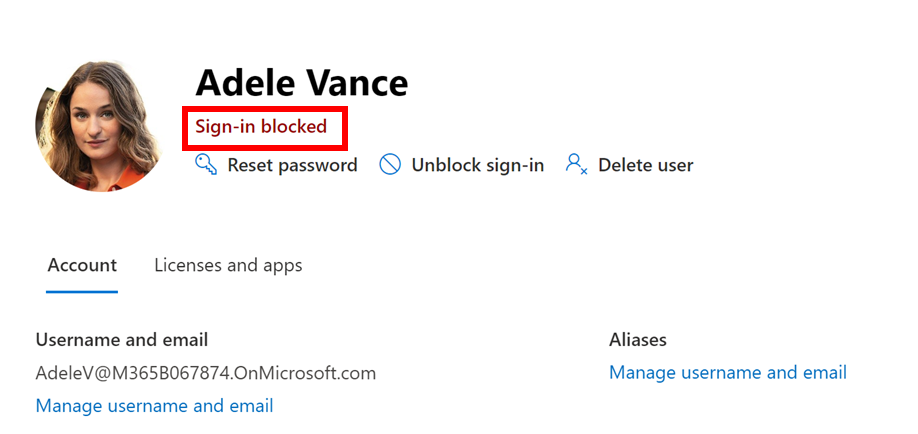
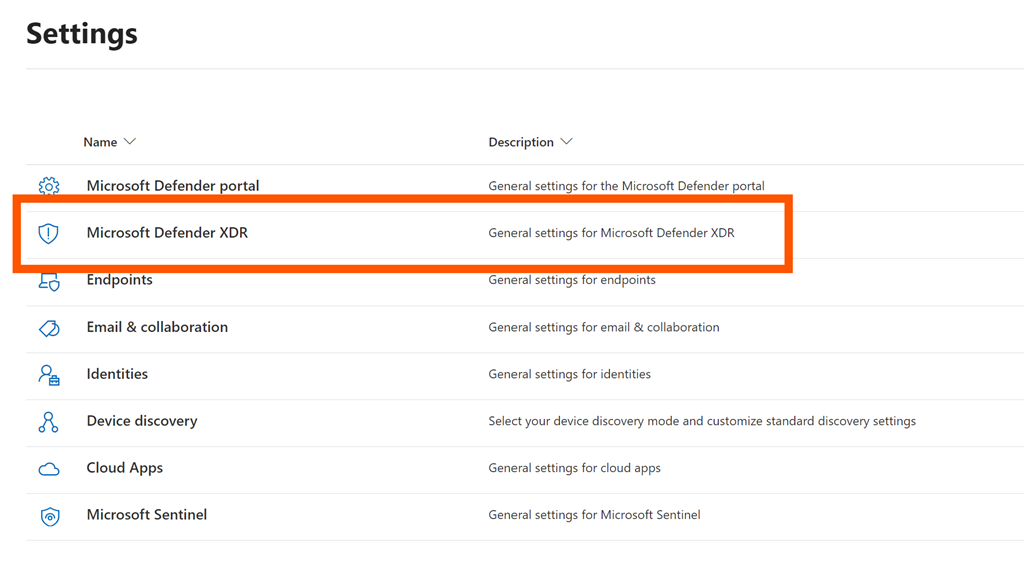
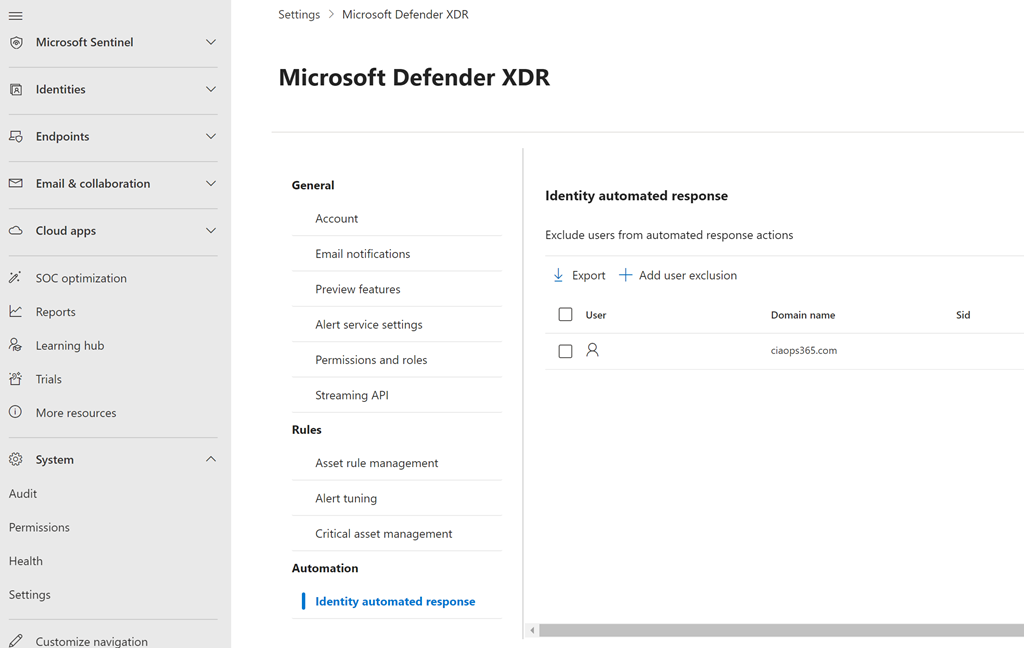
I had an experience recently in which I was unable to access a non-production tenant as a Global administrator. For some reason Defender decided that one of the Global Admins for the tenant had been compromised and an automated action had disabled that account per below:


I am still not 100% sure why this happened (investigations ongoing) but I was now blocked from accessing the tenant using an account that I used regularly. No worries I thought, I’ll just use my break glass account, which I did. I soon discovered, much to my dismay, that I had minimised the security level of my break glass so much that it wasn’t a global admin or possess the rights to unlock the account which had been disabled
So now I couldn’t get into my normal account and my break glass account didn’t have the permissions to re-enable the original disabled account. The next challenge was that I could only remember these two accounts inside the tenant. Although there were others in there I couldn’t remember their details as I never really used them.
I now needed to get Microsoft on the job as I couldn’t easily find a way to reenable the account. To this I needed to raise a ticket in the tenant. Problem was that typically, only admin can raise a support request in the tenant but I didn’t have access to any admin accounts. I therefore raised a support ticket in another tenant and provided all the details for the original tenant.
A few hours later I got a call from Microsoft about my issue and I explained what had happened and was informed that they would need to cancel the original ticket I had created and raise a new one for the right tenant. With that done, a while later I got a call from the Microsoft 365 Data Protection Team. These are the people who can give you access to your environment if it has been lost. Feeling better that the right people were now on the job I provided the Microsoft contact will all the details and we had a shared screen session where I demonstrated how I no longer had access. I was told that I would receive an update in 24 hours.
The next call from the Microsoft 365 Data Protection Team asked me about the domains and the other global admin I had in that tenant. I said I wasn’t sure as I didn’t use those regularly I simply used the account that was now locked. The Microsoft 365 Data Protection Team told me that to get the account unlocked I needed to prove that I was the legitimate owner of the tenant. The way they wanted me to achieve this was to add a TXT record in 3 of the domains I had pointing to the tenant in question.
That seemed easy enough and I was emailed the details to enter into the DNS for each domain. Basically it was a TXT record that needed to be added. I soon discovered that this would be a problem as two of the requested domains had their DNS records actually inside the tenant and managed by the same Microsoft 365 tenant I was locked out of. Thus, I couldn’t add the requested records for 2 of the 3 domains requested. All I could now do was point this out to the Microsoft 365 Data Protection Team and again wait for a response.
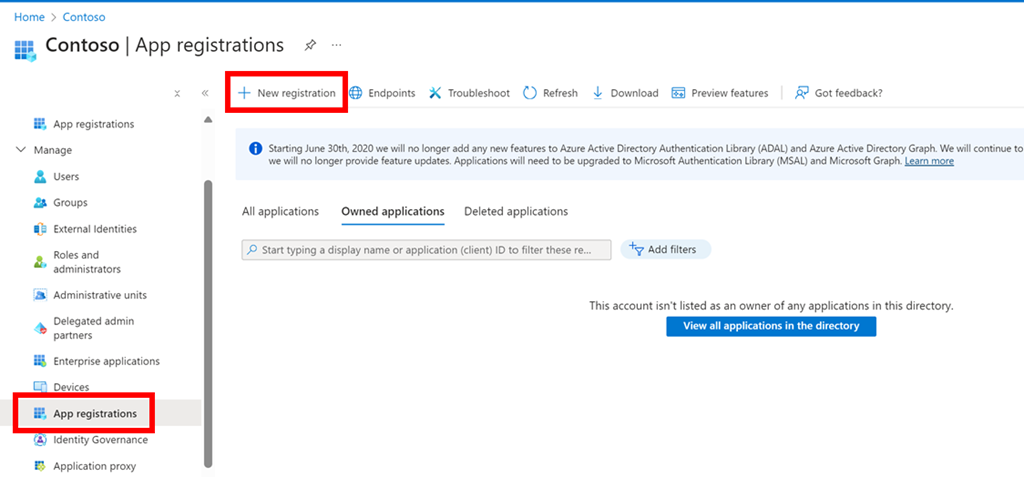
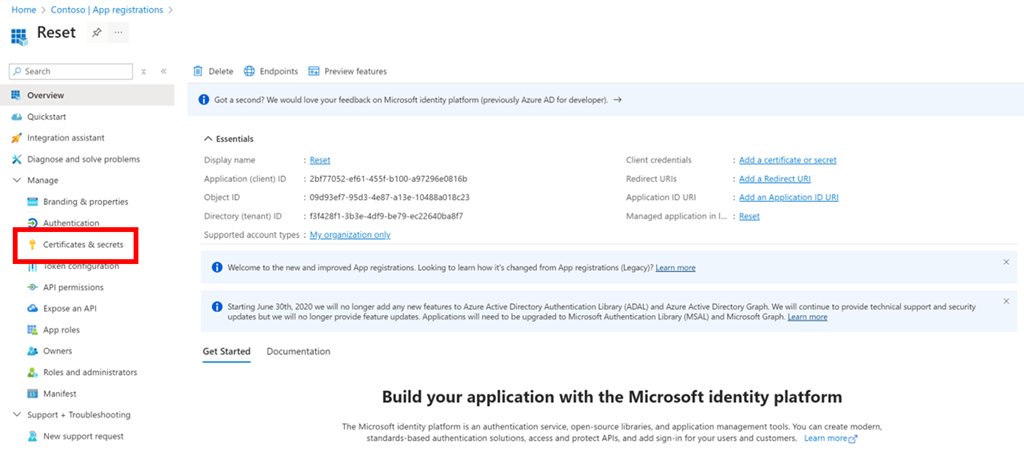
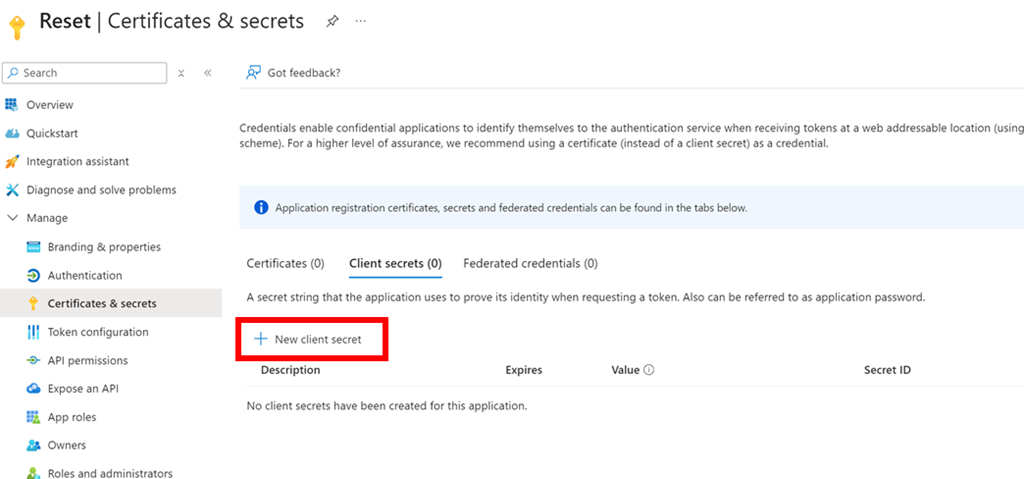
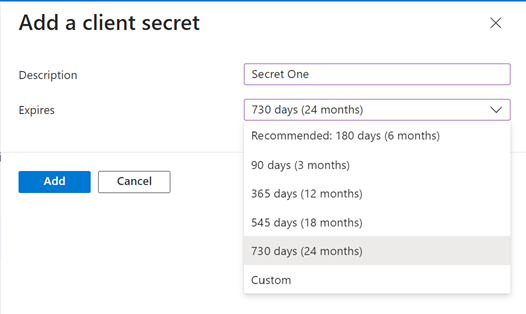
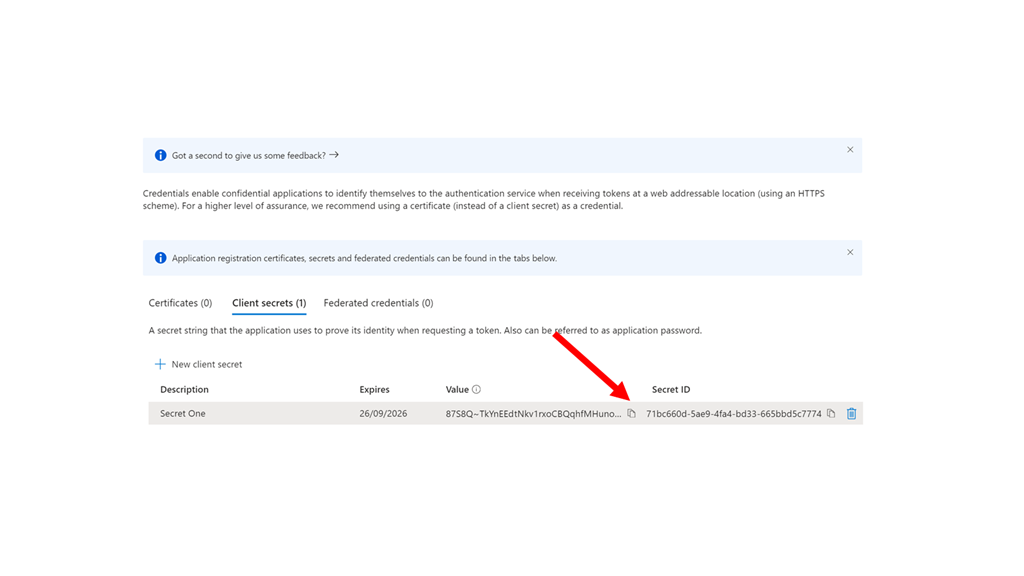
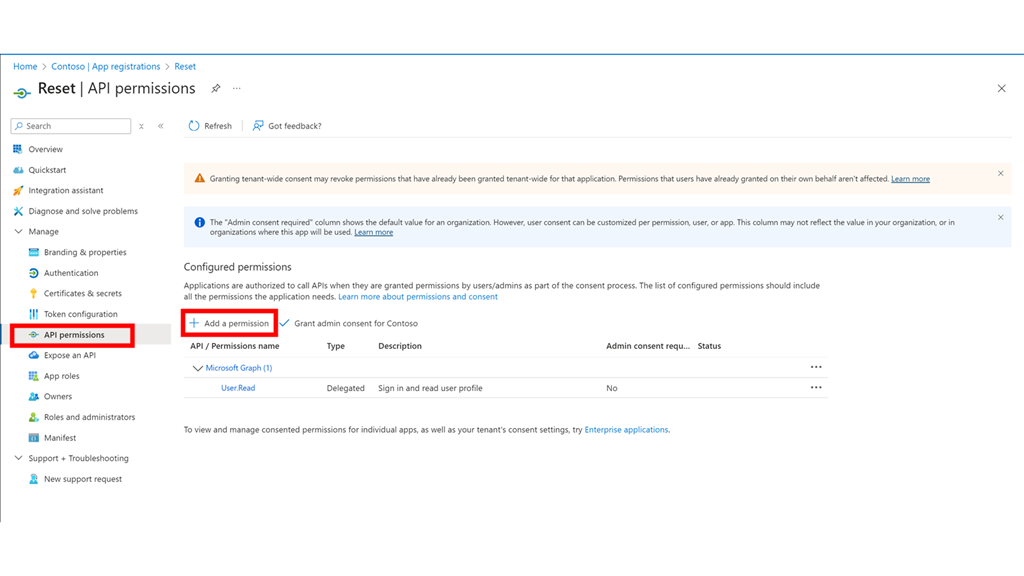
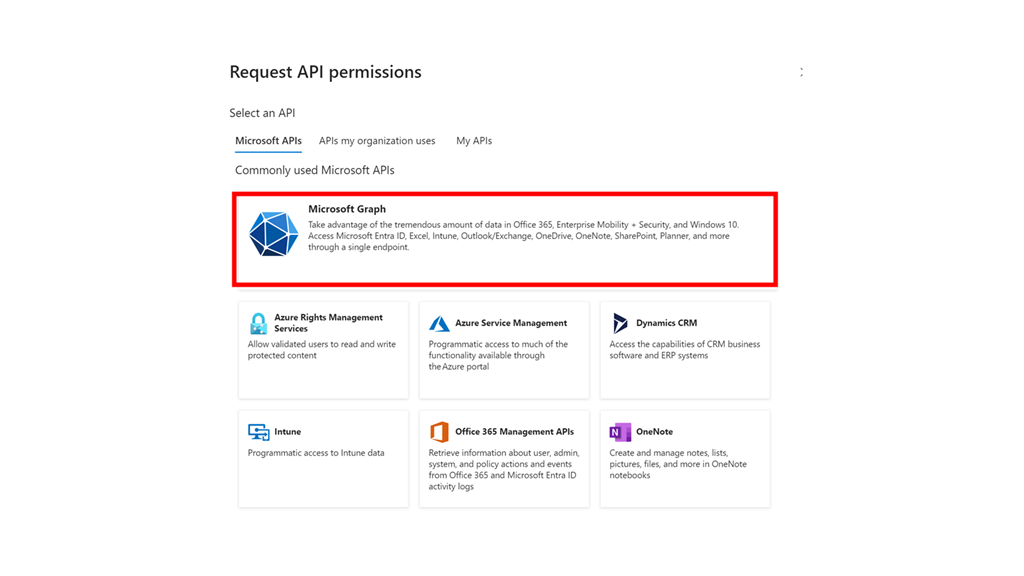
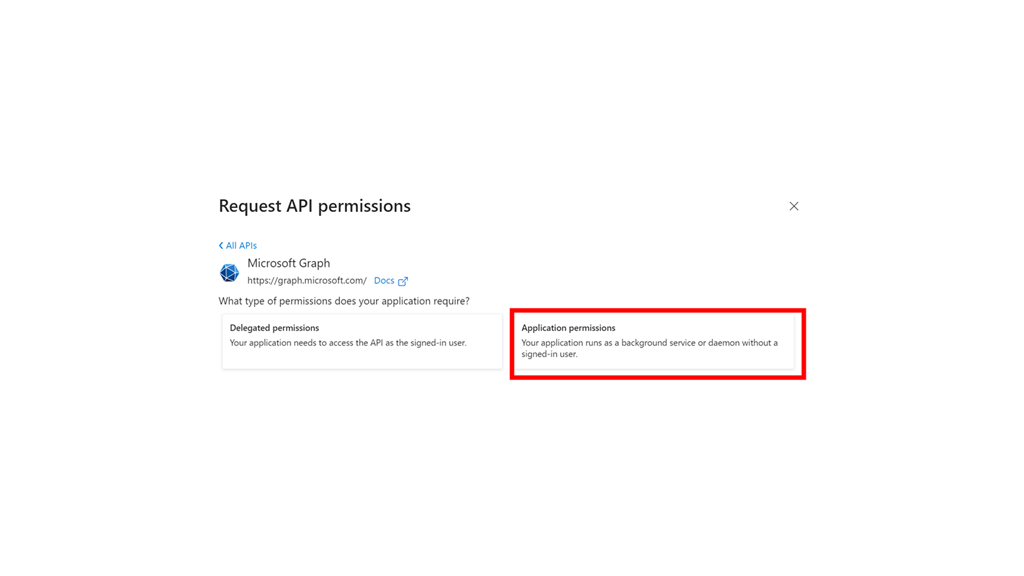
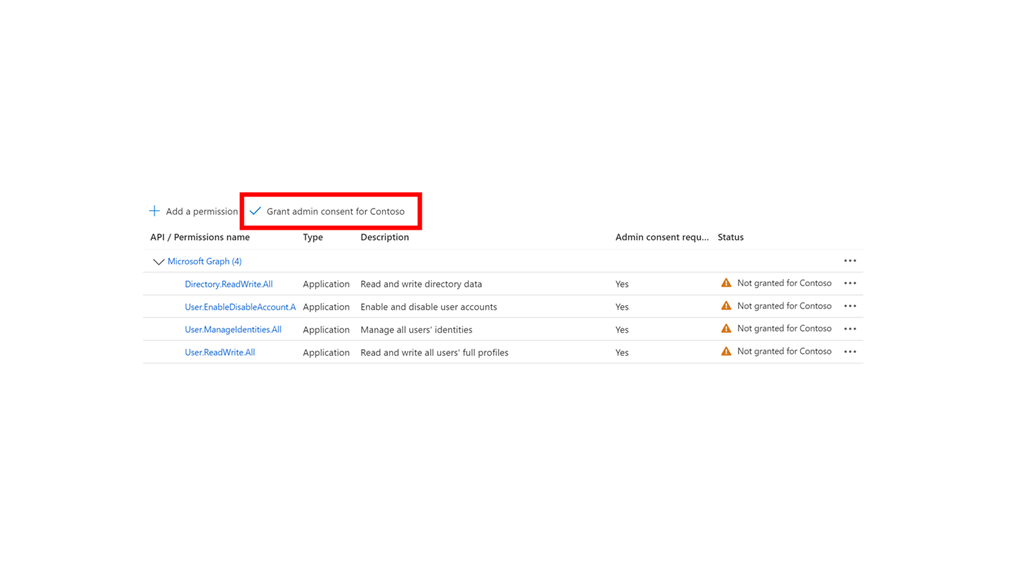
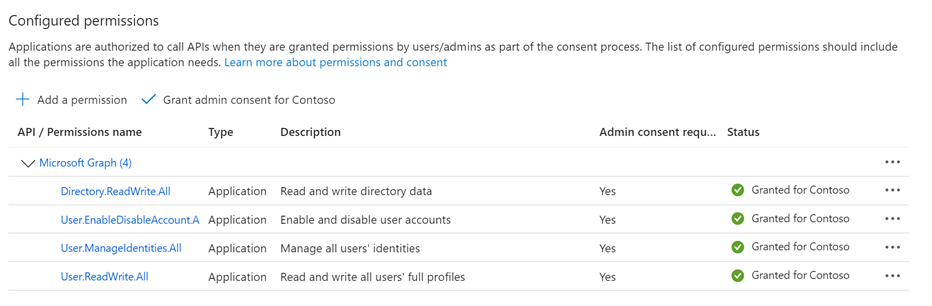
In the meantime I decided that I needed to extract as much configuration information from the tenant as I possible and in the process I realised that I had an Azure AD app that I could use to gain access. After logging in using the app credentials I determined that that too did not have sufficient permissions to enable the original but it did have enough permissions for me to gather information about users and domains to give me a far better idea of how the tenant was configured.
When the Microsoft 365 Data Protection Team finally made contact again, and given that I couldn’t set the required DNS records they basically had me share my screen and then use the camera to show my face along with some photo id that they could take a screen shot of to verify I was who I said I was. However, this needed to be signed off by another party inside Microsoft before my issues could be addressed.
Finally, a few hours later Microsoft again reached out and reset the password on one of the existing Global administrators, rather then re-enabling the account that had been locked and had me log into that other account which I managed to do successfully. At this point the Microsoft 365 Data Protection Team’s job was complete and they could close the ticket on this matter.
With global administrator access I now made sure I documented theses details and enabled the original break glass account to have the appropriate permissions plus take some addition steps to ensure this would not happen again.
Here are the lessons I learned from this experience and share:
- Regularly test that you have access to your break glass account and verify it has the permissions required to enable accounts and reset passwords.
- If you do need to get Microsoft’s assistance regaining control of your tenant it should be via the Microsoft 365 Data Protection Team that you need to get to assist you.
- Try and avoid having the DNS for the domains inside the tenant. Being able to change DNS records is going to be the initial way the Microsoft 365 Data Protection Team verify you are indeed the legitimate owner of the domain if you need to unlock access. If the DNS records can only be changed from inside the tenant you have lost access to, another verification method will be required.
- Ensure you have documented both the domains and users inside the tenant and know which ones are global administrators and which are active.
- Avoid having expired domains inside your Microsoft 365 tenant as these can be used to verify your identity.
- Do not expect the re-establishment of access to be a quick process it will probably take at least one week or more as it needs to go through a standard process of verification that the request is legitimate. In my case, due to the challenges with verifying I was the legitimate owner of the tenant, it took about 2 weeks from the actual incident.
I thank Microsoft for coming to me rescue with this account and fully acknowledge that they shouldn’t have needed to and I should have taken more care managing the tenant in question. I have learned a lot from this experience and hope by sharing this publicly that others will also and avoid the pain that I had to go through.











 CIAOPS
