Check Windows Attack Surface Reduction (ASR) enablement

Windows Attack Surface Reduction (ASR) is an excellent method to improve the security of your Windows devices for free. It is not generally enabled by default and my free script here:

https://github.com/directorcia/Office365/blob/master/win10-asr-get.ps1

enables you to quickly see whether all the ASR rules are enabled for your Windows device.

The script also has other reference links you can use if you then wish to enable ASR in your environment. Always be careful enabling something like this without at least putting it in audit mode first to determine any impact in your production environment.

The video run through above and here:

https://www.youtube.com/watch?v=1KLGsNuz088

hopefully give you a better idea about what the script can accomplish for you.

Get Teams meeting Attendees [VIDEO]

A while back I wrote a script that allows you to report attendees of a Teams meeting with PowerShell:

https://blog.ciaops.com/2023/05/25/get-teams-meeting-attendees-via-powershell-and-the-microsoft-graph/

I have now done a video here:

https://www.youtube.com/watch?v=M0GBzGT3Igk

to provide a walk through of what the execution of that script looks like. The script is located at:

https://github.com/directorcia/Office365/blob/master/tms-attend-get.ps1

Validate email address format with PowerShell

Here’s a handy function you can use in your PowerShell scripts when you need to verify that information contains a valid emails address.

function ValidateEmailAddress {
param (
[string]$EmailAddress
)

    $emailRegex = ‘^[a-zA-Z0-9._%+-]+@[a-zA-Z0-9.-]+\.[a-zA-Z]{2,}$’
$isValid = $EmailAddress -match $emailRegex

    return $isValid
}

Just call the function and specify the text you want to verify as a parameter like:

ValidateEmailAddress(“director@ciaops.com”)

and you’ll get either True or False.

Check mailbox auditing settings using PowerShell

an art deco cartoon of someone doing an audit

An important part of good security in Microsoft 365 is to ensure you are capturing all the logs available. Exchange Online has a number of actions that can be audited and some may not be enabled in your environment. The list available and what is enabled by default can be found here:

Manage mailbox auditing

Here is a quick script you can run to display all the audit settings for each mailbox:

Get-OrganizationConfig | Format-List AuditDisabled
$mailboxes=get-mailbox -ResultSize unlimited
foreach ($mailbox in $mailboxes) {
     write-host “`nMailbox =”,$mailbox.userprincipalname
     write-host (“`— Admin —“)
     $mailbox | Select-Object -ExpandProperty AuditAdmin | Sort-Object
     write-host (“— Delegate —“)
     $mailbox | Select-Object -ExpandProperty AuditDelegate | Sort-Object
     write-host (“— Owner —“)
     $mailbox | Select-Object -ExpandProperty Auditowner | Sort-Object
}

Just compare the list in the link to what you have configured to ensure everything that is available to you is enabled.

To connect to Exchange online prior to running the above code you can use my script:

https://github.com/directorcia/Office365/blob/master/o365-connect-exo.ps1

Getting Global Administrators using the Graph

A common task that needs to be performed is to return all the Global administrators in a tenant via PowerShell. With the focus on using the Microsoft Graph to do things like this you can use the following:

import-module Microsoft.Graph.Identity.DirectoryManagement


Connect-MgGraph -Scopes “RoleManagement.Read.Directory”,”User.Read.All”

$globalAdmins = Get-MgDirectoryRole | Where-Object { $_.displayName -eq “Global Administrator” }
$globalAdminUsers = Get-MgDirectoryRoleMember -DirectoryRoleId $globalAdmins.id

$globaladminsummary = @()
foreach ($adminuser in $globalAdminUsers) {
     $user = Get-MgUser -userId $adminuser.Id
     $globaladminSummary += [pscustomobject]@{      
         Id                = $adminuser.Id
         UserPrincipalName = $user.UserPrincipalName
         DisplayName       = $user.DisplayName
     }
}


$globaladminsummary

which I have also uploaded to my Github repo here:

https://github.com/directorcia/Office365/blob/master/graph-globaladmins-get.ps1

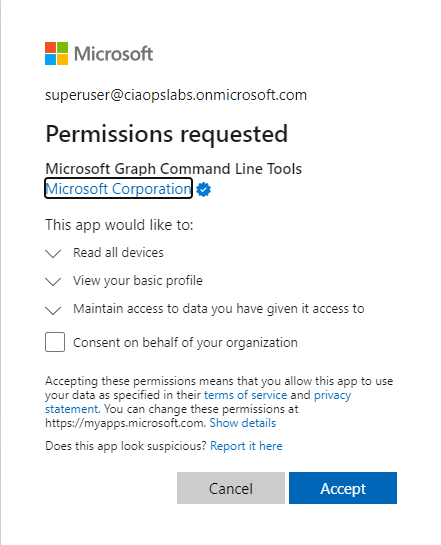
You may also need to consent to some permissions like:

image

If your user doesn’t have these. Permissions required are:

RoleManagement.Read.Directory
User.Read.All

The list of tenant global admins will be held in the variable $globaladminsummary at the completion of this script.

Reading from the CIAOPS Best Practices repo

I’ve recently upload a new JSON configuration file to my Best Practices repo on Github that you can deploy to Intune using PowerShell. You can find it here:

https://github.com/directorcia/bp/blob/main/Intune/Policies/ConfigurationProfiles/SettingsCatalog/odfb.json

The first thing to realise if you want to read this directly in from the repo is that you’ll need to use the raw version of that file which you can find here:

https://raw.githubusercontent.com/directorcia/bp/main/Intune/Policies/ConfigurationProfiles/SettingsCatalog/odfb.json

You will then need to use the command:

$query = invoke-webrequest -method GET -ContentType “application/json” -uri $url -UseBasicParsing

which will store the result in a variable called $query. Of course, you will need to assign the raw URL to the variable $url also.

Once executed if you look at $query.content you should then find a copy of JSON file you can then use to create a policy with PowerShell in Intune.

You can read all of the JSON files in my Best Practices repo in this way and use them to easily deploy to your environment.

ODFB summary script

I’ve have just uploaded a new script to my public Office 365 repo. Here is the direct link:

https://github.com/directorcia/Office365/blob/master/graph-odfb-get.ps1

The script will use the Microsoft Graph to create a summary report of users ODFB, which can also be output to a CSV file.

image

You will need to have the Graph PowerShell module installed. When you run the script you will typically need to consent to the above permissions. These can be found in the Users area of the Graph documentation.

image

The first thing the script will do is connect to the Microsoft Graph and you will generally be prompted to login with a user who has suitable permissions. Once that is complete a list of users will be displayed as shown above.

image

The script will then look at each user found and determine whether they have a ODFB assigned and enabled as shown above. Not all users in your tenant may have a ODFB.

image

For users that do have a ODFB the stats on these will display including total size, used and deleted as shown above.

image

If you use the –csv switch on the command line when you run the script a summary CSV file will also be generated in the parent directory.

Hopefully this helps get a quick summary of all your users ODFB usage.


Centralised Microsoft 365 Add in deployments with PowerShell

Almost 4 years ago I wrote this article:

Centralised Office 365 Add in deployments with PowerShell

Upon review, it seems that the Finedtime addin is no longer available. I have therefore updated the script:

https://github.com/directorcia/Office365/blob/master/o365-addin-deploy.ps1

to remove this and prevent errors.

If you have any Office addins that you believe should be deployed as a ‘standard’ to all users in a tenant, please let me know and I’ll look at adding them to the script.