This guide will provide a comprehensive, production-safe approach using both the Microsoft 365 Defender portal and Exchange Online PowerShell. We will start with a baseline of security and then layer on advanced protections. The core strategy involves keeping the default EOP anti-malware policy as a foundational safety net while creating a higher-priority, custom policy for sensitive users, such as executives and finance teams. This ensures critical assets have the most aggressive, up-to-date protection without disrupting the entire organisation. We’ll also cover essential features like the Common Attachment Filter, Safe Attachments, Safe Links, and the Zero-hour Auto Purge (ZAP) engine to defend against a wide array of evolving threats, from zero-day malware to sophisticated phishing attacks.
1. Prerequisites & Licensing Checks
Before you begin, it’s crucial to understand your licensing model.
Exchange Online Protection (EOP): This is the baseline email security included with all Microsoft 365 subscriptions (e.g., Business Basic, Standard, E3). It provides fundamental anti-malware and anti-spam protection.
Microsoft Defender for Office 365 (MDO): This is an add-on or an included feature in higher-tier plans (e.g., Microsoft 365 Business Premium, E5). MDO Plan 1 adds Safe Attachments and Safe Links, while MDO Plan 2 adds advanced hunting, investigation, and automation features (e.g., Threat Explorer, Automated Investigation and Response). This guide assumes you may have an MDO licence and will detail the optional add-ons.
2. Policy Inventory & Strategic Approach
Best Practice: Do not modify the Default anti-malware policy. This ensures a consistent baseline of protection across all users who aren’t covered by a custom policy. Instead, create new, more restrictive policies for targeted, high-risk groups. Policies are processed by priority (0 being the highest), so a new custom policy with priority 0 will apply to its users, and the default policy will catch everyone else.
GUI Method: Inventory Existing Policies
Navigate to the Microsoft Defender portal at https://security.microsoft.com.
Go to Email & collaboration → Policies & rules → Threat policies.
Under the Policies section, click on Anti-malware. You will see the default policy and any custom ones you have created.
PowerShell Method: Inventory Existing Policies
First, connect to Exchange Online.
PowerShell
# Connect to Exchange Online PowerShell
Connect-ExchangeOnline -UserPrincipalName <your-admin-email> -ShowProgress:$true
Then, view the current policies.
PowerShell
# Get all malware filter policies and their associated rules
Get-MalwareFilterPolicy
Get-MalwareFilterRule
3. Recommended Anti-malware Settings
This section details the recommended settings for your new custom anti-malware policy.
GUI Method: Creating a New Policy
In the Microsoft Defender portal, go to the Anti-malware page from the previous step.
Click Create a policy.
Give the policy a descriptive Name (e.g., High-Risk Users - Anti-malware Policy) and a Description. Click Next.
On the Users and domains page, choose the users, groups, or domains you want to protect. For our example, select Groups and search for ExecutiveTeam. Click Next.
On the Protection settings page, configure the following:
Protection settings
Enable zero-hour auto purge for malware: This is a service-side feature that, when enabled, automatically removes previously delivered malicious messages from user mailboxes. It’s a key part of EOP and is highly recommended.
Quarantine policy: Use the default AdminOnlyAccessPolicy. The rationale is simple: end-users should not be able to release malware. This prevents them from accidentally or maliciously releasing a dangerous file.
Common attachments filter
Check Enable common attachments filter. This is a powerful, extension-based block list that is a fantastic first line of defence. The list of file types has been expanded by Microsoft, but you should periodically review it.
Click Customize file types and ensure a robust list of high-risk file types is selected. The list should include: exe, dll, js, jse, vbs, vbe, ps1, com, cmd, bat, jar, scr, reg, lnk, msi, msix, iso, img, 7z, zipx. You can also add other file types that are not needed in your environment, such as wsf, wsh, url.
Notifications
Admin notifications: Check Notify an admin about undelivered messages from internal senders and Notify an admin about undelivered messages from external senders. Use your security mailbox for this (e.g., security@contoso.com).
Sender notifications:Do not enable Notify internal sender or Notify external sender. Notifying external senders can validate their address for future spam, and an internal sender’s mailbox might be compromised, which could alert the attacker.
PowerShell Method: Creating and Configuring the Policy
This script is idempotent (you can run it multiple times without errors) and will create or update the policies as needed.
PowerShell
# --- PowerShell Script to Configure Exchange Online Anti-malware Policies ---

# Define variables for your tenant
$tenantDomain = "contoso.com"
$highRiskGroupName = "ExecutiveTeam"
$adminNotificationMailbox = "security@contoso.com"
$policyName = "High-Risk Users - Anti-malware Policy"
$ruleName = "High-Risk Users - Anti-malware Rule"

# Define the common attachment filter file types
$fileTypes = @(
    'ade','adp','ani','app','bas','bat','chm','cmd','com','cpl',
    'crt','csh','dll','exe','fxp','hlp','hta','inf','ins','isp',
    'jar','js','jse','ksh','lnk','mda','mdb','mde','mdt','mdw',
    'mdz','msc','msi','msix','msp','mst','pcd','pif','prg','ps1',
    'reg','scr','sct','shb','shs','url','vb','vbe','vbs','wsc',
    'wsf','wsh','xnk','iso','img','7z','zipx','docm','xlsm'
)

# Connect to Exchange Online
Connect-ExchangeOnline -UserPrincipalName $adminNotificationMailbox -ShowProgress:$true

# Check if the policy exists
$policy = Get-MalwareFilterPolicy -Identity $policyName -ErrorAction SilentlyContinue

if ($null -ne $policy) {
    Write-Host "Policy '$policyName' already exists. Updating settings..." -ForegroundColor Yellow
    Set-MalwareFilterPolicy -Identity $policyName `
        -Action DeleteMessage `
        -EnableFileFilter:$true `
        -FileTypes $fileTypes `
        -EnableInternalSenderAdminNotifications:$true `
        -EnableExternalSenderAdminNotifications:$true `
        -AdminDisplayName "Custom policy for high-risk users."
} else {
    Write-Host "Policy '$policyName' not found. Creating a new one..." -ForegroundColor Green
    New-MalwareFilterPolicy -Name $policyName `
        -Action DeleteMessage `
        -EnableFileFilter:$true `
        -FileTypes $fileTypes `
        -EnableInternalSenderAdminNotifications:$true `
        -EnableExternalSenderAdminNotifications:$true `
        -AdminDisplayName "Custom policy for high-risk users."
}

# Check if the rule exists
$rule = Get-MalwareFilterRule -Identity $ruleName -ErrorAction SilentlyContinue

if ($null -ne $rule) {
    Write-Host "Rule '$ruleName' already exists. Updating settings..." -ForegroundColor Yellow
    Set-MalwareFilterRule -Identity $ruleName `
        -MalwareFilterPolicy $policyName `
        -Comments "Applies to high-risk group." `
        -SentToMemberOf $highRiskGroupName `
        -Priority 0
} else {
    Write-Host "Rule '$ruleName' not found. Creating a new one..." -ForegroundColor Green
    New-MalwareFilterRule -Name $ruleName `
        -MalwareFilterPolicy $policyName `
        -Comments "Applies to high-risk group." `
        -SentToMemberOf $highRiskGroupName `
        -Priority 0
}

Write-Host "Configuration complete. Run 'Get-MalwareFilterPolicy' and 'Get-MalwareFilterRule' to verify." -ForegroundColor Green
4. Defender for Office 365 Add-ons (If Licensed)
These advanced policies provide an additional layer of protection.
Safe Attachments: This sandboxing technology “detonates” email attachments in a virtual environment to detect zero-day malware.
Block: The most secure option. Messages with attachments are held while being scanned. If a threat is found, the message is blocked and quarantined. This can introduce a short delay (minutes) for emails with attachments.
Dynamic Delivery: A balance between security and user experience. The email body is delivered immediately with a placeholder for the attachment. The attachment is delivered once the scan is complete. Use this for users who can tolerate a minor delay on the attachment itself but need the email content right away. For a high-risk user group, Block is often the recommended setting.
Safe Links: This feature scans URLs at the time of the click, not just upon arrival. If a URL is later determined to be malicious, it will be blocked even if it was safe when the email was first received.
Zero-hour Auto Purge (ZAP): ZAP for malware is included in EOP and is enabled by default. MDO adds ZAP for high-confidence phishing and spam. This is a powerful, service-side feature that removes messages that have already been delivered to a user’s inbox if new threat intelligence indicates they are malicious. There is no per-policy PowerShell switch for this; its behaviour is managed by the service and the policy’s action on detection.
5. Quarantine Policies
Quarantine policies control what users can do with messages held in quarantine.
The default quarantine policy for malware (AdminOnlyAccessPolicy) prevents end-users from releasing messages. This is the recommended setting. You can create a new policy and enable notifications or release requests for other threat types (e.g., spam), but for malware, keep it locked down.
You can set up quarantine notifications (digests) for users, which provide a summary of messages in their quarantine.
6. Testing & Validation
Once your policies are configured, you must validate them.
The EICAR Test
Use a safe, legal test file to validate your policies. The EICAR (European Institute for Computer Antivirus Research) test file is a non-malicious file that all major anti-malware programs will detect.
To test the Common Attachment Filter, create a plain text file, rename it to eicar.zip, and place the EICAR string X5O!P%@AP[4\PZX54(P^)7CC)7}$EICAR-STANDARD-ANTIVIRUS-TEST-FILE!$H+H* inside it.
To test Safe Attachments, send a test email with the EICAR file attached (as a .zip or other container) to a user in your test group.
Verifying with Message Trace
In the Microsoft Defender portal, go to Email & collaboration → Exchange message trace.
Search for the test message.
Click on the message to view details. The Event field should show a Fail status with the reason Malware.
Header Analysis: You can also check the message headers. Look for the X-Forefront-Antispam-Report header and the SCL (Spam Confidence Level) and PCL (Phishing Confidence Level) values. A message blocked by an anti-malware policy will have a CAT (Category) entry indicating malware.
7. Ongoing Monitoring & Tuning
Threat Explorer (MDO P2) / Reports (EOP): Regularly review the Threat Explorer (or Reports for EOP) in the Microsoft Defender portal to see what threats are being blocked. This helps you identify trends, attack vectors, and potential false positives.
Configuration Analyzer: Located under Email & collaboration → Policies & rules → Threat policies → Configuration analyzer, this tool compares your custom policies to Microsoft’s recommended Standard and Strict preset security policies. Use it to find and fix settings that are less secure than the recommended baselines.
ORCA Module: The Office 365 Recommended Configuration Analyzer (ORCA) is a community-developed PowerShell module that provides a comprehensive report of your M365 security posture. While not an official Microsoft tool, it’s an excellent resource for a deeper dive.
False Positive/Negative Submissions: If a legitimate message is blocked (false positive) or a malicious message gets through (false negative), you must submit it to Microsoft for analysis to improve their detection engines. The submission workflow is found under Actions & submissions → Submissions in the Microsoft Defender portal.
8. Change Control & Rollback
Documentation: Always document any changes made to a policy, including the date, reason, and the specific settings changed.
Phased Rollout: When creating a new policy, first apply it to a small test group before rolling it out to production users.
Rollback: If you encounter issues, you can disable the custom policy in the GUI by toggling its status to Off or with PowerShell using Set-MalwareFilterRule -Identity "Rule Name" -State Disabled. You can also decrease its priority to ensure it no longer applies.
9. Final Checklist
Use this checklist to ensure all best practices have been implemented.
[ ] Prerequisites: Confirm M365 Business Premium or Defender for Office 365 licensing for advanced features.
[ ] Policy Strategy: Leave the default anti-malware policy untouched as a safety net.
[ ] New Policy: Create a new custom anti-malware policy for high-risk users/groups (e.g., ExecutiveTeam).
[ ] Action: Set the action for malware detection to Quarantine the message.
[ ] Common Attachment Filter: Enable and verify a comprehensive list of high-risk file extensions.
[ ] Admin Notifications: Configure admin notifications for malware detections.
[ ] Sender Notifications: Disable notifications for both internal and external senders.
[ ] Safe Attachments (if licensed): Configure a new policy and set the action to Block for high-risk users.
[ ] Safe Links (if licensed): Configure a new policy to scan URLs in emails at the time of click.
[ ] Quarantine Policies: Confirm the quarantine policy for malware is set to AdminOnlyAccessPolicy to prevent user releases.
[ ] Testing: Send a test email with a containerised EICAR file to a user in the new policy’s scope.
[ ] Validation: Use Message Trace to confirm the message was blocked, and review the headers for malware detection results.
[ ] Monitoring: Schedule a regular review of threat reports and submissions.
[ ] Tuning: Address false positives/negatives by submitting them to Microsoft.
[ ] Change Control: Document all changes and have a rollback plan in place.
[ ] Configuration Analyser: Run the Configuration Analyser and compare your policies to Microsoft’s recommended settings.
For more information, refer to these authoritative resources:
Here are 10 tailored prompts you can use with your ASD Secure Cloud Blueprint agent to address common Microsoft 365 Business Premium security concerns for SMBs, with a focus on automated implementation using PowerShell:
🔐 Identity & Access Management
“What are the ASD Blueprint recommendations for securing user identities in M365 Business Premium, and how can I enforce MFA using PowerShell?”
“How does the ASD Blueprint suggest managing admin roles in M365 Business Premium, and what PowerShell scripts can I use to audit and restrict global admin access?”
📁 Data Protection & Information Governance
“What ASD Blueprint controls apply to protecting sensitive data in M365 Business Premium, and how can I automate DLP policy deployment with PowerShell?”
“How can I implement ASD Blueprint-compliant retention policies in Exchange and SharePoint using PowerShell for M365 Business Premium tenants?”
🛡️ Threat Protection
“What are the ASD Blueprint recommendations for Defender for Office 365 in Business Premium, and how can I configure anti-phishing and safe links policies via PowerShell?”
“How can I automate the deployment of Microsoft Defender Antivirus settings across endpoints in line with ASD Blueprint guidance using PowerShell?”
🔍 Auditing & Monitoring
“What audit logging standards does the ASD Blueprint recommend for M365 Business Premium, and how can I enable and export unified audit logs using PowerShell?”
“How can I use PowerShell to monitor mailbox access and detect suspicious activity in accordance with ASD Blueprint security controls?”
🔧 Configuration & Hardening
“What baseline security configurations for Exchange Online and SharePoint Online are recommended by the ASD Blueprint, and how can I apply them using PowerShell?”
“How can I automate the disabling of legacy authentication protocols in M365 Business Premium to meet ASD Blueprint standards using PowerShell?”
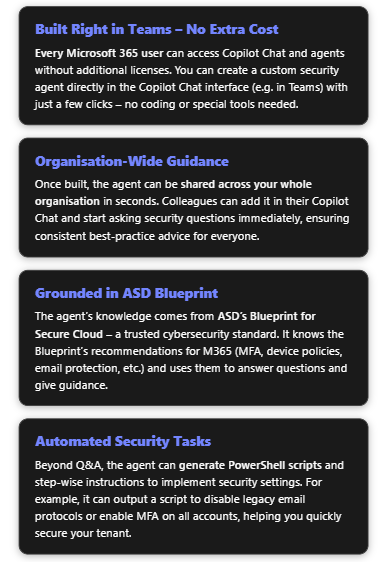
ASD’s Blueprint for Secure Cloud is a comprehensive set of security guidelines published by the Australian Signals Directorate. It details how to configure cloud services (including Microsoft 365) to meet high security standards, incorporating strategies like the Essential Eight. For Microsoft 365, the Blueprint covers everything from enforcing multi-factor authentication and blocking legacy authentication, to hardening Office 365 services (Exchange, SharePoint, Teams) and securing Windows devices via Intune policies[1][2]. By creating a dedicated Copilot Chat agent based on this Blueprint, you give your organisation an easy way to access all that expertise. The agent will act as a virtual security advisor: available through Microsoft Teams (Copilot Chat) to answer questions, provide configuration guidance, and even supply automation scripts – all for free using your existing M365 subscription.
Below is a step-by-step guide to build the agent within the Copilot Chat interface, followed by examples of how it can improve your Microsoft 365 security management.
Step-by-Step: Creating the Copilot Agent in Teams Copilot Chat
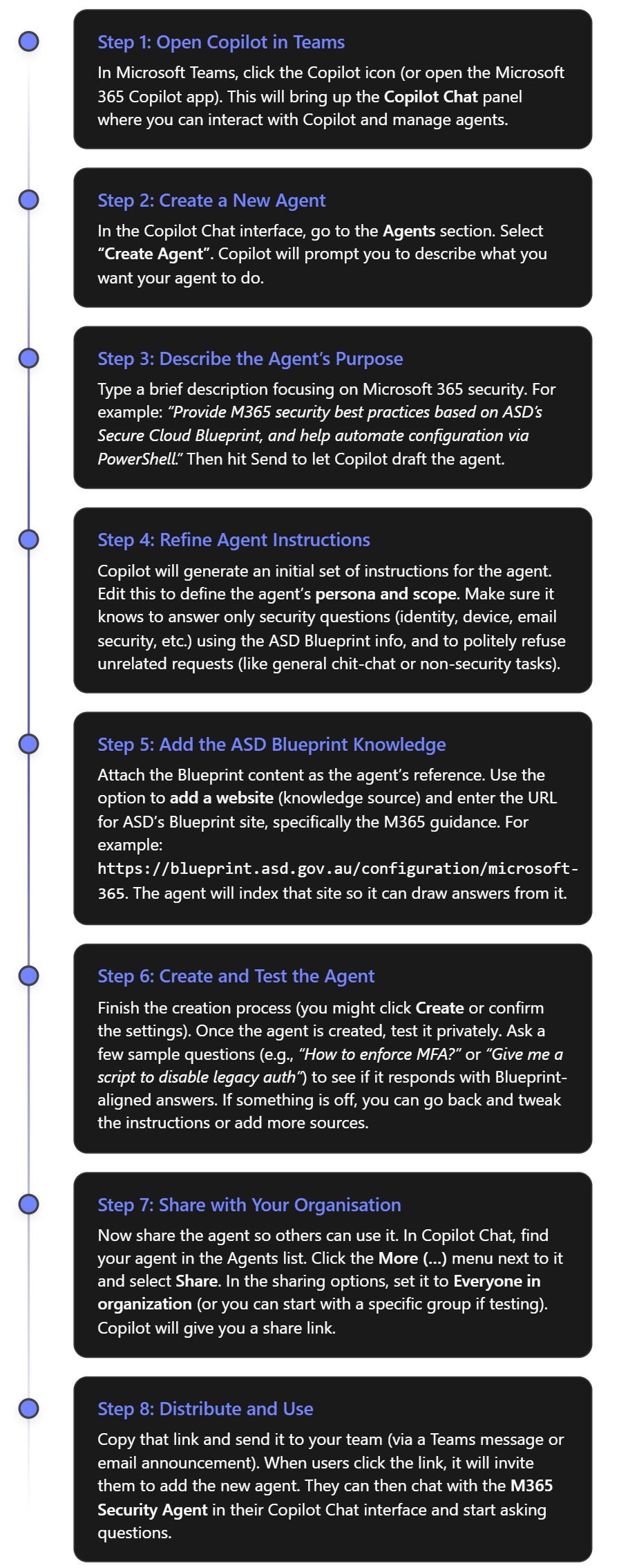
You can create the agent entirely within the Microsoft 365 Copilot Chat interface (such as in Teams), using the built-in Agent Builder. There’s no need to use separate tools or write code. Here’s how to set it up quickly:
Note: The above assumes that the Copilot Agents feature is enabled in your tenant. Microsoft made Copilot Chat available to all users by 2025, but an admin might need to turn on custom agent creation if it’s in preview. Check your M365 admin settings for “Copilot” or “Agents” if you don’t see the option to create an agent. Once enabled, any user can build or use agents in Copilot Chat[3].
How the Agent Improves M365 Security
With your M365 Security Copilot agent up and running, your IT team (and potentially all employees) can leverage it in several ways to strengthen security. Here are some examples of what it can do:
1. Instant Q&A on Security Best Practices
The agent can answer questions about Microsoft 365 security configurations, drawing directly from the ASD Blueprint’s guidance and related Microsoft documentation. This is like having a security policy expert available 24/7.
Example:“What does the ASD Blueprint say about email protection?” – The agent might respond: “It recommends enabling Microsoft Defender for Office 365 features like Safe Links and Safe Attachments for all users[2]. Safe Links will check URLs in emails and documents for malicious content and redirect users if the link is unsafe. Safe Attachments will open email attachments in a sandbox to detect malware before delivering them to the recipient[2].” It would likely go on to mention anti-phishing policies as well. This guidance helps you know which settings to configure (e.g. turn on Safe Links and Safe Attachments in your Exchange Online security policies).
Example:“Do we allow legacy email protocols?” – Legacy protocols like IMAP/POP3 (which use Basic Auth) are a known security risk. The agent knows the Blueprint stance is to disable them in favour of Modern Authentication. It might answer: “No. According to ASD’s guidelines, legacy authentication protocols such as POP3 and IMAP should be disabled[4]. This prevents attackers from bypassing MFA. You should ensure only Modern Auth is allowed for Exchange Online.” The agent could even cite Microsoft’s policy that basic auth is deprecated. This reminds your team to verify those settings (or use the script the agent provides, which we’ll see below).
Example:“What are the password requirements for Windows 10 devices?” – The agent can pull from the Intune compliance policy Blueprint. It could respond: “The Blueprint’s baseline for Windows 10 requires a complex password of at least 15 characters[1]. Simple passwords are blocked, and the device must be encrypted with BitLocker[1]. It also enforces screen lock after 15 minutes of inactivity.” This gives a clear answer that aligns with your organisation’s policy (assuming you adopt the Blueprint settings).
Why this helps: It eliminates guesswork. Admins and helpdesk staff don’t have to search through lengthy documents or remember every detail. They can just ask the agent and get an authoritative answer with the reasoning included. This ensures consistent application of security best practices.
2. Guidance for Implementation and Automation
The agent doesn’t just cite policy – it can help you implement it. Through step-by-step guidance or actual code snippets, it translates the recommendations into action:
Step-by-Step Instructions: For instance, if you ask “How do I enforce MFA for all users?”, the agent will explain the methods. It might say: “To enforce MFA, you have options: (1) Enable Security Defaults in Azure AD, which require MFA for all users by default; or (2) create a Conditional Access policy that requires MFA for all sign-ins[2]. In Azure AD portal, go to Conditional Access -> New policy, assign to all users, cloud apps All, then under Access Controls, require MFA.” It will outline these steps clearly. If the Blueprint or Microsoft docs have a sequence, it will present it in order. This is like having a tutor walk you through the Azure AD configuration.
PowerShell Script Generation: Perhaps the biggest time-saver. The agent can generate scripts to configure settings across your tenant:
If you say, “Give me a PowerShell script to disable POP and IMAP for all mailboxes,” the agent can produce something like:
It knows from context that disabling these protocols is recommended, and the commands to do so. In fact, this script (getting all mailboxes and piping to Set-CASMailbox to turn off POP/IMAP) is a common solution[4]. The agent might add, “This script connects to Exchange Online and then disables POP and IMAP on every user’s mailbox.” With this, an admin can copy-paste and execute it in PowerShell to enforce the policy in seconds.
Another example: “Generate a script to require MFA for all users.” The agent could output a script using Azure AD PowerShell to set MFA on each account. For instance, it might use the MSOnline module:
And it would explain that this iterates through all users and enforces MFA. This aligns with the Blueprint’s mandate for MFA everywhere. The agent is effectively writing the code so you don’t have to. (As always, you should test such scripts in a safe environment, but it provides a solid starting point.) Not here that the MSOL module has been deprecated by Microsoft and you really should use the latest option. Always check your results from AI!
The agent can assist with device policies too. If you ask, “How can I deploy the Windows 10 baseline settings?”, apart from describing the steps in Intune, it might mention scriptable options (like exporting the Blueprint’s Intune configuration as JSON and using Graph API or PowerShell to import it). It will guide you to the appropriate tooling.
Why this helps: It automates tedious work and ensures it’s done right. Many IT admins know what they need to do conceptually, but writing a script or clicking through dozens of settings can be error-prone. The agent provides ready-made, Blueprint-aligned solutions. This speeds up implementation of secure configurations. Your team can focus on higher-level oversight rather than nitty-gritty syntax.
3. Organisation-Wide Security Awareness
By sharing the agent with the whole organisation, you extend its benefits beyond the IT/security team (if desired):
Empowering Helpdesk and Junior Staff: Frontline IT support can use the agent to answer user questions or to verify they’re giving correct advice. For example, if a user asks “Why can’t I use my old Outlook 2010 with company email?”, a helpdesk tech could consult the agent, which might answer: “Outlook 2010 uses legacy authentication which is not allowed because it doesn’t support modern security features. We require newer Outlook versions or clients that support Modern Auth to protect your account.” This backs up the helpdesk with authoritative reasoning.
Training New Team Members: New hires in the IT department can learn your security policies by interacting with the agent. They can ask it various “why do we do X” questions and get consistent answers. It’s like an interactive policy manual. Over time, this improves everyone’s understanding of security in the company.
Consistent Messaging: The agent will always refer to the Blueprint’s guidance. This means the language and recommendations are consistent. If two different people ask about, say, OneDrive sharing settings, they’ll get the same answer from the agent. Consistency is key in security – you don’t want conflicting info. The agent ensures one voice (that of the ASD Blueprint) is answering.
4. Keeping the Agent (and Advice) Up-to-Date
As threats evolve and the ASD Blueprint (or Microsoft’s recommendations) update, you can refresh the agent easily:
Periodically check the Blueprint site for updates. If new sections or changes appear (e.g., a new recommendation to use a particular security feature), you can update the agent’s knowledge. In Copilot’s agent settings, you can re-index the website or add new URLs if needed. For example, if a new “Design Decision” is added on the blueprint site about a feature, include it.
You might also feed the agent additional sources. Suppose Microsoft releases a detailed blog on a new M365 security feature not covered by the current Blueprint. You can add that blog URL to the agent’s sources. Now the agent can incorporate that into its answers as well.
Because you can edit the agent’s instructions at any time, you can also adjust its behavior. If your organisation decides on a custom policy that slightly deviates from the Blueprint, you can instruct the agent about that. For instance, “our company chooses to disable feature X due to internal reasons – reflect that in answers.”
All of this ensures the agent remains a living tool that adapts to the latest best practices and your organisation’s needs.
Example Questions & Agent Responses
To illustrate, here are some example questions you could ask your new security Copilot agent, and the kind of answers you can expect:
Question
Agent’s Response (Summary)
“How do I enforce MFA for all users?”
“Multi-Factor Authentication is mandatory for all users. The ASD Blueprint advises enabling it tenant-wide. You can do this by turning on Azure AD Security Defaults or creating a Conditional Access policy requiring MFA for all accounts. This ensures every login uses a second factor, which makes accounts 99.9% less likely to be compromised[5].” The agent would then guide through setting up the policy (as described in step-by-step above).
“Give me a script to disable legacy email auth.”
“To block legacy authentication (like basic auth for POP/IMAP) on Exchange Online, run the following PowerShell commands: Connect-ExchangeOnline -Credential (Get-Credential) Get-Mailbox -ResultSize Unlimited | Set-CASMailbox -PopEnabled $false -ImapEnabled $false This disables POP and IMAP for all mailboxes[4], forcing the use of Modern Authentication (which supports MFA).”
“What are the device security requirements?”
“For Windows 10/11 devices, the Blueprint baseline requires: BitLocker disk encryption enabled, a password of at least 15 characters with complexity, screen lock after 15 minutes, and up-to-date antivirus/antispyware protection[1]. Jailbroken or rooted mobile devices are not compliant. These ensure devices meet a strong security standard.”
“How can we protect email from phishing?”
“Use Microsoft Defender for Office 365. The Blueprint recommends Safe Links and Safe Attachments for all users[2]. Safe Links will scan and rewrite URLs in incoming emails to shield users from malicious sites. Safe Attachments will open email attachments in a virtual machine to detect malware. Enable these in your Office 365 security center under Threat Management > Policy.” The agent might also mention anti-phishing policies and user training reminders.
“Why do we insist on MFA for login?”
“Because it dramatically improves security. As Microsoft reports, an account is over 99.9% less likely to be hacked if MFA is enabled[5]. The ASD Blueprint therefore mandates MFA for all users. Even if a password is stolen, the attacker cannot get in without the second factor.” This kind of answer provides the rationale you can pass on to users or execs who ask the same question.
These examples show how the agent can be used in practice. It provides precise, actionable answers with evidence (often even citing the official guidance). By interacting with the agent, your IT staff can save time and ensure they’re following the correct procedures, and your end-users get consistent answers on why security measures are in place.
In summary, a dedicated Copilot Chat agent based on the ASD Secure Cloud Blueprint can greatly streamline your Microsoft 365 security operations. It’s free to set up (since Copilot Chat agents are available to all M365 users[3]), quick to distribute via Teams, and immediately useful for both answering questions and executing security tasks. Your organisation gets the benefit of an always-available expert that reflects approved best practices, helping you raise the security baseline across the board.
One of the challenging things about manipulating SharePoint items with PowerShell was that you need to use PnP PowerShell. I have always found this tricky to get working and connect and it seems things have changed again.
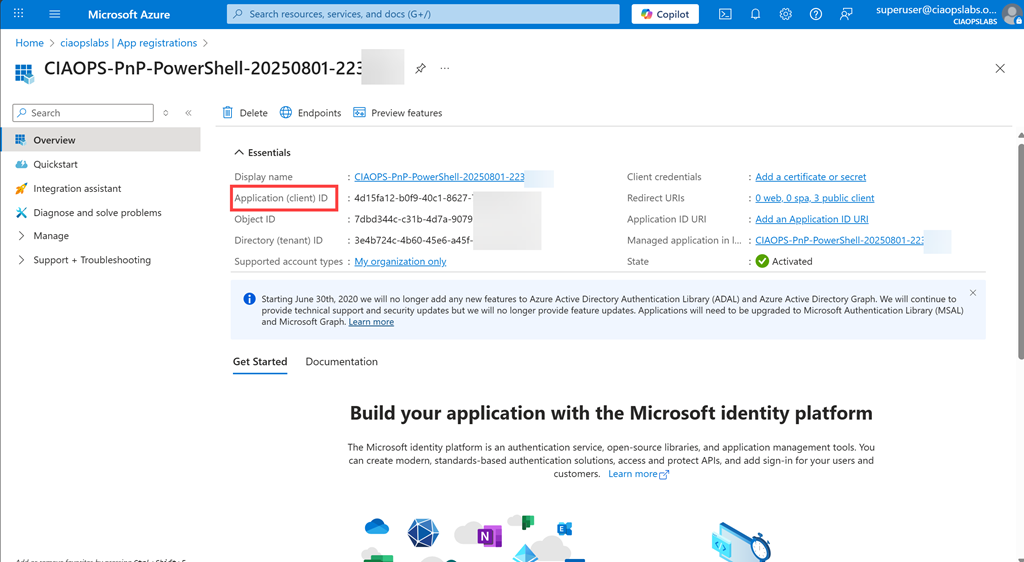
Now when you want to use PnP PowerShell you can only do so using a Azure AD app! This is additionally challenging if you want to do that manually so I modified by free connection script:
to allow the creation of the Azure AD app as part of the process and to also allow you to specify an existing Azure Ad app that was already created by the process as the way to connect. The documentation is here:
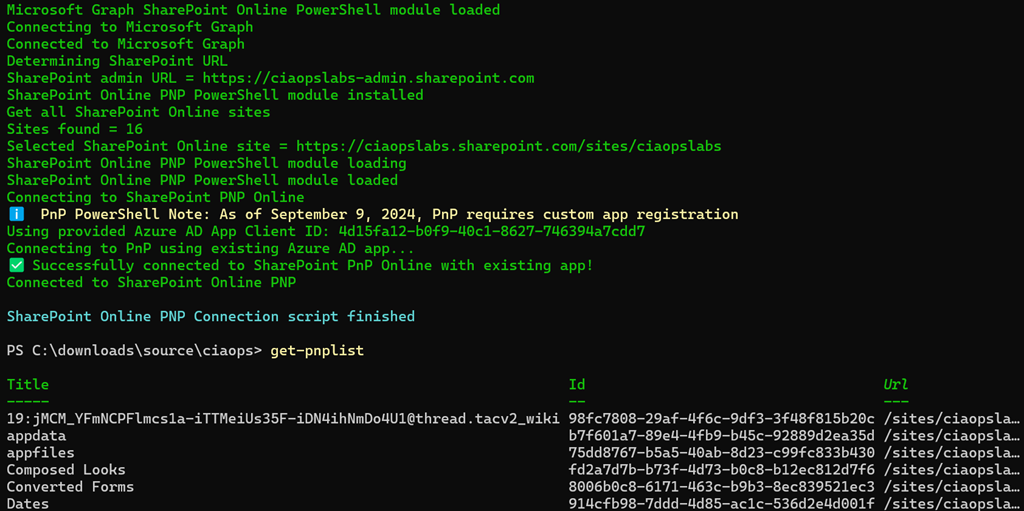
but in essence, you run the script the first time and it will create an Azure AD app for you like this:
Subsequent times you can simply use the apps again by specifying the ClientID GUID in the command line to make the connection. If you don’t then the script will create a new Azure AD app. So create an Azure AD app the first time and use that same app going forward I suggest. Of course, consult the full online documentation for all the details.
Hopefully, this makes it a little easier to use PnP PowerShell in your environment.
Ever wondered if your Microsoft 365 experience is running as fast as it should? Whether you’re dealing with slow Outlook syncs, Teams lag, or SharePoint delays, the culprit might be your connection to Microsoft’s cloud.
That’s where my new Microsoft 365 Connection Speed Test script comes in — a free, no-fuss tool that gives you a clear picture of how well your network connects to Microsoft 365.
️ What Is It?
This PowerShell script, created CIAOPS, runs a quick diagnostic to test your connection speed to Microsoft 365 services. It checks latency, download speed, and other key metrics — all from your own machine.
Why Should You Use It?
Spot Bottlenecks: Identify if your network is slowing down your Microsoft 365 apps.
Troubleshoot Smarter: Get real data to help IT support pinpoint issues faster.
Work from Anywhere: Test performance from home, the office, or on the go.
No Guesswork: Know exactly how your connection stacks up — no tech jargon required.
Who’s It For?
Anyone using Microsoft 365! Whether you’re an IT admin, a remote worker, or just someone who wants Teams to stop freezing mid-call — this tool is for you.
This script is a great example of how a little tech can go a long way in improving your daily workflow. It’s free, fast, and incredibly useful — especially if you rely on Microsoft 365 to get things done.
Want help running it or interpreting the results? Just let me know — I’m here to help!
A final note – you have the option to upload the results securely to my BLOB storage in Azure at the end of the script. I’m planning to use AI to analyse these results and providing a results dashboard and potentially providing benchmarking feedback as part of the results. So, I’d love it if you would share your results back to me so I can keep improving and enhancing this for all.
In the context of configuring anti-spam settings in Exchange (particularly Exchange Online, which uses Exchange Online Protection or EOP), “rules” and “policies” work together to define how email is processed and protected. PowerShell is the primary tool for granular control over these settings.
Here’s a breakdown of their relationship:
1. Policies (Anti-Spam Policies):
What they are: Policies are the core configuration containers that define the overall anti-spam settings. They specify what actions to take when a message is identified with a certain spam confidence level (SCL) or other anti-spam verdict (e.g., spam, high-confidence spam, phishing, bulk email).
Key settings within policies:
Spam Actions: What to do with messages identified as spam (e.g., move to Junk Email folder, quarantine, add X-header, redirect).
High-Confidence Spam Actions: Similar to spam actions, but for messages with a very high probability of being spam.
Phishing Actions: Actions for phishing attempts.
Bulk Email Thresholds (BCL – Bulk Complaint Level): How to treat bulk mail (e.g., newsletters, marketing emails) that isn’t necessarily spam but users might not want.
Allowed/Blocked Senders and Domains: Lists of specific senders or domains that should always be allowed or blocked, bypassing some or all spam filtering.
Advanced Spam Filter (ASF) settings: More granular options like increasing spam score for specific characteristics (e.g., certain languages, countries, or specific URLs/patterns).
Default Policies: Exchange/EOP comes with built-in default policies (e.g., “Default,” “Standard Preset Security,” “Strict Preset Security”) that provide a baseline level of protection.
Custom Policies: You can create custom anti-spam policies to apply different settings to specific users, groups, or domains within your organization.
2. Rules (Anti-Spam Rules / Mail Flow Rules / Transport Rules):
What they are: Rules are used to apply policies to specific recipients or groups of recipients, or to implement more dynamic and conditional anti-spam actions. While “anti-spam rules” are directly linked to anti-spam policies, “mail flow rules” (also known as “transport rules”) offer a broader range of conditions and actions, including those that can influence spam filtering.
Relationship to Policies:
Anti-Spam Rules (specifically): An anti-spam rule (e.g., created with New-HostedContentFilterRule) links an anti-spam policy to specific conditions (e.g., applying the policy to members of a certain distribution group). A single anti-spam policy can be associated with multiple rules, but a rule can only be associated with one policy. This allows you to apply different policies to different sets of users.
Mail Flow Rules (broader impact): Mail flow rules can also be used to influence anti-spam behavior, even if they aren’t strictly “anti-spam rules.” For example:
Bypassing spam filtering: You can create a mail flow rule to set the Spam Confidence Level (SCL) of a message to -1 (Bypass spam filtering) if it meets certain conditions (e.g., from a trusted internal system, or specific external partners).
Increasing SCL: You can increase the SCL of messages that contain specific keywords or come from particular sources, forcing them to be treated more aggressively by anti-spam policies.
Redirecting/Quarantining: Mail flow rules can directly redirect suspicious messages to a quarantine mailbox or add specific headers for further processing, often based on content or sender characteristics that might indicate spam or phishing.
New-HostedContentFilterRule: Creates a new anti-spam rule and links it to an anti-spam policy.
Set-HostedContentFilterRule: Modifies an existing anti-spam rule.
Get-TransportRule, New-TransportRule, Set-TransportRule: Manage general mail flow (transport) rules, which can include anti-spam related actions.
How they work together (with PowerShell in mind):
Define the “What”: You use New-HostedContentFilterPolicy or Set-HostedContentFilterPolicy to define the core anti-spam behavior (e.g., “quarantine spam, move high-confidence spam to junk, block these specific senders”).
Define the “Who/When”: You then use New-HostedContentFilterRule to create a rule that applies that specific policy to certain users or under specific conditions. You can prioritize these rules using the -Priority parameter on the Set-HostedContentFilterRule cmdlet, where a lower number means higher priority.
Advanced Scenarios: For more nuanced control, or to handle edge cases not covered directly by anti-spam policies, you leverage New-TransportRule or Set-TransportRule. These allow you to:
Exempt certain senders/domains from all spam filtering (SCL -1).
Apply custom actions based on message headers (e.g., from a third-party spam filter).
Implement more sophisticated content-based filtering using keywords or regular expressions before the message hits the main anti-spam policies.
Example Scenario and PowerShell:
Let’s say you want to:
Apply a strict anti-spam policy to your “Executives” group.
Allow a specific partner domain to bypass most spam filtering.
Create a mail flow rule to bypass spam filtering for the partner domain:
PowerShell
New-TransportRule -Name "BypassSpamForPartner" -FromScope OutsideOrganization -FromDomainIs "partnerdomain.com" -SetSCL -1 -Priority 0 # Higher priority to ensure it's processed first
In summary:
Policies define the actions for different spam verdicts and general anti-spam behavior.
Rules (both anti-spam rules and broader mail flow/transport rules) define the conditions under which those policies or other anti-spam actions are applied.
PowerShell gives administrators the power to create, modify, and manage these policies and rules with a high degree of precision and automation, which is crucial for effective anti-spam protection in Exchange environments.
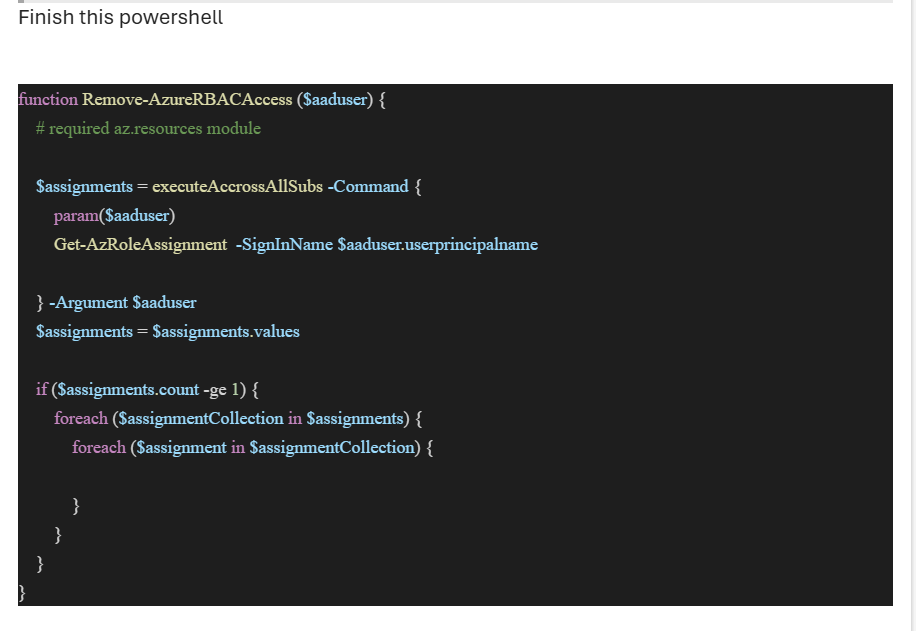
Someone sent the following screen shot of PowerShell code to robert.agent@ciaops365.com. Which, if you haven’t seen, is an agent I built to respond automatically to emails using Copilot Studio.
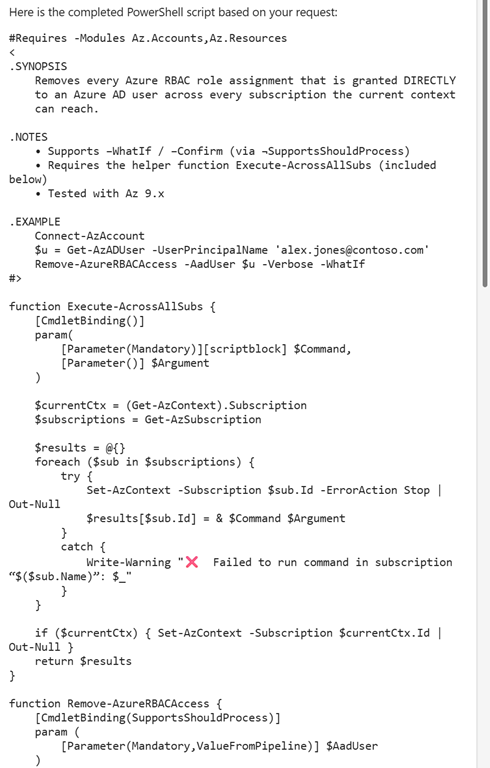
My Copilot Agent was able to read the PowerShell inside the screen shot and return the following 103 lines of PowerShell for that person!







 CIAOPS