PowerShell with Endpoint Manager

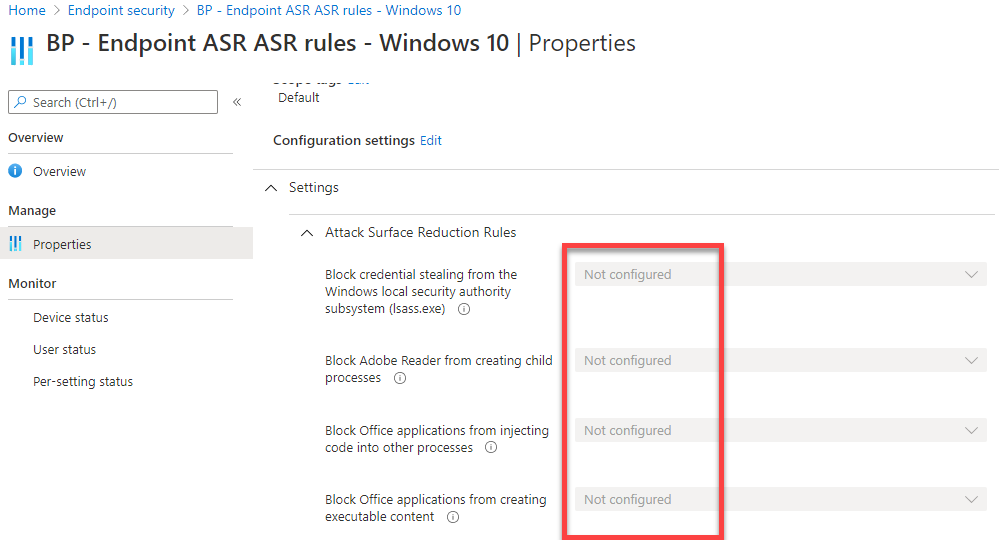
Here is video demonstrating what I’ve been working of late. I am only making these scripts available via the CIAOPS Paton program.

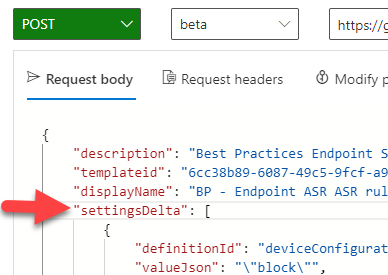
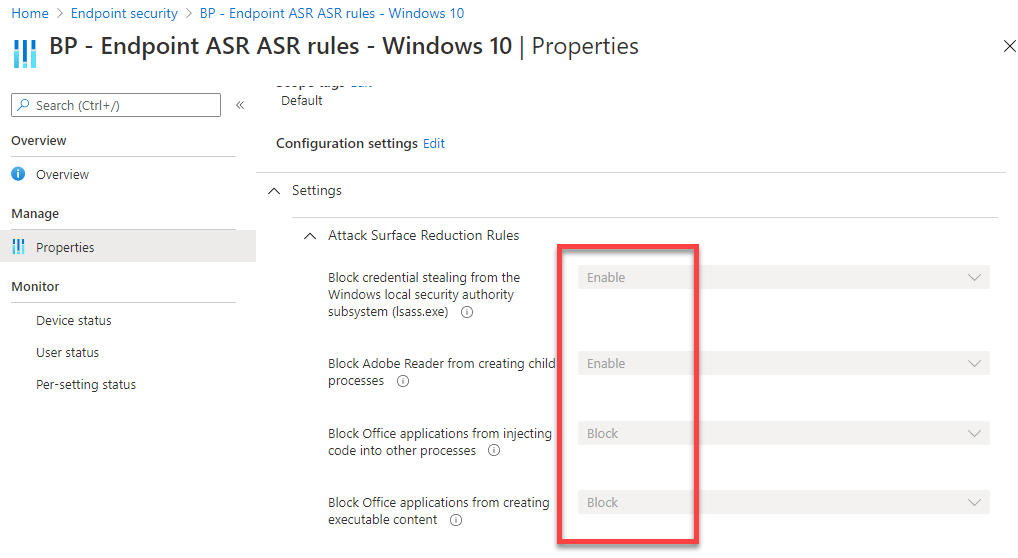
The video will show you how I both create and erase policies via script, as well as generate a set of best practice policies and alternatively, importing them from previously saved policies. This saves a huge amount of time when compared creating and assigning policies manually.

Again, these scripts are not free and part of the CIAOPS Paton program. You’ll find my free stuff at https://www.github.com/directorcia.

Removing Azure Enterprise app consented permissions

image

After installing the appropriate PowerShell modules you can connect to  the Microsoft Graph with PowerShell using the command:

connect-graph

as shown above. First thing to remember is that this process can’t be completed in the Power ISE, you’ll need to do it elsewhere (here, using Windows terminal). The second thing to note is that you can specific the scope with which you to connect. Thus, in this case, the scope will be Files.ReadWrite.All and Sites.Readwrite.all. The scope is in effect the permissions the current user will be given when they connect to the Microsoft Graph. This allows you to only provide permissions for exactly what you need.

image

During the connection process you’ll be asked to consent to the permissions just requested, as shown above. If you simply select Accept here, you are just consenting for the current user. However, if you check the Consent in behalf of your organization option you’ll be providing these permissions to ALL users in your tenant! For now, only consent will be granted for the current user. However, be very, very careful consenting for the whole organization as I will illustrate.

You can now happily go off and perform whatever actions you need to using PowerShell for the Microsoft Graph.

image

With security in mind, I went to have a look at where these permissions just consented to actually appear. You’ll find them by opening the Azure Portal and navigating to Azure Active Directory as shown above. From here, select Enterprise applications from the menu on the left.

image

From the screen that appears ensure All applications is select from the menu on the left. Then on the right, locate and select Microsoft Graph PowerShell as shown.

image

From the screen that now appears, select Permissions from the menu on the left as shown. On the right you’ll then be able to select either Admin consent or User consent.

Because the permissions assigned were only for a single user, the User consent item will show these to us as shown above. This list of permissions matches those consented to when connecting to the Microsoft Graph.

The right hand most column in this display, Grant by, has a hyperlink to show the number of users with this assigned permission.

image

If you select any of these hyperlinks, you’ll see a list of users, on the right, that have been assigned this permission appear on the right as shown above.

Can you see the problem yet? No? Well…….how do you REMOVE or revoke a permission here?

image

From what I can determine, you can’t remove the permissions via the portal. If you select Review permissions menu option you’ll see a item displayed from the right as shown above. If you select the option This application has more permissions that I want and basically told to use PowerShell to revoke all permissions for this application as well as being provided with the code to do so.

The issue is that even after you disconnect from the Microsoft Graph, having completed any scripting, those consented permissions remain in place i.e. they are NOT rescinded. This means that if the user account with these permissions to the Graph is compromised then that attacker has access to the Microsoft Graph and potentially lots of sensitive areas in a tenant, especially if the permissions have been added to over time. Imagine how much WORSE it gets if permissions were consented tenant wide, rather than to an individual user?

image

Selecting that little check box in the above Permissions requested dialog, which I see MANY people do without thinking, can really give you a security headache by opening up your Microsoft Graph permissions for EVERY user in the tenant!

Thus, best security practice is going to be to remove these permissions when they are no longer required as well as limiting who has them initially. Personally, I’d remove them after each interaction so I don’t forget and leave a potential attack vector.

To make doing all that a little easier, I have gone out and created a script that you’ll find in my Github repo:

https://github.com/directorcia/Office365/blob/master/graph-adappperm-del.ps1

image

If you run the script, it will first check whether the Azure AD PowerShell module is loaded. If it is, it will then ask you to login to your tenant. Then it will display a list of all the Azure AD applications in your tenant and allow you to select the ones you want to change (yes, you can select multiple Azure AD apps if you want) as shown above.

In this case, Microsoft Graph PowerShell application is selected.

image

You’ll then be prompted to select whether you wish to select Admin consent and/or User Consent permissions. You can select both here if you wish by using the CTRL and/or SHIFT key when making selections (i.e. just like when you use Windows Explorer).

image

If you selected User consent, you’ll then be prompted to select the users you want. Again, multiple selections are available if offered.

image

You’ll now be prompted to confirm you wish to delete these permissions for these users.

image

Those permissions will be removed and the script will continue to work through the rest of your selections.

In this case, because there were no Admin consented permissions for this application we receive a notification line as shown in above output.

image

If you now return and have a look at the permissions for that app in the portal, you should see they have all been removed as shown above.

Leaving users with standing permissions to something as powerful as the Microsoft Graph is not best security practice. It is therefore important to regularly review these and remove what is not required. If you need those permissions again in eth future, after they have been removed, you can always re-consent to them when you next connect to the Microsoft Graph.

Frustrations of using the Microsoft Graph with PowerShell

I’ve spent the past few day wrestling with the using Microsoft Graph with PowerShell, and it hasn’t been fun. Let me explain.

image

The first issue is that you can’t use the connect-graph command in the PowerShell ISE in Windows 10. if you do, you just get a flashing cursor as shown above that eventually times out.

image

If you repeat the same process in wither Windows terminal (above) or the PowerShell command you are taken through the standard device login browser process as expected.

image

After that, if you return to the ISE (above) and repeat the command connect-graph, you receive a message telling you that you are connected by virtue of the token from the previous Windows Terminal session.

SNAGHTML3e54e286

If you run the preferred Graph command get-mguser (above) you see that the AssignedLicenses and AssignedPlans attributes are blank.

image

If you now run my script:

https://github.com/directorcia/Office365/blob/master/Intune-connect.ps1

You also get connected to the Microsoft Graph as I highlighted here, but specifically to the Intune portion of the Graph:

New Intune connection PowerShell script

Typically, this type of connection is also designed for device management with PowerShell and work very well. However, because device management also requires access to users, we can also get access to user data via the Graph.

SNAGHTML3e5a0c9b

You achieve this by running the following script after connecting to Intune Graph:

$uri = “https://graph.microsoft.com/beta/users”
$users = (Invoke-MSGraphRequest -Url $uri -HttpMethod GET).Value
$users

which you see above gives you similar to the user options before but with far more detail as demonstrated by the assignedLicenses and assignedPlans highlighted previously highlight above.

SNAGHTML3e5cd9e4

Just to prove there is no smoke and mirrors here, above the output of the command get-mguser used after the connect-graph command (i.e. the non-Intune connection method).

Clearly, the data is in the Graph, but the command get-mguser does not yet seem to support pulling all this down from what I see. I hope someone can point out the error of my ways here but to create the reporting and automation I REALLY want looks like I’m to either have to use the PowerShell Intune module or revert to using the full web based invoke-request to get what I’m after.

image

What kind of worries me a little is that Intune PowerShell project seen above and at:

https://github.com/microsoft/Intune-PowerShell-SDK

that works REALLY well, hasn’t seen any updates in 2 years! There are 57 outstanding issues at the time of writing this blog, including two from me because not all the native wrapper commands work as expected. Are they being attended to at all I wonder?

In summary then, I’m in somewhat of quandary about using PowerShell with the Microsoft Graph. Specific stuff like the Intune SDK works well using the invoke-msgraphrequest command. It is easy to setup and manage the permissions for. On the other hand, the more general Graph commands like get-mguser don’t as yet seem to return as much information as they could. As well as the Intune SDK works I’m kind of afraid that it will not see future development.

So where should I invest my time to continue automating Microsoft 365 administration? Suggestion anyone?

End to End email protection with Microsoft 365–Part 6

This is part of a series of articles about email security in Microsoft 365. Please check out previous articles here:

End to End email protection with Microsoft 365 – Part 1

End to End email protection with Microsoft 365 – Part 2

End to End email protection with Microsoft 365 – Part 3

End to End email protection with Microsoft 365 – Part 4

End to End email protection with Microsoft 365 – Part 5

These articles are based on a model I have previously created, which you can read about here:

CIAOPS Cyber protection model

designed to help better explain expansive security included with Microsoft 365.


Email reporting and auditing

It’s now time to look at all the logging that occurs during even the simply process of receiving and viewing an email. For starters there is:

Message tracing

and

Message trace in the modern Exchange admin center

Message trace in the Security & Compliance Center follows email messages as they travel through your Exchange Online organization. You can determine if a message was received, rejected, deferred, or delivered by the service. It also shows what actions were taken on the message before it reached its final status.

There is also reporting options like:

Mail flow insights in the Security & Compliance Center

and

Mail flow reports in the Reports dashboard in Security & Compliance Center

as well as:

Microsoft 365 Reports in the admin center – Email activity

If you want to specifically look at email security there is:

Email security reports in the Security & Compliance Center

as well as:

Defender for Office 365 reports in the Reports dashboard in the Security & Compliance Center

and

Reports for data loss prevention (DLP)

I have also spoken about the importance of the Unified Audit Logs (UAL) in Microsoft 365:

Enable activity auditing in Office 365

Unified Audit Logs in Microsoft 365

and you need to ensure that these have been enabled so that you can:

View mailbox auditing

Starting in January 2019, Microsoft is turning on mailbox audit logging by default for all organizations. This means that certain actions performed by mailbox owners, delegates, and admins are automatically logged, and the corresponding mailbox audit records will be available when you search for them in the mailbox audit log.

Here are some benefits of mailbox auditing on by default:

  • Auditing is automatically enabled when you create a new mailbox. You don’t need to manually enable it for new users.

  • You don’t need to manage the mailbox actions that are audited. A predefined set of mailbox actions are audited by default for each logon type (Admin, Delegate, and Owner).

  • When Microsoft releases a new mailbox action, the action might be automatically added to the list of mailbox actions that are audited by default (subject to the user having the appropriate license). This means you don’t need to monitor add new actions on mailboxes.

  • You have a consistent mailbox auditing policy across your organization (because you’re auditing the same actions for all mailboxes).

With this auditing enabled you can do things like:

Reporting mailbox logins

and

Search the Office 365 activity log for failed logins

as well as

Audit Office 365 user logins via PowerShell

Many of the reports that you find in the Microsoft 365 Admin area can be scheduled to be sent via email per:

Scheduling compliance reports

Apart from auditing and security you can also do more typical things like:

Viewing mailbox usage

Viewing Email apps usage

The availability of all this data is covered here:

Reporting and message trace data availability and latency

typically being 90 days.


User reporting and auditing

For information more specifically about user logins into the service and the Identity container, the best place to look is in Azure Active Directory (AD).

What are Azure Active Directory reports?

Find activity reports in the Azure portal

Azure Active Directory sign-in activity reports – preview

Audit activity reports in the Azure Active Directory portal

and if you want use PowerShell

Azure AD PowerShell cmdlets for reporting

Device reporting and auditing

There are lots of options when it comes to monitoring and reporting on devices. Apart from what is offered locally you also have:

Intune report

Create diagnostic settings to send platform logs and metrics to different destinations

Manage devices with endpoint security in Microsoft Intune

You can even get telemetry data and analytics reports from your desktop applications via:

Windows Desktop Application Program


Aggregated data reporting and monitoring

As you can see with all the options above, it is easy to get to information overload trying to keep up with all those signals. Luckily Microsoft provides a range of services to aggregate all this for you to make monitoring and report easier.

The first is Microsoft Cloud App Security services:

Cloud App Discovery/Security

Microsoft Cloud App Security overview

Microsoft Cloud App Security data security and privacy

There are plenty of reasons why you really should have Microsoft Cloud App Security in your environment:

A great security add on for Microsoft 365

Office 365 Cloud App Discovery

Next, is Microsoft Defender for Endpoint that will aggregate security and threat information for devices in your environment and make it available in a single console.

Overview of Microsoft Defender Security Center

Microsoft Defender Security Center portal overview

Microsoft Defender for Endpoint

Microsoft Defender for Endpoint evaluation lab

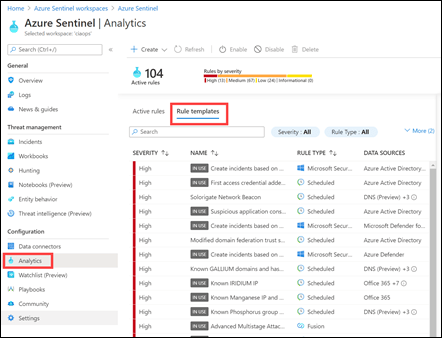
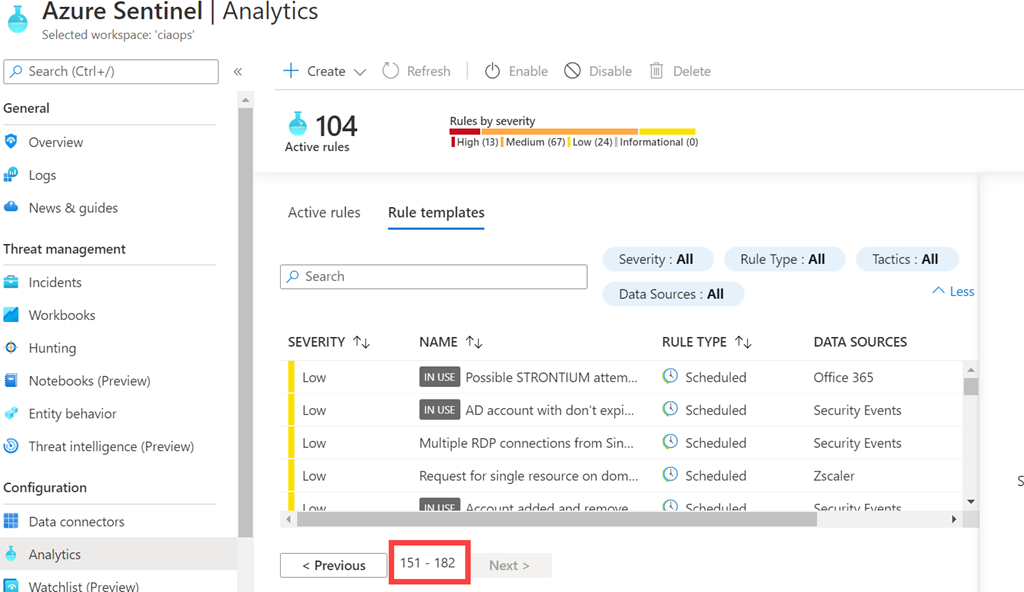
Finally for me, there is Azure Sentinel, which I see as really the ultimate hub for event reporting, monitoring and alrtign across the whole service.

Another great security add on for Microsoft 365

Introduction to Azure Sentinel

Azure Sentinel is a service that growing in features rapidly:

A couple of new additions to Azure Sentinel

Stay ahead of threats with new innovations from Azure Sentinel


Summary

Hopefully, all this gives you some insight into all the auditing and usage data that Microsoft 365 captures during any interaction within the service. One of the biggest benefits is also how this information is integrated between services, especially those that aggregate information lime Microsoft Cloud App Security and Azure Sentinel. This means you don’t have to crawl through individual log entries, you can use a dashboard and drill down from there. I also like the fact that all of these services and data are accessible using a scripting tool like PowerShell if you want to automate this further.

Remember, throughout this six part series I’ve just looked at what happens when a single email is delivered and view with Microsoft 365. If you expand that out to all the services and capabilities that Microsoft 365 provides you can hopefully get a better appreciate of the protection it provides in place for your data on many different levels.

The call to action for readers is to go away and implement all the security features that Microsoft 365 provides. This may of course vary by the license that you have. You should then consider what additional security offerings the Microsoft cloud stack can offer that makes sense for your business, then implement those. Remember, security is not a destination, it is journey.

Get Intune and Endpoint policies using PowerShell

Recently, I wrote an article about how to use PowerShell to connect to Intune and Microsoft Endpoint Manager. You’ll find it here:

Intune connection PowerShell script

Having a script that just connects to Intune doesn’t achieve a whole lot now does it? It’s now time to put that connection script to good use.

image

I’ve created another script, that once connected to Intune will allow you to display all the policy names you have configure in both Intune and Endpoint Manager as shown above. You can find that script here:

https://github.com/directorcia/Office365/blob/master/intune-policy-get.ps1

You’ll need to use my script to connect to Intune first. Once you have you can run the second script.

Although these scripts don’t do a huge amount, they will help you hopefully more easily connect to Intune with PowerShell and understand how you can also use PowerShell to work with information in both Intune and Endpoint Manager.

I’ll work on more advanced scripts for Intune and Endpoint that I’ll share in the future. However, this should hopefully get you up and running with automating device management in Microsoft 365.

New Intune connection PowerShell script

image

I’ve uploaded a new connection to Intune script that is freely available on my Github repository. You’ll find it here:

https://github.com/directorcia/Office365/blob/master/Intune-connect.ps1

image

Once it has been run you can run commands like:

get-autopilotprofile

as shown above.

To allow this script to operate correctly you’ll need the following two modules installed:

WindowsAutoPilotIntune

and

Microsoft.Graph.Intune

Both of these will be installed as part of my o365-setup.ps1 and o365-update.ps1 scripts, which are also freely available.

image

I’ve also added this Intune connection script to the connection selector script (c.ps1) in the same repository.

image

When intune-connect.ps1 runs you’ll be prompted for your credentials as normal.

image

Then you password and MFA if required.

image

Because connection to Intune via PowerShell now uses the Microsoft Graph, you’ll need to allow the above permissions as shown once.

SNAGHTML95fe247f

You’ll find those permissions, when you accepted them, in Azure AD, User, Applications as shown above inside the Azure portal. In there will be an application called Microsoft Intune PowerShell as shown above.

image

If you select that Microsoft Intune PowerShell and scroll down to the bottom of the screen that is displayed, you can select a link View granted permissions as shown above.

image

You will then see all the permission granted to that user for accessing the Graph. You can also remove these if you ever want to as well here.

Having access to Intune and Autopilot via PowerShell will make automating device management much easier.

CIAOPS Need to Know Microsoft 365 Webinar–January

laptop-eyes-technology-computer

We’re back for 2021 and for January we are going to cover a topic which remains a mystery to many – PowerShell. I’ll show you how to quickly set up PowerShell to use with Microsoft 365 and some handy things that you can do with it to make your life easy through automation. I’ll also have the latest news from Microsoft and as always there will be time for your questions.

You can register for the regular monthly webinar here:

January Webinar Registrations

The details are:

CIAOPS Need to Know Webinar – January 2021
Friday 29th of January 2021
11.00am – 12.00am Sydney Time

All sessions are recorded and posted to the CIAOPS Academy.

The CIAOPS Need to Know Webinars are free to attend but if you want to receive the recording of the session you need to sign up as a CIAOPS patron which you can do here:

http://www.ciaopspatron.com

or purchase them individually at:

http://www.ciaopsacademy.com/

Also feel free at any stage to email me directly via director@ciaops.com with your webinar topic suggestions.

I’d also appreciate you sharing information about this webinar with anyone you feel may benefit from the session and I look forward to seeing you there.