Outlook Web Access maintain a list of allowed and blocked file types. These are contained in a policy for each user. To determine what this policy is with PowerShell, the first thing you’ll need to do is connect to Exchange Online. I have made that easy for you by creating a script to connect using the new Exchange Online V2 PowerShell module. you will find that script here:
https://github.com/directorcia/Office365/blob/master/o365-connect-exov2.ps1
Once you have connected, run the following commands:
$casmailbox=Get-CASMailbox <user email address>
$owapolicyname = $casmailbox.OwaMailboxPolicy
$owapolicyname
This should display something like:

which gives us the policy name.
Next run the command:
$policy = Get-OwaMailboxPolicy $owapolicyname
to get the settings/values of that policy.
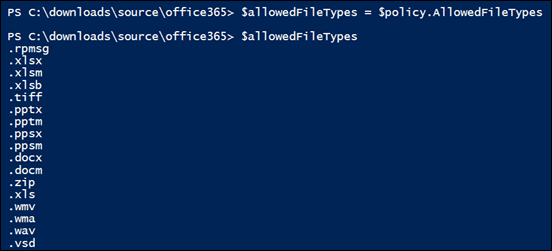
To view the allowed file list run the commands:
$allowedFileTypes = $policy.AllowedFileTypes
$allowedFileTypes
which should show something like:
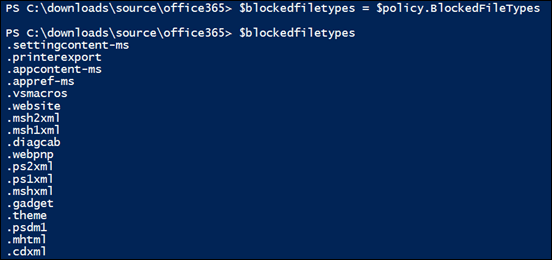
To view the blocked file list run the commands:
$blockedfiletypes = $policy.BlockedFileTypes
$blockedfiletypes
The next question is, can you adjust these lists? Yes you can. You basically do that by adjusting the list of extensions variable (here $blockedfiletypes) via something like:
$blockedFileTypes.Remove(“.XXX”)
and reapplying that to the policy like:
Set-OwaMailboxPolicy $policy -BlockedFileTypes $blockedFileTypes
and if you want to extend the list just use add instead of remove in the above command prior to applying it to the policy.
Microsoft is making additions to the BlockedFileTypes list from April 2020:
What file extensions will be added to the BlockedFileTypes list with this change?
The following extensions are used by the Python scripting language:
“.py”, “.pyc”, “.pyo”, “.pyw”, “.pyz”, “.pyzw”
The following extensions are used by the PowerShell scripting language:
“.ps1”, “.ps1xml”, “.ps2”, “.ps2xml”, “.psc1”, “.psc2”, “.psd1”, “.psdm1”, “.cdxml”, “.pssc”
The following extension is used by Windows ClickOnce
“.appref-ms”
The following extension is used by Microsoft Data Access Components (MDAC)
“.udl”
The following extension is used by the Windows sandbox
“.wsb”
The following extensions are used for digital certificates:
“.cer”, “.crt”, “.der”
The following extensions are used by the Java programming language:
“.jar”, “.jnlp”
The following extensions are used by various applications. While the associated vulnerabilities have been patched (for years, in most cases), they are being blocked for the benefit of organizations that might still have older versions of the application software in use:
“.appcontent-ms”, “.settingcontent-ms”, “.cnt”, “.hpj”, “.website”, “.webpnp”, “.mcf”, “.printerexport”, “.pl”, “.theme”, “.vbp”, “.xbap”, “.xll”, “.xnk”, “.msu”, “.diagcab”, “.grp”
The list in my test tenant right now is:
Blocked File Types:
.settingcontent-ms
.printerexport
.appcontent-ms
.appref-ms
.vsmacros
.website
.msh2xml
.msh1xml
.diagcab
.webpnp
.ps2xml
.ps1xml
.mshxml
.gadget
.theme
.psdm1
.mhtml
.cdxml
.xbap
.vhdx
.pyzw
.pssc
.psd1
.psc2
.psc1
.msh2
.msh1
.jnlp
.aspx
.xnk
.xml
.xll
.wsh
.wsf
.wsc
.wsb
.vsw
.vst
.vss
.vhd
.vbs
.vbp
.vbe
.url
.udl
.tmp
.shs
.shb
.sct
.scr
.scf
.reg
.pyz
.pyw
.pyo
.pyc
.pst
.ps2
.ps1
.prg
.prf
.plg
.pif
.pcd
.ops
.msu
.mst
.msp
.msi
.msh
.msc
.mht
.mdz
.mdw
.mdt
.mde
.mdb
.mda
.mcf
.maw
.mav
.mau
.mat
.mas
.mar
.maq
.mam
.mag
.maf
.mad
.lnk
.ksh
.jse
.jar
.its
.isp
.ins
.inf
.htc
.hta
.hpj
.hlp
.grp
.fxp
.exe
.der
.csh
.crt
.cpl
.com
.cnt
.cmd
.chm
.cer
.bat
.bas
.asx
.asp
.app
.adp
.ade
.ws
.vb
.py
.pl
.js
and Allowed File Types is:
.rpmsg
.xlsx
.xlsm
.xlsb
.tiff
.pptx
.pptm
.ppsx
.ppsm
.docx
.docm
.zip
.xls
.wmv
.wma
.wav
.vsd
.txt
.tif
.rtf
.pub
.ppt
.png
.pdf
.one
.mp3
.jpg
.gif
.doc
.bmp
.avi
Your mileage may vary.









 CIAOPS