Viewing all files with OneDrive on Demand

image

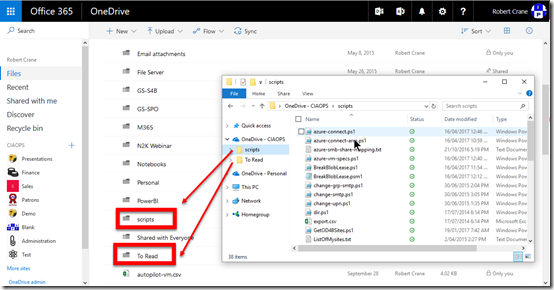
So you have installed the Windows 10 Fall Creators update with the new OneDrive on Demand feature. However, when you look at the files in your OneDrive you only see the one’s you were previously selectively syncing to your desktop. You don’t however see the full contents of the location you are syncing.

This is exactly the situation above, as you can see. I was previously doing a selective sync of only two folders from my OneDrive for Business to the desktop and this configuration has remained even though I have upgraded to the Windows 10 Fall Creators update. Here’s how you configure the your OneDrive sync client to see all your file no matter where they are.

image

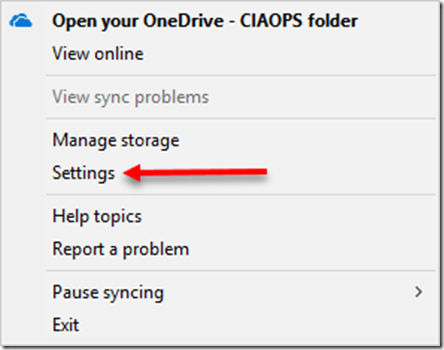
Right mouse click on the OneDrive sync client in your taskbar (lower right corner near the clock). From the menu that appears select Settings.

image

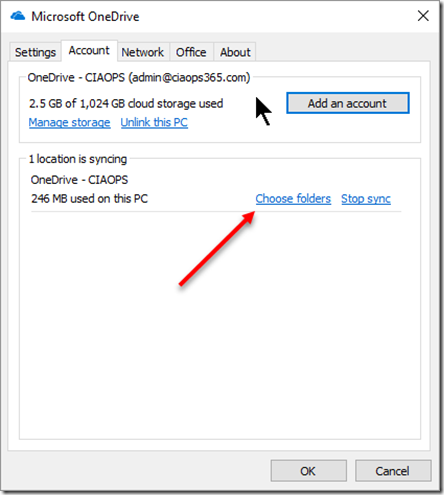
Ensure you have the Account tab selected and then select option Choose folders for the location you are syncing from.

SNAGHTML16c7f7a4

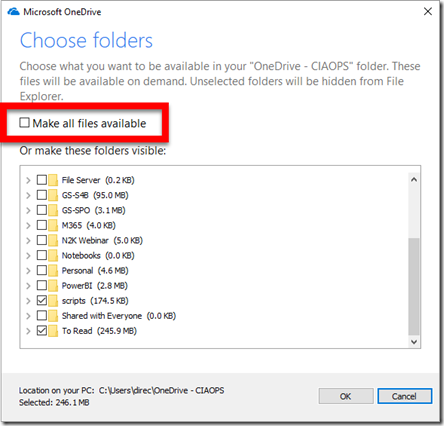
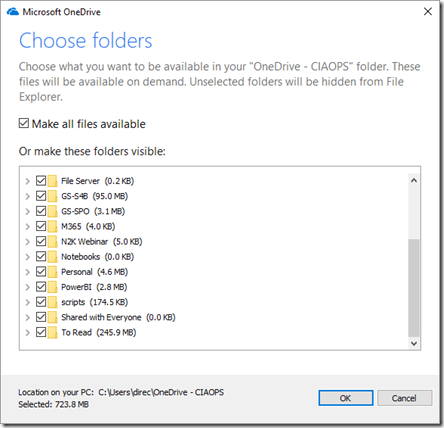
You see a list of all the files in your OneDrive for Business in the cloud as well as the location you are currently syncing, which have a check mark next to them.

Select the option at the top of the page, Make all files available.

image

You should now see a check mark next to every item as shown above.

Press the OK button to continue.

image

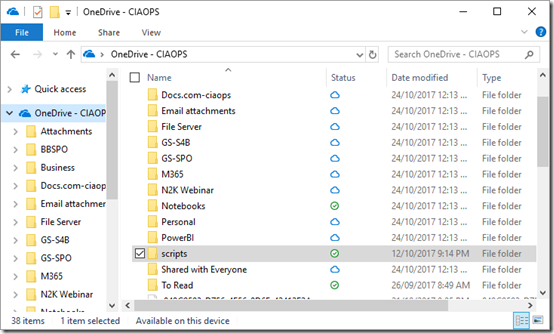
If you look at you synced location in your Windows Explorer you should now see every file listed as shown above. You should also see the ones that you added remain online (i.e. have a cloud icon next to them) and the information you previously select remains synced (i.e. the green check mark icon next to them). Thus, nothing additional will be synced to your desktop until you elect to do so. This now allows you to easily browse all the files in the synced source location.

Now you can easily and dynamically determine exactly which files you wish to have synced to your desktop will viewing all your files form that location.

Easy.

BOOM–the world changed

Today is the day that I received a software update that I believe is going to result in a significant shift in the IT market. That update is the Windows 10 Falls Creators update.

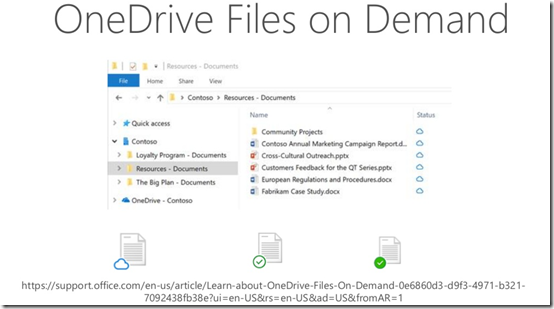
The one single feature that I believe is a complete world changer is OneDrive Files on Demand. This basically allows you to easily selectively sync files from both OneDrive for Business and SharePoint to your desktop.

image

There already plenty of technical information out there when it comes to OneDrive Files on Demand including:

https://support.office.com/en-us/article/Learn-about-OneDrive-Files-On-Demand-0e6860d3-d9f3-4971-b321-7092438fb38e

What I want to talk about here is the business side of this update.

One of the most common processes of moving  to the cloud for many business is to shift their data to the cloud BUT then they want everyone to sync everything back down on premises to every machine. Pure and utter madness in my eyes but simply what people want to do for some reason.

Now don’t get me wrong, I have no issues with SELECTIVE sync (i.e. thinking before syncing) but I am TOTALLY against bulk syncing (the lazy option). Bulk syncing, in my experience, causes endless issues and challenges no matter what syncing technology is implemented.

OneDrive Files on Demand is going to allow the end user to maintain the way they work but the technology will now be smart enough to only bring down what is needed, when it is needed. This means you’ll be able to see all your files in OneDrive for Business and SharePoint but you’ll only have the ones you need synced to your local machine as you need them.

This approach I believe has really leapfrogged the OneDrive sync technology to the front of the pack. It is a demonstration of the commitment Microsoft is making in this technology and its appreciation of the importance to the market.

The real game changer here is for the future. Microsoft isn’t going to stop here. It is going to continue to iterate and improve the technology. It is going to provide alternatives like Azure File Sync, which I have written about previously, for use where OneDrive sync may not make sense.

The new OneDrive File on Demand, I believe, will be a tipping point for the way people work with Office 365. It is going to a pretty much seamless change for the user but the functionality and security improvements are huge. Look all the additional new features like bulk roll back, geo location of data, etc. The broader you look, the better it gets with Office 365 now.

If you have shied away from using the OneDrive sync technology because of past issues, I would suggest now is the time to start looking seriously at OneDrive Files on Demand. Of course it won’t be retrofitted to Windows 7 or 8 but it will come to the latest Mac machines.I believe this one feature alone is the reason you SHOULD upgrade to the Windows 10 Fall Creators update (there are many other compelling reason as well, of course).

Having less technology providers and exploiting all the benefits from a reduced set of vendors makes good business sense. Products from the same supplier integrate better together and the Microsoft solution gives you superior management and compliance. It isn’t about who has the best product in isolation. It is who has the best ecosystem in my books. Office 365 and Azure continue to improve daily. They add more and more features that people. They respond to requests from the market thanks to Uservoice.

We’ve waited a long time to say with confidence that OneDrive is the best. That day has finally arrived for me. OneDrive Files on Demand is a market game changer in my books and something I suggest is adopted as soon as possible. You won’t be sorry.

Sharing a link doesn’t allow download?

Here’s something that I only just came across. I want to share a PowerPoint presentation from my OneDrive for Business.

image

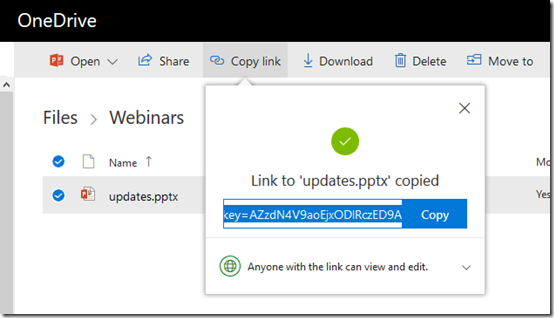
I select the file then I select Copy link from menu. In this case I am happy to share anonymously so anyone can edit.

This process gives me a link which I sent to the recipient.

image

When that link is opened at the destination you can view the file in a browser but, as you see above, there appears to be no option to download the file?

image

Even if I go in and edit the file at the destination there is no download option?

I must be missing something here? How can I actually send a link to a third part from my OneDrive for Business and allow them to just download the file?

clip_image002

The only way I can see to get it to work is to share the parent folder which contains the file. Send the link for the parent folder offers the option to download like you can see above but this isn’t really ideal when all I want to do is share a single file.

Surely, I must be missing something here?

Focus on the ‘Me’ services first

The way I approach Office 365 adoption for businesses is very different from the approach that many take. My experience shows that successful adoption is all about understanding the human experience rather than just implementing technology.

The vast majority of people and businesses are very change adverse. That’s normal. This means they are already wary of what technology brings their work life. Many have also had plenty of experiences where technology failed them and actually made their job more difficult. All of these factors are an accumulated mountain that implementing new systems inside a business need to surmount.

The solution is not to attack that mountain with more technology, it is to focus on enabling people with technology. It is about making technology more personal for the user and showing them how it can help them get their job done. It is about letting them become familiar with what the technology can do.

Thus, the starting point is always the individual, because we all know everyone wants to know ‘what’s in for me?’. If you don’t get individual buy in then you’ll never get business buy in. It’s the individuals that make the business succeed, not the other way around! So what’s the strategy here when it comes to Office 365 adoption?

image

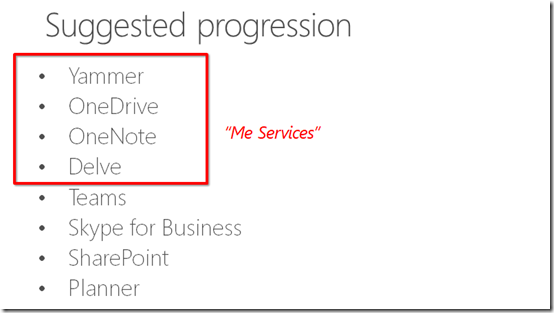
The approach I recommend is always to focus on the ‘me’ services in Office 365 first. These services to my mind are Yammer, OneDrive for Business, OneNote and Delve.

I have talked about why Yammer is the key starting point for adoption previously:

Why Yammer is still relevant

In summary, Yammer is a great way to make a big impact with little investment. It basically allows the business to work in public, which most businesses have never been able to do. Yammer also allows people to contribute and consume what is happening in the business and with those around them, on the desktop or on their phones. In short, it brings the social nature of being human into a business and in my experience produces huge initial wins for the business.

Once Yammer has been rolled out the next recommendation is to get users onto OneDrive for Business. In essence this gives them familiarity with the SharePoint experience of working with files but without being in the glare of everyone else in the business as they do with Team Sites. Because OneDrive for Business is personal, they can play, use and learn without fear of ‘breaking something’ or interfering with others. It has the added benefit of moving all their unbackedup data (desktop, My Documents, C: drive, etc) to somewhere they can easily access that just about anywhere. For the business, it provides greater compliance and security over their information.

Next up, I recommend OneNote. OneNote is an app that most people have never used but it is available on all platforms. That makes it easy to start saving information into. Once information is in OneNote it is backed up and sync’ed to all devices automatically. How many people do you know that carry a pen and pad wherever they go? Just about everyone right? Imagine the benefits those people would get if they recorded even some of their stuff into OneNote? The killer feature of OneNote is search. Since you have already got users hooked on OneDrive for Business, now you show them the benefits of creating and saving OneNote notebooks there. Whether they create one massive personal notebook or lots of smaller ones, it doesn’t matter. Now they have a digital notebook that never runs out, is always backed up and available on all their devices.

The final piece of the puzzle is Delve. How is Delve a ‘me’ service you may ask? Well, the way I see it, Delve is a user’s personal search engine. It allows them to search across all their documents, all the shared documents they have access to, their attachments as well information about others in the business. Remember how I said search is the killer feature of OneNote? It is actually the killer feature of Office 365.  Delve shows them THEIR document feed, the people THEY are interactive with most. It allows them to create THEIR OWN personal blog and so on.

Delve is also great from an administrator’s point of view because there isn’t much that needs configuring. However, for successful adoption an administrator MUST ensure that one feature of Delve is enabled. Can you guess what that is?

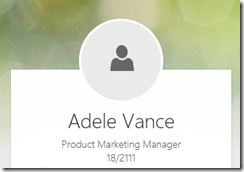
image

Nothing looks worse than having just a shadow staring back at you from your Delve. To drive adoption successfully you MUST have the user’s profile picture there automatically or show them how to upload it themselves.

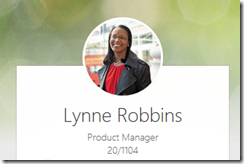
image

Users will feel greater ownership if they see firstly, their own picture and secondly, pictures of the co-workers. Remember, you are implementing something like Office 365 to benefit users, not just for something to do. Thus, doing everything you can to promote buy in makes sense. There are so many other benefits of ensuring you have images in user’s profile that I won’t go into here, but rest assured, they are critical when it comes to adoption.

Once you have all these ‘me’ services rolled out, then you can start looking at ‘us’ services like Teams, SharePoint and so on. How do you know when the time is right to shift from ‘me’ adoption to ‘us’ adoption? Well, the metrics that you established prior to rolling out Office 365 should be the yard stick, however when users come to you and say things like:

– “Hey this Yammer thing is great, could we use it for this?”

– “OneNote is amazing, will work for this project?”

and so on. Basically, you’ll know then that the time is right to shift to rolling out ‘us’ services. You just have to wait till users start asking for them. At that point you know they are comfortable with the technology and have embraced the benefits themselves and now want to extend that elsewhere in the business. They are no longer afraid of the new technology, they see how it can make their lives easier. At that point, it is time to unlock your adoption achievement award and move on.

Thus, successful Office 365 adoption is about focusing on the individual before the team. It is about giving them ‘me’ services to allow them to become familiar in their own time and space. Once they do that they’ll come to you asking how these can be extended beyond their own world.

That is the way to do Office 365 adoption successfully in my books.

August Webinar Resources

Another month, another webinar done. You can download the slides from:

https://www.slideshare.net/directorcia/need-to-know-webinar-august-2017

If you are not a CIAOPS patron you want to view or download a full copy of the video from the session you can do so here:

http://www.ciaopsacademy.com/p/august-2017-need-to-know-webinar/

We took a stroll through SharePoint Communications sites. What they are, how to create and edit them. Thanks everyone for attending

you can also now get access to all webinars via:

http://ciaops-academy.teachable.com/courses/need-to-know-webinars

for a nominal fee.

See you next month.

Document co-authoring with SharePoint Online

A very common question people ask when they use SharePoint Online or OneDrive for Business is whether multiple people can work on the document simultaneously, and the answer is yes provided they are Office documents.

Since back in 2010, SharePoint and Office have allowed users to edit documents together. Each iteration of the products has made this co-authoring more and more seamless, till today you simply don’t worry about it at all.

As my video tutorial demonstrates, you can simply start editing a file, in the browser or on the desktop, and immediately you’ll be able to work on it, even if there are others already there. You’ll see other people editing the document as you do as well be able to chat with them if you want.

Of course, for the times when you need to work exclusively on a document you can “check out” the document, preventing others from editing until you “check in” the document again.

So not only does SharePoint Online provide co-authoring ability natively, it also supports the basics of document management right out of the box. These are just some of the reasons why it is superior to traditional file shares.

For more information on working on document together in Office 365 see:

Document collaboration and co-authoring

July Webinar Resources

My latest webinar is complete. You can now download the slides from:

https://www.slideshare.net/directorcia/ciaops-need-to-know-webinar-july-2017

If you are not a CIAOPS patron you want to view or download a full copy of the video from the session you can do so here:

http://www.ciaopsacademy.com/p/july-2017-need-to-know-webinar/

We focused on the various methods you can use in Office 365 to share information with those outside your business. Everything from email attachments to Yammer we spent time on. Thanks everyone for attending

you can also now get access to all webinars via:

http://ciaops-academy.teachable.com/courses/need-to-know-webinars

for a nominal fee.

See you next month.

Understanding Office 365 Groups and Teams

A while ago I wrote an article that detailed:

Where to put data in Office 365

and in typical fashion, technology has now moved on. This means that I need to revisit the concept of where you should be putting inside Office 365.

We of course now need to remember that we have new locations like Microsoft Teams and Staffhub, as well as improved locations like Office 365 Groups to house our business data. So let my try and broadly explain the the data locations that are currently available to you in Office 365.

image

Let’s start by considering the two major types of data we have to deal with in today’s businesses. As the above slide shows, we can typically categorise data it shared and personal. Personal data is typically created and owned by a single user in the business. Personal data is also only shared between a handful of people at most. By contrast, shared data is data that is not owned by any single individual and typically needs to be seen across a wide wide audience.

You also typically tend to find that shared data is a much greater percentage of the overall amount of data as illustrated by the size of the bars above. From here on in, we’ll consider shared data locations being green and private data locations being blue. We will also consider shared data locations to be on the left while personal data locations will be on the right.

image

Office 365 provides us a location into which we can store all business data, whether shared or personal. It is the box into which everything will live, both shared and personal.
image

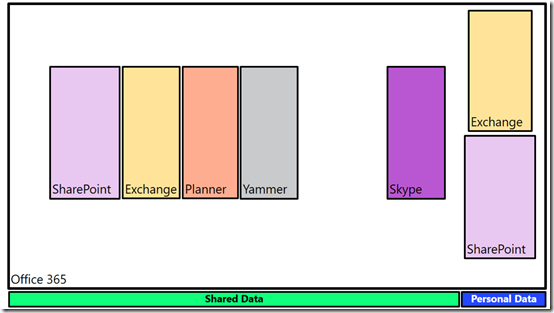
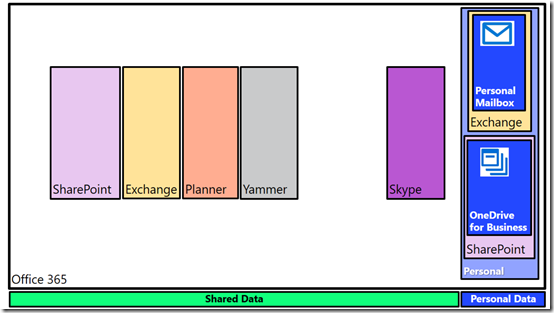
We store business data inside a number of serviceswithin Office 365. These include Exchange for emails, SharePoint for files, Planner for tasks, Yammer for social conversations and Skype for meetings.

You’ll notice that the majority of these services are designed for the storage of shared data, however both Exchange and SharePoint have the ability to store both shared and personal data. Thus, they appear twice in the above slide as locations in which we can store data.
image

Into the personal data location for Exchange we place a users individual mailbox. This is designed for them to receive emails from outside the organisation and also typically from individuals inside the business. A personal mailbox is not a good location for generic email addresses like accounts@ or info@. It is designed for personal correspondence to and from an individual.

Likewise, SharePoint provides the OneDrive for Business location designed for a user’s personal files. These files are owned by the user and typically shared with a very small number of people. OneDrive for Business is NOT designed as a file server replacement, it is designed as repository for an individual users to store files they typically have on their desktop, on their local hard disk, or on an external USB drive or a home directory on a network.

Thus, Office 365, thanks to both Exchange and SharePoint, provide each and every licensed user a distinct location in which to save their own own personal information. Because that information is still within the Office 365 environment it remain secure and compliant as well as being easy to manage for the business owners.
image

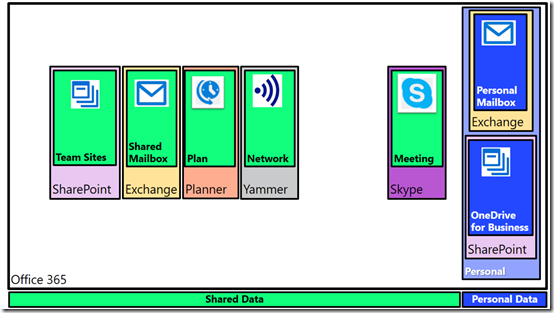
Now Exchange and SharePoint also provide locations to save shared data into. Exchange provides this via shared mailboxes. Best practice is for shared mailboxes to be things like info@, sales@, etc that may need to be shared between a number of people and will also persist beyond any individual currently performing that task.

Likewise, SharePoint provides Team Sites as a location to save information into that all people in the business can access. You can of course provide custom security around all shared Office 365 services as needed.

However now in this space of shared data in Office 365, you get additional locations to store your information. Services like Planner allow the organisation of tasks and schedules across a team. Yammer allows the business to get out of email and work in an enterprise social network. Not only does that reduce email overload for users but because information is shared publically, it makes it more searchable and shareable. Finally, Skype for Business allows people in the business to meet virtually. They can chat, conduct meetings, share desktops, whiteboards, files and more.

Each one of these shared locations can be used stand alone if desired. Thus, you can have a Team Site to fill a single need. Likewise, you can use Skype as a way of chatting to people. As I have written about before:

The modern way of collaboration

To get a job done these days, people need more than stand alone tools. They need all the power of the individual services that Office 365 provides but they need them rolled together in a single place that is easy to work with.
image

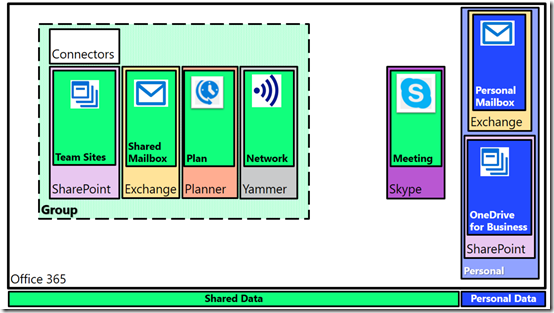
Enter Office 365 Groups. If you combine a SharePoint Team Site, an Exchange shared mailbox, a Planner plan and a Yammer network you get an Office 365 Group. However, an Office 365 Group also provides you with an additional service, called ‘Connectors’, that allows you to bring information from services outside your business (i.e. Facebook, Twitter and more) directly into the Office 365 Group.

You can create as many Office 365 Groups as you need and when you do each one will get its own dedicated SharePoint Team Site, Exchange shared mailbox, Planner plan and Yammer network. You can also still have each service stand alone, like a stand alone Team Site, but each Office 365 Group you create automatically provisions all the individual services inside it and links them together.

Why might you still need a stand alone service like a Team Site?  Maybe you just want a single location to put all your brochures for people to sent to customers. That function might not need email or plans or chat, so you simply provision a stand alone Team Site to perform that function. However, when the people who create those brochures need to actually collaborate, then an Office 365 Group makes sense and you can mix and match as needed.

Again, it is totally up to you how and when you use these services. You may choose to only use stand alone services and no Groups. Likewise, you may choose to only use Groups. The choice if yours. That’s the flexibility Office 365 provides
image

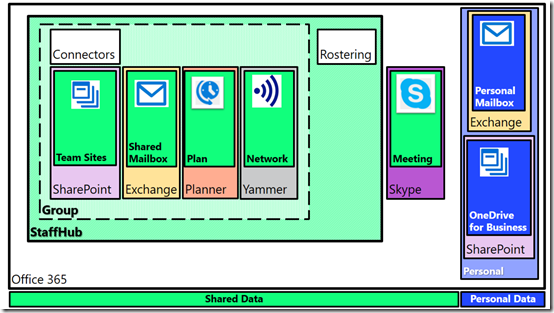
If we now take an Office 365 group and add a Rostering service we get Staffhub. So when you create a new Staffhub for your business to manage rostering and employee times you also get a dedicated SharePoint Team Site, Exchange mailbox, Planner plan, and Yammer network. Do you have to use them all? Of course not, but they are provisioned automatically for you when you create a Staffhub because chances are that you will find use for the services.

Imagine you need to create a roster for your business. You will also probably need to share documents with your staff about their duties. That’s where the SharePoint Team Site fits in. There also probably be the need for staff to chat about their work. That’s where Yammer comes in. Hopefully, you get the idea here is that when you create a Staffhub or Office 365 Group Microsoft automatically gives you a range of stand alone services integrated together because the chances are you’ll find a need for them. It’s bundling at its best!

Again, you don’t need to use them all immediately, but they are there from the start, ready for your to use, whenever you need.
image

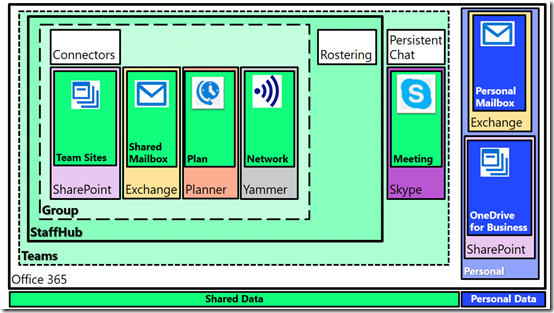
Finally, if we ingrate Skype for Business and add persistent chat to our Staffhub resources (that were a superset of Office 365 Group resources) we get a Microsoft Team.

As with Staffhub, when you create a new Microsoft Team you get everything Staffhub provided plus additional integrated services. If all you want to use is persistent chat then you can use that but again, chances are you are going to need more options down the track so they are automatically provisioned for you.

Everything in Office 365 is built on core services like Exchange for email, SharePoint for files and Skype for Business for communications. You can use each of these services stand alone or you can combine them together in an Office 365 Group, a Staffhub or Microsoft Team.

Of course, there is more planning involved than what I have laid out here when it comes to collaboration but I hope that I’ve made things a bit clearer and shown you all the options Office 365 provides you for storing your information. The trend today is certainly to provisioning something like a Microsoft Team first to give you everything you want immediately, even if you don’t use it all. However, the choice is yours. Go with a single service or go with them all. Do what makes the most sense for your business today and don’t too much about what will happen down the track as you can easily scale up into all the options that Office 365 provides, because typically, you’ll find that what you want is already provisioned thanks to Office 365 Groups, Staffhub and Microsoft Teams.