
This guide provides a comprehensive, step-by-step approach to identify and resolve problems when OneDrive or SharePoint files aren’t syncing or Office documents won’t save in Microsoft 365. It covers common causes, detailed troubleshooting steps, key settings to check, and best practices to prevent future issues. The information is technical and detailed, intended for IT professionals or advanced users.
Introduction
OneDrive and SharePoint are core components of Microsoft 365 for file storage and collaboration, and Office apps (like Word, Excel, PowerPoint) are often used to edit files stored on these services. When sync or save issues occur, users might see errors such as files not updating, “upload failed” messages, or documents opening in read-only mode. These issues can stem from a variety of causes, ranging from connectivity problems to configuration errors. This guide will help you:
- Understand common causes of OneDrive/SharePoint sync failures and Office save errors.
- Follow step-by-step troubleshooting to resolve syncing issues in OneDrive and SharePoint.
- Follow step-by-step troubleshooting to resolve problems with Office documents not saving in M365.
- Check important settings/configurations that affect file sync and save.
- Apply best practices to ensure smooth file syncing and saving in the future.
Safety Notice: The steps below are designed to fix software configuration issues and will not harm your data or system if followed correctly. However, always ensure you have backups of important files. Avoid any step that you are not comfortable with, and seek professional assistance if needed.
Common Causes of Syncing Issues
Before diving into fixes, it’s important to recognize the typical reasons OneDrive or SharePoint might fail to sync files:
OneDrive Sync Issues – Common Causes
- OneDrive Not Running or Signed Out: The OneDrive client may not be running on the PC (no cloud icon in the system tray), or the user is signed out, preventing sync[1].
- Internet or Account Connectivity Problems: Temporary network glitches or expired credentials can halt syncing. Ensure the device is online and the OneDrive client is connected to the correct account.
- Storage Quota Exceeded: If the user’s OneDrive cloud storage is full or nearly full, new files won’t sync (exceeding storage quota prevents uploading or syncing new files)[1]. Similarly, if the local disk is out of space, OneDrive cannot download new files.
- Unsupported File Names or Types: Files with names containing unsupported characters or reserved words, or files of types that aren’t allowed, will cause sync errors. OneDrive/SharePoint disallow certain characters (e.g.
\" * : < > ? / \\ |and leading/trailing spaces) and file names (e.g.CON, AUX, NUL, etc.)[2][2]. If any file in the sync folder violates these rules, synchronization can stop for that file.
- File Size or Path Length Limits: Extremely large files or very long file paths can be problematic. By default, files larger than ~15 GB may not sync (even though Microsoft has increased some limits, very large files still can error)[3]. Also, the entire path (including folders and filename) must be under about 400 characters[3]. Oversized files or overly deep folder structures can block sync.
- Too Many Files: Syncing an unusually large number of files (e.g. hundreds of thousands) can overwhelm the client. OneDrive can handle a lot of files, but performance issues or “processing changes” messages can occur when over 100,000 items are in a library[3]. Sync may appear stuck if it’s trying to process an extremely large backlog.
- Outdated OneDrive Client: An out-of-date OneDrive application can have bugs or incompatibilities. Microsoft frequently updates OneDrive; running an old version (or the deprecated **“OneDrive for Business” groove.exe client) can cause sync problems[4][1].
- Temporary System Glitches: Occasionally, the sync process can hang due to a transient issue with the OS or app. These glitches can often be resolved by restarting OneDrive or the PC[4].
- File Lock or Conflict: If a file is open in another program or by another user, OneDrive might not sync it until the lock is released. Similarly, if a file was changed in two places at once, a sync conflict can occur (often resulting in duplicate “filename-PC.xlsx” copies)[5][5].
- Antivirus/Firewall Interference: In rare cases, security software might block OneDrive’s connection or file operations, treating it as suspicious. This can stall syncing if OneDrive cannot communicate with the cloud[6].
SharePoint Sync Issues – Common Causes
SharePoint library sync uses the OneDrive client under the hood, so all the OneDrive issues above can also affect SharePoint sync. In addition, some SharePoint-specific factors include:
- Lack of Access or Permissions: The user might not have proper permission to the SharePoint site or library. If you cannot access the SharePoint site or document library via the browser, OneDrive will not be able to sync it[3]. A site in a different tenant or one you’re not a member of will be unavailable for sync.
- Library Not Enabled for Sync: SharePoint admins can disable syncing on a library. If you attempt to sync and get a prompt “Which library do you want to sync?” or do not see a Sync button in SharePoint, it means the library isn’t configured for OneDrive sync[3]. In such cases, you need to contact the site owner or admin to enable sync for that library.
- Required Check-Out or Metadata: If a document library requires check-out or has mandatory metadata fields, the OneDrive sync might be unable to upload changes until those requirements are met. This can manifest as files not updating until you fill in required info via the SharePoint site.
- SharePoint Sync Client Mismatch: Using an outdated sync client (the old Groove.exe from SharePoint 2013/2016) can cause issues. Microsoft has ended support for the old OneDrive for Business sync app for SharePoint Online[1] – ensure the new OneDrive sync client is being used for SharePoint libraries.
- Large Libraries or Site Limits: SharePoint Online has thresholds (like the item limit mentioned above). If a library is extremely large or has very complex folder structures, the initial sync might struggle. It’s best to only sync what you need (we cover this in Best Practices).
- Network or Proxy Issues: In corporate environments, a firewall or proxy might block SharePoint connections specifically (different from personal OneDrive). Authenticated proxy settings or network policies might need adjustment if SharePoint (OneDrive for work/school) is being blocked[2][2].
Understanding these causes will help target the right solution when troubleshooting.
Troubleshooting OneDrive Sync Issues (Step-by-Step)
Use the following steps to diagnose and fix OneDrive syncing problems. Go through these steps in order – after each step, check if the issue is resolved before moving on to the next.
1. Check OneDrive Status and Connectivity
- Verify OneDrive is Running: Look at the taskbar (system tray) for the OneDrive icon (a cloud symbol). If it’s missing, OneDrive may not be running. Launch the OneDrive app from the Start menu, or sign in if it was running but not logged in[1]. A white or blue cloud icon should appear.
- Check for Errors or Paused Sync: If the OneDrive icon is present, click it and review its status. If you see a message like “OneDrive is paused” or a red X on the icon, resume syncing or address the error shown. For example, if it says “Storage full”, you need to free up space (next step).
- Ensure Internet Access: Confirm the device has a working internet connection. Try opening a web page or the OneDrive web app. Without connectivity, OneDrive cannot sync.
2. Ensure Sufficient Storage (Cloud and Local)
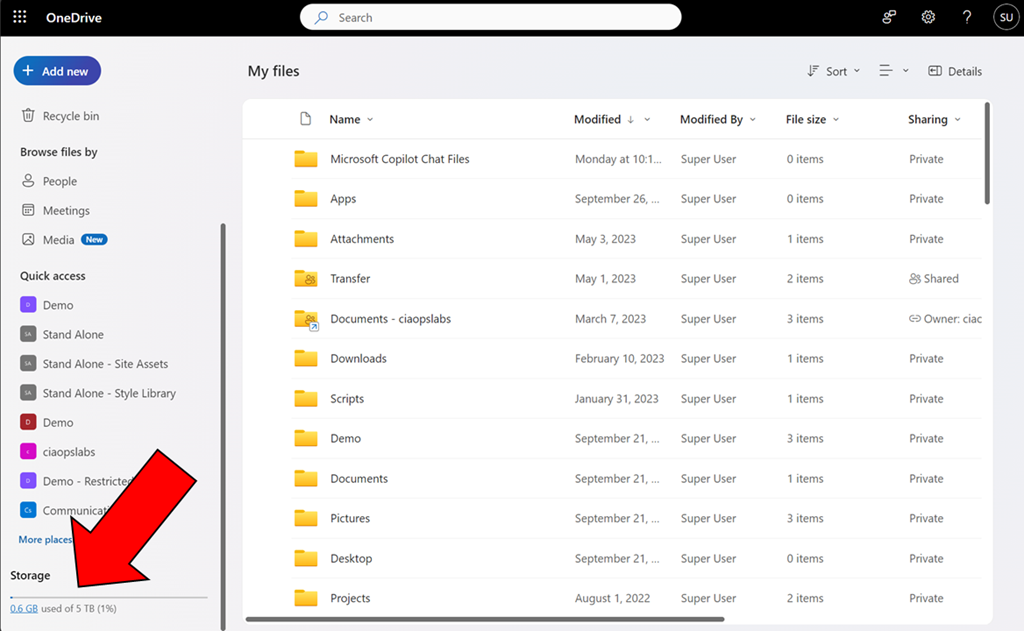
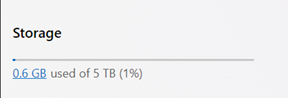
- Cloud Storage Quota: Check that your OneDrive cloud storage is not full. Sign in to the OneDrive web interface and verify the available storage (under Settings > Options > Storage or Manage Storage). If your OneDrive is over quota, it will stop syncing new files[1]. You may need to delete files or purchase additional storage to get back under the limit.
- Local Disk Space: Make sure your local drive has space for the files you want to sync. If the disk is full, OneDrive cannot download files from the cloud. Free up space or use OneDrive Files On-Demand to keep some files online-only (thus not using local space).
3. Check for Restricted Files or Names
- Filename Characters: Scan the OneDrive folder (or the specific folder not syncing) for any files or folders with prohibited characters in their names. Characters such as
\" * : < > ? / \\ |are not allowed in OneDrive/SharePoint filenames[2]. Also, avoid leading or trailing spaces in names[2]. If found, rename those files/folders to remove invalid characters.
- Filename Length: If a file’s path is extremely long, shorten it. For example, if you have many nested subfolders with long names, try to simplify the folder structure or rename folders to fewer characters. Ensure the full path is under 400 characters[3].
- File Size: Remove or reduce any very large files. As a guideline, keep files below 15 GB to avoid problems (even though OneDrive supports large files with the latest client, older setups may hit a 15 GB limit)[3]. If you must sync a huge file, consider compressing it (splitting into a .zip) or use the OneDrive web for one-time transfer.
- Unsupported File Types: Certain file types (like temporary
.tmpfiles or Outlook PST files) might not sync[2]. OneDrive may skip these by design. If a specific file won’t sync, check Microsoft’s list of restricted file types and consider removing that file from the OneDrive folder if necessary.
4. Resolve Sync Conflicts or Locked Files
- Office File Lock: If an Office document is stuck and not syncing (you might see a message about an Office file having issues), it could be because of Office’s collaboration sync. You can turn off Office’s exclusive sync for a moment: In OneDrive settings, under Office, uncheck “Use Office applications to sync Office files that I open” (this stops the Office integration that can sometimes cause conflicts). Then try editing/saving the file again. Alternatively, close the Office application to release the lock and see if OneDrive then syncs the changes.
- Manual Conflict Resolution: If you see duplicate files (e.g.,
Report.docxandReport-PC.docx), OneDrive created a copy due to conflicting edits. To fix this, compare the two versions and manually merge changes into one file. Keep the preferred version and delete the other. Going forward, avoid simultaneous edits from multiple devices while offline to minimize conflicts[5].
- Use “View Sync Problems”: Right-click the OneDrive icon and click “View sync problems” (if available). The OneDrive client will list specific files that are erroring out and often give a reason. Follow any suggested actions for each problem file (for example, it might prompt you to remove an illegal character or that a file is too large).
5. Pause and Resume / Restart OneDrive
Sometimes simply pausing and resuming sync can jump-start the process.
- Click the OneDrive tray icon, click the Gear icon > Pause syncing, and select 2 hours (for example). Wait a minute, then click Resume syncing. Check if the troubled files start syncing.
- If that doesn’t help, restart the OneDrive application: Right-click the OneDrive icon and choose Close OneDrive (or Exit). Then re-launch OneDrive from the Start menu. This can clear minor glitches or stuck processes[4].
6. Update the OneDrive Client
Ensure you are running the latest version of the OneDrive sync client. Microsoft fixes many sync bugs through updates.
- Check for updates: OneDrive usually updates automatically with Windows. But you can download the latest OneDrive installer from Microsoft’s site and run it to be sure.
- Having the current client is especially important if you were using an older “OneDrive for Business” (Groove.exe) client – you should upgrade to the unified OneDrive sync app[1]. Newer versions support larger files and have better reliability. After updating, sign in again and allow time for the initial sync.
7. Re-link Your OneDrive Account
If the above steps haven’t resolved the sync issue, re-establishing the sync connection can help.
- Unlink this PC: Right-click the OneDrive icon, go to Settings > Account, and click “Unlink this PC” (for OneDrive for Business accounts, it might say “Stop syncing” for the particular library). Confirm unlinking. This will not delete files; it just disconnects the sync relationship.
- Set up OneDrive again: After unlinking, the OneDrive sign-in window should appear. Sign in to your M365 account and choose your OneDrive folder location (you can use the same folder; the client will merge and validate files). This effectively provides a “fresh start” for syncing that library[3].
- After re-linking, OneDrive will take some time to re-sync everything. Monitor for any errors during this fresh sync.
8. Move and Restore Problem Files
If OneDrive gets stuck on a certain file (e.g., syncing progress bar never finishes on one item), that file might be the culprit.
- Identify if a particular file is stalling the sync (OneDrive’s sync status may show a specific filename).
- Move the file out of the OneDrive folder to a location not synced by OneDrive (e.g., move it to
C:\\Temp). OneDrive will detect it’s gone and sync the deletion to cloud, potentially clearing the logjam[3].
- Once OneDrive is back to “up-to-date” status, move the file back into the OneDrive folder (perhaps after renaming it or correcting any issues with it). This often resolves a stuck sync by re-adding the file fresh[3]. If the file still causes trouble, it might have some of the issues described in step 3 (check its size, name, etc., or consider not syncing that file).
9. Reset the OneDrive Application
OneDrive has a built-in reset function that can fix persistent sync issues by clearing its cache and settings (while keeping your data). Note: A reset will re-sync all files, so it may take a while and use bandwidth.
- To reset OneDrive on Windows: Press
Win + R, enter the command:%localappdata%\\Microsoft\\OneDrive\\onedrive.exe /reset
and press Enter. After a few moments, OneDrive should restart on its own. If it doesn’t, open it manually.
- On Mac, use the OneDrive app’s Reset option or run
onedrive --resetfrom Terminal.
- After a reset, you’ll need to sign in to OneDrive again and let it sync. This often clears up unexplained syncing issues by rebuilding the sync database[3].
10. Check Device or OS Factors
- Windows Updates: Ensure your operating system is updated. Sometimes OneDrive issues are resolved by installing the latest Windows patches, which might contain fixes for the relevant networking or file system components[4].
- Credentials & Account: On Windows, you can use Credential Manager to remove any cached OneDrive/Office 365 credentials that might be stale, then re-sign in. This is advanced, but stale credentials can cause authentication loops.
- Multiple Accounts: If you use both personal and work OneDrive accounts, make sure the correct account is syncing the folder in question. The OneDrive client supports both simultaneously, but confusion between accounts can arise. Verify under OneDrive settings > Account that your work/school account is listed and active for the libraries you need.
11. Verify if Sync is Successful
After trying the above, confirm that OneDrive is now syncing properly: the cloud icon should show “Up to date” when hovered over, and any test changes you make to files (create a new file or edit one) should upload and reflect on the OneDrive web.
- Also try accessing the files from another device or OneDrive web to ensure changes are propagating.
If OneDrive still isn’t syncing after all these steps, consider reaching out to Microsoft 365 support or your IT administrator, as there may be a deeper issue (such as registry/policy restrictions or a corrupt user profile beyond OneDrive).
Troubleshooting SharePoint Sync Issues (Step-by-Step)
When SharePoint files (in a SharePoint Online document library) don’t sync to your computer via OneDrive, many of the OneDrive troubleshooting steps apply with a few additions. Use the steps below, which focus on SharePoint specifics and then incorporate the OneDrive fixes:
1. Verify Access to the SharePoint Site and Library
- Access via Browser: Open your SharePoint Online site in a web browser (e.g., go to https://.sharepoint.com/sites/). Navigate to the document library that isn’t syncing. Ensure you can open it and see the files on the website. If you get an access denied or cannot reach the site, that must be resolved first (permissions or network issues)[3].
- Check Sync Button: On the SharePoint library page, look for the “Sync” button (often at the top menu or under “All Documents” dropdown). Click it – if it prompts to open Microsoft OneDrive, that’s good (it triggers the client). If you don’t see a Sync option, or clicking sync gives an unusual prompt (like asking to choose a library), the library might not be enabled for sync[3]. In that case, contact the SharePoint admin; the site may need a setting change (some libraries like those with certain column requirements or large list features might not be syncable).
- Proper Credentials: Make sure the OneDrive client is logged into the correct Microsoft 365 work account that has access to this SharePoint. Sometimes if you are signed into OneDrive with a different organization’s account, it won’t sync another org’s SharePoint. You might need to Add a new account in OneDrive (OneDrive settings > Account > Add account) for the other tenant.
2. Confirm SharePoint Sync Client Usage
- Ensure that the latest OneDrive sync client is being used for SharePoint. As noted, older clients (especially the discontinued Groove.exe) won’t reliably sync modern SharePoint Online libraries[1]. If your company still uses an on-premises SharePoint or older approach, consider migrating to the new client. On Windows 10/11 with Office 365, this shouldn’t be an issue, but verify by looking at the OneDrive icon (the new client shows a Blue cloud for work accounts, the old one had a different icon).
- If needed, update or install the latest OneDrive (as in OneDrive step 6 above). New OneDrive supports both personal and SharePoint sync seamlessly.
3. Apply OneDrive Troubleshooting Steps
At this point, many issues will be resolved by treating the SharePoint library like a OneDrive folder because the sync mechanism is the same. Go through OneDrive Steps 2 through 9 outlined in the previous section, as they also apply to SharePoint library sync:
- Check storage: SharePoint libraries can also hit storage limits on the site or per file (15 GB file limit, path length, etc.)[3][3]. Ensure the problematic file isn’t breaching those. The same rules on file names and sizes apply.
- Identify any files in the library with unsupported characters or overly long paths, and rename them[3].
- If sync is stuck on a file, use the “move out and back” trick on that file (you can do this either from local synced folder, if it exists, or via SharePoint web by downloading and deleting the server copy, then re-upload after things normalize).
- Pause/restart the OneDrive sync as needed, and check for any error dialogs via “View sync problems”.
- Unlink and re-link the library: In OneDrive settings > Account, find the SharePoint site under “Manage synced libraries”. Stop syncing it, then resync fresh by pressing the Sync button on the SharePoint site again. This is the SharePoint equivalent of re-linking.
- Repair Office if conflicts persist: Since SharePoint sync often involves Office files, if you suspect Office integration issues, you can attempt an Office repair (see OneDrive step 9) to fix any Office file locking or Save conflicts[3]. This is more relevant if Office files (Word, Excel) specifically refuse to sync whereas other files are fine.
- Reset OneDrive (OneDrive step 9) if needed, which will re-sync all SharePoint content as well.
4. Verify SharePoint-Specific Factors
If problems continue, double-check:
- Permissions: Do you still have edit rights on the SharePoint library? If your permissions were revoked or changed to read-only, you could sync down but not upload changes. Contact the site owner to confirm.
- Library Configuration: Some advanced library settings (like requiring check-out, versioning, or unique permissions on certain folders) can complicate sync. As a test, try syncing a simpler library from the same site. If that works, the issue may lie in the particular library’s settings. You might need an admin’s help to adjust those settings or use a different method (like always check out files before editing them in that library).
- Number of Items: SharePoint can technically store many items, but Microsoft suggests not syncing libraries with over 100k items due to performance[3]. If your library is extremely large, consider syncing only specific sub-folders (OneDrive allows choosing which folders to sync). This can reduce load and avoid the sync client getting bogged down.
After performing these steps, your SharePoint library should sync successfully. You should see the SharePoint library’s folder in your File Explorer (Windows) or Finder (Mac) with a green checkmark icon indicating files are up to date. Any changes made locally should upload to SharePoint and vice versa.
If SharePoint sync still fails, consider using the library via the web interface directly as a temporary workaround, and consult your Microsoft 365 admin. There may be tenant-level policies blocking the sync or a need for a specialized fix (for example, clearing credentials or using the Support and Recovery Assistant tool covered later).
Common Causes of Office Documents Not Saving in M365
In some cases, you might be able to sync files generally, but Office documents (Word, Excel, PowerPoint) won’t save properly to OneDrive/SharePoint. This often manifests as errors like “Upload Failed”, “We can’t save because the file is read-only”, or the document repeatedly showing an “Save”/“Upload Pending” status that never completes. Common causes include:
- OneDrive Sync Issues: Any of the OneDrive problems mentioned above can directly cause Office save failures. For example, if OneDrive is not running or the storage is full, Word cannot upload your changes. The Office app might say “upload pending” because the OneDrive client isn’t processing it. Always check that OneDrive/SharePoint sync (previous sections) is healthy first.
- Office File in Read-Only Mode: Sometimes the file is opened read-only from the cloud. This can happen if the SharePoint site was in a read-only maintenance mode or if the user lacks edit permission. The user scenario in which the site/document was read-only will prevent any saves[6]. Ensure you have edit access and that no one else (or no policy) has locked the file.
- Office Upload Center / Cache Glitches: Office (especially older versions or Windows Office) uses a local cache to upload files to OneDrive/SharePoint. A stuck cache or an error in the Office Upload Center (now integrated into the Office app) can prevent saves[6]. For instance, if the cache is full or corrupted, your changes might not get transmitted even if OneDrive is fine.
- AutoSave Conflicts: The AutoSave feature in Office continuously saves to OneDrive. If AutoSave encounters an error (like a momentary loss of connection), it might disable itself or show a warning. On Mac, issues with AutoSave were noted – one suggestion is to temporarily turn off AutoSave and save manually to ensure the changes go through[6].
- Files On-Demand Setting: If OneDrive Files On-Demand is on, some files might be marked as online-only. Normally that’s fine, but there have been cases where saving to an online-only file can be problematic if the system struggles to fetch it for writing. Conversely, if Files On-Demand has a glitch, Office might behave unexpectedly. (One troubleshooting step is to turn off Files On-Demand temporarily to force all files local, then try saving[6].)
- Multiple Devices or Sessions: If the same Office document is open on another device or by another user at the same time, your save might be blocked or turn into a conflict. Co-authoring normally handles this, but if one session is offline or not updating, you could get an error. Ensure no other session is keeping the file open exclusively.
- Misconfigured Account in Office: Office applications need to be logged into the M365 account that corresponds to the OneDrive/SharePoint where the file resides. If, for example, Word is logged into a personal Microsoft account by default, but you’re editing a work SharePoint file, it might have issues saving.
- Outdated Office Version or Activation Issues: An out-of-date Office build might have bugs with the save mechanism. Also, if Office is not activated or your license expired, it can drop to read-only mode (though it usually warns you in that case).
- Insufficient Permissions or Sharing Quirks: If the file was shared with you and you only have view permission, you obviously cannot save changes. Or if the file’s library requires certain properties on save (common in SharePoint with metadata), the Office app might not save until those are provided.
- Firewall/Antivirus blocking Save: Similar to OneDrive, sometimes security software can interfere with Office apps connecting to OneDrive. This is rarer, but a firewall might block the authentication token or an antivirus might lock the file.
- Temporary Server Side Issue: On rare occasions, the SharePoint/OneDrive service might have an outage or glitch in a specific file’s backend. For example, an Office Online server might mark a file read-only. These usually resolve on their own (as the scenario from the community case did)[6][6], but it’s good to be aware that not every saving issue is on your side.
Next, we’ll tackle how to troubleshoot and resolve these issues.
Troubleshooting Office Documents Not Saving (Step-by-Step)
Follow these steps if your Office apps (Word, Excel, etc.) are having trouble saving documents to OneDrive/SharePoint in M365. These assume that general OneDrive sync is working (if not, fix that first with the earlier sections):
1. Verify Basic Connectivity and Account in Office
- Check M365 Login in Office: Open the Office app (e.g., Word) and go to File > Account. Make sure you are logged in with the account that has the OneDrive/SharePoint access. If not, sign in with that account. If an incorrect account is present (like a personal account while you’re working with work files), add the correct work account or switch to it.
- Try Saving to a Local Path: As a quick test, attempt to Save a Copy of the document to your Desktop or a local folder. If that succeeds without error, it means the problem is specifically with the cloud save path, not the document itself. You can keep this local backup for safety while troubleshooting the cloud save.
- Check Internet/OneDrive Status: Ensure that your internet connection is active and OneDrive sync client is running without errors. If OneDrive is paused or offline, Office will fail to upload the file. You may see an “Upload Pending” icon in the title bar of Office – clicking it can show more details. Address any OneDrive status issues first (refer to previous sections).
2. Check OneDrive/SharePoint Storage Quota
- Just as with sync issues, a full OneDrive or SharePoint site will prevent saving. Even though this step is similar, it’s critical: open OneDrive online and check storage usage[6]. If your storage is indeed full, free up space or extend your quota, then try saving again.
- If not full, also ensure the file isn’t so large that it breaches SharePoint per-file limits (rare for typical Office docs, but if embedding huge videos in a PowerPoint, for example, the file could become enormous).
3. Sign Out and Sign In to OneDrive Again
- On the affected device, try signing out of the OneDrive client and Office, then sign back in. This essentially refreshes the authentication and connection. Since the problem might be occurring on multiple devices (as in some reports), do this on each device where you’re signed in[6]. Steps: Right-click OneDrive > Settings > Account > Unlink (which signs out), then sign in again. In Office, under File > Account, sign out and back in. After re-authenticating, open the file from OneDrive and try saving. This can clear tokens or credentials that were stuck.
4. Clear the Office Document Cache (Upload Center)
- Office maintains a cache of pending uploads (especially in Windows). If any Office uploads are stuck or corrupted, that can prevent new saves.
- Windows: Launch the Office Upload Center (for Office 2019 or earlier, it’s a separate app; for Microsoft 365 Apps, there’s a hidden toolbar icon). You can run
MSOUC.exefrom Start/Run to open it[6]. In the Upload Center, see if any files are in the queue with errors. Use Upload Center > Settings > Delete Cached Files to clear the cache, then try saving the document again[6].
- Mac: Office doesn’t have a visible Upload Center, but you can clear caches via Office reset or simply turning off AutoSave. One suggestion: go to Word > Preferences > Save, and temporarily disable AutoSave[6]. Then manually Save the document. This sometimes bypasses an AutoSave issue. After a successful save, you can re-enable AutoSave.
- Office 365 (new versions): The Upload Center is now integrated (the orange spinning arrow icon might show in the taskbar when there are issues). In any Office app, you might see a warning icon next to the filename if an upload failed. Click that and look for an option to discard local cache or retry. Clearing the cache forces Office to attempt a fresh upload.
5. Temporarily Disable Files On-Demand
- In OneDrive client settings, under Sync and Backup (or Settings), find the Files On-Demand option and turn it Off[6]. This will make OneDrive download all files to local storage. Then, try editing and saving the Office document again. The rationale is to ensure the file is fully available locally, eliminating any issue with online-only files.
- If the save now succeeds, it suggests there was an issue with the file being in an online-only state or similar. You can then re-enable Files On-Demand if desired. (In normal operation it should work with Files On-Demand on, but this test can pinpoint the problem.)
6. Manually Save and Sync
- Instead of relying on the direct cloud save, use a manual approach: Save the document to a local folder (like Desktop) first, then copy or move it into the OneDrive folder using File Explorer[6]. See if OneDrive then syncs that new file without error. If this works, it indicates the issue might lie with how Office was handing off the file to OneDrive. This workaround ensures the changes are not lost; you can then replace the cloud version with this one.
- Another variant: use “Save As” in Word and choose the actual OneDrive folder path (e.g.,
C:\\Users\\YourName\\Your OneDrive - Company\\...) instead of the quick shortcuts. Sometimes explicitly saving to the mapped folder triggers a fresh upload.
7. Verify Permissions and File Attributes
- On the OneDrive/SharePoint side, make sure you indeed have edit rights. Go to OneDrive web or SharePoint, find the file, and check its permissions/Sharing settings[6]. If by some chance your account only has view permission, that’s the reason you can’t save. Have the owner grant you edit access or save the file under a new name in a location you own.
- Check if the file is checked out to someone else (in SharePoint libraries with check-out enabled, files can be locked until checked in). If so, either have that user check it in or discard the check-out.
- On Windows, right-click the locally synced file > Properties and ensure the Read-only attribute is not checked. Also, in the OneDrive folder, there should not be any unusual permission set on the file (typically it inherits your user’s permissions). If the file got marked read-only somehow, Office will refuse to save changes.
8. Repair or Update Microsoft Office
- If the problem persists only for Office files, the Office installation itself might be the issue. Repair Office:
- On Windows: Go to Control Panel > Programs & Features, select Microsoft 365 or Office, click Change and then choose Quick Repair (or Online Repair)[6]. This will fix any program errors without affecting your documents. After the repair, reboot if prompted, then test saving again.
- On Mac: Use the Help > Check for Updates in Word/Excel or open the Microsoft AutoUpdate app[6]. Install any updates for Office. If Office is already updated, you could try a full reinstall if nothing else helps.
- On Windows: Go to Control Panel > Programs & Features, select Microsoft 365 or Office, click Change and then choose Quick Repair (or Online Repair)[6]. This will fix any program errors without affecting your documents. After the repair, reboot if prompted, then test saving again.
- Ensuring Office is up-to-date can resolve known issues (for example, certain versions had known OneDrive integration bugs that have since been fixed).
9. Check Firewall and Antivirus
- As a final local check, consider your security software. Temporarily disable your antivirus or firewall and attempt to save the Office file[6]. If the save suddenly works, then the security software is interfering. In that case, configure it to allow Office applications to communicate with OneDrive/SharePoint (you may need to whitelist
OfficeClickToRun.exe,WinWord.exe, etc. for internet access).
- Also ensure standard Windows Firewall isn’t blocking Office. Office uses HTTPS to save to OneDrive; it should be allowed by default, but if outbound connections are restricted, that can be a factor.
10. Try a Different Platform (Optional Test)
- As a troubleshooting step, try opening and editing the document in Office for the Web (Office Online). Go to OneDrive or SharePoint in your browser, click the document and choose Open in Browser. See if you can make edits and if they save properly in the web app. If yes, then the issue is specifically with your local Office installation. If even the web app cannot save (for example, it says the file is read-only or can’t be edited), that points to an issue with the file or service itself (outside your device).
- You could also test on an alternate device if available (open the file on another computer). Consistent failure across devices hints at a file or cloud-side issue.
By the end of these steps, most save issues should be resolved. You should be able to edit Office documents and have them sync (AutoSave or manual save) normally to OneDrive/SharePoint.
If none of the above works, and especially if multiple colleagues are experiencing similar problems, the cause might be on Microsoft’s side or a broader configuration issue. At that point, contacting Microsoft Support or your IT department is advised. Provide them details of the error messages and what you’ve tried.
Key Settings and Configurations to Check
Once the immediate issues are fixed, it’s wise to check certain settings in OneDrive, SharePoint, and Office that commonly affect syncing and saving. Ensuring these are configured correctly can prevent future problems:
OneDrive Settings to Review
- Account and Login: Open OneDrive Settings > Account tab. Verify the correct work/school account is added and that all expected SharePoint libraries are listed under “Manage storage” or “Choose folders”. If something is missing (e.g., a library isn’t listed), you might not have set it up for sync yet.
- Quit and Startup: Under Settings tab, check “Start OneDrive automatically when I sign in to Windows”. This ensures OneDrive is always running. Many sync issues occur simply because OneDrive wasn’t running after a reboot.
- Office Integration: In newer OneDrive versions, there is an Office tab. Ensure “Use Office applications to sync Office files that I open” is enabled if you want real-time collaboration (it helps avoid most edit conflicts by letting Office handle merges). However, if you faced issues with this in the past, you could disable it to see if that stops conflicts – just note that without it, simultaneous co-authoring might create duplicate files instead of merging changes.
- Files On-Demand: Decide if Files On-Demand is appropriate for your usage. It’s usually best to keep it On (so you don’t download all cloud files to local disk), but if you have sufficient disk space and often work offline, turning it Off ensures all files are always available. The key is to be aware of it: if On, a cloud icon means a file is not local and needs internet to open. If Off, everything is stored locally. Adjust this based on your workflow (OneDrive Settings > Sync and Backup).
- Network Settings: If you’re in an environment with a proxy, ensure OneDrive is set to auto-detect or has proxy information (one can configure this via Windows settings or in the old OneDrive GPOs). Most users won’t need to alter this, but corporate users should ensure OneDrive is not being blocked by network rules.
- Notifications: It can help to enable notifications for sync problems. In OneDrive Settings, check “Notify me when many files are deleted” or any option that alerts on activity. This way, if something goes wrong in the future, you get a prompt.
SharePoint Configuration to Check
(Some of these require SharePoint admin/site owner involvement.)
- Library Sync Enablement: As mentioned, confirm that the SharePoint library is set to allow syncing. The presence of the Sync button indicates this. A SharePoint admin can also enable/disable sync at the site or tenant level. If you’re the admin, navigate to SharePoint Admin Center > Settings, and ensure “Sync” is allowed for SharePoint files.
- Required Metadata/Columns: In the library settings on SharePoint (Gear icon > Library Settings), see if there are any required fields. If there are, consider setting default values or making them optional if possible, because required metadata can block the seamless saving of files via the sync client. Users would have to enter those properties via SharePoint site.
- Check-Out Requirement: Similarly, check if “Require Check Out” is enabled for the library. If yes, users must explicitly check out files to edit and then check them back in. This is an older practice; if your workflow doesn’t need strict check-out control, you might turn this off to simplify collaboration.
- Versioning and Retention Policies: These usually do not prevent saving, but extremely strict retention policies or legal holds could make files read-only. If the site is under a Preservation Hold Library (e.g., for compliance), that might explain read-only behavior. This is more rare and would be known to your IT compliance officers.
- Storage for Site Collection: Ensure the SharePoint site collection itself isn’t out of space. SharePoint Online allocates a certain GB quota per site (unless auto-managed). Check the site usage in SharePoint admin; if it’s full, no one can add new data until space is freed or increased.
Office Application Settings to Check
- Account Connection: In each Office app (Word, Excel, etc.), go to File > Options > Save (or Preferences on Mac). Verify that “Save to Computer by default” is off if you primarily save to OneDrive. You want Office to default to cloud saves. Also, ensure “AutoSave” is toggled on (look at the top-left of the document window). For M365 subscribers, AutoSave should be available and on by default when opening from OneDrive. If it’s off, you can turn it on per document (it will ask once whether to keep it on for that file going forward).
- Trust Center Settings: In File > Options > Trust Center, check if there’s anything that could block cloud locations – usually not, but some high-security settings might restrict saving to web locations. Default settings typically allow it.
- Office Account: Under File > Account, if you have multiple accounts added, note which is set as “Connected Services” for OneDrive. You might see both personal and work OneDrive listed. Make sure the correct one is being used for the file in question (usually Office picks it automatically, but you can remove any outdated accounts from here if needed).
- Office Updates: Ensure Office is set to update automatically (File > Account > Update Options). This prevents known bugs from lingering.
- OneDrive Sync Integration (Windows only): In Windows 10/11 settings, there’s an option “Files saved to OneDrive by default” (particularly for Known Folders like Desktop, Documents). If you turned on Known Folder Move, your Desktop/Documents are redirected to OneDrive. This is generally good, but be aware it means those locations require OneDrive working to save files. If someone turned this off or on recently, it could confuse where files are being saved. Decide your preferred setup (for a managed environment, keeping it on is often best so everything is in OneDrive).
Best Practices for Smooth Syncing and Saving
To minimize future issues, consider adopting these best practices in your daily use of OneDrive/SharePoint and Office:
- Keep Software Up-to-Date: Regularly update the OneDrive client and Office applications to benefit from the latest fixes and features[4][6]. Newer versions have improved sync, larger file support, and better error handling. Enable auto-updates on all devices.
- Maintain Reasonable File and Folder Structures: Avoid excessively long filenames or deeply nested folders. Use concise names and organize files so that paths stay well under the 400-character limit[3]. Also steer clear of special characters listed in Microsoft’s restrictions[2]. This prevents sync errors and makes file URLs easier to share.
- Don’t Overload a Single Library: If you have hundreds of thousands of files, consider splitting them into multiple libraries or archive some data. As a rule of thumb, keep synced libraries under 100k files for optimal performance[3]. This will make initial sync and ongoing changes much faster and reliable.
- Use OneDrive Files On-Demand Wisely: This feature is great for saving disk space, but remember that online-only files need internet to access. Mark frequently used files or folders as “Always keep on this device” if you use them often or need offline access. This way, you won’t run into surprises during travel or downtime. Conversely, feel free to mark large archive folders as online-only to reduce local usage.
- Ensure Sufficient Storage: Monitor your OneDrive/SharePoint storage usage. Microsoft 365 usually gives 1 TB per user (or more with certain plans). If you approach the limit, clean up or request more space before it becomes a blocker. Similarly, keep an eye on your device’s disk space.
- Stable Internet for Large Syncs: When doing big operations (like syncing a new large library, or uploading many files), try to do so on a stable, high-speed connection. Large sync tasks over flaky networks can lead to partial syncs or timeouts that might appear as errors.
- Mind the Shared Libraries: When multiple people collaborate, prefer using SharePoint/Teams document libraries for shared projects rather than sharing individual OneDrive folders. SharePoint is designed for multi-user editing and may reduce permission or sync confusion. If you do share files via OneDrive, keep track of who has access and remove individuals who no longer need it to maintain security (though this is more a governance tip).
- Respond to Sync Alerts: If OneDrive throws a sync error notification or if you see the icon turn red or yellow, address it sooner rather than later. The issue could be trivial (like a file name) but if ignored, you might work on a file thinking it’s backed up when it isn’t. Regularly check the OneDrive client status.
- Leverage Version History: OneDrive and SharePoint both have version history for files. If a document wasn’t saving properly and then suddenly did, you might have multiple versions. Don’t hesitate to use Version History (right-click file in OneDrive web > Version History) to restore an earlier version if needed. This can save you if a file got overwritten or if you had to “Discard changes” at some point to resolve a conflict[6].
- Use the Microsoft 365 Ecosystem: If you consistently struggle with local Office saves, consider using Office Online more frequently for editing, as it saves directly to the cloud in real-time (no client in between). Also, mobile Office apps can upload changes directly. These can sometimes bypass a problematic PC configuration until you fix it.
- Routine Checks: For IT admins – occasionally review the health of sync across the organization with tools or logs. Microsoft provides a OneDrive admin report that can show active files and storage usage, which can hint if users are not syncing. Educate users on naming policies and syncing practices for fewer support tickets.
By following these best practices, you can achieve a more reliable and seamless experience with cloud storage. Syncing and saving will largely happen in the background without issue, letting you focus on your work rather than the tools.
Tools and Utilities for Troubleshooting
When manual steps aren’t enough or you want to streamline the diagnosis, Microsoft offers some tools to assist with OneDrive/SharePoint and Office issues:
- OneDrive “Support and Recovery Assistant” (SaRA): Microsoft has a free tool called SaRA that can automatically detect and fix issues with Office 365 apps, including OneDrive. There is a specific OneDrive troubleshooting module. It can reset OneDrive, fix registry settings, and check for common problems. Download it from Microsoft’s site, run the Office 365 > OneDrive diagnostic, and follow the prompts. This can save time by performing several fixes for you.
- OneDrive Troubleshooter (Built-in): The OneDrive support page has a “Start troubleshooter” button (web-based)[1] which guides users through identifying their sync problem (by the icon or error) and suggests targeted fixes. It’s interactive and can be a quick way for less technical users to resolve common issues (“OneDrive not signed in”, “file in use”, etc.).
- Event Viewer Logs: On Windows, OneDrive logs some events under the Application Logs (Source: “OneDrive”). Checking Event Viewer can sometimes reveal error codes or specific file paths causing trouble. This is more advanced, but useful if an error code is present – you can then search that code on Microsoft’s knowledge base for specific guidance.
- Microsoft Office Repair Tools: Besides the repair option via Control Panel, Microsoft offers an Office Diagnostic Tool in SaRA as well, which can fix deeper issues with Office programs. If you suspect the issue is Office-related (not OneDrive), running an Office diagnostic might help.
- PowerShell for OneDrive: IT admins can use PowerShell cmdlets (with the SharePoint Online module) to check sync status or settings, but for end-users, this is rarely needed. An admin could, for instance, use SharePoint Online Management Shell to adjust sync settings or use a script to clean up invalid file names in bulk.
- Third-Party Tools: There are some third-party sync monitoring tools that can watch OneDrive’s activity and alert on failures, but generally the built-in solutions are sufficient.
- Mobile App as Troubleshooting Aid: Oddly, using the OneDrive mobile app can be a “tool” – if a file won’t upload from your PC, try taking that file and uploading via the phone’s OneDrive app. If it succeeds, the problem is likely with the PC client; if it fails on mobile too, it’s something with the file/cloud itself.
Verification utilities: After fixes, you might use the following to verify things are correct (related to the next section):
- OneDrive Account Portal: Verify at https://portal.office.com under your account settings that you see your OneDrive listed and there are no alerts about it.
- Microsoft 365 Service Health: If you suspect a wider issue, check the Microsoft 365 Service Health dashboard (if you have admin access) to see if OneDrive or SharePoint have ongoing outages that could affect saving/syncing.
Verifying Proper Configuration
Finally, it’s important to double-check that everything is configured correctly after troubleshooting:
Verifying OneDrive Configuration
- OneDrive Status Icons: In File Explorer (Windows), enable the “Status” column (if not visible by default) for your OneDrive folders. Scroll through your OneDrive directory and make sure files all show either a solid green check (synced locally) or a cloud icon (online-only but no pending changes). If you see any circular arrow icons, those indicate ongoing sync – ensure they eventually turn to checks. Any red X icon means an issue still; right-click that file and see if there’s a resolve option.
- OneDrive Settings Review: Open OneDrive settings and verify:
- Under Account, that it says “OneDrive is up to date” for each synced location.
- Under Network (if available), no bandwidth limits are strangling your sync (unless intentionally set).
- Under About, confirm the version is the latest or near-latest. (You can compare with the version listed on OneDrive release notes online.)
- Under Account, that it says “OneDrive is up to date” for each synced location.
- Test Sync: Create a test file in your OneDrive folder (e.g.,
TestSync.txtwith some text). Ensure it uploads (check OneDrive web to see if it appears). Also try editing it on the web and ensure the change syncs down. This verifies two-way sync is operational.
Verifying SharePoint Sync Configuration
- Check in OneDrive Client: In OneDrive settings > Account, you should see the SharePoint library listed. For example, “Files you sync: – ”. Ensure it is checked/enabled. If not, click “Choose folders” and make sure all needed subfolders are checked for syncing.
- SharePoint Site: Go to the site in a browser. Upload a small test file via the web to the library. Verify that after a short while, that file also appears in your local synced folder. Conversely, add a file in the local folder and see it appear on SharePoint. This confirms the linkage.
- No Sync Errors: On SharePoint online, sometimes it flags files that failed to upload via OneDrive. These appear as files with names like
<filename>-PC.xlsxas we discussed. Do a quick scan of the library (maybe sort by name or filter for your PC name) to ensure no stray conflict files exist. If they do, clean them up as needed.
Verifying Office Document Saving
- AutoSave Functionality: Open a Word/Excel doc from OneDrive and look at the top – the AutoSave toggle should be ON and the title bar might show “Saved” or “Saving…” status. Make a small change; you should see it update to “Saving…” and then “Saved” within seconds (if online). This indicates Office is correctly connected to OneDrive.
- File Modifications Propagate: Open the OneDrive web or mobile app and check the last modified time of the document you just edited. It should correspond to your recent edit. This confirms the Office app successfully saved to the cloud.
- No Pending Uploads: In the Office app, click File > Info for the document and look for any banner that says “Upload Failed” or “Saved to cache”. There should be none. If you see a warning, then something is still off.
- Saving As New File: Try File > Save As and create a new file on OneDrive (maybe “TestSave.docx”). Ensure that operation completes without error and the new file is visible on OneDrive. This tests that creating new cloud files also works.
By performing these verifications, you ensure that the configurations for OneDrive, SharePoint, and Office are correct and that the integration between them is functioning as expected.
Conclusion
In this guide, we covered the end-to-end process of troubleshooting sync issues with OneDrive/SharePoint and save issues with Office documents in Microsoft 365. We first identified common causes – from simple connectivity problems to complex conflicts – and then walked through detailed steps to resolve each category of issue. We also highlighted important settings to check and best practices to adopt to avoid future headaches.
By methodically checking each potential point of failure, one can usually identify the cause of the sync or save issue and apply the appropriate fix. Most issues come down to either misconfiguration (e.g., invalid file names, full storage, not being signed in) or software needing an update or reset. With the problem resolved, ensuring that recommended settings are in place will keep your files syncing reliably.
Remember: cloud storage and collaboration are meant to make your work easier. If you encounter problems, don’t panic – using the steps in this guide, you can systematically restore functionality. And if all else fails, Microsoft’s support channels are there to assist further. Happy syncing, and may your files save without errors!
References
[1] Fix OneDrive sync problems – Microsoft Support
[2] Restrictions and limitations in OneDrive and SharePoint
[3] Fix SharePoint Online sync problems – Microsoft Support
[4] 20 Solutions To Fix OneDrive Not Syncing Issue – TechNorms
[5] Troubleshooting OneDrive for work or school sync issues
[6] Why am I unable to save MS Office documents to OneDrive? Upload …












 CIAOPS