Migrations to SharePoint Online presentation

https://docs.com/d/embed/D25193336-9680-5661-1610-000083004089%7eMd4186d87-61d5-259a-4d26-00a8bd86cfff

Here’s the slides from my presentation at the July meeting of the Sydney SharePoint Users group. You can also download the file here:

https://doc.co/iGySJY/qcihGm

The presentation covered off the recommendations, best practices and tools to use when it comes to migrating data to SharePoint Online. There is not a single solution that is best for every situation, however there are certainly enough tools and methods of easily migrating to SharePoint Online. However as an overall guide here are my recommendations:

– Use an all encompassing tool like Sharegate if you have the means.

– Bandwidth is going to most important factor when it comes to migrations. Understand the impacts it will have on the migration process.

– Things will not be identical post-migration. It’s a different environment, different way of accessing files, etc. Different doesn’t mean bad, it simply means you need to invest inmore than just moving data to get a return.

A handy SharePoint migration tool

image

One of the most common things that needs to be done when moving to Office 365 is migration of files and folders from on premises locations to SharePoint Online Team Sites or OneDrive for Business. The native tools such as the browser and Windows Explorer work fine up to a point, but if you need to do bulk uploading of large subsets of files then a third party tools is generally in order.

If you are looking for an overview of the options that are available to you when it comes to migrating to SharePoint Online then have a look at my previous article here:

Migrating On Premises SharePoint to Office 365

where I outline that my recommended tool is Sharegate.

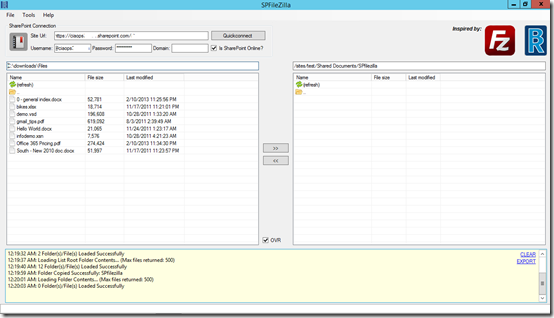
Sharegate is a commercial product that can be a bit cost prohibitive if you only need to do a migration once, especially if you are only looking to copy files. If all you want to do is move files to SharePoint Online the you may want to consider the free SPfilezilla tool.

Basically, Spfilezilla work a lot like a traditional FTP utility in that you connect to your destination (in this case a SharePoint Online site) and you are then able to copy local files and folders to SharePoint Online as shown above.
image

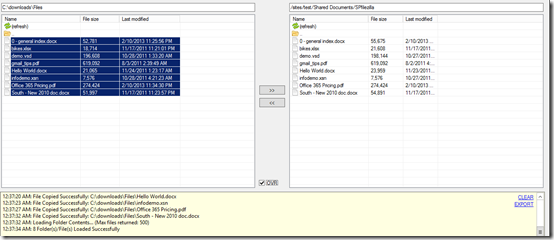
You simply select the local files on the left you want to copy to the destination and press the transfer button in the middle of the page. You will also notice that you can copy from the online location back locally as well if you want.
image

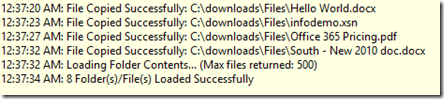
The files will transfer and you’ll see a record of the whole process in the lower pane.
image

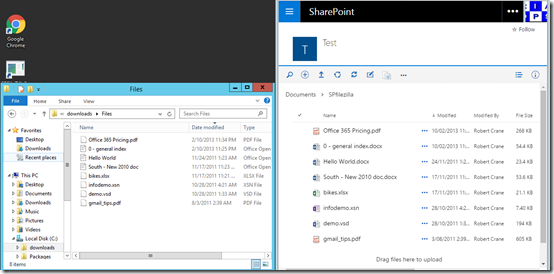
Now when you look at SharePoint Online you’ll see the files as shown above. An interesting point to note with SPfilezilla is that it keeps the original time and data stamp from the source location when it copies the files to SharePoint Online, as you can see above.
image

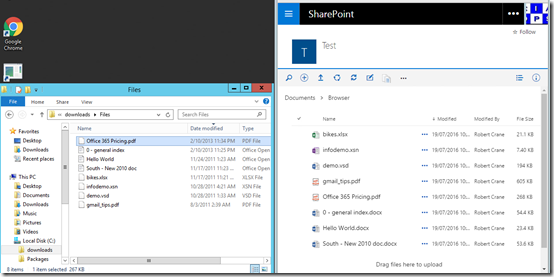
If you repeat the copy process, but this time simply drag and drop onto the browser page, you’ll see that the timestamp for all the files is automatically set to the current time (i.e. when they were copied).

So SPfilezilla is a great tool if you simply want to copy files from local folders to SharePoint Online (or back). It also has the handy ability of keeping the source modified by date consistent, which some business use as a method of filing (that, I don’t understand at all). However, SPfilezilla can only migrate from local file systems. You can’t migrate from say another SharePoint site.
image

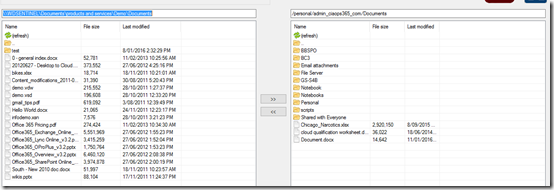
As you see from the above screen shot, it will also allow you to transfer from network locations (using a UNC path) as well as too OneDrive for Business destinations.

Although SPfilezilla is a basic migration program it is a very handy tool because it does its limited subset of tasks very well (i.e. file transfers). This therefore makes it an excellent choice for people who are just getting started with SharePoint Online and simply want to move their data files to Office 365.

Best of all SPfilezilla is free so I suggest you go and take a look because it will certainly make your basic file migrations to office 365 much easier.

Pinning in Document Libraries

image

One of the new features of the updated Document Libraries in SharePoint Online is the ability to ‘pin’ a document to the top of a library page. This allows you to highlight a specific set of documents for users to see when they first enter the library.

The way you do this is to firstly navigate to the desired Document Library in your Team Site.

image

You then select the file you wish to pin to the top of the Document Library. Then you select the ellipse (i.e. the three dots) from the right hand side of the menu at the top of the page. From the menu that now appears, select Pin to top.

image

The file should now be displayed at the top of the library page, in preview if possible, as shown above. You can typically pin up to three files at the top of a Document Library.

The file will still appear in the normal Document Library list below. You can select the file in either location now to open or manipulate. The ‘pinned’ copy is simply a link to the original rather than a duplicate.

image

To ‘unpin’ a previously pinned document simply select the ‘pinned’ document at the top of the Document Library (by selecting the check mark in the top right corner of the document) and then from the menu that appears across the top of the library, select Unpin as shown above.

‘Pinning’ documents to the top of a library is great way to give those document focus when users navigate to that Document Library in a Team Site. It is easy to ‘pin’ and ‘unpin’ documents to the top of any library using the new SharePoint Online interface, so give it a go and see whether it works for you.

Need to Know Podcast–Episode 108

Marc and I review all the latest news from the Microsoft Worldwide Partner Conference. We also dive deep into a raft of recent Azure updates as well a swag of Office 365 news. If you want to keep up to date with the Microsoft Cloud then there is no better episode to listen to.

Listen to this episode at:

http://ciaops.podbean.com/e/episode-108-news-from-wpc/

or subscribe to this and all episodes in iTunes at:

https://itunes.apple.com/au/podcast/ciaops-need-to-know-podcasts/id406891445?mt=2

The podcast is also available on Stitcher at:

http://www.stitcher.com/podcast/ciaops/need-to-know-podcast?refid=stpr

Don’t forget to give the show a rating as well as send me any feedback or suggestions you may have for the show.

Resources

@marckean

@directorcia

Azure news from Marc

SharePoint iOS app

Windows 10 Delve app

Power BI connection to Xero

Why Facebook is going Office 365

Facebook taps Office 365

Beyond the license

One of the major limitations I find with many who have an Office 365 Suite is that they are only using it for email, and basic email at that! This means they are failing to make use of get services like OneDrive for Business, SharePoint, Yammer and more!

In many cases this is because they are no aware of the products and services that are available to them as part of their Office 365 package. A while back I did a webinar with Greg Plum from plumuc.com where we focused on helping attendees understand the value that the Office 365 suite contained that they were most likely not taking advantage of.

We recorded that webinar and I’ve now posted it up on my Youtube channel as you can see above. The slides are also available at:

https://doc.co/gpEx8r/qcihGm

Hopefully, this webinar gives you a better idea of many of these ‘undiscovered’ Office 365 features and how they can be used to solve business problems. If you have Office 365 I’d urge you to take a deeper dive into the product and understand everything that you are paying for. Once you’ve done that you may be surprised at how many of the features within Office 365 can be used to make your business and users more productive. Investing a little bit of time up front to gain the knowledge pays big dividends down the track.

Power BI content pack for Xero now available

image

Microsoft has just announced the ability to connect Xero accounting systems to Power BI:

https://powerbi.microsoft.com/en-us/blog/explore-and-analyze-your-xero-data-with-power-bi/

This means you can easily view and report on your business accounting analytics using Microsoft’s free Power BI dashboard reporting tool.

More and more software vendors are moving to using Power BI as their reporting tool rather than attempting to building their own reporting engine. Why? First, because Power BI is such a great analytics tool and secondly because Microsoft have made the base Power BI offering free.

That therefore means there is little reason not be using Power BI to analyse your accounts but there is also the massive opportunity for IT resellers to sell services to customers using Xero now thanks to Power BI.

If you haven’t see Power BI then check out my tutorial here:

and then start getting into the opportunity Power BI provides!

Delve Windows 10 app preview now available

image

I’m a big fan of Delve and have written previously about how important I believe Delve is in changing the way you look at being productive in a business:

Why Delve should be the centre of you Office 365 universe

Microsoft have just released a Windows 10 app (in preview) which you can find here:

https://www.microsoft.com/en-us/store/apps/delve/9nblggh4n0bv

It is free and allows you to connect your desktop Windows 10 directly to your Delve.

image

Don’t forget that this Windows 10 Delve app is still in preview, so expect to see plenty of new improvements and enhancements coming soon.

All about E5

I presented on a webinar yesterday with Ingram Micro around the Office 365 E5 license. I did a quick dive into some of the major additions that E5 bring to the tables as well as the business benefits these can provide for both customers and resellers.

The features, I believe, that are the most exciting are the improvements that are coming with Skype for Business, including the connectivity to landlines via the PSTN connectivity feature. I wrote about these details here:

I’m totally blown away with what’s coming with Skype for Business

and encourage those interested to check out the video that is there, especially from around the 28 minute mark.

I’ve also posted up the slides for the E5 presentation at:

https://doc.co/2VRHMh/qcihGm

which you can download and review.

E5 has lots of features for customers and lots of opportunities for resellers to provide services and configuration around these. For information on the full feature set visit:

https://products.office.com/en-au/business/office-365-enterprise-e5-business-software