Using Office 365 to stay up to date

Here’s a way that I specifically use Office 365 to keep up to date with partner news from Microsoft.

As I have mentioned here previously, I have created an Office 365 Group in my tenant called ‘Marketing’. That gives me a range of services including a SharePoint Team Site, an email list, a plan and more. What it also gives me is a range of “connectors”.

What are connectors you may ask? They are basically a way for you to consume information from services outside the Office 365 Group. These services can be other Office 365 Services BUT they can also be third party services like Twitter, Facebook, etc.

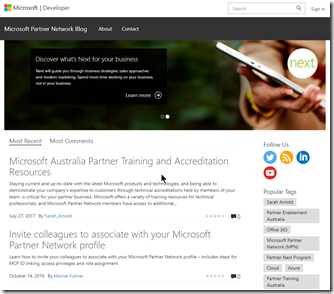
The aim of the game here is ensure that I receive regular information from the Microsoft Australia Partner Blog which you can find here:

https://blogs.msdn.microsoft.com/auspartners
image

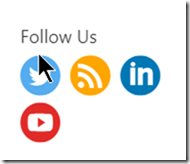
You’ll notice that it does have a few follow options:
image

In this case, I want to get an RSS feed so I obtain the URL for that which is:

https://blogs.msdn.microsoft.com/auspartners/feed/

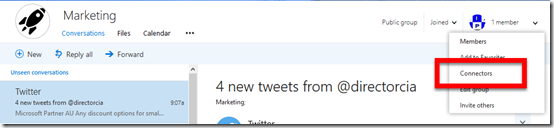
I now head over to my existing Office 365 Marketing Group and look for the connectors option.
image

You’ll find these over in the top right.
image

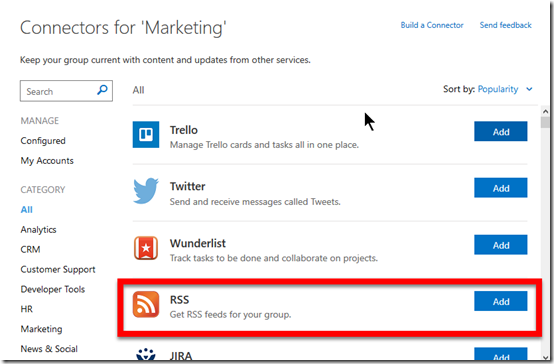
Here you’ll find heaps and heaps of different services you can connect to. I’ll select the RSS option via the appropriate Add button.
image

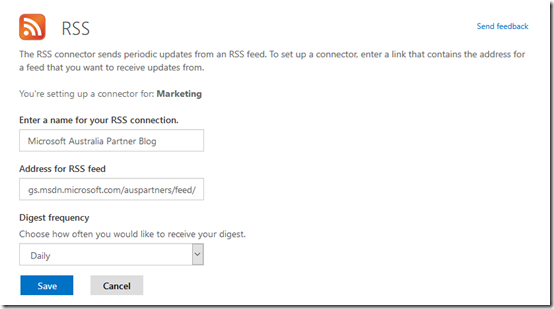
I’ll now simply complete the fields using the information I obtained previously from the actual site. I’ll also elect to only receive a daily digest update.

When complete, I select Save.
image

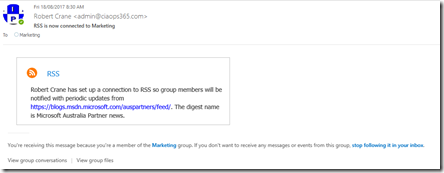
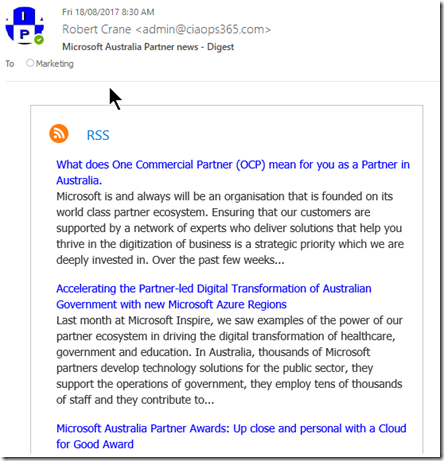
I receive an email confirming the connector has been set up correctly.
image

and I get my first digest summary. How easy was that?

Now because the information is being sent to an Office 365 I can have multiple members of that group who receive the same digest without them having to do anything.

SNAGHTML1faa7173

We can even discuss this information directly in the Office 365 Group as you see above.
SNAGHTML1fac1a60

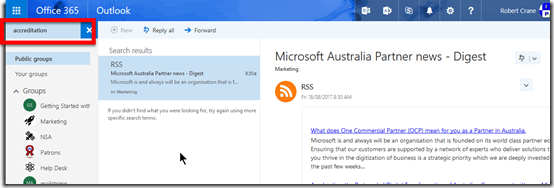
Now anyone in the group can search that whole Office 365 Group quickly and easily for information that is feeding in there from places like the source web site I just set up.

As you can see from the screen shots, I feed quite a few services into my Office 365 marketing group. Everything from Twitter, to Facebook, Mailchimp and now the Microsoft Partner Network blog site. Best of all? I did with a few clicks using the power of Office 365. Even better, I have even more services as part of this Office 365 Group I can call on (such as a SharePoint Team Site) to automate my marketing even further.

Digital Workplace Conference

Interested in learning about how to transform your business with the latest digital tools? if so, then there is no better place the the Digital Workplace Conference held in Sydney next week. I’ll certainly be going along to learn about the latest technology from some of the brightest minds in the industry.

I also have access to a special $100 discount code for the full 2 day event that you can use if you want to attend. Simply contact me (director@ciaops.com) and I’ll let you know all the details.

If you are going I hope we can catch up so please reach out and let me know when we can meet up.

Re-indexing a SharePoint Online Document Library

Ok, so let’s say that for some reason you have a document in a SharePoint Online Team Site that aren’t being shown in search. One option you can try is to re-index the Document Library. Here’s how.

image

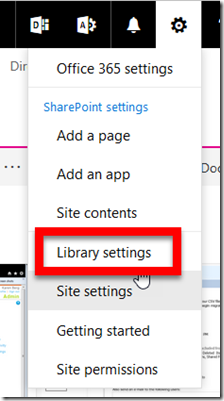
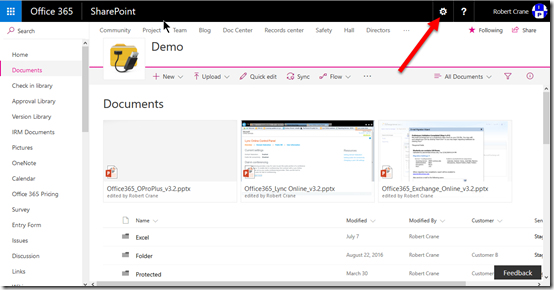
Start by navigating to the Document Library you wish to re-index. Select the COG in the top right hand corner.

image

From the menu that appears, select Library Settings.

image

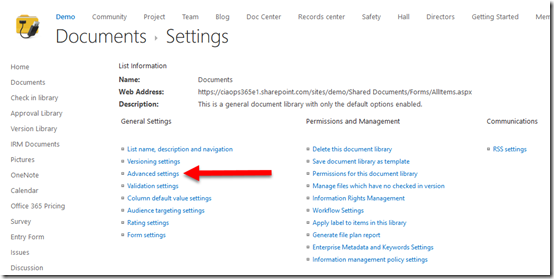
Under the first column, General Settings, select Advanced Settings.

image

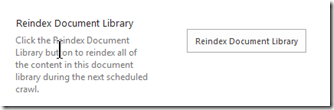
Scroll down the page that appears until you locate the Reindex Document Library button and select it.

image

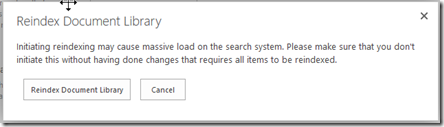
You should now see the above dialog window. Select the Reindex Document Library.

Your Document Library will now be reindexed completely during the next indexing process at the back end of SharePoint Online. This process may take 15 – 20 minutes to full complete so be patient.

After that time period has elapsed, see whether your information is now available in search.

Some suggested Office 365 Settings changes

image

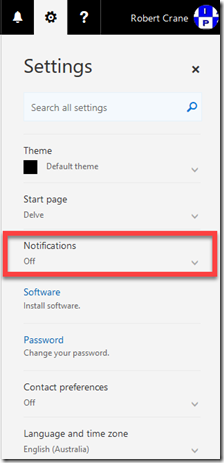
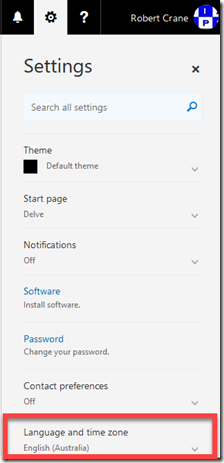
I have just noticed there seems to be some additional settings in Office 365 for the user environment. If you select the COG in the top right of your Office 365 portal you will see the menu displayed above. What I didn’t previously remember was the Notifications and Language and time zone options that I now see.

image

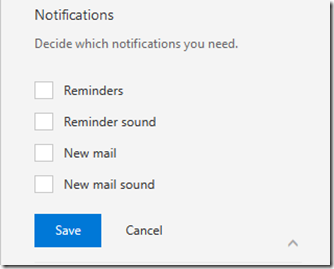
You can now go into the Notifications area and disable those web based alerts, which I must admit I personally found detracted from my productivity when I was working in the browser.

SNAGHTML53fcaae

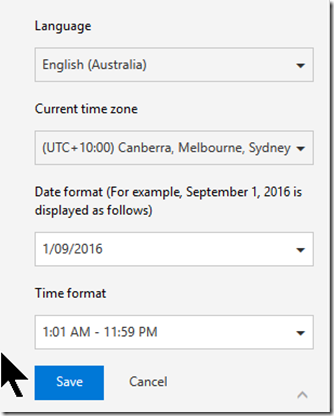
At the bottom you’ll find an option to set your location and country formats.

image

Now that I have set this to Australia I’ll have to see whether it fixes a few places in Office 365 I’ve be struggling to change from the US date format (like in Planner). If it does, I’ll do a follow up article but for now, disabling is web based notifications is enough to calm my Chi.

Updating Communication sites subsites home pages

image

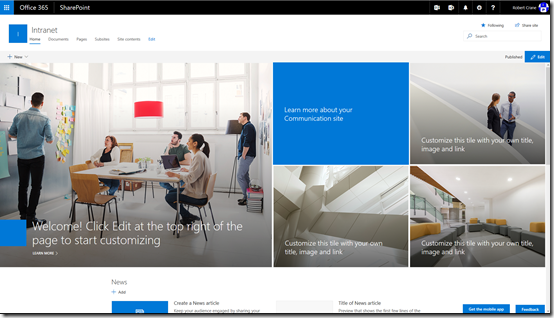
The new SharePoint Communication Sites are great and are going to be really helpful for people wanting to create a ‘cool intranet’ (you wouldn’t believe how many times I get asked this. So, what’s cool again? Is my response).

image

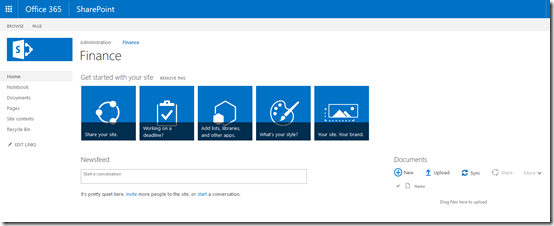
However, one of the current issues I came across when you want to create subsites from the root of a new Communication Site is that these subsites don’t have a similar look and feel by default. In fact they have the ‘classic’ appearance as you can see above.

That can be a bit jarring because you kind of expect everything from the root down to be all modern. However, swapping the default ‘classic’ homepage to a ‘modern’ page isn’t too hard. Here’s how to do it.

image

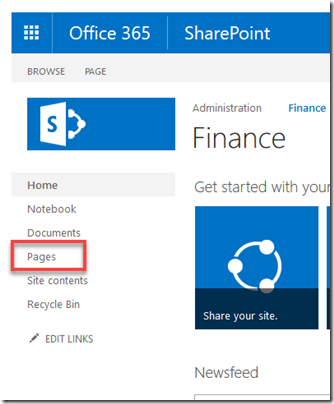
Once you have created the subsite from the root Communications Site locate the Pages option from the Quick Launch menu on the left of the new subsite and select it.

image

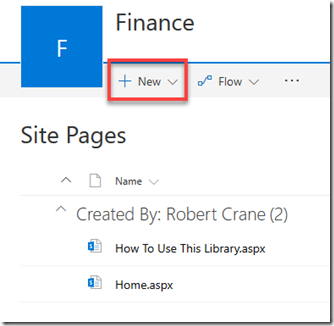
This will take you to the location where SharePoint keeps all the Site Pages. The current homepage for the site is the one called home.aspx.

Now select the New menu option at the the top of the page.

image

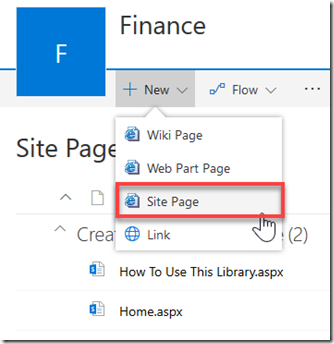
From the menu that appears select Site Page.

image

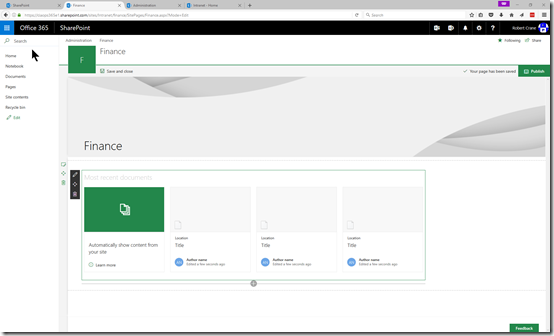
You’ll then be taken to a new ‘modern’ page that you can edit to make it display the way you want. Be default, the actual name of the page will be the name you use in the heading.

When you have completed working on the page Save and Publish it as you would normally.

image

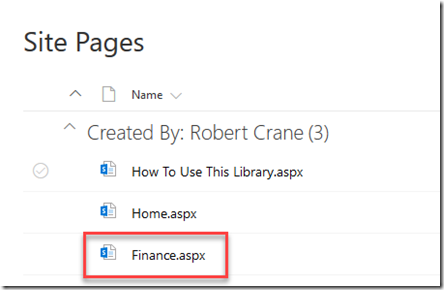
You should be returned to the list of pages and you should now see a new one as shown above. In this case it is called finance.aspx.

image

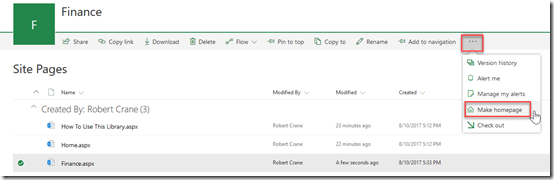
Select the new file just created by placing a check mark to the left of the file name and then from the menu that appears across the top select the ellipse (three dots). From the menu that appears, select Make homepage. The same option is also available if you right mouse click on the file.

image

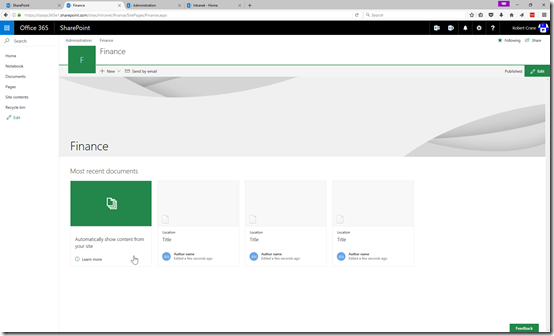
If you now navigate to the homepage of the subsite you should see the page you just created.

You have now successfully replaced the default ‘classic’ style homepage with ‘modern’ version that is more in keeping with the look and feel of Communications Sites.

Need to Know podcast–Episode 160

We are back with more Office 365 and Azure news as well updates on what both of us have been doing lately. Marc’s been giving people PowerShell training while I’ve been doing Azure presentations and workshops. That has however not prevented us collecting the most important news on the Microsoft Cloud and once again presenting to you with a dash of humour and sarcasm. Count the animal noises in this episode!

Take a listen and let us know what you think –feedback@needtoknow.cloud

You can listen to this episode directly at:

https://ciaops.podbean.com/e/episode-160-undisclosed-location/

Subscribe via iTunes at:

https://itunes.apple.com/au/podcast/ciaops-need-to-know-podcasts/id406891445?mt=2

The podcast is also available on Stitcher at:

http://www.stitcher.com/podcast/ciaops/need-to-know-podcast?refid=stpr

Don’t forget to give the show a rating as well as send us any feedback or suggestions you may have for the show.

Resources

@marckean

@directorcia

Azure news from Marc

Office 365 group expiry

Possible Findtime replacement

PowerShell browser

OneDrive turns 10

Outlook.com beta

New Outlook add in for Microsoft Teams

Become a CIAOPS Patron

This episode is brought to you by:

https://cpem.io/tJ01Hzu2k.js