CIAOPS Need to Know Office 365 Webinar–September 2017

laptop-eyes-technology-computer

Our free September Office 365 webinar is now open for registrations. There will be the latest Office 365 news as well a deep dive into managing tasks in Office 365. We’ll look at everything from Outlook to SharePoint to Planner and show you what is the best to use when.

You can register for free at:

September Webinar Registrations

The details are:

CIAOPS Need to Know Webinar – September 2017
Thursday 14th of September 2017
11am – 12am Sydney Time

All sessions are recorded and posted to the CIAOPS Academy.

There of course will also be open Q and A so make sure you bring your questions for me and I’ll do my best to answer them.

The CIAOPS Need to Know Webinars are free to attend but if you want to receive the recording of the session you need to sign up as a CIAOPS patron which you can do here:

http://www.ciaopspatron.com

or purchase them individually at:

http://www.ciaopsacademy.com/

Also feel free at any stage to email me directly via director@ciaops.com with your webinar topic suggestions.

I’d also appreciate you sharing information about this webinar with anyone you feel may benefit from the session.

CIAOPS Office 365 Tech Tips Library

image

I am happy to announce the availability of the CIAOPS Office 365 Tech Tips Library. This will be a growing collection of very short (2 minutes typically) Office 365 videos that you can view and share with your team. The library allows you to also download these files and accompanying descriptions and use them with existing customers or prospects. You can take the videos and embed them into emails and webpages if you wish.

An example of what is provided can be found here:

http://www.ciaopsacademy.com/p/o365-tech-tips/

The collection will continue to be updated and extended over time as the Office 365 services expand. You’ll be able to return to the library and access new information at any time during the course of your subscription.

You can now purchase the library stand alone or get it as part of the CIAOPS Gold and Gold Enterprise Patron plans.

Need to Know podcast–Episode 162

This week, for a change, no Marc Kean! We fill in the time talking about Office 365 development with MVP Ashish Trivedi. I still do the latest Office 365 and Azure news for you, which kinda makes me wonder why we need Marc? Just kidding, he’ll be back soon with a boatload of stories I’m sure. Till then, tune for the latest updates from the Microsoft Cloud

Take a listen and let us know what you think –feedback@needtoknow.cloud

You can listen directly to this episode at:

https://ciaops.podbean.com/e/episode-162-ashish-trivedi/

Subscribe via iTunes at:

https://itunes.apple.com/au/podcast/ciaops-need-to-know-podcasts/id406891445?mt=2

The podcast is also available on Stitcher at:

http://www.stitcher.com/podcast/ciaops/need-to-know-podcast?refid=stpr

Don’t forget to give the show a rating as well as send us any feedback or suggestions you may have for the show.

Resources

@dierctorcia

@_AshishTrivedi

Office Dev Point
Dev Program to get free tenant
Github for samples on office dev
Github for Microsoft Graph API
Github for SharePoint

Chrome Win 10/Azute AD SSO Extension

New message enhancements in Yammer

Microsoft Flow connections

Plan backup and disaster recovery for IaaS disks

Avoid accidential removal of Azure resources

A holistic approach to datacenters

This episode is brought to you buy:

https://cpem.io/tJ01Hzu2k.js

Using Microsoft Teams to keep up to date

I wrote an article a while back about

Using Office 365 to stay up to date

That article focused on the functionality provided by Office 365 Groups. Of course, you can solve the same challenge multiple ways in Office 365. So here’s how you can do something similar but this time using Microsoft Teams.
image

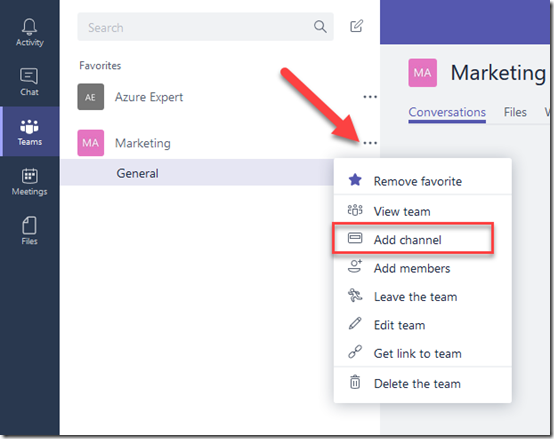
I already have a Marketing Team as you can see, so what I do is select the ellipse (three dots) to the right of that and from the menu that appears I select Add channel.

My suggestion would be to create an individual channel for each source of information. This allows you to not only group incoming information on that topic together but also start grouping additional resources around that like files and plans if you choose.
image

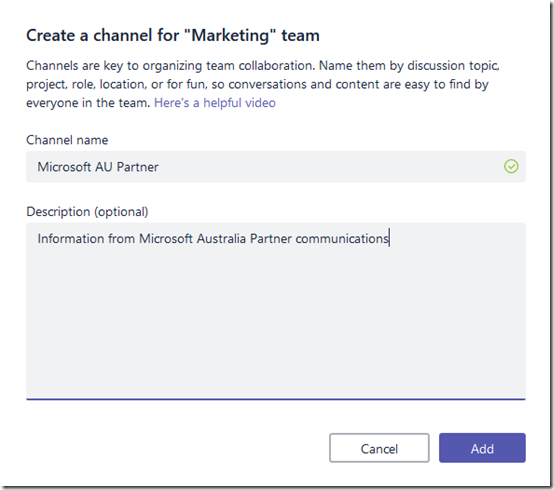
I give the new channel a name a description and select Add.
image

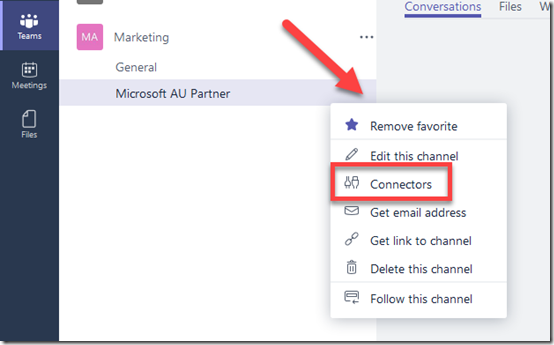
Once the channel has successfully been created, I select the ellipse for this new channel and then Connectors from the menu that appears.
image

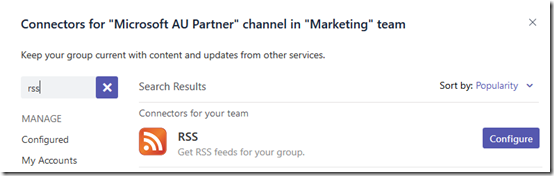
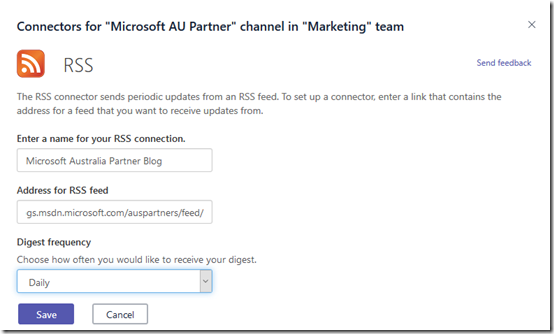
Locate the RSS option and select Configure.
image

Enter in all the details as per the previous article for this feed and select Save.
image

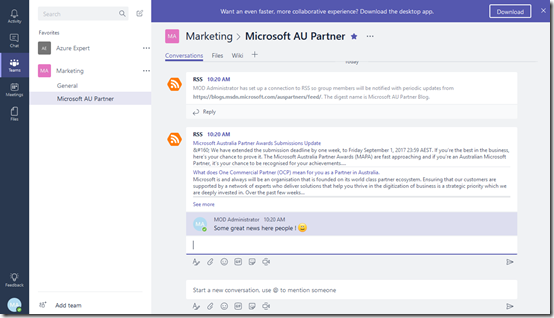
You should now see the feed information appear in the conversations tab as shown above. The big benefit here is that everyone in the marketing team can not only see the information but they can also comments and provide additional feedback on the item, all in one central location. This gives this item far more value that if everyone just consumed it on their own.
image

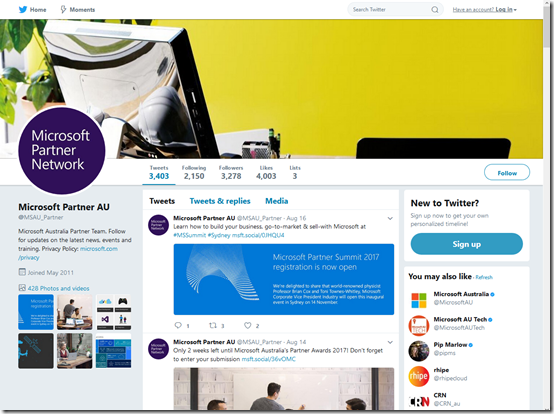
Another great option about having a single channel for these communications is that we can also connect other information sources, like Twitter.

To add the Microsoft Australia Partner Twitter account to this same channel, I firstly get the address of the Twitter account, which in this case is:

https://twitter.com/msau_partner
image

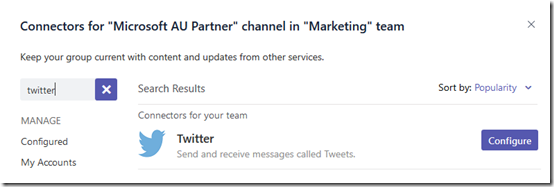
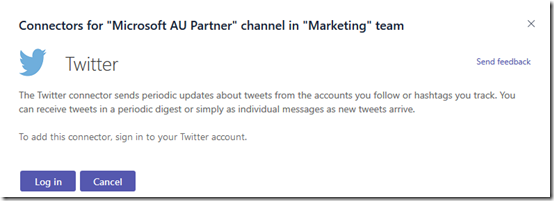
I repeat the above process and add a connector to my channel, however this time instead of select RSS I select the Twitter connector as shown above.
image

You’ll need to provide a valid Twitter account to authorise access to the feed, so Log in if you need to.
image

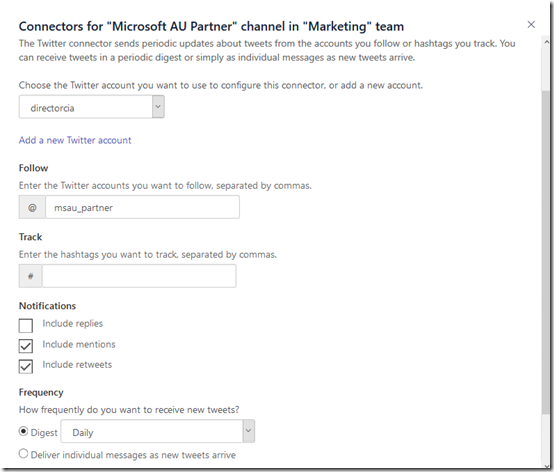
Configure the Twitter feed as desired. You can see I can elect to follow a Twitter account and/or a specific hashtag as well.

Once this is all configured, simply save the options.
image

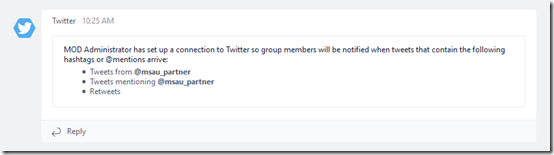
You should again see confirmation of the configuration in the channel conversations.
image

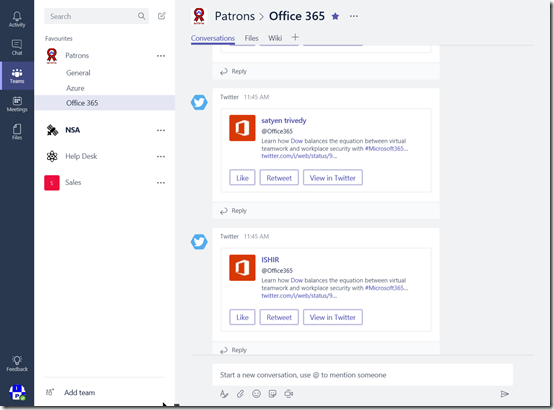
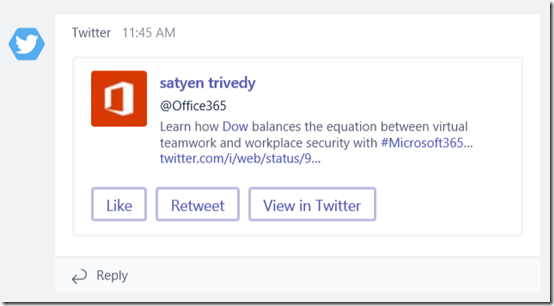
Now the information from Twitter also ends up in the channel and you can potentially also take actions from the cards that are presented depending on how you configured the connector.
image

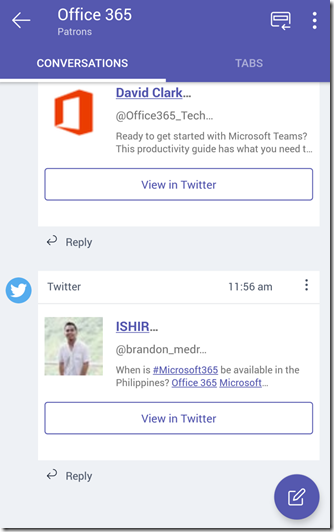
Another great benefit of feeding information into Office 365 Groups and Teams is that there is a mobile app available on just about every platform for these two services. Thus, no matter whether people are on the road or at their desks they can see and contribute to conversation around the news as it arrives.
image

As I mentioned, even though I am a team of one, I have configured a lot of news sources to be delivered to me in the manner. I also use other aspects of the Microsoft Teams that was created, such as the SharePoint Team Site, for managing my scheduled tweets as I have detailed previously here:

Sending recurring tweets using Microsoft Flow

and

Using Microsoft Flow for event confirmations

So even as a team of one, Office 365 helps me manage and be more effectively with my marketing. Imagine the benefits when you start scaling this out to larger teams.

If you now move beyond just marketing you can hopefully see the benefits things like Office 365 connectors can provide you. You could use them to stay up to date with patches, security alerts, and so on. The use cases are pretty endless.

Office 365 provides a very extensive toolbox to allow your business to be more effective. Where could you use it to improve your business?


August Webinar Resources

Another month, another webinar done. You can download the slides from:

https://www.slideshare.net/directorcia/need-to-know-webinar-august-2017

If you are not a CIAOPS patron you want to view or download a full copy of the video from the session you can do so here:

http://www.ciaopsacademy.com/p/august-2017-need-to-know-webinar/

We took a stroll through SharePoint Communications sites. What they are, how to create and edit them. Thanks everyone for attending

you can also now get access to all webinars via:

http://ciaops-academy.teachable.com/courses/need-to-know-webinars

for a nominal fee.

See you next month.

Need to Know podcast–Episode 161

Marc and I and both back at our desks for this round of updates from the Microsoft Cloud. Not a huge amount of things happening but we expect there to soon be with Microsoft Ignite not far away. So listen in for the latest Office 365 and Azure news for this week.

Take a listen and let us know what you think –feedback@needtoknow.cloud

You can listen to this episode directly at:

https://ciaops.podbean.com/e/episode-161-were-back/

Subscribe via iTunes at:

https://itunes.apple.com/au/podcast/ciaops-need-to-know-podcasts/id406891445?mt=2

The podcast is also available on Stitcher at:

http://www.stitcher.com/podcast/ciaops/need-to-know-podcast?refid=stpr

Don’t forget to give the show a rating as well as send us any feedback or suggestions you may have for the show.

Resources

@marckean

@directorcia

Azure news from Marc

Office 365 Groups expiration

New updates to OneDrive for iOS app

Improved Azure log analytics

New Azure regions in Canberra AU

Azure just in time VM access

This episode brought to you by:

https://cpem.io/tJ01Hzu2k.js

Document co-authoring with SharePoint Online

A very common question people ask when they use SharePoint Online or OneDrive for Business is whether multiple people can work on the document simultaneously, and the answer is yes provided they are Office documents.

Since back in 2010, SharePoint and Office have allowed users to edit documents together. Each iteration of the products has made this co-authoring more and more seamless, till today you simply don’t worry about it at all.

As my video tutorial demonstrates, you can simply start editing a file, in the browser or on the desktop, and immediately you’ll be able to work on it, even if there are others already there. You’ll see other people editing the document as you do as well be able to chat with them if you want.

Of course, for the times when you need to work exclusively on a document you can “check out” the document, preventing others from editing until you “check in” the document again.

So not only does SharePoint Online provide co-authoring ability natively, it also supports the basics of document management right out of the box. These are just some of the reasons why it is superior to traditional file shares.

For more information on working on document together in Office 365 see:

Document collaboration and co-authoring