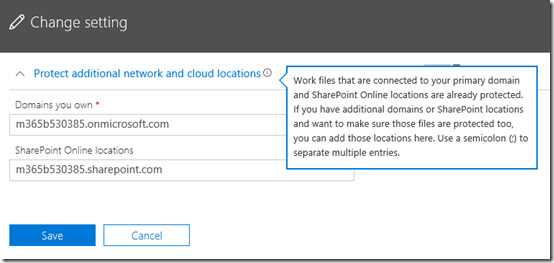
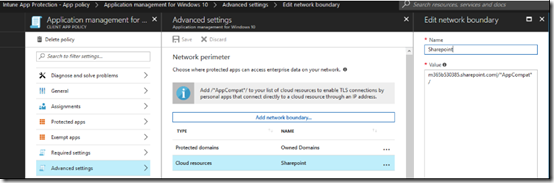
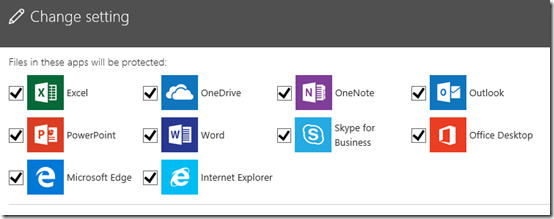
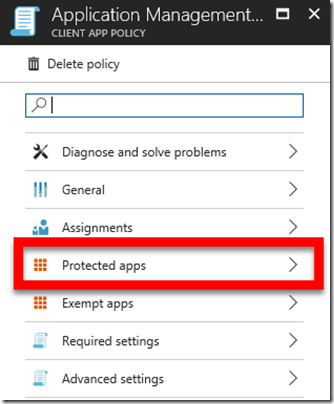
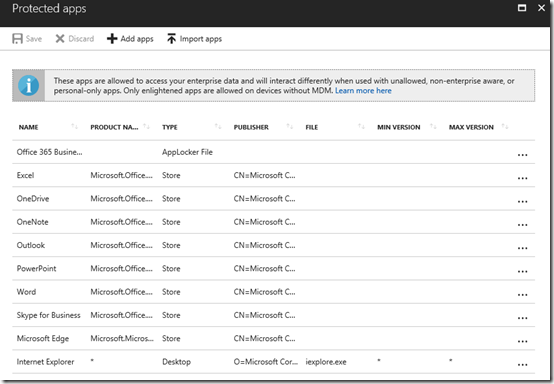
Microsoft 365 Business allows you to configure Windows 10 devices that are connected. This management is typically done by Intune at the back end while Microsoft 365 Business provides a simplified interface over these settings. However, what settings in Microsoft 365 map to Intune?
The best place to start to understand this mapping is the following document from Microsoft:
How do protection features in Microsoft 365 Business map to Intune settings
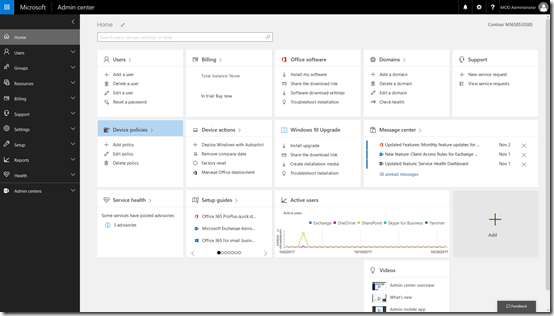
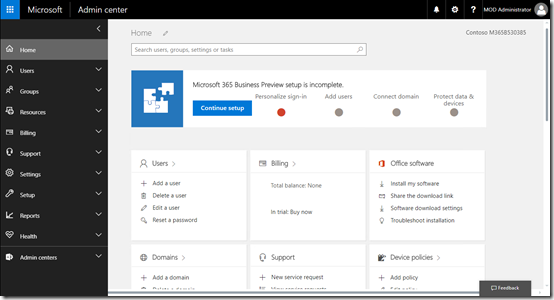
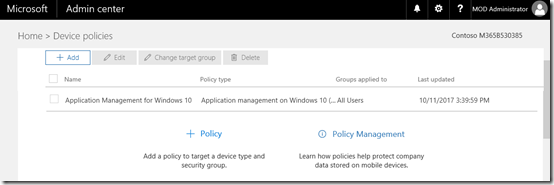
Start by navigating to the Admin center in your Microsoft 365 for Business tenant.
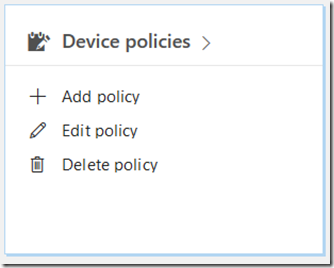
Locate the Device policies tile and select it.
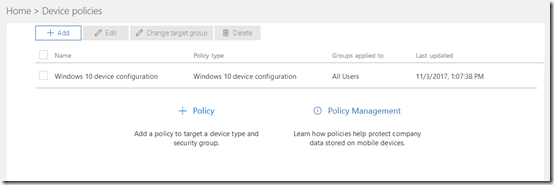
You may see a number of policies here but one should be named Windows 10 device configuration as shown above. Select this.
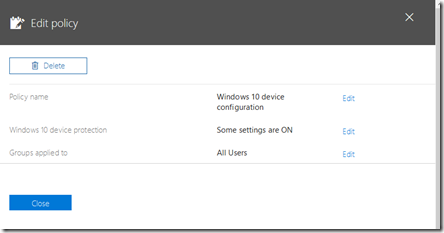
You should be taken to the Edit policy dialog as shown above.
Select the Edit hyperlink at the right of the Windows 10 protection line (the second option from the top).
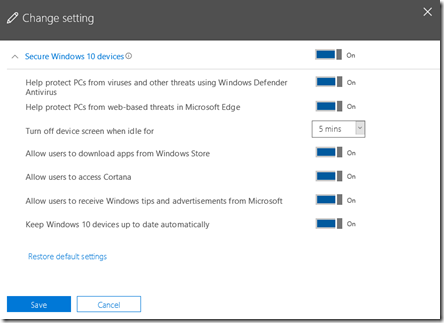
If you expand the display you should see a list of all the options and their status as shown above.
The question now is, how do these map to settings in Intune?
To view the settings in Intune you’ll need to login to the Azure portal for that tenant and then navigate to the Intune option.
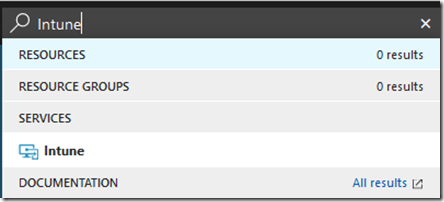
The easiest way to find the Intune settings is to do a search in the top right and then select Intune from the results.
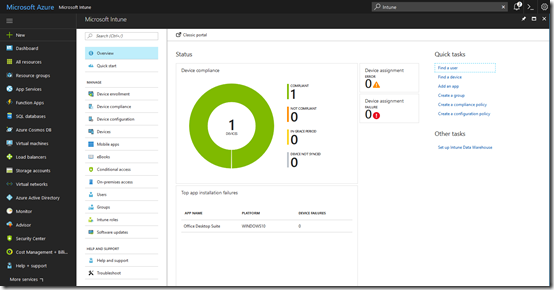
You should see the Intune console displayed as shown above.
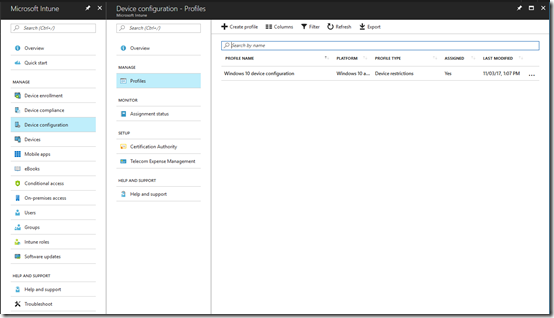
From the available options, select Device Configuration. From the blade that appears then select Policies. You should then see a policy that matches the one in the Microsoft 365 for Business console (here Windows 10 device configuration).
Select the policy name.
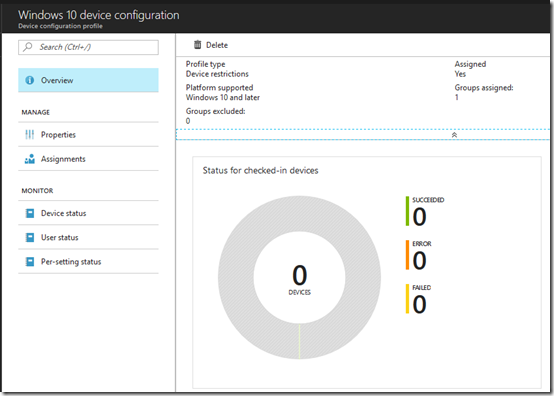
From the new blade that appears select Properties.
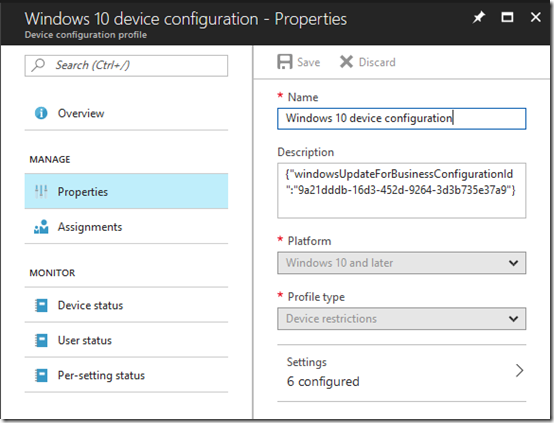
This should open another blade like shown above. The last option on this blade should be Settings. Select this.
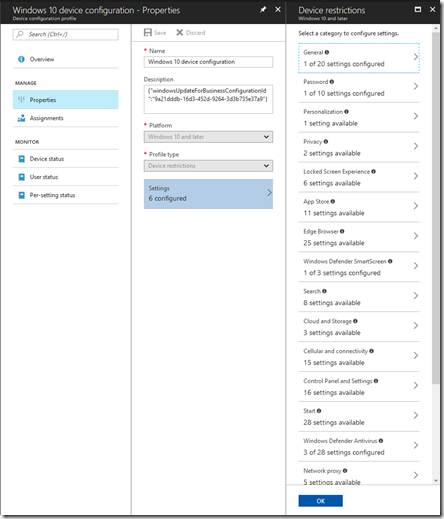
This will open a Device restrictions blade with lots of different settings as you can see above. This is where most the mapped settings from Microsoft 365 are.
![clip_image001[5]](https://lh3.googleusercontent.com/-BwyXl87UwO0/WfwT6l06RRI/AAAAAAAAfMY/RWuD7fO9JPETAisAozLk0DO6YpxBDRX4QCHMYCw/clip_image001%255B5%255D_thumb%255B1%255D?imgmax=800 "clip_image001[5]")
Working from the top, the Help protect PCs from web-based threats using Windows Defender Antivirus maps to Windows Defender Antivirus as shown.
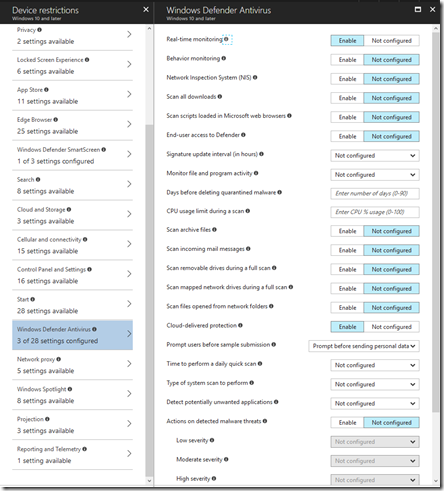
However, only 3 of the 28 options are set and they are:
![clip_image001[7]](https://lh3.googleusercontent.com/-FI9KUlCK0AY/WfwT92aU6TI/AAAAAAAAfMo/MOA1nkiRPJ4Io-7bMmp4g0f5FOuA3xYAACHMYCw/clip_image001%255B7%255D_thumb%255B1%255D?imgmax=800 "clip_image001[7]")
![clip_image001[9]](https://lh3.googleusercontent.com/-72TTleB0aEg/WfwT_8XtfLI/AAAAAAAAfMw/Oz-QbtD-LZge1McBn5rsrZCRGG-WNcn3wCHMYCw/clip_image001%255B9%255D_thumb%255B1%255D?imgmax=800 "clip_image001[9]")
![clip_image001[11]](https://lh3.googleusercontent.com/-DBRNKAhP7Sk/WfwUBXQPU-I/AAAAAAAAfM4/S7esANUu7p4aPXTExyMkz_NnkgpeKMlLACHMYCw/clip_image001%255B11%255D_thumb%255B1%255D?imgmax=800 "clip_image001[11]")
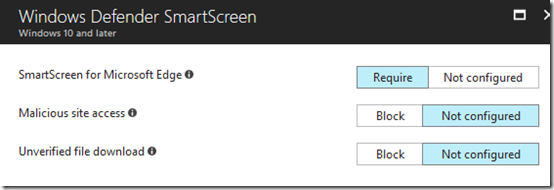
Next in Microsoft 365 Business is Help protect PCs from web-based threats in Microsoft Edge,
![clip_image001[13]](https://lh3.googleusercontent.com/-7OHR1DMhUcc/WfwUDIaPFiI/AAAAAAAAfNA/s6oDMEU70ywtit7sGAZ1r3X33F2XnS3oQCHMYCw/clip_image001%255B13%255D_thumb%255B1%255D?imgmax=800 "clip_image001[13]")
This maps to SmartScreen for Microsoft Edge in Windows Defender Smart Screen.
![clip_image001[15]](https://lh3.googleusercontent.com/-REnjgduomG0/WfwUE0qXncI/AAAAAAAAfNI/D-tRCn_ocoostF-c0nGCwolUH9DsxS0WACHMYCw/clip_image001%255B15%255D_thumb%255B1%255D?imgmax=800 "clip_image001[15]")
The next option is Turn off device screen when idle for:
![clip_image001[17]](https://lh3.googleusercontent.com/-lXUNj8RbZno/WfwUIDlqMZI/AAAAAAAAfNc/WuYX93EbmO8m-ZkoUIyozXnGYSlmkPK3QCHMYCw/clip_image001%255B17%255D_thumb%255B1%255D?imgmax=800 "clip_image001[17]") which maps to Maximum minutes of inactivity until screen locks in Password.
which maps to Maximum minutes of inactivity until screen locks in Password.
![clip_image001[19]](https://lh3.googleusercontent.com/-5DoiQwWi290/WfwUMeyl4gI/AAAAAAAAfNs/eLaHG1xC4nMUSgbIvMNMCFjKyeOZeeSQQCHMYCw/clip_image001%255B19%255D_thumb%255B1%255D?imgmax=800 "clip_image001[19]")
The option Allow users to download apps from Windows store maps to a Custom URI that I haven’t been able to locate in Intune.

I’m still researching what that actually maps to. More soon.
Next is Allow users to access Cortana
![clip_image001[21]](https://lh3.googleusercontent.com/-QSj8Yd9slII/WfwUQL59gcI/AAAAAAAAfN8/stBYecbIQ2Q_3WrhO9xFrZ5C0BisBtdngCHMYCw/clip_image001%255B21%255D_thumb%255B1%255D?imgmax=800 "clip_image001[21]") maps to Cortana in General in Intune.
maps to Cortana in General in Intune.
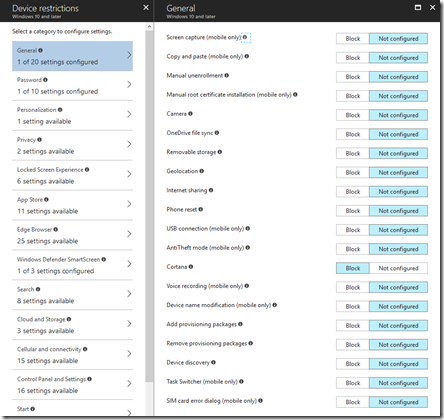

Next, Allow users to receive Windows tips and advertisements from Microsoft.
![clip_image001[23]](https://lh3.googleusercontent.com/-i8XEO0g6cnY/WfwUVmDhSuI/AAAAAAAAfOU/vmx0vEHzeOMcfVSInsyxfLlrcRiFYji9ACHMYCw/clip_image001%255B23%255D_thumb%255B1%255D?imgmax=800 "clip_image001[23]") which maps to Windows spotlight in Intune.
which maps to Windows spotlight in Intune.
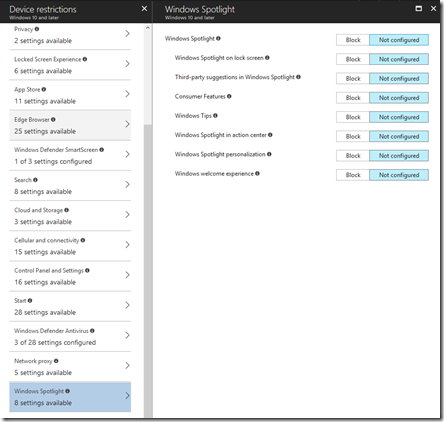
Finally, Keep Windows 10 devices up to date automatically

is actually configured from the Software updates option in Intune.
![clip_image001[29]](https://lh3.googleusercontent.com/-0GTV_prmlfQ/WfwUatIjkfI/AAAAAAAAfOs/-JNIMn6-H2gJuozs4k5srW0fSl91YSwGACHMYCw/clip_image001%255B29%255D_thumb%255B1%255D?imgmax=800 "clip_image001[29]")
From the main Intune blade select Software updates. From the blade that then appears select Windows 10 Update rings. Then form the new blade select Update policy for Windows 10 devices.
![clip_image001[31]](https://lh3.googleusercontent.com/-RpSrmEyo9lQ/WfwUcV1iMOI/AAAAAAAAfO0/k41gXsrfsTI6dbDfCQ8Uphu5iVWDO-GvQCHMYCw/clip_image001%255B31%255D_thumb%255B1%255D?imgmax=800 "clip_image001[31]")
Select the policy and then Properties from the blade that appears.
At the bottom of the Properties page select Settings. This should then show a blade like that shown above.
![clip_image001[33]](https://lh3.googleusercontent.com/-sx_5Sug2z3I/WfwUeJlxFWI/AAAAAAAAfO8/bvqTLJ7K8NY2QyZDU0YNeotLXIqGVSU7gCHMYCw/clip_image001%255B33%255D_thumb%255B1%255D?imgmax=800 "clip_image001[33]")
If the Microsoft 365 Business setting is ON the Service Branch will be set to Semi-Annual Channel (Targeted) like so:
![clip_image001[35]](https://lh3.googleusercontent.com/-Ty4PeHDQaJs/WfwUf-tNPlI/AAAAAAAAfPE/4mqL8urqD2wtfESiriPFT35hMCB6RdW6wCHMYCw/clip_image001%255B35%255D_thumb%255B1%255D?imgmax=800 "clip_image001[35]")
If the Microsoft 365 Business setting is OFF, the Service Branch will be set to Semi-Annual like so:
![clip_image001[37]](https://lh3.googleusercontent.com/-K0Y6Rh-hzQE/WfwUhZ5NNTI/AAAAAAAAfPM/sEr26uRDN4cCQRT7LZwX0B1q_4GHcSLvACHMYCw/clip_image001%255B37%255D_thumb%255B1%255D?imgmax=800 "clip_image001[37]")
You can review these update channels here:
Assign devices to servicing channels for Windows 10 updates
So making any changes in the Microsoft 365 Business console will be reflected in the Intune console. However, if you change these settings in Intune and then try and update them you seem to get an error like so
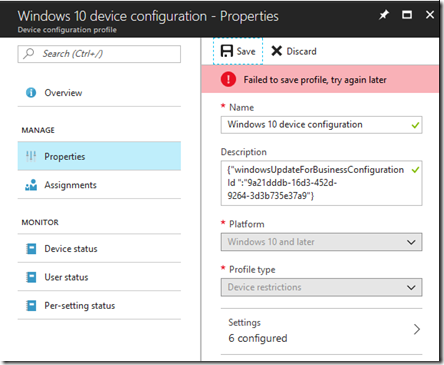
I would have thought that I could change the settings in any console but that doesn’t appear to be the case. I currently can’t find any confirmation of this but I will publish anything I find. So for now the guidance is – only make changes in the Microsoft 365 Business Admin Center.
There are a number of other policies in Microsoft 365 Business that I’ll cover in upcoming posts.


![clip_image001[5]](https://lh3.googleusercontent.com/-Y8dh_QXCxqM/WgmAb33R-oI/AAAAAAAAfQM/xhmbYXoD79ooxpvJJRaMftjXxwCJfPmbQCHMYCw/clip_image001%255B5%255D_thumb%255B1%255D?imgmax=800 "clip_image001[5]")


![clip_image001[9]](https://lh3.googleusercontent.com/-8K_paKt2Pt0/WgmAl9RE9-I/AAAAAAAAfRE/CViMca1w62koHt5zuTVmDkh5MogLl6I4QCHMYCw/clip_image001%255B9%255D_thumb%255B1%255D?imgmax=800 "clip_image001[9]")

![clip_image001[11]](https://lh3.googleusercontent.com/-VKYtdHhYsSw/WgmAorvew5I/AAAAAAAAfRU/2xmOdXM8miw3sU2oJZcxFbyRACueSNEAwCHMYCw/clip_image001%255B11%255D_thumb%255B1%255D?imgmax=800 "clip_image001[11]")

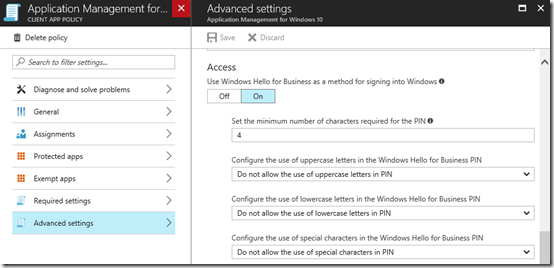

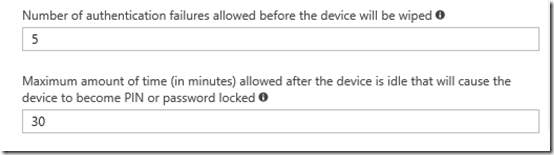
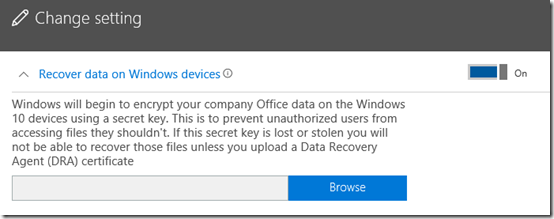

![clip_image001[13]](https://lh3.googleusercontent.com/-Yuk9BjANOxg/WgmAxyVP1hI/AAAAAAAAfSM/ttZF2tOTaw4L_hr4Ecl_uPEUuEM8JCQVACHMYCw/clip_image001%255B13%255D_thumb%255B1%255D?imgmax=800 "clip_image001[13]")