Using Multiple Authenticator Apps with One Microsoft 365 Account: Guide for MSPs

bp1

For Managed Service Providers (MSPs) with multiple employees managing numerous customer Microsoft 365 tenants, efficiently and securely handling multi-factor authentication (MFA) is crucial. While a single Microsoft 365 user account typically links to one primary authenticator, there are legitimate scenarios and best practices for MSPs to leverage multiple authenticator apps for a single user, enhancing both security and operational flexibility.

Why Multiple Authenticator Apps for an MSP User?

While the general recommendation for individual users is to have a single, primary authenticator app for an account, MSPs often encounter unique needs:

  • Redundancy and Backup: In case a primary device is lost, stolen, or damaged, a secondary authenticator on another device ensures access isn’t lost, preventing costly downtime.
  • Shared Administrative Accounts (with caution): While not ideal, some MSP workflows might necessitate a shared administrative account for specific, highly controlled scenarios (e.g., break-glass accounts). In such cases, multiple technicians might need access to the MFA codes, making multiple authenticators a practical, albeit carefully managed, solution.
  • Employee Transition: When an employee leaves, transferring MFA access to a new team member can be streamlined if a secondary authenticator is already configured on a shared, secure device (e.g., a dedicated company phone for administrative access).
  • Location/Device Flexibility: Technicians working from different locations or using various company-issued devices might benefit from having the authenticator configured on each frequently used device.

Best Practice Approaches for MSPs

The core principle for MSPs managing MFA is to prioritize security while maintaining operational efficiency. Here’s a breakdown of best practices:

1. Leverage Conditional Access Policies (Azure AD Premium P1 or P2)

Conditional Access is the gold standard for managing MFA in Microsoft 365, especially for MSPs. It offers granular control over when and how MFA is enforced, allowing for much more sophisticated policies than basic security defaults.

  • Granular Control: Define policies based on user groups, location (trusted IPs, risky locations), device state (compliant, hybrid Azure AD joined), application being accessed, and sign-in risk.
  • MFA for Administrative Roles: Always enforce MFA for all administrative roles (Global Administrator, User Administrator, Helpdesk Administrator, etc.) across all customer tenants.
  • Location-Based MFA: Require MFA for sign-ins from outside your MSP’s trusted network locations.
  • Risky Sign-ins: Automatically require MFA or block access for sign-ins detected as risky by Microsoft Entra ID Protection.
  • Device Compliance: Require MFA for access from non-compliant devices.
  • Prioritize Microsoft Authenticator: Encourage or enforce the use of the Microsoft Authenticator app for push notifications or number matching. This is generally more secure and user-friendly than SMS or voice calls.
  • Phased Rollout: When implementing or modifying MFA, conduct a phased rollout. Start with your internal IT staff, then move to pilot groups, and finally to all users.
2. Designate Specific Authenticators for Specific Purposes

Avoid a free-for-all with authenticators. Be strategic:

  • Primary Authenticator (User’s Personal Device): The Microsoft Authenticator app on the technician’s primary work smartphone should be their main MFA method. This offers convenience and strong security (push notifications, biometrics).
  • Secondary Authenticator (Company-Provided Device or FIDO2 Key): For backup or shared administrative accounts (used rarely and with extreme caution), a secondary authenticator on a company-issued device (tablet, spare phone) or a hardware security key (FIDO2) is preferable. FIDO2 keys offer the strongest phishing resistance.
  • Avoid SMS/Voice as Primary MFA: While useful for recovery, SMS and voice MFA are susceptible to SIM-swapping and other attacks. Limit their use as primary authentication methods, especially for administrative accounts.
3. Implement Break-Glass Accounts

Maintain a small number of highly secured “break-glass” or emergency access accounts. These accounts are exempt from normal Conditional Access policies and are only used in extreme emergencies (e.g., a global MFA outage, or if all administrators are locked out). These accounts should:

  • Be cloud-only (not synchronized from on-premises AD).
  • Have strong, complex passwords stored securely and offline.
  • Be monitored for any sign-in activity.
  • Have their credentials rotated regularly.
  • Ideally, use hardware FIDO2 keys for MFA.
4. Regular Auditing and Monitoring
  • MFA Registration Reports: Regularly review who has registered for MFA and what methods they’ve configured.
  • Sign-in Logs: Monitor sign-in logs for unusual activity, failed MFA attempts, or sign-ins from untrusted locations. Microsoft 365 Lighthouse (for CSP partners) and Azure AD reports can provide consolidated views across tenants.
  • Access Reviews: Periodically review administrative roles and MFA configurations for all users, especially for those with elevated privileges.
5. Training and Documentation
  • User Education: Train your MSP employees on the importance of MFA, how to use their authenticator apps correctly, and how to report suspicious MFA prompts.
  • Internal Procedures: Document your internal policies for MFA, including how to set up new authenticators, handle lost devices, and manage break-glass accounts.

Step-by-Step Configuration: Adding Multiple Authenticator Apps to a Single User

This process generally involves the user adding additional authentication methods through their security info settings. An administrator initiates MFA enforcement, and the user then registers their chosen methods.

Prerequisites:
  • A Microsoft 365 user account.
  • Global Administrator or Authentication Administrator role (for initial setup/management).
  • Microsoft Authenticator app installed on the primary device.
  • Secondary device (another smartphone/tablet) for the second authenticator app.
  • (Optional) FIDO2 Security Key.
  • Azure AD Premium P1/P2 license for Conditional Access (highly recommended for MSPs).
Step 1: Enable MFA (if not already enabled)

For MSPs, using Conditional Access policies is the recommended way to enable and enforce MFA. Security Defaults are a simpler option but offer less flexibility.

Method A: Using Conditional Access Policies (Recommended for MSPs)
  1. Sign in to the https://entra.microsoft.com/ Microsoft Entra admin center (formerly Azure Active Directory admin center) as a Global Administrator.
  2. Navigate to Protection > Conditional Access.
  3. Click + New policy.
  4. Name the policy: e.g., “MFA for All Users” or “MFA for Admins”.
  5. Under Assignments > Users or workload identities, select the relevant scope (e.g., All users, or specific administrative roles/groups). For MSPs, definitely target administrative roles.
  6. Under Cloud apps or actions, select All cloud apps (or specific sensitive apps).
  7. Under Conditions (optional, but highly recommended for MSPs):

    • Locations: Exclude trusted locations (e.g., your MSP office IP ranges) to reduce MFA prompts when users are on-site, but require MFA when outside.
    • Device state: Consider requiring MFA for non-compliant devices.
    • Sign-in risk: Set to require MFA for medium or high sign-in risk.
  8. Under Grant:

    • Select Grant access.
    • Check Require multi-factor authentication.
  9. Set Enable policy to On.
  10. Click Create.
Method B: Using Security Defaults (Simpler, less flexible – good for quick enforcement)

If you don’t have Azure AD Premium licenses, Security Defaults provide a baseline level of MFA enforcement.

  1. Sign in to the https://entra.microsoft.com/ Microsoft Entra admin center as at least a Security Administrator.
  2. Browse to Identity > Overview > Properties.
  3. Select Manage security defaults.
  4. Set Security defaults to Enabled.
  5. Select Save.

Note: If you previously had “per-user MFA” enabled, you must disable it before using Conditional Access or Security Defaults. You can do this from the Microsoft 365 admin center > Users > Active users > Multi-factor authentication link, and set user status to disabled.

Step 2: User Registers Their First Authenticator App (Primary)

The first time a user signs in after MFA is enabled, they will be prompted to set it up.

  1. The user navigates to https://myaccount.microsoft.com/.
  2. They sign in with their username and password.
  3. They will see a message: “Your organization needs more information to keep your account secure.” Click Next.
  4. On the “Keep your account secure” page, they will be prompted to set up the Microsoft Authenticator app (recommended).

    • Choose Mobile app from the dropdown.
    • Select Receive notifications for verification (for push notifications) or Use verification code (for TOTP codes). Push notifications are preferred for ease of use and security. Click Set up.
    • A QR code will appear on the screen.
  5. On their primary smartphone:

    • Open the Microsoft Authenticator app.
    • Tap the + sign (top right on iOS, top left on Android) and choose Work or school account.
    • Select Scan a QR code and scan the code displayed on the computer screen.
    • The account will be added to the app.
  6. On the computer, click Next. Microsoft will send a test notification to the app.
  7. On the smartphone, approve the notification (or enter the number matching code if enabled).
  8. Once verified, click Next on the computer.
  9. They may be prompted to set up an alternative verification method (e.g., phone number) as a backup. It’s recommended to do this.
  10. Click Done.
Step 3: User Registers a Second Authenticator App (or another method)

Once the primary authenticator is set up, the user can add additional methods via their security info page.

  1. The user navigates to https://myaccount.microsoft.com/ and signs in (they will be prompted for MFA using their primary method).
  2. On the left-hand navigation, click Security info.
  3. Click + Add method.
  4. From the dropdown, choose the desired method:

    • Authenticator app: To add the Microsoft Authenticator app to a second device or another TOTP authenticator (e.g., Google Authenticator, Authy).
    • Phone: To add a secondary phone number for SMS or voice calls (less secure, use with caution for admin accounts).
    • Security key: To add a FIDO2 hardware security key (highly recommended for strong phishing resistance).
  5. For a second Authenticator App:
    1. Select Authenticator app and click Add.
    2. Follow the on-screen prompts. It will present a new QR code.
    3. On the second device, open the chosen authenticator app (e.g., Microsoft Authenticator, Google Authenticator).
    4. Add a new account (Work or school account for Microsoft Authenticator, or generic TOTP for others) and scan the QR code.
    5. Complete the verification steps.
  6. For a Security Key (FIDO2):
    1. Select Security key and click Add.
    2. Follow the instructions. This will involve plugging in the FIDO2 key and touching it when prompted.
    3. Give the key a memorable name.
  7. Once successfully added, the new authentication method will appear in the “Security info” list. The user can also set a default sign-in method from this page.
Important Considerations for MSPs:
  • Dedicated Admin Accounts: For managing customer tenants, use dedicated administrative accounts for each technician rather than a single shared account, where possible. This improves auditability and accountability. When shared accounts are necessary (e.g., for legacy systems or break-glass scenarios), ensure they are tightly controlled and monitored.
  • Microsoft 365 Lighthouse: For CSP partners, Microsoft 365 Lighthouse offers a centralized portal to manage multiple customer tenants, including MFA configuration and monitoring. This can significantly streamline MSP operations.
  • Azure Lighthouse: For Azure services, Azure Lighthouse enables MSPs to manage resources across customer subscriptions from their own tenant, reducing the need for direct access to customer tenants and simplifying MFA management.
  • Privileged Identity Management (PIM): For high-privileged roles, implement PIM to provide just-in-time and just-enough access. This requires administrators to activate their elevated roles, and each activation can require MFA, even if their standard user account doesn’t.
  • Regular Reviews: Conduct quarterly or bi-annual reviews of all administrative access, including MFA configurations, for all customer tenants.

By following these best practices and understanding the configuration steps, MSPs can effectively manage multiple authenticator apps for their users, enhancing security posture across all their managed Microsoft 365 customer environments.
Avoid MFA fatigue attacks in Microsoft 365

A MFA fatigue attack is where an attacker will constantly attempt to login as the user causing an MFA request to appear on the users device. If this request is simply to deny or approve, and with enough requests, the user eventually approves to make theses requests go away. Such an attack recently provided very successful at Uber. You can read more about that incident here:

https://www.uber.com/newsroom/security-update

With MFA in Microsoft 365 and the Microsoft Authenticator app you can avoid this by enabling number matching for push notifications. Here’s how to do it:

image

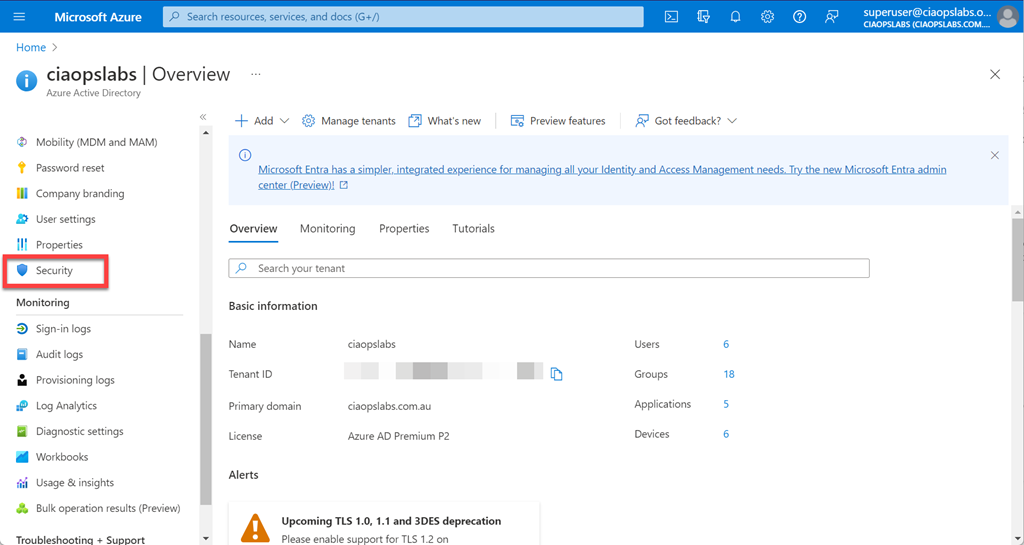
Navigate to the Azure portal as an administrator and then to Azure Active Directory. Here, select Security from the menu on the left as shown above.

image

Here, select Authentication methods as shown above on the left.

image

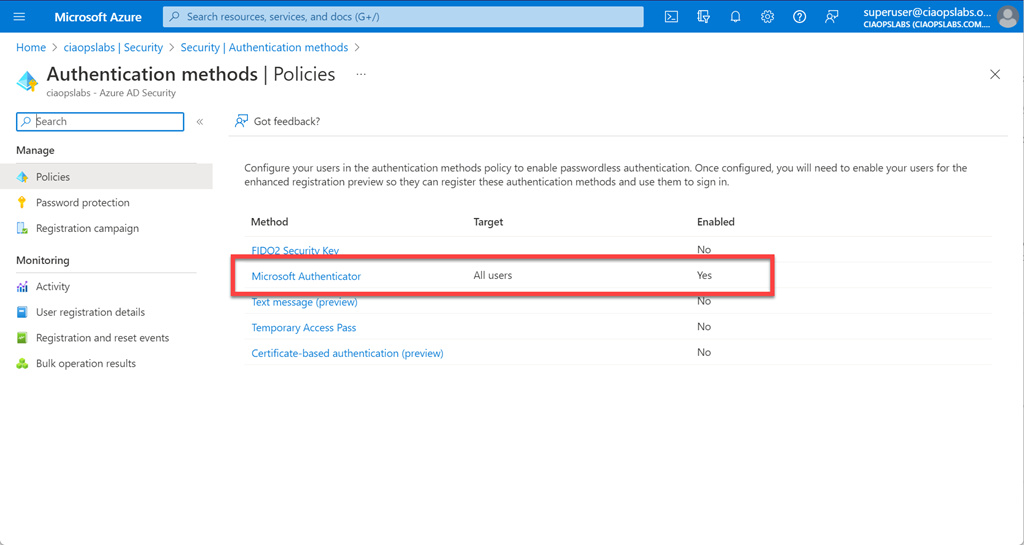
Now select Microsoft Authenticator on the right.

image

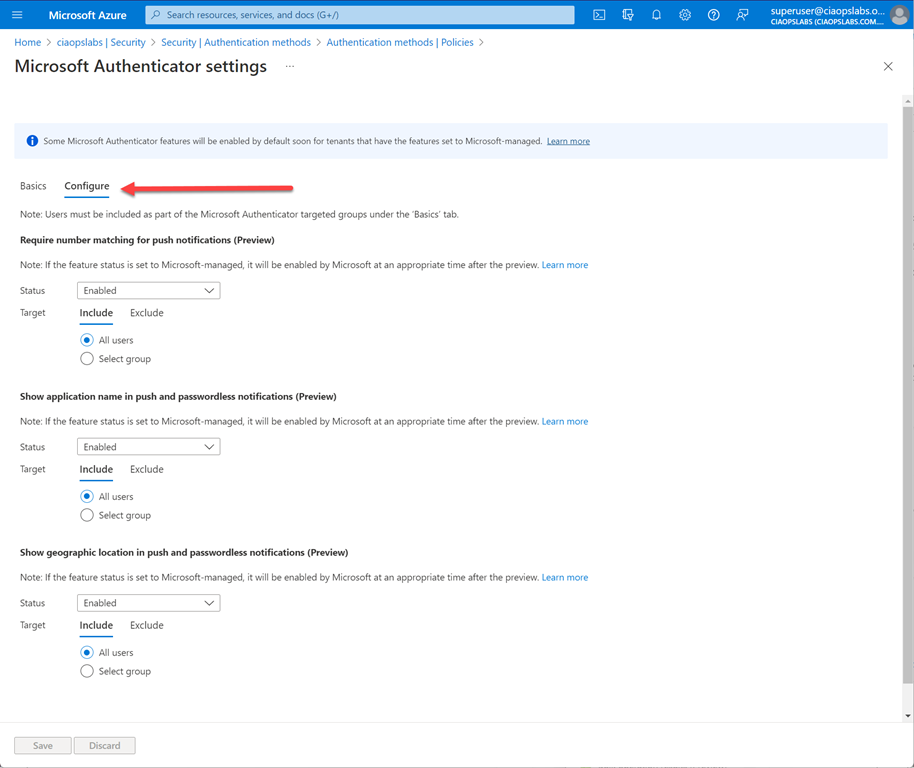
Select Configure at the top of the page and ensure all the options listed are Enabled for all users. You may want to exclude any break-glass accounts though.

image

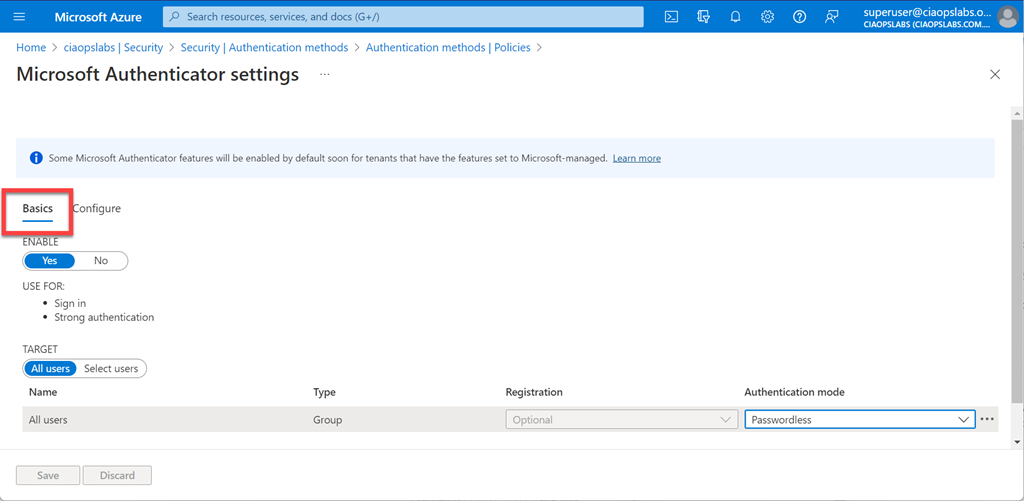
Back on the Basic tab, as shown above, ensure you have Enable set to Yes and you target all the desired users with Passwordless.

IMG_1151

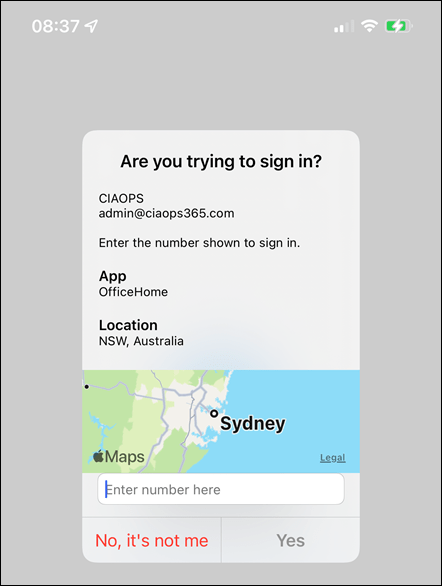
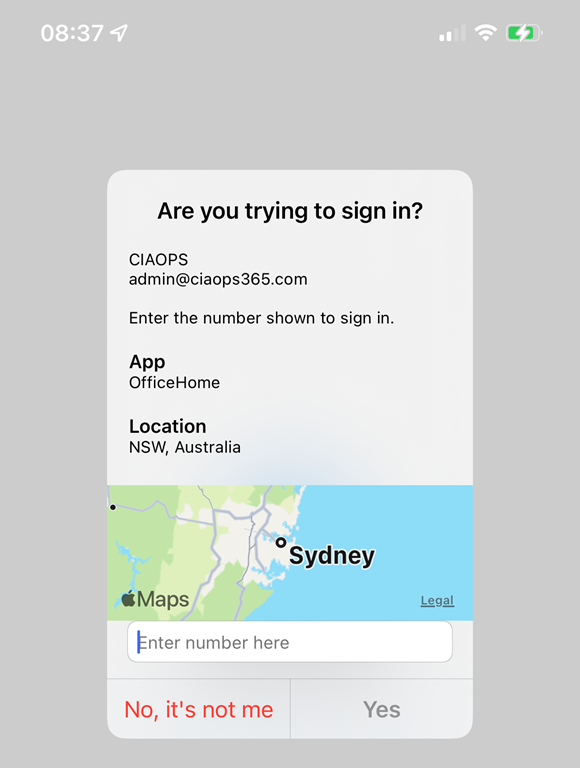
Now, when users are prompted for MFA they will see the above on their devices and need to type the number that is on the screen into their device to approve the login. They will also see the geographic location the request came from and application requesting as shown above.

If you want to check yoru environment for MFA fatigue attacks you can use this KQL query in Sentinel:

https://github.com/reprise99/Sentinel-Queries/blob/main/Azure%20Active%20Directory/Identity-PotentialMFASpam.kql

Online security is something that requires constant adjustment as the bad actors adapt to the protection methods put in place. Number matching in Microsoft 365 is quick and easy to set up using the Microsoft Authenticator and the recommended approach you should take to avoid MFA fatigue attacks.

Enabling security defaults will enforce MFA on external users

A really good questions that I came across was whether enabling security defaults on a tenant will enforce MFA for external guest users.

Here is the documentation for security defaults:

Security defaults in Azure AD

and when enabled one of the things it will do is:

Require all users to register for Azure AD Multi Factor

which says:

All users in your tenant must register for multi-factor authentication (MFA) in the form of the Azure AD Multi-Factor Authentication. Users have 14 days to register for Azure AD Multi-Factor Authentication by using the Microsoft Authenticator app. After the 14 days have passed, the user can’t sign in until registration is completed. A user’s 14-day period begins after their first successful interactive sign-in after enabling security defaults.

The question is does “all users” include external guest users who have been invite into a tenant for collaboration on Microsoft Teams say? This is important because Microsoft is starting to enforce security defaults on all tenants.

Interestingly, none of the documentation seems to call out specifically whether “all users” does in fact include external guest users. After some digging I came across this post:

All users should be changed to all “member” users · Issue #78194 · MicrosoftDocs/azure-docs (github.com)

which has a response from someone at Microsoft and it says:

“Follow up from the product group… Security defaults should apply to guest users as well.”

So it looks as though it does indeed appear that security defaults applies to external guest users but I wanted to be sure.

image

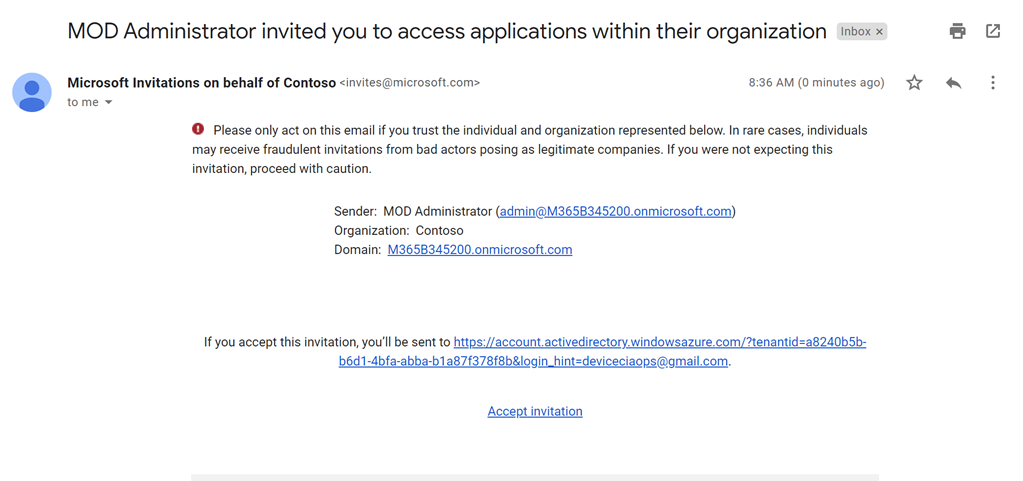
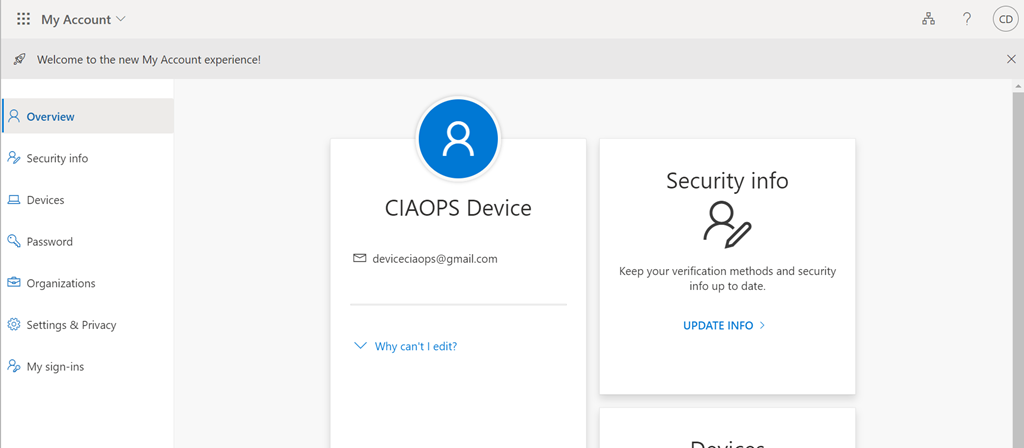
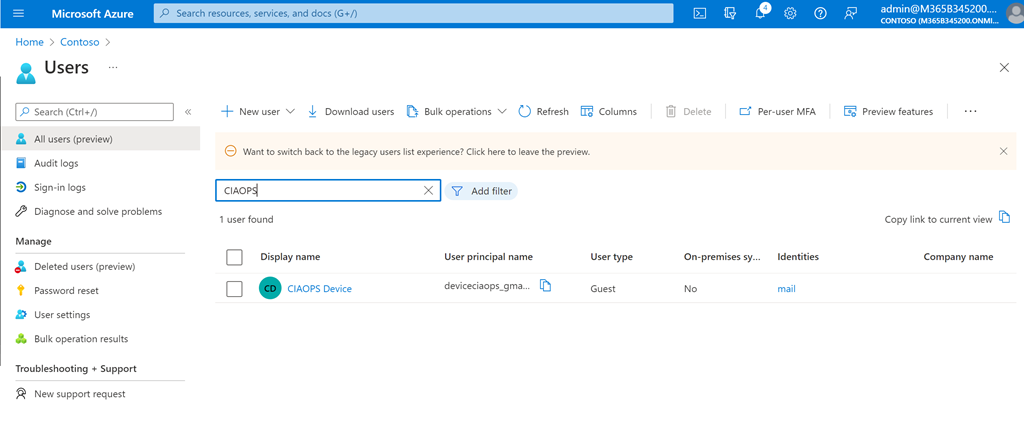
I took a generic Gmail account I use and invited that user into a demo tenant that didn’t have security defaults enabled.

image

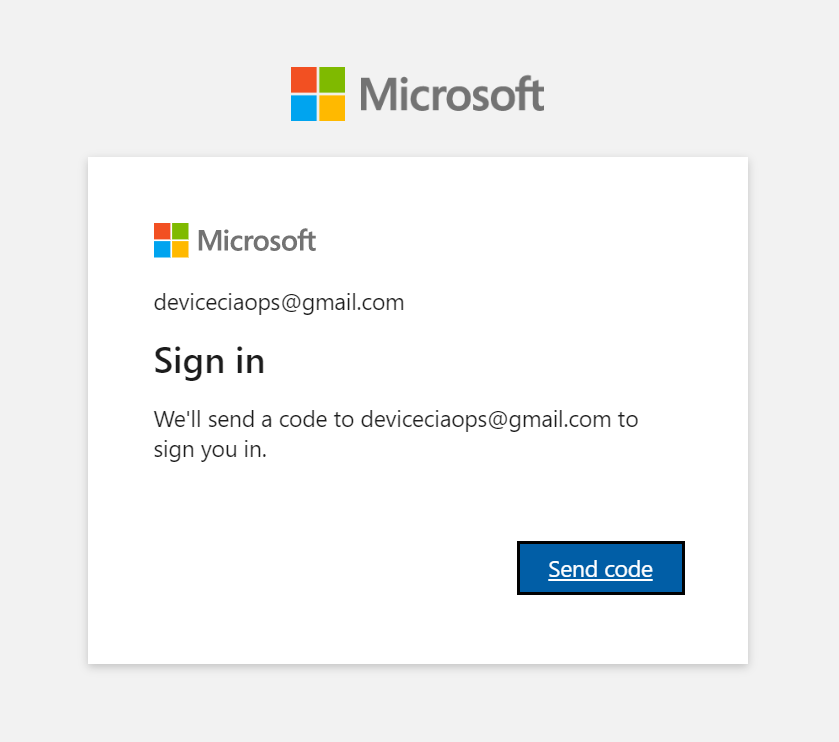
That user went through the expected process of connecting to the tenant.

image

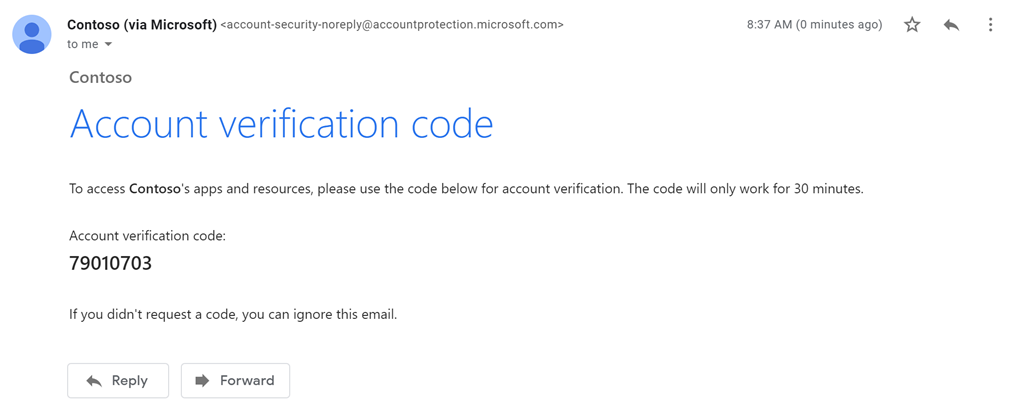
using the email code verification process.

image

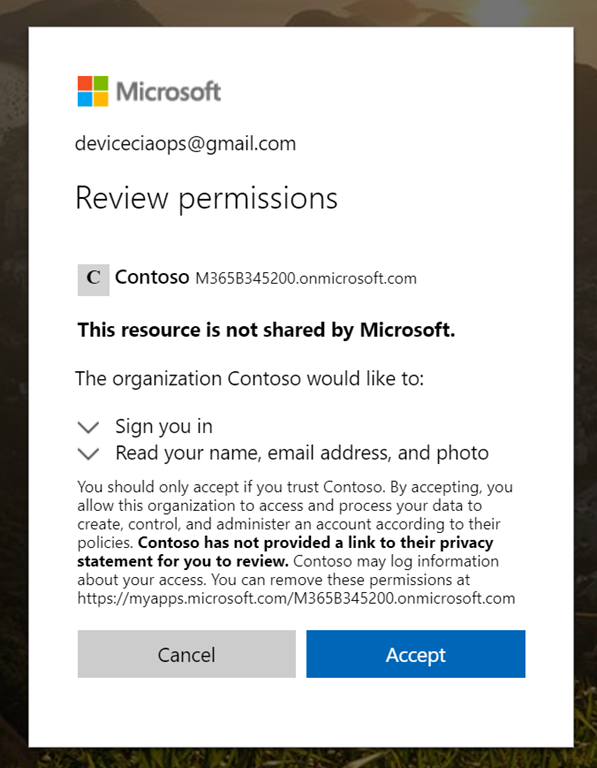
until they could access the tenant.

image

I also verified that they appeared in the Azure AD for that tenant.

image

So everything as expected so far.

image

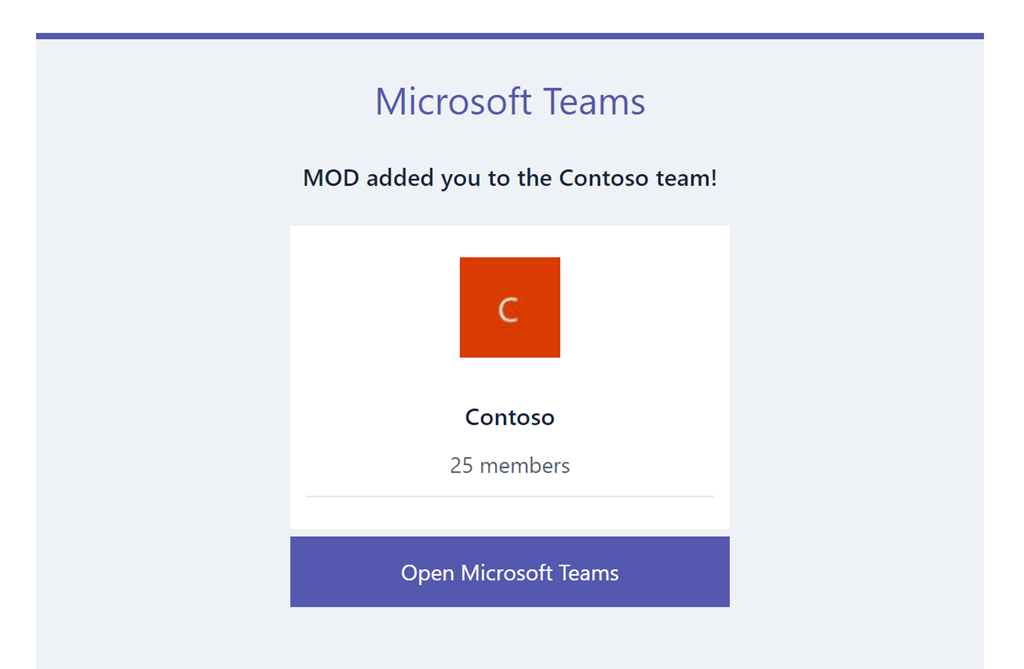
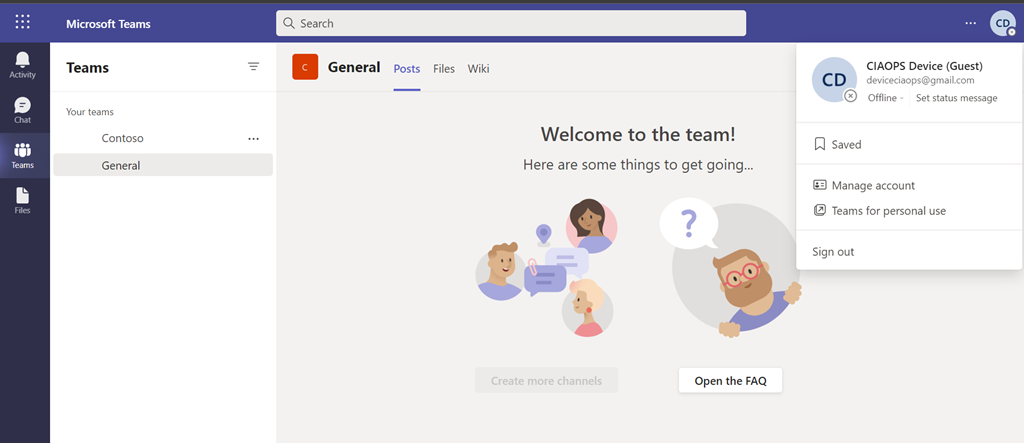
Next, I invited that same user to a Microsoft Team inside that tenant.

image

and they could access that Team using the normal email code authentication process. I tried this a few times to ensure they could access the Team without needing anything but the usual email code. So far, so good still.

image

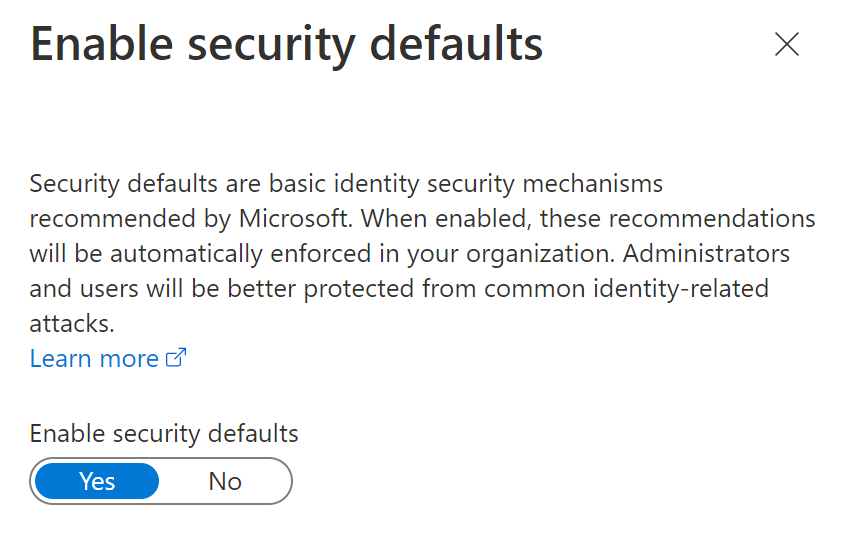
I then went in an enabled security defaults for the tenant.

image

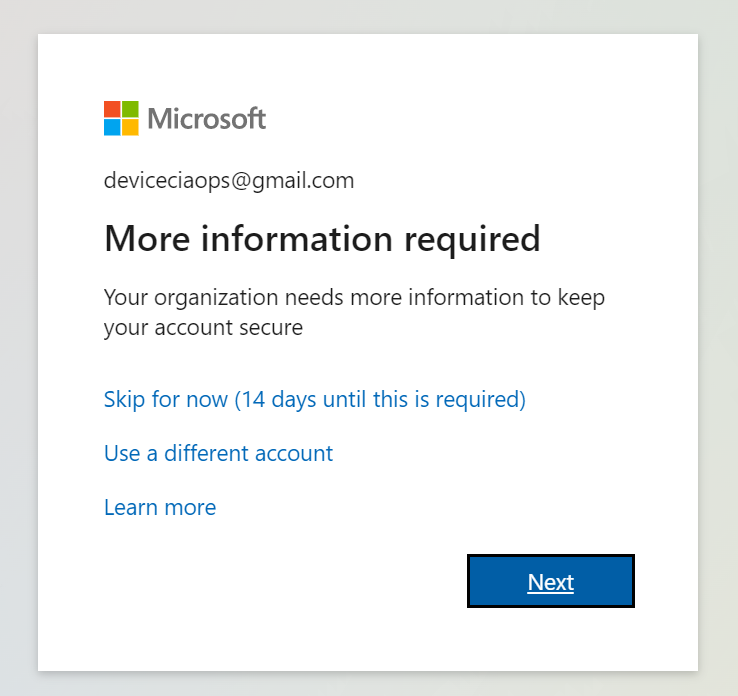
After a few minutes wait to let the policies kick in I tried to login as the external guest user again to Microsoft Teams directly, and after providing a login and getting an email code I was prompted to enable MFA for the user as seen above.

image

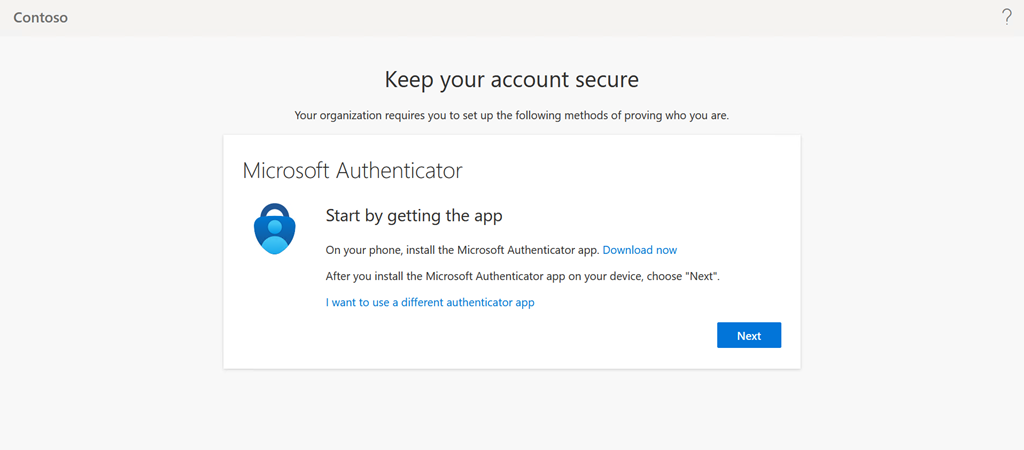
Selecting Next will take you through the standard MFA registration process as you see above.

It is therefore the case that if you enable security defaults for a tenant, all users, INCLUDING any external guest users, will be REQUIRED to enable MFA to access resources inside that tenant.

Why this is important is because Microsoft will be enabling security defaults on ALL tenants as detailed here:

Raising the Baseline Security of all organizations in the World

which says:

“Based on usage patterns, we’ll start with organizations that are a good fit for security defaults. Specifically, we will start with customers who aren’t using Conditional Access, haven’t used security defaults before, and aren’t actively using legacy authentication clients.

Global admins of eligible tenants will be notified through email and the Microsoft 365 Message Center. Then, starting in late June [2022], they’ll receive [a] following prompt during sign-in”

Being it is now June 2022, this process has commenced. You can disable security defaults if you wish, even after they have been enabled, if desired per the details in the above link.

Given that I couldn’t find a specific answer about global external users being impact by security defaults, hopefully this now provides a reference for other looking for the same information.

Better passwordless logins are here

Microsoft has announced some great improvements to the Microsoft Authenticator passwordless process.

IMG_1151

One of these, as you can see above, I have already enabled on my tenant. It allows you to do number matching AND provides you the location from where you are logging in via a map.

To enable this in your tenant visit the link:

Enable additional context in the portal

This is a great enhancement for MFA with Microsoft 365. Simple and easy to use. Great work Microsoft. You can read about the other exciting announcements here:

Several Microsoft Authenticator security features are now available!

End to End email protection with Microsoft 365–Part 4

This is part of a series of articles about email security in Microsoft 365. Please check out previous articles here:

End to End email protection with Microsoft 365 – Part 1

End to End email protection with Microsoft 365 – Part 2

End to End email protection with Microsoft 365 – Part 3

These articles are based on a model I have previously created, which you can read about here:

CIAOPS Cyber protection model

designed to help better explain expansive security included with Microsoft 365.

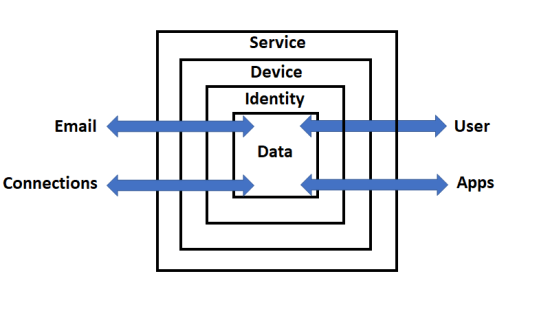
In previous parts, we covered how an external email was delivered into the Microsoft 365 service and all the protections that it passed through until it finally came to rest in the Data container (user’s inbox) ready to be viewed. The next step in the process will therefore for the user to fire up their device to read the email. This article will therefore focus on the protections available for that device.

For the sake of simplicity we’ll focus on that being a modern device running at least a Windows 10 Professional. Of course, email from Microsoft 365 can be viewed on just about any devices these days, Windows or not, and all of these have unique and overlapping protections. However for the sake of brevity let’s just focus on the more common Windows 10 device for now.

A range of hardware device protection is available and recommended including:

and should already be in place to protect the device.

We will also assume that the Windows device is fully up to date

How to keep your Windows computer up to date

The device in question should also already live inside the Device container as shown in the above model. This is largely achieved thanks to being joined to Azure Active Directory (AD):

Azure AD joined devices

Join your work device to your organization’s network

Tutorial: Join a new Windows 10 device with Azure AD during a first run

When that device is turned on we want it to complete the:

Secure Windows boot process

Once the machine has booted and before the user has logged into the machine, thanks to being Azure AD joined, Microsoft Endpoint device policies have already been pushed and implemented on that machine per:

Manage device security with endpoint security policies in Microsoft Intune

Such policies could be enforcing disk encryption, implementing Attack Surface Reduction (ASR) and so on.

Importantly, you can also enforce device compliance policies to ensure devices meet a security standard before they are allowed to access any data:

Use compliance policies to set rules for devices you manage

All of this is achieved via:

Microsoft Endpoint Manager

which I have also written a whole series of articles to help provide a better understanding of the role that it plays with device security. You can read these articles here:

Modern Device Management with Microsoft 365 Business Premium–Part 1 of 10

Assuming that the device has booted and successfully completed all the protection processes associated with that have been correctly applied, it is now time for the user to login to that devices. This means that we now follow the User connector in our model shown above, into the Service container from outside, then onto the Device Container and so on.

The user’s identity is protected inside the Microsoft 365 service via a variety of mechanisms. When logging into a Windows 10 device they will typically need to provide their account and password details that were set up with the service. However, best practice would now be to use Windows Hello for Business.

Windows Hello for Business Overview

Windows Hello addresses the following problems with passwords:

  • Strong passwords can be difficult to remember, and users often reuse passwords on multiple sites.

  • Server breaches can expose symmetric network credentials (passwords).

  • Passwords are subject to replay attacks.

  • Users can inadvertently expose their passwords due to phishing attacks.

Many mistakenly believe that the Windows Hello PIN is all that protects a users access to device and the service when at login. That is in fact not the case as Windows Hello leverages the TPM hardware to provide a highly secure login to the service.

Why a PIN is better than a password

How Windows Hello for Business works

These days just a login and password are not enough to secure any identity, you MUST implement Multi Factor Authentication (MFA). Why? As Microsoft will tell you:

Your password doesn’t matter, but MFA does! Based on our studies, your account is more than 99.9% less likely to be compromised if you use MFA.

Your Pa$$word doesn’t matter

All your creds are belong to us!

So MFA, along with a number of other recommended steps, are what can be done with Microsoft 365 to protect user identity.

Five steps to securing your identity infrastructure

Windows Hello for Business requires all users perform multi-factor authentication prior to creating and registering a Windows Hello for Business credential. Importantly, Windows Hello for Business replaces passwords with strong two-factor authentication on PCs and mobile devices. This authentication consists of a new type of user credential that is tied to a device and uses a biometric or PIN. Many don’t appreciate that correctly configured Windows Hello for Business DOES provides MFA when users access their devices, while making the device login process seamless. If you are however still concerned about this ‘single credential’ being compromised then you can also implement:

Multifactor Unlock

It is also important to remember that MFA is provided FREE on all Microsoft 365 accounts and support a variety of methods including authenticator apps, hardware token and more.

Enable multi-factor authentication for free

Once the user has correctly provides a login and password, then completed their MFA challenged (or equivalent thanks to Windows Hello for Business) they would then be subject to Azure AD Conditional Access.

It is important to remember that Azure AD Conditional Access is evaluated AFTER a successful login from a user, not before! This means that it can’t be used to block things like Password Spray Attacks.

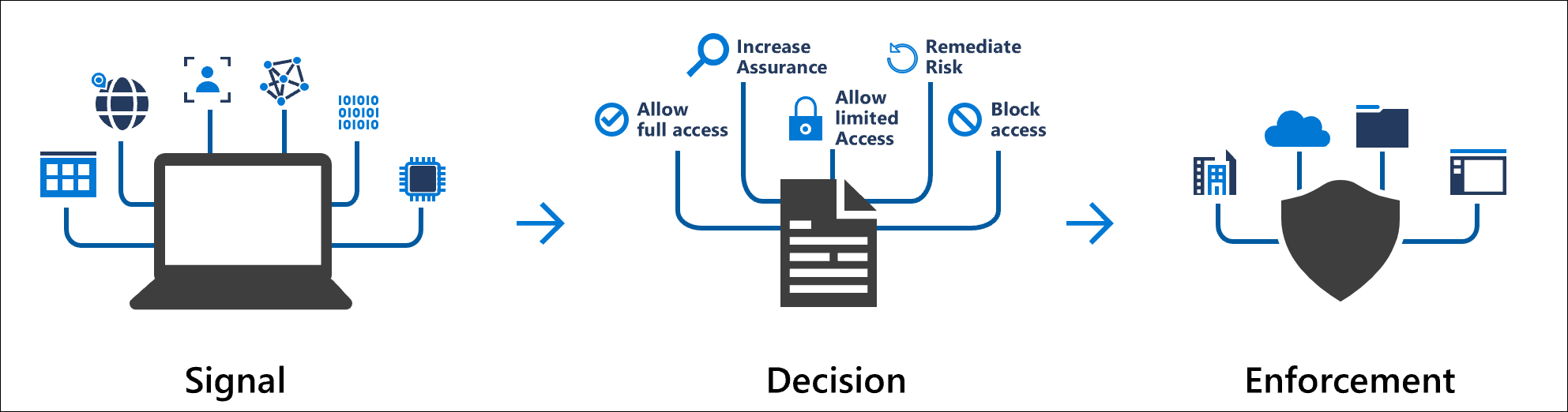
Conditional Access policies at their simplest are if-then statements, if a user wants to access a resource, then they must complete an action.

Conceptual Conditional signal plus decision to get enforcement

What is Conditional Access?

For example, user account access can be blocked if it comes from outside a specific country or region.

Conditional Access: Block access by location

and enforcing MFA

Conditional Access: Require MFA for all users

Conditional Access: Require MFA for administrators

Once any Conditional Access policies have been met the user will be able to login to their device. At this point additional Microsoft Endpoint Manager policies will be applied to that specific account now logged in. Such policies could restrict applications the user has access to, limit Windows functionality and so on.

Remember, all of these protections have taken only during the user has logging onto their device. They have not as yet run an application like Outlook to read the inbound emails. That is what is going to happen next and I’ll cover that process in the next part of the series, so stay tuned.

End to End email protection with Microsoft 365–Part 5

December poll

ask-blackboard-chalk-board-chalkboard-356079

For December I’m asking people:

What methods are your accounts using as their primary method of multi-factor (MFA) verification?

which I greatly appreciate you thoughts here:

https://bit.ly/ciasurvey202012

You can view the results during the month here:

https://bit.ly/ciaresults202012

and I’ll post a summary at the end of the month here on the blog.

Please feel free to share this survey with as many people as you can so we can get better idea on this question.

Legitimate non-MFA protection

image

There is no doubt that multi-factor authentication (MFA) is the great thing for the majority of accounts. It is probably the best protection against account compromise, however are there times that perhaps, MFA doesn’t make sense?

Security is about minimising, not eliminating risk. This means that it is a compromise and never an absolute. Unfortunately, MFA is a technology and all technologies can fail. If MFA did fail, or be unavailable for any reason, then accounts would be unavailable. This could be rather a bad thing if such an issue persisted for an extended period of time.

In such a situation, it would be nice to be able to turn off MFA for accounts, so users could get back to work, and re-enable it when the MFA service is restored. However, today’s best practice is to have all accounts, especially administrators, protected by MFA.

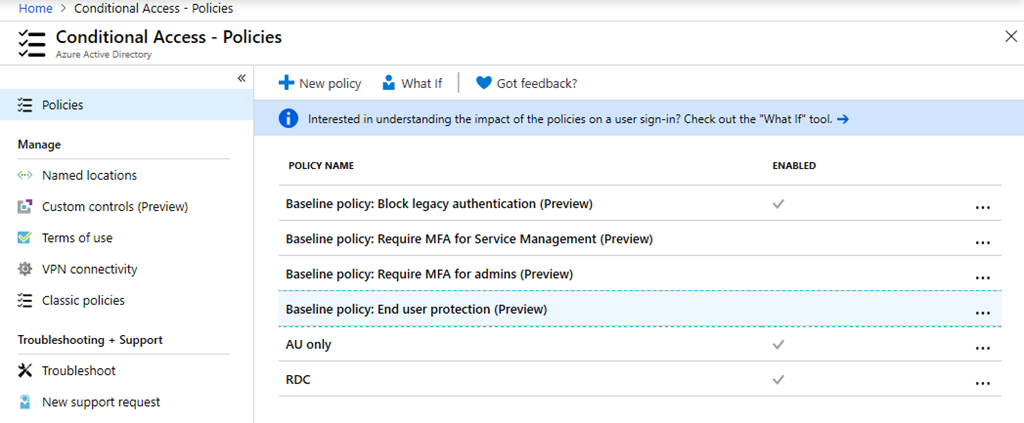
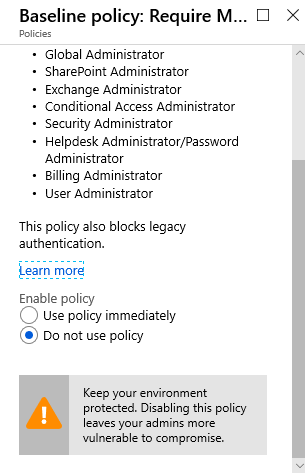
A good example is the baseline policies that are provided for free in Microsoft 365 as shown above.

image

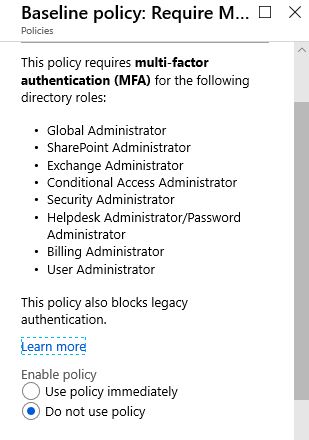
You’ll see that such a policy requires MFA for all admin roles.

image

And yes, there is a risk for admin accounts that don’t have it enabled but there is also a risk if it is enabled and MFA is not working for some reason.

The challenge I have with these types of policies is that they are absolute. It is either on (good) or off (bad), and in the complex world of security that is not the case.

I for one, suggest there is the case for a ‘break glass’ administration account, with no MFA, that be used in the contingency that MFA is unavailable to get into accounts and re-configure them if needed. Such an account, although it has no MFA, is protected by a very long and complex pass phrase along with other measures. Most importantly, it is locked away and never used, except in case of emergency. There should also be additional reporting on this account, so it’s actions are better scrutinised.

Unfortunately, taking such an approach means that you can’t apply such absolute policies. It also means that you won’t be assessed as well in things like Secure Score. However, I think such an approach is more prudent that locking everything under MFA.

As I said initially, security is a compromise, however it would be nice to see the ability to make at least on exception to the current absolute approach because service unavailability can be just as impactful as account compromise for many businesses.