Enrolling an iOS device into Intune

Before you can actually enrol an iOS device into Intune you typically need to complete the following preliminary steps:

Add an Apple management certificate to Intune

Set up an iOS Intune device compliance policy

Set up an iOS Intune device configuration policy

With all this done, you can now actually configure the device to be managed by Intune.

image

We’ll be using a newly wiped and configured iPhone as shown above in this walk through.

image

Note here, that this phone has both Facetime and the Safari browser on the device and available. After the device has been enrolled in Intune they will both be removed as part of the configuration policies that gets applied.

image

To do Mobile Device Management (MDM) for the device with Intune the user will need to download the Company Portal app and then run it.
image

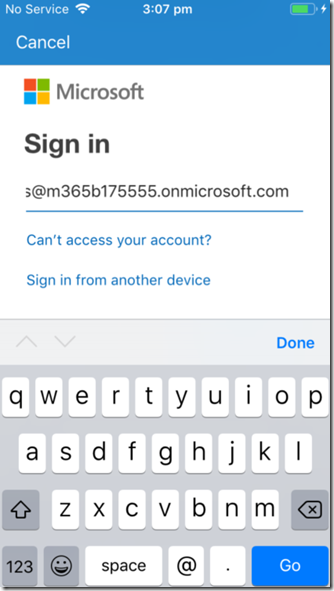
There will be a prompt for a user login. This will be the user’s Office 365 credentials typically.
image

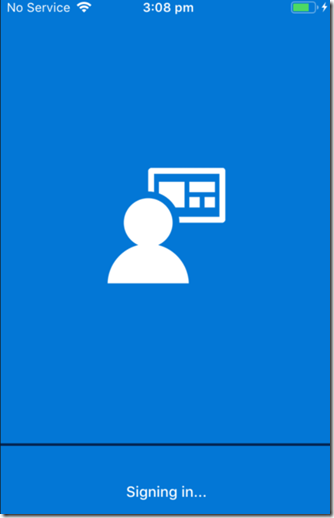
The device will also need to be connected to the Internet so it can verify these credentials and continue.

image

The user will now be prompted to put the device under management by selecting the Begin as shown above.

image

The user will then receive notification about what putting a device under management will mean as seen above.

In this scenario, we are assuming it is a bring your own device (BYOD).

image

The user will be given further instructions and then be required to press the Continue button.

image

The process will now try and open the Microsoft Intune portal in a browser. The user will need to select Allow to continue.

image

They will now be taken to a screen and prompted to install a new management profile by selecting the Install button in the top right.

This profile is the one that will be controlled by Intune and provide security over company data on this device.

image

The user will need to select Install again to continue.

image

They will then receive a warning about a third party certificate being installed as shown. This a certificate from Intune so the user should select Install in the top right to continue.

image

The user will be prompted to confirm that they wish their phone to be enabled for remote management.

They should select Trust to continue.

image

The management profile will complete installation. To finish this process select Done in the top right corner.
image

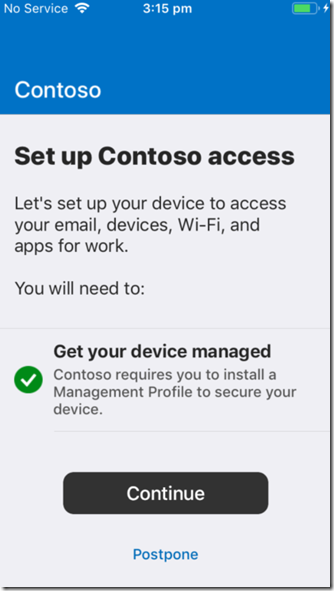
The user will be taken back to the Intune Company Portal app, where they will be prompted to continue. They should also now see that the device is now managed.

Select the Continue option.

image

The device settings will be checked. This is effectively running the compliance policy from Intune over the device to ensure it can be enrolled and meets the requirements to be considered to have the appropriate settings enabled and configured.
image

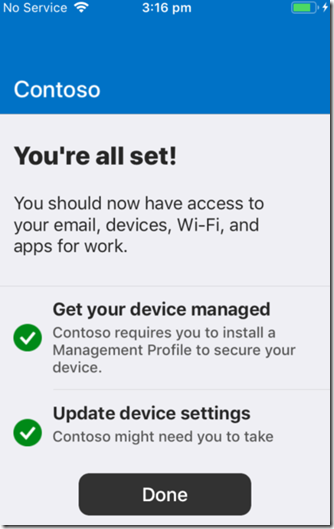
The process should complete without warnings or errors. This then indicates that the device is compliant and now has the configuration policies applied to it from Intune.

Select Done to continue.
image

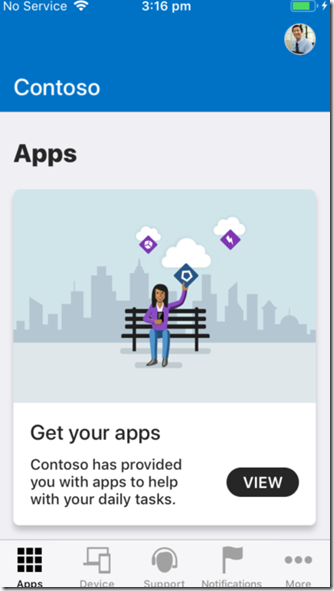
The user will now see the Apps menu of the Company Portal app as shown above. They can return and use some of the other functionality in the app at any time but for now, simply close the app.

image

If you now look closely at the home page of the enrolled device now above, you will see, per the Intune Configuration policies that have been applied, both Facetime and Safari are no longer available on the device.

image

If an administrator now looks in the Intune portal they will see the device that has just been enrolled.

Select it to get more details.

image

They should see a summary of the device as well as a number of controls for the device across the top on the right.

image

If they select the Device compliance option from the menu on the left they will see the compliance policies that have been applied to the device and their state.

image

If they select Device configuration, they’ll see all the configuration policies that have been applied to this device and their current state.

You can select any of these policies on the right to get more information.
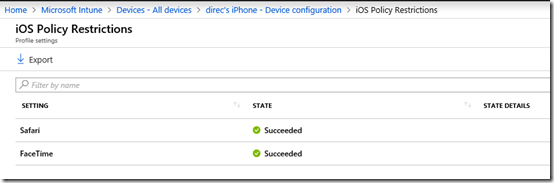
image

When you do you’ll see all the settings that have been applied as part of that policy. Here, you’ll see the policies for Facetime and Safari have been successfully applied (i.e. to be made unavailable on the device).

So, that’s how you put an iOS device under management using Intune. Doing so give you greater control over what is done on the and also the ability to do things like remotely wipe that device if required. A future article will show you how these management task can be accomplished on the the device.
Setting up an iOS Intune device configuration policy

Before you set up any iOS device configuration policy in Intune it is best practice to ensure:

You have added an Apple management certificate to Intune

and

You have set up an iOS Intune device compliance policy

with those two tasks complete you can now create an iOS device configuration policy. A configuration policy applies settings and configurations to the iOS device joined to this environment.

image

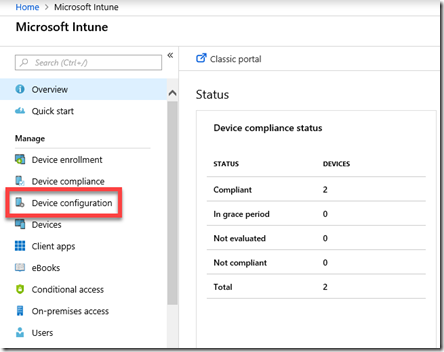
Open the Azure portal as an administrator and navigate to Intune. From the menu that appears on the left select Device configuration as shown above.

image

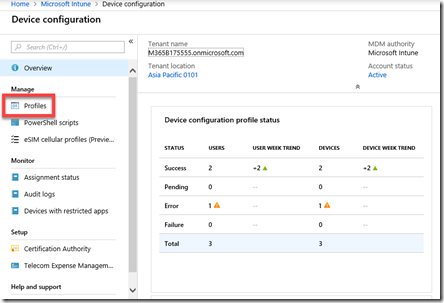
Next select Profiles from the menu on the left as shown above.

image

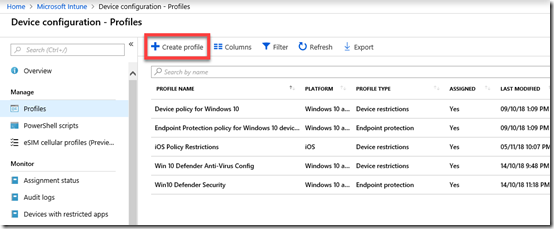
Here you will see any profiles that already exist. To create a new policy simply select Create policy from the menu bar across the top as shown.

image

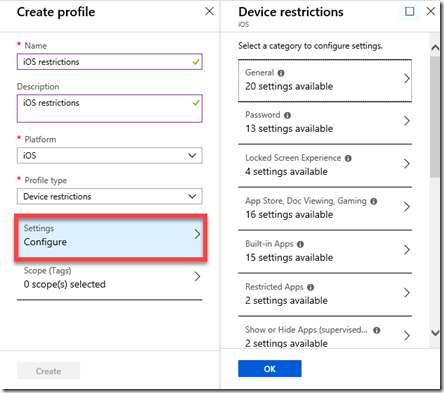
Gove the policy a Name and Description. Select iOS as the platform.

image

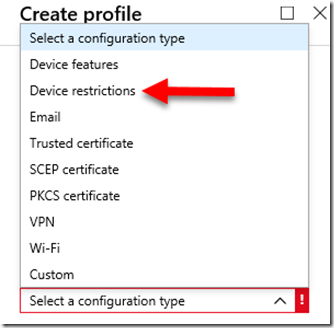
You’ll see that there are lots of different configuration types you can select to create configuration policies for. In this case we’ll select Device restrictions as an example of how to configure a policy, but remember there at least 9 options here you need to consider.

Remember, you can have multiple policies if you desire as well a number of the different configuration type policies if you want.

image

If you now select Settings towards the bottom of the window as shown above, you will see the numerous range of configuration options you can set for devices.

image

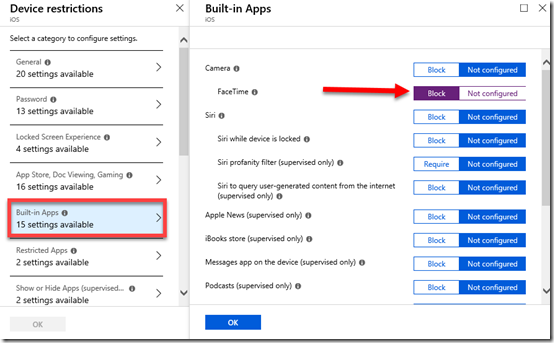
In this case I’ll simply illustrate changing one setting by selecting Built-in Apps and then Blocking Facetime as shown above.

Make sure you select OK at the bottom of any screen on which you make changes.

image

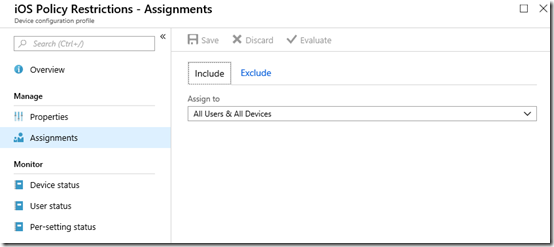
The final step once you have made all your selections and Saved the policy, is to assign the policy. Here I have assigned it to All Users & Devices as shown.

image

You can revisit and make changes to your policy at any time by navigating to it and selecting it.

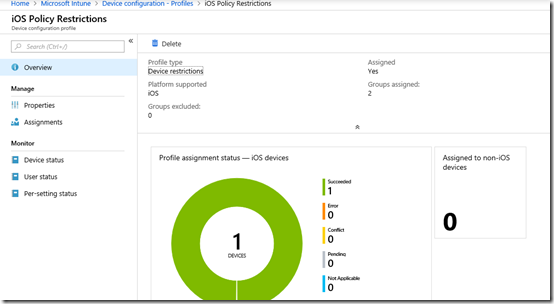
The options at the bottom of the menu on the left above: Device status, User Status and Per-setting status will again give you a summary of how this policy has been applied to devices.

Once we have all this in place we can now start joining actual devices to this environment so they can be manged. When we do that, they will be checked against the compliance policy and then have any configuration policies applied.

I’ll cover the process of adding devices to this environment in an upcoming article.

Setting up an iOS Intune device compliance policy

Once you have added an Apple certificate to allow device management for iOS as I have detailed previously here:

Adding an Apple Certificate to Intune

the next step in the process to get your iOS device managed is to create a specific iOS compliance policy in Intune.

A compliance policy is basically a set of rules that the device must follow to be considered compliant. If the device fails these rules then it is considered noncompliant and you are able to take action on that such as excluding it from connecting to your corporate data. Compliance for all devices is checked regularly.

image

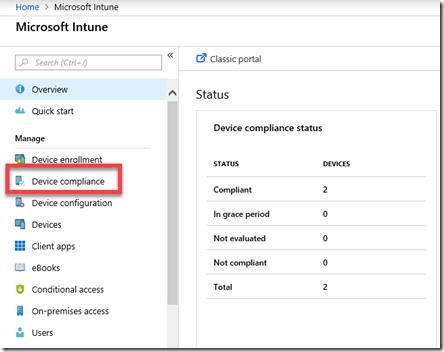
To create this compliance policy you’ll need to login to the Azure portal and navigate to the Intune service. Once there, you’ll find an option in the menu Device Compliance as shown above, that you’ll need to select.

image

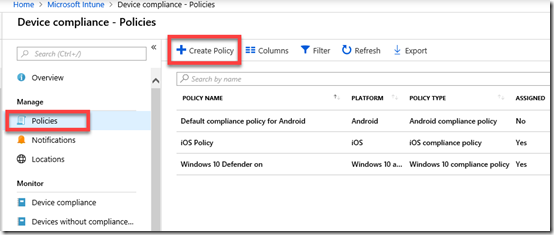
You’ll then need to select Policies on the left and the Create Policy option from the menu on the right that appears as shown above.

You may also see number of other existing policies here for different platforms. Note, that it is possible to have multiple compliance policies for the same platform if desired.

image

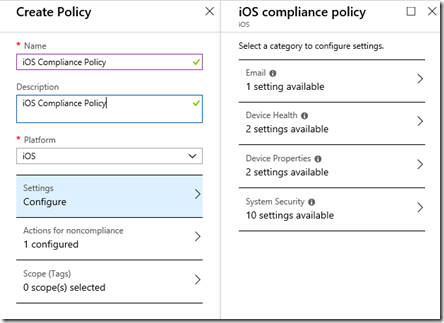
You’ll now need to give the new iOS compliance policy a Name, Description and select the Platform as iOS as shown above.

You’ll then need to select the Settings option below this to configure compliance rules. When you do so another blade will appear on the right with four categories: Email, Device Health, Device Properties and System Security as shown above.

image

You can configure as many options as you like here but I’m going to cover what I consider the basics for iOS compliance.

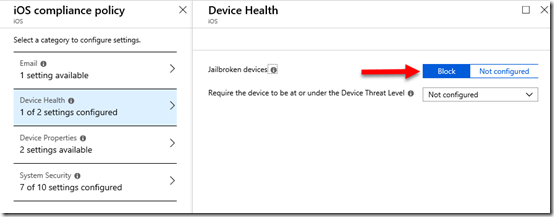
In Device Health, set Jailbroken devices to Block as shown above.

image

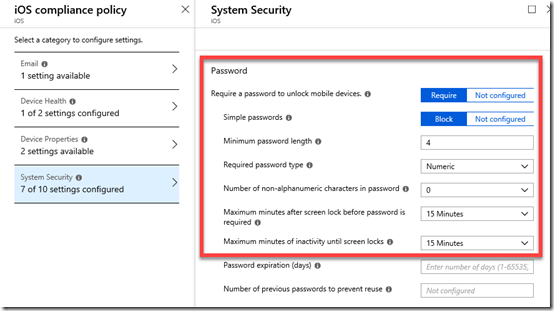
In System Security set the Password options as shown above.

Make sure you select OK at the bottom of each setting to update your preferences.

image

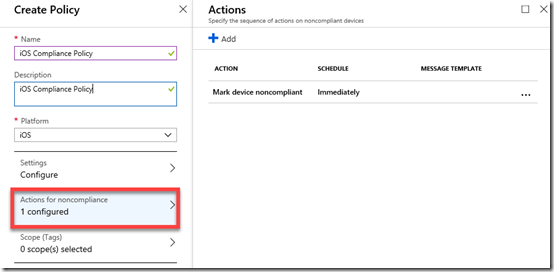
If you go into the Actions for noncompliance you’ll see there is currently a default option to Mark device noncompliant.

image

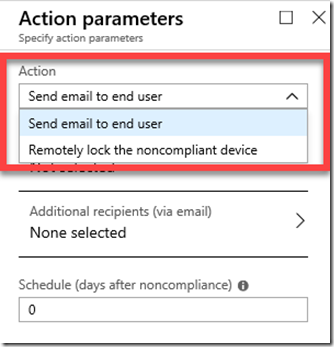
You can add more actions here, to Send email to end user and/or Remotely lock the noncompliant device if you wish.

When you have finished making your change, ensure that you Save the policy.

image

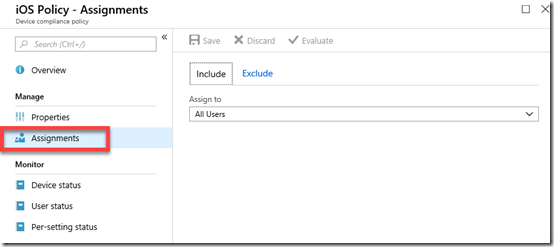
Now that the new iOS compliance policy has been created you’ll need to apply that policy to a group of users. To do this, select the policy you just created from the list of compliance policies. Then select the Assignments option from the menu on the left.

It is probably easiest to apply this new policy to all users but you can certainly select a group of users as well as exclude user if you wish.

Once again, when you have made you selection, ensure you Save any changes to have the policy applied to these users.

image

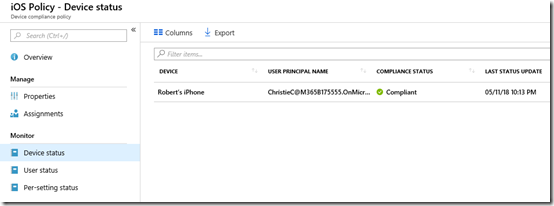
When devices connect to the tenant, they will be evaluated to be compliant or not. When this occurs, you can again examine the options at the bottom of the policy to see the device status as shown above. This will tell you whether connected devices are compliant (here they are).

image

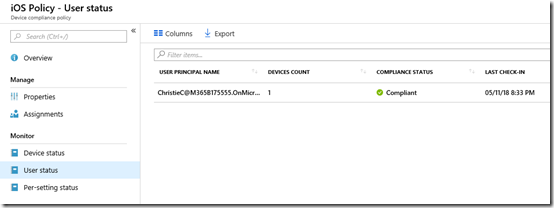
You can also get the status by user, because remember, some users may have multiple devices.

image

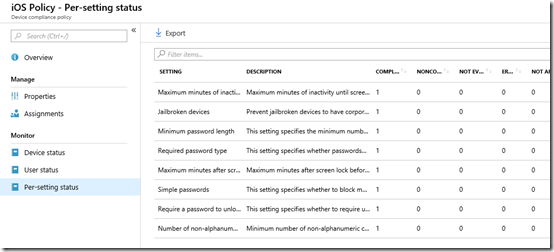
Finally, you can also examine the per-setting status. This is handy if a device has failed compliance and you want to know exactly what setting(s) have caused this failure.

image

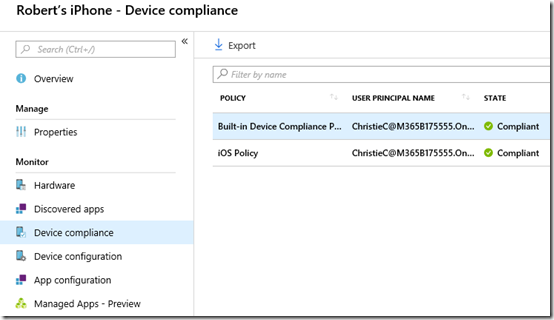
You can also see the compliance by examining the individual device in Intune as shown above.

You’ll see here that there is in fact a default compliance policy as well as any your have created.

Selecting the Built-in Device Compliance Policy will show you its settings like so:

image

Basically, the Built-in Compliance Policy simply checks whether device is active, the user exists in the tenant and another compliance policy has been assigned. Thus, the device won’t be considered compliant by default until we create at least one compliant policy for the platform.

image

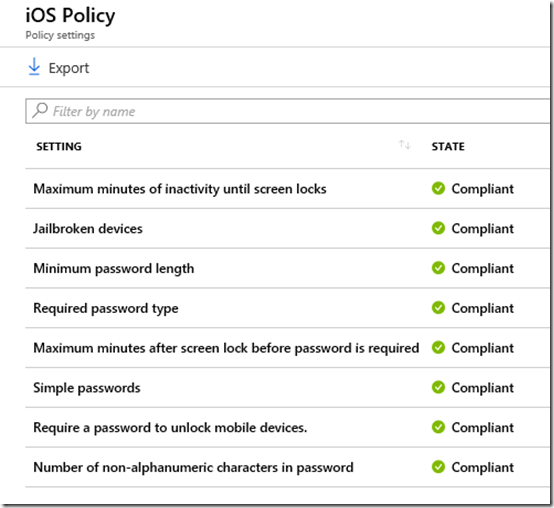
If you instead select any of the custom compliance policies that you created you will see whether each individual setting is considered compliant in that policy as shown above.

So, creating a device compliance policy is important when we wish to use Intune to manage devices. You need to create a compliance policy for each platform with the settings against which devices will be continually checked. This will ensure that devices connecting to your environment maintain the settings you desire.

The next step will be setting up device configuration policies to actually configure how the device operates. That will be covered in an upcoming article.

Adding an Apple Certificate to Intune

When you use Intune to manage your Apple devices you’ll need to add a push certification to allow control of the device. If you don’t do this, then you’ll get error messages about failing to join when you try and enrol the device using the Intune Company Portal App on the device.

image

To add a management certificate you’ll firstly need to login to the Azure portal as an administrator. You’ll then need to navigate to Intune.

Once there, select Device enrollment from the menu.

image

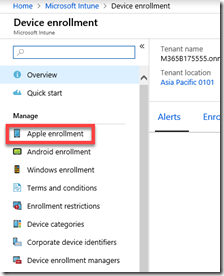
Next select Apple enrollment from the new menu that appears.

image

When you do this a new window should appear on the right. Select the top option, Apple MDM Push certificate.

image

You will see the enrolment status at the top of the page. If this is a new tenant, the status will show Not set up as shown above.

image

Scroll down the windows to commence the set up process.

Place a check in the I agree box in section 1.

Then select Download your CSR from section 2.

image

Save this certificate file on your local machine. Make a note of this location as you’ll need to upload it soon.

image

Scroll down to section 3 and select the hyperlink Create your MDM push Certificate.

image

This will open a new browser window and ask you to login using an Apple ID. if you don’t have one of these yet, you’ll need to create one. If you are doing this on behalf of a company it is best practice to use an Apple ID that is linked to the business rather than the individual.

image

Once you have logged in, you’ll see any certificates that you have already created.

Select the Create Certificate button in the top right.

image

Accept the terms and conditions.

image

Browse to the location where you downloaded the certificate file from Intune previously. Select the file. Then select the Upload button.

image

In a moment you should now see that a new certificate has been created for you. It is important to note that certificate last for 12 months, after which time it will be required to be replaced or renewed.

Select the Download button to copy the new Apple management certificate to your machine.

image

Save this Apple management certificate on your local machine and remember where it is located.

image

Return to the Azure portal and the setup in Intune.

In section 4 enter the Apple ID that you used when you created the certificate.

In section 5 browse to the Apple management certificate you just downloaded.

When complete, select the Upload button at the bottom of the page.

image

In a few moments you see a message from the Azure portal indicating that the certificate has been successfully uploaded.

image

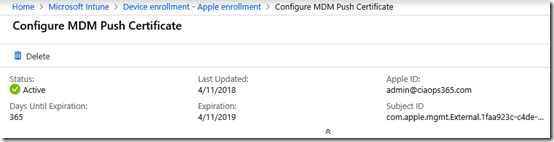
If you now scroll to the top of the page in Azure you should see that the status is now Active as shown above.

You have now successfully uploaded and configured an Apple management certificate into Intune. You can now proceed to enrol your Apple devices into Intune management. Just remember, that this certificate is valid for 12 months, after which time you’ll need to renew it.

Windows Autopilot Deployment heading to Azure portal

image

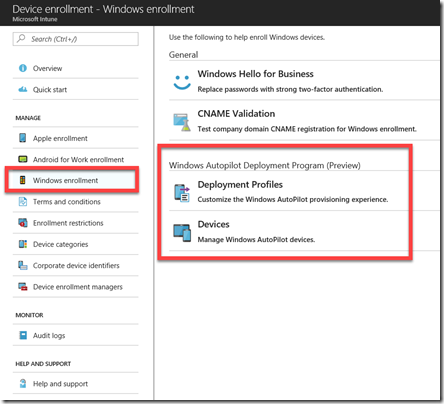
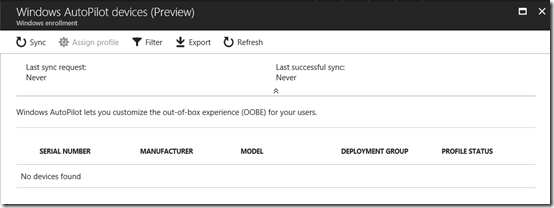
If you go to Intune in the Azure Portal, then select Device enrollment, then Windows enrollment, you see some new options for Windows Autopilot deployment as shown above.

If you need a refresher on where the settings where originally check out my previous article:

Introduction to Windows Autopilot

image

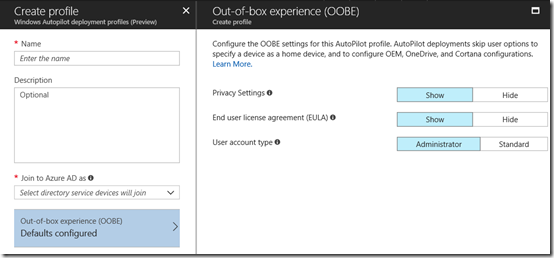
The above is what the deployment profiles option look like when you go there.

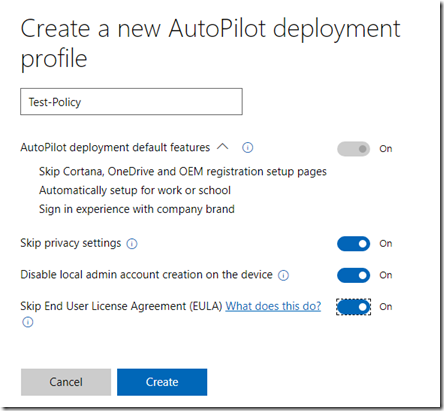
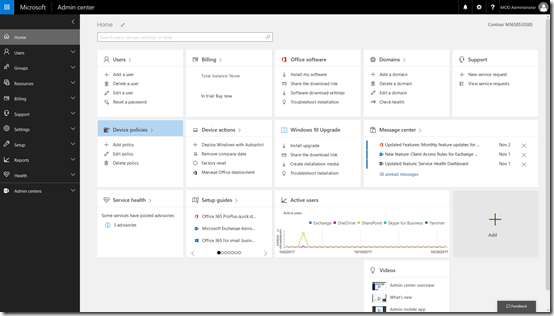
Here’s what it looks like in the original Business portal.

image

There isn’t a place to upload the machine identification file as yet in Azure as you can see here:

image

However, I would assume that it is coming.

So, keep your eyes posted to the Azure portal for more additions for Windows Autopilot.

Adding Apple MDM push certificate to Intune

When you start using Intune with services like Microsoft 365 Enterprise or stand alone you’ll need to add an Apple MDM push certificate to allow iOS devices to be managed by Intune. If you don’t, you’ll get errors when you try and add these devices.

Here’s how you create and add an Apple certificate to Intune.

clip_image001

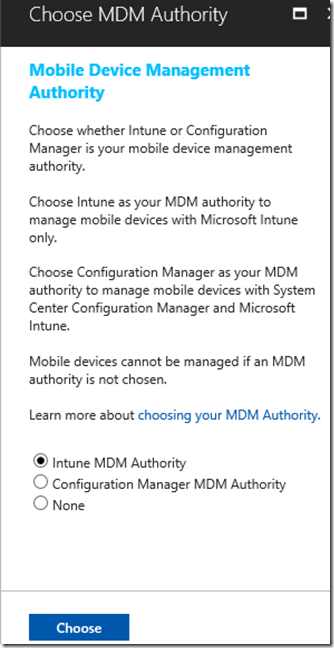
When you initially go into Intune via the Azure portal you’ll need to set the Mobile Device Management Authority as shown above. Simply select the option for Intune MDM Authority and the Choose button to save the choice.

clip_image001[6]

In the list of Intune options, under the Manage heading, select Device enrollment.

clip_image001[8]

From the blade that appears, select Apple enrollment from the menu and the right side will then show a number of boxes.

clip_image001[10]

Select the box in the top left that should have the heading Apple MDM Push Certificate.

clip_image001[12]

Another blade will open. Under Step 1, select the Download your CSR hyperlink.
This will prompt you to save a file called IntuneCSR.csr to your computer.

clip_image001[14]

In Step 2, select the hyperlink Create your own MDM push certificate.

image

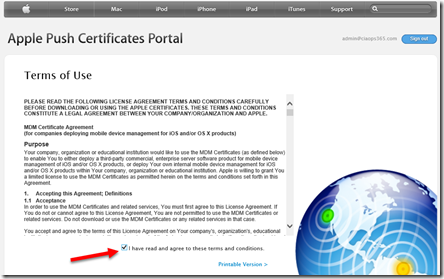
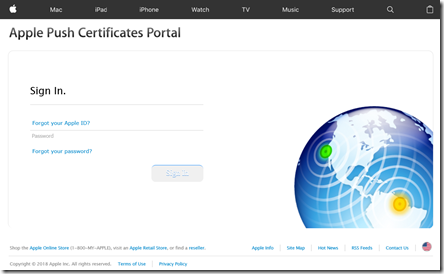
This will open a new tab in your browser and take you to the above Apple site. You’ll need to have or create an Apple ID to login here.

clip_image001[16]

You’ll need to accept the Terms of Use.

clip_image001[18]

You’ll need to create a new certificate. To do so, select the option to Browse at the bottom of the window as shown above.

Navigate to the certificate file you downloaded from the Intune portal previously.

Then select Upload.

clip_image001[20]

Next, select to Download the certificate created by the Apple site.

clip_image001[22]

Return to the Intune portal and insert the Apple ID you used to create the certificate in Step 3.

In Step 4, upload the Apple certificate.

When complete, select the Upload button at the bottom of the page.

clip_image001[24]

When you now look at the Intune portal the Apple MDM Push Certificates should now show a green tick, as shown above. This will now allow you to place iOS devices under Intune management.

image

Microsoft 365 Application Management for Windows 10 mappings

I wrote a previous article that showed the mapping from the Microsoft 365 Business Windows 10 Device Configuration settings to those in the Intune console in Azure. You can read that article here:

Microsoft 365 Windows 10 Device Management settings

What I am now going to cover is the Application Management for Windows 10 policy. That is the software and information that resides on Windows 10 devices.

image

Start by navigating to the Admin center in your Microsoft 365 Business tenant.

image

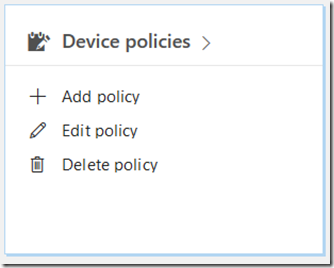
Locate the Device policies tile and select it.

image

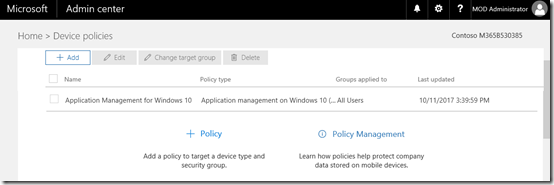
You may see a number of policies here but one should be named Application Management for Windows 10 as shown above. Select this.

clip_image001
clip_image001[5]

If the policy doesn’t exist you can create a new one. When you do you will see the above settings.

If you expand the display for each option you should see a list of all the options and their status as shown above.

The question now is, how do these map to settings in Intune?

To view the settings in Intune you’ll need to login to the Azure portal for that tenant and then navigate to the Intune option.

image

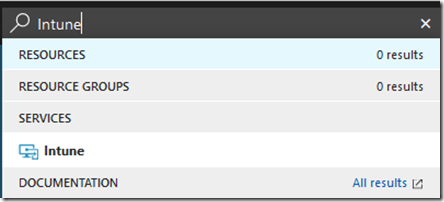
The easiest way to find the Intune settings is to do a search in the top right and then select Intune from the results.

image

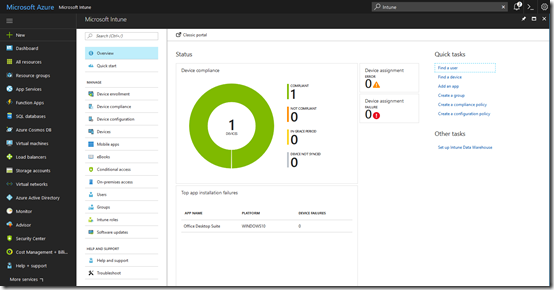
You should see the Intune console displayed as shown above.

image

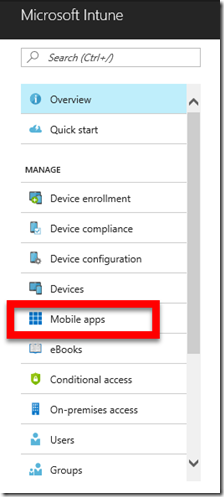
From the menu, under the Manage section, select Mobile apps.

image

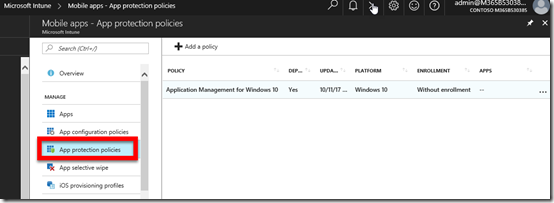
From here select the App protection policies option under the Manage section. This should display a policy on the right that matches the one you have in the Microsoft 365 Business console (here Application Management for Windows 10). Select the policy name to continue.

image

You will notice that when you create a new Application Management for Windows 10 policy that you have the option to set Encrypt work files to be on or off.

image

However, after you set it to on and save the policy you can’t change it to off as shown above. Thus, once Encrypt work files is set to on, it stays and can’t be changed.

image

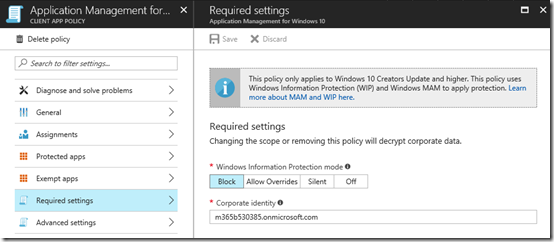
This setting maps to the Windows Information protection mode in the Required settings of the Application Management policy in Intune as shown above.

image

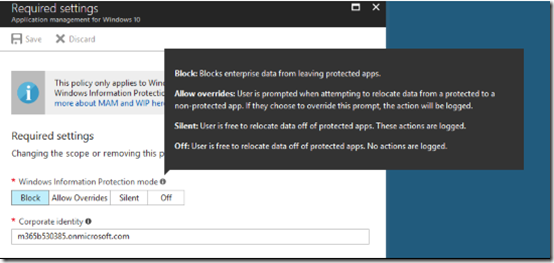
When Encrypt work files is set to on, the option in Intune is set to Block. This basically prevents Office 365 data from being used in non Office 365 applications on Windows 10. Thus, you can’t save an Office 365 file to a consume storage platform like Google Drive.

clip_image001[9]

When Encrypt work files is set to off, the option in Intune is also set to off as shown above. Thus, Office 365 files can be shared with any application.

image

If the option to Prevent users from copying company data to personal files and force them to save work files to OneDrive for Business is set to on, then I can ‘t see how this is enforced by the policy as there doesn’t appear to be any settings for this like there is with iOS and Android policies. I’ll need to investigate this one further.

clip_image001[11]

The next setting is Manage how users access Office files on mobile devices.

image

image

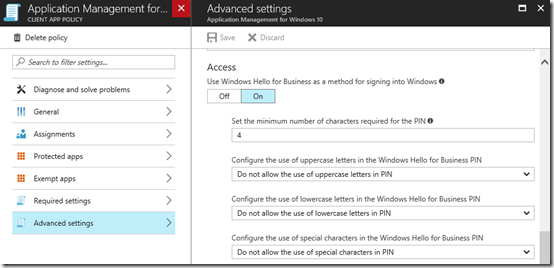
If the Require a PIN or fingerprint to access Office apps is set to on, the use Windows Hello for Business as a method of signing into Windows in the Access section of the Advanced Settings of the policy is also set to on as shown above.

image

image

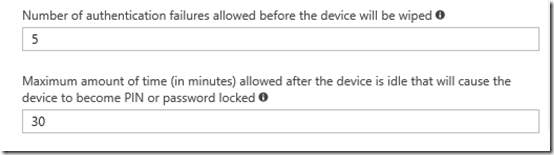
The Microsoft 365 Business policy options Reset PIN when login fails this many times and Require users to sign in again after Office apps have been idle for settings are located at the bottom of this same policy as shown above.

image

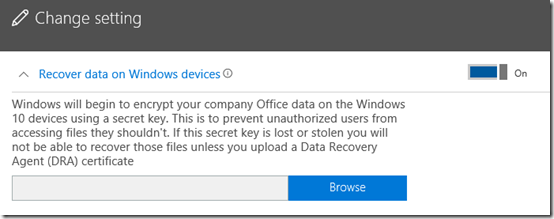
The next option Recover data on Windows devices appears to map to the Data protection area of the Intune policy.

image

I haven’t quite worked this setting out yet. I’m unsure whether you need to upload your certificate BEFORE you apply the policy to machines or you can do it at any time AFTER the policy has been applied. One would think that you need to do it BEFORE and retain the certificate to decrypt files later. However, I need to dig deeper here and do a follow up article.

clip_image001[13]

image

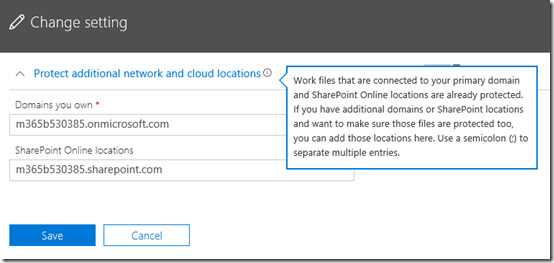
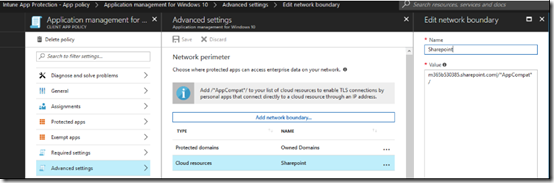
The Protect additional network and cloud locations in Microsoft 365 Business option maps to the following areas in Intune policy.

image

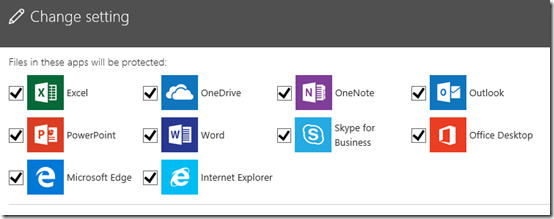
The final option, Files used by these apps are protected

image

map to

image

image

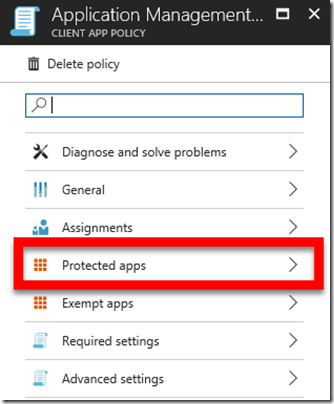
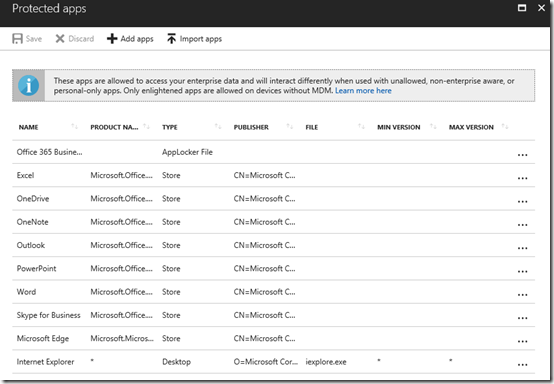
the Protected Apps area of the policy as shown above.

Remember, there is a similar policy for both iOS and Android that I’ll cover soon. There are also a few things here I need to do more research on but you should now have a better idea of how the Microsoft 365 Business settings map to Intune.

Also, as I understand it, you can’t make changes to the policies in Intune, they all need to be done via the Microsoft 365 Business console.

So, when you create a Application management for Windows 10 policy in Microsoft 365 Business, these are the mapping that occur to Intune under the covers.