Modern Device Management with Microsoft 365 Business Premium–Part 8

Office 365 Mobile MDM – Modern Device Management with Microsoft 365 Business Premium–Part 1

Intune MDM – Modern Device Management with Microsoft 365 Business Premium – Part 2

Intune MAM – Modern Device Management with Microsoft 365 Business premium – Part 3

Endpoint Manager – Modern Device Management with Microsoft 365 Business Premium – Part 4

Baselines – Modern Device Management with Microsoft 365 Business Premium – Part 5

Deployment – Modern Device Management with Microsoft 365 Business Premium – Part 6

Autopilot admin – Modern Dev Management with Microsoft 365 Business Premium – Part 7

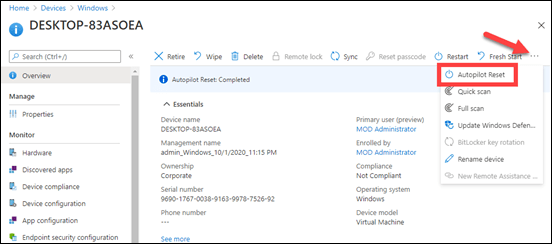
In the previous post I detailed Windows Autopilot from the administrator’s point of view. What does it look on the device side?
image

Just before the Autopilot Reset is selected in the EndPoint Manager portal as shown above, let me show you one quick configuration I’ve also done in Windows Hello for Business to make life that little bit easier.
image

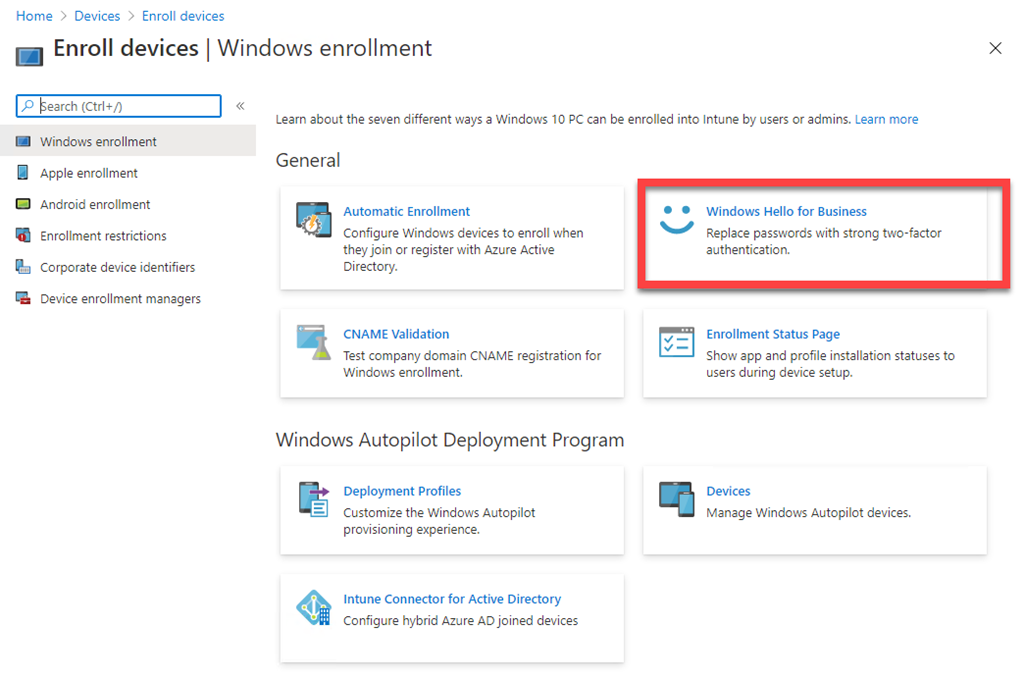
In Devices | Enroll Devices | Windows enrollment select Windows Hello for Business as shown above.
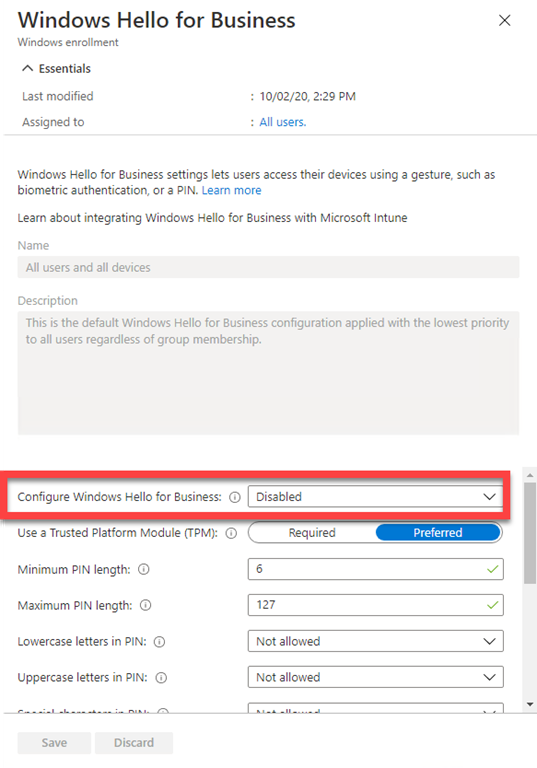
SNAGHTMLf86d2ee

I have set the Configure Windows Hello for Business to be Disabled. Because I’m using a machine WITHOUT a TPM chip here (i.e. a Virtual Machine), it means that if Windows Hello for Business is enabled I’m going to need to go through the process of registering a device PIN. For now, to keep it as simple as possible, I want that Disabled.

Of course, I have also completed the Autopilot enrolment process and created an Autopilot device policy as detailed in the previous part in the series. Note, that a user has also already been assigned to this device. This means that the machine will be joined to Azure AD using this assigned user. That means they will not need to input their credentials during the process.
image

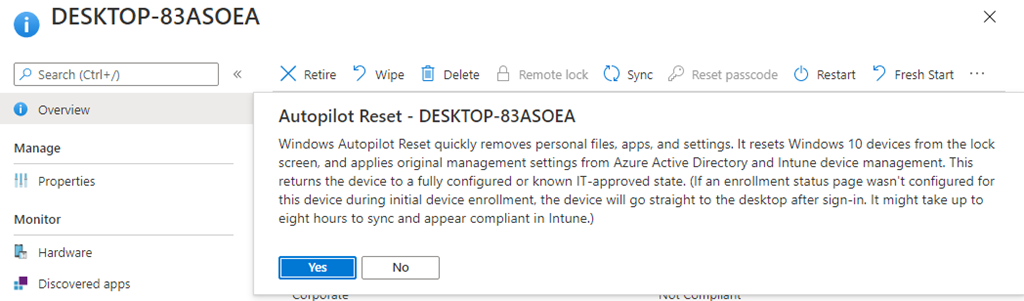
After selecting Autopilot Reset in Endpoint Manager I am asked to confirm the process as shown above. Take careful note here of what Autopilot does to that machine.

Select Yes to continue.
image

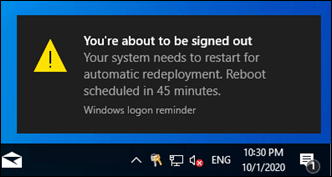
Once I select Autopilot Reset in Endpoint Manager, any active user will receive the above message that they have 45 minutes before the targeted machine is forcibly rebooted. I will fast track that process by manually rebooting the workstation to commence the Autopilot reset process.
image

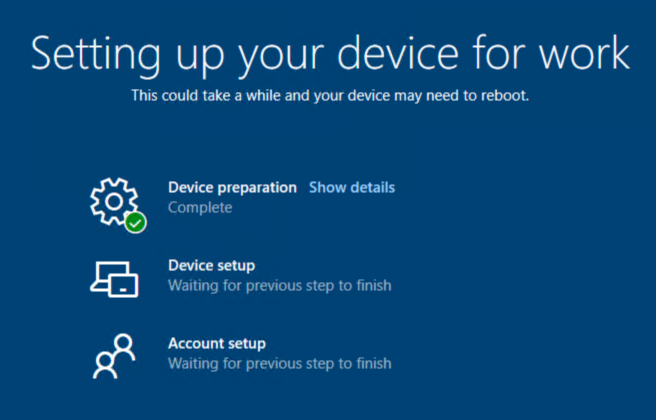
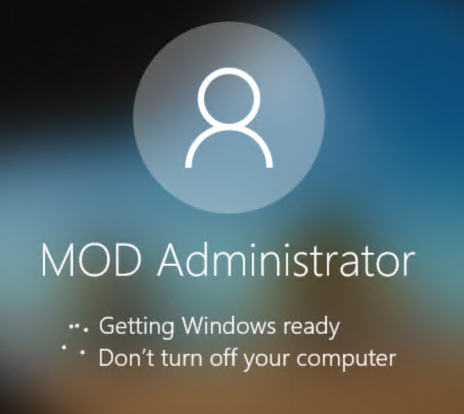
If the devices is at the lock screen you will see the above message when the Autopilot process commences.

image

The workstation will then reboot and commence a Windows ‘refresh’ of the device, effectively doing a clean installation of Windows 10.


image

image

image

image

image

image

image

image

It will then complete the Autopilot configuration as seen above. You will note here that no user input is required. The reason for this is in Endpoint Manager a user has already been assigned to the device.

image

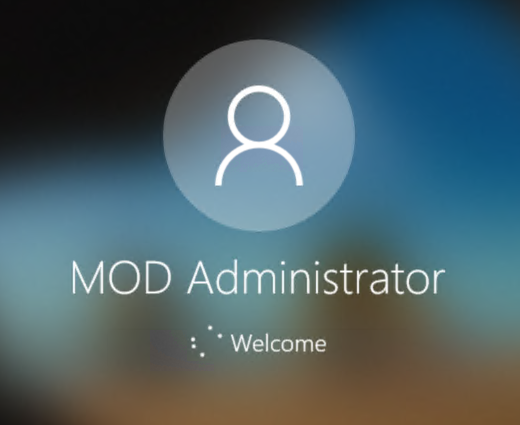
Not long after, you’ll will then end up with the ability to login to the workstation, as shown above.

image

image

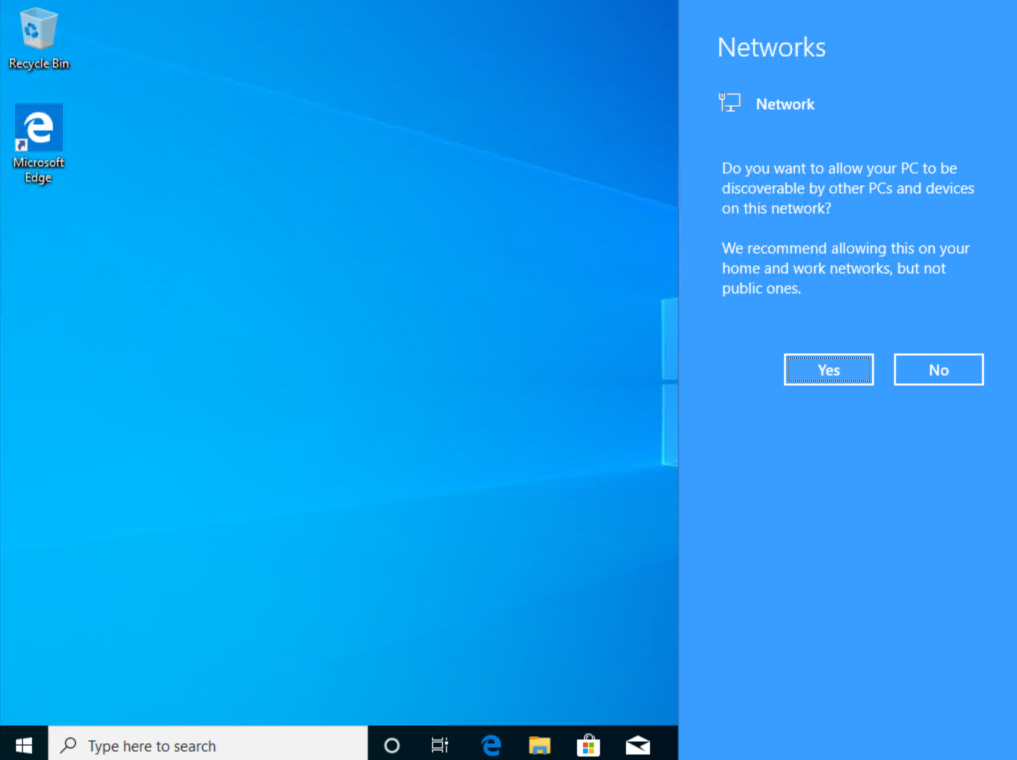
When you do, you’ll be taken through the normal first run Windows experience as shown above.
image

The standard desktop should appears and all the device policies, Intune, Endpoint Security, etc will commence application to the device. Thus, it is just like you did a manual device join to Azure AD but you DIDN’T! Autopilot did all the hard work for you!

This is an example of how easy modern device management cam make your life once you set it up. If there is a problem with a machine, don’t waste long hours troubleshooting! Do an Autopilot reset to get a fresh version with everything deployed and accessible from the cloud. Easy! Need to reprovision an existing machine for a new user? Autopilot Reset again. Easy! the list goes on and on for the benefits of Windows Autopilot.

Although not yet available, what would you say if the same Autopilot concept was coming to both iOS and Android? Roll on modern device management is what I would say.

Modern Device Management with Microsoft 365 Business Premium – Part 9

Need to Know podcast–Episode 255

FAQ podcasts are shorter and more focused on a particular topic. In this episode I speak about some automation options that are available in the Microsoft Cloud.

This episode was recorded using Microsoft Teams and produced with Camtasia 2020

Take a listen and let us know what you think – feedback@needtoknow.cloud

You can listen directly to this episode at:

https://ciaops.podbean.com/e/episode-255-modern-device-management/

Subscribe via iTunes at:

https://itunes.apple.com/au/podcast/ciaops-need-to-know-podcasts/id406891445?mt=2

The podcast is also available on Stitcher at:

http://www.stitcher.com/podcast/ciaops/need-to-know-podcast?refid=stpr

Don’t forget to give the show a rating as well as send us any feedback or suggestions you may have for the show.

Resources

FAQ 17

Modern Device Management – Part 1

CIAOPS Patron Community

@directorcia

Modern Device Management with Microsoft 365 Business Premium–Part 6

Previous parts in this series are:

Office 365 Mobile MDM – Modern Device Management with Microsoft 365 Business Premium–Part 1

Intune MDM – Modern Device Management with Microsoft 365 Business Premium – Part 2

Intune MAM – Modern Device Management with Microsoft 365 Business premium – Part 3

Endpoint Manager – Modern Device Management with Microsoft 365 Business Premium – Part 4

Baselines – Modern Device Management with Microsoft 365 Business Premium – Part 5

All the articles so far have focused on the technical implementation of device management, however these are all effectively subservient to real need of allowing users to get their work done. Security that gets in the way of what people need to do will simply result in them bypassing it and opting for solutions that are less secure and less controllable, aka shadow IT. Thus, when implementing successful device management, you keep in mind the end game here which is, allowing users to get done what they need to, securely.

Deploying all the options that are available with device management is daunting given the sheer number of settings, across multiple operating systems via multiple services like Intune and Endpoint security. Thus, even before you start implementation you should ensure that you have a good documentation regime in place to keep track of what you implement and what changes you make over times. There are going to be circumstances when you need to track down a specific setting in a specific policy and having good documentation is going to save you boatloads of time. It is also going to save you going round and round in circles making changes that have unexpected consequences. Thus,

Rule number 1 = maintain good documentation

With a plethora of policies and settings to configure having a define naming convention is going to make troubleshooting far easier. I have seen all sorts of policy names that bear no relevancy to the actual settings it implements. Remember, you can end up with multiple policies for multiple device operating systems, for multiple audiences across multiple services. Using something like MAM iOS Sales team or MDM Windows Executives or ES Antivirus Field Staff is going to allow people to quickly understand what these policies are for, where they come from and who they apply to. Good naming conventions are defined prior to implementation and applied consistently (which is why they are called conventions after all!). So,

Rule number 2 = define a naming convention upfront and apply it consistently

All users are not created the same. Thus, you’ll need to consider dividing up your policies into deployment rings, much like what Microsoft does with Windows I suggest. You’ll probably need a test or canary ring, and early adopters ring and an everyone else ring.

The canary ring is basically test devices and users to determine the effects of applying policies. This will give you early warning as to what impact settings actually have in your environment. This will be 1 – 2% of your population.

The early adopters ring is targeted at those users who like to be first and are prepared to ride out and bumps along the way by providing constructive feedback on the impacts of settings to them. This will probably be 10 – 15% of your population. Users in this ring should ‘opt in’ and understand the ramifications of getting things that may still be testing.

You may need to have multiple rings for different locations, devices or audiences. This is again where good documentation and naming conventions are critical. It is therefore recommended that:

Rule 3 = apply policies and updates to policies in rings to the environment

Not everything goes to plan. Sometimes setting and policy changes can have unexpected consequences on devices. Sometimes, these unexpected changes can prevent you from doing something you need to do. As with setting up conditional access, don’t lock yourself out:

Rule 4 = ensure you have an admin user that is not subject to any policy in case of emergency

Device management is typically never a world of all green check marks (and rainbows and unicorns). It is typically a world with setting conflicts, non compliance and strange impacts. Bulk policy implementations and/or changes are a recipe for never ending frustration. Start small and grow. Don’t turn everything on to the max out of the box. My advice is to start with one baseline at a time and get that all green, then move to individual Endpoint security policies and get that all green, then compliance and get that all green and so on. Thus,

Rule 5 = grow into your settings and policies

Some other recommendations for those that are actually tasked with deploying device management:

A. Have at least one physical test device for each operating systems. That means having a test iOS, Android and Windows 10 device at your disposal. It is easy enough to pick up a cheap or second hand device you can use. Nothing beats seeing exactly what happens on a physical device when policies are applied. It will also allow you to better understand the process of wiping and re-purposing devices.

B. Use a demo tenant first time out. Don’t learn this stuff on your customer’s dime. Don’t learn on your own production tenant. Sign up for a free demo Microsoft 365 demo tenant at https://cdx.transform.microsoft.com/ and do your learning there. There is nothing worse than test policies and configurations continuing to show up in production environments.

C. Fully implement device management in your own production tenant. Don’t forget that if you look after other customers, YOU are also a target of the bad actors. Your environment is an Aladdin’s cave full of passwords, logins and confidential information for many others. In short you hold the crown jewels for many businesses. Don’t think it can’t happen to you. Over prepare. Over secure your environment. Doing so will also help you more fully appreciate the impact that device and security settings will have on your customers and deployments as well as keeping their treasures secure.

D. Configuration is never complete. New devices, enhanced baselines, new policy options will all emerge over time. Security is a journey, not a destination as they say. You will need to monitor, review and adjust what you have implemented over time. You will need to evaluate what works, what doesn’t and what additional security you can apply to the environment. It will never be a ‘set and forget’ situation. Security is a service not a product.

E. Leverage the power of automation. Baselines are a great starting point and reduce much of the need for individual settings. However, technologies like PowerShell and the Microsoft Graph give you the ability to automate much. An example of this that I have detailed is here:

Automating the deployment of an Attack Surface Reduction policy across multiple tenants

The great things about these device management services from Microsoft is that they are consistent for everyone that has them. Thus, the same script will work across every customer that has those services. With so many settings available to you in device manage these days, it makes sense to invest your time in become more ‘code centric’ (DevOps anyone?) and adding those skills to your quiver.

In summary then, successful device deployment is all about people. It should be focused on delivering secure productivity without mindless obstruction, which being carried out in a systematic and consistent manner. You can have all the greatest deployment tools at your beckoned call, but if they are implemented incorrectly, the end result is far worse for end users and administrators than it would have been without device management. So, don’t make the mistake of seeing device management as a purely technical challenge, It ain’t!

Modern Device Management with Microsoft 365 Business Premium – Part 7

Modern Device Management with Microsoft 365 Business Premium–Part 5

Previous parts in this series are:

Office 365 Mobile MDM – Modern Device Management with Microsoft 365 Business Premium–Part 1

Intune MDM – Modern Device Management with Microsoft 365 Business Premium – Part 2

Intune MAM – Modern Device Management with Microsoft 365 Business premium – Part 3

Endpoint Manager – Modern Device Management with Microsoft 365 Business Premium – Part 4

One of the biggest challenges with the availability of all these policies via Intune MDM and MAM as well as Endpoint security is getting to a ‘best practices’ state.

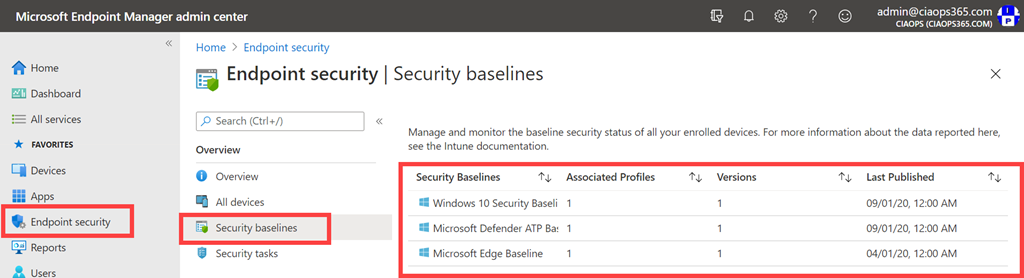
image

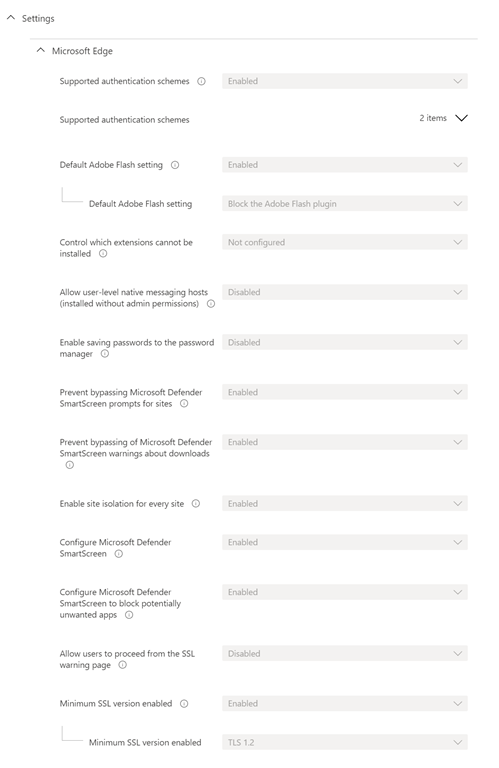
One of the benefits that Endpoint security provides is the ability to implement Security baselines as shown above. There is a baseline for Windows 10 security, Microsoft Defender ATP and Microsoft Edge already. Microsoft recently announced that an Office baseline will soon be available.

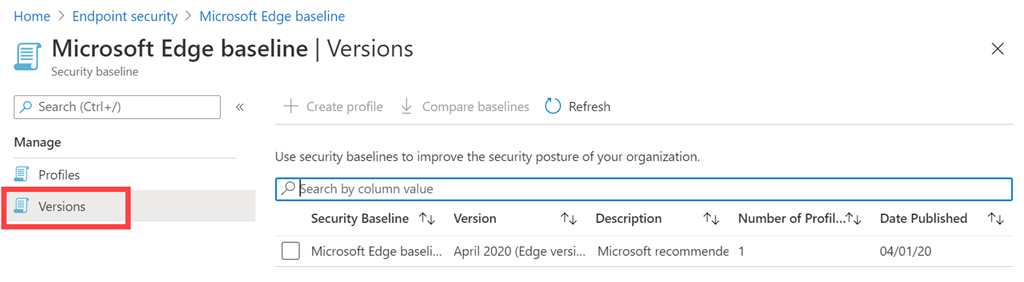
image

The idea is that Microsoft will publish a ‘best practices’ baseline, as shown above for Edge, and that you can create a policy or ‘profile’ as it is called here, from this to use across your environment just like any other policy we have already spoken about.

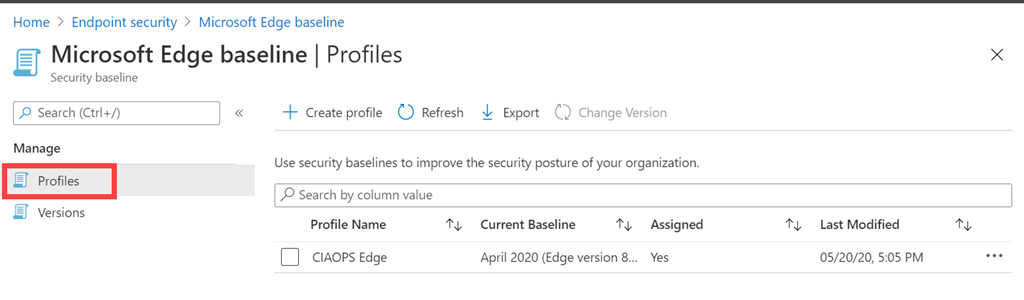
image

The idea is that, rather than you having to work out and apply a range of best practice settings across all the individual policies, you can simply implement these baseline policies from Microsoft as a starting point.

Another benefit is, as updated baselines are released by Microsoft, you can simply update any existing ‘profile’ you have created with these baselines to incorporate these updated settings.

image

When you look at the settings available in these baselines, as shown above for Edge, you’ll notice that they basically contain many of the same settings available to you in individual Endpoint security policies. Thus, setting once via a baseline ‘profile’ is a much faster method of implement these settings. Otherwise, you’d probably have to create multiple individual policies to achieve the same level of protection.

You can, of course, adjust any baseline ‘profile’ that you create and when a new baseline is available it can be applied to existing ‘profile’ you have created while maintaining any custom settings you have made in that ‘profile’. You can also create a range of different ‘profiles’ from baselines and target them to different audiences in your environment just as you can with other individual policies from Intune MDM, MAM and Endpoint security.

If you already have individual Endpoint security and Intune policies deployed you will need to be careful if you then start to deploy baseline policies. If there are differences in the settings between the baseline policies and those configured in Intune MDM, MAM and Endpoint security you’ll end up with a conflict. Thus, you will either need to make sure that the settings are identical between all the policies that you use or stop using some of the conflicting policies. Generally, I would suggest that just using the baseline policy for the setting is a best practice approach.

Why do I believe this? If you look at the volume of policy settings that can be made across all options like Intune MDM, MAM and Endpoint security, it makes more sense to me to start with what Microsoft believes is best practice first and adjust from there. Doing so is going to:

1. Reduce the amount of individual settings in individual policies that you need to make.

2. Reduce setting conflicts across all your policies.

3. Allow you to more easily to update to new best practices when they become available.

With this in mind and looking back across what we have talked about so far with MDM and MAM, Intune and Endpoint security, I would suggest this as a new best practice approach to configuring device security is, in order:

1. Implement all Microsoft baseline security policies.

2. Make any required customisations to the deployed baseline ‘profiles’ in your environment.

3. Implement individual Endpoint security policies for additional settings not covered by the baselines.

4. Implement MDM compliance policies for additional settings not covered by baselines or individual Endpoint security policies.

5. Implement MDM configuration policies for additional settings not covered by baselines, individual Endpoint security and MDM compliance policies.

6. Implement MAM application protection polices for additional settings not covered by baselines, individual Endpoint security, MDM compliance and MDM configuration policies.

7. Implement MAM configuration policies for additional settings not covered by baselines, individual Endpoint security, MDM compliance, MDM configuration policies and MAM application protection policies.

in short, start with baselines, then implement individual Endpoint security policies, then Intune MDM policies, then Intune MAM policies.

At this stage, no single policy is going to provide all the protection required. Thus, you need to use a mix of policies across baseline, Endpoint security and Intune to suit your needs. However, in the long run, I see baselines and Endpoint security policies as being the future and suggest you start there rather than the traditional approach that was to start with Intune. If you already have Intune in place, for example, then you’ll need to think about migrating to baselines and Endpoint security policies as I am currently doing. It will be frustrating at times tracking down the duplicates at times, but I suggest doing so will position you better for future improvements in the device management space.

Success with device management is not merely about select the right setting in a policy, it is also about deploying it effectively into your organisation. That’s what I’ll take a look at in the next article.

As something else to consider, I’d suggest you have a read of my article:

The changing security environment with Microsoft 365

In light of the recommendation to apply Microsoft baselines. The questions to think about are – in the future why can’t Microsoft simply apply these baseline policies automatically and use AI to fill the gaps with additional settings? Where does that then leave those who are setting device polices today?

Modern Device Management with Microsoft 365 Business Premium – Part 6

Modern Device Management with Microsoft 365 Business Premium–Part 4

In the previous parts of this series I have covered:

Office 365 Mobile MDM – Modern Device Management with Microsoft 365 Business Premium–Part 1

Intune MDM – Modern Device Management with Microsoft 365 Business Premium – Part 2

Intune MAM – Modern device Management with Microsoft 365 Business premium – Part 3

We still have some additional device configuration options available to us thanks now to Microsoft Endpoint Manager.

image

As well as Intune MDM and MAM policies we now have extra Endpoint security policies.

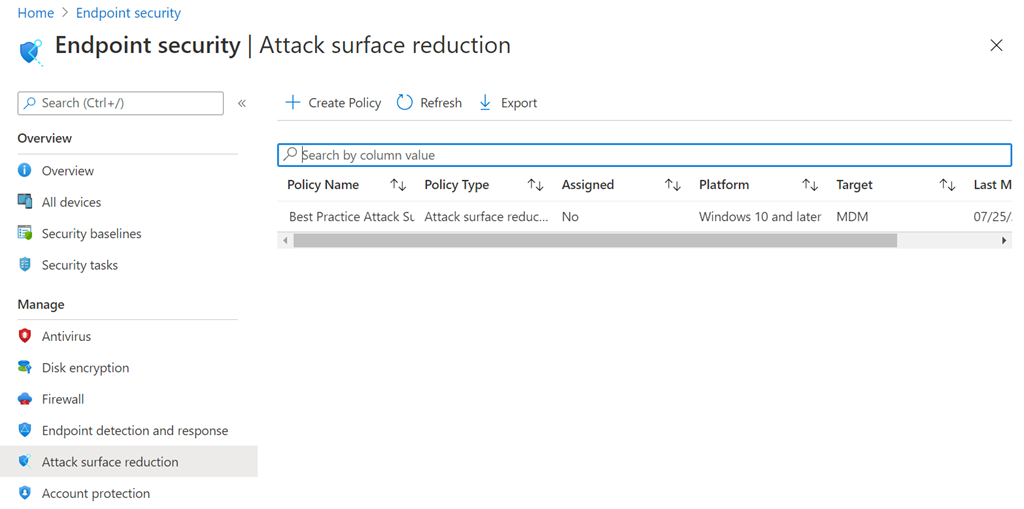
image

You’ll find these under the Endpoint security menu item on the left and then under the Manage heading as shown above. In there you will find the following options that you can go and configured policies:

– Antivirus

– Disk encryption

– Firewall

– Endpoint detection and response

– Attack surface reduction

– Account protection

image

If look inside any of these Endpoint option, here Attack surface reduction, you see that you can set policies just like what has already been covered around Intune device and application policies.

image

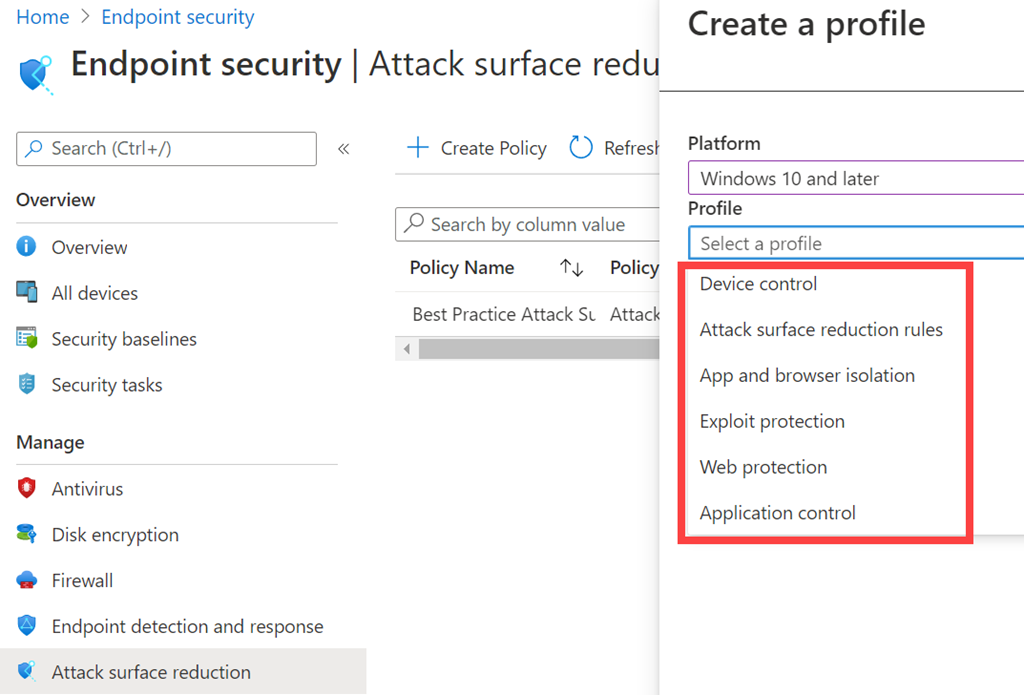
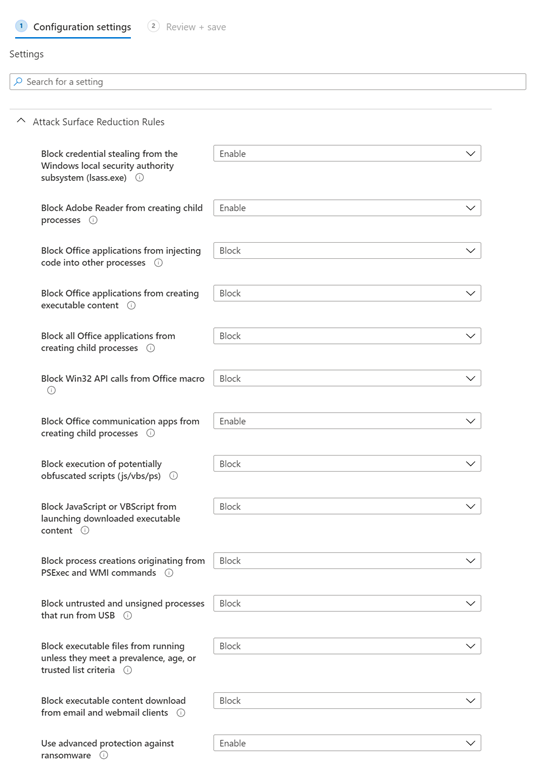
When you do create an Attack surface reduction policy, for example, you’ll get the option to target device control, attack surface reduction rules, app and browser isolation and so on, as shown above.

image

If you configure the attack surface reduction rules, as shown above, you’ll see the now familiar configuration settings that you choose from and then save to the policy. You then finally target the policy that you create to a user and/or a device, again just like Intune.

In essence, you now have a number of additional policies, largely focused on Windows 10 device security for now, that can also be applied to your environment.

The challenge here becomes, some of these Endpoint Manager policy settings are unique and some overlap with existing Intune policies that you may have set. If there is a mismatch in the policy settings you have between Endpoint Manager and Intune, these will report as conflicts in the Endpoint Manager portal. So, the trick is to either use the duplicate Endpoint Manager policy settings BUT ensure they are the SAME as what is set in Intune or only have one set of policies (Endpoint Manager or Intune) for the desired option. My opinion would be that if the desired setting option is available in Endpoint Manager policies, set it there and don’t set it in any Intune policy. It is my understanding, that in the long run, Endpoint Manager policies are were Microsoft is investing the most in currently.

In summary then, it is possible to use three sets of policies for your devices:

1. Intune device policies

2. Intune application policies

3. Endpoint Manager policies

You can set any combination of the three, but be careful about creating conflicts as they can be challenging to track down as some settings overlap.

All of these policies can be implemented and accessed with PowerShell, however I would suggest not ‘basic’ PowerShell like you might be used to with Exchange Online for example. Think more of accessing the settings via the Microsoft Graph with PowerShell, which is a little more complex than ‘standard’ Microsoft 365 PowerShell with commands like get-msoluser for example.

There are still more considerations with device management that will be covered in the next article. Hopefully, by now you are beginning to appreciate the power and granularity that is possible with device management from Microsoft 365. However, as they say, “With great power comes great responsibility” (and I would add a lot more complexity).

Modern device Management with Microsoft 365 Business Premium – Part 5

Modern Device Management with Microsoft 365 Business Premium–Part 3

In the previous parts of this series I have covered:

Office 365 Mobile MDM – Modern Device Management with Microsoft 365 Business Premium–Part 1

Intune MDM – Modern Device Management with Microsoft 365 Business Premium – Part 2

The next step in the step in the process of securing and managing devices with Microsoft 365 Business Premium is Mobile Application Management (MAM) which we’ll look at now.

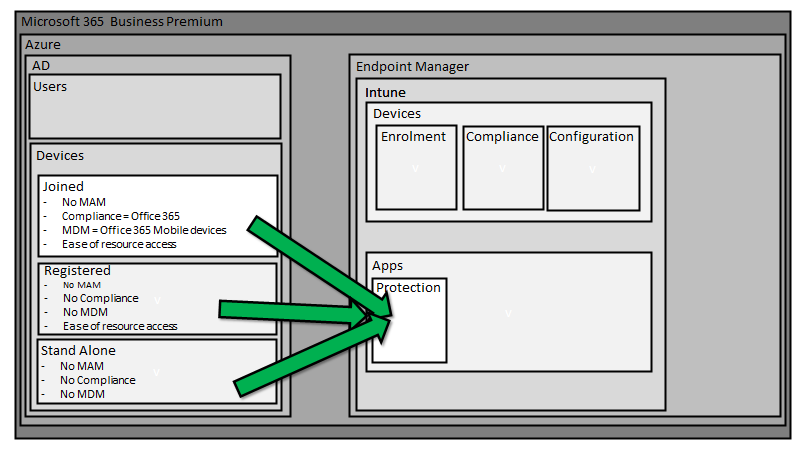
MAM allows the ability to fully manage select applications, typically business applications like Outlook Mobile, Word Mobile, etc on any device. MAM is handy because it doesn’t require device management (MDM). This makes especially handy when users bring their own personal devices and want access to business data like emails but don’t want the organisation having fully control of their device. Thus, MAM is prefect for the Bring Your Own Device (BYOD) scenario.

image

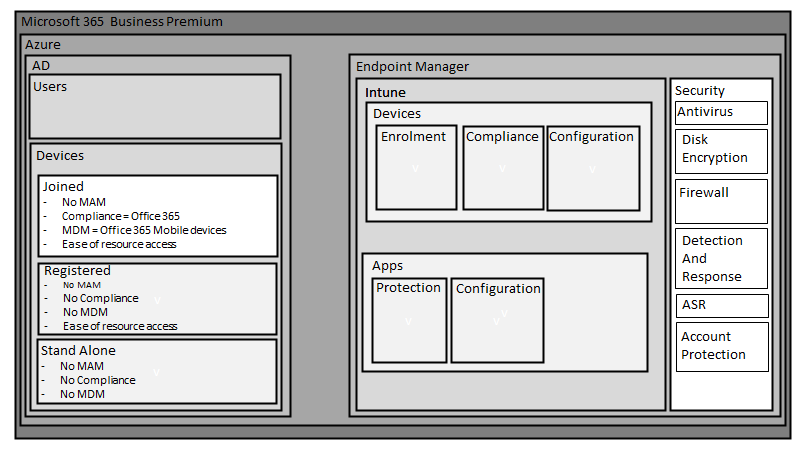
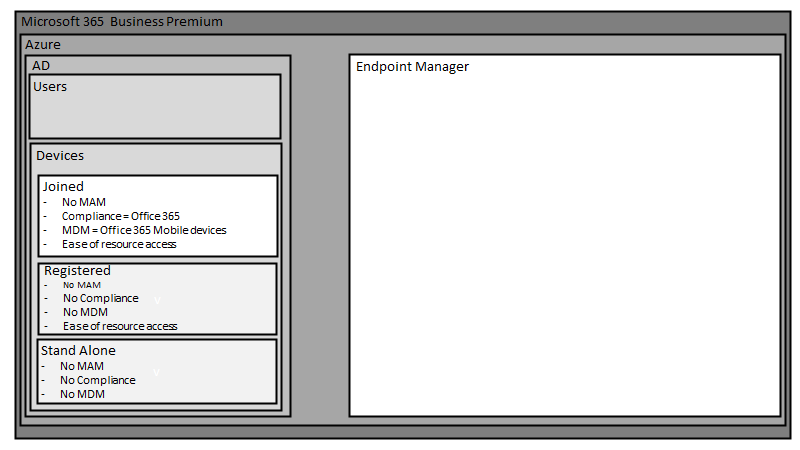
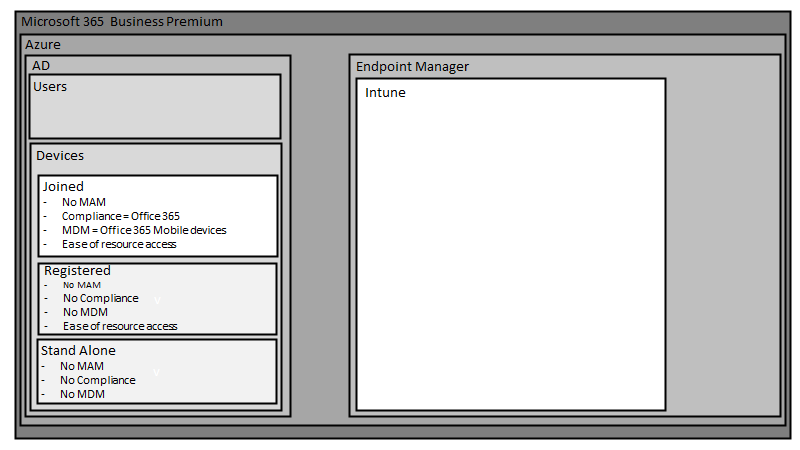
We can thus use MAM on any device, independent of whether it is Azure AD joined, registered or stand alone.

The Intune service inside Endpoint Manager is typically what is used for MAM. Application control is once again managed by policies that are pushed down to the individual applications on the device. The first of these policies is known as App Protection policies which is focused on application security.

SNAGHTML2087555d

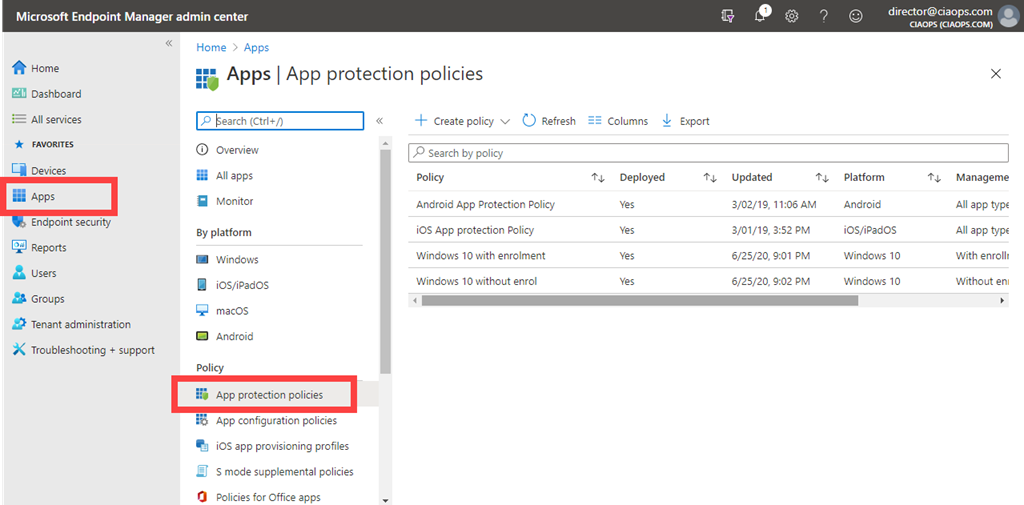
These policies are located in the Endpoint Manager portal under Apps and then App protection policies as shown above.

You can target policies to different device OS versions and here you typically define ‘targeted apps’ (i.e. corporate apps) as well any apps you want exempted from protection policies. Anything not defined by either of these is considered a non-corporate app. In here you also define corporate data locations, which will typically be Microsoft 365 services like OneDrive, SharePoint, etc but may also include on premises and third party cloud based services (say Salesforce). Now with both corporate apps and corporate data locations defined you can set policies around how data is to be stored and managed. For example, you may want to only allow corporate data to be saved to corporate locations or maybe you only want to store corporate data onto ‘secure’ devices. App protection policies allow these configurations and definitions.

App protection policies also give you the ability to selectively wipe data from corporate managed apps. MDM gives you the ability to wipe the WHOLE device remotely, both corporate and personal apps and data. MAM however, gives you the ability to just wipe the data inside Outlook mobile for example. This is why MAM is generally the best option for BYOD devices where the device owner don’t want the business to have access to anything but corporate data on the device.

image

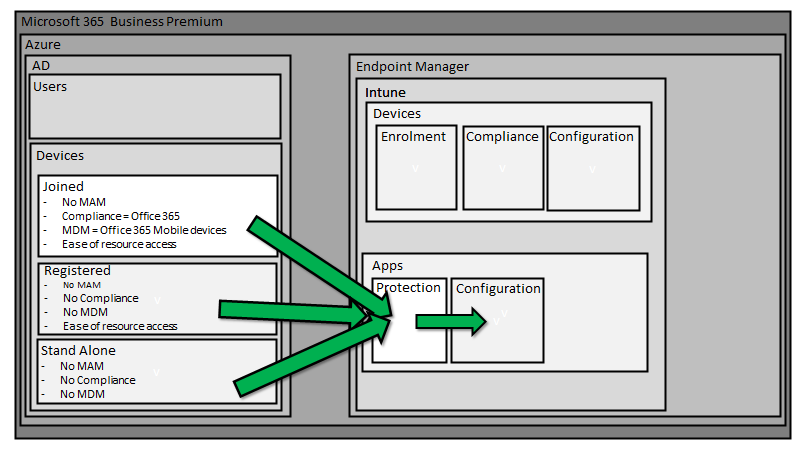
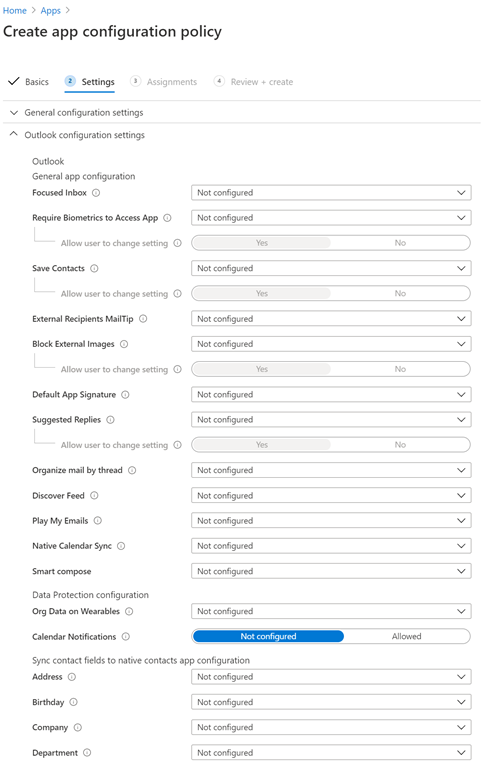
You then have Application Configuration policies as shown above which are also part of Intune MAM. These policies target the options you want configured for applications on devices.

image

This is again controlled by policy which can be targeted at the device OS. The above is taken from the configuration policy for Outlook for iOS and illustrates the level of detail you can go down to when configuring. You can ensure that suitably configured apps are made available to user and devices optionally or as a requirement. There is a lot that can be done here to allow you to deploy and manage applications on mobile devices.

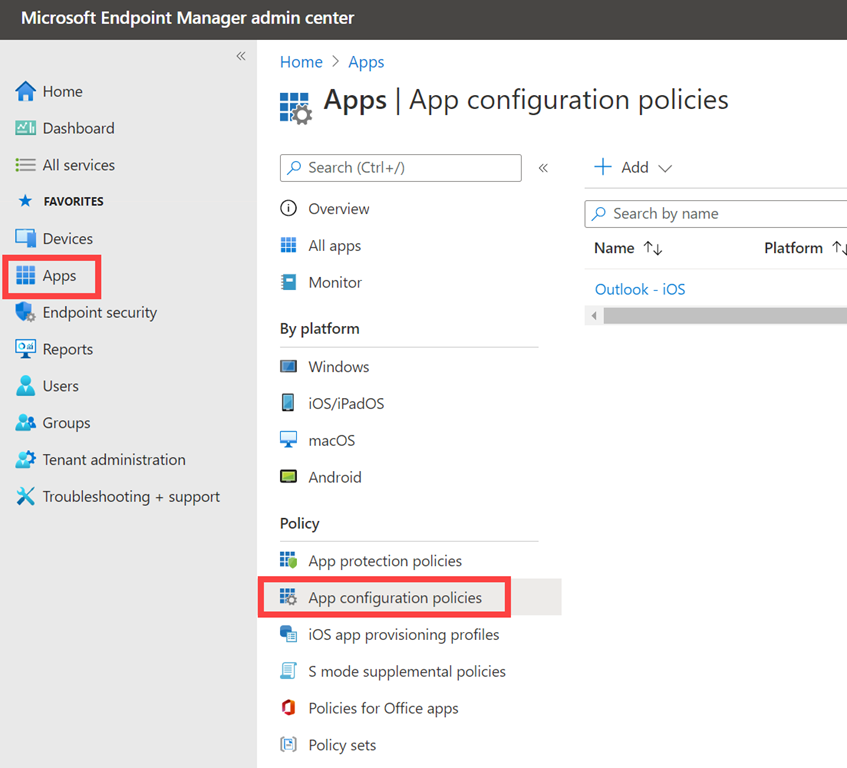
image

You get to these policies via the Apps option in Endpoint Manager and then App configuration policies as shown above.

Many people ask the question about whether you should or can use MDM and MAM together? The answer is most certainly, Yes. The reason you would choose to do that is to provide extra security and convenience. MDM means for example I can ensure that my device storage is encrypted while MAM will prompt me for a pin number when I actually use a corporate app. That makes my data more secure. Do you need to use both MDM and MAM? It all depends on your security and deployment requirements. If you mainly have BYOD devices that don’t want to be device managed then MAM will be your only option. The main thing is that it provides flexibility when it comes to both security and configuration of your devices. The best strategy is defence in depth. The more layers of protection you have the lower your risk.

Given all the options that have been covered in both MDM and MAM so far, hopefully you can now see the huge amount of options available to you when it comes to managing devices. The tricks is to firstly get the device enrolled, apply MDM and then MAM policies.

Don’t think however this is the end of device options available to you. Oh no, Endpoint Manager has a many additional configuration options you can implement to make your devices EVEN more secure. Stay tuned for that upcoming article.

MOdern device Management with Microsoft 365 Business Premium – Part 4

Modern Device Management with Microsoft 365 Business Premium–Part 2

In

Modern Device Management with Microsoft 365 Business Premium–Part 1

I covered the basic overview and out of the box device management you get with pure Office 365. In this article I want to start digging into the more advanced features you get by using Intune which is part of Microsoft 365 Business Premium.

image

Microsoft has a service called Endpoint Manager that allows advanced device configuration and management. You access this via:

https://endpoint.microsoft.com/

image

Intune is now part of Endpoint Manager, so you use that to gain access to the Intune configuration.

image

Part of the Intune configuration capability is device management, this is more advanced than the basic options in pure Office 365 that were detailed in the previous article.

image

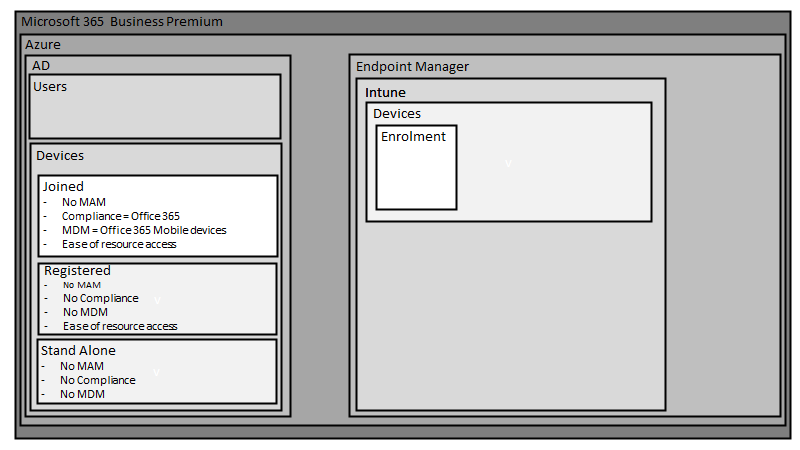
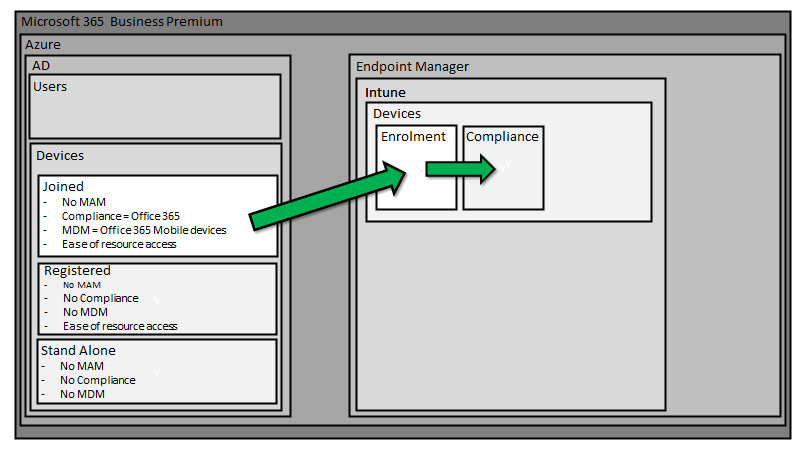
To have devices managed by Intune they first need to go through a specific Intune enrolment process.

image

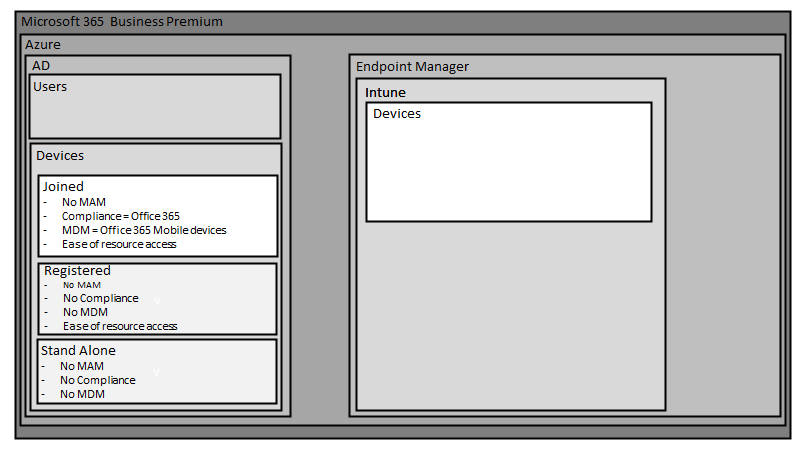
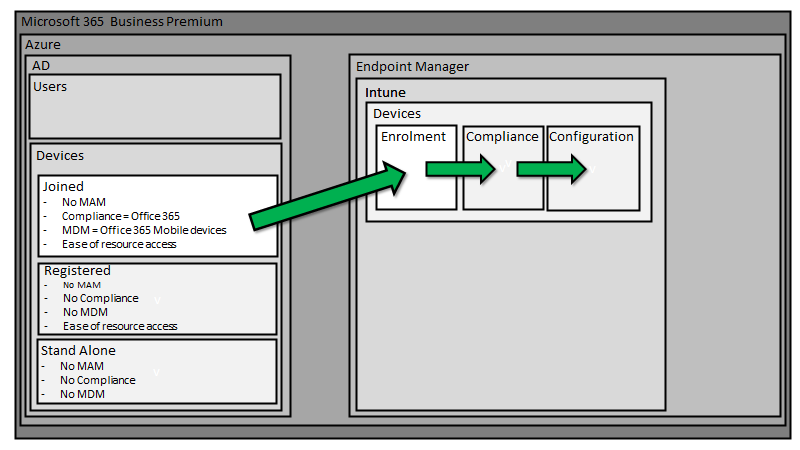
Intune device enrolment can only be achieved once devices have been joined to Azure AD. Both registered and stand alone devices cannot be managed at a device level via Intune, only those devices that have been fully joined to Azure AD can be enrolled in Intune for device management.

image

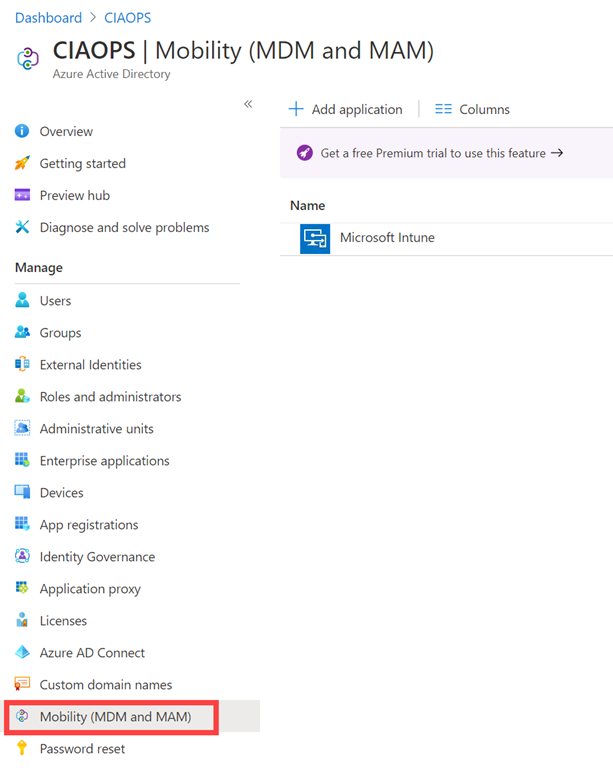
If you look at your Azure AD in the Azure portal you’ll see the option Mobility (MDM and MAM). If you select that, you’ll probably see a Microsoft Intune option on the right as shown above.

image

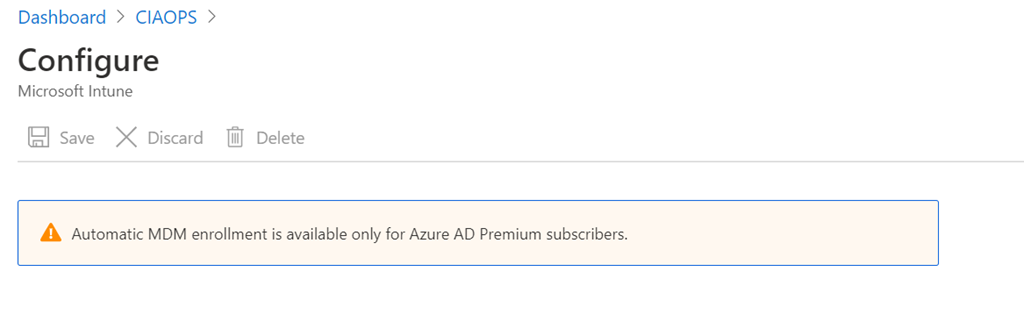
If you select that Intune option and you don’t have a license for Intune you’ll be greeted with something like the above. What this is telling you is that automatic enrolment of device requires an Intune license.

image

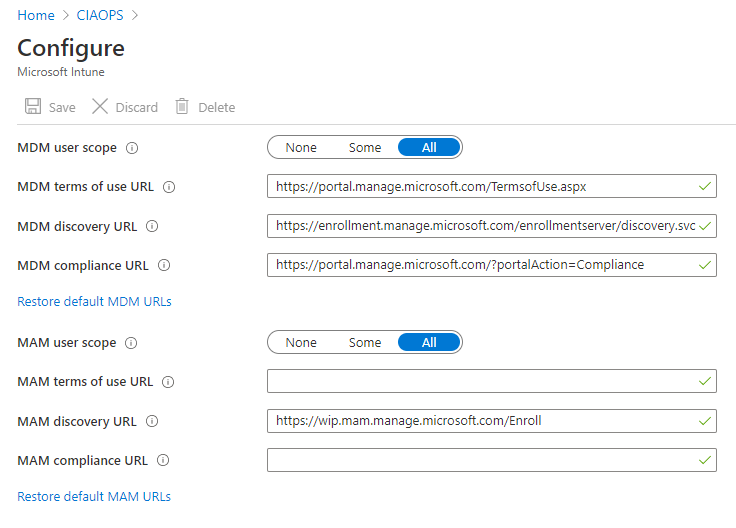
If you do however have a license for Intune you’ll see the above instead. This allows you to select which groups (None, Some, All) that will automatically be enrolled in both device management (MDM) and application management (MAM). You could still of course, manually enrol if you wished but by adding an Intune license you now get the ability to automatically enrol devices into Intune management once you have joined these devices to Azure AD.

So the, typical steps so far have been:

1. Join device to Azure AD

2. Have it automatically commence device enrolment in Intune

You will find the configuration for Intune enrolment by navigating to Endpoint Manager:

https://endpoint.microsoft.com/

SNAGHTML14ccbdd9[4]

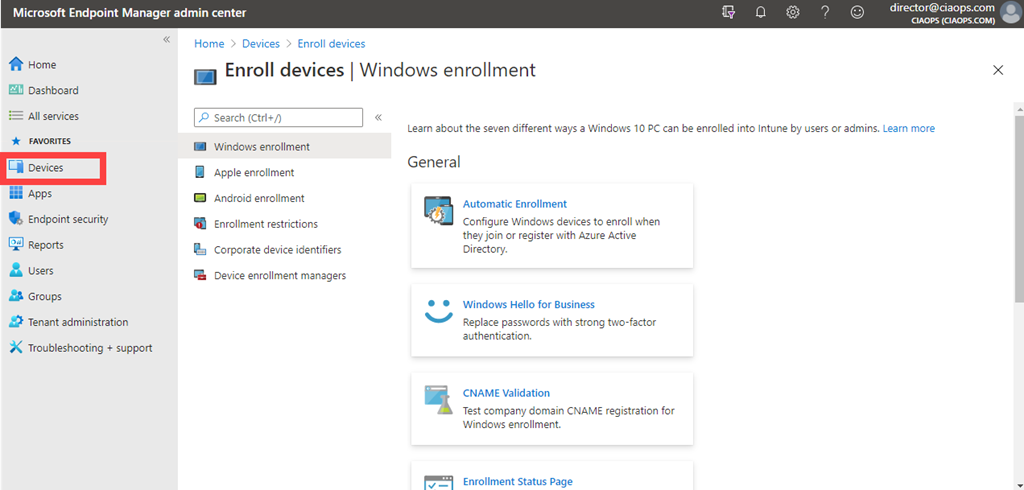
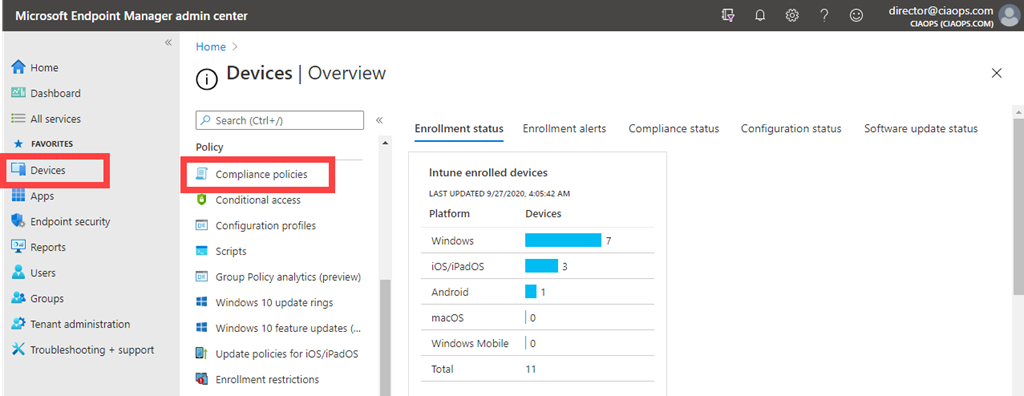
and then go to the Devices option from the menu on the left then Enroll devices as shown above.

SNAGHTML1487c6b2

The first major difference you’ll now see is that you have enrolment options for Windows, Apple and Android as well as the ability to enforce restrictions and allocate managers. Each operating system will have it’s own enrolment capabilities and options. For example, it is here that you configure Windows Autopilot and Windows Hello for Business if you wanted, as they are considered potentially part of any advanced device enrolment.

I’ll look at covering off many of these different enrolment options in future articles, however I do want to call your attention that to enrol Apple devices you will need to set up a free Apple certificate beforehand. I have detailed that process previously here:

Adding an Apple Certificate to Intune

SNAGHTML14b17f9b

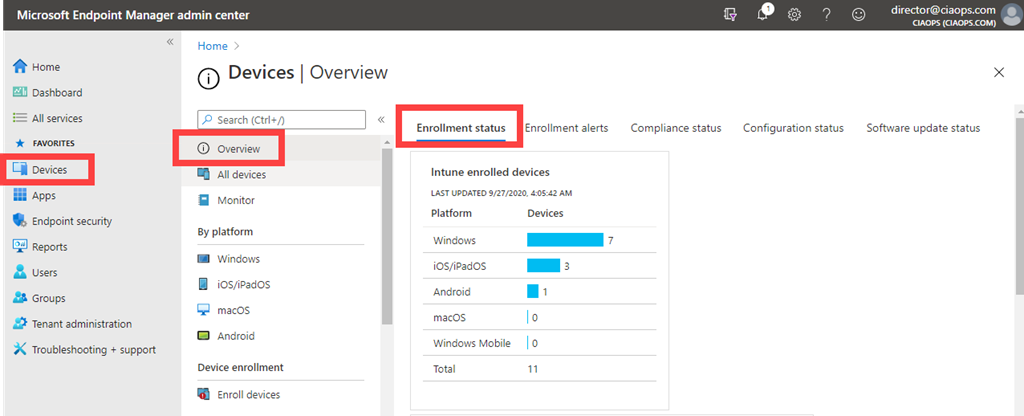
You can get an overview of the device enrolment status in your environment (i.e. successes and failures) via Endpoint Manager | Devices | Overview | Enrollment status as shown above. You’ll also see any Enrollment alerts on the very next tab to the right.

image

Once devices have successfully completed enrolment, they will commence device compliance.

SNAGHTML14a1feac

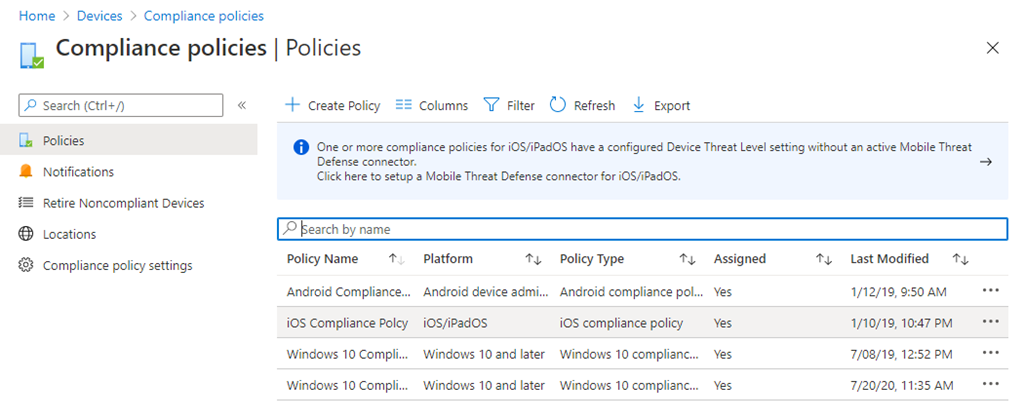
You can configure device compliance policies via Endpoint Manager | Devices | Compliance policies as shown above.

image

Here you create as many different Compliance policies as you wish. Typically, you have one per device operating system, however you can have more if you wish. A good example of why you might have two Windows 10 policies is to handle machines that have and those than don’t have TPM capabilities. Disk encryption is a compliance setting you can check for and enforce. However, you may not want to enforce full disk encryption via BitLocker for machines that don’t have inbuilt TPM chips for example. Thus, two separate compliance policies would be required. One to check machines with a TPM capability and one for those without.

image

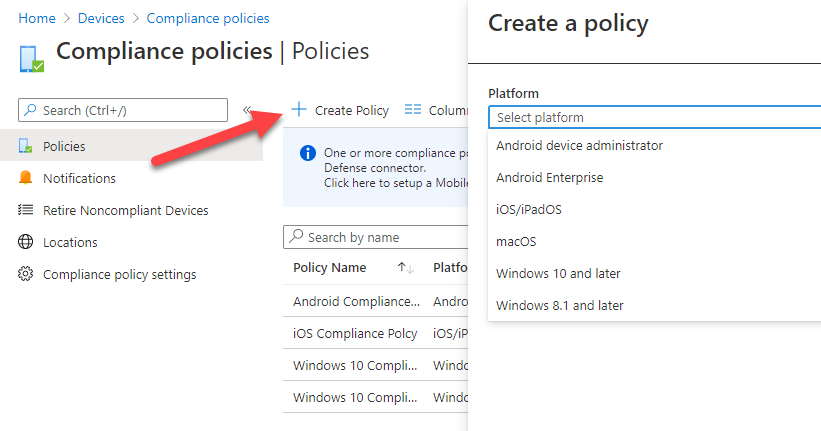
If you select the Create Policy option, as shown above, you’ll be able to select from a range of platforms (OS’s).

image

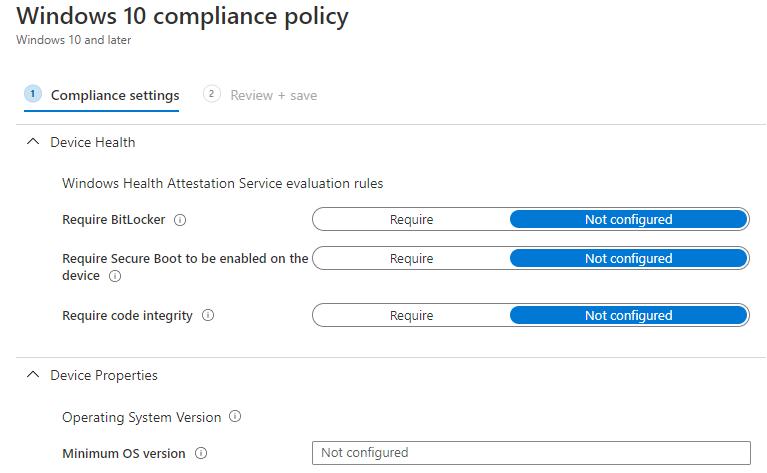
The compliance options available will vary by device operating system, but an example of some of the Windows 10 options you can configure in the policy are shown above.

The main idea here is to configure appropriate checks via policies for each device operating system. Devices that fail these checks are considered and marked as ‘non-compliant’ and further action can then be taken. An example of an action that can be taken on a device that is ‘non-compliant’ is to exclude it from accessing Microsoft 365 information. A good example of this is a policy that prevents devices that have been jailbroken or have unsupported operating systems from being able to access corporate data.

SNAGHTML14b4bded

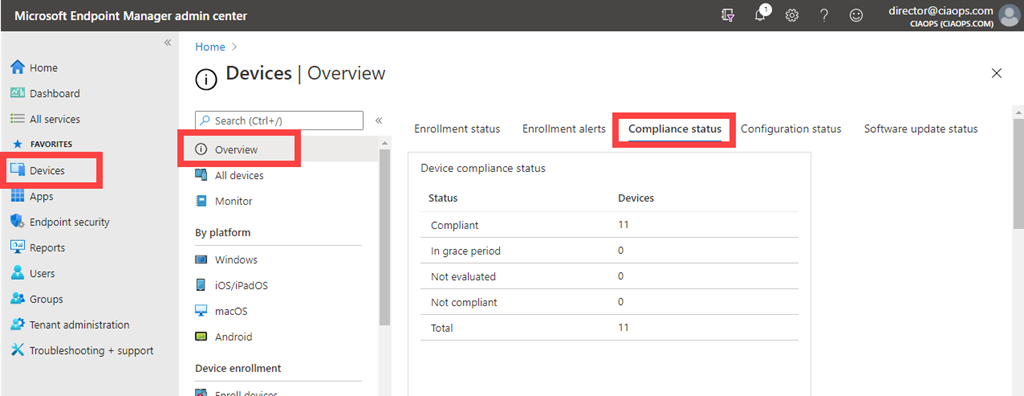
You can get an overview of the device compliance status in your environment by navigating to Endpoint Manager | Devices | Overview | Compliance status as shown above.

image

Once compliance policies have been applied to a device, the final part of adding devices to Intune device management is the application of configuration policies.

SNAGHTML14b99b3a

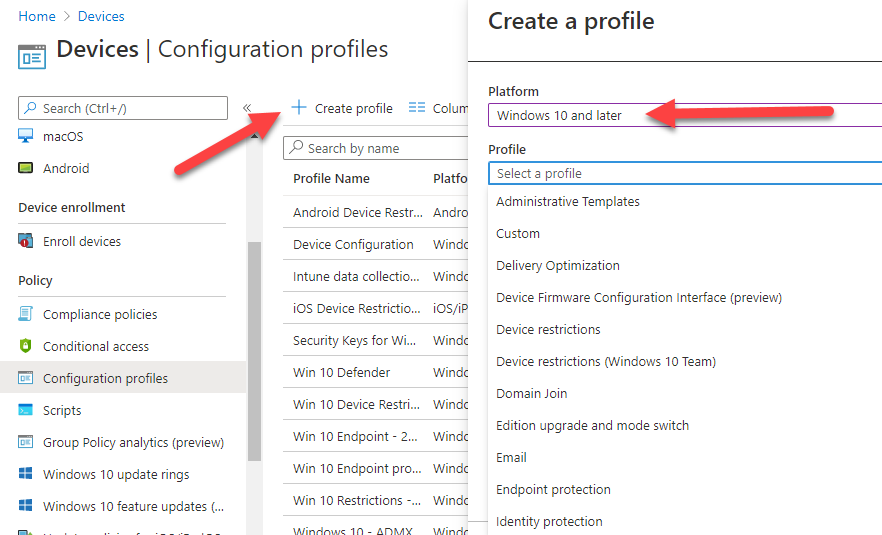
These policies are found by navigating to Endpoint Manager | Devices | Configuration policies as shown above.

image

When you create a new policy via the Create profile button from the menu as shown above you again need to select the device operating system and then the profile. The number, types and content of these profile will vary by operating system but for example allow to to do things like control when anti virus scans run, control photo uploads, enforce pin locks and so much more.

Here you will typically have lots of policies including different policies for different groups of users, different operating systems and so on.

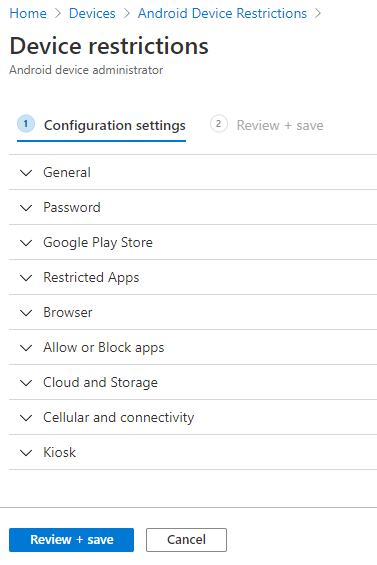
image

Above is an example of the options that are available in an Android Device Restriction configuration policy.

In summary, this article has covered the process of enrolling in advanced device management (MDM) using Intune. The process is:

1. Join devices to Azure AD

2. Devices complete Intune enrolment

3. Devices have Intune compliance policies applied

4. Devices have Intune configuration policies applied

After this process, devices are considered to fully ‘device’ managed by Intune. That is MDM is now done via Intune.

Note, MDM is for devices that are Azure AD joined and require full control of the device down to the operating system. This means the business has full control of the device. That may not be desired for users who bring their own devices (BYOD). Such devices can be managed by application management (MAM) which will be the focus of the next article.

Modern Device Management with Microsoft 365 Business premium – Part 3

Attack surface reduction for Windows 10

You may not be aware, but Microsoft has a number of ways that you can implement Attack Surface Reduction (ASR) settings in your Windows 10 environment. You read about these here:

Reduce attack surfaces with attack surface reduction rules

In essence, these rules reduce the items that maybe exploited by attacks on Windows 10 desktops. In reality, they are a good thing to enable if you want to be more secure.

Microsoft has a number of ways you can implement these.

SNAGHTML5612e1b

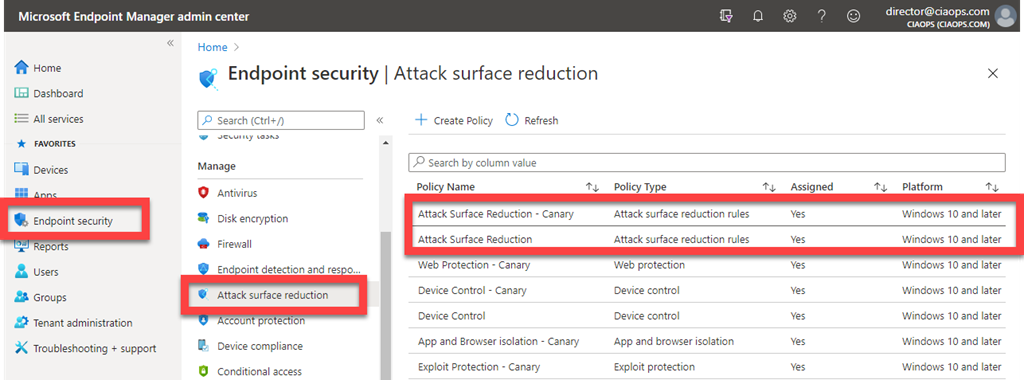
The preferred option is to use Microsoft EndPoint Manager as shown above. To do this navigate to:

https://endpoint.microsoft.com/

Select Endpoint security on the left, then Attack surface reduction and create a new policy on the right.

image

You can then enable all the settings you wish such as:

Block executable content from email client and webmail

Once you save the policy, it can be deployed to the devices configured in Microsoft EndPoint Manager. This will typically mean those devices have a license for Intune and use that or Configuration manager to deploy such policies. However, it will also support others forms of basic MDM that you may have (like the basic Device management that comes with most Microsoft 365 plans)

image

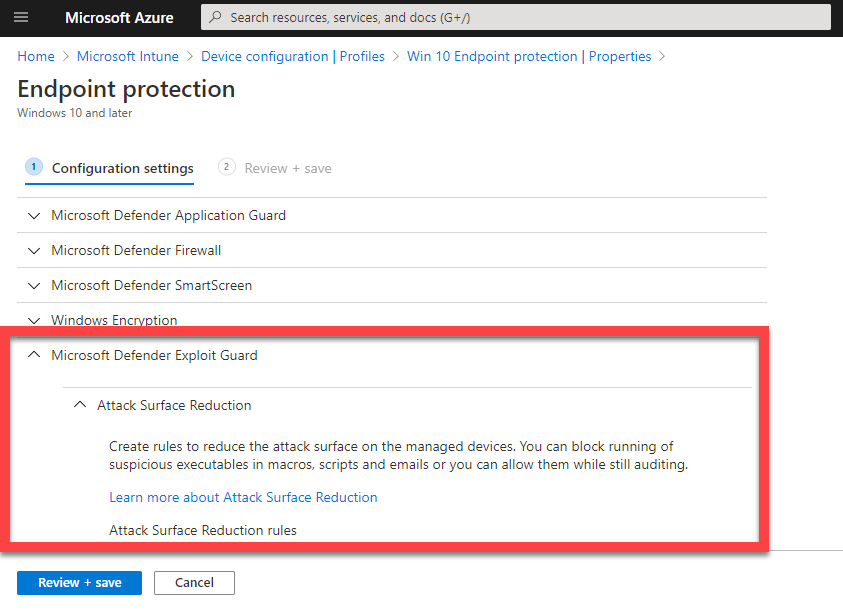
You can also deploy these using the EndPoint protection configuration policies for Intune as shown above. You’ll find the ASR items under the Microsoft Defender Exploit Guard area in the policy.

Group policy setting showing a blank attack surface reduction rule ID and value of 1

You can also use Group policy as seen above.

And of course you can also do it via PowerShell. if you do elect to use PowerShell, which is great for a stand alone machine, there is a handy tool you can use here:

https://github.com/hemaurer/MDATP_PoSh_Scripts/tree/master/ASR%20GUI

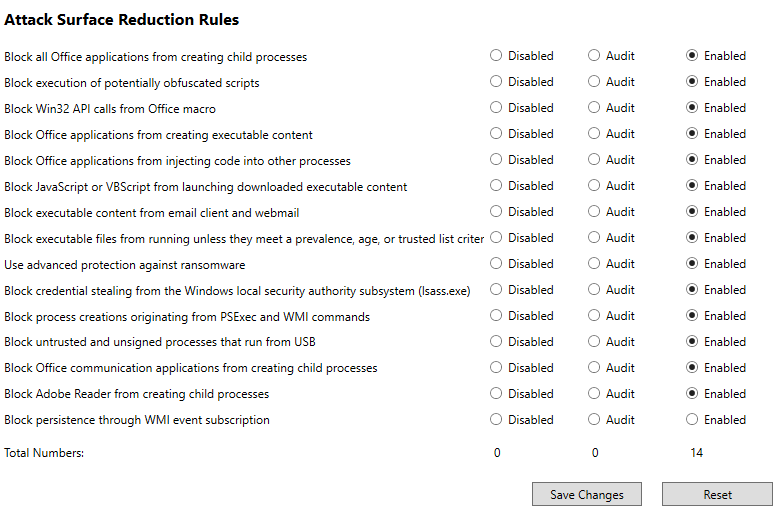
which, when run, looks like:

image

All you then need to do is select your options and save them to update the policies on the local machine.

The options above, plus more are detailed here:

Enable attack surface reduction rules

and I encourage you to visit the page and implement the option that works for you and your environment. For me, using Microsoft EndPoint Manager is the quickest and easiest method to deploy it across my devices. However, you can use PowerShell to quickly and easily implement it for a single device. Using ASR will make your Windows 10 devices more secure, and we all want that, so what are you waiting for?