
For Managed Service Providers (MSPs) with multiple employees managing numerous customer Microsoft 365 tenants, efficiently and securely handling multi-factor authentication (MFA) is crucial. While a single Microsoft 365 user account typically links to one primary authenticator, there are legitimate scenarios and best practices for MSPs to leverage multiple authenticator apps for a single user, enhancing both security and operational flexibility.
Why Multiple Authenticator Apps for an MSP User?
While the general recommendation for individual users is to have a single, primary authenticator app for an account, MSPs often encounter unique needs:
- Redundancy and Backup: In case a primary device is lost, stolen, or damaged, a secondary authenticator on another device ensures access isn’t lost, preventing costly downtime.
- Shared Administrative Accounts (with caution): While not ideal, some MSP workflows might necessitate a shared administrative account for specific, highly controlled scenarios (e.g., break-glass accounts). In such cases, multiple technicians might need access to the MFA codes, making multiple authenticators a practical, albeit carefully managed, solution.
- Employee Transition: When an employee leaves, transferring MFA access to a new team member can be streamlined if a secondary authenticator is already configured on a shared, secure device (e.g., a dedicated company phone for administrative access).
- Location/Device Flexibility: Technicians working from different locations or using various company-issued devices might benefit from having the authenticator configured on each frequently used device.
Best Practice Approaches for MSPs
The core principle for MSPs managing MFA is to prioritize security while maintaining operational efficiency. Here’s a breakdown of best practices:
1. Leverage Conditional Access Policies (Azure AD Premium P1 or P2)
Conditional Access is the gold standard for managing MFA in Microsoft 365, especially for MSPs. It offers granular control over when and how MFA is enforced, allowing for much more sophisticated policies than basic security defaults.
- Granular Control: Define policies based on user groups, location (trusted IPs, risky locations), device state (compliant, hybrid Azure AD joined), application being accessed, and sign-in risk.
- MFA for Administrative Roles: Always enforce MFA for all administrative roles (Global Administrator, User Administrator, Helpdesk Administrator, etc.) across all customer tenants.
- Location-Based MFA: Require MFA for sign-ins from outside your MSP’s trusted network locations.
- Risky Sign-ins: Automatically require MFA or block access for sign-ins detected as risky by Microsoft Entra ID Protection.
- Device Compliance: Require MFA for access from non-compliant devices.
- Prioritize Microsoft Authenticator: Encourage or enforce the use of the Microsoft Authenticator app for push notifications or number matching. This is generally more secure and user-friendly than SMS or voice calls.
- Phased Rollout: When implementing or modifying MFA, conduct a phased rollout. Start with your internal IT staff, then move to pilot groups, and finally to all users.
2. Designate Specific Authenticators for Specific Purposes
Avoid a free-for-all with authenticators. Be strategic:
- Primary Authenticator (User’s Personal Device): The Microsoft Authenticator app on the technician’s primary work smartphone should be their main MFA method. This offers convenience and strong security (push notifications, biometrics).
- Secondary Authenticator (Company-Provided Device or FIDO2 Key): For backup or shared administrative accounts (used rarely and with extreme caution), a secondary authenticator on a company-issued device (tablet, spare phone) or a hardware security key (FIDO2) is preferable. FIDO2 keys offer the strongest phishing resistance.
- Avoid SMS/Voice as Primary MFA: While useful for recovery, SMS and voice MFA are susceptible to SIM-swapping and other attacks. Limit their use as primary authentication methods, especially for administrative accounts.
3. Implement Break-Glass Accounts
Maintain a small number of highly secured “break-glass” or emergency access accounts. These accounts are exempt from normal Conditional Access policies and are only used in extreme emergencies (e.g., a global MFA outage, or if all administrators are locked out). These accounts should:
- Be cloud-only (not synchronized from on-premises AD).
- Have strong, complex passwords stored securely and offline.
- Be monitored for any sign-in activity.
- Have their credentials rotated regularly.
- Ideally, use hardware FIDO2 keys for MFA.
4. Regular Auditing and Monitoring
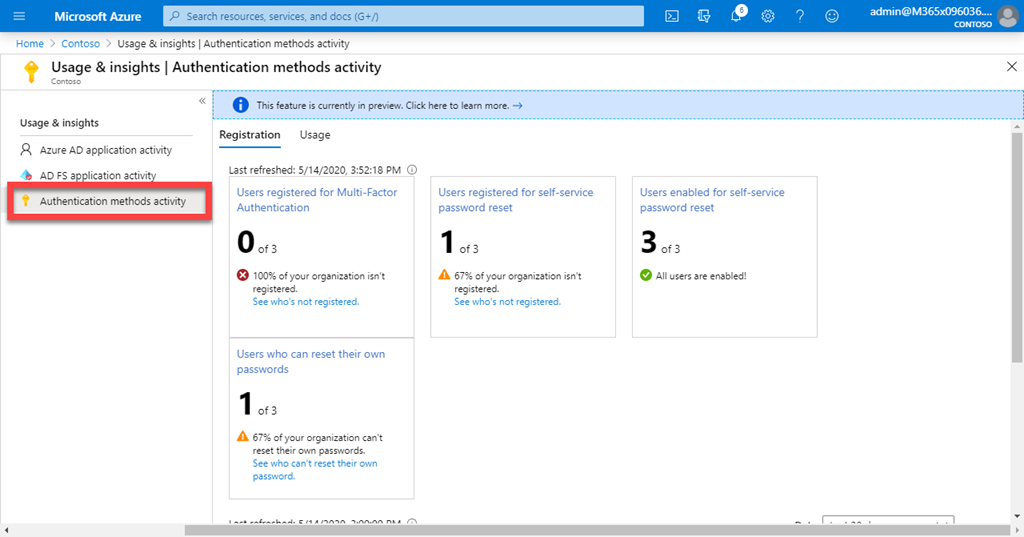
- MFA Registration Reports: Regularly review who has registered for MFA and what methods they’ve configured.
- Sign-in Logs: Monitor sign-in logs for unusual activity, failed MFA attempts, or sign-ins from untrusted locations. Microsoft 365 Lighthouse (for CSP partners) and Azure AD reports can provide consolidated views across tenants.
- Access Reviews: Periodically review administrative roles and MFA configurations for all users, especially for those with elevated privileges.
5. Training and Documentation
- User Education: Train your MSP employees on the importance of MFA, how to use their authenticator apps correctly, and how to report suspicious MFA prompts.
- Internal Procedures: Document your internal policies for MFA, including how to set up new authenticators, handle lost devices, and manage break-glass accounts.
Step-by-Step Configuration: Adding Multiple Authenticator Apps to a Single User
This process generally involves the user adding additional authentication methods through their security info settings. An administrator initiates MFA enforcement, and the user then registers their chosen methods.
Prerequisites:
- A Microsoft 365 user account.
- Global Administrator or Authentication Administrator role (for initial setup/management).
- Microsoft Authenticator app installed on the primary device.
- Secondary device (another smartphone/tablet) for the second authenticator app.
- (Optional) FIDO2 Security Key.
- Azure AD Premium P1/P2 license for Conditional Access (highly recommended for MSPs).
Step 1: Enable MFA (if not already enabled)
For MSPs, using Conditional Access policies is the recommended way to enable and enforce MFA. Security Defaults are a simpler option but offer less flexibility.
Method A: Using Conditional Access Policies (Recommended for MSPs)
- Sign in to the https://entra.microsoft.com/ Microsoft Entra admin center (formerly Azure Active Directory admin center) as a Global Administrator.
- Navigate to Protection > Conditional Access.
- Click + New policy.
- Name the policy: e.g., “MFA for All Users” or “MFA for Admins”.
- Under Assignments > Users or workload identities, select the relevant scope (e.g., All users, or specific administrative roles/groups). For MSPs, definitely target administrative roles.
- Under Cloud apps or actions, select All cloud apps (or specific sensitive apps).
- Under Conditions (optional, but highly recommended for MSPs):
- Locations: Exclude trusted locations (e.g., your MSP office IP ranges) to reduce MFA prompts when users are on-site, but require MFA when outside.
- Device state: Consider requiring MFA for non-compliant devices.
- Sign-in risk: Set to require MFA for medium or high sign-in risk.
- Under Grant:
- Select Grant access.
- Check Require multi-factor authentication.
- Set Enable policy to On.
- Click Create.
Method B: Using Security Defaults (Simpler, less flexible – good for quick enforcement)
If you don’t have Azure AD Premium licenses, Security Defaults provide a baseline level of MFA enforcement.
- Sign in to the https://entra.microsoft.com/ Microsoft Entra admin center as at least a Security Administrator.
- Browse to Identity > Overview > Properties.
- Select Manage security defaults.
- Set Security defaults to Enabled.
- Select Save.
Note: If you previously had “per-user MFA” enabled, you must disable it before using Conditional Access or Security Defaults. You can do this from the Microsoft 365 admin center > Users > Active users > Multi-factor authentication link, and set user status to disabled.
Step 2: User Registers Their First Authenticator App (Primary)
The first time a user signs in after MFA is enabled, they will be prompted to set it up.
- The user navigates to https://myaccount.microsoft.com/.
- They sign in with their username and password.
- They will see a message: “Your organization needs more information to keep your account secure.” Click Next.
- On the “Keep your account secure” page, they will be prompted to set up the Microsoft Authenticator app (recommended).
- Choose Mobile app from the dropdown.
- Select Receive notifications for verification (for push notifications) or Use verification code (for TOTP codes). Push notifications are preferred for ease of use and security. Click Set up.
- A QR code will appear on the screen.
- On their primary smartphone:
- Open the Microsoft Authenticator app.
- Tap the + sign (top right on iOS, top left on Android) and choose Work or school account.
- Select Scan a QR code and scan the code displayed on the computer screen.
- The account will be added to the app.
- On the computer, click Next. Microsoft will send a test notification to the app.
- On the smartphone, approve the notification (or enter the number matching code if enabled).
- Once verified, click Next on the computer.
- They may be prompted to set up an alternative verification method (e.g., phone number) as a backup. It’s recommended to do this.
- Click Done.
Step 3: User Registers a Second Authenticator App (or another method)
Once the primary authenticator is set up, the user can add additional methods via their security info page.
- The user navigates to https://myaccount.microsoft.com/ and signs in (they will be prompted for MFA using their primary method).
- On the left-hand navigation, click Security info.
- Click + Add method.
- From the dropdown, choose the desired method:
- Authenticator app: To add the Microsoft Authenticator app to a second device or another TOTP authenticator (e.g., Google Authenticator, Authy).
- Phone: To add a secondary phone number for SMS or voice calls (less secure, use with caution for admin accounts).
- Security key: To add a FIDO2 hardware security key (highly recommended for strong phishing resistance).
- For a second Authenticator App:
- Select Authenticator app and click Add.
- Follow the on-screen prompts. It will present a new QR code.
- On the second device, open the chosen authenticator app (e.g., Microsoft Authenticator, Google Authenticator).
- Add a new account (Work or school account for Microsoft Authenticator, or generic TOTP for others) and scan the QR code.
- Complete the verification steps.
- For a Security Key (FIDO2):
- Select Security key and click Add.
- Follow the instructions. This will involve plugging in the FIDO2 key and touching it when prompted.
- Give the key a memorable name.
- Once successfully added, the new authentication method will appear in the “Security info” list. The user can also set a default sign-in method from this page.
Important Considerations for MSPs:
- Dedicated Admin Accounts: For managing customer tenants, use dedicated administrative accounts for each technician rather than a single shared account, where possible. This improves auditability and accountability. When shared accounts are necessary (e.g., for legacy systems or break-glass scenarios), ensure they are tightly controlled and monitored.
- Microsoft 365 Lighthouse: For CSP partners, Microsoft 365 Lighthouse offers a centralized portal to manage multiple customer tenants, including MFA configuration and monitoring. This can significantly streamline MSP operations.
- Azure Lighthouse: For Azure services, Azure Lighthouse enables MSPs to manage resources across customer subscriptions from their own tenant, reducing the need for direct access to customer tenants and simplifying MFA management.
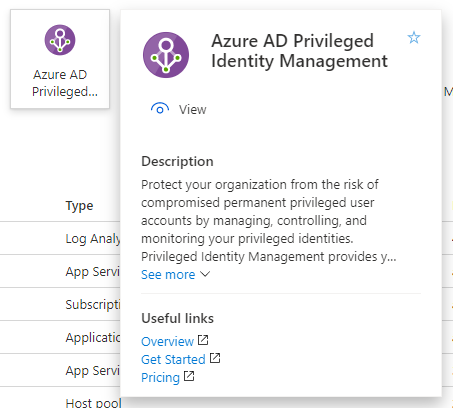
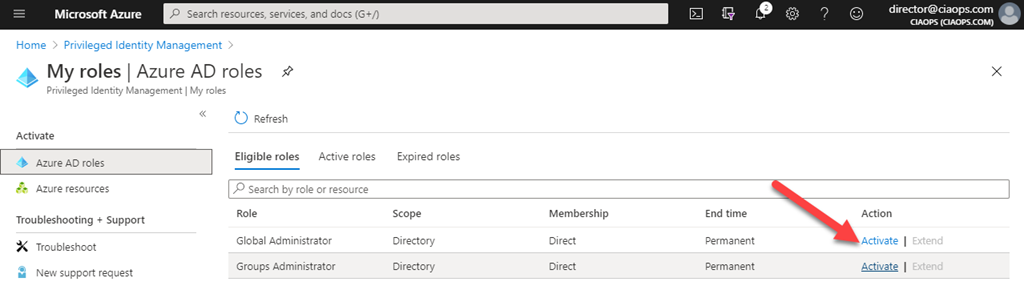
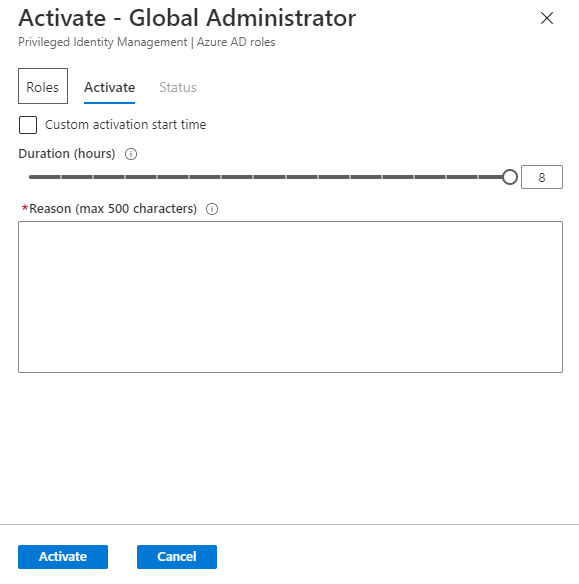
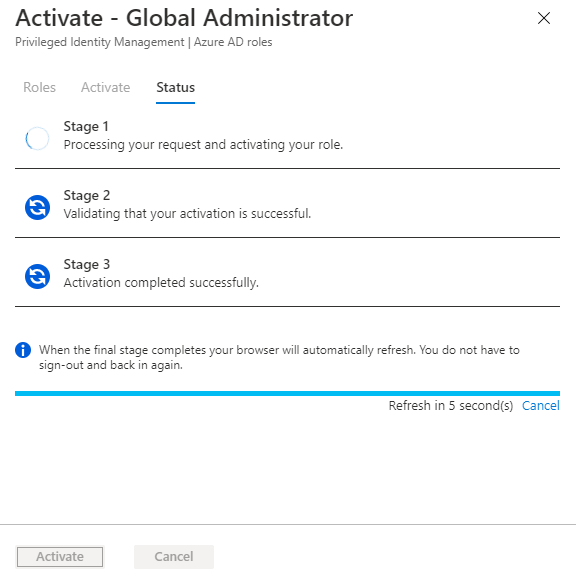
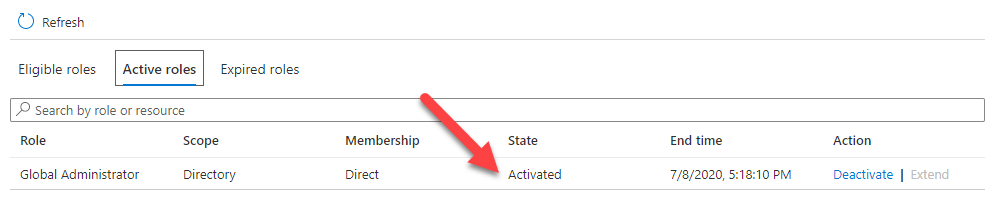
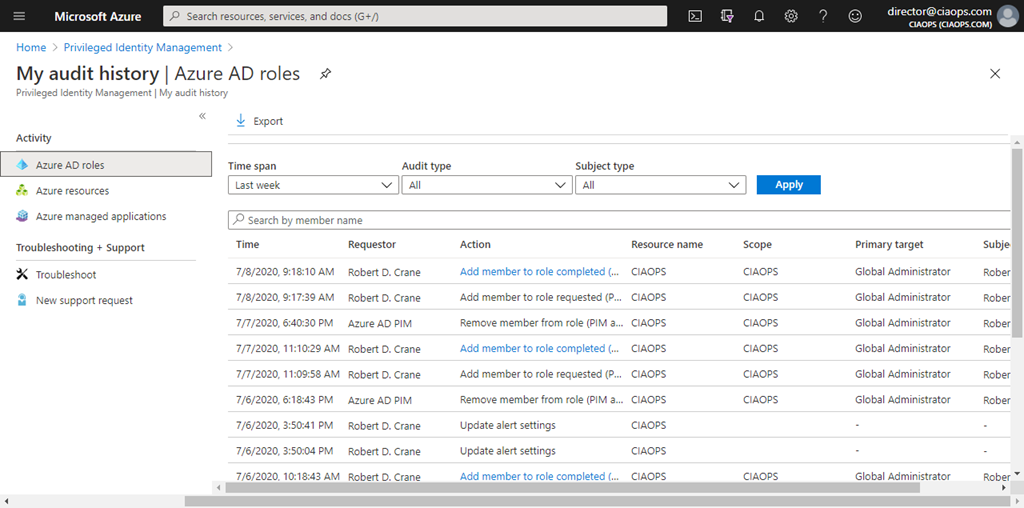
- Privileged Identity Management (PIM): For high-privileged roles, implement PIM to provide just-in-time and just-enough access. This requires administrators to activate their elevated roles, and each activation can require MFA, even if their standard user account doesn’t.
- Regular Reviews: Conduct quarterly or bi-annual reviews of all administrative access, including MFA configurations, for all customer tenants.
By following these best practices and understanding the configuration steps, MSPs can effectively manage multiple authenticator apps for their users, enhancing security posture across all their managed Microsoft 365 customer environments.





 CIAOPS