PowerShell script for analyzing Exchange Online email headers

Source = 

https://github.com/directorcia/Office365/blob/master/email-header-report.ps1

Overview

The Email Header Report Tool is a PowerShell script that analyzes email headers to identify potential spam, phishing, and security concerns in messages processed by Exchange Online and Microsoft 365. This tool provides security administrators and email analysts with a comprehensive report of authentication results, spam filtering decisions, and other security-related information embedded in email headers.

Features

    • Authentication Analysis: Evaluates SPF, DKIM, and DMARC authentication results
    • Spam Filter Analysis: Examines SCL (Spam Confidence Level) and other spam indicators
    • Defender for Office 365 Analysis: Analyzes Safe Links and Safe Attachments processing results
    • Transport Rule Detection: Identifies if mail flow rules were applied to the message
    • Risk Assessment: Provides an overall verdict with color-coded risk indicators
    • Recommendations: Suggests appropriate actions based on analysis results

Requirements

    • PowerShell 5.0 or higher
    • Access to email headers from Exchange Online/Microsoft 365 environment
    • Windows with support for color console output (for optimal viewing experience)

Usage

.\email-header-report.ps1 -HeaderFilePath "C:\path\to\email_header.txt"

Parameters

Parameter Type Required Description
HeaderFilePath String Yes Path to the text file containing the raw email header

How to Extract Email Headers

From Outlook Desktop

    1. Open the email message
    2. Click File > Properties
    3. The headers appear in the “Internet headers” box
    4. Select all and copy to a text file

From Outlook Web App (OWA)

    1. Open the email message
    2. Click the three dots (⋯) in the top-right corner
    3. Select “View message details” or “View > Message details”
    4. Copy the headers to a text file

From Microsoft 365 Security Portal

    1. Navigate to the message in quarantine or Explorer view
    2. Select the message and view details
    3. Find and copy the headers to a text file

Understanding the Report

The report is divided into several sections:

Authentication Analysis

Shows the results of email authentication protocols:

    • SPF (Sender Policy Framework): Verifies if the sending server is authorized to send email for the domain
    • DKIM (DomainKeys Identified Mail): Validates the digital signature attached to the message
    • DMARC (Domain-based Message Authentication, Reporting, and Conformance): Evaluates alignment between the sender’s domain and the authenticated domain
    • CompAuth: Microsoft’s composite authentication result

Spam Filtering Analysis

Details how Exchange Online Protection and Microsoft 365 evaluated the message:

    • SCL (Spam Confidence Level): Score from -1 to 9 indicating spam probability
    • BCL (Bulk Complaint Level): Score from 0 to 9 for bulk email
    • Forefront Anti-Spam Report: Detailed anti-spam processing information
    • Delivery Destination: Where the message was delivered (Inbox, Junk, Quarantine, etc.)

Safe Attachments Analysis

Shows results from Defender for Office 365 attachment scanning:

    • CLEAN: No malicious content detected
    • BLOCK: Malicious content detected and blocked
    • REPLACE: Malicious attachment replaced with a placeholder
    • DYNAMICDELIVERY: Attachment analysis performed with temporary placeholder

Safe Links Analysis

Shows results from Defender for Office 365 URL scanning:

    • CLEAN: No malicious URLs detected
    • BLOCK: Malicious URLs detected and rewritten/blocked
    • PENDING: Analysis in progress
    • NOT SCANNED: URLs were not evaluated

General Message Analysis

Provides additional information about the message:

    • Originating IP: Source IP address of the sender
    • Message ID: Unique identifier for the message
    • Return-Path vs From: Compares the envelope sender with the display sender

Analysis Summary

Provides an overall verdict based on all factors:

    • HIGH RISK / SPAM DETECTED: Strong indicators of being spam or malicious
    • POTENTIAL RISK / LIKELY SPAM: Several characteristics of spam or unwanted mail
    • LIKELY LEGITIMATE: Message appears to be legitimate based on key checks
    • MIXED RESULTS / CAUTION ADVISED: Some checks passed, others raised concerns

Interpreting Key Values

SCL (Spam Confidence Level)

Value Meaning Typical Action
-1 Trusted sender Bypasses spam filtering
0-1 Not spam Delivered to inbox
2-4 Low spam probability Usually delivered to inbox
5-6 Spam Usually delivered to junk folder
7-9 High confidence spam Quarantined or rejected

Authentication Results

Result Meaning
Pass Authentication successful
Fail Authentication failed
SoftFail Weak failure (typically for SPF)
Neutral No policy assertion
None No policy found
PermError Permanent error in policy
TempError Temporary error during lookup

Examples

Legitimate Message Example

AUTHENTICATION ANALYSIS
-----------------------
  [SPF] PASS
  [DKIM] PASS
  [DMARC] PASS
  [Composite Auth (CompAuth)] PASS

EXCHANGE ONLINE SPAM FILTERING ANALYSIS
--------------------------------------
  [SCL (Spam Confidence Level)] 0 - Not spam (message determined to be clean by EOP content filter).
  
MESSAGE VERDICT:
──────────────────────────────────────────────────
  ✅ LIKELY LEGITIMATE
     This message appears to be legitimate based on key checks.
            

Spam Message Example

AUTHENTICATION ANALYSIS
-----------------------
  [SPF] FAIL
  [DKIM] FAIL
  [DMARC] FAIL
  [Composite Auth (CompAuth)] FAIL

EXCHANGE ONLINE SPAM FILTERING ANALYSIS
--------------------------------------
  [SCL (Spam Confidence Level)] 9 - Definite spam (highest confidence, typically quarantined or rejected).
  
MESSAGE VERDICT:
──────────────────────────────────────────────────
   HIGH RISK / SPAM DETECTED
     This message shows strong indicators of being spam or malicious.
            

Troubleshooting

Script Errors

    • Ensure you’re using PowerShell 5.0 or higher
    • Verify the header file exists and is readable
    • Check that the header file contains valid email headers

Missing Information

Some headers might not be present depending on:

    • Email routing path
    • Microsoft 365 subscription level
    • Security features enabled in your tenant
    • Age of the message (older messages might use different headers)

False Positives/Negatives

    • The tool analyzes only what’s present in the headers
    • It doesn’t re-evaluate the message content
    • Discrepancies may occur if policies changed after message delivery

Advanced Usage

Piping Output

You can redirect the output to a file:

.\email-header-report.ps1 -HeaderFilePath "C:\path\to\header.txt" > "report.txt"

Incorporating into Other Scripts

The script can be called from other PowerShell scripts or functions:

& "C:\path\to\email-header-report.ps1" -HeaderFilePath $headerPath

References

License

This script is provided as-is with no warranties. Use at your own risk.

Documentation for Email Header Report Tool v1.1

Author: CIAOPS

For updates and more information: GitHub Wiki

Analyzing Exchange Online Email Headers for Junk/Quarantine Reasons

bp1

Understanding the information in an email header can reveal why a message was marked as junk (spam) or placed in quarantine by Exchange Online. Email headers in Exchange Online contain specialized “X-” fields that record spam filtering results and policy actions, allowing administrators to decipher which policies were applied and what the outcome was[2]. Below, we explain key header fields, how to interpret them, and a step-by-step guide to analyse an email header to determine why a message ended up in Junk or Quarantine. We also discuss tools and best practices for using header information in troubleshooting.


Key Header Fields and What They Mean

Exchange Online (part of Microsoft 365) adds several anti-spam and policy-related fields to message headers. The most important ones for diagnosing junk/quarantine issues are listed below:

  • X-Forefront-Antispam-Report – Contains detailed spam filtering diagnostics. This single header includes many field:value pairs (separated by semicolons) about how the message was processed[2]. Key sub-fields include:

    • SCL (Spam Confidence Level) – A numeric score from -1 to 9 indicating spam likelihood[4]. Higher values mean the message is more likely spam. For example, SCL 5 or above typically means the message was flagged as spam, whereas SCL -1 means the sender was whitelisted (skipped spam filtering)[1][4].

    • SFV (Spam Filter Verdict) – A code summarising what the spam filter decided to do. For example: SFV:NSPM means “not spam” (message is clean)[2]; SFV:SPM means the filter classified it as spam[2]; SFV:SKQ means the message was quarantined and later released to the mailbox[2][2]; SFV:SKS means it was flagged as spam by a mail flow rule before normal filtering[2][2]. Many other codes exist (e.g. SFE for Safe Sender, SKB for blocked sender) which indicate if users’ safe/block lists or admin allow/block policies affected the mail[2]. (See Table 1 below for a summary of common SFV values.)

    • CIP (Connecting IP) – The IP address of the sending server[2]. This can indicate if the sender is on a blocked IP list or allowed list. For instance, IPV:CAL in the header means the IP was on the admin’s IP Allow List (skipping spam filtering)[2], whereas IPV:NLI means the IP had no negative listing (not on known blocklists)[1][2].

    • CAT (Category) – Indicates which protection policy category was triggered[2]. Examples: CAT:SPM for spam, CAT:PHSH for phishing, CAT:HPHISH for high-confidence phishing, CAT:BULK for bulk mail, etc.[2]. This helps identify what type of threat (spam, phishing, malware, etc.) the system associated with the message. If multiple filters flag the email, multiple categories might appear here (though only the highest priority policy ultimately determines the action)[2].

    • Other fields – There are many other fields in X-Forefront-Antispam-Report (such as DIR for direction, CTRY for country of origin, PTR for reverse DNS, LANG for message language, etc.) which provide context[2][2]. These can sometimes help (e.g. a foreign language or unusual country source might slightly affect spam scoring), but the SCL, SFV, CAT, and IPV are usually most directly relevant to junk/quarantine decisions.
  • X-Microsoft-Antispam – Provides additional spam filtering info, notably about bulk mail and phishing confidence[2][4]. It commonly includes:

    • BCL (Bulk Complaint Level) – A score from 0 to 9 indicating how likely the message is bulk mail that recipients might consider unwanted “gray mail.” Higher BCL means more people have complained about similar messages. For example, BCL 0 means not bulk, 3 means a bulk sender with few complaints, and 9 means a bulk sender with a high complaint rate[4]. Administrators set a threshold (default around 7) above which Exchange Online will treat the mail as spam. If a message’s BCL exceeds your tenant’s bulk mail threshold, it can be sent to junk.

    • PCL (Phish Confidence Level) – A 0 to 9 score for how likely the email is a phishing attempt[4]. Lower is better; e.g. PCL 2–3 is neutral (likely not a phish), while PCL 4–8 suggests suspicious elements (possible phishing)[4]. A very high PCL might indicate the phishing filters strongly suspect the message.

    • Additional info – The X-Microsoft-Antispam header may contain internal identifiers or flags related to spam filtering. Often, however, admins focus on BCL and any mentions of specific filter flags here. (Note: There is also X-Microsoft-Antispam-Message-Info, which is an encoded string of data used by Microsoft – not human-readable – and X-CustomSpam headers added if an Advanced Spam Filter (ASF) rule was triggered[2].)
  • Authentication-Results – Shows the results of email authentication checks: SPF (Sender Policy Framework), DKIM (DomainKeys Identified Mail), and DMARC (Domain-based Message Authentication Reporting & Conformance)[2]. For example, it might contain entries like spf=pass or spf=fail, dkim=pass, dmarc=pass/fail for the sending domain[7]. Failed or missing authentication can increase spam score. For instance, if SPF or DKIM fails, and especially if DMARC policy is reject/quarantine, Exchange Online is more likely to mark the message as spam or quarantine it. Authentication-Results also may include a compauth=pass/fail (composite authentication) which is Microsoft’s overall assessment of authentication (considering SPF, DKIM, and ARC)[7].

  • X-MS-Exchange-Organization-SCL and X-MS-Exchange-Organization-PCL – These might appear as separate headers (especially in Outlook.com/Office365 consumer or internal routing) showing the numeric SCL and PCL values in plain form[4]. For example, you might see X-MS-Exchange-Organization-SCL: 5 indicating the spam confidence level is 5 (borderline spam)[7]. These values correspond to the ones in the composite X-Forefront header.

  • X-Microsoft-Antispam-Mailbox-Delivery – This header is added when the message reaches the mailbox and informs how it was finally delivered. It indicates if user-level filtering or mailbox rules moved the message to Junk. Key fields within this header include:

    • dest: – The destination folder: usually I for Inbox or J for Junk[4]. If you see dest:J, it confirms the message landed in the Junk folder.

    • ucf:User Controlled Filtering. A value of 1 here can mean the user’s own Safe Senders/Blocked Senders or client-side rules had an effect. For instance, ucf:1 might show the user had a block rule or sender on blocked list, contributing to Junk delivery.

    • jmr:Junk Mail Rule verdict (Outlook’s client-side heuristic spam filter). jmr:1 would indicate the Outlook client (or OWA) junk filter algorithm believed the message was spam. In modern Exchange Online scenarios this is often 0 (since server-side filtering usually dominates).

    • auth: – If authentication influenced mailbox delivery. For example, auth:1 could indicate the message passed authentication checks; auth:0 might hint authentication was not satisfied.

    • OFR: / RF: – These codes (e.g. OFR:SpamFilterAuthJ or RF:JunkEmail) are internal codes for which spam/filter rule caused the message to go to Junk. They are not well-documented publicly, but they can hint at the reason (such as Outlook’s filtering vs. Exchange Online policy)[7].

Table 1: Common Spam Filter Verdict (SFV) Codes in Headers

SFV Code
Meaning and Action

NSPM
Not Spam – The message passed filtering as non-spam
[2]. It was delivered to Inbox (unless something else moved it).

SPM
Spam – The content was flagged as spam by EOP’s content filter
[2]. Typically, such messages get SCL 5-9 and go to Junk or Quarantine based on policy.

SKB
Spam (blocked sender) – The message was marked spam because the sender/domain is in a block list (tenant block list in anti-spam policy)
[2]. Action is usually Junk or Quarantine per policy.

SFE
Allowed (Safe sender) – Filtering was Skipped because the sender is in a Safe Senders list (user or tenant)
[2]. The message is delivered normally.

SKA
Allowed (Admin allow) – Spam filter Skipped because sender/domain is in an allowed list in the anti-spam policy
[2]. Delivered to Inbox.

SKN
Non-spam (Bypass) – Message was pre-marked safe (SCL -1) by a rule or previous verdict, so spam filtering was bypassed
[2]. Delivered to Inbox.

SKQ
Quarantined – The message was initially quarantined by EOP (e.g. high confidence spam), then later Released from quarantine to the recipient
[2][2]. (If you see SKQ, the copy you are inspecting was delivered after a manual release.)

SKS
Spam (via rule) – Marked as spam before normal filtering, e.g. by a mail flow rule that set SCL to spam
[2][2]. Treated as spam (Junk).

BLK
Blocked – Filtering skipped because recipient blocked the sender (user’s blocked senders list)
[2]. The message was dropped (not delivered to inbox).

SRV:BULK
Bulk mail – The message was identified as bulk mail by EOP and exceeded the bulk threshold, so it was marked spam (usually SCL 6)
[2].

Note: These header values reflect what policies were applied. For instance, seeing SFV:SKB (spam due to blocked sender) tells us an anti-spam policy’s block list was applied[2]. Seeing SRV:BULK shows the bulk mail filter policy classified it as spam[2]. In this way, the header lets us infer which filtering mechanism or policy list influenced the decision (content vs. safe/blocked sender lists vs. bulk filter, etc.).


Interpreting Headers to Identify Applied Policies

Yes – it is possible to decipher the header to track policies applied and their results. By examining the fields above, you can determine why Exchange Online took a certain action:

  • Spam Filtering Policies: The combination of SCL and SFV (and sometimes CAT) reveals the spam filter’s verdict. For example, SCL 9 with SFV:SPM and CAT:HPHISH would indicate the message was judged as high confidence phishing by the anti-phishing policy, likely causing it to be quarantined (since by default high phish is quarantined)[2][2]. If you see SFV:SRV:BULK, it means the bulk mail filter policy (part of anti-spam) marked it as spam[2]. A SFV:SKB result indicates an organization’s Blocked Senders policy blocked it[2]. In each case, the header’s codes map to a specific policy action:

    • Content-based Spam Filtering: indicated by SFV:SPM (spam) vs NSPM (not spam) and the SCL rating[2][2].

    • High confidence spam/phish: indicated by very high SCL (usually 9) and possibly category tags like HSPM or HPHISH[2].

    • Blocked/Allowed Sender Policies: indicated by SFV:SKB (blocked sender/domain) or SFV:SKA/SFE (allowed sender/domain)[2][2].

    • Bulk mail threshold: indicated by SRV:BULK and a BCL value in X-Microsoft-Antispam header[2][4].

    • Mail Flow (Transport) Rules: If an admin-created rule set an action, its effect may appear in headers. For example, a rule that sets spam confidence will show an SCL in the header (often along with SFV:SKS if it set SCL 5+)[2]. Some mail flow rules add custom headers or comments; if present, those are visible too. (E.g., a rule could stamp “X-Company-Rule: AutoEncrypted=Yes” or similar – these would be visible if configured, though not default.)
  • Authentication Policies: The Authentication-Results header indicates whether SPF, DKIM, and DMARC checks passed. Exchange Online’s spam policy heavily favors authenticated email. If, for instance, SPF and DKIM both failed and DMARC policy was “quarantine/reject,” EOP will likely treat the mail as untrustworthy (often raising the SCL to spam). A header showing spf=fail or dmarc=fail aligns with DMARC enforcement policies being applied. For example, if DMARC says to quarantine and the message fails DMARC, it may go to Quarantine – the header will show DMARC fail, and the SFV might be SPM (spam) as a result. Conversely, compauth=pass with SPF/DKIM pass suggests authentication wasn’t the issue[7], so the spam verdict must have come from content or other filters.

  • Anti-Phishing Policies: Exchange Online’s Defender for Office 365 provides anti-phishing protection (impersonation protection, etc.). If those policies trigger, the header may show CAT:HPHISH, CAT:PHSH, CAT:UIMP (user impersonation) or similar categories[2]. There is also a field SFTY (safety) that, when present with values like 9.20 or 9.19, indicates user or domain impersonation was detected by anti-phishing policies[2]. These would correspond to actions like delivering to Junk with a safety tip or even quarantine if configured. For example, SFTY:9.20 combined with a high SCL implies an anti-phishing policy saw user impersonation and likely caused the message to be treated as phish[2].

  • Malware/Safe Attachments Policies: Malware detection usually results in outright rejection or quarantine before delivery. If an email was quarantined due to malware, you typically wouldn’t see normal headers in the user’s mailbox (since it never got delivered). However, if you retrieve the header from the quarantine portal or an admin tool, you might see CAT:MALW (malware) or references to the Safe Attachments scanner (ATP) in the X-Forefront-Antispam-Report (CAT:SAP for Safe Attachments policy)[2]. Additionally, an X-Exchange-Organization-AV stamp might indicate malware scan results. These are less commonly examined via header by end-users (since such messages are in quarantine, not in the Junk folder).

In summary, each header field provides clues about which filter or policy acted on the message. By piecing together SCL/SFV (spam filter outcome), CAT (category of threat), authentication results, and other flags, you can often trace the decision path. For example, “Header shows CAT:BULK, BCL:8, SCL:6, SFV:SPM” – this tells us the Bulk mail policy identified it as spam (bulk complaint level high), resulting in spam verdict and Junk delivery. Or “Header shows SPF fail and SFV:SPM” – suggests the message failed authentication and was marked spam by policy (possibly due to failing an anti-spoof or DMARC policy).

Important: The headers do not usually name a custom policy by name (e.g., “Contoso Spam Policy”), but they show the effect. For exact policy names or rule names that triggered, an admin would use the Message Trace or Explorer (discussed below). However, for most purposes the header’s codes are enough to deduce the cause (content, sender reputation, authentication failure, etc.) behind the Junk/Quarantine decision.


Step-by-Step Guide: How to Analyze an Email Header in Exchange Online

Follow these steps to examine an email’s header and determine why it went to Junk or Quarantine:

1. Retrieve the Full Message Header:
In Outlook on the web or Outlook client, view the message options to get the internet headers. For example, in Outlook desktop: open the email, go to File > Properties > Internet Headers. In OWA: open the email, click “⋯” (More actions) > View message details. Copy the entire header text.

2. Use a Header Analyzer Tool (Optional):
To make the header more readable, you can use Microsoft’s Message Header Analyzer tool
[2]. Microsoft provides an online analyzer (in the Microsoft 365 Defender portal, or via tools like Outlook Message Header Analyzer). Paste the header text into the analyzer – it will format the header into a table and highlight key values (like the SPF/DKIM results and SCL). This is recommended for convenience[2], but you can also read it manually.

**3. Check *Authentication-Results***:
Early in the header, find the *Authentication-Results* line. Examine whether SPF, DKIM, and DMARC passed or failed
[7].

  • If you see “spf=fail” or “dkim=fail”, that indicates the sender’s domain failed authentication – a red flag for spam/phishing. A DMARC fail (especially with p=quarantine/reject) is even more likely to result in spam or rejection.

  • If all are “pass”, then you know the decision to junk the email was not due to standard authentication failure (it passed the identity checks).

**4. Locate *X-Forefront-Antispam-Report***:
This header might be long. It usually starts with X-Forefront-Antispam-Report:. Look inside it for key fields:

  • SCL: Note the number after SCL:[2]. This is the Spam Confidence Level. Use the value to gauge spam likelihood (-1 means trusted, 0-1 not spam, 5+ likely spam[4]). For instance, SCL 5 or 6 means it was probably sent to Junk, 9 often means quarantined (if high confidence spam/phish).

  • SFV: Find the SFV: code[2][2]. Use Table 1 (and the definitions above) to interpret the verdict. Key outcomes: NSPM (not spam, should go to Inbox), SPM (spam content), SK codes (indicate skipped or pre-marked by safelist/block or rules), BLK (blocked by user). This tells you why the filter classified it as it did. For example, SFV:BLK means a user blocked the sender[2]; SFV:SKB means your tenant block list caught it[2]; SFV:SPM means it simply looked like spam to the filter[2].

  • CAT (Category): If present, see what category tag is there (SPM, PHSH, BULK, etc.)[2]. This shows the type of filter/policy. E.g. CAT:PHSH would hint a phishing policy trigger.

  • Other values: Check for IP reputation indicators like IPV:. If it’s IPV:CAL (IP allowed) or IPV:NLI (not on blocklists)[2], that tells you the sending IP wasn’t blacklisted in connection filtering[1]. If neither CAL nor NLI is present, the IP might have a poor reputation (which can contribute to spam scoring). Also note PTR (reverse DNS) and CTRY (country) if relevant, though these are just informational.

**5. Examine *X-Microsoft-Antispam*** (and related):
Look at X-Microsoft-Antispam and potentially X-MS-Exchange-Organization-SCL/PCL lines if they exist:

  • Note the BCL value in X-Microsoft-Antispam (e.g., BCL:8). If BCL is high (above ~7) it means Microsoft considered it bulk mail with many complaints[4]. This often causes the mail to go to junk if your spam policy is set to mark bulk mail as spam (which is default). A low BCL (0-3) means bulk mail but low complaints[4].

  • If present, note the PCL (Phish Confidence Level) header or value. A higher PCL (like 4-8) suggests the content resembled phishing[4], which may have contributed to a higher SCL.

  • Check for X-Microsoft-Antispam-Mailbox-Delivery header and find dest:. If it says dest:J, that confirms the message ended in Junk folder[4]. This header also shows if user’s Safe Senders/Blocked Senders had any effect (ucf: field) or if Outlook’s client filter (jmr) was involved. For example, ucf:1 means the user explicitly blocked the sender or domain in their mailbox settings, which would send even a benign email to Junk. On the other hand, ucf:0; jmr:0; auth:1; dest:J (as in a sample above) means the system (server) decided on Junk despite no user rule, likely due to server spam verdict[7].

6. Identify the Trigger:
With the above information, deduce which policy or mechanism “tipped the scales.” For instance:

  • If authentication failed (Step 3) and you see a spam verdict, then the lack of proper auth might be the key reason (especially if SFV=SPM with no other obvious cause, or SFV has an “Auth” related code like OFR:SpamFilterAuthJ in mailbox delivery[7]).

  • If SFV indicates a safelist/blocked list, then a user or admin safe/blocked sender policy applied. E.g., SFV:SKA or SFE means it bypassed spam filtering due to safelist[2], whereas SKB means a block list caught it[2].

  • If BCL is high and SRV:BULK is present, then the Bulk mail filter policy marked it as spam due to being bulk mail[2].

  • If CAT or SFTY indicates phishing (or SCL = 9 with PCL high), it’s likely an anti-phishing policy triggered (like impersonation protection).

  • If none of these stand out except a moderately high SCL (e.g. 5 or 6) and SFV:SPM, it might just be the general content filter (Spam Filter Policy) that decided the email content looked spammy (common for typical junk mail). Microsoft’s filters consider many things (keywords, links, sender reputation, etc.) to assign SCL.

7. Consult Message Trace (if needed):
The header analysis usually tells the story. However, for further confirmation, an Exchange Message Trace or the Microsoft 365 Defender “Threat Explorer” can be used by an admin. These tools can show the exact policies and actions applied to the message (e.g., “Anti-spam policy ‘Default’ applied, action: Moved to Junk”, or “High Phish detected, action: Quarantined”). Message Trace isn’t a header, but it’s a complementary step if header info is unclear. (For example, if you saw a header with SCL 5 but aren’t sure why, the trace might say “Spoof intelligence: Phish” or similar reason.)

8. Verify Quarantine Scenarios:
If the email was quarantined (never reached the mailbox), you typically won’t have the header in your inbox. Admins can view the header via the quarantine portal by previewing the message details. The analysis approach is similar: check the same fields there. Often quarantine happens for higher-severity threats: e.g., malware (virus), high confidence phishing, or admin policies set to quarantine certain spam. In such cases, the header’s SFV might not be visible (since it didn’t go through to the mailbox), but the admin portal will directly state the malware or phish policy that acted. For Junk vs Quarantine: by default, Exchange Online will send most spam to Junk, but “High confidence spam” or certain phish gets quarantined. So an SCL of 9 with PHISH category likely equals quarantine. Understanding this default behavior helps interpret the header’s implications.

9. Summarize the Findings:
After parsing the header, you should be able to answer: Why was this email marked spam? Perhaps the SPF failed and the domain had no reputation (so it got SCL 5), or the sender was on a blocklist, or the content was suspicious. Document the specific indicators from the header:

  • e.g., “The header shows SCL:6 and SFV:SPM, meaning Exchange Online’s spam filter flagged the content as spam[2]. Additionally, PCL:5 in the X-Microsoft-Antispam header suggests it had phishing-like content. Therefore, the email was sent to Junk by the spam/phishing content filter.”
  • Or SFV:SKB is present, which indicates our tenant’s Blocked Senders policy blocked the email[2]. The sender’s address or domain must be in the block list, causing the message to be routed to Junk.”
  • Or “Authentication-Results show SPF failure, and the header has CAT:SPOOF – this suggests the anti-spoofing policy kicked in and spam-filtered the message (possible DMARC/anti-spoof enforcement).”
  • If multiple factors appear (e.g., bulk mail that also failed SPF), note all contributing factors.

By carefully stepping through these checks, you can decipher the header and pinpoint the reason for the spam/junk verdict or quarantine.


Tools and Methods for Header Analysis

Microsoft provides several tools to help interpret message headers and track policy actions:

  • Microsoft 365 Message Header Analyzer: As mentioned, this tool can parse raw headers into a readable format[2]. It’s available through the Microsoft 365 Defender portal (Security Center) under Threat Analysis tools, or via standalone web tools. It will highlight fields like SCL, spam verdict, and authentication results, saving time. Using it can directly answer questions like “was this marked as spam and why” without manually decoding every acronym.

  • Exchange Admin Center – Message Trace: The Exchange Message Trace utility allows administrators to trace an email’s journey. A message trace for the email in question will show events and policies, e.g., “Delivered to Junk Folder” or “Quarantined by policy”, along with any transport rule actions. While not as detailed as headers in terms of spam score, it can list which Anti-Spam policy (content filter policy) applied and what action it took. Message Trace also shows if a mail flow rule was triggered.

  • Threat Explorer (Microsoft Defender for Office 365): If your organization has Defender for Office 365 (Plan 2 or E5), the Threat Explorer (or real-time detections) tool can be very insightful[3]. It can show why a message was categorized as it was (e.g., it might explicitly say “Phish confidence high” or “User impersonation detected”). Threat Explorer surfaces the same info contained in headers but in a user-friendly way, and is great for investigating phishing/spam incidents[3]. It even allows viewing the headers and some content of the message in a secure way.

  • PowerShell (Get-MessageTrace / Get-QuarantineMessage): For advanced admins, PowerShell cmdlets can retrieve trace details or quarantine info, which might include some header fields or policy names.

  • Third-Party Header Analyzers: Tools like MXToolbox’s header analyzer or other online parsers can also decode routing and spam headers. They might not understand every Microsoft-specific field, but they will list them out clearly and flag obvious issues (like a large time gap in a Received chain, or a fail in SPF).

Note: Standard email clients (Outlook) don’t interpret these headers for you – they simply act on them (e.g., if SCL>=5, Outlook will put it in Junk automatically). So, the above tools are needed for humans to decode the headers.


Common Reasons Emails Go to Junk/Quarantine (Shown by Headers)

By reviewing many such headers, administrators find recurring causes for legitimate emails being misclassified. Some common reasons (and how they appear in headers) include:

  • Failed Authentication: A legitimate sender’s email fails SPF or DKIM (e.g., due to misconfigured DNS records or sending on behalf of another domain). The header shows spf=fail or dkim=fail, and often the spam filter reacts with SFV:SPM or CAT:SPOOF. For example, if an email from [email protected] comes through an unexpected server, SPF might fail and Exchange Online thinks it could be a spoof. Ensuring SPF/DKIM are set up correctly for all sending services will prevent this.

  • IP or Domain Reputation Issues: Even if authentication passes, the sender’s IP or domain may have a poor reputation. In the header, you might see no IPV:NLI (meaning the IP could be on a watchlist) and a high SCL. Or the BCL could be high, indicating many recipients marked messages from that sender as spam in the past[4]. Also, X-Forefront-Antispam-Report sometimes has an SFS field (Spam Filter Score) internally reflecting rules matched. Solution: The sender might need to improve their sending practices, or you may add them to a safe senders list if you trust them.

  • Bulk (Graymail) Filtering: The email might be a newsletter or bulk notification that isn’t strictly malicious but is considered unwelcome. Headers will show a high BCL and SRV:BULK with SCL around 6[2]. By default, Exchange Online will send bulk mail above the threshold to Junk. Solution: If this bulk sender is desired, the admin can raise the bulk threshold or add that sender to the allowed list; individual users can also add to Safe Senders (which would give future messages SCL -1, bypassing spam filter[1]).

  • Content Triggers (Spam Keywords/Patterns): The email content might contain phrases or styles that the spam filter flags (e.g., too many marketing phrases, suspicious links, formatting resembling phishing). This results in SFV:SPM with a moderate SCL (5-7) and no special safe/blocked indicators. Essentially, the filter’s AI said “this looks spammy.” Solution: If you control the sending content, avoid spam-like features; if you’re the recipient admin and it’s false positive, you might loosen the spam filter aggression slightly or create a rule to trust that sender/content.

  • Phishing Detection: If an email tries to impersonate your organization or a VIP, the anti-phishing policies might catch it. The header could show SFTY:9.20 (user impersonation) or CAT:UIP (user impersonation) and an SCL of 8 or 9[2]. It will almost certainly go to Junk or quarantine. Example: an attacker impersonates your CEO’s name – Defender for O365 flags it. Solution: Ensure anti-phishing policies are tuned (so they don’t false-positive on legitimate emails) and educate users. If it’s a false positive (e.g., a vendor coincidentally has the same name as your CEO), you might need to adjust allowed sender lists in the anti-phish policy.

  • User/Administrator Filtering Rules: Sometimes the cause is outside of EOP’s automatic filters. A user might have accidentally added the sender to their Blocked Senders list, which forces even genuine emails to Junk. In the header, SFV:BLK will appear in such a case[2]. Alternatively, an admin might have created a mail flow rule that flags certain content and sets SCL to 9 or redirects to quarantine. In these cases, the header can still reveal it: a mail flow rule can add an identifiable header or you might see SFV:SKS (spam via rule)[2]. Solution: Check user’s Outlook junk settings and admin transport rules if a particular pattern of false positive keeps occurring.

  • Spoofing and Safety Tips: Exchange Online has anti-spoof measures. If an external email claims to be from your domain or a similar domain, it might get flagged (CAT:SPOOF or an SFV:SPM with compauth=fail). Additionally, first-contact safety tips (SFTY:9.25) don’t directly junk a message, but indicate the system’s caution[2]. Such headers show the protective features at work.

By recognizing these patterns in the headers, administrators can address the root cause (whether that’s fixing the sender’s SPF record, or updating a safe sender list, or modifying a rule, etc.).


Using Headers for Troubleshooting and Improvement

Email headers are invaluable for troubleshooting delivery issues. An administrator can use them to answer: “Was my email blocked by a policy? Or was it something about the content?” Here are some best practices and tips:

  • Always start with header analysis for spam issues: When a user says “Email from X is going to Junk,” grab the header from that junk email. The header provides a transparent view of Exchange Online’s verdicts[2]. This is often quicker than guessing which policy might be responsible.

  • Correlate header info with policy settings: For example, if the header shows BCL 7 and got marked as spam, check your tenant’s Anti-Spam policy Bulk mail threshold. If your threshold is 5, that explains it – maybe you’ll decide to bump it higher if too many wanted newsletters are going to Junk. If the header shows SFV:SKB (blocked sender by organization)[2], you know to check the tenant block sender list in your spam policy settings.

  • Authentication issues: If you see the sender failing SPF or DMARC, you might reach out to that sender to inform them, or as a temporary measure add them to the allow list if you trust them (to bypass spam filtering until they fix their SPF). But be cautious – only bypass if you are confident it’s a false alarm and not a genuine threat.

  • False Positives vs. False Negatives: Headers help with both. For a false positive (good email marked spam), the header tells you why, so you can adjust filters or add an exception. For a false negative (spam delivered to Inbox), a header might show a low SCL and SFV:NSPM – meaning the system thought it was fine. In such cases, you might tighten policies or add specific block rules. (For instance, if phishing got through with PCL 3 and SCL 1, maybe enable stricter anti-phishing measures.)

  • Improving filtering: Over time, track headers of spam that got through and legit mail that was junked. You may spot patterns – e.g., many false positives have a particular link or triggering content: you could adjust the allowed domains or train users to use the “Not Junk” button which sends feedback to Microsoft. Microsoft’s filtering AI does adapt to feedback and to widespread trends, but tenant-level tweaks are sometimes needed.

  • User education: Encourage users to use the “Mark as not junk” option for legitimate emails in Junk. This action in Outlook not only moves the mail but also can inform the system (especially if you have the user submission feature enabled)[6]. The header of a user-reported message can then be reviewed by Microsoft to adjust tuning. On the flip side, remind users not to indiscriminately trust emails just because they passed SPF – show them how to read the warnings (Exchange will sometimes include a warning in the message if it suspects phishing, via a safety tip banner).

  • Limitations of header analysis: While headers are powerful, be aware of their limits. Encrypted emails (e.g., using end-to-end encryption) might not have full scanning results if they weren’t scanned. Also, some advanced threats might only be identified by attachment sandboxing or time-of-click URL detonation (these results might not reflect in the header at delivery time – e.g., an email could be delivered, then later a Safe Attachments scan finds malware and quarantines it after delivery, which wouldn’t retroactively change the original header). For those scenarios, you rely on the Defender portal alerts rather than header. Additionally, as noted, headers won’t name custom policies; they just show outcomes. If you have multiple spam policies (say different ones per domain), the header won’t tell you which one applied – you infer it based on the recipient or you check message trace.

  • Document and reference: When solving a spam issue, it’s helpful to copy the header fields into your helpdesk notes. That way, if a similar issue arises, you can compare. For example, “Last month, company X’s emails were getting SCL 5 due to SPF fail – we added them to allowed senders as a workaround.” This builds organisational knowledge on filtering quirks.

  • Keep learning and updating policies: Microsoft’s filters evolve (they release updates frequently), so what was once delivered might suddenly start going to Junk if new spam rules catch something in the content (as was likely the case in a Spiceworks forum example where Office 365 started blocking previously accepted emails[5]). Thus, ongoing monitoring of headers and updating of allow/block lists, spam policy thresholds, etc., is part of email administration. Use headers to verify if a change in Microsoft’s filtering is affecting you, and then adjust accordingly or contact Microsoft support with evidence if needed.

Finally, if in doubt, leverage Microsoft resources: The Microsoft documentation on anti-spam headers provides reference for each field[2], and communities (Microsoft TechCommunity, forums) often have discussions decoding specific header codes. With practice, reading an Exchange Online header becomes second nature and is a reliable way to track the policies and filters at work on any given email.


Additional Resources

  • Microsoft Learn – Anti-spam message headers in Microsoft 365[2] – Official documentation listing all the X-Forefront-Antispam-Report and related header fields and their meanings (great for reference).

  • Nylas Guide – Deciphering spam headers for Office 365[1] – A practical tutorial on reading spam header values (with common codes like IPV, SCL, SFV explained in plain language).

  • Spam Resource Blog – Decoding hidden spam headers[4] – An article explaining SCL, PCL, BCL, and the X-Microsoft-Antispam-Mailbox-Delivery fields, with examples.

  • Practical 365 – Tracing Junk Mail in Exchange Online[3] – Discusses tools like message trace and Explorer for investigating spam/junk issues.

  • Microsoft Tech Community forums/Q&A – There are Q&A posts where Microsoft engineers or experts have explained specific header lines (for example, the meaning of OFR:SpamFilterAuthJ or other cryptic flags). These can be useful if you encounter an unfamiliar code in a header.

  • Exchange Online Protection Overview – For understanding the overall spam filtering and policy configuration that leads to these headers (Microsoft Docs on Anti-spam and Anti-phishing policy setup). Knowing what options admins have (like adjusting thresholds or actions) helps interpret why an email went to Junk versus Quarantine.

By leveraging the information in email headers and the resources above, administrators can confidently decipher why an email was classified as spam and take appropriate action – whether that’s adjusting a policy, informing the sender to fix their setup, or simply reassuring the user that the system is working as intended to filter threats. The header is essentially the “log file” of the email’s evaluation, and with the guidelines in this report, you can read that log to track the policies applied and their results. [2][1]

References

[1] Deciphering spam headers for Office365 recipients – Nylas

[2] Anti-spam message headers – Microsoft Defender for Office 365

[3] Using Advanced Message Tracking to identify Junk-Mail and Spoof …

[4] Microsoft: Decoding hidden spam-related headers

[5] email getting filtered as spam on 365 all of a sudden. Advice?

[6] (False Positives) How to handle legitimate emails getting blocked from …

[7] My emails are marked as SPAM in Outlook and Office365

Best practices for configuring anti-spam policy settings in Microsoft Exchange Online

bp1


Best Practice Anti-Spam Policy Settings for SMBs

For small and medium-sized businesses (SMBs), the goal is to strike a balance between strong protection and minimal disruption to legitimate communications. The following are recommended best practices:

1. Use Preset Security Policies (Standard or Strict)

Microsoft recommends starting with the built-in Standard or Strict preset security policies. These are optimised for most organisations and include anti-spam, anti-phishing, and anti-malware settings.

  • Standard: Balanced protection with fewer false positives.
  • Strict: Higher protection, suitable for high-risk users or domains.

You can assign these policies to all users or specific groups via the Microsoft Defender portal.

2. Custom Anti-Spam Policies

If you need more control, create custom anti-spam policies. These allow you to:

  • Adjust thresholds for spam, high-confidence spam, phishing, and bulk email.
  • Choose actions like:

    • Move to Junk Email folder
    • Quarantine
    • Add X-headers
    • Redirect to another mailbox

Custom policies override the default and can be prioritised as needed.

3. Outbound Spam Protection

Configure outbound spam policies to prevent compromised accounts from sending spam:

Set-HostedOutboundSpamFilterPolicy -Identity "Default" -NotifyOutboundSpam $true -OutboundSpamFilterAction Quarantine

This ensures that outbound spam is quarantined and alerts are generated.

4. Enable Advanced Threat Protection (ATP)

For SMBs using Microsoft 365 Business Premium or Defender for Office 365 Plan 2, enable:

  • Safe Links: Time-of-click protection for URLs.
  • Safe Attachments: Sandboxing for email attachments.
  • Anti-Phishing Policies: Impersonation protection and spoof intelligence.

These features significantly enhance protection against sophisticated threats.

5. Disable Legacy Protocols

Block POP, IMAP, and SMTP AUTH unless explicitly needed. These protocols don’t support modern authentication and are often exploited.

6. Monitor and Adjust

Use tools like Threat Explorer, Quarantine Reports, and User Submissions to monitor effectiveness and adjust policies accordingly.


️ How to Configure These Settings in the Microsoft 365 Admin Console
Step-by-Step via Microsoft Defender Portal:
  1. Go to: https://security.microsoft.com
  2. Navigate to:
    Email & collaborationPolicies & rulesThreat policies
  3. Anti-Spam Policies:

    • Click Anti-spam policies
    • Edit the Default policy or click + Create policy
    • Configure actions for spam, high-confidence spam, phishing, and bulk email
  4. Safe Links & Safe Attachments:

    • Under Threat policies, configure Safe Links and Safe Attachments
    • Apply policies to users, groups, or domains
  5. Anti-Phishing:

    • Enable impersonation protection
    • Configure spoof intelligence and thresholds
  6. Outbound Spam:

    • Configure under Outbound spam filter policies
  7. Monitoring:

    • Use Reports and Explorer to review detections and user reports

For PowerShell users, the following script configures best practice spam settings:

Connect-ExchangeOnline
Set-HostedContentFilterPolicy -Identity "Default" ` 
-EnableSafetyTips $true ` 
-EnableEndUserSpamNotifications $true ` 
-EndUserSpamNotificationFrequency 1 ` 
-SpamAction Quarantine ` 
-HighConfidenceSpamAction Quarantine ` 
-PhishSpamAction Quarantine ` 
-HighConfidencePhishAction Quarantine ` 
-BulkSpamAction Quarantine ` 
-BulkThreshold 6 ` 
-QuarantineRetentionPeriod 30 ` 
-InlineSafetyTipsEnabled $true ` 
-EnableRegionBlockList $true ` 
-RegionBlockList @("CN","RU","KP","IR") ` 
-EnableLanguageBlockList $true ` 
-LanguageBlockList @("zh-cn","ru","ko","fa") ` 
-IncreaseScoreWithImageLinks Off ` 
-IncreaseScoreWithNumericIps Off ` 
-IncreaseScoreWithRedirectToOtherPort Off ` 
-IncreaseScoreWithBizOrInfoUrls Off ` 
-MarkAsSpamEmptyMessages On ` 
-MarkAsSpamJavaScriptInHtml On ` 
-MarkAsSpamFramesInHtml On ` 
-MarkAsSpamObjectTagsInHtml On ` 
-MarkAsSpamEmbedTagsInHtml On ` 
-MarkAsSpamFormTagsInHtml On ` 
-MarkAsSpamWebBugsInHtml On ` 
-MarkAsSpamSensitiveWordList On ` 
-MarkAsSpamSpfRecordHardFail On ` 
-MarkAsSpamFromAddressAuthFail On ` 
-MarkAsSpamBulkMail On ` 
-TestModeAction None

This script ensures all spam types are redirected to quarantine


Use AI to provide better spam protection and detection with exchange online

image

Let’s break down how AI enhances spam and phishing protection within Microsoft Exchange Online Protection (EOP) and Microsoft Defender for Office 365 (MDO), along with configuration examples.

How AI Powers Spam/Phishing Protection in Exchange Online

Instead of just relying on static rules (like blocking specific keywords or known bad IPs), AI (specifically Machine Learning models) introduces several powerful capabilities:

  1. Advanced Pattern Recognition: AI models analyze vast amounts of global email data (billions of messages daily) from Microsoft’s network. They identify subtle and evolving patterns associated with spam, phishing, malware, and impersonation attempts that rule-based systems would miss. This includes:

    • Linguistic Analysis: Understanding the nuances of language, tone, urgency cues, grammatical errors common in phishing, and topic shifts often used to bypass simple filters.

    • Structural Analysis: Examining message headers, sending infrastructure reputation, URL structures, attachment types, and email formatting anomalies.

    • Behavioural Analysis: Learning normal communication patterns for your organization and flagging deviations (e.g., a sudden email from the “CEO” asking for gift cards, which is out of character).
  2. Adaptive Learning: Spammers constantly change tactics. AI models continuously learn and adapt to these new threats in near real-time, significantly reducing the window of vulnerability compared to waiting for manual rule updates. When new spam campaigns emerge, the models retrain based on newly classified samples.

  3. Contextual Understanding: AI helps differentiate between legitimate and malicious use of similar content. For example, an “invoice” email from a known supplier vs. a generic “invoice” from an unknown sender with a suspicious link. AI considers sender reputation, recipient history, link destinations, etc.

  4. Impersonation Detection (MDO): This is heavily AI-driven.

    • User Impersonation: Mailbox Intelligence learns the frequent contacts and communication style of protected users (e.g., executives). It flags emails claiming to be from that user but originating externally or exhibiting unusual patterns.

    • Domain Impersonation: AI detects attempts to use domains that look very similar to your own (e.g., yourc0mpany.com instead of yourcompany.com) or legitimate external domains (e.g., spoofing a well-known supplier).
  5. Enhanced Heuristics & Reputation: AI refines the calculation of Spam Confidence Levels (SCL) and Bulk Complaint Levels (BCL) by incorporating more complex signals than just IP/domain blocklists. It considers the “neighborhood” of sending IPs, historical sending behavior, and feedback loops (user submissions, junk reports).

  6. Zero-Hour Auto Purge (ZAP): Even if a malicious email initially bypasses filters and lands in an inbox, AI continues analyzing signals. If the message is later identified as spam or phishing (often through updated AI models or user reports), ZAP can automatically pull it from user mailboxes.

Specific Configuration Examples (Using the Microsoft 365 Defender Portal)

Most AI capabilities are inherently part of the features. You don’t toggle “AI On/Off,” but you configure the policies that leverage AI.

Prerequisites:

  • Access to the Microsoft 365 Defender portal (https://security.microsoft.com).

  • Appropriate permissions (e.g., Security Administrator, Global Administrator).

  • Note: Some advanced features (like Impersonation, Safe Links, Safe Attachments) require Microsoft Defender for Office 365 Plan 1 or Plan 2 licenses, beyond the basic EOP included with Exchange Online.

Example 1: Tuning Anti-Spam Inbound Policy (Leverages AI for SCL)

AI determines the SCL score based on numerous factors. You configure the actions based on those AI-determined scores.

  1. Navigate to Email & collaboration > Policies & rules > Threat policies > Anti-spam.

  2. Select the Anti-spam inbound policy (Default) or click Create policy > Inbound for a custom policy.

  3. In the policy settings, locate the Bulk email threshold & spam properties section and click Edit actions.

  4. Spam Confidence Level (SCL) Actions:
    • Spam: Action: Move message to Junk Email folder (Recommended Default). SCL levels typically 5, 6.

    • High confidence spam: Action: Quarantine message (Recommended). SCL levels typically 7, 8, 9. You could choose Redirect message to email address, Delete message, or Move message to Junk Email folder. Quarantine is generally safest.

    • AI Impact: The determination of which message gets an SCL of 5 vs. 7 vs. 9 is heavily AI-driven based on content, sender, structure, etc.
  5. Bulk Complaint Level (BCL) Threshold: Set a threshold (e.g., 6 or 7). Messages exceeding this BCL (often unwanted marketing mail) will take the specified action (e.g., Move message to Junk Email folder). AI helps differentiate bulk from true spam.

  6. Zero-hour auto purge (ZAP): Ensure “Enable for spam messages” and “Enable for phishing messages” are turned On. This allows AI to retroactively remove messages.

  7. Save the changes.

Example 2: Configuring Anti-Phishing Policy (Leverages AI for Impersonation & Spoofing)

Requires MDO licenses for advanced features.

  1. Navigate to Email & collaboration > Policies & rules > Threat policies > Anti-phishing.

  2. Click Create to make a new policy (recommended) or edit the Default policy.

  3. Phishing threshold & protection:
    • Enable spoof intelligence: Ensure this is On. AI helps identify and classify spoofing attempts (legitimate vs. malicious). You can review/override its findings later under “Spoof intelligence insight”.

    • Impersonation Protection (Key AI Area):
      • Click Edit next to Users to protect. Click Manage sender(s) and add email addresses of key personnel (CEO, CFO, HR Managers, up to 350). AI (Mailbox Intelligence) learns their communication patterns.

      • Click Edit next to Domains to protect. Add your own company domains and consider adding custom domains that are visually similar or frequently targeted. AI flags emails spoofing these domains or using lookalike domains.
      • Enable Mailbox Intelligence: Ensure this is On. This activates the AI learning for the protected users’ contact graphs and communication patterns.

      • Enable intelligence for impersonation protection: Ensure this is On. Uses AI to improve detection based on learned senders/patterns.
    • Actions: Configure actions for detected impersonation (User/Domain) and spoofing. Recommended actions often include Quarantine the message or Redirect message to administrator address and displaying safety tips.
  4. Advanced phishing thresholds: Set the level (e.g., 2: Aggressive, 3: More aggressive, 4: Most aggressive). Higher levels use more sensitive AI/ML models but might increase false positives. Start with 1: Standard or 2: Aggressive and monitor.

  5. Assign the policy to specific users, groups, or the entire domain.

  6. Save the policy.

Example 3: Enabling Safe Links & Safe Attachments (Leverages AI for Analysis)

Requires MDO licenses. These features use sandboxing (detonation) and URL reputation checks, heavily augmented by AI analysis.

  1. Safe Attachments:

    • Navigate to Email & collaboration > Policies & rules > Threat policies > Safe Attachments.

    • Click Create or edit an existing policy.

    • Choose an action like Block (blocks email with detected malware) or Dynamic Delivery (delivers email body immediately, attaches placeholder until attachment scan completes – often preferred for user experience).

    • Enable Redirect messages with detected attachments and specify an admin mailbox for review if desired.

    • Apply the policy to users/groups/domains.

    • AI Impact: AI models perform static analysis before detonation and analyze the behavior of the file during detonation in the sandbox to identify novel/zero-day malware.
  2. Safe Links:

    • Navigate to Email & collaboration > Policies & rules > Threat policies > Safe Links.

    • Click Create or edit an existing policy.

    • Ensure On: Safe Links checks a list of known, malicious links when users click links in email is selected under URL & click protection settings.

    • Enable Apply Safe Links to email messages.

    • Enable Apply real-time URL scanning for suspicious links and links that point to files. (This uses AI and other heuristics).

    • Configure Wait for URL scanning to complete before delivering the message (more secure, slight delay) or leave it off (less secure, no delay).

    • Choose actions for malicious URLs within Microsoft Teams and Office 365 Apps if applicable.

    • Configure Do not rewrite the following URLs for any trusted internal/external sites that break due to rewriting (use sparingly).

    • Apply the policy to users/groups/domains.

    • AI Impact: AI powers the reputation lookups and real-time scanning analysis of URLs, identifying phishing sites, malware hosts, and command-and-control servers even if they aren’t on a static blocklist yet.

Key Takeaways:

  • AI is Integrated: You configure features like Anti-Spam, Anti-Phishing, Safe Links/Attachments, and AI works behind the scenes within those features.

  • MDO is Crucial: The most advanced AI-driven protections (impersonation, advanced phishing detection, Safe Links/Attachments) require Microsoft Defender for Office 365 licenses.

  • Configuration is Tuning: You adjust thresholds (SCL, BCL), enable specific protections (Impersonation), and define actions (Quarantine, Junk, Delete).

  • Monitor & Adapt: Regularly review quarantine, user submissions (use the Report Message Add-in!), and threat reports in the Defender portal to fine-tune policies and understand how AI is performing in your environment. Feedback helps the AI models learn.

By leveraging these AI-powered features and configuring them appropriately, you can significantly improve your organization’s defense against increasingly sophisticated spam and phishing attacks in Exchange Online.

New mailbox logging settings

Screenshot 2025-01-16 165155

CISA released a Microsoft Expanded Cloud Logs Implementation Playbook that I recommend Microsoft 365 administrators take a look at.

“This playbook provides an overview of the newly introduced logs in Microsoft Purview Audit (Standard), which enable organizations to conduct forensic and compliance investigations by accessing critical events, such as mail items accessed, mail items sent, and user searches in SharePoint Online and Exchange Online. In addition, the playbook also discusses significant events in other M365 services such as Teams. Lastly, administration/enabling actions and ingestion of these logs to Microsoft Sentinel and Splunk Security Information and Event Management (SIEM) systems are covered in detail.”

“Default enablement is defined at a license level. For example, Auditing (Standard or Premium) is enabled by default for E3/E5/G3/G5 licenses. Some licenses, such as M365 Business Basic, M365 Business Standard, M365 Business Premium, and trial license accounts do provide access to Audit but do not currently have auditing enabled by default. These licenses will have Audit enabled by default in the future. If you are leveraging one of these license types, the steps below can be utilized to ensure that all audit features are enabled.”

Thus, if you are using ANY Microsoft 365 license in my books you want to ensure all the logging available to you is enabled for all user, regardless of Microsoft does.

The playbook will take you what needs to be done. Most of it relates to:

Mailbox actions for user mailboxes and shared mailboxes

with the most important being around the MailItemsAccessed setting, but there are others.

The most important thing to remember is that most of these settings cannot be set in the web portal and can only be set using PowerShell commands like:

Set-Mailbox – @{Add=“SearchQueryInitiated”}

Apart from these settings the playbook has lots of additional handy information that will help with the security of your Microsoft 365 environment and this makes it a recommended read for all administrators.

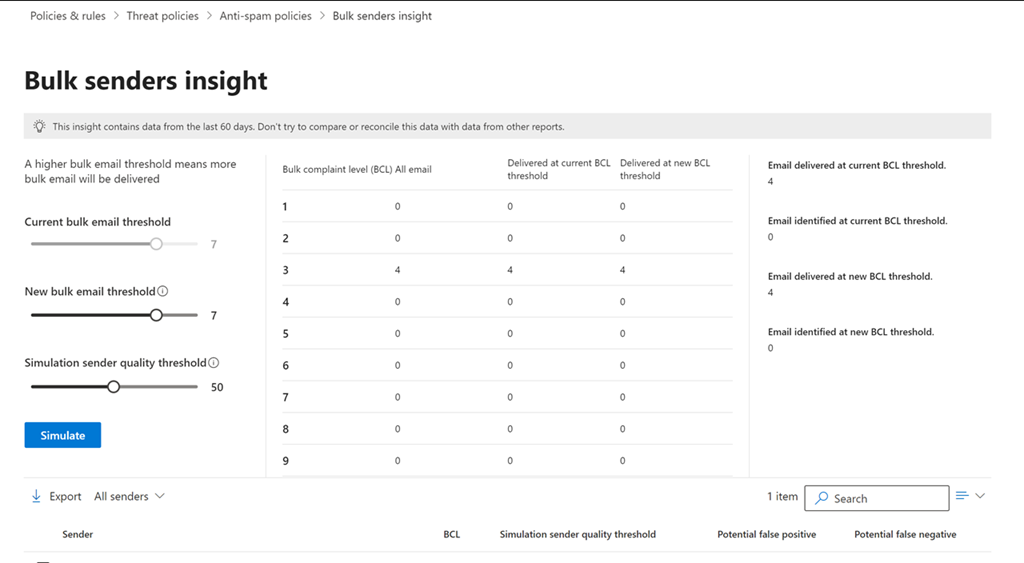
Bulk senders insight in Exchange Online

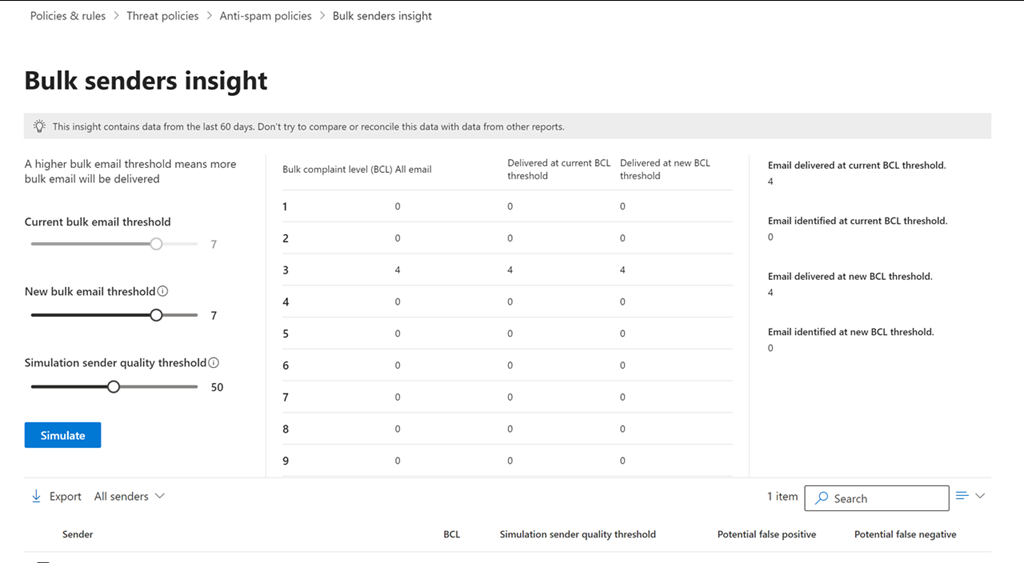
image

If you navigate to

https://security.microsoft.com/senderinsights

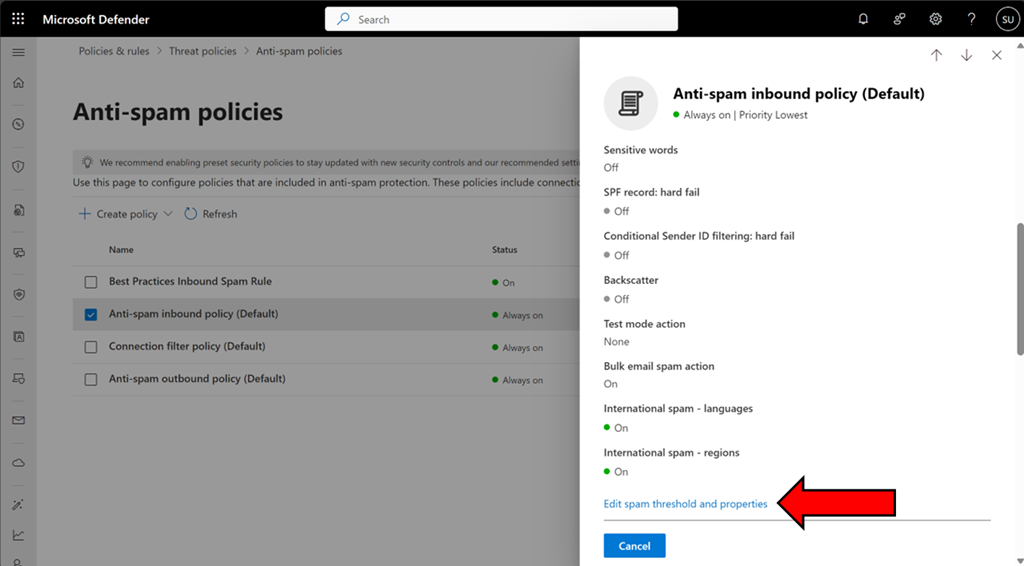
you should see the above Bulk senders insight console. You can also get to this if you select an Exchange Online anti spam policy like so:

image

and scrolling down the dialog that appears on the right and selecting Edit spam threshold and properties as shown above.

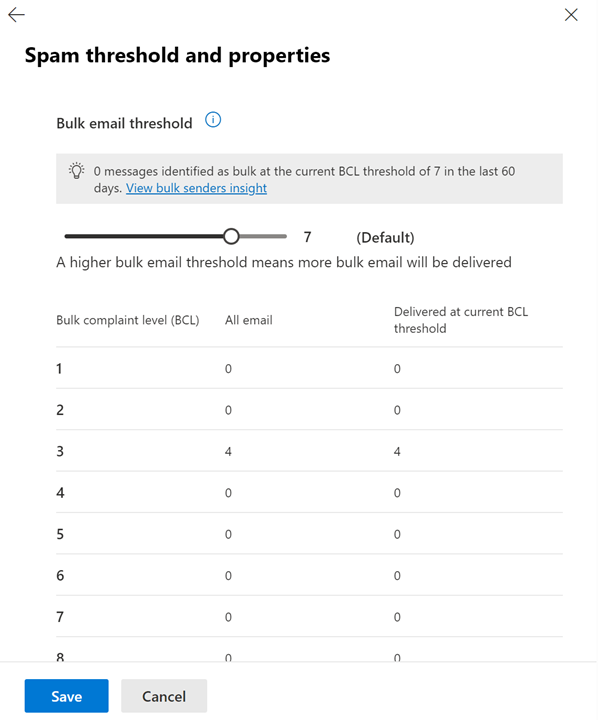
image

and then scroll up to the top of the dialog as shown above.

You can read more about this capability here:

https://learn.microsoft.com/en-us/defender-office-365/anti-spam-bulk-senders-insight

image

You can adjust the sliders on the left and then select the Simulate button to report on the emails that would be caught by this new level before actually applying to the policy. The list below will also show those that have been caught so you know exactly which emails would be caught if this change was made to the BCL level in a spam policy setting.

This now a handy way to fine tune the BCL settings inside Exchange Online antispam policies.

Disable Linkedin integrations in Microsoft 365

The first place to disable Linkedin integration in Microsoft 365 is inside the Azure portal.

image

Navigate to Microsoft Entra ID, then select Users as shown above.

image

Select User settings on the left and set the Linkedin account connections to No.

Remember to Save your settings before existing this page.

image

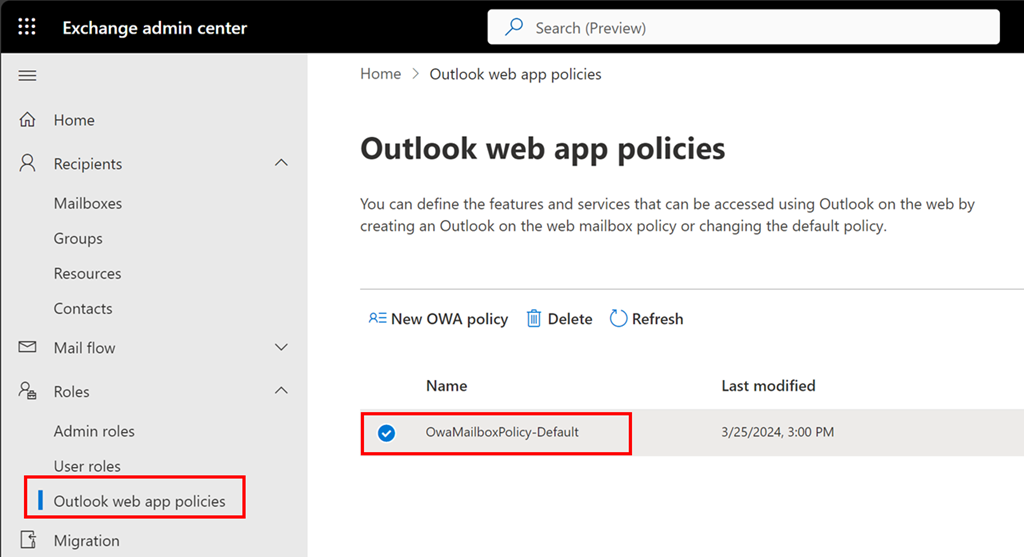
Now navigate to the Exchange Online administration portal. Expand the Roles option on the left and then select Outlook Web Apps policies.

Typically, there will only be one OWA policy as shown above. If there are more, then you will need to repeat this process with each.

Select the policy name, here OwaMailboxPolicy-Default..

image

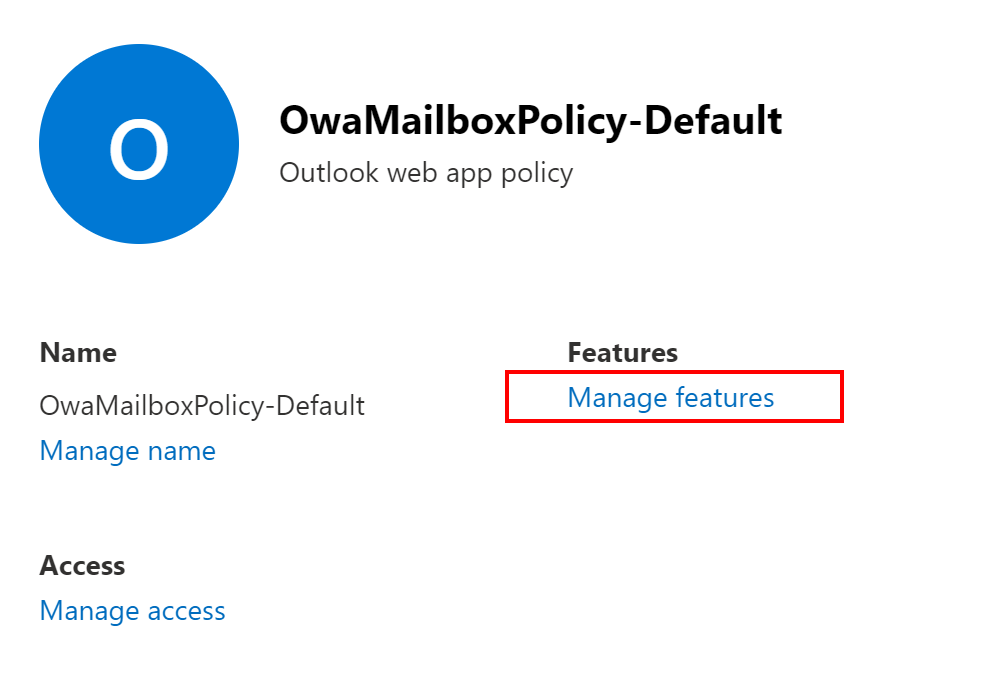
From the window that appears on the right select Manage features as shown above.

image

Ensure Linkedin contact sync is unselected as shown above.

Save your settings before you exit.

Defender for Office 365 Anti-phishing policies can protect externals as well!

image

My experience with most Microsoft 365 environments I see is that they fail to make use of all the features that are provided. None more so when it comes to security. For example, most people don’t seem to appreciate that the Defender for Office 365 (which is part of Business Premium) provides impersonation protection for internal AND external email addresses!  It just needs to be configured. The details are here:

Impersonation settings in anti-phishing policies in Microsoft Defender for Office 365

and as it says there:

You can use protected users to add internal and external sender email addresses to protect from impersonation.

but it is important to note:

User impersonation protection does not work if the sender and recipient have previously communicated via email. If the sender and recipient have never communicated via email, the message can be identified as an impersonation attempt.

This means, you want to get the configuration of important external email addresses in place as soon as possible so any impersonation against those users can be evaluated. It is too late to do after an internal user is communicating with a scam (impersonated) domain.

You will also see that you can also configure protection for external domains, rather than just specific email addresses, for impersonation evaluation.This means that if the users inside the tenant deal with an important business that has its own email email, that is NOT part of that tenant, you can enter that domain in here. Makes a lot sense when you are working with a business regularly that is doing stuff like invoicing, e-commerce or the like (honestly anything at all really).

Let’s say that I work with a business who’s domain is ciaops.com. By enabling this impersonation protection early, if users in the tenant receive email from c1aops.com then it is far more likely to be detected because the system is looking of for spoofing of that custom external domain I entered in the policy.

Thus, if you have Microsoft Defender for Office 365 in your environment (and you do if you have Microsoft 365 Business Premium), then you can provide an extra level of protection by configuring the Anti-Phishing policy for impersonation settings for both your important internal AND external usera and domains (i.e. people and businesses you work with regularly). You should do that as early as possible to provide the maximum protection the policy can provide. They key is that someone has to add in the unique email addresses or domains into the policy, they are not added automatically, even internal email address. They ALL have to be added to the policy.

image

You can protect up to 350 unique email addresses and 50 unique domains, which is probably more that enough to cover everything a smaller business would need for internal and external users. Unfortunately, I rarely see this great capability enabled. It’s available if you have Microsoft Defender for Office 365 so go configure it and reduce the risk to the users in the tenant. Easy!