Create an EntraID app to allow user enablement

After a recent incident, I decided that it would be a good idea to have an EntraID app that I could use to re-enable a users inside a tenant if I needed. This will allow me to login to EntraID without being depended on a user account as I would be logging in using this app directly.
image

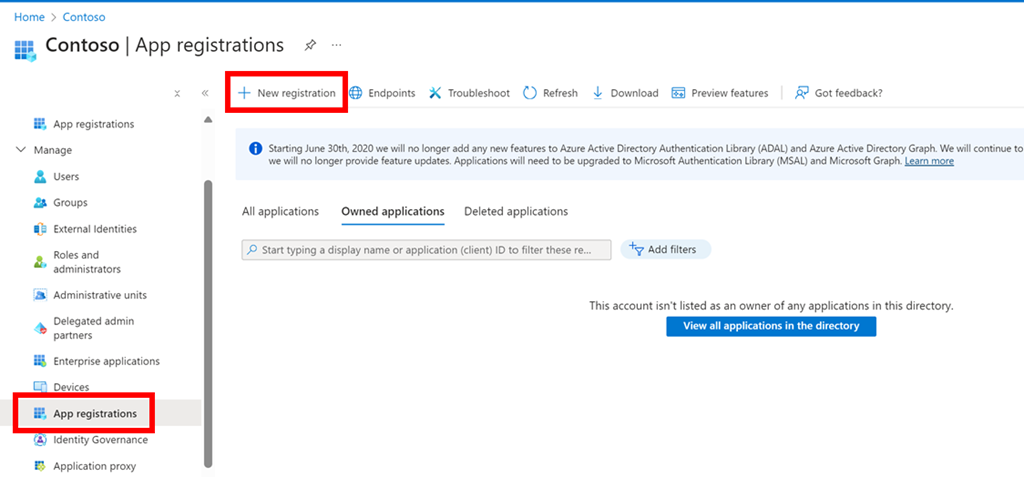
The first step in that process is to navigate to EntraID as an administrator in the Azure portal and select App registrations from the menu on the left and then New registration on the right as shown above.

image

Simply give the app a name and select Register as shown above.

image

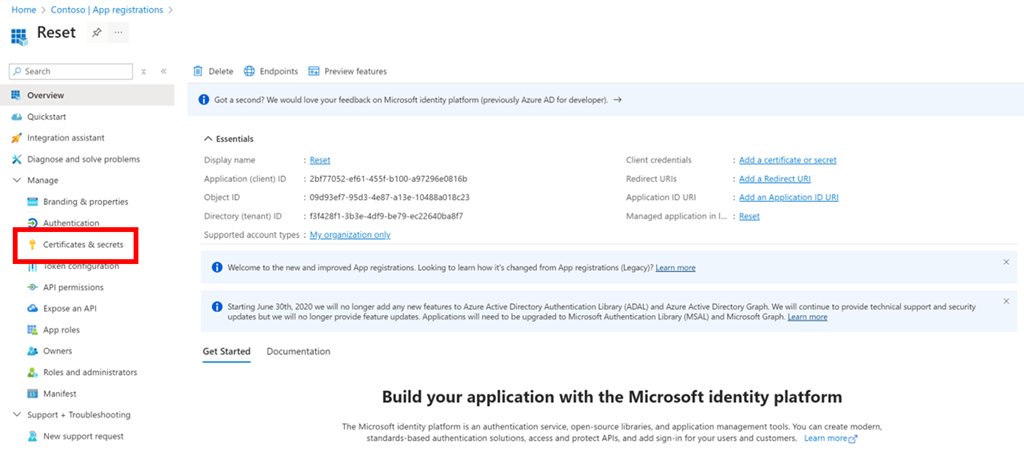
When you will then be taken to new app overview page as shown above. Take a moment to record the:

– Application (client ID)

– Object ID

– Directory tenant ID
image

Next, select Certificates & secrets from the menu on the left as shown above.
image

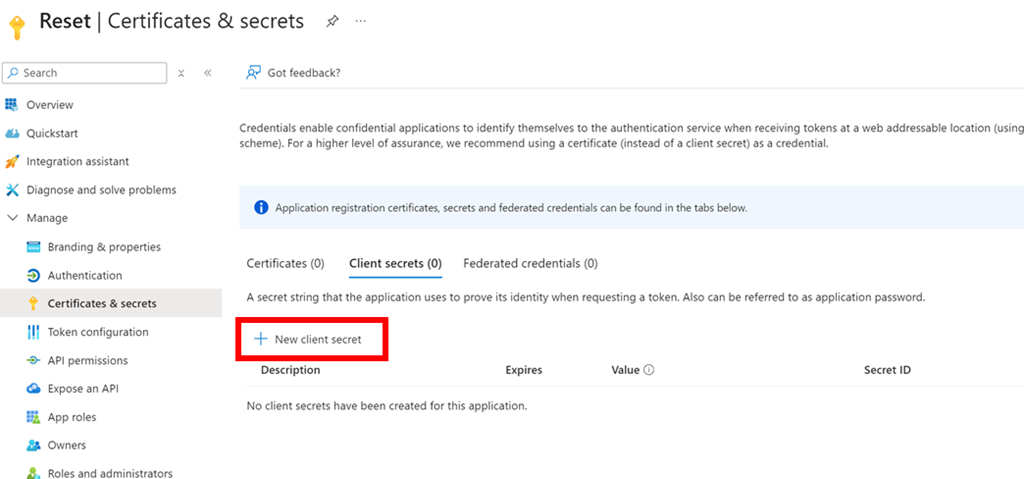
Select New client secret on the right as shown above.
image

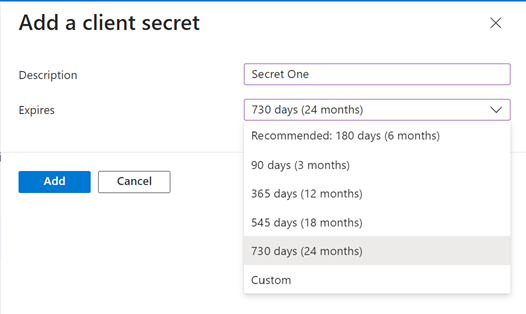
Give the secret a name and select the duration for that secret from the list available as shown.
image

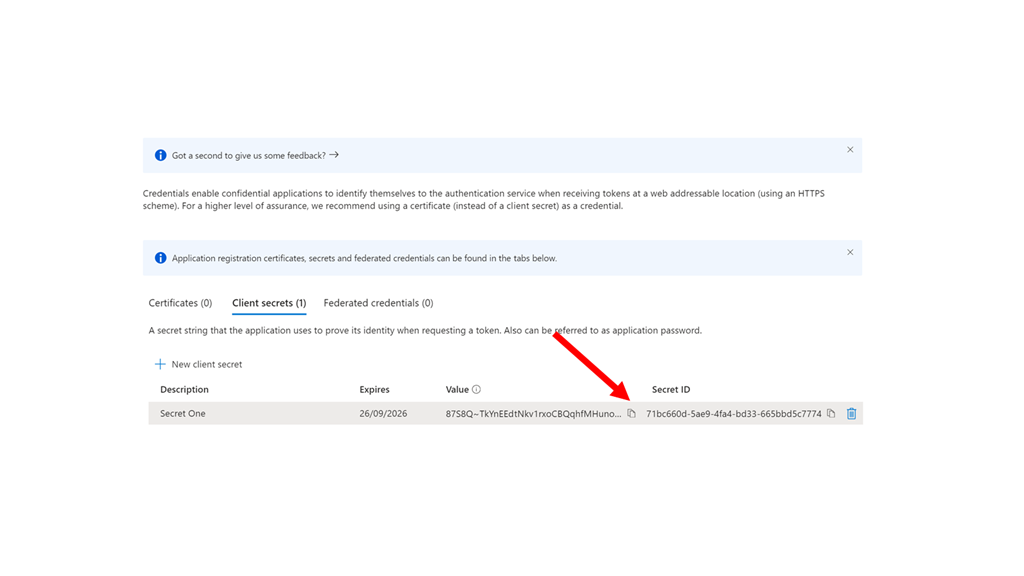
Take a moment to copy this secret as this is the only time that it will be available. If you don’t take a copy here you’ll need to generate a new secret.
image

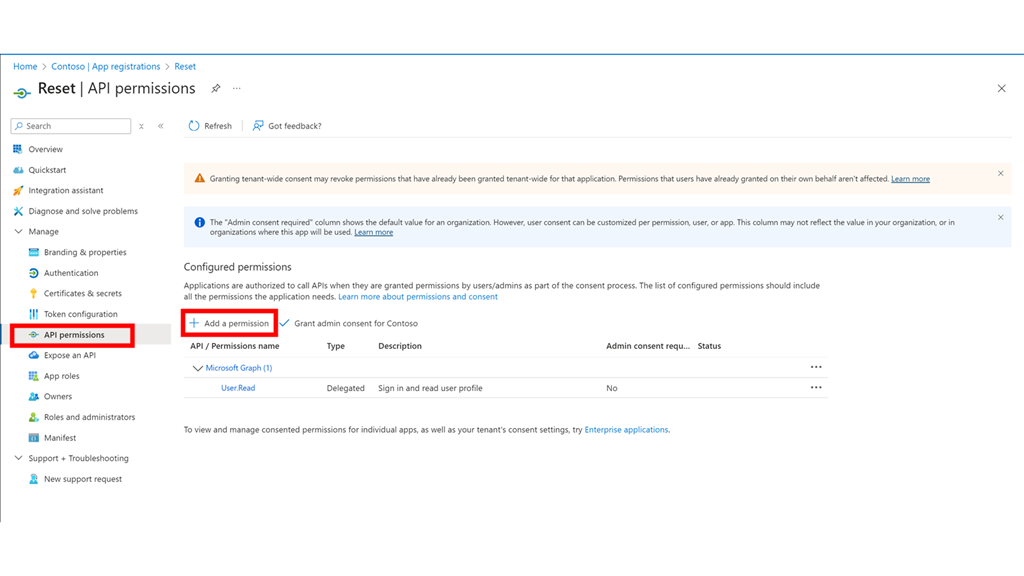
From the menu on the left select API permissions as shown above. Then select Add a permission on the right.
image

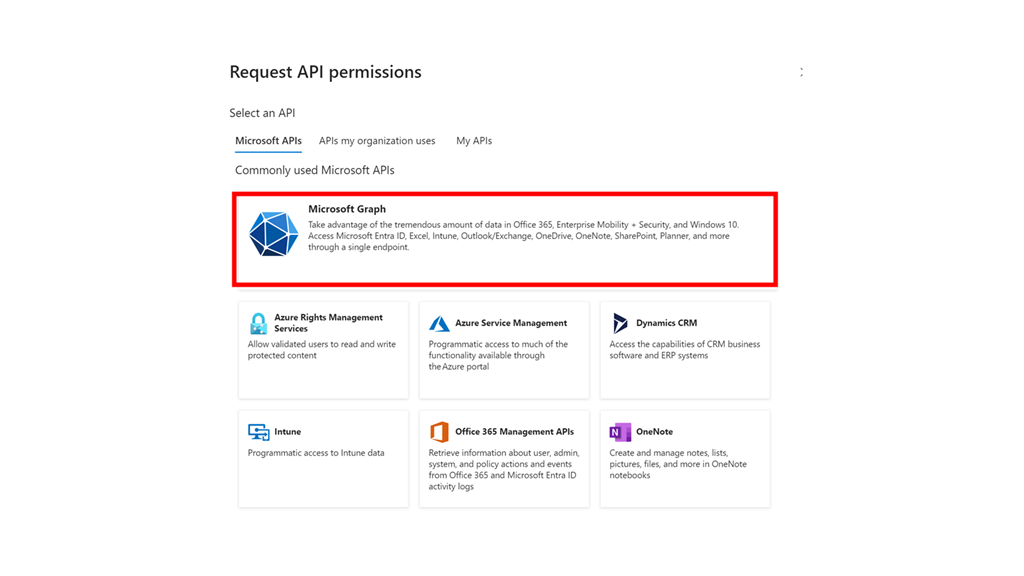
Select the option for the Microsoft Graph as shown.
image

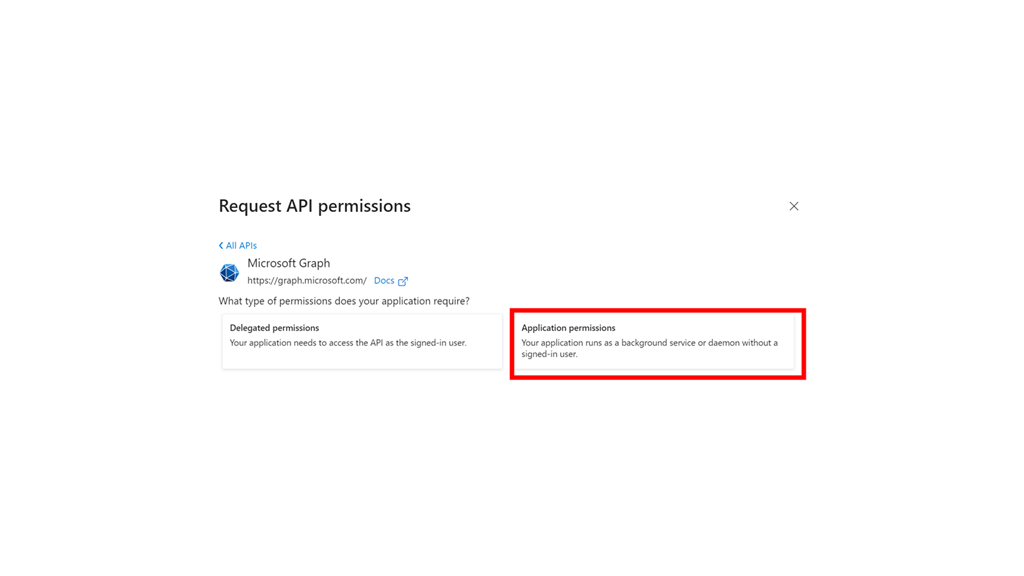
Select Application permissions.

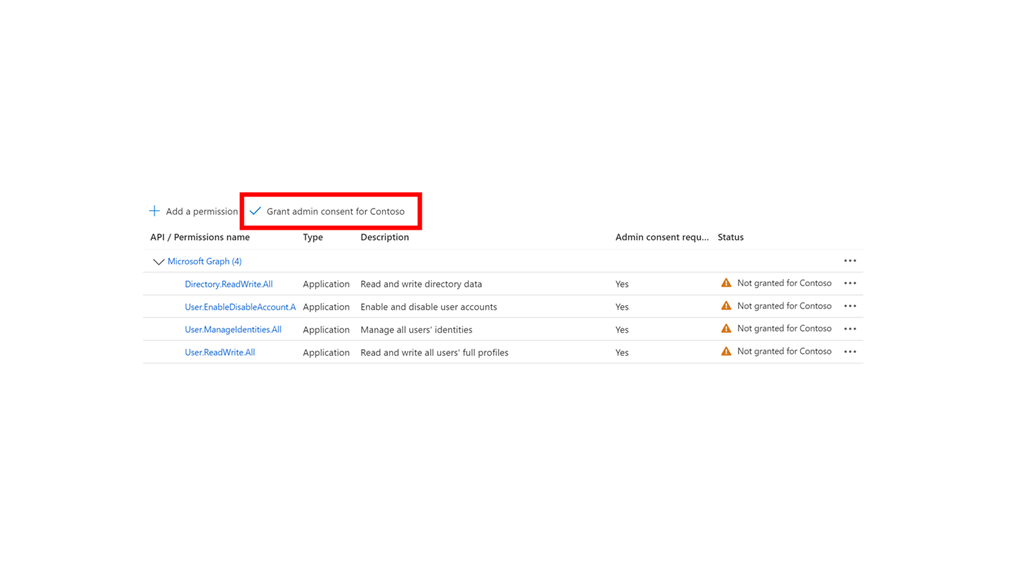
Add the following permissions:

– User.ManageIdentities.All

– User.EnableDisableAccount.All

– User.ReadWrite.All

– Directory.ReadWrite.All
image

Select Grant admin consent.

image

Select Yes in the dialog that appears.
image

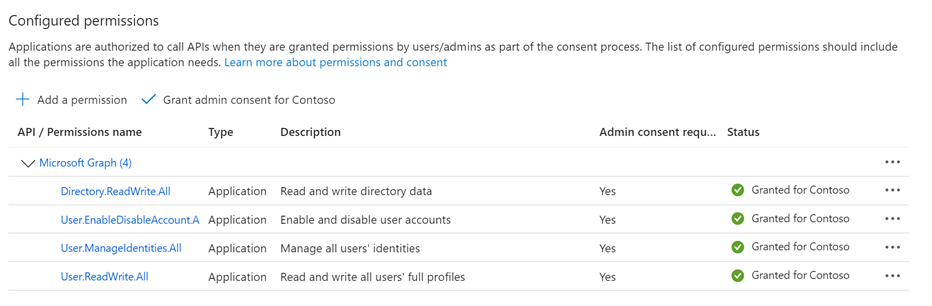
You should now see all the permissions have been consented to as shown above.

The EntraID app has now been created and is ready for use. This will used to login to with PowerShell and then enable any disabled user.


Disable Linkedin integrations in Microsoft 365

The first place to disable Linkedin integration in Microsoft 365 is inside the Azure portal.

image

Navigate to Microsoft Entra ID, then select Users as shown above.

image

Select User settings on the left and set the Linkedin account connections to No.

Remember to Save your settings before existing this page.

image

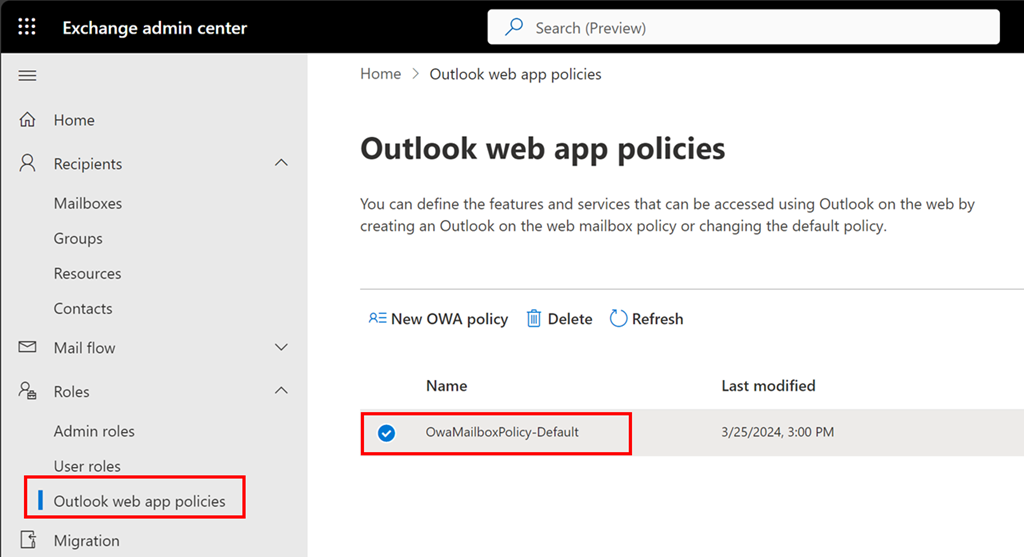
Now navigate to the Exchange Online administration portal. Expand the Roles option on the left and then select Outlook Web Apps policies.

Typically, there will only be one OWA policy as shown above. If there are more, then you will need to repeat this process with each.

Select the policy name, here OwaMailboxPolicy-Default..

image

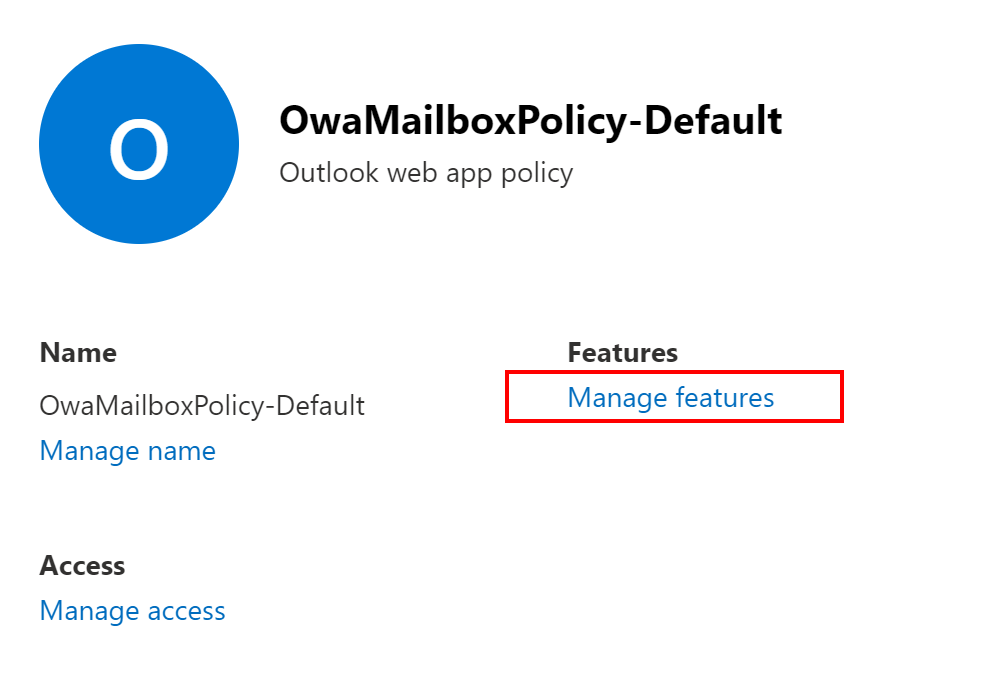
From the window that appears on the right select Manage features as shown above.

image

Ensure Linkedin contact sync is unselected as shown above.

Save your settings before you exit.

Need to Know podcast–Episode 319

Lots of Ai and security news since the last episode. We are also on the cusp of Microsoft Build so we expect even more shortly. Although I’m a tad under the weather (apologies for sounding a bit nasal) but I felt I needed to get this episode out before the deluge of information we expect shortly from build. I think the OpenAI announcements along with those from Google are the most worthy to pay attention to here but I’m sure there should be something to interest everyone here. Listen on and enjoy!

You can listen directly to this episode at:

https://ciaops.podbean.com/e/episode-319-ai-gets-a-voice/

Subscribe via iTunes at:

https://itunes.apple.com/au/podcast/ciaops-need-to-know-podcasts/id406891445?mt=2

Don’t forget to give the show a rating as well as send me any feedback or suggestions you may have for the show.

Brought to you by www.ciaopspatron.com

Resources

@directorcia

Join my shared channel

CIAOPS merch store

Become a CIAOPS Patron

CIAOPS Blog

CIAOPS Brief

CIAOPSLabs

Support CIAOPS

Introducing GPT-4o

Project Astra: our Vision of the Future of AI assistance

Security above all else—expanding Microsoft’s Secure Future Initiative

RSA news: What’s new in Defender XDR?

Respond to trending threats and adopt zero-trust with Exposure Management

Public preview: Expanding passkey support in Microsoft Entra ID

Microsoft introduces passkeys for consumer accounts

Public preview: External authentication methods in Microsoft Entra ID

Teams enhancements to the Presenter window while screensharing

Email Protection Basics in Microsoft 365 Part Five: Mastering Overrides

Protect your data and recover from insider data sabotage

SharePoint Roadmap Pitstop: April 2024

What’s New in Microsoft Teams | April 2024

What’s new in Microsoft Intune: April 2024

What’s New in Copilot | April 2024

Unveiling the Newest OneDrive Capabilities

Summary of podcast episode straight from Copilot for Microsoft 365:

Key topics:

Key Topics:
  • GPT-4 announcement and demo: Robert highlighted the impressive features and capabilities of the new AI model from Open AI and how it might integrate with Microsoft products. 2:23

  • Google Project Astra and augmented reality: Robert shared his interest in the Google demo of AI vision and voice and how it could revive the Google Glass concept. 6:47

  • Microsoft Build and security initiatives: Robert anticipated some major announcements from Microsoft around AI and security at the Build conference and mentioned the Secure Future initiative to address recent breaches. 8:03

  • Passkeys and passwordless authentication: Robert encouraged the listeners to try out the new passkeys feature for Microsoft 365 and consumer accounts to enhance their security and convenience. 12:18

  • Teams enhancements and features: Robert reviewed some of the new and improved functionalities in Teams, such as presenter window, voice isolation, multiple accounts, and guest sharing with Loop. 15:28

  • Copilot updates and improvements: Robert showcased some of the ways that Copilot can help with creating summaries, FAQs, notebooks, and templates across different Microsoft 365 apps. 21:47

  • OneDrive for Business capabilities: Robert summarized some of the new and enhanced features in OneDrive for Business, such as media view, offline mode, coloured folders, and export sync reports. 24:40

Time to enable more logging

Having logs enabled is a good thing because it allows you to track down information after the fact. This is especially handy when you are performing a security investigation. Here is some additional logging that I recommend you enable.

image

Start by navigating to:

https://entra.microsoft.com

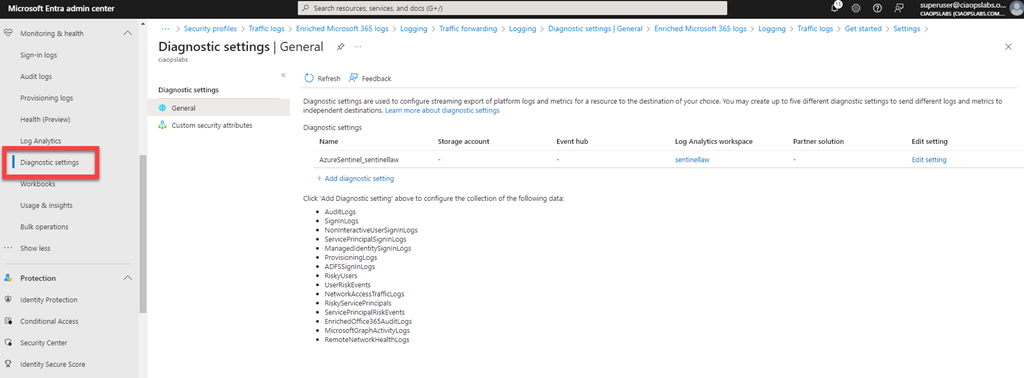
You’ll need to login with an administrative account that has rights. Expand the menu on the left of the screen until you see Monitoring & health and shown above.

image

Under this option you will find the menu item Diagnostic settings as shown above, which you select. This will display your diagnostic settings on the right. Here you can see that I am currently sending logs to a Log Analytics workspace, which is linked to Microsoft Sentinel for analysis. If you aren’t already sending your logs to a Log Analytics workspace you can set one up via the Add diagnostic setting hyperlink. I will assume here you already have something set up.

image

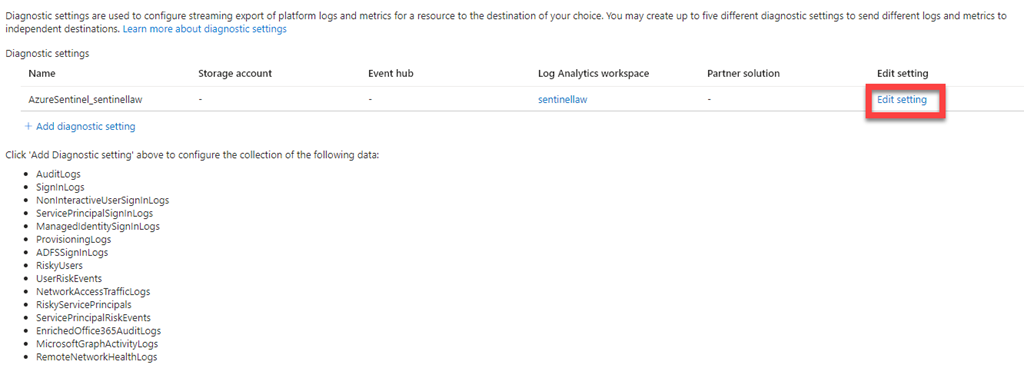
Select the Edit settings hyperlink and under Edit settings column on the right, as shown above.

image

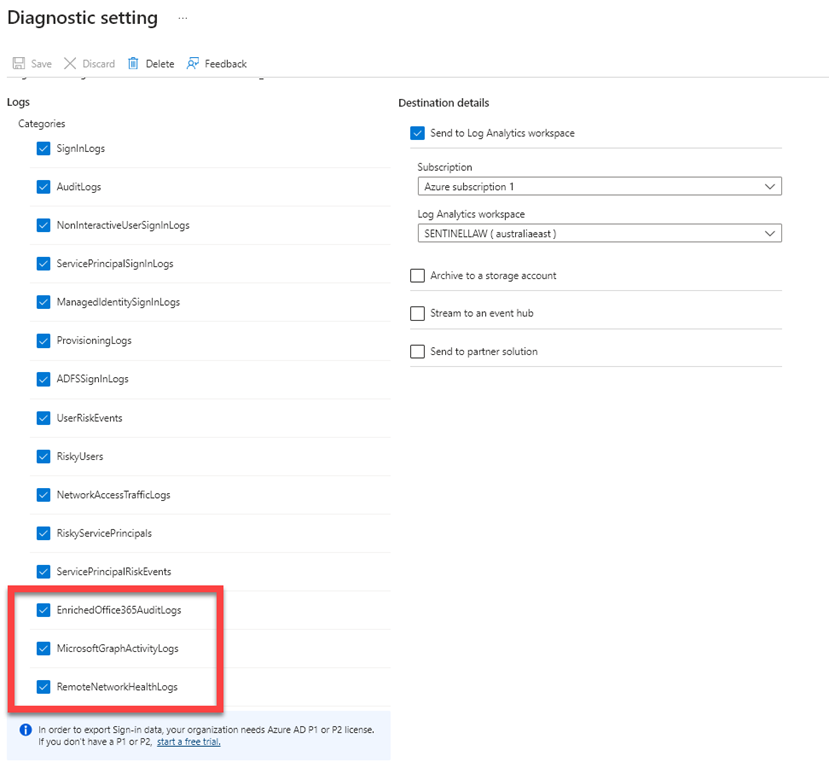
Scroll down the categories of logs listed and ensure they are all select so the logging data will be sent to Microsoft Sentinel via the Log Analytics workspace.

If you have already enabled this logging I suggest you go back in and check that all categories are selected as Microsoft has now added some additional items:

– EnrichedOffice365Auditlogs

– MicrosoftGraphActivityLogs

– RemoteNetworkHealthLogs

which I had to enable.

When you have completed your category selections press the Save button in the menu bar at the top of the window to update your preferences.

This now means that you’ll have even more data in your Sentinel environment to help keep you secure.

Joined devices not appearing in Intune

image

If you have correctly joined your devices to EntraID and you have an Intune license, then these devices should appear in the Intune Management console, as shown above.

image

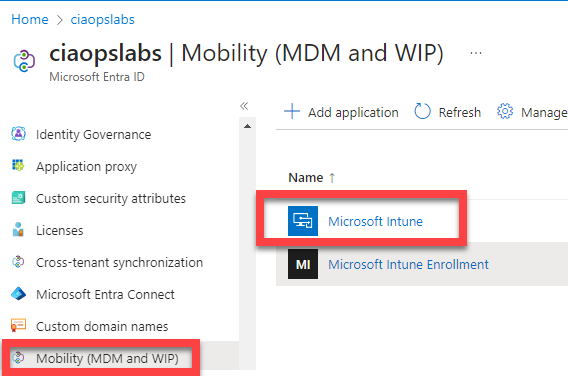
If they don’t, then go into the Azure Portal and select EntraID. Select the Mobility (MDM and WIP) as shown above. Then select Microsoft Intune.

image

Ensure that both settings are set to All. If they have been set to None, then this will be the issue as EntraID is not handing off device management to Intune.

Once you have set both of these settings to All as shown, ensure you save these settings before exiting the page.

Any device that is now joined to the tenant should appear in Intune, however existing devices that were added prior to this update being made won’t automatically enrol in Intune. They will need to be unjoined and re-joined to EntraID or re-enrolled via a script.