Get a list of devices from Defender for Business into a SharePoint list

image

One of great things about an API is that it can be used in many places. I showed how to:

Offboard devices from Microsoft Defender for Business using an API with PowerShell

and I can do something similar with the Power Platform.

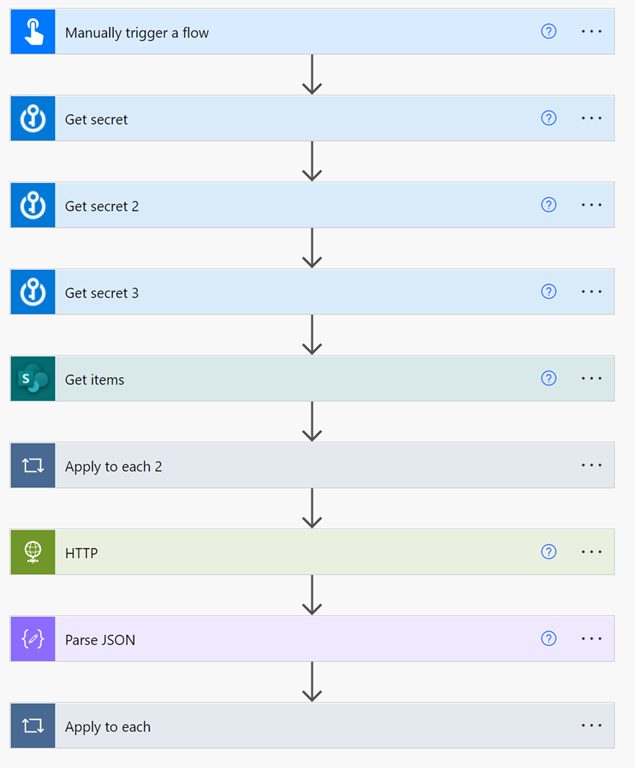
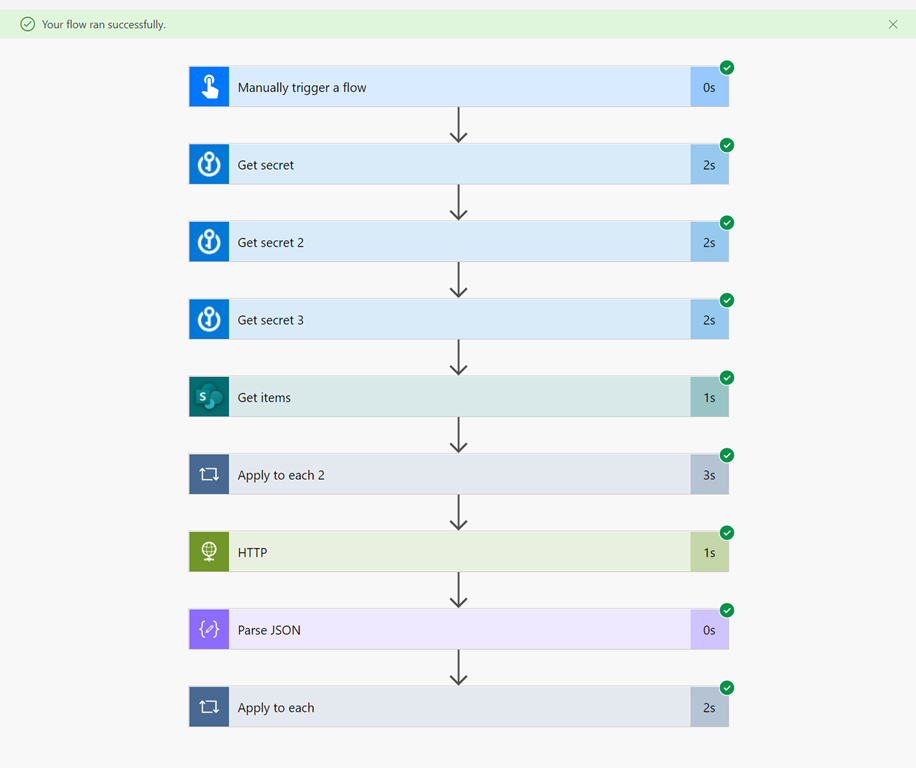
First step in that process is to get a list of Microsoft Defender for Endpoint devices and put them into a pre-existing list in SharePoint. For that I use the above Flow.

image

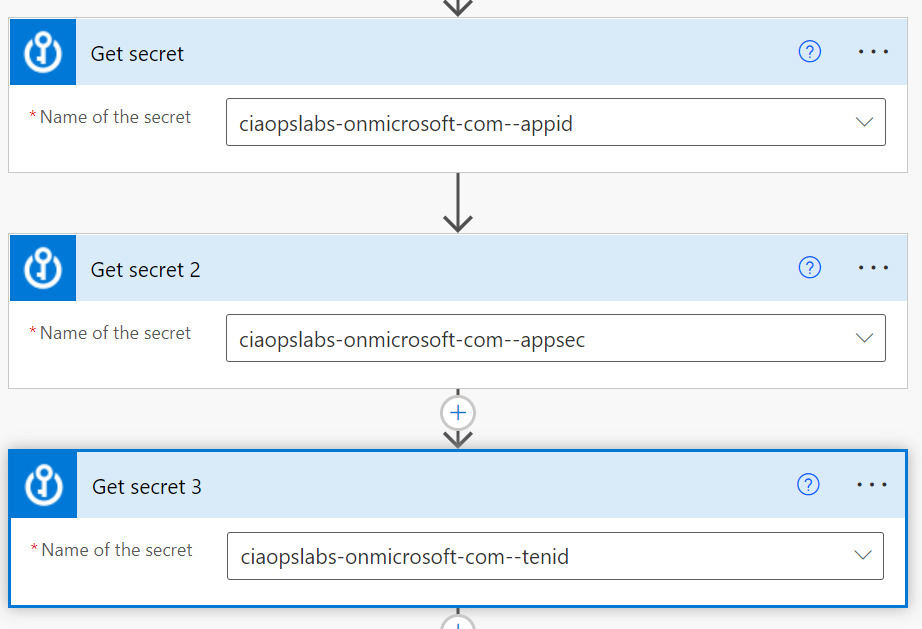
Once the Flow has been triggered I grab the Azure AD application credentials from the Azure Key Vault. I’ve covered off how to create an Azure AD application here:

https://blog.ciaops.com/2019/04/17/using-interactive-powershell-to-access-the-microsoft-graph/

and using a PowerShell script I wrote here:

https://blog.ciaops.com/2020/04/18/using-the-microsoft-graph-with-multiple-tenants/

Getting the Azure AD application credentials into an Azure Key Vault can be done manually or by using this scripted process I’ve covered previously:

Uploading Graph credentials to Azure Key Vault

Once they are in the Azure Key Vault they are easy to access securely using the Flow action Get secret as shown above.
image

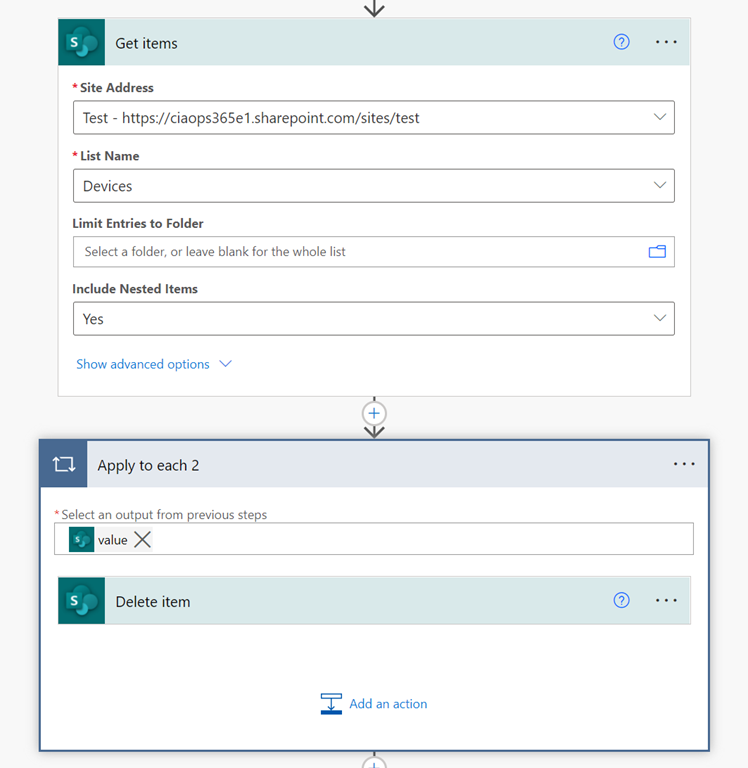
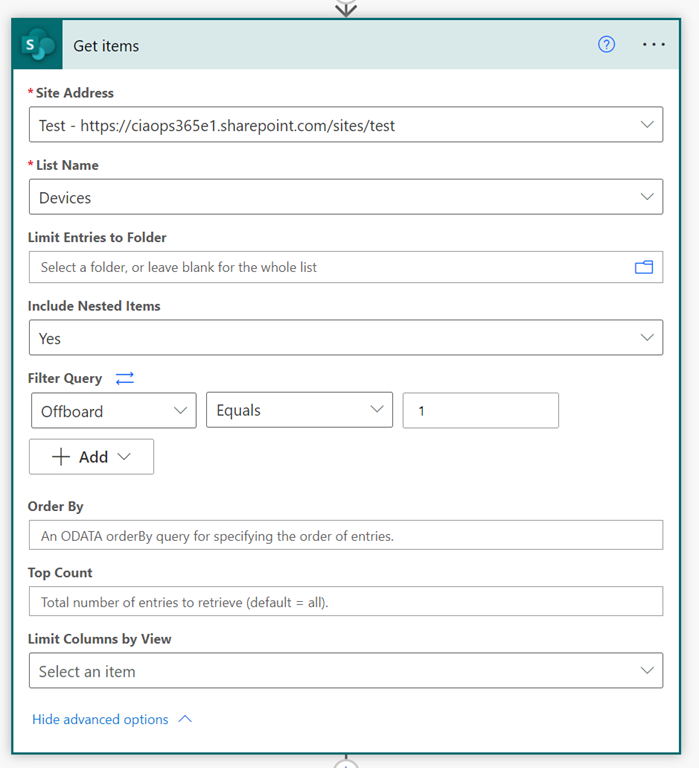
The next step is to delete devices I already have in the list in SharePoint because I want only current devices to be brought in. To achieve this, I get all the items from my destination SharePoint list using the Get items action. Then, using the Apply to each action and the Delete item action inside that loop, existing entries will be removed so I have a clean list.

image

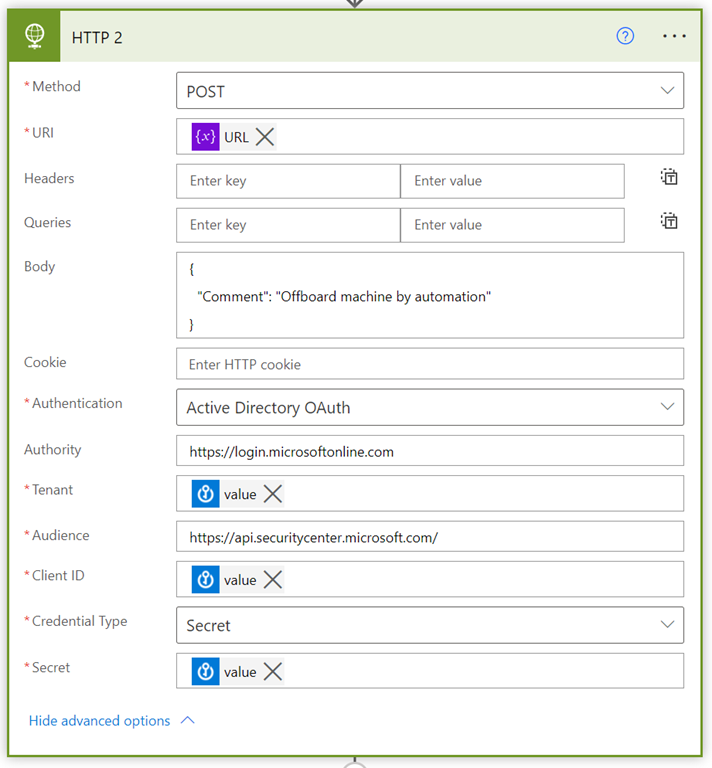
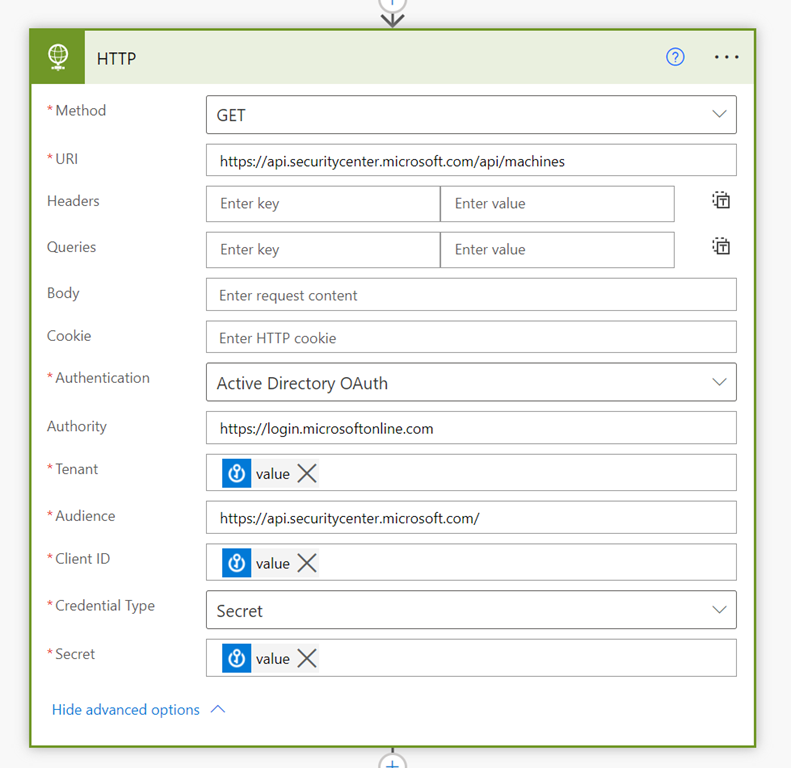
I’ll now use the HTTP action to execute an API call to the Defender environment as shown above. The API endpoint URI to get a list of devices in Defender for Endpoint is:

https://api.securitycenter.microsoft.com/api/machines

Access is granted via Active Directory Auth and the Authority is https://login.microsoftonline.com. You also need to use the credentials of the Azure AD application obtained previously from the Azure Key Vault, as shown above. Ensure that the Audience is https://api.securitycenter.microsoft.com/.

image

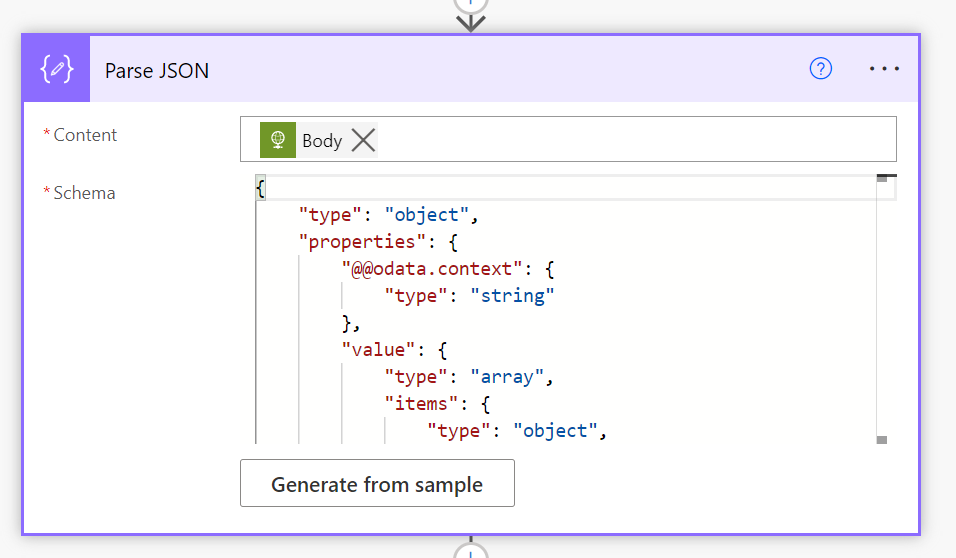
The output of this API request will be a JSON file so we now use the Parse JSON action to obtain the fields needed. To understand what the JSON looks like and insert a copy into this action look at the Microsoft documentation here:

List machines API

which provides a response sample that you can use.

image

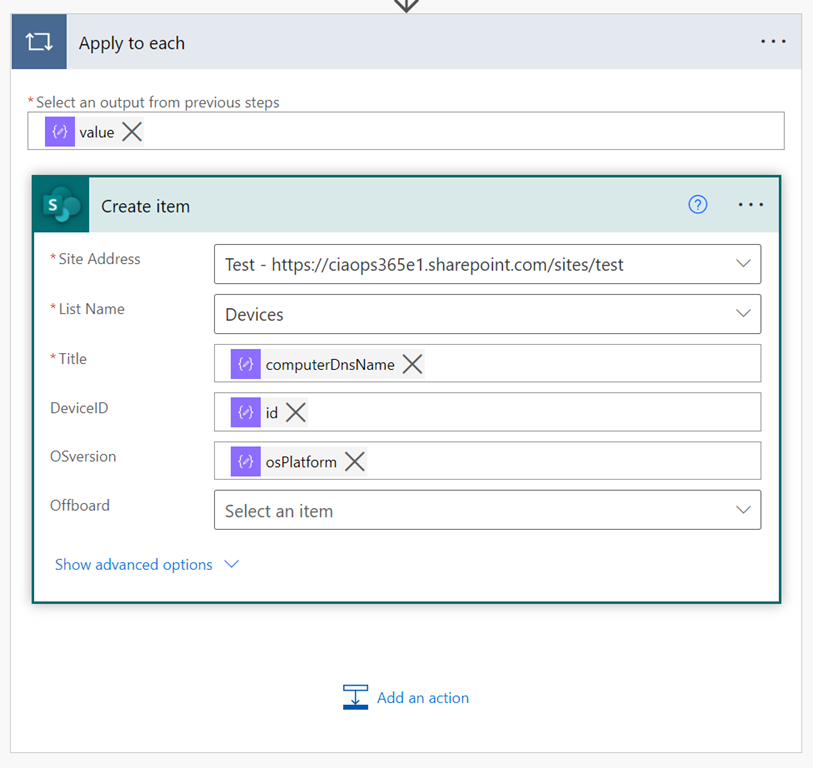
The last action in the Flow is to take the parsed JSON output and enter those details into the pre-existing SharePoint list that you need to create to house this information.

image

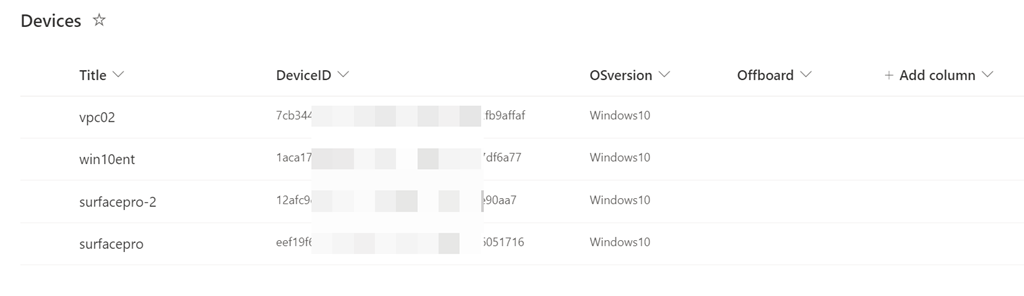
I’ve kept the destination list simple, as you can see above. Basically, the final Apply to each action places each device and its information as a row into the destination SharePoint list.

image

If I now run this Flow, I see it runs successfully.

image

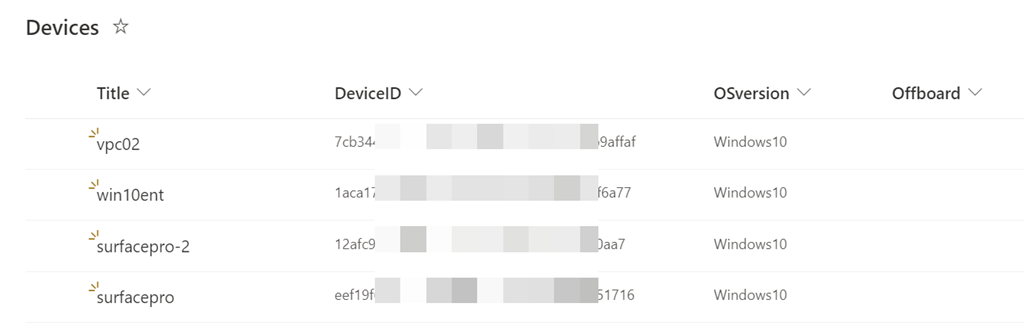
Looking at my SharePoint list I see I have a new list of items as expected.

image

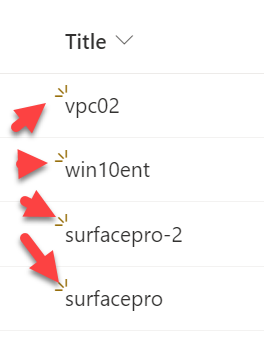
If you weren’t aware, the ‘eyelashes’ on an entry in SharePoint indicate it is new.

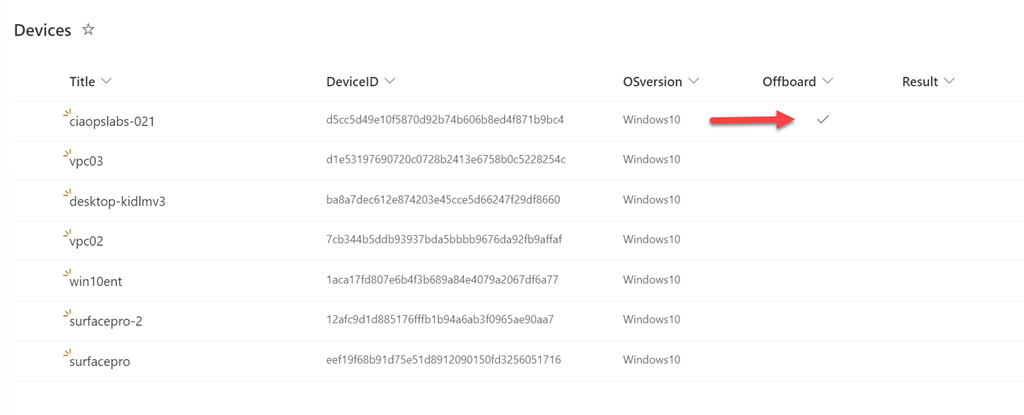
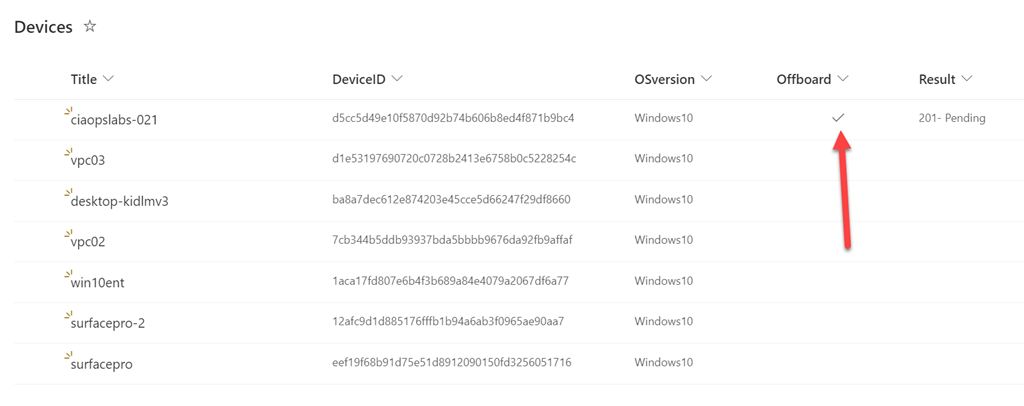
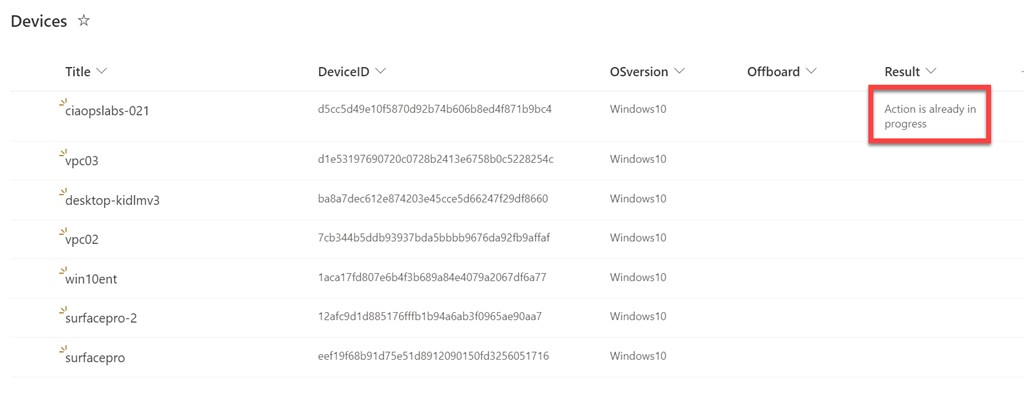
Now I have copy of all the machines in my Defender for Endpoint in a SharePoint list. You will also see that my SharePoint device list contains an additional ‘Offboard” column that I am going to use when I implement another Flow to offboard devices from Defender for Endpoint, much like I did with PowerShell previously.

You can also easily extend the operation across multiple tenants if I want using Azure AD applications in each.

The great thing about using the Power Platform and APIs is that for many, it is much easier to get the result they want rather than having to write code like PowerShell. Also, the Power Platform environment has many capabilities, such as sending emails, adding extra metadata, etc. that are much easier to do than using PowerShell. Once the Defender for Endpoint device list is in SharePoint there is really no end to what could be done.

With that in mind, stay tuned for an upcoming post on how to use what’s been done here and another Flow to actually offboard devices from Defender for Endpoint.

Offboarding Windows 10 devices from Microsoft Defender for Business

In a recent article I covered off how to:

Onboard Windows 10 devices to Microsoft Defender for Business

Two easy methods of onboarding Windows 10 devices to Defender for Business

Now we need to know how to offboard Windows 10 devices from Microsoft Defender for Business.

The first place to start is to review this article from Microsoft:

Offboard devices from the Microsoft Defender for Endpoint service

It details the following points:

– The status of a device will be switched to Inactive 7 days after offboarding.

– Offboarded devices’ data (such as Timeline, Alerts, Vulnerabilities, etc.) will remain in the portal until the configured retention period expires.

– The device’s profile (without data) will remain in the Devices List for no longer than 180 days.

– In addition, devices that are not active in the last 30 days are not factored in on the data that reflects your organization’s threat and vulnerability management exposure score and Microsoft Secure Score for Devices.

– To view only active devices, you can filter by health state, device tags or machine groups.

In essence what this means is that although you offboard a device a lot of information about that device will remain in the portal. Also, even after offboarding a device, if you look in the Endpoint portal, at first glance the device still appears to be there. The reality is that offboarding a device doesn’t make it ‘disappear’ from the portal immediately. This means we’ll need to use another method to verify that the device has actually been offboarded.

image

The easiest way is to look in the following registry key on the machine:

HKLM:\Software\Microsoft\Windows Advanced Threat Protection\Status

and examine the value of the key:

OnboardingState

If that is set to 1, as shown above, then the device is still considered connected to Microsoft Defender fo Endpoint. Thus, to confirm the device has been offboarded, we need to check that this value is 0.

You’ll also need to have a license for Intune/Endpoint Manager to enable this process from a centralised location.

Although not completely necessary it is best practice to have the integration between Microsoft Endpoint Manager portal and Defender for Endpoint enabled. Visit:

https://endpoint.microsoft.com

image

As shown above, here, navigate to Endpoint Security, then Microsoft Defender for Endpoint. Ensure that the option Connection status is enabled. If it isn’t then take a look at my previous onboarding article that shows you how to enable this.

Next, navigate to:

https://security.microsoft.com

image

You should see the screen above. Scroll down this page.

image

Select Settings as shown above and then Endpoints from the options that appear on the right.

image

From the menu on left scroll down and select Offboarding. On the right then select Windows 10 and 11 as the operating system. Then select Mobile Device Management / Microsoft Intune. With these selections made a Download package button should appear. Select this to download a zip file that contains a file called WindowsDefenderATP_valid_until_YYYY-MM-DD.offboarding

For security reasons, the package used to Offboard devices will expire 30 days after the date it was downloaded. Expired offboarding packages sent to a device will be rejected. That expiry date will be contained in the filename.

image

Navigate back to Microsoft Endpoint Manager and select Devices | Configuration profiles, then Create Profile.

image

Select Windows 10 and later for the Platform and Templates from the Profile type.

image

Select Custom from the list and then Create.

image

Give the policy a name and description and select Next to continue.

image

Select the Add button.

image

Enter the following details into the fields that appear on the right as shown above:

Name = <unique name>

OMA-URI = ./Device/Vendor/MSFT/WindowsAdvancedThreatProtection/Offboarding

Data type = String

Value = <contents of the unzipped file WindowsDefenderATP_valid_until_YYYY-MM-DD.offboarding downloaded from Defender for Endpoint portal>

image

The WindowsDefenderATP_valid_until_YYYY-MM-DD.offboarding file can be opened with Notepad and should look like the above.

Press the Save button to continue.

image

The Configuration settings page should now look like the above with the single entry you just configured.

Press the Next button to continue.

image

You now need to select which items this policy will apply to. In general, you are not going to be offboard all your devices at the same time from Defender for Endpoint. What we need to do then is target a specific group of devices.

A good approach to achieving this is to create a dedicated device group, with only the devices you wish to offboard with this policy. I detailed how to create such a group in Azure AD here:

Create a dynamic group in Azure AD

In this case, the dynamic group is called To be retired and I will assign it to the Intune policy as shown above.

Continue to select Next and then Create to complete the policy creation process.

image

If you select the Device status option as shown above, you’ll see whether the policy has been successfully applied to the devices. How long this takes will depend on when the devices ‘check in’ to get the policy.

As mentioned initially, there is no easy way to confirm that the device has successfully been offboarded unless you look at the registry key:

HKLM:\Software\Microsoft\Windows Advanced Threat Protection\Status\OnboardingState

and ensure that it is equal to 0. To assist with this I have created this free PowerShell script:

https://github.com/directorcia/Office365/blob/master/mde-offboard-check.ps1

image

That will show you the onboarding status as shown above.

Also, remember that the device will continue to be displayed in the Defender for Endpoint unless you use a display filter. Offboarding causes the device to stop sending sensor data to the portal but data from the device, including reference to any alerts it has had will be retained for up to 6 months.

If you want to offboard more devices you simply need to add them to the group you configured the offboarding Intune policy is assigned to. Remember, that after 30 days you’ll need to go and download a new offboarding package from the Defender for Endpoint console and upload the contents of the new WindowsDefenderATP_valid_until_YYYY-MM-DD.offboarding file to the offboarding Intune policy to allow devices to be successfully offboarded going forward. However, you can leave the policy in place and simply update it as and when needed.


Two easy methods of onboarding Windows 10 devices to defender for Business

I recently detailed a way to use Endpoint Manager and Intune to onboard Windows 10 devices to Microsoft Defender for Business:

Onboarding Windows 10 devices to Microsoft Defender for Business

I’ve now extended that to include this video:

https://www.youtube.com/watch?v=UM-WZjHgy88

that shows that method plus using a local script. Using a local script is a good backup method to use if you are in a hurry or have issues with a device in your environment not receiving the policy.

The extra value that many have missed with Microsoft Defender for Business

If you haven’t heard, Microsoft has announced a new version of Defender for Endpoint called Defender for Business. Even better, its going to include Defender for Business in Microsoft 365 Business Premium for free:

“Included as part of Microsoft 365 Business Premium”

This is great news, and the feature set is amazing and all for free, BUT I think most people have overlooked what I would consider the best feature of the new Defender for Business.

Most traditional Managed Service Providers (MSPs) manage endpoints (devices) using a Remote Management and Monitoring tool (RMM) that they need to install on devices, typically only on PCs and not mobile devices like iPhones. Such RMM tools, from third parties, have been subject to successful supply chain attacks as well.

What most have over looked with Defender for Business is that the agent it installs on devices (including iOS and Android I will add) acts in many ways like an RMM agent but provide far more functionality.

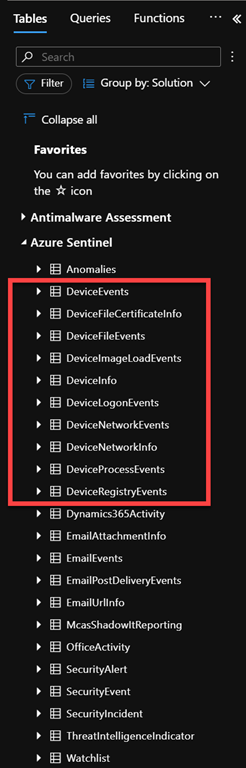
An example of why is if you have a look at the free data sources for Azure Sentinel you’ll notice the following:

SecurityIncident – Free

SecurityAlert – Free

DeviceEvents- Paid

DeviceFileEvents – Paid

DeviceImageLoadEvents – Paid

DeviceInfo – Paid

DeviceLogonEvents – Paid

DeviceNetworkEvents – Paid

DeviceNetworkInfo – Paid

DeviceProcessEvents – Paid

DeviceRegistryEvents – Paid

DeviceFileCertificateInfo – Paid

The point is not whether they are free or not, the point is that the Defender for Business is capturing all that device information and feeding it into a centralised cloud dashboard (Sentinel).

Remember, that one of the key things about Sentinel is that you can create customised reports and queries based on the data you ingest. In my case, as an example,

image

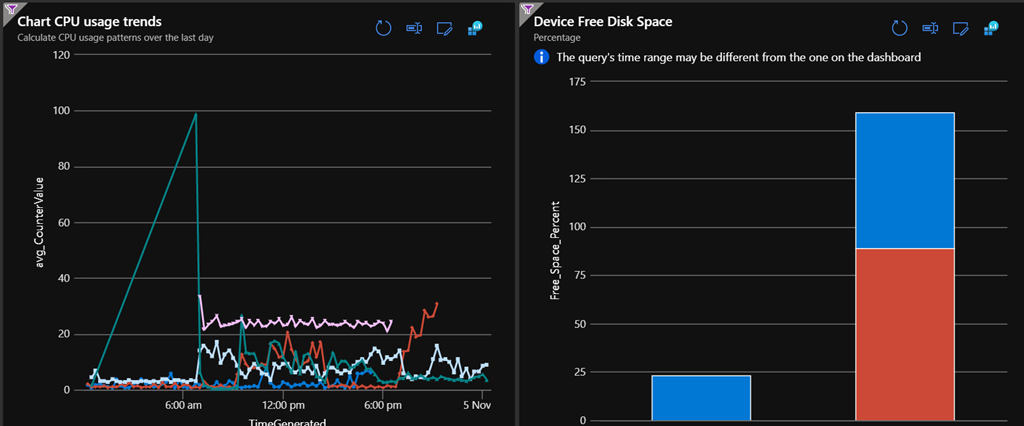
I’ve created multiple custom dashboards from this data to report things like device CPU usage and disk space (above), much like a third party RMM tool BUT WITHOUT the need for a third party RMM tool!

image

This is because that log data from the device is now available in a centralised location where it can be reported, queried and displayed just about any way you wish!

The Defender for Business agent on devices also makes Microsoft Defender for Cloud Apps (new name for Microsoft Cloud App Security), especially Cloud App Discovery, even more powerful because it now has much greater visibility into the applications and their traffic than before thanks to the Defender for Business agent. Per Set up Cloud Discovery:

  • Microsoft Defender for Endpoint integration: Cloud App Security integrates with Defender for Endpoint natively, to simplify rollout of Cloud Discovery, extend Cloud Discovery capabilities beyond your corporate network, and enable machine-based investigation.

On its own, Cloud App Security collects logs from your endpoints using either logs you upload or by configuring automatic log upload. Native integration enables you to take advantage of the logs Defender for Endpoint’s agent creates when it runs on Windows and monitors network transactions. Use this information for Shadow IT discovery across the Windows devices on your network.

Without doubt, Defender for Business has massively improved the security capabilities for Microsoft 365 Business Premium with its inclusion. However, I would contend that it has achieved just as much with the reporting capabilities now available, especially when combined with Cloud App Discovery (which is included in Microsoft 365 Business as well) and Microsoft Sentinel.

The way I see it, Microsoft has just provided TWICE the capability and value by adding Defender for Business to Microsoft 365 Business Premium, yet I don’t think many appreciate that yet.

All the Defenders–Update 2

knight

This is an update to the last update about Defender products here:

All the Defenders – Updated

To start off with there are products that are considered ‘Window Defender’ products, although I see the Windows and Microsoft brand intermingled regularly. Here is a list of specific ‘Windows Defender’ products, typically tied to Windows 10 devices, and typically only available with Windows 10 Enterprise but not always:

Windows Defender Application Control – WDAC was introduced with Windows 10 and allows organizations to control what drivers and applications are allowed to run on their Windows 10 clients.

Windows Defender Firewall – By providing host-based, two-way network traffic filtering for a device, Windows Defender Firewall blocks unauthorized network traffic flowing into or out of the local device.

Windows Defender Exploit Guard – Automatically applies a number of exploit mitigation techniques to operating system processes and apps.

The four components of Windows Defender Exploit Guard are:

  • Attack Surface Reduction (ASR): A set of controls that enterprises can enable to prevent malware from getting on the machine by blocking Office-, script-, and email-based threats
  • Network protection: Protects the endpoint against web-based threats by blocking any outbound process on the device to untrusted hosts/IP through Windows Defender SmartScreen
  • Controlled folder access: Protects sensitive data from ransomware by blocking untrusted processes from accessing your protected folders
  • Exploit protection: A set of exploit mitigations (replacing EMET) that can be easily configured to protect your system and applications

Windows Defender Credential Guard –  Uses virtualization-based security to isolate secrets so that only privileged system software can access them.

Windows Defender System Guard – Reorganizes the existing Windows 10 system integrity features under one roof and sets up the next set of investments in Windows security. It’s designed to make these security guarantees:

  • Protect and maintain the integrity of the system as it starts up
  • Validate that system integrity has truly been maintained through local and remote attestation

In contrast, here are the ‘Microsoft Defender’ products many of which have been re-branded lately:

Microsoft 365 Defender – (over arching service which includes other Defender services) is a unified pre- and post-breach enterprise defense suite that natively coordinates detection, prevention, investigation, and response across endpoints, identities, email, and applications to provide integrated protection against sophisticated attacks.

Microsoft Defender for Office 365 – (previously Office 365 ATP) Safeguards your organization against malicious threats posed by email messages, links (URLs), and collaboration tools.

Microsoft Defender for Identity – (previously Azure ATP) Cloud-based security solution that leverages your on-premises Active Directory signals to identify, detect, and investigate advanced threats, compromised identities, and malicious insider actions directed at your organization.

Microsoft Defender for Cloud – (previously Azure Defender) Provides security alerts and advanced threat protection for virtual machines, SQL databases, containers, web applications, your network, and more. It includes:

Microsoft Defender for Endpoint – (previously Defender ATP) an enterprise endpoint security platform designed to help enterprise networks prevent, detect, investigate, and respond to advanced threats especially on user devices like desktops, laptops and mobiles.

thumbnail image 3 captioned Comparison between Microsoft Defender for Endpoint P1 and P2 capabilities. Microsoft Threat Experts includes Targeted Attack Notifications (TAN) and Experts on Demand (EOD). Customers must apply for TAN and EOD is available for purchase as an add-on.

thumbnail image 10 captioned Microsoft Defender for Endpoint P1 capabilities are offered as a standalone license or as part of Microsoft 365 E3.

There is a Microsoft for Defender P1 and P2 plan. information on the comparison of the two plans can be found here – Compare Microsoft Defender for Endpoint Plan 1 (preview) to Plan 2.

Microsoft Defender for Business – A new endpoint security solution that’s coming soon in preview. Microsoft Defender for Business is specially built to bring enterprise-grade endpoint security to businesses with up to 300 employees, in a solution that is easy-to-use and cost-effective. See Introducing Microsoft Defender for Business for more information.

Microsoft Defender Smart screen – Microsoft Defender SmartScreen protects against phishing or malware websites and applications, and the downloading of potentially malicious files.

Microsoft Defender Antivirus – Brings together machine learning, big-data analysis, in-depth threat resistance research, and the Microsoft cloud infrastructure to protect devices in your organization.

Microsoft Defender Application Guard – helps to isolate enterprise-defined untrusted sites, protecting your company while your employees browse the Internet.

Microsoft Defender Security Center – is the portal where you can access Microsoft Defender Advanced Threat Protection capabilities. It gives enterprise security operations teams a single pane of glass experience to help secure networks.

Microsoft Defender Browser Protection –  a non Microsoft browser extension helps protect you against online threats, such as links in phishing emails and websites designed to trick you into downloading and installing malicious software that can harm your computer.

Microsoft Defender for Cloud Apps – (previously Microsoft Cloud App Security) is a Cloud Access Security Broker (CASB) that supports various deployment modes including log collection, API connectors, and reverse proxy. It provides rich visibility, control over data travel, and sophisticated analytics to identify and combat cyberthreats across all your Microsoft and third-party cloud services.

So, as you can see, there are quite a lot of ‘Defender’ products out there from Microsoft.

For now, just be careful to investigate what is actually meant when it says ‘Defender’ in the Microsoft space!

Need to Know podcast–Episode 269

I’m joined by Matt Soseman from Microsoft to discuss all things security. However, before that, we take a look at the fantastic Youtube channel Matt has created to help share all his great Microsoft Security information. It is a source I regularly consult so I urge you to subscribe.

There is of course also Microsoft Cloud news to get through, including my thoughts on the newly announced Windows 11, so tune in and let me know what you think.

This episode was recorded using Microsoft Teams and produced with Camtasia 2020.

Brought to you by www.ciaopspatron.com

Take a listen and let us know what you think – feedback@needtoknow.cloud

You can listen directly to this episode at:

https://ciaops.podbean.com/e/episode-269-matt-soseman/

Subscribe via iTunes at:

https://itunes.apple.com/au/podcast/ciaops-need-to-know-podcasts/id406891445?mt=2

The podcast is also available on Stitcher at:

http://www.stitcher.com/podcast/ciaops/need-to-know-podcast?refid=stpr

Don’t forget to give the show a rating as well as send us any feedback or suggestions you may have for the show.

Resources

Matt Soseman – Twitter, Linkedin, Blog

Matt Soseman Youtube channel

CIAOPS Secwerks

Microsoft Security Best Practices

CISA Microsoft 365 Security Recommendations

NIST Cyber Security Framework

Essential Eight

CIAOPS Best Practice links

Introducing Windows 11

Introducing Windows 11 for Business

Windows 11 for Enterprise

Windows 11: The operating system for hybrid work and learning

Basic Authentication and Exchange Online – June 2021 Update

Announcing Exciting Updates to Attack Simulation Training

How Microsoft 365 encryption helps safeguard data and maintain compliance

Rename your SharePoint domain

All the Defenders–Updated

knight

A while back I wrote an article on All the Microsoft Defender products. It’s now time to update that since much has changed in that short time period.

Microsoft unfortunately has quite a few products under the ‘Defender’ banner that I see causing confusion out there. Most believe that ‘Defender’ is only an anti-virus solution, but that could not be further from the case. Hopefully, I can show you here how broad the ‘Defender’ brand is here and hopefully give you a basic idea of what each ‘Defender’ product is.

To start off with there are products that are considered ‘Window Defender’ products, although I see the Windows and Microsoft brand intermingled regularly. Here is a list of specific ‘Windows Defender’ products, typically tied to Windows 10 devices, and typically only available with Windows 10 Enterprise but not always:

Windows Defender Application Control – WDAC was introduced with Windows 10 and allows organizations to control what drivers and applications are allowed to run on their Windows 10 clients.

Windows Defender Firewall – By providing host-based, two-way network traffic filtering for a device, Windows Defender Firewall blocks unauthorized network traffic flowing into or out of the local device.

Windows Defender Exploit Guard – Automatically applies a number of exploit mitigation techniques to operating system processes and apps.

The four components of Windows Defender Exploit Guard are:

  • Attack Surface Reduction (ASR): A set of controls that enterprises can enable to prevent malware from getting on the machine by blocking Office-, script-, and email-based threats
  • Network protection: Protects the endpoint against web-based threats by blocking any outbound process on the device to untrusted hosts/IP through Windows Defender SmartScreen
  • Controlled folder access: Protects sensitive data from ransomware by blocking untrusted processes from accessing your protected folders
  • Exploit protection: A set of exploit mitigations (replacing EMET) that can be easily configured to protect your system and applications

Windows Defender Credential Guard –  Uses virtualization-based security to isolate secrets so that only privileged system software can access them.

Windows Defender System Guard – Reorganizes the existing Windows 10 system integrity features under one roof and sets up the next set of investments in Windows security. It’s designed to make these security guarantees:

  • Protect and maintain the integrity of the system as it starts up

  • Validate that system integrity has truly been maintained through local and remote attestation

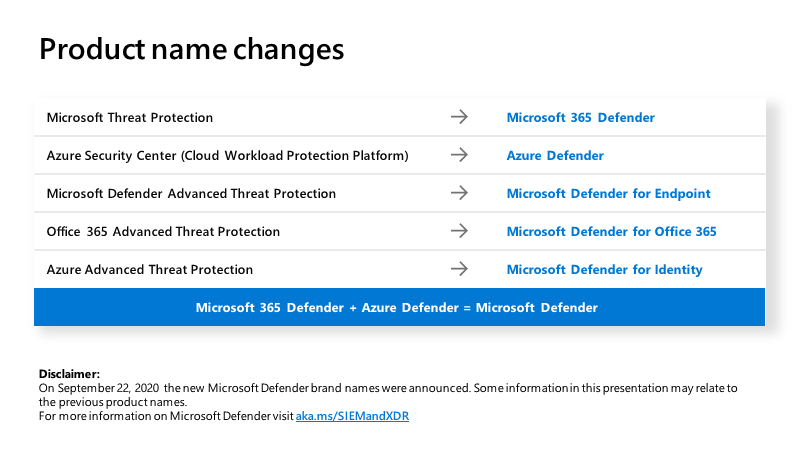
In contrast, here are the ‘Microsoft Defender’ products many of which have been re-branded lately:

image

Microsoft 365 Defender – (over arching service which includes other Defender services) is a unified pre- and post-breach enterprise defense suite that natively coordinates detection, prevention, investigation, and response across endpoints, identities, email, and applications to provide integrated protection against sophisticated attacks.

Microsoft Defender for Office 365 – (previously Office 365 ATP) Safeguards your organization against malicious threats posed by email messages, links (URLs), and collaboration tools.

Microsoft Defender for Identity – (previously Azure ATP) Cloud-based security solution that leverages your on-premises Active Directory signals to identify, detect, and investigate advanced threats, compromised identities, and malicious insider actions directed at your organization.

Azure Defender – (previously Azure Security Center) Provides security alerts and advanced threat protection for virtual machines, SQL databases, containers, web applications, your network, and more. It includes:

Microsoft Defender for Endpoint – (previously Defender ATP) an enterprise endpoint security platform designed to help enterprise networks prevent, detect, investigate, and respond to advanced threats especially on user devices like desktops, laptops and mobiles.

Microsoft Defender Smart screen – Microsoft Defender SmartScreen protects against phishing or malware websites and applications, and the downloading of potentially malicious files.

Microsoft Defender Antivirus – Brings together machine learning, big-data analysis, in-depth threat resistance research, and the Microsoft cloud infrastructure to protect devices in your organization.

Microsoft Defender Application Guard – helps to isolate enterprise-defined untrusted sites, protecting your company while your employees browse the Internet.

Microsoft Defender Security Center – is the portal where you can access Microsoft Defender Advanced Threat Protection capabilities. It gives enterprise security operations teams a single pane of glass experience to help secure networks.

Microsoft Defender Browser Protection –  a non Microsoft browser extension helps protect you against online threats, such as links in phishing emails and websites designed to trick you into downloading and installing malicious software that can harm your computer.

So, as you can see, there are quite a lot of ‘Defender’ products out there from Microsoft. How and when you get each of these varies greatly as well as their capabilities, since most will integrate together. That however, is beyond the scope of this article but maybe something I explore in upcoming articles.

For now, just be careful to investigate what is actually meant when it says ‘Defender’ in the Microsoft space!

End to End email protection with Microsoft 365–Part 2

This is part of a series of articles about email security in Microsoft 365.

End to End email protection with Microsoft 365 – Part 1

These articles are based on a model I have previously created, which you can read about here:

CIAOPS Cyber protection model

designed to help better explain expansive security included with Microsoft 365.

image

In the previous part of this series I spoke about DNS and Exchange Online Protection (EOP) and the role they play in email security as well as how to configure these in your service. I haven’t as yet spoken about the best practices settings that you should employ. The initial objective here is to help you understand the flow as well as all the security services that can be utilised in Microsoft 365 to better help you protect your data.

If you look at the above diagram, you’ll see that data is flowing via the email connector in and out of our Microsoft 365 environment (the ‘Service’). Through which, so far, we have talked about DNS and EOP, now it is time to move onto Defender for Office 365 (D4O). However, just before we do let, me point out somethings that you may not appreciate. Firstly, via the process far, inbound email data has not yet come to rest. That is, it hasn’t as yet been stored inside a users mailbox, it is still being ‘processed’ by the security feature set of Microsoft 365 (i.e. the ‘Service’). Secondly, and more importantly for security considerations, what we have examined so far largely only ‘scans’ the data and makes security decisions as data passed through that service. It doesn’t generally continue to protect the data once it has been processed by that service. For example, with spam filtering inbound emails are scanned by the anti spam service in EOP, appropriate action taken based on the policies in place but then the data exits the service. Once an email has exited the anti spam service in EOP it will no longer be scanned by the service. To distinguish these type of security services going forward, let’s refer to them as ‘pass through’ security services being that they only handle the data once during its transit through a connector.

So after DNS and EOP have ‘processed’ the inbound email it is time for Defender for Office 365 (D4O) to do it’s job.

image

Defender for Office 365 is an add-on to existing plans like Microsoft 365 Business Basic and Business Standard but included in Microsoft Business Premium. Interestingly, it is not part of Microsoft 365 E3 but is part of Microsoft 365 E5. In short, we’ll assume the plan here is Microsoft Business Premium.

Defender for Office 365 also has two plans

Gains with Defender for Office 365, Plan 1 (to date):

Technologies include everything in EOP plus:

  • Safe attachments

  • Safe links

  • Microsoft Defender for Office 365 protection for workloads (ex. SharePoint Online, Teams, OneDrive for Business)

  • Time-of-click protection in email, Office clients, and Teams

  • Anti-phishing in Defender for Office 365

  • User and domain impersonation protection

  • Alerts, and SIEM integration API for alerts
  • SIEM integration API for detections

  • Real-time detections tool
  • URL trace
  • So, Microsoft Defender for Office 365 P1 expands on the prevention side of the house, and adds extra forms of detection.

    Gains with Defender for Office 365, Plan 2 (to date):

    Technologies include everything in EOP, and Microsoft Defender for Office 365 P1 plus:

  • Threat Explorer
  • Threat Trackers

  • Campaign views
  • Automated Investigation and Response (AIR)

  • AIR from Threat Explorer

  • AIR for compromised users

  • SIEM Integration API for Automated Investigations
  • So, Microsoft Defender for Office 365 P2 expands on the investigation and response side of the house, and adds a new hunting strength. Automation.

    The above is from The Office 365 security ladder from EOP to Microsoft Defender for Office 365.

    Microsoft Business Premium includes Defender for Office 365 P1, while Microsoft 365 E5 includes Defender for Office 365 P2.

    Unlike EOP, you’ll also note that Defender for Office 365 extends protection actually into the data container as well as providing initial scanning of data as it passes through the service. This effectively means that Defender for Office 365 is monitoring email data inside user email boxes and providing additional protection even after an item is delivered. This is very important to appreciate because once most emails are delivered they are generally no longer protected by scanning technologies like anti-spam policies, especially third party offerings. Therefore, a major of value of using Microsoft 365 is that it can ensure the security of data even after it has been delivered using technology like Defender for Office 365.

    Another point that the above diagram illustrates is that Defender for Office 365 largely applies only to inbound email data. all the policies in Defender for Office 365 are focused at emails being delivered to, not from, mailboxes.

    Finally it is also important to note that previous components in the data flow chain impact Defender for Office 365, DNS probably being the more influential. This is why it is so important to ensure that you have your DNS records (especially SPF, DKIM and DMARC) configured correctly because their impact is more than on a single service in Microsoft 365.

    Defender for Office 365 is composed of three unique components:

    – Safe Attachments

    – Safe Links

    – Anti-Phishing

    Safe Attachments

    As Safe Attachments in Microsoft Defender for Office 365 notes:

    Safe Attachments uses a virtual environment to check attachments in email messages before they’re delivered to recipients (a process known as detonation).

    In short, it will open suspect attachments in a virtual environment and check to see whether they activate any malicious activity such as encrypting data (i.e. cryptolocker attack), changing registry settings and so on.

    Safe Attachments protection for email messages is controlled by Safe Attachments policies. There is no default Safe Attachments policy. Please note that, there is NO default Safe Attachments policy by default! Thus, ensure you have set one up if you are using Defender for Office 365.

    Set up Safe Attachments policies in Microsoft Defender for Office 365

    Safe Attachments will continue to provide protection even after the data has been delivered. This is because the maliciousness of the attachment is evaluated not only at the time the user opens it but also continually as they sit as data in users mailbox. Thus, you need to consider Safe Attachments as protection both during transit and at rest. This is generally different from the role of EOP.

    I will also briefly note here that Safe Attachments protection extends beyond just emails, but I’ll cover that in a later article.

    Safe Links

    As Safe Links in Microsoft Defender for Office 365 notes:

    Safe Links is a feature in Defender for Office 365 that provides URL scanning and rewriting of inbound email messages in mail flow, and time-of-click verification of URLs and links in email messages and other locations.

    In short, it routes any link clicked on in an email through a reputation proxy to ensure that it is safe prior to proceeding. This provides protection against malicious content, downloads, phishing and more.

    Safe Links settings for email messages

    How Safe Links works in email messages

    Safe Links can be configured to provide customised protection:

    Set up Safe Links policies in Microsoft Defender for Office 365

    Safe Links will continue to provide protection even after the data has been delivered. This is because the maliciousness of links is evaluated not only at the time the user clicks on them but also continually as they sit as data in users mailbox. Thus, you need to consider Safe Links as protection both during transit and at rest. This is generally different from the role of EOP.

    I will also briefly note here that Safe Links protection extends beyond just emails, but I’ll cover that in a later article.

    Anti-phishing

    Phishing is when attackers try to trick users into providing secure details in an effort to compromise that account. A common ‘trick’ is to attempt to impersonate a ‘familiar’ email address and try to have the recipient take an action that will result in an account compromise.

    Protection via Defender for Office 365 is again provided by a policy:

    Exclusive settings in anti-phishing policies in Microsoft Defender for Office 365

    Anti-phishing will continue to provide protection even after the data has been delivered. This is because the maliciousness of email content is evaluated not only at the time the user views  them but also continually as they sit as data in users mailbox. Thus, you need to consider Anti-phishing as protection both during transit and at rest. This is generally different from the role of EOP.

    In addition to the above Defender for Office 365 P1 also provides:

    Threat Explorer and Real-time detections

    while Defender for Office 365 P2 additionally provides:

    Threat Trackers

    Automated investigation and response (AIR) in Microsoft Defender for Office 365

    Attack Simulator in Microsoft Defender for Office 365

    Summary

    Inbound email data flows into Defender for Office 365 after it has been processed by EOP. Here additional protection policies are applied. All of these policies can be configured by the user and have capabilities that extend into protecting data even after it has been delivered. This means that a major benefit of Defender for Office 365 is that it not only scans email data during inbound transit but also while it is being stored in the users mailbox over the life of that data item for both current and future threats.

    It is also important to note that many of the Defender for Office 365 do not have appropriate default policies in place and it is up to the user to configure these to suit their environment.

    The inbound email data has yet further protection configurations to be applied to it after being processed by Defender for Office 365 thanks to the capabilities of Microsoft 365. Please follow that process with the next article:

    End to End email protection with Microsoft 365–Part 3