Defender for Office 365 Anti-phishing policies can protect externals as well!

image

My experience with most Microsoft 365 environments I see is that they fail to make use of all the features that are provided. None more so when it comes to security. For example, most people don’t seem to appreciate that the Defender for Office 365 (which is part of Business Premium) provides impersonation protection for internal AND external email addresses!  It just needs to be configured. The details are here:

Impersonation settings in anti-phishing policies in Microsoft Defender for Office 365

and as it says there:

You can use protected users to add internal and external sender email addresses to protect from impersonation.

but it is important to note:

User impersonation protection does not work if the sender and recipient have previously communicated via email. If the sender and recipient have never communicated via email, the message can be identified as an impersonation attempt.

This means, you want to get the configuration of important external email addresses in place as soon as possible so any impersonation against those users can be evaluated. It is too late to do after an internal user is communicating with a scam (impersonated) domain.

You will also see that you can also configure protection for external domains, rather than just specific email addresses, for impersonation evaluation.This means that if the users inside the tenant deal with an important business that has its own email email, that is NOT part of that tenant, you can enter that domain in here. Makes a lot sense when you are working with a business regularly that is doing stuff like invoicing, e-commerce or the like (honestly anything at all really).

Let’s say that I work with a business who’s domain is ciaops.com. By enabling this impersonation protection early, if users in the tenant receive email from c1aops.com then it is far more likely to be detected because the system is looking of for spoofing of that custom external domain I entered in the policy.

Thus, if you have Microsoft Defender for Office 365 in your environment (and you do if you have Microsoft 365 Business Premium), then you can provide an extra level of protection by configuring the Anti-Phishing policy for impersonation settings for both your important internal AND external usera and domains (i.e. people and businesses you work with regularly). You should do that as early as possible to provide the maximum protection the policy can provide. They key is that someone has to add in the unique email addresses or domains into the policy, they are not added automatically, even internal email address. They ALL have to be added to the policy.
image

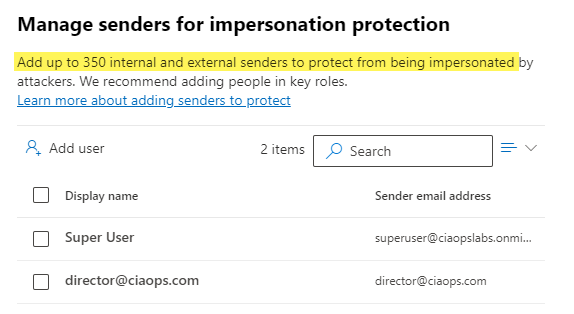
You can protect up to 350 unique email addresses and 50 unique domains, which is probably more that enough to cover everything a smaller business would need for internal and external users. Unfortunately, I rarely see this great capability enabled. It’s available if you have Microsoft Defender for Office 365 so go configure it and reduce the risk to the users in the tenant. Easy!
What to check with spoofed email in Microsoft 365

If you find that a spoofed email is reaching users inboxes in Microsoft 365 (say something like managing.director@gmail.com pretending to be managing.director@yourdomain.com) then here are some initial suggestions and things to check.

Firstly, ensure you have SPF, DKIM DMARC configured for your domain. They all help reduce spoofed emails getting to the inbox. 

Set up SPF to help prevent spoofing

Support for validation of DKIM signed messages

Use DMARC to validate email

Next, run the analyzer that is built into the Microsoft 365 Security Center to see where your policies may deviate from best practices.

Configuration analyzer for protection policies in EOP and Microsoft Defender for Office 365

and you’ll find those best practice settings here:

Recommended settings for EOP and Microsoft Defender for Office 365 security

I’d be checking against the strict rather than the standard settings if it was me.

image

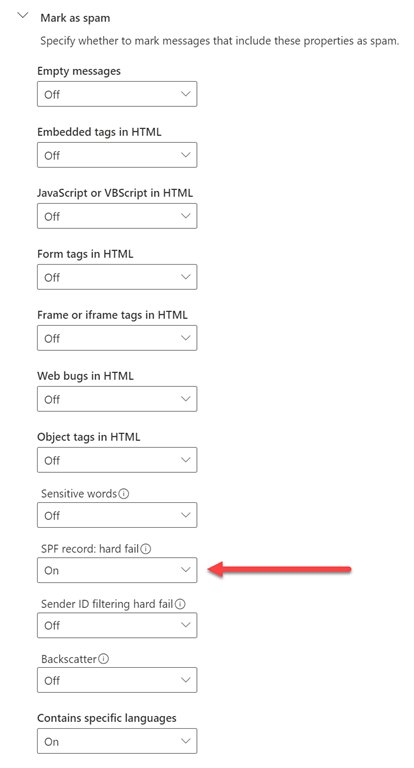
In the settings for your spam policy in Exchange Online there are a few additional settings you can enable as shown above. Even though the Microsoft best practices doesn’t recommend it, I still have most of these set and at a minimum recommend that the SPF hard fail option be enabled.

image

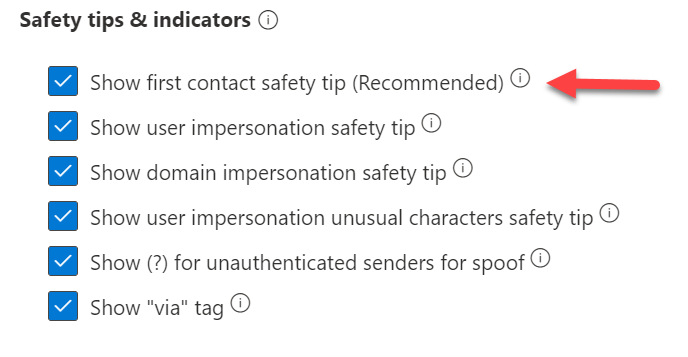
In your Anti-phishing policies ensure the option for Show first contact safety tip is enabled as shown above. Microsoft Best Practice policies don’t set this. In general make sure all the above settings are all enabled as shown.

Another good indicator to configure is

Set-ExternalInOutlook -Enabled $true

using PowerShell, that will let you know about

Native external sender callouts on email in Outlook

Another custom adjustment you can consider is changing the Spam Confidence Level (SCL)

Spam Confidence level (SCL) in EOP

A further option you may wish to tweak beyond Microsoft’s recommended best practices is the phishing thresholds in anti-phishing policies:

Advanced phishing thresholds in anti-phishing policies in Microsoft Defender for Office 365 

When you get emails that are confirmed as trying to trick users, make sure you report them to Microsoft

How do I report a suspicious email or file to Microsoft?

Use the Submissions portal to submit suspected spam, phish, URLs, legitimate email getting blocked, and email attachments to Microsoft

Probably the best way to do that is to use the free add-in that works with Outlook.

Enable the Report Message or the Report Phishing add-ins

doing so helps build the intelligence for Exchange Online as well as helping others who may see similar insecure emails.

The final option available to you is always to reach out to Microsoft for assistance.

Get help or support for Microsoft 365 for business

I would also suggest you check any white listing options you may have in Exchange Online as these are easily forgotten over time. Best practice is not to white list any domain or specific email address but always check when you see repeated emails get through filtering. I can’t tell you how many times I find this as the cause of any issue. Keep in mind, there are few places that you can white list emails:

Create safe sender lists in EOP

You can of course also block the insecure sender:

Create blocked sender lists in EOP

Remember that if you tighten your email security the result will probably be an increase in false positives, at least initially, as Exchange Online learns to evaluate the changes and user behaviours based on the updated settings. Email security is not an exact science. The bad operators are working just as hard to bypass all these settings so it is always going to be a game of cat and mouse. However, hopefully, using the Microsoft recommended best practices and some additional tweaks as suggested above, you can prevent the vast majority of insecure emails out of your users email boxes.

Providing feedback on user reported messages

Hopefully, you are aware that Microsoft 365 provides users the ability to report a suspected email. I have spoken about this here:

Improved security is a shared responsibility

image

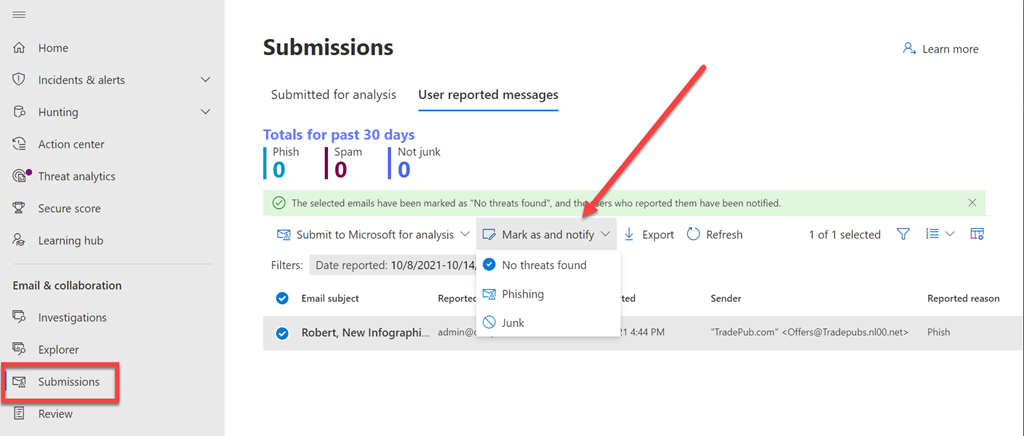
What you may not be aware of is that these submissions can viewed and action in the Microsoft Security Center:

https://security.microsoft.com

under the Submissions menu option as shown above.

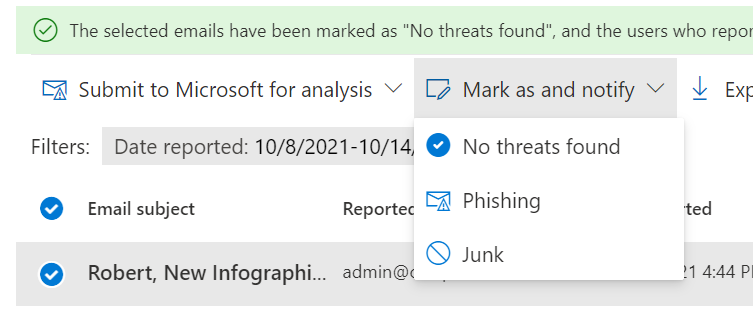
You may also not be aware that there are further actions you can take in here:

image

You can provide feedback directly to the user about their submission using the Mark as an notify option as shown above.

image

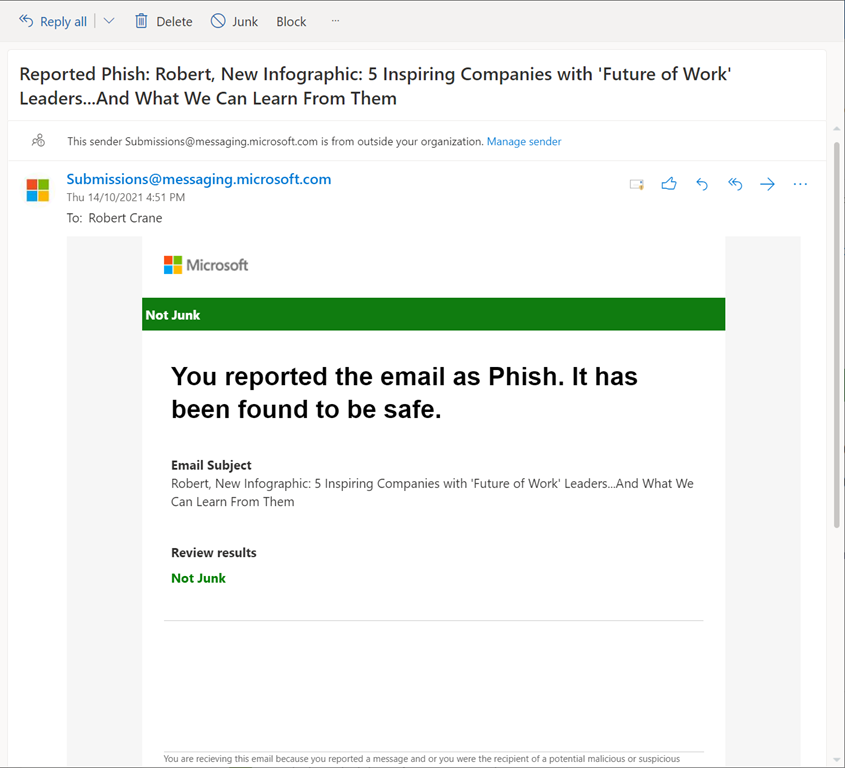
Doing so will send the user an email, like that shown above, to provide feedback about that submission for the user. Doing provides important reinforcement of users remaining vigilant as well as helping them better identify threats.

image

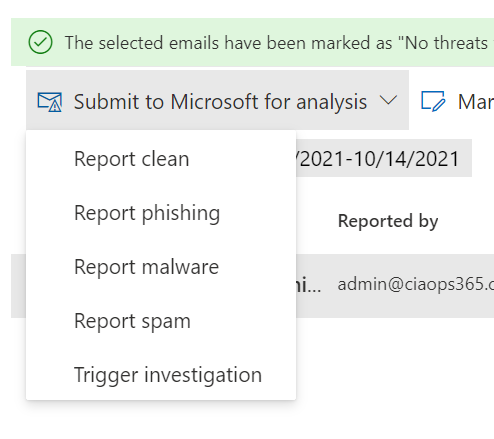
 You’ll also find actions you can take on that message that will provide feedback directly to Microsoft, as shown above.

image

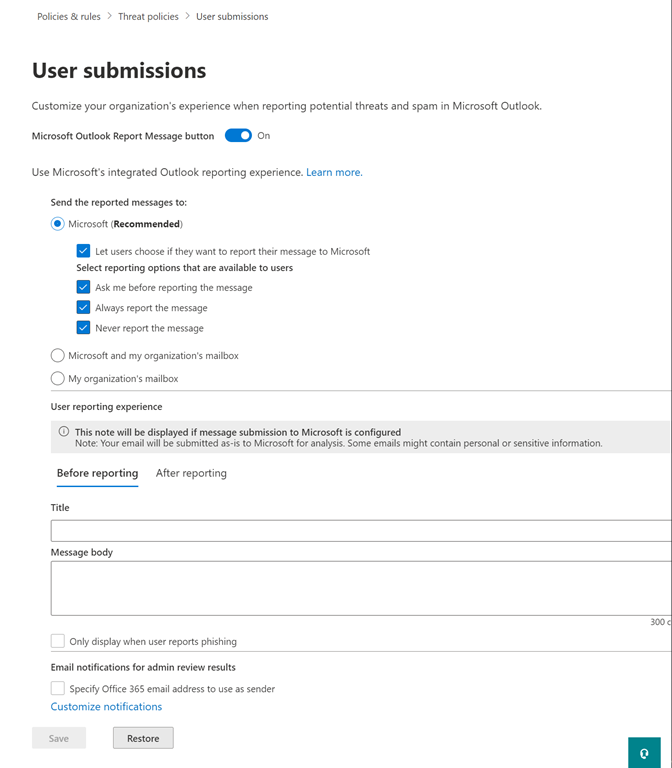
Even better, if you go into Policies & rules | Threat Policies | User submissions you are able to customise what is sent to the user, both before and after reporting as shown above.

For more information on these capabilities visit:

Admin review for reported messages

Getting users involved in security is important. Part of that is providing them feedback and recognition of their contribution, no matter how small. Using these capabilities for reported messages, you are able to do that quickly and easily.