
An important piece of the security puzzle is to ensure everything that you have access to is enabled and configured fully. If you have any version of Defender for Cloud Apps you should verify that the signals from Microsoft 365 are feeding into Defender for Cloud Apps.
To verify or enable this connection fully navigate to:
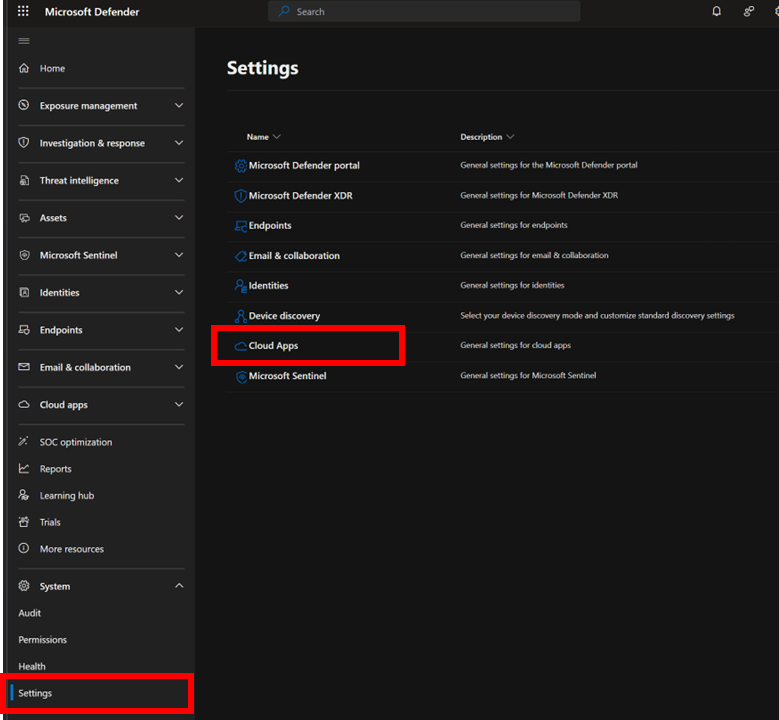
Open the Settings option from the menu on the left. From the options that appear on the right select Cloud Apps as shown above.
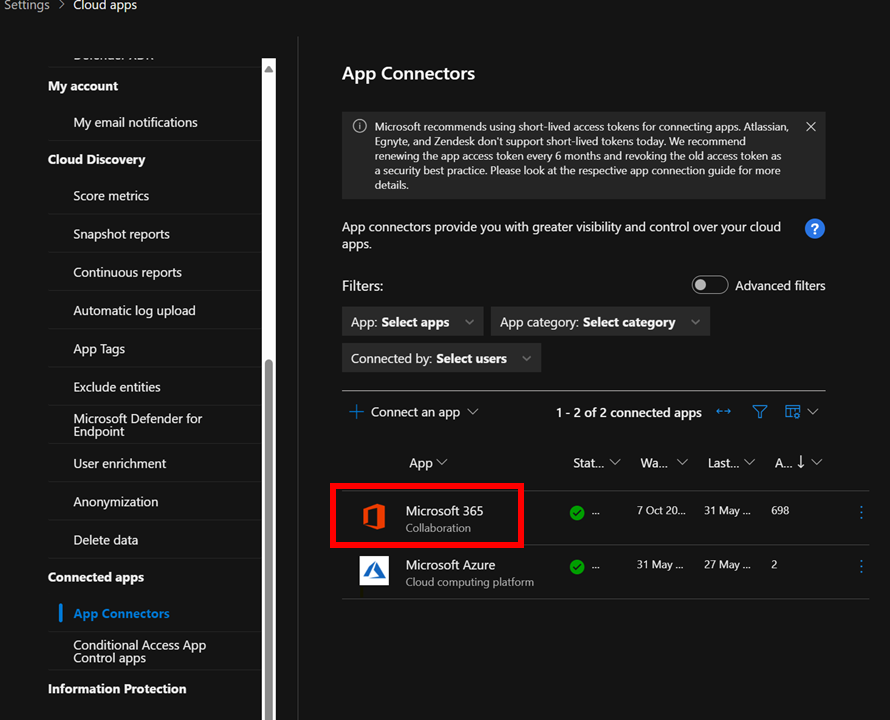
Then under the Connected Apps heading select App connectors as shown above. Ensure that connectors for Microsoft 365 and Microsoft Azure appear. If they don’t you can use the Connect an app option on the menu.
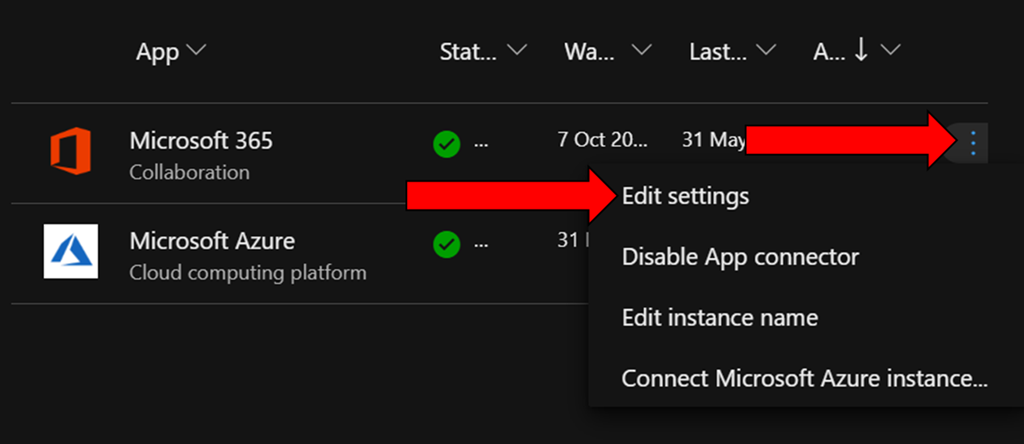
To verify the Microsoft 365 app is fully enabled locate the ellipse (three dots) on the right hand side of this connector and select it as shown above.
From the menu that appears select Edit Settings.
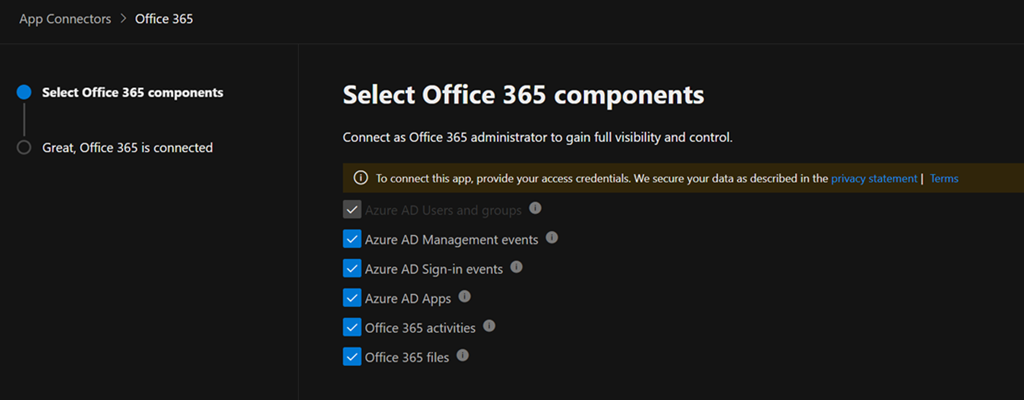
Ensure all the settings available to you are enabled as shown. Select the Connect to Office 365 button at the bottom of the dialog to save your settings and continue.
There is no addition cost to enabling these options and when you do you are able to monitor, audit and capture the logs for:
– Azure AD Users and Groups
– Azure AD Management events
– Azure AD Sign-in events
– Azure AD Apps
– Office 365 Activities
– Office 365 files
all thanks to Defender for Cloud apps.



 CIAOPS