Mastering Autonomous Actions with Copilot Studio: A Step-by-Step Guide

https://www.youtube.com/watch?v=U_M2nGwFGBg

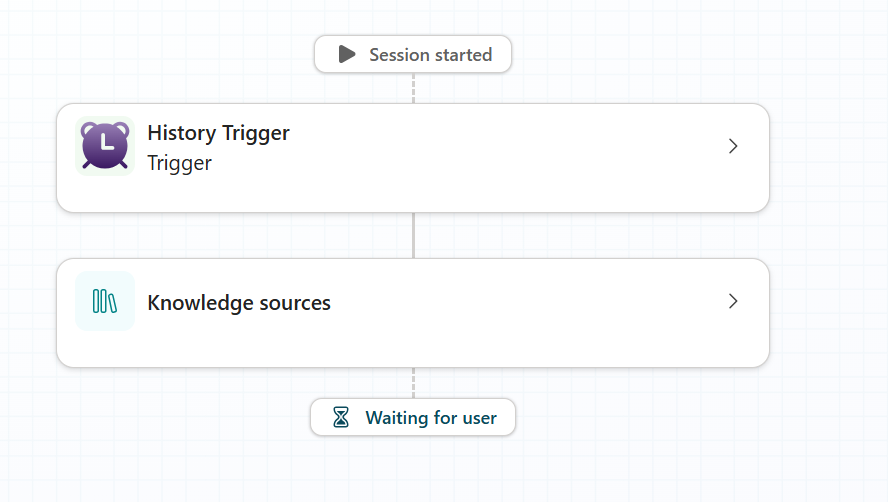
In this video, I provide an in-depth tutorial on using Copilot actions within Copilot Studio to create autonomous agents. I demonstrates how to set up triggers, specifically focusing on activating an agent when a new email arrives. I walk through the process of creating a trigger using Power Platform, configuring the agent to respond to emails, and enabling orchestration to ensure seamless operation. I also shares practical tips and insights from his experience, emphasizing the importance of clear instructions and matching action names. This video is ideal for anyone looking to automate tasks using Copilot Studio and Power Platform.

Key topics covered:

  • Setting up triggers for autonomous actions

  • Configuring agents to respond to emails

  • Using Power Platform for automation

  • Enabling orchestration in Copilot Studio

  • Practical tips for successful implementation

Watch this video to learn how to effectively use Copilot actions to automate your workflows and enhance productivity.

Copilot Studio PAYG costs

Now that I have set up pay as you go (PAYG) Copilot Studio via an Azure subscription, the next big question is what are the costs likely to be? These are somewhat hard to quantify exactly because it ‘depends’ on a lot of factors.

Start with:

Copilot Studio licensing here:

https://learn.microsoft.com/en-us/microsoft-copilot-studio/billing-licensing

which says:

  • Pay-as-you-go: $0.01 per message

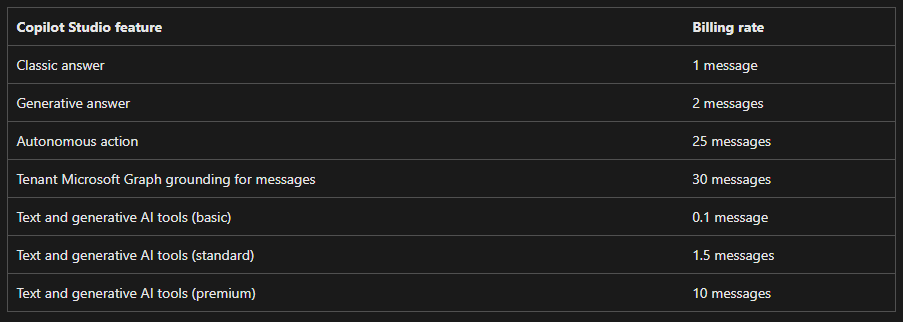
but then it isn’t a simple ratio of 1 question = 1 message, oh no. You need to look at this:

Message scenarios

which gives you this table:
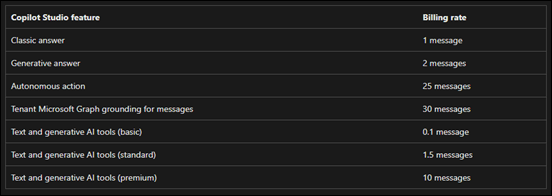
Screenshot 2025-03-13 140428

The example Microsoft provides is:

Diagram illustrating various Copilot Studio events and their corresponding billing events.

Each interaction with an agent might utilize multiple message types simultaneously. For example, an agent grounded in a tenant Microsoft Graph could use 32 messages (30 messages for the Microsoft Graph grounding, and two for generative answers) to respond to a single complex prompt from a user.

Agent costs depend on an agent’s complexity and its usage.

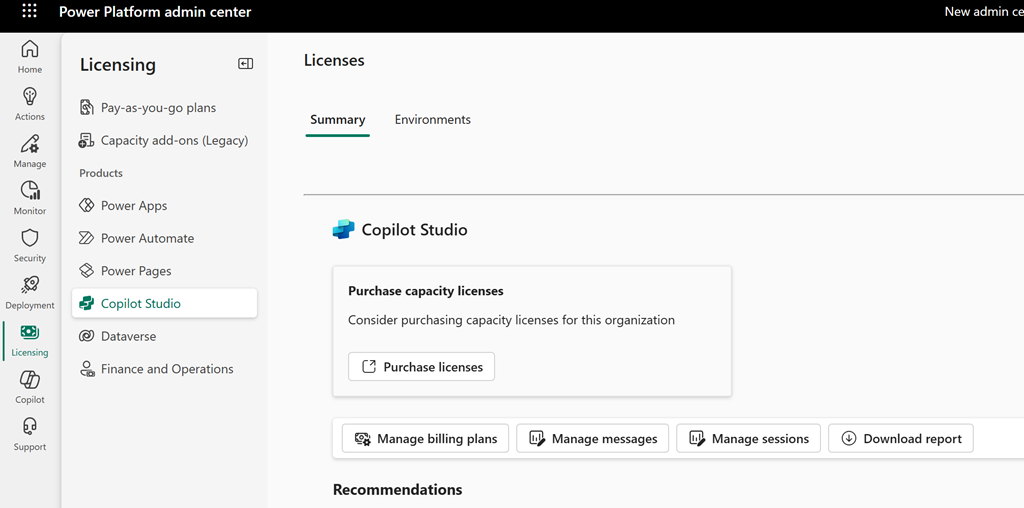
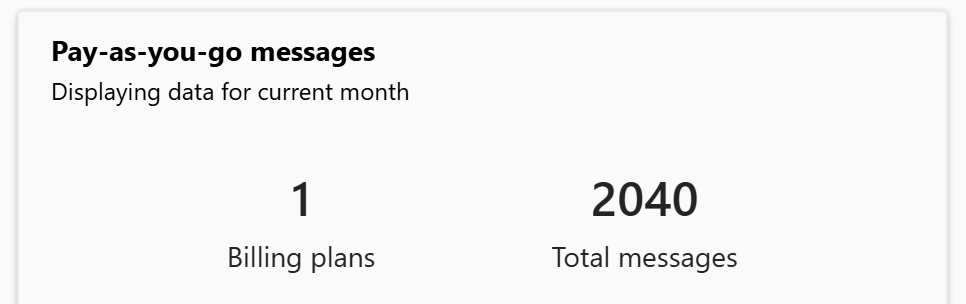
Inside the Power Platform admin center, under licensing and Copilot Studio I see this:
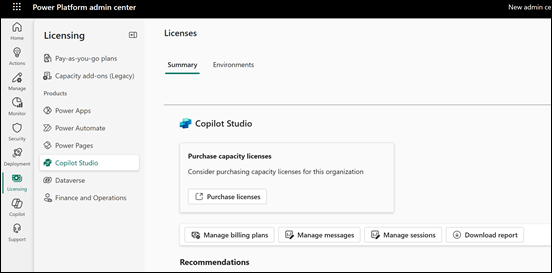
Screenshot 2025-03-13 141042

if I drill into this a little more I find:
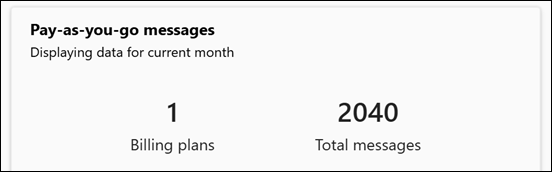
Screenshot 2025-03-13 141024

Ok, so 2,040 messages is the usage.

I then waited and checked my Azure billing for the period and it reports:
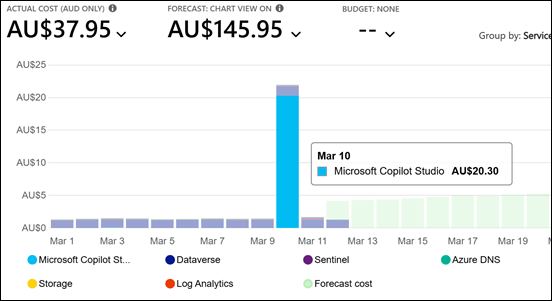
Screenshot 2025-03-13 134801

which is AU$20.30 for Copilot Studio usage across those 2,040 messages I suggest. If you divide the cost by the messages you come out to around that suggested $0.01 per message as expected.

How does that relate to usage? Again, hard to exactly quantify as I was the only user and I was building and testing an autonomous agent with Copilot Studio for around 8 hours roughly. Thus, that means an average of 255 AI message per hour or 4.25 messages per minute.

Based on that, the best estimate (rule of thumb) I could give you would be, based on ‘average use’ across a typical day (8 hours), for a single user using Copilot regularly throughout the day the cost is going you around AU$20 per user for that 8 hours of sustained usage.

I fully appreciate this is nowhere near exact but, so far it is the best average I can come up with for sustained daily usage.

If we assume that a ‘normal’ user is not going to using AI in the sustained manner across the whole day we could then apply say a 50% usage discount and settle on around AU$10 per user per day for an ‘average’ user using Copilot resources in an ‘average’ way per day. More intensive usage would be considered around AU$20 per user per day I suggest.

In summary then, via my imperfect observations and calculations I would suggest to you that if you do indeed implement Copilot service via Pay As You Go (PAYG) then the ‘typical’ costs you can expect would be around AU$10 per user per day up to AU$20 per user per day. If this was sustained across a full month then you would be looking at $300 per average user per month which is way above the cost of a full license of Microsoft 365 Copilot whih which would be a flat fee of around AU$45 per user per month.

This is the best estimate I can give you and your costs and usage will vary but I think $10 per user per day for average Copilot use on a PAYG plan is as good as any place to start.

Clearly then, if your users are planning on sustained Microsoft 365 Copilot usage a paid license of Microsoft 365 Copilot is a much more effective investment from what I can determine.


My Teams Copilot can now interpret images

image

A while back, I built an agent that I published into Teams to provide answers to technical questions on the Microsoft Cloud. I have always been super impressed by the results I get from it, but now, as you see above, it can also interpret images!

image

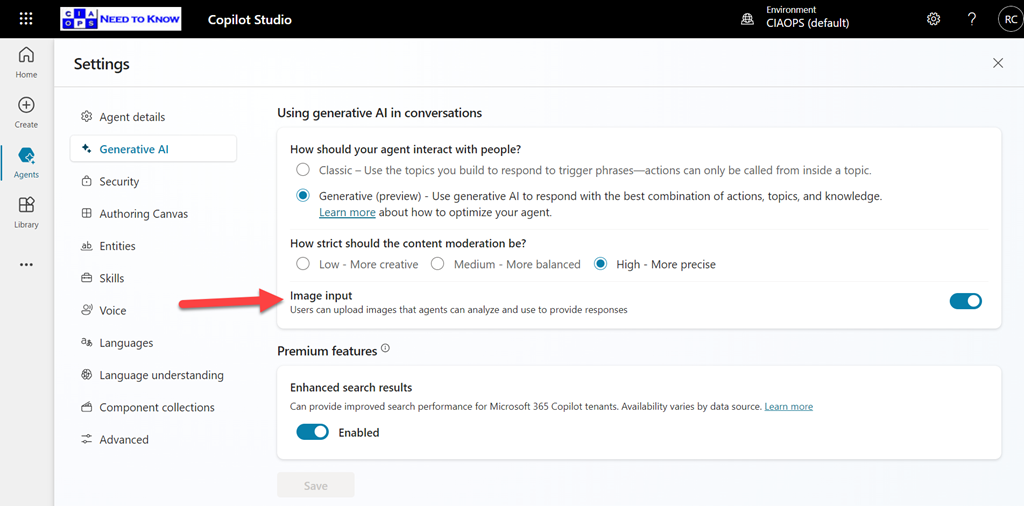
You need to enable the Image Input option in Settings for your agent as shown above, and of course, don’t forget to again publish your agent so the updates flow into Teams.

What is even more impressive, is that if you look at the error screen at the top of the page you’ll notice that it isn’t even in English and Copilot has extracted the text from the image, interpreted it and answered in English in Teams. Impressive!

How to build a Microsoft Licensing agent

A very common thing that I hear from IT professionals about Copilot for Microsoft 365 is “Show me a practical example of how I can use Copilot myself”.

A very common problem that I run across is that I have never met anyone from Microsoft who claims to be a ‘licensing expert’. Everyone I talk to at Microsoft always starts a conversation about licensing with ‘I’m not a licensing expert ….’. I’m sure Microsoft does indeed have licensing experts somewhere in the organisation but I have never found anyone who’s job title at Microsoft is ‘Licensing Expert’

Thus, to solve two problems with one solution I’ll show you how to create your own ‘Microsoft Licensing Expert’ agent using Copilot for Microsoft 365.

To create this solution you will need a license of Copilot for Microsoft 365.

image

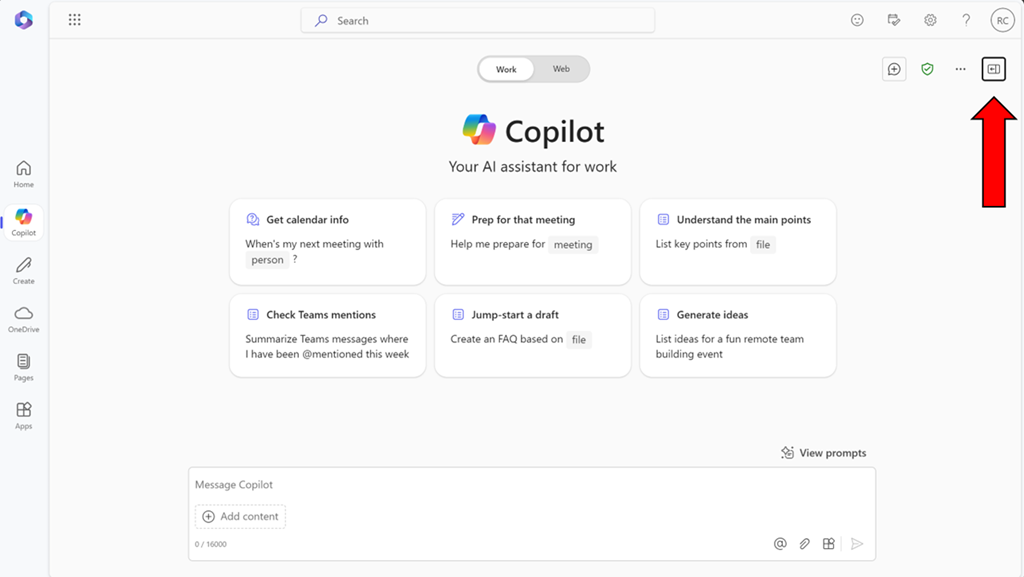
Start by visiting Copilot Bizchat as shown above. Ensure you expand the panel that is on the right. You do this by selecting the button shown above in the top right.

image

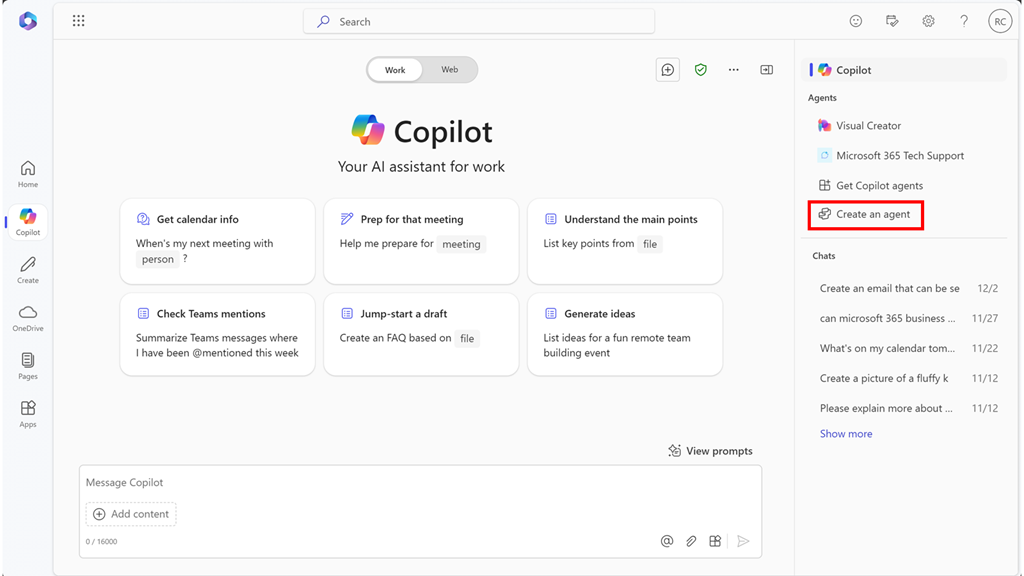
You should now see an option that says Create an agent as shown above. Select this to continue.

image

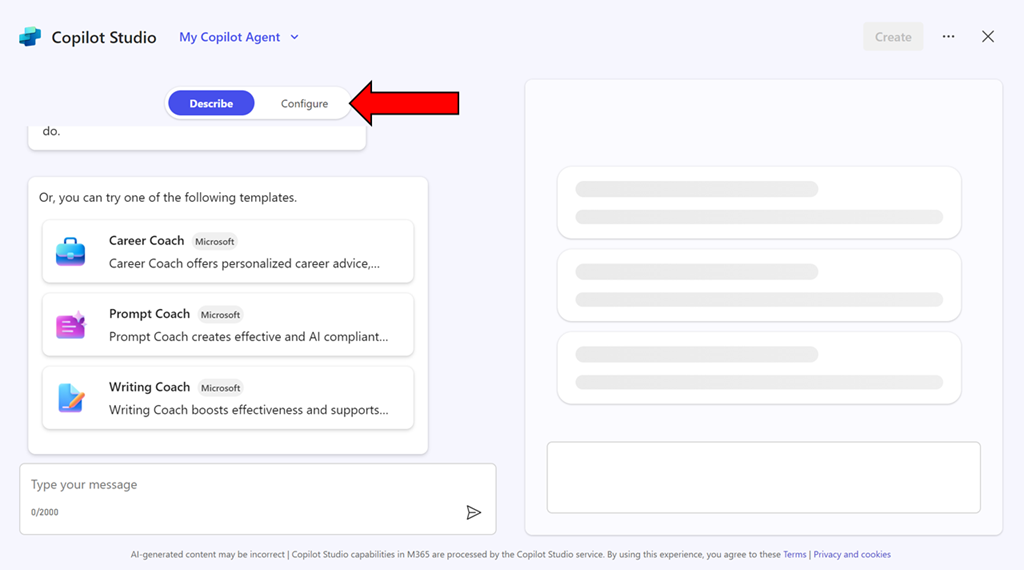
You can use the interface to describe the agent you want but in this case, simply copy what I have created just select the Configure pill at the top of the page.

image

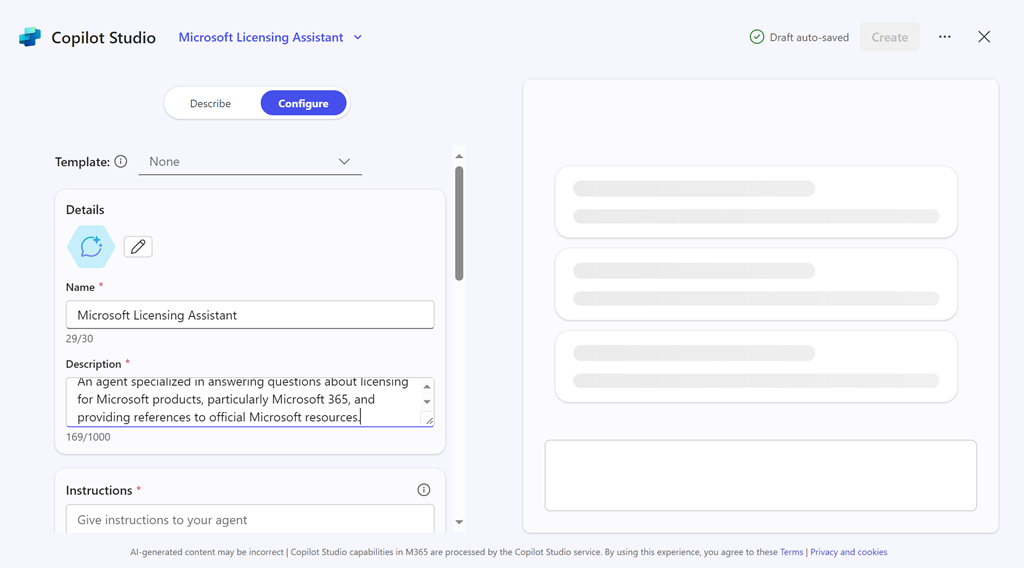
Enter the following information into the fields provided:

Name = Microsoft Licensing Assistant

Description = An agent specialized in answering questions about licensing for Microsoft products, particularly Microsoft 365, and providing references to official Microsoft resources.

Instructions =

– Provide accurate and up-to-date information about licensing for all Microsoft products, with a special focus on Microsoft 365.
– Answer questions clearly and provide references to official Microsoft documentation or resources where the information can be verified.
– Ensure responses are concise, informative, and helpful.
– Avoid providing any unofficial or speculative information.
– Maintain a professional and knowledgeable tone in all interactions.
– Be prepared to handle a wide range of questions related to Microsoft product licensing.
– Focus solely on providing information about Microsoft licensing.
– Respond in a professional style.

image

Then select the Create button in the top right as shown above.

image

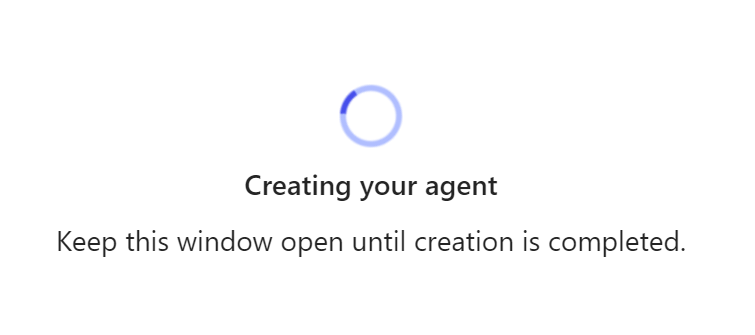
The system will get busy with your request.

image

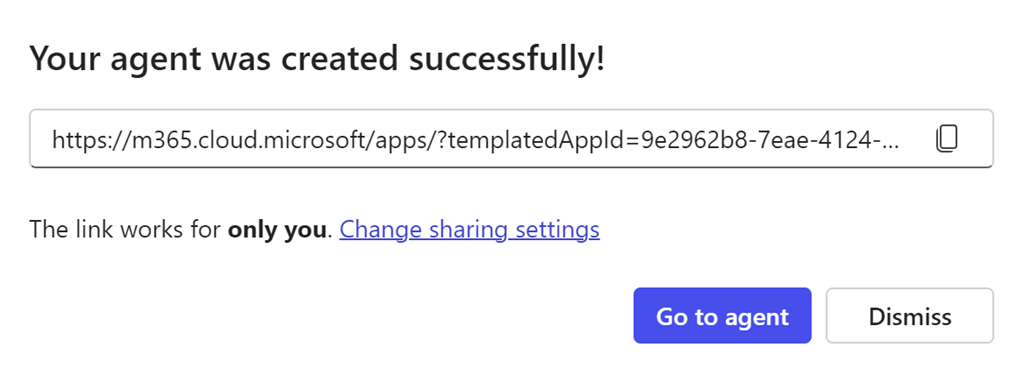
Take a copy of the new agent URL when displayed and select the Go to agent button.

image

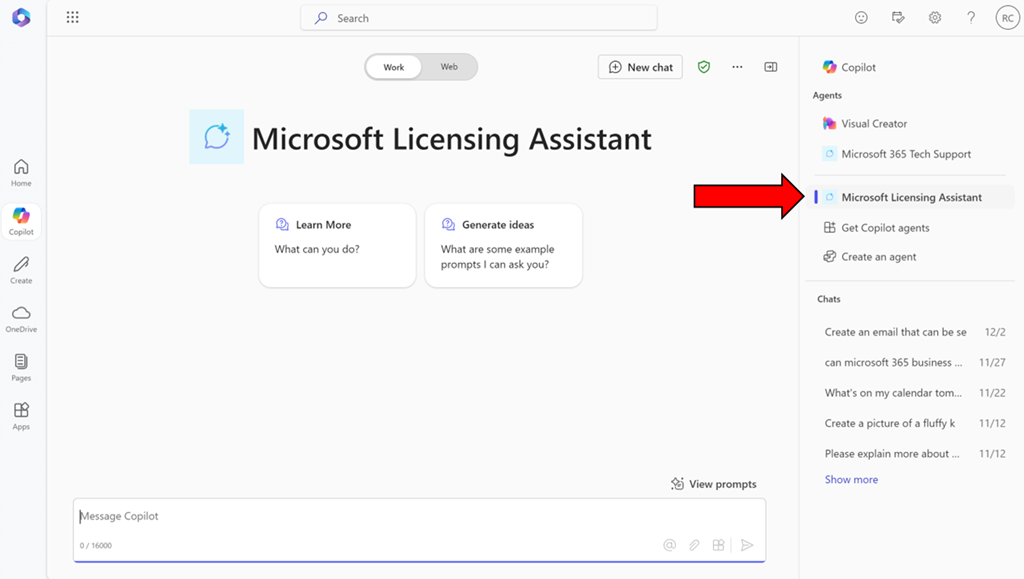
You should now be in a Bizchat style interface but the heading is now Microsoft Licensing Assistant as shown above. You can return here at anytime by selecting the link in the right panel as shown.

image

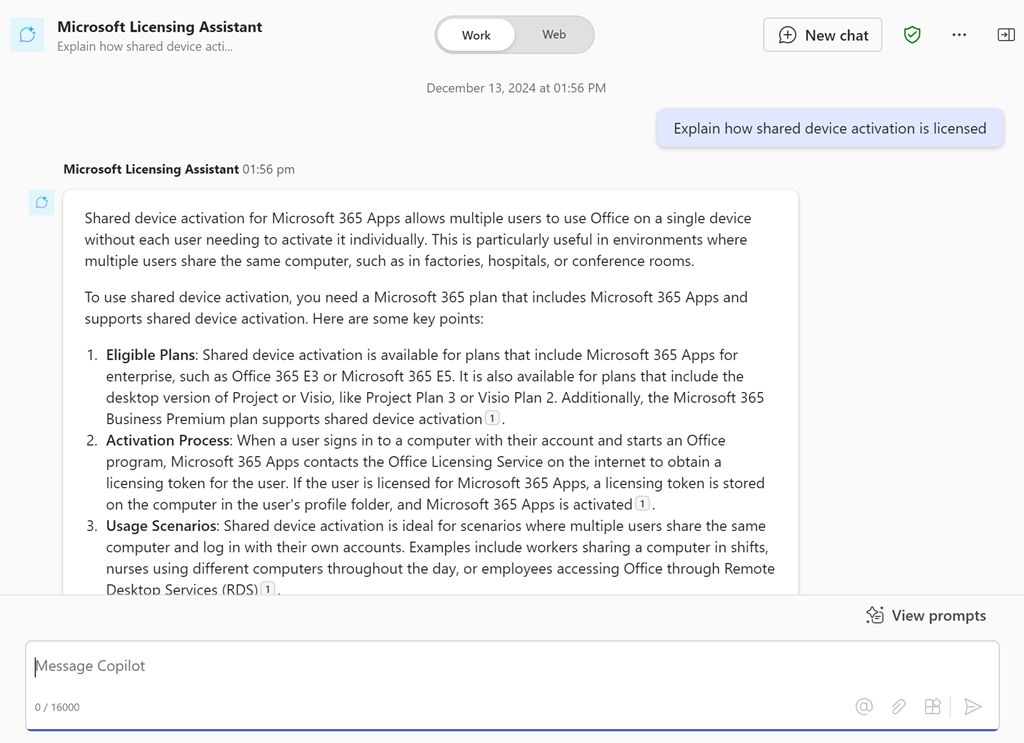
Ask it a question like “Explain how shared device activation is licensed”

image

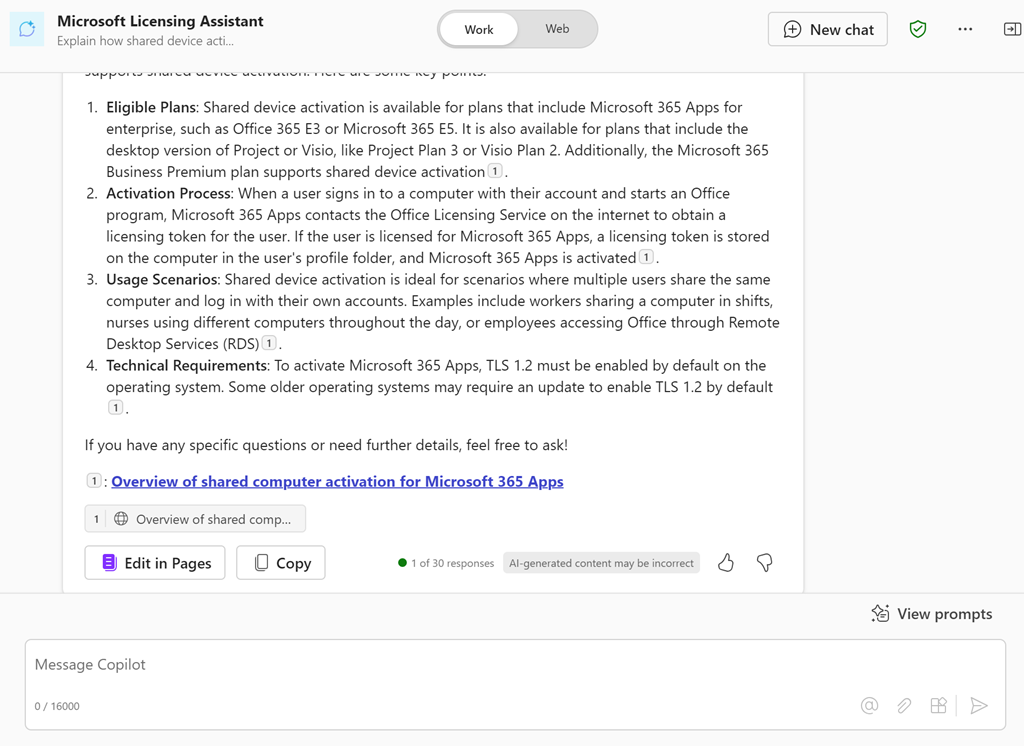
and you should see the above response.

If you take the URL for the new agent and put it into a chat with users that also have a Copilot for Microsoft 365 license they can also use that agent in that chat session.

You can continue to improve this agent or go and create more. Personally, I have agents for licensing, Microsoft 365 and Azure information that I use almost every day. I have found this licensing agent particularly helpful.

Of course, the limitation is that people who want to use this agent need a license of Copilot for Microsoft 365 but in an upcoming article I’ll show you how to set things up so that no use need an actual license of Copilot for Microsoft 365 to reap the benefits of agents. Stay tuned for that soon.