

Introduction
Browser extensions can introduce security vulnerabilities if not properly managed. Malicious or vulnerable extensions can steal data, hijack accounts, or serve as an entry point for attacks[2]. In an organization using Microsoft 365 Business Premium (which includes Defender for Business endpoint protection), it’s important to understand what is covered out-of-the-box and how to fill any gaps in protection. This report examines whether Microsoft 365 Business Premium’s security features include Microsoft Defender Vulnerability Management (MDVM) for scanning browser extensions, and if not, the most cost-effective ways to enable this capability. It also covers alternative solutions, best practices for browser extension security, and recommendations for ongoing protection.
Microsoft 365 Business Premium Security Features
Microsoft 365 Business Premium is a comprehensive plan for small and medium businesses that combines productivity apps with advanced security. Key included features are:
- Office 365 Applications and Services: Email, cloud storage, and the full suite of Office apps, enabling productivity and collaboration.
- Azure AD Premium P1: Enhanced identity and access management (for example, conditional access and multi-factor authentication policies).
- Microsoft Intune (Endpoint Manager): Mobile device and PC management to enforce security policies on devices and apps.
- Microsoft Defender for Office 365 (Plan 1): Protection against phishing, unsafe attachments, and malicious links in email.
- Microsoft Defender for Business (Endpoint Protection): An enterprise-grade, AI-powered endpoint security solution optimized for SMBs. This provides next-generation antivirus, endpoint detection and response (EDR), and threat & vulnerability management capabilities[8].
Note: Defender for Business is essentially a subset of Microsoft Defender for Endpoint features tailored for Business Premium. It does include basic vulnerability management (VM) capabilities, such as detecting OS and application vulnerabilities on devices[7]. However, as discussed below, some advanced VM features are not included.
Microsoft Defender Vulnerability Management (MDVM) Capabilities
Microsoft Defender Vulnerability Management is an add-on service that enhances Defender’s built-in vulnerability management with more advanced, risk-based scanning and asset inventory. Core capabilities of MDVM (some of which overlap with Defender for Business) include[6]:
- Device and Software Inventory: Discovering devices and software in your environment, and listing installed applications and versions.
- Vulnerability & Configuration Assessment: Identifying known vulnerabilities (e.g., missing patches or CVEs) and misconfigurations on endpoints[6].
- Risk-Based Prioritization: Evaluating which vulnerabilities pose the highest risk, so security efforts can focus on the most critical issues[6].
- Remediation Tracking: Providing guidance and tracking the status of fixes for identified issues.
- Continuous Monitoring: Ongoing scanning to catch new vulnerabilities as they arise.
Premium MDVM capabilities extend this further and are available with a specific MDVM license (or add-on). These premium features include advanced asset insights such as[6]:
- Browser Extensions Assessment: Visibility into browser extensions installed on endpoints and their associated risks.
- Digital Certificates Assessment: Inventory and risk info for certificates on devices.
- Network Shares, Hardware/Firmware Assessment: Scanning for vulnerabilities in network share configurations and device firmware.
- Security Baselines Assessment & Blocking Vulnerable Apps: Checking compliance with security baseline settings and enabling the ability to block applications or browser add-ons known to be vulnerable[6].
Does Business Premium Include Browser Extension Scanning?
Out-of-the-box, Microsoft 365 Business Premium does not include the specialized capability to scan browser extensions for vulnerabilities. Business Premium’s Defender for Business provides “core” vulnerability management (covering OS and software vulnerabilities), but the Browser Extensions Assessment feature is only available with the Defender Vulnerability Management premium add-on or standalone license[6]. In Microsoft’s terminology, Business Premium gets you “Vulnerability Management Core” features, whereas Browser Extension assessments are a premium feature not included in the core set[6].
In fact, Microsoft documentation explicitly notes that Defender Vulnerability Management (MDVM) is not currently available to Defender for Business customers without an add-on[6]. This means that while your Business Premium subscription offers strong endpoint protection and some vulnerability scanning, it will not automatically discover or report vulnerable browser extensions in Microsoft Edge (or other browsers) unless you extend its capabilities.
Supported Browsers: When MDVM’s Browser Extension Assessment is enabled (via the appropriate license), it covers extensions in Microsoft Edge, Google Chrome, and Mozilla Firefox on Windows devices[5][2]. The Microsoft Defender for Endpoint sensor on Windows collects the list of installed extensions in those browsers, including their names, versions, the devices and users where they’re installed, and the permissions they require[5]. This data is then available in the security portal under Endpoints > Vulnerability Management > Inventories > Browser extensions, where security teams can review extension details and risk levels[5]. Without the MDVM add-on, Business Premium admins will not see this Browser extensions page or related insights in the Defender security portal.
Edge-Specific Considerations: Microsoft Edge shares its extension framework with Chrome (both are Chromium-based), so MDVM’s approach for extension scanning in Edge is similar to Chrome’s. The MDVM extension inventory will include Edge extensions (whether from the Microsoft Store or Chrome Web Store) and assess their requested permissions. It will indicate if an extension has high-risk permissions (for example, the ability to read all data on websites could be flagged as higher risk)[2]. However, note that this assessment is about visibility and risk reporting – it does not automatically block any extension. It helps admins decide if they should allow or remove a given extension.
How to Enable Browser Extension Vulnerability Scanning in Business Premium
Since M365 Business Premium doesn’t include browser extension scanning by default, you have a few options to gain this capability in a cost-effective way:
Option 1: Add Microsoft Defender Vulnerability Management
The most straightforward method is to purchase a Microsoft Defender Vulnerability Management license for your endpoints. Microsoft offers two licensing options:
- Defender Vulnerability Management Add-on: For customers who already have Microsoft Defender for Endpoint Plan 2 (e.g., E5 customers), the MDVM add-on enables the premium features for about $2.00 USD per user per month (annual commitment)[3]. This would unlock browser extension assessments in their existing environment.
- Defender Vulnerability Management Standalone: For customers without Defender for Endpoint P2 (for example, Business Premium users, since they have a different edition), Microsoft provides a standalone MDVM subscription at roughly $3.00 USD per user per month[3]. This standalone license includes all MDVM capabilities for your devices, working alongside your current Defender for Business endpoint protection. It’s designed to complement any EDR solution, which means you can use it with the Defender agents you already run on Business Premium endpoints[6].
Cost-Effectiveness: In terms of cost, this is much more affordable than upgrading all the way to an E5 plan. For a Business Premium environment, adding MDVM standalone at ~$3/user/month is the most cost-effective Microsoft-native solution to gain extension vulnerability scanning[3]. It avoids having to pay for a full Microsoft 365 E5 license (which is significantly more expensive per user). You can selectively license only the users/devices that need this capability. Microsoft also offers a 90-day free trial for MDVM add-on/standalone to evaluate its value[2].
Once MDVM is enabled in your tenant, you would get:
- A “Browser extensions” inventory in the Defender portal listing all extensions discovered across Edge/Chrome/Firefox[5].
- Details per extension: which devices and users have it, whether it’s enabled, its version, and a risk rating based on permissions[5][2].
- The ability to run advanced hunting queries or reports on extensions organization-wide (for example, find all devices with a particular extension)[2].
- Insights to decide if an extension should be allowed or if it poses enough risk to justify blocking or removal.
Option 2: Third-Party Browser Extension Security Tools
If you prefer not to purchase MDVM licenses, there are third-party solutions that can help monitor and secure browser extensions. Some notable approaches include:
- CrowdStrike Falcon Spotlight – Browser Extension Assessment: CrowdStrike’s Exposure Management platform offers a feature to inventory and assess browser extensions similar to MDVM. It provides a comprehensive view of extensions and flags high-risk extensions with dangerous permissions, plus workflows to alert and remediate risks. Adopting this would require using CrowdStrike’s agent and platform in addition to or instead of Defender on endpoints.
- Spin.AI SpinOne and SpinMonitor: Spin.AI provides a SaaS security platform that includes browser extension risk assessments. Notably, Spin.AI’s solution can integrate with Chrome Enterprise. For example, the SpinOne platform continuously evaluates Chrome extensions and even assigns risk scores[1]. Outbrain (a tech company) implemented Chrome Enterprise with Spin.AI to automate extension reviews, allowing employees to request extensions and have security teams approve or deny them based on risk reports[1]. Spin.AI also offers a free Extension Security Checker (SpinMonitor) that detects and assesses the risk of all browser extensions installed in an organization, giving visibility into potential security and compliance risks. This free tool can be a cost-effective way to get basic insight into extensions, though a paid tier may be needed for continuous monitoring and policy enforcement.
- Duo Security (CRXcavator/Extend): Duo Security (now part of Cisco) created a free tool called CRXcavator (and its successor, Cisco’s “Extend” tool) which analyzes Chrome extensions for known vulnerabilities and risky permissions. This can provide security ratings for extensions in use. While it may require some integration work (and primarily focuses on Chrome), it’s another low-cost way to evaluate extension safety in your environment.
- Traditional Vulnerability Scanners: Some vulnerability management tools like Tenable or Qualys may include checks or scripts to enumerate browser extensions on endpoints during scans. These are not as tailored as the above solutions but can sometimes be configured to pull extension information as part of an endpoint scan and flag known vulnerable versions.
Cost and Integration Considerations: Many third-party solutions might require separate licensing. For instance, if you already use a third-party EDR or are considering one, see if extension visibility is included. The Spin.AI SpinMonitor tool is free, making it attractive cost-wise; whereas full platforms (CrowdStrike, SpinOne, etc.) will have associated costs and integration effort. It’s important to weigh how well these solutions integrate with your existing M365 Business Premium setup. Using MDVM has the advantage of tight integration with Microsoft Defender and Intune, whereas third-party tools might involve deploying additional agents or using separate management consoles.
Option 3: Manual or Policy-Based Approaches
In addition to or instead of dedicated extension-scanning tools, consider using the management capabilities you already have:
- Intune Scripting: With Microsoft Intune (included in Business Premium), you can deploy PowerShell scripts to endpoints to collect a list of installed browser extensions. For example, community scripts exist that enumerate extensions by checking the file system or registry locations for Edge/Chrome user profiles[4]. These scripts can report back data (for instance, writing to a log or a spreadsheet via a Logic App, as one admin described[4]). While this method doesn’t provide real-time continuous monitoring, it can be run periodically to generate an inventory of extensions at no extra license cost (just the effort to set it up).
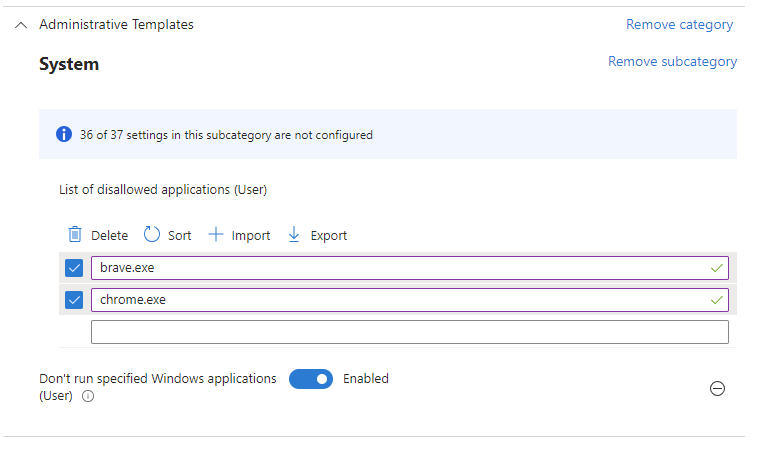
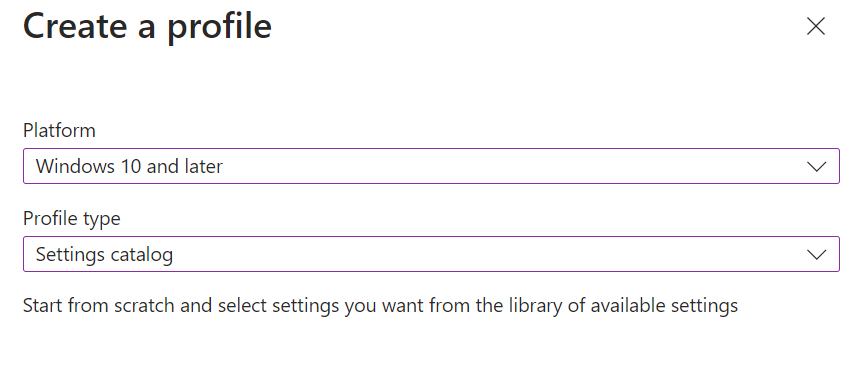
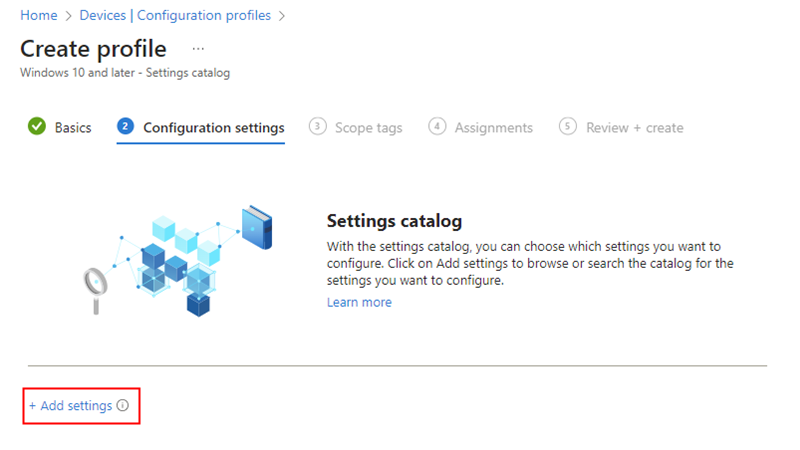
- Edge and Chrome Enterprise Policies: Without needing any new tool, you can leverage built-in group policies or Intune configuration profiles to control extension usage. Both Microsoft Edge and Google Chrome support policies to block or allow specific extensions by their extension ID. You could use Intune’s Settings Catalog to deploy a policy that blocks all extensions except a pre-approved list (a “whitelist”)[2][2]. This approach doesn’t scan for vulnerable extensions per se, but it prevents users from installing unvetted extensions and even removes any extensions that are not on the allowed list[2]. For instance, you can enforce that only certain productivity or security extensions are permitted, and everything else is automatically disabled. This dramatically reduces the risk, since unknown or risky extensions never get a foothold. The downside is administrative overhead in maintaining the allowed list and potentially limiting user flexibility or productivity if they need an extension that isn’t yet approved.
In summary, the most direct way to gain extension vulnerability scanning within a Business Premium environment is to invest in MDVM (Standalone), which is relatively low-cost and integrates with your existing Defender for Business setup[3]. If budgets are zero, using Intune policies to restrict extensions and maybe running periodic audits via scripts or free tools can partially compensate, though with more manual effort and less comprehensiveness.
Best Practices for Ongoing Browser Extension Security
Regardless of which solution you choose to implement, consider these best practices to ensure the ongoing security of browser extensions in your organization:
- Implement Extension Allow/Block Lists: Limit extension installations to a pre-approved list wherever practical[2][2]. By whitelisting known safe extensions and blocking all others, you prevent employees from inadvertently installing malicious or unvetted add-ons. Both Edge and Chrome allow policy-based control of extensions, which can be pushed via Intune or Group Policy. This proactive measure greatly reduces exposure.
- Regularly Review Extension Inventory: Keep track of what extensions are in use. If you have MDVM or a similar tool, schedule periodic reviews of the extension inventory and risk reports. Without an automated tool, perform audits (using scripts or free scanners) quarterly or whenever a major vulnerability is announced. Look for any extensions that should be removed (e.g., those no longer needed or found to be risky).
- Educate Users: Train your users about the risks of browser extensions. Make sure they understand that even extensions from official stores can sometimes be compromised or malicious. Encourage them to only request or use extensions that are necessary for work, and to avoid installing extensions for personal use on work browsers. Users should report if they see any strange browser behavior (which might indicate a rogue extension).
- Keep Browsers and Extensions Updated: Ensure that browsers (Edge/Chrome/Firefox) are kept up-to-date with the latest version – Business Premium can enforce Edge updates and you can use Microsoft Update policies for others. Also, allow extensions to auto-update. Many security issues in extensions get patched by developers; having the latest version can mitigate known vulnerabilities.
- Leverage SmartScreen and Reputation Services: Microsoft Edge’s SmartScreen (and Chrome’s Safe Browsing) can block known malicious extensions or warn about them. Ensure these protective features are enabled. Additionally, if using MDVM, pay attention to the Permissions risk ratings it provides[5][2] – an extension asking for very broad or sensitive permissions might warrant blocking even if it’s not explicitly flagged as “malicious.”
- Minimize Browser Diversity: Every additional browser in use is another surface to secure. If possible, standardize on one or two browsers for your organization. For example, if everyone uses Edge (and Chrome only for legacy app needs), it’s easier to manage extensions via one set of policies. Fewer browsers mean fewer places for risky add-ons to hide (this was suggested by admins noting that having Edge, Chrome, Firefox, Brave, etc., all in use made extension control unwieldy[4]).
- Monitor Threat Alerts: Stay informed about emerging threats related to browser extensions. Subscribe to security advisories or threat intelligence feeds. Microsoft’s security alerts or the MDVM dashboard might notify you if a particular extension is identified as harmful in the wild. If you hear news of a compromised popular extension (as happened with examples like *“Where is Cookie?” or certain password managers[2]), immediately search your environment for that extension and remove or block it.
By implementing these practices, you create multiple layers of defense: preventing most problems up front (via policy and education) and quickly detecting/mitigating any issues that do slip through (via scanning and audits).
Risks of Not Securing Browser Extensions
To underscore the importance of the above, consider the risks if browser extensions are left unchecked:
- Data Theft and Privacy Breaches: Extensions run with significant privileges in the browser. A malicious extension can read everything on the web pages you visit, including sensitive corporate information or personal data. It could quietly siphon this data out to an attacker. For example, some malicious extensions have been caught stealing cookies and credentials from over 600,000 users[2], leading to compromise of online accounts. In a business context, that could mean leaks of customer data or confidential documents.
- Account Compromise: If an attacker controls an extension, they can potentially hijack sessions (via stolen cookies) or act as the user on important sites. An extension could, for instance, take over a logged-in email session or a financial web app session, leading to fraud or unauthorized transactions.
- Malware Installation and Lateral Movement: Vulnerable extensions (even those that aren’t outright malicious initially) can be exploited by malware. An attacker might exploit a flaw in an extension to run arbitrary code on the endpoint, effectively breaching that computer. From there, malware could spread or persist in the environment. Additionally, some extensions may download and execute additional payloads.
- Evasion of Detection: Extensions operate at the browser level, which might not always be monitored by traditional antivirus. A well-crafted malicious extension can maintain a low profile, making it harder for standard security tools to notice. Without specific extension visibility, your IT team might be blind to an ongoing attack vector.
- Non-Compliance and Legal Risks: For organizations under regulations (GDPR, HIPAA, etc.), a data breach via a browser extension could still result in compliance violations and fines. Moreover, some extensions could be inadvertently transmitting data to third-party servers (for example, an extension that injects ads or tracking), which might violate company policy or privacy laws if not authorized.
- Productivity and Performance Issues: Beyond security, unregulated extensions can impact browsers’ stability and performance, and by extension employee productivity. While this is a secondary concern, excessive or poorly coded extensions can slow down systems or cause conflicts – another reason to keep a handle on what’s installed.
In short, the browser is effectively another attack surface. Treat extensions just like you treat installed applications: they should be inventoried, vetted, kept updated, and limited to what’s necessary. Ignoring this area could undermine your otherwise strong security posture from Business Premium’s protections.
Recommendations and Conclusion
1. Enable Extension Visibility: Given that Microsoft 365 Business Premium does not natively include extension vulnerability scanning, it is recommended to augment your security with Microsoft Defender Vulnerability Management. The Stand-alone MDVM license (~$3/user/month)[3] is a cost-effective solution to gain full visibility into browser extensions and other advanced vulnerability insights without a major license overhaul. Start with a pilot or trial to see the benefits; once enabled, review the Browser Extension inventory and address any high-risk extensions identified. This will directly answer your need to “scan browser extensions for vulnerabilities” on an ongoing basis.
2. Implement Policy Controls Now: In parallel to planning or deploying MDVM, take immediate action by using Intune (Endpoint Manager) to set up extension control policies for Microsoft Edge (and Chrome, if used). For example, consider enforcing a rule that blocks all extensions except a defined allowed list of essential extensions[2]. At the very least, you might block known disallowed extensions or categories (e.g., prevent installation of extensions not from the official store, or block those with remote administration capabilities). This ensures that while you work toward improved visibility, you are already reducing the risk surface. Microsoft’s documentation and community scripts can help implement these policies and even remove unapproved extensions from user browsers automatically[2][2].
3. Evaluate Third-Party Tools as Supplements: If budget allows or if your environment has multi-browser complexity, evaluate third-party solutions like SpinOne or security browser platforms. These can provide an extra layer of analysis (such as risk scoring of extensions) and may integrate with non-Microsoft ecosystems (e.g., Google Workspace) if that’s relevant to you. For instance, Spin.AI’s free extension risk scanner could be run to get an initial risk report of extensions in your organization right away. While the preference in an M365 environment would be to leverage Microsoft’s own tooling, a third-party tool could fill any specific gaps (for example, if you have a lot of Google Chrome usage with Google’s management, SpinOne’s integration might be appealing[1]).
4. Maintain an Extension Security Policy: Develop an internal policy regarding browser extensions. This policy should state that only authorized extensions are allowed for use on company devices/browsers. Have a process for employees to request new extensions, where the security team reviews the extension’s necessity and safety (taking into account information from MDVM or other sources – e.g., if MDVM shows an extension has a “Critical” permission risk level, you might deny the request). This policy formalizes the governance around extensions and sets expectations for users. Outbrain’s case showed that having a workflow for extension requests coupled with automated risk assessment greatly improved their security posture[1].
5. Continuously Monitor and Update: Security is an ongoing process. Ensure that whatever solution you implement (MDVM, third-party, or a manual process) is continuously used. Regularly check the dashboards or reports for new extensions or vulnerabilities. Update your allow/block lists as new trusted extensions are required or if formerly safe extensions become risky. Also keep an eye on Microsoft’s updates; Defender for Business and related services get updated capabilities over time (for example, Microsoft could extend some MDVM features to Business in the future, or release new policies for Edge). Staying current will help you take advantage of improvements in the platform you already pay for.
Conclusion: Microsoft 365 Business Premium delivers robust security for SMBs, but it does not include everything – specifically, browser extension vulnerability management is one gap. By investing in a small add-on license for MDVM or carefully using third-party/free tools and Intune policies, you can close this gap cost-effectively. The goal should be a layered defense: gain visibility into what extensions are present and their risks, actively control what can be installed, and keep users informed of the dangers. Following the strategies above will significantly enhance the security of browser usage in your organization, ensuring that browser extensions do not become the weak link in your defense.
References
[1] Outbrain: Taking control of extension security with Chrome Enterprise
[2] How to check and block “malicious” browser extensions with Microsoft …
[3] Microsoft Defender Vulnerability Management
[4] Get a list of installed Browser Extensions : r/Intune – Reddit
[5] Browser extensions assessment in Microsoft Defender Vulnerability …
[6] Compare Microsoft Defender Vulnerability Management plans and …
[7] M365 Business Premium – Defender for Business | Microsoft Community Hub







 CIAOPS