Every MSP ends up doing BitLocker. Very few do it silently on the first attempt. Between TPM quirks, third-party encryption leftovers, and the three different Intune policy surfaces that all claim to configure BitLocker, the difference between “encrypted fleet with recoverable keys” and “2am call from a locked-out CEO” is a handful of settings. Here’s the pattern to deploy in production under Microsoft 365 Business Premium.
Prerequisites people skip
Silent means standard user, no prompts, no elevation — which is a higher bar than “BitLocker on.”
- TPM 2.0, ready state, UEFI, Secure Boot on. If the TPM reports “not ready” or is owned by a prior OEM image, silent encryption aborts. Check with
Get-Tpmbefore blaming policy.
- Entra joined or Hybrid joined. Workgroup and AD-only devices have no key escrow target and will not silently encrypt.
- No third-party encryption agent. McAfee DE, Sophos SafeGuard, legacy Dell Data Protection — all block BitLocker takeover until fully decrypted and uninstalled.
- No startup PIN or startup key requirement. Silent mode and pre-boot authentication are mutually exclusive. Pick one.
- WinRE present and healthy. BitLocker uses it for recovery.
If any of those are wrong, don’t touch policy yet. Fix the device first.
Where to configure it
Ignore the Settings Catalog for this one. Microsoft is explicit that the Settings Catalog does not expose the TPM startup authentication controls silent enablement depends on (docs).
Use the Endpoint security path:
Intune admin center → Endpoint security → Disk encryption → Create Policy → Platform: Windows → Profile: BitLocker.
The settings that actually matter for silent:
- Enable full disk encryption for OS and fixed data drives: Yes
- Hide prompt about third-party encryption: Yes
- Allow standard users to enable encryption during Autopilot: Yes
- Require device to back up recovery information to Azure AD: Yes (gates encryption on successful escrow — this is the setting that saves you)
- Recovery password rotation: Enable on Entra and Hybrid-joined devices
- OS and fixed drive: XTS-AES 256, TPM-only protector, no PIN
Full setting reference: Disk encryption profile settings.
The rollout pattern
Do not target All Devices. Ever.
- Pilot ring (5–10 devices): your own, one per client hardware family. Watch the Endpoint security → Disk encryption report for “Encrypted” status and a recovery key present in Entra. If the key isn’t there, the device isn’t safe, regardless of what Windows says.
- Early ring (10–20% by dynamic group): let this soak for a week. Check the encryption report daily. Anything stuck in “Waiting for response” usually means TPM readiness or a WinRE issue — remediate per device, don’t loosen policy.
- Broad rollout: remaining corporate devices via a dynamic group filtered on
deviceOwnership eq "Company". Never include BYO.
- New builds: bake the policy into Autopilot so encryption completes during ESP. Standard-user silent enablement only works if “Allow standard users to enable encryption during Autopilot” is Yes — double-check before you cut a new image.
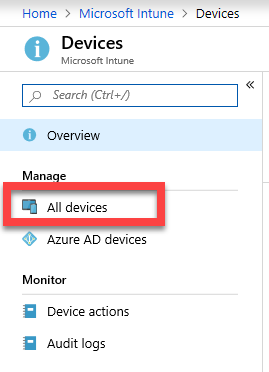
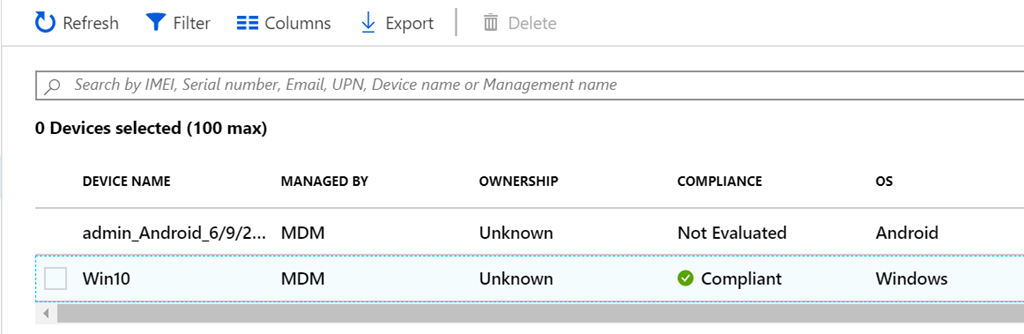
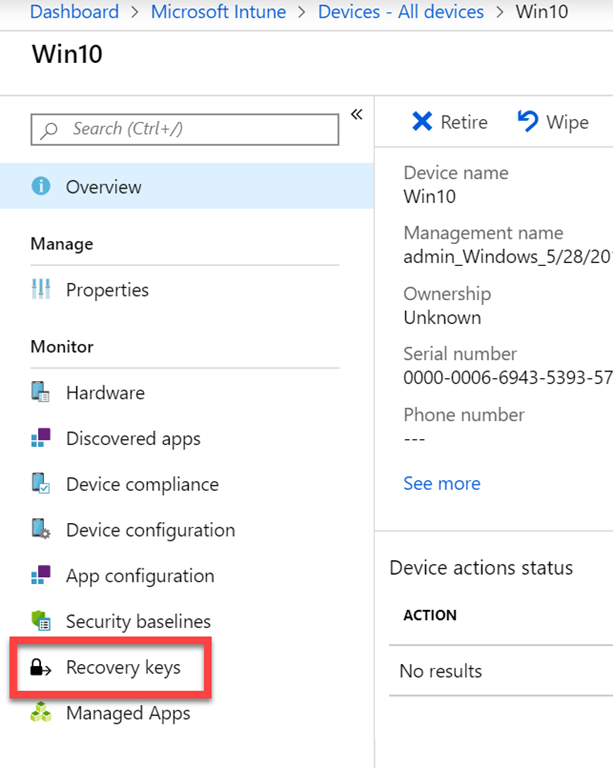
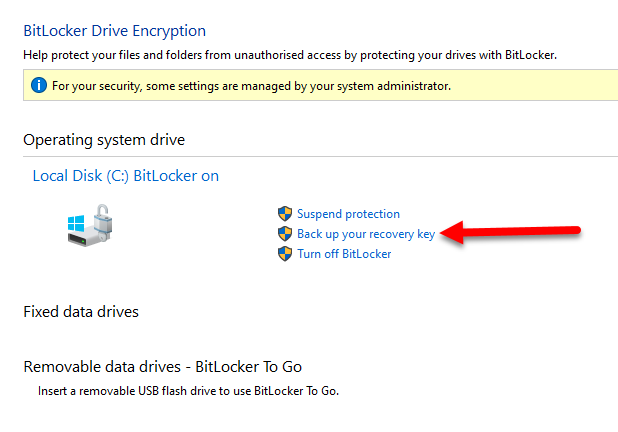
The help desk also needs the recovery-key retrieval flow documented before you go broad, not after the first lockout.
The pitfalls that bite
- Silent and startup PIN are incompatible. If compliance demands pre-boot auth, you’re running standard BitLocker, not silent. Decide once.
- Recovery key escrow failures hide in plain sight. Without “Require device to back up recovery information to Azure AD = Yes”, devices encrypt, keys never land in Entra, and you discover it the day a laptop gets stolen. Audit the encryption report monthly — the ground truth is “Recovery key: Yes/No” per device, not policy compliance.
- Don’t mix endpoint protection + disk encryption profiles targeting the same devices. Conflicts resolve unpredictably. Pick the Disk encryption profile and delete the legacy Endpoint protection one (policy comparison).
Get those three right and BitLocker becomes a checkbox — exactly what your clients are paying for.