Keeping tabs on Azure costs via email

A common concern that holds many back from using all the resources available in Azure is consumption billing aka being billed for what you use rather than a flat fee as you get with Microsoft 365 services.

Here’s a way to keep an eye on those costs daily via email.

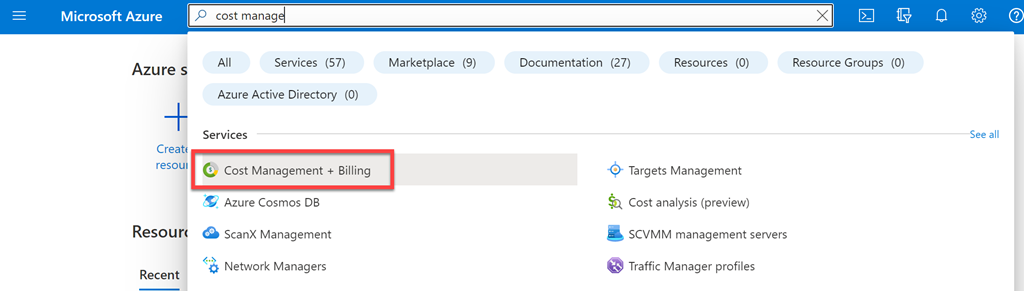
Firstly, login to the Azure portal as an administrator and then navigate to Cost Management + Billing. Next, you want to set up the report that you want to see daily.
Screenshot 2025-01-19 094010

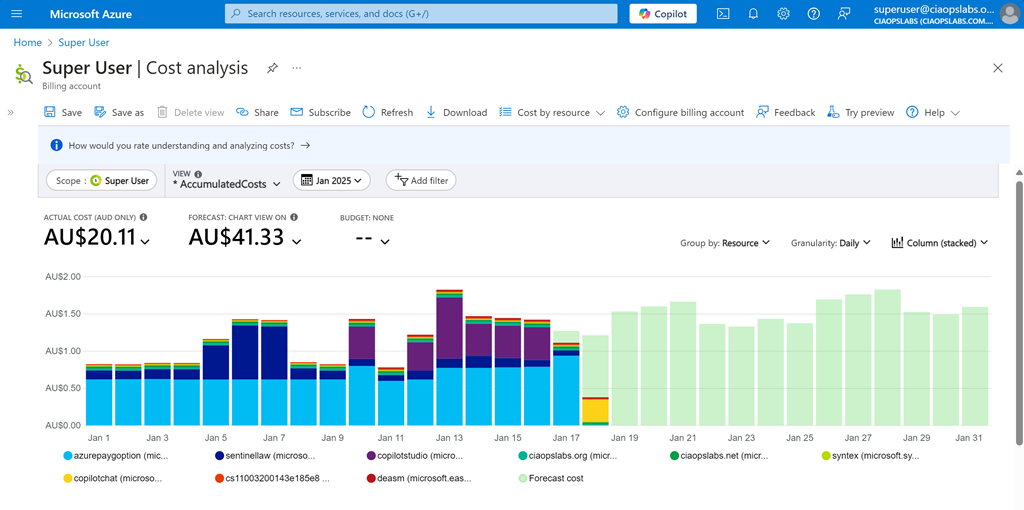
For me I want to see Cost Analysis for the current monthly with accumulated costs, grouped by resource, granularity daily and as a stacked column as shown above. When you have it the way you want select the Save option on the menu at the top of the page.
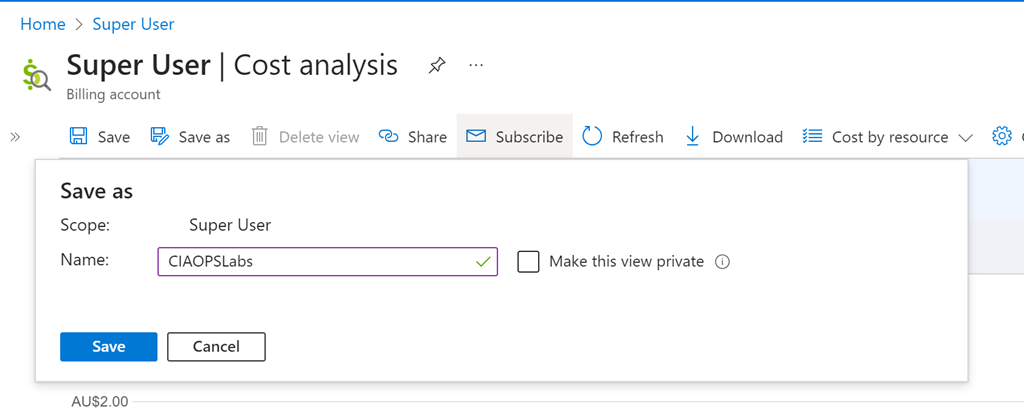
Screenshot 2025-01-19 095243

You’ll be asked for a name, as you see above. Select Save when complete. 
Screenshot 2025-01-19 095532

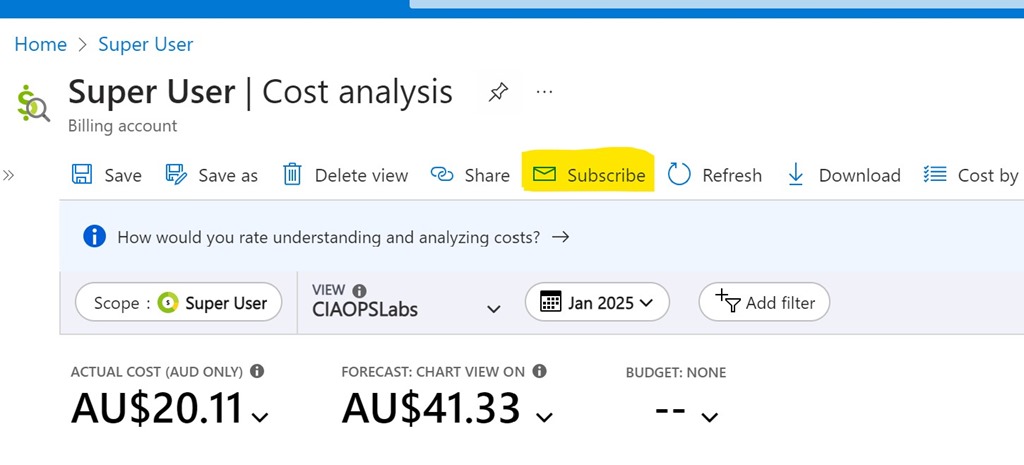
Also on the menu at the top, now select Subscribe as shown above.
Screenshot 2025-01-19 095742

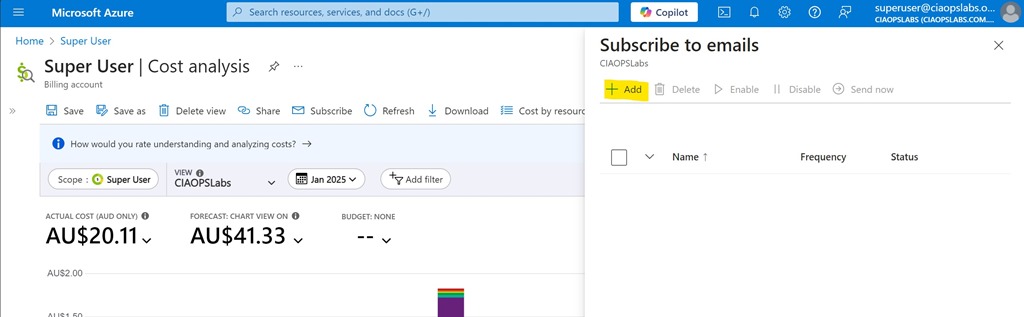
Select the Add option from the Subscribe to emails option that appears on the right as shown above.
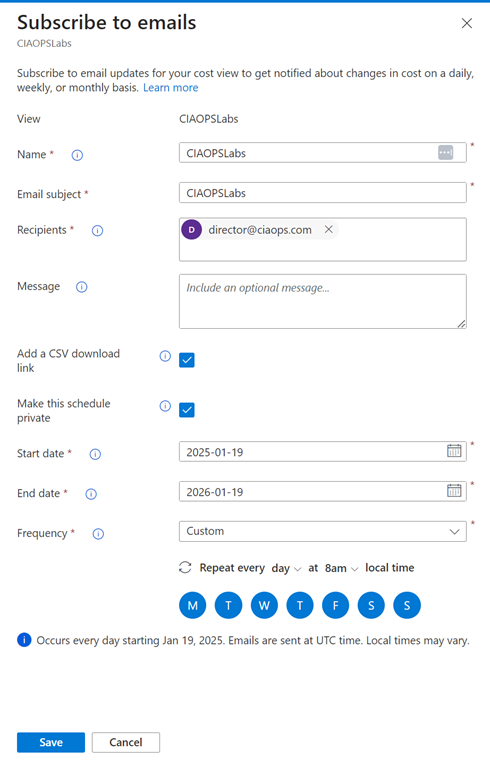
Screenshot 2025-01-19 100019

You should see the View you just saved at the top. Now complete the rest of the fields as desired. Personally, I select the option to include a CSV and want the report every day. The only challenge is that you can only specify a maximum end date 12 months out from the day you configure this. You’ll need to return annually to update this.
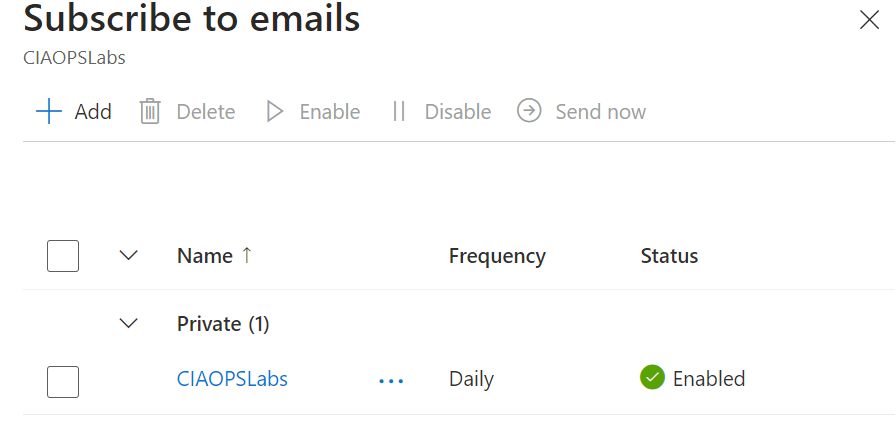
Screenshot 2025-01-19 100354

Select Save at the bottom of screen and you should now see your configuration listed as shown above.
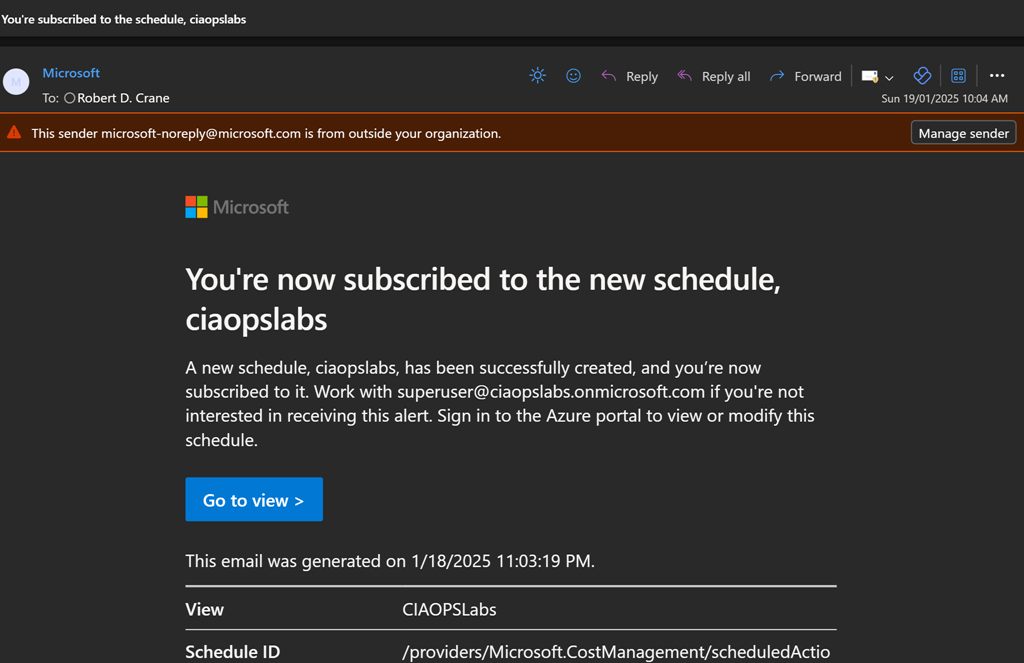
Screenshot 2025-01-19 100809

You’ll get a summary email confirming these settings as shown above.
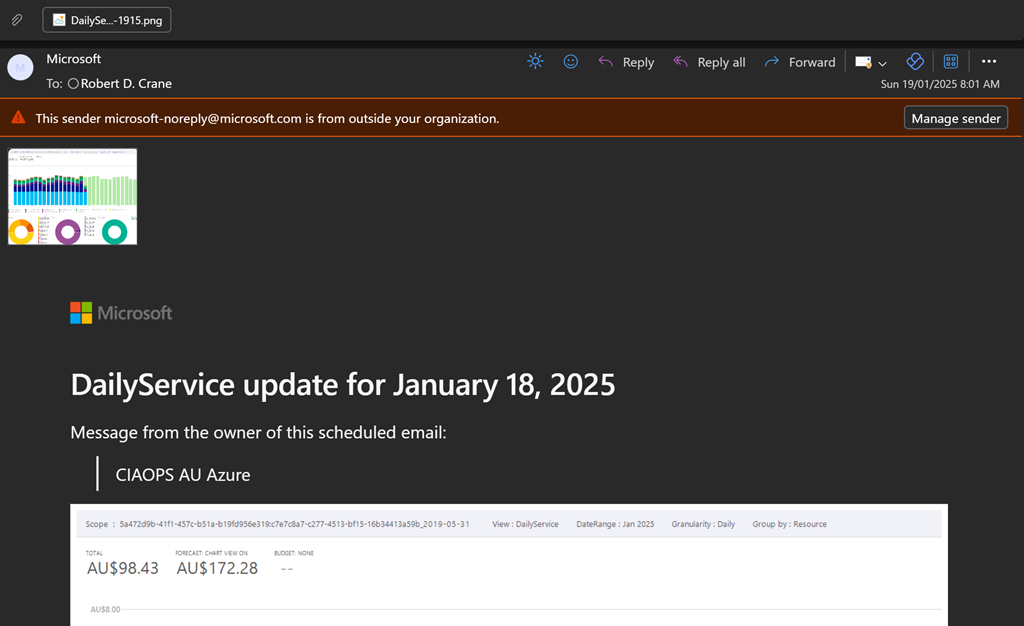
Screenshot 2025-01-19 100531

You should now start receiving a summary email on at the frequency your selected as shown above. You’ll see a screen shot of the report and a CSV attachment if you elected to include that.

Hopefully, this option provides greater piece of mind when it comes to monitoring costs with Azure. Remember, you can create as many subscription reports as you want to see a range of different details if desired.
Why can’t I delete a Power Platform PAYG billing plan?

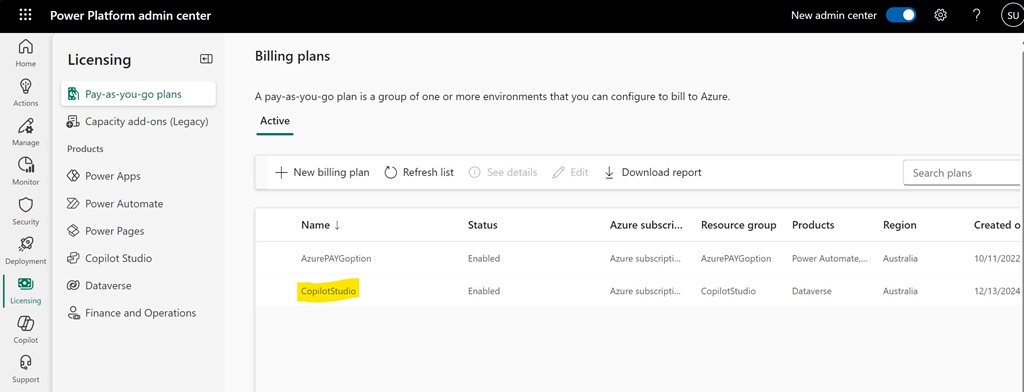
*** Update 5 Feb 2025: Delete billing plan is now available. Developers were working on the back end causing the issue.

Screenshot 2025-01-17 154952

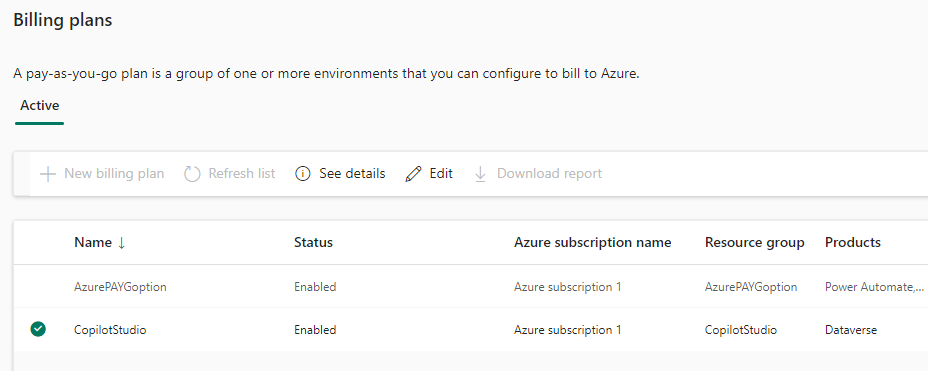
I want to delete the Power Platform PAYG Billing plan called CopilotStudio as seen above.

Screenshot 2025-01-17 155309

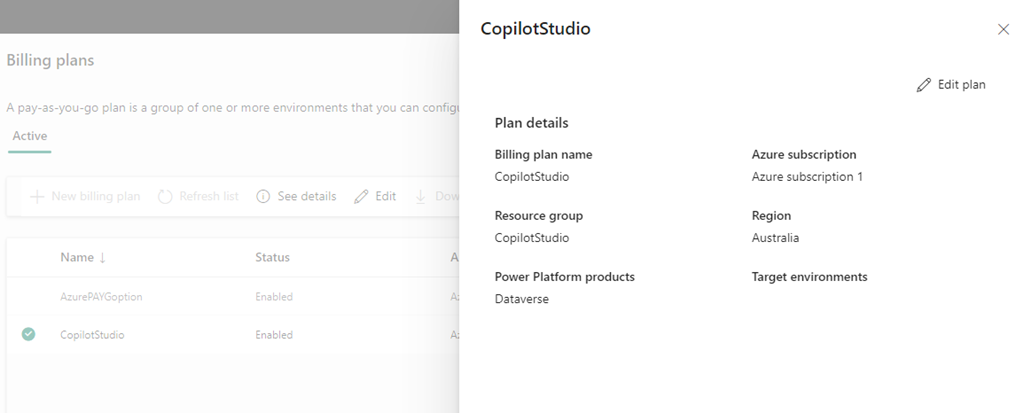
If I select the pla, as shown above, the the options See details and Edit are available only.

Screenshot 2025-01-17 155502

If I Select See details the above information is shown but with no delete option.

Screenshot 2025-01-17 155808

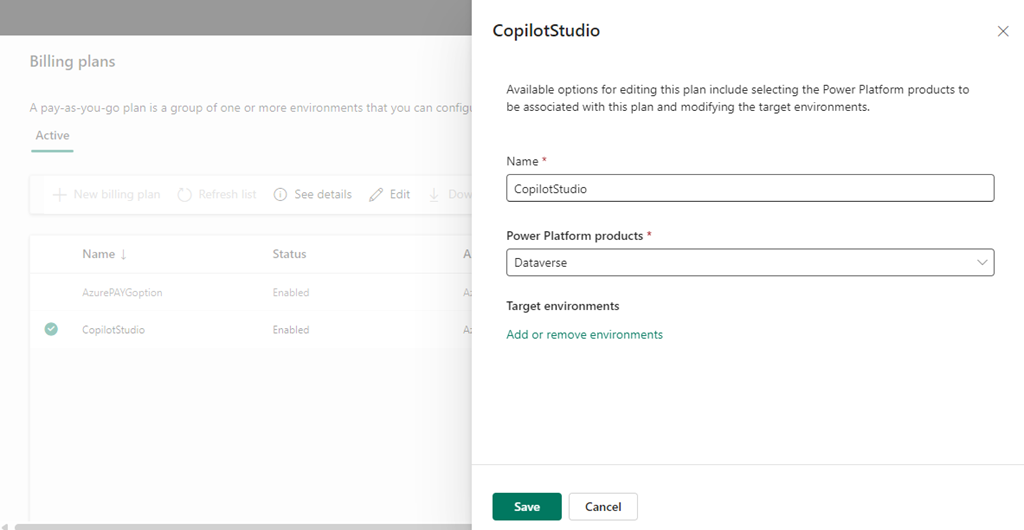
Selecting Edit plan displays the above, again with no Delete option.

The billing plan has no environments inside it.

Originally, the PAYG Billing plan was tied to an Azure Resource Group that has also now been removed. Yet, the billing plan remains?

Where is the delete option? Anyone know?

Power Platform PAYG configuration

I have spoken about how to

Set up PAYG for Power Platform

I was therefore puzzled when I saw this error in a Flow I created with premium connectors recently

Screenshot 2022-10-11 105235

“… does not have a standard service plan adequate for non-Standard connection”

It was my understanding that Power Platform PAYG would handle this. However, when you read the following documentation it says:

Only production or sandbox environments are available to add to billing policies at this time. Trial environments, developer environments, Dataverse for Teams environments, and default environments cannot be added.

Ok, that means I need to create a new Power Platform Environment and add that to the Power Platform PAYG billing policy.

image

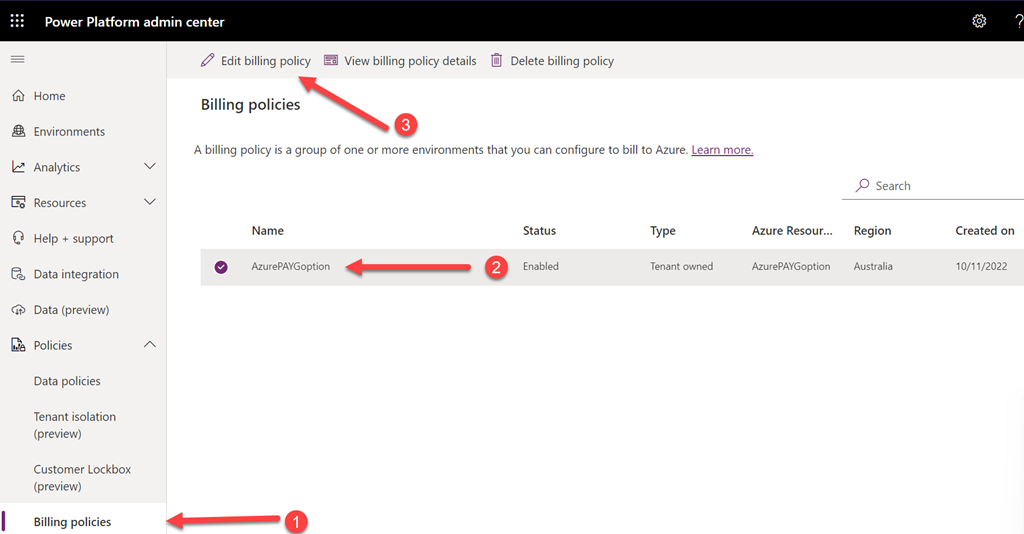
So into the Power Platform Admin center I went. Selecting Billing policies from the Policies option on the left. The direct URL is:

https://admin.powerplatform.microsoft.com/billingpolicies

I then selected the PAYG billing policy I had previously created and then I selected Edit billing policy at the top of the page.

image

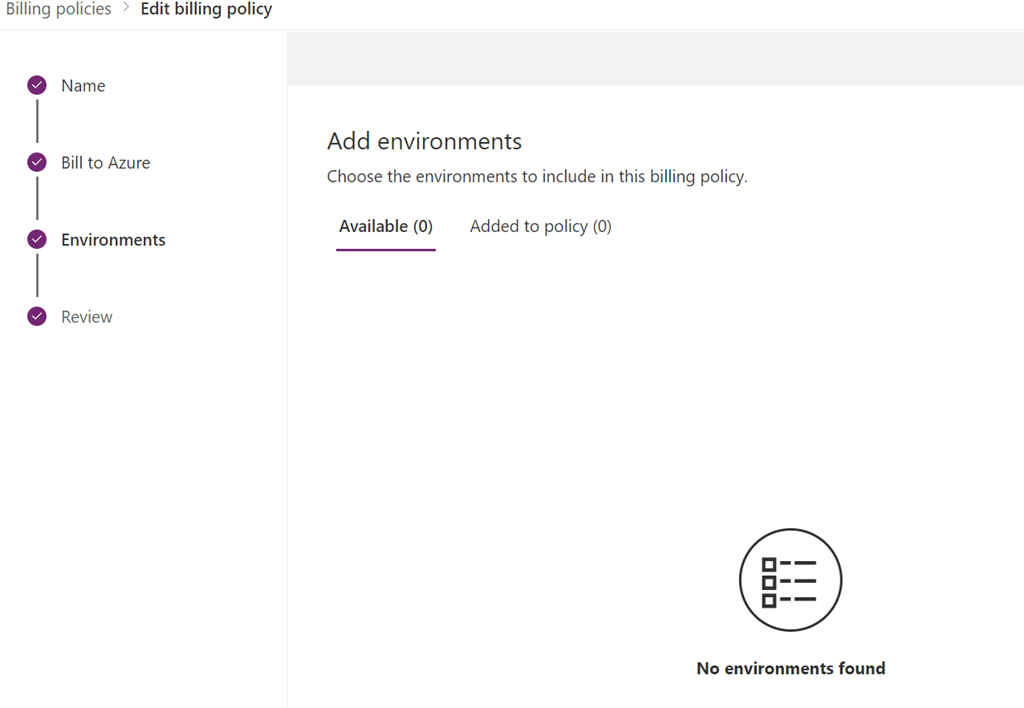
Sure enough, in the Environments section (shown above) I had nothing in there, so no billing was actually happening against the PAYG policy.

image

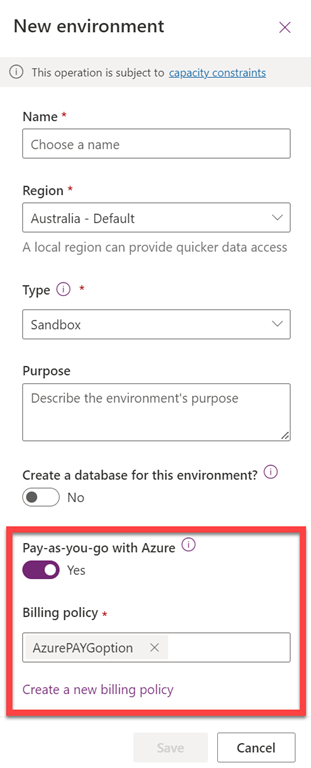
If I now create a New environment in the Power Platform you can see down the bottom there the option to use Pay-as-you-go with Azure. Here you can select an existing PAYG policy as well as create a new one if desired.

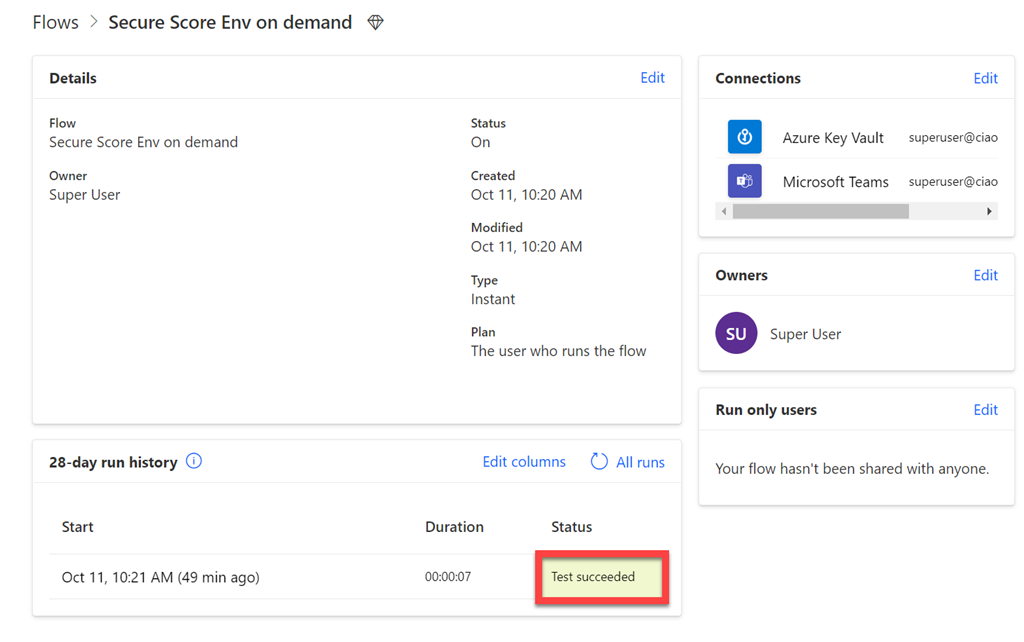
With a new environment created, I exported and imported the Flow I had created previously in the default environment into this new environment with PAYG billing now enabled

image

and it ran successfully! Yeah!

So the moral of the story with the Power Platform pay as you go option is that it will not work against the default environment, you need to create a new environment and specify the PAYG option at the point of creation.

image

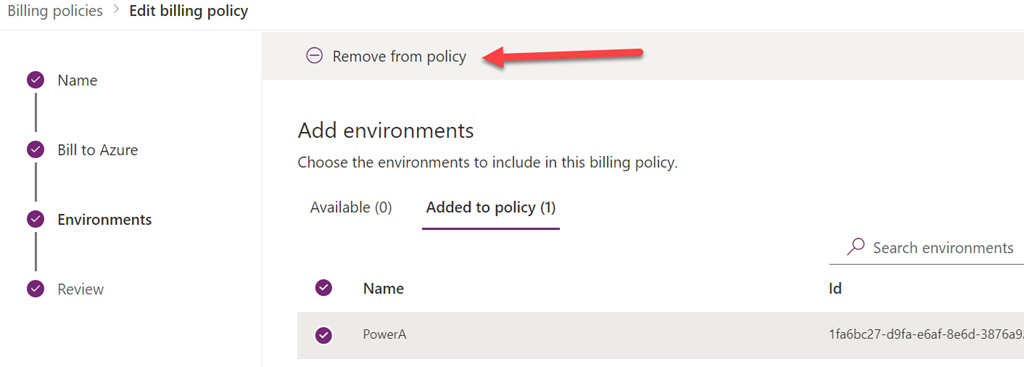
It is also possible to remove the environment you added to the PAYG policy at any point by editing the policy and selecting Remove from policy as shown above at the Environments stage after selecting the environment in the Added to policy menu option.

Get your Azure invoice emailed to you

image

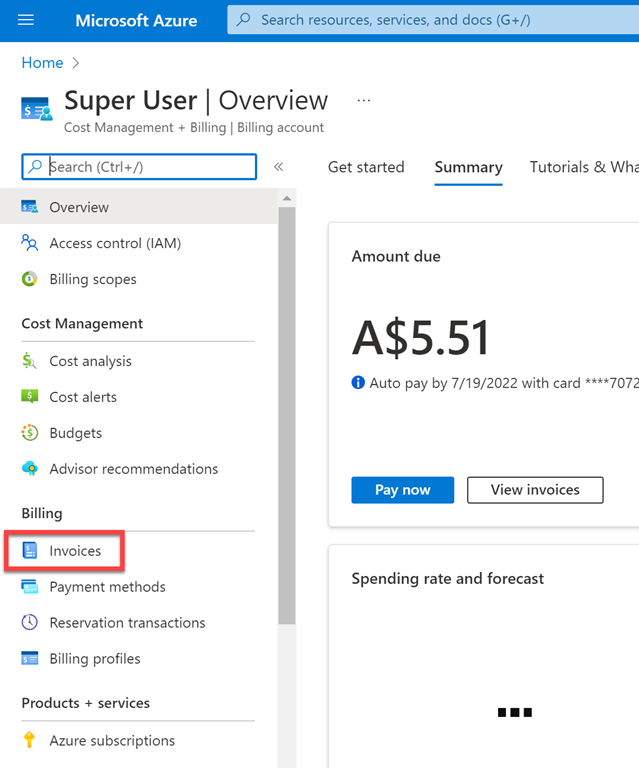
If you need a copy of the Azure invoice emailed to you then you can configure that inside your Azure portal be navigating firstly to the Cost Management + Billing.

image

Then select Invoices from the menu on the left.

image

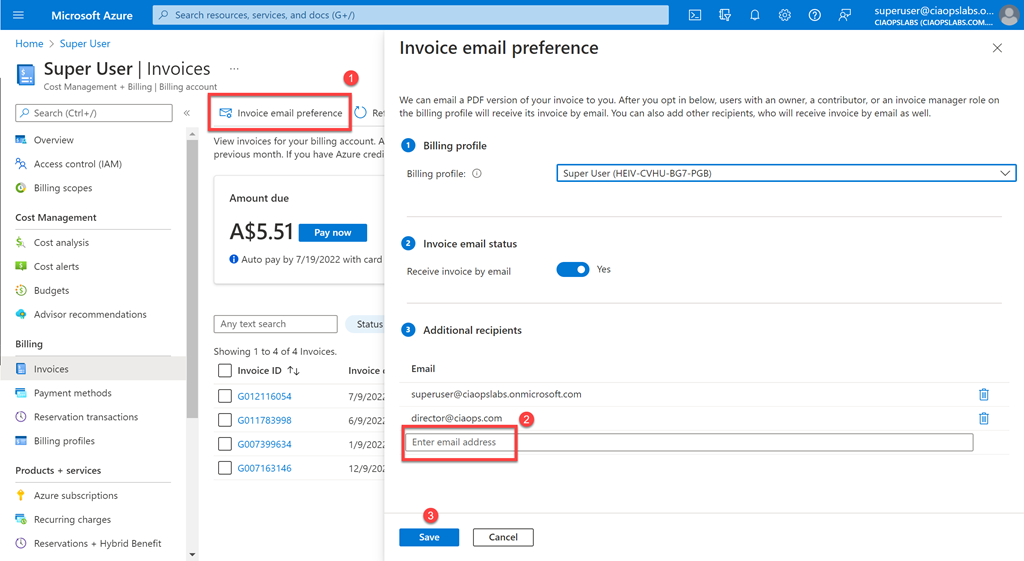
Finally, select Invoice email preferences from the menu on the right then enter the desired email address on the right in the dialog that appears. Remember to save your changes and from now on that email address will receive a copy of your Azure invoice monthly.

Set up PAYG for Power Platform

The Power Platform now has the ability to be Pay As You Go (PAYG) for licensing. This is a great option to get access to many advanced capabilities on demand. When you configure this option the billing is done via Azure rather than Microsoft 365. This means, prior to setting up PAYG for the power Platform, you’ll need to have an Azure subscription in place. As I have highlighted before:

Deploy Office 365 and Azure together

Once you have the Azure subscription in place, inside the same tenant where you want to enable PAYG for the Power Platform, you’ll need to have or create an Azure Resource group that will be associated with the PAYG option. You need to create this ahead of time. The following will show you how to create one if you need to:

Manage Azure resource groups by using the Azure portal

image

You’ll then need to visit the Power Platform admin center which is at:

https://admin.powerplatform.microsoft.com/

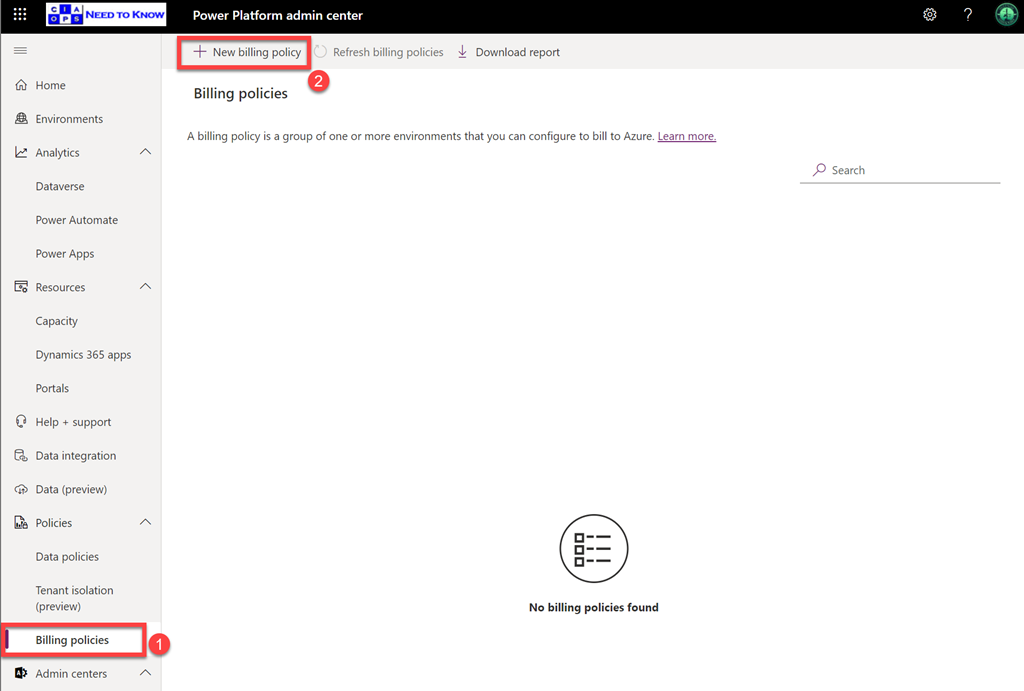
then select Billing policies. From the top menu now select New billing policy as shown above.

image

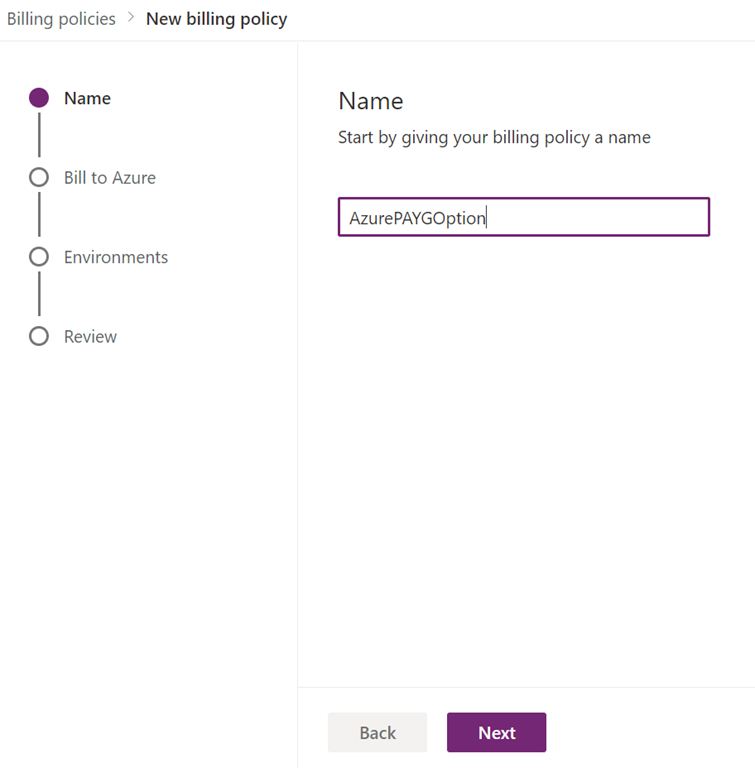
Give the policy a name, the name needs to be at least 10 alphanumeric characters. Select Next to continue.

image

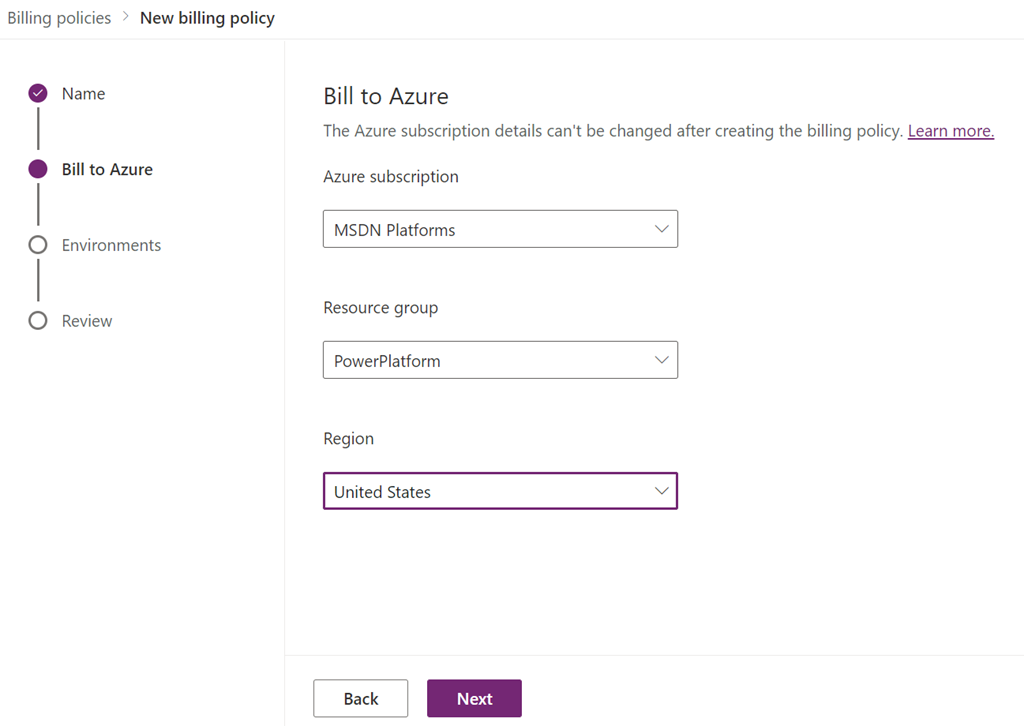
Now select the Azure subscription you want the billing ties to. Then select the Resource Group that you want to use, the must already be in your Azure subscription as aI noted earlier. Finally select the region and press Next to continue.

image

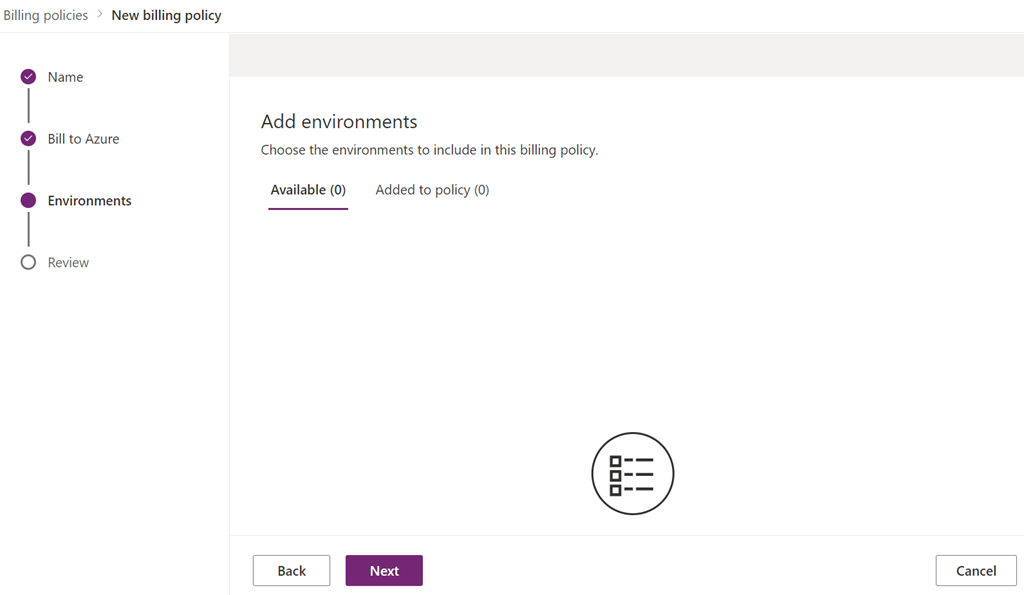
Now add any environment to the subscription and press Next to continue.

image

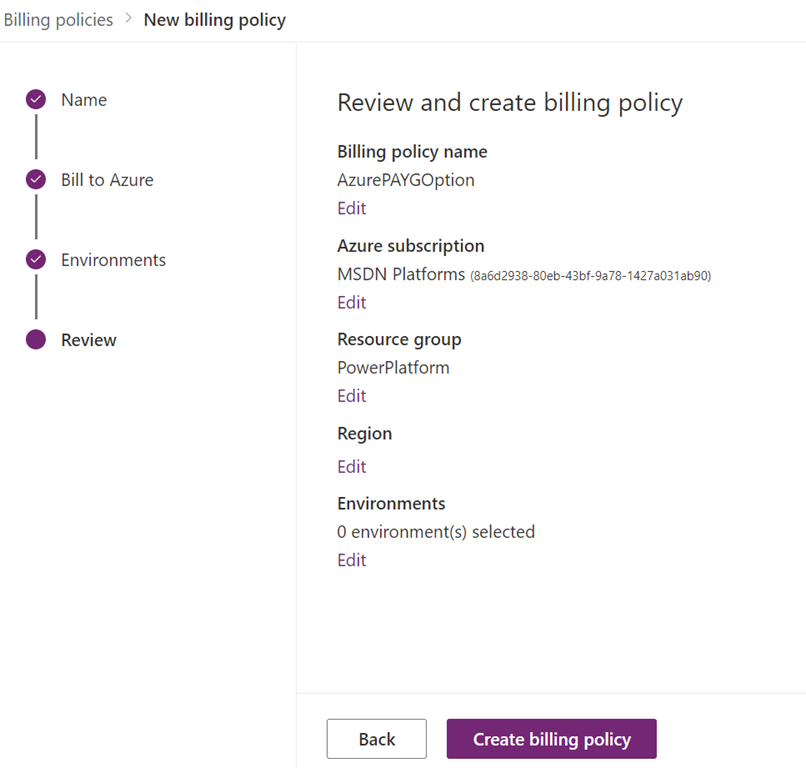
Here select Create Billing Policy.

image

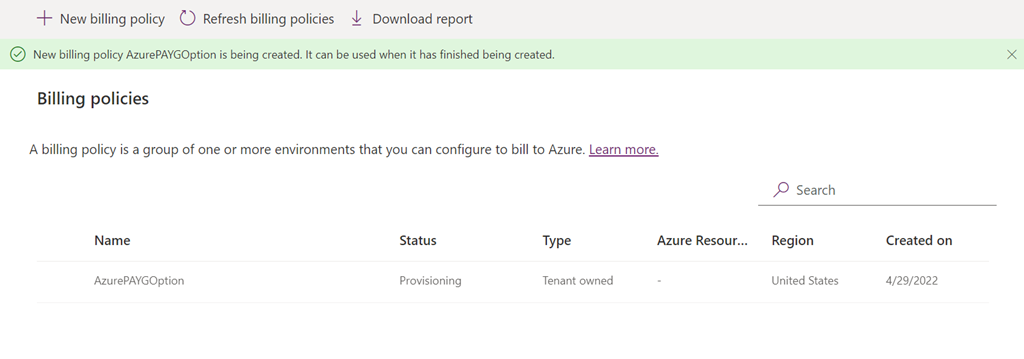
The policy should now be created and displayed as shown above.

You create additional billing policies if you wish by simply repeating the above process. Doing so would allow you to tie that policy to a different Azure subscription and/or Resource Group for billing and management if needed.

For more details on the Power Platform PAYG option see:

Set up pay-as-you-go