Need to Know Podcast–Episode 96

Marc Kean now joins me on a regular basis with the podcast to share his knowledge and experience on Azure and PowerShell. Marc also lined up our guest for this episode, Reid Purvis, Microsoft Cloud Infrastructure Technical Specialist based in Sydney.

Reid explains what Azure Express Route is all about and why it makes sense for even the smallest organisation these days. If you want to learn about Azure Express Route then this is episode for you.

You can listen to this episode at:

http://ciaops.podbean.com/e/episode-96-reid-purvis/

or subscribe to this and all episodes in iTunes at:

https://itunes.apple.com/au/podcast/ciaops-need-to-know-podcasts/id406891445?mt=2

The podcast is also available on Stitcher at:

http://www.stitcher.com/podcast/ciaops/need-to-know-podcast?refid=stpr

Don’t forget to give the show a rating as well as send me any feedback or suggestions you may have for the show. 

Resources

Azure Service Updates – https://azure.microsoft.com/updates

Azure Resource Manager – a holistic view of Azure Resource Manager – https://resources.azure.com

Australian Azure Express Route – Getting Started

https://azure.microsoft.com/en-us/services/expressroute/

http://resources.azure.com/

https://azure.microsoft.com/en-us/

Reid Purvis

Microsoft Cloud Infrastructure Technical Specialist (Sydney)

Email: reid.purvis@microsoft.com

Mobile: +61 427 038 685

Follow Me On Twitter: http://www.twitter.com/rpurvis  (@rpurvis)

Introduction to Azure

I have blogged and done plenty of presentations about different Azure services (i.e. Azure SMB File Shares recently), but when I looked through my list of YouTube videos I didn’t have a basic video that provided just an general overview of what Azure is.

So I took some content from a recorded webinar and packaged it up to the video you’ll see above and at:

What is Azure?

It runs for about ten minutes and hopefully provides a good resource for those who are still trying to understand what Azure is all about.

From there, I’d suggest you take a look at my online training academy which has a few courses on Azure but probably the most relevant one is:

Introduction to Azure

which has about 19 lessons that are aimed at giving you basic information about some of the most relevant features of Azure for IT Professionals.

You can also search all my blog posts on Azure using the Azure tag. The results of that are:

CIAOPS blog Azure posts

which you can use now or any time in the future as I aim to continue to tag each article which deals with Azure.

If you are still struggling with Azure, don’t hesitate to contact me with your questions and I’ll do my best to help shed some light on what at times, I understand, can be somewhat confusing. If you’d also like to see me write or present about something in Azure just let me know and I’d be happy to make it happen. All you gotta do is ask.

Azure Backup Server for Applications configuration

I have written before about how Azure can be used to backup files and folders quickly and shown how to set all that up here:

Azure Desktop Backup

Recently, Azure Backup was extended to now be able to do server services like Exchange, SQL, SharePoint etc:

Azure backup now does servers

This involves a different process to setup and so here is the walk through process of setting Azure Backup Server for Applications.

image

You’ll need to have an Azure Backup Vault already in place as the destination for your backups. You create this Azure Backup Vault in the Azure management console under the Recovery Services option. You can have as many Azure Backup Vaults as you wish and my personal practice is to have a separate vault for each machine. If you need to create a new vault I have detailed how to do this previously.
image

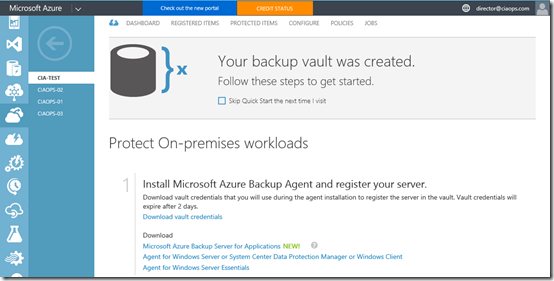
Once the vault has been created you’ll need to download the Azure Backup software. You can find this in the details for the Backup Vault as shown above. You need to download the Microsoft Azure Backup for Applications.

This will in effect take you to the following download link:

https://www.microsoft.com/en-us/download/details.aspx?id=49170

image

Which will allow you to download the software. Beware that the Backup for Applications software is about 3.2 GB in size. Why? Because it includes the Microsoft Data Protection Manager (DPM) and SQL 2014.

image

There are number of different files you need to download, as shown above. Place them all the same directory and then run MicrosoftAzureBackupInstaller.

image

The installation process will now commence. Select Next to continue.

image

The next step in the process is to expand the downloaded files into a single installation directory. You can customise this directory if desired. Select Next to continue.

image

Select Extract to continue.

image

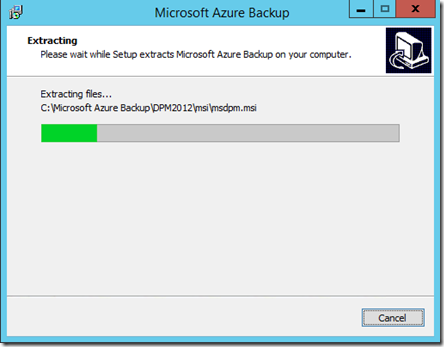
The files will now commence extracting into the directory that you nominated.
image

Be patient, the extraction process will take a few minutes.

image

When the extraction process is complete you are given the option to Execute setup.exe to install the software. Leave this option selected and press Finish.

image

The setup splash screen should now appear as shown above. From this screen select Microsoft Azure Backup under the Install column on the left.

image

The C++ Runtime will now be installed.

image

The setup screen should now appear as shown above. Select Next to continue.
image

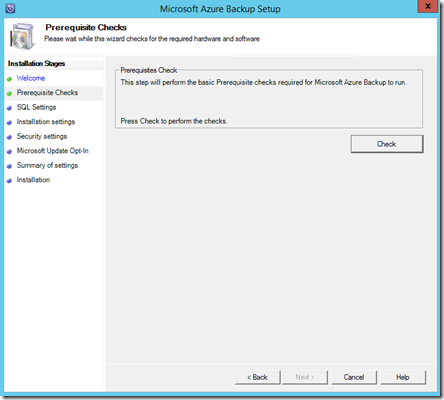
Select the Check button in the top right to ensure all the prerequisite software is installed.

image

If the prerequisites are met you should see a message confirming that as shown above. Select Next to continue.
image

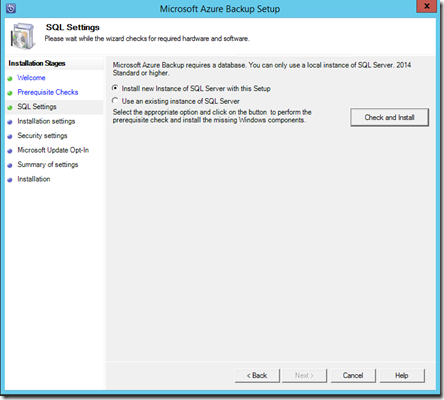
You’ll now need to specify an SQL server as part of the configuration. You can configure an existing SQL server on your network or you can elect to install a new instance on the current machine. If you select an existing SQL Server it will need to be running SQL 2014.

In most cases you’ll want to install a new instance of SQL 2014, so ensure that option is selected. Now select the Check and Install button in the top right.

image

Your system will then be checked. This should only take a minute or two.
image

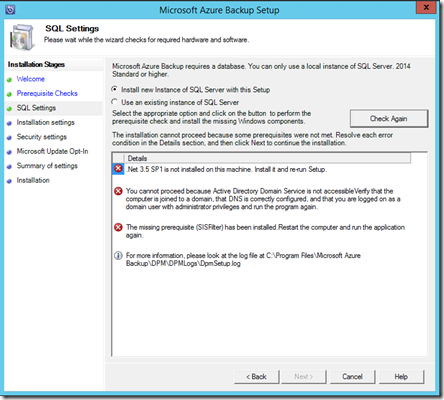
You’ll then see a report of the results. A couple of things to notice here:

– You need to install this software on a domain joined server

– You need to have .Net 3.5 SP1 installed

– You can install this software on a domain controller but if you do you’ll need to follow this guidance before proceeding:

https://technet.microsoft.com/en-us/library/ff399416.aspx

image

In this case the installation is on a member server and no critical issues were detected. Select Next to continue.

image

You’ll then be prompted to confirm your installation configuration.

Once you have made any modifications here select Next.

image

Now provide a password for the two accounts required to run services. Remember to record this password!

Select Next once you have entered a suitable password.

image

Select how you wish to manage updates and then Next to continue.
image

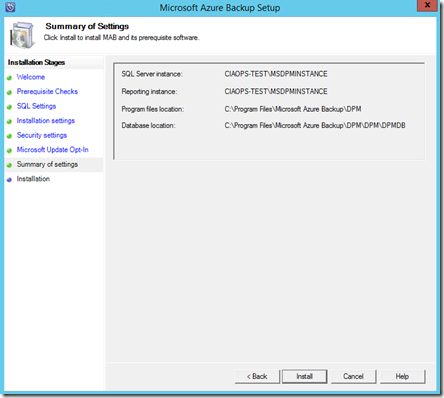
The configuration information is displayed. Select Install.
image

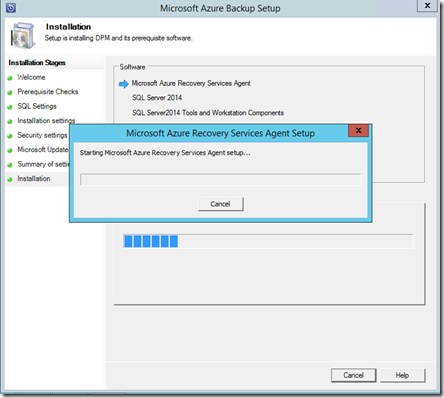
The selected software components will now be installed.

image

You’ll now be prompted to complete the Azure Recovery Services Agent Setup Wizard as you would with the normal Azure Backup option.

Enter any proxy details and select Next.

image

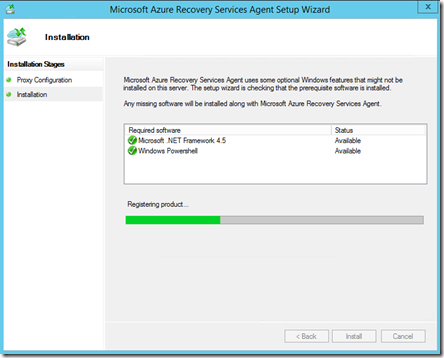
If additional software is required to support this agent it will be displayed.

Select Install.
image

Supporting software will then be installed.

image

When the required supporting software has been installed select Next.

image

You’ll then be prompted for the location of the Vault credential file.

image

You download this file from the console of the Backup Vault as shown above by selecting the Download vault credentials link.

image

Once the vault credential file has been verified select Next.

image

You’ll now need to generate a unique encryption key for this backup. In most cases you will select the button Generate Passphrase to create a secure key.

You will also be prompted for a location to save a text file of this encryption key. Ensure that this key is recorded and a copy of the file is saved to another system so it can be used if recovery is required.

When all this is complete, select Next.

image

The installation process will continue.

image

You will receive a confirmation message as shown above that the process is complete.

Press the Close to complete the installation.
image

You should now find an icon on your desktop like that shown above for Microsoft Azure Backup Server. Double click this to launch.

image

The Microsoft Azure Backup console should now launch as shown above.

Here’s the Microsoft documentation on this configuration process:

Preparing to back up workloads using Azure Backup Server

I’ll look at covering how to use Azure Backup Server to backup and restore files in an upcoming post.

Azure SMB File Share–Performance and price

So, in the last post I demonstrated how to create an SMB file share on Azure and use it as a mapped drive replacement for users who wanted such an arrangement, typically to mimic and existing on premises file server. That however is only half of the business case for such a solution. To make an informed decision we need to consider both the Azure SMB File Share performance and pricing.

Performance first. For this I used a standard set of files, about 83 MB in total that included small (1MB) Office documents (PowerPoints, Word, Excel, etc). I also include a few larger videos files (>10MB) in this group of files as my benchmark. I then uploaded these files from the local drive of my workstations (I tried on Windows 8.1 and Windows 10 to get a kinda “average”) using the same browser over the same connection (ADSL – download speed about 12 Mbps, Upload about 0.6 Mbps). During all the test the workstations were not doing anything and there was nothing else going to the Internet for the duration of the file transfer. Both the Office 365 destination tenant and Azure file share destination container were in the Australian data center region.

image

With that process as my baseline you can see the results that I got above when I transferred the same files to OneDrive Consumer, OneDrive for Business and the mapped Azure drive (using File Explorer).

Some general observations from this data are:

1. Uploads to OneDrive consumer were noticably slower. You get what you pay for clearly.

2. OneDrive for Business and Azure file share transfers are pretty much the same. This tell me that there not any loss in performance by electing to use Azure file shares over OneDrive for Business if you so choose.

image

As a comparision I copied the same data up to an Azure Windows 10 virtual machine running in the Australian region. The transfer of the data there using the RDP client took about the same amount of time as upload to OneDrive or Azure file shares but HOLY COW, look at the difference once the data is actually in an Azure virtual machine as the chart shows!


Seconds

OneDrive Consumer


         1,282

Azure Share


         1,090

OneDrive Business


         1,059

OneDrive consumer (VM)


               32

OneDrive Business (VM)


               20

Azure Share (VM)


                 5

Above are the raw figures for a comparision of just how much faster things are. In somes cases up to 200X.

Some general observations here:

1. Bandwidth MATTERS! The limiting factor for all my uploads to OneDrive and Azure file shares from my desktop is my connected bandwith up to the Internet.

2. If you are going to go through the pain of moving your data into the cloud, it is much better to access that data from a machine that is also in the cloud, preferably in the same datacenter.

3. If you want to migrate “totally” to the cloud not only should you consider your data but how that data is being access. If you move both your data and your desktops to the cloud you could potentially see a 200X performance improvement over accessing the data on a local desktop.

So in summary. Azure file share performance is no worse that using other methods of acessing files in the cloud but if you can also have virtuals desktops in the same data center, holy smokes is it quicker.

Now pricing. For this I used the standard Azure pricing calculator at:

https://azure.microsoft.com/en-us/pricing/calculator/

and here are the results based 100GB of stored data being overwritten every month.

image

The first requirement when pricing an Azure solution is the cost of storage which you can see above comes to the princely sum of A$18.60 per month for 100GB.

image

You then need to allow for data transfers. Azure only charges for data out of Azure not in and you also get the first 5GB to any region free. So for 100GB of tarnsfers you’d pay A$16.70 per month.

image

As you can see above, the grand total would be A$35.29 per month for 100GB of georedundant data storage using an Azure file share.

So let’s say an on premises server costs A$3,500. That means I could use Azure file share storage for 100 months, which is 8 years and 4 months, for the same cost. To be safe, lets divide that by two (50% margin of safety being the good engineer I am) and discard the remainder. By my rough costing estimates, you can use Azure file share storage for 4 years before it exceeds the price of on premises equipment purchased today. So, using Azure file share storage is no worse than the cost of shelling out for equipment today using this anaylsis.

So there you have it. Pretty conclsuive in my my opinion, even if these are rough calculations. Azure file share storage is no worse in regards to price and performance when compared to other storage solutions. However, Azure file share storage has a great many other benefits I’ll go into soon when compared to any on premises equivalent (like say the cost of actually running up and installing an on premises file server versus setting up Azure file shares) but hopefully I’ve at least made people question why the hell the need a server on premises any more?

Creating an Azure SMB File Share

Even though many businesses want to move to the cloud they are not ready (in many cases actually not willing) to adopt a move to a collaboration environment like SharePoint Online. In fact, I commonly hear the request that people want things “exactly they way they are now” but with “everything” in the cloud. Basically, they don’t want to change.

This typically means they want a mapped drive (say Z:) which appears in thieir file explorer and when navigated to contains all their files, just like their current on-premises file server. Now, this can be quite a challenge if they are moving to Office 365 for email but don’t want to move to SharePoint Online for file storage. As I have said many times, OneDrive for Business is NOT a good option at all as a replacement file server and neither is trying to use the OneDrive for Business sync client to copy large amounts of files to each desktop.

This requirement to access files and folders in the “old” way has driven many to competing products like Dropbox or Box but these products also have issues due to their syncing nature. I have been therefore looking for a suitable solution to this dilemma and believe I have now found a something.

Enter Azure….

Azure now allows you to set up SMB file shares that can be directly mapped on any workstation. Here’s how to do that.

image

You’ll need to navigate to the new Azure portal as shown above as this is the only place you can configure these SMB shares.

Once you have the new Azure portal open select New, then Data + Storage from the blade that appears and then Storage account as shown.

image

Select the Create button at the bottom of the page to create a new repository for files.

image

You’ll then need to complete the details for the storage account by giving it a name (lowercase and numbers only), a resource group (generally create a new one) and then finally a location where that will be housed. I’d also suggest you ensure the option to Pin to the dashboard is selected.

Once complete, select the Create button at the bottom of the page.

image

You should now see a new tile appear on your Azure dashboard as shown above. It will take a few minutes for the new storage account to be deployed. When it is, simply select this icon to configure.

image

Once you have selected the storage account you will see all the details as shown above. You’ll need to come back to this area but for now select the Files icon in the middle lower section of the blade.

image

Once the blade hat now appears you should see that you have no file shares configured. Select the banner You don’t have any shares. Click here to create one as shown above.

image

Give the share a name and an amount of space (or quota) and save the configuration.

image

You should now see this share listed in the properties of the Files service as shown above. Select this to view the properties.

image

A new blade should open and a number of options are displayed as buttons across the top as shown above. Select the first button, Connect.

image

This will now display the command line you will need to use on a workstation to map a drive letter directly to this new storage location. the format of this command is:

net use [drive letter] \\[storage account name].file.core.windows.net\ddshare /u:[storage account name] [storage account access key]

You’ll see how to get the storage account access key shortly but for now copy the string so it can be used later and then close this blade.

image

You should again see the buttons along the top. Select the Directory button and create as many top level directories as you want.

image

Here, two folders have been created, folder1 and folder2. You can also see from the button across the top that you can also upload files directly here if you wish, however to continue close this blade.

image

This should take you back to the properties of the storage account as shown above. Select the All settings link in the middle right of the page. This will display a blade of settings to the right.

image

From this list of settings, copy the value in one of the Access keys fields, here Key1.

image

If you now combine the access key you just copied with the earlier mapping command and run that on a workstation, as shown above, you should find a drive has been successfully mapped.

If you want to retain the credentials in the workstation so that mapping can take place automtically on reboot use this command:

cmdkey /add:[storage account name].file.core.windows.net /user:[storage account name] /pass:[storage account access key]


image

If you now take a look at your file explore you should see a mapped drive as shown above.

image

When you drill into that share you should see the any directories created in the Azure portal as shown.

So there you have it. Pretty easy eh? And with a bit of additional work, the mapped drive will persist after any reboot. Now users can use files and folders as they always did without realising that the storage is now in the cloud with all the benefits of Azure.

I’ll do some benchmark testing of the transfer speed of these Azure SMB shares comapred to other cloud storage methods and report back, so stay tuned for that shortly.

So, if you still want to do files and folders the old way, I think Azure SMB file shares is a great solution, especially with Office 365 because if you also have Azure AD Connect installed it can also copy your users identity to Azure making it even easier to integrate this all together or use it in hybrid mode if needed (prior to any full cloud migration say). Really makes you wonder if there is much reason any more for a file server on premises!

Need to Know podcast–Episode 94

I’m joined by a returning guest, Microsoft MVP Troy Hunt to discuss the Ashley Madison hack and the impact that it had on Troy’s site Have I been Pwned? You’ll not only get a fascinating look inside a high profile hack but you’ll also learn a lot about Azure and how Troy utilises it effectively to handle the scale required for just such an event.

As always, a big thank you to Marc Kean for producing this episode and doing the intro and outros.

You can listen to this episode at:

http://ciaops.podbean.com/e/episode-94-troy-hunt/

or subscribe to this and all episodes in iTunes at:

https://itunes.apple.com/au/podcast/ciaops-need-to-know-podcasts/id406891445?mt=2

The podcast is also available on Stitcher at:

http://www.stitcher.com/podcast/ciaops/need-to-know-podcast?refid=stpr

Don’t forget to give the show a rating as well as send me any feedback or suggestions you may have for the show. I’m also on the hunt for some co-presenters so if you are interested on being a regular part of the show please contact me.

Resources

Troy Hunt

Have I Been Pwned

Office 365 E5 SKU

Power BI adds Bing content pack

OneDrive for Business shared link expiry now available

Azure Backup now does servers

Microsoft Findtime

Enterprise Mobility Suite

Azure Backup now does servers

Azure backup has allowed to backup up files and folders from servers and workstations to Azure very quickly, easily and cheaply. I have detailed this previously at;

Azure desktop backup

As announced here:

Announcing Microsoft Azure Backup Server

Azure backup now has the ability to backup server workloads like Exchange, SharePoint and SQL to both a local storage location as well as to Azure storage.This means that it can not only protect files and folders but all of the data on premises just as quickly and easily as it could for files and folder, however now there is also the added ability to have a local copy of the backup as well.

This now makes Azure backup a really compelling option for any business and provides the flexibility many demand.

image

To get started have a look at the above links or login to your Azure backup vault and download the Application Workload client to get started.

Enterprise Mobility Suite

https://docs.com/d/embed/D25195311-0229-9411-3450-000996151277%7eMd4186d87-61d5-259a-4d26-00a8bd86cfff

I did a presentation recently on the Enterprise Mobility Suite for Microsoft and have uploaded the slides (Above) to my docs.com for you to download if you want. You’ll find the direct link at:

https://doc.co/j28JKd/qcihGm

The main benefits I see of using the product is the fact that you get Azure AD Premium which means added features like password write back and more functionality in the Azure Single Sign On Portal amongst other things. There is plenty to commend EMS to customers but the first start for resellers is to understand the product.

Here are some additional links that I found relevant but didn’t include during my research:

Supported SaaS apps – https://azure.microsoft.com/en-us/marketplace/active-directory/

Deploying the Azure RMS connector – https://technet.microsoft.com/en-us/library/dn375964.aspx

Advanced Threat Analytics – http://www.microsoft.com/en-au/server-cloud/products/advanced-threat-analytics/

Advanced Threat Analytics Installation – https://technet.microsoft.com/en-us/library/dn707704.aspx

Although I did include this link to a presentation on Advanced Threat Analytics from Microsoft Ignite in May I’ll repeat it here because I think that anyone interested in what this product can do should take a look. It is also really cool technology as well, so even if you don’t you’d deploy I’d still encourage you to take a look.

https://channel9.msdn.com/Events/Ignite/2015/BRK3870