October Cloud Updates

Lots and lots of updates this month thanks to recent Microsoft Ignite conference. The above slides and accompanying video are what I believe are the highlights, but rest assured there are plenty more.

It was exciting to see the number of updates coming out for OneDrive and SharePoint. OneDrive really has some energy around it at the moment and is coming out with some great updates that I think are very, very positive. People everywhere seem so much more jazzed about OneDrive and with good reason. The upcoming files on demand and the ability to easily roll back multiple files are major improvements in functionality that will really resonate with the market.

On the Azure side I am super stoked about the release of Azure File Sync. Although still in preview I forsee big things for this service and expect it to rapidly mature, so stay tuned. I did more in depth blog post on Azure file sync here:

An introduction to Azure File Sync Service

I also hope to be posting more information on this soon.

All in all a very exciting time for Azure and Office 365. Tune in, get updated and start rolling out these new features.

Need to Know podcast–Episode 166

We pour over the news from Microsoft Ignite and give you what we believe are the major announcements to come out of Microsoft’s annual IT Pro conference.

Take a listen and let us know what you think –feedback@needtoknow.cloud

You can listen directly to this episode at:

https://ciaops.podbean.com/e/episode-166-ignite-news/

The podcast is also available on Stitcher at:

http://www.stitcher.com/podcast/ciaops/need-to-know-podcast?refid=stpr

Don’t forget to give the show a rating as well as send us any feedback or suggestions you may have for the show.

Resources

@marckean

@directorcia

Marc’s Azure stuff

Skype for Business becomes Microsoft Teams

New SharePoint admin console

Microsoft SharePoint migration tool

SharePoint Hub sites

New ways to share with OneDrive for Business

OneDrive files on demand

Other OneDrive updates from Ignite

image

Azure Cloud Shell

Azure file sync

Azure data box

SQL Server 2017 on Linux

Azure free account

New VM sizes

Reserved instances

Improved VM management

This episode brought to you buy:

image

An Introduction to Azure File Sync Service

One of the exciting announcements for me that came from Microsoft Ignite 2017 was the announcement of a new Azure File Sync Service. This basically back ends into Azure SMB files shares but allows you to sync files between servers quickly and easily.

What I also really like about this service is the integration that exists (or is coming) with other Azure services, like backup. This makes it an extremely powerful and compelling solution in my books.

It is still early days for the service and I found it a little tricky to get set up initially so I created the above video to make it easy for you to get started. Here are also some handy reference articles about the services that I suggest you take a look at:

Announcing the public preview of Azure File Sync

How to deploy Azure File Sync

Planning for Azure File Sync

Troubleshooting Azure File Sync

I can see a very bright future for this product as I think it fills a major requirement many businesses have. Is it a replacement for something like SharePoint or OneDrive for Business in Office 365? Definitely not. It is simply another option you have to solve business challenges.

I’ll be posting further updates on this product, so stay tuned for more soon.

CIAOPS Need to Know Azure Webinar–October 2017

pexels-photo-325229

Lots of news and updates to share care of the recent Microsoft Ignite conference in Orlando. We’ll also do a deep dive into Azure SMB files and hopefully a look at the new Azure sync offering. There will be open Q and A so you can answer all those burning Azure questions.

You can register for free at:

October Azure Webinar Registrations

The details are:

CIAOPS Need to Know Azure Webinar – October 2017
Friday 13th of October 2017
2pm – 3pm Sydney Time

All sessions are recorded and posted to the CIAOPS Academy.

There of course will also be open Q and A so make sure you bring your questions for me and I’ll do my best to answer them.

The CIAOPS Need to Know Webinars are free to attend but if you want to receive the recording of the session you need to sign up as a CIAOPS patron which you can do here:

http://www.ciaopspatron.com

or purchase them individually at:

http://www.ciaopsacademy.com/

Also feel free at any stage to email me directly via director@ciaops.com with your webinar topic suggestions.

I’d also appreciate you sharing information about this webinar with anyone you feel may benefit from the session.

Connecting Windows 10 Pro to Office 365

When you connect a Windows 10 Pro or Enterprise desktop system directly to Office 365 (thanks to Azure AD) you get seamless login to Office 365 without multiple password prompts.

It also allows you to directly login to the Windows 10 Pro machine with your Office 365 credentials. After that when you navigate to Office 365 in Microsoft Edge or Internet Explorer you’ll automatically be logged into the service. If you also add the following extension to Chrome:

https://chrome.google.com/webstore/detail/windows-10-accounts/ppnbnpeolgkicgegkbkbjmhlideopiji?hl=en

You’ll get the same functionality.

This ability and integration is one of the real benefits of connecting Windows 10 to Office 365 (via Azure AD). This video will show you how to take a stand alone desktop and connect it directly to Office 365 and get single sign on to Office 365.

Look Ma, SBS running on Azure

image

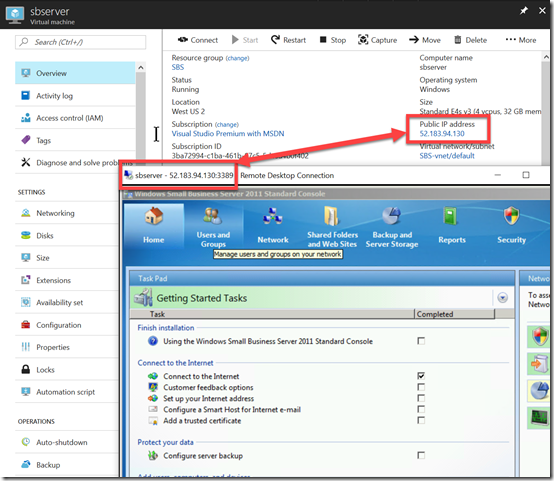
One of the challenges I set myself when I first started using Azure was to get Windows Small Business Server (SBS) working in Azure IaaS. Happily, I can announce that today I have achieved that goal as the above image shows hopefully demonstrates.

Why did I do this? Apart from the technical challenge I wanted to have a typical on premises SMB ‘legacy’ environment in Azure for testing, labs, training and migration scenarios. I am not planning to use it in production and STRONGLY recommend that SBS should no longer be run in production for many reasons anywhere, including on premises. I appreciate this is bordering on heresy for some, but I stand by the fact that you need to be off SBS. 

That said, I do appreciate that there are people out there running it and some may even be considering moving SBS onto the cloud. Although I would never recommend you do that in production I can tell you that it is 100% possible with Azure. This, to me, demonstrates the flexibility and power Azure provides as well as it’s ability to solve just about any IT challenge you throw at it.

So, if you wanna know how I did, just ask me.

Azure Cloud Shell

One of the best tools you can use when working with Azure is PowerShell. I have published an earlier article on how you can connect to Azure Resource Manager (ARM) via PowerShell on your desktop.

Some people still struggle with this as it requires additional software to be installed and configured as well as authentication to the Azure tenant.

Microsoft has provided an easy way to use PowerShell with Azure and it is known as the Cloud Shell.

image

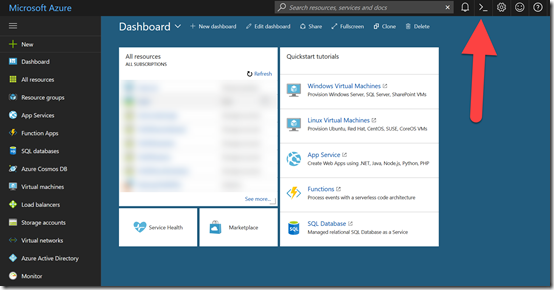
When you login to the Azure portal you should see a Script icon in the top right, just to the left of the Cog icon.

image

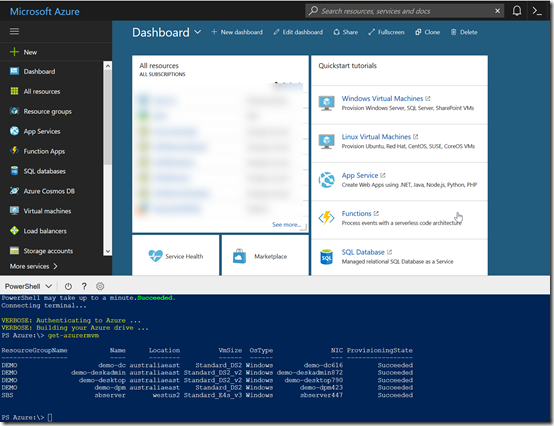
When you select this icon a window should appear at the bottom of your screen, showing a command line.

image

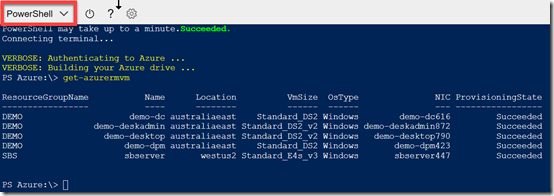
In most cases, the environment will default to BASH but you can select PowerShell in the top left of this window.

When you do a new command line environment will open up. It will run PowerShell AND (this is the really cool part) it will AUTOMATICALLY authenticate you to the Azure tenant tenant using the same credentials as you used in the browser to gain access to the Azure portal.

Now you can run your standard PowerShell commands directly in the browser as shown above.

image

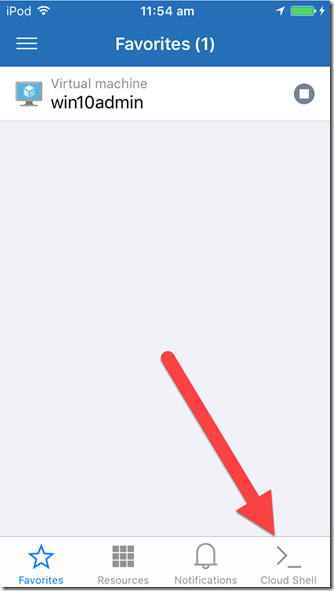
Now the super cool feature of this is that Azure is also available as a mobile app (here in iOS). When you run that app you will again find the option for the Cloud Shell (here in the lower right).

clip_image001

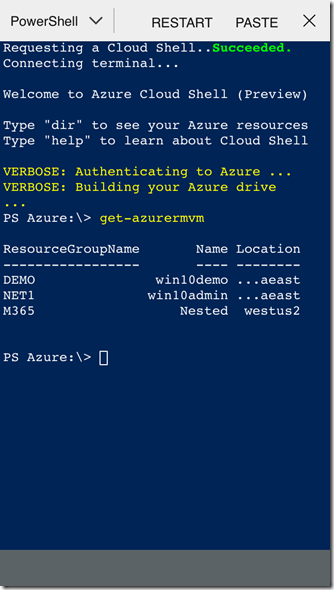
When you select this icon, you’ll again be a command line environment that you can configure to be PowerShell as you see above.

Now you can run your PowerShell commands directly from any mobile device! How super cool is that?

Having the ability to run PowerShell from just about anywhere to work with Azure is a really, really powerful feature of Azure and makes the life of managing these resources much easier.

So, go and give it a try for yourself.