
Microsoft’s Windows Autopilot is a cloud-based suite of technologies designed to streamline the deployment and configuration of new Windows devices for organizations[1]. This guide provides a detailed look at the latest updates to Windows Autopilot – specifically the new Autopilot v2 (officially called Windows Autopilot Device Preparation) – and offers step-by-step instructions for implementing it in a Microsoft 365 Business environment. We will cover the core concepts, new features in Autopilot v2, benefits for businesses, the implementation process (from prerequisites to deployment), troubleshooting tips, and best practices for managing devices with Autopilot v2.
1. Overview of Microsoft Autopilot and Its Purpose
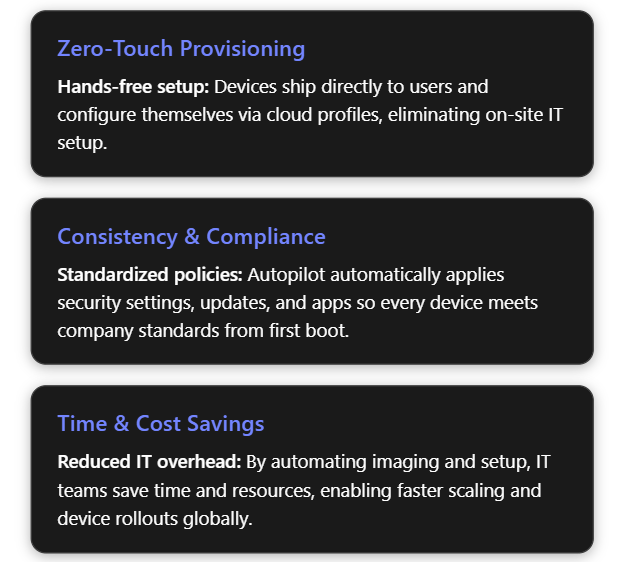
Windows Autopilot simplifies the Windows device lifecycle from initial deployment through end-of-life. It leverages cloud services (like Microsoft Intune and Microsoft Entra ID) to pre-configure devices out-of-box without traditional imaging. When a user unboxes a new Windows 10/11 device and connects to the internet, Autopilot can automatically join it to Azure/Microsoft Entra ID, enroll it in Intune (MDM), apply corporate policies, install required apps, and tailor the out-of-box experience (OOBE) to the organization[1][1]. This zero-touch deployment means IT personnel no longer need to manually image or set up each PC, drastically reducing deployment time and IT overhead[2]. In short, Autopilot’s purpose is to get new devices “business-ready” with minimal effort, offering benefits such as:
- Reduced IT Effort – No need to maintain custom images for every model; devices use the OEM’s factory image and are configured via cloud policies[1][1].
- Faster Deployment – Users only perform a few quick steps (like network connection and sign-in), and everything else is automated, so employees can start working sooner[1].
- Consistency & Compliance – Ensures each device receives standard configurations, security policies, and applications, so they immediately meet organizational standards upon first use[2].
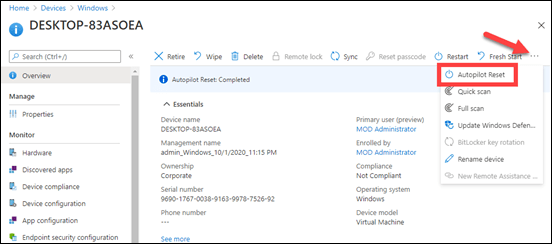
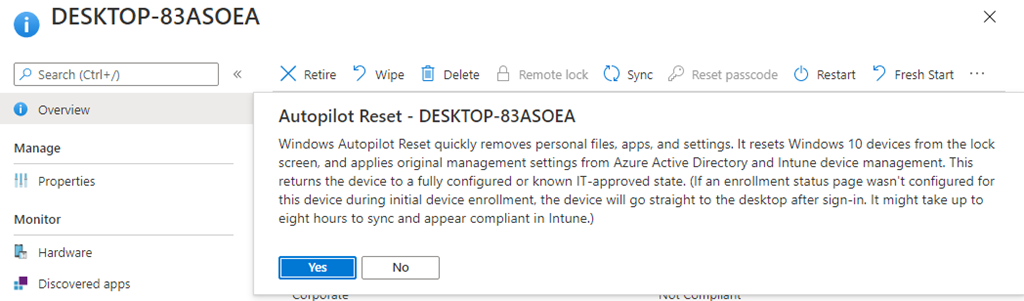
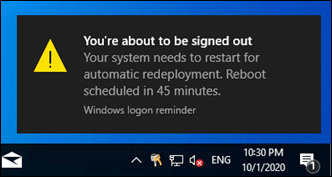
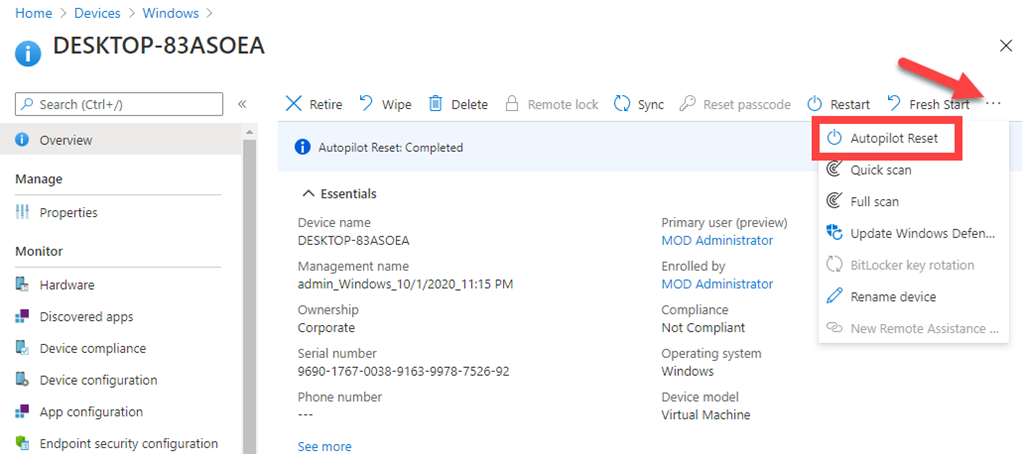
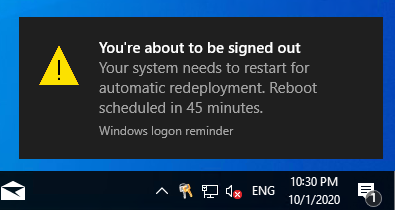
- Lifecycle Management – Autopilot can also streamline device resets, repurposing for new users, or recovery scenarios (for example, using Autopilot Reset to wipe and redeploy a device)[1].
2. Latest Updates: Introduction of Autopilot v2 (Device Preparation)
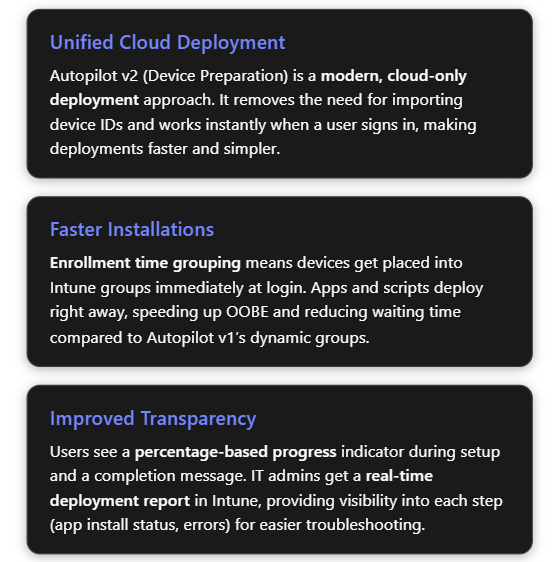
Microsoft has recently introduced a next-generation Autopilot deployment experience called Windows Autopilot Device Preparation (commonly referred to as Autopilot v2). This new version is essentially a re-architected Autopilot aimed at simplifying and improving deployments based on customer feedback[3]. Autopilot v2 offers new capabilities and architectural changes that enhance consistency, speed, and reliability of device provisioning. Below is an overview of what’s new in Autopilot v2:
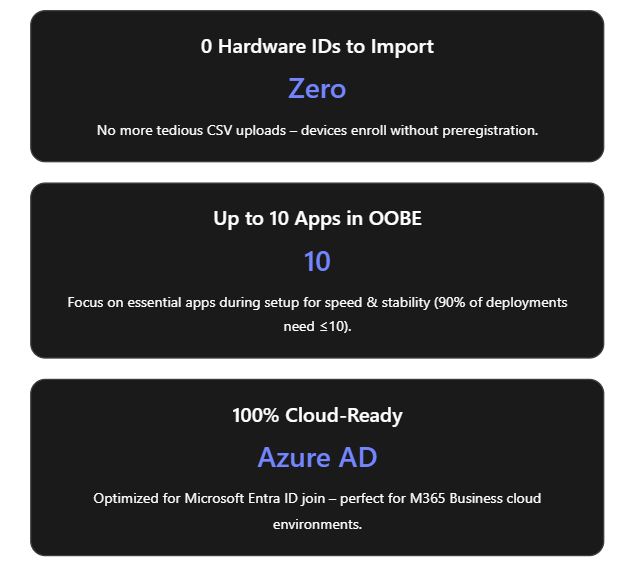
- No Hardware Hash Import Required: Unlike the classic Autopilot (v1) which required IT admins or OEMs to register devices in Autopilot (upload device IDs/hardware hashes) beforehand, Autopilot v2 eliminates this step[4]. Devices do not need to be pre-registered in Intune; instead, enrollment can be triggered simply by the user logging in with their work account. This streamlines onboarding by removing the tedious hardware hash import process[3]. (If a device is already registered in the old Autopilot, the classic profile will take precedence – so using v2 means not importing the device beforehand[5].)
- Cloud-Only (Entra ID) Join: Autopilot v2 currently supports Microsoft Entra ID (Azure AD) join only – it’s designed for cloud-based identity scenarios. Hybrid Azure AD Join (on-prem AD) is not supported in v2 at this time[3]. This focus on cloud join aligns with modern, cloud-first management in Microsoft 365 Business environments.
- Single Unified Deployment Profile: The new Autopilot Device Preparation uses a single profile to define all deployment settings and OOBE customization, rather than separate “Deployment” and “ESP” profiles as in legacy Autopilot[3]. This unified profile encapsulates join type, user account type, and OOBE preferences, plus it lets you directly select which apps and scripts should install during the setup phase.
- Enrollment Time Grouping: Autopilot v2 introduces an “Enrollment Time Grouping” mechanism. When a user signs in during OOBE, the device is automatically added to a specified Azure AD group on the fly, and any applications or configurations assigned to that group are immediately applied[5][5]. This replaces the old dependence on dynamic device groups (which could introduce delays while membership queries run). Result: faster and more predictable delivery of apps/policies during provisioning[5].
- Selective App Installation (OOBE): With Autopilot v1, all targeted device apps would try to install during the initial device setup, possibly slowing things down. In Autopilot v2, the admin can pick up to 10 essential apps (Win32, MSI, Store apps, etc.) to install during OOBE; any apps not selected will be deferred until after the user reaches the desktop[3][6]. By limiting to 10 critical apps, Microsoft aimed to increase success rates and speed (as their telemetry showed ~90% of deployments use 10 or fewer apps initially)[6].
- PowerShell Scripts Support in ESP: Autopilot v2 can also execute PowerShell scripts during the Enrollment Status Page (ESP) phase of setup[3]. This means custom configuration scripts can run as part of provisioning before the device is handed to the user – a capability that simplifies advanced setup tasks (like configuring registry settings, installing agent software, etc., via script).
- Improved Progress & UX: The OOBE experience is updated – Autopilot v2 provides a simplified progress display (percentage complete) during provisioning[6]. Users can clearly see that the device is installing apps/configurations. Once the critical steps are done, it informs the user that setup is complete and they can start using the device[6][6]. (Because the device isn’t identified as Autopilot-managed until after the user sign-in, some initial Windows setup screens like EULA or privacy settings may appear in Autopilot v2 that were hidden in v1[3]. These are automatically suppressed only after the Autopilot policy arrives during login.)
- Near Real-Time Deployment Reporting: Autopilot v2 greatly enhances monitoring. Intune now offers an Autopilot deployment report that shows status per device in near real time[6]. Administrators can see which devices have completed Autopilot, which stage they’re in, and detailed results for each selected app and script (success/failure), as well as overall deployment duration[5][5]. This granular reporting makes troubleshooting easier, as you can immediately identify if (for example) a particular app failed to install during OOBE[5][5].
- Availability in Government Clouds: The new Device Preparation approach is available in GCC High and DoD government cloud environments[6][5], which was not possible with Autopilot previously. This broadens Autopilot use to more regulated customers and is one reason Microsoft undertook this redesign (Autopilot v2 originated as a project to meet government cloud requirements and then expanded to all customers)[7].
The table below summarizes key differences between Autopilot v1 (classic) and Autopilot v2:
| Feature/Capability | Autopilot v1 (Classic) | Autopilot v2 (Device Preparation) |
|---|---|---|
| Device preregistration (Hardware hash upload) | Required (devices must be registered in Autopilot device list before use)[4] | Not required (user can enroll device directly; device should not be pre-added, or v2 profile won’t apply)[5] |
| Supported join types | Azure AD Join; Hybrid Azure AD Join (with Intune Connector)[3] | Azure/Microsoft Entra ID Join only (no on-prem AD support yet)[3] |
| Self-Deploying / Pre-provisioning (White Glove) | Supported (TPM attestation-based self-deploy; technician pre-provision mode available) | Not supported in initial release[3] (future support is planned for these scenarios) |
| Deployment profiles | Separate Deployment Profile + ESP Profile (configuration split) | Single Device Preparation Policy (one profile for all settings: join, account type, OOBE, app selection)[3] |
| App installation during OOBE | Installs all required apps targeted to device (could be many; admin chooses which are “blocking”) | Installs selected apps only (up to 10) during OOBE; non-selected apps wait until after OOBE[3][6] |
| PowerShell scripts in OOBE | Not natively supported in ESP (workarounds needed) | Supported – can run PowerShell scripts during provisioning (via device prep profile)[3] |
| Policy application in OOBE | Some device policies (Wi-Fi, certs, etc.) could block in ESP; user-targeted configs had limited support | Device policies synced at OOBE (not blocking)[3]; user-targeted policies/apps install after user reaches desktop[3] |
| Out-of-Box experience (UI) | Branding and many Windows setup screens are skipped (when profile is applied from the start of OOBE) | Some Windows setup screens appear by default (since no profile until sign-in)[3]; afterwards, shows new progress bar and completion summary[6] |
| Reporting & Monitoring | Basic tracking via Enrollment Status Page; limited real-time info | Detailed deployment report in Intune with near real-time status of apps, scripts, and device info[5] |
Why these updates? The changes in Autopilot v2 address common pain points from Autopilot v1. By removing the dependency on upfront registration and dynamic groups, Microsoft has made provisioning more robust and “hands-off”. The new architecture “locks in” the admin’s intended config at enrollment time and provides better error handling and reporting[6][6]. In summary, Autopilot v2 is simpler, faster, more observable, and more reliable – the guiding principles of its design[5] – making device onboarding easier for both IT admins and end-users.
3. Benefits of Using Autopilot v2 in a Microsoft 365 Business Environment
Implementing Autopilot v2 brings significant advantages, especially for organizations using Microsoft 365 Business or Business Premium (which include Intune for device management). Here are the key benefits:
- Ease of Deployment – Less IT Effort: Autopilot v2’s no-registration model is ideal for businesses that procure devices ad-hoc or in small batches. IT admins no longer need to collect hardware hashes or coordinate with OEMs to register devices. A user can unbox a new Windows 11 device, connect to the internet, and sign in with their work account to trigger enrollment. This self-service enrollment reduces the workload on IT staff, which is especially valuable for small IT teams.
- Faster Device Setup: By limiting installation to essential apps during OOBE and using enrollment time grouping, Autopilot v2 gets devices ready more quickly. End-users see a shorter setup time before reaching the desktop. They can start working sooner with all critical tools in place (e.g. Office apps, security software, etc. installed during setup)[7][7]. Non-critical apps or large software can install in the background later, avoiding long waits up-front.
- Improved Reliability and Fewer Errors: The new deployment process is designed to “fail fast” with better error details[6]. If something is going to go wrong (for example, an app that fails to install), Autopilot v2 surfaces that information quickly in the Intune report and does not leave the user guessing. The enrollment time grouping also avoids timing issues that could occur with dynamic Azure AD groups. Overall, this means higher success rates for device provisioning and less troubleshooting compared to the old Autopilot. In addition, by standardizing on cloud join only, many potential complexities (like on-prem domain connectivity during OOBE) are removed.
- Enhanced User Experience: Autopilot v2 provides a more transparent and reassuring experience to employees receiving new devices. The OOBE progress bar with a percentage complete indicator lets users know that the device is configuring (rather than appearing to be stuck). Once the critical setup is done, Autopilot informs the user that the device is ready to go[6]. This clarity can reduce helpdesk calls from users unsure if they should wait or reboot during setup. Also, because devices are delivered pre-configured with corporate settings and apps, users can be productive on Day 1 without needing IT to personally assist.
- Better Monitoring for IT: In Microsoft 365 Business environments, often a single admin oversees device management. The Autopilot deployment report in Intune gives that admin a real-time dashboard to monitor deployments. They can see if a new laptop issued to an employee enrolled successfully, which apps/scripts ran, and if any step failed[5][5]. For any errors, the admin can drill down immediately and troubleshoot (for instance, if an app didn’t install, they know to check that installer or assign it differently). This reduces guesswork and allows proactive support, contributing to a smoother deployment process across the organization.
- Security and Control: Autopilot v2 includes support for corporate device identification. By uploading known device identifiers (e.g., serial numbers) into Intune and enabling enrollment restrictions, a business can ensure only company-owned devices enroll via Autopilot[4][4]. This prevents personal or unauthorized devices from accidentally being enrolled. Although this requires a bit of setup (covered below), it gives small organizations an easy way to enforce that Autopilot v2 is used only for approved hardware, adding an extra layer of security and compliance. Furthermore, Autopilot v2 automatically makes the Azure AD account a standard user by default (not local admin), which improves security on the endpoint[5].
In summary, Autopilot v2 is well-suited for Microsoft 365 Business scenarios: it’s cloud-first and user-driven, aligning with the needs of modern SMBs that may not have complex on-prem infrastructure. It lowers the barrier to deploying new devices (no imaging or device ID admin work) while improving the speed, consistency, and security of device provisioning.
4. Implementing Autopilot v2: Step-by-Step Guide
In this section, we’ll walk through how to implement Windows Autopilot Device Preparation (Autopilot v2) in your Microsoft 365 Business/Intune environment. The process involves: verifying prerequisites, configuring Intune with the new profile and required settings, and then enrolling devices. Each step is detailed below.
4.1 Prerequisites and Initial Setup
Before enabling Autopilot v2, ensure the following prerequisites are met:
- Windows Version Requirements: Autopilot v2 requires Windows 11. Supported versions are Windows 11 22H2 or 23H2 with the latest updates (specifically, installing KB5035942 or later)[3][5], or any later version (Windows 11 24H2+). New devices should be shipped with a compatible Windows 11 build (or be updated to one) to use Autopilot v2. Windows 10 devices cannot use Autopilot v2; they would fall back to the classic Autopilot method.
- Microsoft Intune: You need an Intune subscription (Microsoft Endpoint Manager) as part of your M365 Business. Intune will serve as the Mobile Device Management (MDM) service to manage Autopilot profiles and device enrollment.
- Azure AD/Microsoft Entra ID: Devices will be Azure AD joined. Ensure your users have Microsoft Entra ID accounts with appropriate Intune licenses (e.g., Microsoft 365 Business Premium includes Intune licensing) and that automatic MDM enrollment is enabled for Azure AD join. In Azure AD, under Mobility (MDM/MAM), Microsoft Intune should be set to Automatically enroll corporate devices for your users.
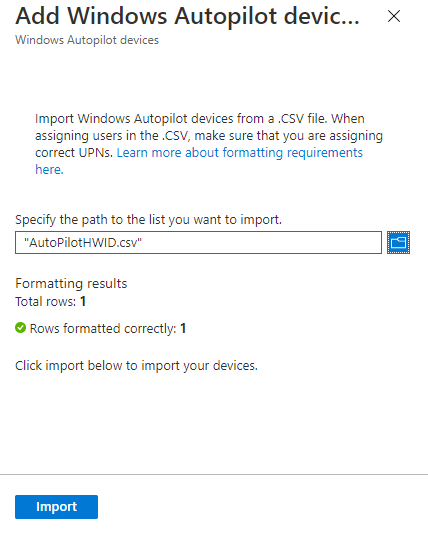
- No Pre-Registration of Devices: Do not import the device hardware IDs into the Intune Autopilot devices list for devices you plan to enroll with v2. If you previously obtained a hardware hash (.CSV) from your device or your hardware vendor registered the device to your tenant, you should deregister those devices to allow Autopilot v2 to take over[5]. (Autopilot v2 will not apply if an Autopilot deployment profile from v1 is already assigned to the device.)
- Intune Connector (If Hybrid not needed): Since Autopilot v2 doesn’t support Hybrid AD join, you do not need the Intune Connector for Active Directory for these devices. (If you have the connector running for other hybrid-join Autopilot scenarios, that’s fine; it simply won’t be used for v2 deployments.)
- Network and Access: New devices must have internet connectivity during OOBE (Ethernet or Wi-Fi accessible from the initial setup). Ensure that the network allows connection to Azure AD and Intune endpoints. If using Wi-Fi, users will need to join a Wi-Fi network in the first OOBE steps. (Consider using a provisioning SSID or instructing users to connect to an available network.)
- Plan for Device Identification (Optional but Recommended): Decide if you will restrict Autopilot enrollment to corporate-owned devices only. For better control (and to prevent personal device enrollment), it’s best practice to use Intune’s enrollment restrictions to block personal Windows enrollments and use Corporate device identifiers to flag your devices. We will cover how to set this up in the steps below. If you plan to use this, gather a list of device serial numbers (and manufacturers/models) for the PCs you intend to enroll.
4.2 Configuring the Autopilot v2 (Device Preparation) Profile in Intune
Once prerequisites are in place, the core setup work is done in Microsoft Intune. This involves creating Azure AD groups and then creating a Device Preparation profile (Autopilot v2 profile) and configuring it. Follow these steps:
1. Create Azure AD Groups for Autopilot: We need two security groups to manage Autopilot v2 deployment:
- User Group – contains the users who will be enrolling devices via Autopilot v2.
- Device Group – will dynamically receive devices at enrollment time and be used to assign apps/policies.
In the Azure AD or Intune portal, navigate to “Groups” and create a new group for users. For example, “Autopilot Device Preparation – Users”. Add all relevant user accounts (e.g., all employees or the subset who will use Autopilot) to this group[4]. Use Assigned membership for explicit control.
Next, create another security group for devices, e.g., “Autopilot Device Preparation – Devices”. Set this as a Dynamic Device group if possible, or Assigned (we will be adding devices automatically via the profile). An interesting detail: Intune’s Autopilot v2 mechanism uses an application identity called “Intune Provisioning Client” to add devices to this group during enrollment[4]. You can assign that as the owner of the group (though Intune may handle this automatically when the profile is used).
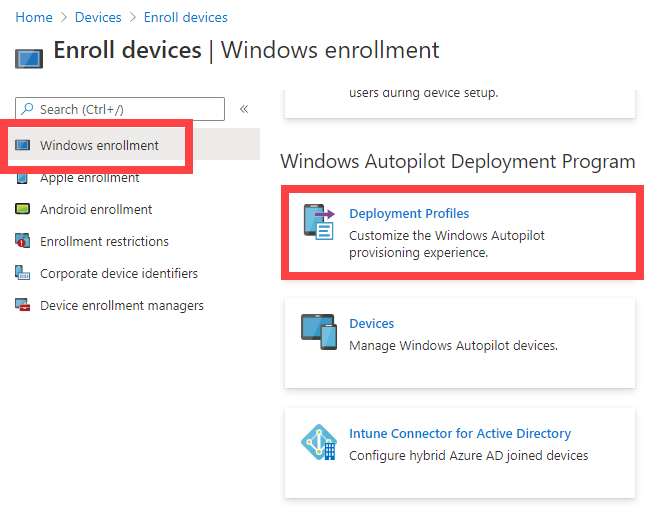
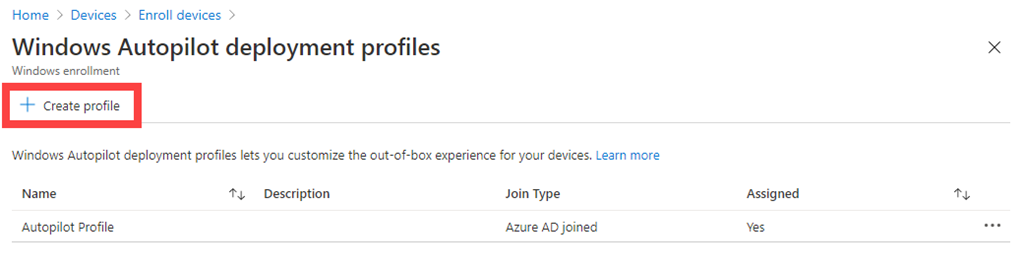
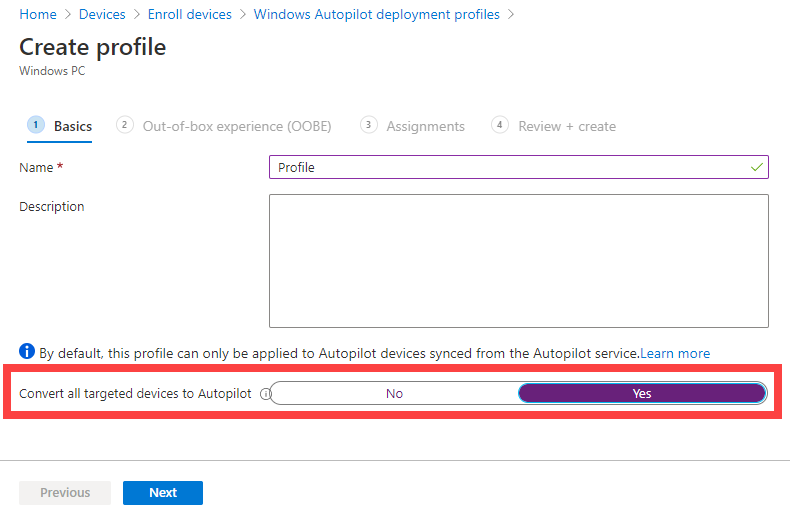
2. Create the Device Preparation (Autopilot v2) Profile: In the Intune admin center, go to Devices > Windows > Windows Enrollment (or Endpoint Management > Enrollment). There should be a section for “Windows Autopilot Device Preparation (Preview)” or “Device Preparation Policies”. Choose to Create a new profile/policy[4].
- Name and Group Assignment: Give the profile a clear name (e.g., “Autopilot Device Prep Policy – Cloud PCs”). For the target group, select the Device group created in step 1 as the group to assign devices to at enrollment[4]. (In some interfaces, you might first choose the device group in the profile so the system knows where to add devices.)
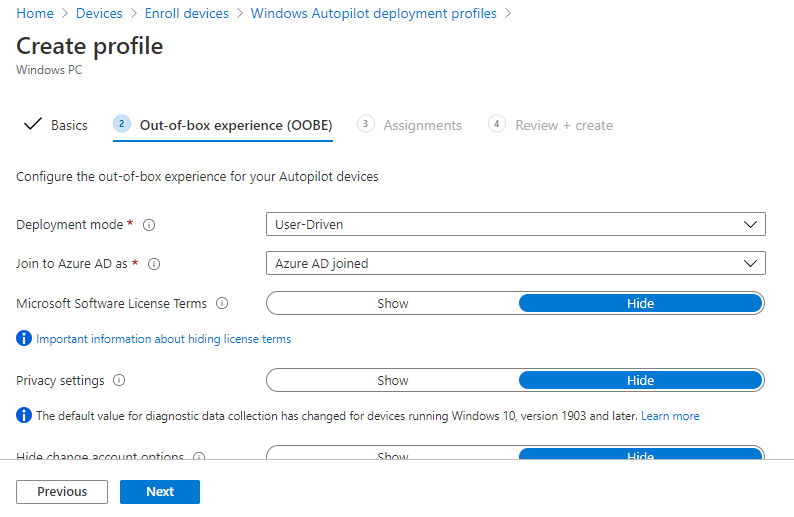
- Deployment Mode: Choose User-Driven (since user-driven Azure AD join is the scenario for M365 Business). Autopilot v2 also has an “Automatic” mode intended for Windows 365 Cloud PCs or scenarios without user interaction, but for physical devices in a business, user-driven is typical.
- Join Type: Select Azure AD (Microsoft Entra ID) join. (This is the only option in v2 currently – Hybrid AD join is not available).
- User Account Type: Choose whether the end user should be a standard user or local admin on the device. Best practice is to select Standard (non-admin) to enforce least privilege[5]. (In classic Autopilot, this was an option in the deployment profile as well. Autopilot v2 defaults to standard user by design, but confirm the setting if presented.)
- Out-of-box Experience (OOBE) Settings: Configure the OOBE customization settings as desired:
- You can typically configure Language/Region (or set to default to device’s settings), Privacy settings, End-User License Agreement (EULA) acceptance, and whether users see the option to configure for personal use vs. organization. Note: In Autopilot v2, some of these screens may not be fully suppressible as they are in v1, but set your preferences here. For instance, you might hide the privacy settings screen and accept EULA automatically to streamline user experience.
- If the profile interface allows it, enable “Skip user enrollment if device is known corporate” or similar, to avoid the personal/work question (this ties in with using corporate identifiers).
- Optionally, set a device naming template if available. However, Autopilot v2 may not support custom naming at this stage (and users can be given the ability to name the device during setup)[3]. Check Intune’s settings; if not present, plan to rename devices via Intune policy later if needed.
- Applications & Scripts (Device Preparation): Select the apps and PowerShell scripts that you want to be installed during the device provisioning (OOBE) phase[4]. Intune will present a list of existing apps and scripts you’ve added to Intune. Here, pick only your critical or required applications – remember the limit is 10 apps max for the OOBE phase. Common choices are:
- Company Portal (for user self-service and additional app access)[4].
- Microsoft 365 Apps (Office suite)[4].
- Endpoint protection software (antivirus/EDR agent, if not already part of Windows).
- Any other crucial line-of-business app that the user needs immediately. Also select any PowerShell onboarding scripts you want to run (for example, a script to set a custom registry or install a specific agent that’s not packaged as an app). These selected items will be tracked in the deployment. (Make sure any app you select is assigned in Intune to the device group we created, or available for all devices – more on app assignment in the next step.)
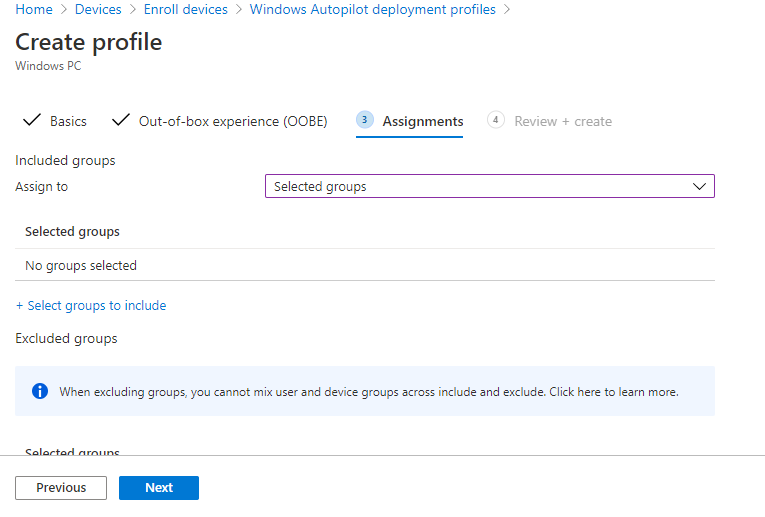
- Assign the Profile: Finally, assign the Device Preparation profile to the User group created in step 1[4]. This targeting means any user in that group who signs into a Windows 11 device during OOBE will trigger this Autopilot profile. (The device will get added to the specified device group, and the selected apps will install.)
Save/create the profile. At this point, Intune has the Autopilot v2 policy in place, waiting to apply at next enrollment for your user group.
3. Assign Required Applications to Device Group: Creating the profile in step 2 defines which apps should install, but Intune still needs those apps to be deployed as “Required” to the device group for them to actually push down. In Intune:
- Go to Apps > Windows (or Apps section in MEM portal).
- For each critical app you included in the profile (Company Portal, Office, etc.), check its Properties > Assignments. Make sure to assign the app to the Autopilot Devices group (as Required installation)[4]. For example, set Company Portal – Required for [Autopilot Device Preparation – Devices][4].
- Repeat for Microsoft 365 Apps and any other selected application[4]. If you created a PowerShell script configuration in Intune, ensure that script is assigned to the device group as well.
Essentially, this step ensures Intune knows to push those apps to any device that appears in the devices group. Autopilot v2 will add the new device to the group during enrollment, and Intune will then immediately start installing those required apps. (Without this step, the profile alone wouldn’t install apps, since the profile itself only “flags” which apps to wait for but the apps still need to be assigned to devices.)
4. Configure Enrollment Restrictions (Optional – Corporate-only): If you want to block personal devices from enrolling (so that only corporately owned devices can use Autopilot), set up an enrollment restriction in Intune:
- In Intune portal, navigate to Devices > Enrollment restrictions.
- Create a new Device Type or Platform restriction policy (or edit the existing default one) for Windows. Under Personal device enrollment, set Personally owned Windows enrollment to Blocked[4].
- Assign this restriction to All Users (or at least all users in the Autopilot user group)[4].
This means if a user tries to Azure AD join a device that Intune doesn’t recognize as corporate, the enrollment will be refused. This is a good security measure, but it requires the next step (uploading corporate identifiers) to work smoothly with Autopilot v2.
5. Upload Corporate Device Identifiers: With personal devices blocked, you must tell Intune which devices are corporate. Since we are not pre-registering the full Autopilot hardware hash, Intune can rely on manufacturer, model, and serial number to recognize a device as corporate-owned during Autopilot v2 enrollment. To upload these identifiers:
- Gather device info: For each new device, obtain the serial number, plus the manufacturer and model strings. You can get this from order information or by running a command on the device (e.g., on an example device, run
wmic csproduct get vendor,name,identifyingnumberto output vendor (manufacturer), name (model), and identifying number (serial)[4]). Many OEMs provide this info in packing lists or you can scan a barcode from the box. - Prepare CSV: Create a CSV file with columns for Manufacturer, Model, Serial Number. List each device’s information on a separate line[4]. For example:\
Dell Inc.,Latitude 7440,ABCDEFG1234\Microsoft Corporation,Surface Pro 9,1234567890\ (Use the exact strings as reported by the device/OEM to avoid mismatches.) - Upload in Intune: In the Intune admin center, go to Devices > Enrollment > Corporate device identifiers. Choose Add then Upload CSV. Select the format “Manufacturer, model, and serial number (Windows only)”[4] and upload your CSV file. Once processed, Intune will list those identifiers as corporate.
With this in place, when a user signs in on a device, Intune checks the device’s hardware info. If it matches one of these entries, it’s flagged as corporate-owned and allowed to enroll despite the personal device block[4][4]. If it’s not in the list, the enrollment will be blocked (the user will get a message that enrolling personal devices is not allowed). Important: Until you have corporate identifiers set up, do not enable the personal device block, or Autopilot device preparation will fail for new devices[6][6]. Always upload the identifiers first or simultaneously.
At this stage, you have completed the Intune configuration for Autopilot v2. You have:
- A user group allowed to use Autopilot.
- A device preparation profile linking that user group to a device group, with chosen settings and apps.
- Required apps assigned to deploy.
- Optional restrictions in place to ensure only known devices will enroll.
4.3 Enrollment and Device Setup Process (Using Autopilot v2)
With the above configuration done, the actual device enrollment process is straightforward for the end-user. Here’s what to expect when adding a new device to your Microsoft 365 environment via Autopilot v2:
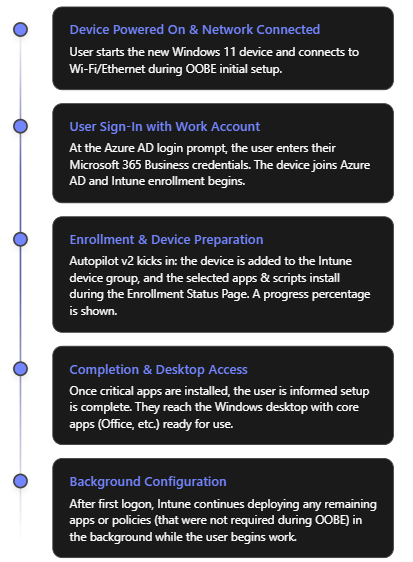
- Out-of-Box Experience (Initial Screens): When the device is turned on for the first time (or after a factory reset), the Windows OOBE begins. The user will select their region and keyboard (unless the profile pre-configured these). The device will prompt for a network connection. The user should connect to the internet (Ethernet or Wi-Fi). Once connected, the device might check for updates briefly, then reach the “Sign in” screen.
- User Sign-In (Azure AD): The user enters their work or school (Microsoft Entra ID/Azure AD) credentials – i.e., their Microsoft 365 Business account email and password. This is the trigger for Autopilot Device Preparation. Upon signing in, the device joins your organization’s Azure AD. Because the user is in the “Autopilot Users” group and an Autopilot Device Preparation profile is active, Intune will now kick off the device preparation process in the background.
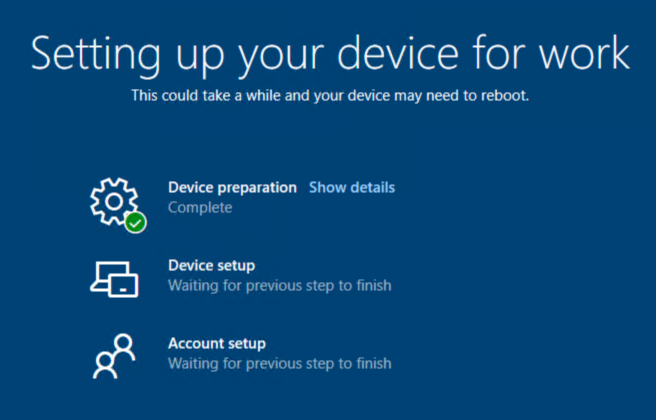
- Device Preparation Phase (ESP): After credentials are verified, the user sees the Enrollment Status Page (ESP) which now reflects “Device preparation” steps. In Autopilot v2, the ESP will show the progress of the configuration. A key difference in v2 is the presence of a percentage progress indicator that gives a clearer idea of progress[6]. Behind the scenes, several things happen:
- The device is automatically added to the specified Device group (“Autopilot Device Preparation – Devices”) in Azure AD[5]. The “Intune Provisioning Agent” does this within seconds of the user signing in.
- Intune immediately starts deploying the selected applications and PowerShell scripts to the device (those that were marked for installation during OOBE). The ESP screen will typically list the device setup steps, which may include device configuration, app installation, etc. The apps you marked as required (Company Portal, Office, etc.) will download and install one by one. Their status can often be viewed on the screen (e.g., “Installing Office 365… 50%”).
- Any device configuration policies assigned to the device group (e.g., configuration profiles or compliance policies you set to target that group) will also begin to apply. Note: Autopilot v2 does not pause for all policies to complete; it mainly ensures the selected apps and scripts complete. Policies will apply in parallel or afterwards without blocking the ESP[3].
- If you enabled BitLocker or other encryption policies, those might kick off during this phase as well (depending on your Intune configuration for encryption on Azure AD join).
- The user remains at the ESP screen until the critical steps finish. With the 10-app limit and no dynamic group delay, this phase should complete relatively quickly (typically a few minutes to perhaps an hour for large Office downloads on slower connections). The progress bar will reach 100%.
- Completion and First Desktop Launch: Once the selected apps and scripts have finished deploying, Autopilot signals that device setup is complete. The ESP will indicate it’s done, and the user will be allowed to proceed to log on to Windows (or it may automatically log them in if credentials were cached from step 2). In Autopilot v2, a final screen can notify the user that critical setup is finished and they can start using the device[6]. The user then arrives at the Windows desktop.
- Post-Enrolment (Background tasks): Now the device is fully Azure AD joined and enrolled in Intune as a managed device. Any remaining apps or policies that were not part of the initial device preparation will continue to install in the background. For example, if you targeted some less critical user-specific apps (say, OneDrive client or Webex) via user groups, those will download via Intune management without interrupting the user. The user can begin working, and they’ll likely see additional apps appearing or software finishing installations within the first hour of use.
- Verification: The IT admin can verify the device in the Intune portal. It should appear under Devices with the user assigned, and compliance/policies applying. The Autopilot deployment report in Intune will show this device’s status as successful if all selected apps/scripts succeeded, or flagged if any failures occurred[5]. The user should see applications like Office, Teams, Outlook, and the Company Portal already installed on the Start Menu[4]. If all looks good, the device is effectively ready and managed.
4.4 Troubleshooting Common Issues in Autopilot v2
While Autopilot v2 is designed to be simpler and more reliable, you may encounter some issues during setup. Here are common issues and how to address them:
- Device is blocked as “personal” during enrollment: If you enabled the enrollment restriction to block personal devices, a new device might fail to enroll at user sign-in with a message that personal devices are not allowed. This typically means Intune did not recognize the device as corporate. Ensure you have uploaded the correct device serial, model, and manufacturer under corporate identifiers before the user attempts enrollment[4]. Typos or mismatches (e.g., “HP Inc.” vs “Hewlett-Packard”) can cause the check to fail. If an expected corporate device was blocked, double-check its identifier in Intune and re-upload if needed, then have the user try again (after a reset). If you cannot get the identifiers loaded in time, you may temporarily toggle the restriction to allow personal Windows enrollments to let the device through, then re-enable once fixed.
- Autopilot profile not applying (device does standard Azure AD join without ESP): This can happen if the user is not in the group assigned to the Autopilot Device Prep profile, or if the device was already registered with a classic Autopilot profile. To troubleshoot:
- Verify that the user who is signing in is indeed a member of the Autopilot Users group that you targeted. If not, add them and try again.
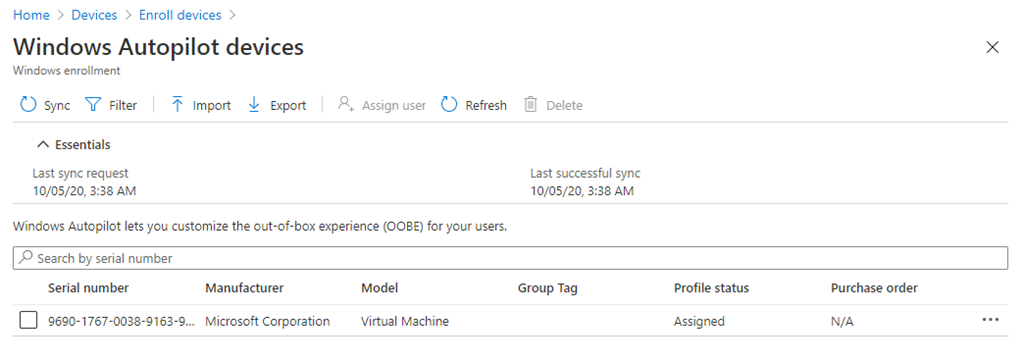
- Check Intune’s Autopilot devices list. If the device’s hardware hash was previously imported and has an old deployment profile assigned, the device might be using Autopilot v1 behavior (which could skip the ESP or conflict). Solution: Remove the device from the Autopilot devices list (deregister it) so that v2 can proceed[5].
- Also ensure the device meets OS requirements. If someone somehow tried with an out-of-date Windows 10, the new profile wouldn’t apply.
- One of the apps failed to install during OOBE: If an app (or script) that was selected in the profile fails, the Autopilot ESP might show an error or might eventually time out. Autopilot v2 doesn’t explicitly block on policies, but it does expect the chosen apps to install. If an app installation fails (perhaps due to an MSI error or content download issue), the user may eventually be allowed to log in, but Intune’s deployment report will mark the deployment as failed for that device[5]. Use the Autopilot deployment report in Intune to see which app or step failed[5]. Then:
- Check the Intune app assignment for that app. For instance, was the app installer file reachable and valid? Did it have correct detection rules? Remedy any packaging error.
- If the issue was network (e.g., large app timed out), consider not deploying that app during OOBE (remove it from the profile’s selected apps so it installs later instead).
- The user can still proceed to work after skipping the failed step (in many cases), but you’ll want to push the necessary app afterward or instruct the user to install via Company Portal if possible.
- User sees unexpected OOBE screens (e.g., personal vs organization choice): As noted, Autopilot v2 can show some default Windows setup prompts that classic Autopilot hid. For example, early in OOBE the user might be asked “Is this a personal or work device?” If they see this, they should select Work/School (which leads to the Azure AD sign-in). Similarly, the user might have to accept the Windows 11 license agreement. To avoid confusion, prepare users with guidance that they may see a couple of extra screens and how to proceed. Once the user signs in, the rest will be automated. In future, after the device prep profile applies, those screens might not appear on subsequent resets, but on first run they can. This is expected behavior, not a failure.
- Autopilot deployment hangs or takes too long: If the process seems stuck on the ESP for an inordinate time:
- Check if it’s downloading a large update or app. Sometimes Windows might be applying a critical update in the background. If internet is slow, Office download (which can be ~2GB) might simply be taking time. If possible, ensure a faster connection or use Ethernet for initial setup.
- If it’s truly hung (no progress increase for a long period), you may need to power cycle. The good news is Autopilot v2 is resilient – it has more retry logic for applying the profile[8]. On reboot, it often picks up where it left off, or attempts the step again. Frequent hanging might indicate a problematic step (again, refer to Intune’s report).
- Ensure the device’s time and region were set correctly; incorrect time can cause Azure AD token issues. Autopilot v2 does try to sync time more reliably during ESP[8].
- Post-enrollment policy issues: Because Autopilot v2 doesn’t wait for all policies, you might notice things like BitLocker taking place only after login, or certain configurations applying slightly later. This is normal. However, if certain device configurations never apply, verify that those policies are targeted correctly (likely to the device group). If they were user-targeted, they should apply after the user logs in. If something isn’t applying at all, treat it as a standard Intune troubleshooting case (e.g., check for scope tags, licensing, or conflicts).
Overall, many issues can be avoided by testing Autopilot v2 on a pilot device before mass rollout. Run through the deployment yourself with a test user and device to catch any application installation failures or unexpected prompts, and adjust your profile or process accordingly.
5. Best Practices for Maintaining and Managing Autopilot v2 Devices
After deploying devices with Windows Autopilot Device Preparation, your work isn’t done – you’ll want to manage and maintain those devices for the long term. Here are some best practices to ensure ongoing success:
- Establish Clear Autopilot Processes: Because Autopilot v2 and v1 may coexist (for different use cases), document your process. For example, decide: will all new devices use Autopilot v2 going forward, or only certain ones? Communicate to your procurement and IT teams that new devices should not be registered via the old process. If you buy through an OEM with Autopilot registration service, pause that for devices you’ll enroll via v2 to avoid conflicts.
- Keep Windows and Intune Updated: Autopilot v2 capabilities may expand with new Windows releases and Intune updates. Ensure devices get Windows quality updates regularly (this keeps the Autopilot agent up-to-date and compatible). Watch Microsoft Intune release notes for any Autopilot-related improvements or changes. For instance, if/when Microsoft enables features like self-deploying or hybrid join in Autopilot v2, it will likely come via an update[6] – staying current allows you to take advantage.
- Limit and Optimize Apps in the Profile: Be strategic about the apps you include during the autopilot phase. The 10-app limit forces some discipline – include only truly essential software that users need immediately or that is required for security/compliance. Everything else can install later via normal Intune assignment or be made available in Company Portal. This ensures the provisioning is quick and has fewer chances to fail. Also prefer Win32 packaged apps for reliability and to avoid Windows Store dependencies during OOBE[2]. In general, simpler is better for the OOBE phase.
- Use Device Categories/Tags if Needed: Intune supports tagging devices during enrollment (in classic Autopilot, there was “Convert all targeted devices to Autopilot” and grouping by order ID). In Autopilot v2, since devices aren’t pre-registered, you might use dynamic groups or naming conventions post-enrollment to organize devices (e.g., by department or location). Consider leveraging Azure AD group rules or Intune filters if you need to deploy different apps to different sets of devices after enrollment.
- Monitor Deployment Reports and Logs: Take advantage of the new Autopilot deployment report in Intune for each rollout[5]. After onboarding a batch of new devices, review the report to see if any had issues (e.g., maybe one device’s Office install failed due to a network glitch). Address any failures proactively (rerun a script, push a missed app, etc.). Additionally, know that users or IT can export Autopilot logs easily from the device if needed[5] (there’s a troubleshooting option during the OOBE or via pressing certain key combos). Collecting logs can help Microsoft support or your IT team diagnose deeper issues.
- Maintain Corporate Identifier Lists: If you’re using the corporate device identifiers method, keep your Azure AD device inventory synchronized with Intune’s list. For every new device coming in, add its identifiers. For devices being retired or sold, you might remove their identifiers. Also, coordinate this with the enrollment restriction – e.g., if a top executive wants to enroll their personal device and you have blocking enabled, you’d need to explicitly allow or bypass that (possibly by not applying the restriction to that user or by adding the device as corporate through some means). Regularly update the CSV as you purchase hardware to avoid last-minute scrambling when a user is setting up a new PC.
- Plan for Feature Gaps: Recognize the current limitations of Autopilot v2 and plan accordingly:
- If you require Hybrid AD Join (joining on-prem AD) for certain devices, those devices should continue using the classic Autopilot (with hardware hash and Intune Connector) for now, since v2 can’t do it[3].
- If you utilize Autopilot Pre-Provisioning (White Glove) via IT staff or partner to pre-setup devices before handing to users (common for larger orgs or complex setups), note that Autopilot v2 doesn’t support that yet[3]. You might use Autopilot v1 for those scenarios until Microsoft adds it to v2.
- Self-Deploying Mode (for kiosks or shared devices that enroll without user credentials) is also not in v2 presently[3]. Continue using classic Autopilot with TPM attestation for kiosk devices as needed. It’s perfectly fine to run both Autopilot methods side-by-side; just carefully target which devices or user groups use which method. Microsoft is likely to close these gaps in future updates, so keep an eye on announcements.
- End-User Training and Communication: Even though Autopilot is automated, let your end-users know what to expect. Provide a one-page instruction with their new laptop: e.g., “1) Connect to Wi-Fi, 2) Log in with your work account, 3) Wait while we set up your device (about 15-30 minutes), 4) You’ll see a screen telling you when it’s ready.” Setting expectations helps reduce support tickets. Also inform them that the device will be managed by the company (which is standard, but transparency helps trust).
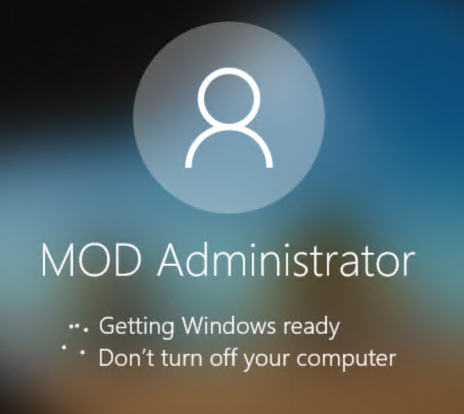
- Device Management Post-Deployment: After Autopilot enrollment, manage the devices like any Intune-managed endpoints. Set up compliance policies (for OS version, AV status, etc.), Windows Update rings or feature update policies to keep them up-to-date, and use Intune’s Endpoint analytics or Windows Update for Business reports to track device health. Autopilot has done the job of onboarding; from then on, treat the devices as part of your standard device management lifecycle. For instance, if a device is reassigned to a new user, you can invoke Autopilot Reset via Intune to wipe user data and redo the OOBE for the new user—Autopilot v2 will once again apply (just ensure the new user is in the correct group).
- Continuous Improvement: Gather feedback from users about the Autopilot process. If many report that a certain app wasn’t ready or some setting was missing on first login, adjust your Autopilot profile or Intune assignments. Autopilot v2’s flexibility allows you to tweak which apps/scripts are in the initial provision vs. post-login. Aim to find the right balance where devices are secure and usable as soon as possible, without overloading the provisioning. Also consider pilot testing Windows 11 feature updates early, since Autopilot behavior can change or improve with new releases (for example, a future Windows 11 update might reduce the appearance of some initial screens in Autopilot v2, etc.).
By following these best practices, you’ll ensure that your organization continues to benefit from Autopilot v2’s efficiencies long after the initial setup. The result is a modern device deployment strategy with minimal hassle, aligned to the cloud-first, zero-touch ethos of Microsoft 365.
Conclusion: Microsoft Autopilot v2 (Windows Autopilot Device Preparation) represents a significant step forward in simplifying device onboarding. By leveraging it in your Microsoft 365 Business environment, you can add new Windows 11 devices with ease – end-users take them out of the box, log in, and within minutes have a fully configured, policy-compliant workstation. The latest updates bring more reliability, insight, and speed to this process, making life easier for IT admins and employees alike. By understanding the new features, following the implementation steps, and adhering to best practices outlined in this guide, you can successfully deploy Autopilot v2 and streamline your device deployment workflow[4][5]. Happy deploying!
References
[1] Overview of Windows Autopilot | Microsoft Learn
[2] Windows Autopilot Best Practices: 2025 Updated
[3] Intune Autopilot V1 vs Intune Autopilot V2- What is changing?
[4] How to Set Up Autopilot Device Preparation in Microsoft Intune
[5] Overview of Windows Autopilot device preparation
[6] Announcing new Windows Autopilot onboarding experience for government …













 CIAOPS