Important: Mailbox Auditing is Already ON by Default
Good news! Since 2019, Microsoft automatically enables mailbox auditing for all Exchange Online organizations. This means logging is already active for your mailboxes without requiring any manual configuration.
Should You Enable All Available Logging?
No, you should NOT enable all available logging. Here’s why:
Microsoft’s Recommendation: Use the default audit configuration, which Microsoft automatically manages and updates
Storage Impact: Audit logs consume storage space in each mailbox’s Recoverable Items folder (counts against the 30GB default limit)
Performance Consideration: Excessive logging can impact mailbox performance
Automatic Updates: Microsoft automatically adds new important actions to the default audit configuration as they’re released
What’s Logged by Default
The default configuration logs these critical actions:
Result should show False (meaning auditing is enabled)
Step 3: Check Current Mailbox Audit Status
# For a specific mailbox
Get-Mailbox -Identity "user@domain.com" | Format-List Name,AuditEnabled,DefaultAuditSet

# For all mailboxes
Get-Mailbox -ResultSize Unlimited | Format-Table Name,AuditEnabled,DefaultAuditSet
Step 4: Use Default Settings (Recommended)
# Restore default auditing for a mailbox that was customized
Set-Mailbox -Identity "user@domain.com" -DefaultAuditSet Admin,Delegate,Owner
Step 5: Only If Necessary – Customize Specific Actions
# Example: Add MailboxLogin tracking for owner actions
Set-Mailbox -Identity "user@domain.com" -AuditOwner @{Add="MailboxLogin"}

# Example: Set specific admin actions (overwrites defaults - not recommended)
Set-Mailbox -Identity "user@domain.com" -AuditAdmin MessageBind,FolderBind,HardDelete
Step 6: Configure Retention Period
# Default is 90 days, can extend up to 365 days (E5 license required for >180 days)
Set-Mailbox -Identity "user@domain.com" -AuditLogAgeLimit 180

# Apply to all mailboxes
Get-Mailbox -ResultSize Unlimited | Set-Mailbox -AuditLogAgeLimit 180
Step 7: Verify Configuration
# Check what actions are being audited
Get-Mailbox -Identity "user@domain.com" | Select-Object -ExpandProperty AuditAdmin
Get-Mailbox -Identity "user@domain.com" | Select-Object -ExpandProperty AuditDelegate
Get-Mailbox -Identity "user@domain.com" | Select-Object -ExpandProperty AuditOwner
Method 2: Microsoft 365 Admin Center (Limited Options)
Note: The GUI provides limited mailbox audit configuration options. Most settings require PowerShell.
Government contractors with security clearance requirements
Legal hold scenarios requiring complete activity documentation
3. Forensic Investigations
Use Case: Post-incident analysis
Determining if a compromised account’s emails were actually read
Investigating data exfiltration attempts
Proving or disproving unauthorized access claims
Building timeline of activities during security incidents
4. Privileged Account Monitoring
Use Case: Enhanced monitoring for administrative accounts
Service accounts that shouldn’t have regular email activity
Shared mailboxes with sensitive information
Discovery mailboxes used for legal searches
Executive assistant mailboxes with delegated access
Best Practices If You Enable FolderBind/MessageBind for Owners
1. Selective Implementation
# Enable only for specific high-risk mailboxes
Set-Mailbox -Identity "CEO@company.com" -AuditOwner @{Add="FolderBind","MessageBind"}

# Create a list of VIP users
$VIPUsers = "CEO@company.com","CFO@company.com","Legal@company.com"
foreach ($user in $VIPUsers) {
    Set-Mailbox -Identity $user -AuditOwner @{Add="FolderBind","MessageBind"}
}
DLP policies: Focus on preventing data loss rather than tracking all access
The MailItemsAccessed Alternative (E5 Licenses)
For organizations with E5 licenses, MailItemsAccessed is a superior alternative that:
Intelligently aggregates similar activities (reduces noise by 80-90%)
Provides both sync and bind operation tracking
Includes deduplication (removes duplicate entries within 1-hour windows)
Records InternetMessageId for precise message tracking
Better suited for forensic investigations
Automatically enabled for E5 users
Summary Recommendation
Enable FolderBind/MessageBind for owners ONLY when:
You have specific compliance or security requirements
Monitoring high-risk individuals or during investigations
You have the resources to analyze the massive data volume
Storage and performance impacts have been evaluated
You’ve implemented automated analysis tools
Otherwise: Stick with the default configuration and use alternative methods like DLP policies, insider risk management, and the MailItemsAccessed action (for E5 users) for more effective security monitoring.
Overview: What is Microsoft Purview Audit (Premium)?
Microsoft Purview Audit is a unified logging solution that captures user and admin activities across Microsoft 365 services, enabling organizations to track security events, investigate incidents, and meet compliance obligations[1]. Audit (Standard) refers to the baseline auditing features included by default in Microsoft 365 plans, while Audit (Premium) is an enhanced auditing tier providing longer log retention, advanced event insights, and custom retention policies beyond the standard offering[1][1]. In practice, Audit (Standard) gives you searchable audit logs for the last 180 days of activities, whereas Audit (Premium) extends that retention to 1 year (or more with add-ons) and logs additional detailed events (like when a user reads an email or searches content) useful for deeper forensic analysis[1][1].
For small and medium-sized businesses (SMBs) using Microsoft 365 Business Premium, Audit (Standard) is already enabled by default – no setup or licensing is needed to start recording basic audit logs[1]. Administrators can search these logs (e.g. who accessed a file, deleted a SharePoint item, or logged into Teams) to monitor user activity and verify policies. However, out-of-the-box Business Premium only includes Audit (Standard) capabilities. Audit (Premium) features are not included in Business Premium by default and require additional licensing (as detailed below)[2]. Upgrading to Audit (Premium) can be extremely valuable for an SMB: it provides a full year of audit history (instead of 6 months), the ability to retain certain logs up to 10 years, and captures high-value events that help investigate insider risks or security incidents more effectively[1][1].
In summary, Microsoft Purview Audit (Premium) is an advanced auditing solution tailored for organizations with heightened security or compliance needs. It builds upon Audit (Standard) by offering longer log retention, richer analytics, and granular policy control[1]. For an SMB already on Business Premium, enabling Audit (Premium) means bringing enterprise-grade audit and forensics capabilities into your environment – useful for scenarios like in-depth insider threat investigations, detailed tracking of data access, and meeting strict regulatory audit requirements.
Audit (Standard) vs Audit (Premium): Key Differences
Audit (Premium) includes all the functionality of Audit (Standard) and adds important enhancements. The table below compares their features, availability, and licensing:
Capability
Audit (Standard)
Audit (Premium)
Included by default?
Yes – enabled by default for all Microsoft 365 organisations[1]. No extra setup needed.
Partially – available only for licensed users (e.g. those with an E5 or add-on). Requires enabling Advanced Auditing for those users[2].
Audit log retention (default)
180 days (6 months) for all activities[1]. ⃣ (Pre-Oct 2023: was 90 days, now extended to 180) [1]
1 year for core workloads (Exchange, SharePoint, OneDrive, Entra ID) by default[1]; 180 days for other services unless extended.
Extended retention options
None beyond 180 days. (Logs expire after 6 months)
Yes – can retain logs up to 1 year via custom policies. Up to 10 years with an add-on license for specific users[1][1].
Custom audit retention policies
Not available. All activities use default retention.
Available. Create policies to retain certain audit records longer (e.g. by service, user, or activity) up to 1 year (or 10 years with add-on)[1][1].
“Intelligent” audit events (detailed insights)
Not included. Only standard events logged.
Included. Logs detailed events like when emails are read/accessed, replied or forwarded, and when users perform searches[1]. These insights help investigate insider actions (e.g. mass document access)[3].
Audit log search tools
Yes – same tools in Purview portal, PowerShell (Search-UnifiedAuditLog), Graph API, CSV export[1][1].
Yes – uses the same search interfaces as Standard. (Premium just ensures more data is available to search, for a longer period.)
Office 365 Management API access
Yes – baseline access (throttled at standard rate)[1].
Yes – higher bandwidth access (roughly double the API throughput for faster log export)[1]. Useful if exporting logs to SIEM.
Licensing – Business Premium
Included in Microsoft 365 Business Premium (and all M365 plans) with no additional cost[1].
Not included in Business Premium by default. Requires an add-on or upgrade (e.g. Purview Suite or E5 Compliance add-on) to license Audit (Premium) features[2].
Licensing – Enterprise
Included in E1/E3 plans (Standard only).
Included in E5 plans out of the box[4]. Also available with E3 + add-ons (e.g. Microsoft 365 E5 Compliance or E5 eDiscovery & Audit)[5].
*⃣ Note: The default retention for Audit (Standard) was extended from 90 to 180 days in late 2023[1]. All organisations now get six months of audit history without needing E5. Audit (Premium) further extends this to one year for certain services by default, with options for more.
As shown above, the main advantages of Audit (Premium) for an SMB are the longer retention period (12 months) and additional audit data that can be crucial in investigations (for example, the ability to see if a user merely read a file or email, not just that they accessed it)[1]. Audit (Standard) is sufficient for basic admin tracking and recent activity checks, but if you need to investigate incidents over a longer term or require detailed logs for compliance, Audit (Premium) is essential. In particular, regulated industries or scenarios involving potential insider misuse will greatly benefit from the extra visibility and history that Audit (Premium) provides.
Licensing Audit (Premium) in a Business Premium Environment
Microsoft 365 Business Premium includes Audit (Standard) for all users by default, but does not include Audit (Premium) features on its own[2]. To get Audit (Premium) capabilities in an SMB environment with Business Premium, you will need to augment your licensing. Here are the ways to access Audit (Premium) and how each maps to Australian pricing (AUD):
Microsoft Purview Suite Add-on for Business Premium: Introduced in September 2025, this is a new add-on designed for SMBs on Business Premium. For approximately A$15 per user/month (roughly US$10) you can add the Purview Suite, which unlocks Audit (Premium) along with other Microsoft Purview compliance features (like eDiscovery Premium, Insider Risk Management, Information Protection, etc.)[3][3]. The Purview Suite add-on is limited to tenants with 25–300 users (same scope as Business Premium) and offers a cost-effective way to get E5-level compliance capabilities without upgrading fully to E5. Licensing note: The Purview Suite is purchased through your Microsoft 365 admin center or partner as an add-on SKU and requires that all users who need Audit Premium (or other Purview features) have the add-on assigned.
Microsoft 365 E5 Compliance Add-on (or E5 eDiscovery and Audit Add-on): Prior to the Purview Suite bundle, the common way to get advanced auditing on non-E5 plans was to purchase an E5 Compliance add-on. This add-on similarly provides Audit (Premium) rights (as well as the full suite of E5 Compliance features) to users on an E3 or Business Premium plan[5]. The pricing is in the same ballpark, roughly A$18–20 per user/month for the compliance add-on (the Microsoft 365 E5 Compliance license is listed at ~A$216 per user/year in Australia, i.e. about A$18 per month). Functionally, if you have Business Premium + the E5 Compliance add-on for a user, that user will have Audit (Premium) logging enabled (after activating the Advanced Auditing service plan as described later). Similarly, Microsoft offers a more targeted E5 eDiscovery and Audit add-on (which is a subset just focusing on those features). Any of these E5-level add-ons will meet the requirement for Audit Premium.
Microsoft 365 E5 license: A full Microsoft 365 E5 subscription per user includes Audit (Premium) by default[4]. However, E5 is a much more expensive plan (roughly A$80–$90+ per user/month in Australia for the full suite) and is generally outside the budget or seat limit of most SMBs. If an organisation already has some E5 licenses (or the older Office 365 E5) for key users, those users automatically get Audit Premium capability (e.g. audit log retention for their activities goes to 1 year). For an SMB with Business Premium, adopting E5 licenses wholesale is usually not cost-effective; hence the introduction of the SMB-focused add-ons above.
Microsoft Defender and Purview Suite Bundle: For completeness, Microsoft also offers a bundled add-on that combines the Purview Suite and the Defender Suite for Business Premium for around A$22–23 per user/month (US$15)[3]. This includes Audit (Premium) (via the Purview portion) as well as advanced security (via Defender for Endpoint P2, Defender for Office 365 P2, etc.). SMBs that need both advanced compliance and security could opt for this bundle to save costs. However, if your primary goal is enabling Audit (Premium) and related compliance features, the standalone Purview Suite add-on is sufficient.
In summary, an SMB on Business Premium will require an add-on license to use Audit (Premium). The most straightforward path in 2025 is to obtain the Microsoft Purview Suite for Business Premium add-on, which is tailored for organisations of your size and offers the advanced auditing capability at a relatively affordable price point[3]. Each user who needs their activities retained for a year or to generate premium audit events should be assigned the add-on. Once licensed appropriately, those users’ actions will be recorded under the Audit (Premium) tier. (Users without the add-on will continue to be covered only by Audit Standard logs.)
Tip: If you want to try out Audit (Premium) before committing to additional licenses, Microsoft offers a 90-day free trial of Microsoft Purview solutions (which can enable E5 Compliance features like advanced audit during the trial)[2]. This can be activated from the Purview compliance portal trials hub and is a good way to evaluate the benefits (e.g. see if the additional audit log data is valuable for your organisation) before purchase.
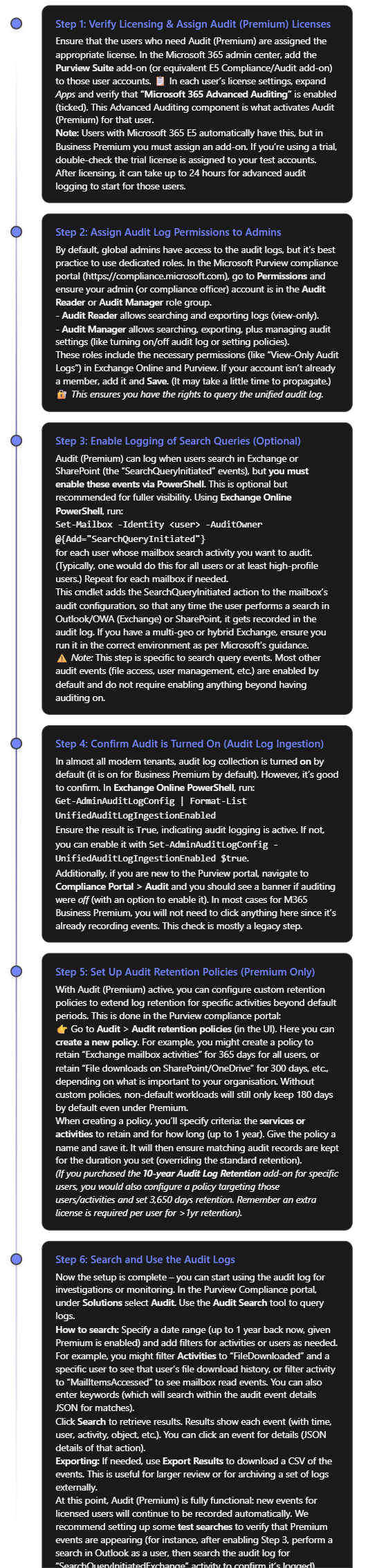
Step-by-Step: Setting Up Microsoft Purview Audit (Premium)
Enabling Audit (Premium) in your Business Premium environment involves a few configuration steps. Below is a step-by-step guide to set up and use Audit (Premium) effectively, assuming you have already acquired the necessary licenses (e.g. Purview add-on or trial):
Note: If you ever need to disable Audit (Premium) or auditing generally (for example, in rare cases for troubleshooting), you can turn off audit log ingestion using the PowerShell command in Step 4 with $false. However, this is not recommended in production as it means you will stop capturing activity logs. In almost all cases, keep auditing enabled at all times for security and compliance continuity.
At this stage, you have set up Audit (Premium) in your Business Premium environment. You should have: the proper licenses in place, appropriate admin permissions, extended audit events (like search logs and mailbox reads) enabled, and custom retention policies (if needed) configured. Now you can leverage these logs to strengthen your organisation’s security monitoring and compliance reporting. In the next section, we’ll discuss how to use these audit logs effectively in common SMB scenarios like detecting insider threats, preventing data leaks, and fulfilling regulatory requirements.
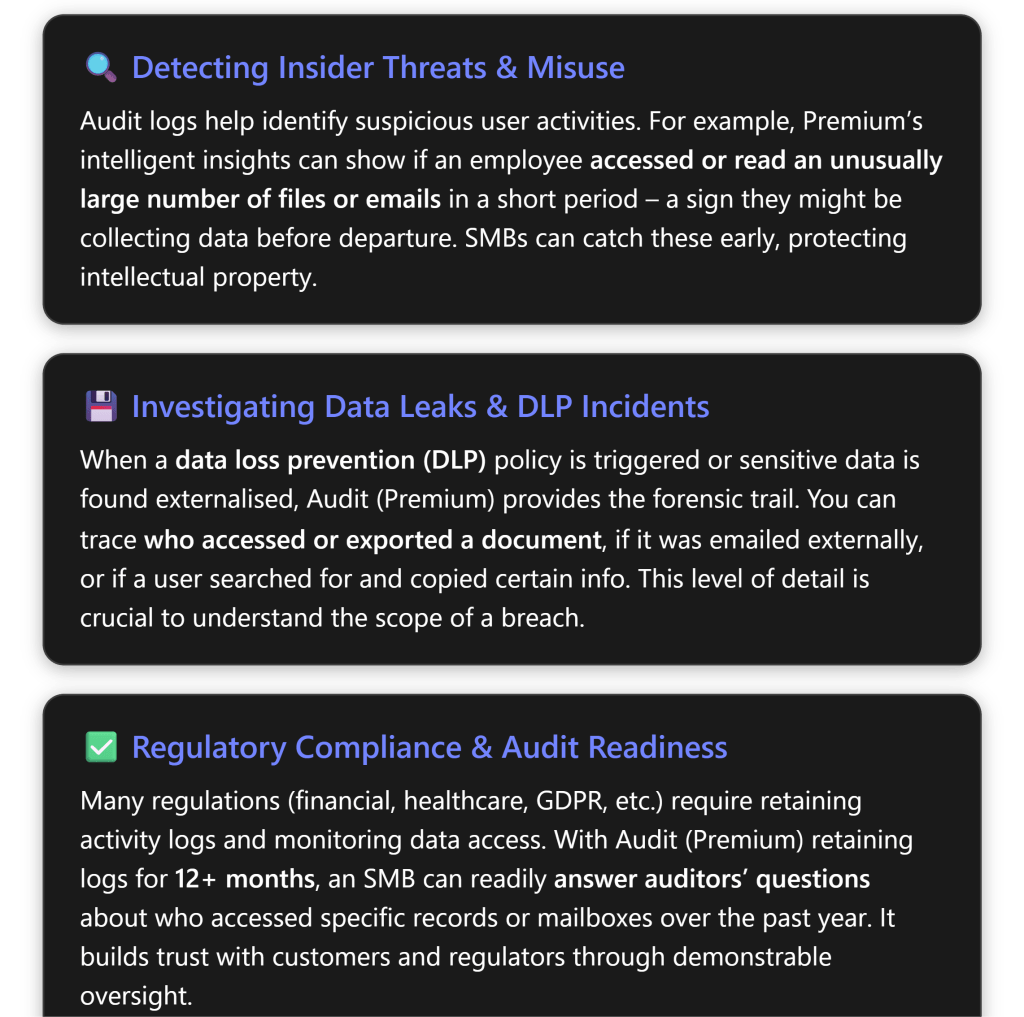
Effective Use Cases for SMBs Using Audit (Premium)
Microsoft Purview Audit (Premium) equips SMBs with powerful capabilities that were once the domain of large enterprises. Here are some key use cases and scenarios where Audit (Premium) can be especially valuable for a Business Premium organisation:
Insider Risk Detection and User Activity Monitoring
Insider threats are a concern for organisations of all sizes. Whether it’s a disgruntled employee or simply an honest employee taking company data home out of misunderstanding, Audit (Premium) can be a critical tool for detection. In an SMB, IT staff can use audit logs to monitor tell-tale signs of risky behavior:
Mass download or access of files: With standard audit, you could see file download events, but only for 180 days. Audit (Premium) ensures you have a full year of file access records. If an employee is leaving and suddenly downloads hundreds of files from SharePoint or OneDrive, you’ll catch that in the logs. You can even set up an alert policy (in the Compliance portal’s Alert section) to notify you of unusual download activity. For example, if user X downloads >N files in an hour, trigger an alert. The audit data (file names, timestamps) will help confirm if they took sensitive information.
MailItemsAccessed (Premium insight): This is a special Audit (Premium) log that records when emails in a mailbox are read/accessed, even by the mailbox owner. Why is this useful? Imagine a scenario where an attacker compromises a user’s email account. They quietly read through the mailbox looking for valuable info. In standard audit logs, if the attacker didn’t send or delete anything, you might not have a clear trail. MailItemsAccessed, however, would show that a large number of emails were opened/read at odd hours[6][6]. This can be an early indicator of compromise or misuse. SMBs can utilize this to detect if, say, a terminated employee’s mailbox was accessed after departure or if a delegated admin is snooping on others’ emails.
Search queries: As enabled in the setup, Audit (Premium) can log what content a user searched for in Exchange or SharePoint. This can be useful in insider investigations – for instance, if an employee was searching SharePoint for “salary data” or other sensitive info before a leak. It’s a niche signal, but in certain cases provides insight into user intent. Insider Risk Management (as a higher-level tool) uses many of these audit signals to score risk, but even without IRM, an admin can manually look at audit logs for such patterns.
Privileged user monitoring: Audit logs also track admin actions (e.g., an admin downloading a mailbox via eDiscovery, or changing a configuration). With longer retention, you can periodically review admin activity. In an SMB, IT admins wear many hats – but it’s good practice to have oversight. For example, you could search the audit log for “Added mailbox permission” or “File deleted” activities over the last year to ensure no unauthorised or unexplained changes were made. This helps with separation-of-duties even in a small IT team.
By actively reviewing these logs or setting up alerts, an SMB can spot internal issues early – before they become major incidents. Microsoft Purview Audit (Premium) essentially provides an “activity DVR” for your organisation: you can rewind and see exactly what a user did, which is invaluable for both deterrence and investigation.
Data Loss Prevention and Forensic Investigations
When it comes to data leaks or policy violations, Audit (Premium) proves its worth by providing a detailed audit trail:
Suppose your company has set up Data Loss Prevention (DLP) policies (available in Business Premium for Exchange/SharePoint/OneDrive). If a DLP policy flags an attempted sharing of sensitive information (e.g. someone tried to email out a list of customer credit card numbers, which was blocked), you can use audit logs to investigate further. The audit log would show the “DLP rule match” event as well as the user’s subsequent activities. Did they attempt another method to send the data? Did they save it to a personal device? Audit logs will show file access, print events (if recorded by Windows and fed into audit logs via AIP), etc., giving a full picture around the incident.
In case of a confirmed data breach or cyber-incident, time is of the essence to understand what happened. Audit (Premium) lets you triage and scope incidents effectively. For example, if a rogue third-party application was discovered (perhaps a user installed an OAuth app that siphoned data), you can search audit logs for activities that app performed or what the user did under its influence. If ransomware hit your SharePoint, audit logs can show which files were mass-deleted or encrypted and by which account. With 1-year retention, you might find the initial entry point which could have been many months ago (some breaches aren’t discovered until long after the fact). Without Audit (Premium), those older breadcrumbs might be gone.
Forensic detail: Audit (Premium) records include useful information such as IP addresses, user agents, object details, etc., for each event[5]. After an incident, you can export relevant logs and hand them to forensic analysts or authorities. For example, after a suspected insider data theft, you could export all audit events of that user for the last 12 months – giving a timeline of their activities (file downloads, email sent, USB device insertions if those were captured by Defender and fed to audit, etc.). This can serve as evidence if needed and guide your response (e.g., which systems to secure or which partners to notify).
One thing to note is that Audit (Premium) isn’t a real-time blocking tool – it’s investigatory. For proactive protection, you’d rely on things like DLP policies, Defender for Cloud Apps (for anomaly detection), etc. But the audit logs are the backbone of investigating any alerts those systems raise. They often answer the questions “what exactly happened?” and “when and who did it?”. For an SMB, having this level of detail can be the difference in confidently handling an incident or being in the dark.
Compliance, Audit Trails, and Reporting
For organisations subject to compliance standards or client security assessments, Audit (Premium) provides assurance that you have robust audit trails in place:
Regulatory audits: If you need to comply with standards like HIPAA, ISO 27001, or various government regulations, auditors may ask for proof of controls. Audit logs can demonstrate controls like data access governance. For example, under GDPR, you should be able to trace who accessed personal data. With Audit (Premium), if a European customer exercises their right to know who accessed their data, you could query the audit log for any access events related to that data over the last year. Many SMBs struggle with these requests, but having the audit log makes it feasible. It shows a commitment to transparency and control.
Retention requirements: Some industries require logs to be kept for longer than 6 months. If you fall under such a rule (or your customers contractually require it), enabling Audit (Premium) is necessary. Moreover, the 10-year audit log retention (with add-on) might be relevant for, say, financial services or healthcare where legal proceedings or investigations can occur years later. SMBs like accounting firms or clinics, for instance, might consider using the 10-year retention for certain high-risk user accounts. Audit (Premium) allows you to meet these needs, whereas without it you’d have to implement an external log archive solution.
Internal audits and policy compliance: Even outside formal regulation, an organisation may have internal policies (“we review admin access every year” or “we ensure only authorised people accessed Project X files”). Audit logs are how you verify and report on these. With the ability to export to CSV and analyze in Excel or Power BI, you can generate internal audit reports. For example, you might periodically review all “File accessed” events on a confidential SharePoint site to ensure only the intended team accessed it. If someone outside the team shows up in the logs, that’s a flag to investigate permissions. Audit (Premium) giving 12 months of data means you can do a thorough annual review, not just a snapshot of recent activity.
Legal eDiscovery synergy: Often, when there’s litigation, you perform eDiscovery (searching across mailboxes and documents for relevant content). Audit logs complement this by showing audit trails of content. E.g., if a legal case questions whether a document was seen by certain people at a certain time, the audit log can confirm access. Interestingly, Microsoft’s eDiscovery (Premium) (also included in the Purview Suite add-on) can leverage audit logs to track views/edits of content. So, Audit (Premium) feeds into a stronger eDiscovery process. For an SMB, this level of preparedness can save a lot of time and cost if a legal situation arises.
In essence, Audit (Premium) helps SMBs operate with enterprise-level diligence. You can confidently answer “Who did what, when, and how” for most actions in your Microsoft 365 environment, even up to a year ago or more. This instills confidence not only within your security team but also for any external parties evaluating your IT controls.
Best Practices for Audit Policy Configuration and Usage
Enabling Audit (Premium) is powerful, but to get the most value (and avoid being overwhelmed by data), consider these best practices for configuring and using your audit logs:
🌳 Define clear audit retention policies: Don’t just blindly keep everything for one year. Decide which activities are most critical to retain longer. For example, Exchange, SharePoint, OneDrive, and Azure AD logs are already kept 1 year by default with Audit Premium[1]. You might not need to extend all other activities to 1 year. Perhaps extend Teams chat audit events or Power BI events if those are important, but maybe you don’t need year-long logs for, say, Sway or Yammer. Tailor the retention policies (Step 5 in setup) to balance useful data vs. clutter. Also, keep in mind storage – although Microsoft stores audit logs in the cloud and it’s not in your tenant data quota, extremely large volumes can affect export and search speed. So retain what you need for compliance/forensics, not just everything.
🔒 Limit and monitor access to audit logs: Audit logs contain sensitive information (they can reveal user activities, email subjects, file names, etc.). Only assign the Audit Reader/Manager roles to trusted personnel. In a small business, this might just be the IT manager or security officer. Consider enabling Multi-Factor Authentication on those accounts (as you should for all admins). Microsoft Purview doesn’t currently generate alerts for audit log access, but you as an admin could manually audit the auditors – e.g., check if someone outside the expected roles ran an audit search (that itself is an auditable event). This ensures privacy and security of the audit data itself.
📊 Use tools to analyze the logs: The Purview portal search is great for interactive queries, but for deeper analysis use export and other tools. For instance, export a month of logs to CSV and use Excel PivotTables or Power BI to spot trends (failed logins over time, most accessed files, etc.). There are also Microsoft Graph APIs to programmatically retrieve audit events, which could feed into a SIEM like Microsoft Sentinel or a custom dashboard[1]. If your SMB uses Sentinel or another security monitoring solution, configuring the Office 365 Management Activity API to pull your audit logs is a good idea[1]. With Audit Premium, you have higher API bandwidth, meaning such integrations will run more smoothly[1]. This way, you can get automated anomaly detection on top of your audit data.
🚦 Set up alert policies for critical events: Within the Compliance portal, under Alerts (or in the older Security & Compliance Center under Alert policies), you can define rules that trigger alerts based on audit events. Common ones to create:
Alert when an admin privilege is granted (e.g., someone added to a role group).
Alert when mass deletion of files occurs.
Alert on eDiscovery searches or content exports (to catch any misuse of those tools).
Alert on downgrading audit or disabling the log (if someone tried to turn off auditing, you want to know immediately). Many default alerts exist (like suspicious logins via Azure AD), but custom ones for these audit events can significantly improve your security oversight.
📆 Periodic audit reviews: Make audit log review a routine. For example, monthly spot checks on different areas: one month review sharing activities on OneDrive, next month review mailbox access logs, etc. In a small business, dedicating a couple of hours per month to this can help you catch issues proactively. It’s like doing an internal audit continuously. You may rarely find issues, but when you do, you’ll be glad you looked. Plus, it familiarizes your team with the logs, so in a crisis you’re already comfortable with the data format and tools.
✍️ Document and communicate audit practices: Let your users know, at least in broad terms, that activities are logged for security and compliance. This can be part of an IT policy users accept. It creates a deterrent effect for malicious behavior (“my actions might be traced”) and also assures well-meaning employees that the company is keeping track in case something goes wrong (“if someone accessed my account, it would be recorded”). Of course, be mindful of privacy laws – in some jurisdictions, you must disclose if you monitor employee communications. Microsoft Purview Audit is generally considered a security log, but transparency is still a good practice.
🤝 Combine Audit with other Purview solutions: If you have invested in the Purview Suite, you likely have tools like Insider Risk Management (IRM), Communication Compliance, etc. These tools use signals from audit logs but provide a layer of AI or policy-driven analysis on top. For example, IRM can create risk scores if an employee downloads a lot of files (as seen in audit logs) and also resigns (HR insight). It might then automatically flag that user. While our focus is audit logs, remember to explore these additional Purview features – they can amplify the value of your auditing by proactively identifying risks using the same data. For an SMB, even a simple policy in Communication Compliance (like flagging rude or threatening language internally) might be beneficial; and audit logs would be the evidence when investigating those flags.
Stay updated on new audit log capabilities: Microsoft occasionally expands auditing functionality. For instance, in late 2023 and early 2024, they made more audit log types available to Standard that were previously Premium-only (increasing the baseline logs all customers get)[6][6]. And they continue to add new event types as Microsoft 365 services evolve (e.g., new collaboration features might generate new kinds of audit records). Keep an eye on the Microsoft 365 Roadmap or TechCommunity blogs for announcements related to Purview Audit. This ensures you’re aware of any new logs you might want to incorporate or new settings to configure. For example, if Microsoft enables some new audit event (like Teams message reactions logging) you might need to adjust retention policies or decide if it’s useful to you.
By following these best practices, you’ll maintain an efficient and secure auditing process. Microsoft Purview Audit (Premium) can significantly strengthen your security posture and compliance readiness, but it should be managed deliberately. The goal is to have the right data, in the right hands, retained for the right amount of time.
Conclusion
Microsoft Purview Audit (Premium) brings enterprise-grade auditing to organisations of all sizes – and with the recent availability of compliance add-ons for Microsoft 365 Business Premium, SMBs can now leverage these advanced capabilities without a full E5 licensing upgrade. By enabling Audit (Premium) in your Business Premium environment, you gain a longer memory of events (crucial for investigations that surface months later) and deeper insight into user behaviors (crucial for detecting insider risks and misuses). This investment helps an SMB to proactively identify security issues, thoroughly investigate incidents or anomalies, and confidently meet compliance obligations with a detailed audit trail[5][1].
In practical terms, after following the setup steps, you will have a robust system where virtually every important action in Microsoft 365 – whether it’s a file read, an email sent, a permission changed, or a login attempt – is being recorded and retained for analysis. The combination of Business Premium’s security features and Purview’s Audit (Premium) gives you a comprehensive view of your digital workplace activities.
Remember that technology is just one part of the equation: ensure your team knows how to use these audit tools (consider Microsoft’s free training modules on Purview Audit) and integrate audit review into your IT processes. With that in place, your small or mid-sized business can enjoy many of the same benefits that large enterprises count on to secure and govern their data – all while using familiar Microsoft 365 interfaces and tools.
By prioritising audit and compliance now, you are not only reducing the risk of incidents but also putting your organisation in a position of strength – able to demonstrate accountability and respond to challenges swiftly. Microsoft Purview Audit (Premium) is a powerful ally in that journey, and with careful setup and use, it will significantly enhance your organisation’s security and compliance maturity.
An important part of good security in Microsoft 365 is to ensure you are capturing all the logs available. Exchange Online has a number of actions that can be audited and some may not be enabled in your environment. The list available and what is enabled by default can be found here:
Here is a quick overview of the tenant Unified Audit Logs in Microsoft/Office 365 and how you can access them as well as use them to search what’s happening in your tenant. This can be very handy if you need to track down what a user is doing or if you need to investigate a security incident.
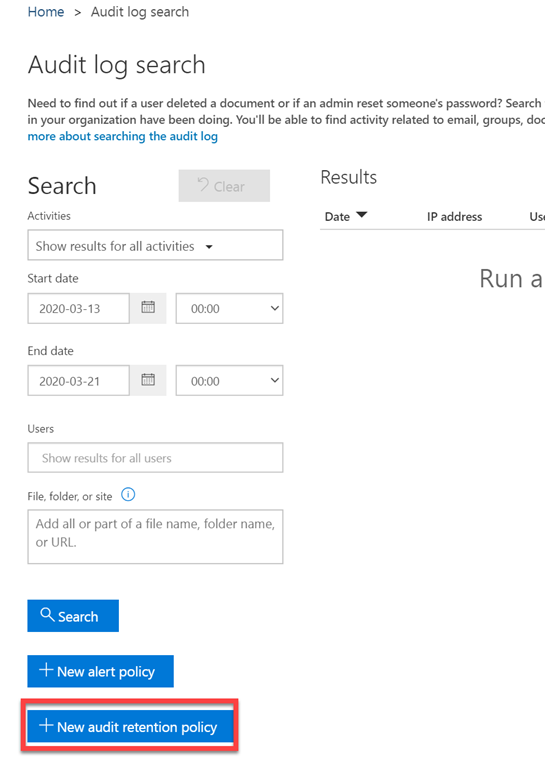
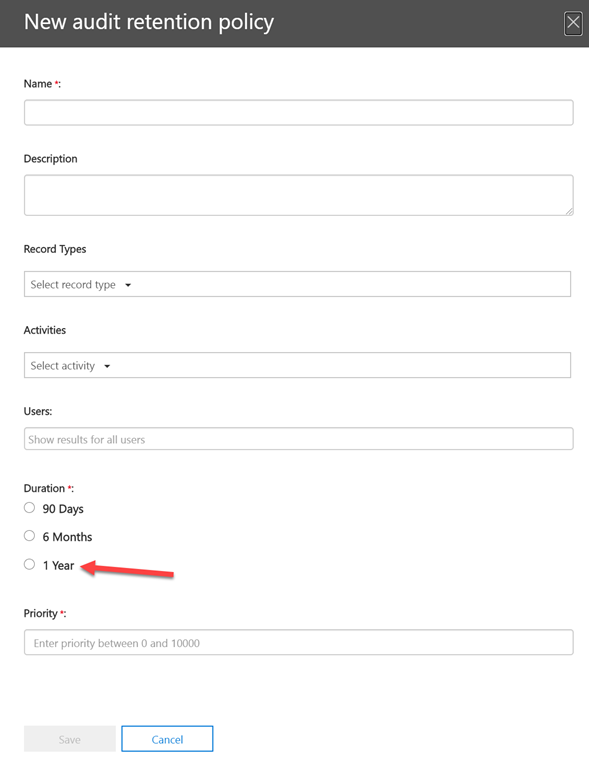
These logs are retained for 90 days by default for all plans. However, if you have Office 365 E5, Microsoft 365 E5 or Microsoft 365 E5 Compliance add-on license you can enable an audit retention policy for up to 1 year.
you then use the recordtypes parameter to specify the audit logs of a specific record type that are retained by the policy. Currently, there are heaps of these:
AeD
AirInvestigation
ApplicationAudit
AzureActiveDirectory
AzureActiveDirectoryAccountLogon
AzureActiveDirectoryStsLogon
CRM
Campaign
ComplianceDLPExchange
ComplianceDLPSharePoint
ComplianceDLPSharePointClassification
ComplianceSupervisionExchange
CustomerKeyServiceEncryption
DLPEndpoint
DataCenterSecurityCmdlet
DataGovernance
DataInsightsRestApiAudit
Discovery
ExchangeAdmin
ExchangeAggregatedOperation
ExchangeItem
ExchangeItemAggregated
ExchangeItemGroup
HRSignal
HygieneEvent
InformationBarrierPolicyApplication
InformationWorkerProtection
Kaizala
LabelExplorer
MIPLabel
MailSubmission
MicrosoftFlow
MicrosoftForms
MicrosoftStream
MicrosoftTeams
MicrosoftTeamsAdmin
MicrosoftTeamsAnalytics
MicrosoftTeamsDevice
MicrosoftTeamsShifts
MipAutoLabelExchangeItem
MipAutoLabelSharePointItem
MipAutoLabelSharePointPolicyLocation
OfficeNative
OneDrive
PowerAppsApp
PowerAppsPlan
PowerBIAudit
Project
Quarantine
SecurityComplianceAlerts
SecurityComplianceCenterEOPCmdlet
SecurityComplianceInsights
SharePoint
SharePointCommentOperation
SharePointContentTypeOperation
SharePointFieldOperation
SharePointFileOperation
SharePointListItemOperation
SharePointListOperation
SharePointSharingOperation
SkypeForBusinessCmdlets
SkypeForBusinessPSTNUsage
SkypeForBusinessUsersBlocked
Sway
SyntheticProbe
TeamsHealthcare
ThreatFinder
ThreatIntelligence
ThreatIntelligenceAtpContent
ThreatIntelligenceUrl
WorkplaceAnalytics
Yammer
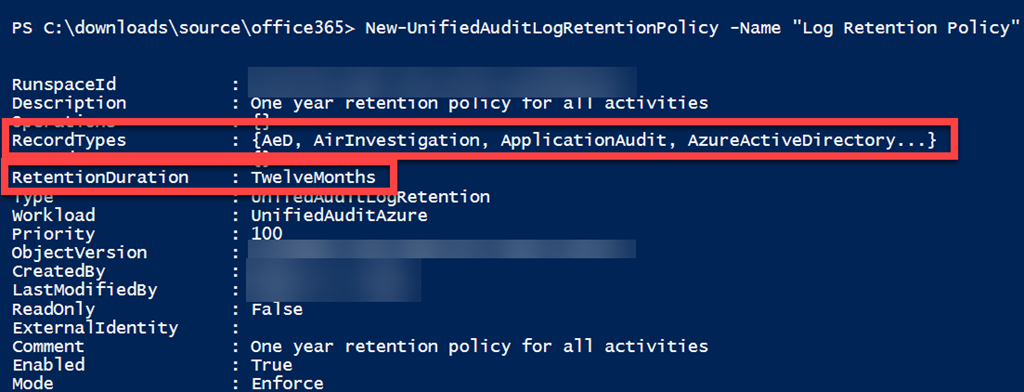
In my case I ran:
New-UnifiedAuditLogRetentionPolicy -Name “Log Retention Policy” -Description “One year retention policy for all activities” -RecordTypes AeD,AirInvestigation,ApplicationAudit,AzureActiveDirectory,AzureActiveDirectoryAccountLogon,AzureActiveDirectoryStsLogon,CRM,Campaign,ComplianceDLPExchange,ComplianceDLPSharePoint,ComplianceDLPSharePointClassification,ComplianceSupervisionExchange,CustomerKeyServiceEncryption,DLPEndpoint,DataCenterSecurityCmdlet,DataGovernance,DataInsightsRestApiAudit,Discovery,ExchangeAdmin,ExchangeAggregatedOperation,ExchangeItem,ExchangeItemAggregated,ExchangeItemGroup,HRSignal,HygieneEvent,InformationBarrierPolicyApplication,InformationWorkerProtection,Kaizala,LabelExplorer,MIPLabel,MailSubmission,MicrosoftFlow,MicrosoftForms,MicrosoftStream,MicrosoftTeams,MicrosoftTeamsAdmin,MicrosoftTeamsAnalytics,MicrosoftTeamsDevice,MicrosoftTeamsShifts,MipAutoLabelExchangeItem,MipAutoLabelSharePointItem,MipAutoLabelSharePointPolicyLocation,OfficeNative,OneDrive,PowerAppsApp,PowerAppsPlan,PowerBIAudit,Project,Quarantine,SecurityComplianceAlerts,SecurityComplianceCenterEOPCmdlet,SecurityComplianceInsights,SharePoint,SharePointCommentOperation,SharePointContentTypeOperation,SharePointFieldOperation,SharePointFileOperation,SharePointListItemOperation,SharePointListOperation,SharePointSharingOperation,SkypeForBusinessCmdlets,SkypeForBusinessPSTNUsage,SkypeForBusinessUsersBlocked,Sway,SyntheticProbe,TeamsHealthcare,ThreatFinder,ThreatIntelligence,ThreatIntelligenceAtpContent,ThreatIntelligenceUrl,WorkplaceAnalytics,Yammer -RetentionDuration TwelveMonths -Priority 100
to set them all for my E5 environment, and thus retain all this logging information for at least 12 months!
You can read more about all this in the Microsoft documentation here:
“To retain an audit log for longer than 90 days, the user who generated the audit log must be assigned an Office 365 or Microsoft 365 E5 license or have a Microsoft 365 E5 Compliance add-on license.”
***** 9 April 2020 Update
It appears Microsoft has now changed the parameters you can specify to:



 CIAOPS