CIA Brief 20250517

image

Microsoft 365 Copilot: Your time and project management advisor –

https://techcommunity.microsoft.com/blog/microsoft365insiderblog/microsoft-365-copilot-your-time-and-project-management-advisor/4413166

Copilot on Windows: “Hey, Copilot!” begins rolling out to Windows Insiders –

https://blogs.windows.com/windows-insider/2025/05/14/copilot-on-windows-hey-copilot-begins-rolling-out-to-windows-insiders/

See your day at a glance with the new Calendar app –

https://techcommunity.microsoft.com/blog/microsoft365insiderblog/see-your-day-at-a-glance-with-the-new-calendar-app/4412492

Defender for Endpoint successfully passes the AV-Comparatives 2025 Anti-Tampering Test –

https://techcommunity.microsoft.com/blog/microsoftdefenderatpblog/defender-for-endpoint-successfully-passes-the-av-comparatives-2025-anti-tamperin/4414153

Print Documents and Files to OneNote for Smarter Saving, Searching, and Annotating –

https://techcommunity.microsoft.com/blog/microsoft_365blog/print-documents-and-files-to-onenote-for-smarter-saving-searching-and-annotating/4410959

Improve communication with Microsoft Copilot and other Microsoft 365 tools –

https://techcommunity.microsoft.com/blog/microsoft365insiderblog/improve-communication-with-microsoft-copilot-and-other-microsoft-365-tools/4413165

Start, Fresh — Redesigning the Windows Start menu for you –

https://microsoft.design/articles/start-fresh-redesigning-windows-start-menu/

SharePoint in the Era of AI: Spring 2025 Updates –

https://techcommunity.microsoft.com/blog/spblog/sharepoint-in-the-era-of-ai-spring-2025-updates/4411598

Risk-based Recommendation for SOC Optimization –

https://techcommunity.microsoft.com/blog/MicrosoftSentinelBlog/risk-based-recommendation-for-soc-optimization/4413041

What’s New for Communicators at the Microsoft 365 Conference –

https://techcommunity.microsoft.com/blog/microsoft_365blog/what%E2%80%99s-new-for-communicators-at-the-microsoft-365-conference/4411247

Fulton County Schools: Empowering Learners with Copilot Chat –

https://www.youtube.com/watch?v=cNOVAC605lE

Marbled Dust leverages zero-day in Output Messenger for regional espionage –

https://www.microsoft.com/en-us/security/blog/2025/05/12/marbled-dust-leverages-zero-day-in-output-messenger-for-regional-espionage/

Getting Started with the New Purview eDiscovery (E3) –

https://techcommunity.microsoft.com/blog/microsoft-security-blog/getting-started-with-the-new-purview-ediscovery-e3/4412354

Choosing between Microsoft Defender Experts for Hunting and Microsoft Defender Experts for XDR –

https://techcommunity.microsoft.com/blog/microsoftsecurityexperts/choosing-between-microsoft-defender-experts-for-hunting-and-microsoft-defender-e/4410208

The Power of a Unified SIEM+XDR IdentityInfo Schema –

https://techcommunity.microsoft.com/blog/microsoftsentinelblog/the-power-of-a-unified-siemxdr-identityinfo-schema/4410824

Helping retailers and consumer goods organizations identify the most valuable agentic AI use cases –

https://www.microsoft.com/en-us/industry/blog/retail/2025/05/08/helping-retailers-and-consumer-goods-organizations-identify-the-most-valuable-agentic-ai-use-cases/

After hours

The AI Revolution Is Underhyped | Eric Schmidt | TED – https://www.youtube.com/watch?v=id4YRO7G0wE

Editorial

If you found this valuable, the I’d appreciate a ‘like’ or perhaps a donation at https://ko-fi.com/ciaops. This helps me know that people enjoy what I have created and provides resources to allow me to create more content. If you have any feedback or suggestions around this, I’m all ears. You can also find me via email director@ciaops.com and on X (Twitter) at https://www.twitter.com/directorcia.

If you want to be part of a dedicated Microsoft Cloud community with information and interactions daily, then consider becoming a CIAOPS Patron – www.ciaopspatron.com.

Watch out for the next CIA Brief next week

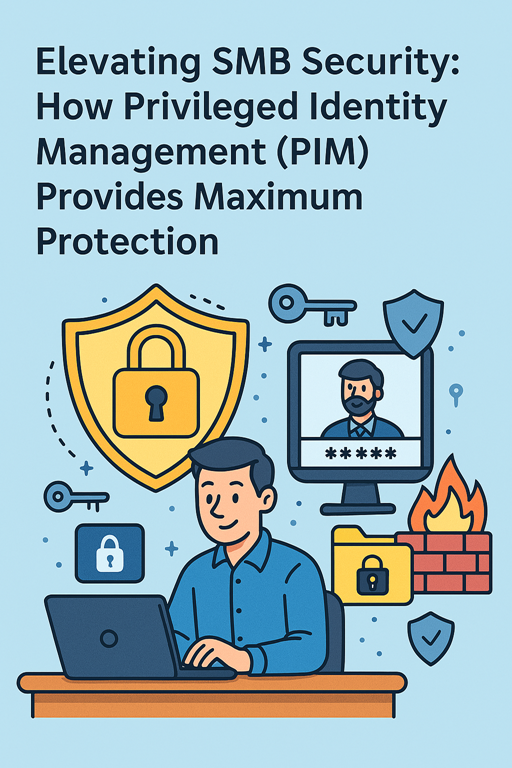
Elevating SMB Security: How Privileged Identity Management (PIM) Provides Maximum Protection

bp

Small and Medium-sized Businesses (SMBs) often operate with limited IT resources, making them attractive targets for cyberattacks. One of the most critical areas to secure is privileged access – the permissions granted to users or accounts that allow them to perform administrative functions or access sensitive data. Compromise of these accounts can lead to devastating data breaches, financial losses, and reputational damage.

Microsoft Entra ID Privileged Identity Management (PIM) is a service designed to mitigate these risks by managing, controlling, and monitoring access to important resources. For SMBs leveraging Microsoft Entra ID (formerly Azure Active Directory), PIM offers a powerful yet manageable solution to significantly enhance their security posture without requiring extensive infrastructure or specialized staff.

How PIM Improves Security for SMB Customers

PIM addresses key security challenges faced by SMBs by implementing the principle of “just-in-time” and “just-enough” access. Instead of granting standing administrative privileges to users indefinitely, PIM allows organizations to:

  • Minimize the attack surface: By reducing the number of accounts with permanent, highly privileged access, the potential entry points for attackers are significantly reduced.
  • Lessen the impact of a breach: If a regular user account is compromised, the damage is limited because that account doesn’t hold excessive permissions. Privileged access is only granted when explicitly needed and for a limited time.
  • Gain visibility into privileged activity: PIM provides detailed logging and auditing of privileged role activations and actions, making it easier to detect suspicious activity and investigate security incidents.
  • Enforce accountability: With PIM, you can track who activated a privileged role, when they activated it, and for what purpose (if justification is required), creating a clear audit trail.
  • Support compliance efforts: Many regulatory requirements mandate strict control and monitoring of privileged access. PIM helps SMBs meet these obligations.
  • Reduce human error: By requiring activation and justification for privileged tasks, PIM encourages a more deliberate approach to administrative actions, reducing the likelihood of accidental misconfigurations or data deletion.

Essentially, PIM transforms standing access into eligible access, requiring users to activate their elevated permissions only when necessary, for a defined period.

PIM is part of the features of Entra ID P2, which means it is not natively available with Microsoft 365 Business Premium but is available as part of the E5 Security Add-on to Microsoft 365 Business Premium.

Configuring PIM for Maximum Protection: A Step-by-Step Guide for SMBs

Configuring PIM effectively is crucial to maximizing its security benefits. Here’s a step-by-step guide tailored for SMBs:

Phase 1: Initial Setup and Role Discovery

  1. Identify and Inventory Privileged Roles:

    • Navigate to the Microsoft Entra admin center (entra.microsoft.com).
    • Go to Identity governance > Privileged Identity Management.
    • Select Microsoft Entra roles or Azure resources (depending on the resources you want to protect).
    • Review the list of available roles and identify which users are currently assigned to highly privileged roles (e.g., Global Administrator, Security Administrator, User Administrator). This step is critical to understand your current privilege landscape.
  2. Assign Eligible Roles:

    • For users who require privileged access for their duties, change their assignment type from “Active” (permanent) to “Eligible”.
    • Select the role you want to configure and go to Assignments.
    • Add assignments for users, selecting “Eligible” as the assignment type.
    • Set an expiration date for the eligible assignment. While eligible assignments can be permanent, setting an expiration (e.g., 1 year) and requiring periodic review is a best practice for maximum security.

Phase 2: Configuring Role Settings for Enhanced Security

For each privileged role you’ve identified, configure the following settings to enforce strong controls during activation:

  1. Access Role Settings:

    • In the PIM portal, select the relevant resource type (Microsoft Entra roles or Azure resources).
    • Select Roles, then choose the specific role you want to configure.
    • Select Settings > Edit.
  2. Activation Maximum Duration:

    • Set the Activation maximum duration to the shortest possible time required to complete typical administrative tasks. For most SMBs, 1-4 hours is often sufficient. Avoid setting this to the maximum 24 hours unless absolutely necessary.
  3. On activation, require multifactor authentication (MFA):

    • Enable this setting for all privileged roles. This is one of the most effective controls to prevent unauthorized activation even if a user’s password is compromised. Ensure all eligible users are enrolled in Microsoft Entra multifactor authentication.
  4. On activation, require justification:

    • Enable this setting. Requiring users to provide a business justification for activating a privileged role creates an audit trail and encourages users to think critically before elevating their permissions.
  5. Require approval to activate:

    • For highly sensitive roles (e.g., Global Administrator, Security Administrator), enable this setting.
    • Specify approvers (ideally, a small group of trusted administrators) who must approve activation requests before the user gains privileged access. This adds an extra layer of control and prevents a single compromised account from immediately gaining high-level access. Ensure your approvers understand their responsibility and the importance of timely responses.
  6. Notification Settings:

    • Configure notifications to alert administrators when privileged roles are activated. This provides near real-time awareness of privileged activity.

Phase 3: Implementing Access Reviews

Regularly reviewing who has eligible and active assignments is crucial to maintain a strong security posture.

  1. Create Access Reviews:

    • In the PIM portal, select the relevant resource type.
    • Under Manage, select Access reviews.
    • Click New to create a new access review.
  2. Configure Access Review Settings:

    • Name and Description: Give the review a clear name and description (e.g., “Quarterly Global Administrator Role Review”).
    • Start and End Dates: Define the duration of the review.
    • Frequency: Set the review to recur regularly (e.g., quarterly or semi-annually) to ensure ongoing oversight.
    • Roles to Review: Select the privileged roles you want to include in the review.
    • Reviewers: Assign appropriate reviewers. For SMBs, this might be a trusted IT administrator or a business owner who understands the need for specific roles. You can also configure users to review their own access, but this should be used with caution and ideally combined with another layer of review for critical roles.
    • Upon completion settings: Configure what happens after the review. You can choose to automatically remove access for users who were denied or not reviewed.

Phase 4: Ongoing Monitoring and Maintenance

  1. Monitor Alerts and Notifications: Regularly review the PIM alerts and notifications in the Microsoft Entra admin center and via email.
  2. Audit Logs: Periodically review the PIM audit logs to understand who activated which roles and when.
  3. Refine Settings: As your business evolves, periodically review and refine your PIM role settings and access review configurations to ensure they remain appropriate for your security needs.

By implementing Microsoft Entra ID Privileged Identity Management and following these configuration steps, SMBs can significantly enhance their security by moving away from standing administrative privileges and adopting a just-in-time approach. This proactive measure helps protect against the misuse of elevated access, reduces the impact of potential security incidents, and strengthens the overall security posture in an increasingly complex threat landscape.

A Guide to Microsoft Entra Private Access for On-Premise Servers

image

Microsoft Entra Private Access offers a modern, secure way to connect your users to on-premise applications and resources without the need for traditional VPNs. This service, part of Microsoft’s Security Service Edge (SSE) solution, Global Secure Access, allows you to grant granular access based on identity and context, enhancing your security posture.

Here’s a comprehensive guide to setting up and configuring Microsoft Entra Private Access to connect back to your on-premise servers:

I. Understanding the Core Components:

Before diving into the setup, it’s essential to understand the key elements involved:

  • Microsoft Entra ID: Your cloud-based identity and access management service. It will handle user authentication and authorization.

  • Global Secure Access (SSE): The overarching service in Microsoft Entra that includes Private Access and Internet Access. You’ll configure Private Access settings within this portal.

  • Microsoft Entra Private Network Connector: Lightweight agents installed on your on-premise Windows servers. These connectors establish a secure outbound connection to the Microsoft Entra Private Access service, acting as a reverse proxy to your internal applications. They do not require inbound firewall rules, enhancing security.

  • Connector Groups: Logical groupings of connectors. You can assign specific applications to particular connector groups for better organization, resilience, and traffic management.

  • Enterprise Applications in Entra ID: You will register your on-premise applications as Enterprise Applications in Entra ID. This allows you to configure Single Sign-On (SSO), assign users and groups, and apply Conditional Access policies.

  • Traffic Forwarding Profiles: Part of Global Secure Access, these profiles ensure that traffic destined for your private, on-premise resources is correctly routed through the Private Access service.

II. Prerequisites:

Ensure you have the following before you begin the configuration:

  • Licensing:
  • Microsoft Entra ID Premium P1 or P2 licenses are required for users accessing applications through Private Access.
  • Global Secure Access (preview) might have specific trial or preview licensing requirements. Check the latest Microsoft documentation.
  • Permissions:
  • Global Administrator or Private Access Administrator role in Microsoft Entra ID to configure Global Secure Access and Private Access settings.
  • Application Administrator role if you need to configure Enterprise Applications (if not a Global Administrator).
  • Local Administrator rights on the on-premise Windows servers where you will install the Private Network Connectors.
  • On-Premise Server Requirements for Connectors:
  • A Windows Server (check Microsoft documentation for supported versions, typically Windows Server 2012 R2 or later). The server must have .NET Framework (usually 4.7.2 or later) installed.
  • The server must have outbound connectivity to specific Microsoft URLs and ports. Refer to the official Microsoft documentation for the most up-to-date list of required URLs and ports. Proxies, if used, must be configured appropriately.
  • The server should have network connectivity to the on-premise applications you intend to publish.
  • TLS 1.2 should be enabled on the connector server.
  • Network Considerations:
  • Ensure your on-premise network allows outbound HTTPS (TCP port 443) traffic from the connector servers to the Microsoft Entra Private Access service endpoints.
  • Internal DNS resolution must be working correctly for the connector servers to find your on-premise applications.

III. Step-by-Step Configuration Guide:

Step 1: Prepare Your On-Premise Environment

  1. Identify Connector Servers: Choose at least two Windows servers for installing the Private Network Connectors to ensure high availability. These servers should be dedicated to this role or have sufficient resources if shared.

  2. Verify Network Connectivity: Confirm the chosen servers can reach your internal applications and have the necessary outbound internet access as per Microsoft’s requirements.

  3. Disable IE Enhanced Security Configuration (Recommended during setup): This can sometimes interfere with the connector registration process. You can re-enable it afterward.

Step 2: Install and Register the Microsoft Entra Private Network Connector(s)

  1. Access the Global Secure Access Portal:
  • Navigate to the Microsoft Entra admin center (entra.microsoft.com).
  • Go to Global Secure Access (Preview) > Connect > Connectors.

2. Download the Connector: Click on “Download connector service” and accept the terms.

3. Install the Connector:

  • Copy the downloaded installer to your chosen on-premise server(s).
  • Run the installer as a local administrator.
  • Follow the on-screen prompts.

4. Register the Connector:

  • During the installation, a pop-up window will prompt you to sign in to your Microsoft Entra ID. Use an account with Global Administrator or Private Access Administrator privileges.
  • Upon successful authentication, the connector will register with your Entra ID tenant and appear in the “Connectors” list in the Global Secure Access portal.

5. Repeat for High Availability: Install and register the connector on at least one more server for redundancy.

Step 3: Create and Configure Connector Groups (Recommended)

  1. Navigate to Connector Groups: In the Global Secure Access portal, go to Connect > Connector groups.

  2. Create a New Connector Group:
  • Click “+ Create connector group”.
  • Give the group a descriptive name (e.g., “OnPrem-App-Group”).
  • Assign the newly installed connectors to this group.
  • Click “Save”.

3. Purpose: Connector groups allow you to dedicate specific sets of connectors to particular applications, which is useful for large environments or if you need to isolate traffic. If you don’t create one, your connectors will reside in a “Default” group.

Step 4: Configure Quick Access or Global Secure Access Apps for Your On-Premise Application

This is where you define how users will access your on-premise resources. You have two main approaches within Global Secure Access:

  • Quick Access: This is the simplest way to enable access to all on-premise resources or a broad set of FQDNs/IP addresses.
  1. In the Microsoft Entra admin center, go to Global Secure Access (Preview) > Applications > Quick access.

  2. Click on “+ Add Quick Access app”.

  3. Select the Connector group you created earlier.

  4. Under Application segment, click “+ Add application segment”.

  5. Choose the Destination type:
  • IP address: For specific server IPs.
  • Fully qualified domain name (FQDN): For accessing applications by their DNS names (e.g., sharepoint.internal.contoso.com). This is generally preferred.
  • IP address range: For a subnet.

6. Enter the Destination(s) and the Port(s) your application uses (e.g., intranet.mycompany.local on port 80 or 443).

7. Click “Apply” and then “Save”.

  • Global Secure Access App (Enterprise Application): This method involves creating or using an existing Enterprise Application in Entra ID for more granular control, including SSO and Conditional Access policies.
  1. Create/Configure the Enterprise Application:
  • In the Microsoft Entra admin center, navigate to Identity > Applications > Enterprise applications.
  • Click “+ New application”.
  • Choose “Create your own application” (for non-gallery, on-premise apps).
  • Give your application a name (e.g., “OnPrem SharePoint”).
  • Select “Integrate any other application you don’t find in the gallery (Non-gallery)”.
  • Click “Create”.

2. Configure Private Access for the Enterprise App:

  • Once the application is created, go to its Properties.
  • Set Assignment required? to “Yes” if you want to control who can access it.
  • Configure Single sign-on (SSO) if desired (e.g., Kerberos Constrained Delegation, SAML, or password-based). Header-based SSO is also a common option for on-premise web apps. The specifics depend heavily on your on-premise application’s authentication capabilities.
  • Assign Users and groups who should have access to this application.

3. Link the Enterprise Application in Global Secure Access:

  • Go to Global Secure Access (Preview) > Applications > Enterprise applications.
  • Click “+ Add app”.
  • Search for and select the Enterprise Application you configured.
  • Select the Connector group.
  • Under Application segment, click “+ Add application segment”.
  • Enter the Internal FQDN or IP address and Port of your on-premise application as it’s accessible from the connector servers.
  • Click “Apply” and then “Save”.

Step 5: Configure Traffic Forwarding Profile

You need to ensure that traffic to your private resources is forwarded to the Global Secure Access service.

  1. Go to Global Secure Access (Preview) > Connect > Traffic forwarding.

  2. Ensure the Private access profile is enabled. This profile will automatically include the destinations you configured in Quick Access or your Global Secure Access Apps.

Step 6: Install and Configure the Global Secure Access Client (on end-user devices)

For users to access the on-premise applications through Entra Private Access, they need the Global Secure Access Client installed on their Windows devices.

  1. Download the Client:
  • In the Microsoft Entra admin center, go to Global Secure Access (Preview) > Connect > Client download.
  • Download the client.

2. Deploy the Client: Deploy the client to your end-user devices using methods like Intune, SCCM, or manual installation.

3. Client Behavior: Once installed and the user is signed in, the client will route traffic for the configured private resources through the Microsoft Entra Private Access service based on the traffic forwarding profiles.

Step 7: Configure Conditional Access Policies (Highly Recommended)

Enhance security by applying Conditional Access policies to your newly published on-premise applications.

  1. Go to Protection > Conditional Access in the Microsoft Entra admin center.

  2. Create a new policy.

  3. Under Assignments, select the users and groups you want this policy to apply to.

  4. Under Cloud apps or actions, select your Enterprise Application (if using that method) or all traffic profiles if using Quick Access more broadly.

  5. Define Conditions (e.g., device compliance, location, sign-in risk).

  6. Under Access controls, configure Grant controls (e.g., require multi-factor authentication, require compliant device).

Step 8: Test Access

  1. From a client device with the Global Secure Access Client installed and a user assigned the necessary permissions:
  • Try accessing the on-premise application using its external FQDN (if you configured one) or the internal FQDN/IP address you specified in the Quick Access or Enterprise Application configuration.
  • The traffic should be transparently routed through the Private Access service to your on-premise application.
  • Verify SSO functionality if configured.

IV. Important Considerations and Best Practices:

  • High Availability for Connectors: Always deploy at least two connectors in a connector group, installed on different servers, to avoid a single point of failure.

  • Connector Server Sizing: Ensure the connector servers have adequate CPU, memory, and network capacity based on the expected load.

  • Network Segmentation: Place connector servers in a network segment that has access to the required applications but is otherwise appropriately secured.

  • Least Privilege:
  • When configuring applications, only publish the specific FQDNs and ports required. Avoid overly broad rules.
  • Grant users the minimum necessary permissions to the applications.
  • Monitoring:
  • Monitor the status of your connectors in the Global Secure Access portal.
  • Review sign-in logs and audit logs in Microsoft Entra ID for access to these applications.
  • Utilize the Global Secure Access traffic logs.
  • Updates: Keep the Private Network Connector software and the Global Secure Access Client updated to the latest versions.

  • DNS: Ensure that the FQDNs of your on-premise applications are resolvable by the Private Network Connectors. If you are using private DNS names, these must be resolvable by your internal DNS servers that the connectors use. External users will typically access the application via a URL provided by Entra ID, which then proxies the connection.

  • SSL/TLS Certificates: For applications published with SSL, ensure the certificates are valid and trusted by the connector servers and, if applicable, by the end-user browsers (though typically the Private Access service handles the external SSL termination).

  • Application Compatibility: While Entra Private Access supports a wide range of TCP-based applications (and UDP in preview for some scenarios), thoroughly test your specific applications for compatibility.

By following these steps, you can effectively leverage Microsoft Entra Private Access to provide secure, modern access to your on-premise resources, simplifying user experience and strengthening your overall security infrastructure. Always refer to the latest official Microsoft documentation for any changes or more detailed guidance, especially as Global Secure Access services continue to evolve.

Setting Up Entra ID Secure Private Access for On-Premise Servers

Microsoft Entra Private Access offers a modern, secure way to connect users to your on-premise applications and resources without the need for traditional VPNs. This solution, part of Microsoft’s Global Secure Access (GSA) services, leverages the principles of Zero Trust Network Access (ZTNA) to provide granular, identity-centric access controls.

Here’s a comprehensive guide to setting up and configuring Entra ID Secure Private Access for your on-premise servers:

I. Prerequisites:

Before you begin, ensure you have the following:

  • Licensing: A Microsoft Entra ID Premium P1 or P2 license is required. Entra Private Access is often included in suites like the Microsoft Entra Suite.

  • Administrative Roles: You’ll need appropriate administrative roles in Microsoft Entra ID, such as Global Secure Access Administrator and Application Administrator.

  • On-Premise Server(s) for Connectors:
  • Operating System: Windows Server 2012 R2 or later.
  • .NET Framework: Version 4.7.1 or higher (latest recommended).
  • TLS 1.2: Must be enabled on the server.
  • Outbound Connectivity: Ports 80 and 443 must be open for outbound connections to Microsoft Entra services and other required URLs. Ensure your firewall or proxy allows this traffic.
  • No Inbound Ports Required: The connectors use outbound connections, enhancing security.
  • Server Resources: Allocate sufficient CPU and memory (e.g., 4+ cores, 8GB+ RAM recommended per connector for optimal performance, though minimums may be lower).
  • Domain Join (Recommended for Kerberos SSO): For Single Sign-On with Integrated Windows Authentication (IWA) or Kerberos Constrained Delegation (KCD), the connector server(s) should be in the same Active Directory domain as the application servers or in a trusting domain.
  • Client Devices:
  • Operating System: Windows 10/11 (64-bit).
  • Entra ID Status: Devices must be Microsoft Entra joined or Microsoft Entra hybrid joined (not just registered).
  • Global Secure Access (GSA) Client: This client software needs to be installed on user devices to direct traffic to the GSA service.
  • Network Configuration:
  • Ensure your internal DNS can resolve the on-premise resources you intend to publish.
  • If using firewalls, ensure they don’t block traffic to the necessary Microsoft URLs and that TLS inspection is not performed on traffic from the connectors to the Microsoft services, as this can interfere with the mutual TLS authentication.

II. Core Setup Steps:

  1. Activate Global Secure Access (GSA):
  • Under the “Global Secure Access (Preview)” section, go to the “Dashboard.”
  • If not already activated, click the “Activate” button to begin using Global Secure Access services, which include Entra Private Access.

2. Install and Configure Microsoft Entra Private Network Connector(s):

  • Download the Connector: In the Entra admin center, go to Global Secure Access (SSE) > Connect > Connectors. Select “Download connector service.” Accept the terms and download the installer.
  • Install on On-Premise Server(s):
  • Copy the installer to your designated on-premise Windows Server(s).
  • Run the MicrosoftEntraPrivateNetworkConnectorInstaller.exe as an administrator.
  • Follow the wizard. You will be prompted to authenticate with your Entra ID Application Administrator credentials.
  • Important for Windows Server 2019 and later: You might need to disable HTTP/2 in WinHttp for Kerberos Constrained Delegation to function correctly if you plan to use it. This can be done via a registry setting or PowerShell command:
    PowerShell
    Set-ItemProperty ‘HKLM:\SOFTWARE\Microsoft\Windows\CurrentVersion\Internet Settings\WinHttp\’ -Name EnableDefaultHTTP2 -Value 0
    A server restart might be required after this change.
  • High Availability: Install at least two connectors on different servers for redundancy and load balancing.
  • Connector Groups:
  • Connectors are automatically assigned to a default group. You can create custom connector groups for better organization and to assign specific applications to specific sets of connectors. This is useful for isolating traffic or managing access to applications in different network segments.
  • Navigate to Global Secure Access (SSE) > Connect > Connectors. Select “New connector group” to create and assign connectors.
  • Verify Installation: After installation, check the “Connectors” page in the Entra admin center to ensure your connectors are listed and show an “Active” (green) status. Also, verify that the “Microsoft Entra private network connector” and “Microsoft Entra private network connector updater” services are running on the connector servers.

3. Configure Traffic Forwarding for Private Access:

  • In the Entra admin center, go to Global Secure Access (SSE) > Connect > Traffic forwarding.
  • Ensure the “Private access profile” is enabled. This tells the GSA client on end-user devices to forward traffic destined for your private resources through the Entra Private Access service.

III. Publishing On-Premise Applications:

You have two main approaches to publishing your on-premise applications:

  1. Quick Access (Broad Network Access):
  • This method allows you to quickly provide access to entire network segments (IP ranges, FQDNs) rather than individual applications. It’s a simpler way to start, especially when migrating from traditional VPNs.
  • Configuration:
  • Navigate to Global Secure Access (SSE) > Applications > Quick Access.
  • Provide a name for your Quick Access configuration.
  • Click “+ Add Quick Access application segment.”
  • Define the destination type (IP address, FQDN, IP range, or Subnet).
  • Enter the details (e.g., IP address and port(s) like 192.168.1.10:3389 for RDP or fileserver.corp.local:445 for SMB).
  • Assign users or groups who should have access to this Quick Access application.
  • Use Case: Useful for scenarios like accessing internal file shares, RDP to servers, or internal websites where per-app granularity isn’t immediately required.

2. Per-App Access (Enterprise Applications – Zero Trust Approach):

  • This is the recommended approach for a Zero Trust security posture, providing granular access control to specific applications. This method is similar to the traditional Entra Application Proxy setup but integrated within the Global Secure Access framework.
  • Configuration:
  • Navigate to Global Secure Access (SSE) > Applications > Enterprise applications.
  • Click “+ New application.”
  • Select “Add an on-premises application” (or “Create your own application” if it’s not a pre-integrated template).
  • Basic Settings:
  • Name: A user-friendly name for the application.
  • Internal URL: The URL or FQDN/IP address used to access the application on your internal network (e.g., http://intranet.corp.local or 10.0.0.50:8080).
  • External URL: This will be automatically generated (usually https://<yourtenant>-<appname&gt;.msappproxy.net) or you can configure a custom domain. This is the URL users will access from the internet.
  • Pre-Authentication: Choose “Microsoft Entra ID” to enforce authentication before users reach the application. “Passthrough” is an option but less secure.
  • Connector Group: Assign the application to a specific connector group (or the default).
  • Additional Settings (Optional but Recommended):
  • Single Sign-On (SSO): Configure SSO (e.g., Kerberos, SAML, header-based, password-based) for a seamless user experience. This might require additional configuration on your on-premise application and in Entra ID.
  • Backend Application Timeout.
  • Translate URLs in Headers/Application Body (for web apps): Useful if your application has hardcoded internal links.
  • Assign Users and Groups: After creating the application, assign users or groups who are permitted to access it.
  • Use Case: Ideal for publishing web applications, APIs, and even non-HTTP applications (by specifying TCP/UDP ports) with fine-grained access control.

IV. Client-Side Setup (Global Secure Access Client):

  • Download and Deploy: The Global Secure Access client needs to be installed on end-user Windows devices. You can find the client download in the Entra admin center under Global Secure Access (SSE) > Connect > Client download.

  • Installation: Install the client. Users will typically need local admin rights for installation.

  • Sign-in: Users sign into the GSA client with their Entra ID credentials.

  • Connectivity: Once signed in and the traffic forwarding profiles are active, the client will automatically route traffic destined for the configured private resources through the Entra Private Access service. Users should then be able to access the on-premise applications using their internal FQDNs or IPs (for Quick Access) or the External URL (for Enterprise Applications).

V. Security and Management:

  • Conditional Access Policies:
  • Leverage Entra ID Conditional Access policies to enforce additional security controls for accessing your on-premise applications.
  • You can require Multi-Factor Authentication (MFA), compliant devices, specific locations, or limit session risk before granting access.
  • Enable “Global Secure Access signaling in Conditional Access” under Global Secure Access (SSE) > Global settings > Session management > Adaptive Access to use GSA-specific conditions in your policies.
  • Monitoring and Logging:
  • Utilize Entra ID sign-in logs and audit logs to monitor access attempts.
  • Global Secure Access provides its own traffic logs (NetworkAccessTraffic table) which can be ingested into Log Analytics/Azure Sentinel for detailed analysis and reporting.
  • Privileged Identity Management (PIM): For highly sensitive applications, integrate with Entra ID PIM to provide just-in-time (JIT) access.

  • Regularly Update Connectors: The connector updater service should keep your connectors up-to-date automatically. However, monitor their status and version.

  • DNS Configuration for FQDNs in App Segments: For Entra Private Access app segments configured with FQDNs, name resolution is typically redirected to the connector, allowing internal DNS resolution.

VI. Key Differences and Considerations (Entra Private Access vs. Entra Application Proxy):

  • Foundation: Entra Private Access is built upon the foundation of Entra Application Proxy but is part of the broader Security Service Edge (SSE) solution, Global Secure Access.

  • Protocols: While Application Proxy traditionally focused on web applications (HTTP/S), Entra Private Access is designed to be more protocol-agnostic, tunneling TCP/UDP traffic. This makes it suitable for a wider range of applications, including RDP, SMB, and other client-server applications.

  • Client Requirement: Entra Private Access generally requires the Global Secure Access client on end-user devices. Traditional Application Proxy for web apps might not always require a dedicated client beyond a web browser (though the GSA client enhances this).

  • Access Model: Entra Private Access strongly aligns with ZTNA principles, allowing for both broad “Quick Access” and granular “Per-App Access.”

  • B2B/BYOD: Historically, Application Proxy had more established support for B2B guest users. Entra Private Access capabilities for these scenarios are evolving. For now, accessing devices typically need to be Entra ID joined/hybrid joined.

Troubleshooting:

  • Connector Status: Always check the connector status in the Entra admin center and the services on the connector server.

  • Logs: Review Entra ID logs, GSA traffic logs, and event logs on the connector server (e.g., MicrosoftEntraPrivateNetworkConnectorService.exe.config can be modified for more detailed connector logging).

  • Network Connectivity: Verify outbound connectivity from connector servers to Microsoft services and from connector servers to the internal application servers.

  • Client Health: Check the GSA client status on the end-user device.

By following these steps, you can effectively set up and configure Microsoft Entra Private Access to provide secure, modern access to your on-premise servers and applications, reducing reliance on traditional VPNs and strengthening your overall security posture. Remember to consult the latest Microsoft documentation for any updates or changes to the service.

Sources

1. https://github.com/changeworld/azure-docs.pt-br

Replacing RADIUS for Wireless Security with Intune Suite Cloud PKI: A Certificate-Based Approach

image

Replacing a traditional RADIUS server for wireless access security with Microsoft Intune Suite’s Cloud PKI involves transitioning to a certificate-based authentication model using 802.1X and EAP-TLS. This approach leverages digital certificates managed by Cloud PKI as the primary method for verifying the identity of devices connecting to the wireless network, offering enhanced security and simplified management for Intune-managed endpoints.

Here’s a breakdown of how this works and the steps involved in setting it up, with citations from the search results:

How Cloud PKI Replaces RADIUS for Authentication

Traditionally, a RADIUS server acts as a central authority for authenticating and authorizing users and devices on a network, particularly for WPA2/WPA3-Enterprise Wi-Fi secured with 802.1X. The wireless access point (WAP) forwards authentication requests from connecting devices (supplicants) to the RADIUS server. The RADIUS server then validates the provided credentials, often against an identity store like Active Directory, before informing the WAP whether to grant or deny access [1, 5].

With Intune Cloud PKI, the authentication process shifts to validating digital certificates issued by the Cloud PKI. This typically utilizes the EAP-TLS protocol within the 802.1X framework [1, 3]. The flow is as follows:

  1. Certificate Issuance: Intune, integrated with Cloud PKI, acts as a simplified certificate authority, issuing unique client authentication certificates to Intune-managed devices [7, 8, 9].
  2. Trusted Root Deployment: The public certificates of the Cloud PKI’s root and issuing certificate authorities (CAs) are deployed to both the Intune-managed devices and the wireless infrastructure (WAPs or wireless controllers) [4, 7]. This ensures that both the connecting device and the network infrastructure trust certificates issued by your Cloud PKI.
  3. Connection Attempt: When an Intune-managed device attempts to connect to a secure Wi-Fi network, the WAP initiates the 802.1X authentication process.
  4. Certificate Presentation and Validation: The device presents its Intune Cloud PKI-issued client authentication certificate to the WAP. The WAP (or controller) validates this certificate by checking its validity period, its revocation status (often via a CRL Distribution Point provided by Cloud PKI), and verifying that it chains up to a trusted root CA installed on the wireless infrastructure [1, 4].
  5. Access Decision: Based on the successful validation of the certificate, the wireless infrastructure grants the device access to the network. Authorization, such as assigning a VLAN, can be based on information within the certificate or managed through separate policies on the wireless infrastructure [1, 3].

In this model, the core authentication decision is made by the wireless infrastructure based on the trust and validity of the Cloud PKI-issued certificate, effectively bypassing the need for a separate RADIUS server to perform this specific authentication task for Intune-managed devices.

Setting Up Wireless Access Security with Intune Cloud PKI

Implementing this certificate-based wireless security requires configuration in both Microsoft Intune and your wireless access point or controller management interface.

Phase 1: Configure Intune Cloud PKI and Certificate Profiles

  1. Enable and Configure Cloud PKI: Within the Microsoft Intune admin center, enable the Cloud PKI service. This involves setting up your certificate authority hierarchy, typically starting with a root CA and then configuring an issuing CA that will issue certificates to your devices [7, 8].
  2. Create Trusted Certificate Profiles: Create Intune configuration profiles for each relevant operating system (Windows, macOS, iOS, Android) to deploy the public certificates of your Cloud PKI’s root and issuing CAs to your managed devices [4]. These profiles ensure devices trust certificates issued by your Cloud PKI.
  3. Create SCEP or PKCS Certificate Profiles: Create SCEP or PKCS certificate profiles in Intune for your target operating systems [3, 4]. These profiles configure devices to request client authentication certificates from your Cloud PKI’s issuing CA. You’ll define settings such as the certificate type (device or user), key usage (must include ‘Client Authentication’), key size, and the SCEP or PKCS endpoint URL provided by Cloud PKI [3, 4].
  4. Assign Certificate Profiles: Assign the created trusted certificate and SCEP/PKCS certificate profiles to the appropriate Azure AD user or device groups that will need access to the secure wireless network [3, 4].

Phase 2: Configure Your Wireless Infrastructure

Configuration steps will vary based on your specific WAPs or wireless controller, but the general requirements are:

  1. Configure SSID: Set up your wireless network SSID to use WPA2-Enterprise or WPA3-Enterprise security [2, 5].
  2. Enable 802.1X and EAP-TLS: Configure the SSID to use 802.1X authentication and select EAP-TLS as the EAP method [1, 2, 3].
  3. Install Trusted CA Certificates: Import the public certificates of your Intune Cloud PKI’s root and issuing CAs into the trusted certificate store of your wireless access points or controller. This is crucial for the wireless infrastructure to validate the certificates presented by connecting devices [2].
  4. Configure Certificate Validation: Configure the wireless infrastructure to perform certificate validation during the 802.1X process. This includes enabling checks for certificate chain trust, validity periods, and certificate revocation using the CRL Distribution Point URL provided by your Cloud PKI [1].

Phase 3: Configure Wi-Fi Profiles in Intune

  1. Create Wi-Fi Profile: In Intune, create a Wi-Fi configuration profile targeting the relevant operating systems [3, 4].
  2. Configure Enterprise Settings: Configure the profile to connect to your WPA2/WPA3-Enterprise SSID [3, 4].
  3. Select EAP-TLS: Choose EAP-TLS as the authentication method within the Wi-Fi profile [3, 4].
  4. Associate Certificate: Configure the profile to use the client authentication certificate deployed via the SCEP or PKCS profile for authentication. You will typically reference the trusted certificate profile that deploys your Cloud PKI’s issuing CA certificate [3, 4].
  5. Assign Wi-Fi Profile: Assign the Wi-Fi profile to the same Azure AD groups used for assigning the certificate profiles [3, 4].

By following these steps, you can leverage Intune Suite’s Cloud PKI to issue and manage the certificates required for secure, certificate-based wireless authentication for your Intune-managed devices, thereby replacing the authentication role traditionally performed by a RADIUS server.

References:

[1] Portnox. How Does 802.1X EAP TLS work? Portnox Cybersecurity 101. Retrieved from https://www.portnox.com/cybersecurity-101/8021x-eap-tls/

[2] Cisco Meraki Documentation. Configuring RADIUS Authentication with WPA2-Enterprise. Retrieved from https://documentation.meraki.com/MR/Encryption_and_Authentication/Configuring_RADIUS_Authentication_with_WPA2-Enterprise

[3] Keytos. How to Enable WiFi Certificate Authentication in Intune. Retrieved from https://www.keytos.io/docs/cloud-radius/setup-radius-in-mdm/intune/how-to-enable-wifi-certificate-authentication/

[4] Microsoft Learn. Use SCEP certificate profiles with Microsoft Intune. Retrieved from https://learn.microsoft.com/en-us/intune/intune-service/protect/certificates-profile-scep

[5] SecureW2. What is 802.1X? How Does it Work? SecureW2 Solutions. Retrieved from https://www.securew2.com/solutions/802-1x

[6] Ping Identity. Radius Authentication – How it Works. Ping Identity Blog. Retrieved from https://www.pingidentity.com/en/resources/blog/post/radius-authentication.html

[7] Microsoft Security. Microsoft Cloud PKI—Certificate Management. Retrieved from https://www.microsoft.com/en-us/security/business/endpoint-management/microsoft-cloud-pki

[8] Microsoft Learn. Overview of Microsoft Cloud PKI for Microsoft Intune. Retrieved from https://learn.microsoft.com/en-us/mem/intune-service/protect/microsoft-cloud-pki-overview

[9] Interlink Cloud Advisors. How Microsoft Intune Suite’s Cloud PKI and Enterprise App Management are Game Changers for Endpoint Management. Interlink Cloud Advisors Blog. Retrieved from https://www.interlink.com/blog/how-microsoft-intune-suites-cloud-pki-and-enterprise-app-management-are-game-changers-for-endpoint-management/

Managing BYOD Devices in an M365 Business Premium Environment

image

Effectively managing Bring Your Own Devices (BYOD) is crucial for organizations to balance flexibility with the security of company data. Microsoft 365 Business Premium provides a robust suite of tools, primarily through Microsoft Intune, to achieve this. The recommended approach focuses on Mobile Application Management (MAM) to protect corporate data at the application level without fully managing the user’s personal device, supplemented by Mobile Device Management (MDM) for certain scenarios and Conditional Access policies for granular control.

Here’s a comprehensive guide:

Recommended Approach: Prioritize App-Level Protection (MAM) for BYOD

For most BYOD scenarios, the least intrusive and generally recommended approach is to use Intune App Protection Policies (APP), also known as Mobile Application Management (MAM). This allows employees to use their personal devices to access company data within approved applications while ensuring that the data is protected.

Key Benefits of MAM for BYOD:

  • Data Protection: Corporate data is protected within managed apps (e.g., Outlook, Teams, OneDrive) regardless of the device’s management state.
  • User Privacy: Personal data and apps on the device remain separate and untouched by IT.
  • Flexibility: Users prefer this less intrusive approach on their personal devices.
  • Security: Prevents data leakage through copy/paste restrictions, mandating PINs for app access, and enabling remote wipe of corporate data from apps.

Core Components of the BYOD Strategy:

  1. Microsoft Entra ID (formerly Azure AD) for Identity and Access Management:

    • Ensure all users have M365 Business Premium licenses assigned.
    • Utilize Entra ID groups to target policies effectively (e.g., “BYOD Users”).
    • Enforce Multi-Factor Authentication (MFA) for all users.
  2. Intune App Protection Policies (APP/MAM):

    • Protect corporate data within specific applications on iOS, Android, and Windows devices.
  3. Intune Device Compliance Policies (Optional MDM for specific needs):

    • If users need to access resources that require full device management or if your organization has stricter compliance requirements, you can offer device enrollment (MDM). Clearly communicate the implications of device enrollment to users.
    • For BYOD, enrollment is typically voluntary.
  4. Conditional Access Policies:

    • Enforce access controls based on user identity, location, device health (if enrolled), and application.
    • Key for ensuring only approved apps and compliant configurations can access M365 services.
  5. Data Loss Prevention (DLP) Policies:

    • Further protect sensitive information by defining policies that prevent data from being inappropriately shared or moved.

Step-by-Step Configuration Guide:

Phase 1: Initial Setup and Prerequisites

  1. Ensure Licensing: Verify all users intended for BYOD access have Microsoft 365 Business Premium licenses assigned in the Microsoft 365 admin center.
  2. Configure MDM Authority (if not already set):
    • In the Microsoft Intune admin center (intune.microsoft.com), navigate to Tenant administration > Tenant status.
    • Ensure the MDM authority is set to Microsoft Intune. If not, you’ll need to set it (this is a one-time setup).
  3. Prepare User Groups:
    • In the Microsoft Entra admin center (entra.microsoft.com) or Microsoft 365 admin center, create user groups for policy assignments. For example, a group named “BYOD-Users” for users who will be using personal devices.

Phase 2: Configure Intune App Protection Policies (MAM)

These policies apply to applications, not the entire device, making them ideal for BYOD.

  1. Navigate to App Protection Policies:
    • In the Microsoft Intune admin center, go to Apps > App protection policies.
  2. Create a New Policy:
    • Click + Create policy and select the platform (iOS/iPadOS, Android, or Windows). It’s recommended to create separate policies for each platform for tailored settings.
  3. Basics:
    • Name: Give your policy a descriptive name (e.g., “BYOD iOS App Protection”).
    • Description: (Optional) Add a description.
    • Click Next.
  4. Apps:
    • Target policy to:
      • All public apps: Targets all Intune-aware public store apps.
      • Selected apps: Allows you to choose specific apps (recommended for control). Select key M365 apps like Outlook, OneDrive, SharePoint, Teams, Word, Excel, PowerPoint, and Microsoft Edge.
      • You can also add custom line-of-business (LOB) apps if they are integrated with the Intune SDK or wrapped.
    • Click Next.
  5. Data Protection: This is a critical section for BYOD.

    • Send org data to other apps:
      • Policy managed apps: Recommended. This restricts data sharing (like copy/paste) to other apps also managed by an App Protection Policy.
      • All apps: Less secure, allows data transfer to any app.
      • No apps: Most restrictive.
    • Receive data from other apps:
      • Policy managed apps: Recommended.
    • Save copies of org data:
      • Allow: If you want users to be able to save corporate data to local storage or other locations.
      • Block: Recommended for BYOD to prevent corporate data from being saved to unmanaged personal storage. If blocked, ensure users can save to approved corporate locations like OneDrive or SharePoint.
    • Restrict cut, copy, and paste between other apps:
      • Policy managed apps with paste in: Recommended. Allows copy/paste within policy-managed apps and allows pasting into managed apps from unmanaged apps but not the other way around for sensitive data.
      • Blocked: Most restrictive.
    • Screen capture and Google Assistant (Android) / Siri (iOS):
      • Block: Recommended to prevent data leakage via screenshots or voice assistants. Note that recent Intune SDK updates might enable blocking screen capture by default under certain conditions.
    • Encrypt org data: Require.
    • Sync policy managed app data with native apps or add-ins: Block or Allow based on your security posture. Blocking prevents potential data leakage to unmanaged native contact or calendar apps.
    • Printing org data: Block unless there’s a strong business need.
    • Restrict web content transfer with other apps: Configure which browsers are allowed to open web links from managed apps. It’s best to require links to open in a managed browser like Microsoft Edge.
    • Org data notifications: Choose how much information is shown in notifications. Block org data is the most secure.
    • Click Next.
  6. Access Requirements:
    • PIN for access: Require. Set PIN requirements (e.g., type, length, simple PIN, fingerprint/face ID).
    • Work or school account credentials for access: Can be required instead of or in addition to a PIN after a certain period of inactivity.
    • Recheck the access requirements after (minutes of inactivity): Define a timeout.
    • Conditional Launch:
      • Offline grace period: Define how long apps can run offline before requiring re-authentication.
      • Max PIN attempts: Set the number of attempts before an app reset or corporate data wipe.
      • Min app version: Specify minimum versions for apps to ensure security updates.
      • Disabled account: Action to take if the user account is disabled.
      • Jailbroken or rooted devices: Block access or Wipe data. Recommended to block.
      • Min OS version: Set minimum OS requirements.
      • Device model(s) (Android only): Can restrict specific device models if needed.
      • SafetyNet device attestation (Android): Required. Helps ensure the device integrity.
      • Require device lock (iOS): Ensure the device itself has a passcode.
    • Click Next.
  7. Assignments:
    • Click + Add groups and select the “BYOD-Users” group (or other appropriate groups) you created earlier.
    • Click Next.
  8. Review + create:
    • Review your settings and click Create.

Repeat these steps for each platform (Android, iOS/iPadOS, Windows). For Windows, App Protection Policies primarily apply to Microsoft Edge and other enlightened apps.

Phase 3: Configure Conditional Access Policies

Conditional Access policies act as a gatekeeper, ensuring specific conditions are met before granting access to M365 resources.

  1. Navigate to Conditional Access:
    • In the Microsoft Intune admin center, go to Endpoint security > Conditional Access. This will redirect you to the Microsoft Entra admin center. Alternatively, go directly to entra.microsoft.com > Protection > Conditional Access.
  2. Create a New Policy:
    • Click + Create new policy.
  3. Name: Give your policy a descriptive name (e.g., “BYOD – Require Approved App and App Protection”).
  4. Assignments:
    • Users:
      • Include: Select your “BYOD-Users” group.
      • Exclude: (Optional) Exclude emergency access accounts or specific service accounts.
    • Target resources (Cloud apps or actions):
      • Select Cloud apps.
      • Include: Choose All cloud apps (most comprehensive, but be careful not to lock yourself out – exclude your admin account during testing or use the “What If” tool). Alternatively, select specific apps like Office 365 Exchange Online, Office 365 SharePoint Online, Microsoft Teams, etc.
    • Conditions:
      • Device platforms:
        • Configure: Yes.
        • Include: Android and iOS. (And Windows if you have Windows BYOD).
      • Client apps:
        • Configure: Yes.
        • Select: Mobile apps and desktop clients and Browser. (Consider if you need to differentiate policies for browser access vs. app access).
  5. Access controls:
    • Grant:
      • Select Grant access.
      • Require approved client app: This ensures users are using apps that can be managed by Intune (e.g., Outlook mobile instead of native mail apps).
      • Require app protection policy: This is crucial. It ensures that the App Protection Policies you configured are applied to the app before access is granted.
      • For multiple controls: Select Require all the selected controls.
      • (Optional but Recommended for stronger security) Require multi-factor authentication: If not already enforced globally, this adds another layer of security.
      • (Optional, for enrolled devices) Require device to be marked as compliant: If you are also implementing device compliance policies for enrolled BYOD devices.
  6. Enable policy:
    • Set to Report-only initially to test the impact.
    • Once satisfied, change to On.
  7. Click Create.

Common Conditional Access Policies for BYOD:

  • Require MFA for all users accessing cloud apps. (A foundational policy)
  • Require approved client app and app protection policy for mobile access to M365. (As detailed above)
  • Block access from unsupported/non-compliant device platforms.
  • Limit session controls for unmanaged devices (e.g., block downloads using Microsoft Defender for Cloud Apps integration, though this requires additional licensing/configuration).

Phase 4: (Optional) Configure Device Enrollment and Compliance Policies (MDM for BYOD)

If you decide to support or require device enrollment for certain BYOD users or scenarios:

  1. Configure Enrollment Restrictions:
    • In the Intune admin center, go to Devices > Enroll devices > Enrollment device platform restrictions.
    • Create restrictions to allow or block personally owned devices for specific platforms (iOS/iPadOS, Android, Windows, macOS). For BYOD, you’d typically allow personally owned devices for the platforms you support.
  2. Create Device Compliance Policies:
    • Go to Devices > Compliance policies.
    • Click + Create policy. Select the platform.
    • Name: e.g., “BYOD iOS Device Compliance”.
    • Settings: Configure requirements such as:

      • Minimum/Maximum OS version.
      • Device passcode/PIN.
      • Device encryption (usually enabled by default on modern devices).
      • Jailbroken/rooted device detection (mark as non-compliant).
      • Microsoft Defender for Endpoint risk level (if integrated).
    • Actions for noncompliance:
      • Mark device noncompliant: Immediately or after a grace period.
      • Send email to end user: Notify them of non-compliance and how to remediate.
    • Assignments: Assign to your “BYOD-Users” group or a group specific to enrolled BYOD devices.
  3. Communicate Enrollment Process to Users:
    • Users typically enroll via the Intune Company Portal app, which they can download from their respective app stores.
    • Provide clear instructions on how to enroll and the implications (what IT can and cannot see/do on their device).
    • Windows BYOD Enrollment: Users can go to Settings > Accounts > Access work or school > Connect.
    • Android BYOD Enrollment: Typically uses Android Enterprise personally owned work profiles, which separates work and personal data at the OS level.
    • iOS/iPadOS BYOD Enrollment: Uses standard Apple MDM enrollment.

Phase 5: Configure Data Loss Prevention (DLP) (Optional but Recommended)

Microsoft Purview Data Loss Prevention can help prevent leakage of sensitive information.

  1. Navigate to Microsoft Purview:
  2. Data Loss Prevention:
    • Go to Data loss prevention > Policies.
    • Click + Create policy.
    • Use a template (e.g., for PII, financial data) or create a custom policy.
    • Name your policy.
    • Locations: Choose where the policy applies (e.g., Exchange email, SharePoint sites, OneDrive accounts, Teams chat and channel messages, Devices). For “Devices,” this applies to Windows endpoints with Purview DLP enabled.
    • Policy settings:
      • Define conditions (e.g., content contains sensitive info types like credit card numbers, social security numbers).
      • Define actions (e.g., restrict access, block sharing, show policy tips to users, send alerts to admins).
    • User notifications and overrides: Configure how users are informed and if they can override the policy with justification.
    • Incident reports: Set up alerts and reporting.
    • Test it out first or Turn it on right away.
    • Assign the policy.

DLP for BYOD scenarios often relies heavily on protecting data within the M365 services and through App Protection Policies. Endpoint DLP for Windows devices provides more direct control on the device itself.

Phase 6: User Communication and Training

  • Clearly communicate your BYOD policy to users.
  • Explain what data is being managed/protected and what remains private.
  • Provide instructions on how to install managed apps (like Outlook, Teams) and access corporate resources.
  • If offering device enrollment, explain the benefits and implications.
  • Train users on best practices for data security on their personal devices.

Phase 7: Monitoring and Maintenance

  • Monitor App Protection Policy status: In Intune, go to Apps > Monitor > App protection status.
  • Monitor Device Compliance: In Intune, go to Devices > Monitor > Device compliance status.
  • Review Conditional Access policy reports: Check sign-in logs in Entra ID to see how policies are being applied.
  • Review DLP alerts and reports in Microsoft Purview.
  • Keep policies updated as M365 features evolve and your security requirements change.
  • Regularly review user access and group memberships.

Important Considerations for M365 Business Premium:

  • Simplified Admin Console vs. Full Intune Console: M365 Business Premium offers a simplified admin experience. For more advanced Intune configurations, you might need to access the full Microsoft Intune admin center (intune.microsoft.com).
  • Microsoft Defender for Business: Included with M365 Business Premium, it provides endpoint security for devices, including those enrolled in Intune. This enhances protection against malware and other threats.
  • Windows Information Protection (WIP) was deprecated: The modern approach for data protection on Windows is through Intune App Protection Policies (especially for Edge) and Microsoft Purview DLP.

By implementing this layered approach, focusing on App Protection Policies for broad BYOD adoption and supplementing with Conditional Access and optional device enrollment/compliance, organizations using M365 Business Premium can effectively secure corporate data while providing users with the flexibility of using their personal devices.

How hackers are leveraging Artificial Intelligence (AI) to target small businesses (SMBs)

image

It’s important to understand that AI isn’t necessarily creating entirely new *types* of attacks, but it’s making existing methods **more effective, scalable, personalized, and harder to detect.**

Think of AI as a powerful assistant or force multiplier for malicious actors. Here’s how they’re using it against SMBs:

  1. Hyper-Personalized Phishing & Social Engineering:

    • How AI Helps: AI can rapidly analyze vast amounts of public data (social media, company websites, news articles, LinkedIn) to craft highly convincing and personalized phishing emails, SMS messages (smishing), or voice calls (vishing).

    • Impact on SMBs: Instead of generic scam emails, an employee might receive a message that perfectly mimics their CEO’s writing style, references a recent company event, or addresses a specific project they’re working on, making it much harder to spot as fake. AI can do this at scale, targeting many employees simultaneously with unique, tailored messages.
  2. AI-Enhanced Malware & Evasion:

    • How AI Helps: AI algorithms can help create polymorphic and metamorphic malware that constantly changes its code signature to evade traditional antivirus detection. AI can also analyse security software to find weaknesses or ways to bypass it.

    • Impact on SMBs: SMBs often rely on standard, signature-based antivirus solutions which are less effective against this adaptive malware. An infection can go undetected for longer, causing more damage.
  3. Automated Vulnerability Discovery & Exploitation:

    • How AI Helps: AI can scan networks and software code far faster and more efficiently than humans to identify potential vulnerabilities, including zero-day exploits (previously unknown flaws). It can prioritize targets based on discovered weaknesses.

    • Impact on SMBs: SMBs often lack dedicated resources to constantly patch systems and monitor for vulnerabilities. AI-powered scanning allows attackers to quickly find these weaknesses in SMB networks that might otherwise go unnoticed.
  4. Deepfake Technology for Fraud (Voice & Video):

    • How AI Helps: AI can generate realistic fake audio or video (deepfakes). Hackers can use this to impersonate executives or trusted partners.

    • Impact on SMBs: Imagine receiving a voice message or even a short video call seemingly from the CEO urgently requesting a wire transfer or sensitive login credentials. In smaller, often less formal SMB environments, this can be particularly effective.
  5. Optimized Password Cracking & Brute-Forcing:

    • How AI Helps: AI can learn common password patterns, analyze password dumps from previous breaches, and intelligently guess passwords much more effectively than traditional brute-force or dictionary attacks.

    • Impact on SMBs: Employees at SMBs might reuse passwords or use weaker ones. AI significantly increases the speed and success rate of cracking these accounts.
  6. Intelligent Attack Automation & Adaptation:

    • How AI Helps: AI can automate complex attack sequences. For example, if one method of entry fails, an AI-driven attack tool could automatically pivot and try a different vulnerability or technique based on the target’s defenses, adapting in real-time.

    • Impact on SMBs: This increases the speed, persistence, and sophistication of attacks, potentially overwhelming the limited security resources of an SMB.
  7. Efficient Target Selection & Reconnaissance:

    • How AI Helps: AI can sift through massive datasets (industry reports, financial filings, web data) to identify SMBs that might be easier targets (e.g., using outdated software visible online) or particularly valuable targets (e.g., holding specific types of customer data or intellectual property).

    • Impact on SMBs: Even seemingly low-profile SMBs can be identified and targeted if AI analysis flags them as vulnerable or valuable based on certain criteria.

Why are SMBs Particularly Vulnerable to AI-Powered Attacks?

  • Limited Resources: Fewer IT/security staff, smaller budgets for advanced security tools.

  • Less Security Awareness Training: Employees may be less equipped to spot sophisticated AI-generated phishing or deepfakes.

  • Reliance on Standard Tools: Often use basic security measures that AI is specifically designed to overcome.

  • Perception of Being “Too Small”: A mistaken belief that they won’t be targeted leads to complacency. AI makes targeting en masse much easier, meaning size is less of a deterrent.

In essence, AI lowers the bar for launching sophisticated attacks and increases the efficiency and effectiveness of existing cybercrime methods, making the already challenging cybersecurity landscape even tougher for small businesses.

Updating and patching software with Intune

image

Part 1: Vulnerability Remediation (Primarily via Microsoft Defender for Endpoint Integration)

Intune itself isn’t a vulnerability scanner. For this, you’ll leverage Microsoft Defender for Endpoint’s (MDE) Threat & Vulnerability Management (TVM) capabilities. The magic happens when MDE is integrated with Intune.

  1. Onboard Devices to MDE:

    • Ensure your devices are onboarded to Microsoft Defender for Endpoint. This can be done via an Intune policy (Endpoint security > Microsoft Defender for Endpoint > “Connect Windows devices…”).
  2. Enable MDE-Intune Connection:

    • In the Microsoft Defender portal (security.microsoft.com): Go to Settings > Endpoints > Advanced features.

    • Turn ON “Microsoft Intune connection.”

    • In the Microsoft Intune admin center (intune.microsoft.com): Go to Endpoint security > Microsoft Defender for Endpoint.

    • Ensure “Allow Microsoft Defender for Endpoint to enforce Endpoint Security Configurations” is ON.
  3. How Remediation Works:

    • Vulnerability Identification: MDE’s TVM continuously scans your enrolled devices for software vulnerabilities and misconfigurations.

    • Security Recommendations: MDE provides prioritized security recommendations. For many software vulnerabilities, the recommendation will be to “Update software.”

    • Remediation Tasks in Intune:
      • For certain recommendations, MDE can create a “security task” in Intune.

      • You’ll see these tasks in Intune under Endpoint security > Vulnerability management > Recommendations (or Security tasks in older views).

      • You can then “Accept” the risk or “Request remediation.” If you request remediation, Intune might:

        • Guide you to update the application (if it’s a managed app).

        • Guide you to create/modify a configuration profile (e.g., for an OS setting).
    • “Automatic” Remediation through Patching (see Part 2): The most common way to “automatically” remediate software vulnerabilities is by keeping the software patched. If you have robust patching (as described below), new versions of software that fix vulnerabilities will be deployed, effectively remediating them.

    • Configuration Changes: For vulnerabilities related to misconfigurations (e.g., an insecure setting), MDE will recommend changing the setting. You can then create or modify an Intune configuration profile (e.g., Attack Surface Reduction rules, Security Baselines) to enforce the secure setting across devices.

Part 2: Regular Software Patching via Intune

Intune offers several ways to patch software:

  1. Windows Updates (OS Patching):

    • This is the most straightforward.

    • Go to Devices > Windows > Update rings for Windows 10 and later.

    • Create profiles to define:

      • Servicing channel: (e.g., General Availability Channel)

      • Quality update deferral period: How long to wait after Microsoft releases a monthly quality update.

      • Feature update deferral period: How long to wait for major Windows version upgrades.

      • Driver updates: Allow/block.

      • Microsoft product updates: (e.g., Office updates, if not managed separately).

      • User experience settings: Active hours, restart deadlines, notifications.
    • Tip: Use multiple rings (e.g., Pilot, Broad) to test updates before wide deployment.

    • Feature Updates: Use Devices > Windows > Feature updates for Windows 10 and later to control deployment of specific Windows versions (e.g., move everyone to 22H2).

    • Expedited Updates: For critical zero-day patches, use Devices > Windows > Quality updates for Windows 10 and later (under Windows Update (preview)) to deploy specific KBs quickly, overriding deferrals.
  2. Microsoft 365 Apps (formerly Office 365 ProPlus):

    • Go to Apps > All apps > Add. Select Windows 10 and later > Microsoft 365 Apps.

    • Configure the app suite. Key settings for patching:

      • Update Channel: (e.g., Current Channel, Monthly Enterprise Channel). This determines update frequency.

      • Automatically remove other versions: Yes.

      • Use shared computer activation: If applicable.
    • Intune will then manage the deployment and ensure the apps stay on the selected update channel, receiving updates directly from the Office CDN.

    • You can also use Configuration Profiles (Devices > Configuration Profiles > Create Profile > Windows 10 and later > Settings catalog and search for “Office” or “Update”) for more granular control over M365 App updates (e.g., update deadlines).
  3. Third-Party Application Patching: This is often the most challenging area.

    • Win32 App Management (Supersedence):
      • This is the most common Intune-native method.

      • When a new version of a third-party app is released (e.g., Adobe Reader, Chrome, 7-Zip):

        1. Package the new version as a Win32 app (using the Microsoft Win32 Content Prep Tool).

        2. Upload it to Intune.

        3. In the app’s properties, go to Supersedence.

        4. Add the older version(s) of the app that this new version should replace.

        5. Choose “Uninstall previous version.”

        6. Assign the new app to the same groups as the old app (or your target groups).
      • When devices check in, Intune will see the supersedence rule, uninstall the old version, and install the new one.

      • This requires manual effort to package each new version but automates the deployment.
    • Microsoft Store Apps (New Experience with Winget integration):
      • Intune is increasingly integrating with winget (Windows Package Manager).

      • Go to Apps > Windows > Add. Select Microsoft Store app (new).

      • You can search the Store or Winget repository. If an app is available via Winget and you deploy it, Intune can help keep it updated if the app publisher supports winget upgrade properly and you deploy the “latest” version. This is still evolving.
    • Enterprise App Catalog (Preview):
      • Apps > Windows > Windows catalog app (Win32) (Preview)
      • This provides a curated list of common enterprise apps that Microsoft packages and makes available. The idea is that Microsoft will also handle updating these apps in the catalog, simplifying your patching for these specific titles. This is a very promising feature.
    • Third-Party Patch Management Solutions:
      • Many organizations use dedicated third-party patching tools that integrate with Intune (e.g., Patch My PC, ManageEngine Patch Manager Plus, Ivanti Security Controls).

      • These tools typically:

        • Monitor vendor feeds for new patches.

        • Automatically package them as Win32 apps (or their own format).

        • Publish them to Intune (or their own distribution system controlled by Intune).

        • Handle supersedence.
      • This significantly reduces the manual effort for third-party patching.
    • PowerShell Scripts (Proactive Remediations or Win32 Apps):
      • For apps not easily packaged or without good supersedence options, you can use:

        • Proactive Remediations: (Requires appropriate licensing – typically E3 + MDE P1/P2 or E5)

          • A detection script checks if a vulnerable version is present or if a patch is needed.

          • A remediation script runs if the detection script indicates an issue (e.g., downloads and installs the update).
        • Win32 App with Scripts: Package a script as a Win32 app. The “install” command could be your patching script, and the detection method checks if the patch was successful.

Key Considerations & Best Practices:

  • Testing: Always test patches in a pilot group before broad deployment.

  • Phased Rollouts: Use Intune’s assignment filters and group staggering for gradual rollouts.

  • User Communication: Inform users about upcoming updates and potential reboots, especially if deadlines are enforced.

  • Monitoring: Regularly check Intune’s reporting for update compliance (e.g., Reports > Windows updates, app installation status).

  • Licensing: Some features (like Proactive Remediations or Defender for Endpoint) require specific Microsoft 365 licenses (e.g., E3, E5, or add-ons).

By combining MDE for vulnerability identification and Intune for deploying OS, Microsoft app, and third-party app updates, you can create a fairly robust system for managing vulnerabilities and patching. For extensive third-party app patching, a dedicated third-party tool integrated with Intune is often the most efficient solution.

How Windows VBS Helps Prevent Token Theft

dragon

VBS creates an isolated virtual environment to host critical security processes, making them inaccessible to malware running in the normal operating system. The key feature of VBS relevant to token theft is Credential Guard.

  1. Credential Guard:

    • It uses VBS to isolate and protect the Local Security Authority Subsystem Service (LSASS) process.

    • LSASS stores sensitive credential information like NTLM password hashes and Kerberos Ticket Granting Tickets (TGTs).

    • Attackers often try to dump LSASS memory (e.g., using Mimikatz) to extract these credentials, which can then be used in pass-the-hash or pass-the-ticket attacks to impersonate users and gain access to resources, including M365 services (especially in hybrid environments).

    • With Credential Guard enabled, LSASS runs in the VBS isolated environment. The normal OS LSASS process only communicates with it via a secure Remote Procedure Call (RPC) interface. Even if an attacker gains kernel-level privileges in the normal OS, they cannot directly access the credential material stored within the VBS-protected LSASS.

    • This makes it much harder to steal the credentials that would be used to obtain M365 tokens in the first place or to abuse on-premises credentials that might be synchronized to Azure AD.
  2. Hypervisor-Protected Code Integrity (HVCI) / Memory Integrity:

    • While not directly preventing token theft, HVCI is another VBS feature that enhances overall system security. It ensures that only signed and verified code can run in the Windows kernel.

    • This makes it harder for malware to compromise the kernel, which could then be used to bypass other security measures, including potentially VBS itself or to inject code into processes holding tokens.

Important Considerations for M365 Tokens: M365 primarily uses OAuth 2.0 tokens (access tokens, refresh tokens) which are typically stored by applications (Outlook, Teams, browser) rather than directly in LSASS in the same way as NTLM hashes or Kerberos TGTs.

  • Credential Guard primarily protects against theft of Windows logon credentials (NTLM/Kerberos) that could be used to authenticate and then obtain M365 tokens.
  • It does not directly protect M365 access/refresh tokens stored in browser caches or application data if the user’s session is already compromised at the user-mode level (e.g., malware running as the user).

Appropriate Configuration for Windows Devices (using M365 Business Premium tools):

M365 Business Premium includes Microsoft Intune for device management, which is the recommended way to configure these settings.

  1. Hardware & Firmware Requirements:

    • 64-bit CPU with virtualization extensions (Intel VT-x or AMD-V) and SLAT.

    • TPM 2.0 (Trusted Platform Module).

    • UEFI firmware with Secure Boot enabled.

    • BIOS/UEFI virtualization support enabled.
  2. Enable VBS, Credential Guard, and HVCI via Intune:

    • Using Endpoint Security Profiles (Recommended):

      1. Go to the Microsoft Intune admin center.

      2. Navigate to Endpoint security > Account protection.

      3. Click Create Policy.

      4. Platform: Windows 10 and later. Profile: Account protection. Click Create.

      5. Name the policy (e.g., “Enable Credential Guard”).

      6. Under Configuration settings:

        • Block Windows Hello for Business: Typically Not configured or Disabled unless you have specific reasons to block it.

        • Enable Credential Guard: Set to Enable with UEFI lock. This prevents it from being disabled remotely without physical presence for UEFI changes. (Choose “Enable without UEFI lock” if you need more flexibility during initial rollout/testing, but “with UEFI lock” is more secure).

        • Turn on Security Guard: (This likely refers to Microsoft Defender Security Guard, which is related to Secure Boot and VBS launch). Set to Enabled.
      7. Assign the policy to your target device groups.

      8. To enable HVCI (Memory Integrity):

        • Navigate to Endpoint security > Attack surface reduction.

        • Click Create Policy.

        • Platform: Windows 10 and later. Profile: Attack Surface Reduction Rules (or look for specific HVCI profiles if available, sometimes it’s under Device Configuration > Endpoint Protection).

        • Alternatively, and often more straightforward for HVCI:

          • Go to Devices > Configuration profiles.

          • Click Create profile.

          • Platform: Windows 10 and later. Profile type: Settings catalog.

          • Search for “Hypervisor Enforced Code Integrity” or “Memory Integrity”.

          • Add the setting (e.g., VirtualizationBasedSecurity > HypervisorEnforcedCodeIntegrity) and set it to Enabled.
    • Secure Boot: This is typically enabled in the device UEFI/BIOS. Intune can report on Secure Boot status but doesn’t directly enable it from a cold start. Devices must be provisioned with it enabled.

  3. Verify Deployment:

    • On a client device, you can check msinfo32.exe. Look for “Virtualization-based security” status and “Credential Guard” / “Memory Integrity” listed as running.

    • In Task Manager > Performance > CPU, you should see “Virtualization: Enabled”.

Complementary M365 Business Premium Security Measures:

VBS is one layer. For comprehensive token theft protection with M365:

  • Multi-Factor Authentication (MFA): Enforce MFA for all users via Conditional Access. This is the single most effective measure against credential/token compromise.

  • Conditional Access Policies:
    • Require compliant devices (managed by Intune, with VBS enabled).

    • Block legacy authentication.

    • Restrict access from untrusted locations or risky sign-ins.

    • Implement session controls (e.g., sign-in frequency).
  • Microsoft Defender for Business (included in M365 BP): Provides endpoint detection and response (EDR) capabilities to detect and block malicious activities, including attempts to steal tokens or abuse legitimate processes.

  • Identity Protection (Azure AD P1 features are included in M365 BP): Detects risky sign-ins and compromised user accounts, allowing for automated remediation.

  • Application Guard: Use Microsoft Defender Application Guard for Edge/Office to isolate untrusted websites and documents, preventing malware from accessing user session tokens in the browser or system.

  • Principle of Least Privilege: Ensure users do not have local admin rights unless absolutely necessary.

  • User Education: Train users to recognize phishing attempts and social engineering.

Conclusion:

Yes, VBS, particularly Credential Guard, is a valuable tool provided by Windows that, when configured (ideally via Intune with M365 Business Premium), significantly hardens devices against the theft of Windows credentials that could be used to obtain M365 tokens. However, it’s most effective as part of a broader defense-in-depth strategy that includes MFA, Conditional Access, Defender for Business, and other security best practices to protect M365 application-level tokens and user sessio