Are you going to Office 365 Nation?

image

Harry Brelsford has been running SMB reseller events for many years now. He continues this tradition with the Office 365 Nation event in Seattle from October 2 – 4, 2015 and you can get more details and register at:

http://fall2015.smbnation.com/

I have been lucky enough to again be selected to speak at the event this year. If you missed it, I also presented last year and here’s my summary of the whole event:

Review of office 365 Nation 2014

This year I’ll be presenting on a broad range of topics including:

– Office 365 Identity

– Yammer

– Office 365 Security and compliance

– Azure and Office 365 exam cram topics

– Office 365 for MAC

to name but a few. Chances are that I’ll also be doing a few impromptu sessions like I did last year.

But you know what the best thing about this event is? The networking. Catching up with peers and sharing experiences, gaining understanding and building relationships is something you can’t do as effectively in emails, social media or in forums.

I look forward to seeing everyone soon and if you aren’t registered then hop to it as I’m sure places are limited. Tell Harry I sent you.

Connecting Cortana to Office 365

Using speech to interact with technology is not only cool but it can also be very productive. It is generally much quicker to record a voice message than write something down or send an email. With that in mind, and the enhanced abilities of Cortana we are seeing in Windows 10, it make sense for all this to connect up to Office 365 as well.

To start with you are going to need to have a Windows 10 machine and Cortana already configured on your machine.

image

An Office 365 administrator will need to login to the admin center and select Cortana from under the Service Setting on the menu on the left. They will then need to ensure that Manage access for Cortana on the right is set to On.

image

On a Windows 10 machine with Cortana already configured simply click into the search box to ‘wake up’ Cortana. Doing so should reveal something like you see above.

image

If you now select the second icon under the hamburger menu on the left (i.e. the one under the Home icon) you should a list of configuration options for Cortana as shown above.

From here select the Connected Accounts option.

image

At the moment the only option that is available is Office 365 so select this and set it to On.

image

You should now see the option as On.

image

To actually use Cortana with your Office 365 information you’ll need to configure your Office 365 account in both the native Windows 10 email and calendar apps. You do this simply by adding the account and selecting the Office 365 option as shown above.

With all this connected up Cortana has access to your appointments and will prompt you when meetings are scheduled. You’ll also be able to make appointments and do other helpful things all thanks to the wonders of Cortana.

The power and integration of Cortana will continue to grow in both Windows 10 and Office 365, so remember this is still early days. However, I see speech as key technology going forward that is going to make using technology much easier for the average user. So jump on board today, configure Office 365 with Cortana and prepare for the future.

Ensuring external Skype for Business connectivity

I am big proponent of using tools like Skype for Business for improved business productivity. As such I encourage people to connect to with using my Skype for Business account of admin@ciaops365.com.

Why would I do that? My experience is generally that I get contacted via email in regards to some technical question. I then need to reply to get more details. The sender then replies again and I need to reply again and so it goes on, back and forth. This is very disruptive because it fragments getting a solution and the time required to resolve. The better method is to chat using Skype for Business and then potentially move into screen sharing so I can see exactly what is going on. I also have other tools like screen sharing and whiteboard available in Skype for Business. This generally means the issue gets resolved much faster and in a single session so I can focus on other things.

Unfortunately, what I have discovered is that many people who have Skype for Business via Office 365 don’t have ability to communicate with external parties enabled. Now having talked so many people through the process of enabling this it is time to do a blog post so I can simply point people in this direction in the future.

If you are having issues connecting to external parties with Skype for Business follow this procedure to ensure you have external communications enabled in your office 365 tenant.

image

Login to your Office 365 tenant as an Administrator and navigate to the Office 365 admin center.

image

From the menu options in the bottom left, under Admin, select the Skype for Business option as shown above.

image

In the Skype for Business admin center, select the organization option from the menu on the left.

image

From menu option across the top on the right select external communications.

image

If you want to be able to communicate with others outside your organisation that use Skype for Business quickly and easily best practice is to select the option On except for blocked domains in the external access area at the top of the page.

If you also want to be able to connect with consumer Skype users ensure you have check the option below this to Turn on communication with Skype users and users of other IM service providers.
image

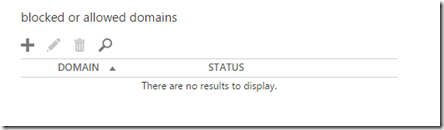
Below this you can enter the domains you wish to block or allow depending your selection above. In my case I have nothing in there but if someone starts spamming me via Skype for Business I would add their domain here (you have been warned!).

Once you have made these change don’t forget to scroll right down to the bottom of the page and select the Save button to update your preferences.

image

Now you can add people from outside your organisation that are using Skype for Business as well as consumer Skype as you can see above. The designation External Network indicates they are Skype for Business users outside your own Office 365 environment.

If you change the external communications setting in the Skype for Business admin center it may take 15 – 30 minutes for these changes to flow through and allow you to connect with external parties, so be patient.

That hopefully makes it easy for you to configure your Office 365 tenant to make connections with other Office 365 and consumer Skype users. As I said, I encourage anyone to connect to me using Skype for Business (admin@ciaops365.com) and contact me directly.

New Outlook on the web features

Microsoft recently announced some updates to Outlook on the web. You can read about all of them here:

New features coming to Outlook on the web

But I thought I’d highlight a new feature that I have found pretty handy, and it is called Sweep.

image

So when you visit your mail in the Office 365 portal you should find a new toolbar across the top as shown above. In there you see an option called Sweep.

image

To use Sweep simply select a message from your inbox and then select the Sweep option from the menu. This should display a dialog box as shown above.

In this case I select the second option, Delete all messages from the inbox folder and any future messages.

Then select the Sweep button to complete the process.

image

You should then receive a confirmation like shown above. if you select the View rules button.

image

You’ll then be shown the rule that was just created from your actions. At the bottom you’ll also see any automated Sweep rules that have been created to keep your inbox tidy between visits.

Sweep is just one of the ways the Microsoft has improved your ability to manage your emails with the updated functionality in Outlook on the web. For more details on all the new features make sure you read the blog post:

New features coming to Outlook on the web

Beyond the License webinar

Office 365 has many, many great features but it seems too often the case that the only thing people use is email, and just basic email at that! How is that making things more productive?

After conversations with conferencing specialist Greg Plum from PlumUC, we have decided to put on a webinar designed to show you all the really cool bits of Office 365 you can implement to turn your plain Jane Office 365 into a turbo charged rocket of business efficiency!

You can register right now at:

http://bit.ly/O365-BTL

for the event (which is 1PM Eastern US time on the 1st of September 2015). Everyone who registers will receive a copy of the recording, so you can get a good nights’ sleep if you need to, as well as other special bonuses. There’ll also be plenty of great information and I’m please to announce a special guest. All the way from his homeland of Bainbridge Island we will be bringing you the one, the only, Mr Harry Brelsford of SMBNation to share his thoughts on all this cloud stuff and where the money is in Office 365.

This event will be content and technical heavy, presented by people who know the product, how to use the product to be more efficient and what add ons you should be incorporating to make Office 365 even better.

So don’t delay, sign up now and reserve your place as they are limited.

I hope to see you at the event.

Need to Know podcast–Episode 90

I’m joined again by Jeff Alexander from Microsoft to continue our discussions around Windows 10. Jeff is back from Seattle with all the latest news about the deployments and we dive deep into the Windows as a Service offering and differences it will bring. We also talk about Windows 10 Office apps and getting Windows 10 connected to Server 2012 R2.

If you missed the previous two episodes Jeff did then you will find them at:

Jeff Alexander on Windows 10 – Episode 1

and

Jeff Alexander on Windows 10 – Episode 2

You can listen to this episode at:

http://ciaops.podbean.com/e/episode-90-jeff-alexander/

or subscribe to this and all episodes in iTunes at:

https://itunes.apple.com/au/podcast/ciaops-need-to-know-podcasts/id406891445?mt=2

The podcast is also available on Stitcher at:

http://www.stitcher.com/podcast/ciaops/need-to-know-podcast?refid=stpr

Don’t forget to give the show a rating as well as send me any feedback or suggestions you may have for the show. I’m also on the hunt for some co-presenters so if you are interested on being a regular part of the show please contact me.

Resources

Windows as a Service – https://channel9.msdn.com/Events/Ignite/2015/BRK2322

Windows 10 Office apps – https://blogs.office.com/2015/07/29/office-mobile-apps-for-windows-10-are-here/

Join at Azure AD – https://blog.ciaops.com/2015/07/connect-windows-10-to-azure-ad.html

Jeff on Twitter – https://twitter.com/jeffa36

Jeff’s About.me page – https://about.me/jeffa36

Windows Insider program – http://insider.windows.com

Windows 10 uservoice – https://windows.uservoice.com/forums/265757-windows-feature-suggestions

Windows 10 Blog – http://blogs.windows.com

CIAOPS SharePoint Guides on Docs.com

At the beginning of the year I decided to ‘open source’ my documentation from my SharePoint Guide. It contains a significant amount of information around Windows SharePoint Services and Windows Foundation 2010.

I have now placed a copy of all this information on the updated Docs.com from Microsoft. This provides more flexibility around sharing the information and allows more feedback as well as letting me see how popular the content is.

https://docs.com/c/e/windows-sharepoint-services-guide_COWMZJVMRaAZAEAAghyGGJw%7eMd4186d87-61d5-259a-4d26-00a8bd86cfff


https://docs.com/c/e/sharepoint-foundation-2010-guide_CNGMZJXKJVTCVcAAXCVg0gA%7eMd4186d87-61d5-259a-4d26-00a8bd86cfff

So if you are after information on Windows SharePoint Services v3 or SharePoint Foundation 2010 check out these new repositories and watch my Docs.com for more free content.

Need to Know podcast–Episode 89

In this episode I speak with SMB IT rockstar Karl Palachuk, famous for his books, presentations and being an all round good guy. We chat about the IT Pro business and the IT community in general and where things are headed in the future with technology and those that support it. I’ve been on Karl’s podcast many times, now is my chance to reverse the roles.

You’ll also find some news and updates on Windows 10 and Office 365 as usual in this episode, so sit back and enjoy Mr Karl Palachuk.

You can listen to this episode at:

http://ciaops.podbean.com/e/episode-89-karl-palachuk/

or subscribe to this and all episodes in iTunes at:

https://itunes.apple.com/au/podcast/ciaops-need-to-know-podcasts/id406891445?mt=2

The podcast is also available on Stitcher at:

http://www.stitcher.com/podcast/ciaops/need-to-know-podcast?refid=stpr

Don’t forget to give the show a rating as well as send me any feedback or suggestions you may have for the show. I’m also on the hunt for some co-presenters so if you are interested on being a regular part of the show please contact me.

Resources

Connect Windows 10 to Azure AD

Sway now generally available

Office 365 new round up

Jeff Alexander on Windows 10 – Episode 1

Jeff Alexander on Windows 10 – Episode 2

Karl Palachuk