The way I approach Office 365 adoption for businesses is very different from the approach that many take. My experience shows that successful adoption is all about understanding the human experience rather than just implementing technology.
The vast majority of people and businesses are very change adverse. That’s normal. This means they are already wary of what technology brings their work life. Many have also had plenty of experiences where technology failed them and actually made their job more difficult. All of these factors are an accumulated mountain that implementing new systems inside a business need to surmount.
The solution is not to attack that mountain with more technology, it is to focus on enabling people with technology. It is about making technology more personal for the user and showing them how it can help them get their job done. It is about letting them become familiar with what the technology can do.
Thus, the starting point is always the individual, because we all know everyone wants to know ‘what’s in for me?’. If you don’t get individual buy in then you’ll never get business buy in. It’s the individuals that make the business succeed, not the other way around! So what’s the strategy here when it comes to Office 365 adoption?
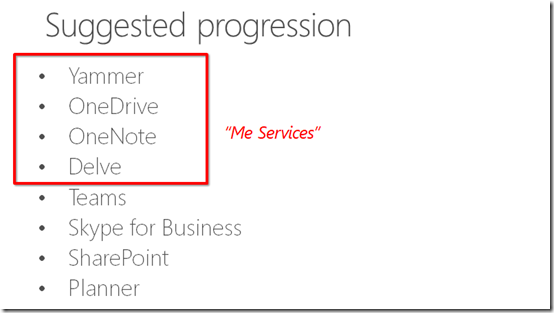
The approach I recommend is always to focus on the ‘me’ services in Office 365 first. These services to my mind are Yammer, OneDrive for Business, OneNote and Delve.
I have talked about why Yammer is the key starting point for adoption previously:
In summary, Yammer is a great way to make a big impact with little investment. It basically allows the business to work in public, which most businesses have never been able to do. Yammer also allows people to contribute and consume what is happening in the business and with those around them, on the desktop or on their phones. In short, it brings the social nature of being human into a business and in my experience produces huge initial wins for the business.
Once Yammer has been rolled out the next recommendation is to get users onto OneDrive for Business. In essence this gives them familiarity with the SharePoint experience of working with files but without being in the glare of everyone else in the business as they do with Team Sites. Because OneDrive for Business is personal, they can play, use and learn without fear of ‘breaking something’ or interfering with others. It has the added benefit of moving all their unbackedup data (desktop, My Documents, C: drive, etc) to somewhere they can easily access that just about anywhere. For the business, it provides greater compliance and security over their information.
Next up, I recommend OneNote. OneNote is an app that most people have never used but it is available on all platforms. That makes it easy to start saving information into. Once information is in OneNote it is backed up and sync’ed to all devices automatically. How many people do you know that carry a pen and pad wherever they go? Just about everyone right? Imagine the benefits those people would get if they recorded even some of their stuff into OneNote? The killer feature of OneNote is search. Since you have already got users hooked on OneDrive for Business, now you show them the benefits of creating and saving OneNote notebooks there. Whether they create one massive personal notebook or lots of smaller ones, it doesn’t matter. Now they have a digital notebook that never runs out, is always backed up and available on all their devices.
The final piece of the puzzle is Delve. How is Delve a ‘me’ service you may ask? Well, the way I see it, Delve is a user’s personal search engine. It allows them to search across all their documents, all the shared documents they have access to, their attachments as well information about others in the business. Remember how I said search is the killer feature of OneNote? It is actually the killer feature of Office 365. Delve shows them THEIR document feed, the people THEY are interactive with most. It allows them to create THEIR OWN personal blog and so on.
Delve is also great from an administrator’s point of view because there isn’t much that needs configuring. However, for successful adoption an administrator MUST ensure that one feature of Delve is enabled. Can you guess what that is?
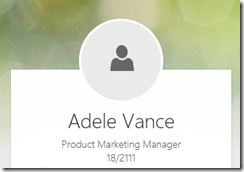
Nothing looks worse than having just a shadow staring back at you from your Delve. To drive adoption successfully you MUST have the user’s profile picture there automatically or show them how to upload it themselves.
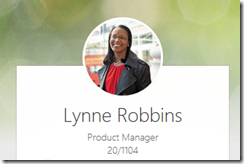
Users will feel greater ownership if they see firstly, their own picture and secondly, pictures of the co-workers. Remember, you are implementing something like Office 365 to benefit users, not just for something to do. Thus, doing everything you can to promote buy in makes sense. There are so many other benefits of ensuring you have images in user’s profile that I won’t go into here, but rest assured, they are critical when it comes to adoption.
Once you have all these ‘me’ services rolled out, then you can start looking at ‘us’ services like Teams, SharePoint and so on. How do you know when the time is right to shift from ‘me’ adoption to ‘us’ adoption? Well, the metrics that you established prior to rolling out Office 365 should be the yard stick, however when users come to you and say things like:
– “Hey this Yammer thing is great, could we use it for this?”
– “OneNote is amazing, will work for this project?”
and so on. Basically, you’ll know then that the time is right to shift to rolling out ‘us’ services. You just have to wait till users start asking for them. At that point you know they are comfortable with the technology and have embraced the benefits themselves and now want to extend that elsewhere in the business. They are no longer afraid of the new technology, they see how it can make their lives easier. At that point, it is time to unlock your adoption achievement award and move on.
Thus, successful Office 365 adoption is about focusing on the individual before the team. It is about giving them ‘me’ services to allow them to become familiar in their own time and space. Once they do that they’ll come to you asking how these can be extended beyond their own world.
That is the way to do Office 365 adoption successfully in my books.