Some suggested Office 365 Settings changes

image

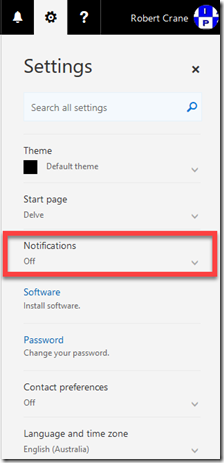
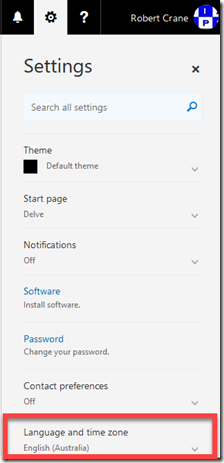
I have just noticed there seems to be some additional settings in Office 365 for the user environment. If you select the COG in the top right of your Office 365 portal you will see the menu displayed above. What I didn’t previously remember was the Notifications and Language and time zone options that I now see.

image

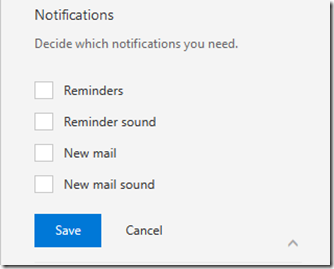
You can now go into the Notifications area and disable those web based alerts, which I must admit I personally found detracted from my productivity when I was working in the browser.

SNAGHTML53fcaae

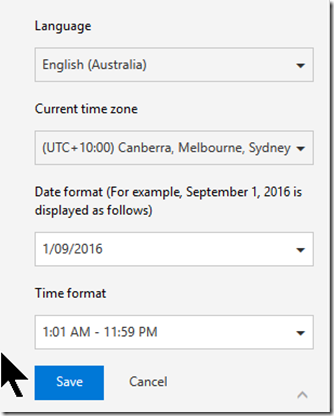
At the bottom you’ll find an option to set your location and country formats.

image

Now that I have set this to Australia I’ll have to see whether it fixes a few places in Office 365 I’ve be struggling to change from the US date format (like in Planner). If it does, I’ll do a follow up article but for now, disabling is web based notifications is enough to calm my Chi.

Updating Communication sites subsites home pages

image

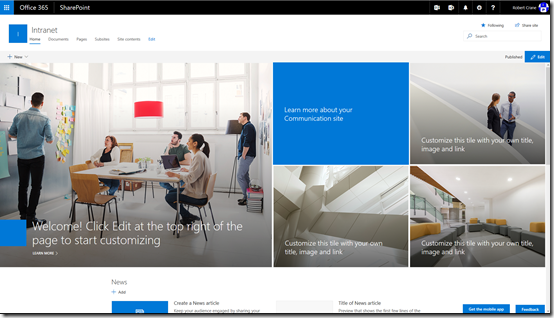
The new SharePoint Communication Sites are great and are going to be really helpful for people wanting to create a ‘cool intranet’ (you wouldn’t believe how many times I get asked this. So, what’s cool again? Is my response).

image

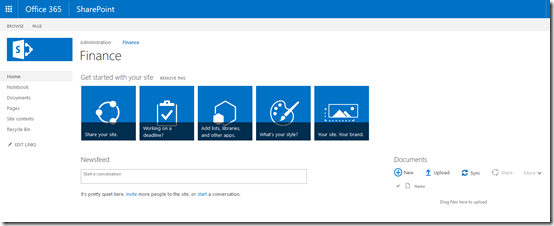
However, one of the current issues I came across when you want to create subsites from the root of a new Communication Site is that these subsites don’t have a similar look and feel by default. In fact they have the ‘classic’ appearance as you can see above.

That can be a bit jarring because you kind of expect everything from the root down to be all modern. However, swapping the default ‘classic’ homepage to a ‘modern’ page isn’t too hard. Here’s how to do it.

image

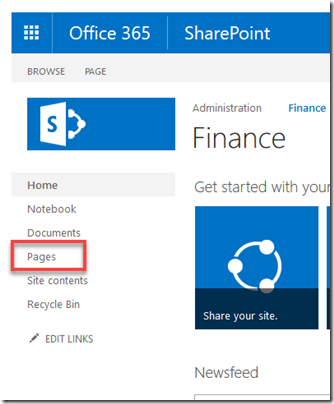
Once you have created the subsite from the root Communications Site locate the Pages option from the Quick Launch menu on the left of the new subsite and select it.

image

This will take you to the location where SharePoint keeps all the Site Pages. The current homepage for the site is the one called home.aspx.

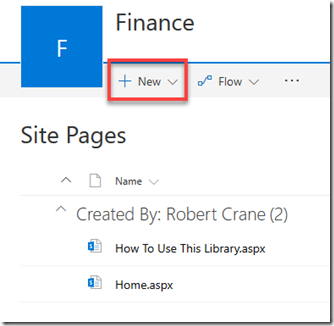
Now select the New menu option at the the top of the page.

image

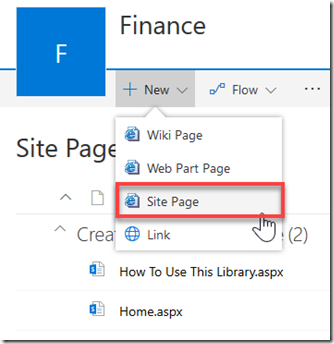
From the menu that appears select Site Page.

image

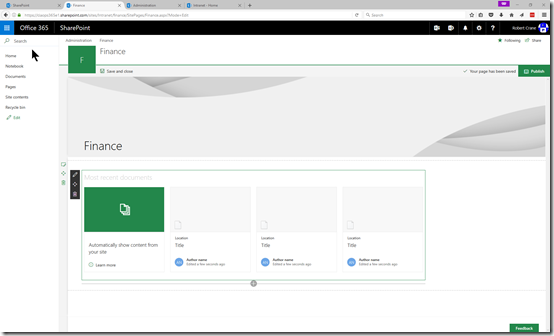
You’ll then be taken to a new ‘modern’ page that you can edit to make it display the way you want. Be default, the actual name of the page will be the name you use in the heading.

When you have completed working on the page Save and Publish it as you would normally.

image

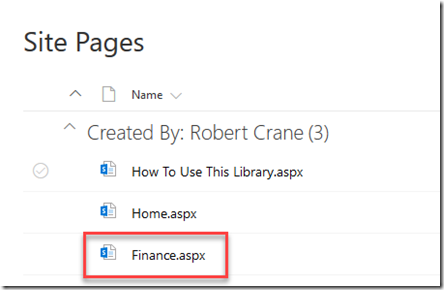
You should be returned to the list of pages and you should now see a new one as shown above. In this case it is called finance.aspx.

image

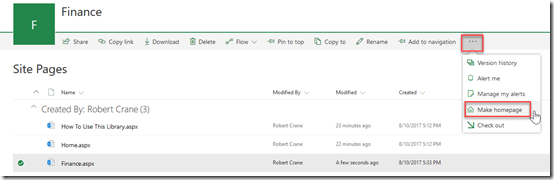
Select the new file just created by placing a check mark to the left of the file name and then from the menu that appears across the top select the ellipse (three dots). From the menu that appears, select Make homepage. The same option is also available if you right mouse click on the file.

image

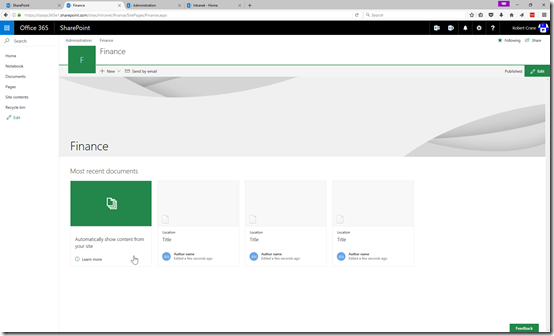
If you now navigate to the homepage of the subsite you should see the page you just created.

You have now successfully replaced the default ‘classic’ style homepage with ‘modern’ version that is more in keeping with the look and feel of Communications Sites.

Need to Know podcast–Episode 160

We are back with more Office 365 and Azure news as well updates on what both of us have been doing lately. Marc’s been giving people PowerShell training while I’ve been doing Azure presentations and workshops. That has however not prevented us collecting the most important news on the Microsoft Cloud and once again presenting to you with a dash of humour and sarcasm. Count the animal noises in this episode!

Take a listen and let us know what you think –feedback@needtoknow.cloud

You can listen to this episode directly at:

https://ciaops.podbean.com/e/episode-160-undisclosed-location/

Subscribe via iTunes at:

https://itunes.apple.com/au/podcast/ciaops-need-to-know-podcasts/id406891445?mt=2

The podcast is also available on Stitcher at:

http://www.stitcher.com/podcast/ciaops/need-to-know-podcast?refid=stpr

Don’t forget to give the show a rating as well as send us any feedback or suggestions you may have for the show.

Resources

@marckean

@directorcia

Azure news from Marc

Office 365 group expiry

Possible Findtime replacement

PowerShell browser

OneDrive turns 10

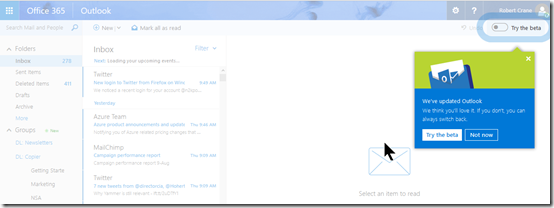
Outlook.com beta

New Outlook add in for Microsoft Teams

Become a CIAOPS Patron

This episode is brought to you by:

https://cpem.io/tJ01Hzu2k.js

CIAOPS Need to Know Webinar–August 2017

laptop-eyes-technology-computer

Once again our monthly webinar is now scheduled for August. As always, it is free to attend and will cover the latest Office 365 news from Microsoft. This month’s deep dive will be into the new SharePoint Communications which provide an enhanced way to brand your SharePoint Team Sites.

You can register for free at:

August Webinar Registrations

The details are:

CIAOPS Need to Know Webinar – August 2017
Tuesday 22nd of August 2017
11am – 12am Sydney Time

All sessions are recorded and posted to the CIAOPS Academy.

There of course will also be open Q and A so make sure you bring your questions for me and I’ll do my best to answer them.

The CIAOPS Need to Know Webinars are free to attend but if you want to receive the recording of the session you need to sign up as a CIAOPS patron (for only USD$10 per month) which you can do here:

https://blog.ciaops.com/2017/08/the-ciaops-patron-program-is-being.html

or purchase them individually at:

http://www.ciaopsacademy.com/

Also feel free at any stage to email me directly via director@ciaops.com with your webinar topic suggestions.

I’d also appreciate you sharing information about this webinar with anyone you feel may benefit from the session.

Why Yammer is still relevant

A little while ago I did a presentation at a user group on “Why Yammer is still relevant”. I’ve recorded that presentation and made it available to all, so take a look and let me know what you think. The slide for the session are also available for download.

The crux of my process is that Yammer is the best way to drive Office 365 adoption. Why? Because:

– Yammer is really targeted to do one thing well (public conversations)

– It requires no infrastructure to implement as it is a cloud only solution

– It has a free entry level version

– It is mobile ready

– It integrates well to other Office 365 services

The secret to implementing such a huge product like Office 365 is not to overwhelm users with an ‘everything at once’ approach. See my ‘rule of three’ for more thoughts on that.

Likewise, if you underwhelm users with just email, they will yawn and ask with they are bothering to pay for Office 365.

You need to find a good starting point for on boarding people into the new way of working with Office 365. This means you need to give them something that doesn’t take a whole lot of training to understand, yet provides some major productivity benefits. To me, Yammer fits that bill in spades.

That doesn’t means that you can’t use Microsoft Teams down the line but Microsoft Teams, with its links to files and stuff, can be too much initially for users to get their heads around, especially if they are coming from a world of files and folders. Yammer by contrast is simple and ‘works’ in a similar way to many social networks they already probably use (a la Facebook). That means less training, and importantly, less resistance thanks to pre-existing understanding.

The big productivity payoff is simply visibility of shared information. Such visibility means that information can now be shared with everyone in the business. This means users can find what they want themselves by simply searching for it.

Yammer also speaks to the two most important demographics I have outlined previously when it comes to driving Office 365 adoption, your innovators and laggards. Yammer allows you innovators to dive right and start posting information and showing people how much they know. For laggards, Yammer allows them to sit back and watch what everyone is doing before become comfortable enough to contribute.

Like all Office 365 services, to have a successful adoption you need to have a plan. My suggestions for overall adoption, as I have outlined, is to start with Yammer. To kick this adoption process off with Yammer you create two internal networks called ‘Social’ and ‘Office 365 101’. The idea with the ‘Social’ area is that it is somewhere that people can share birthdays, sports results, holidays, etc. You may think that have a ‘Social’ group is frivolous to a business. It is, however, very specifically designed to help drive adoption. How? Well, the more restrictions you place on people, the less likely they are to use it right? So, the concept of the ‘Social’ group in Yammer is as place with few restrictions, therefore encouraging adoption of the service. If you don’t want to see the ‘Social’ stuff you don’t join that group. Unlike company wide email blasts, users can select which Yammer group they want to be part of.

The ‘Office 365 101’ group in Yammer becomes a place that is initially seeded with helpful links, videos, and the like. It is the place people come to ask questions about Office 365 inside the business and get answers from implementers. However, here’s where the real magic of Yammer happens. Although there is some initial effort required to seed the group, what you generally soon find is that soon your innovators and early adopters start answering questions posted by others as well as contributing helpful information. They start doing what they have always done, showing people how much they know and helping others. Now all you need to do is stand back and the group ‘Office 365 101’ becomes self supporting. Amazing eh?

Once users have grasped the concept of Yammer with these two groups they will come asking whether they can use Yammer to solve business challenges. At that point, you know your adoption process is on the road to success. Until that point, you have to continue to work getting users to understand the benefits of Yammer and using the service for themselves (hint, just show them search and they’ll ‘get it’).

In a nutshell, that’s why I see Yammer now as being more relevant than ever. I look at it as the starting point for all Office 365 adoption projects and in my experience is works really well in that way. Implemented correctly, it is a product that will revolutionize a business and help them understand how the ‘new world’ of collaboration with Office 365 can improve their productivity and change the way they work.

Consistent success comes from having a system and Yammer is a key part of my adoption system for Office 365. I would suggest it should also be part of yours.

Microsoft Teams and OneNote integration

One of the ways that I describe Microsoft Teams to people is as a simplified and aggregated wrapper over things such as SharePoint Teams Sites and Skype for Business. Many may not appreciate however that it is also a wrapper over one of other favourite products, OneNote.
image

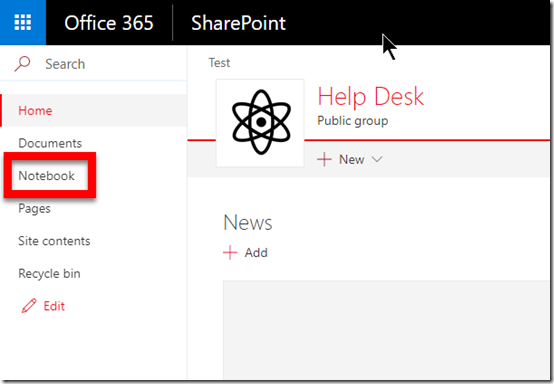
When you create a new Microsoft Team you also get a new SharePoint Team Site as part of that. That SharePoint Team Site contains a OneNote notebook which is known as a ‘site notebook’. To view it, simply select the link Notebook from the Quick Launch menu on the left of the SharePoint Team Site.
image

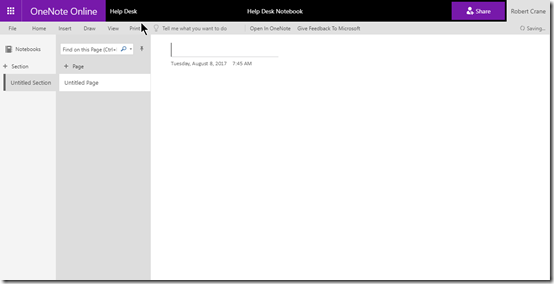
If you open that notebook you’ll see that it is blank, as shown above. OneNote is arranged by sections, inside which are individual pages.
image

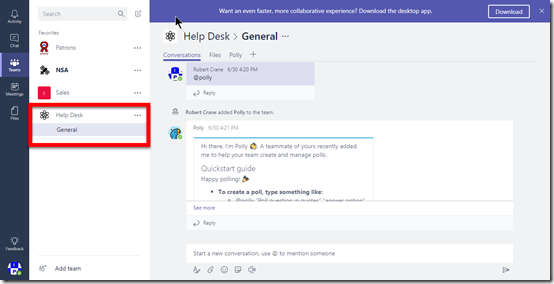
If you now go to that Microsoft Team (in my case, called Help Desk), you will see the normal Conversations and Files tabs at the top of the only channel I currently have in the Team called General, like so:

image

You’ll notice that I have already added a new tab to this channel (Polly) thanks to a bot I’ve inserted into this Team. I’ll cover bots in another post.

What you don’t yet see in the Team channel is anything to do with OneNote. The reason is that OneNote connectivity is not added by default.

SNAGHTML47bbcaeb

To connect this Microsoft Team channel to OneNote press the ‘+’ (plus) item on the menu.
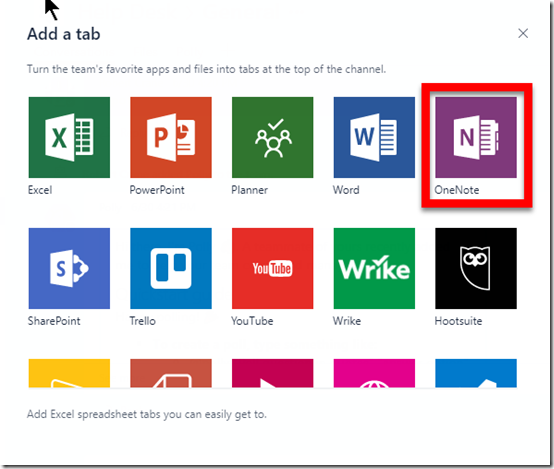
image

That will display a new window, as shown above with all the items you can add to menu. One of these you should find is OneNote.

Select the OneNote tile.
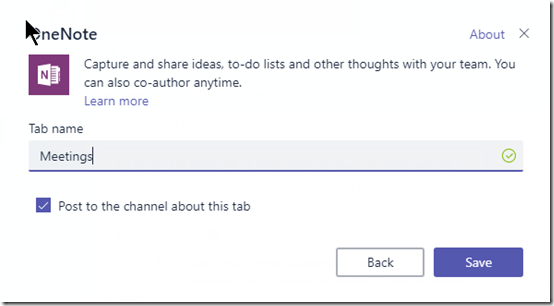
image

You’ll then be asked to give the new tab a name. Here I have called it Meetings. Select the Save button when you have made your choice.
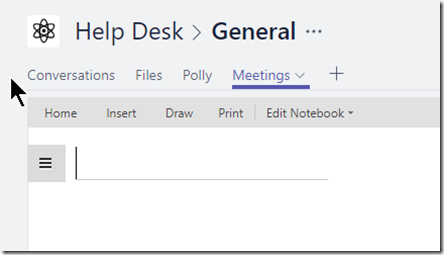
image

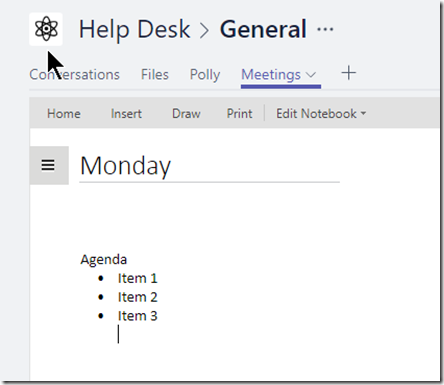
Now you should see a new menu item across the top matching the name you just gave OneNote (here, Meetings). You’ll also notice that you are placed into a OneNote style page below the menu.
image

You are now free to give your page a name and enter any notes into that page.
image

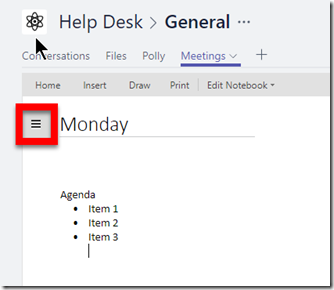
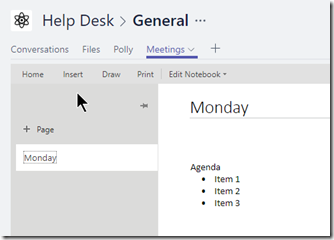
If you now select the ‘hamburger’ menu in the top left of the page you will see,
image

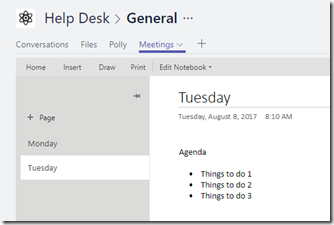
This should now begin to look more and more like OneNote. Here you can go in and create new pages like so,
image

That’s really handy for everyone in that channel to capture information.
image

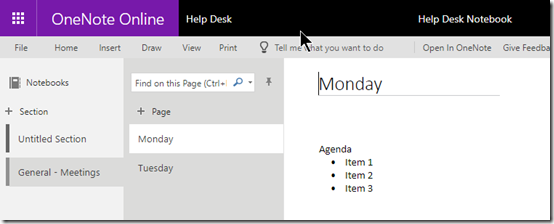
If you now return to the Site Notebook directly in SharePoint you should find the notebook looks something like that shown above. There is a new section with the name Channel – Selection name (here General – Meetings) and the information just enters appears as pages.

Thus, when you add the OneNote option to a Team channel a new section is created in the Site Notebook in the SharePoint Team Site that was created when that Microsoft Team was established. Pages you create in that channel are then saved under that section.
image

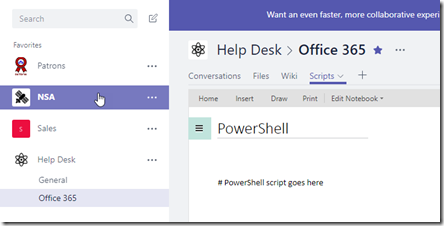
If I now go and create a new channel for that Team (here called Office 365) and then add OneNote to that channel as above, I again get the ability to add pages. Here, I have created a new page called Scripts in my Office 365 channel.
image

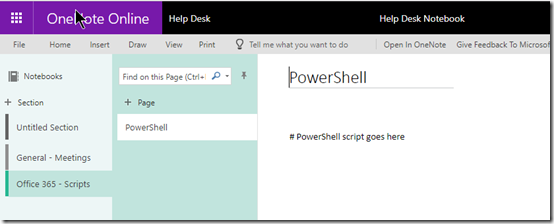
If I now go back to my Site Notebook in the SharePoint Team Site I can see this new channel as a section and the page I created underneath it in standard OneNote format.

So in summary, when you create a new Microsoft Team you get a new SharePoint Team Site. This SharePoint Team Site contains a single OneNote notebook called a Site Notebook. If you then add OneNote to a channel in Microsoft Teams, the name you give that OneNote tab becomes a new section in the Site Notebook. Any new page you create in that channel gets created under this section in the Site Notebook.
image

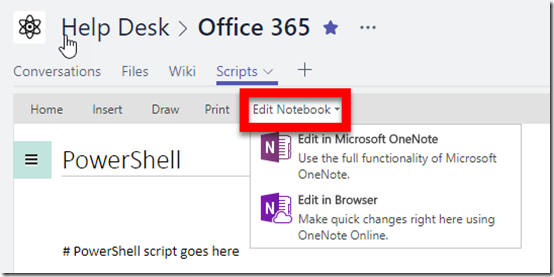
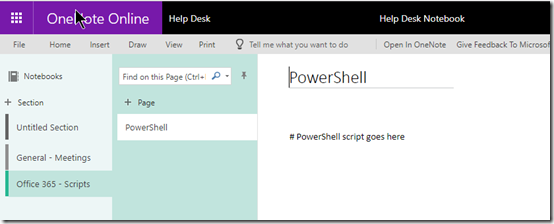
If you elect to Edit Notebook, as shown above, you will get the option to work with the WHOLE notebook in the web or via OneNote on the desktop. That means you are in effect opening the complete Site Notebook where you will see ALL the sections (channels) and pages below like so
image

Given the way the sections are named after the actual channel, hopefully this avoids confusion but there will no doubt be those who don’t see the connection between the Microsoft Team as a whole and all the channels within it and the Site Notebook which holds ALL the OneNote information for the Microsoft Team as a single OneNote notebook file. You can view the OneNote information for the Microsoft Team by channel inside the Microsoft Teams app or for the WHOLE Microsoft Team (i.e. all the channels) at once using the OneNote app.

Hopefully, this articles goes some way to explaining the configuration and connectivity between Microsoft Teams, SharePoint Teams Sites, the Site Notebook and OneNote.