Need to Know Podcast–Episode 116

Marc and I are joined by MVP Bill Chestnut, maybe better known as Biz Talk Bill, to speak about the wave of automation that is sweeping Microsoft products. Bill brings us up to date about Microsoft Biztalk Server and then shares with us his insights around things such as Azure functions, Microsoft Flow and PowerApps. We also cover the latest Azure, Office 365 and Microsoft Cloud news for you to ensure you have the latest.

You can listen to this episode directly at:

http://ciaops.podbean.com/e/episode-116-bill-chestnut/

or subscribe via iTunes at:

https://itunes.apple.com/au/podcast/ciaops-need-to-know-podcasts/id406891445?mt=2

The podcast is also available on Stitcher at:

http://www.stitcher.com/podcast/ciaops/need-to-know-podcast?refid=stpr

also now on Soundcloud at:

Don’t forget to give the show a rating as well as send us any feedback or suggestions you may have for the show.

Resources

Bill Chestnut – @biztalkbill

Marc Kean – @marckean

Robert Crane – @directorcia

Biztalkbill.com

Azure functions

Azure Logic Apps

Microsoft Flow

PowerApps

Marc’s blog

New access controls for Office 365

New Office 365 App launcher

Updates to Yammer

Automatically download all the Microsoft Ignite 2016 content

Automatically download all the Microsoft Ignite 2016 content

image

I’m still working my way through all the content from the recent Microsoft Ignite 2016, however what I really wanted was all the PowerPoints from each presentation in one place as files and searchable. I also heard from many who wanted that as well as all the videos from the sessions downloaded locally.

Luckily, Michel de Rooij has created a PowerShell script to do this automatically for you. You’ll find it here:

Ignite 2016 Slidedeck and Video downloader

Simply download and run the script to get the videos and presentations from each session downloaded directly to your local machine. If you are like me and only want the PowerPoint’s then run the following command:

.\ignite2016downloader.ps1 –novideos

That will automatically create a local directory called \ignite2016 and commence downloading the specified content there. You see exactly this taking place from the screen shot above.

Now, downloading the content is one thing but making effective use of so much material is another, but I have a solution for that as well. What I did after getting all the content was to then to upload it into a SharePoint Online Document Library so that it is quickly searchable and I can easily see a preview of each file. Not only that, I can also use my own custom metadata to tag information by technology allowing me to group similar sessions together, keep track of what I’ve already reviewed and so on. Watch out for an upcoming post on how I’ve done this.

Remember, data on its own is useless. With SharePoint Online, I’ve transformed data into information and in the process made myself more effective. Achievement unlocked!

Thank you Mr Jeffrey Snover for telling me about OMS

image

After conducting a recent podcast with Jeff Snover from Microsoft I decided to spend a little time playing with Microsoft Operations Management Suite (OMS). What I didn’t realise, but was highlighted by Jeff in the podcast, was that fact that OMS comes with a free tier!

So I went ahead and created a workspace and then started to connect things like my local machines to it so that the status could be reported back to my OMS dashboard. Thanks to that ability i received the above email letting me know that I needed to update one of my machines.

image

However, OMS does more than just warn me about security patches, it also details what software changes have been made on my systems as shown above as well of lots of other stuff.

image

You can also connect it to your Office 365 tenant as you see above.

image

I can click on that Office 365 tile in the console to reveal further detail, like that for SharePoint as shown above.

image

If I drill in further I get detailed log information as you see above. All of this is also searchable from OMS.

image

From this I can then go in and create an email alert as shown above.

This therefore provides a lot more detail and functionality around Office 365 reporting than I’ve seen elsewhere. Best of all, it is totally free! I would expect to see its abilities continue to increase.

image

You’ll find a huge amount of solutions you can simply plug into your dashboard to monitor all kinds of things, and they are adding new ones all the time. Just go to the solutions gallery, as shown above, to see all the modules you can add.

image

You’ll also see from the above that you can get a free plan that provides a lot of functionality, certainly a no brainer as a starting point for low level Office 365 monitoring and log capture. From there you can upgrade to the full plan on a per node per month cost.

Microsoft OMS is probably not as comprehensive as some existing third party monitoring solutions I’ve see out there in the SMB space at the moment, however I can also see how powerful OMS is going to become very soon as Microsoft focuses more attention and resources on its development.

I’d therefore be suggesting that if you need to monitor on-premise or cloud services then you really need to have a look OMS and understand what it can do today and what it is going to be capable of in the future. If I were those third party monitoring solutions, I’d be pretty worried about my business model going forward as Microsoft is coming to town with something that is going to make a huge impact.

If you need to monitor or secure any sort of technology, take a look at Microsoft Operations Management Suite (OMS) can do for you. You can even get started for free, so there is no reason not to give it a try.

I’ve got a new Office 365 App Launcher

image

As recently announced by Microsoft:

Introducing the new Office 365 app launcher

we’ll all be seeing a new style of App Launcher surface in our Office 365 tenants.

As you can see above, mine has already arrived thanks to being enabled for First Release.

image

What I really like about this new App Launcher is the ability to right mouse click on the tile and bring a configuration menu. One of the options is the ability to pin the icon to the nav bar which run across the the top of the Office 365 tenant.

image

This is a really handy way to quickly get to your most common services.

When you look at the new interface for Office 365, it is kind of a mirrored Windows 10 environment. When you think about it, that makes a lot of sense because you local services are at the bottom, while the cloud services are at the top of the screen. Not only that, it means you can use both navigation schemes with minimal overlapping. Smart. Great to see Microsoft thinking about the integrated usability of a users whole environment.

image

If you haven’t got the new App Launcher, don’t fret, you’ll see it soon.

Using the Office Deployment Toolkit

One of the most common questions I see around Office 365 is how to deploy Office applications to desktop using a single download or from a central network repository. To this you’ll need to use the Office Deployment Toolkit.

The first step is in this process is to download the appropriate version. The 2016 version is available here:

Office 2016 Deployment Tool

If you want to use this tool to deploy software across a local network the suggestion is that you download and install the tool on a suitable machine with enough disk space and that is available and connected to all machines on the network.
image

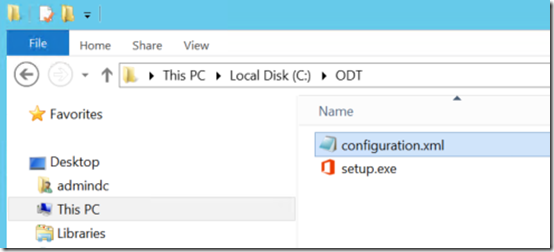
Once you have downloaded and installed the tool you should see just two files as shown above. It is also a good idea to share the location of the Office Deployment Toolkit across your network so connected machines can run the setup.exe program remotely to actually install the software.

The next step then is to create a network share into which the downloaded Office desktop software will be located on this machine.

In that directory you will find a file called configuration.xml. If you open this file you will see something like:

image

This contains information about the version of the Office software that will be downloaded and deployed. What you see here is only a very basic version of what the possible options are for the configuration file. You find the full list of options and parameters for this configuration file here:

Configuration options for the Office Deployment tool

However, I would suggest that an easier way to generate the appropriate configuration file for your environment is to visit:

http://officedev.github.io/Office-IT-Pro-Deployment-Scripts/XmlEditor.html

image

This web based tool allows you to enter in all the parameters you require and then for the configuration file to be built out for you automatically on the right. You can then simply copy and paste, email or download the result.

Take this and use it to overwrite the default configuration file provided.

image

You then need to go to the command prompt and navigate to the directory into which you downloaded the Office Deployment Toolkit. You then need to run the command:

setup.exe /download configuration.xml

This will then download the specified Office software to the location on your machine as specified in the configuration.xml file.

It is important to note here that you are downloading a full version of the Office desktop software every time, not just updates. You can rerun the command at any point with updated configuration parameters if required.

image

Once the command has completed, if you view the location where the files have been downloaded you should see something similar to that shown above.

You’ll also notice that I have different versions of Office software available thanks to also selecting to make first release versions of the software available.

With the Office software now downloaded to a shared network location, from a connected workstation you can map to the network location for the Office Deployment toolkit setup files and run the command:

setup.exe /configure configuration.xml

image

You should then see the Office software installation process commence.

The installation will use the parameters you have previously defined in the configuration.xml file.

The configuration.xml file also controls how updates are handled. Use the element to set attributes. For example:

If you wish to install Office software from Office 365 onto a Remote Desktop Server (RDS or Terminal Server) environment you MUST use the Office Deployment Toolkit to do this. You will also need to specify the following in the configuration.xml file:

Of course, you also need the appropriate version of Office 365. This is E3 or better. Business Premium suites are NOT licensed to have Office software installed in a RDS environment.

There are plenty of options available to you in configuration.xml to manage deployments, updates and removals so be sure to take a look at all the options. However, I recommend you use:

http://officedev.github.io/Office-IT-Pro-Deployment-Scripts/XmlEditor.html

to actually create the configuration.xml file you need.

Using the Office Deployment Toolkit is a quick and easy way to deploy and control Office software from Office 365 from a central network repository. It not only saves you bandwidth but also time.

CIAOPS Need to Know Webinar–October 2016

And now for something completely different! For the October Need to Know webinar I’m going to try ditching the previous webinar tool and go with good ol’ Skype for Business from Office 365. You can register now via:

October Webinar Registration

I’m also going to try a different time to see whether that works for more people. The details are:

CIAOPS Need to Know Webinar – October 2016
Thursday 20th of October 2016
3pm – 4pm Sydney Time

I will of course record the session and make it available via the CIAOPS Academy.

As for content, well there is a HUGE amount of news from the recent Microsoft Ignite Conference and I’ll be covering the main announcements but for the webinar deep dive session I’m going to look at how to develop a successful SharePoint/OneDrive for Business adoption strategy. You’ll learn real world strategies you can implement to help drive your Office 365 collaboration environment and get people doing more than just uploading files.

There of course will also be open Q and A so make sure you bring your questions for me.

So, I’d encourage you to register and stick with me through some of the bumps as I iron out and automate the new registration process using Skype for Business.

The CIAOPS Need to Know Webinars are free to attend but if you want to receive the recording of the session you need to sign up as a CIAOPS patron (for only USD$10 per month) which you can do here:

https://www.patreon.com/ciaops

or purchase them individually at:

http://www.ciaopsacademy.com/

Also feel free at any stage to email me directly at director@ciaops.com with your webinar topic suggestions.

I’d also appreciate you sharing information about this webinar with anyone you feel may benefit from the session.

SharePoint details pane

image

If you visit somewhere in SharePoint Online and select an item (here a document in a Document Library), as shown above, you can press the little ‘i’ in the top right hand side of the screen, as shown, to reveal the details pane.

image

What you might not appreciate is that you can also simply press the letter ‘i’ on your keyboard to achieve the same result.

Once the details pane has been exposed you’ll typically see a preview of that file along with all the information about that item as shown above.

image

If you scroll down a little in the details pane you’ll also find a list of recent activity of this specific item as shown.

image

If you have no items in the library selected, you will see an aggregate of all the activity in that area (i.e. for every item in that Document Library), as shown above for the Document Library ‘Documents’.

image

What you also might not appreciate is that you can re-size the details pane by dragging the left hand side border.

image

The great thing is that when you visit another location in SharePoint and again view the details pane, it will display with the same dimensions as you just set.

image

And when you return to the original location and view the details pane it will have these new dimensions. Thus, your setting remains ‘sticky’ throughout SharePoint.

These features are available with the modern SharePoint interface but you can always switch back to the ‘classic’ interface at any point in time, for a list or library or whole Team Site if you want. However, I’d encourage you to explore the added functionality the modern SharePoint interface provides. I think that once you start using it, you’ll really like it!

Resizing SharePoint column widths

image

One of the new features the modern SharePoint interface now provides is the ability to adjust the width of columns. As you would in a spreadsheet, locate the boundary of a column, click, drag and re-size to the desire width.

image

You can from the above, that I have re-sized the initial column width of the above Document Library.

image

Unfortunately, from what I can see, that changed column width doesn’t remain if you navigate away from the page. Thus, if you go somewhere else in your Team Site and then return to the original location the column widths are back to the way they were initially.

Hopefully Microsoft will soon add the ability for ‘re-sized’ columns widths to ‘stick’ after any change. However, having the ability to easily adjust column width in SharePoint is great additional functionality that has been missing for a long while.